Product Information
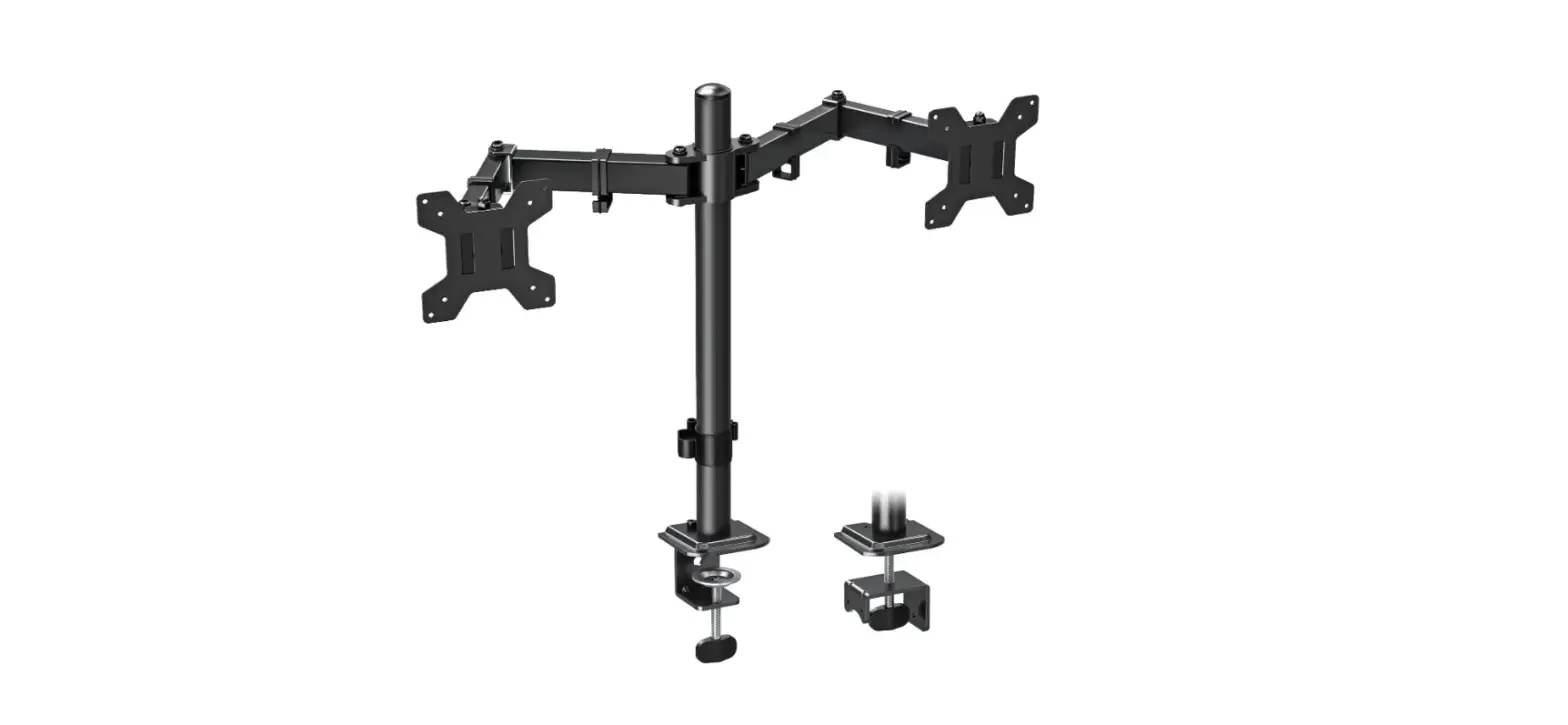
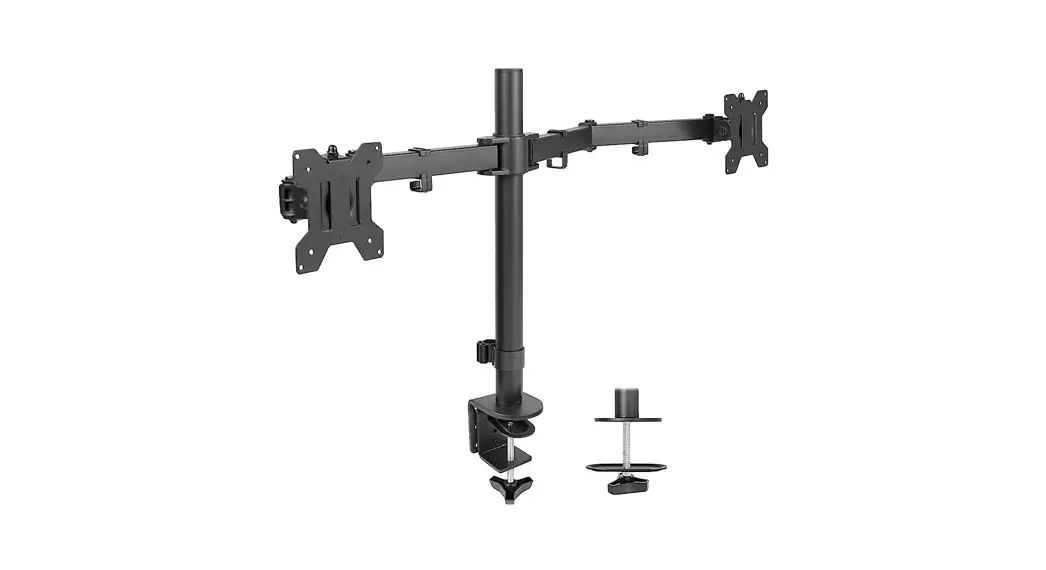
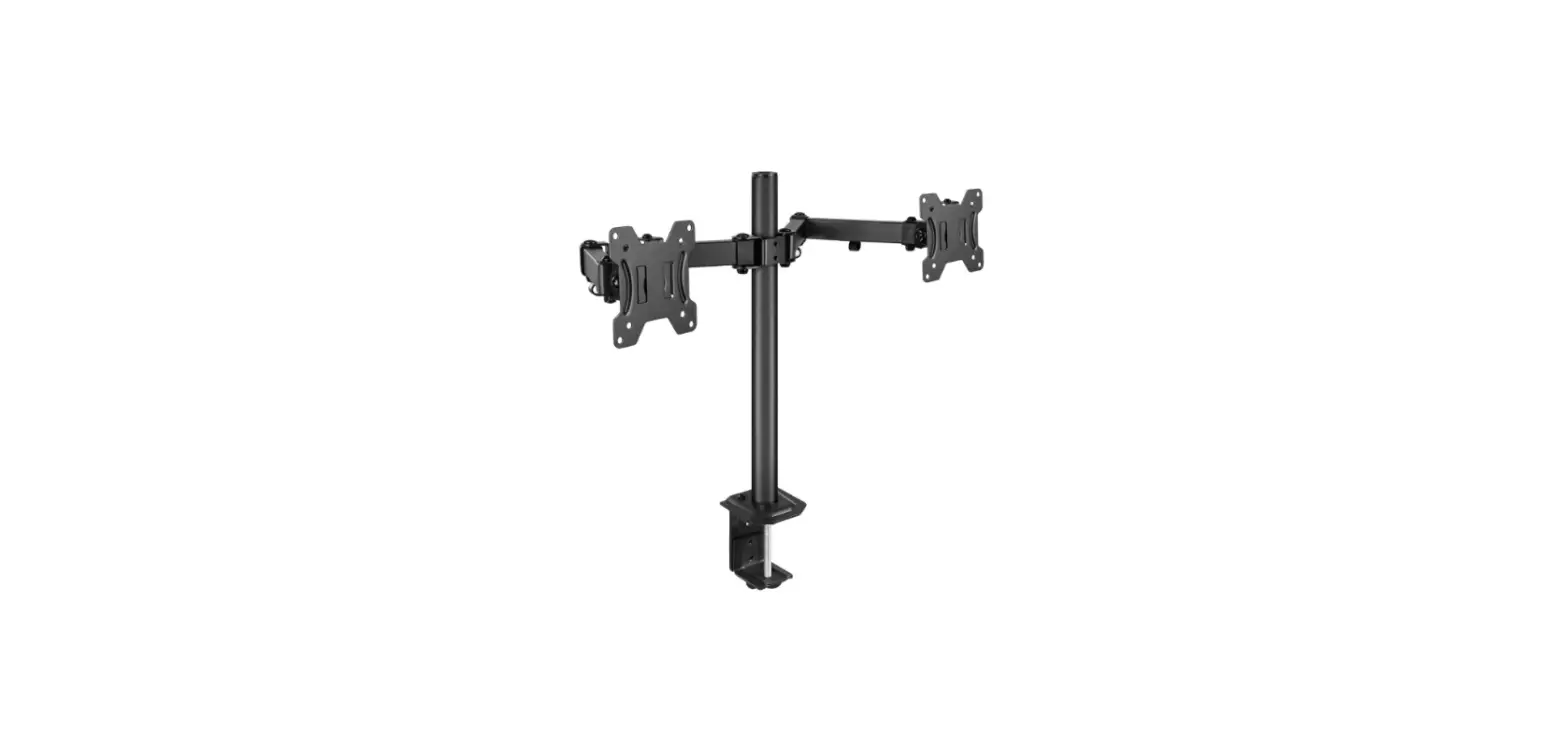
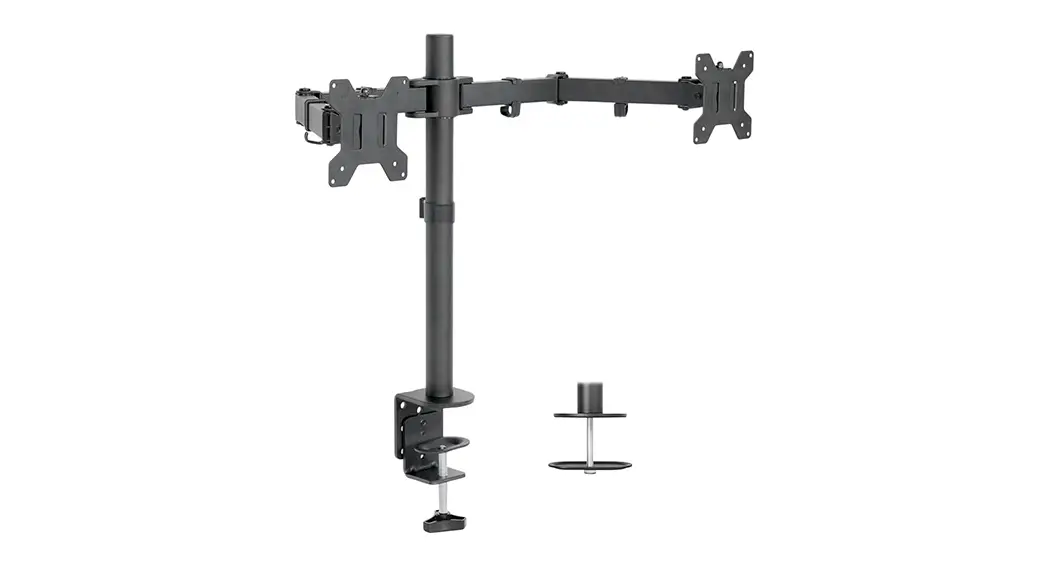
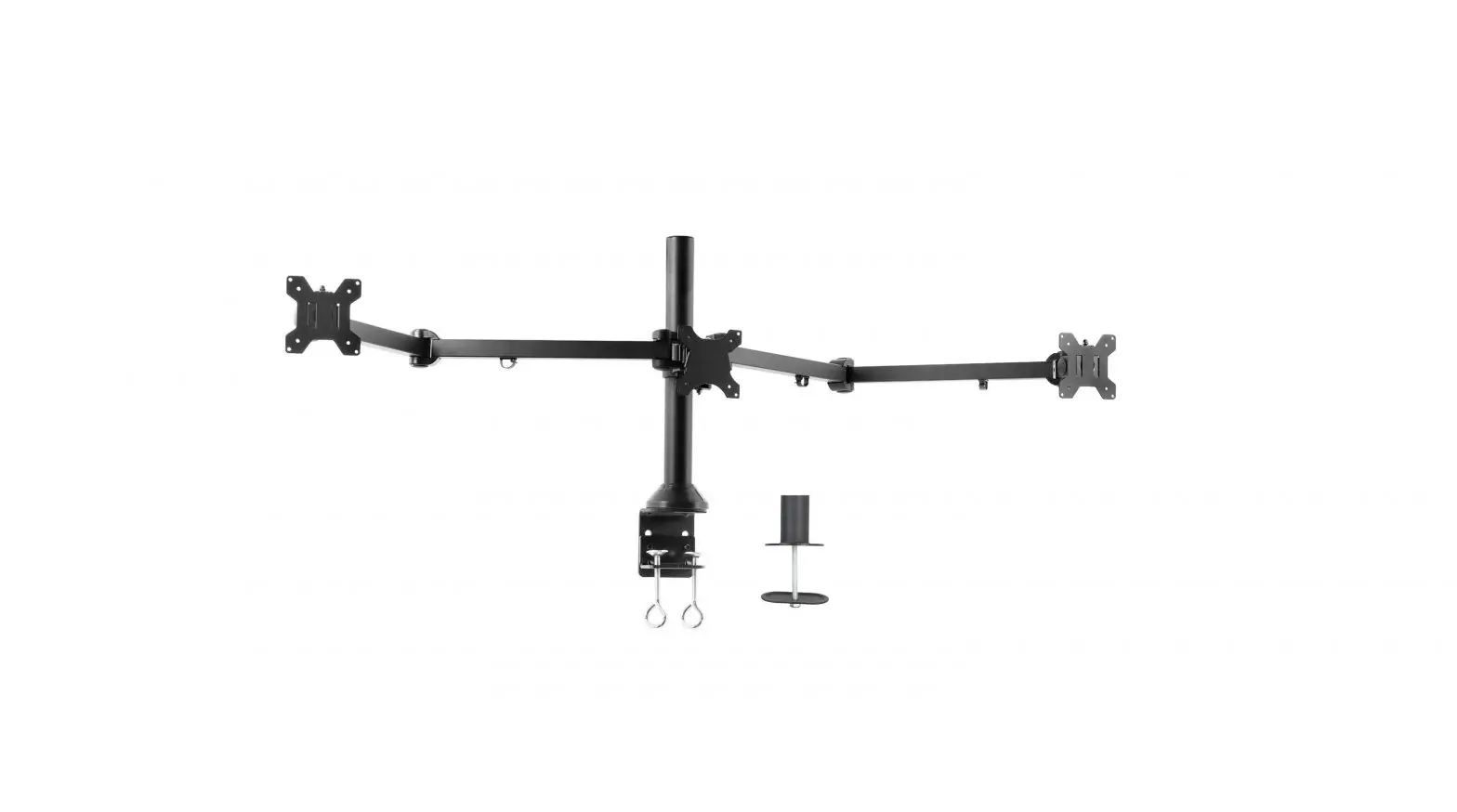
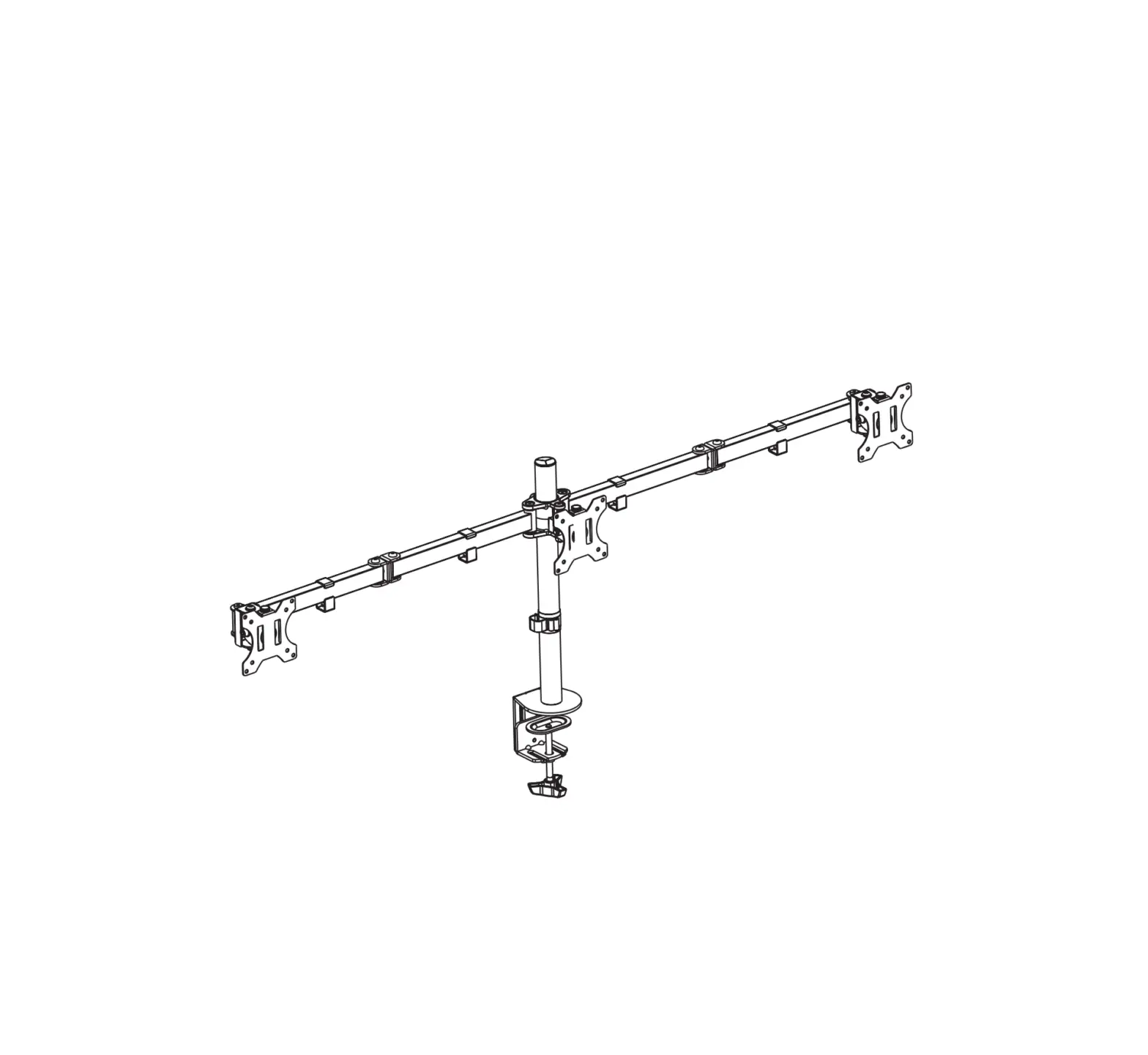
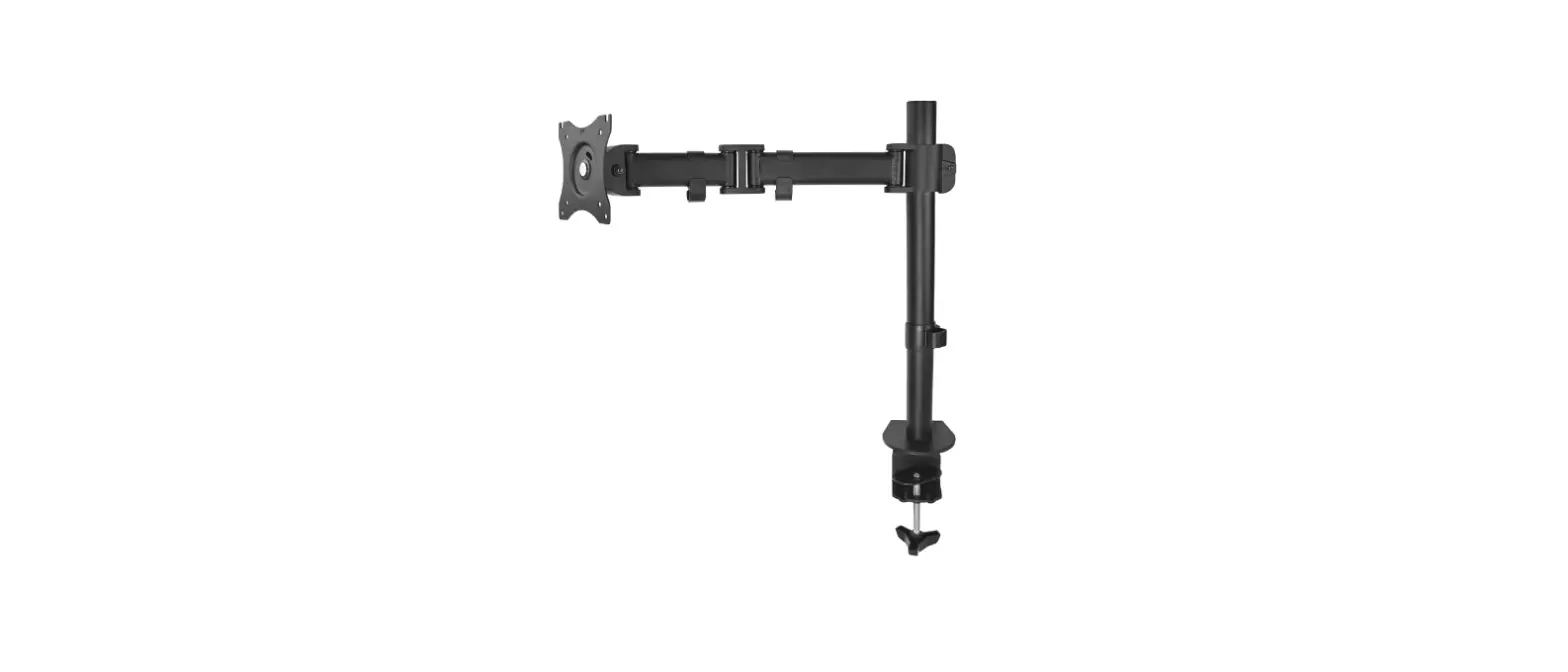
The Premium Dual Monitor Desk Mount is a versatile and sturdy
mount designed to hold two monitors. It has a weight capacity of
0-12 kg (0-26.4 lbs) per monitor. The mount is compatible with VESA
patterns of 75×75 and 100×100. It comes with a desk clamp that can
support a maximum thickness of 6 cm.
Product Usage Instructions
- Step 1: Clamp Installation OR Grommet Base
Installation
- Option A: Clamp Installation
- Adjust the clamp width to fit with the desk.
- Secure the stand to the desktop by tightening the clamp.
- For flat back monitors:
- Slide the monitor onto the head of the swivel arm.
- Install the security bolt (C) before rotating the monitor.
- Use a 5 mm allen key (E) to adjust tension in the gas spring
arm for proper functioning of the mount, depending on the weight of
the monitor.
- Slide the monitor onto the head of the swivel arm.
- Install the security bolt (C) before rotating the monitor.
- Use the VESA swivel adjustment to adjust the monitor
horizontally. - Use the VESA tilt adjustment to adjust the monitor
vertically.
- Organize cables using the clips in the upper arms.
- Pull the lower cover out, run cables through the lower arms,
and reattach the covers.
Please note that it is important to read and understand the
installation instructions provided in the user manual before
installing the product. Make sure to reinforce the structure if
necessary and ensure that the edge of the tabletop is load-bearing
enough. Pay attention to the weight capacity of the mount and never
operate it if parts are missing or damaged. For any further
assistance, please contact our customer service team.
Premium Dual Monitor Desk Mount
13″ – 35″ 5JMU +90°/-85°
-PBE
(0-12 kg)x2 (0-26.4 lbs)x2
4XJWFM 180°
7&4″ 75×75, 100×100
3PUBUF 360°
Installation INSTRUCTIONS
VM-GE62 US2.0
WARNING STATEMENTS
Warning
Prior to the installation of this product, the installation instruction must be read and completely understood. Failure to do so may result in personal injury, property damage or voiding of factory warranty.
Do not install on a structure that is prone to vibration, movement or chance of impact. Reinforce the structure as required before installation. Make sure that the edge of table top is load-bearing enough.
The desk clamp can support a maximum thickness of 6 cm. Confirm the desk edge before installation.
Pay attention to the weight capacity of the mount. Exceeding the limitation can result in function unworkable or even serious personal injury and property damage.
Never operate the mount if parts are missing or damaged. Please contact our customer service team.
PRODUCT LINE GRAPH
Max.990mm/39″ 90
360
360
360
85
180
90
360 85 180
185-510mm/7.2-20″
01
Step 8: Cable Management Installation
Loosen
1 1
2
3 Organize cables using the clips in the upper arms. Pull the lower cover out as shown, run cables through the lower arms and reattach the covers.
10
Falls Down
Problem After being attached to the arm, the monitor falls down and can not stay at the desired height by itself.
Solution
Rises up
Turn counter-clockwise(“+” direction) to increase gas spring tension until the monitor can stay at the desired height by itself.
Problem After being attached to the arm, the monitor rises up and can not stay at the desired height by itself. Solution
Turn clockwise(“-” direction) to reduce gas spring tension until the monitor can stay at the desired height by itself.
Step 7: Tilt & Swivel Adjustment
VESA Swivel Adjustment S=5mm
+
S=5mm
E
Please do not move stand outside desk for safety
Desktop
VESA Tilt Adjustment S=5mm
+
Desktop
Desktop
09
TOOLS REQUIRED NOT INCLUDED
PARTS INCLUDED
A
M4x12 (x8)
M4x30 (x8)
12×5.8×16 (x8)
B
S=3mm (x1)
C
M4x10 (x2)
D
M8 (x2) M8x35 (x2) 25.4×8.2×1.5 (x2) 16×8.2×1.5 (x2)
E
S=5mm (x1)
F
M10x100 (x1)
(x1)
S=4mm (x1)
a (x1) Base
b (x2) VESA Plate
c (x2)
d (x2)
Gas Spring Arm Lower Arm
02
e (x2) Head
Step 1: Clamp Installation OR Grommet Base Installation
Option A Clamp Installation. After this step,then Step 2 on Page 5.
Desk
1.5-6 cm 0.6-2.36 in
Desk
Adjust the Clamp width to fit with desk. Secure stand to desktop by tightening Clamp.
Step 1: (Continued)
Option B:
Grommet Base Installation
Part 1
S=4mm
F
Loosen
S=4mm
Loosen the clamp. Remove the four screws from the base by the short-head 4mm Allen key(F). Get Part 1 and four screws for using to step ü
03
Step 5: Hang Monitor
M4x10
C
NOTE: Hand tighten screws to avoid over tightening.
Slide the monitor onto the head of swivel arm, install the security bolt (C). Make sure the security bolt is installed before you rotate the monitor.
Step 6: Adjust Tension
S=5mm
E
1SFTTEPXOUIF BQSPNTJUUJPPOBIPSJ[POUBM
Desk
For proper functioning of this mount, depending on different weight of monitor you might need to adjust tension in the gas spring arm using 5 mm allen key (E).
08
Step 4 Attach Monitor
OPTION A: For Flat Back Monitor
TOP OF Monitor
M4x12
A
S=4mm Loosen
Part 2
S=4mm
F
Loosen
Part 3
NOTE: Hand tighten screws to avoid over tightening.
Flat surface installation:Install 4 short screws through faceplate to monitor via mounting holes.Do not tighten the screws excessively or your monitor might be damaged.
OPTION B: For Recessed/Curved Back Monitor
TOP OF Monitor
M4x30
A
12X5.8X16
A
NOTE: Hand tighten screws to avoid over tightening.
Recessed surface installation:Put 4 spacers between faceplate and monitor.Install 4 long screws through faceplate,spacers to monitor via mounting holes.Do not tighten the screws excessively or your monitor might be damaged.
07
Remove the four screws from the base by the short-head 4 mm Allen key. Get Part 2 Remove the top screw with a Phillips screwdriver. Get part 3
Part 1
S=4mm
F
M10x100
F
Tighten
F
Part 2
S=4mm
Place Carriage Bolt (F) through the center of Grommet Base (Part 2). Mount Grommet Base to Base (Part 1) bottom with Bolts (get from step ) and tighten by 4mm allen key (F).
04
F
Part 3
F Tighten
Desk
Desk
Run Carriage Bolt (F) through Grommet Hole on desktop. Attach Support Plate (Part 3) and Wingnut (F). Last step, tighten Wingnut (F)
Step 2 Arm Installation
S=3mm
B
Base
Desk
S=3mm
DO NOT tighten the screw excessively or it might be stripped.
Note: Please note that the side with the label” Base ” is installed on the base(a) when installing the lower arm(d) to the base (a).
Install the lower arm (d) to the base (a). Secure the arm by tightening the inside screw using 3mm Allen key (B).
05
S=3mm
B
S=3mm
DO NOT tighten the screw excessively or it might be stripped.
Desk
Insert the gas spring arm (C) above the lower arm and fasten the screw in the front.
Step 3: Head Installation
Desk
S=5mm
16×8.2×1.5
UP
25.4×8.2×1.5
S=5mm
E
M8 M8x35
25.4×8.2×1.5
16×8.2×1.5
D
Attach the Head (e) to the gas spring arm and secure with screws (D M8x35) , washers (D 16×8.2×1.5),washers(D 25.4×8.2×1.5) and Nut (D M8 ) using 5 mm Allen Key (E).
06