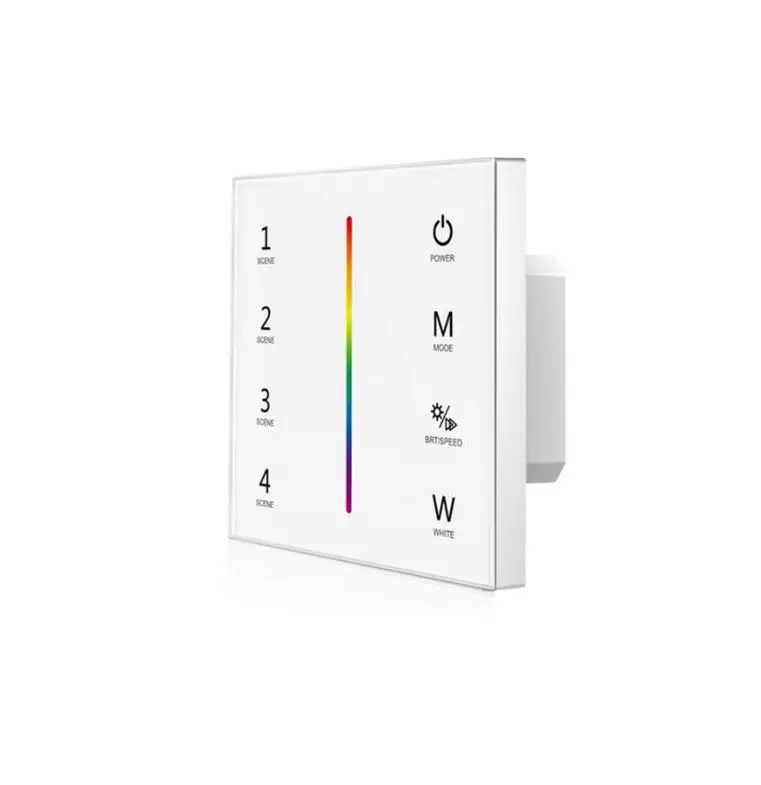
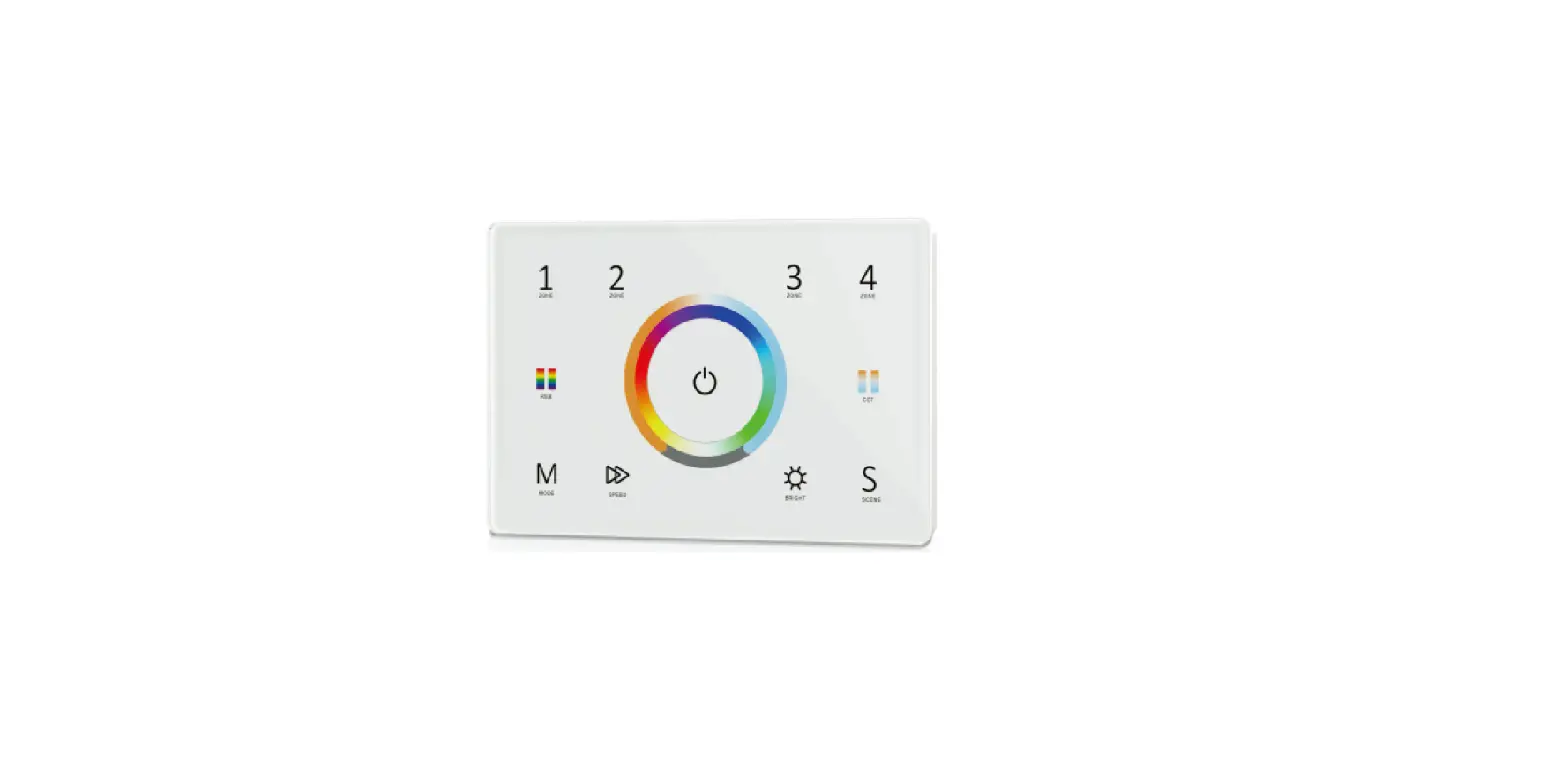
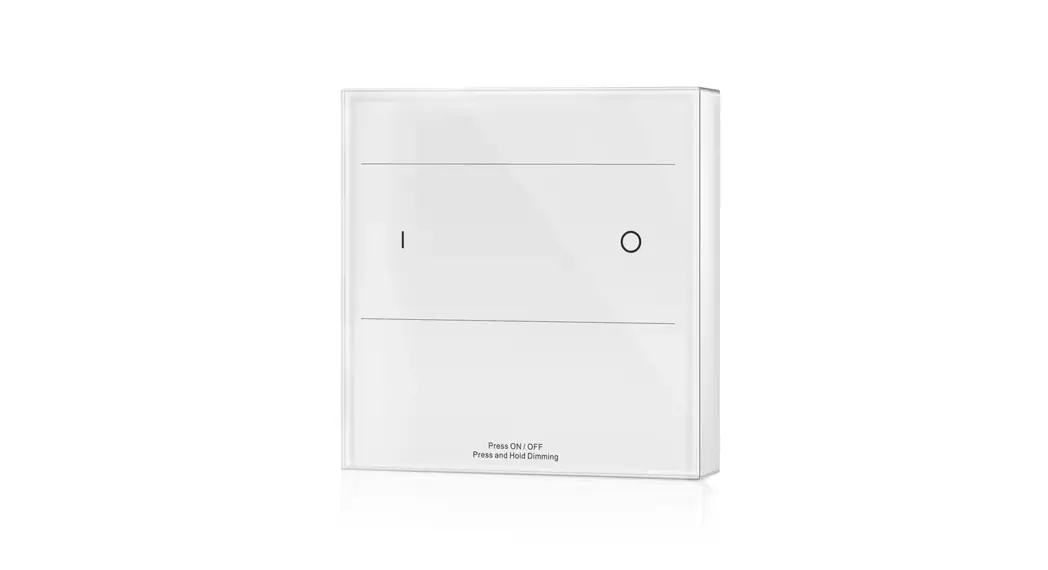
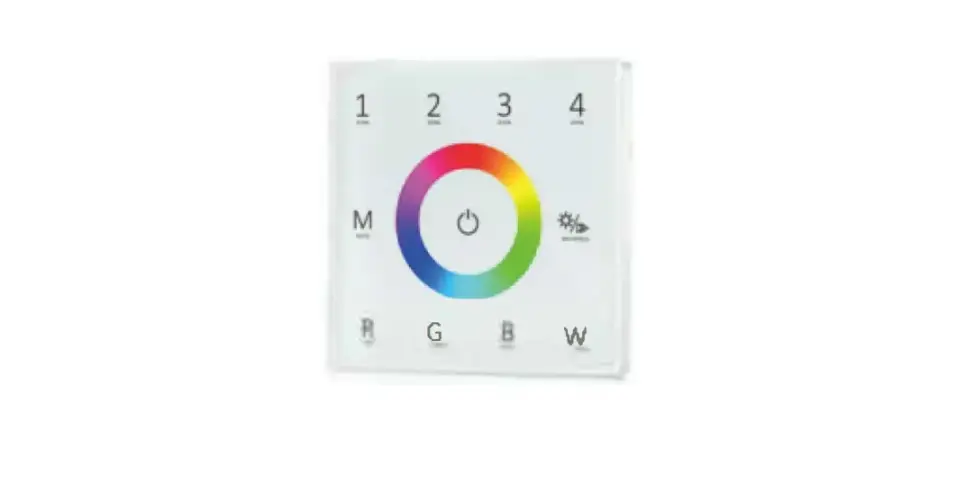
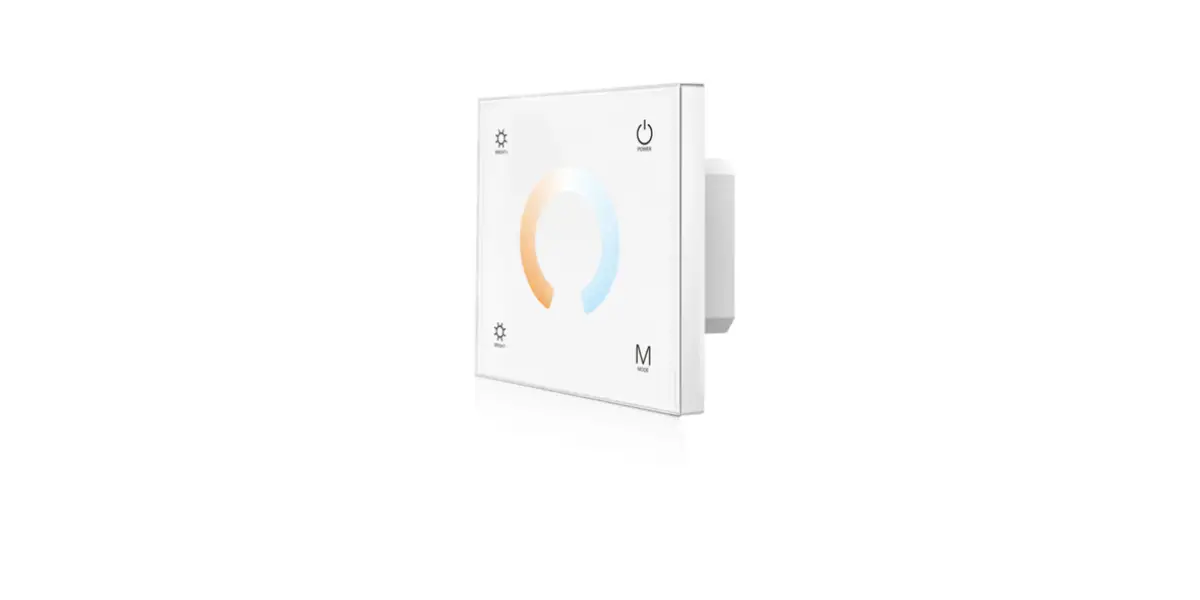
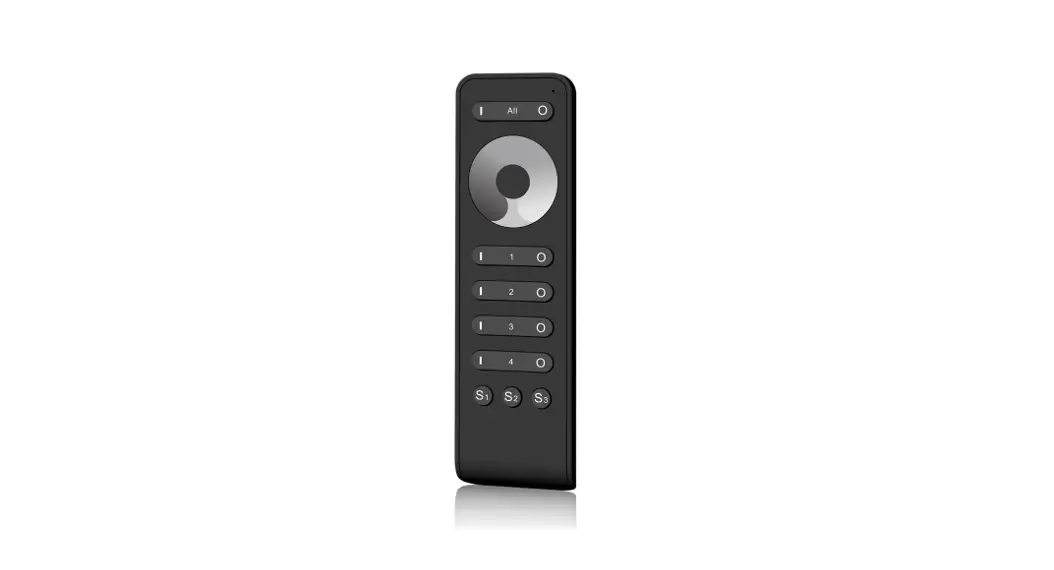
TS4 3.0 Wall Mounted Touch Panel
Zigbee 3.0 Wall Mounted Touch Panel
Model No.: TS4(WZS)
Features:
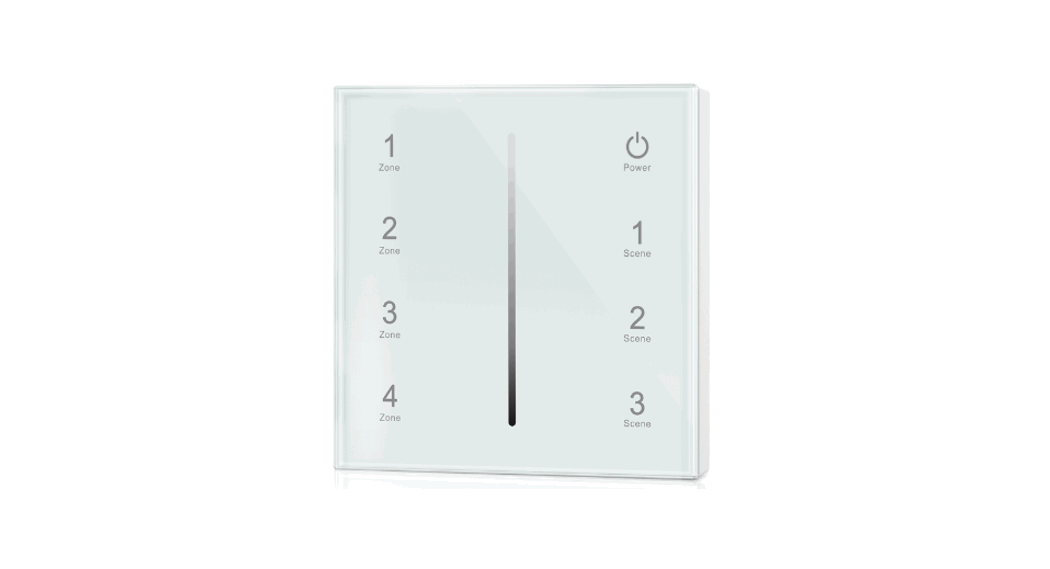
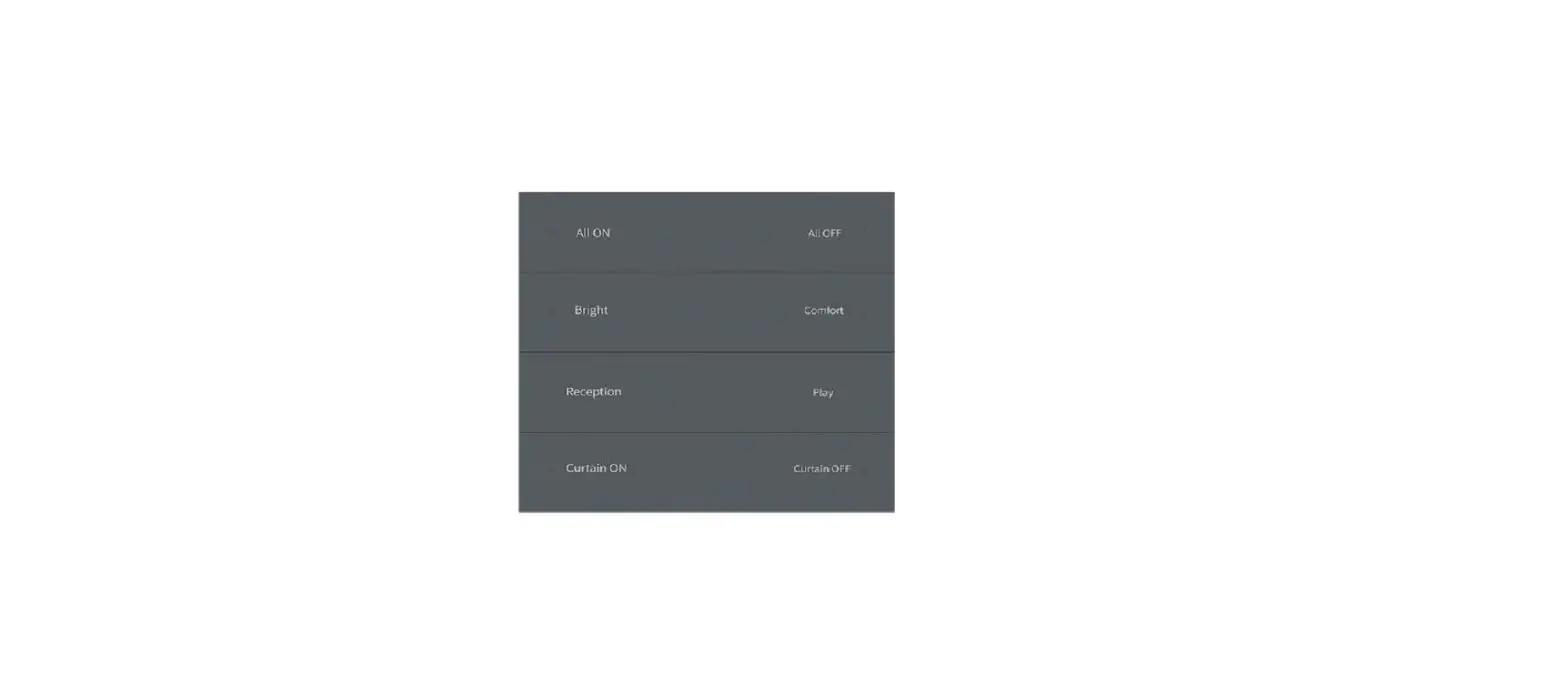
- 4 button touch scene panel remote with scene recall
function - Built-in Tuya Zigbee 3.0 remote module, supports scenario
linkage and one-click execution - Set scene function through Tuya APP
- Ultra sensitive high strength glass touch panel
- Each button with blue LED indicator
- Customizable button words
- Provides a variety of Chinese/English scene button pasters,
which can flexibly define the functions of each button
Technical Parameters:
- Input voltage: 100-240VAC
- Input current: Max 0.1A
- Output signal: Zigbee 3.0
- Dimming data input signal
- Remote distance: 30m (Barrier-free space)
Safety and EMC:
- EMC standard (EMC)
- Safety standard (LVD)
- Radio Equipment (RED) Certification
- Warranty: 5 years
Mechanical Structures and Installations:
AC input N:
AC input L:
Key Functions:
Short press the scene button to recall the corresponding scene,
the blue indicator lights up. Before using the scene panel, please
edit the scene setting through Tuya APP firstly.
App Operating Instructions:
- Network pairing:
- Download the Tuya APP and register an account
- Search and add the Tuya Zigbee gateway device
- Press and hold the Scene 1 and Scene 4 button until the 4 LED
indicator light flashes - Under the gateway, you can find WZS-Scene Panel device in Tuya
APP - After successful network pairing, the 4 LED indicator light
will be on for 2 seconds and then off - Under the gateway, search and add one or more ZBS-DIM, ZBS-CCT,
ZBS-RGB, ZBS-RGBW, ZBS-RGB+CCT light devices - Scene panel unpairing: Delete the WZS-Scene Panel device from
the Tuya APP
- Remote association and scene settings:
- There are 8 scenes in the Tuya APP, which can be set to
lighting scenes or linkage scenes - Lighting scene is used for the overall control of multiple
lamps, like the light adjustment of the entire room - Linkage scene is used for linkage control of different
equipment, such lamps and curtains on and off together - Example 1, set scene 1 for synchronous light control of the
whole room:- Select scene 1 and open the lighting scene settings
- You can change the scene name, add one or more devices, adjust
brightness and color, then save it - After successful setting, you can use the remote to control
these lamps directly
- Example 2, set scene 2 to set up a scenario where different
lamps or curtains are controlled together with different color or
on/off state:- Select Scene 2 and open the linkage scene settings
- You can change the scene name, add one-click execution tasks,
select the devices that need to be linked, save the required
functions, such as…
- There are 8 scenes in the Tuya APP, which can be set to
Zigbee 3.0 Wall Mounted Touch Panel Model No.: TS4(WZS)
4 Scene button/Zigbee 3.0/Glass touch panel/AC input
Features
4 button touch scene panel remote with scene recall function. Built-in Tuya Zigbee 3.0 remote module, supports scenario linkage and one-click execution. Set scene function through Tuya APP. Ultra sensitive high strength glass touch panel. Each button with blue LED indicator. Customizable button words. Provide a variety of Chinese/English scene button pasters, which can flexibly define the functions of each button.
LVD RED
Technical Parameters
Input and Output Input voltage Input current Output signal Dimming data Input signal Remote distance
100-240VAC Max 0.1A Zigbee 3.0
Touch key 30m(Barrier-free space)
Safety and EMC
EMC standard (EMC)
Safety standard(LVD) Radio Equipment(RED) Certi cation Warranty
ETSI EN 301 489-1 V2.2.3 ETSI EN 301 489-17 V3.2.4 EN 62368-1:2020+A11:2020 ETSI EN 300 328 V2.2.2 CE,EMC,LVD,RED 5 years
Environment Operation temperature Case temperature (Max.)
Package Size Gross weight
Ta: -30 OC ~ +55 OC Ta: +65 OC
L112x W112 x H50mm 0.223kg
Mechanical Structures and Installations
AC input N
AC input L
Installationdiagram:
N L INPUT 100-240VAC
86.00 mm 52.00 mm
33.00 mm
Uninstall Typical base as below:
Touch panel
Baseplate
Base
86.00 mm 52.00 mm
59.00 mm
11.50 mm
European style
Keyfunction
Short press the scene button to recall the corresponding scene, the blue indicator lights up. Before use the scene panel, please edit the scene setting through Tuya APP firstly.
1
2
1: Scene 1 2: Scene 2 3: Scene 3 4: Scene 4
86 size
3
4
User Manual Ver 1.0.1
1
App Operating Instructions
1. Network pairing
Download the Tuya APP and register anaccount, search and add the Tuya Zigbee gateway device. Press and hold the “Scene 1” and “Scene 4” button until the 4 LED indicator light flashes.
Under the gateway, you can find WZS-Scene Panel device in Tuya APP. After successful network pairing, the 4 LED indicator light will be on for 2 seconds and then off. Under the gateway, search and add one or more ZBS-DIM, ZBS-CCT, ZBS-RGB, ZBS-RGBW, ZBS-RGB+CCT light devices. Scene panel unpairing: Delete the WZS-Scene Panel device from the tuya APP.
2. Remote association and scene settings There are 8 scenes in the Tuya APP, which can be set to lighting scenes or linkage scenes. Lighting scene is used for the overall control of multiple lamps, like the light adjustment of the entire room. Linkage scene is used for linkage control of different equipment, such lamps and curtains on and off together.
Example 1, set scene 1 for synchronous light control of the whole room: (1) Select scene 1 and open the lighting scene settings. (2) You can change the scene name, add one or more devices, adjust brightness and color, then save it. (3) After successful setting, you can use the remote to control these lamps directly.
Example 2, set scene 2 to set up a scenario where different lamps or curtains are controlled together with different color or on/off state. (1) Select Scene 2 and open the linkage scene settings. (2) You can change the scene name, add “one-click execution” tasks, select the devices that need to be linked, save the required functions, such as
ON/OFF, mode, brightness and color temperature. (3) After successful setup, you can use the remote to directly control all linked devices to the desired scene.
Note: The scene1-4 in Tuya APP is correspond to the scene 1-4 button on the scene panel. You can select one scene button to set ALL OFF linkage scene function to turn off all lights. To delete the scene function, you can select “Reset” in the scene settings.
User Manual Ver 1.0.1
2