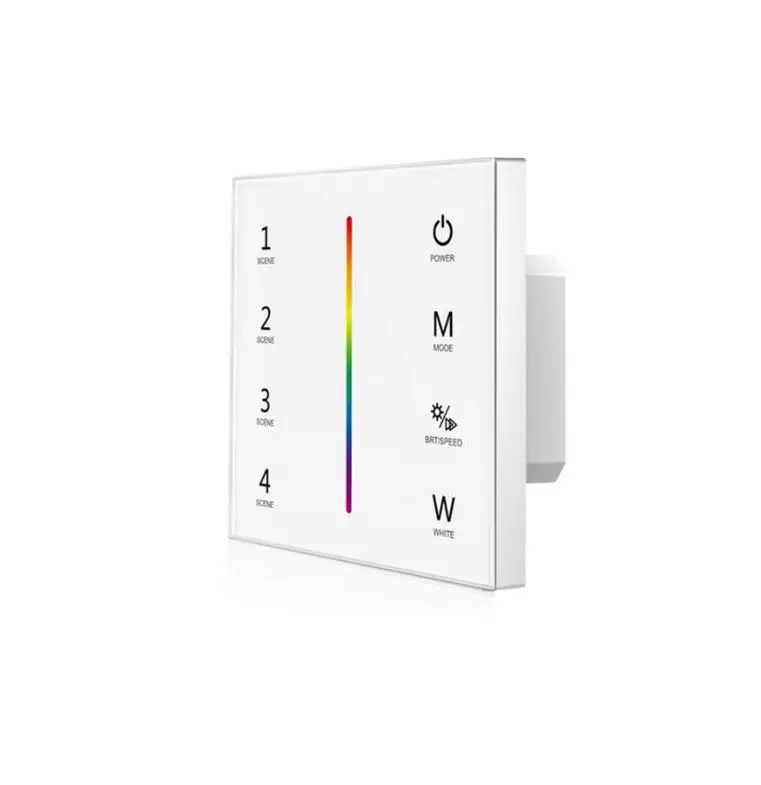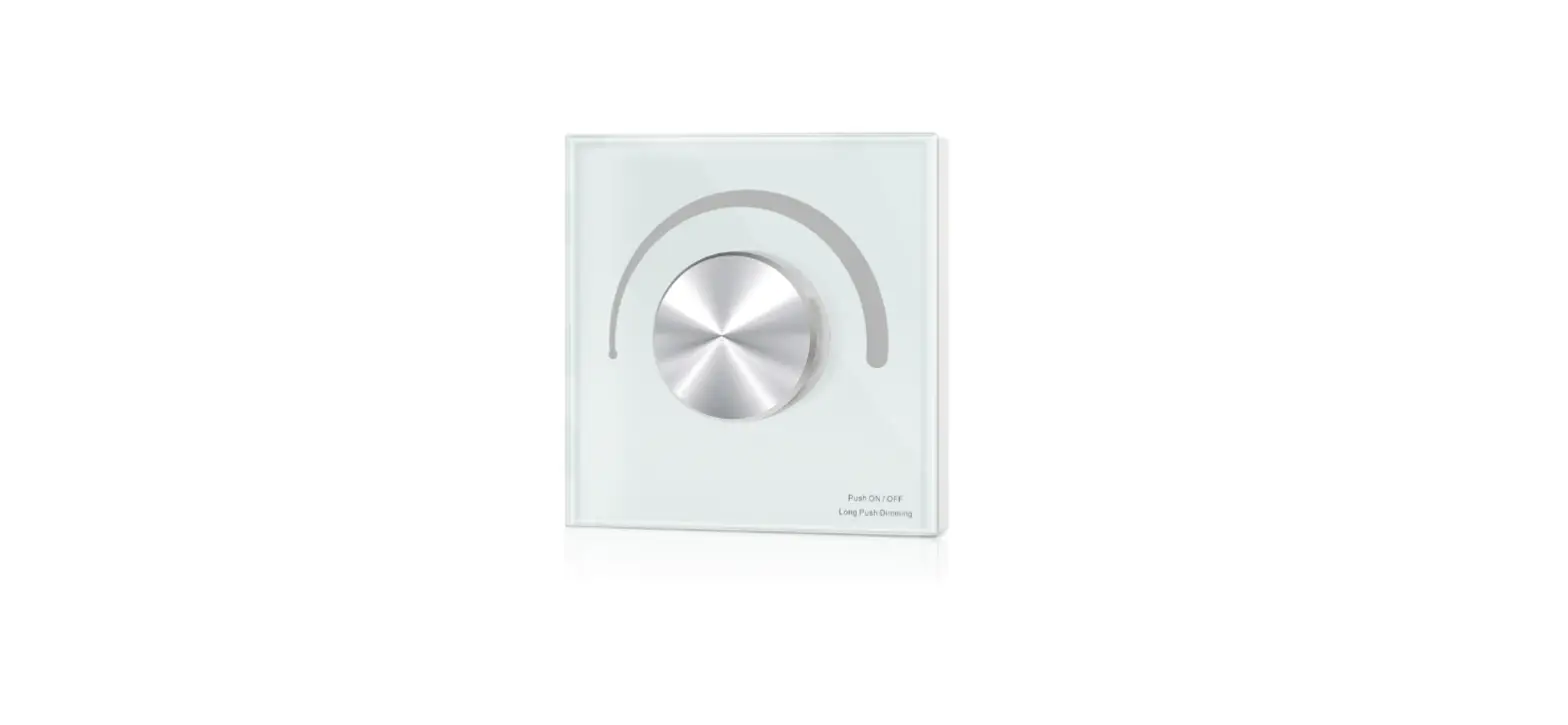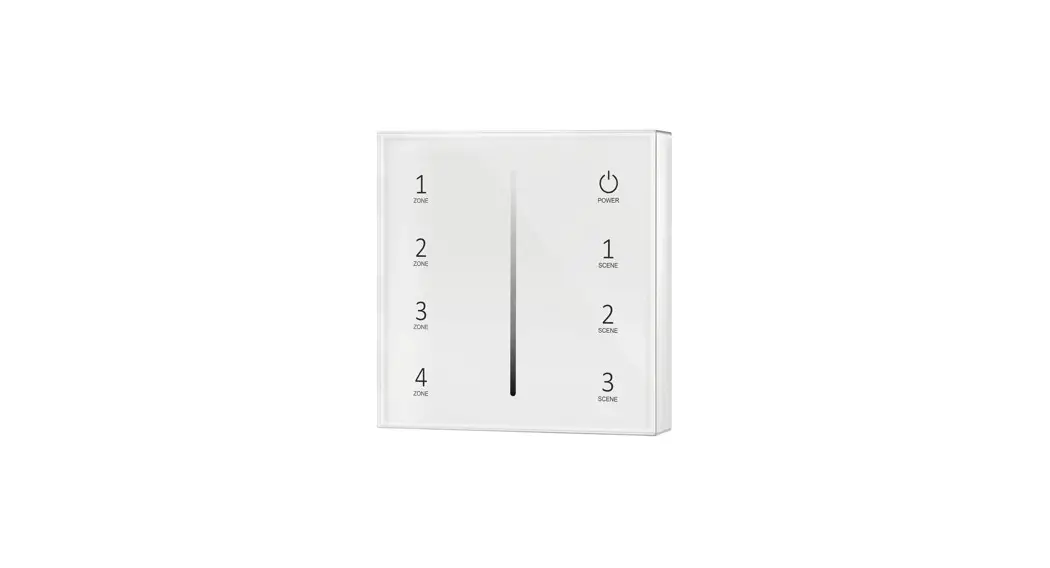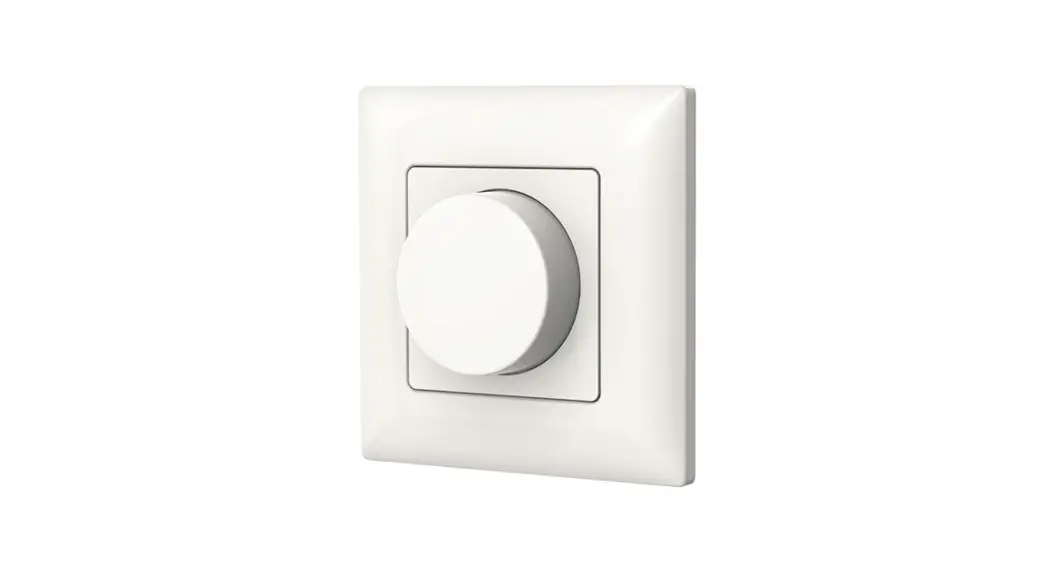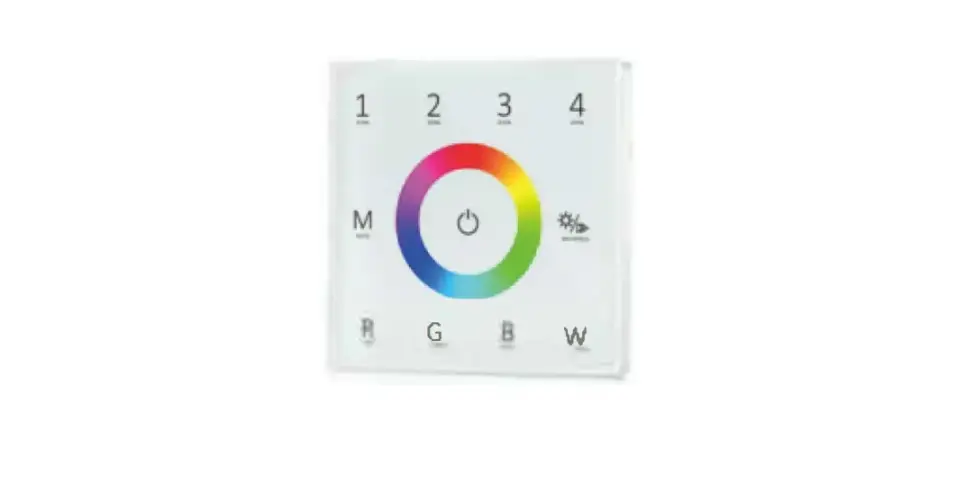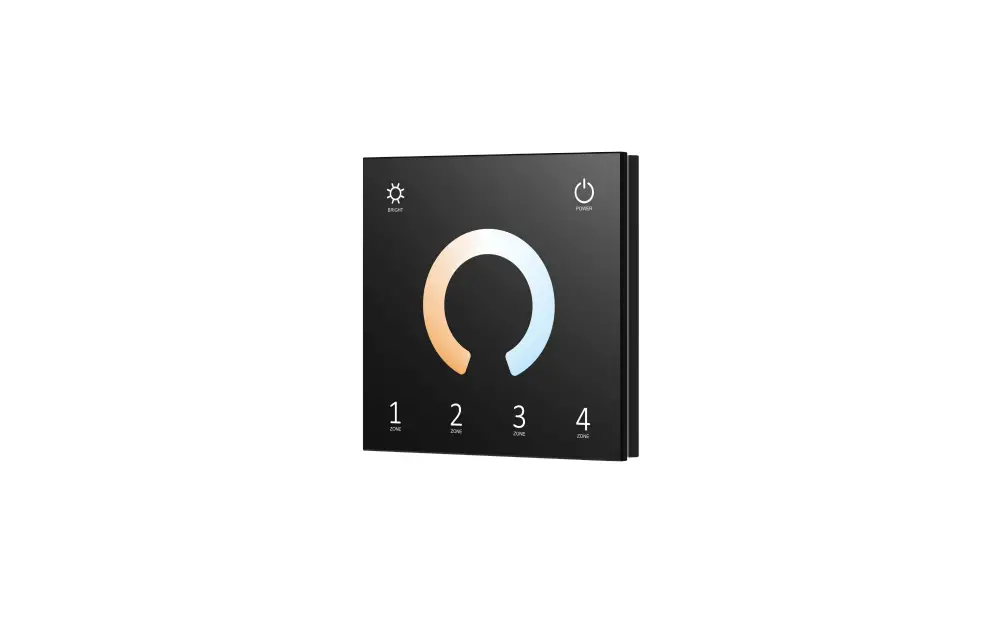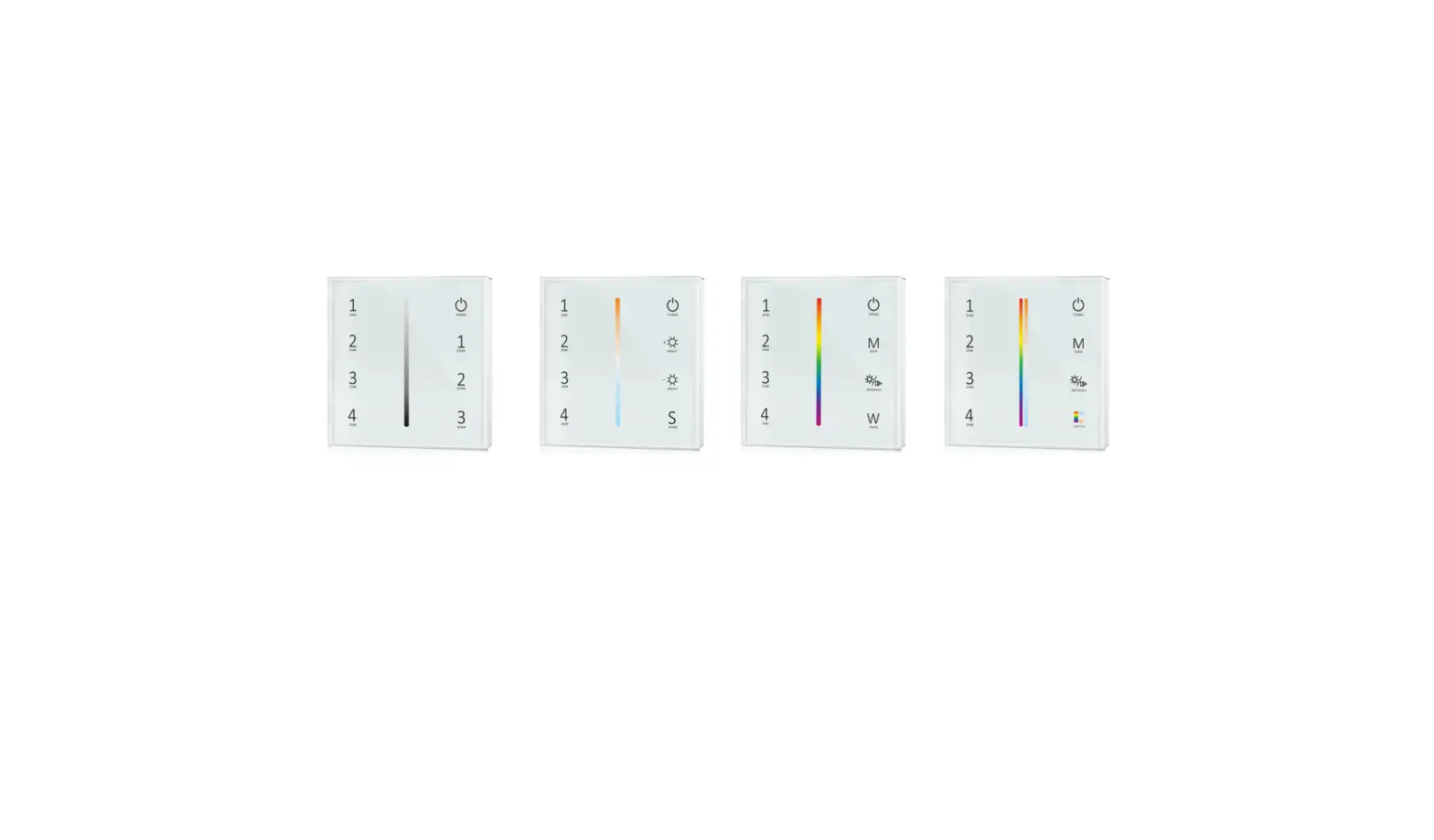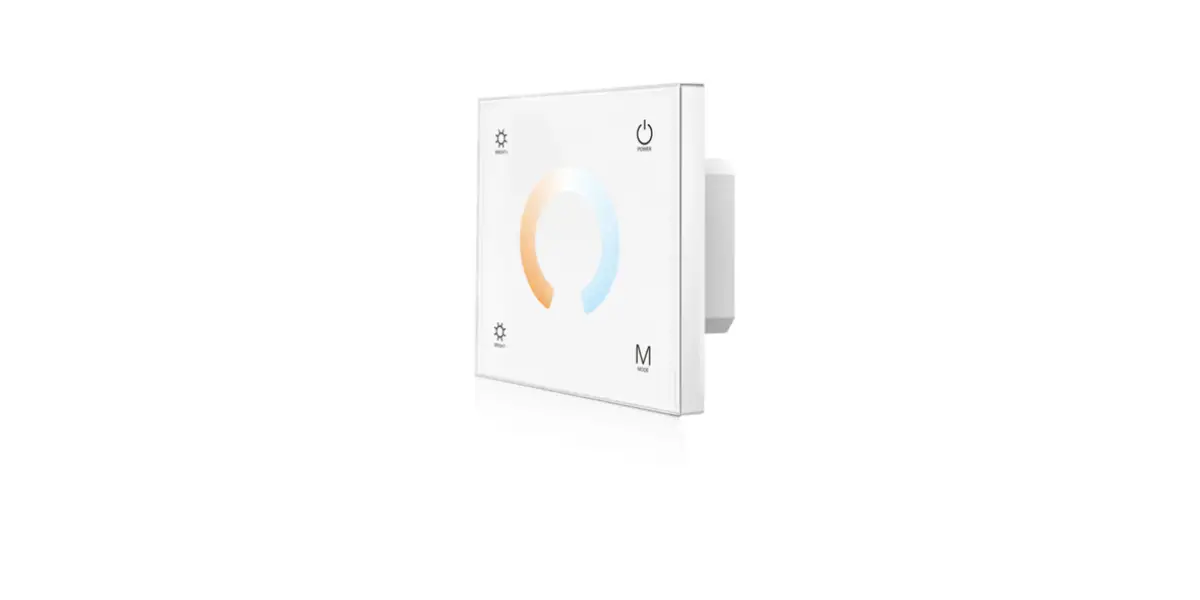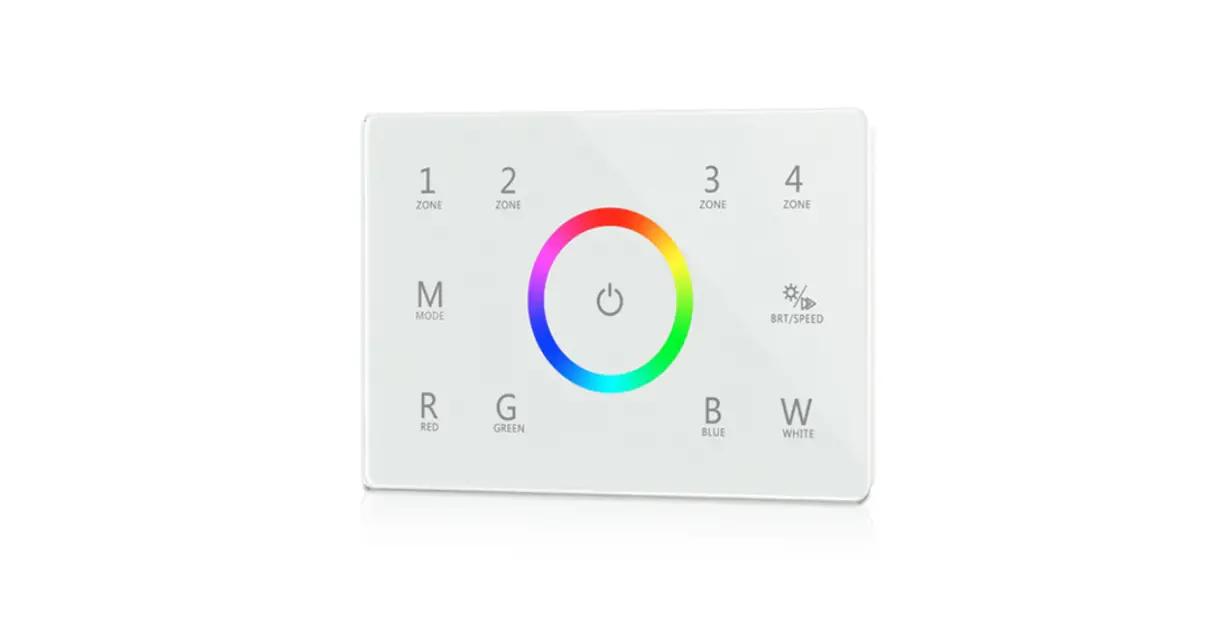
T11 Wall Mounted Touch Panel
Wall Mounted Touch Panel
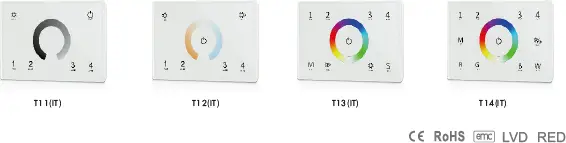
Model No.: T11(IT), T12(IT), T13(IT), T14(IT)
4 Zone/1-4 color/Glass touch panel/Color wheel/AC input/DMX 512 and RF 2.4G signal output
Features
- Touch panel 4 zone 1-4 color DMX512 master, can also be used as 4 zone 1-4 color RF remote.
- DMX signal output, comply to standard DMX512 protocol, compatible with DMX decoder from any supplier.
- When used as RF remote, each zone can remote control multiple Skydance’s 2.4G LED controllers.
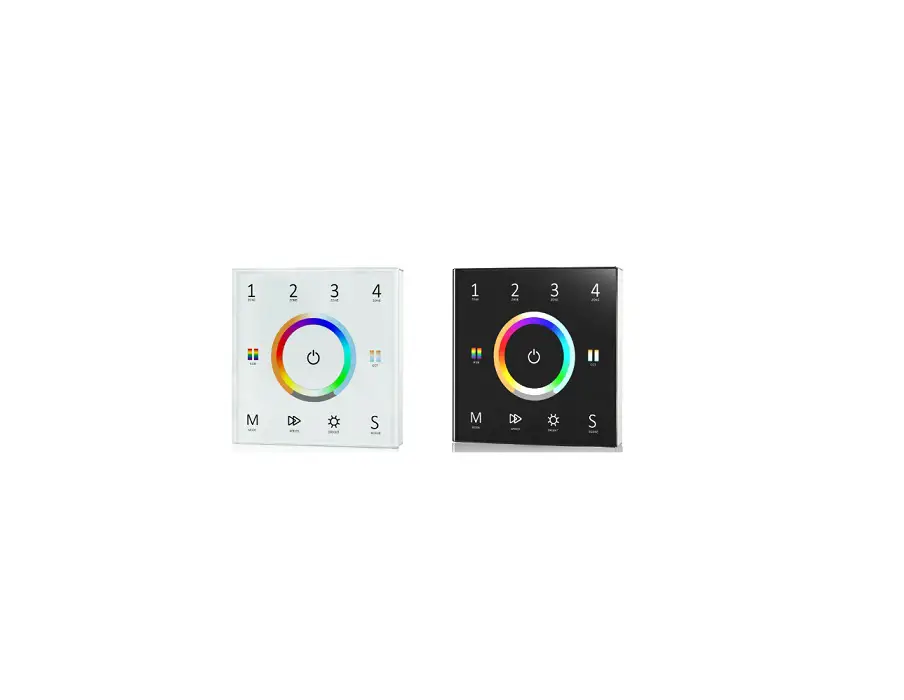
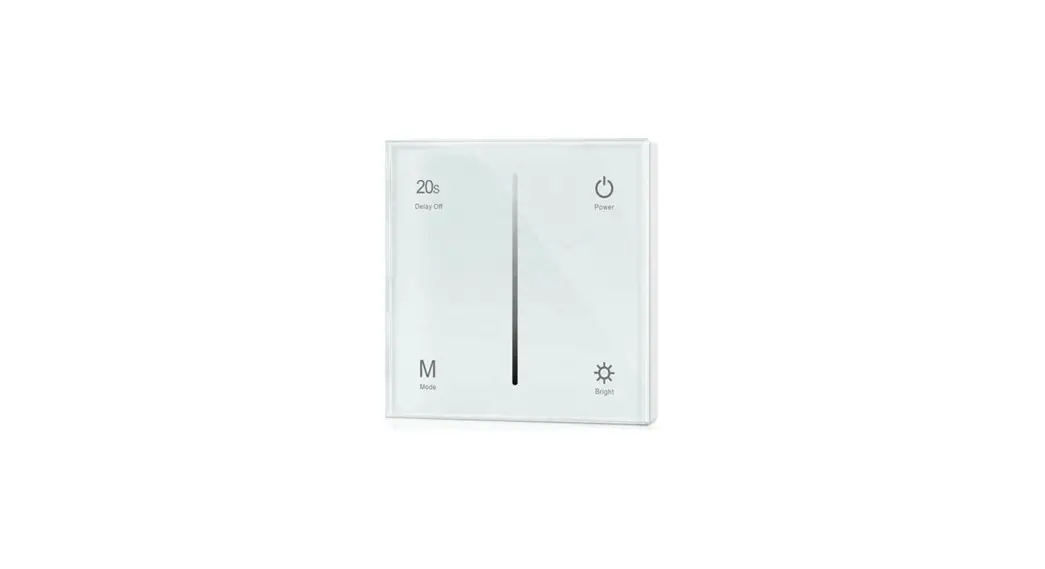
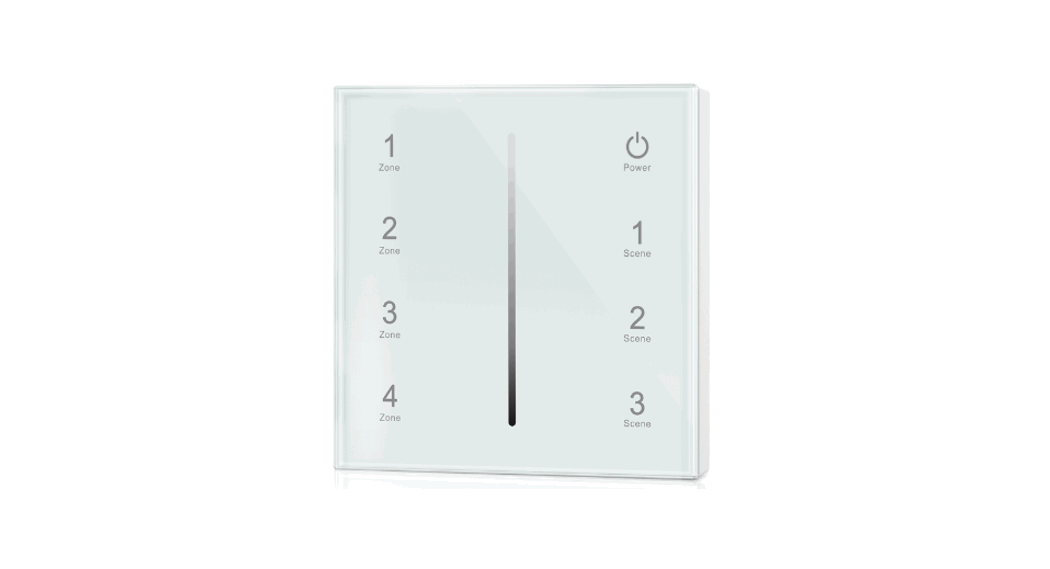
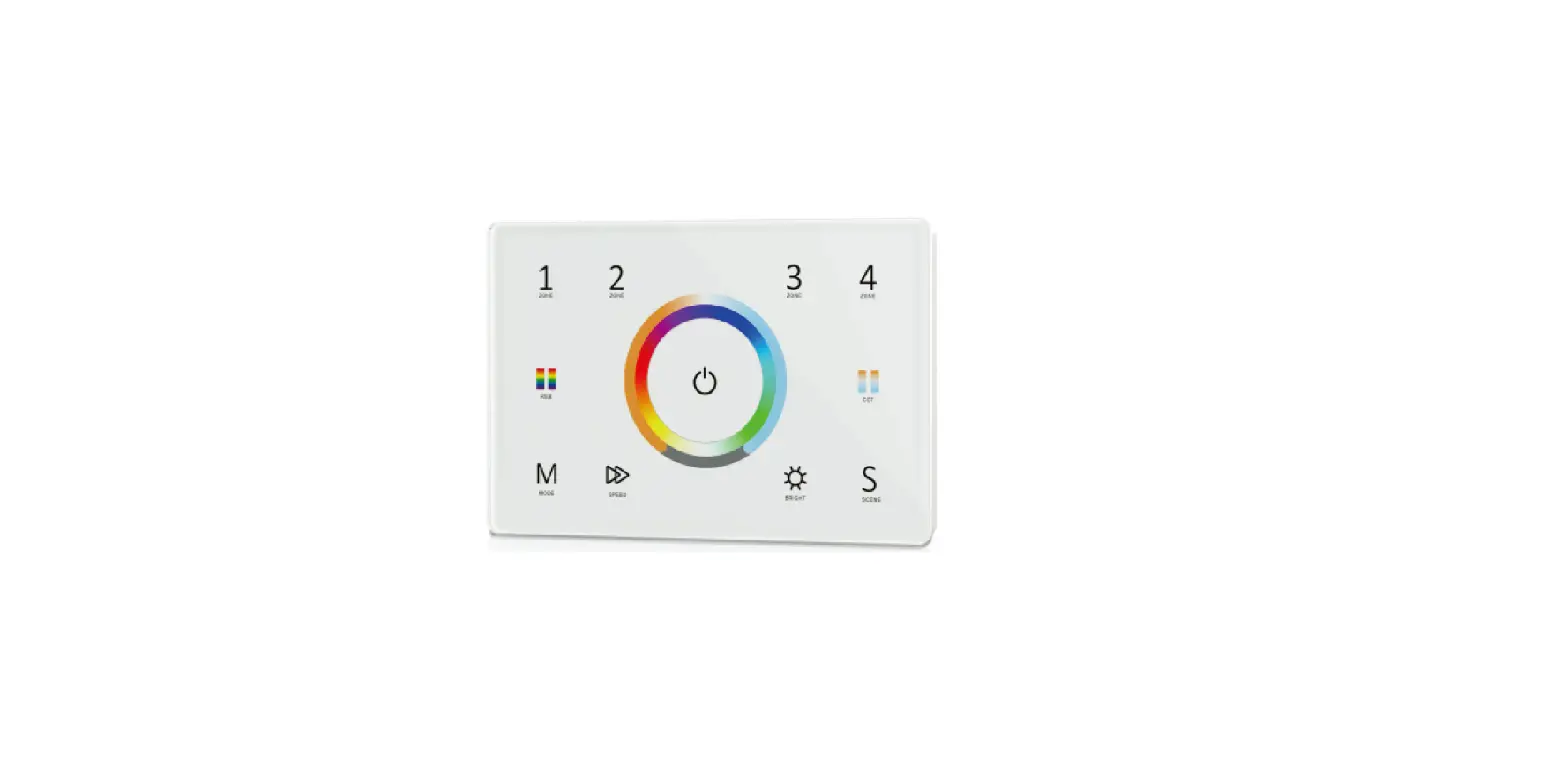
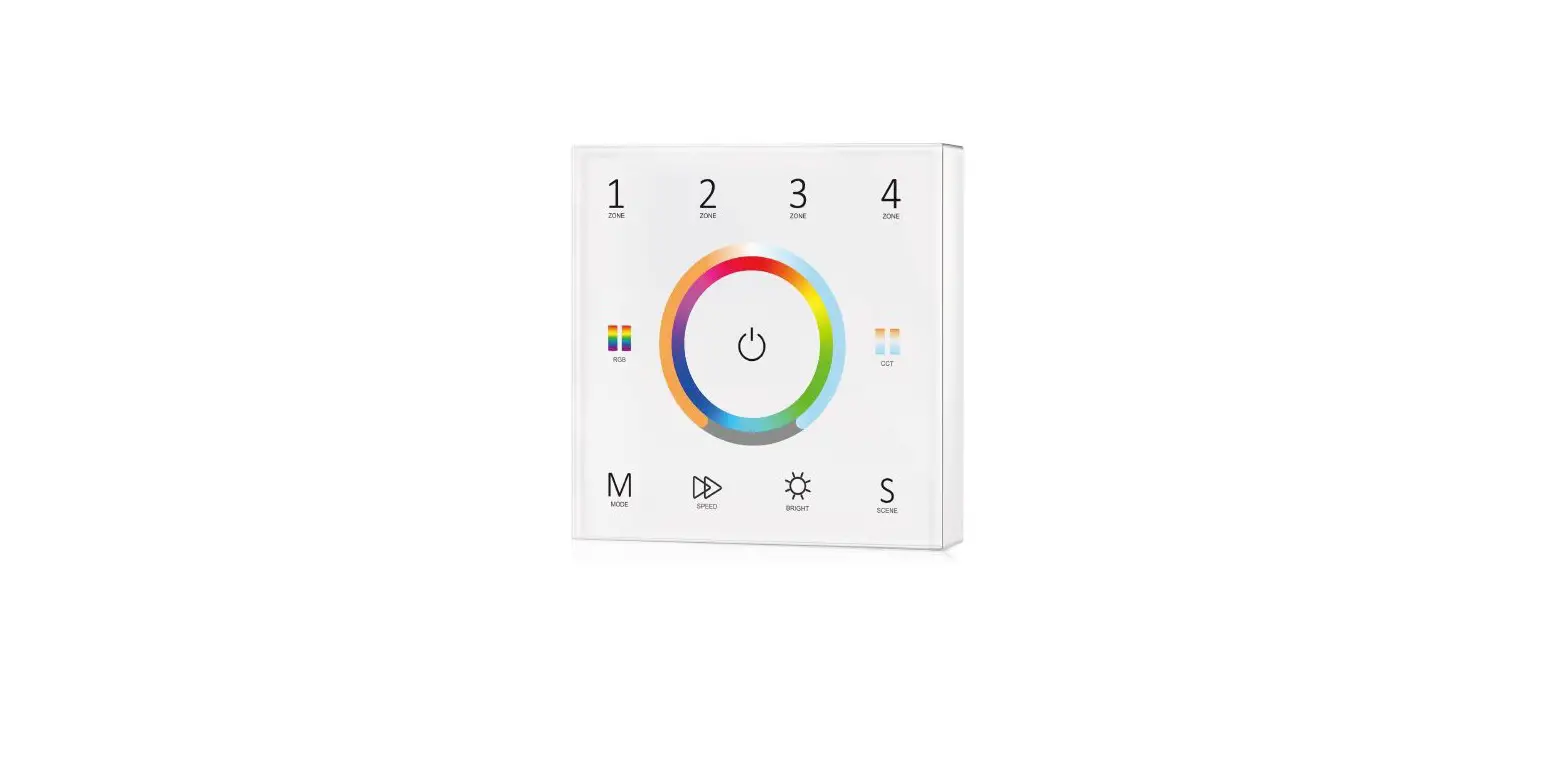
- Ultra sensitive high strength glass touch panel with touch color wheel in the middle.
- Smooth and accurate color adjustment by touching the color wheel.
- Touch keys with chord tones and LED indicator.
- White & Black glass panel available.
Technical Parameters
| Model No. | T11(IT) | T12(IT) | T13(IT) | T14(IT) |
| Light type | Single color | Dual color | RGB | RGBW |
| Output DMX channel number | 4 | 8 | 12 | 16 |
| Input and Output | |
| Input voltage | 100-240VAC |
| Input current | Max 0.1A |
| Output signal | DMX512, RF 2.4GHz |
| Safety and EMC | |
| EMC standard (EMC) | ETSI EN 301 489-1 V2.2.3 ETSI EN 301 489-17 V3.2.4 |
| Safety standard(LVD) | EN 62368-1:2020+A11:2020 |
| Radio Equipment(RED) | ETSI EN 300 328 V2.2.2 |
| Certification | CE,EMC,LVD,RED |
| Dimming data | |
| Input signal | Touch key + RF 2.4GHz |
| RF Control distance | 10m(Barrier-free space) |
| Dimming level | 256 levels |
| Dimming range | 0 -100% |
Operation temperature | |
| Case temperature (Max.) | Ta: -30 OC ~ +55 OC |
| Environment | T c: +65OC |
| IP rating | IP20 |
| Warranty | |
| Warranty | 5 years |
Mechanical Structures and Installations
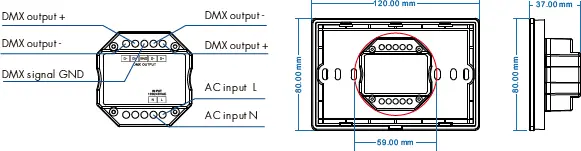
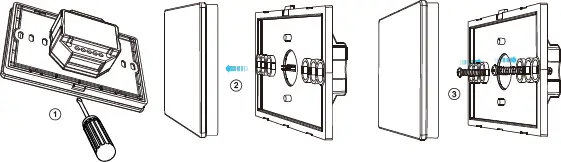
Installation diagram:
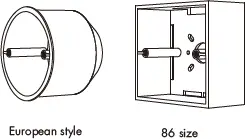
Typical base as below:
Key function
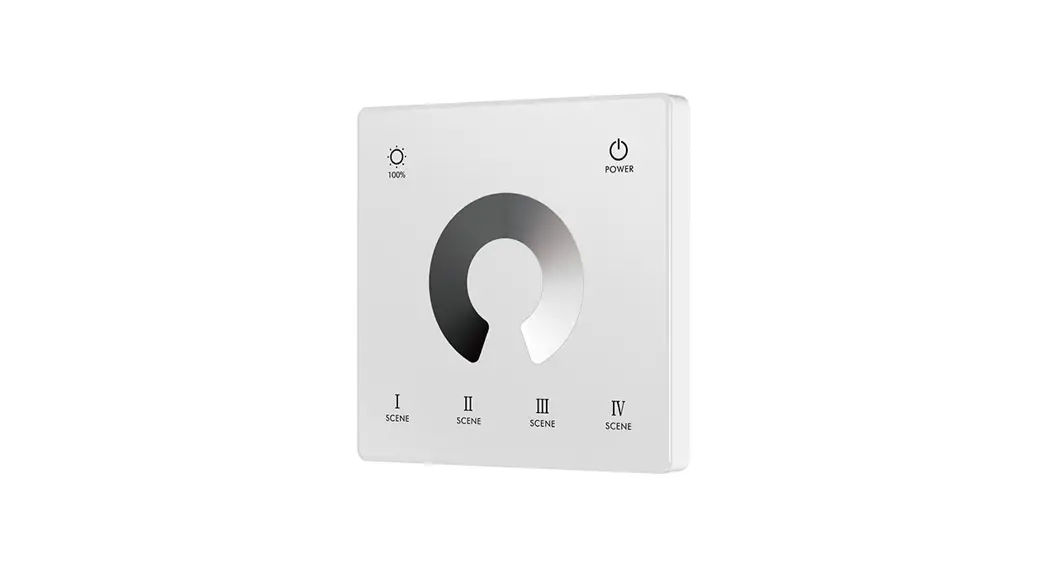
T11(IT) Single color panel
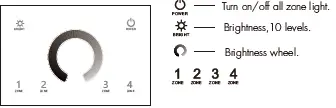
Short press turn on zone light and select zone simultaneously, long press 2s turn off zone light.
Short press multiple zone key fastly, will select multiple zone synchronously.
4 zone control separately or synchronously, each zone could control multiple receivers.
T12(IT) Dual color panel
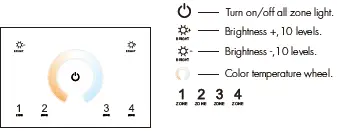
Short press turn on zone light and select zone simultaneously, long press 2s turn off zone light.
Short press multiple zone key fastly, will select multiple zone synchronously.
4 zone control separately or synchronously, each zone could control multiple receivers.
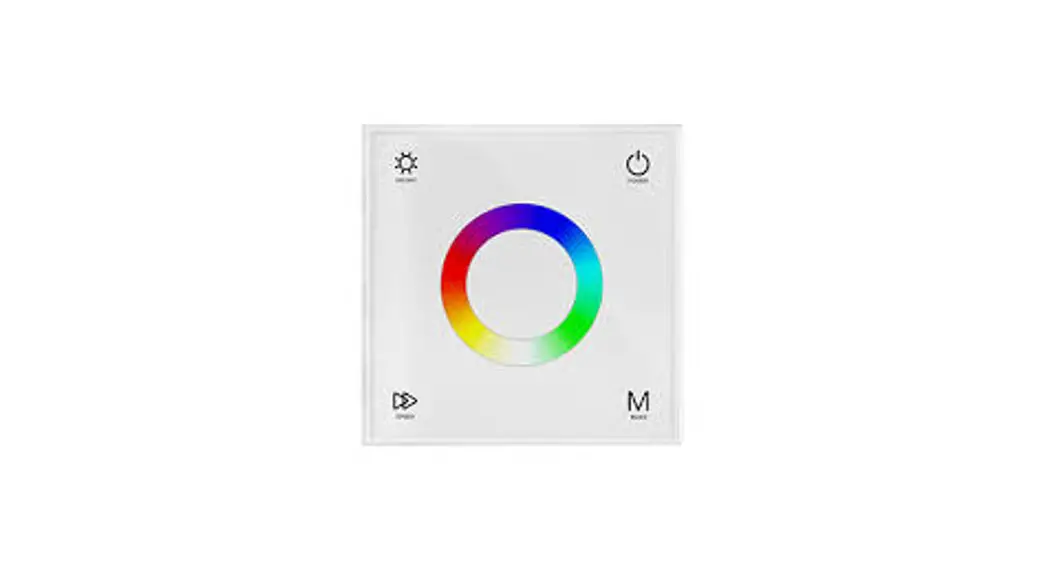
T13(IT) RGB panel
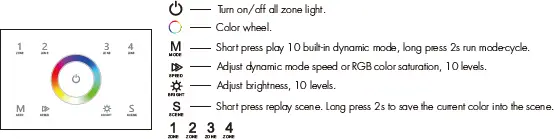
Short press turn on zone light and select zone simultaneously, long press 2s turn off zone light.
Short press multiple zone key fastly, will select multiple zone synchronously.
4 zone control seperately or synchronously, each zone could control multiple receivers.
T14(IT) RGBW panel
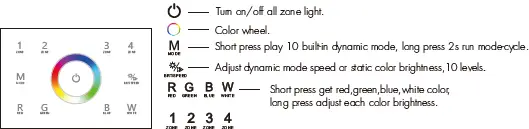
Short press turn on zone light and select zone simultaneously, long press 2s turn off zone light.
Short press multiple zone key fastly, will select multiple zone synchronously.
4 zone control seperately or synchronously, each zone could control multiple receivers.
Touch Panel work as DMX512 master match RF remote
Touch panel 4 zone DMX512 master can also match with 4 zone RF remote (Optional).
End user can choose the suitable match/delete ways. Two options are offered for selection:
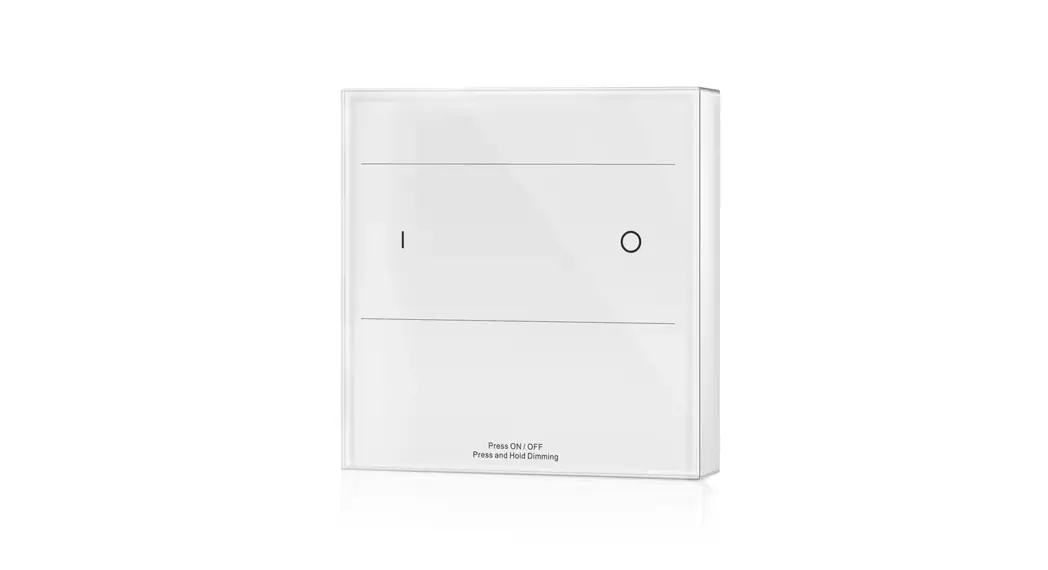
Use On/Off key
Match:
Turn on light, turn off, immediately press the On/Off
key of the panel for 5s,
then press any zone key of the RF remote within 5s.
The LED indicator fast flash 3 times
means match is successful.
Delete:
Turn on light, turn off, immediately press the On/Off
key of the panel for 10s to delete all match,
The LED indicator fast flash 6 times
means all matched remotes were deleted.
Use Power Restart
Match:
Switch off the power of the panel, then switch on power,
repeat again.
immediately short press any zone key 3 times on the remote.
The LED indicator fast flash 3 times
means match is successful.
Delete:
Switch off the power of the panel, then switch on power,
repeat again.
Immediately short press any zone key 5 times on the remote.
The LED indicator fast flash 6 times
means all matched remotes were deleted.
Touch Panel work as RF remote
Touch panel 4 zone remote can match with RF controller for the corresponding light type.
End user can choose the suitable match/delete ways. Two options are offered for selection:
Use the controller’s Match key
Match:
Short press match key, immediately press zone
key of the touch panel.
The LED indicator fast flash a few times
means match is successful.
Delete:
Press and hold match key for 5s to delete all match,
The LED indicator fast flash a few times
means all matched remotes were deleted.
Use Power Restart
Match:
Switch off the power of the receiver, then switch on power,
repeat again.
Immediately short press zone key 3 times on the touch panel.
The light blinks 3 times means match is successful.
.
Delete:
Switch off the power of the receiver, then switch on power,
repeat again.
Immediately short press zone key 5 times on the touch panel.
The light blinks 5 times means all matched remotes were deleted.
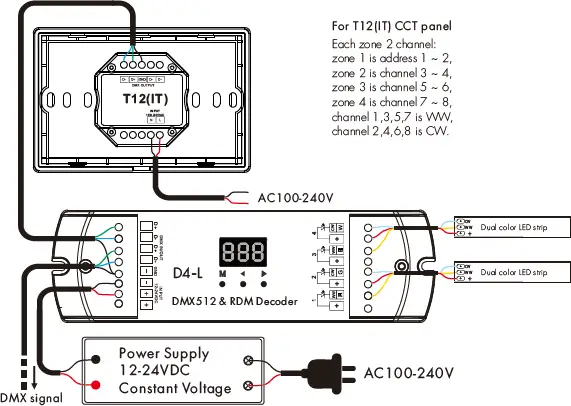
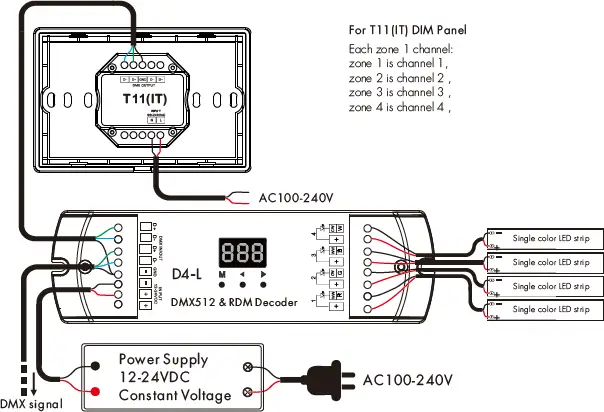
The address assignment of touch panel work as DMX512 master
After connect with DMX decoders, please set the DMX decoders address as below:
Model No. | T11(IT) | T12(IT) | T13(IT) | T14(IT) |
| WW CW | R G B | R G B W | ||
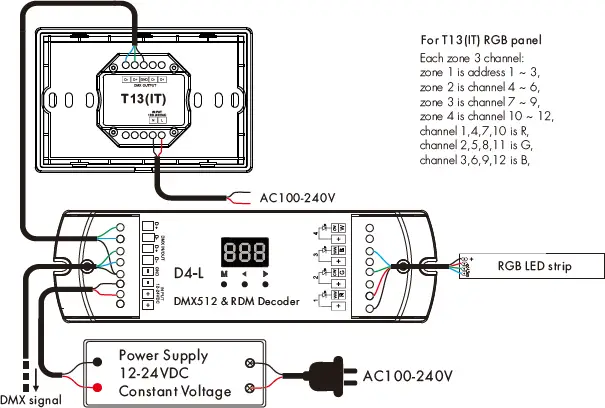
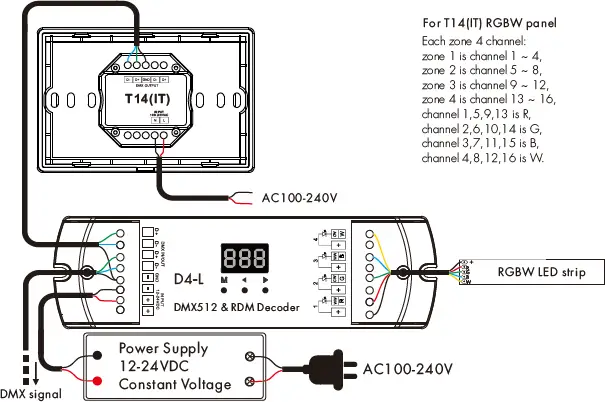
| Zone 1 DMX decoder’s address | 1 | 1 2 | 1 2 3 | 1 2 3 4 |
| Zone 2 DMX decoder’s address | 2 | 3 4 | 4 5 6 | 5 6 7 8 |
| Zone 3 DMX decoder’s address | 3 | 5 6 | 7 8 9 | 9 10 11 12 |
| Zone 4 DMX decoder’s address | 4 | 7 8 | 10 11 12 | 13 14 15 16 |
Wiring Diagram for touch panel work as DMX512 master
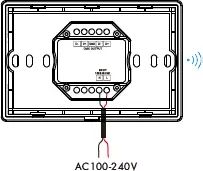
Wiring Diagram for touch panel work as RF remote
RGB/RGBW dynamic mode list (only for T13(IT) / T14(IT))
| No. | Name | No. | Name |
| 1 | RGB jump | 6 | RGB fade in and out |
| 2 | RGB smooth | 7 | Red fade in and out |
| 3 | 6 color jump | 8 | Green fade in and out |
| 4 | 6 color smooth | 9 | Blue fade in and out |
| 5 | Yellow cyan purple smooth | 10 | White fade in and out |
Malfunctions analysis & troubleshooting
| Malfunctions | Causes | Troubleshooting |
| No light | 1. No power. 2. Wrong connection or insecure. | 1. Check the power. 2. Check the connection. |
| Wrong color | 1. DMX decoder first address error. 2. Wrong connection of output wires. | 1. Check the DMX first address. 2. Reconnect output wires. |