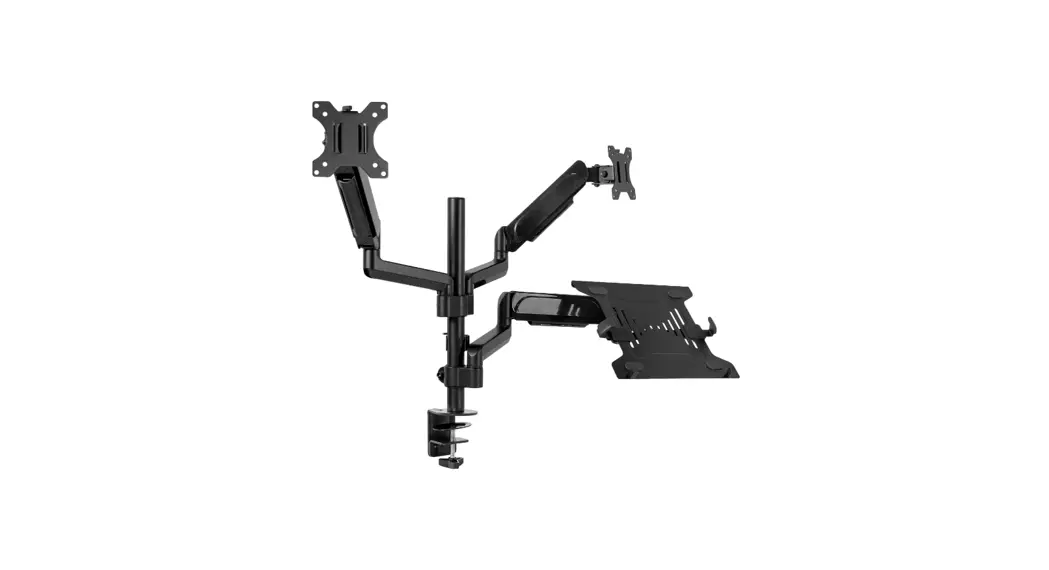
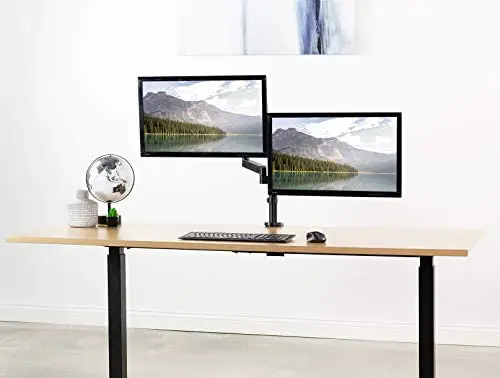
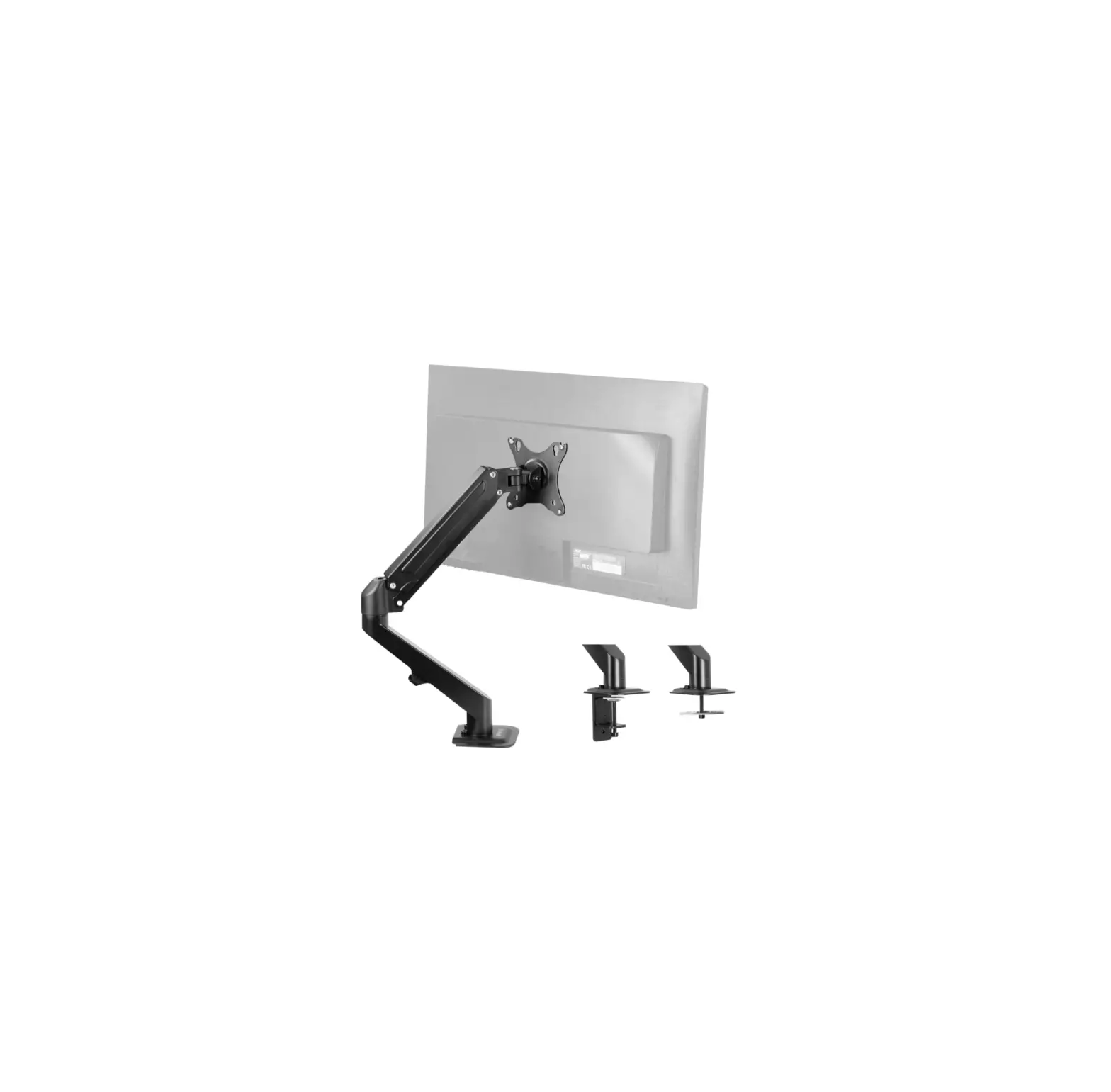
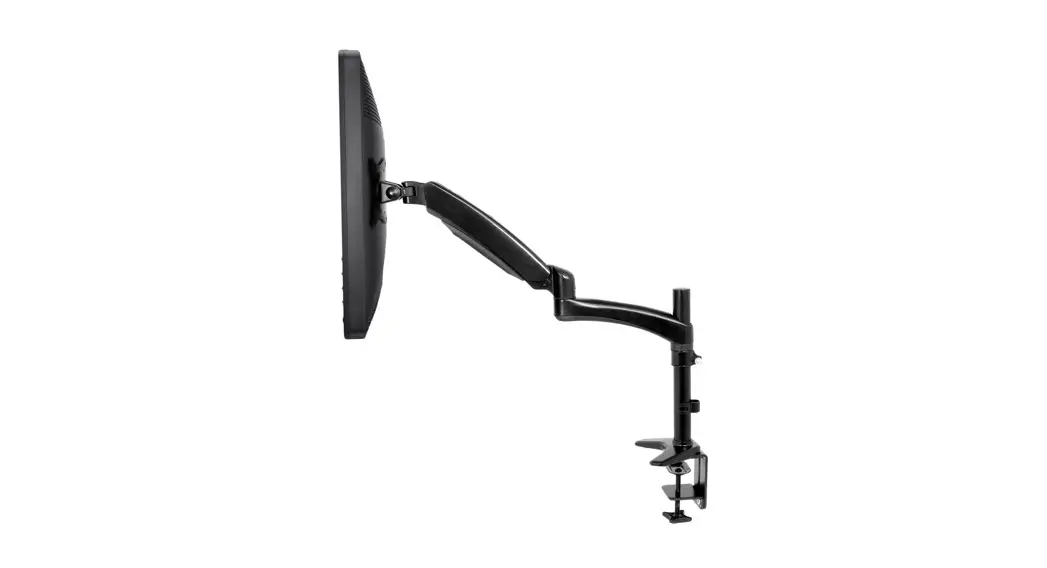
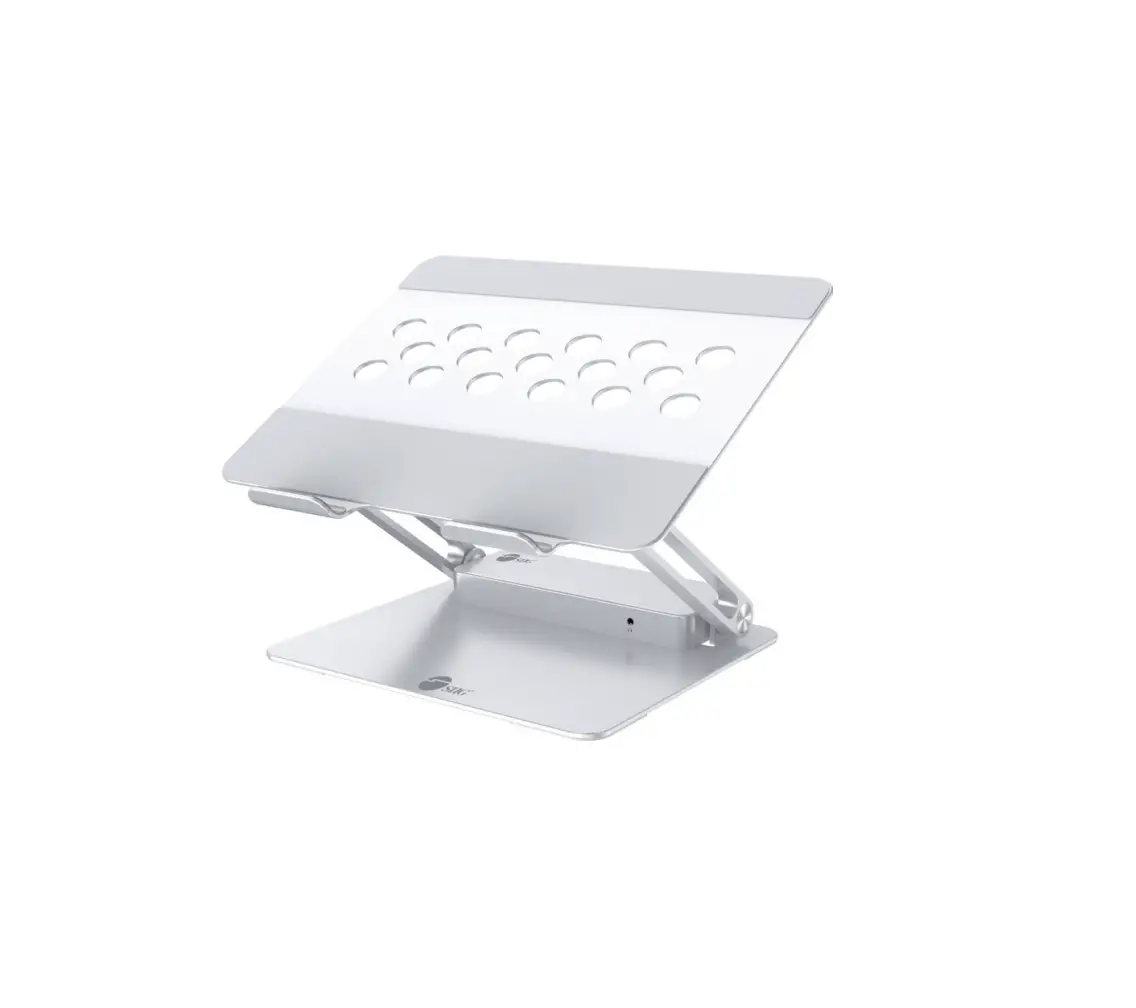
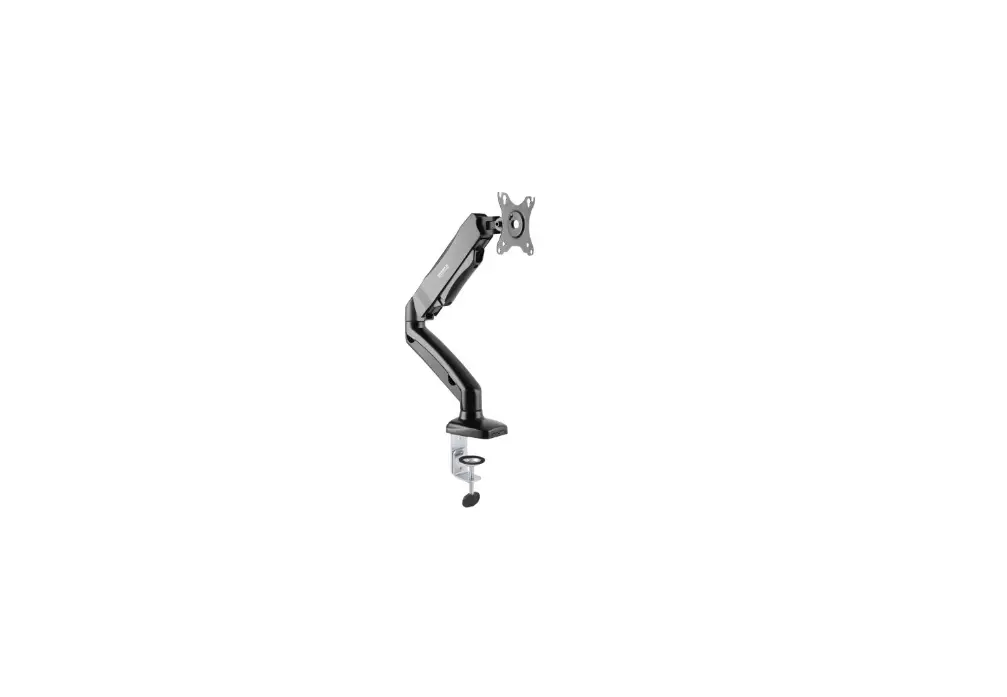
STAND-V102G2D Pneumatic Arm Dual Ultrawide Monitor Desk Mount with Docking Station
Pneumatic Arm Dual Monitor Desk Mount with Docking Station
Product Information
The Pneumatic Arm Dual Monitor Desk Mount with Docking Station
allows you to mount two monitors on your desk. The mount is
equipped with a gas spring arm that enables you to adjust the
height of the monitors easily. The mount also comes with a docking
station that allows you to connect your laptop or tablet to the
monitors. The product is designed to hold monitors weighing between
2.2-33lbs (1-15kg) per arm.
Product Usage Instructions
Package Contents
- A (x1) Base
- B (x2) Lower Arm
- C (x2) Gas Spring Arm
- D (x2) VESA Plate
- E (x1) Clamp Plate
- F (x1) Grommet Plate
- G (x1) Soft Pad
- H (x1) Cover
- I (x1) Clamp Brace
- J (x1) Clamp
- K (x1) USB-C Cable
- S-A (x4) M6x12mm Screw
- M-A (x8) M4x12mm Screw
- M-B (x8) M5x12mm Screw
- M-C (x8) M5 Washer
- T-A (x1) 3mm Allen Wrench
- T-B (x1) 4mm Allen Wrench
- T-C (x1) 6mm Allen Wrench
Tools Needed
- Phillips Screwdriver
Assembly Steps
Step 1 (Option A): Clamp Installation
- Attach Clamp Brace (I) to Base (A) using M6x12mm Screws (S-A)
and tighten with 4mm Allen Wrench (T-B). - Apply Soft Pad (G) to the underside of the assembly.
- Loosen screws on the back of Clamp (J), leaving 6mm of thread
exposed. - For a desk thickness of 3/8 – 2-1/2 (10 – 58mm), hang Clamp (J)
into top four slots of Clamp Brace (I), or for a desk thickness of
2 – 3-3/8 (50 – 85mm), into lower four slots. - Place Clamp Plate (E) on top of clamp bolts.
- Position the clamp assembly on desktop.
- Tighten clamp bolts evenly using 6mm Allen Wrench (T-C).
- Attach Cover (H) to back of Clamp Brace (I).
Step 1 (Option B): Grommet Base Installation
- Attach Grommet Plate (F) to Base (A) using M6x12mm Screws (S-A)
and tighten with 4mm Allen Wrench (T-B). - Apply Soft Pad (G) to underside of of the base assembly.
- Use Clamp Plate (E) to mark drilling locations and drill 3/8
(10mm) holes through the desk for installation. - Remove the Clamp Bolts (J1) from Clamp (J) using 6mm Allen
Wench (T-C) if needed. - Insert Clamp Bolt (J1) with Clamp Plate (E) up through the
underside of the desk and tighten to the base assembly using 6mm
Allen Wrench (T-C).
Step 2
- Attach Lower Arm (B) to Base (A) using M6x12mm Screws (S-A) and
tighten with 4mm Allen Wrench (T-B).
Step 3
- Loosen the set screw on the top of Lower Arm (B) using 3mm
Allen Wrench (T-A). - Attach Gas Spring Arm (C) to Lower Arm (B) and retighten the
set screw.
Step 4
- Assemble VESA Plates (D) to the back of the monitors using
Screws (M-A, M-B) and M5 Washers (M-C). - Tighten with a Phillips screwdriver.
Step 5
- Pull back and hold the release levers on Gas Spring Arms (C),
then slide the monitors with VESA Plates (D) onto the arms.
Step 6
- If needed, adjust Gas Spring Arms (C) to support the monitor
using 6mm Allen Wrench (T-C). - Turn the screw in back clockwise to decrease support, and
counter-clockwise to increase.
Step 7
- Remove the cable covers on Gas Spring Arms (C) using a Phillips
screwdriver. - Slide the cable covers on Lower Arms (B) forward to
remove. - Route cables through the arms and Cover (H), then reattach the
cable covers.
WARNING!
- TIPOVER WARNING – USE OF TIPOVER RESTRAINTS MAY ONLY REDUCE,
BUT NOT ELIMINATE RISK OF TIPOVER. - WARNING: CHOKING HAZARD – SMALL PARTS – NOT FOR CHILDREN UNDER
3 YEARS. ADULT SUPERVISION IS REQUIRED. - DO NOT EXCEED WEIGHT CAPACITY. Failure to do so may result in
serious injury.
GET IN TOUCH
- Monday-Friday from 7:00am-7:00pm CST
- [email protected]
- www.vivo-us.com Chat live with an agent!
- 309-278-5303
NOTE: SOME HARDWARE INCLUDED MAY NOT BE
USED
Pneumatic Arm Dual Monitor Desk Mount with Docking Station
Instruction Manual
SKU: STAND-V102G2D
Scan the QR code with your mobile device or follow the link for helpful videos and specifications related to this product. https://vivo-us.com/products/stand-v102G2D
GET IN TOUCH | Monday-Friday from 7:00am-7:00pm CST
www.vivo-us.com Chat live with an agent!
309-278-5303
WARNING!
If you do not understand these directions, or if you have any doubts about the safety of the installation, please call a qualified technician. Check carefully to make sure there are no missing or defective parts. Improper installation may cause damage or serious injury. Do not use this product for any purpose that is not explicitly specified in this manual. Do not exceed weight capacity. We cannot be liable for damage or injury caused by improper mounting, incorrect assembly or inappropriate use.
TIPOVER WARNING
SERIOUS OR FATAL CRUSHING INJURIES CAN OCCUR FROM TIPOVER. TO HELP PREVENT TIPOVER: · NEVER ALLOW CHILDREN TO CLIMB, STAND, HANG, OR PLAY ON ANY PART OF MONITOR OR
STAND. · USE TIPOVER RESTRAINT OR ANCHOR STAND TO WALL
USE OF TIPOVER RESTRAINTS MAY ONLY REDUCE, BUT NOT ELIMINATE RISK OF TIPOVER.
WARNING: CHOKING HAZARD
SMALL PARTS – NOT FOR CHILDREN UNDER 3 YEARS. ADULT SUPERVISION IS REQUIRED.
PACKAGE CONTENTS
A (x1) Base
B (x2) Lower Arm
C (x2) Gas Spring Arm
D (x2) VESA Plate
E (x1) Clamp Plate
F (x1) Grommet Plate
G (x1) Soft Pad
H (x1) Cover
I (x1) Clamp Brace
J (x1) Clamp
K (x1) USB-C Cable
S-A (x4) M6x12mm Screw
M-A (x8) M4x12mm Screw
M-B (x8) M5x12mm Screw
M-C (x8) M5 Washer
T-A (x1) 3mm Allen Wrench
T-B (x1)
T-C (x1)
4mm Allen Wrench 6mm Allen Wrench
2
NOTE: SOME HARDWARE INCLUDED MAY NOT BE USED
TOOLS NEEDED
Phillips Screwdriver
DO NOT EXCEED WEIGHT CAPACITY.
2.2-33lbs
Failure to do so may result in serious injury.
(1-15kg)
PER ARM
ASSEMBLY STEPS
STEP 1 (Option A)
Clamp Installation Attach Clamp Brace (I) to Base (A) using M6x12mm Screws (S-A) and tighten with 4mm Allen Wrench (T-B). Apply Soft Pad (G) to the underside of the assembly.
T-B S-A
G I
A
Loosen screws on the back of Clamp (J), leaving 6mm of thread exposed. For a desk thickness of 3/8″ – 2-1/2″ (10 – 58mm), hang Clamp (J) into top four slots of Clamp Brace (I), or for a desk thickness of 2″ – 3-3/8″ (50 – 85mm), into lower four slots. Place Clamp Plate (E) on top of clamp bolts. Position the clamp assembly on desktop
E OR T-B J
Tighten clamp bolts evenly using 6mm Allen Wrench (T-C). Attach Cover (H) to back of Clamp Brace (I).
T-C
H
3
STEP 1 (Option B)
Grommet Base Installation Attach Grommet Plate (F) to Base (A) using M6x12mm Screws (S-A) and tighten with 4mm Allen Wrench (T-B). Apply Soft Pad (G) to underside of of the base assembly.
T-B
G
S-A
F
A
Use Clamp Plate (E) to mark drilling locations and drill 3/8″ (10mm) holes through the desk for installation.
E
Remove the Clamp Bolts (J1) from Clamp (J) using 6mm Allen Wench (T-C) if needed. Insert Clamp Bolt (J1) with Clamp Plate (E) up through the underside of the desk and tighten to the base assembly using 6mm Allen Wrench (T-C).
J
J1 T-C
E J1
4
STEP 2
Loosen the set screws on the bottom of Lower Arms (B) using 3mm Allen Wrench (T-A). Attach Lower Arms (B) to Base (A). For 180° rotation, retighten both set screws. For 360° rotation, retighten the bottom set screw only.
T-A B
A
STEP 3
Loosen the set screw on the top of Lower Arm (B) using 3mm Allen Wrench (T-A). Attach Gas Spring Arm (C) to Lower Arm (B) and retighten the set screw.
C T-A
B
5
STEP 4
Assemble VESA Plates (D) to the back of the monitors using Screws (M-A, M-B) and M5 Washers (M-C). Tighten with a Phillips screwdriver.
D
STEP 5
Pull back and hold the release levers on Gas Spring Arms (C), then slide the monitors with VESA Plates (D) onto the arms.
D C 6
STEP 6
If needed, adjust Gas Spring Arms (C) to support the monitor using 6mm Allen Wrench (T-C). Turn the screw in back clockwise to decrease support, and counter-clockwise to increase.
T-C C
7
STEP 7
Remove the cable covers on Gas Spring Arms (C) using a Phillips screwdriver. Slide the cable covers on Lower Arms (B) forward to remove. Route cables through the arms and Cover (H), then reattach the cable covers.
B C
H
STEP 8
Adjust the tilt using 6mm Allen Wrench (T-C). Store the Allen wrench set in Cover (H) for future adjustments.
T-C
H
8
Docking Station Layout
Quick Start Guide
Normal Use Setup
Plug one end of USB-C Cable (K) into the TYPE-C Upstream Port (Port 4) on the docking station. Plug the other end into your laptop’s Host USB-C port. Power delivery is not available with this setup. Charge your laptop normally while using this configuration.
K
9
Power Delivery Setup
Plug one end of USB-C Cable (K) into the TYPE-C Upstream Port (Port 4) on the docking station. Plug the other end into your laptop’s Host USB-C port (Thunderbolt 3 compatible). Plug the USB-C end of your AC to USB-C power cable (Not Included) into the 100W PD Input (Port 1) on the docking station. Then plug the AC plug into the wall outlet. Refer to the Power Delivery Performance Chart on page 11 for more details.
K
System Requirements
· Host computer system with an available USB Type-C port (Thunderbolt 3 compatible) that supports DP Alt Mode and Power Delivery.
· Windows 11/10/8.1/8/7 (32/64 bit). · Only Windows OS will support the MST function. · Mac OS can only mirror the device screen.
What is USB 3.1 Gen 1?
· USB 3.1 Gen 1 is a new generation connector interface of USB 3.1 standard, that is capable to support
for the following:
·
USB 3.1 Gen 1 support up to 5Gbps data transfer rate.
·
Bi-directional power delivery up to 100W, if both the USB host connection and the device
support it.
·
DP Alternate modes, the signal is based on the DisplayPort version to deliver different speeds.
Not all USB-C ports support the full functionality of the USB Type-C standard. For more information, please refer to the information provided by the manufacturers.
DP Alt Mode (DisplayPort Alternative Mode)
This docking station supports DP Alt mode, which means a DisplayPort video signal can be transferred over a USB-C cable. Because the docking station supports DP alt mode, so the Alt mode video port can output the video directly via DP Alt mode with the other driver installs.
USB Power Delivery
This docking station supports USB Power Delivery, which means it delivers up to 80 watts of power to your connected host laptop (your laptop’s USB-C port must support power delivery). USB Power Delivery is a specification that allows power to be sent over a USB-C or Thunderbolt 3 cable that supports the specification. Ensure your USB-C cable can support PD 100W transfer or use the included USB-C cable. 10
What is DisplayPort MST? (Multi-Stream Transport)
MST has been a feature of the DisplayPort standard since version 1.2 was released. The key factor of the
technology’s usefulness for desktop users is that it allows multiple independent displays to be driven from a single DisplayPort output source device. The combined data requirements of all the displays cannot exceed
the limits of the single DisplayPort port that the video source originates from, nor exceed the capabilities of
your graphics cards.
MST Video Output Table
Q & A / Troubleshooting
Why am I using a 100W PD charger but only getting 80W charging?: T(d1he0te0am-i2ls0e.Wdi=a8h0uWb)n. Reeefdesr2to0Wthfeo”rPaollwtheer DpeolritvefurnycPteiorfnosrmtoaonpceerCatheasritm” bueltlaonweofoursmlyore WYohuyr ilaspmtoyplamputostpsnuoptpaobrtle87toWdcoh8ar0gWincgh. aNrogtianlgl?la: ptops support or require 87W for charging. Check in your laptop manual or with the laptop manufacturer for more details. WElanphstyuordpeomyeosaunMruSUaTSl oBvri-dCwehiotohosttuhptepolurattpohtnoapyvoemunaronlauvpfiadtoceptou?cra:enr fsourpmpoorret DdPetAalitlsm. ode. Check in your WTvihdhiesyoidsoodueutsepMutotSrTbeaosnondlluywthiiodantvhoelniomnyioetu.vPrildmeeaoosneoitruoetrfpseurattco?c:othrdeinMgSlTy.Video output table and adjust the DThoeIdnoecekdintgo sintasttiaolnl aisnpdlusog-fatwnda-rpelaoyr douritvoefrst?h:e box. This device does not need any driver or software installs to make it work properly. Need an additional question answered that is not listed throughout this manual? Get in touch with our dedicated support team who can offer immediate assistance. Our contact information can be found on the last page of the manual.
Power Delivery PerfPoorwmeraDnelciveeryCPhearfrotrmance Chart
Provided Power of your Power required
USB-C Cable
charger
for dock
(Watts)
(Watts)
(Watts)
Power to the host device
(Watts)
Host Devices (Partial List)
MacBook Air MacBook Pro
Windows Laptop
20
5
155xx
x
x
x
30
10
20
xx
x
x
45
10
35
xx
x
60
10
50
Ox
x
65
100
87
15
50
20
67
OO
O
90
20
70
96
20
76
100
20
80
Recommended O Slow Charging Speed x Not Recommended
11
Love your new VIVO setup and want to share? Tag us in your photo! @vivo_us
LAST UPDATED: 09/01/2022 REV1
Open Monday – Friday 7:00am – 7:00pm CST, our dedicated support team can offer immediate assistance with rapid response times. If any parts are received damaged or defective, please contact us. We are happy to replace parts to ensure you have a fully functioning product.
309-278-5303
AVG. RESOLUTION TIME (within office hrs): 5M 4S
www.vivo-us.com
Chat live with an agent!
AVG. RESOLUTION TIME (within office hrs): < 15 M
AVG. RESPONSE TIME (within office hrs): 1HR 8M – 23% within < 15m – 38% within < 30m – 61% within < 1hr – 83% within < 2hr – 92% within < 3hr
FOR MORE VIVO PRODUCTS, CHECK OUT OUR WEBSITE AT: www.vivo-us.com
 Register a .US.COM domain today!
 VIVO - Desks, Monitor Mounting, and More Home & Office Solutions – VIVO - desk solutions, screen mounting, and more
 Pneumatic Arm Dual Ultrawide Monitor Desk Mount with Docking Station – VIVO - desk solutions, screen mounting, and more