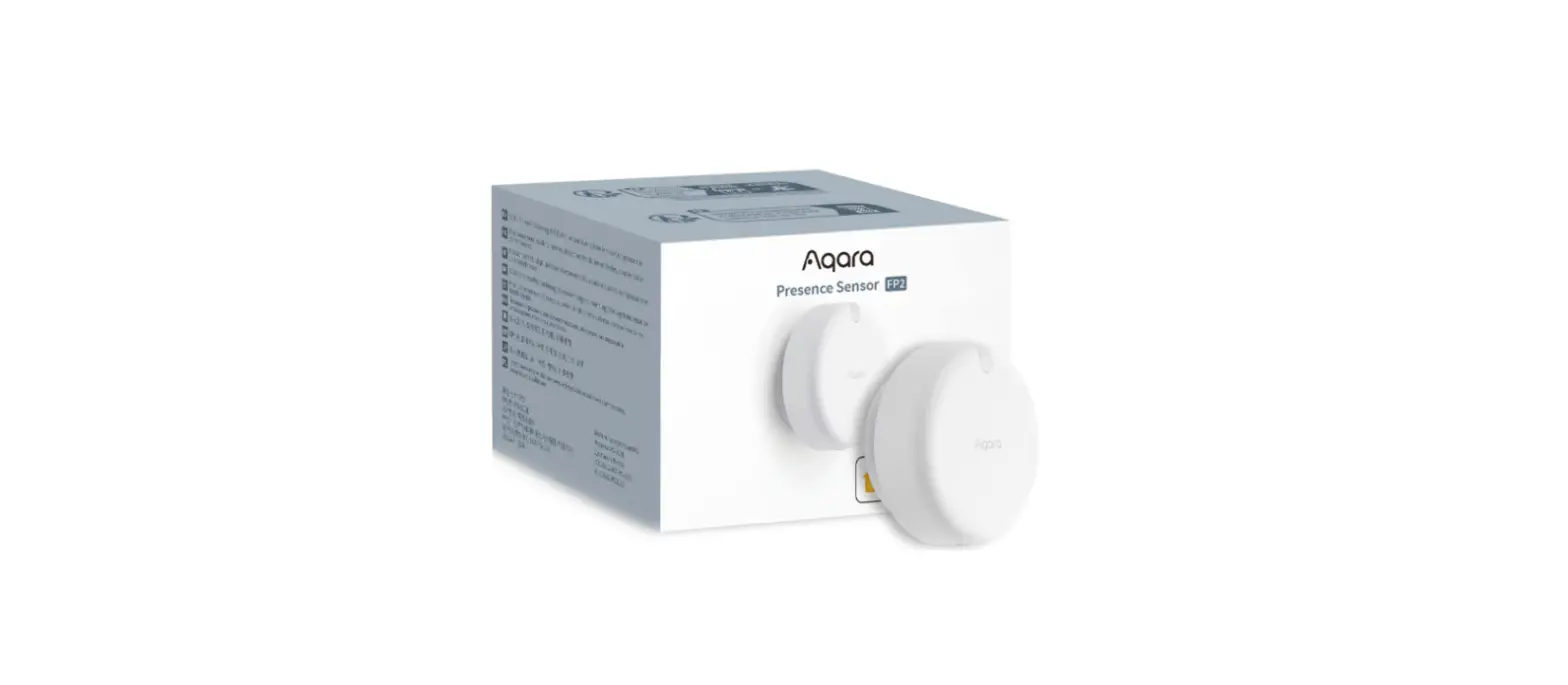
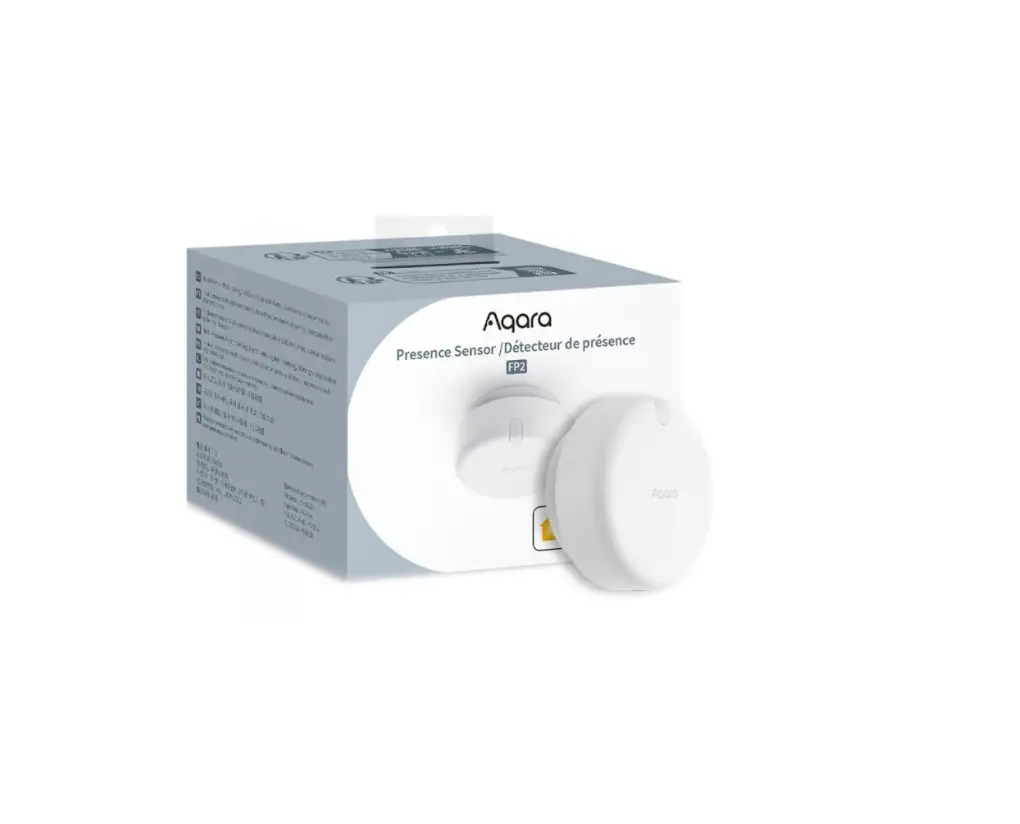
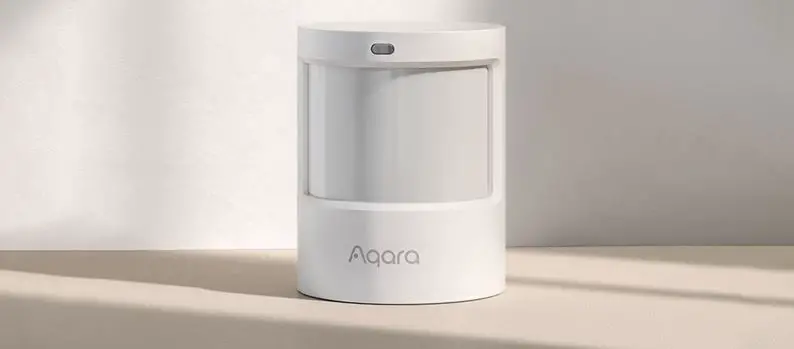
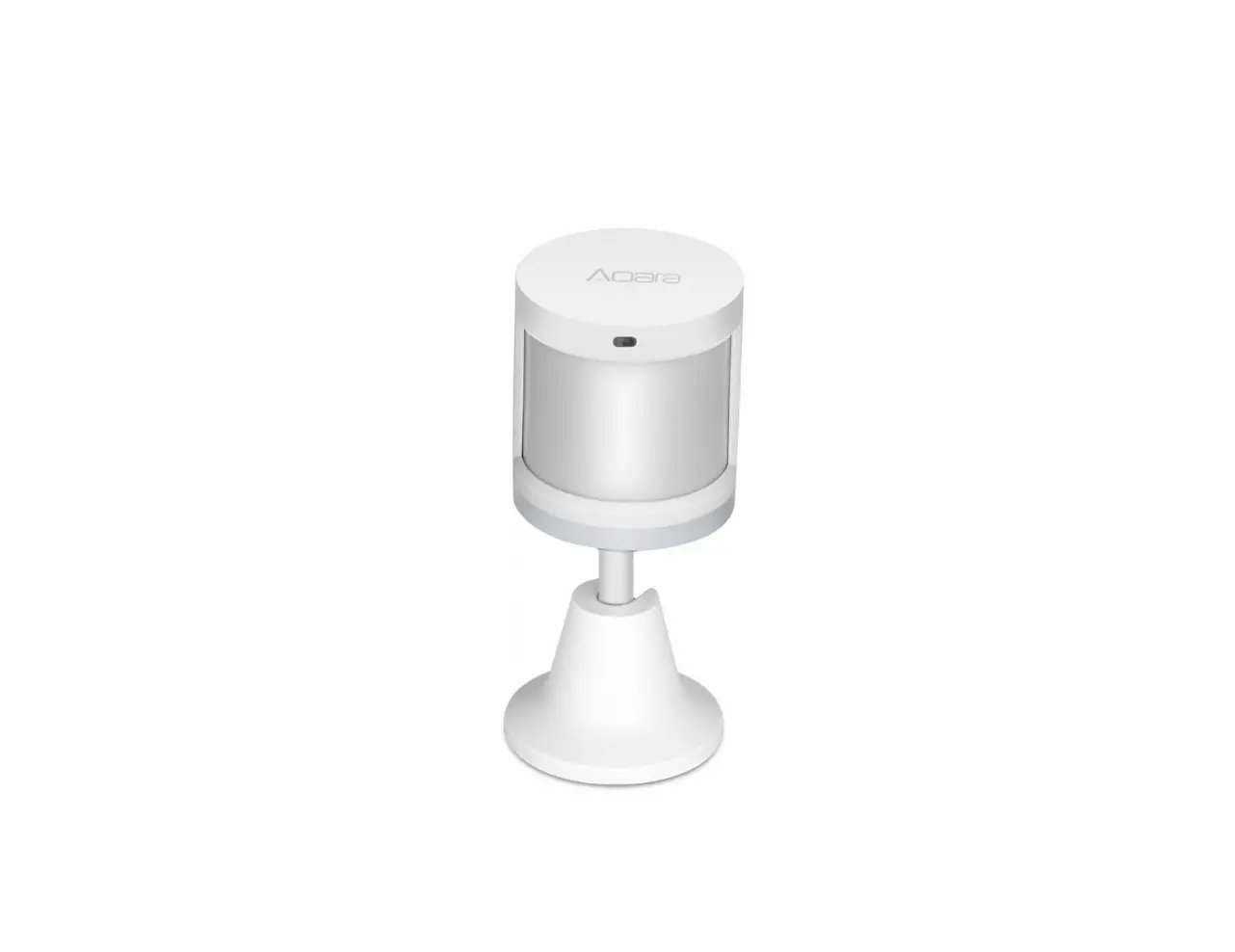
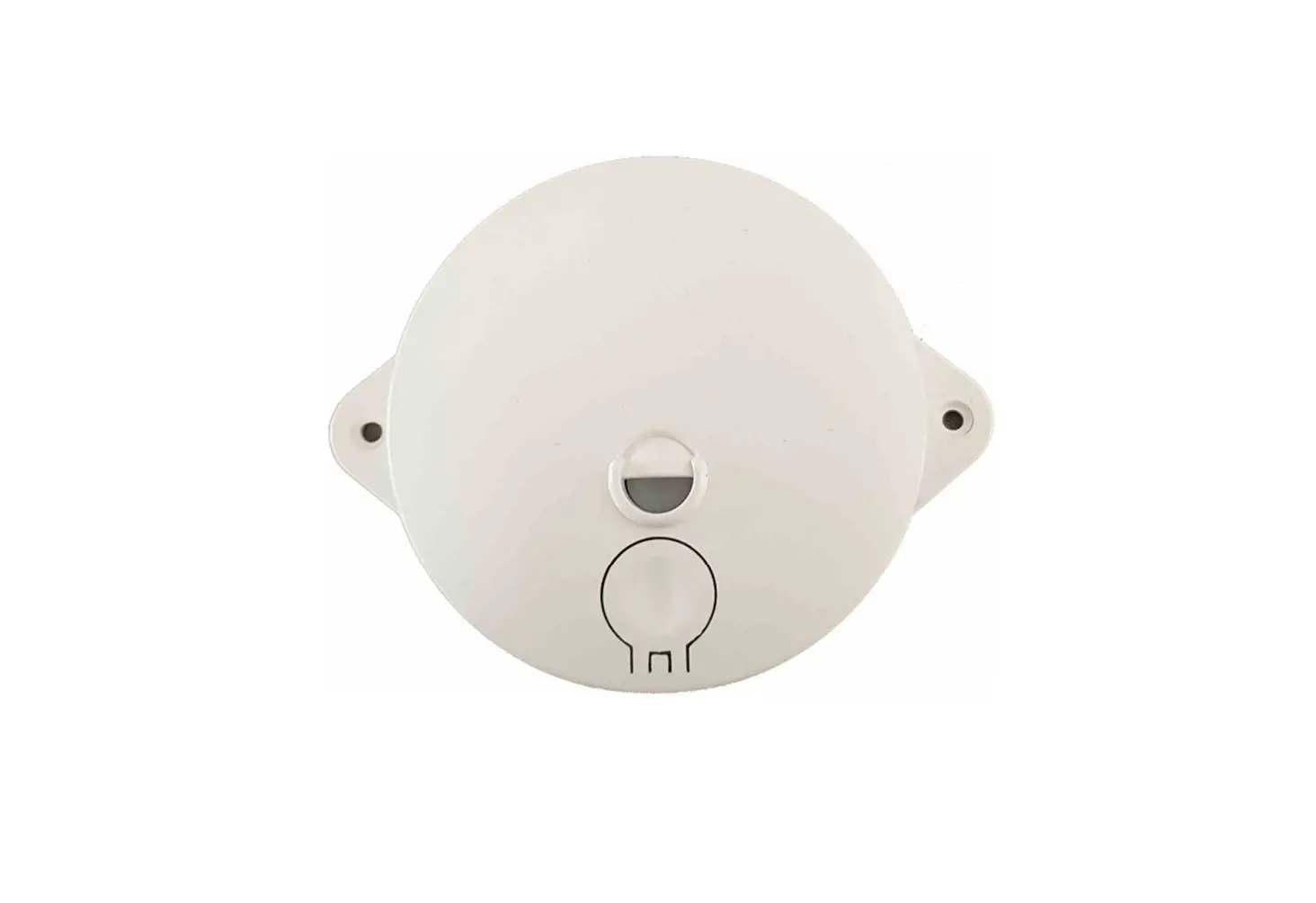
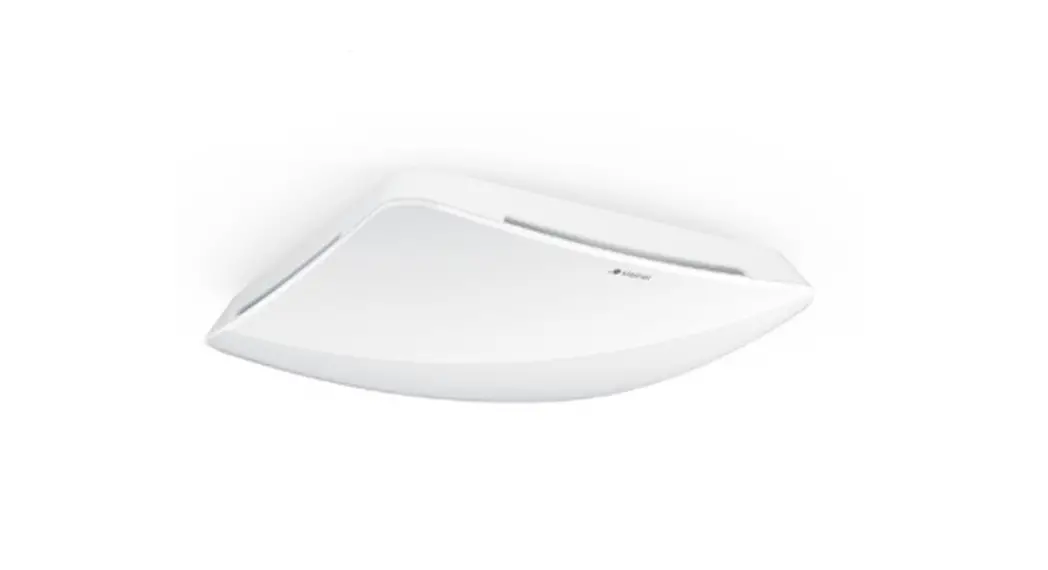
FP2 Presence Sensor
Product Information:
The Presence Sensor FP2 is a versatile device that offers zone
positioning, multi-person detection, and fall detection
capabilities. It can detect the presence or absence of individuals,
falls, entries, exits, approach, departure, and illuminance. The
sensor supports real-time tracking of multiple targets and zone
settings. Additionally, it can be integrated with third-party
automation systems such as HomeKit, Home Assistant, Alexa, and
Google Home without the need for a hub.
This device requires the Aqara Home app for operation. If local
automation is desired, it should be used with a Hub featuring Wi-Fi
Local Automation features.
The Presence Sensor FP2 is equipped with a Reset Button, Sensor
Indicator LED, Light Sensor, USB-C to USB-A Cable Base, and Metal
Plate Sticker.
Warnings:
- The fall detection results are for reference only. The product
is not a substitute for medical devices and may not accurately
recognize slow tumbles or gradual falls against a wall. Rapidly
falling or shaking objects may trigger false fall detection
alerts. - Avoid placing this product near a heat source.
- Do not attempt self-repairs. All repairs should be conducted by
professionals.
Notice: The Works with Apple badge indicates
that the accessory has been designed to work specifically with
Apple technology and has been certified to meet Apple performance
standards. Apple is not responsible for the operation of this
device or its compliance with safety and regulatory standards.
Product Usage Instructions:
- Device Power-On:
- If the device had been previously connected to a network, the
LED indicator will show the appropriate status. - If the device is not connected to a network, it enters the
networking mode. - LED Indicator:
- Yellow indicator flickers quickly: Enter networking mode.
- White indicator is normally on: Failure to connect to the
router/AIOT. - Blue indicator flickers quickly: Connected to the router.
- Blue indicator flickers slowly: Connected to AIOT.
- No indicator is on: The device is connected successfully and
can work normally.
- Press the Reset button for more than 10 seconds: Reset the
device. After successful reset, the device will be restarted
automatically and enter the networking mode. - Press the Reset button for 10 times successively: Restore
factory settings and reset the device to enter the networking
mode.
- Download the Aqara Home app from the Apple App Store, Google
Play, Xiaomi GetApps, Huawei App Gallery, or scan the provided QR
code. - Open the app and tap “+” in the upper right corner of the
homepage to enter the “Add Device” page. - Choose Presence Sensor FP2 and follow the instructions to
install the device.
Presence Sensor FP2 User Manual
Please read this manual carefully and keep it in a safe place.
Product Introduction
The Presence Sensor FP2 features zone positioning, multi-person detection, and fall detection. Capable of detecting presence or absence, falls, entries, exits, approach, departure, and illuminance, it supports real-time tracking of multiple targets and zone settings. The FP2’s powerful features can also be used within third-party automation systems: multiple sensors are exposed to HomeKit (and Home Assistant), Alexa, Google Home and more without needing a hub.
*This device requires to be used with the Aqara Home app. *If local automation is needed, this product should be used with a Hub with Wi-Fi Local Automation features.
Reset Button
Sensor Indicator LED, Light Sensor
USB-C to USB-A Cable Base
Metal Plate Sticker
Warnings
1. The fall detection results are for reference only. The product cannot fully replace medical devices and may not accurately recognize slow tumbles or gradual falls while leaning against a wall. Additionally, rapidly falling or shaking objects could trigger false fall detection alerts. 2. Avoid placing this product near a heat source. 3. Refrain from attempting self-repairs. All repairs should be conducted by professionals.
Notice
Use of the Works with Apple badge means that an accessory has been designed to work specifically with the technology identified in the badge and has been certified by the developer to meet Apple performance standards. Apple is not responsible for the operation of this device or its compliance with safety and regulatory standards.
Device Discription
Actions
Description
Device power-on
1. If the device had been connected to a network previously, the LED indicator is as shown on the right.
2. If the device is not connected to a network, it enters the networking mode.
LED indicator
The yellow indicator flickers quickly: Enter the networking mode.
The white indicator is normally on: Failure to connect to the router/AIOT
The blue indicator flickers quickly: Connect to the router
The blue indicator flickers slowly: Connect to AIOT
No indicator is on: The device is connected successfully, and can work normally.
Press the Reset button for more
than 10s
Reset the device. After successful reset, the device will be restarted automatically and enter the networking mode.
The yellow indicator flickers quickly
Press the Reset button for 10
times successively
Restore factory settings and reset the device to enter the networking mode.
The yellow indicator flickers quickly
Device Binding & Initialization
1 Select an installation method Based on the actual application scenario, determine the appropriate installation method and required detection range for the FP2. For zone detection, the wall-mounted method is recommended: it offers a horizontal detection angle of 120 degrees, with blind spots appearing beyond 120 degrees; the radial detection distance is 8 meters and the detection width is 6 meters. For fall detection, the ceiling-mounted method is advised: at an installation height of 2.8 meters, it can cover a fall detection area with a radius of 2 meters.
2 Device installation and power-on Choose between wall-mounted or ceiling-mounted positions for the FP2 based on the detection range. For heights under 2 meters, use metal plate and sticker; for heights over 2 meters, use screws. Connect the FP2 with the Type-C sensor power cord, then insert the sensor cord into the USB-A port of an adapter, outlet or other power supplying device. Long press the reset button for 10 seconds to reset FP2. Click 10 times to restore the factory settings, which shall clear all settings and network data.
3 Download the app Download the Aqara Home app: Search for “Aqara Home” in the Apple App Store, Google Play, Xiaomi GetApps, Huawei App Gallery, or scan the following QR code to download the Aqara Home app.(QR Code)Device Binding & Initialization
* Due to upgrades and updates of the Aqara Home app, the actual operations may differ from the above description. Please operate it according to the instructions of the Aqara Home app.
4 Device binding
Open the app, tap “+” in the upper right corner of the homepage to enter the page of “Add the device”. Choose “Presence Sensor FP2” and then install the device according to the instructions.
1. If you use HomeKit to add the device, you can either scan the Apple setup code on the device as prompted by the app or manually enter the PIN code.
2. If the binding fails, please confirm whether the following reasons exist: · The device only supports the Wi-Fi network of 2.4GHz band. · Unsupported special characters in the Wi-Fi name or password may cause connection failure. · Change them to commonly-used characters before trying again. · The device does not currently support WPA/WPA2 enterprise-class Wi-Fi networks. · Check if the router has enabled Wi-Fi anti-squatting settings or AP isolation, as these could result in connection or device search failures within the local area network. · Bridge connection networks are not recommended.
3. Common HomeKit addition failures include: · If it prompts “No accessories can be added,” restart the iOS device (iPhone or iPad) and reset the FP2 before trying again, as the error message might be cached in the iOS system due to repeated adding failures. · If it prompts “accessories have been added,” restart the iOS device, reset the FP2, and manually enter the HomeKit setting code to add the doorbell. · If it prompts “no accessories are found,” reset the FP2, wait for 3 minutes, and manually enter the HomeKit setting code to add it again.
Indicator Description
LED status
Device status & operation instructions
The yellow indicator is normally on
The yellow indicator flickers quickly
The blue indicator flickers quickly
The blue indicator flickers slowly
The blue indicator flickers quickly
The white indicator is normally on.
The indicator is off
The red indicator is normally on
The yellow indicator flickers
slowly Blue indicator flickers twice
quickly
After the device is powered on, the yellow status indicator is normally on until the system start-up of the device is finished.
After the system start-up or reset is completed, the device enters the AP or Bluetooth network configuration mode and waits to receive the state information of WiFi. The status indicator is set to yellow indicator flickering quickly before the networking information received;
When the device is being connected to the router, the blue indicator flickers quickly.
After successfully connected to the router, the device is being connected to the AIOT platform,
The device is offline and is not connected to the router
No password/failed to connect to the router/failed to connect to AIOT
After successfully connected to the AIOT, the status light of the device is off (different from that of the gateway, the device enters the working state after connected to a network); If the device cannot be connected to the AIOT after successful networking and can be connected to the router, the status indicator will be still off. Device fault (overtemperature and excessive acceleration vibration can cause the device to enter a state where the sensor cannot work normally)
The user can update the firmware through APP OTA. In the process of updating, the status indicator of the device is set to yellow indicator flickering slowly
Identify function. When searching for the device via APP, the blue indicator of the device will react by flickering twice
5 Device Card and Homepage
Once bounded, you can view the current status of the device on the FP2 device card, including presence, absence, falling, and offline states. Illuminance is displayed through separate cards.
On the Presence Sensor FP2 device homepage, you can access the floorplan, coordinate information, logs, zone management, and installation mode.
The floorplan is divided into 16×20=320 cells. Each cell represents a detection space of 0.5m x 0.5m = 0.25 square meters.
6 Installation Guidance After bounded, you can follow the installation guide to configure important settings, including modes, edges, and interference sources.
FP2 supports presence detection, zone dectection (Personnel positioning), falling detection. Default mode is always on by default, regardless of selecting any two other modes.
Step 2: Edge Setting
The edge setting is primarily used to reduce false targets caused by signal reflections from walls or other objects. It is recommended to set the area beyond the wall as the edge.
Step 3: Interference Source Configuring
Living and office spaces often have moving targets such as curtains, fans, green plants moved by wind, and clothes hanging. If the sensor faces these objects, a false alarm may easily occur, so it needs to be marked as an interference source.
Note: Make sure to configure the interference source only after ensuring that humans and pets have left the area.
7 Zone Management
Click the FP2 device homepage edit area to access settings for templates, stickers, monitoring and other areas. Long press a set area to edit it directly. Click Sticker to edit them, and click Template to access the template page.
8 Zone Detection FP2 supports up to 30 detection zones. FP2 allows up to 30 detection zones. Select cells with one finger slide. Use two fingers to zoom and drag during editing.
For each zone, you can edit the name, choose colors, and select the type.
Type selection allows FP2 to optimize monitoring parameters for better recognition.
Once the monitoring zone is set, zone automation options are generated. If FP2 is added to Apple Home, the area syncs automatically, creating occupancy sensors. By enabling zone name sync in the app settings, the name also syncs to Apple Home.
9 Sticker
We offer 16 sticker types, with a limit of 20 per user. Stickers can be selected, enlarged, shrunk or deleted. To rotate a sticker, drag or click the rotate button in its lower-left corner.
10 Edges, Interference Sources, and Entrances/Exits These areas don’t generate automation but impact device accuracy. Entrances/exits are where people appear or disappear, like hallways or doors.
Set more cells than actual doors to ensure accurate entry and exit. Target creation and deletion will be faster in these areas, with stricter conditions.
Configuring edges and interference sources is crucial. No targets are created in edge areas, and valid targets won’t enter.
Targets aren’t created in interference sources, but valid targets can move into them.
11 Template
Templates save layout configurations, allowing users to experiment in different home spaces without repetitive setups. Save the current area configuration by clicking the button in the top right corner as a personal template, including monitoring areas, other areas, and stickers.
Click to enter the template page, where you can import recommended and personal templates. Templates support previewing and importing. Personal templates can be managed, renamed, and deleted.
There are currently 11 recommended templates to choose from, which users can edit based on their actual layout, including a blank template that clears all area content.
* Note that applying a template will delete existing area configurations, so save accordingly. Zone automations needs to be adjusted after applying a template. Personal templates are shared within an account, not only for this device but for all FP2s within the user’s account.
12 More Settings
FP2 supports the following More Settings:
(1) Anti-light pollution mode When activated, all indicator lights, including protection and offline reminders, are turned off during specified periods. Note: Reset and network access indicators still function normally during network access.
(2) Detection modes FP2 supports presence detection, zone dectection (Personnel positioning), falling detection. Default mode is always on by default, regardless of selecting any two other modes. Note: Future FP2 OTA will support more modes. Zone detection includes detection direction and coordinate direction reversal configuration options. Coordinate direction reversal supports enabling, disabling, and auto modes. In auto mode, FP2 system automatically recognizes the installation method of the device and decides whether to enable coordinate direction reversal. When the detection direction function is set to left-right monitoring, the entry and exit directions will have distinct attributes, and will be divided into left-entry, right-entry, left-exit, and right-exit.
(3) Presence Detection Sensitivity Sensitivity levels impact FP2’s response speed and accuracy. Higher sensitivity offers quicker responses but may cause false alarms. Use high sensitivity in static areas like bedrooms, and low sensitivity in dynamic areas like hallways.
(4) Proximity Sensing Distance This setting influences proximity sensing for both radar and surrounding area. With low, medium, and high settings, the distance thresholds are 1m, 2m, and 3m. For example, at medium, events are reported when a person is within 2m (approaching) or more than 2m (departing) from the radar or area.
(5) Fall Detection Sensitivity Different fall detection sensitivities affect the recognition range and false alarm rate. Higher sensitivity detects more fall types but may cause some false alarms, such as a slow sitting action being misinterpreted as a fall.
(6) Reset to Absence Status If the device has false alarms, you can click “Reset to Absence Status” to clear all targets in the entire space.
(7) Name Synchronization With this feature, you can synchronize the set zone names with Apple Home.
13 Configure Automations
Automatic name Presence Absence
presence for some time
Definition Someone is detected
Noone detected
Scope of duration: 1s~23h59min59s Default: 10min
Description Status
Status, it usually takes 6-30s of continuous detecting from presence to absence.
Status
Absence for some time
Scope of duration: 1s~23h59min59s Default: 10min
Status
Enter
Leave Enter from the left Leave on the left Enter from the right Leave on the right
Approaching
going away
It is detected that someone entered the space
It is detected that someone is leaving.
Transient, only valid for the first person. Left-in and right-in will be distinguished under the left-right monitoring mode. Global effective only, left-in and right-in events of the zone won’t be reported.
Transient, only effective for the last person. Left-out and right-out will be
distinguished under the left-right monitoring mode. Global effective only, left-out and right-out events of the zone
won’t be reported.
It is detected that someone enters from the left side.
It is detected that someone leaves from the left side.
It is detected that someone enters from the right side.
It is detected that someone leaves from the right side.
There are 3 levels of sensing distance for approaching: Far, Medium, Near Default: Medium
Transient
Transient
Transient
Transient Transient, both the global and the zone
can have approaching events; If the threshold is approached by any one of the targets, an approaching event
will be reported.
There are 3 levels of sensing distance for approaching: Far, Medium, Near
Default: Medium
Transient, both the global and the zone can have departure events;
If anyone is away from the threshold, a departure event will be reported.
Someone falls down Fall down and exceed
a certain time Illuminance reached up to
Illuminance drops to
When it is detected that there’s a user falling down
The status of falling has been a certain period of time.
When the Illuminance rises from a low value to a specified value
When the Illuminance is reduced from a low value
to a specified value
Above assigned illuminance
When the Illuminance is larger than a specified value
Below assigned illuminance
Presence for some time(Zone)
When the Illuminance is smaller than a specified value
Scope of duration: 1s~23h59min59s Default: 10min
Absence for some time(Zone)
Presence(Zone)
Absence(Zone)
Scope of the duration: 1s~23h59min59s Default: 10min
Someone detected in the zone
No one detected in the zone
Enter the zone
It is detected that someone entered the designated zone.
Leave the zone
It is detected that someone left the designated zone.
Approaching the zone
It is detected that someone approached the designated zone.
Going away from the zone
It is detected that someone was away from the designated zone.
Transient Status
Transient
Transient
Status
Status
Status
Status Status Status Transient, effective for the first person in the zone Transient, effective for the last person in the zone Transient Transient
Automatic motion Name
Reset absence
Definition Clear all targets in the space
Description
14 Apple Home Presence Sensor FP2 supports HomeKit. When no zone is set, FP2 appears as a presence sensor and an illuminance sensor in Apple Home.
If the zones are set through Aqara Home, the zones will be synchronized to Apple Home automatically. An Aqara Presence Sensor will be generated correspondingly in each zone among the types of occupancy sensor. To sync area names, use the name synchronization in more settings. Each presence sensor in Apple Home can have separate automation events.
Each presence sensor of Apple Home can be set into an automatic event independently.
15 For more details, please visit: https://www.aqara.com
Manufacturer: Lumi United Technology Co., Ltd. Address: Room 801-804, Building 1, Chongwen Park, Nanshan iPark, No. 3370, Liuxian Avenue, Fuguang Community, Taoyuan Residential District, Nanshan District, Shenzhen, China. Email: [email protected] Online Customer Service: www.aqara.com/support
 Aqara Smart Device Product Support