 170223M40-2
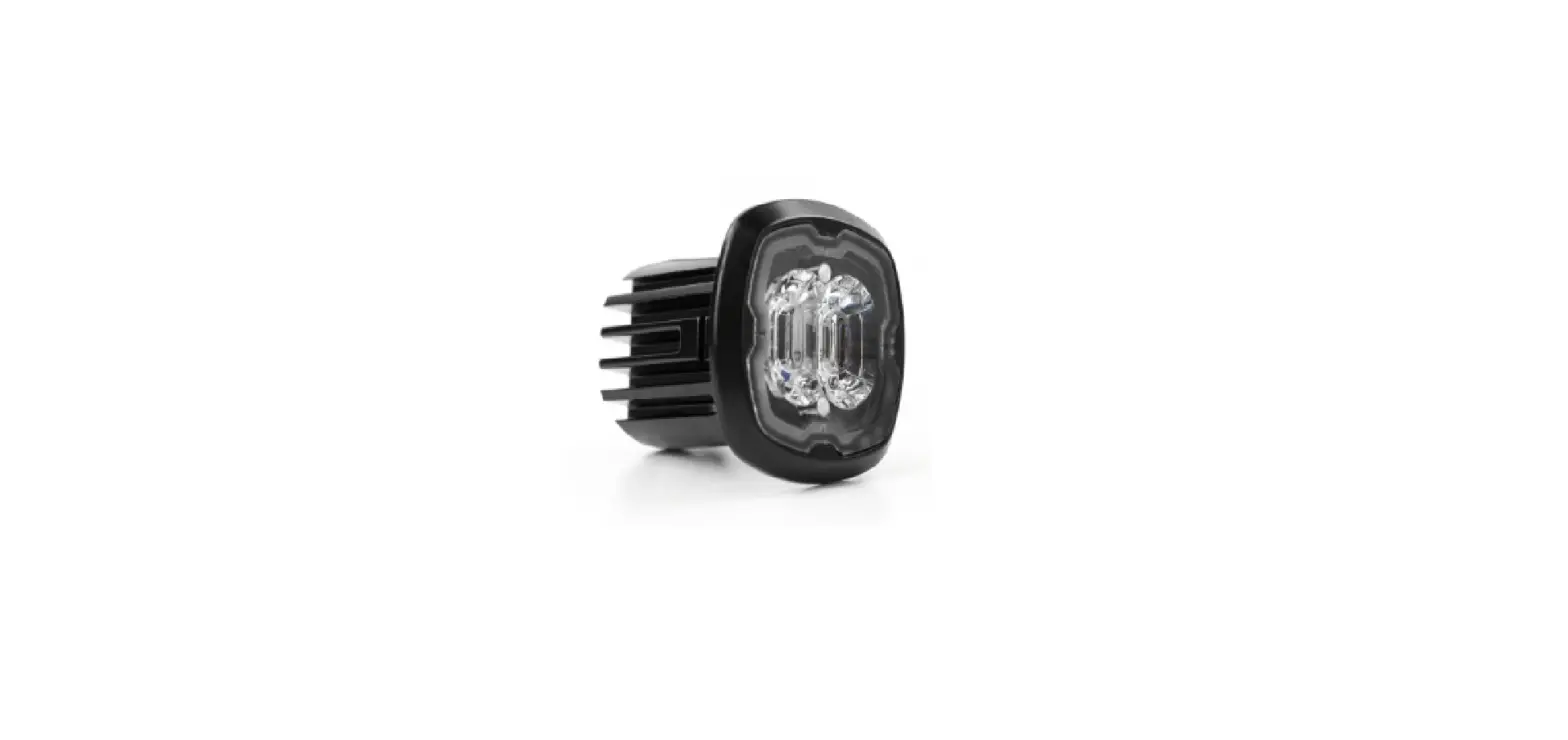
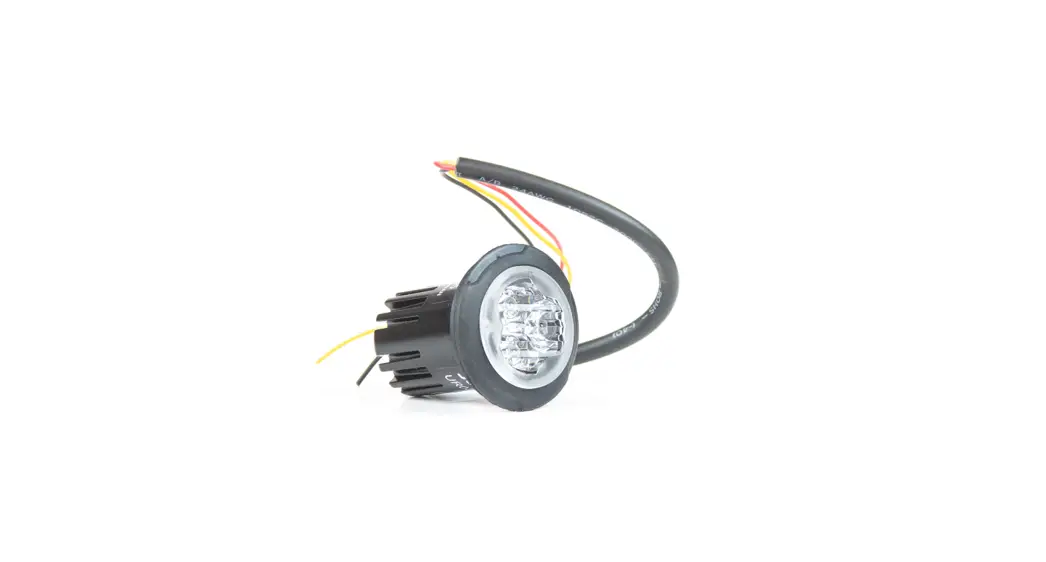
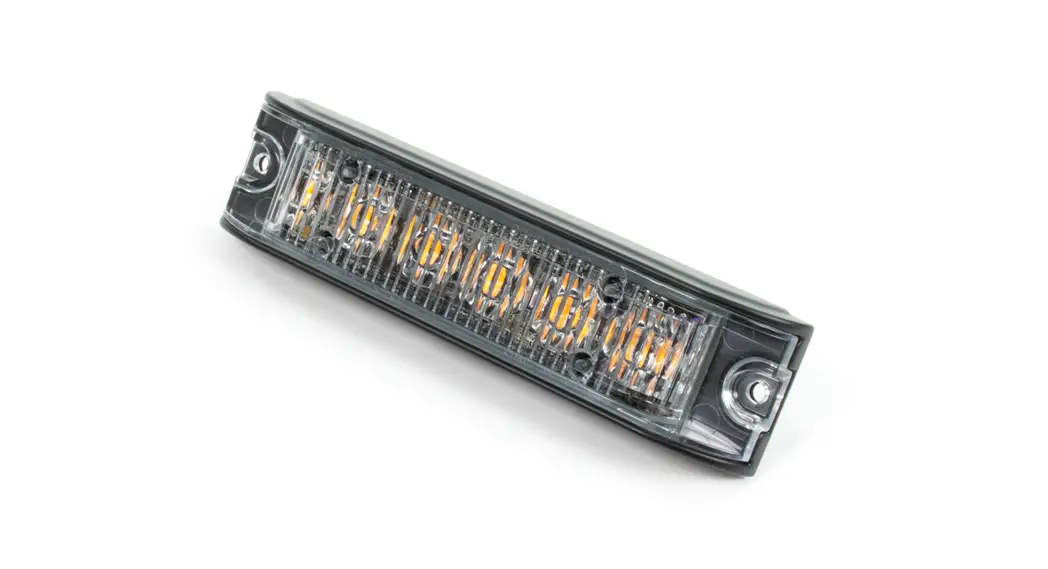
MINI LIGHTHEAD Manual
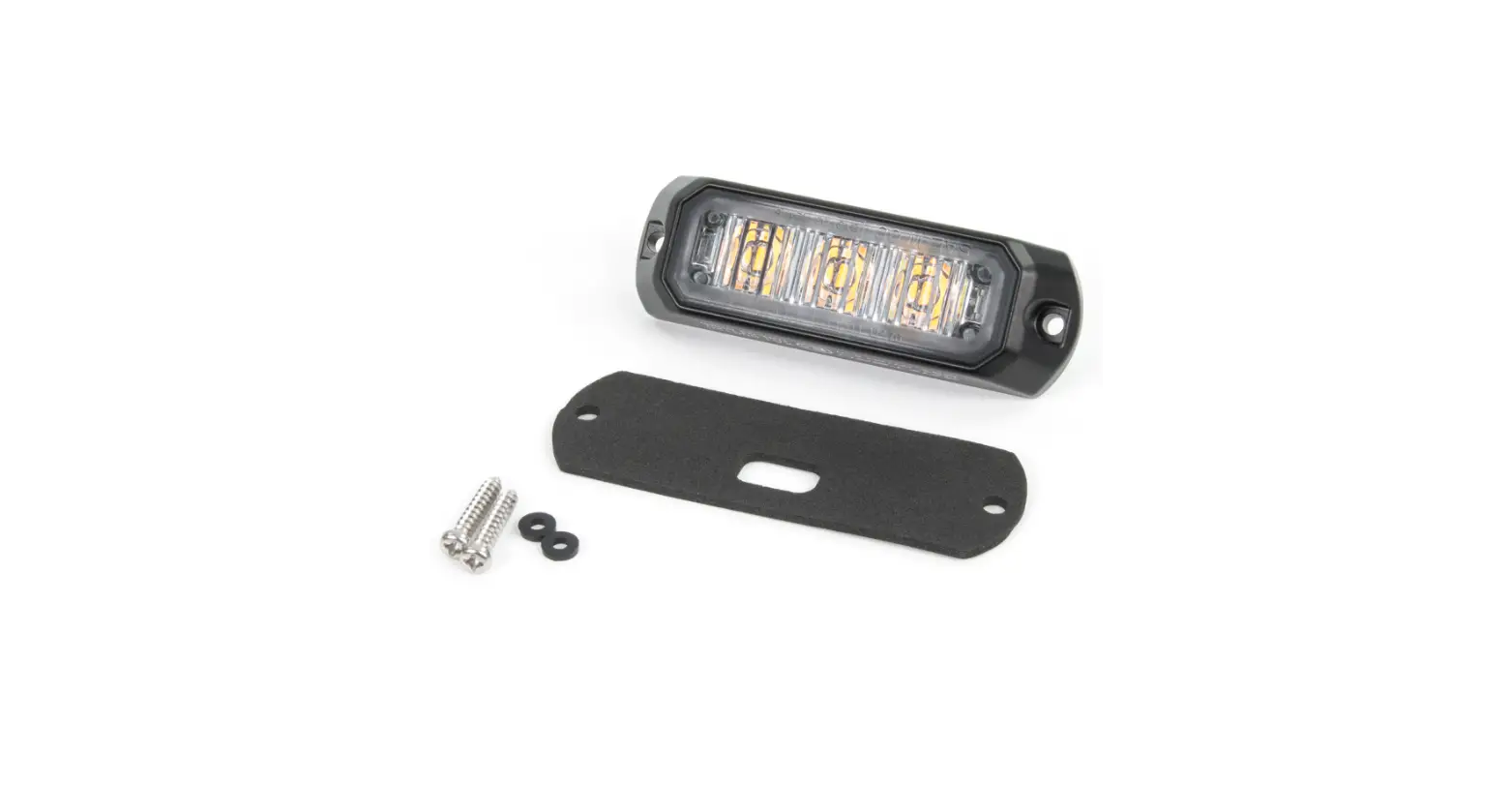
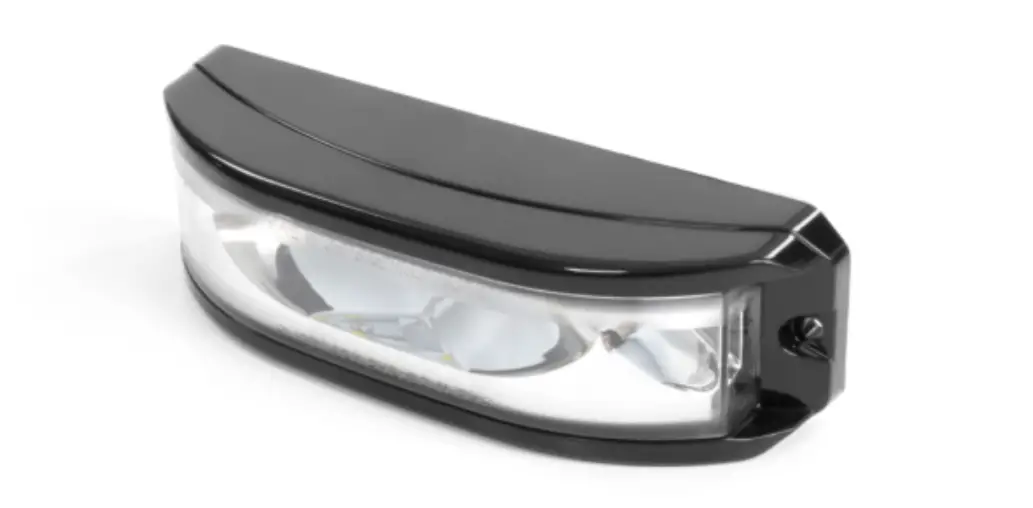
Surface Mount
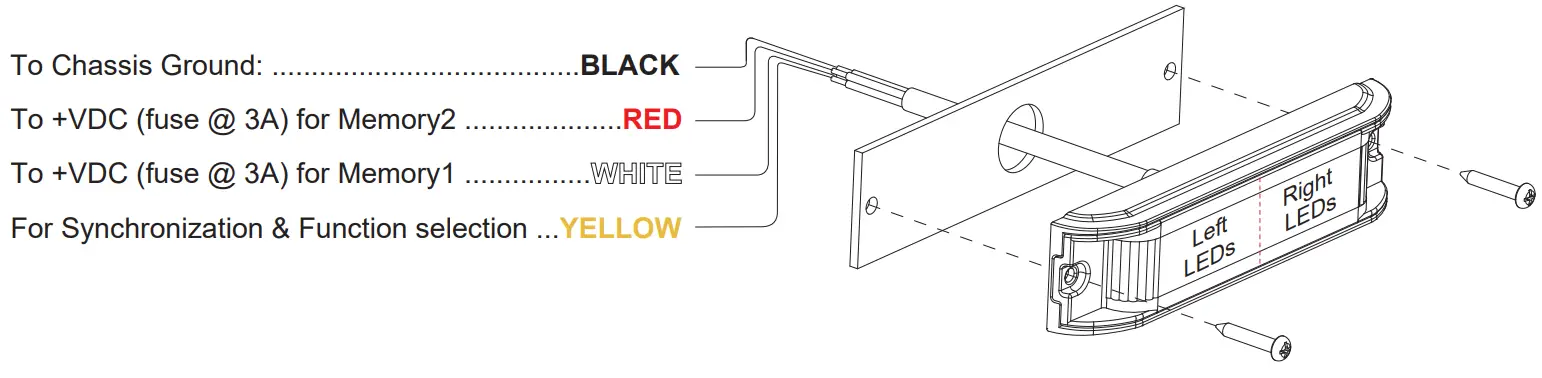
NOTE: RED wire has priority over  wire when both wires are activated.
Operation
This lighthead is designed with 2 sets of memory to allow instant switch between 2 pre-set flash patterns with a simple switch of a button (user-supplied). Connect BLACK wire to Ground, and apply +VDC to WHITE wire to activate Memory1 or to RED wire to activate Memory2.
Step 1
Select Function & Flash Pattern
a. Activate Memory1 by applying +VDC to wire.
b. While wire is activated, momentarily apply +VDC to YELLOW wire:
- once for <1 second for next flash pattern.
- quickly three times for reset to default.
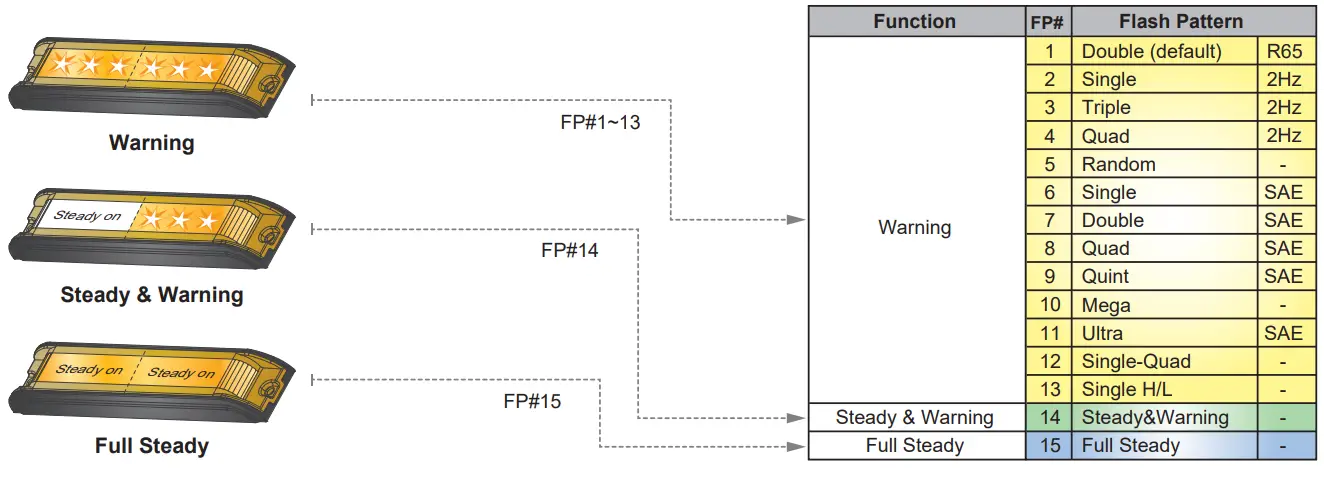
Step 2 Select Mode
a. While wire is activated, apply +VDC to YELLOW wire for >3 seconds to enter Mode setting.
b. Once in Mode setting, lighthead will display dim slow pulses based on its Mode and Group (single or double pulses respectively).
c. Momentarily apply +VDC to YELLOW wire for <1 second for next Mode. (refer to Mode charts).
d. Momentarily apply +VDC to YELLOW wire quickly 3 times within 1 second to reset to Mode1.
e. When desired mode is selected, apply +VDC to YELLOW for >3 seconds or disconnect all power to exit Mode setting.
f. To configure Memory2, apply +VDC to RED wire and repeat the above steps A & B.
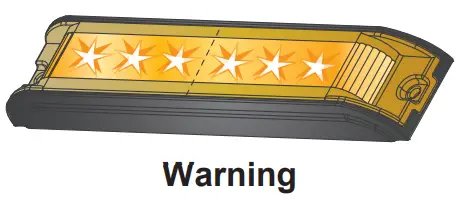
NOTE: For mutiple lighthead installation, heads in the same Group flash together. [G1] Heads alternate with [G2] Heads. For synchronization all YELLOW wires must be connected together, and set at the same Flash Pattern.
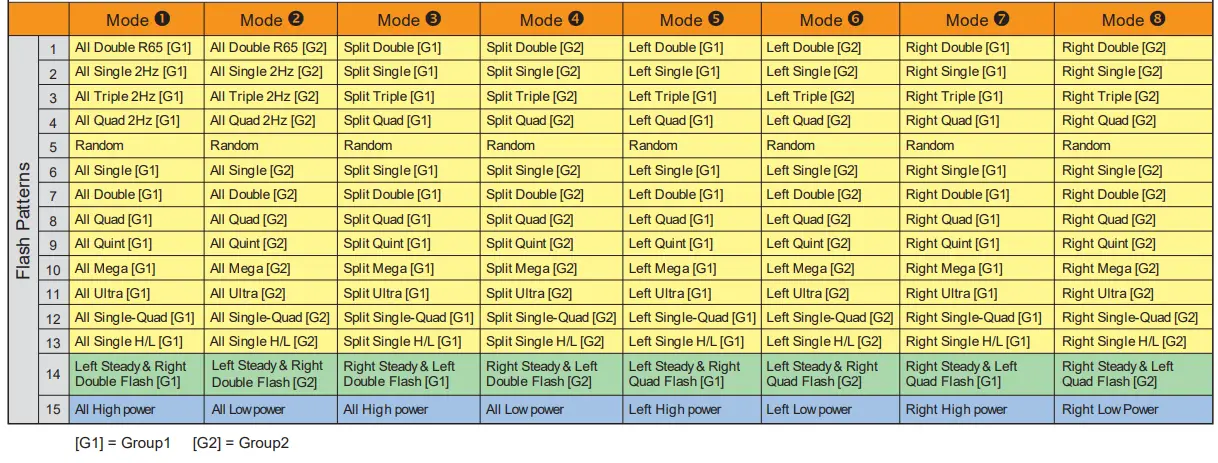
| Mode | Warning Effect | |
| 1 | All (single pulse) | All [G1] |
| 2 | All (double pulse) | All [G2] |
| 3 | Split (single pulse) | Split [G1] |
| 4 | Split (double pulse) | Split [G2] |
| 5 | Left (single pulse) | Left only [G1] |
| 6 | Left (double pulse) | Left only [G2] |
| 7 | Right (single pulse) | Right only [G1] |
| 8 | Right (double pulse) | Right only [G2] |
All = Left & Right simultaneous
Split = Left & Right alternating
[G1] = Group1 [G2] = Group2
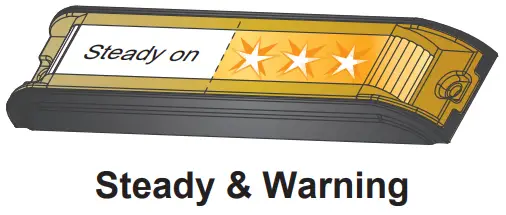
| Mode | Steady&Warning Effect | |
| 1 | All (single pulse) | Left Steady & Right Double Flash [G1] |
| 2 | All (double pulse) | Left Steady & Right Double Flash [G2] |
| 3 | Split (single pulse) | Right Steady & Left Double Flash [G1] |
| 4 | Split (double pulse) | Right Steady & Left Double Flash [G2] |
| 5 | Left (single pulse) | Left Steady & Right Quad Flash [G1] |
| 6 | Left (double pulse) | Left Steady & Right Quad Flash [G2] |
| 7 | Right (single pulse) | Right Steady & Left Quad Flash [G1] |
| 8 | Right (double pulse) | Right Steady & Left Quad Flash [G2] |
All = Left & Right simultaneous
Split = Left & Right alternating
[G1] = Group1 [G2] = Group2
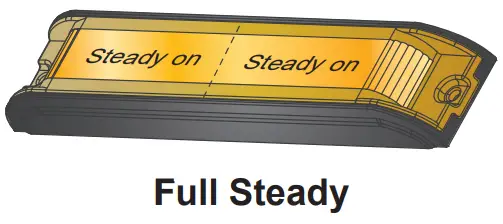
| Mode | Full Steady Effect | |
| 1 | All (single pulse) | All high power |
| 2 | All (double pulse) | All low power |
| 3 | Split (single pulse) | All high power |
| 4 | Split (double pulse) | All low power |
| 5 | Left (single pulse) | Left high power |
| 6 | Left (double pulse) | Left low power |
| 7 | Right (single pulse) | Right high power |
| 8 | Right (double pulse) | Right low power |
All = Left & Right simultaneous
Split = Left & Right alternating
Examples
Example Configuration#1:
I would like Memory1 to be Full Steady (All low power), and Memory2 to be split Ultra flash (Left row LEDs alternate Right row LEDs).
- Activate
 wire and select FP#15.
 - Enter Mode setting and select Mode#2.
- Activate RED wire and select FP#11.
- Enter Mode setting and select Mode#3 (or Mode#4).
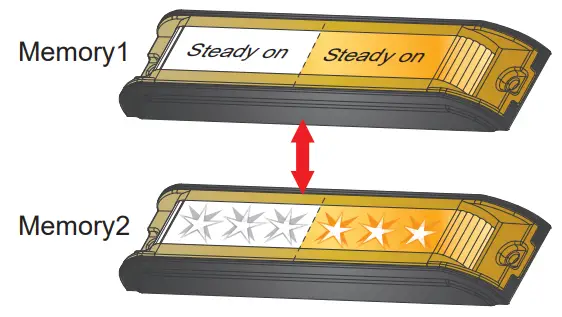
Example Configuration#2:
I would like Memory1 to be Left Steady & Right Double Flash, and Memory2 to be All Ultra flash.
- Activate wire and select FP#14.
- Enter Mode setting and select Mode#1 (or Mode#2).
- Activate RED wire and select FP#11.
- Enter Mode setting and select Mode#1 (or Mode#2).
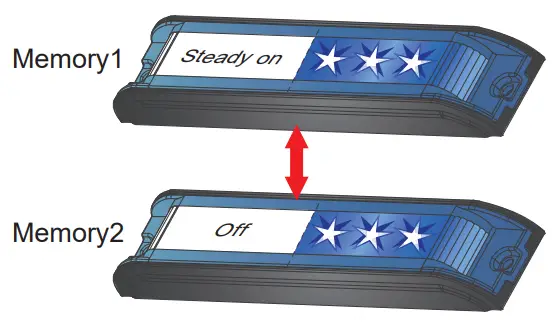
Quick reference chart