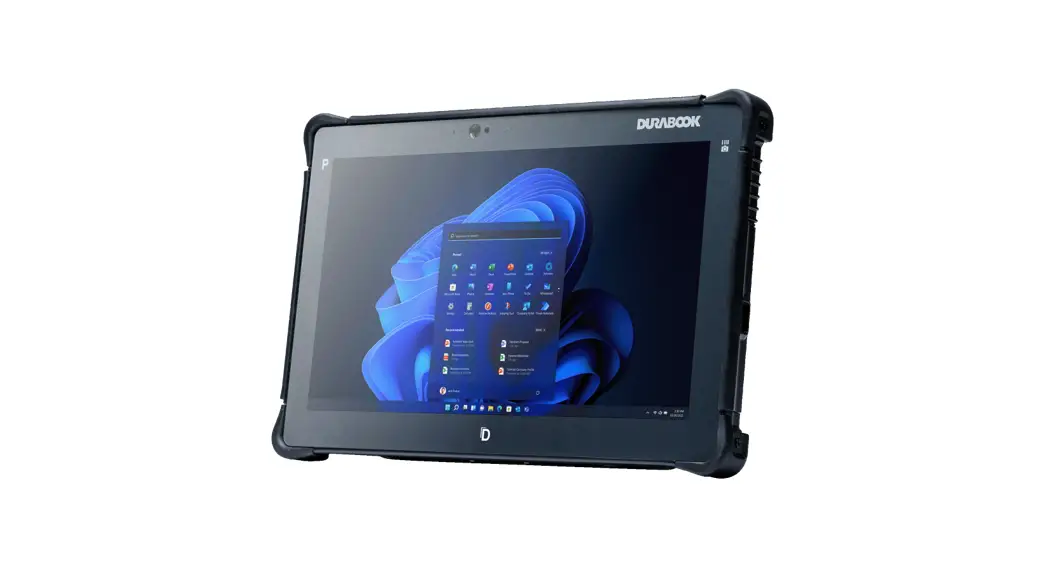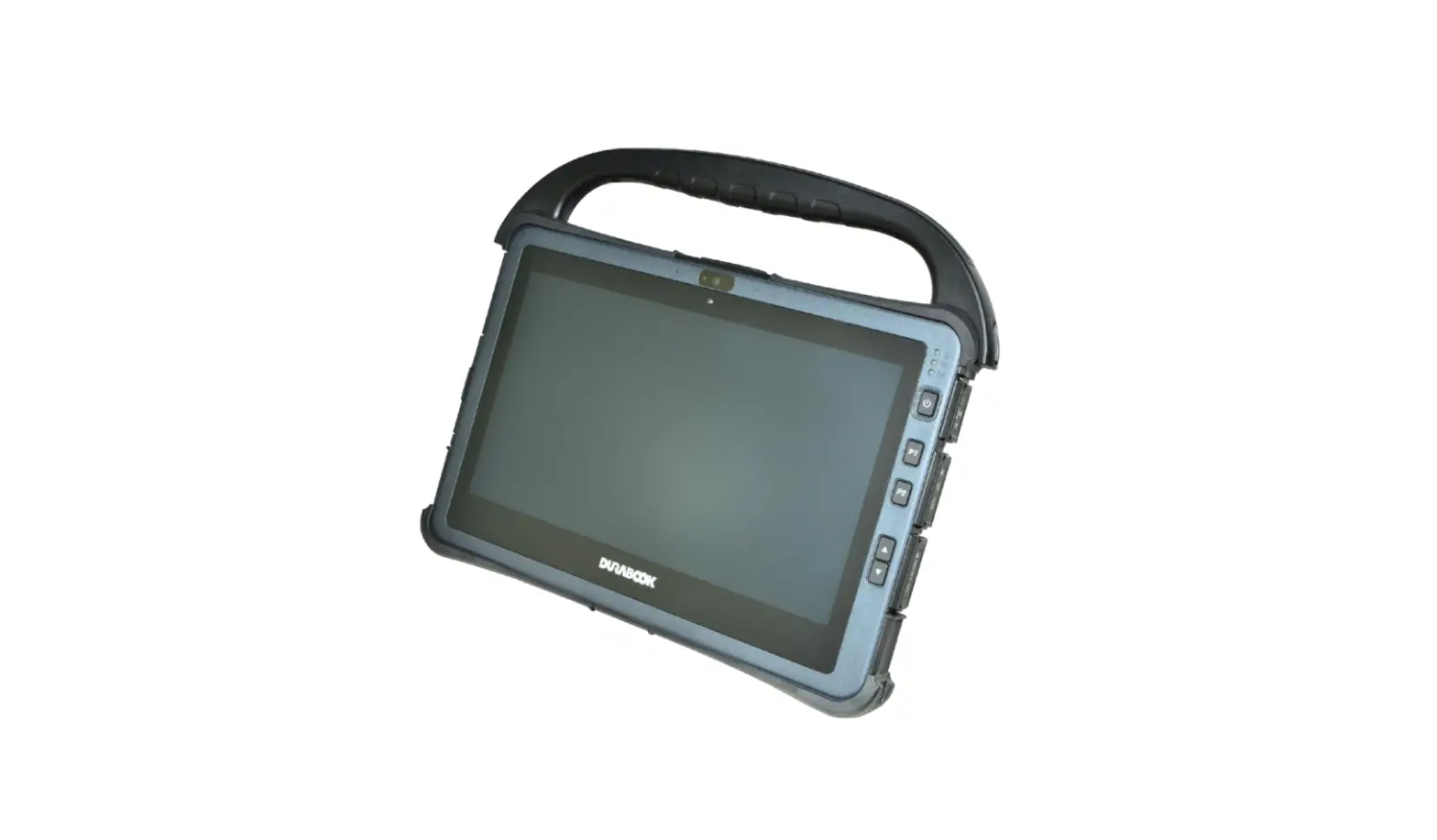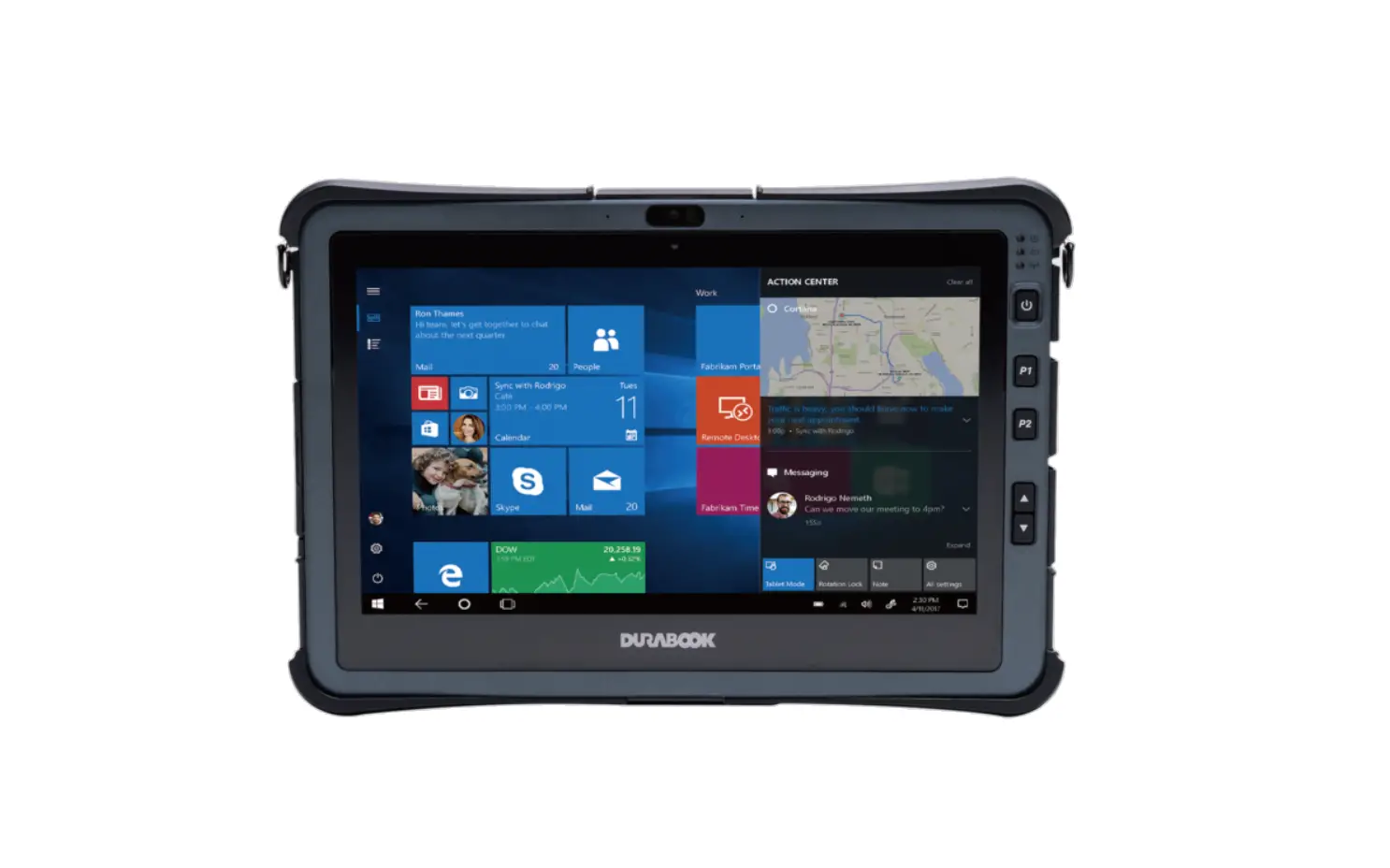
DURABOOK U11I Rugged Tablet Expansion Modules User Manual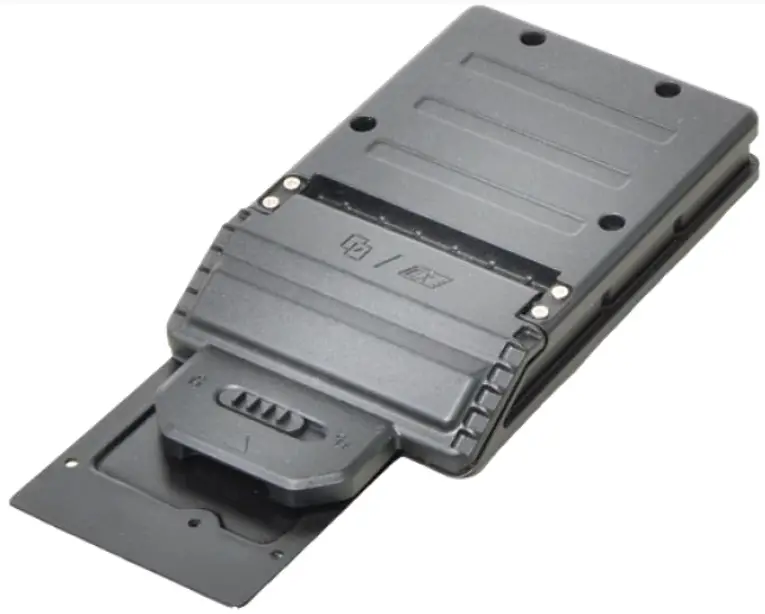
Package Contents
If any of following items is damaged, please contact your retailer.
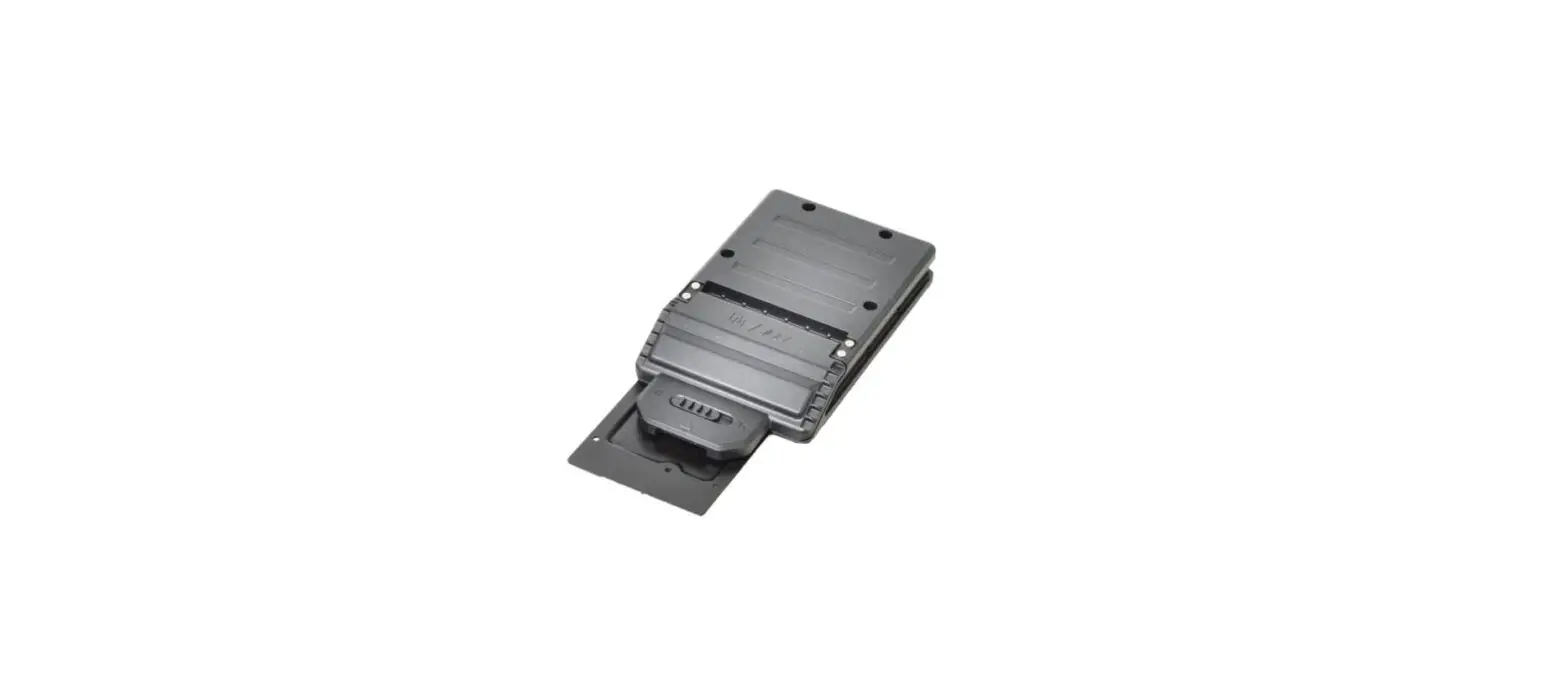
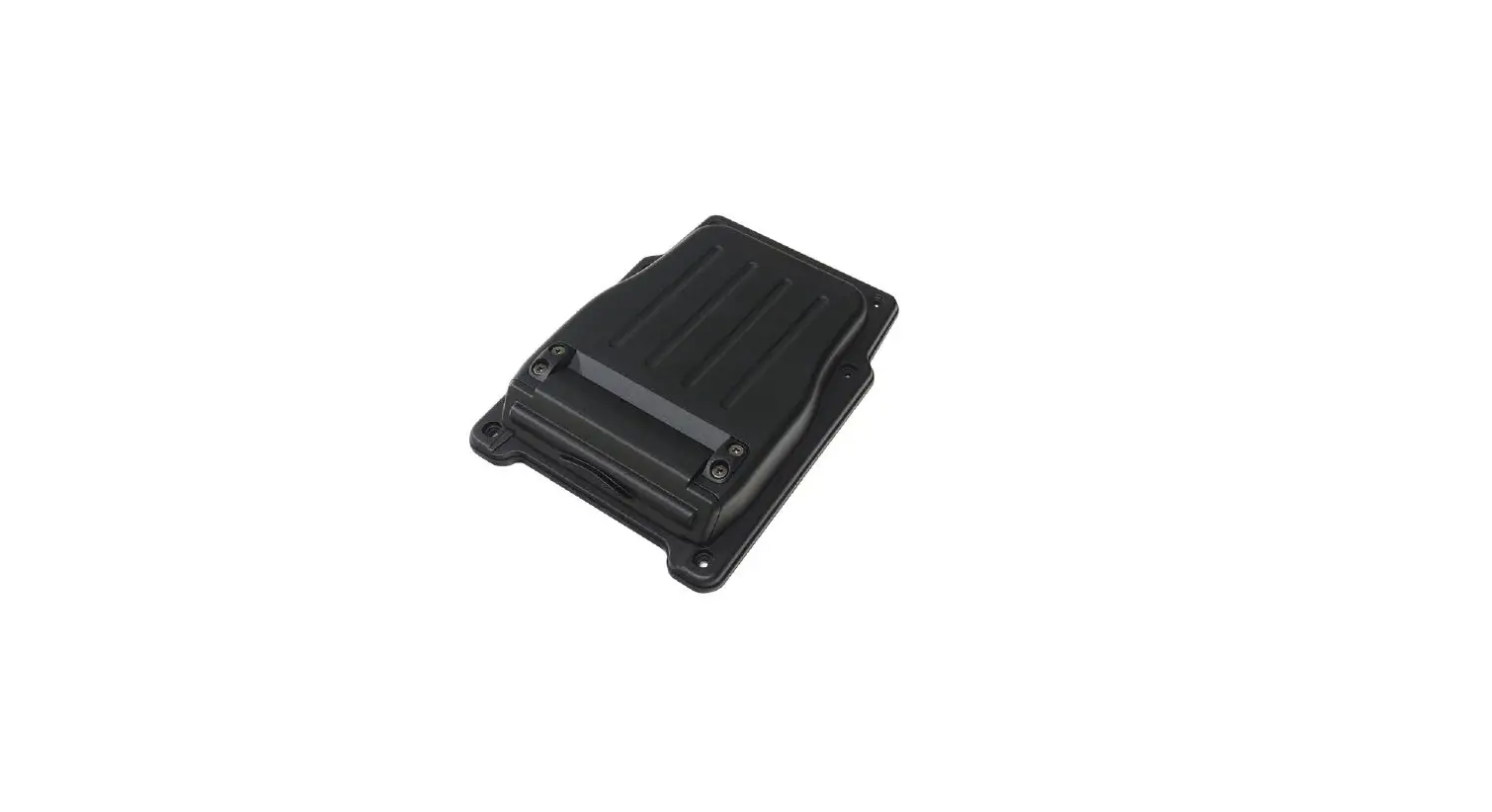
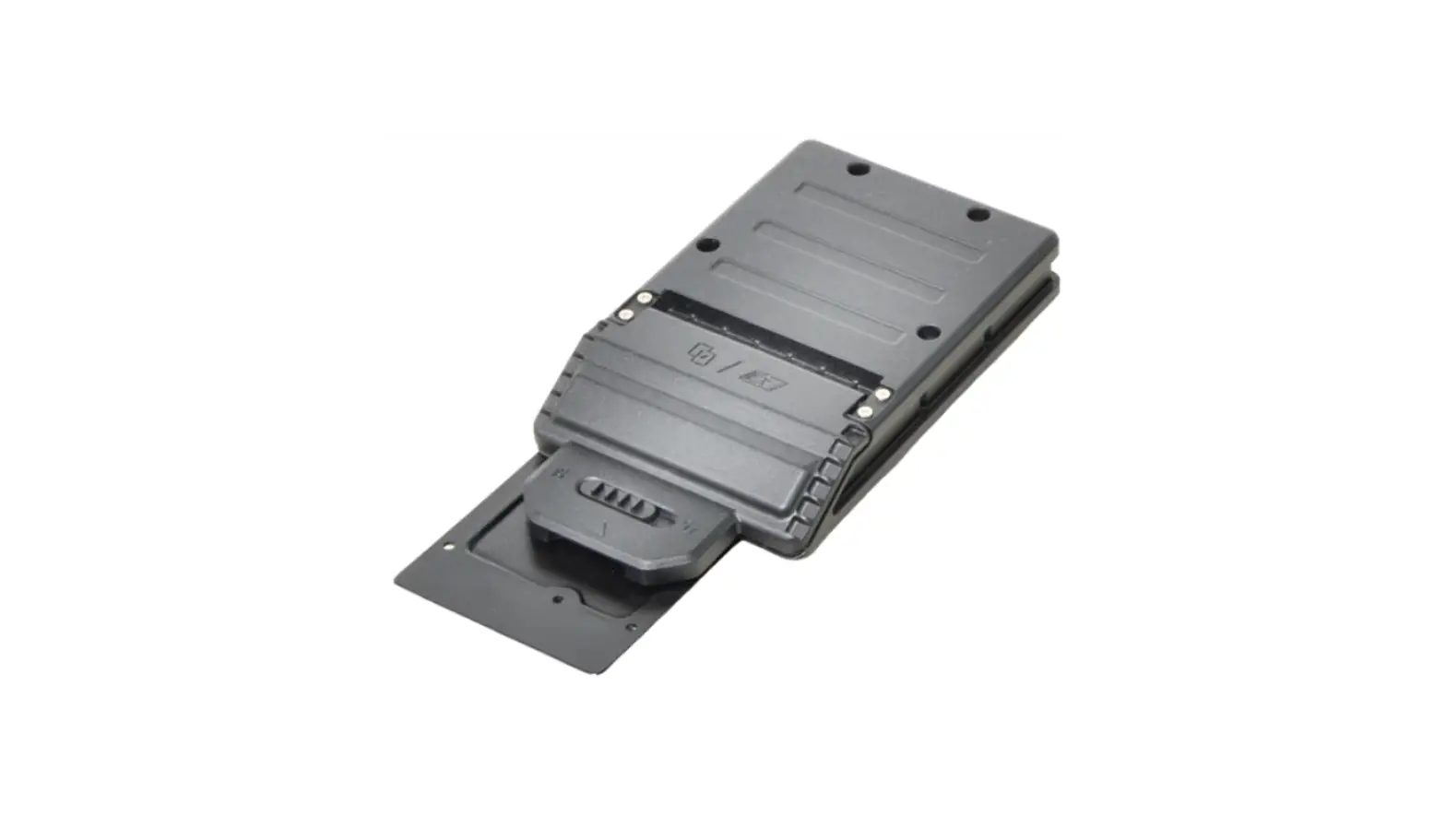
PCMCIA module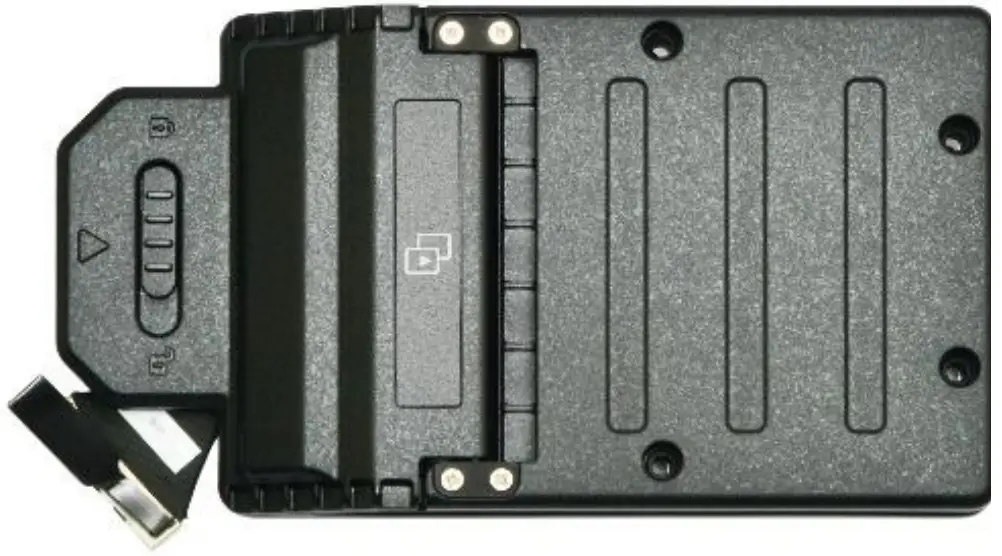
OR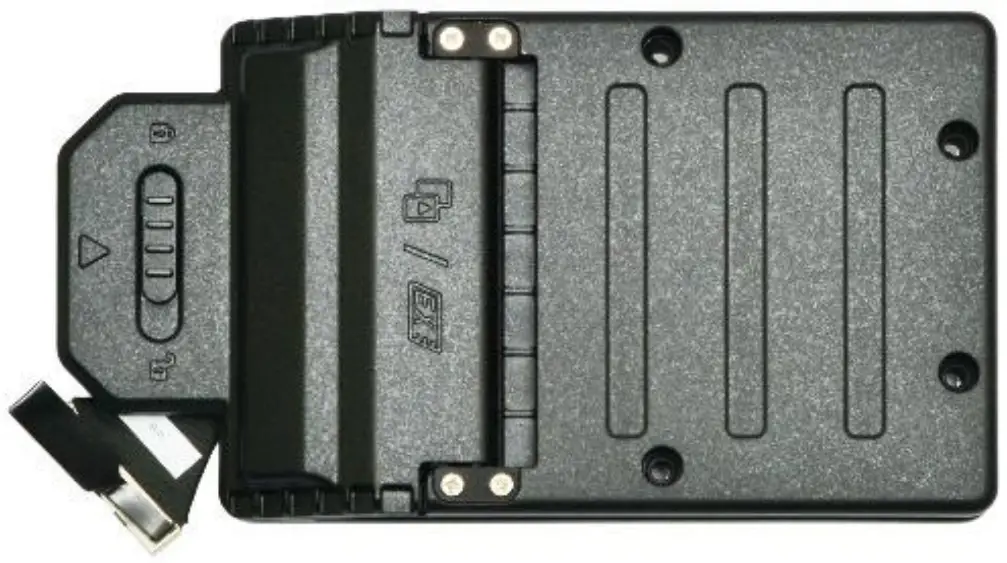
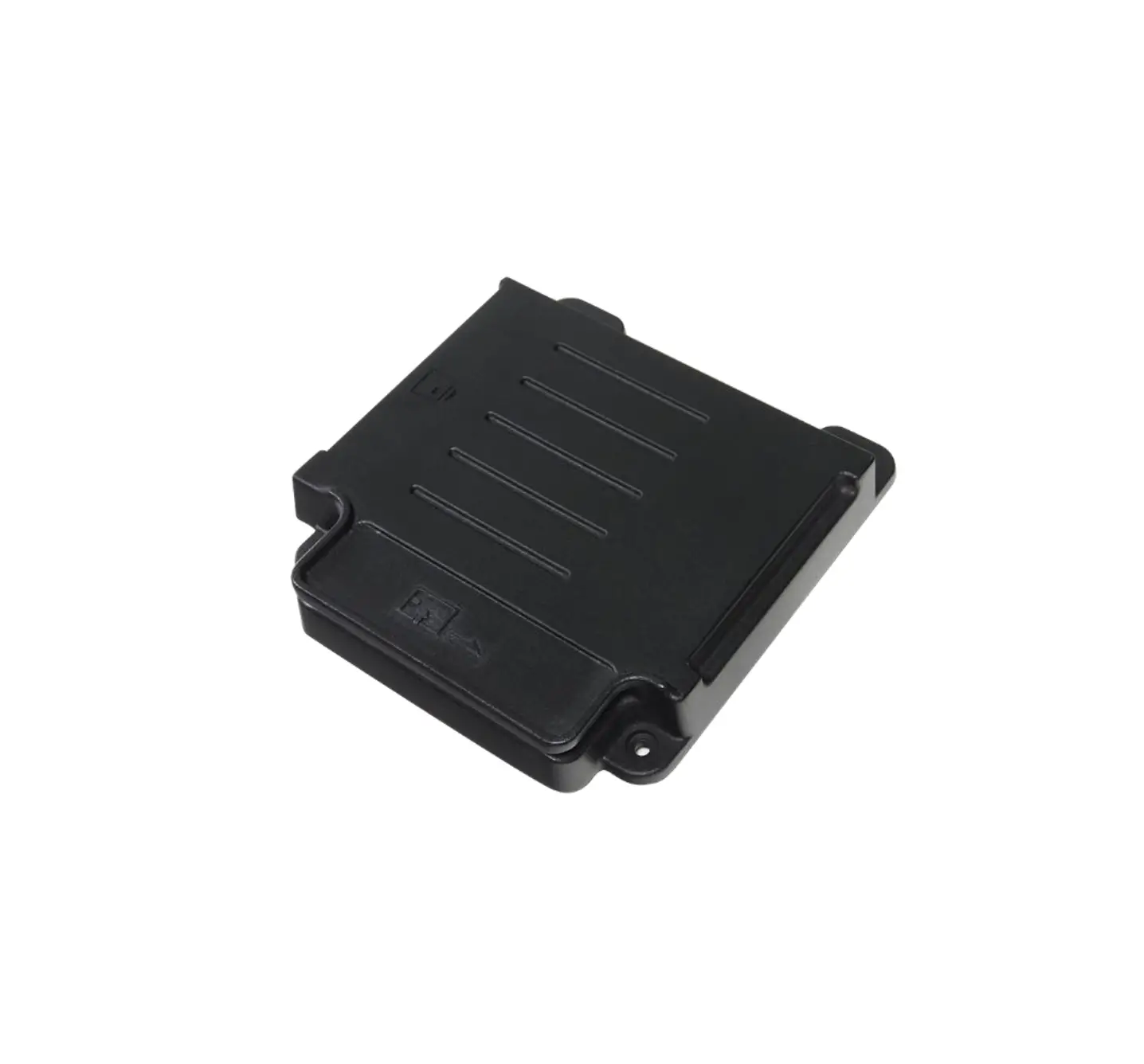
CTO door plate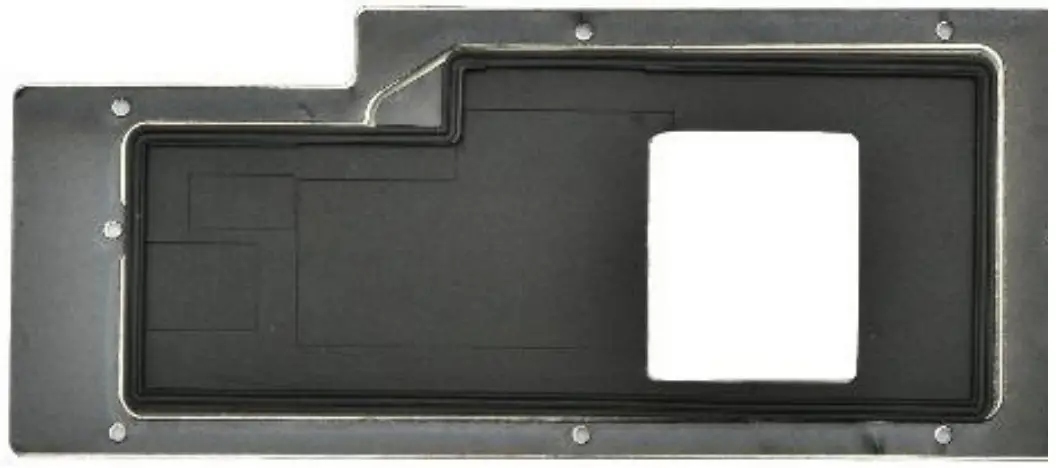
Screw & O RING
(8+6+2+8)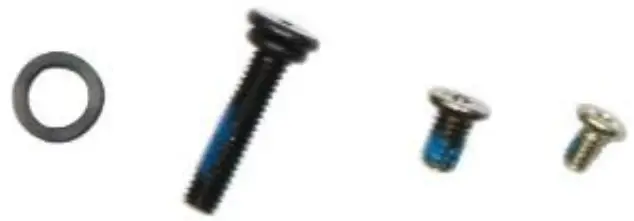
PCMCIA Module Screws
| Screw Name | Screw Type | Quantity |
| ISOT-M2.0X3L |  | 8 (CTO door plate to lower case) |
| ISOT-M2.6X4L | 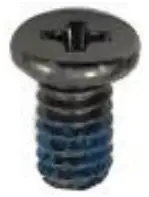 | 2 (module to lower case) |
| M2.6X12L & O RING | 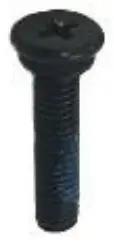 | 6 (module to lower case) |
 NOTE
NOTE
The pictures are for reference only, actual items may slightly differ.
Installation
This section will guide you on how to install the expansion modules to your tablet PC. Note: Make sure to remove the battery before installing any type of expansion modules. For more information on how to remove/install the battery, please refer to the tablet PC service guide.
Installing the PCMCIA Module
To install the PCMCIA module, follow the steps below:
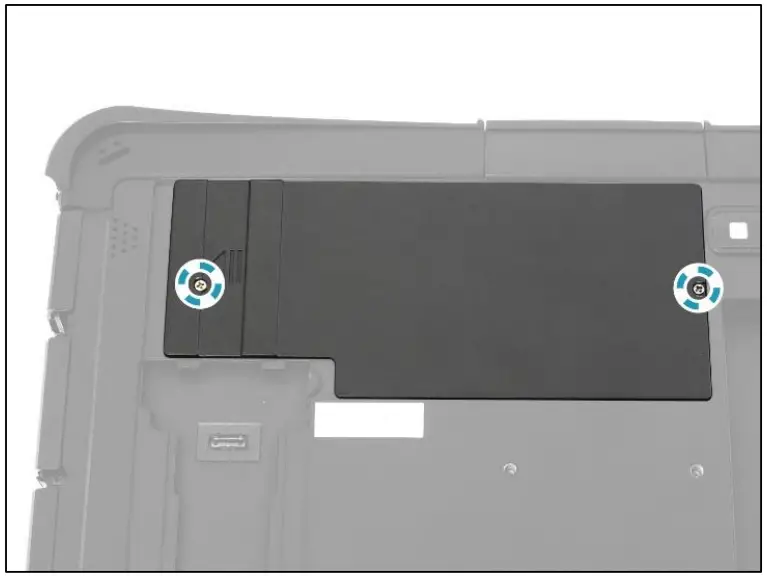
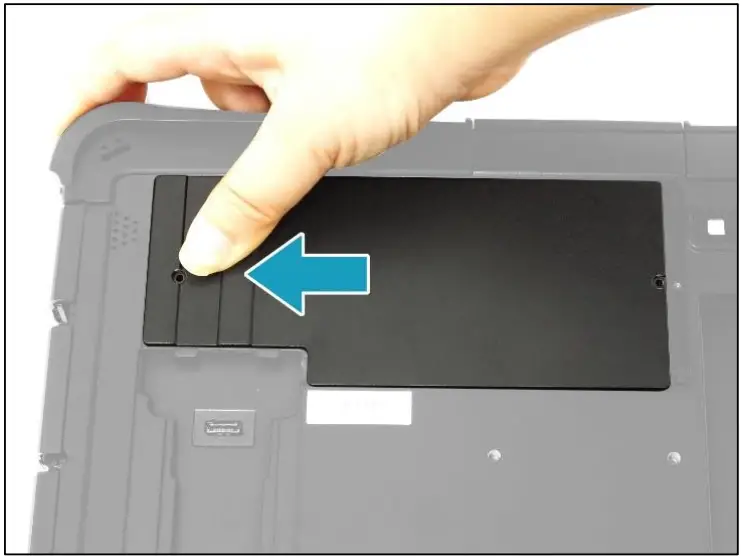
- Remove the 2 screw securing the CTO door to the lower case.

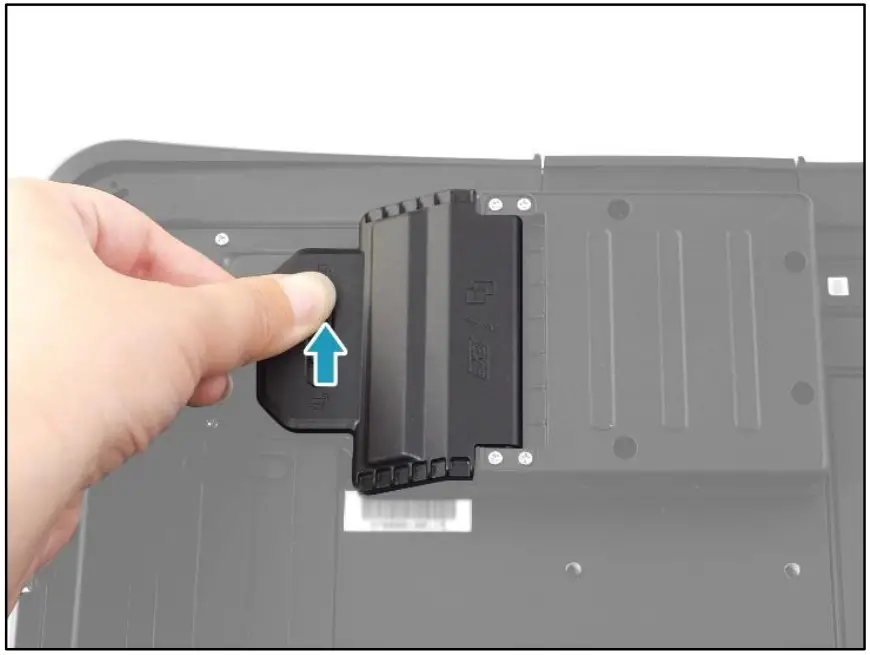
- Slide the CTO door to the left to disengage it from the tabs.

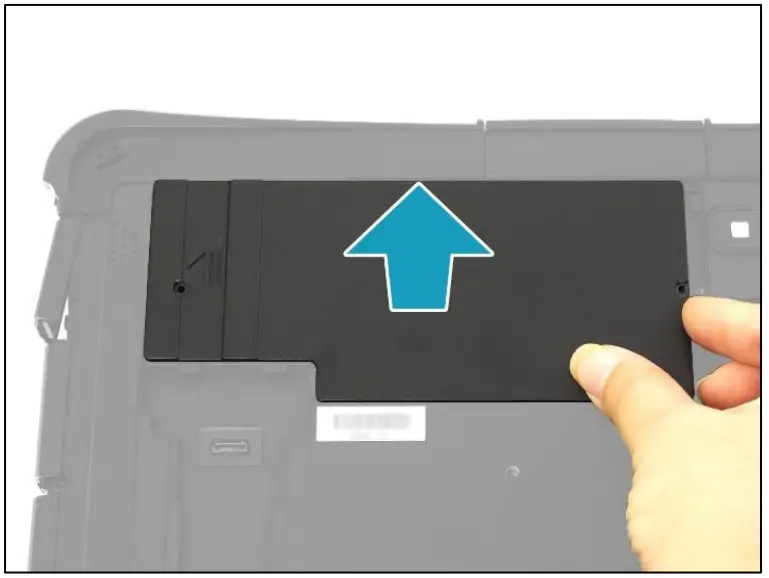
- Remove the CTO door.

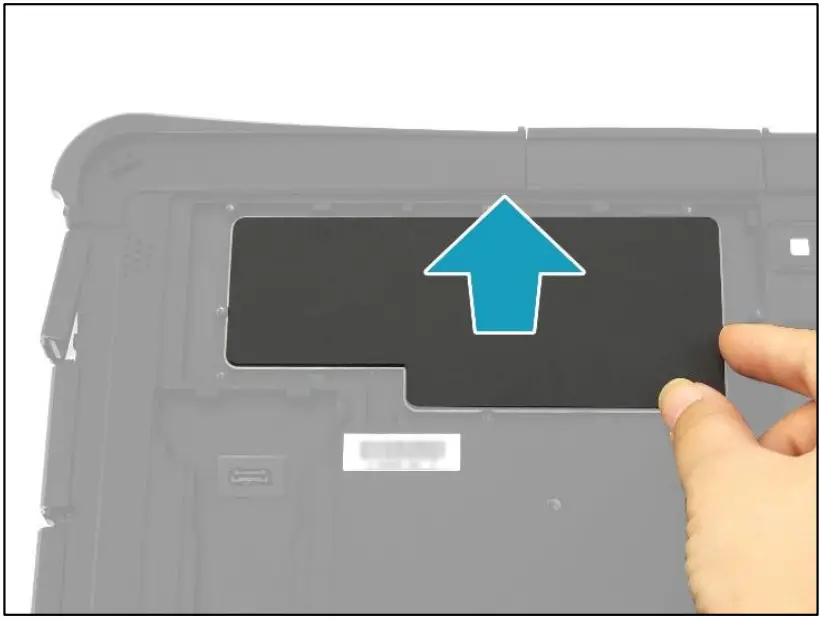
- Remove the CTO door seal out of its compartment

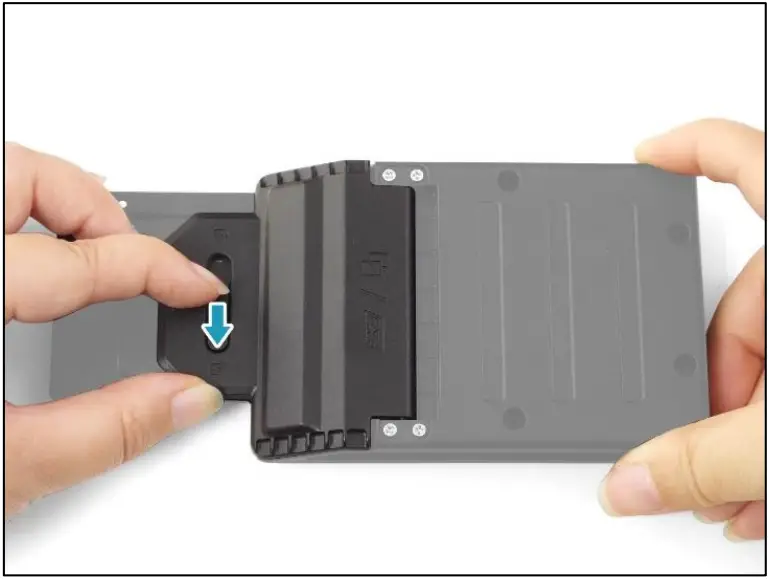
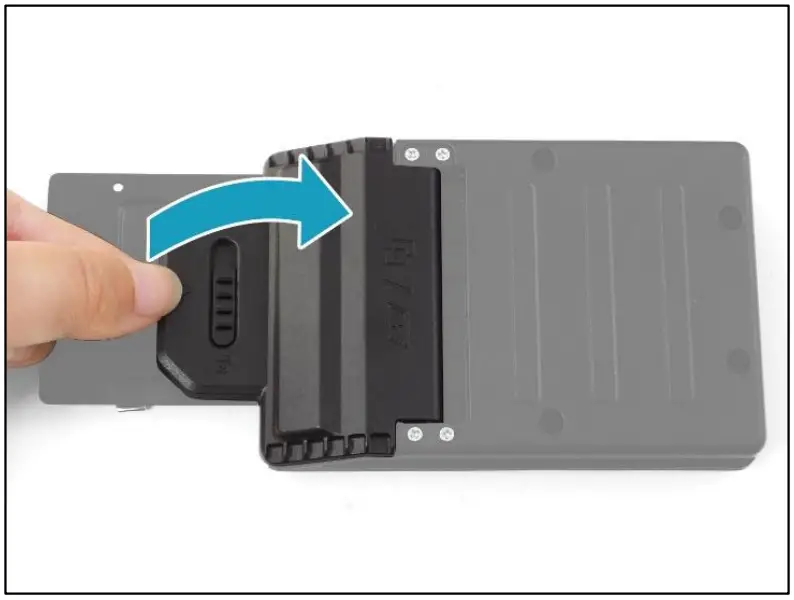
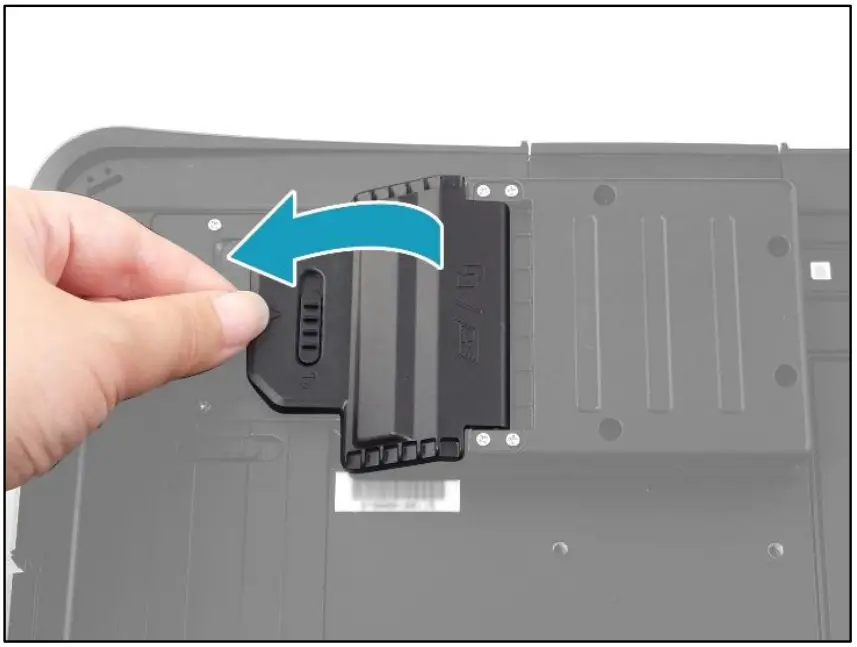
- Slide the knob to the right to unlock the CTO box door.

- Open the CTO box door.

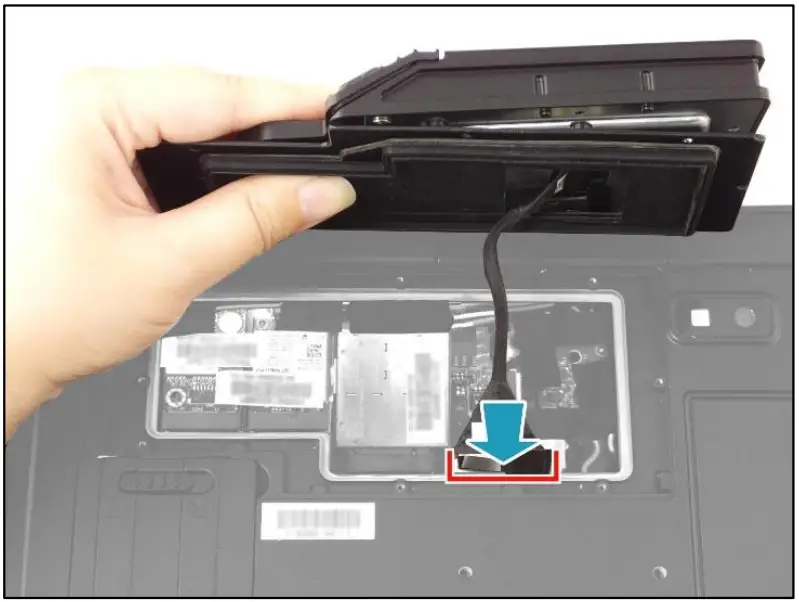
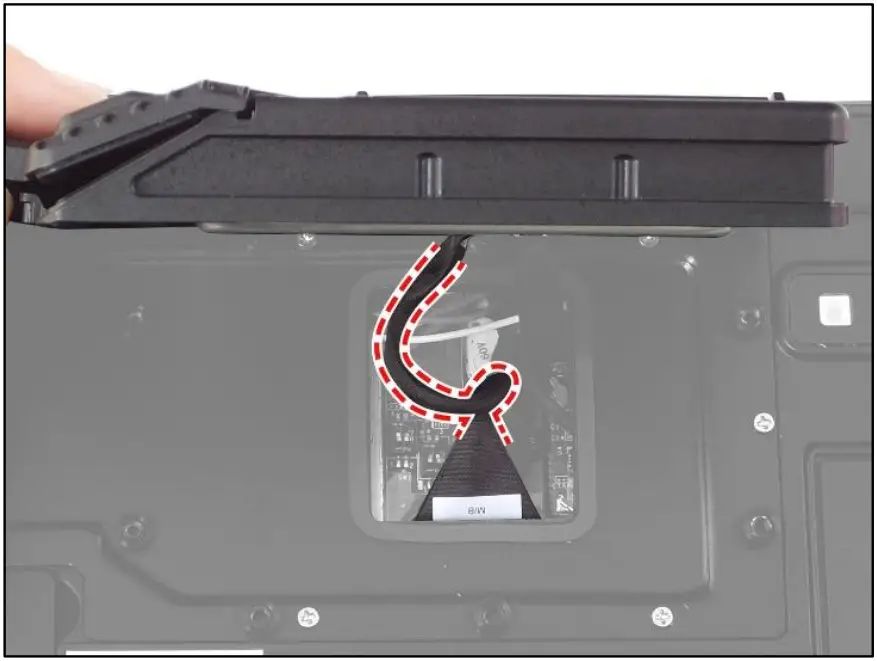
- Connect the PCMCIA module harness to the mainboard connector

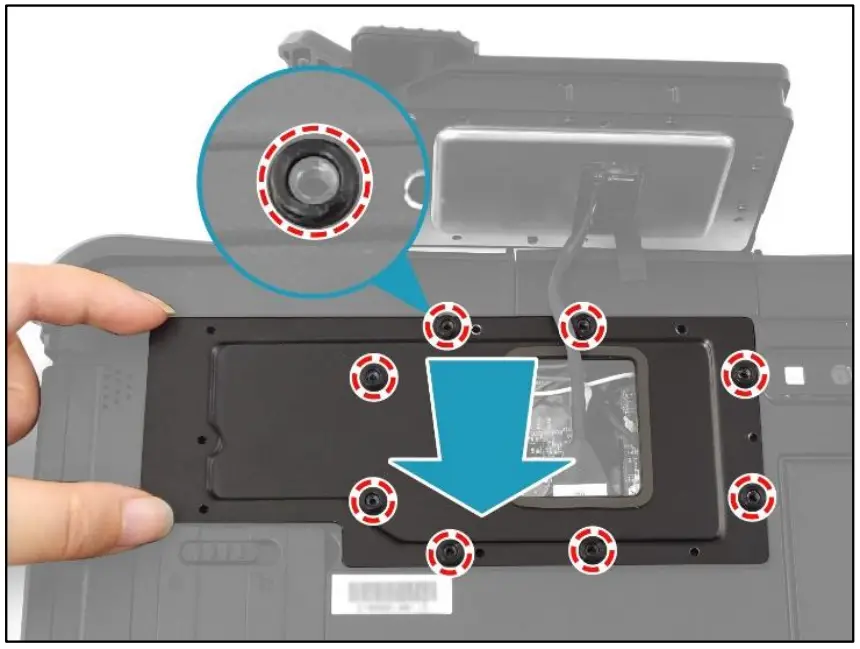
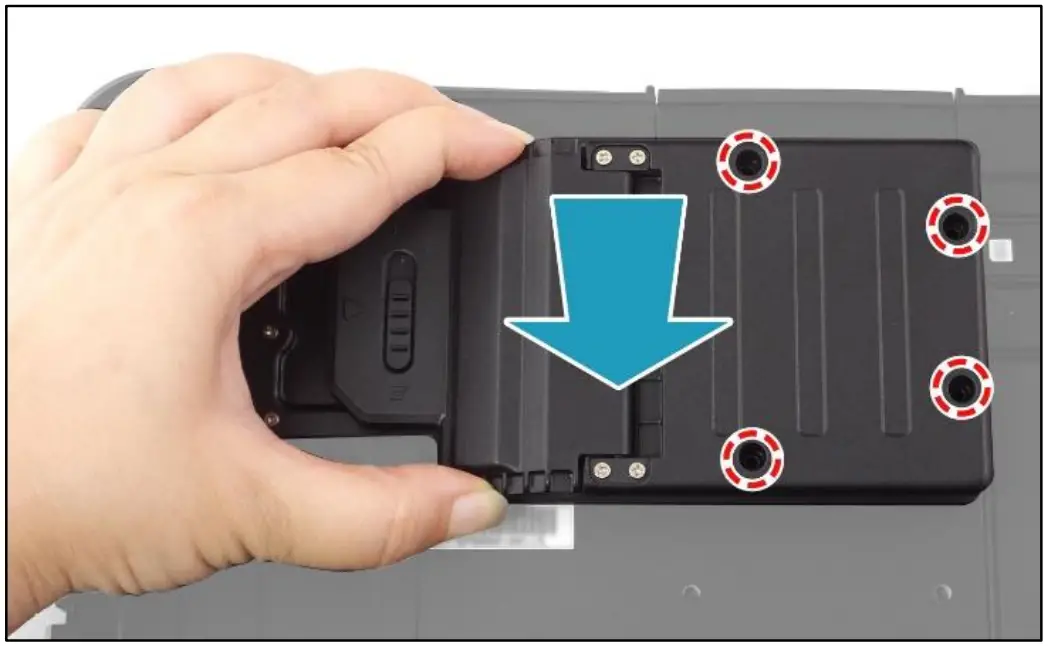
- By aligning with the screw holes, install the CTO door plate onto its compartment on the lower case. Make sure the rubber washers are properly seated into their respective screw holes

- Attach the 8 screws to secure the CTO door plate to the lower case.

- Fold and place the excess cable of the PCMCIA module harness into the gap for proper cable routing.

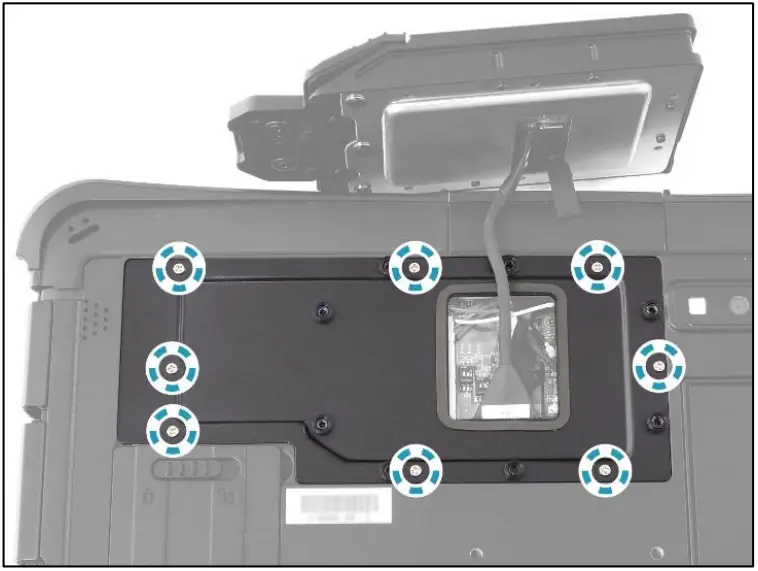
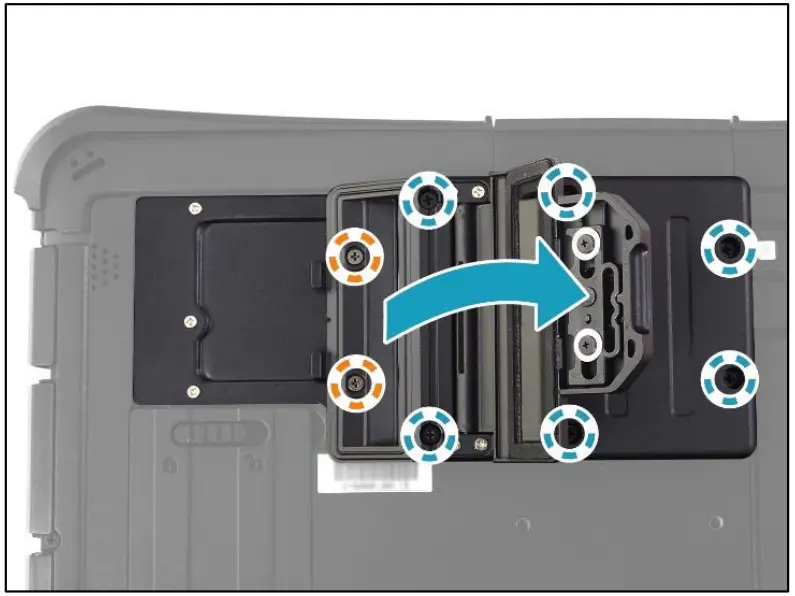
- By aligning with the screw holes, install the PCMCIA module onto its slot on the lower case

- Attach the 8 screws to secure the PCMCIA module to the lower case.
- M2.6X12L & O RING (marked with blue-white circle): 6 screws
- ISOT-M2.6X4L (marked with orange-white circle): 2 screws

- Close the CTO box door.

- Slide the knob to the left to lock the CTO box door.

PCMCIA Module Screws
| Screw Name | Screw Type | Quantity | Torque |
| ISOT-M2.0X3L | | 8 (CTO door plate to lower case) | 2.0 ± 0.2 Kgf-cm |
| ISOT-M2.6X4L | | 2 (module to lower case) | 2.5 ± 0.2 Kgf-cm |
| M2.6X12L & O RING | | 6 (module to lower case) | 2.5 ± 0.2 Kgf-cm |
Twinhead International Corp.
11F, No.550, Ruiguang Rd., Neihu, Taipei 11492, Taiwan, R.O.C.
P/N: 62+030970+00
© 2021 Twinhead International Corp and/or its affiliates. All rights reserved.