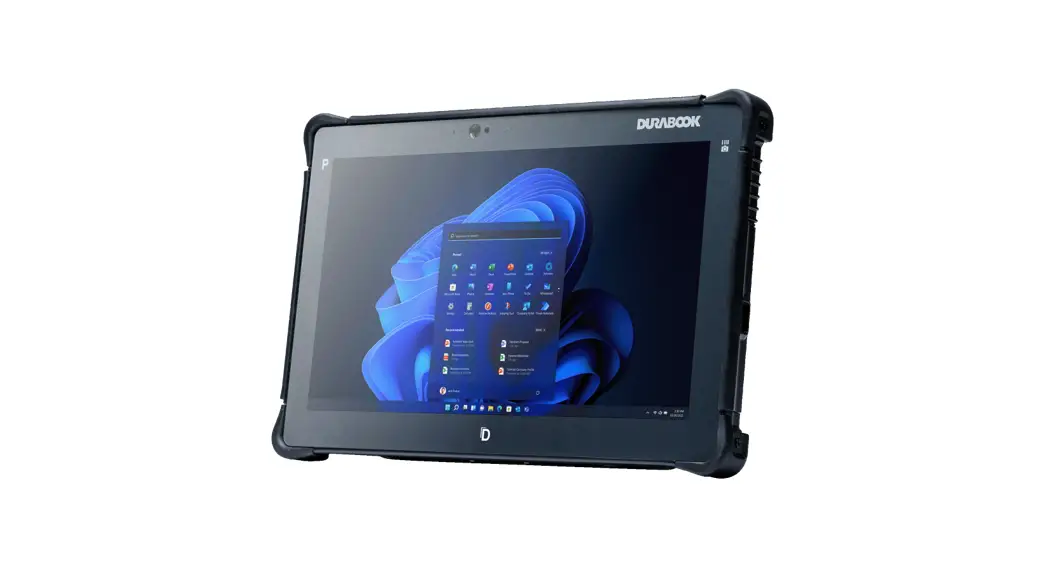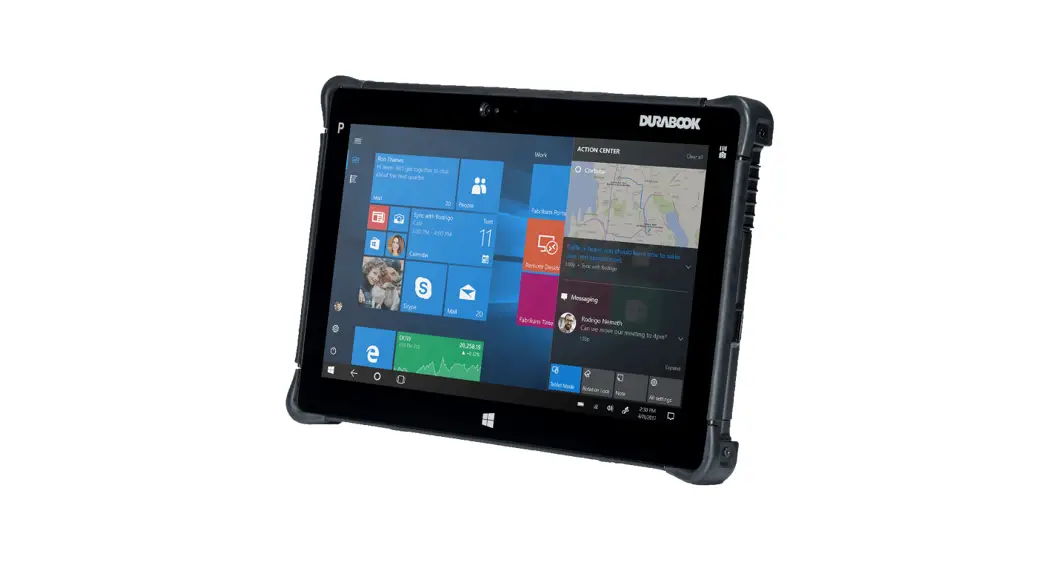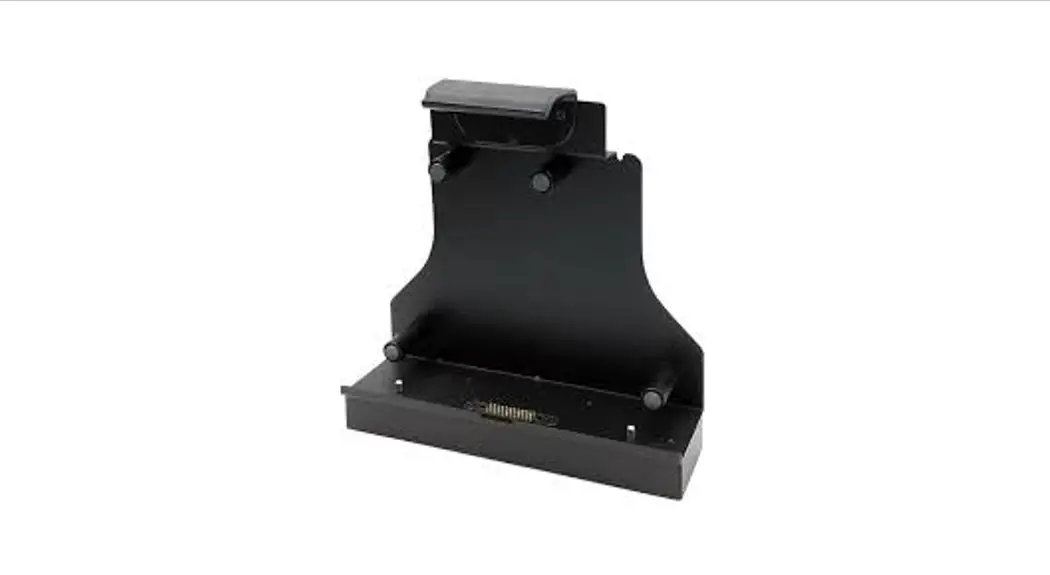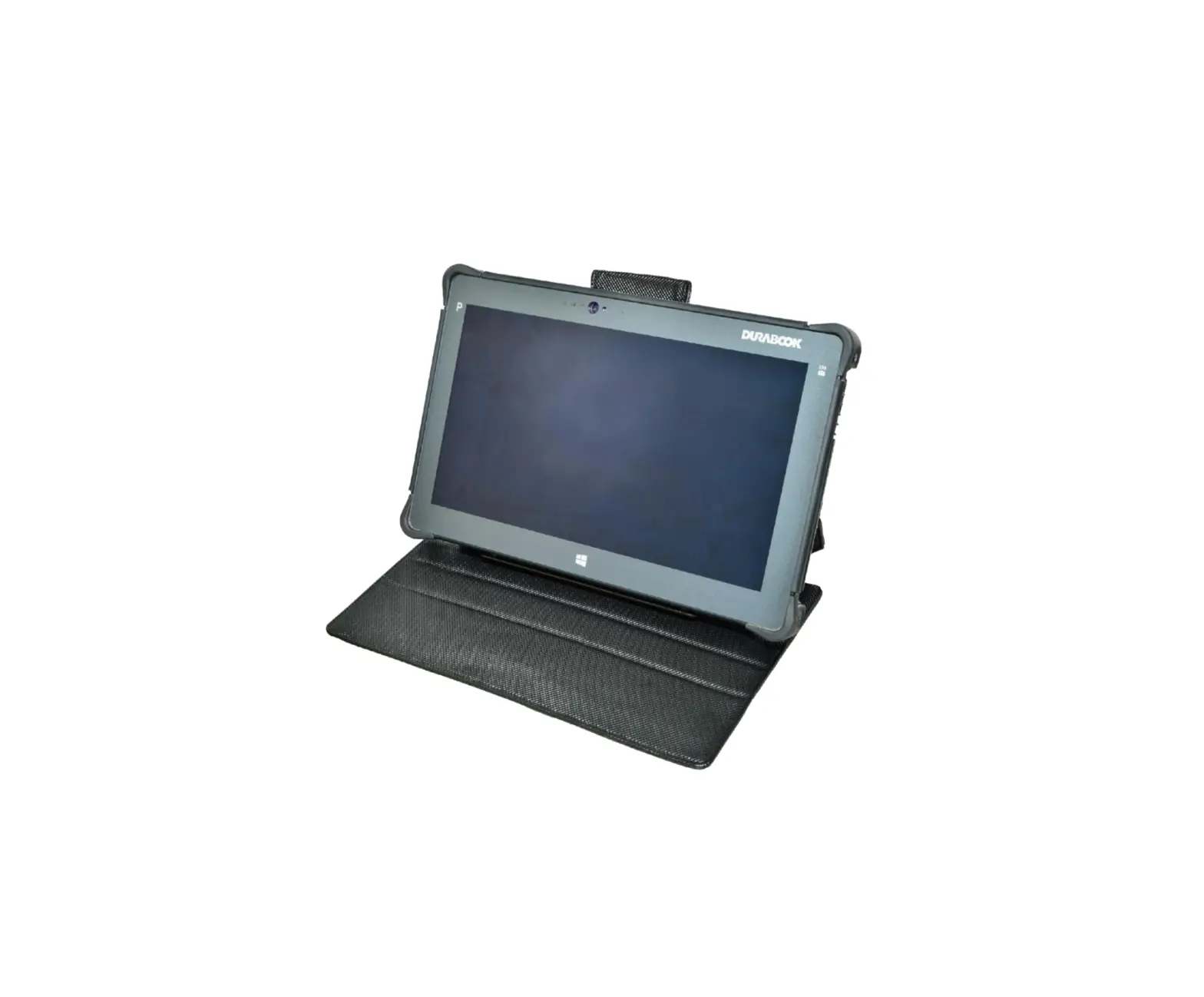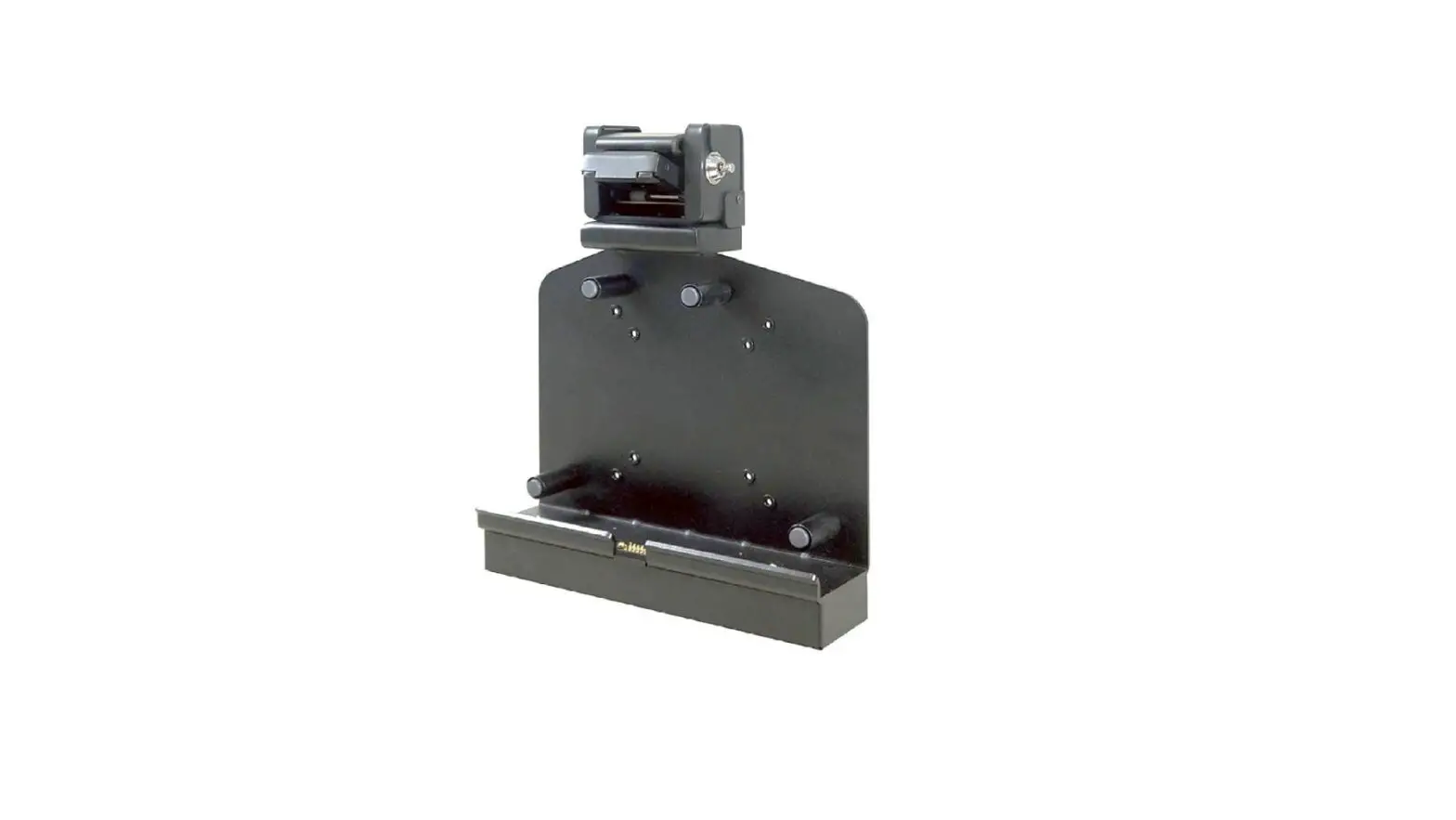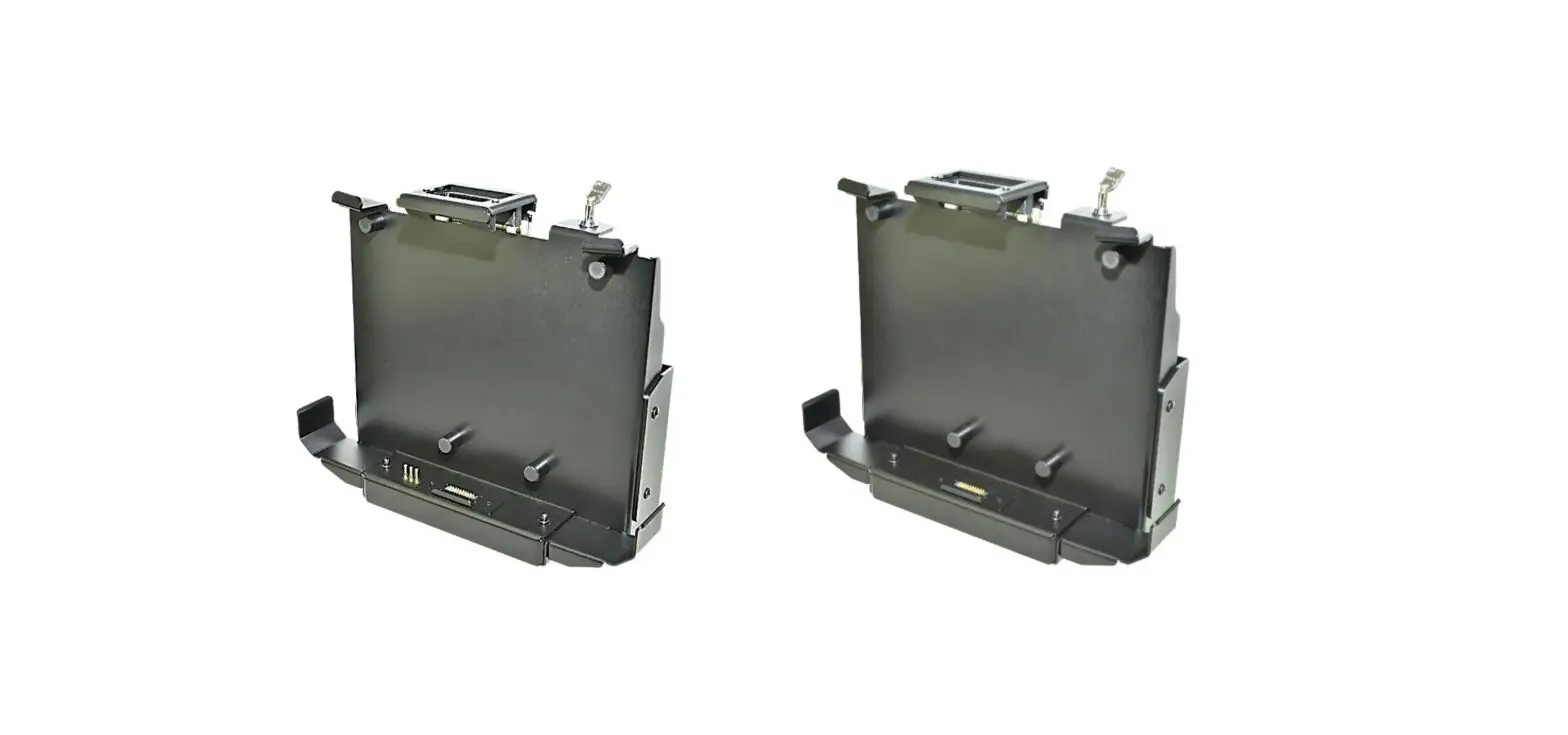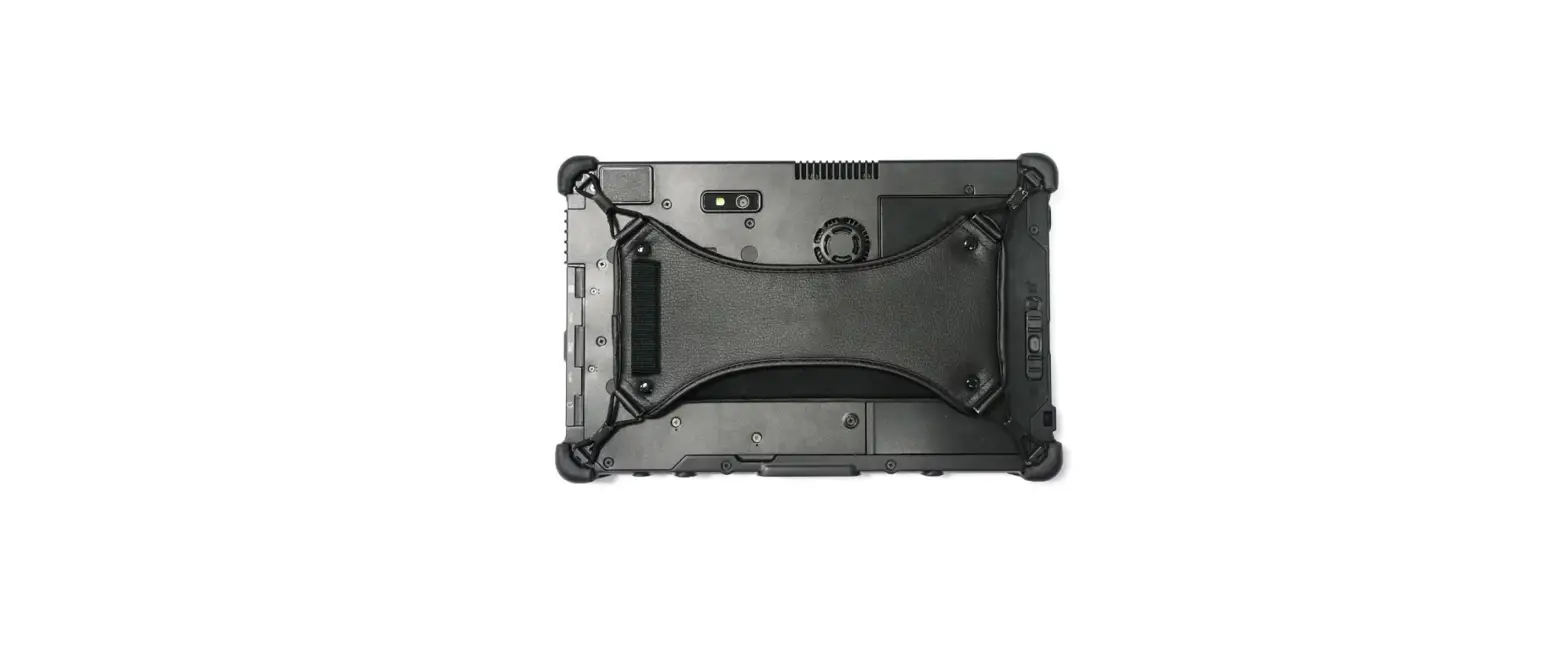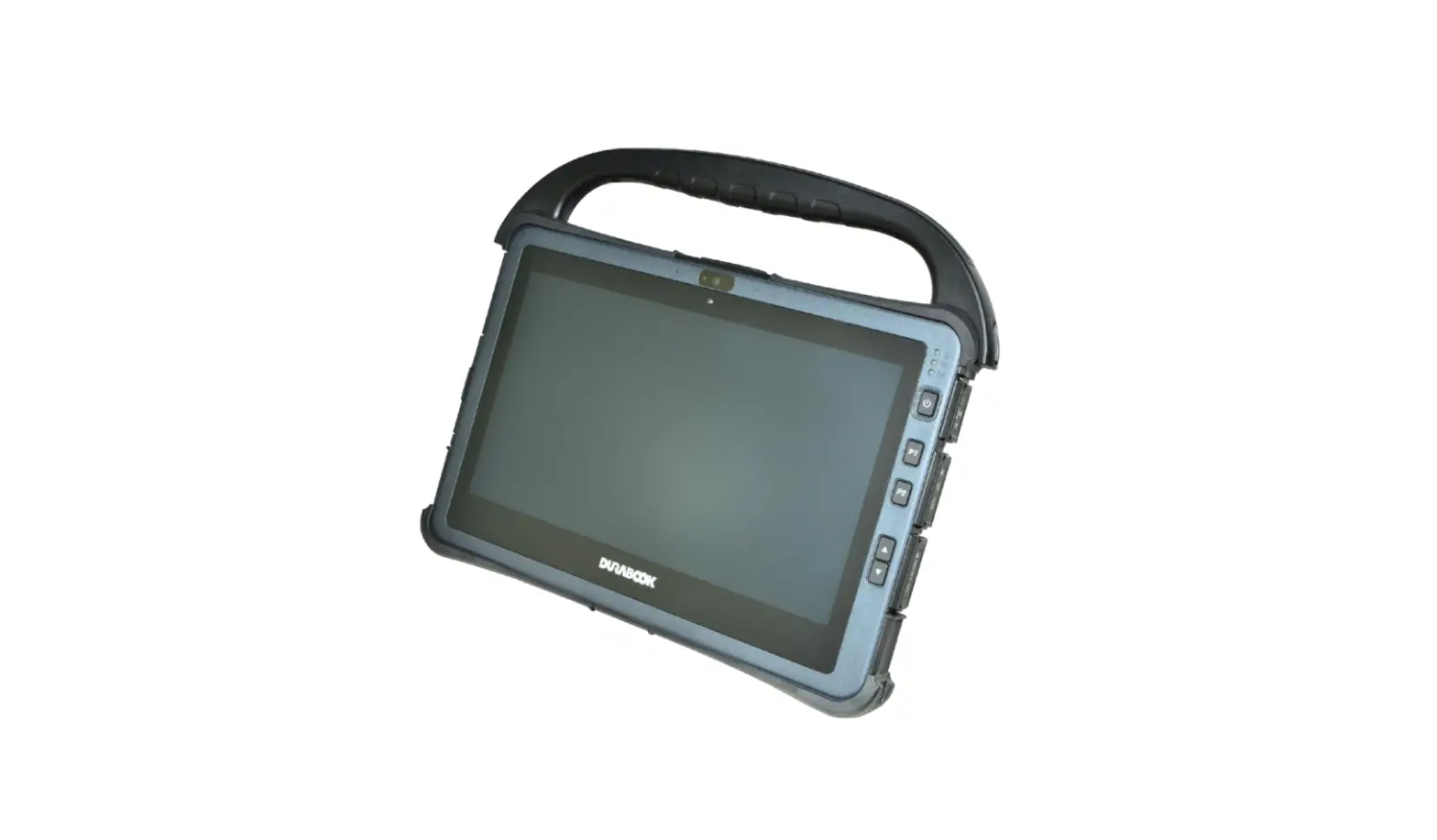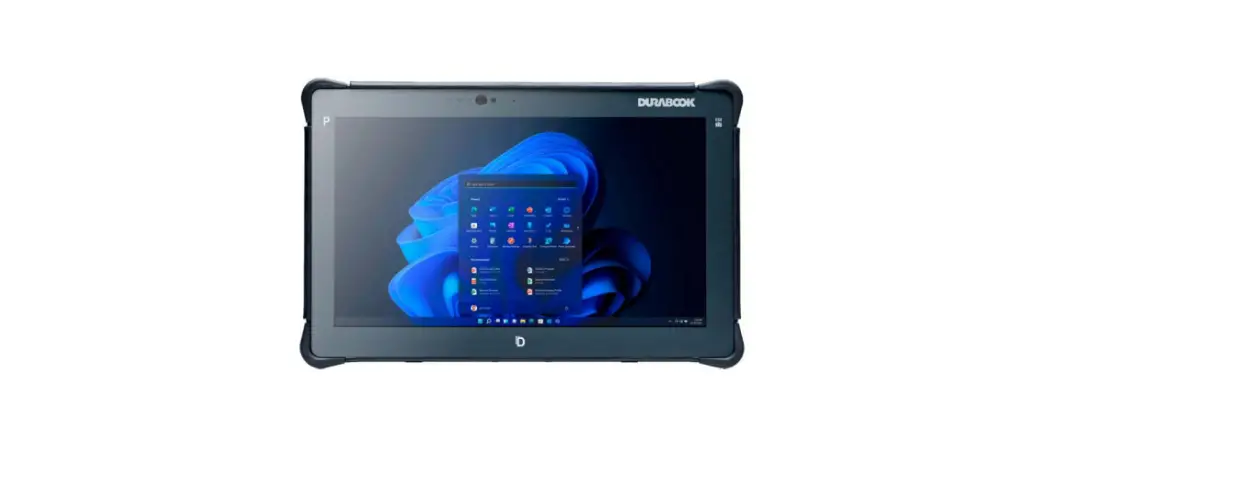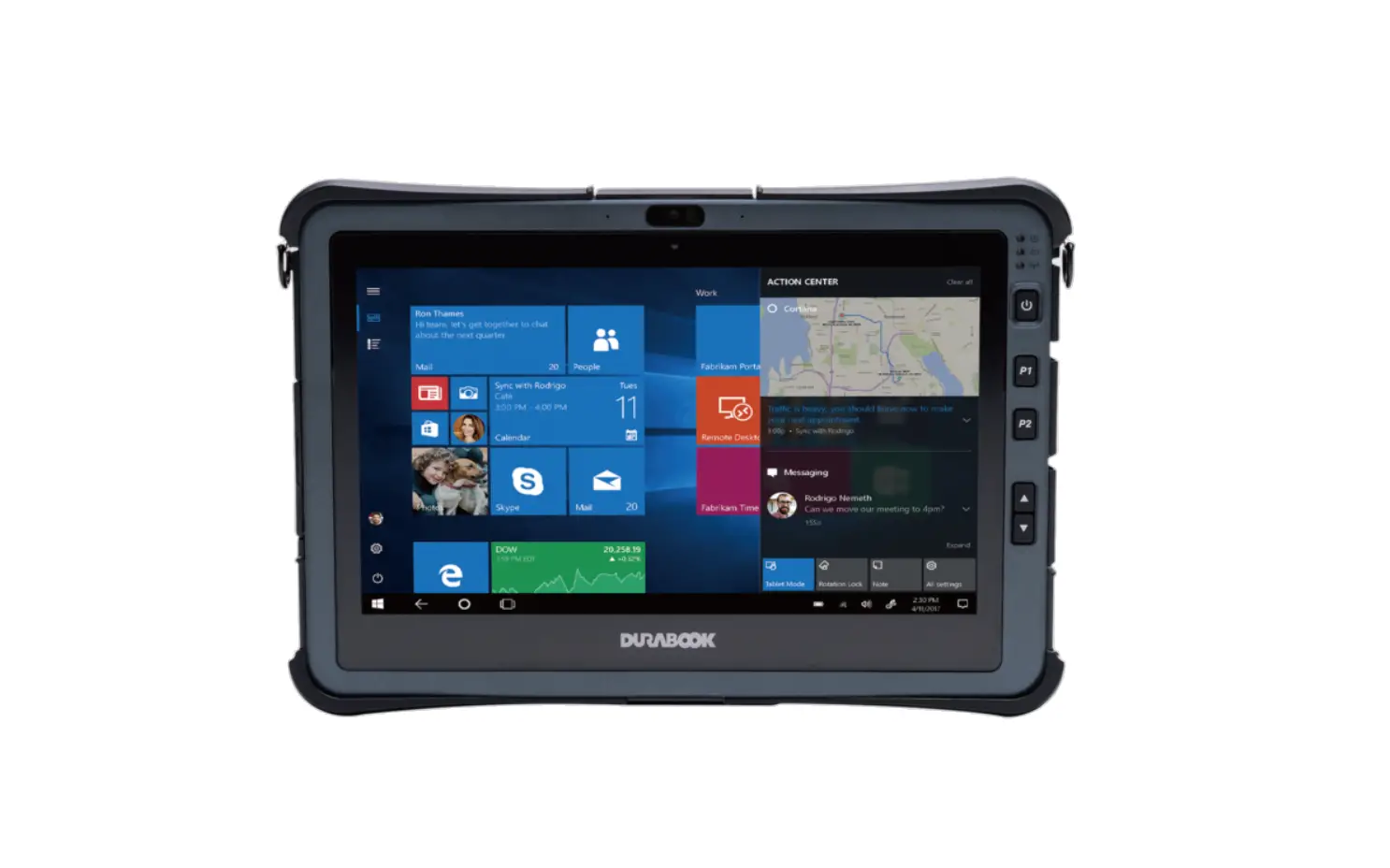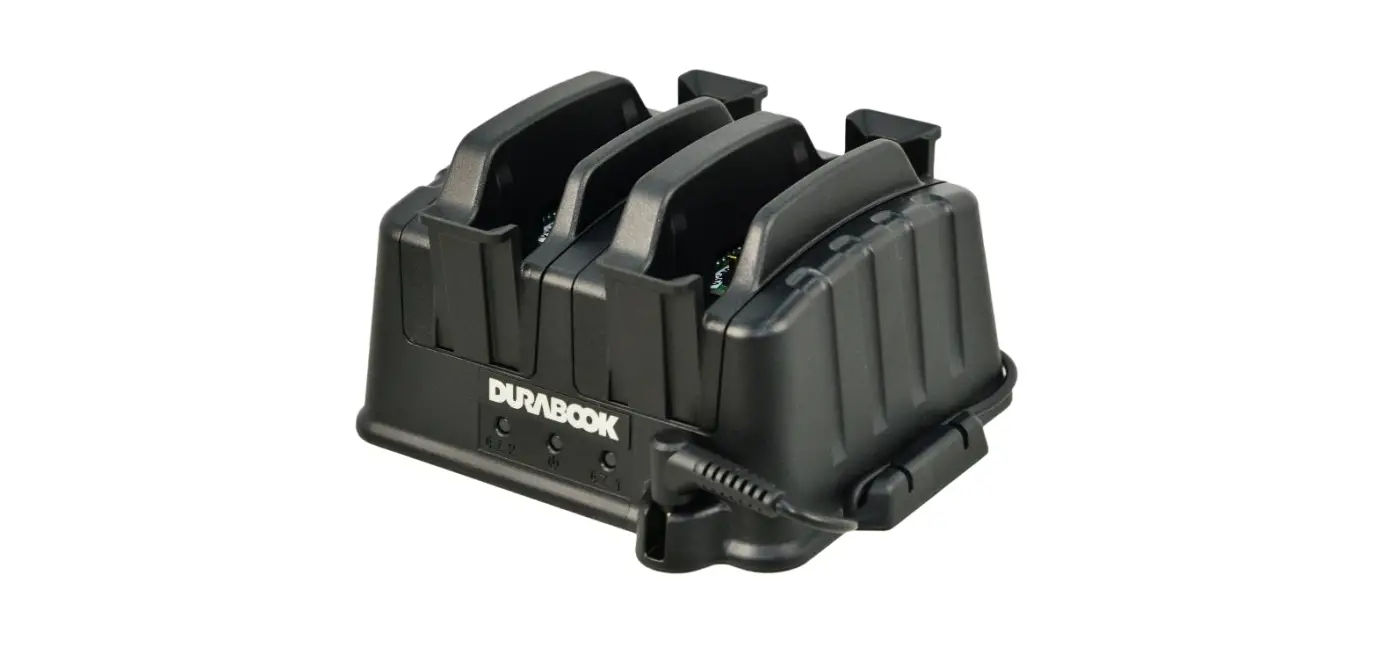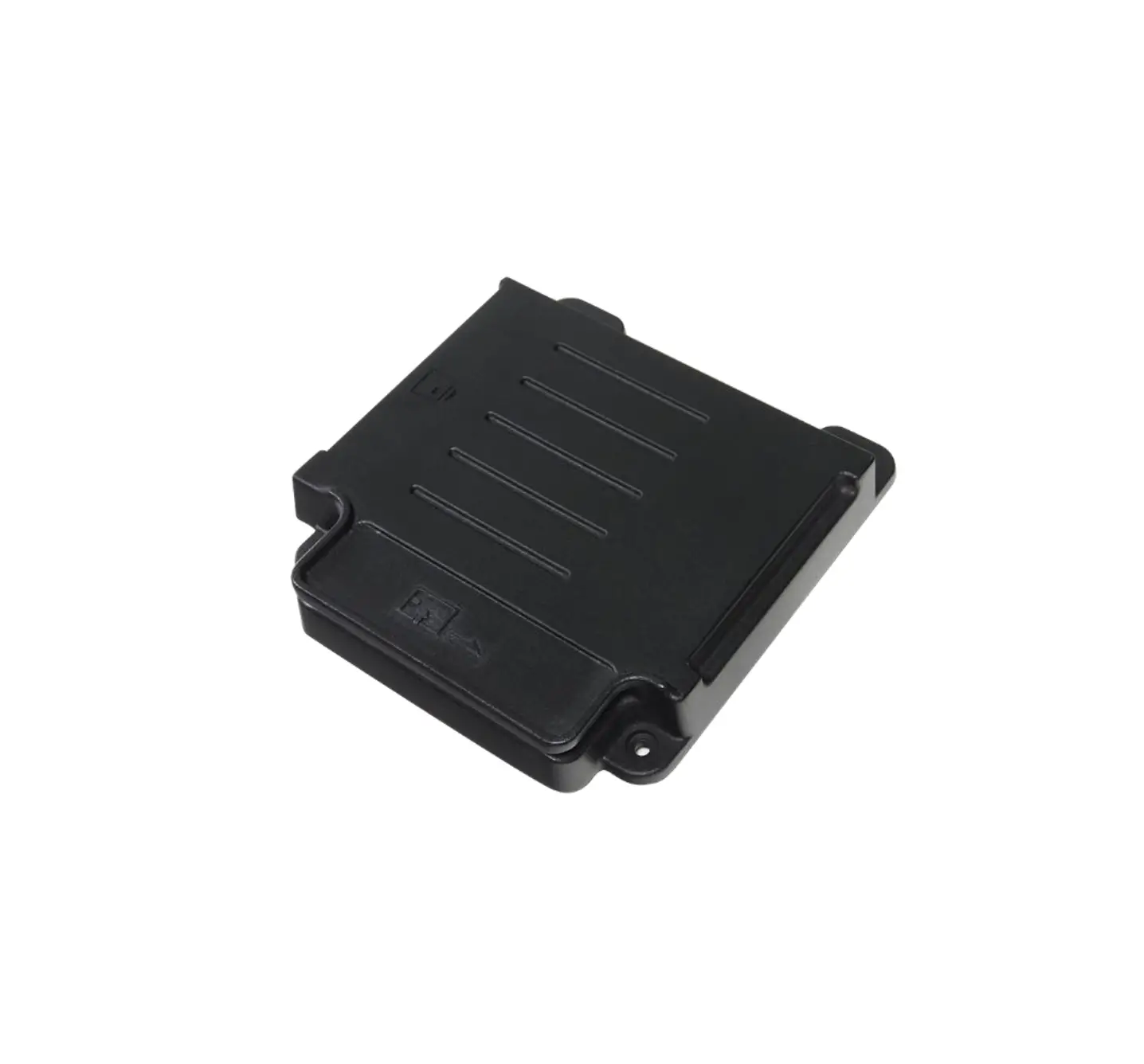
DURABOOK R11 Rugged Tablet Expansion Modules MSR and Smart Card
Package Contents
If any of following items is damaged, please contact your retailer.
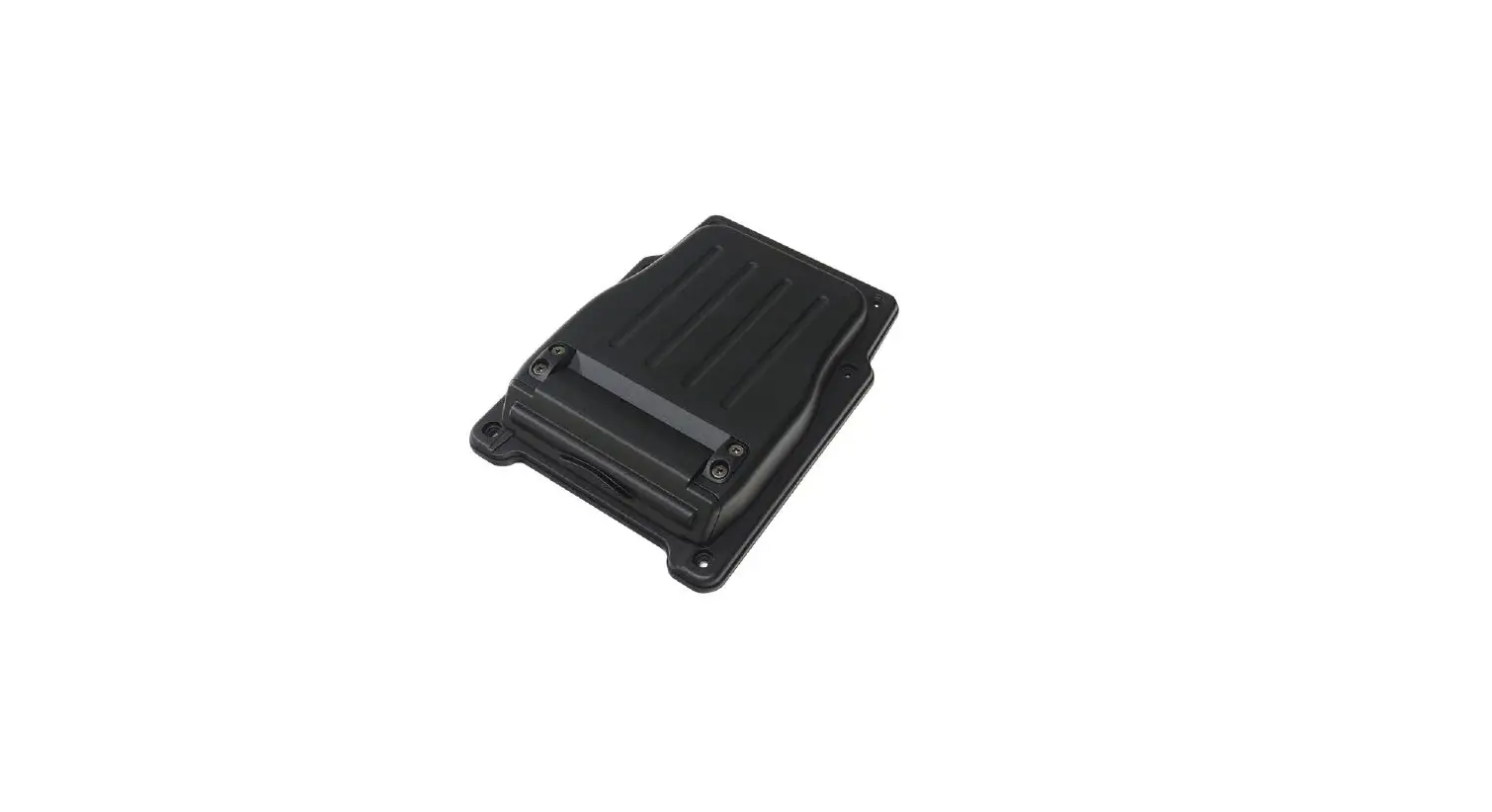
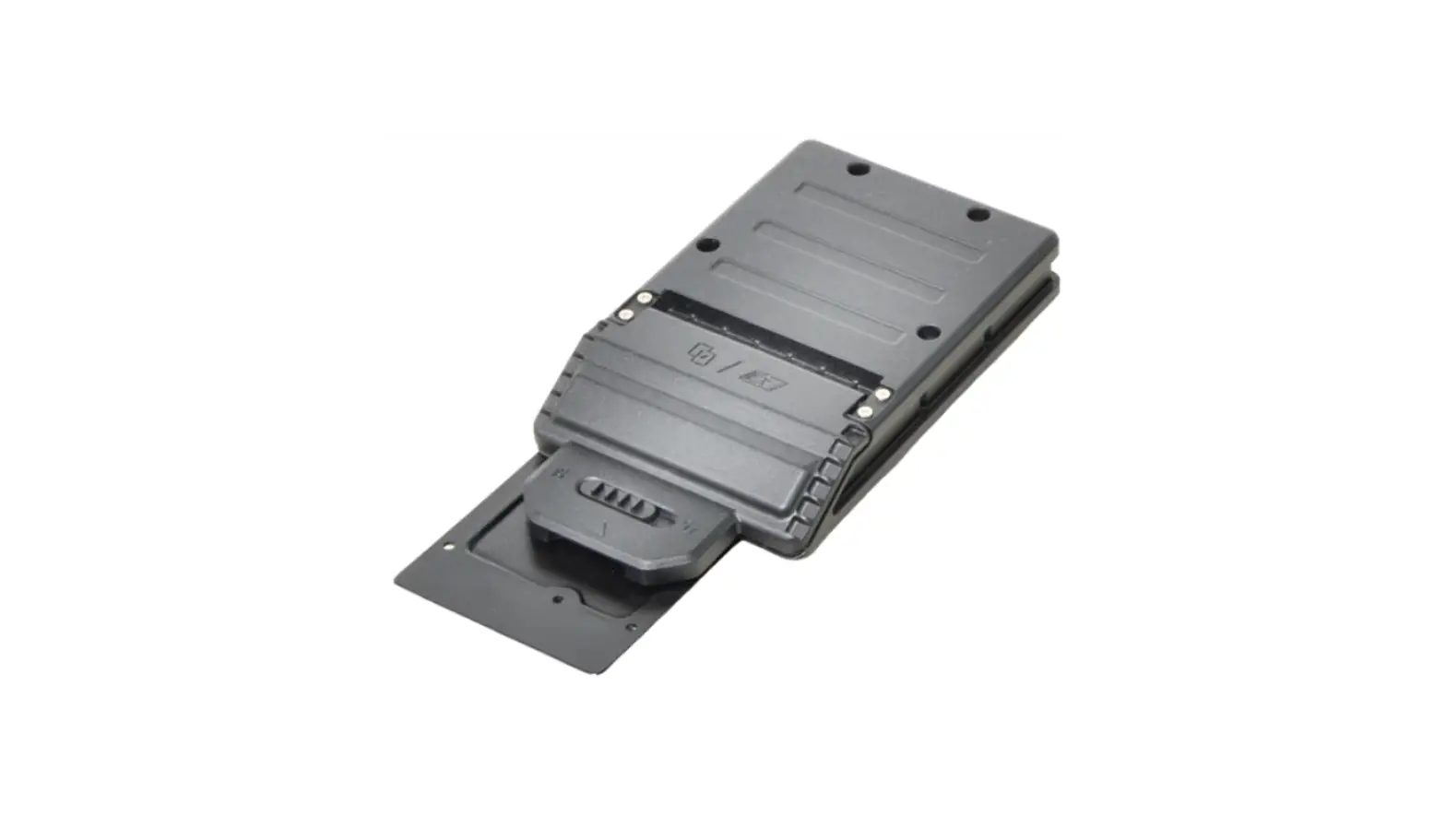
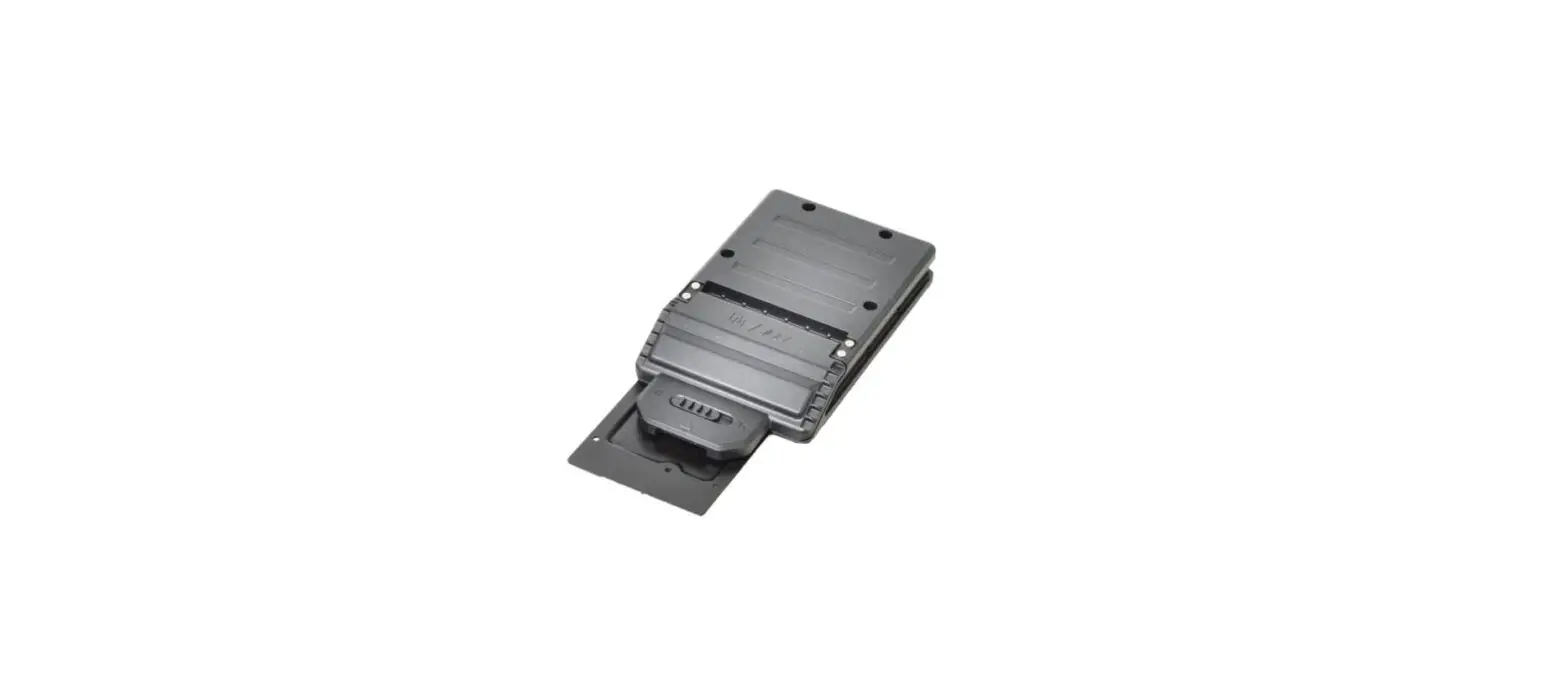
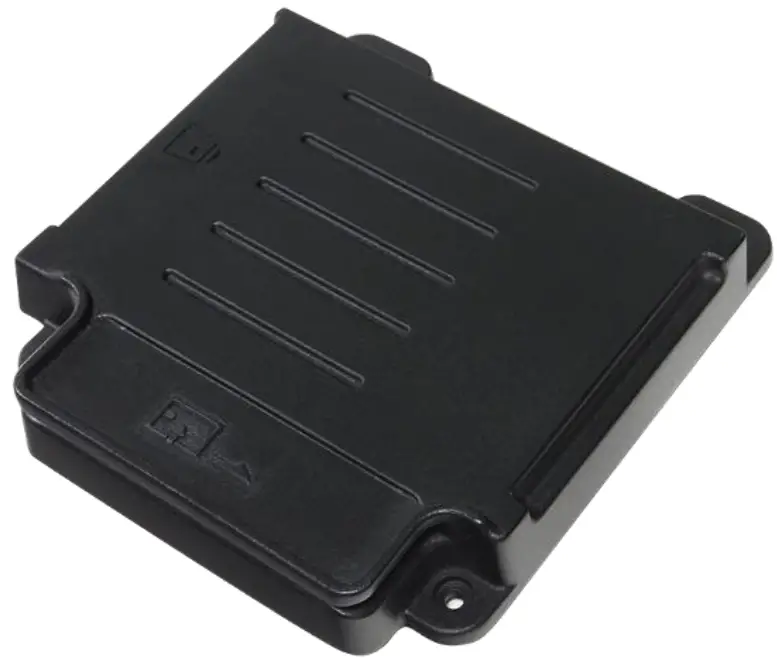
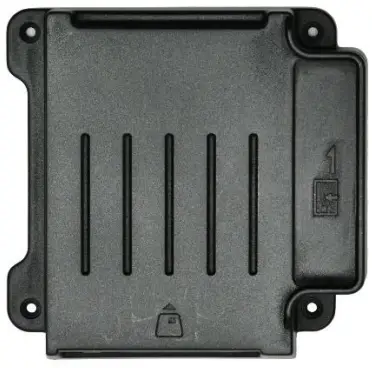
- MSR and smart card module

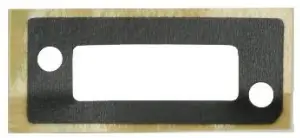
- Expansion sponge

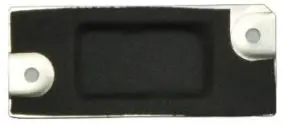
- Bracket

- Screw & O RING

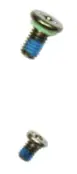
MSR and Smart Card Module Screws
Screw Name | Screw Type | Quantity |
M2.6X5L & O RING | 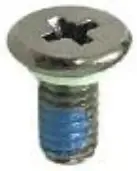 | 4 (assembly to lower case) |
| ISOT-M2.0X3L | 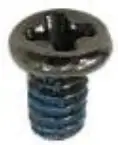 | 2 (bracket to lower case) |
NOTE
The pictures are for reference only, actual items may slightly differ.
Installation
This section will guide you on how to install the expansion modules to your tablet PC. Note: Make sure to remove the battery before installing any type of expansion modules. For more information on how to remove/install the battery, please refer to the tablet PC service guide.
Installing the MSR and Smart Card Module
To install the MSR and smart card module, follow the steps below:
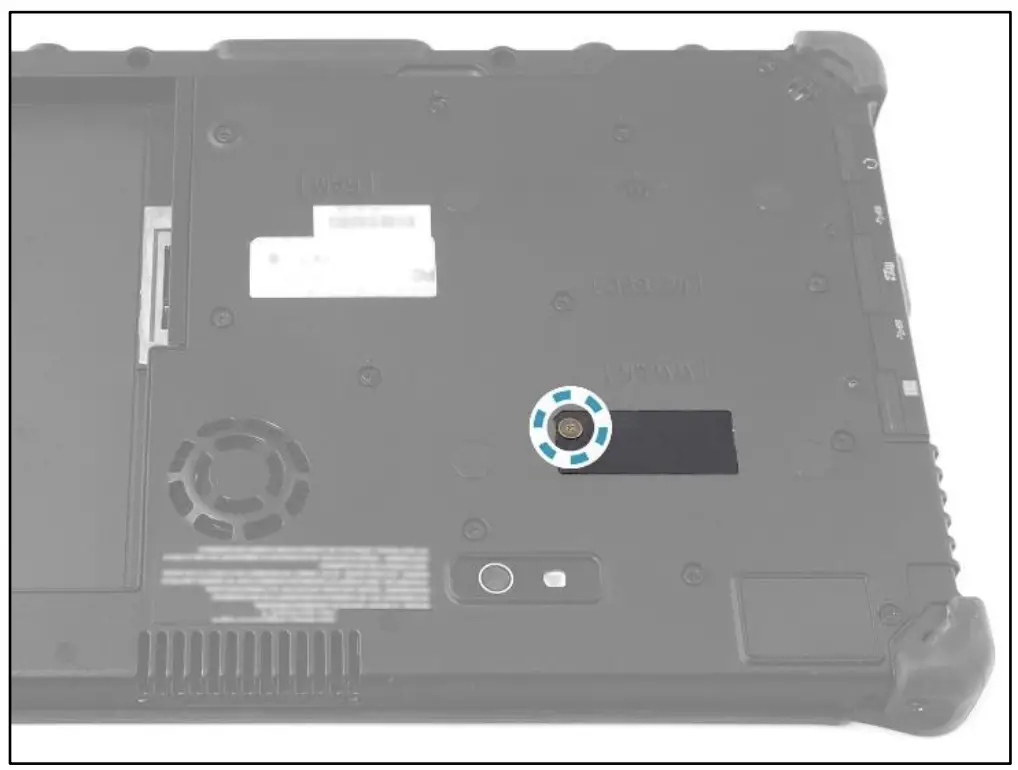
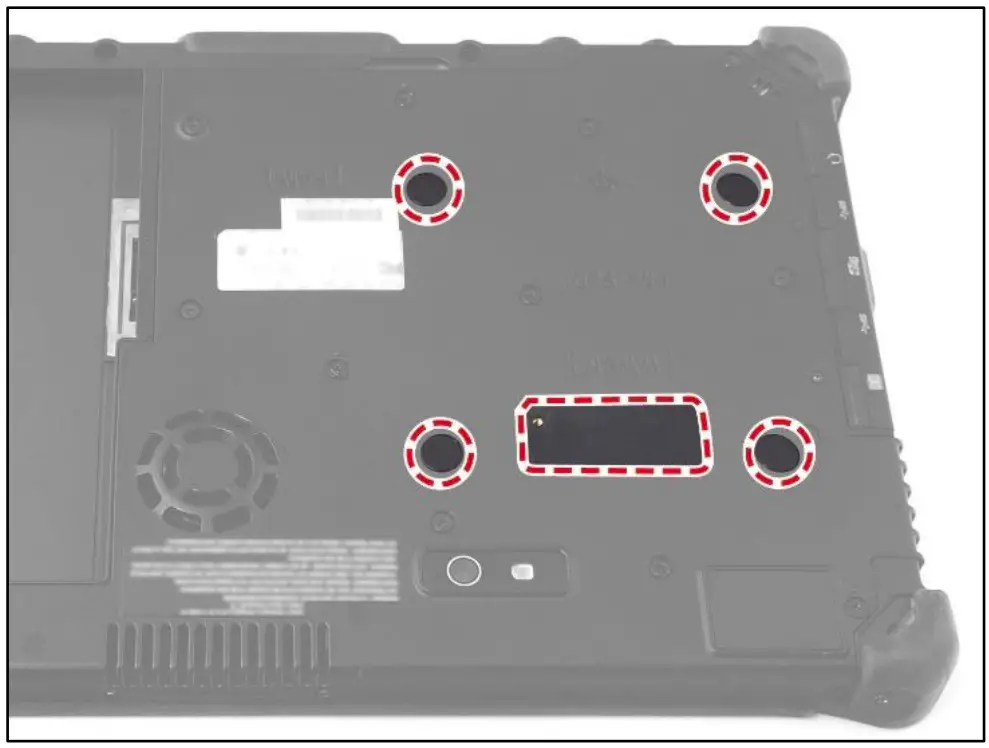
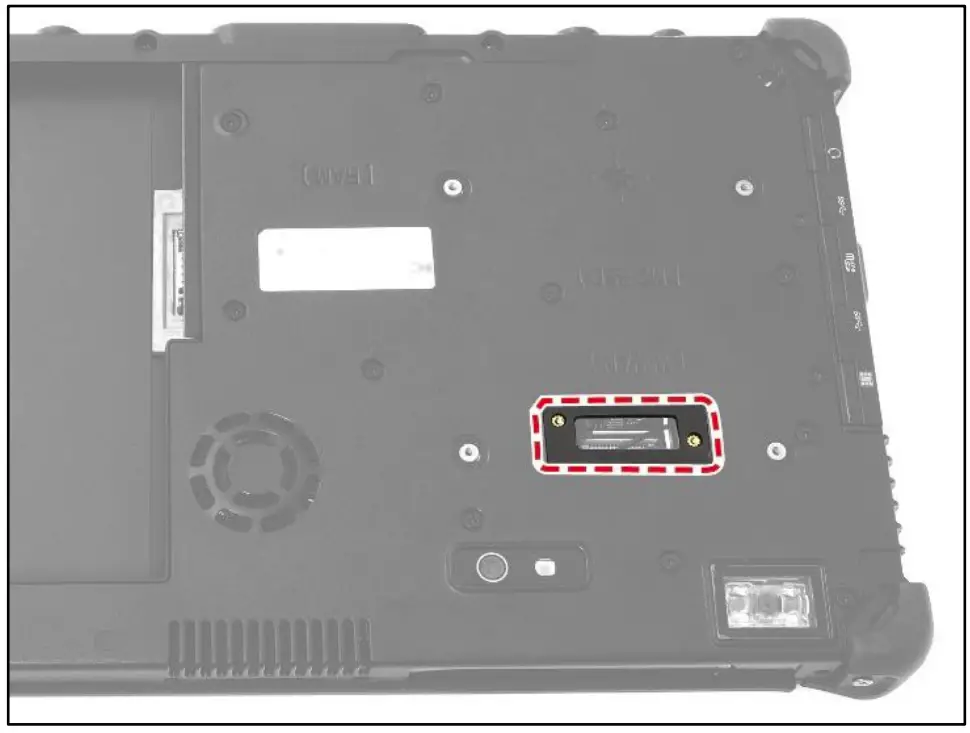
- Remove the screw securing the Mylar on the DDR door.

- Remove the molars from the DDR doo

- Attach the expansion sponge to the DDR door.

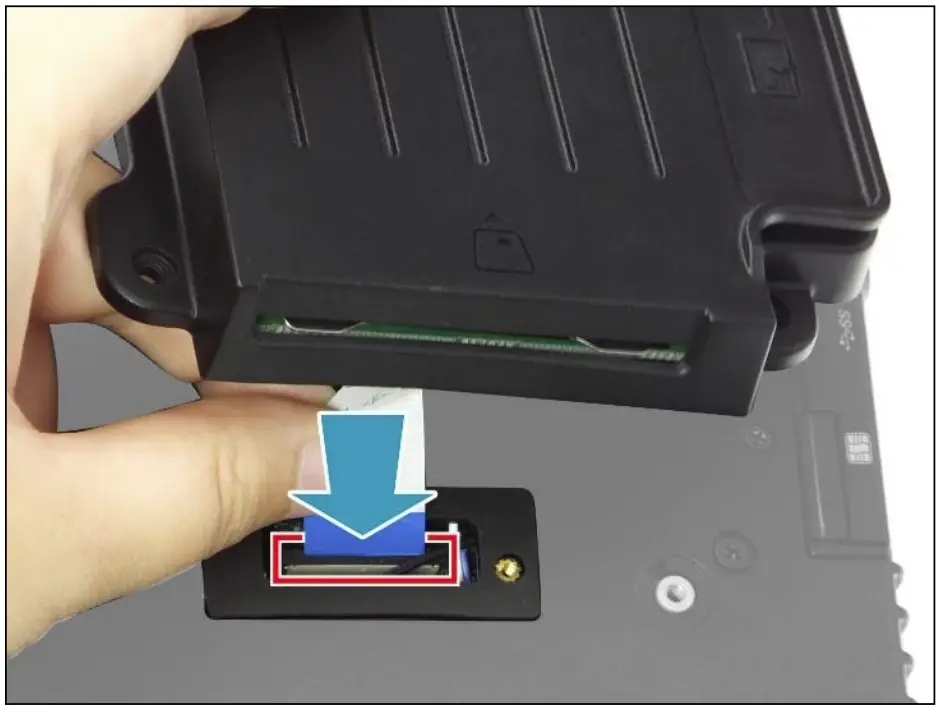
- Connect the MSR and smart card module FFC to the mainboard connector.
Then secure the latch.
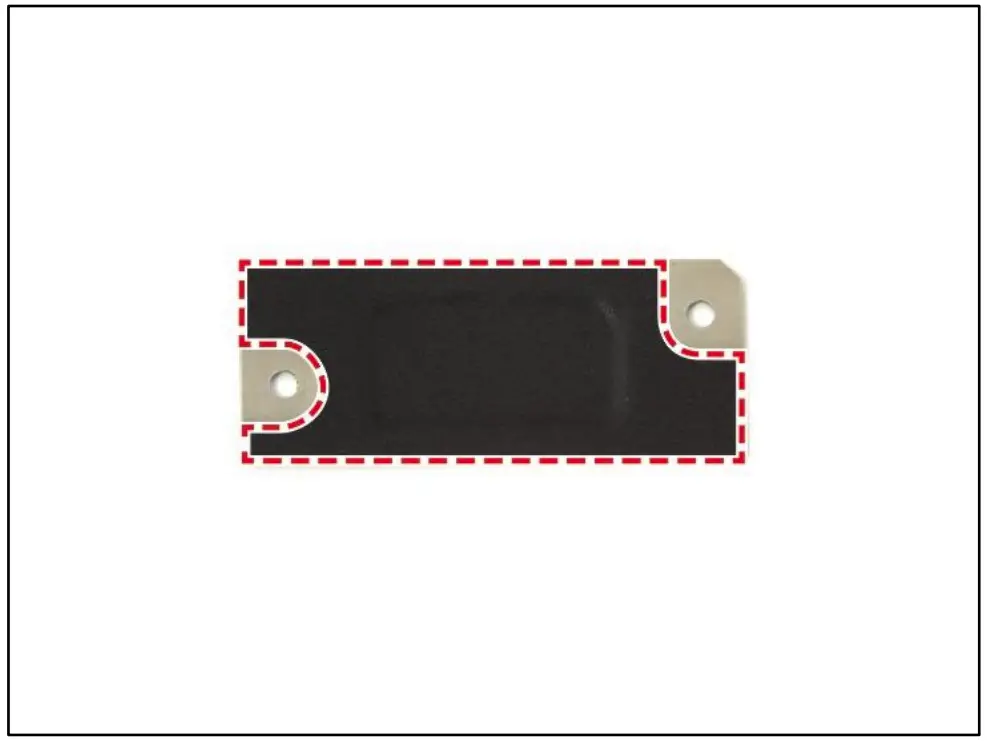
- Attach the sponge onto the MSR and smart card module bracket

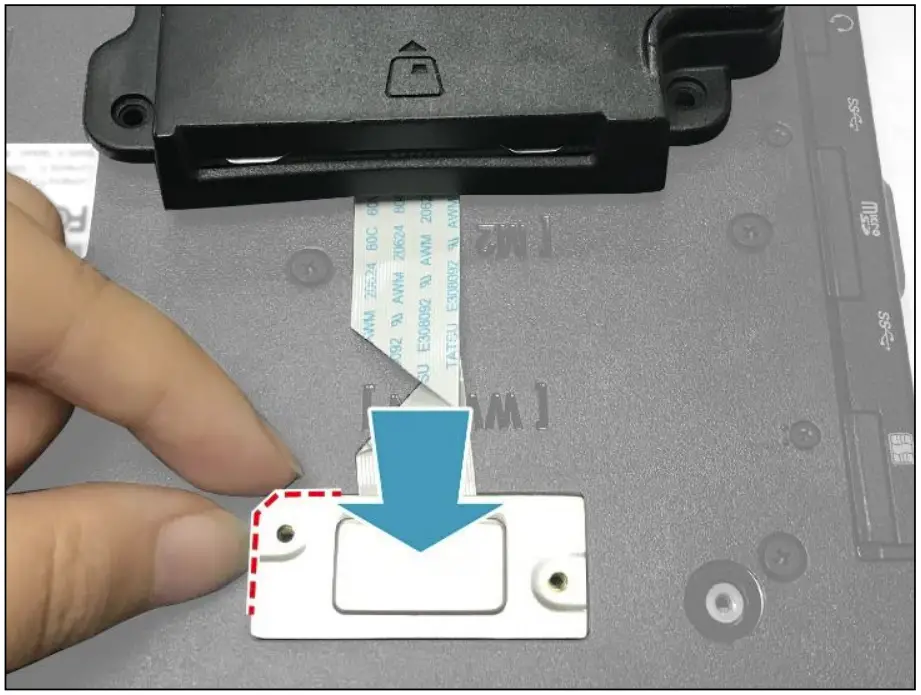
- Align and install the MSR and smart card module bracket onto its slot on the lower case.

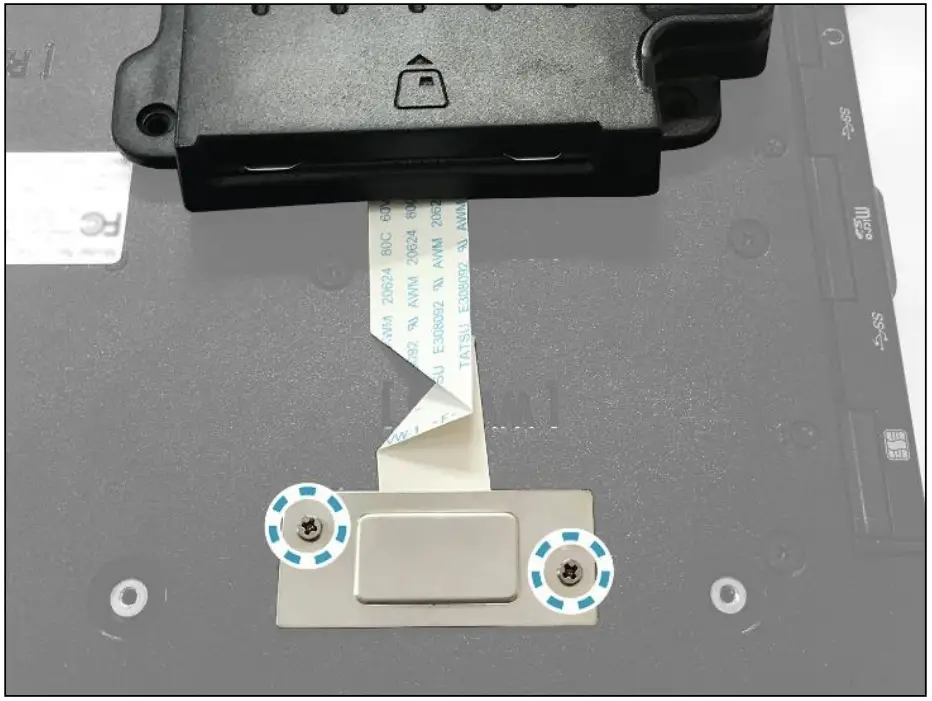
- Attach the 2 screws to secure the MSR and smart card module bracket to the lower case.

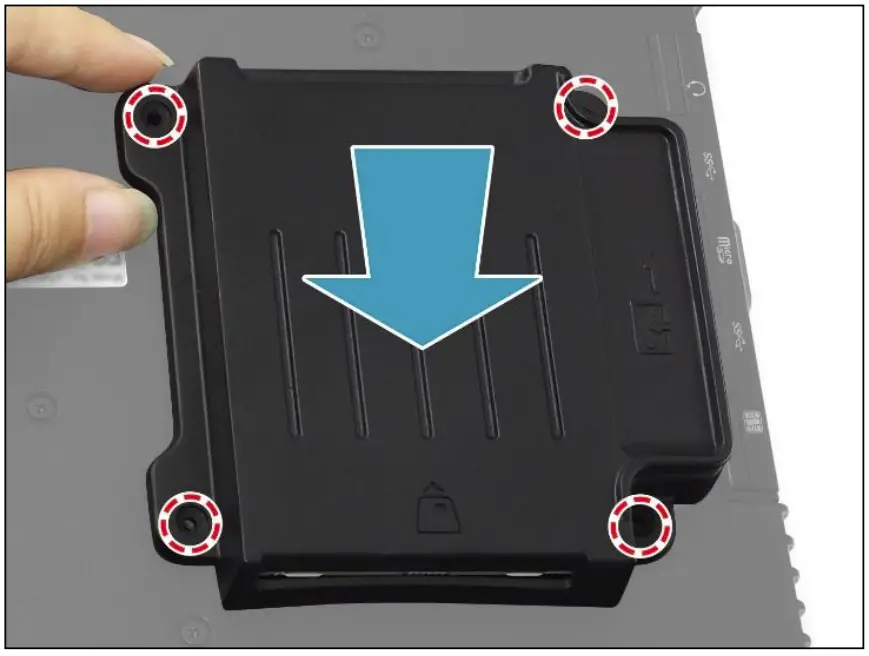
- By aligning with the screw holes, install the MSR and smart card module assembly onto its slot on the lower case.

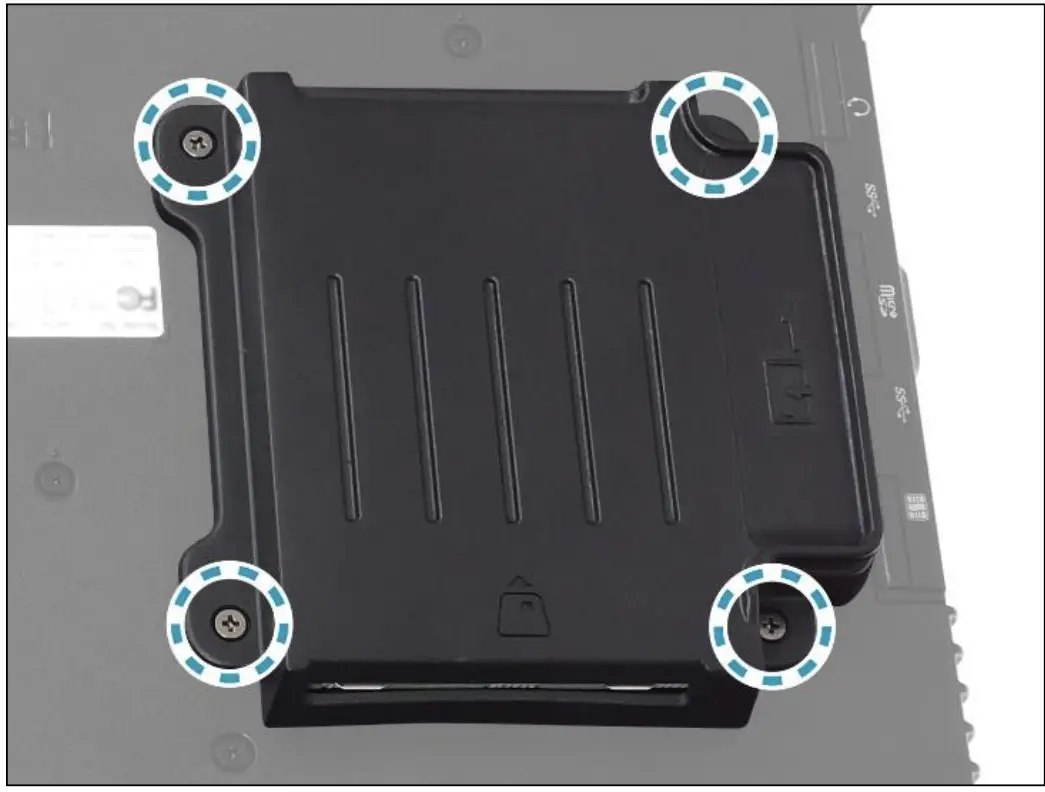
- Attach the 4 screws to secure the MSR and smart card module assembly to the lower case.

- Install the battery.
MSR and Smart Card Module Screws
Screw Name | Screw Type | Quantity | Torque |
| M2.6X5L & O RING | | 4 (assembly to lower case) | 2.5 ± 0.3 Kef-cm |
ISOT-M2.0X3L | | 2 (bracket to lower case) | case) 2.0 ± 0.3 Kef-cm |
Twinhood International Corp.
11F, No.550, Ruiguang Rd., Neethu, Taipei 11492, Taiwan, R.O.C.