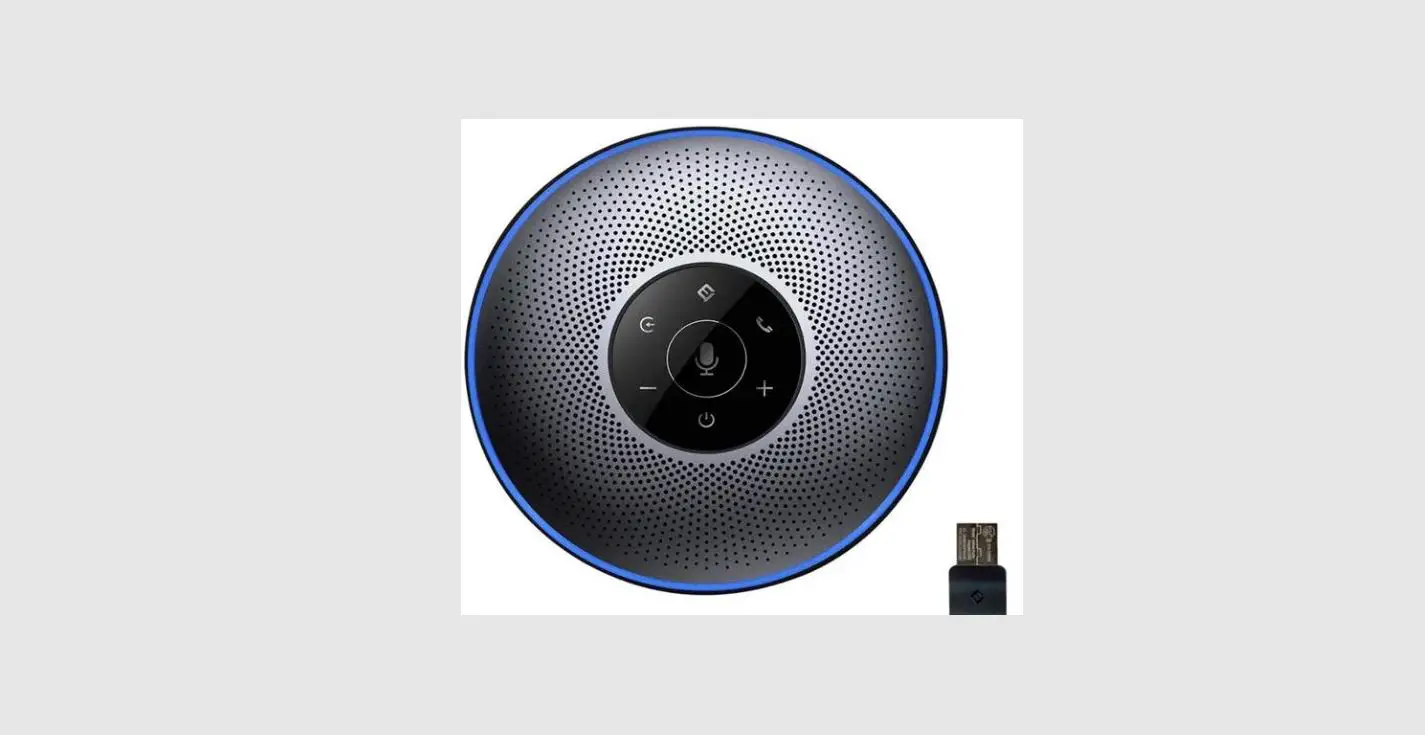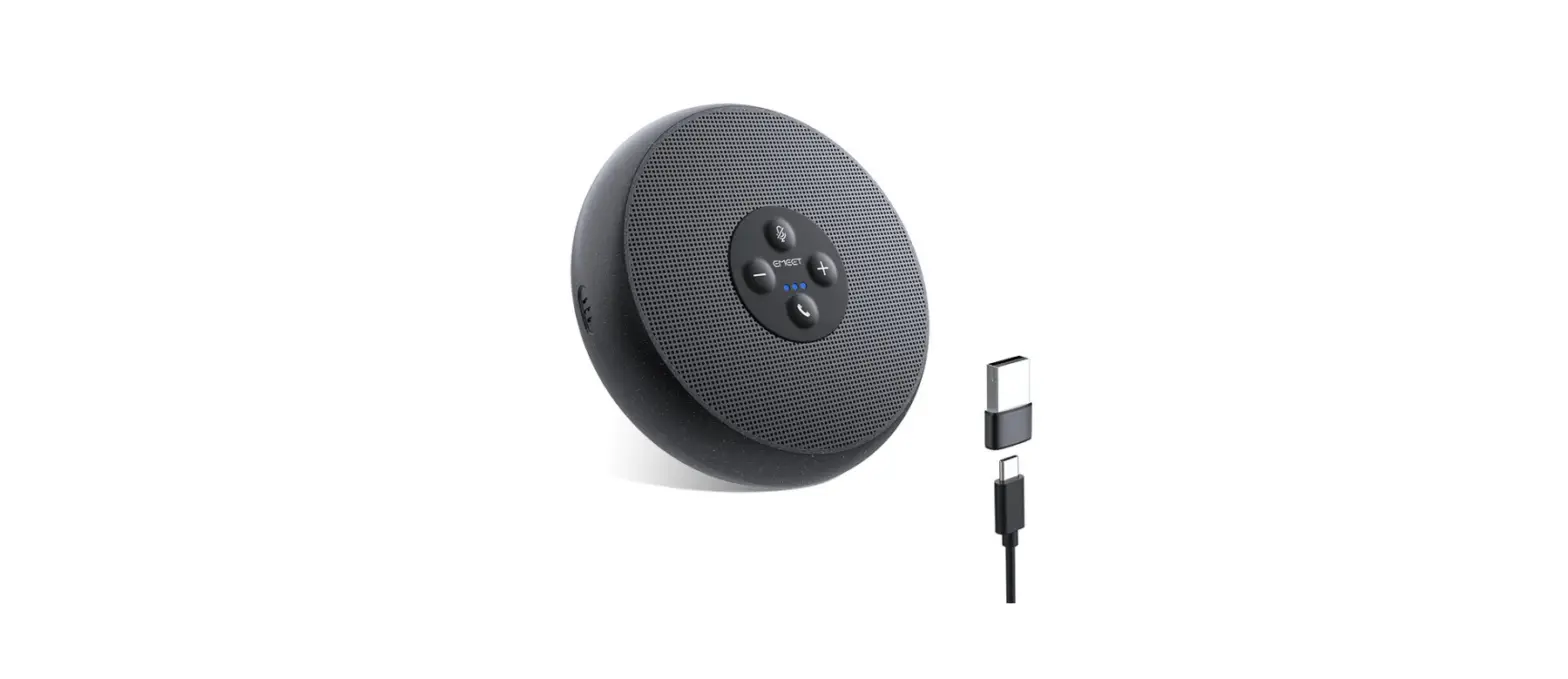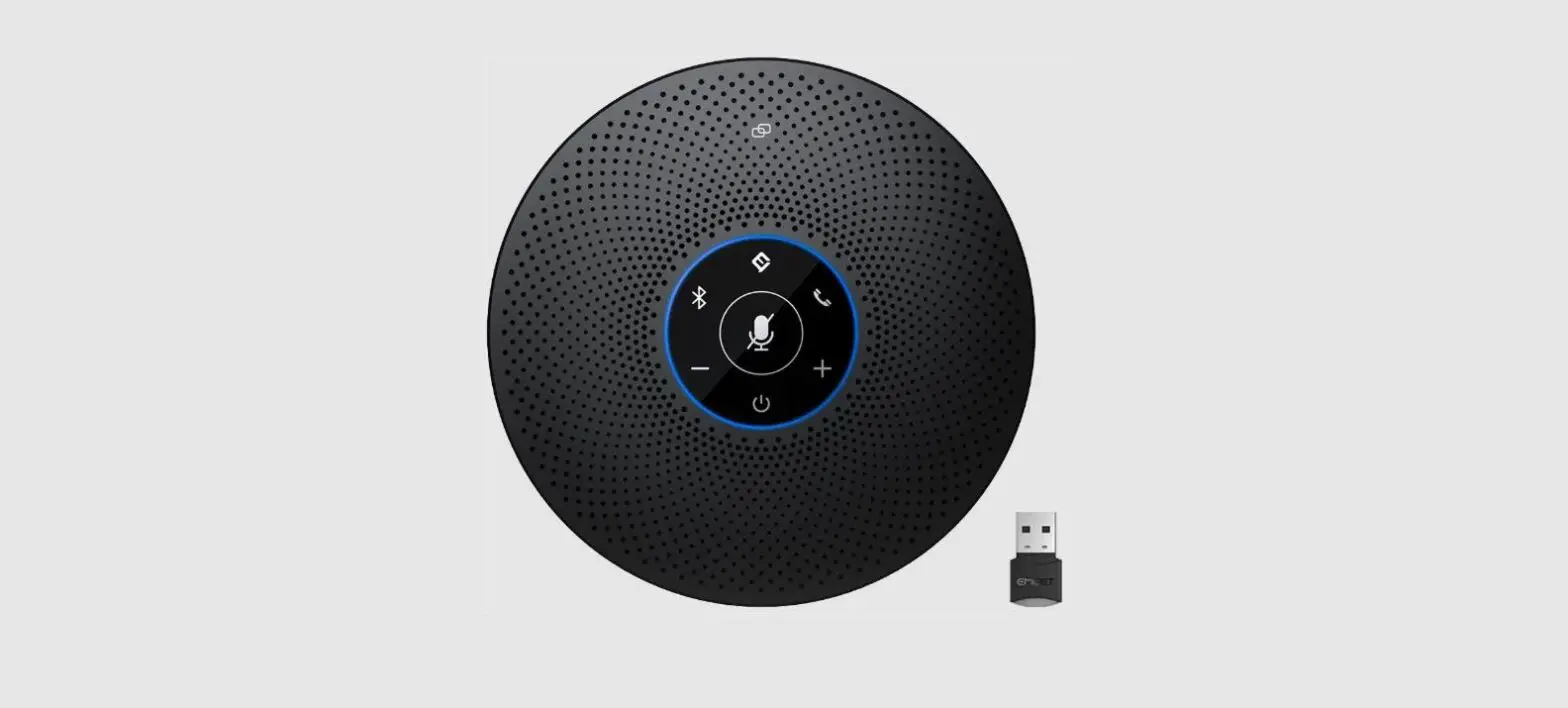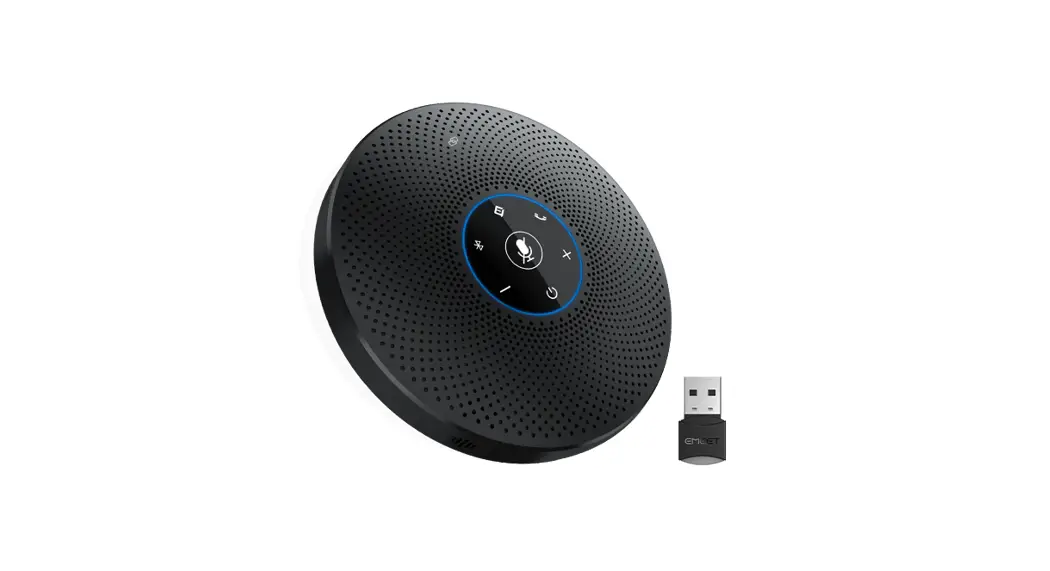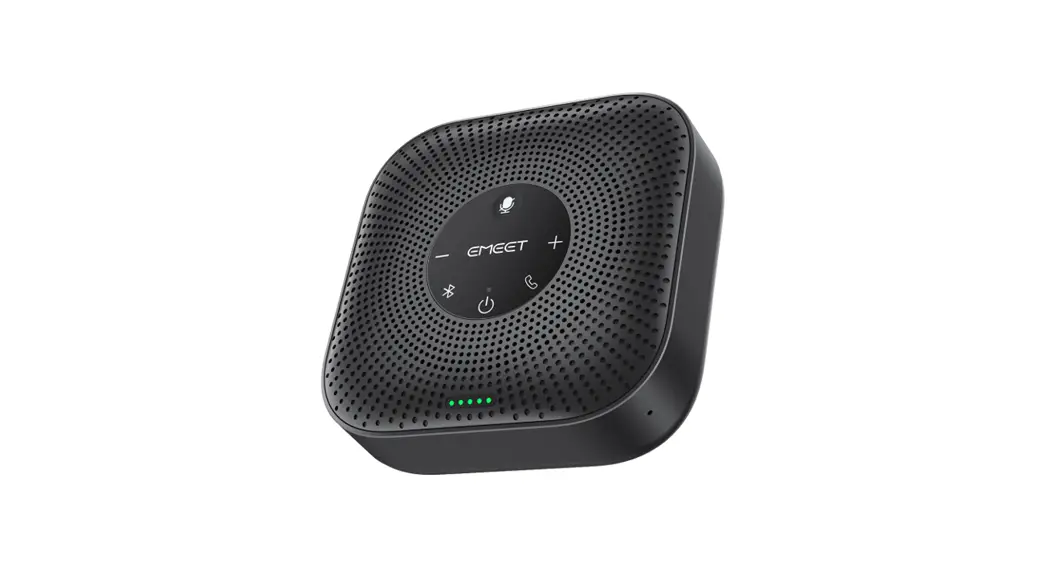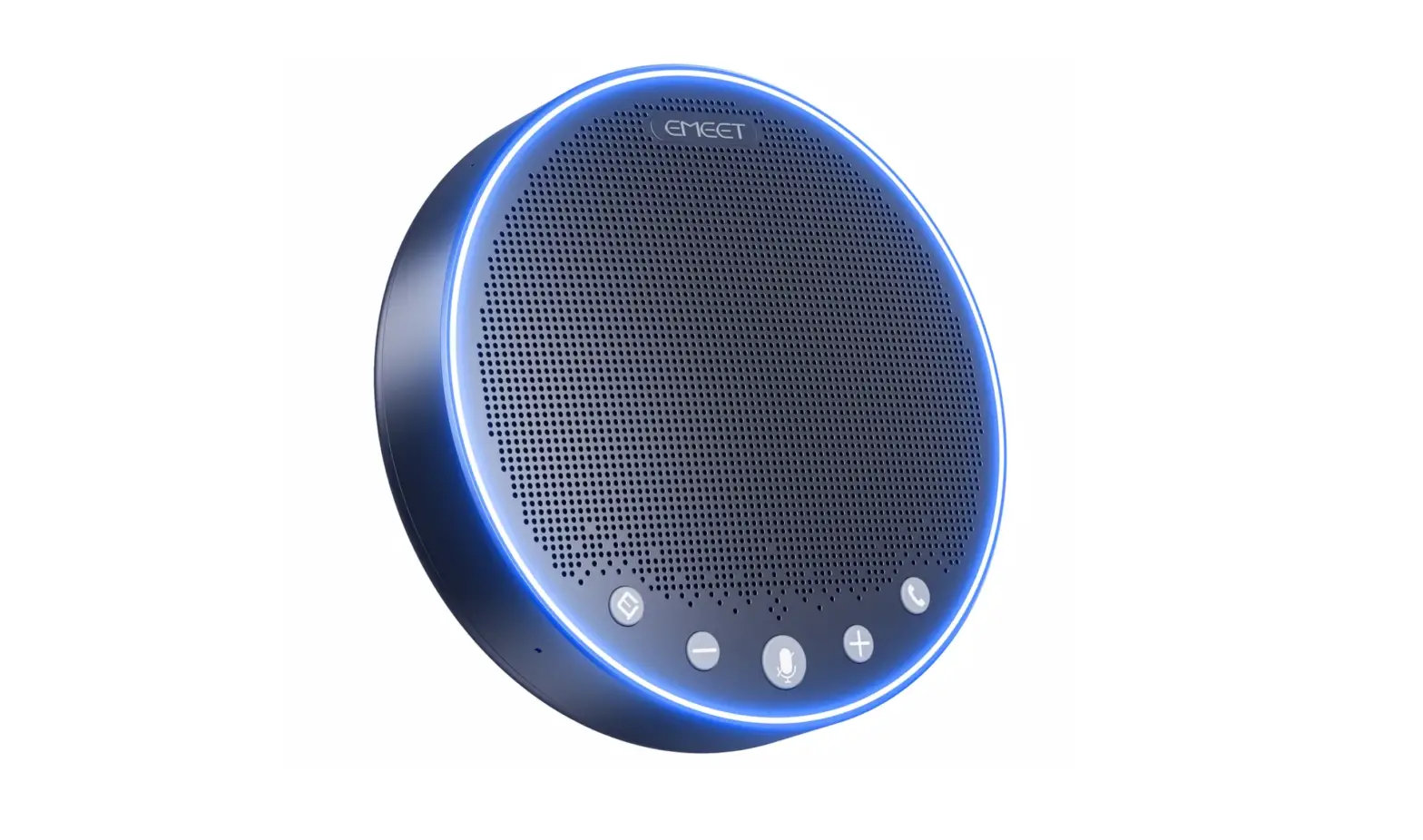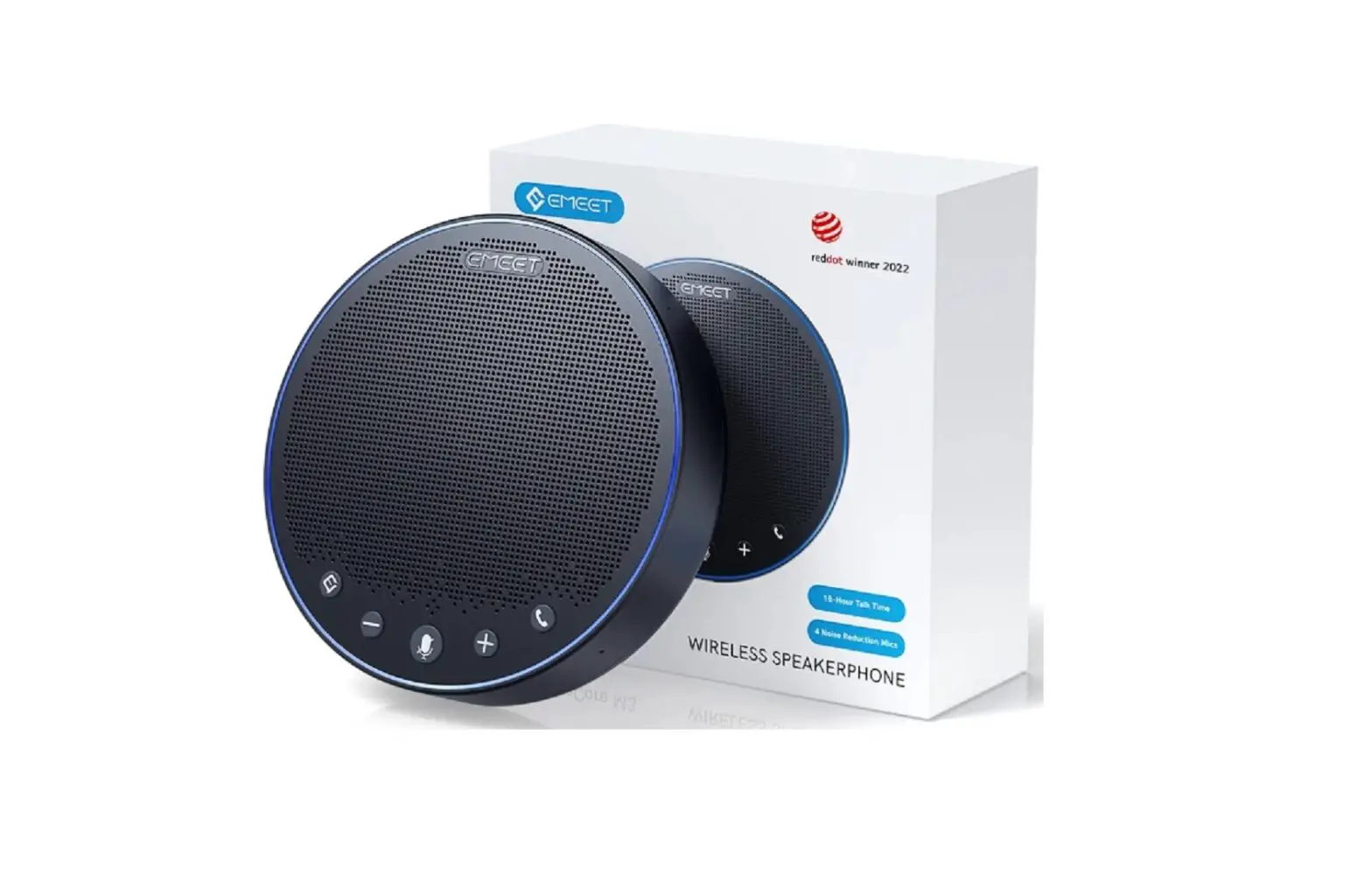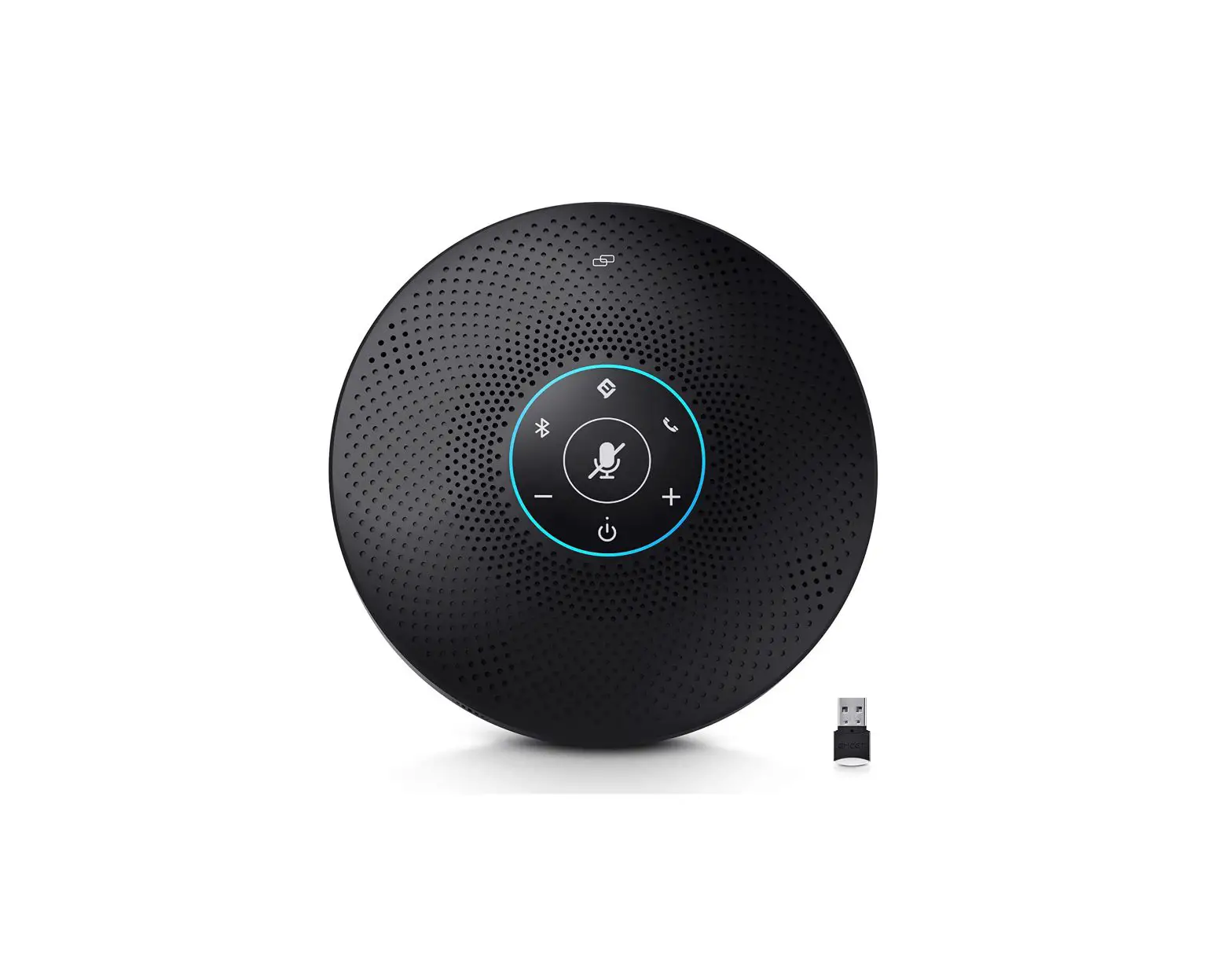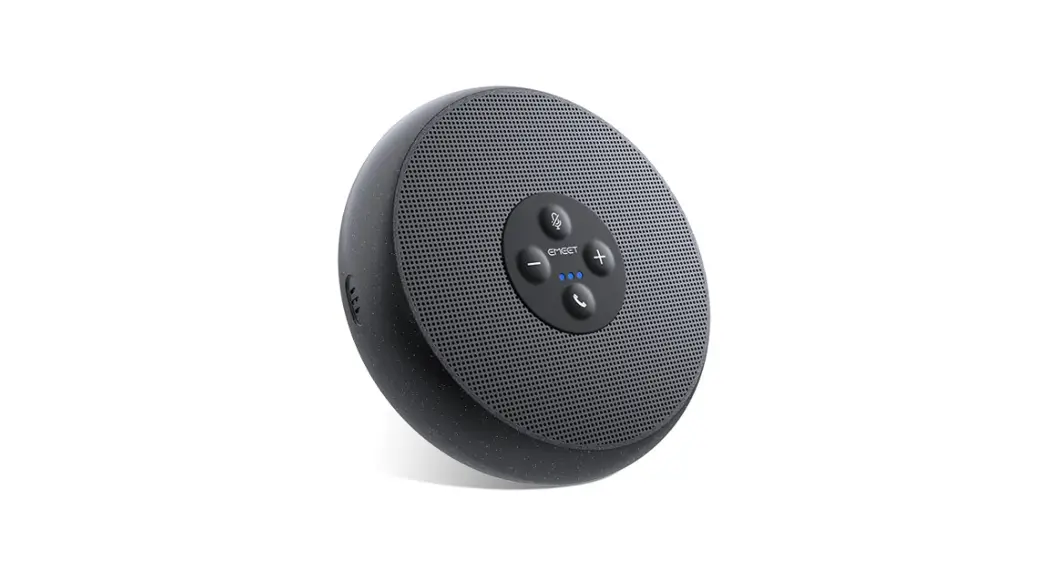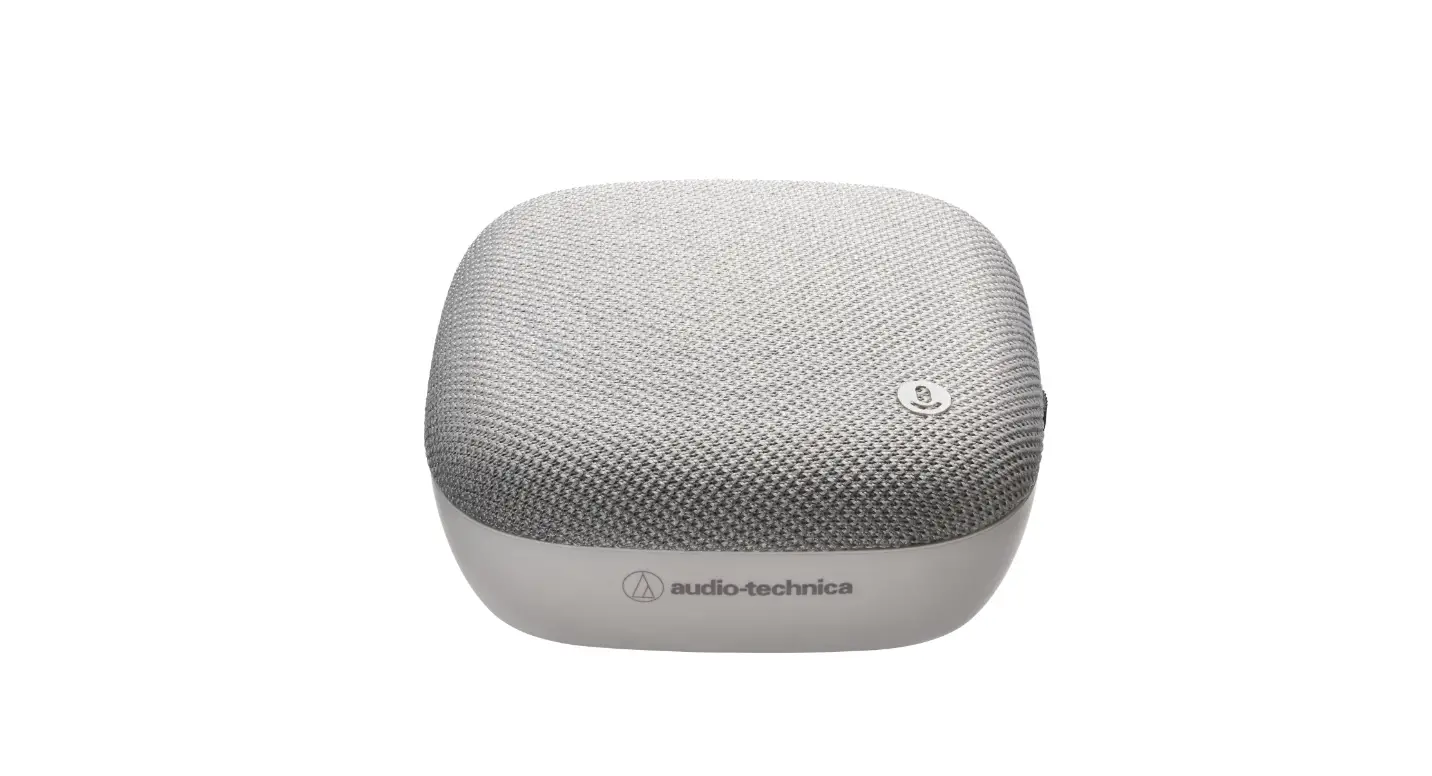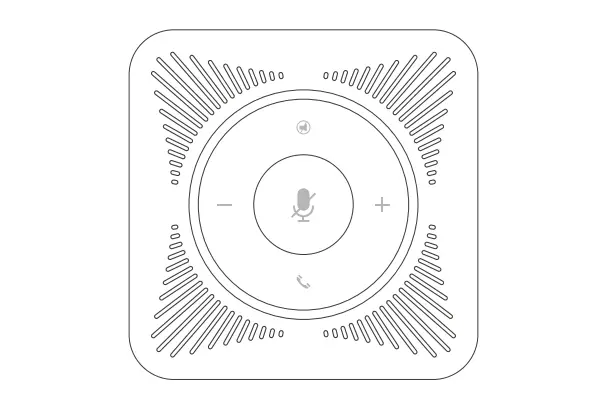

EMEET OfficeCore M0 USB Conference Speaker Speakerphone
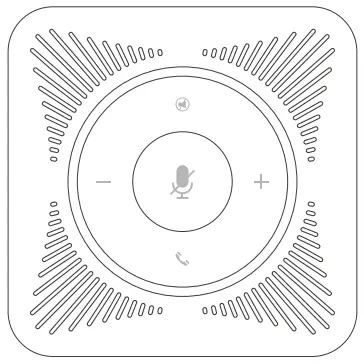
Product Overview
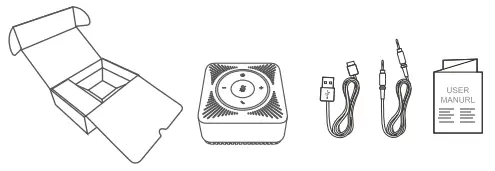
Product Features

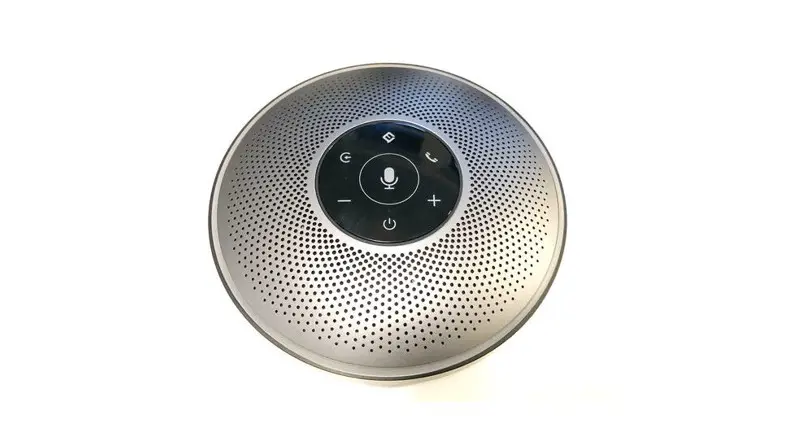
Features
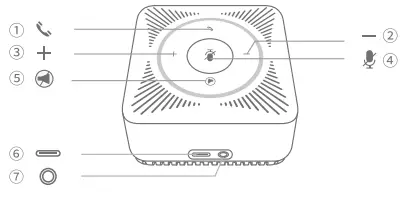
- Pick up & hang up Button
- Volume – button
- Volume+ button
- Microphone mute button
- Speaker mute button
- USB power supply port
- Audio output port
Instructions for Use
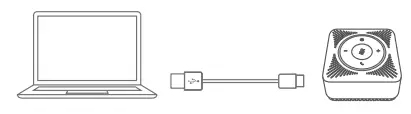
Use a USB Cable to Connect PC
- When a USB cable is connected to a PC, the eMeet OfficeCore MO automatically powers on.
- When the USB cable is disconnected, the eMeet OfficeCore MO automatically powers off.
Operation Guide
For Mac OS Users
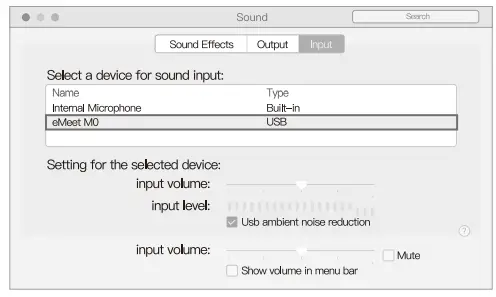
Setting Default Microphone (Mac OS)
- Select System Preferences > Sound.
- Under the Sound tab, click Input, and then select eMeet MO.
- If necessary, adjust input volume at Settings for the selected device on the same panel.

Set Default Speaker (Mac OS)
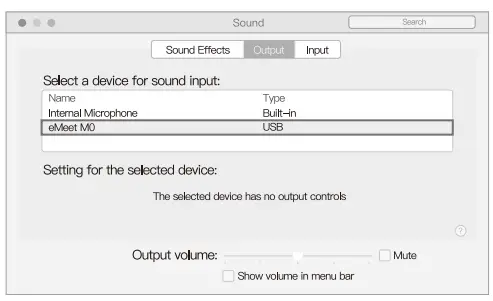
- Select System Preferences > Sound.
- Under the Sound tab, click Output, and then select eMeet MO.
- If necessary, adjust output volume at Settings for the selected device on the same panel.

For Windows Users
Set Default Microphone (Windows Vista/7/8/8.1/10)
- Select Start> Control Panel > Hardware and Sound.
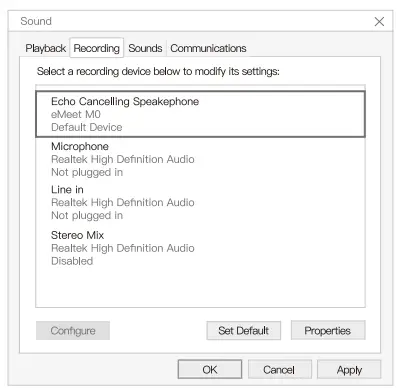
- Under the Sound tab, click Manage Audio Devices. Click the Record tab on the top of the displayed setup window.
- Under the Record tab, select eMeet MO, and then click the Set Default button. Click OK to save your changes.
- If necessary, you can make changes to the property (level) of the same panel to adjust input volume.

Set Default Speaker (Windows Vista/7/8/8.1/10)
- Select Start> Control Panel > Hardware and Sound.
- Under the Sound tab, click Manage Audio Devices. Click the Playback tab on the top of the displayed setup window.
- Under the Playback tab, select eMeet MO, and then click the Set as Default button. Click OK to save your changes.
- If necessary, you can make changes to the property (level) of the same panel to adjust output volume.
Product Parameters
- Rated output power of speaker 3W RMS
- Frequency response 20Hz,20KHz
- SNR ae 80 dB
- Microphone sensitivity -26 dBFS
- MIC Qty 4
- Polar Pattern 360 omni-directional
- Dimensions (mm) 80 x 80 x 40.7 ±0.5mm
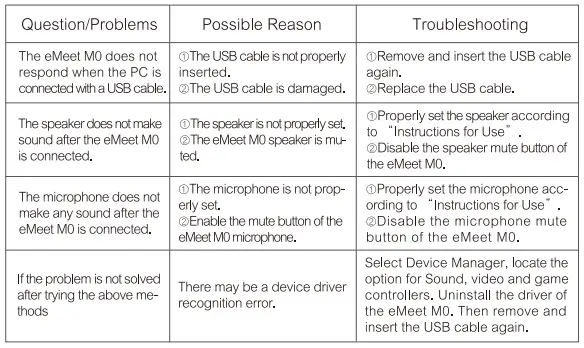
FAQs
Warranty
One-year limited warranty applies to all the eMeet products purchased from authorized dealers.
Contact us
For customer service and technical support, please contact us via.
- [email protected]
- www.emeet.ai
- US:+ I 8889595320(EST 9:00am-5:00pm Mon-Fril