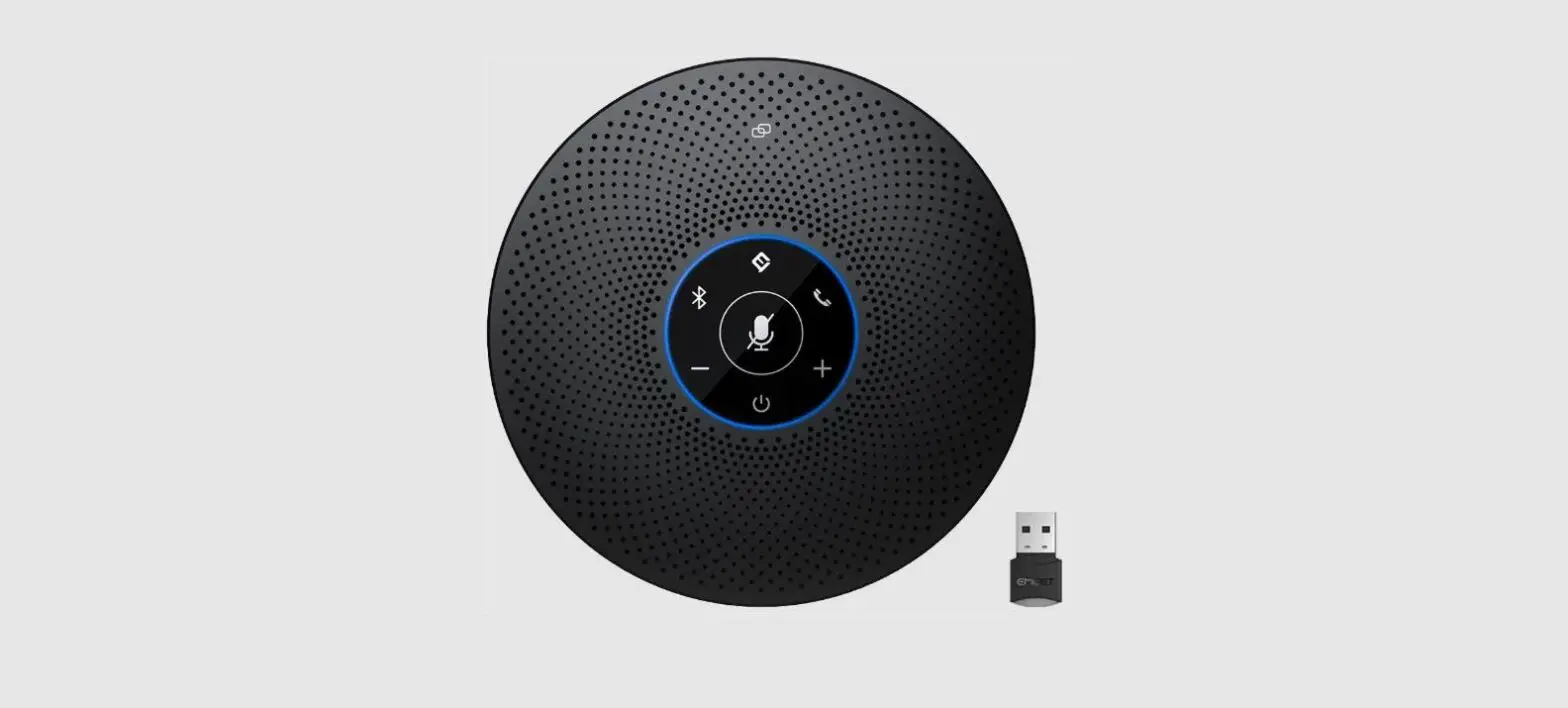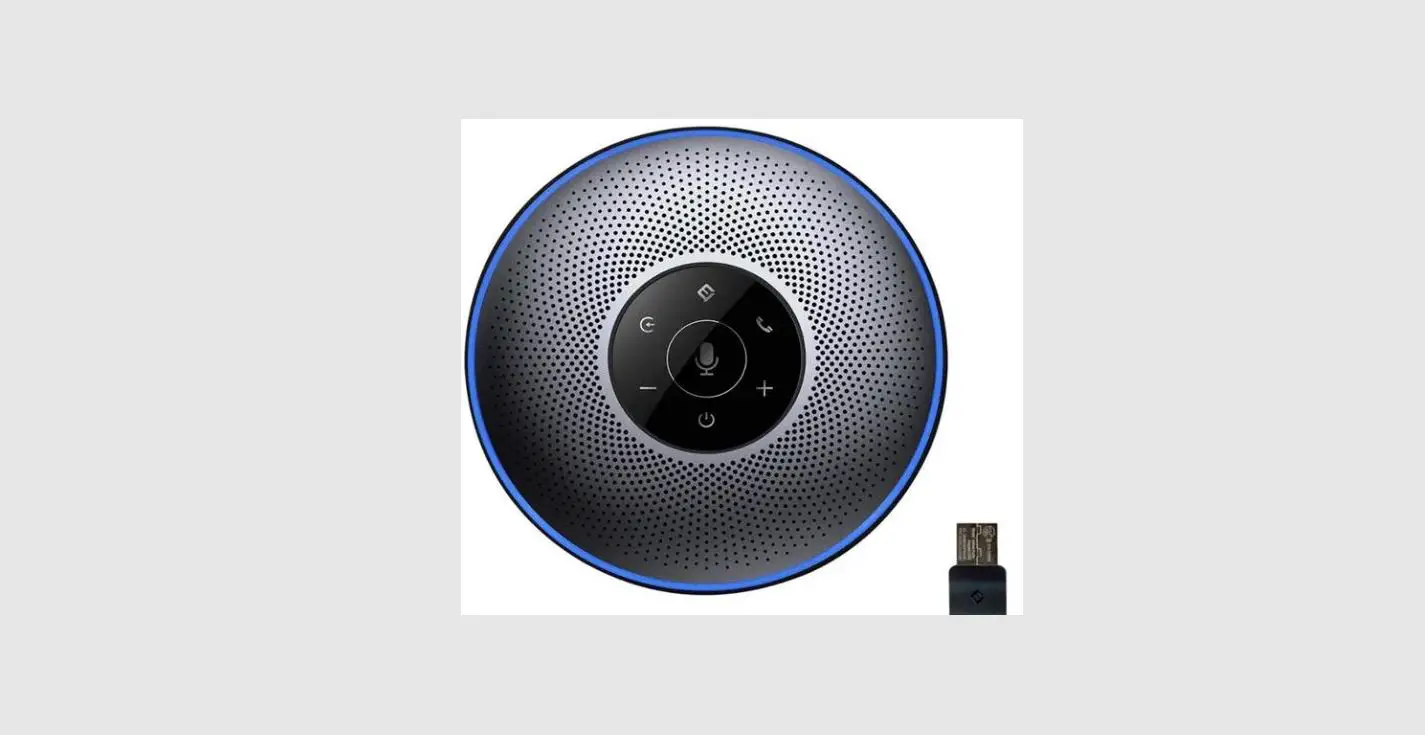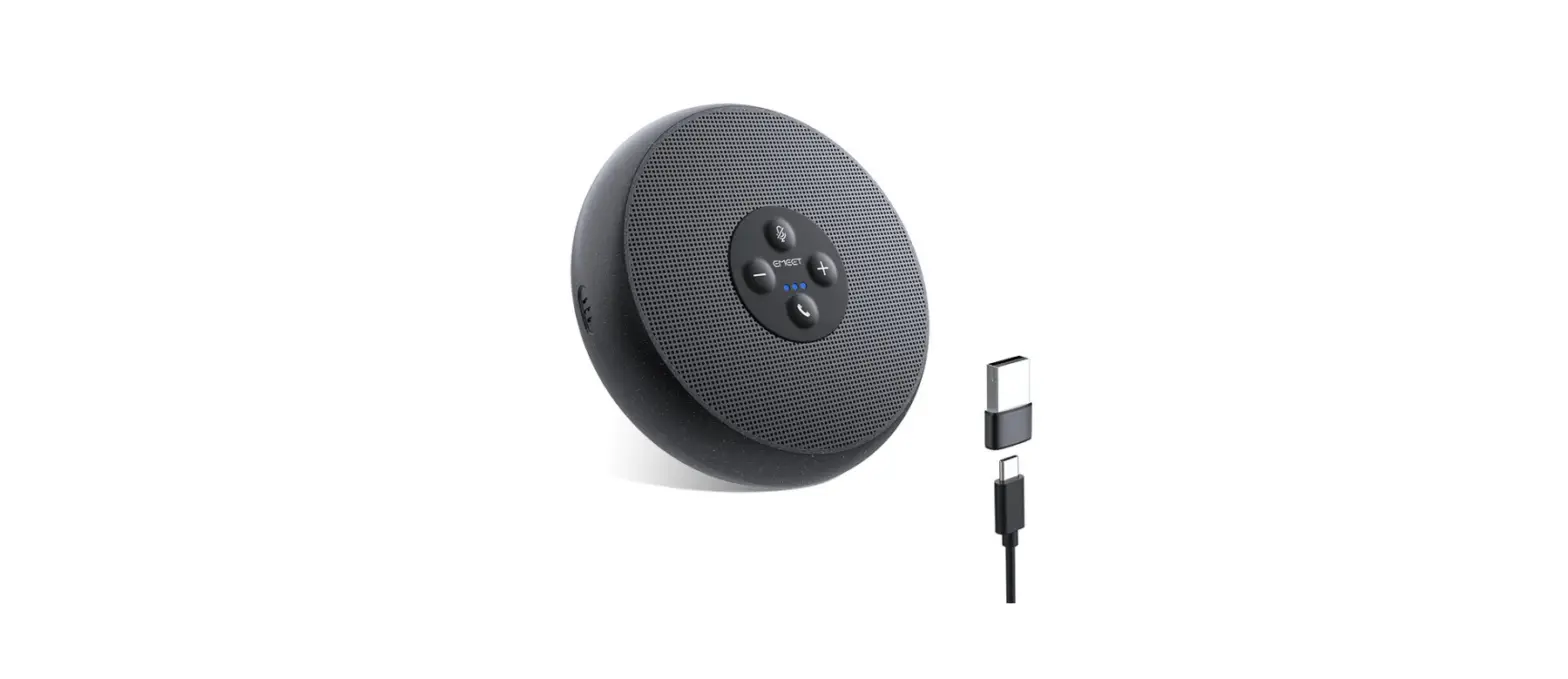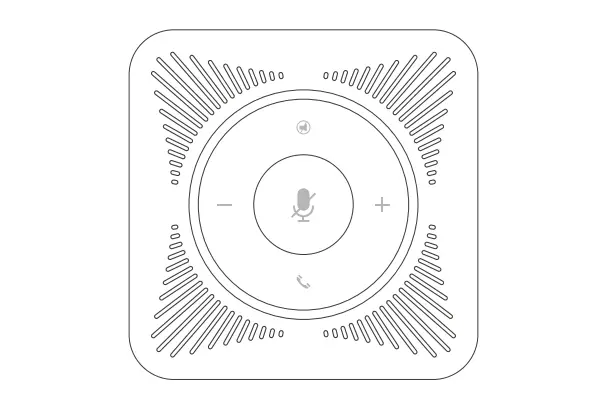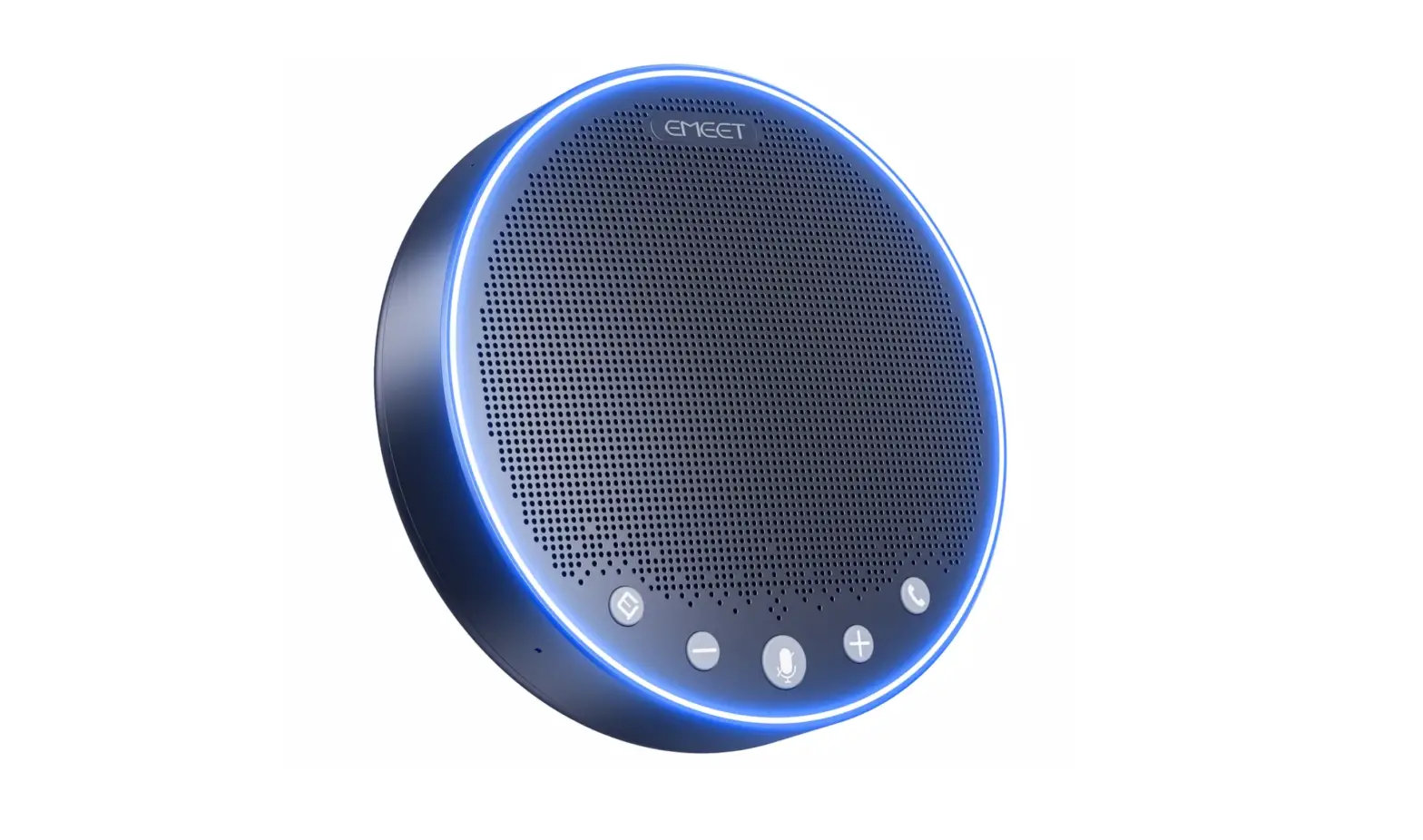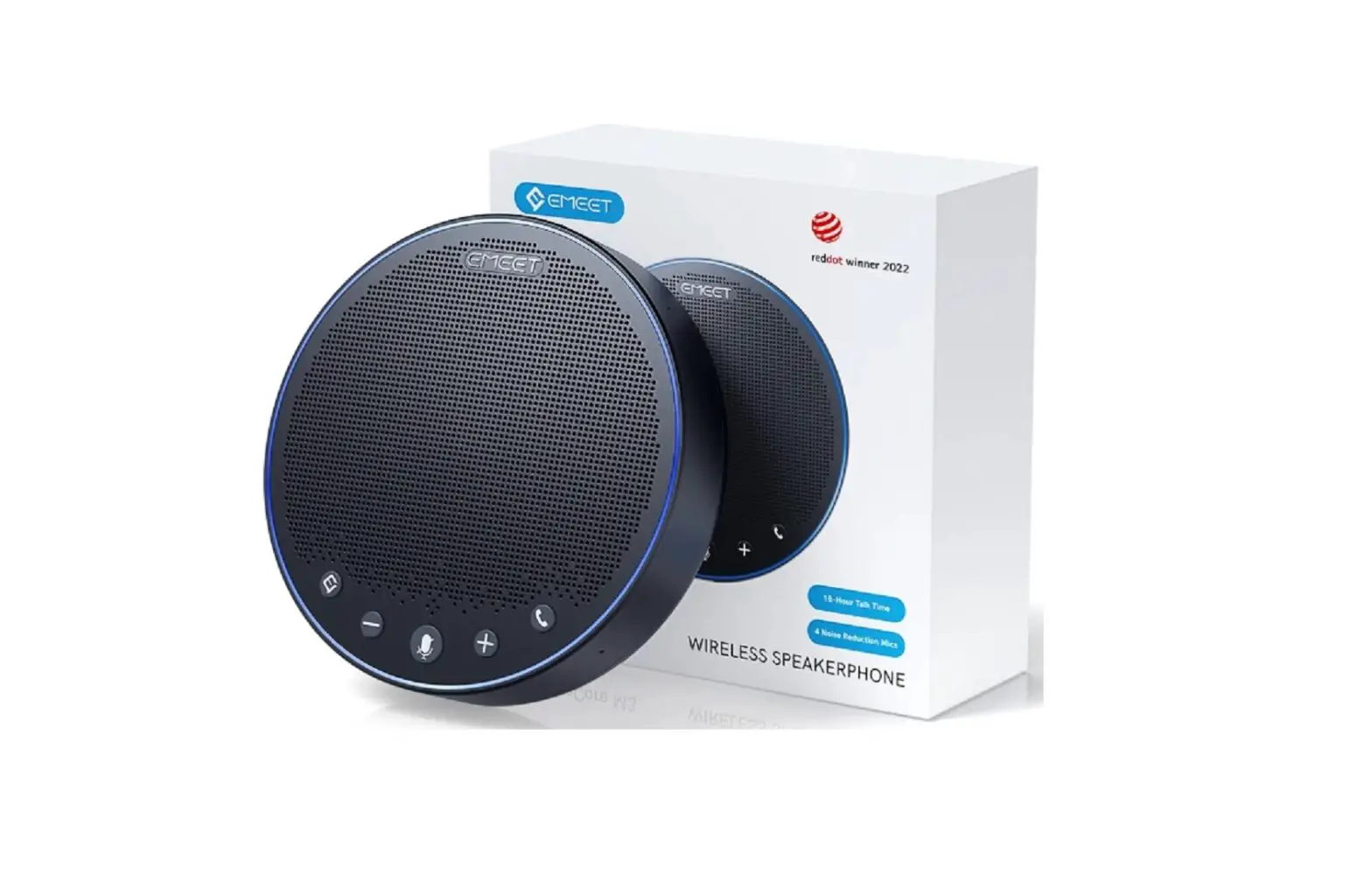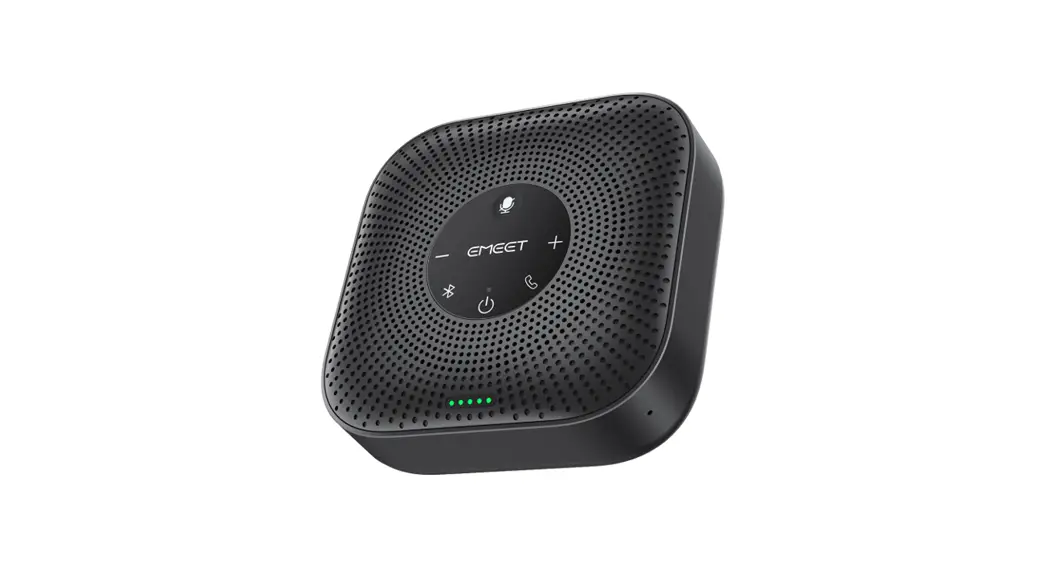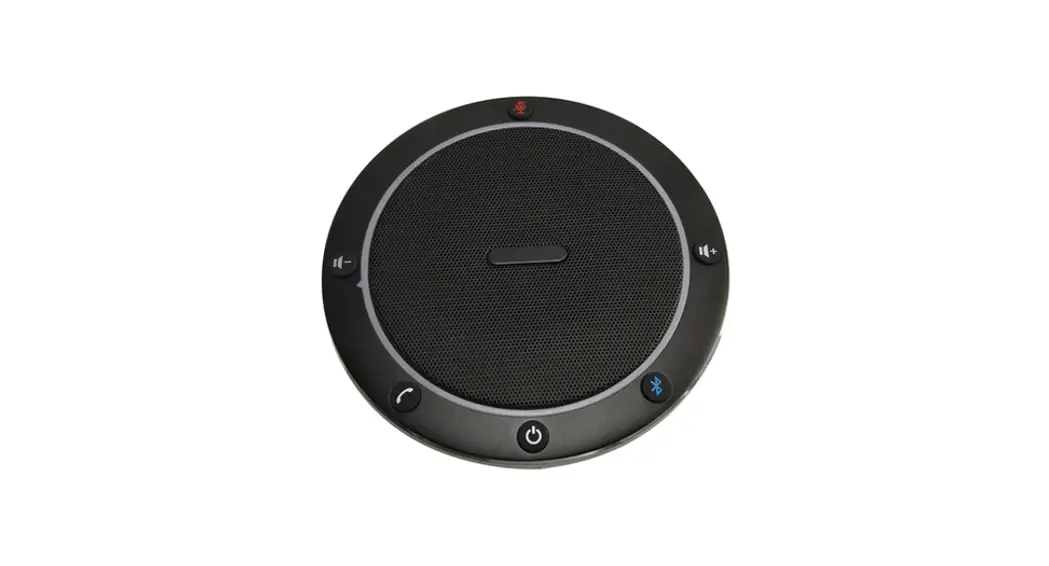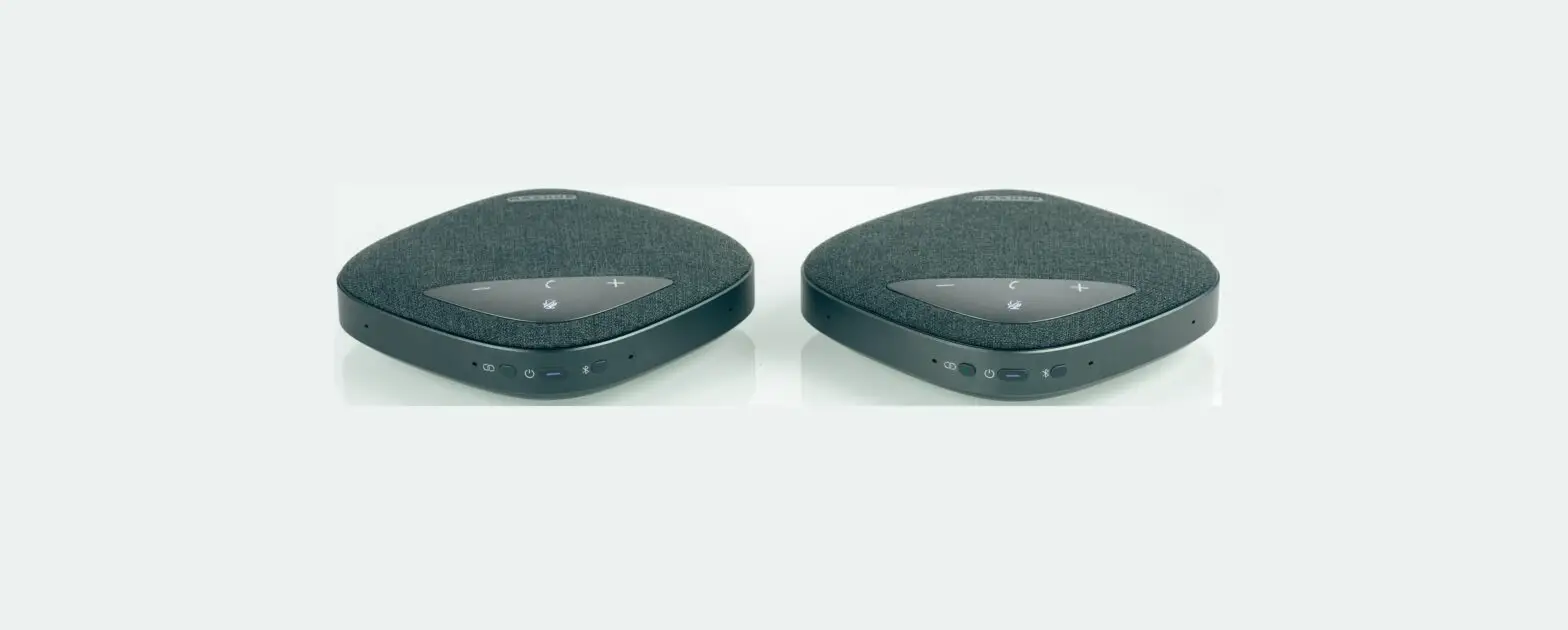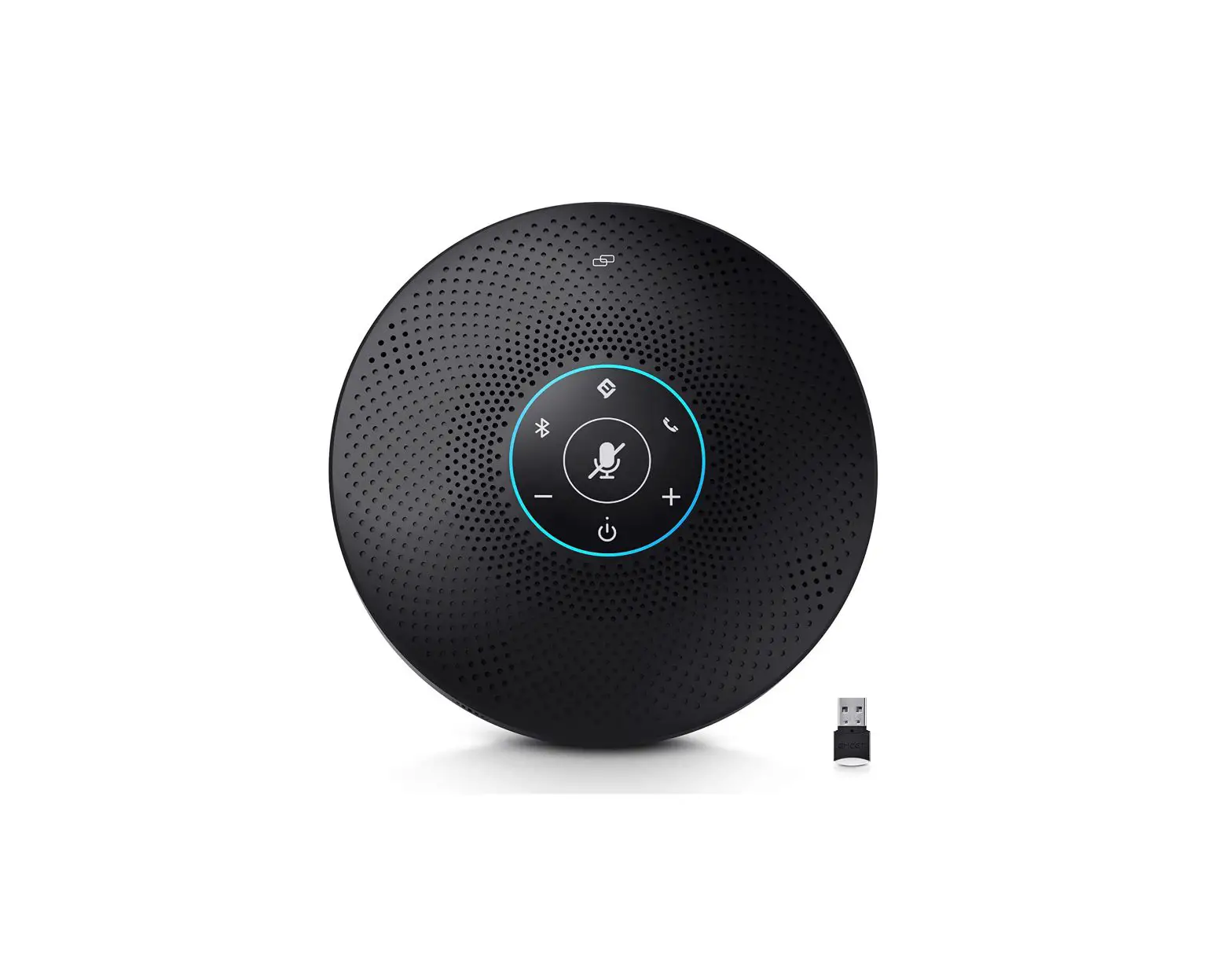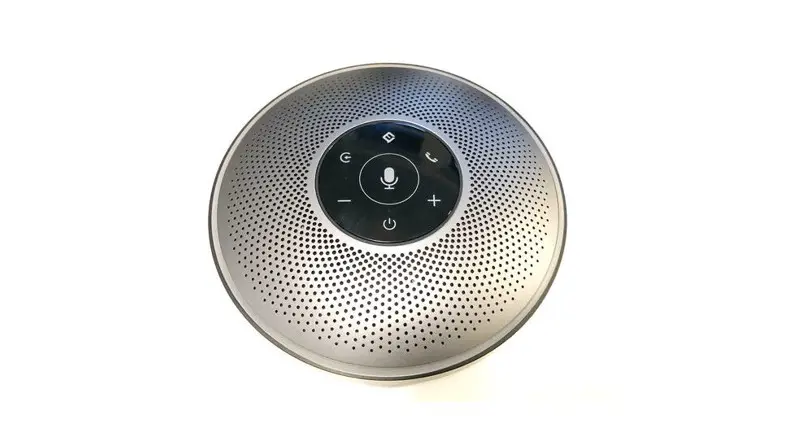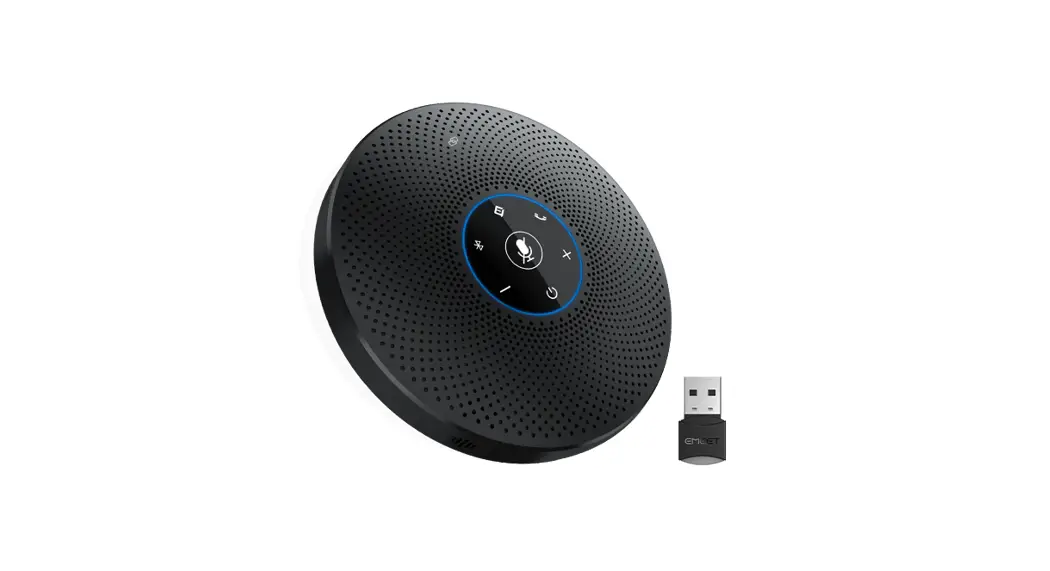
 Model No:OfficeCore M2 Max, OfficeCore M2 Max 330, OfficeCore M2 Max 260
FCC ID:2ALCN-M2MAX
IC:23496-M2MAX
Professional Speakerphone
OfficeCore M2 Max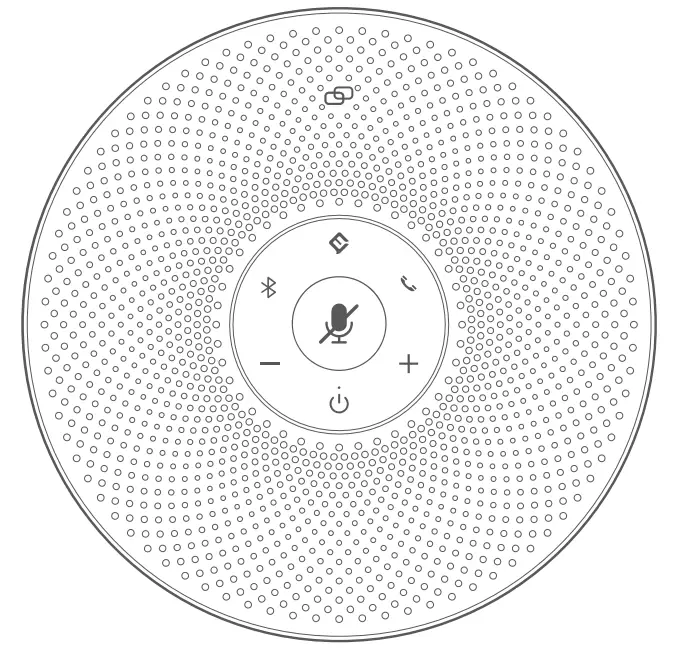 PMN:M2 Max
User Manual
Buttons 
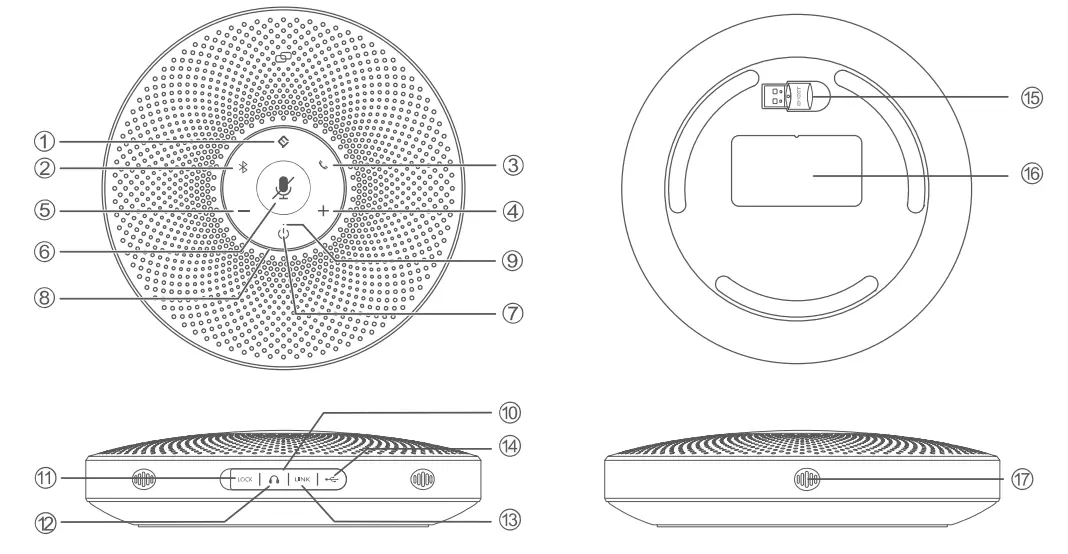
Overview
- voice button
- Bluetooth button
- Answer/End Phone Call button
- Volume+ button
- Volume— button
- Mute button
- Power button
- Status LED
- Source LED CID Rubber plug
- LOCK port
- Headset output port
- LINK Daisy Chain port
- USB port (Type C)
- Dongle
- Nameplate
- MIC hole
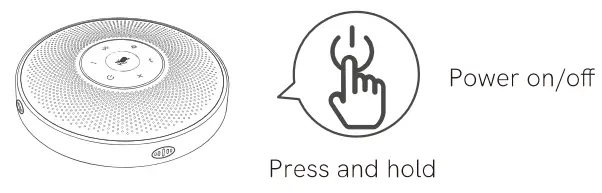
Power On/Off
Check battery level
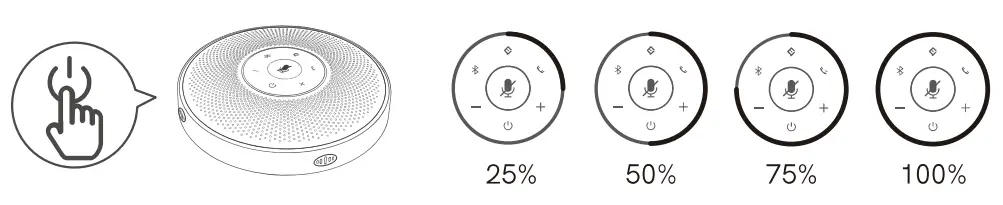 | |
| Press the power button when powered on. | The Status LED turns green to indicate the battery level. |
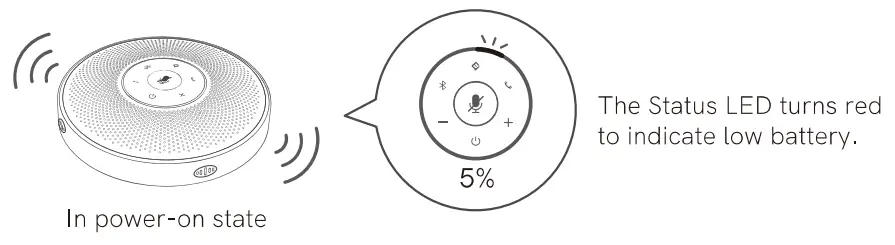
Low battery warning
Short press the ” 0 “Al Noise Reduction button to enable/disable Al noise function. Turning on Voice.A. noise reduction can greatly reduce some noises in the meeting scene, such as keyboard tapping, air conditioning noise, and general unwanted background noise.
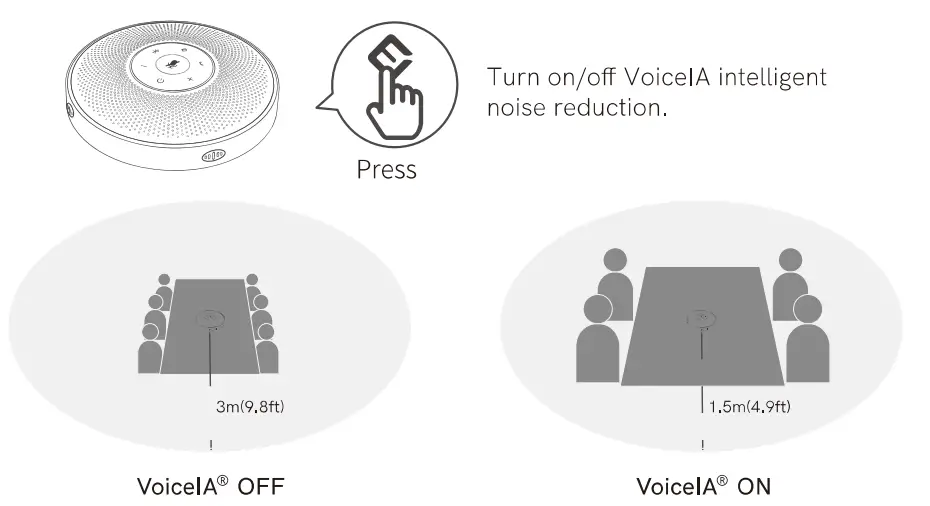
Note: After the noise reduction mode is enabled, in order to maintain a good sound pickup effect, please make a call within a sound pick-up range of 1.5 m(4.9f0.
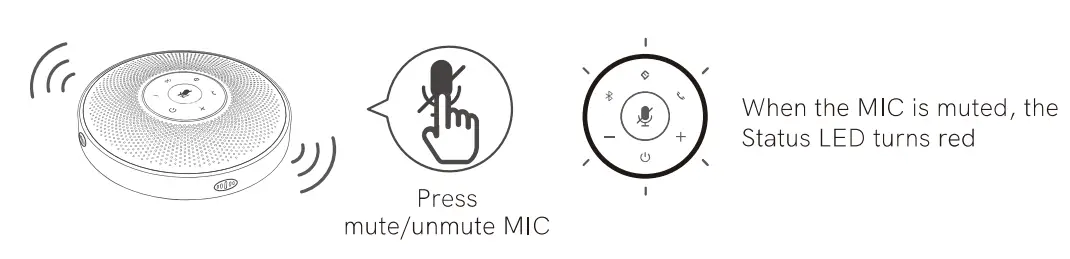
MIC Mute Button
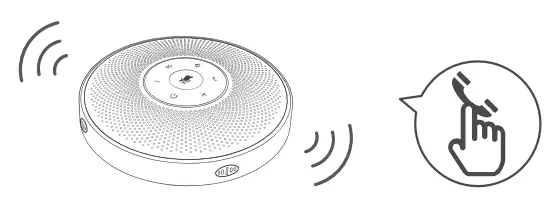
Answer/End Phone Call Button
| Status | Action | Status |
| Incoming call | Press | Answer a call |
| Incoming call | Press and hold | Reject a call |
| Call going | Press/press and hold | End a call |
Volume+/Volume— Button
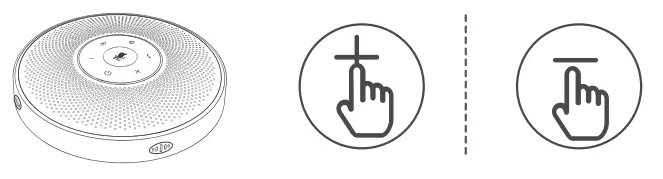
| Action | Status | LED |
Press | Volume up | Status LED turns blue |
Press | Volume down | Status LED turns blue |
Bluetooth Connection
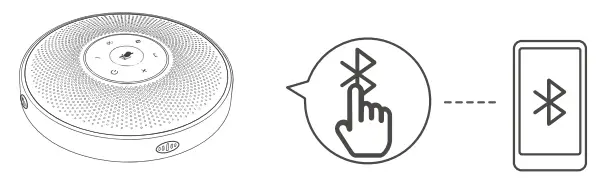
| Action | Status | Source LED | LED |
Enter Bluetooth Press and hold pairing mode | Bluetooth paired | Steady blue |  |
| Bluetooth not paired | Flashes blue |  | |
| Press | Bluetooth closed/reconnected | Steady white | |
Notes:
a) When turning on the device, it will reconnect to the last computer/mobile phone via Bluetooth whilst it is active.
b) Bluetooth closed means it can not be found.
USB Connection
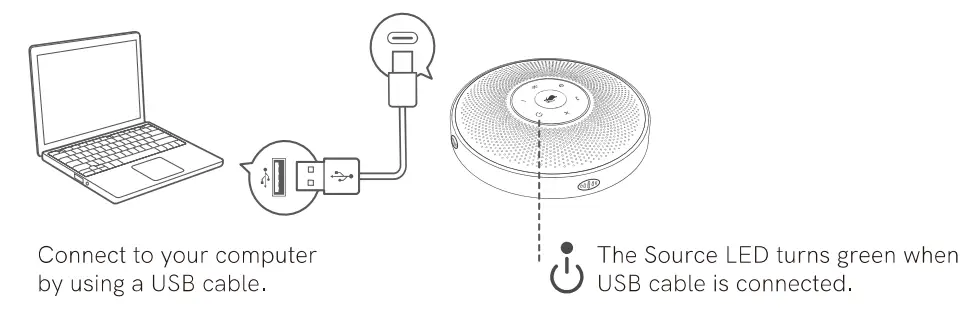
USB Dongle Connection
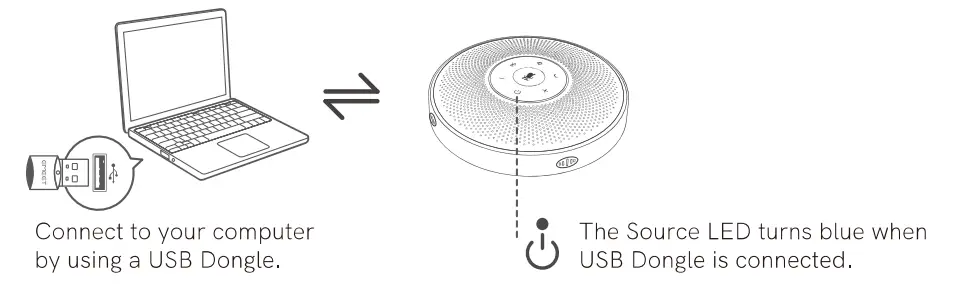
| Dongle status | Dongle LED | LED |
| Pairing | Flashes blue | 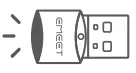 |
| Pairing successful | Steady blue | 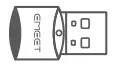 |
| Call going | Green | |
| Microphone muted | Steady red | |
Headset Connection

Connect to the headset jack using a 3.5mm headset cable.
Note: When the headset is connected, the speaker is automatically muted.
Daisy Chain Cable
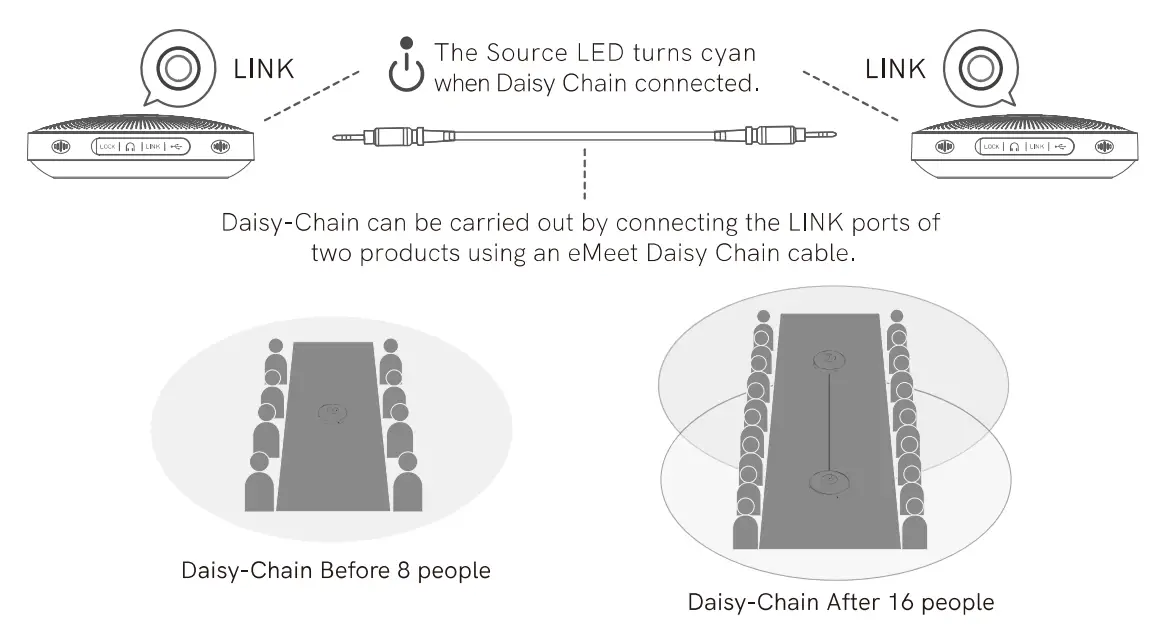
Note: eMeet Daisy Chain cables must be purchased separately.
Lock Port Setting

Note: The LOCK port is of a Kensington type which requires the user to buy a lock otherwise.
Charging
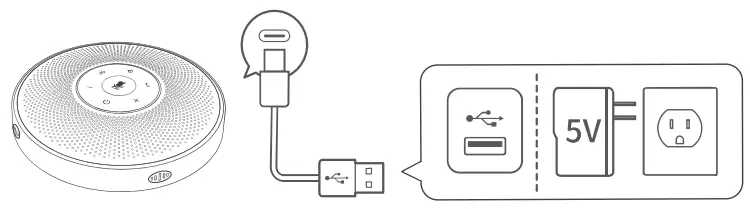
| Action | Source LED | LED |
| Charging in power-off state | Yellow-green LED indicator flashing | |
| Fully charged in power-off state | Yellow-green LED indicator always on | |
Download Application
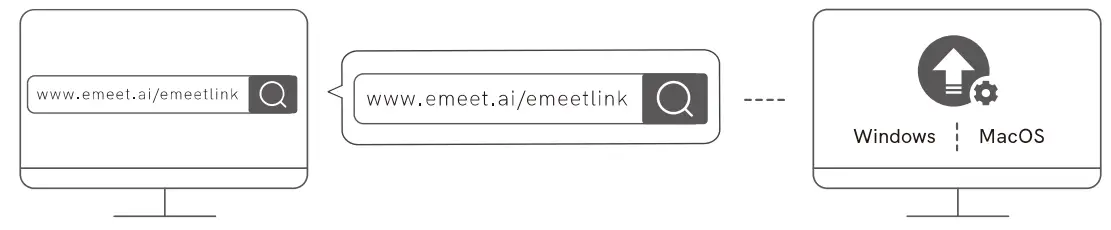
Download the eMeet Link PC desktop app for software updates.
Product Parameters
| Charging input | 5V/1A |
| Rated power | 5W |
| MIC diameter | 010mm |
| SPK frequency range | 20Hz-20KHz |
| Bluetooth version | V5.0 |
| Bluetooth range | 20m (in an open environment) |
Note: In case of any change in the specifications, official website information shall prevail.
The device has been evaluated to meet general RF exposure requirements, The device can be used in portable exposure conditions without restriction.
This device complies with part 15 of the FCC rules. Operation is subject to the following two conditions: (1) this device may not cause harmful interference, and (2) this device must accept any interference received, including interference that may cause undesired operation.
NOTE: The manufacturer is not responsible for any radio or TV interference caused by unauthorized modifications or changes to this equipment. Such modifications or changes could void the user’s authority to operate the equipment. NOTE: This equipment has been tested and found to comply with the limits for a Class B digital device, pursuant to part 15 of the FCC Rules. These limits are designed to provide reasonable protection against harmful interference in a residential installation. This equipment generates uses and can radiate radio frequency energy and, if not installed and used in accordance with the instructions, may cause harmful interference to radio communications. However, there is no guarantee that interference will not occur in a particular installation. If this equipment does cause harmful interference to radio or television reception, which can be determined by turning the equipment off and on, the user is encouraged to try to correct the interference by one or more of the following measures:
- Reorient or relocate the receiving antenna.
- Increase the separation between the equipment and receiver.
- Connect the equipment into an outlet on a circuit different from that to which the receiver is connected.
- Consult the dealer or an experienced radio/TV technician for help.
This device complies with Industry Canada license-exempt RSS-247 standard(s). Operation is subject to the following two conditions: (1) this device may not cause interference, and (2) this device must accept any interference, including interference that may cause undesired operation of the device.