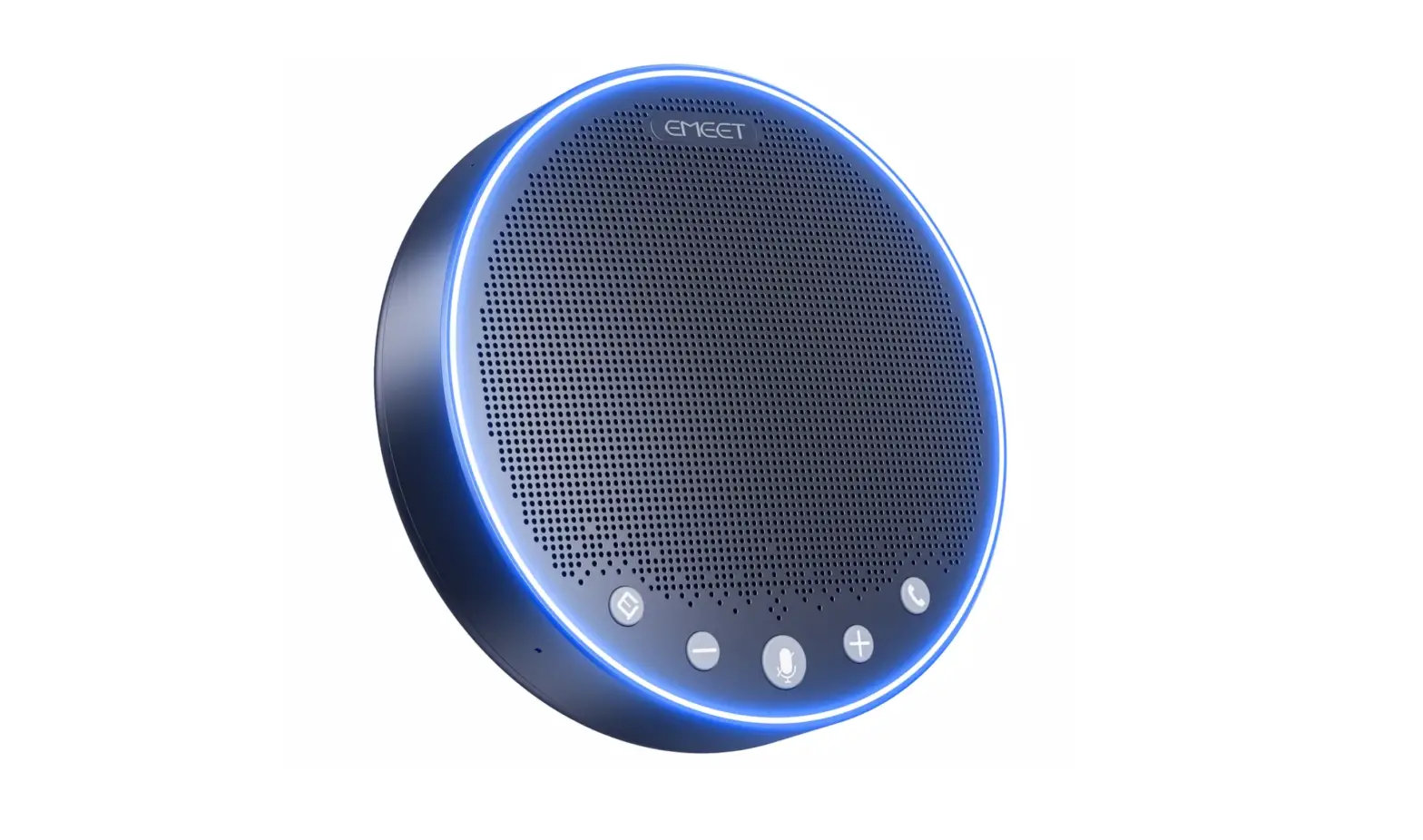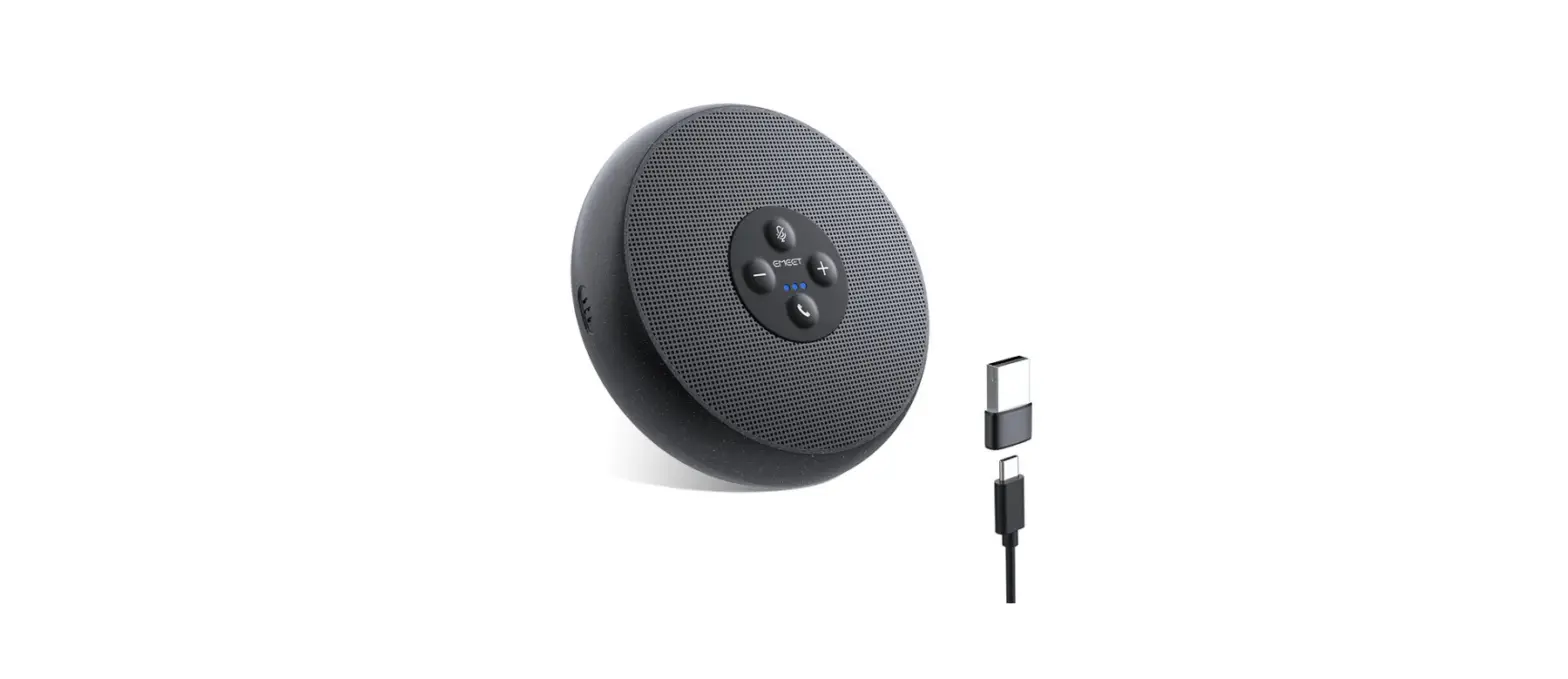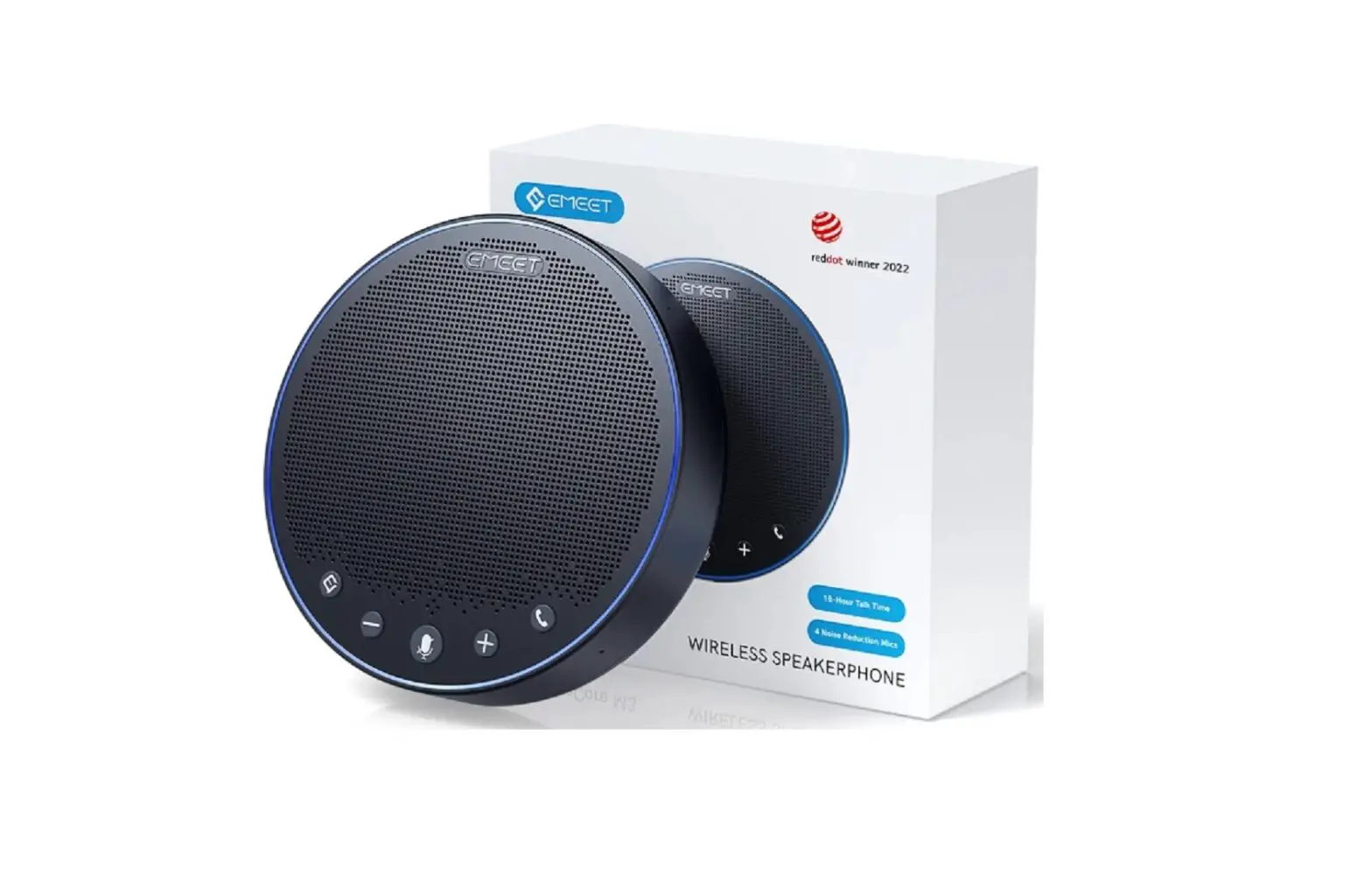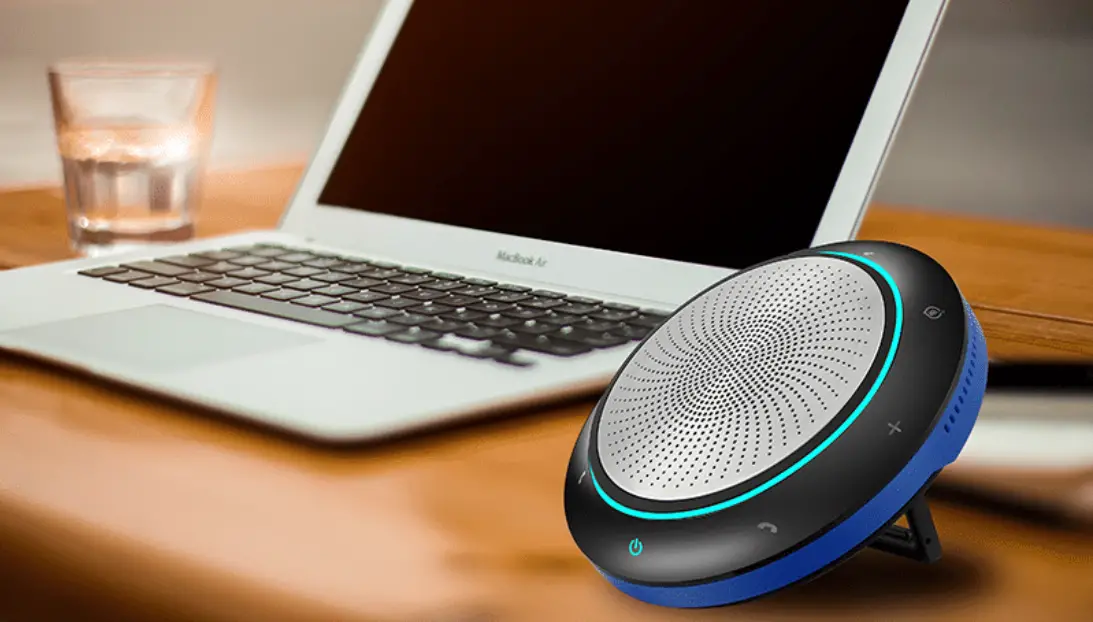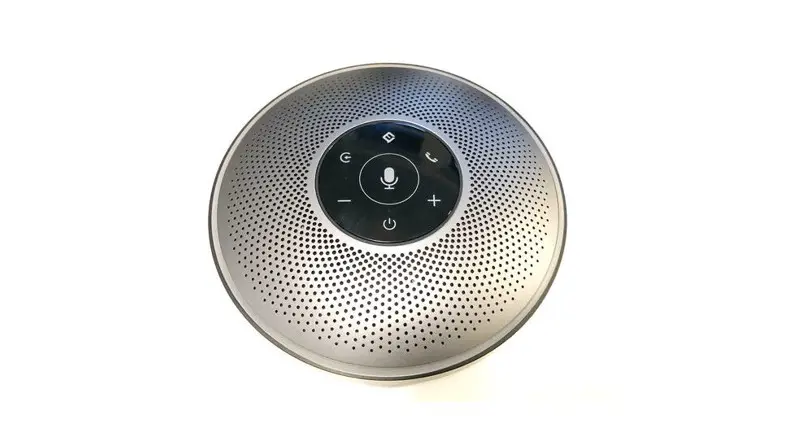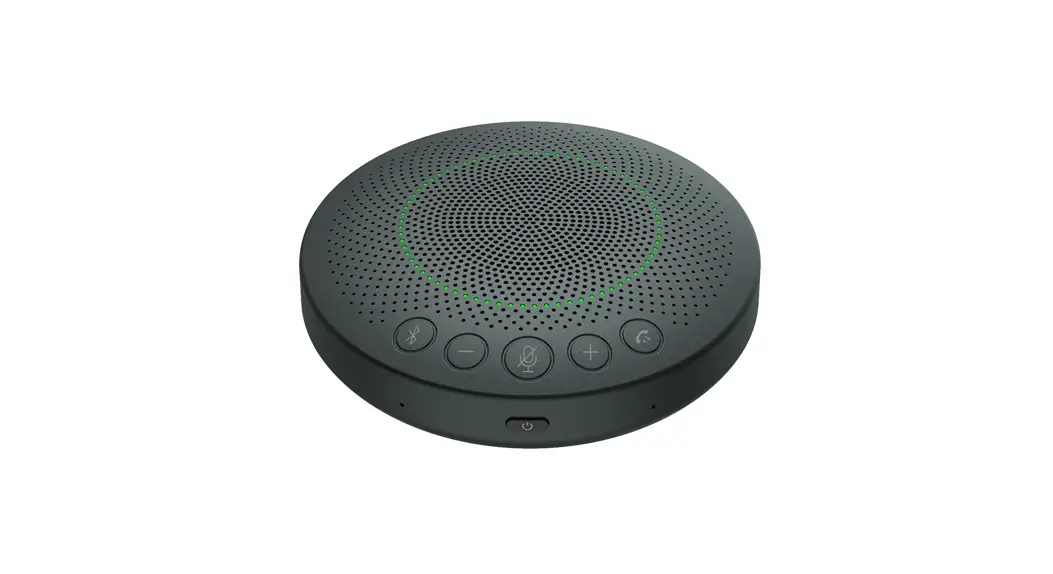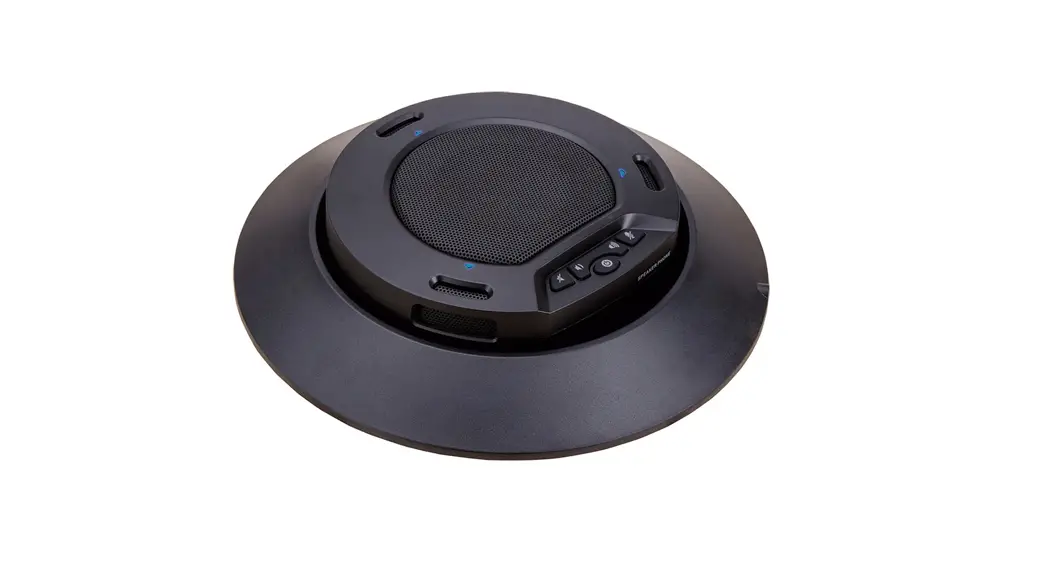

EMEET OfficeCore M2 Conference Wireless Speakerphone
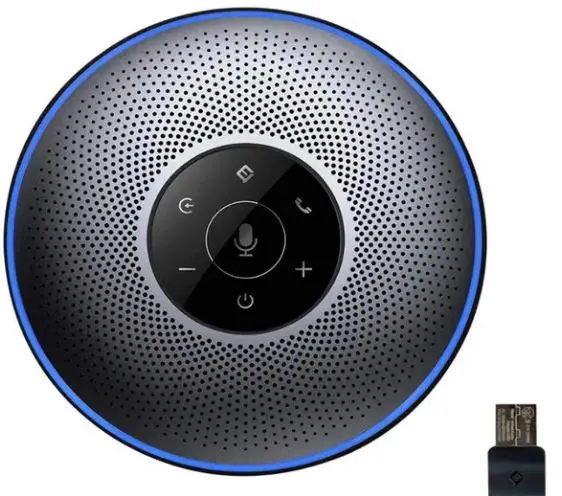
WHAT IN THE BOX
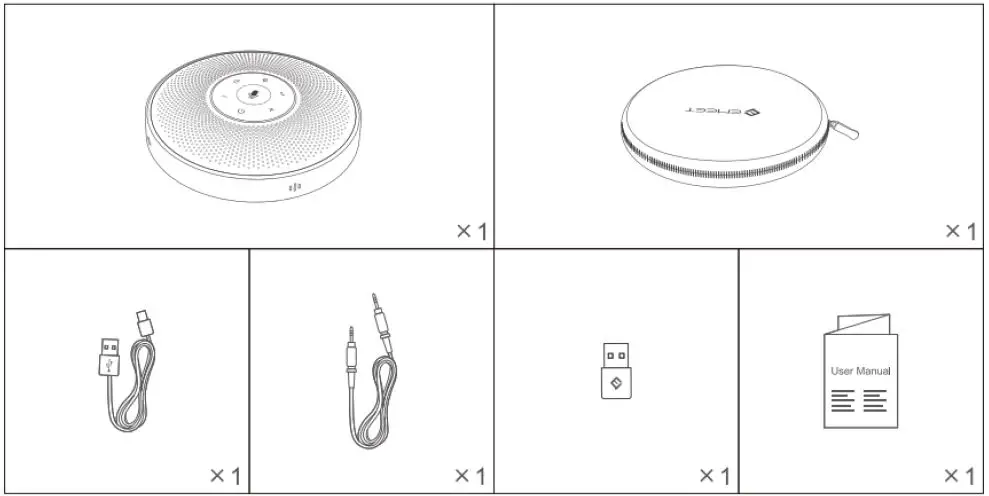
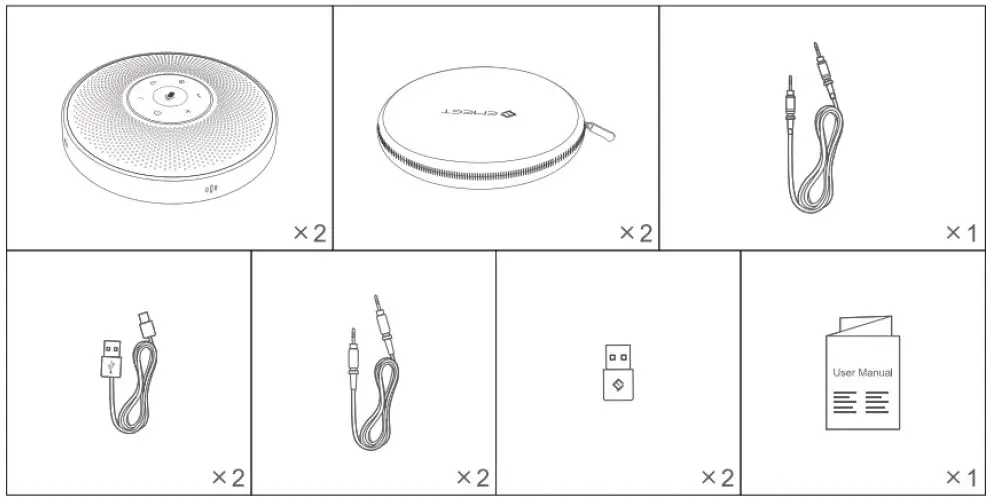
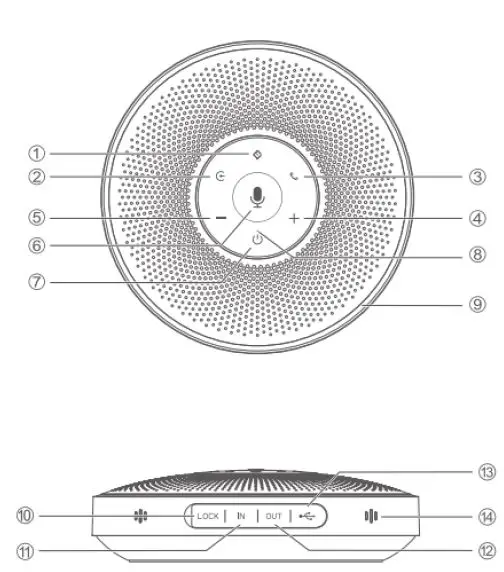
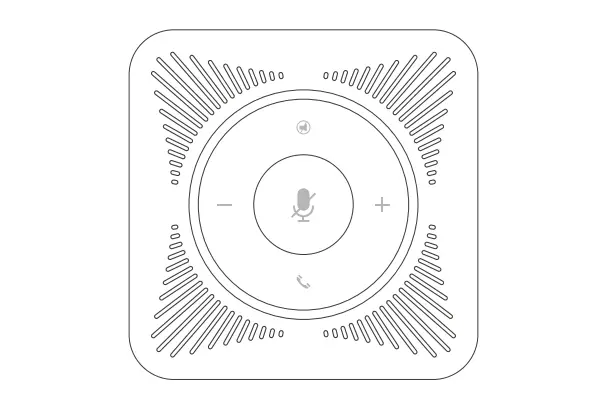
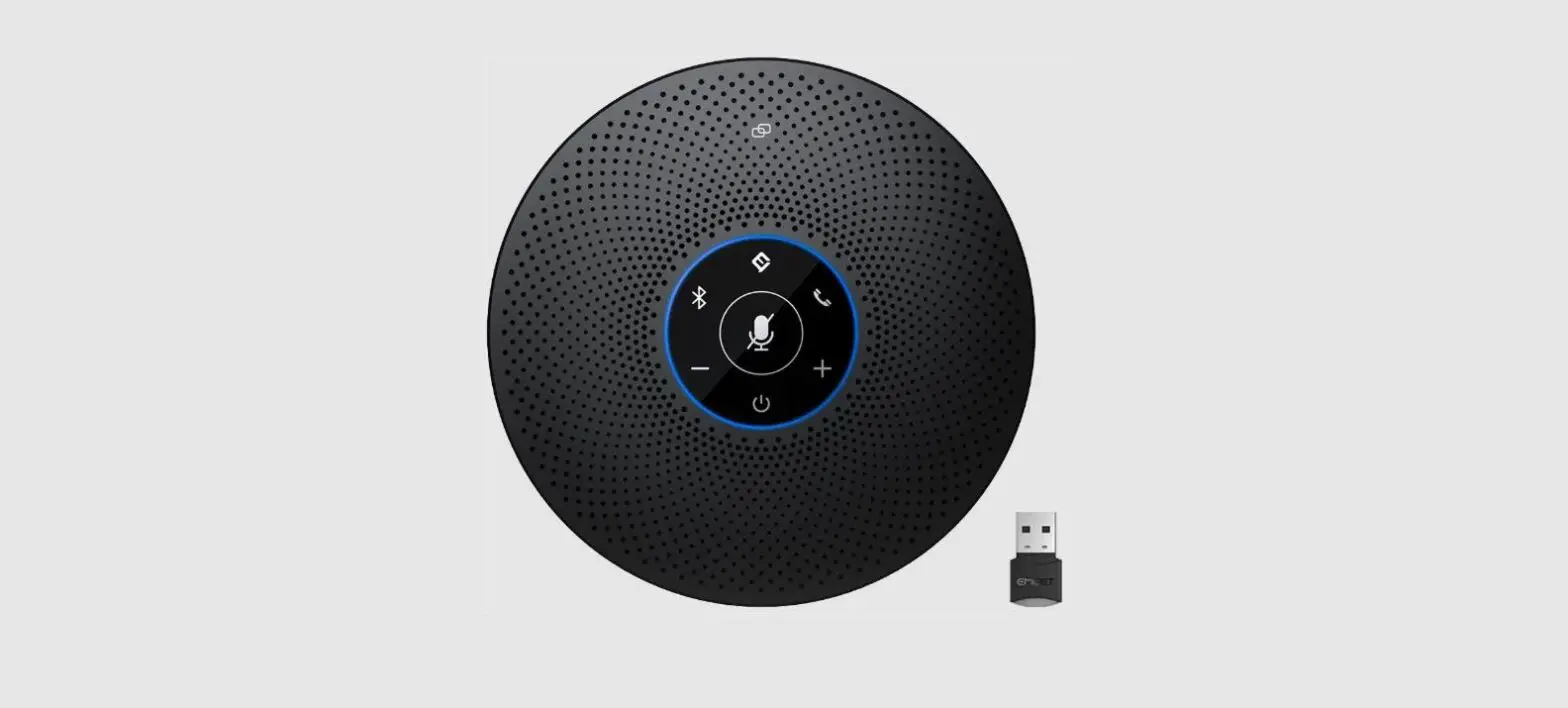
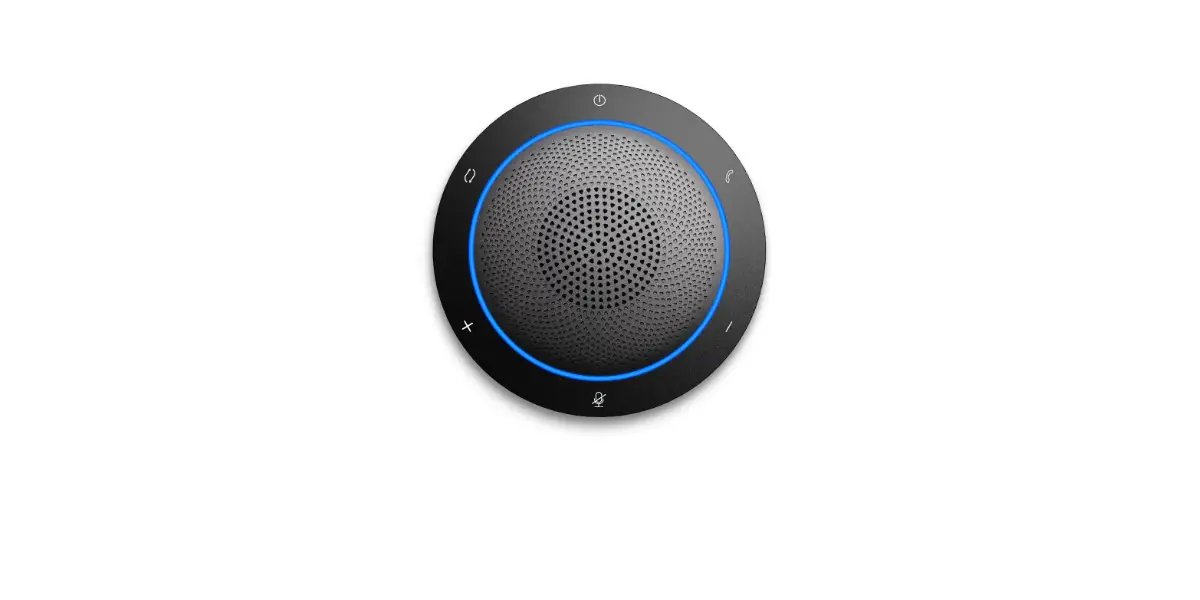
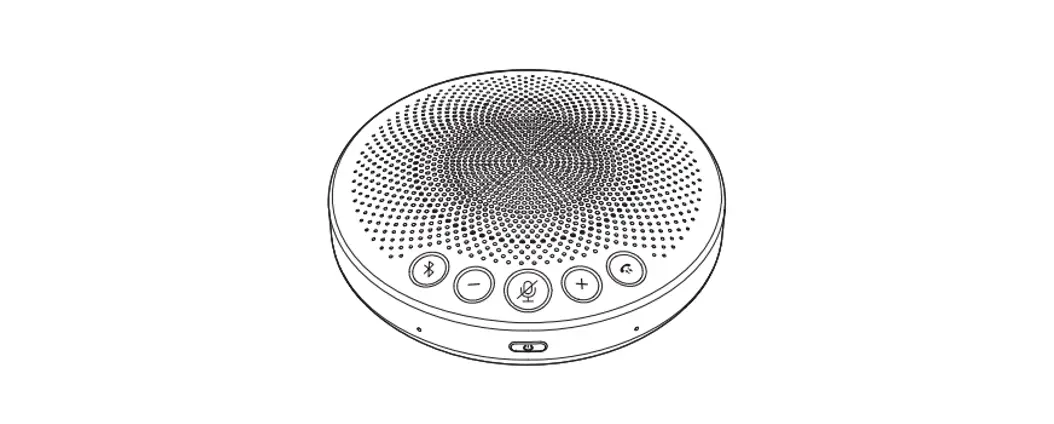
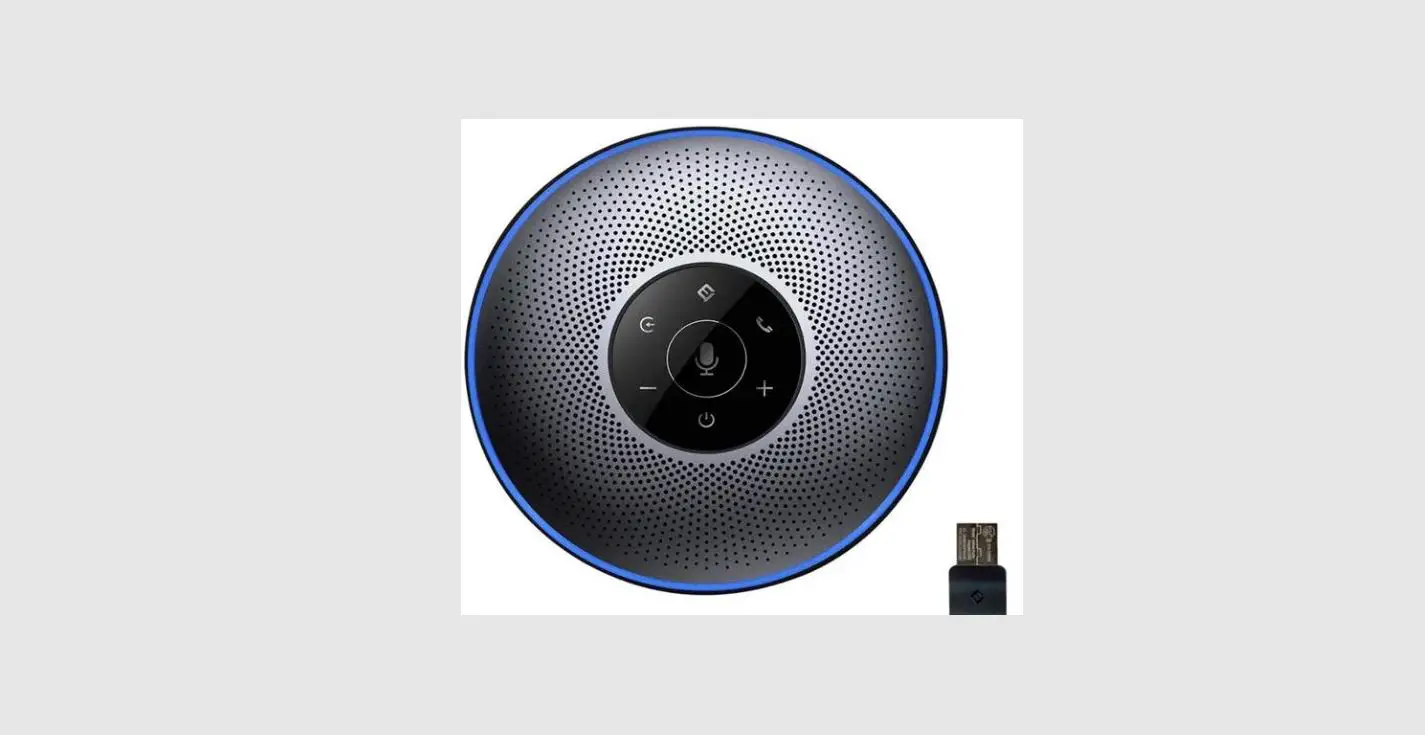
- Al noise reduction On/Off
- Bluetooth button
- Answer/End Call
- Volume up
- Volume down
- Mic Mute/Unmute
- Power On/Off
- LED Status Indicator
- LED Ring-shaped
- Lock port
- AUX audio input port
- Audio output/Daisy chain port
- USB port
- Microphone
LED Status Indicator
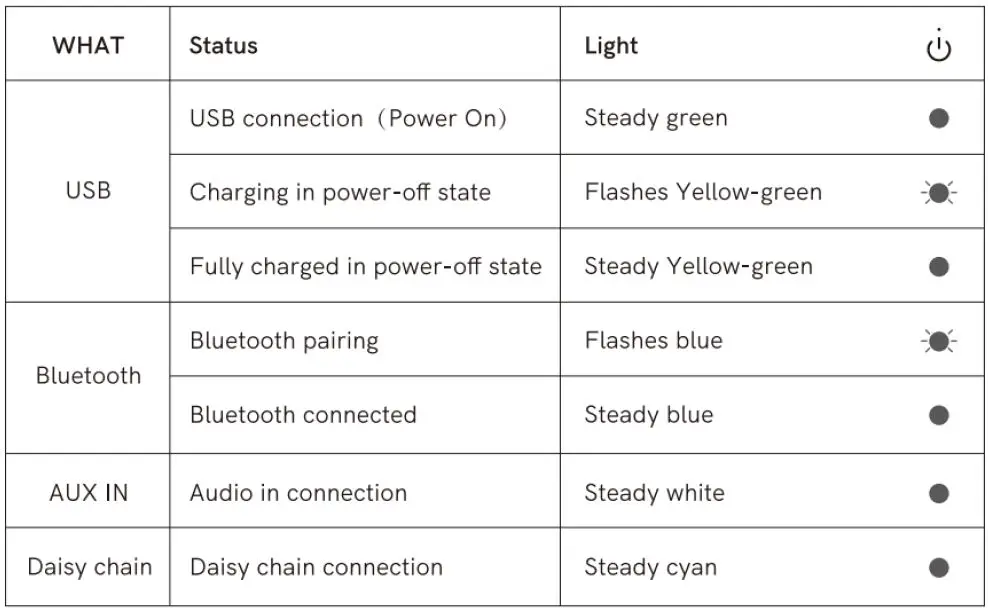
LED Ring-shaped
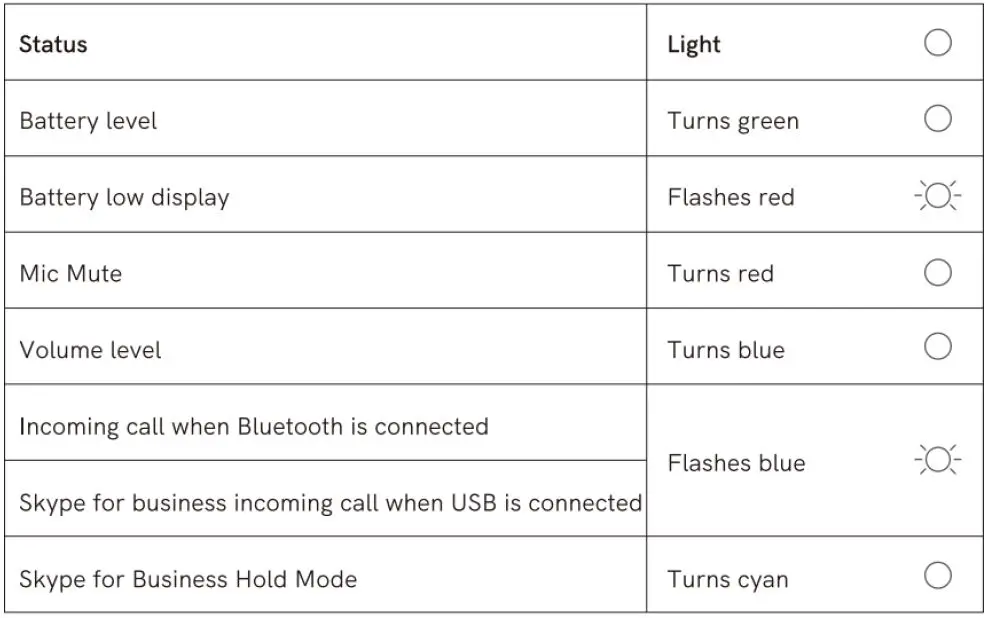
How to use
Power On/off
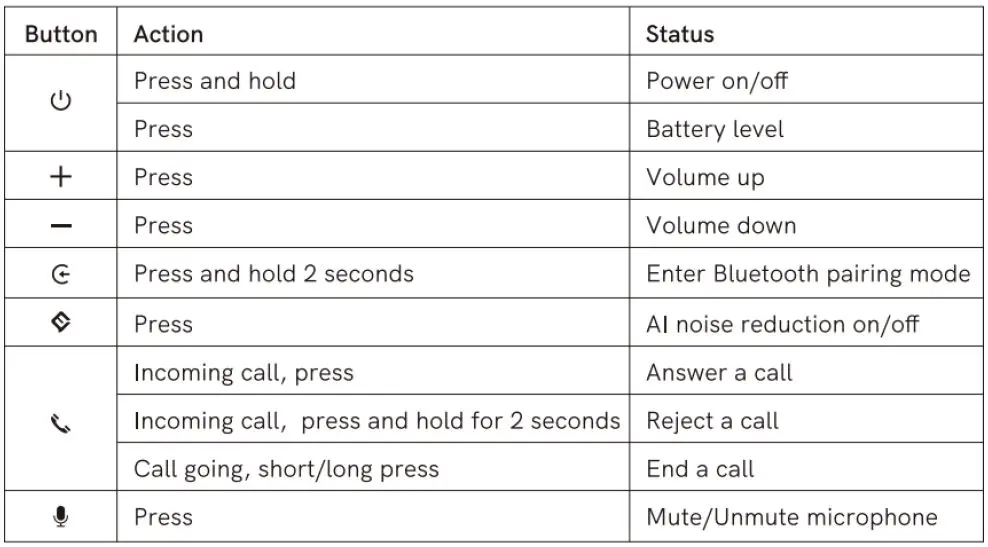
Press and hold the power button”  “for 2 seconds to power on or off.
Connection
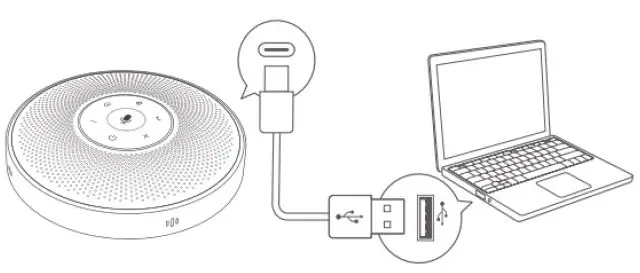
- After connect the device to a PC via USB, start to use it.

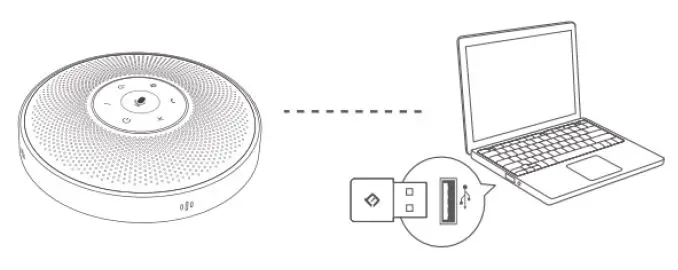
- After connect it to the PC through eMeet Audio Adapter A200, start to use it.

- After connect mobile devices such as PCs or mobile phones through Bluetooth pairing, start to use it.

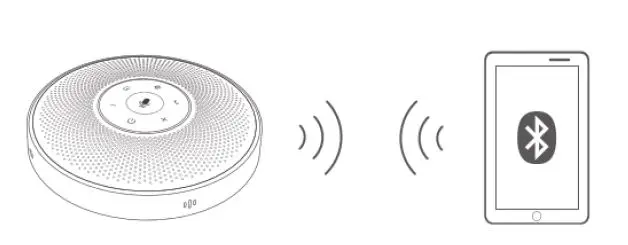
Note:
When turning on the device, it will connect to the last computer/mobile phone via Bluetooth whilst it is active.
The names of Bluetooth in different products models are different: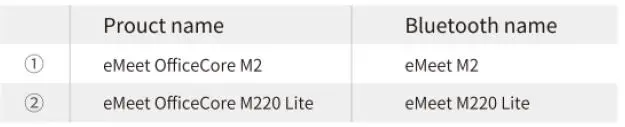
Al Noise Reduction
Short press the” ¢ “Al Noise Reduction button to enable/disable the Al noise function. Turning on VoicelA noise reduction can greatly reduce some noises in the meeting scene, such as from keyboard tapping, air conditioning noise, and general unwanted background noise
Note: After the noise reduction mode is enabled, in order to maintain a good sound pickup effect, please make a call within a sound pickup range of 1.5 meters.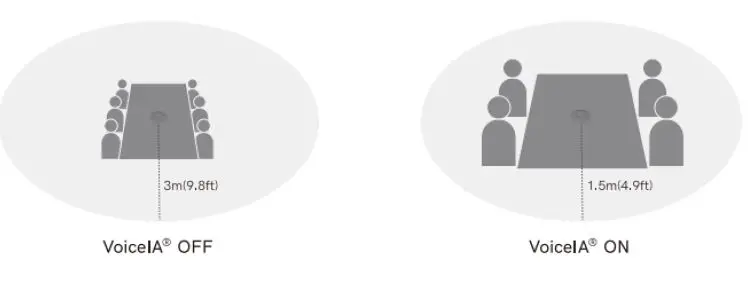
Charge
- Via the computer

- Through the adapter

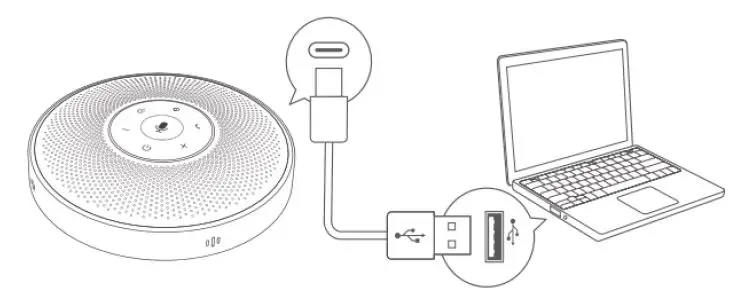
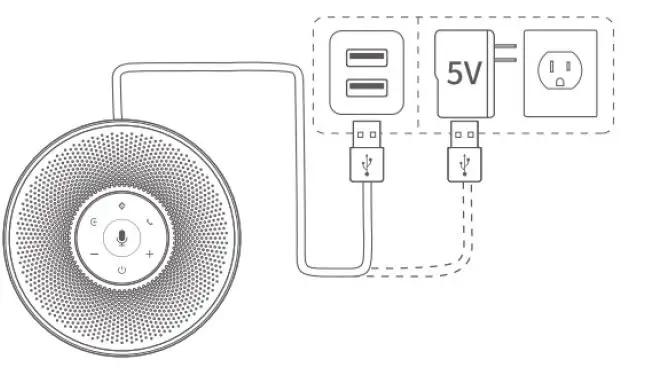
Warning: Use UL certified ITE power supply only, the rated output is 5VDC, minimum 1A. Using other power sources invalidates the approvals for this device and triggers potential danger.
Check Battery level
Short press ” “to check Battery level. When the device reaches 5% battery level, the ring-shaped light will glow red, and a low battery prompt will be generated.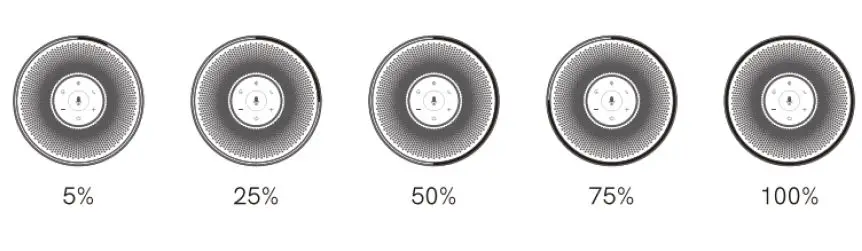
Audio Output
Use the AUX cable to connect the external speaker to the AUX OUT port of this device, and the audio will be played synchronously with this device through the external speaker.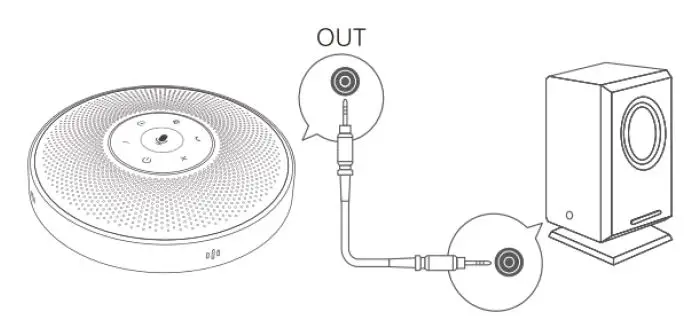
Daisy chain function
The Daisy chain function requires the use of Daisy chain cable, which are inserted into the OUT port (Red terminal) of the two machines using Daisy chain cable to extend the distance of sound pickup and playback so as to get a larger meeting space.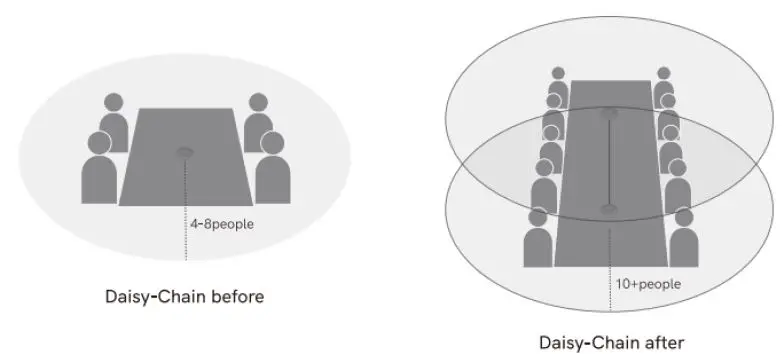
Note: Daisy-Chain cable is not provided with the M2 products.
Audio Input
Use the AUX cable to connect the phone to the AUX IN ports of this device. This device will replace the speaker and microphone of the phone.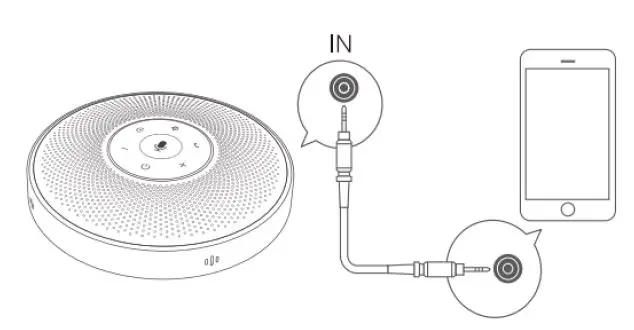
LOCK port Setting
Lock the product through the LOCK port to prevent theft.
Note: The LOCK port is of a Kensington computer type which requires the user to buy a lock otherwise.
Product information
| Rated power | 3W RMS |
| Frequency response | 20Hz~20KHz(± 3dB) |
| SNR | > 80dB |
| Bluetooth version | V4.2 |
| Bluetooth distance | 20m |
| Microphone sensitivity | -26dBFS |
| Microphone frequency response | 100Hz~8KHz(± 3dB) |
| Microphone directivity | 360 degree omnidirectional |
| Charge specification | 5V/ 1A |
| Size | 125x 125x35mm (± 5mm ) |
Note: In case of any change in specifications, official website information shall prevail.
FAQ
| Problem or phenomenon | Possible Causes | Method |
| Startup failure | Low or no battery | Access the adapter to charge |
| Automatic shutdown soon after starting up | Low battery | Access the adapter to charge |
| No sound | turn off the volume | Adjust the device volume |
| USB fa ilure | Error with using USB cable | Please use the original USB cable |
| AUX failure | Error with using AUX cable | Please use the original AUX cable |
|
Daisy chain failure | Plug in the AUX audio input port; Error with using Daisy chain cable | Please plug the original Daisy chain cable into the audio output port/ Daisy chain port |
| Device charge failure | Faulty charging device or full batt ery | Replace with a functional device |
Customer Service
- [email protected]
- www.emeet.ai
- US: + 1 8889595320(EST 9:00am-5:00pm Mon-Fri)