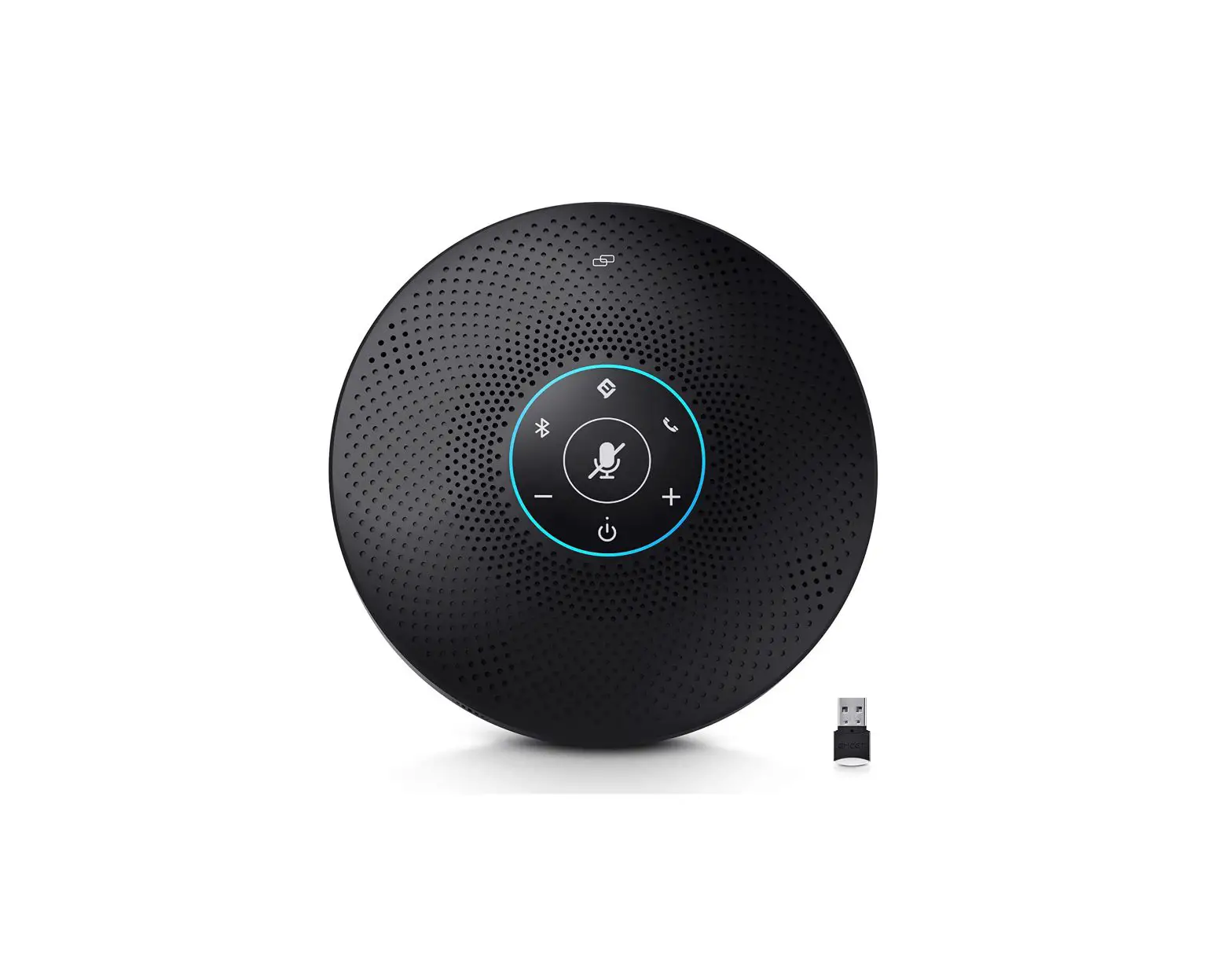
EMEET M2 Max Professional Conference Speaker
Overview
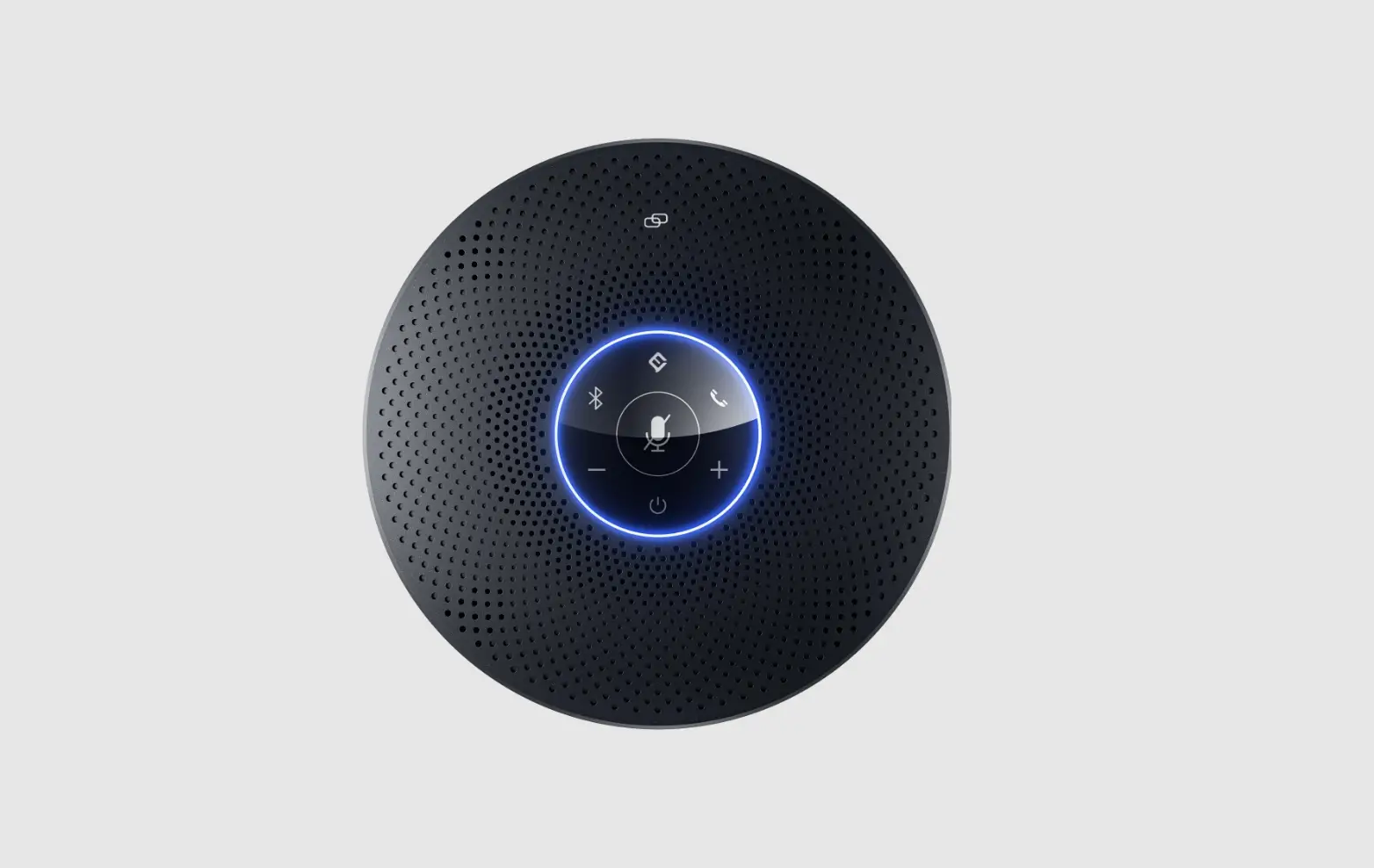
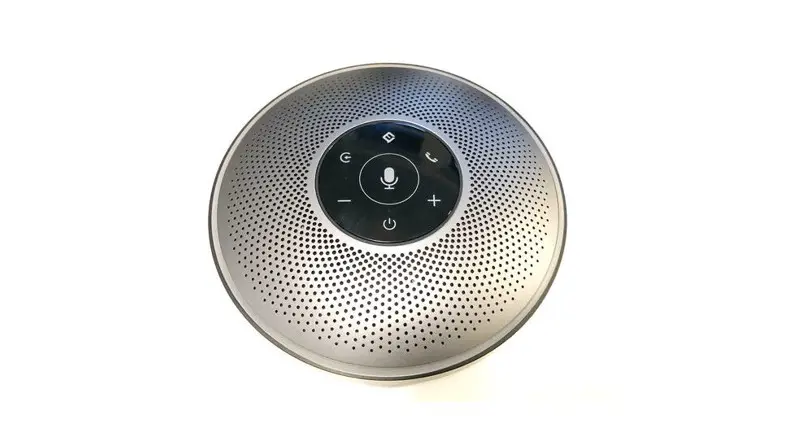
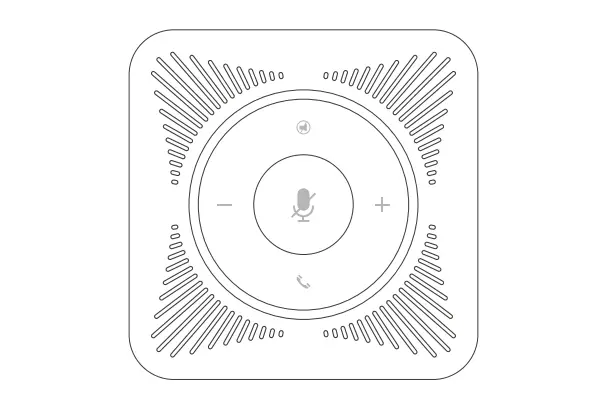
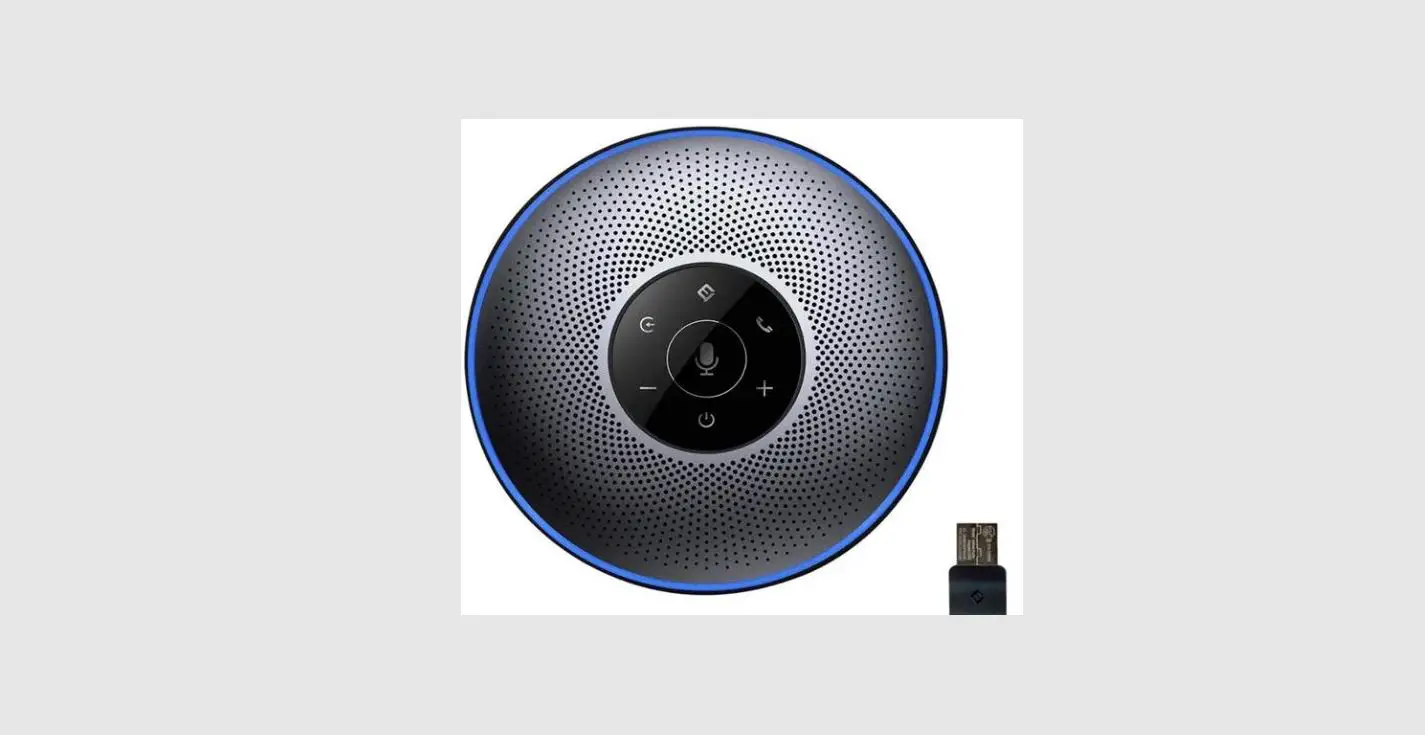
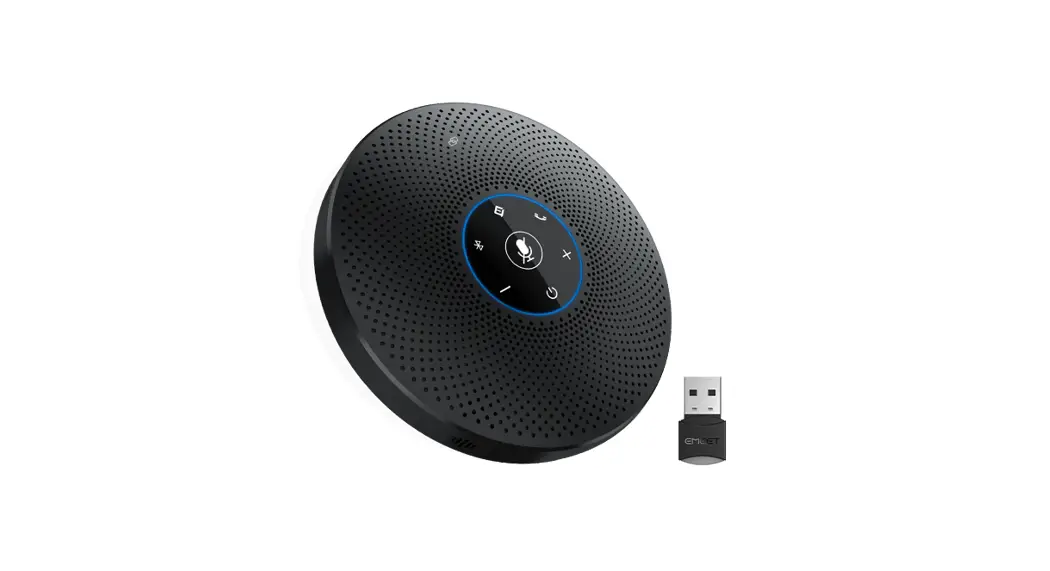
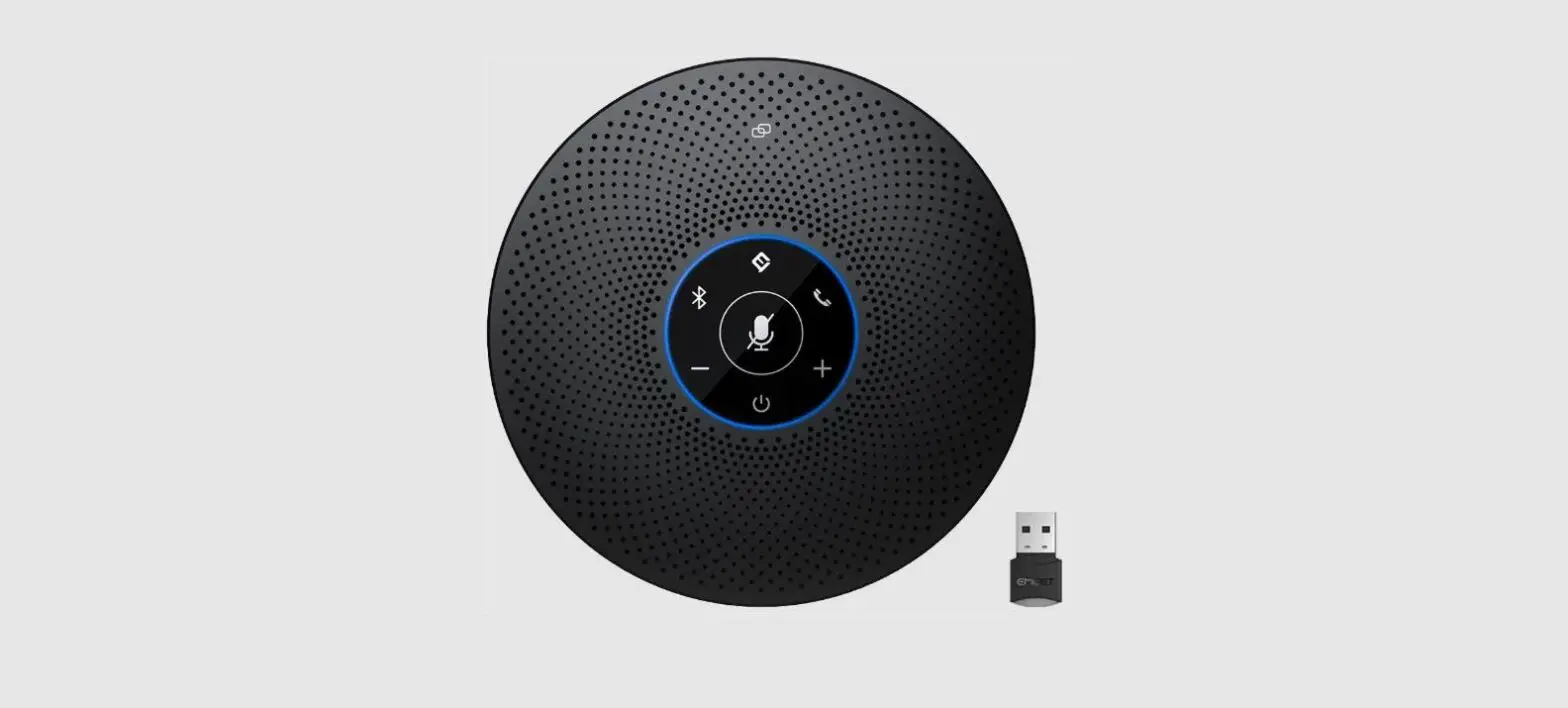
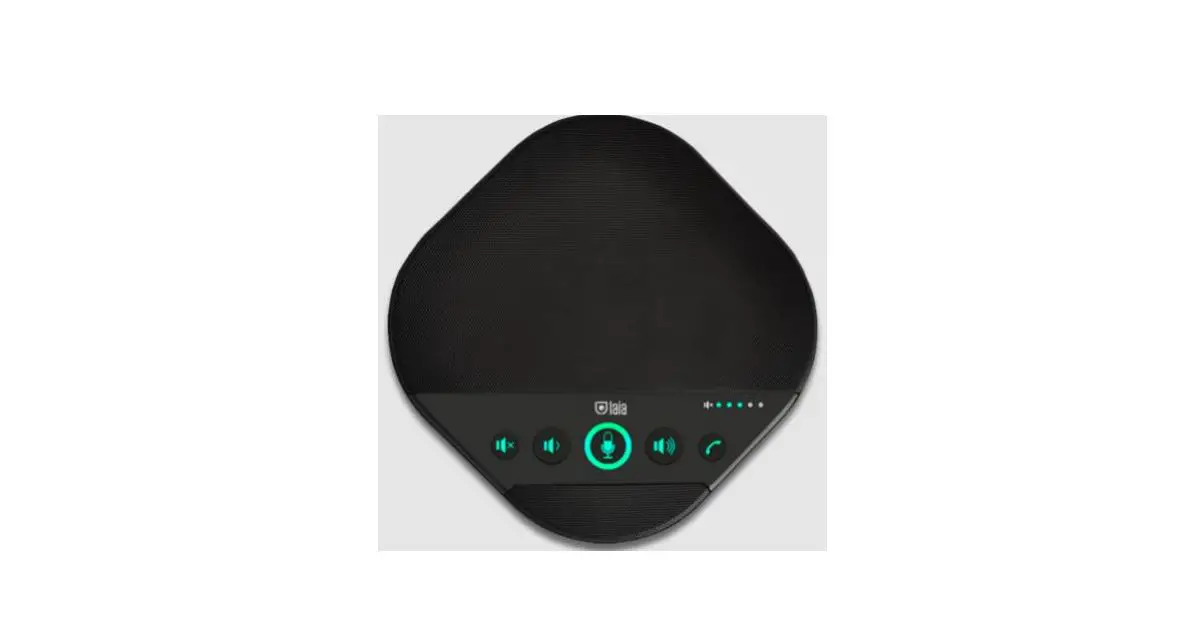
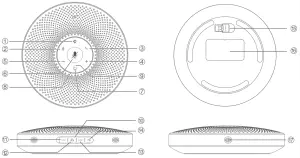
- Voice IA button
- Bluetooth button
- Answer/End Phone
Call button - Volume+ button
- Volume- button
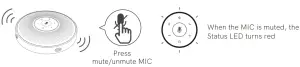
- Mute button
- Power button
- Status LED
- Source LED
- Rubber plug
- LOCK port
- Headset output port
- LINK Daisy Chain port
- USB port (Type C)
- Dongle
- Nameplate
- MIC hole
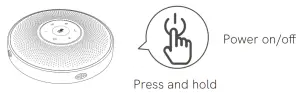
Power On/Off

Check battery level

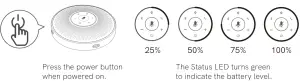
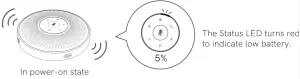
Low battery warning

Short press “  ”AI Noise Reduction button to enable/disable AI noise function.
Turning on Voice IA noise reduction can greatly reduce some noises in the meeting scene, such as from keyboard tapping, air conditioning noise, and general unwanted background noise.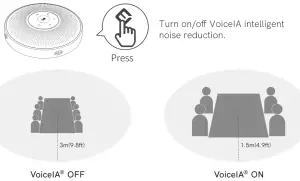
Note: After the noise reduction mode is enabled, in order to maintain good sound pickup effect, please make a call within a sound pickup range of 1.5 m(4.9ft).
MIC Mute Button
Answer/End Phone Call Button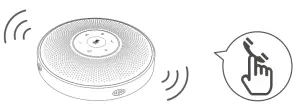
Status | Action | Status |
| Incoming call | Press | Answer a call |
| Incoming call | Press and hold | Reject a call |
| Call going | Press/press and hold | End a call |
Volume+/Volume- Button

Action | Status | LED |
Press | Volume up | Status LED turns blue |
Press | Volume down | Status LED turns blue |
Bluetooth Connection
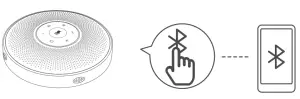
Action | Status | Source LED | LED |
Press and hold Enter Bluetooth pairing mode | Bluetooth paired | Steady blue |  |
| Bluetooth not paired | Flashes blue | | |
| Press | Bluetooth closed/reconnected | Steady white | |
Notes:
a) When turning on the device, it will reconnect to the last computer/mobile phone via Bluetooth whilst it is active.
b) Bluetooth closed means it can not be found.
USB Connection
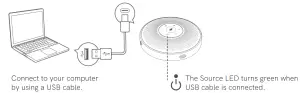
USB Dongle Connection
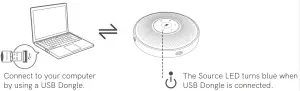
Dongle status | Dongle LED | LED |
| Pairing | Flashes blue |  |
| Pairing successful | Steady blue | |
| Call going | Green | |
| Microphone muted | Steady red | |
Headset Connection
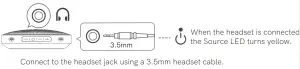
Note: When the headset is connected, the speaker is automatically muted.
Daisy Chain Cable
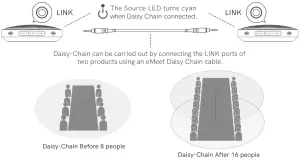
Note: emit Daisy Chain cables must be purchased separately.
Lock Port Setting
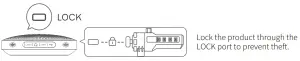
Note: The LOCK port is of a Kensington type which requires the user to buy a lock otherwise.
Charging
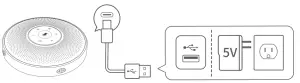
Action | Source LED | LED |
| Charging in power-off state | Yellow-green LED indicator flashing | |
| Fully charged in power-off state | Yellow-green LED indicator always on | |
Download Application
Download the emeet Link PC desktop app for software updates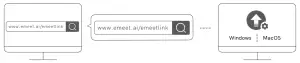
Product Parameters
| Charging input | 5V/1A |
| Rated power | 5W |
| MIC diameter | Φ10mm |
| SPK frequency range | 20Hz-20KHz |
| Bluetooth version | V5.0 |
| Bluetooth range | 20m (in an open environment) |
Note: In case of any change in the specifications, official website information shall prevail.
 emeet.ai/emeetlink