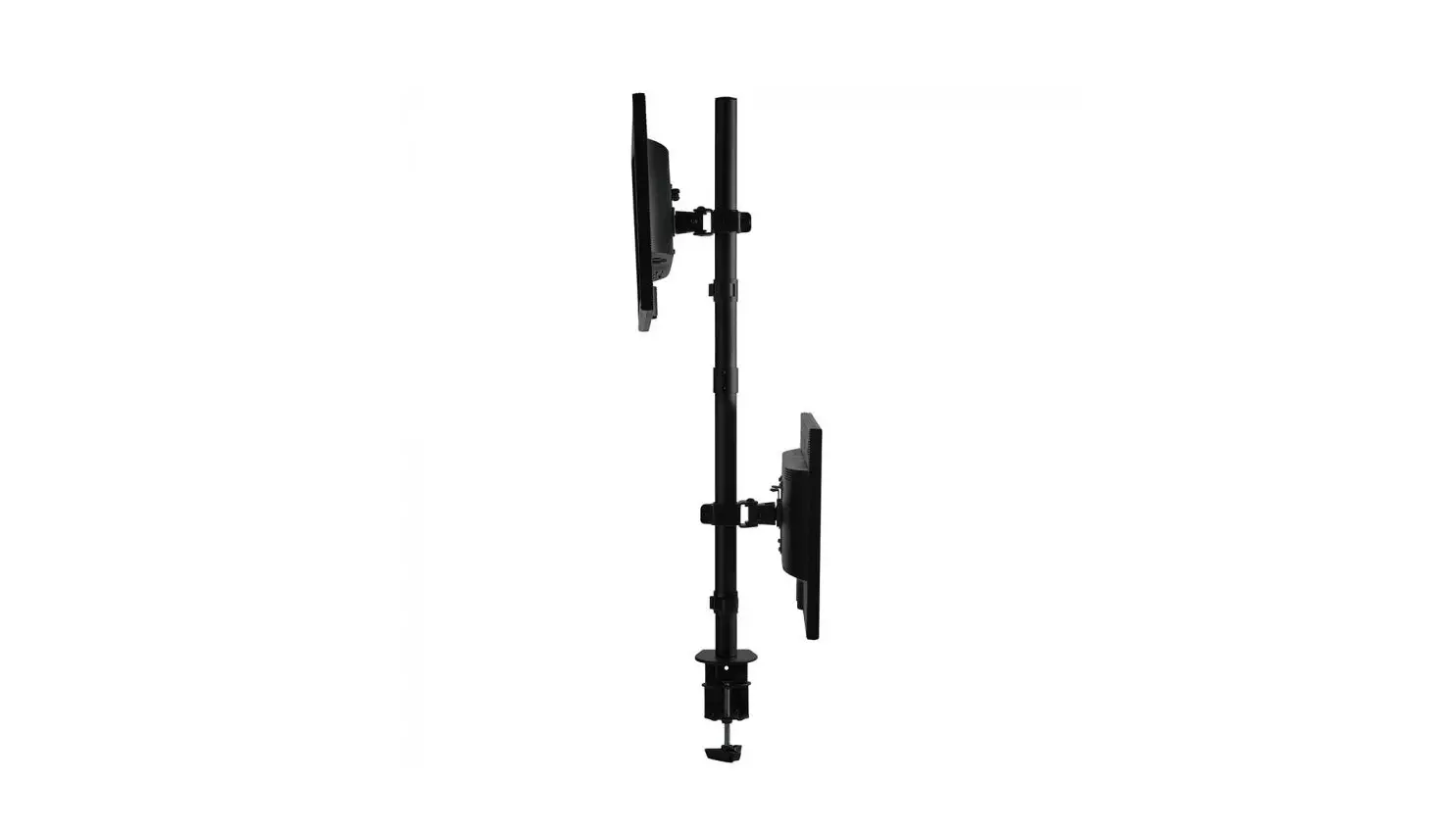
MU1006 Vertical Dual Monitor Stand
Product Information: – Product Name: ZDT10-C02-US1 –
Supplied Parts and Hardware: – Base Plate Component – Hardware
(Product): – Bolt M6 x 30mm – Washer – Handle Bolt Plastic Cover –
Wire Clip – A x3 – B x1 x3 – C x2 – D x1 – E x3 – Support Pillar –
Support Pillar – Foot Pad – Allen Key – Bolt 4mm / 5mm M6 x 10mm –
F x4 – G x1 – H x6 – Installation Tools (Not Included): –
Screwdriver – Bubble Level – Product Dimensions: – Width: 115mm /
4.53 inches – Depth: 100mm / 4 inches – Height: 75mm / 3 inches –
Maximum Height (with monitor): 844mm / 33.23 inches – Cable
Management: Yes Product Usage Instructions:
- STEP 1: Attach the Plate Component to Monitor
- Select the appropriate screw length (M4, M5, or M6) for your
monitor. - Thread the screws by hand into the threaded holes on the back
of your monitor.
- Select the appropriate screw length (M4, M5, or M6) for your
- STEP 2: Support Pillar Installation
- Connect the two Support Pillars and insert the provided screws
through the holes of the Support Pillars. - Tighten the screws using the provided Allen Key.
- Connect the two Support Pillars and insert the provided screws
- STEP 3: Apply Foot Pads to the Base
- Tear off the plastic film of the Foot Pads.
- Attach the Foot Pads near the four corners of the Base.
- STEP 4: Attach Monitor with Plate Component to Pillar
- Place the Base on a table and position the Support Pillar with
clip holes facing backwards. - Put the Washers and Bolts on the Base, then insert the Plastic
Cover and Support Pillar under the Base. - Tighten the Bolts using the provided Allen Key.
- Hang the monitors onto the Support Pillar and tighten them with
the Handle Bolts.
- Place the Base on a table and position the Support Pillar with
- STEP 5: Cable Management
Arrange and manage your cables using the provided cable
management features. - STEP 6: Adjustments (If necessary)
Make any necessary adjustments to the monitor position, tilt, or
swivel according to your preferences.
If you have any further questions or need assistance, please feel
free to contact us via Amazon.
INSTALLATION INSTRUCTION
(33 lbs) ×2 (15 kg) ×2 75x75mm 100x100mm
Safety Caution
BEFORE ASSEMBLY
· Layout all components and hardware. Check all parts are included and undamaged. · Should anybody intends to install or use this monitor stand, please read and understand this
manual carefully. · If you do not understand these instructions or have any doubt about the safety instructions,
assembly or use of this product, please contact our customer service.
Supplied Parts and Hardware
WARNING
· This product contains small items that could be a choking hazard if swallowed. · KEEP AWAY FROM CHILDREN UNDER 3 YEARS OLD. ADULT SUPERVISION IS REQUIRED. · Improper installation, such as using the product for monitors over its load capacity or for any
purpose not explicitly specified, may cause damage or serious injury. We would not be liable for any damage or injury caused by improper mounting or inappropriate use.
CAUTION AND MAINTENANCE
· Never allow children to climb, stand, hang, or play on any part of monitor or stand. · This product is intended for indoor use only. Using this product outdoors could lead to product
failure and personal injury. · Check that the bracket is secure and safe to use at regular intervals (at least every three months).
11 (×1)
Base
24 (×1)
Plate Component
Hardware (Product)
Bolt M6 x 30mm
Washer
Handle Bolt Plastic Cover
Wire Clip
A x3
x1 x3 B
C x2
D x1
E x3
32 (×1)
Support Pillar
43 (×1)
Support Pillar
Foot Pad
Allen Key
Bolt
4mm / 5mm M6 x 10mm
F x4
G x1
H x6
Installation Tools (Not Included)
Hardware (Monitor)
Philips Screws Philips Screws Philips Screws Philips Screws Philips Screws Philips Screws
M4 x 12mm
M4 x 30mm
M5 x 16mm
M5 x 25mm
M6 x 16mm
M6 x 25mm
Spacers H13mm
(ZDT10-C02-US1)
If you have any questions, please feel free to contact us via Amazon.
Product Dimensions
6.5mm/0.26″
115mm 100mm 75mm /4.53″ /4″ /3″
844mm /33.23″
35mm/1.38″ 35mm/1.38″ 35mm/1.38″ 211mm 35mm/1.38″ /8.31″ 35mm/1.38″ 35mm/1.38″
2M
Band Tape 2m
Screwdriver
Bubble Level
1
STEP 1: Attach the Plate Component to Monitor
1-1 Select Monitor Screw Length
Thread screws by hand into the threaded holes on the back of your monitor after selecting which screw diameter fits your monitor.
M5 M6 M4
MA x8
MB x8
MC x8
MD x8
NOTE: Not all hardware included will be used.
ME x8
STEP 1: (Continued)
1-3 Attach the Plate Component
(a) For Flat Back TOP OF MONITOR
UP
MA MC ME Use the shorter screws
2
MF x8
MG x8
2
No!
Rotation
360°
MAX: 781mm/30.75″
MIN: 570mm/22.44″
MAX: 361mm/14.21″
MIN: 256mm/10.08″
16mm /0.63″
75mm /3″
47.5mm /1.87″
Swivel
±45°
117.5mm /4.63″
360mm/14.17″
240mm /9.45″
35mm/1.38″
35mm/1.38″
105mm /4.13″
35mm/1.38″
Tilt
±30°
1-2 Select Monitor Screw Length
When attaching plate to the flat screen, be careful not to over tighten screws and be sure that screws do not bottom out in the mounting holes.
Too Short
Correct
Too Long
Correct
(b) For Round Back / Extra Space TOP OF MONITOR
UP
MB MD MF Use the long screws
2
MG
3
4
No!
5
STEP 2: Support Pillar Installation
Connect two Support Pillars ( 23 & 34 ). Then insert 6pcs Screws (H) through the holes of Support Pillars ( 23 & 34 ), and use the 4mm Allen Key (G) to tighten.
G
3
H
4 Note: Pay attention to the direction of the two Support Pillars
STEP 3: Apply Foot Pads to the Base
Hold the Support Pillar 4 with one hand and tear off plastic film of Foot Pads (F), then attach Foot Pads (F) near four conors of the Base 1 bottom.
F
Put Base 1 on the table; put Washers (B) and Bolts (A) on the base; keep clip holes of
1
Support Pillar 4 toward backside then put Plastic Cover (D) and Support Pillar 4 under
the base. Then tighten the bolts (A) with the 4mm allen key (G).
Table
G
Table
A
B
4 1
STEP 4: Attach Monitor with Plate Component to Pillar
Turn over the base. Choose the appropriate position for your monitors, hang the monitors onto the Support Pillar, then tighten them with Handle Bolts (C).
Note: Keep the ARROW mark pointing UPWARDS when installing the plate component.
C
D
Note: Support pillar should
be placed with clip holes
4
facing backwards.
6
7
8
STEP 5: Cable Management
STEP 6: Adjustments (If necessary)
STEP 6: Adjustments (If necessary)
Attach Wire Clips (E) into the holes of Support Pillar. Manage cables with the Wire Clips (E).
Support Pillar
Tilt Adjustment
1. Slightly loosen tilting bolt with the Allen Key(G). 2. Hold the monitor with both hands and adjust monitor to your desired tilt angle. 3. Retighten tilting bolt to secure the monitor in place.
Rotation Adjustment
360° E
-30° +30°
360°
Tighten
Swivel Adjustment
G
+45°
Note:
When tilted, if the monitor sags or does not stay,
and if the above method is useless, please feel
9
free to contact our customer service.
10
-45°
11