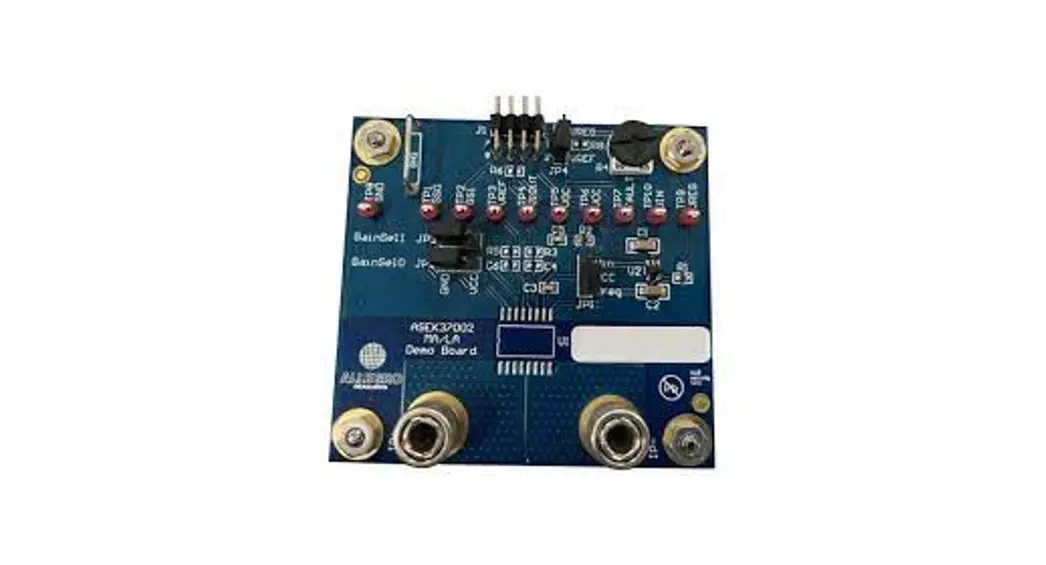
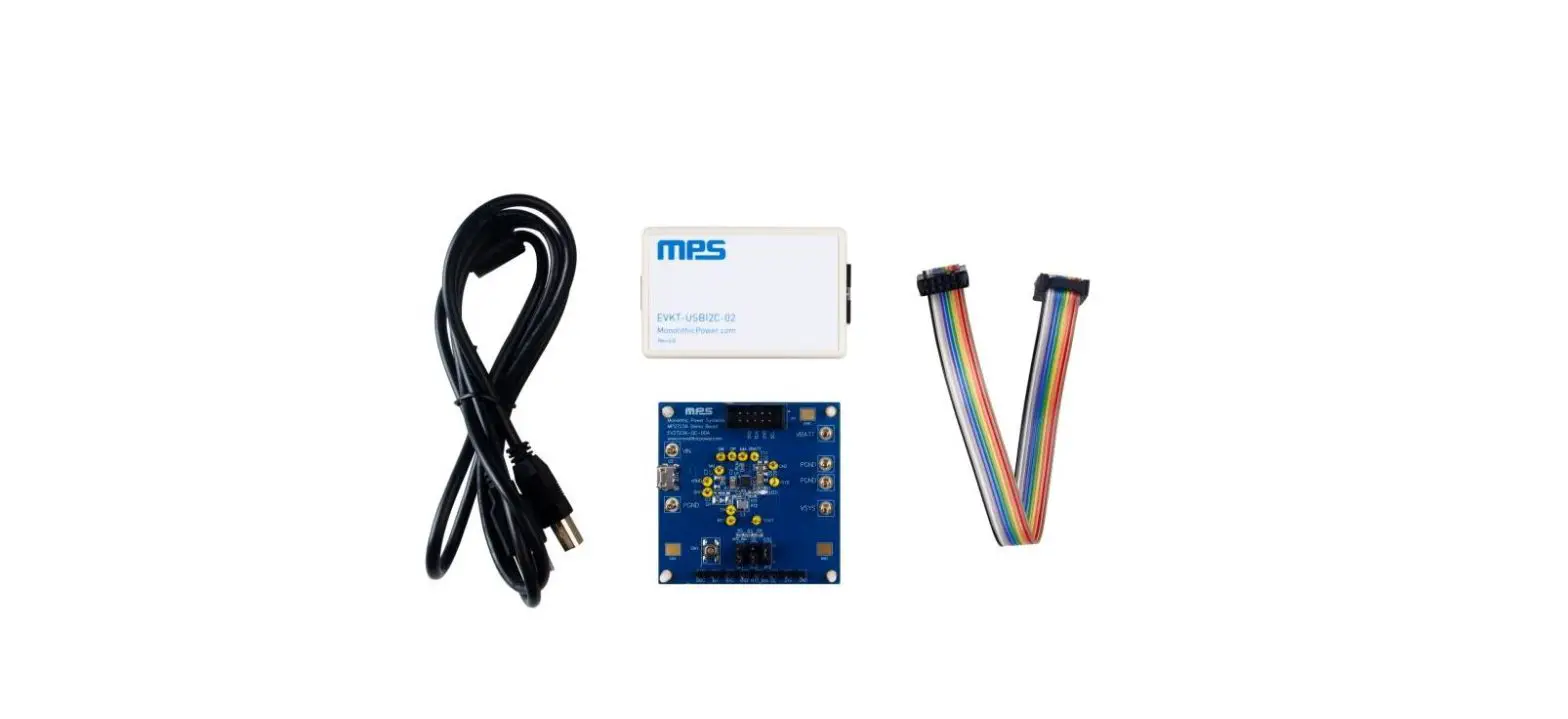
A31316 Evaluation Kit
Product Information:
| Product Name | A31316 Evaluation Kit |
|---|---|
| Product Code | ASEK31316 |
| Description | The A31316 Evaluation Kit includes everything required to program and evaluate A31316 devices. When used with the Allegro sample programmer, it provides easy evaluation and programming of the A31316 devices without the need for any additional hardware or software. |
| Features | – Evaluation and programming capabilities for A31316 devices – Easy to use with Allegro sample programmer – No additional hardware or software required |
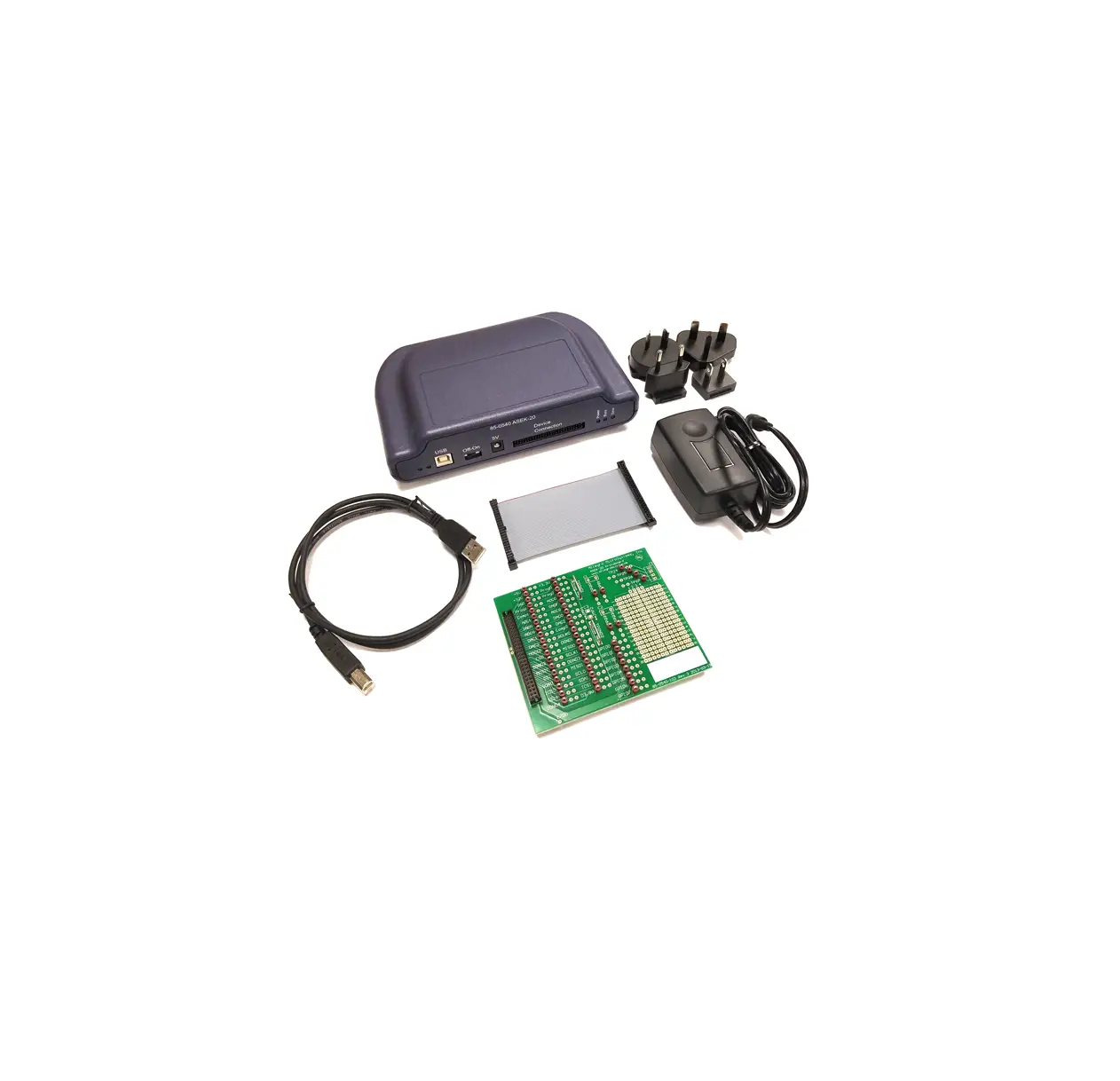
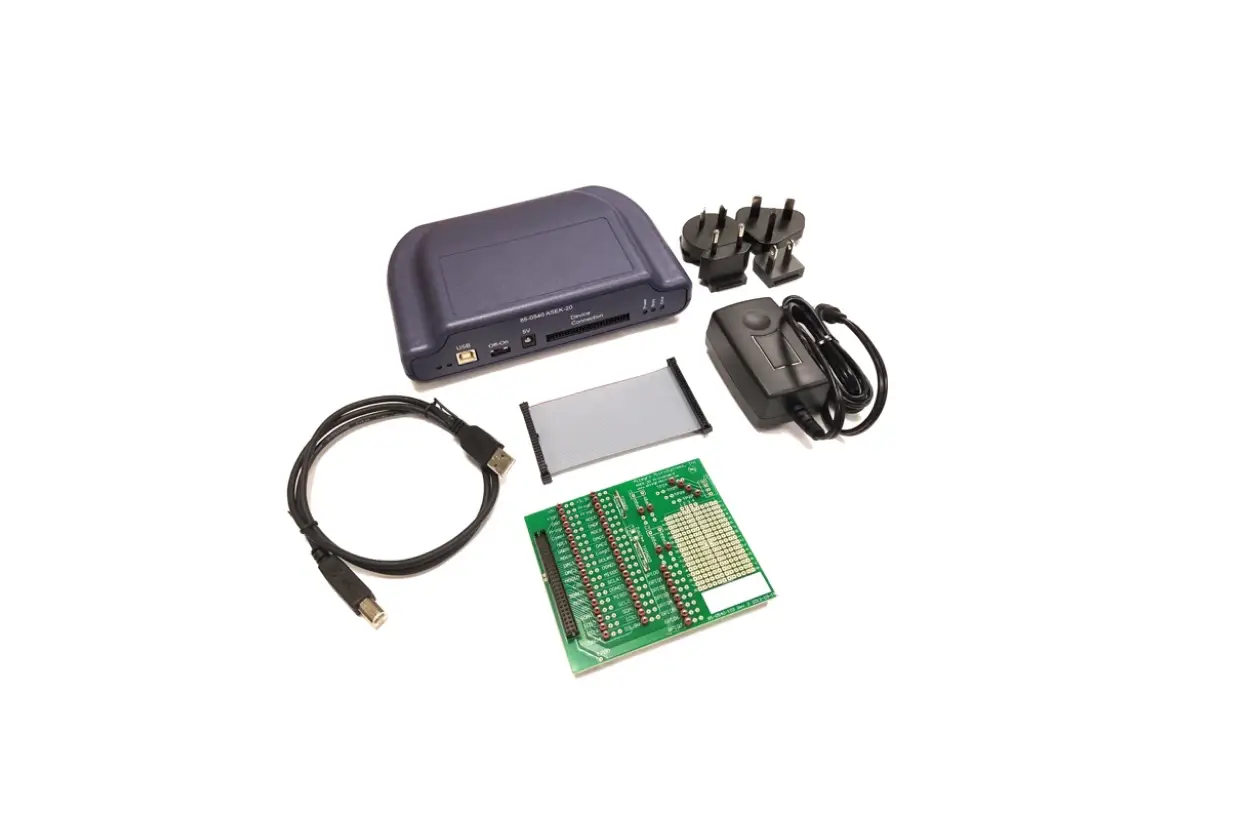
| Evaluation Kit Contents | Additional Hardware: – Figure 1: A31316 Evaluation Kit Device Package: – A31316 Components: – VCC: 100 nF – VOUT: 4.7 nF – GND: VCC: 3.3 k – Host Microcontroller: Figure 2: A31316 Typical Application Circuit |
Product Usage Instructions:
Hardware Setup:
- Setting up the ASEK-20:
- Using the included power supply, connect the ASEK-20 to the
outlet via the 5V port. - Using the included USB B cable, connect the ASEK-20 to the
computer with the Allegro software (covered in the next section)
using the USB port. - Using the included ribbon cable, connect the A31316
daughterboard to the ASEK-20 via the Device Connection port. - Switch the Off-On switch to the On position (right). The Power
LED should light up green to indicate the power connection is
good.
- Using the included power supply, connect the ASEK-20 to the
- Setting up the A31316 device:
- Plug the A31316 socket board into the daughter board as
indicated. - Align the white strip of the socket board to the right side of
the daughter board. Ensure that the wording and lettering on both
boards are readable from the same orientation. - Insert an A31316 device into the socket. The tiebar and leads
should face out to the right of the socket board, and the plastic
package should be on the left with the branded side face up. This
places the pinout of the package from top to bottom as noted in the
figure below.
- Plug the A31316 socket board into the daughter board as
ASEK31316
A31316 Evaluation Kit User Guide
DESCRIPTION
The A31316 Evaluation Kit includes everything required to program and evaluate A31316 devices. When used with the Allegro sample programmer, it provides easy evaluation and programming of the A31316 devices without the need for any additional hardware or software.
FEATURES
· ASEK daughterboard with test points for connecting to custom hardware for testing in application
· Sockets for single-die A31316 devices for out-of-the-box evaluation and testing
EVALUATION KIT CONTENTS
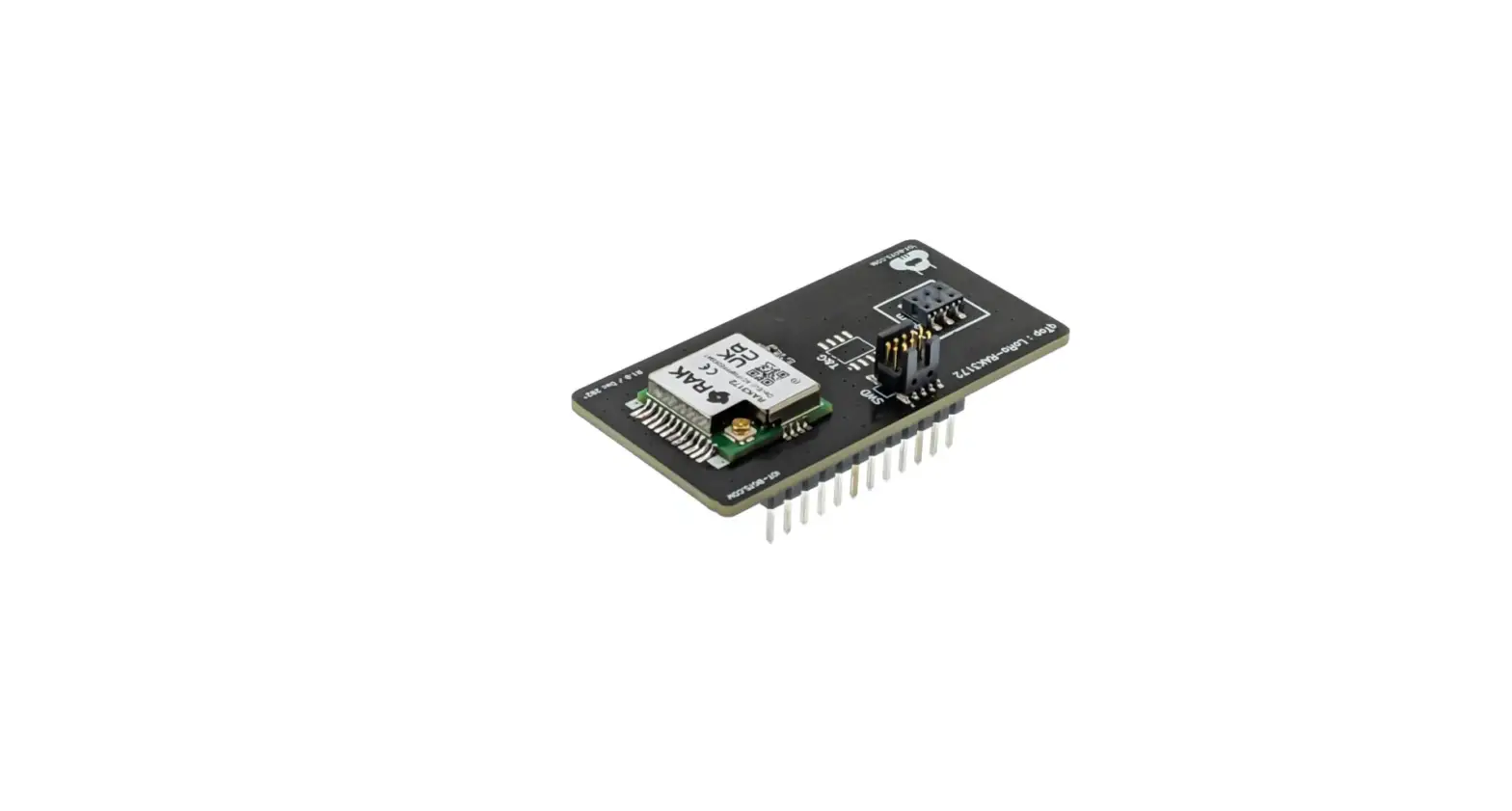
· ASEK3131x Daughterboard (TED-0002820) · A31316 UC Socket (TED-0003187)
Additional Hardware
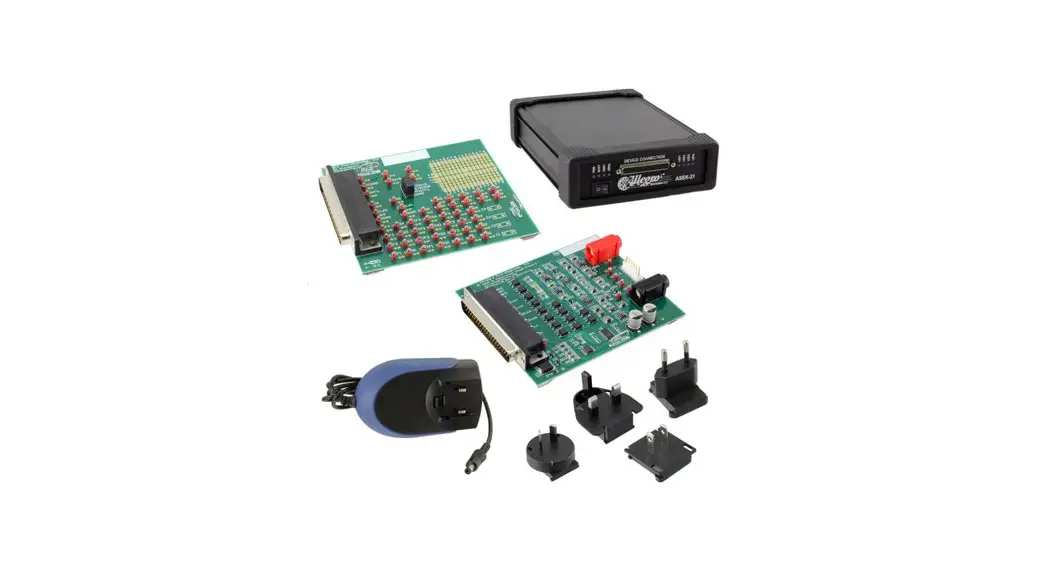
· ASEK20 Programmer (85-0540) Included Ribbon Cable Included Power Supply Included USB Cable
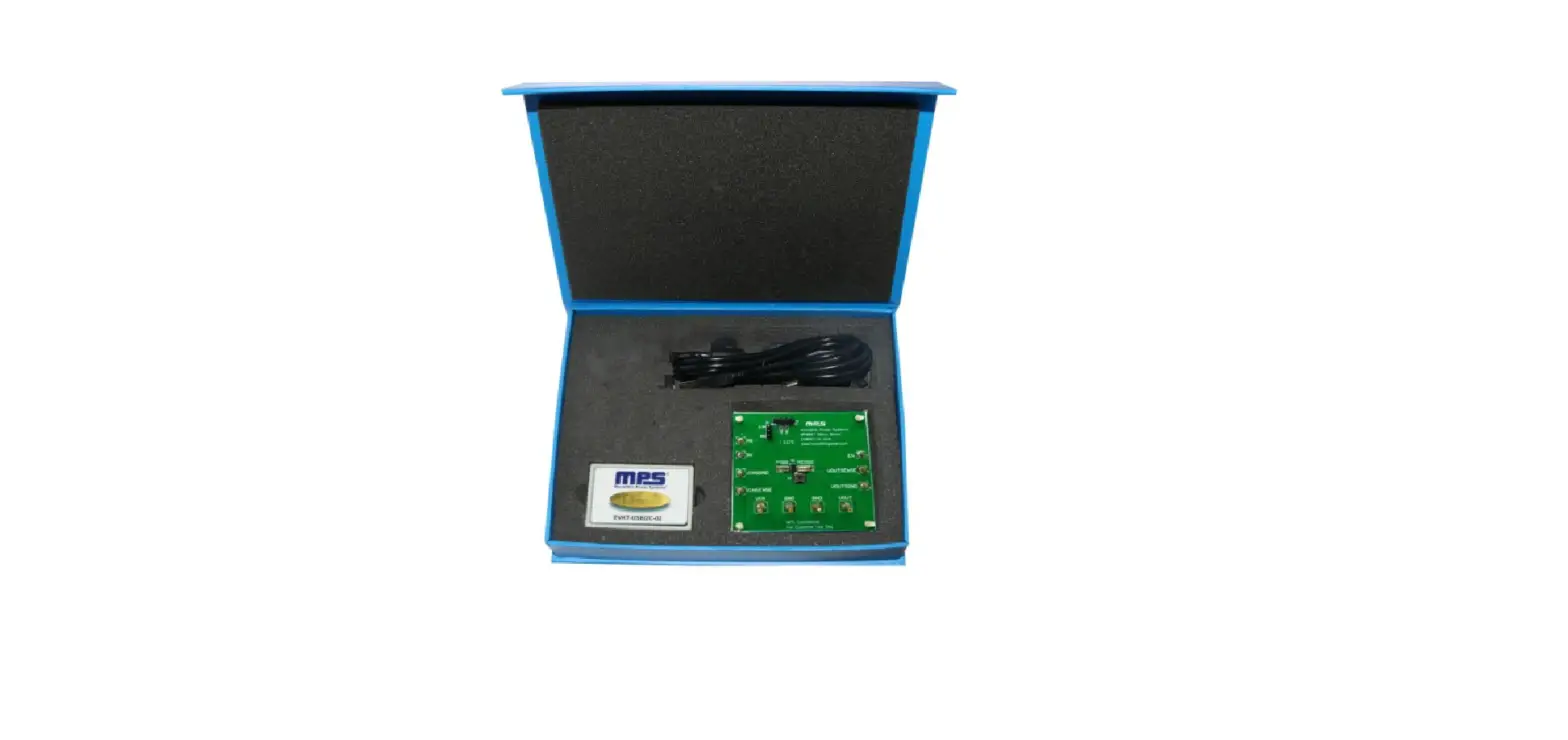
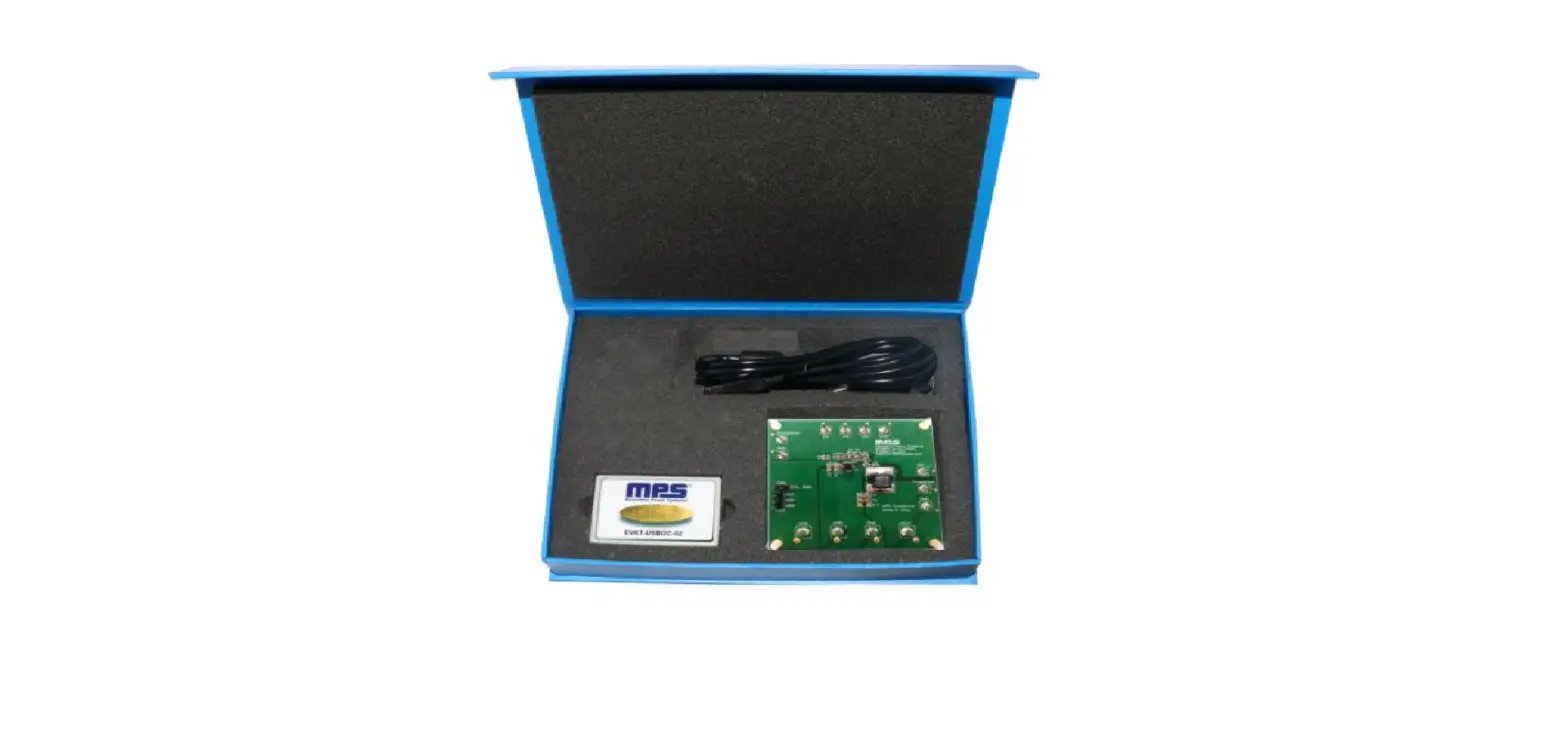
Figure 1: A31316 Evaluation Kit
Device Package
A31316
VCC
100 nF
VOUT
4.7 nF
GND
VCC
3.3 k
Host Microcontroller
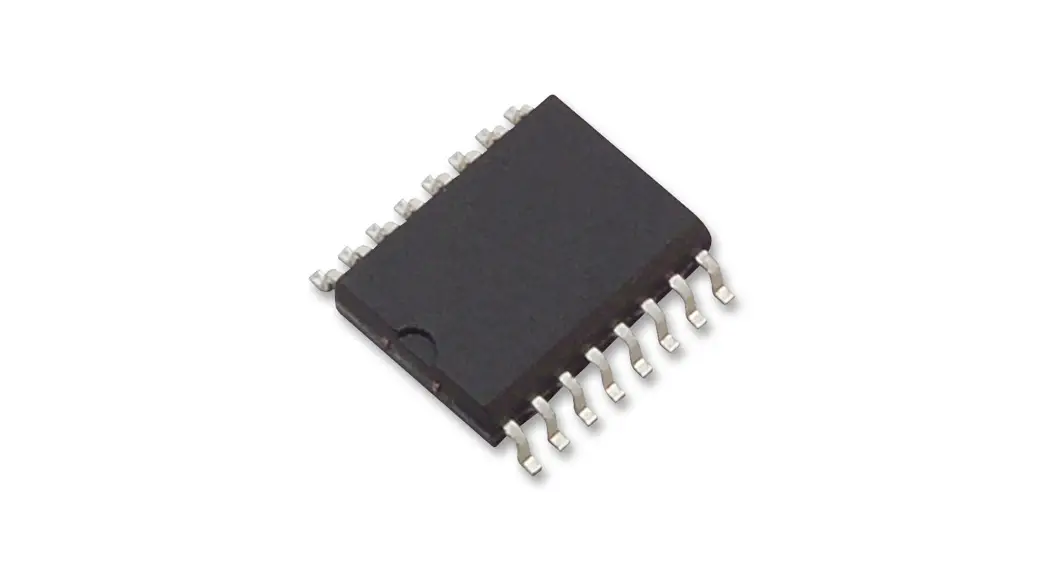
Figure 2: A31316 Typical Application Circuit
Table of Contents
Description ……………………………………………………………….. 1 Features ………………………………………………………………….. 1 Evaluation Kit Contents………………………………………………… 1 Using the Evaluation Board …………………………………………… 2
Hardware Setup………………………………………………………. 2 Software Setup……………………………………………………….. 4 Bill of Materials ………………………………………………………….11 Related Links…………………………………………………………… 12 Revision History……………………………………………………….. 13
Table 1: A31316 Evaluation Kit/Board Configurations
Configuration Name
Part Number
ASEK31316, Programming Subkit
TED-0003188
ASEK31316, Programming Kit
TED-0003189
Comments Evaluation Kit Subkit + ASEK Programmer
ASEK31316-UM MCO-0001412
June 26, 2023
USING THE EVALUATION BOARD
Note: This user guide covers the use of the Allegro programming kit and GUI (Graphical User Interface) for the A31316. When designing custom hardware and software, refer to the datasheet of the device for details about the communication protocol and electrical requirements.
Hardware Setup
The hardware included in the programming subkit is sufficient for adding A31316 programming capabilities to an existing ASEK-20 device if one already exists from previous sample programming efforts. If starting from no prior Allegro knowledge or hardware, the Programming Kit includes both the A31316 specific hardware, as well as an ASEK-20 programmer and all required cables. 1. Setting up the ASEK-20:
A. Using the included power supply*, connect the ASEK-20 to the outlet via the 5V port. B. Using the included USB B cable, connect the ASEK-20 to the computer with the Allegro software (covered in the next section)
using the USB port. C. Using the included ribbon cable, connect the A31316 daughterboard to the ASEK-20 via the Device Connection port. D. Switch the “Off-On” switch to the “On” position (right). The Power LED should light up green to indicate the power connec-
tion is good. 2. Setting up the A31316 device:
A. Plug the A31316 socket board into the daughter board as indicated below. Be careful to align the white strip of the socket board to the right side of the daughter board. As an easy reference, the wording and lettering on both boards should both be readable from the same orientation.
B. Insert an A31316 device into the socket. The A31316 device should be placed such that the tiebar and leads face out to the right of the socket board, and the plastic package is on the left, with the branded side face up. This places the pinout of the package from top to bottom as noted in the figure below.
*The power supply unit includes multiple plug options to support multiple regions; select and install the relevant plug before connecting to the wall outlet.
2
Allegro MicroSystems 955 Perimeter Road Manchester, NH 03103-3353 U.S.A. www.allegromicro.com
3. Alternate setup for A31316: A. In cases where the A31316 to be tested is in an existing setup such as a custom test fixture, or in an application PCB/harness, it is possible to bypass use of the socket board and connect the A31316 device directly to the daughterboard. B. Using the labelled test pins and clip leads (not included), the daughter board provides connection points for the three pins of the A31316.
3
Allegro MicroSystems 955 Perimeter Road Manchester, NH 03103-3353 U.S.A. www.allegromicro.com
Software Setup
The Allegro GUI provided to evaluate magnetic position sensors contain a variety of features to assist in evaluating devices. For this reason, not all features are covered by this document. The focus of the following procedure is to help familiarize the user with setting up the GUI to communicate with the A31316 device. For additional information on available GUI features, refer to the User Manual on the Allegro Software Portal.
1. Download the A31316 GUI from the Allegro Software Portal:
A. Sign in to the Allegro Software Portal: https://registration.allegromicro.com/login#/ B. Click “Find A Part” to open the Available Parts page. C. Enter “A31316” into the search box. D. Click “View” on the A31316 Position Sensors row:
E. On the A31316 product page, click the “Download” box for the Programming Application:
2. Extract the newly downloaded ZIP file:
4
Allegro MicroSystems 955 Perimeter Road Manchester, NH 03103-3353 U.S.A. www.allegromicro.com
3. In the resulting Allegro A31316 Samples Programmer folder, double-click to open the Programmer GUI:
4. Under the Setup toolbar, click “Communication Setup”. This will open a new pop-up.
5. Select the COM port associated with the ASEK-20 device. Once the correct COM port is selected, the “Status” info box will populate with information about the ASEK firmware. If an incorrect COM port is selected, the GUI will attempt to communicate with the port until it ultimately times out.
5
Allegro MicroSystems 955 Perimeter Road Manchester, NH 03103-3353 U.S.A. www.allegromicro.com
6. Set up the device communication: Again, under the Setup toolbar, click “Device Setup”. This will open a new pop-up window.
7. If known, the device setups can be manually entered; alternatively, the “Auto Detect” button can be used to attempt multiple communication methods and automatically enter the setup details required for communication.
8. Once “Device Setup” is finished, the device can be powered on and communicated with.
6
Allegro MicroSystems 955 Perimeter Road Manchester, NH 03103-3353 U.S.A. www.allegromicro.com
9. The GUI contains four sections:
A. Toolbar: Contains advanced settings for the GUI. B. Tabs: Changes the main section of the GUI based on desired functionality. Each tab will be covered by its own section. C. Power: Allows the user to set the target supply voltage, and power-on or off the device. D. Output: Allows quick reading of typically used device information.
Tab Sections:
1. DEMO: Provides a visual representation of the magnetic field applied to the device.
7
Allegro MicroSystems 955 Perimeter Road Manchester, NH 03103-3353 U.S.A. www.allegromicro.com
2. EEPROM: Provides access to all internal device EEPROM fields for reading and modification.
3. Short Stroke Trim: Provides an easy-to-use interface for performing two-point programming of the device (Angle Offset and Gain corrections).
A. Application Setup: This section contains settings to be set based on the target application of the A31316 device. This includes setting the preferred input and output units, as well as the target rotation of the magnetic input to the device. A check box for the AOC (Angle Outside of Clamps) mask is also included, as that is a common mask for short-stroke applications. For more information about the AOC mask, see the datasheet. 8
Allegro MicroSystems 955 Perimeter Road Manchester, NH 03103-3353 U.S.A. www.allegromicro.com
B. Short-Stroke Settings: This section contains information for programming the output profile. Input cells will be filled in when clicking the “Set Position 1” and “Set Position 2” buttons and will be displayed in the units set by Section 1. The desired outputs for the set positions and internal clamp values must also be set to perform short-stroke programming. All other settings in this section are optional and application specific. They are described in more detail in the related datasheet sections.
C. Once the GUI is set up and input/output values are loaded, the “Calculate and Program Device” button can be clicked and will update the relevant EEPROM settings to configure the device as specified.
D. Output Waveform: This graph shows a theoretical output of the device over an ideal input to confirm all settings align with the desired waveform.
4. Linearization: Provides visual interface and easy-to-use table to allow for error correction using the device’s internal linearization feature.
A. Linearization Mode: This drop-down menu selects which mode the linearization feature will operate. Each mode will have a slightly different UI but will operate mostly in the same manner.
B. Linearization Configuration Table: This section includes desired and measured angle values along with positions required for the linearization feature to operate. In Fixed mode linearization, the position values are fully set by section 3 (“Number of Points”), while in variable point linearization, the position of the linearization corrections will be a modifiable field. The “Read Angle” button at the bottom will populate the “Measured Angle” values manually to allow for quick reading of the device’s current output at each position. The “Desired Angle” column must be manually entered with the ideal output of the device for the measured point.
C. Number of Positions: This drop-down menu selects the number of linearization points the device will use to correct the signal path.
D. Write to Device: Once the linearization table is filled in and ready to be programmed, the “Write to Device” button will set the relevant EEPROM registers in the device.
E. Correction Plot: This figure will show an updated correction curve. The output shown will be the output of an ideal input with the corrections calculated by the input table. If the device was previously measured in application, this figure should be an inverted version of the device’s native performance.
9
Allegro MicroSystems 955 Perimeter Road Manchester, NH 03103-3353 U.S.A. www.allegromicro.com
5. Output: Provides an interface for reading details of the selected output protocol. The interface is slightly different based on protocol, but functionally, the two are very similar. The drop-down menus can be adjusted to change how the device is configured. In order to read and set the drop-down menus to how the device is currently configured, the “Read From Device” button can be clicked, which will update the settings in this mode to align with the current device setup. If any drop-down menus are changed and it is desired to program them into the device, the “Write to Device(s)” will write to the device.
10
Allegro MicroSystems 955 Perimeter Road Manchester, NH 03103-3353 U.S.A. www.allegromicro.com
BILL OF MATERIALS
Table 2: A31316 Evaluation Kit Bill of Materials
ELECTRICAL COMPONENTS
Designator Quantity
Comment
Description
1
1
ASEK31316, GDB, UC, Socket
2
1
ASEK3131x, ASEK-20 Daughterboard
Manufacturer Manufacturer Part Number
Allegro
TED-0003187
Allegro
TED-0002820
PCB Label
11
Allegro MicroSystems 955 Perimeter Road Manchester, NH 03103-3353 U.S.A. www.allegromicro.com
RELATED LINKS
Product Webpage: https://www.allegromicro.com/en/products/sense/linear-and-angular-position/3d-magnetic/a31316
12
Allegro MicroSystems 955 Perimeter Road Manchester, NH 03103-3353 U.S.A. www.allegromicro.com
Revision History
Number
Date
June 26, 2023
Initial release
Description
Copyright 2023, Allegro MicroSystems. Allegro MicroSystems reserves the right to make, from time to time, such departures from the detail specifications as may be required to permit improvements in the performance, reliability, or manufacturability of its products. Before placing an order, the user is cautioned to verify that the information being relied upon is current. Allegro’s products are not to be used in any devices or systems, including but not limited to life support devices or systems, in which a failure of Allegro’s product can reasonably be expected to cause bodily harm. The information included herein is believed to be accurate and reliable. However, Allegro MicroSystems assumes no responsibility for its use; nor for any infringement of patents or other rights of third parties which may result from its use. Copies of this document are considered uncontrolled documents.
13
Allegro MicroSystems 955 Perimeter Road Manchester, NH 03103-3353 U.S.A. www.allegromicro.com
 Allegro Customer Portal | Allegro MicroSystems
 A31316: 3D PCB-less Hall-Effect Sensor for Rotary and Linear Measurement