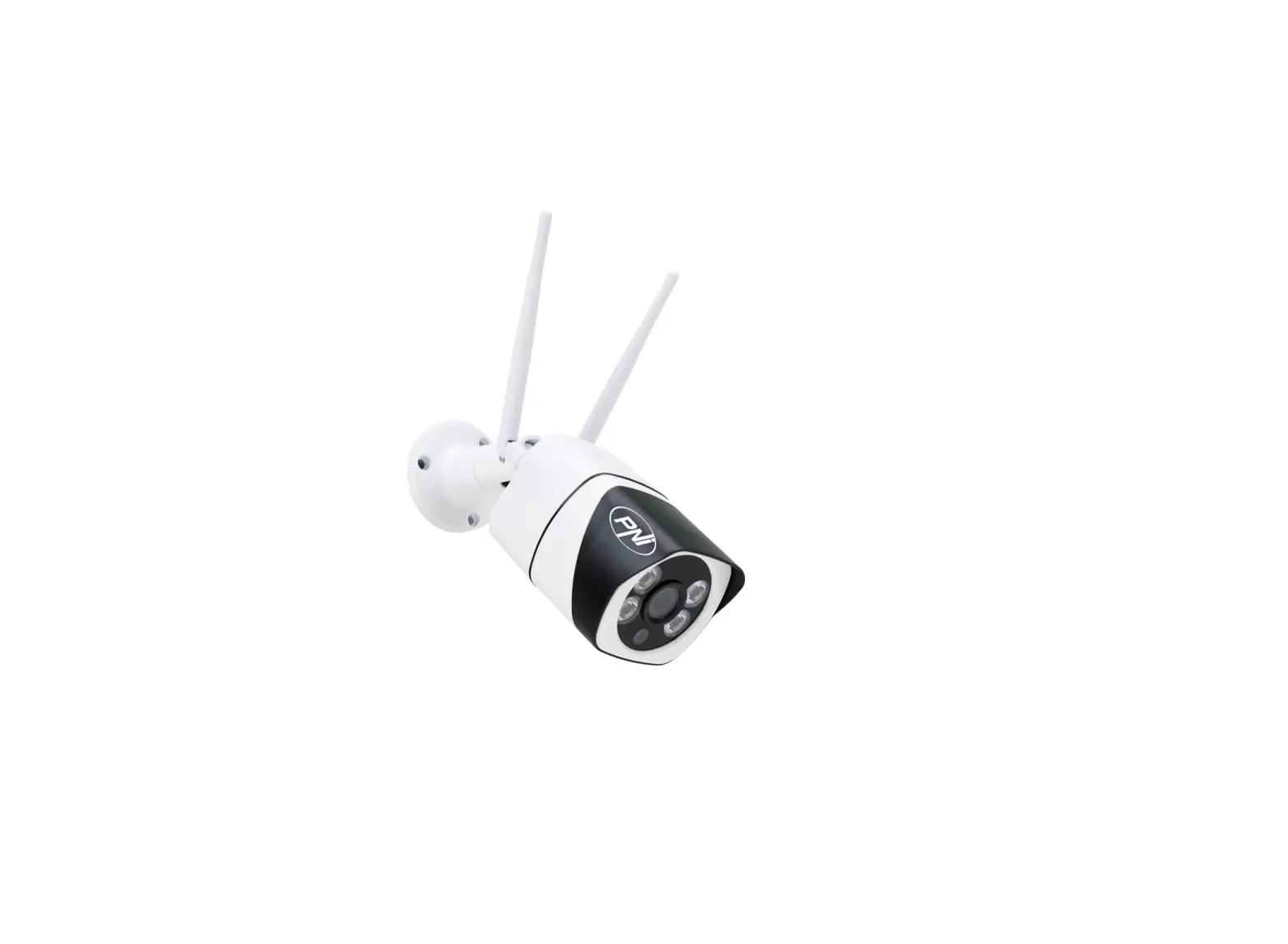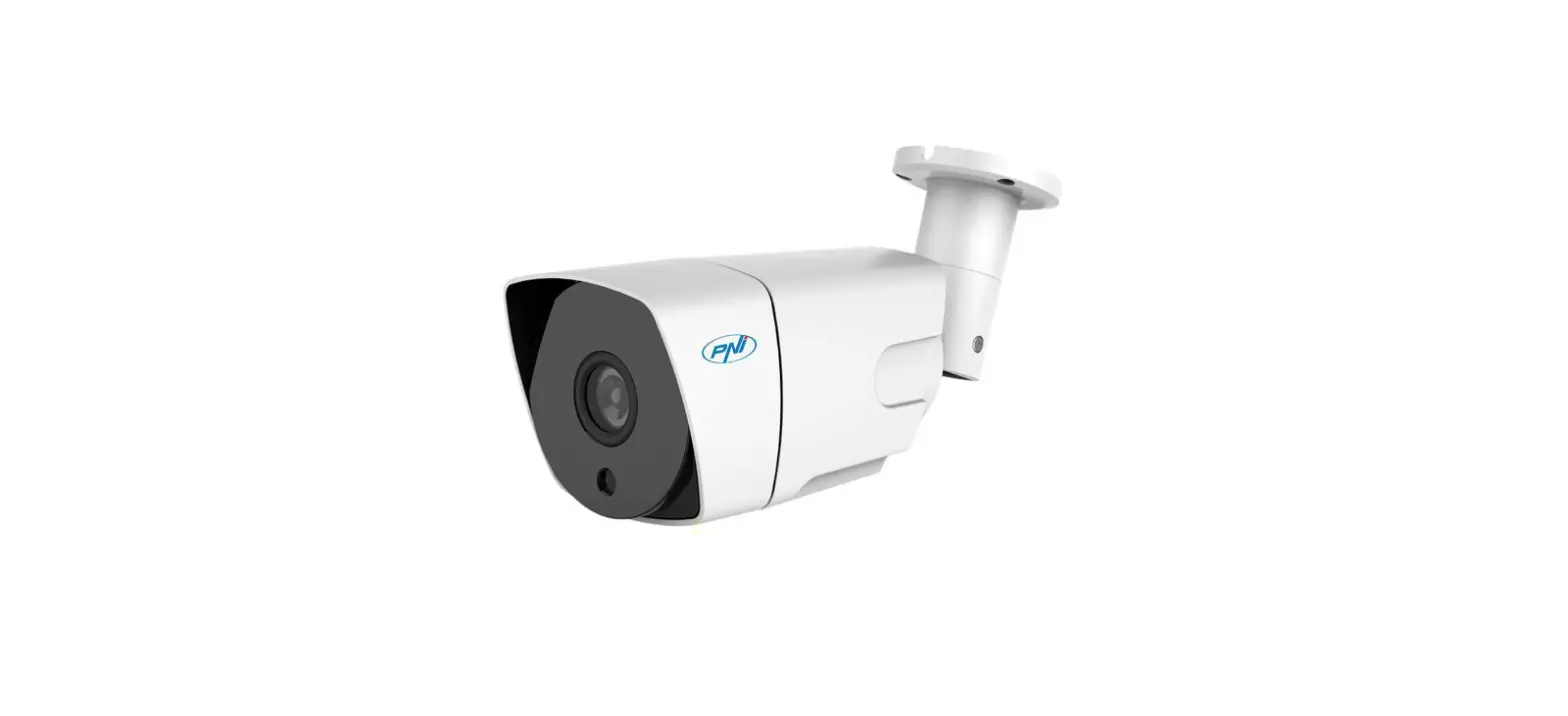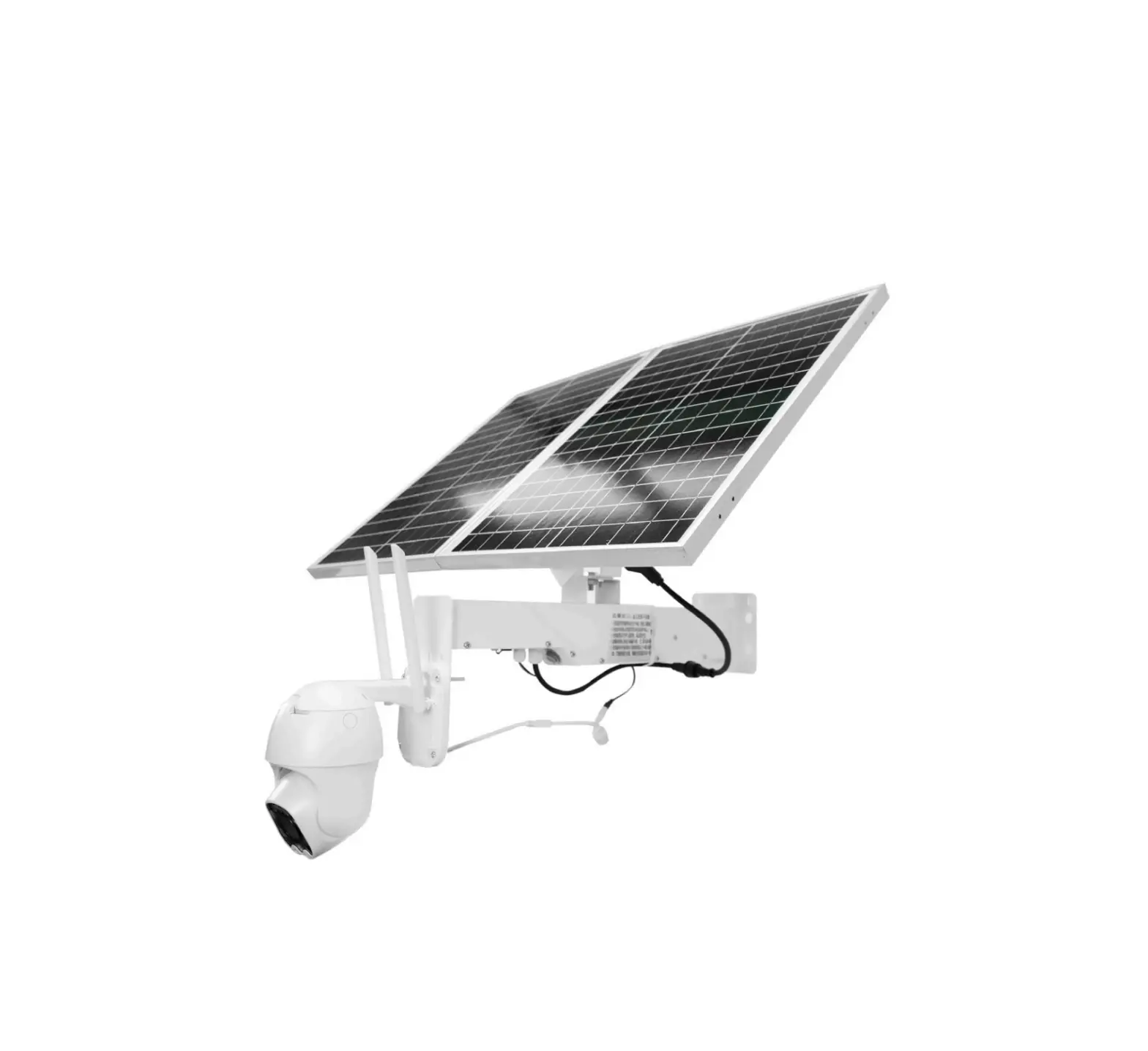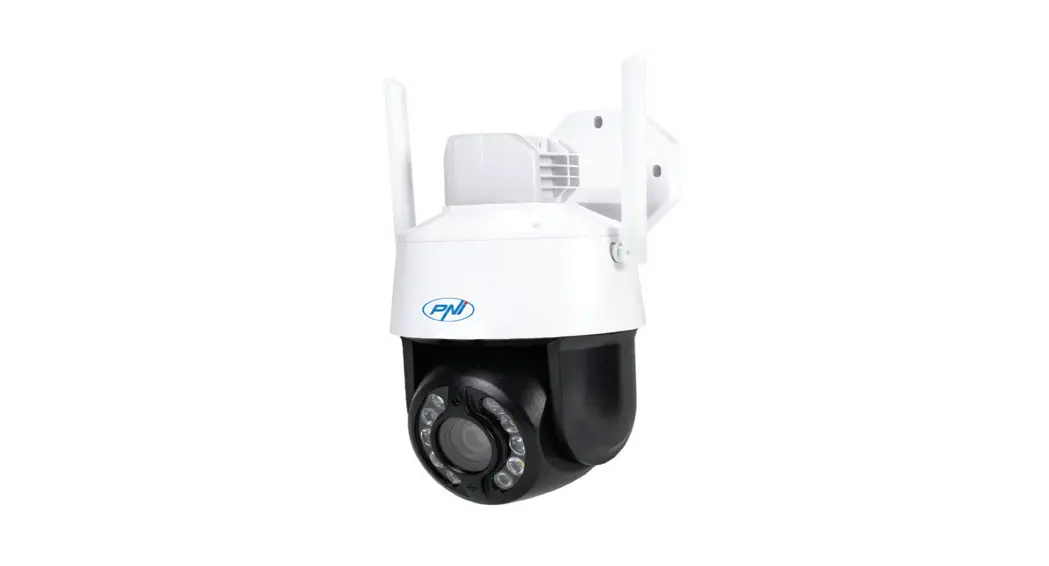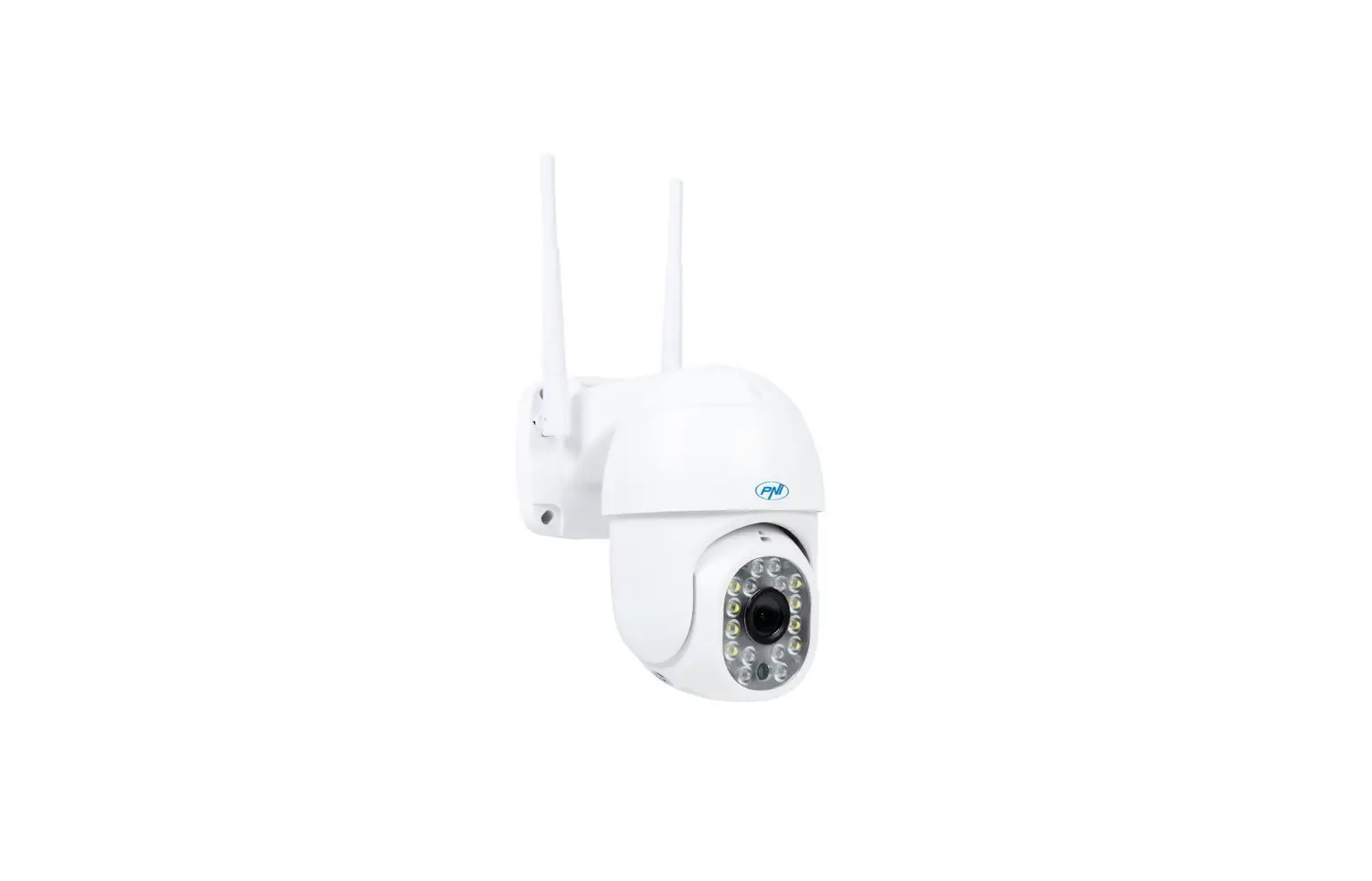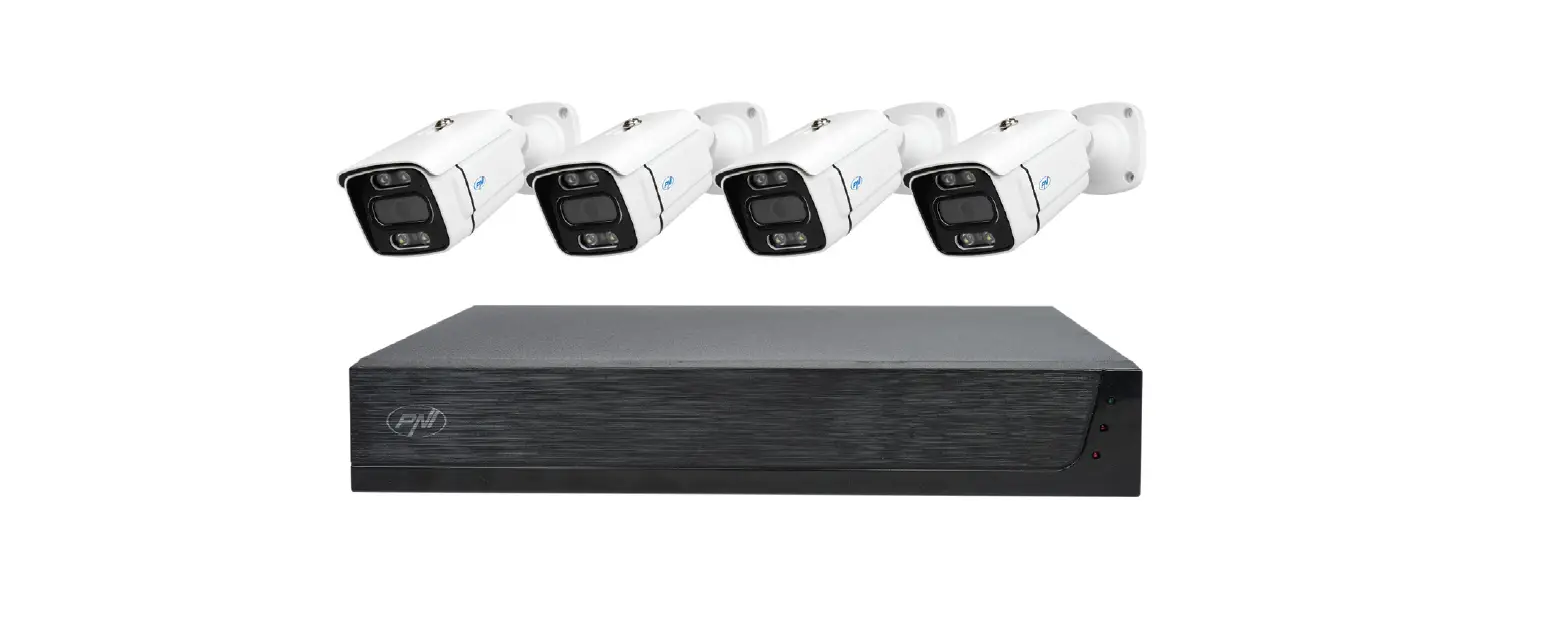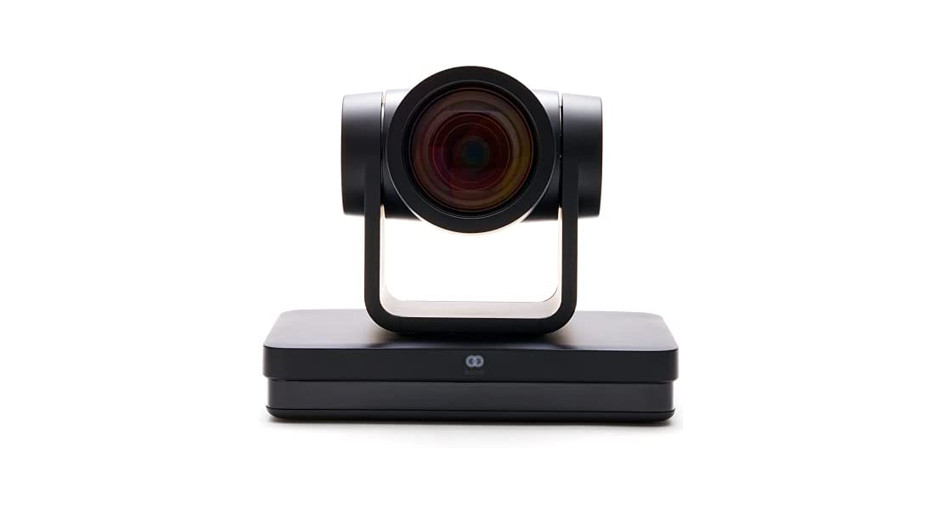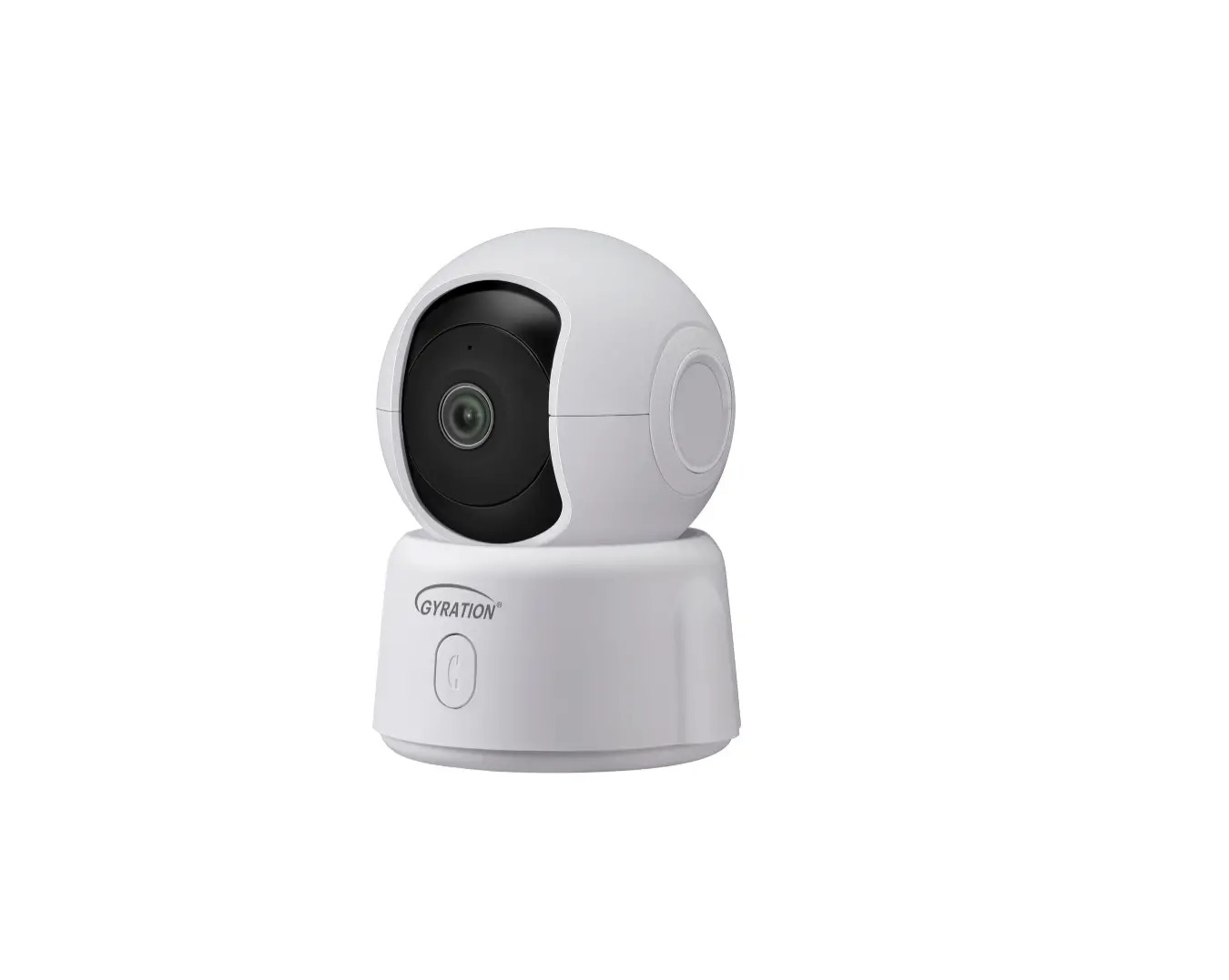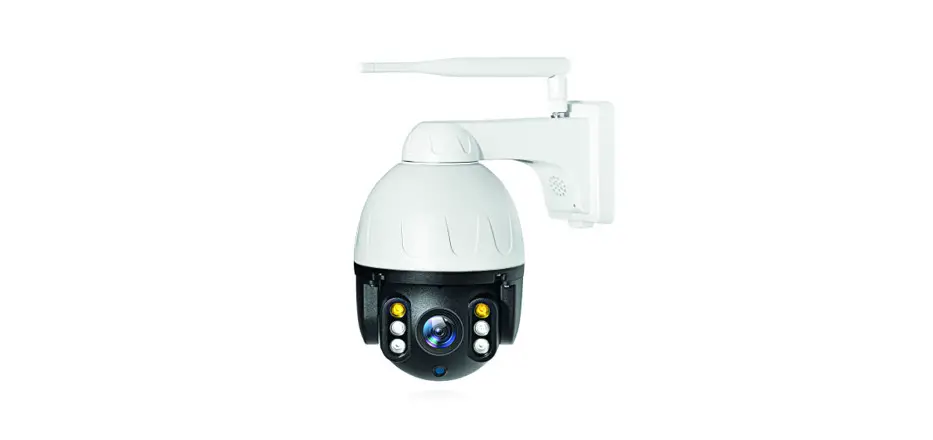
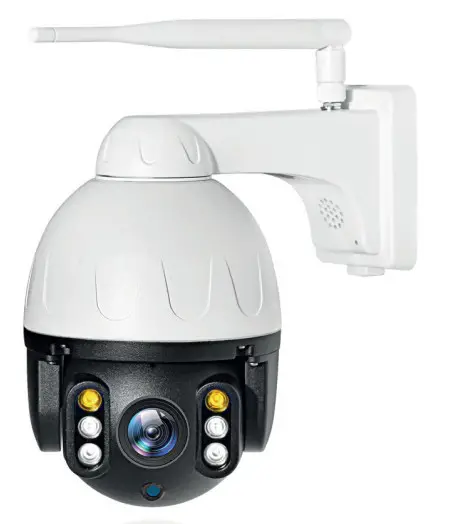
 SafeHome PTZ382 Video Surveillance Camera
User Manual
Tuya Smart APP
Download the Tuya Smart app by accessing Google Play or App Store or scan the QR codes below:
Add device in Tuya Smart application
- Open the application, create an account and log in.
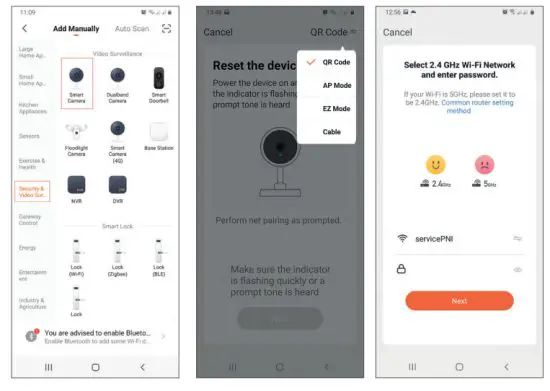
- Add your device by clicking the + icon in the upper right corner of the screen or by clicking the Add device button (this button appears only if you do not have any devices added to the application).
- Select the Security & Video Surveillance option on the left side of the screen.
- From the list of devices on the right side of the screen, select Smart Camera

- In the next interface, select the option QR Code from the upper right corner.
- Power the surveillance camera to a 230V power source.
- The camera will enter pairing mode. After hearing the message
Waiting for WiFi config, tick the option Make sure the indicator is flashing quickly or a prompt tone is heard. Click Next. - Select the WiFi network you want to connect to and add the password.
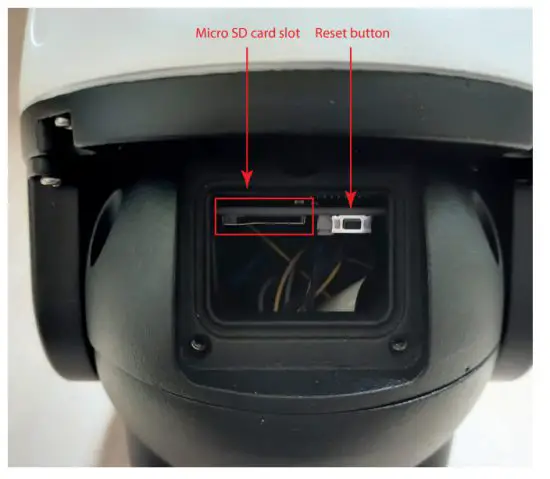
Note: If you do not hear the Waiting for WiFi config message, press the reset button on the power cord or the one next to the SD slot for a few seconds. After restarting, the camera will enter pairing mode. - Position the QR code in front of the camera lens. Wait a few seconds until you hear the Connect router message.
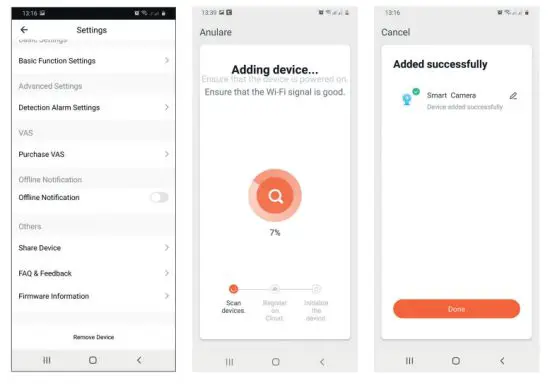
- Check the I heard a prompt option in the application. The application will immediately start scanning nearby devices. You will hear the message Connect internet.
- After you identify your device, you will receive confirmation of Add device success.
- To finish, click the Done button.


Device control via the Tuya app
Options:
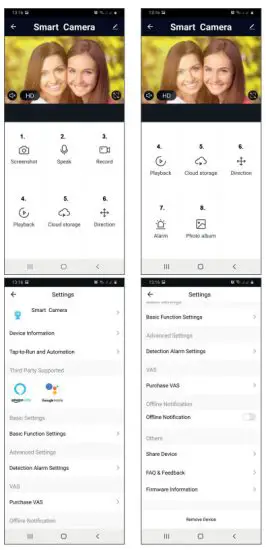
- Screenshot: captures an image and saves it in the phone’s memory
- Speak: press to talk to the person in front of the camera
- Record: press to record video. The recording will be saved in the phone memory.
- Playback: View files saved on the SD card inserted in the camera.
- Cloud storage: access Cloud (fee will be applied)
- Direction: Move the camera in 4 directions (Pan/Tilt)
- Alarm: displays the history of all alarms sent by the camera.
- Photo album: View photos and videos saved in the phone memory.
- Click on the pencil icon in the upper right corner of the screen to make different settings in the camera. In the settings menu, you can activate Motion Detection or Motion Tracking or share your device with other Tuya users.
Install SD card
- Loosen the 3 screws that secure the cover on the camera globe, above the lens.
- Insert the micro SD card into the dedicated slot.
- Replace the cover.
Technical specifications
| Resolution | 1080P 2MP |
| Lens | 3.6mm |
| Video compression | H.264 |
| Frame rate | 15 fps |
| Night visibility | Yes, up to 20-30m |
| IR LEDs | 4 Array LEDs |
| Audio | Bidirectional, built-in microphone and speaker |
| PTZ | Horizontal 355° / Vertical 90° |
| Memory | Micro SD card slot (up to 128GB) |
| Housing | Metal |
| Power supply | 230V – 12V 2A |
| Working temperature | -26°C ~ +60°C |
EU Simplified Declaration of Conformity
SC ONLINESHOP SRL declares that Surveillance camera PNI SafeHome
PTZ382 complies with the Directive EMC 2014/30/EU and RED 2014/53/UE.
The full text of the EU declaration of conformity is available at the following Internet address:
https://www.mypni.eu/products/7626/download/certifications
 mypni.eu/products/7626/download/certifications