 Quick Start Guide
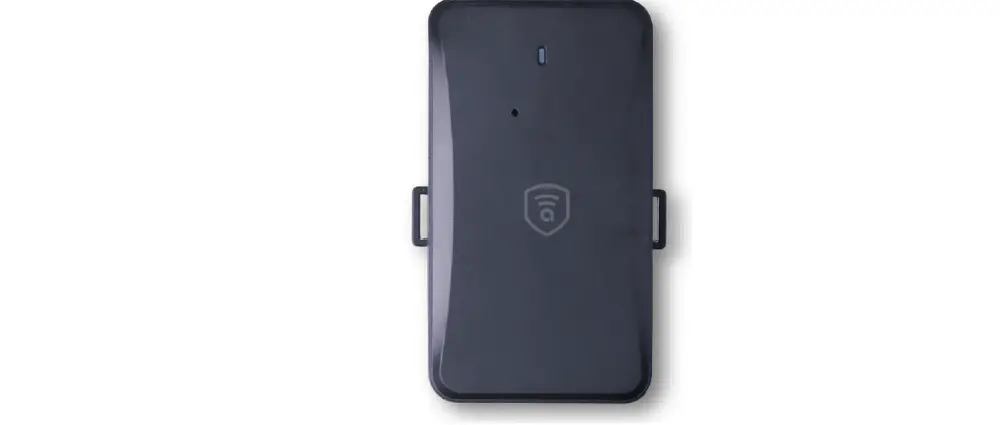
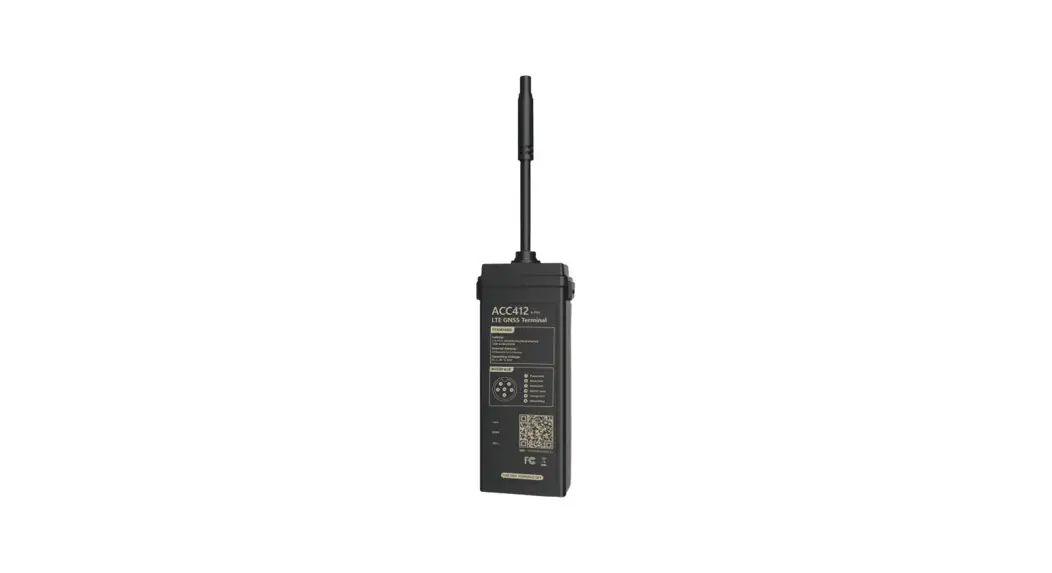
ACC412
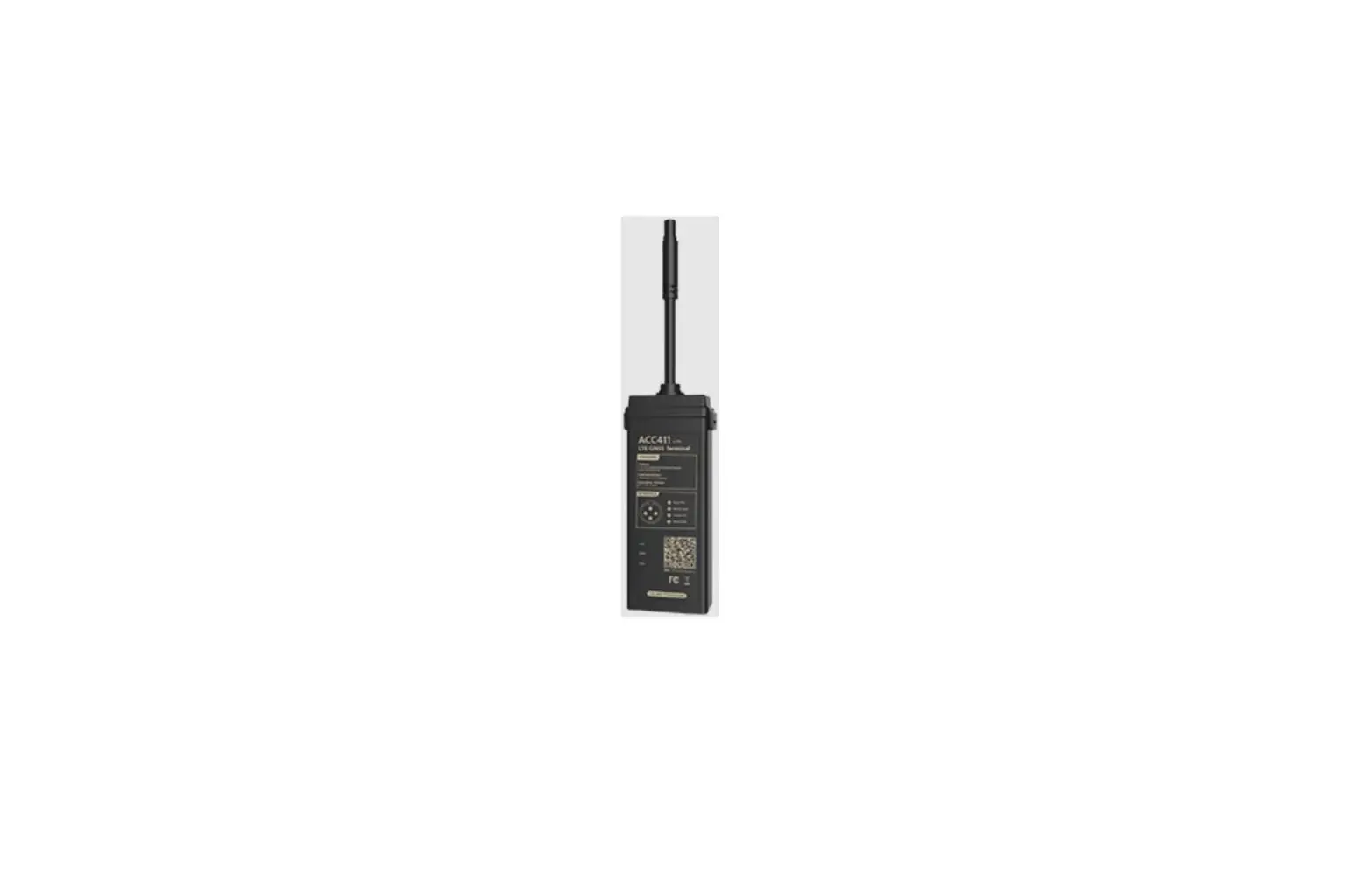
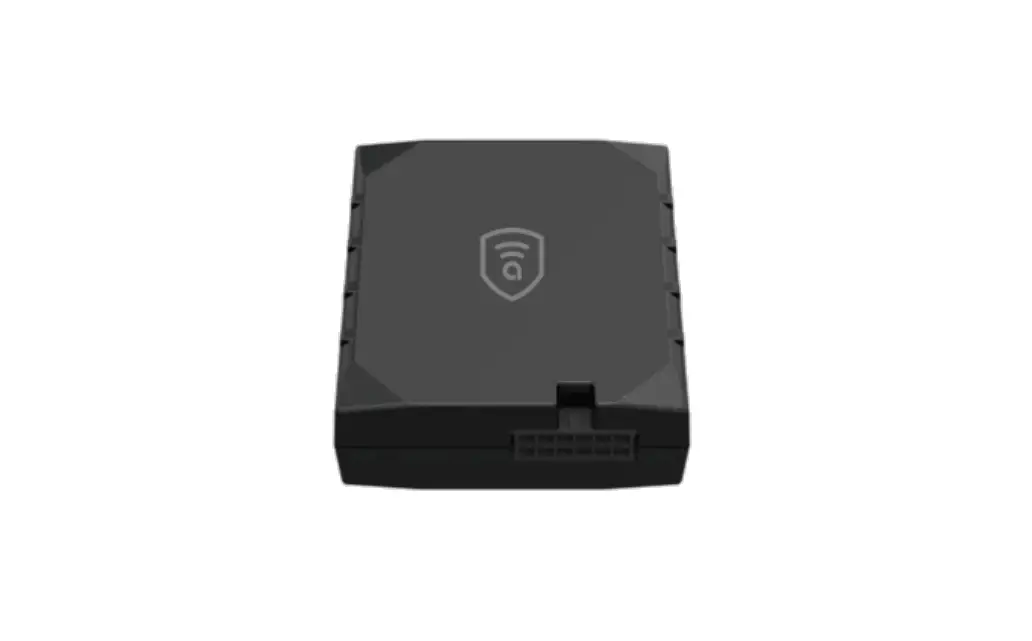
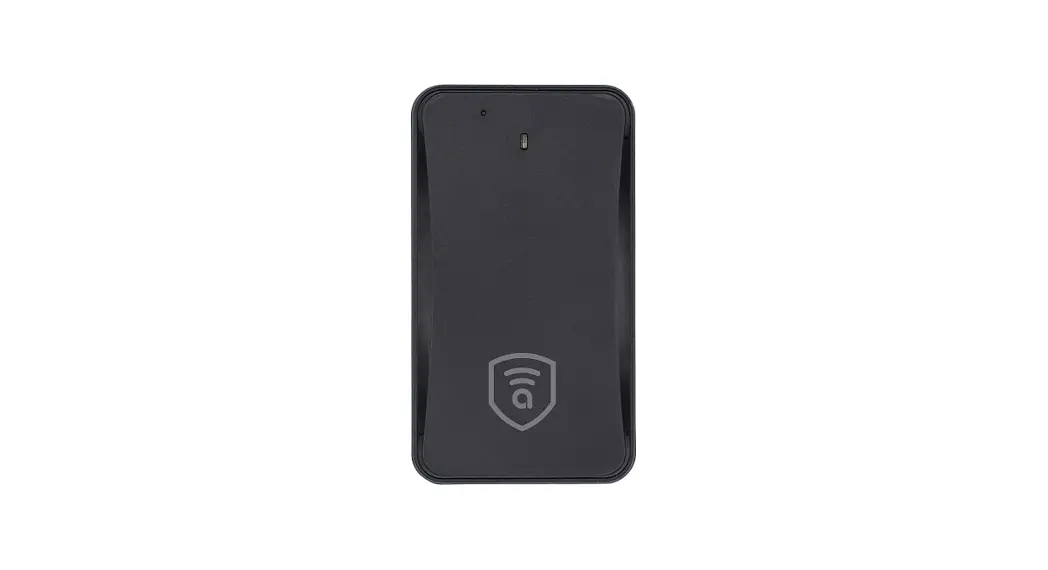
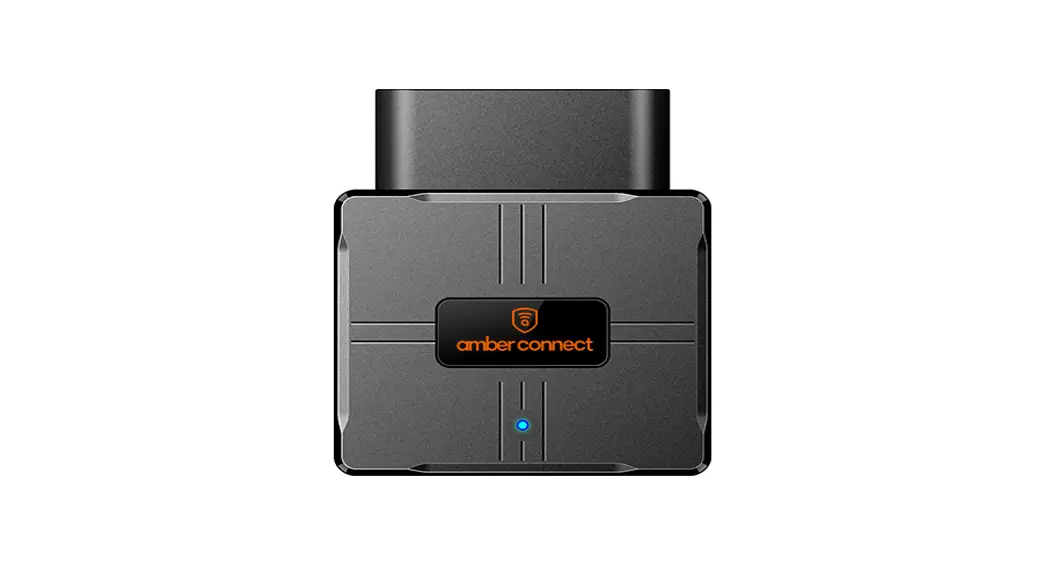
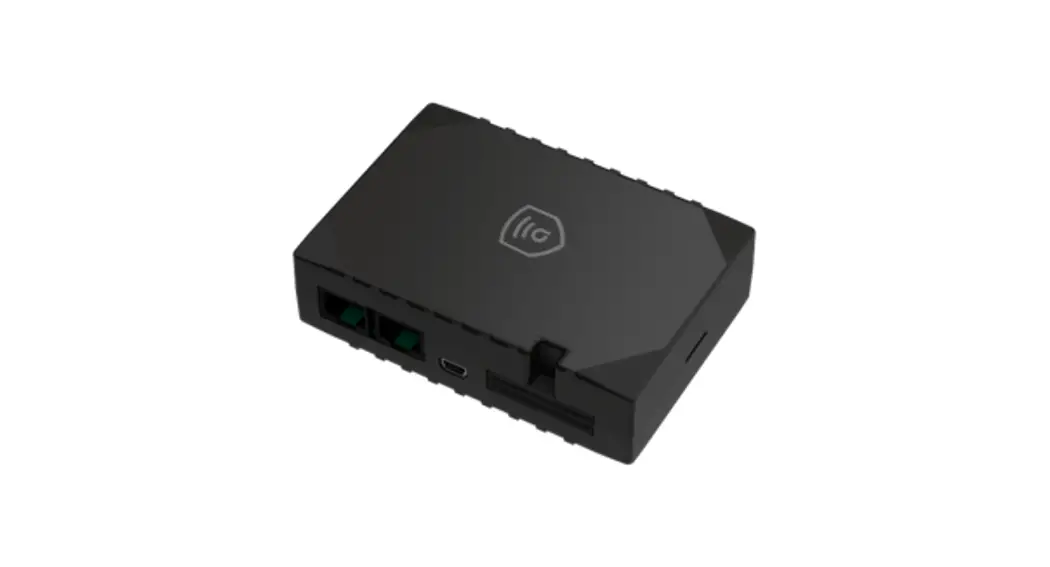
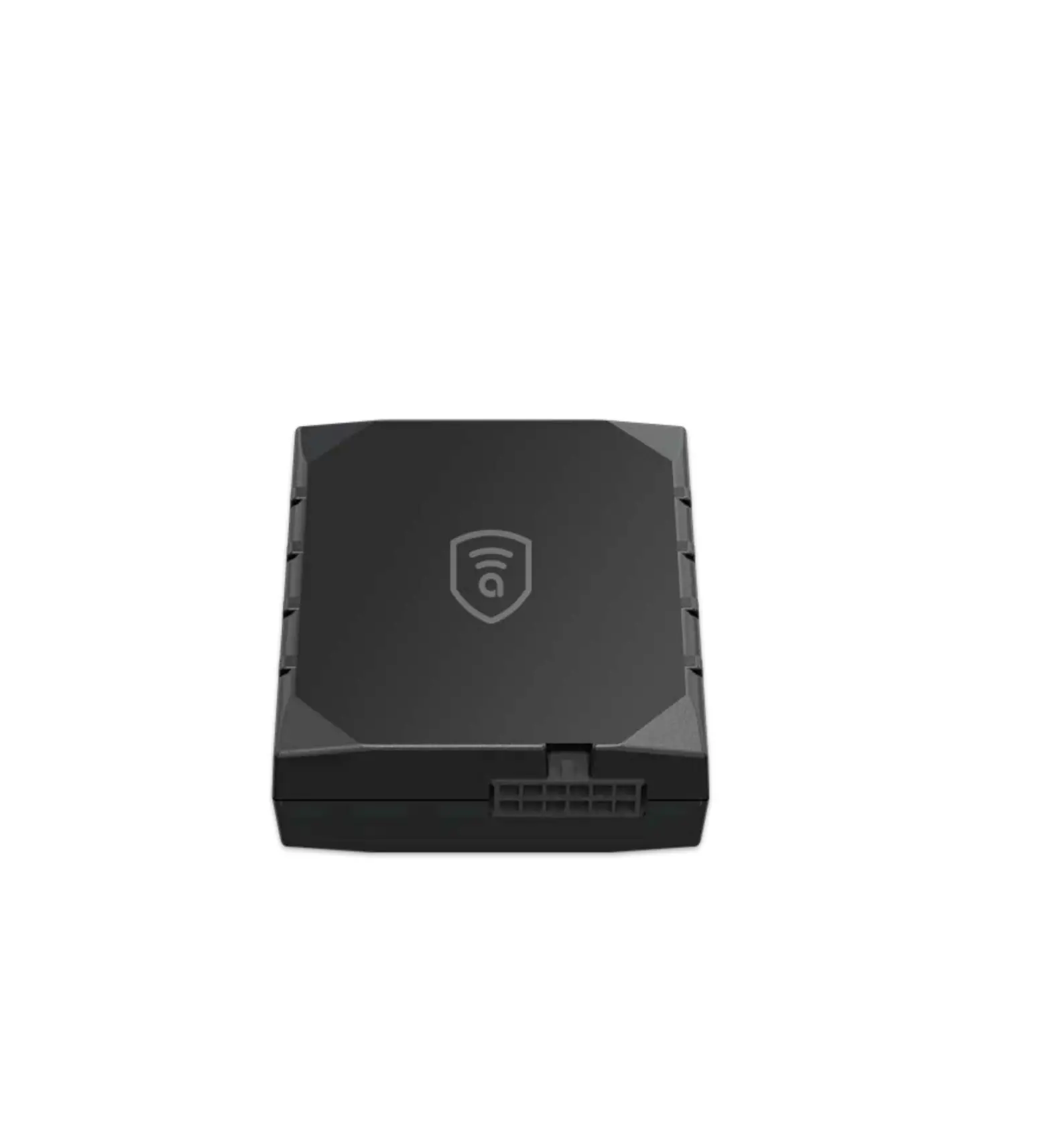
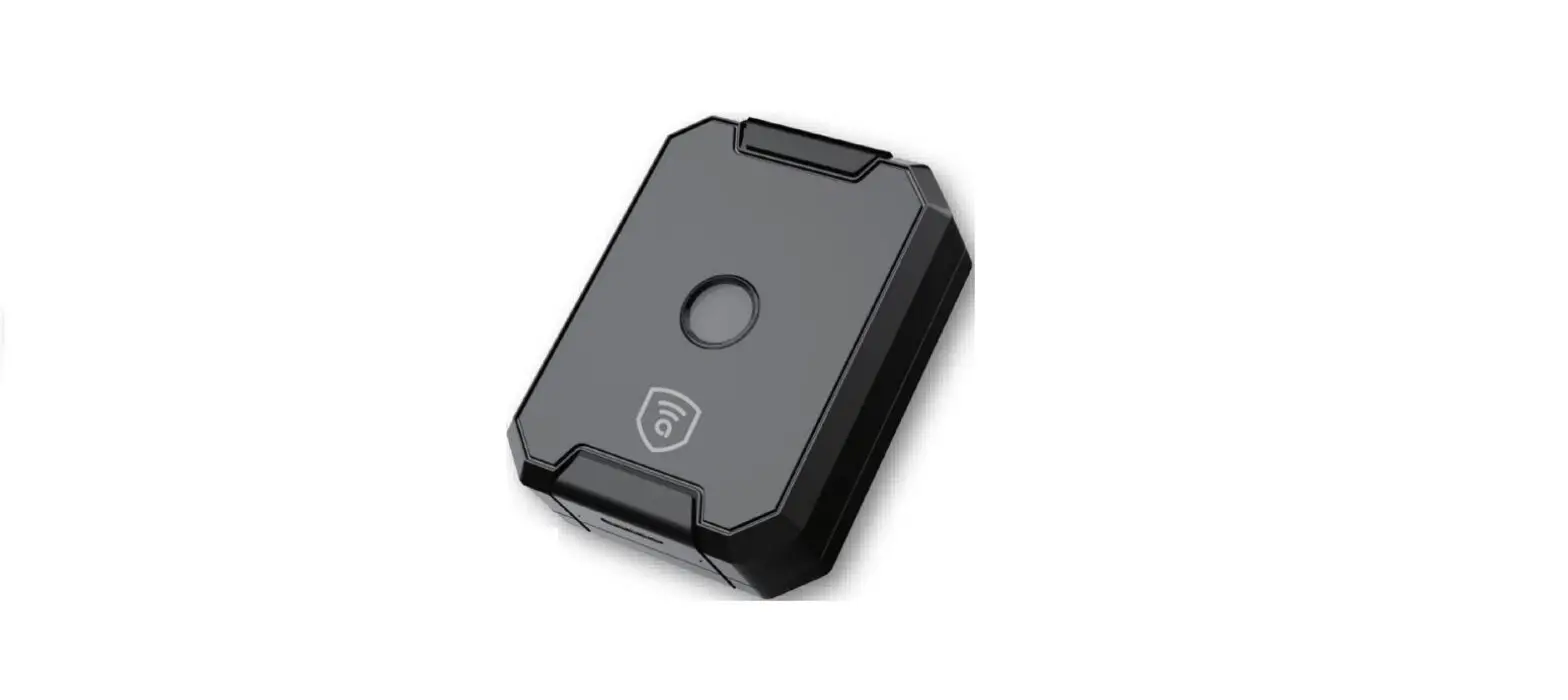
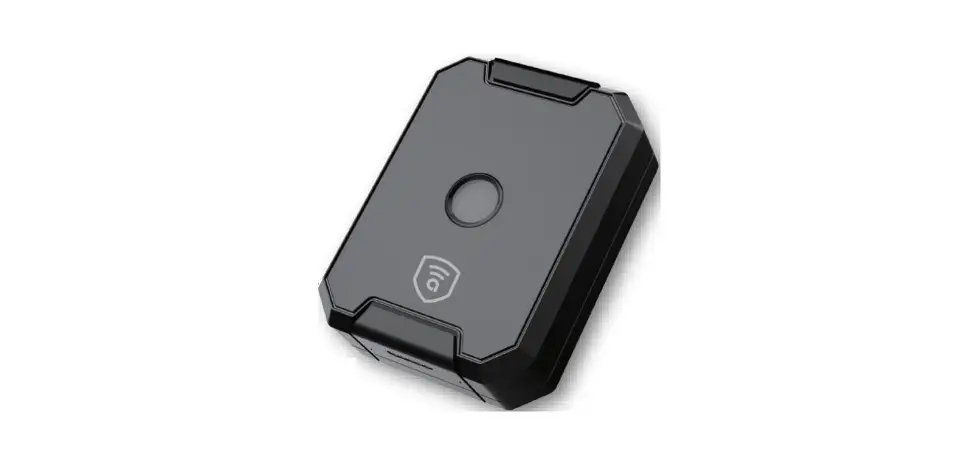
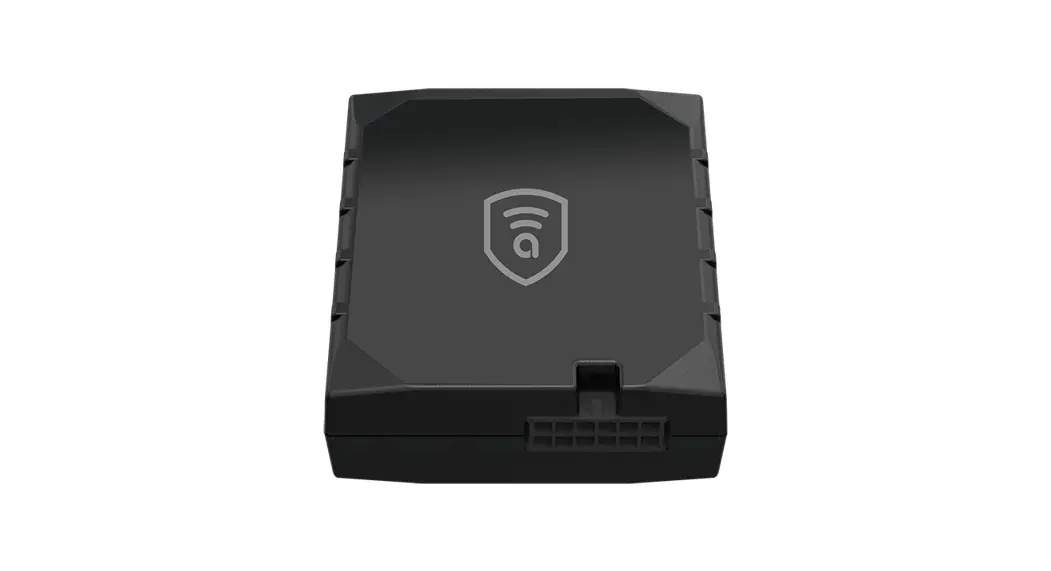
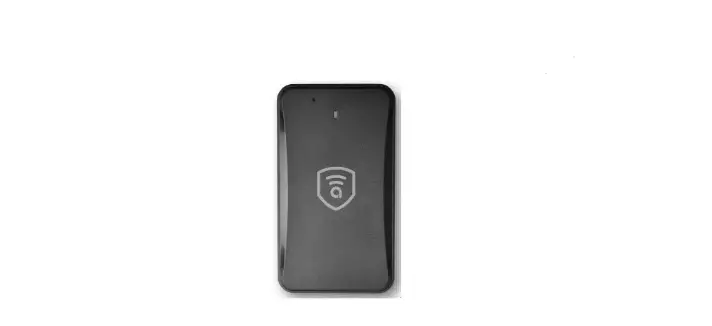
Amber Covert C412
Intermediate 6-Pin GNSS LTE Device  1. Install Your Device
2. Download Amber Connect App
3. Activate The Device
Product overview
- Real-time tracking
- Driving behavior analysis (4 types)
- Over-speed alert
- SOS alert
- Tamper alert
- Removal alert
- Power-supply-cut alert
- Low power alert
- Vibration alert
- Geo-fence
- Analog Input
Standard Parts List
| Item | Quantity |
| Amber Covert C412 device | 1 |
| Power cable (Length: 1 m) | 1 |
| Relay | Optional |
| Panic button | Optional |
Specification
| Network | 4G&2G |
| Frequency | ACC 412-L: LTE-FDD: B1/B2/B3/B4/B5/B7/B8/B28 GSM: B2/B3/B5/B8 |
| ACC 412-E: LTE-FDD: B1/B3/B7/B8/B20/B28 LTE-TDD: B34/B38/B39/B40/B41 GSM: B2/B3/B5/B8 | |
| Location accuracy | <10 meters CEP |
| Relay | Optional |
| TTFF (open sky} | Avg. hot starts 1 sec Avg. cold starts 32 sec |
| Indication | GPS (Blue), Cellular (Green), Power (Red) |
| Battery | 270 mAh, 3.7V Li-Polymer battery |
| Operating voltage | 9-90VDC |
| Operating temperature | -20’C to + 70’C |
| Device weight | 55 g |
| Device dimension | 92 mm*40 mm*20 mm |
Product setup
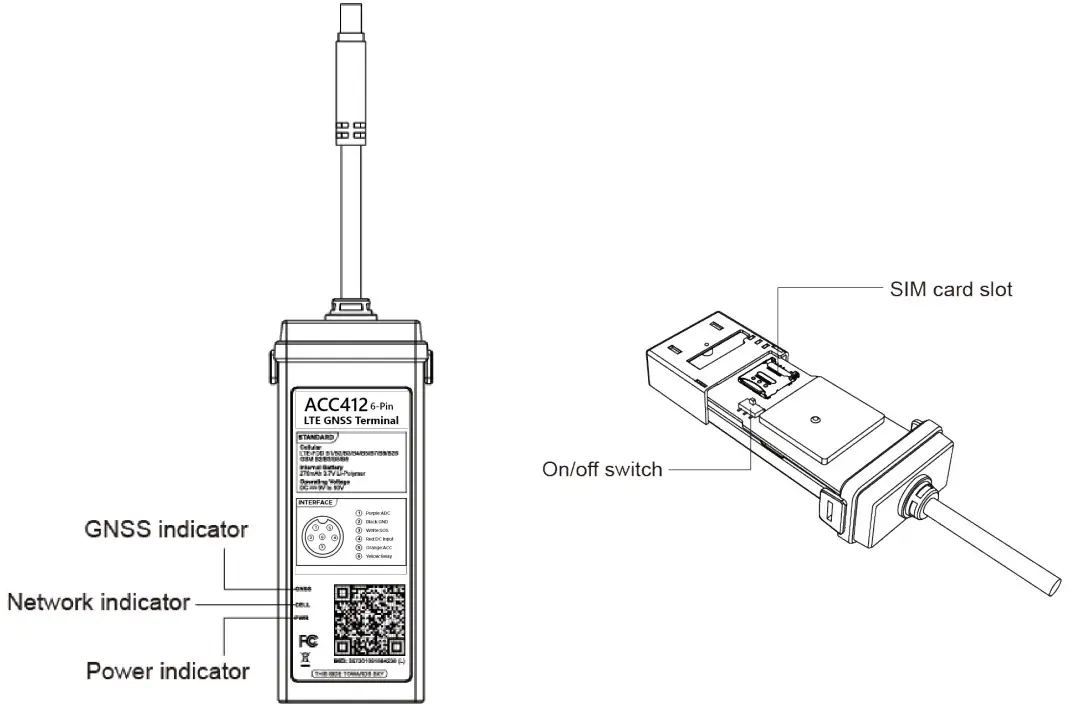
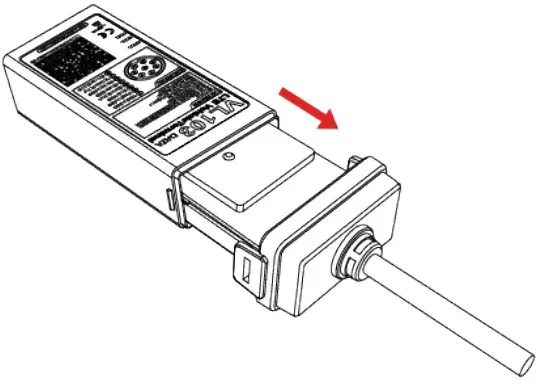
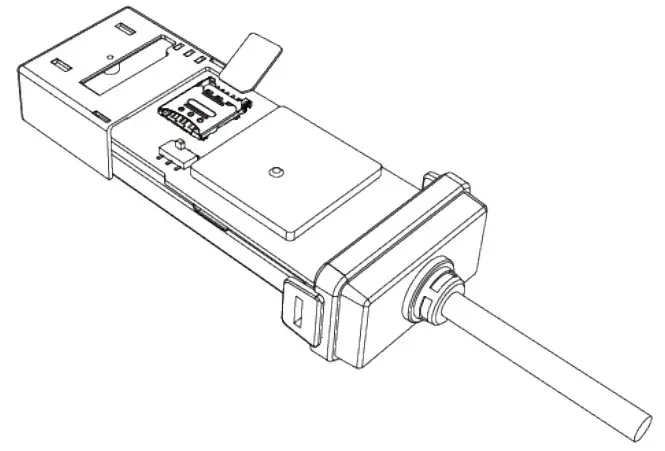
- Prepare a micro SIM card that supports the same network with this device

- Remove the upper cover of device.

- Insert SIM card into the slot and toggle the switch to ON


LED indications
Power Status (Red)
| On for 0.3s and off for 0.3s | Low power |
| On for 1s and off for 3s | Fully charged |
| On for 0.1 s and off for 3s | Working normally |
| Solid on | Charging (Higher priority than the status of low power) |
| Off | Battery is exhausted/Internal failure |
GNSS Status (Blue)
| On for 0.3s and off for 0.3s | Searching GNSS signal |
| Solid on | Positioned |
| Off | GNSS module is in sleep mode or not working |
Cellular Status (Green)
| On for 0.3s and off for 0.3s | Network initializing |
| On for 1 s and off for 3s | Receiving signal normally |
| On for 0.1 s and off for 3s | Network connected |
| Solid on | Calling |
| Off | No signal received/No SIM card detected |
Power supply Status (Red, Blue, Green)
| Red, Blue and Green on for 3s | Connected/disconnected power supply |
Interfaces
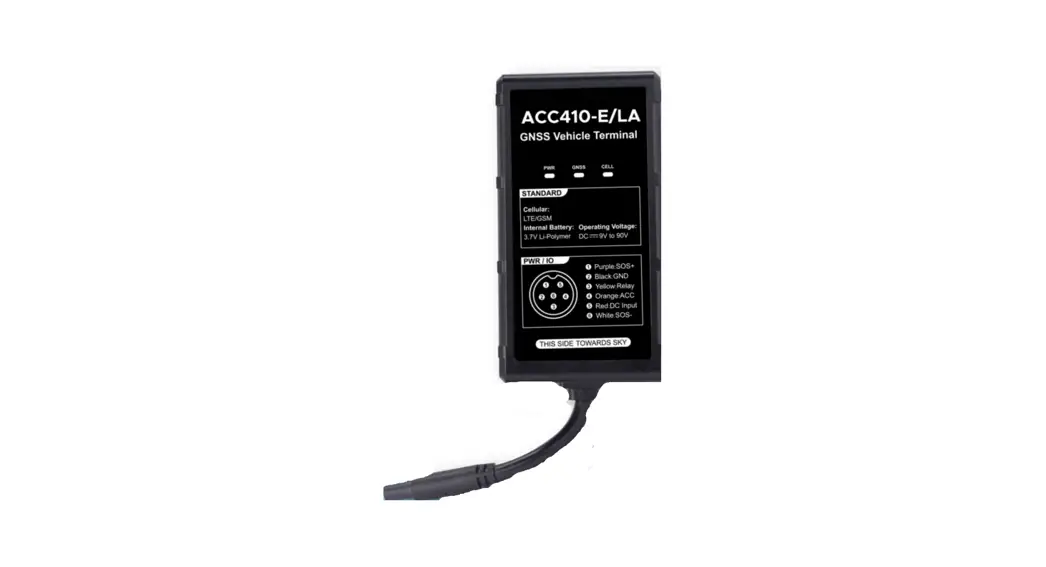
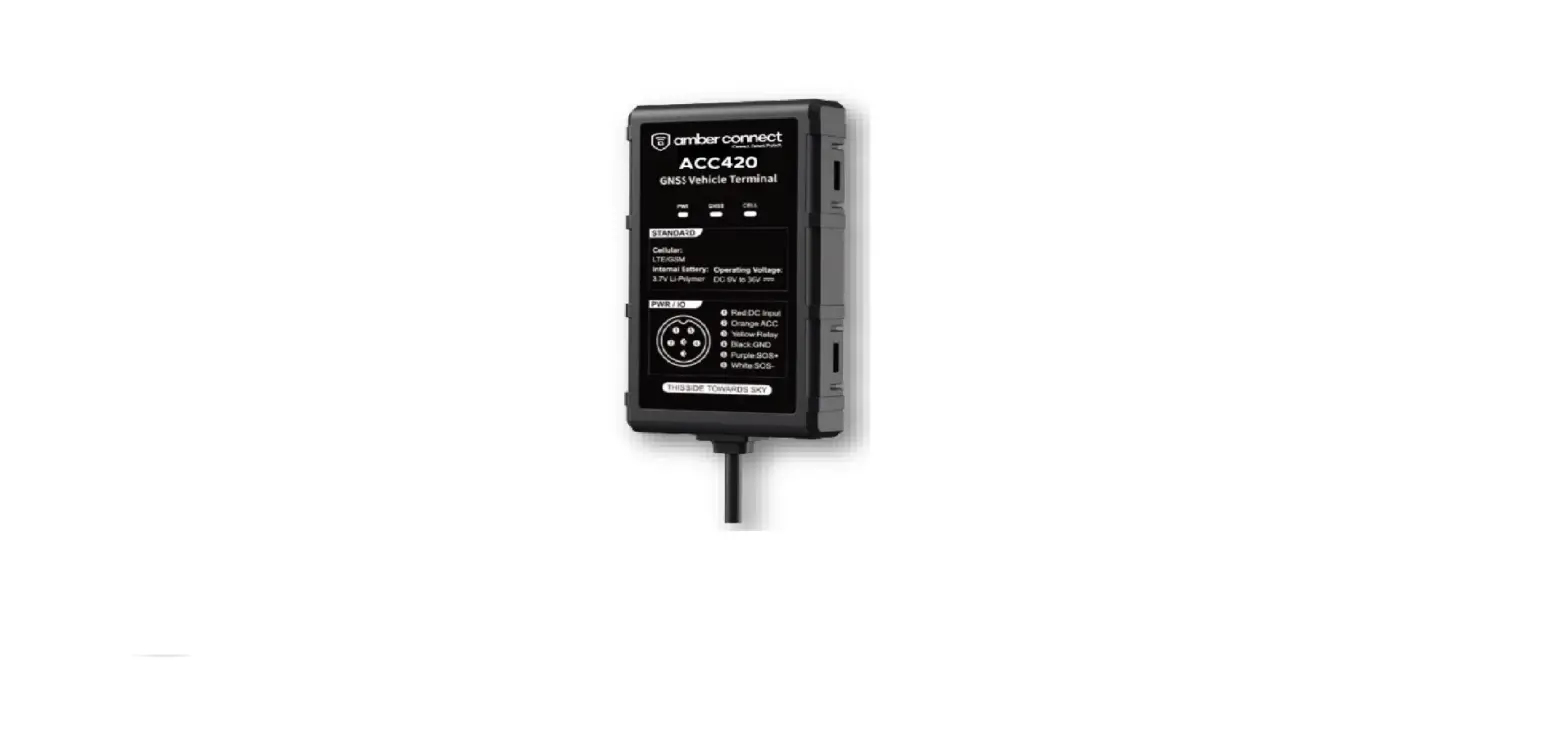
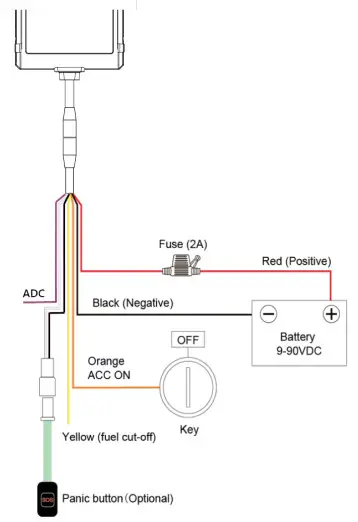
6 Pin Standard Version
| Interface | Color | Description |
| V+ | Red | Power + (9-90V) |
| V- | Black | Power – Ground pin |
| ACC | Orange | Vehicle ignition detection |
| Relay | Yellow | Cut-off vehicle fuel supply |
| ADC | Purple | 0-5V ADC |
| SOS | White & Black | SOS Ground Pin |
Wiring of Standard Version
Tips for finding right wires:
- Use multi meter lo find out the positive and negative sides of vehicle battery.
Note: No matter the ignition key is switched to ON or OFF, current battery voltage can be shown in the multi meter. - The way lo find ACC wire: Connect multi meter’s black probe lo negative side, and connect red probe to a random wire, at this moment, the voltage shown in multi meter is 0V; turn the key to ON, if the supply voltage is shown, that’s the correct ACC wire.
- Connect the two connectors together, if the vehicle has no connector, please connect device’s wires to corresponding vehicle wires.

Installation recommendation
Please install the device under the guidance of professional personnel. 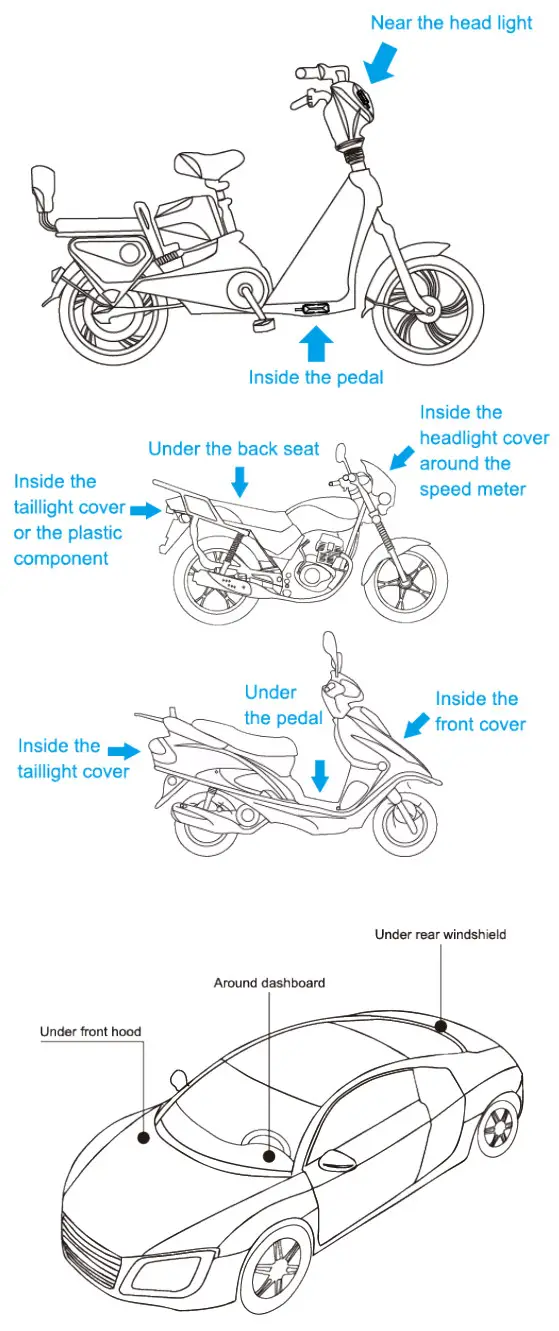 Note:
Note:
- The device should face up to sky.
- Metal thermal barrier or heating layer, which are always installed on windshield, may affect the signal, please avoid installing the device under these objects.
Platform & APP
- Login service platform Please login the designated service platform to set and operate the device.
- Download APP Please download and install the APP in designated website, APP store or Google Play store.
Troubleshooting
| Type | Use |
| Unable to connect to Amber Connect | Check the APN and IP settings. Check whether the data service of SIM card is enabled. Check the balance of SIM card. |
| Tracker shows offline | Check whether external power is still connected. Check if the vehicle entered network blind area. Check the balance of SIM card. |
| Unable to connect locate | Make sure the top side facing upward without metallic things shielded. Make sure it’s not in area with no satellite coverage. |
| Location drift | In area with poor GNSS signal (tall building around or basement), drifting may happen. Check whether vibration happens around to trigger the accelerator. |
| No command reply | Make sure command format is correct. Vehicle may be in network blind area. Make sure SIM card is well inserted and has SMS service. |
Warranty instructions
- The warranty is valid only when the warranty card is property completed, and upon presentation of the proof of purchase consisting of original invoice indicating the date of purchase, model and serial No. of the product. We reserve the right to refuse warranty if this information has been removed or changed after the original purchase of the product from the dealer.
- Our obligations are limited to repair of the defect or replacement the defective part or at its discretion replacement of the product itself.
- Warranty repairs must be carried out by our Authorized Service Centre. Warranty cover will be void, even if a repair has been attempted by any unauthorized service centre.
- Repair or replacement under the terms of this warranty does not provide right to extension or renewal of the warranty period.
- The warranty is not applicable to cases other than defects in material, design and workmanship
 Scan this QR code to download your App
https://amberconnect.com/download/install
Need help? Contact 24/7 live support! In App Chat
 [email protected]
 Chat via website www.amberconnect.com
Works with Android phones and tablets, iPhone, iPad.
Compatible with Chrome, Mac and PC web browsers.
Amber Connect
02023 Amber Connect Limited. All rights reserved