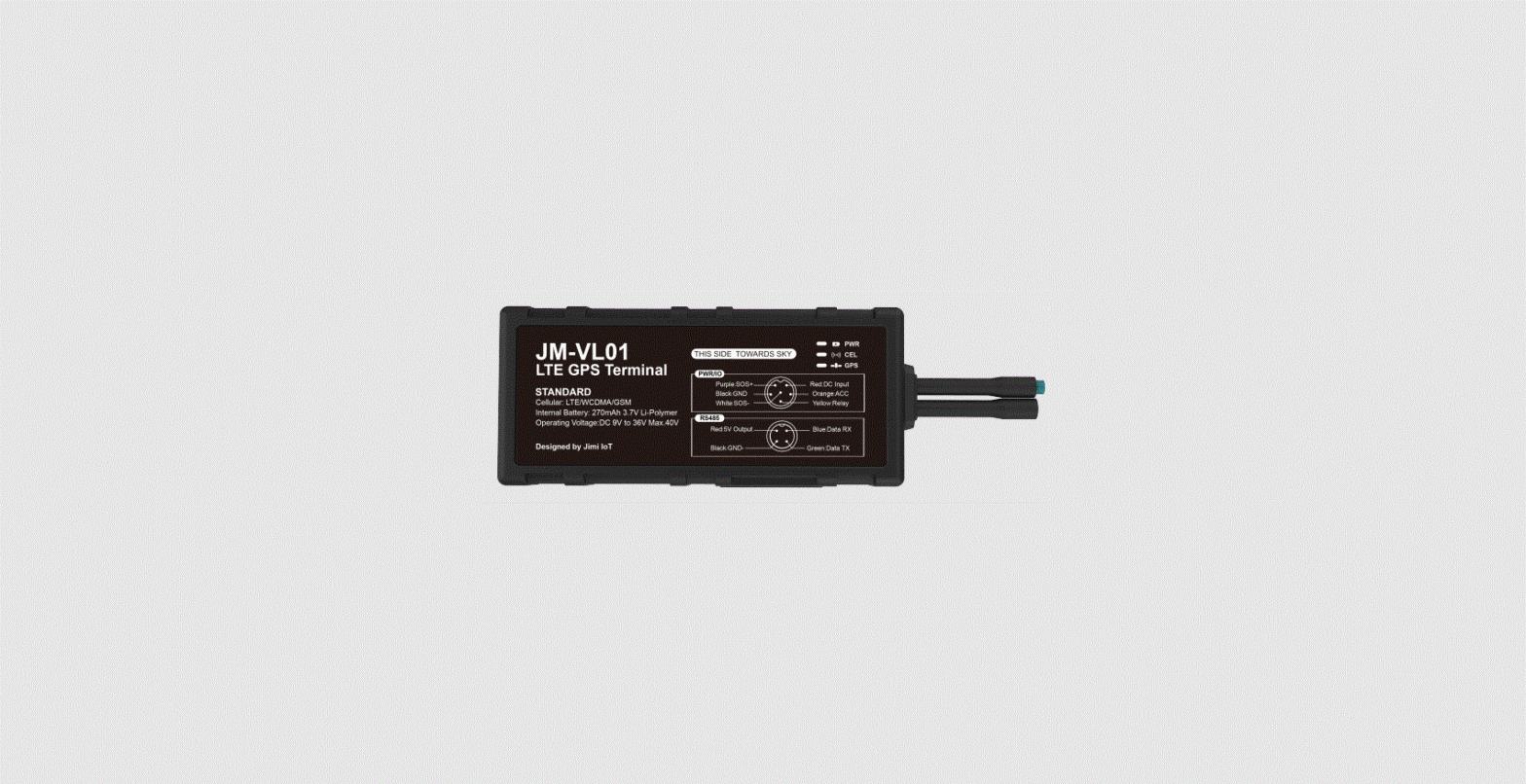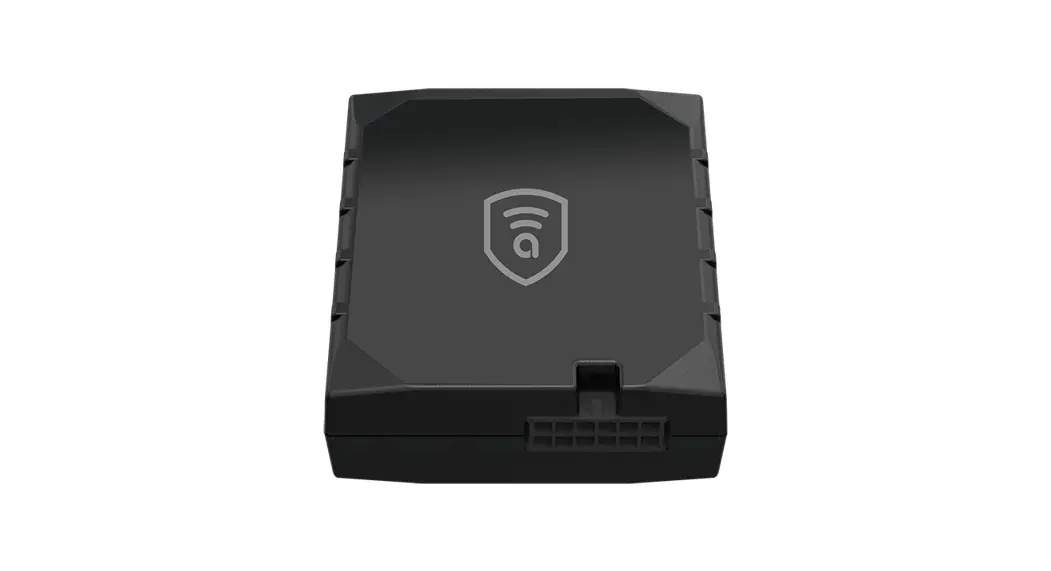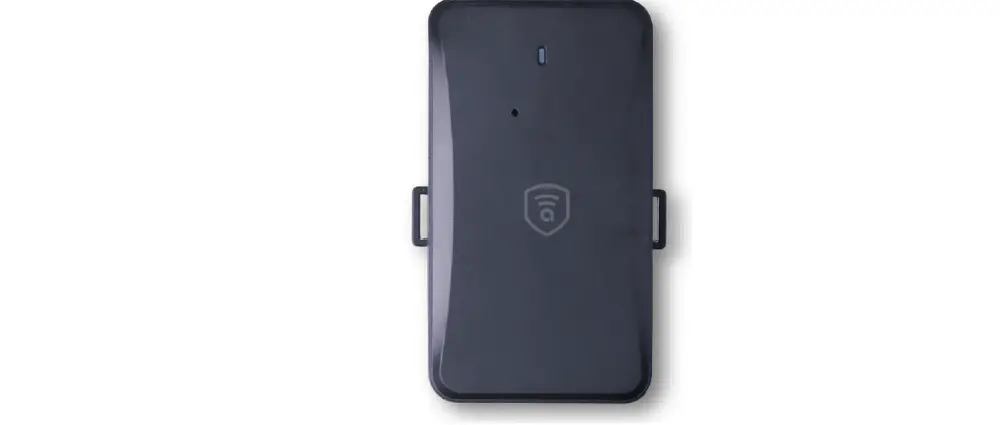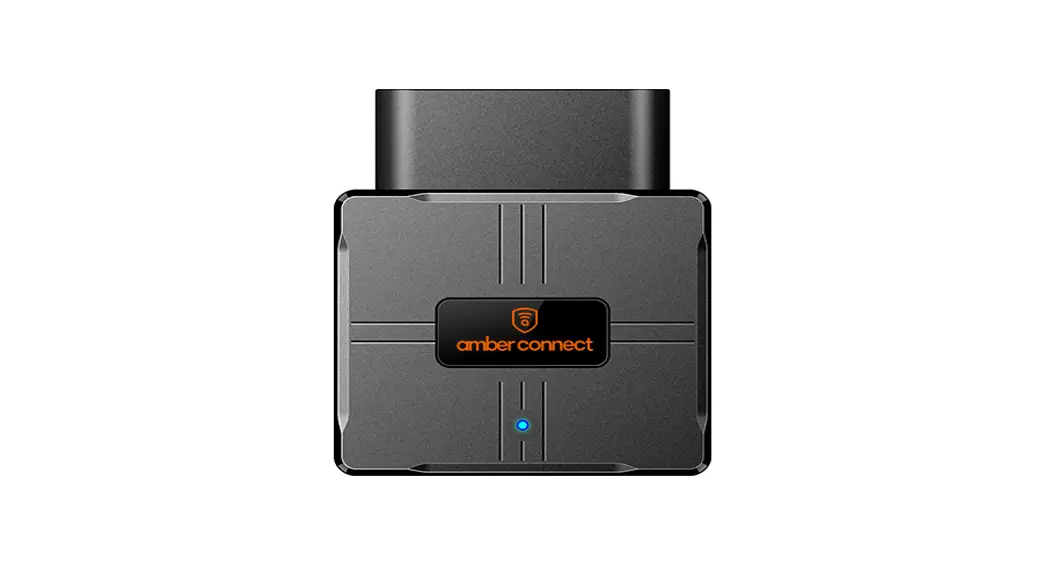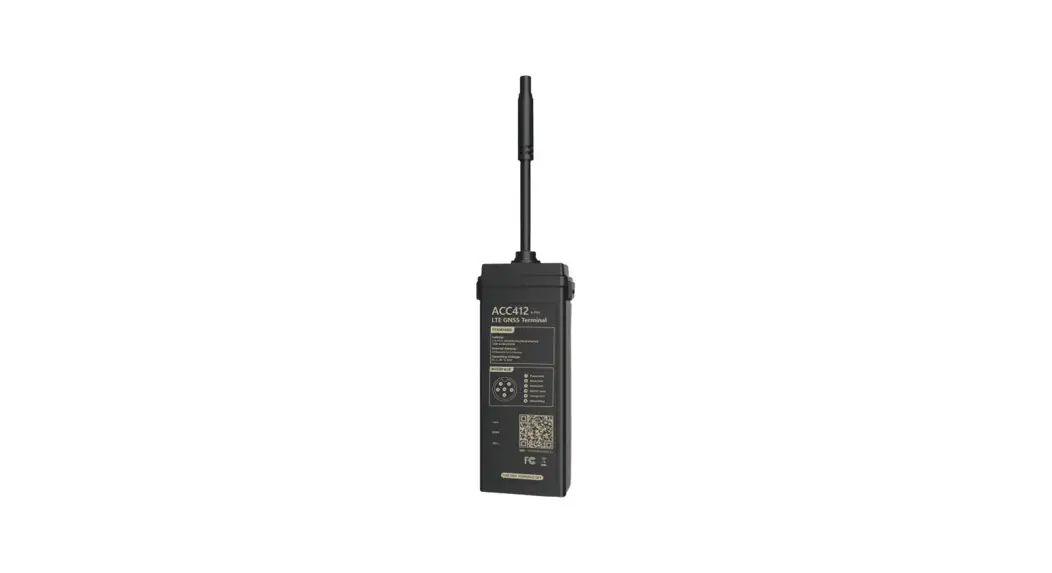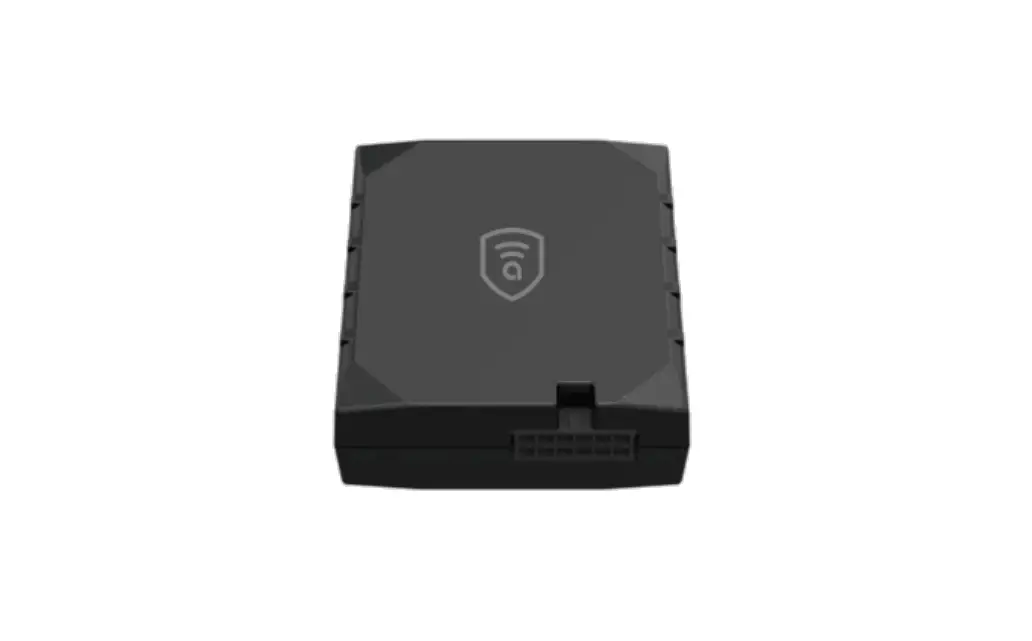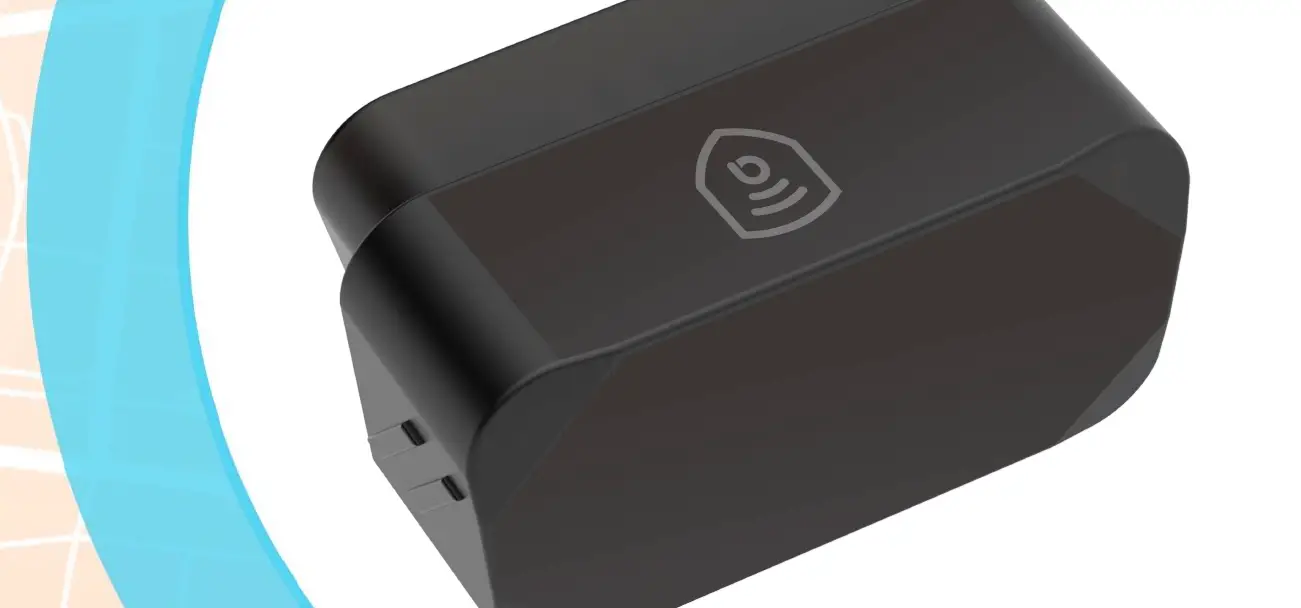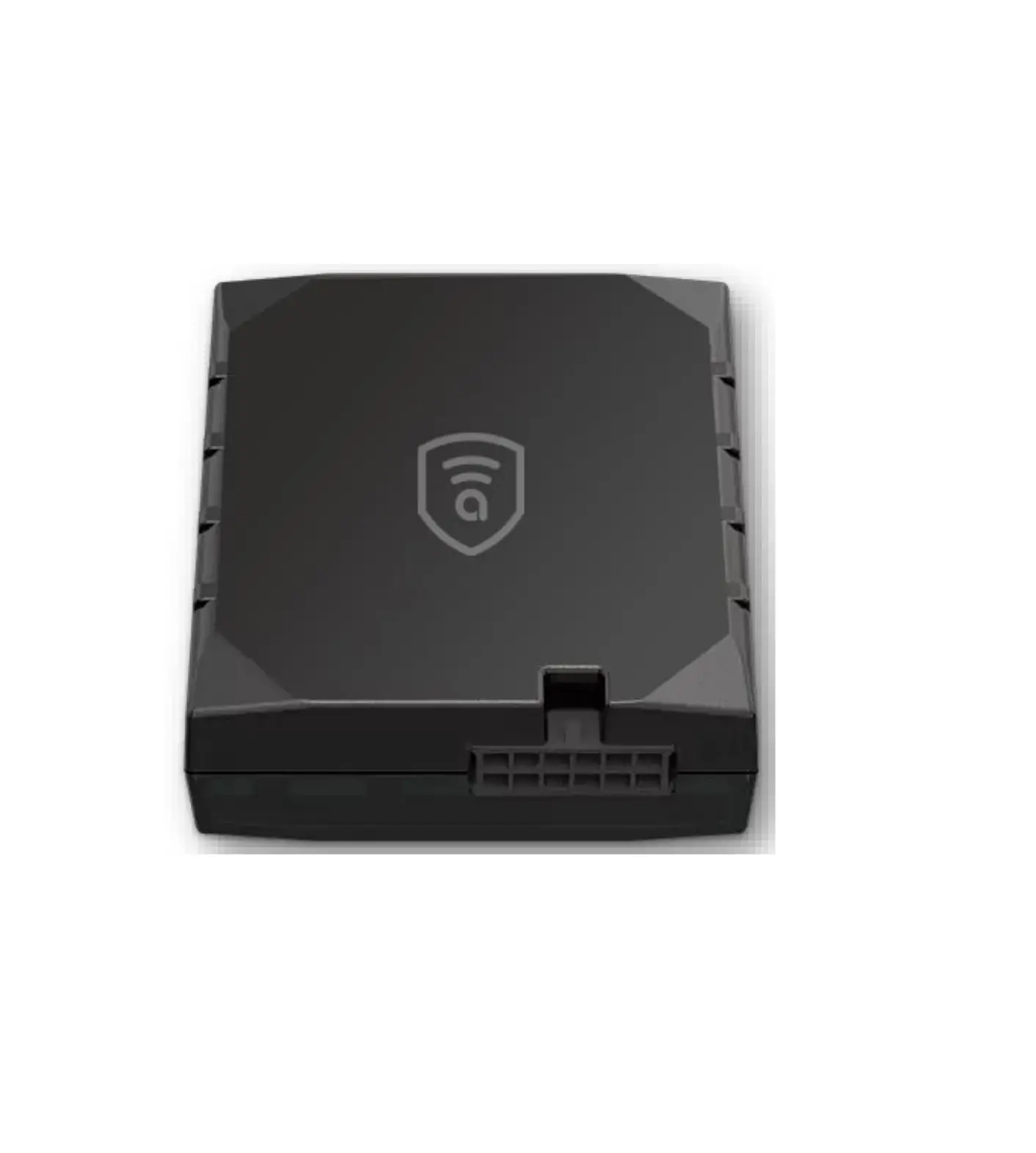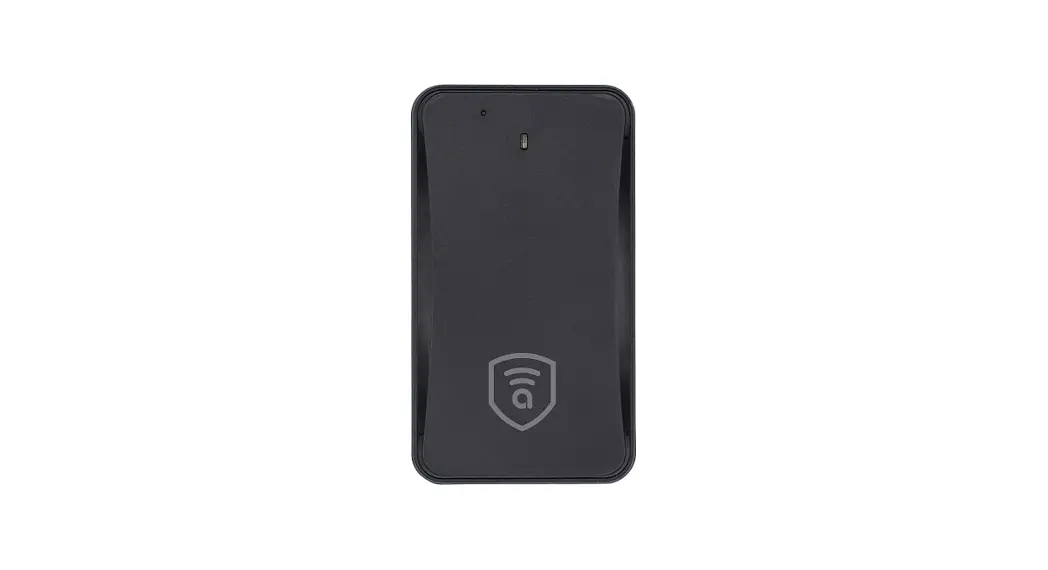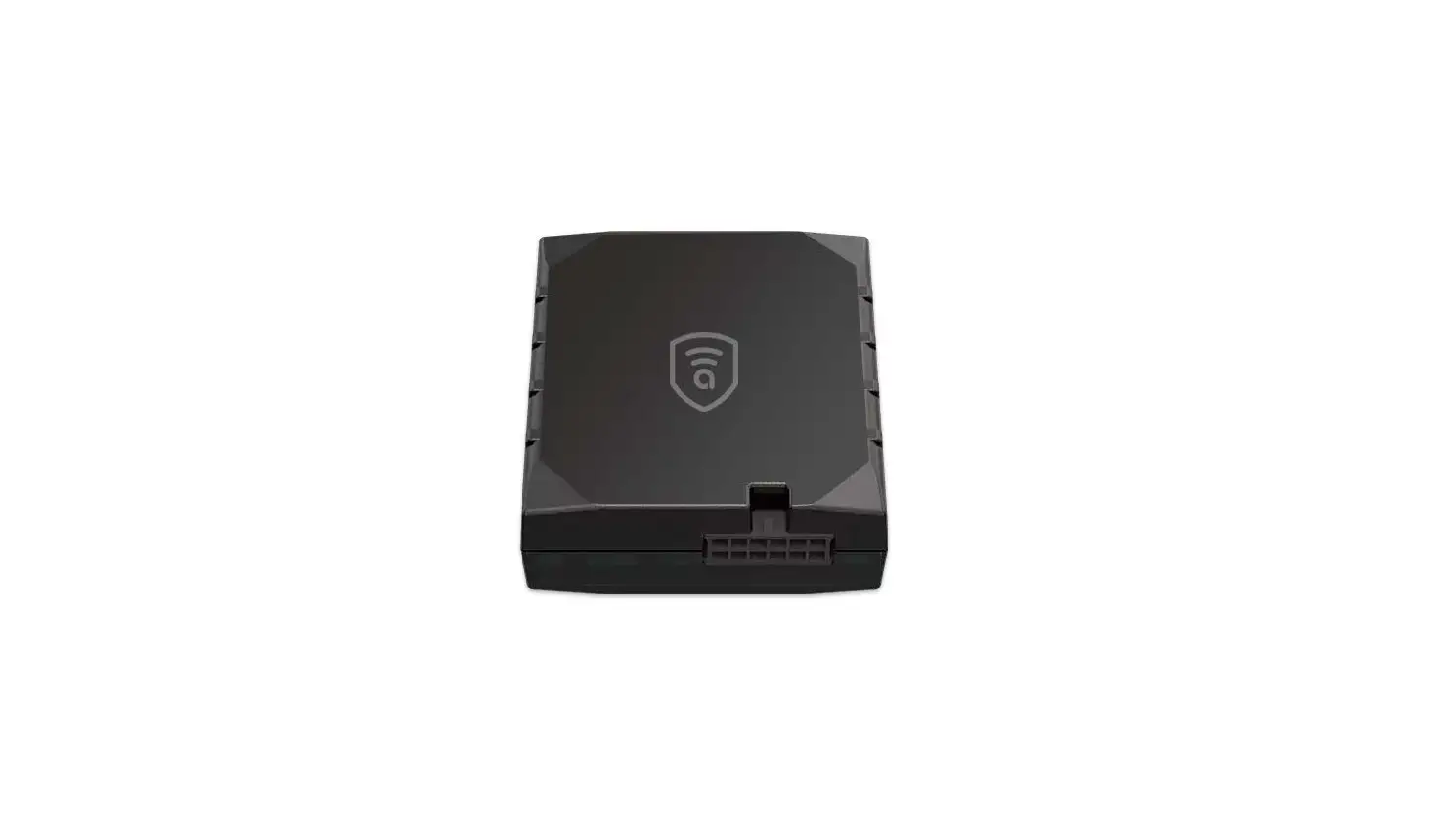

amber connect APC401 Advanced LTE Telematics Device
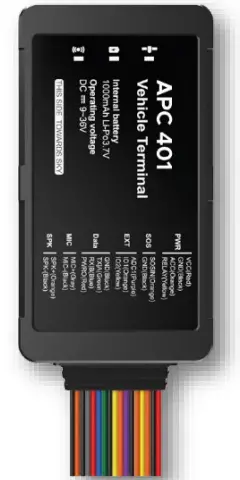
Quick Start Guide
APC401
Amber Power C401 Advanced LTE Telematics Device
Product overview
Position tracking
- GPS & LBS positioning
- Real-time location query
Anti-theft
- Ignition detection
- Power/Fuel cut-off
- SOS emergency call
- Power supply disconnection alert
- Geo-fence alert
- Towing alert
- Vibration alert
Configurable peripherals
- Vehicle door status alert
- Turn light/buzzer triggering
- Fuel level monitoring
- Temperature monitoring
- Driver behavior monitoring
Specification
|
Frequency | APC401-E: LTE-FDD: B1/B3/B7/B8/B20/B28 LTE-TDD: B34/B38/B39/B40/B41 GSM: 850/900/1800/1900MHz APC401-LA: LTE-FDD: B1/B2/B3/B4/BS/B7 /B8/B28 GSM: 850/900/1800/1900MHz |
| GNSS Type | MTK all-In-one multi-GNSS SOC |
| Sensitivity | Cold start: <32s Hot start: <1s |
| Position Accuracy (CEP50) | Autonomous: <1Om |
| Dimensions | 106mm x 56.8mm x 22mm |
| Weight | 104g |
| Backup Battery | Li-Polymer, 300 mAh |
| Operating Voltage | 9V to 36V DC |
| Operating Temperature | -30°C to +85°C for storage |
| Transmit Protocol | TCP |
Product setup 
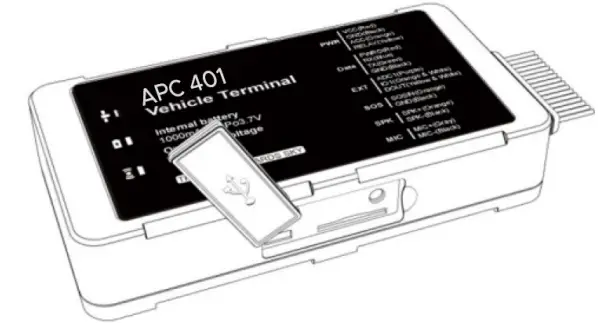
Insert SIM
Remove the soft plug on one side of the device and insert the SIM card into the card slot.
Power on & off
Toggle the power switch besides the SIM slot to power on or off the device.
LED indications
Power Status (Red}
| Behaviour | Meaning |
| On for 0.1 s and off for 1 s | 0%~20% remaining battery |
| On for 0.1 s and off for 4s | 20%~100% remaining battery |
| Solid on | Power supply connected |
GNSS Status (Blue}
| Behaviour | Meaning |
| On for 0.5s and off for 0.5s | GNSS synchronizing |
| On for 2s and off for 4s | Positioning |
| On for 0.1 s and off for 4s | Positioned |
| Off | GNSS module is in sleep mode or not working |
Wireless Network & SIM Card Status (Green}
| Behaviour | Meaning |
| On for 0.5s and off for 0.5s | SIM card not recognized |
| On for 2s and off for 4s | Registered but no inbound acknowledgement |
| On for 0.1 s and off for 4s | Network connected |
| Off | No signal received or no SIM card detected |
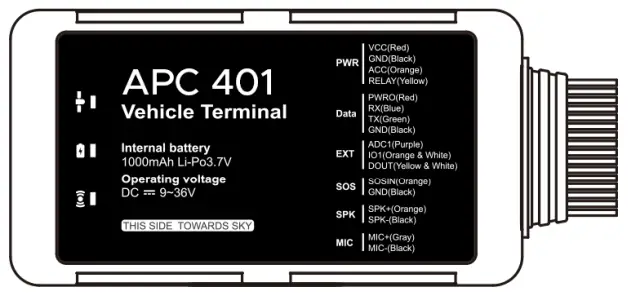
Interfaces
| PWR | Red | DC 9 to 36v input |
| Black | GND | |
| Yellow | Relay control to cut vehicle fuel support | |
| Orange | Vehicle ignite 12v/24v detection |
| PWR | Red | DC 9 to 36v input | ||||
| Black | GND | |||||
| Yellow | Relay control to cut vehicle fuel support | |||||
| Orange | Vehicle ignite 12v/24v detection | |||||
| TTL | Blue | TTL TX | ||||
| Green | TTL RX | |||||
| Red | DV 5v output max.500mah | |||||
| Black | GND | |||||
| EXT | Purple | Analog detect 0v to 30v |
| Orange | GND trigger digital input | |
| Yellow | Extend relay control |
| SOS | Orange | GND trigger digital input for SOS function |
| Black | GND |
| MIC | Brown | Microphone |
| Black | GND |
| SPK | Grey | Speaker |
| Black | GND |
Wiring indication 
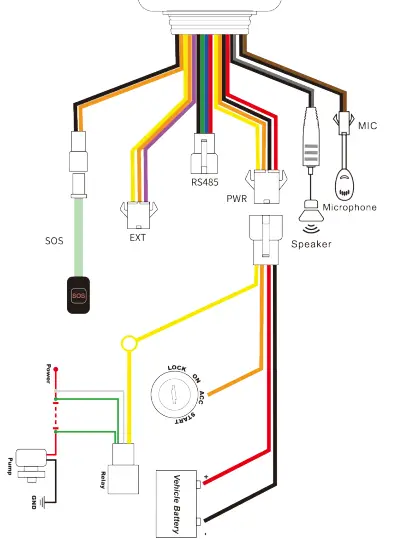
Power connection
The standard power supply ranges from 9V to 36VDC.
During installation, negative side should connect to the ground. Do not connect with other ground wires simultaneously.
Ignition wire
ACC line (orange) connects to vehicle’s ACC, detecting ignition.
Be sure to check if it’s a real ignition wire Le. power does not disappear after starting the engine.
Relay wiring
Relay’s white line (85) connects to the positive side of battery (12V) while the yellow line (86) connects to the device relay control (yellow line on the power cord).
Find the fuel pump in the vehicle and cut off its positive power line. The positive side of fuel pump connects to the green line (87a) while the side closing to starter motor connects to green line (30), as the below chart. Switch of the two green lines have the same effect.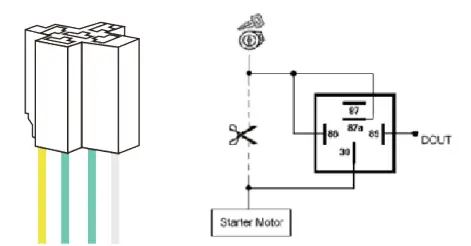
Configuration
If you need to change the setting of the device, you can either text the command to the device, or use PC tool from supplier.
Note:
Texting command might be filtered by local carrier network deployment. In this case you can text through web management center provided by the carrier.
Package & Standard accessories
- Standard package
- APC401 device
- Power cable
- 1/0 cable
- Relay (12V/24V)
- SOS button cable
Installation recommendation 
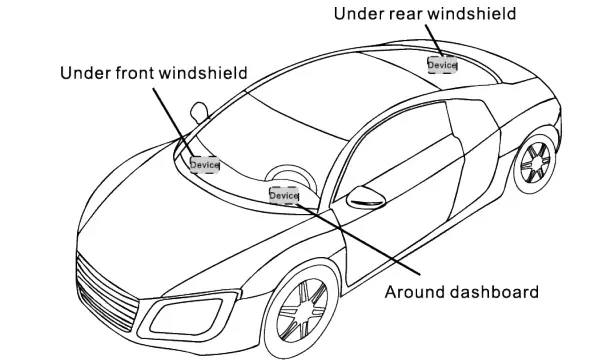
- The device should face up to the sky.
- Metal thermal barrier or heating layer of the windshield affects the signal.
Troubleshooting
| Type | Use |
| Unable to connect to tracking platform | Check the APN and IP settings. Check whether the data service of SIM card is enabled. Check the balance of SIM card. |
| Tracker shows offline | Check whether external power is still connected. Check if the vehicle entered network blind area. Check the balance of SIM card. |
| Unable to locate | Make sure the top side facing upward without metallic things shielded. Make sure it’s not in area with no satellite coverage. |
| Location drift | In area with poor GNSS signal (tall building around or basement), drifting may happen. Check whether vibration happens around to trigger the accelerator. |
| No command reply | Make sure command format is correct. Vehicle may be in network blind area. Make sure SIM card is well inserted and has SMS service. |
Warranty instructions
- The warranty is valid only when the warranty card is property completed, and upon presentation of the proof of purchase consisting of original invoice indicating the date of purchase, model and serial No. of the product. We reserve the right to refuse warranty if this information has been removed or changed after the original purchase of the product from the dealer.
- Our obligations are limited to repair of the defect or replacement the defective part or at its discretion replacement of the product itself.
- Warranty repairs must be carried out by our Authorized Service Centre. Warranty cover will be void, even if a repair has been attempted by any unauthorized service centre.
- Repair or replacement under the terms of this warranty does not provide right to extension or renewal of the warranty period.
- The warranty is not applicable to cases other than defects in material, design and workmanship
Need help? Contact 24/7 live support!
[email protected]
Chat via website www.amberconnect.com
Scan this OR code to download your App C2022 Amber Connect Limited. All rights reserved