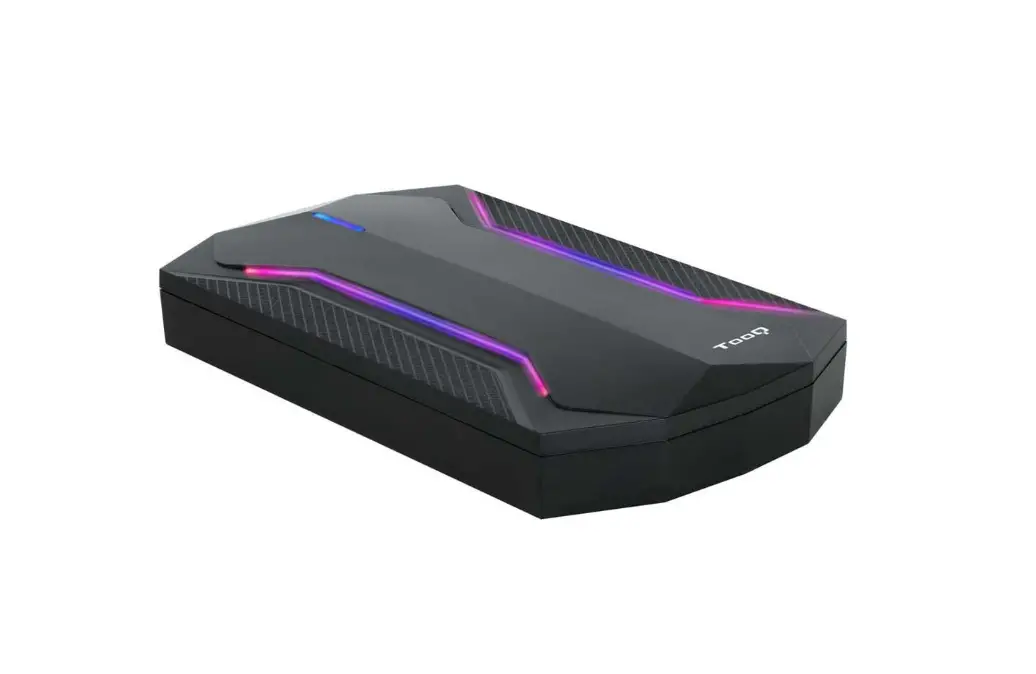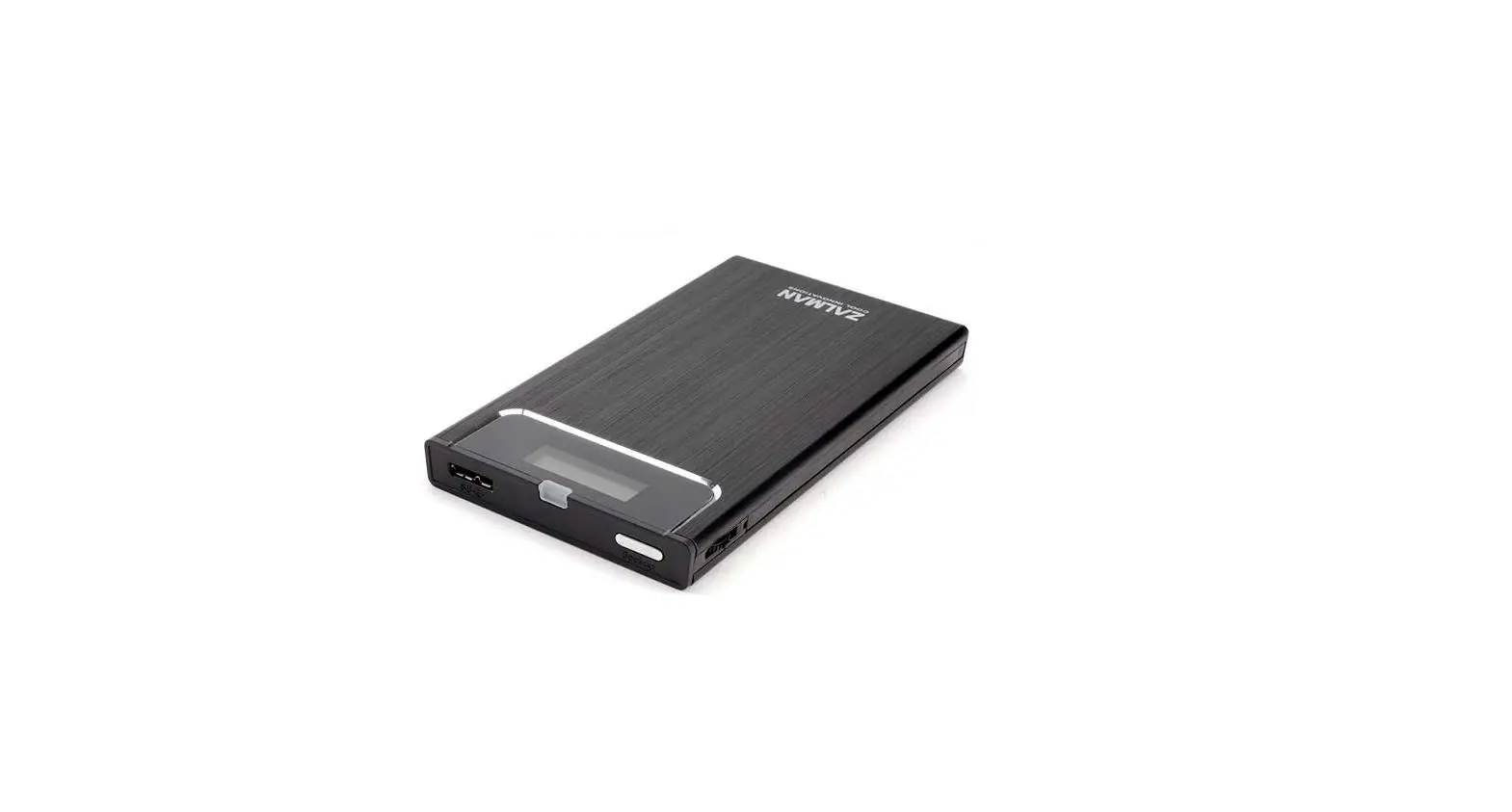

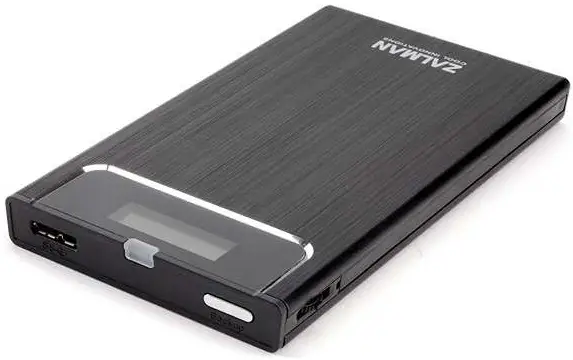
ZALMAN ZM-VE350 2.5 Inch HDD Case
Precautions
- We are not responsible for any damages due to improper use, except installation error or normal use.
- Product design and specifications may be revised to improve quality and performance.
- Avoid inserting objects into the device.
- Keep device away from heat sources, direct sunlight, oil, and humid environment.
- Do not let the device be wet. It may not be covered by Warranty.
- It may have problem if used near magnetic objects.
- Exterior damage during use is not covered by Warranty.
- Do not turn on / off PC while device is connected to PC. It may cause device disorder or error.
Specifications
| Case Material | Aluminum Alloy, Acryl, Poly Carbonate |
| Weight | 96g |
| Dimensions | 135.3(L) x 78.6(W) x 13.1(H)mm |
| Interface | USB 3.0 |
System Requirements
- CPU: Intel Pentium / 350 MHz or above compatible CPU
- OS: Windows 2000/XP/vista/7/8/8.1, Linux 2.6 or later, Mac OS X 10.0 or later
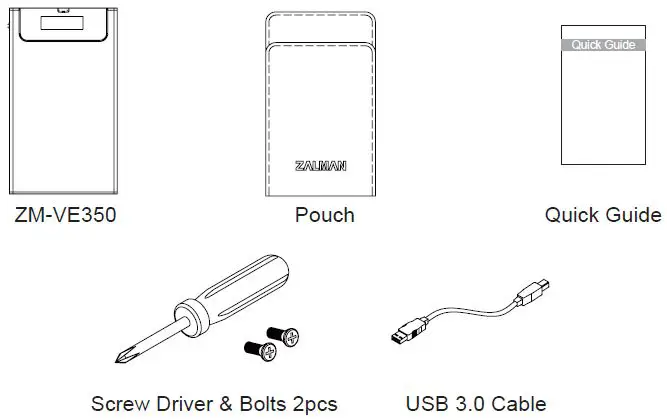
Components
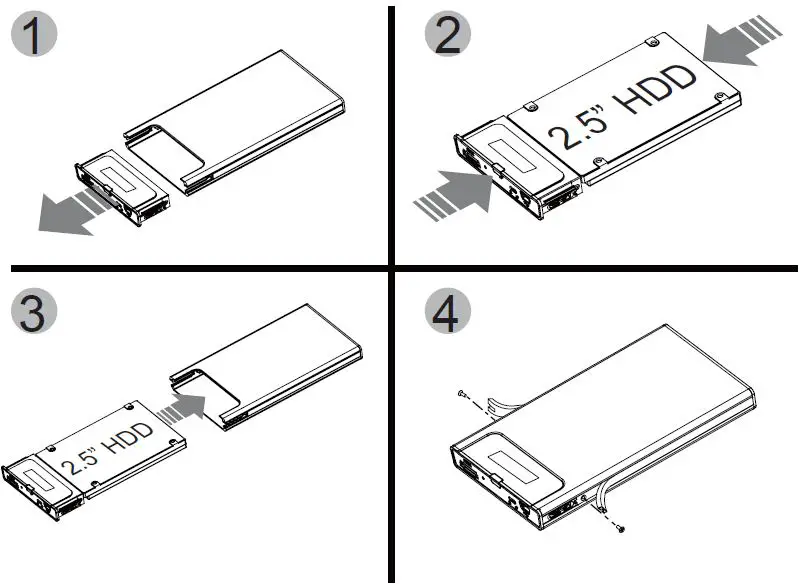
Mounting a 2.5” HDD
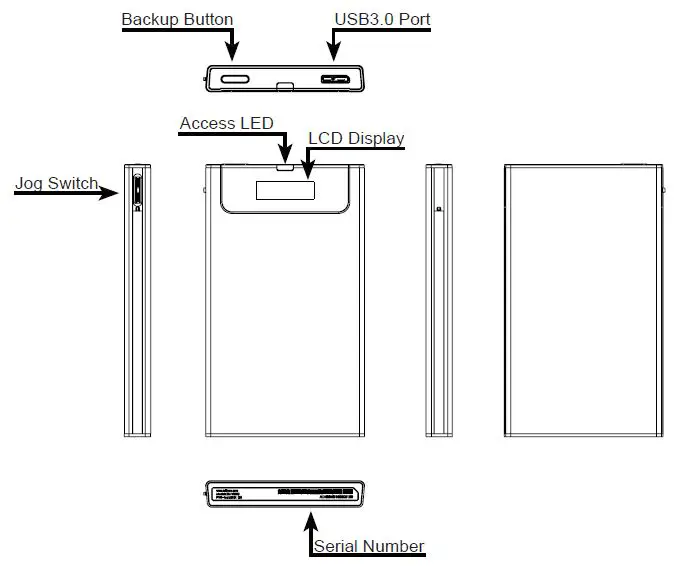
Names of Parts
Connecting to PC
Connect device to PC’s USB3.0 port using enclosed USB3.0 cable. When disconnecting, please use “Hardware Safety Removal” on tray of the O/S.
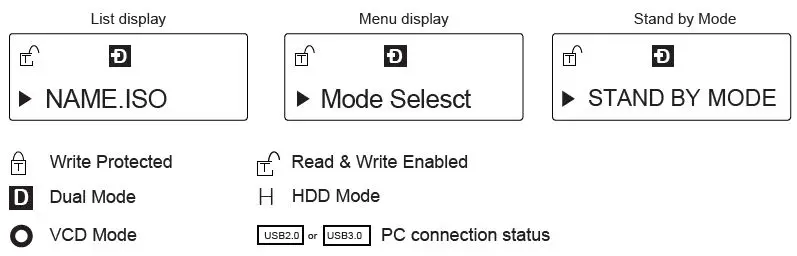
Display and Icon
Using Jog Switch
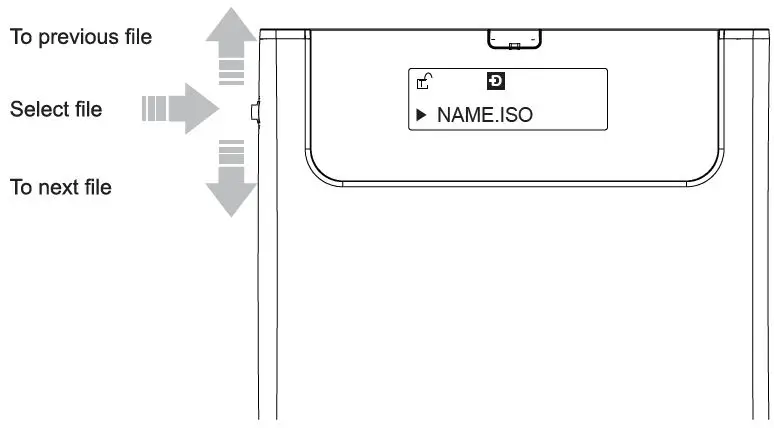
- To use Virtual ODD, iso file must be located in the “_iso” folder of the device.
- Enter into menu mode if Jog switch is pressed for 3 seconds.
- If you wants to use the backup software for MS O/S, you can download the software via the Zalman web page(www.zalman.com).
Main Menu
| Mode Select | > | Device Mode setting |
| Information | > | Check HDD information and firmware information |
| W-Protection | > | Disable Write Protection / Enable Write Protection |
| Exit | > | Menu Exit |
Mode Select (“ν”is shown in the selected mode)
Dual Mode | Both of external HDD and CD-ROM are recognized | ||
| VCD Mode | | ExternalCD-ROM is recognized. (Useful when OS installing) | |
| HDD Mode | External HDD is recognized. (Useful when connecting other devices except PC) | ||
Information
| HDD Temp | > | Hard disk SMART information |
| HDD Health | > | Display HDD health info (Good, Bad) – If bad is shown is shown, please check HDD carefully after backup data. |
| HDD Model Name | > | —— |
| Firmware Ver. | > | Display device firmware version |
| Exit | > | Menu Exit |
 zalman.com