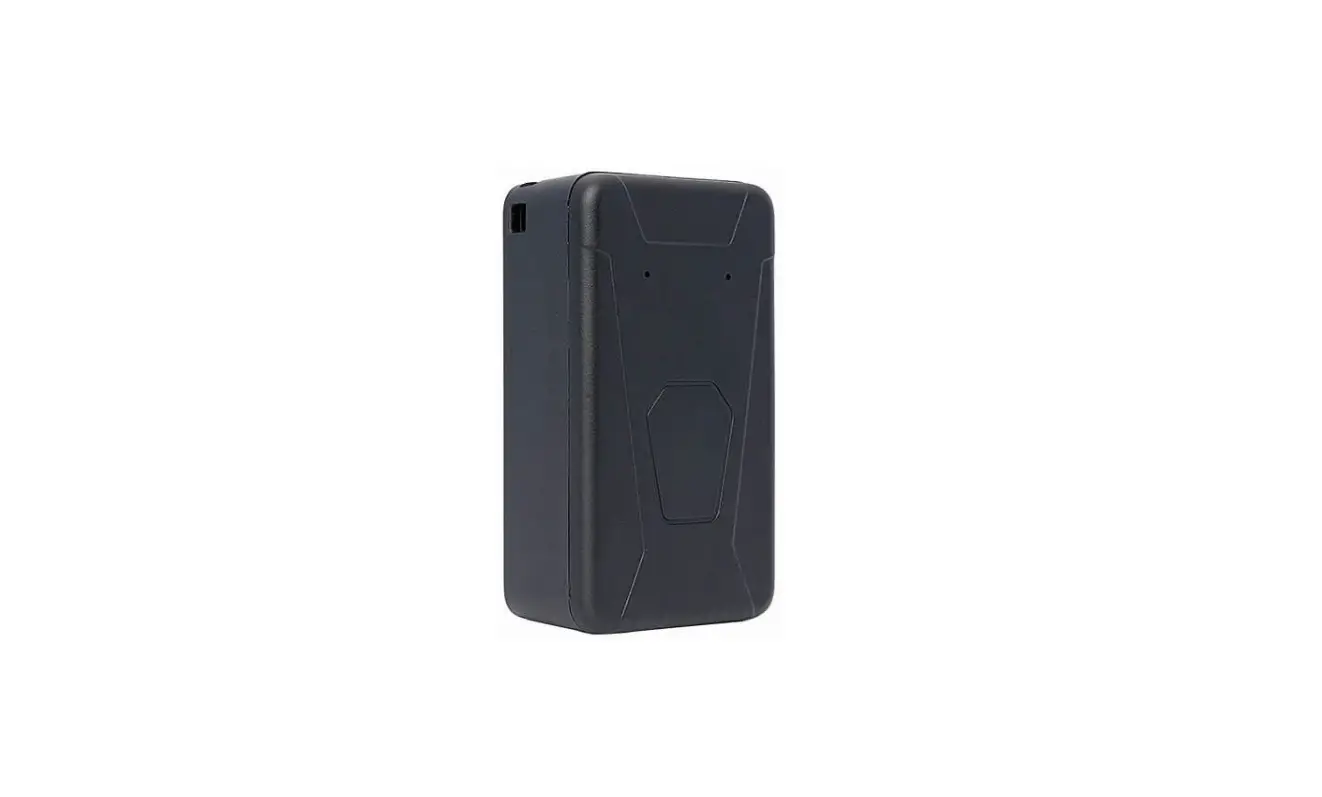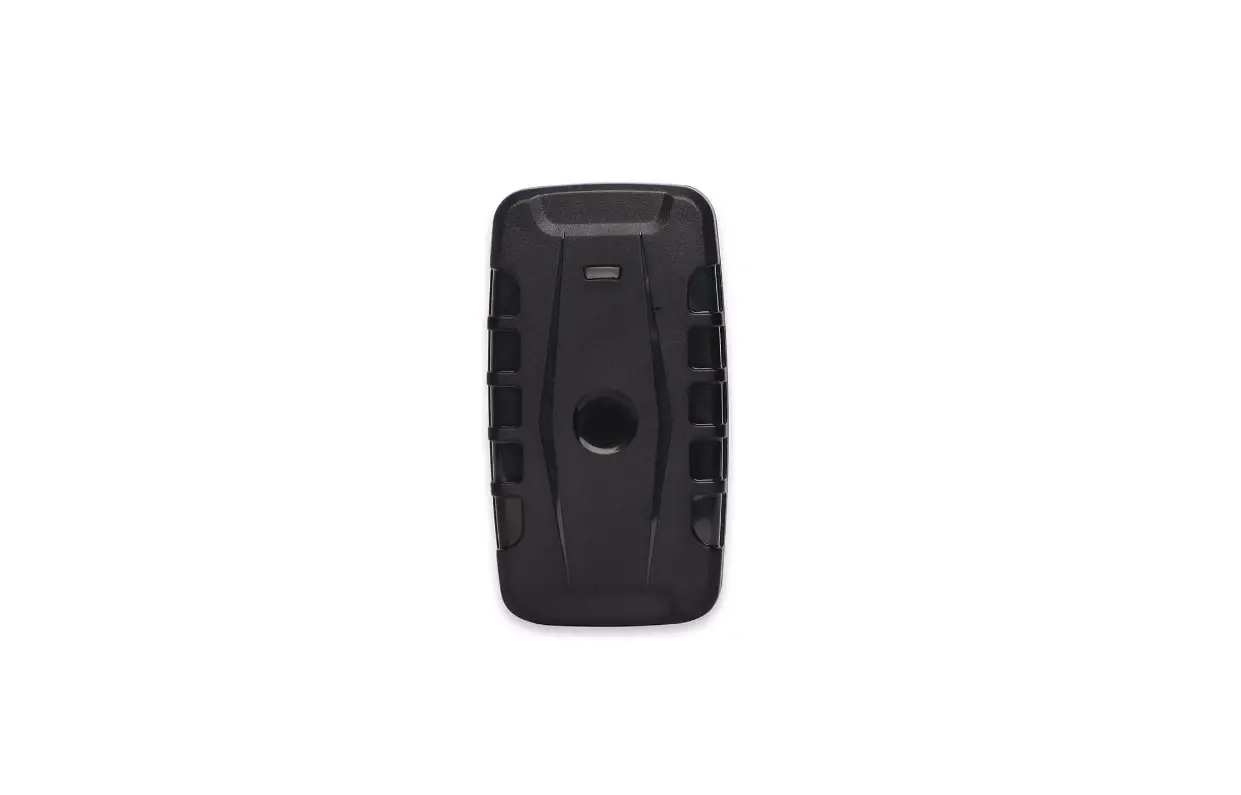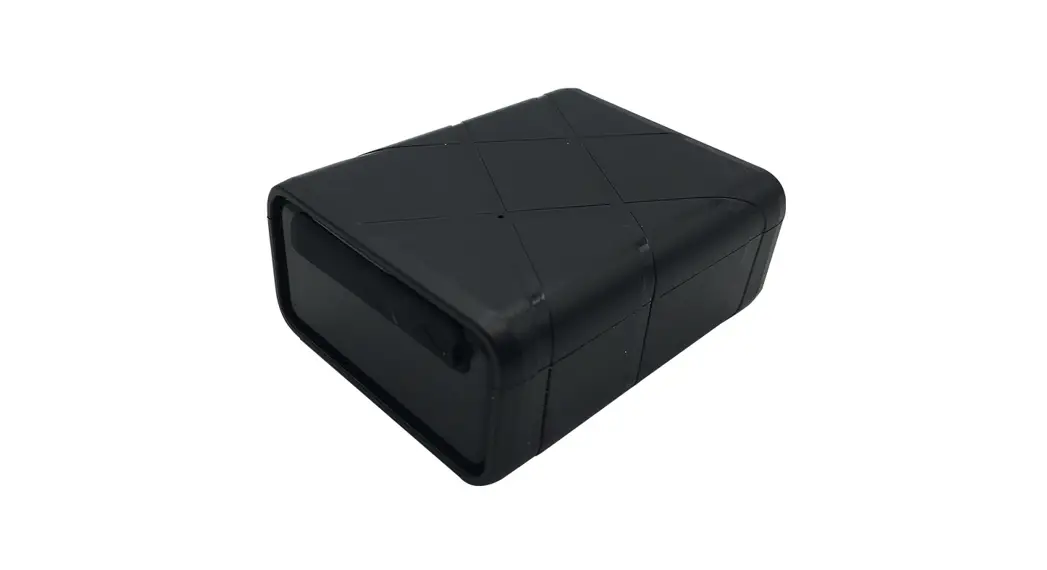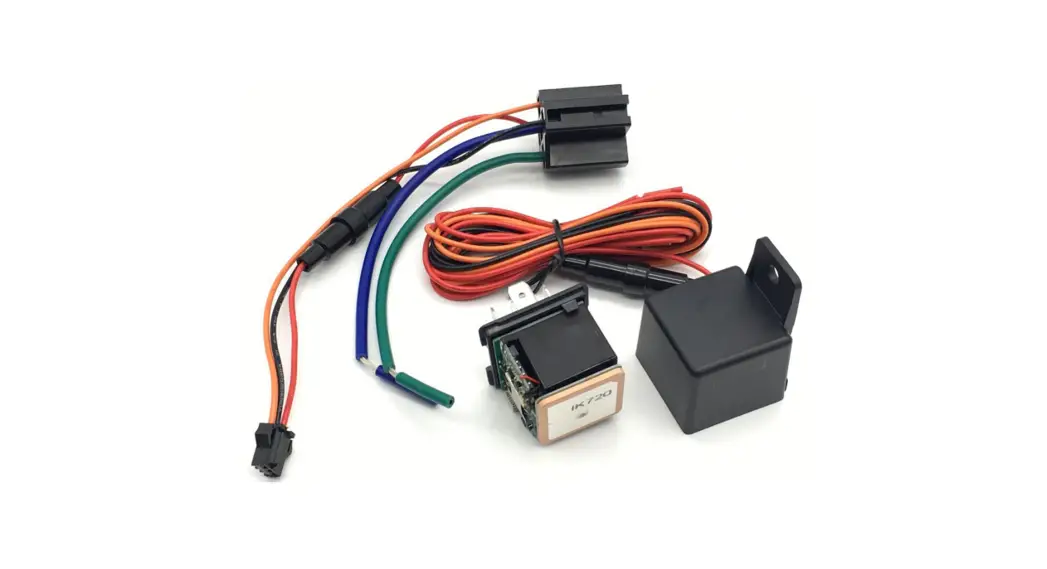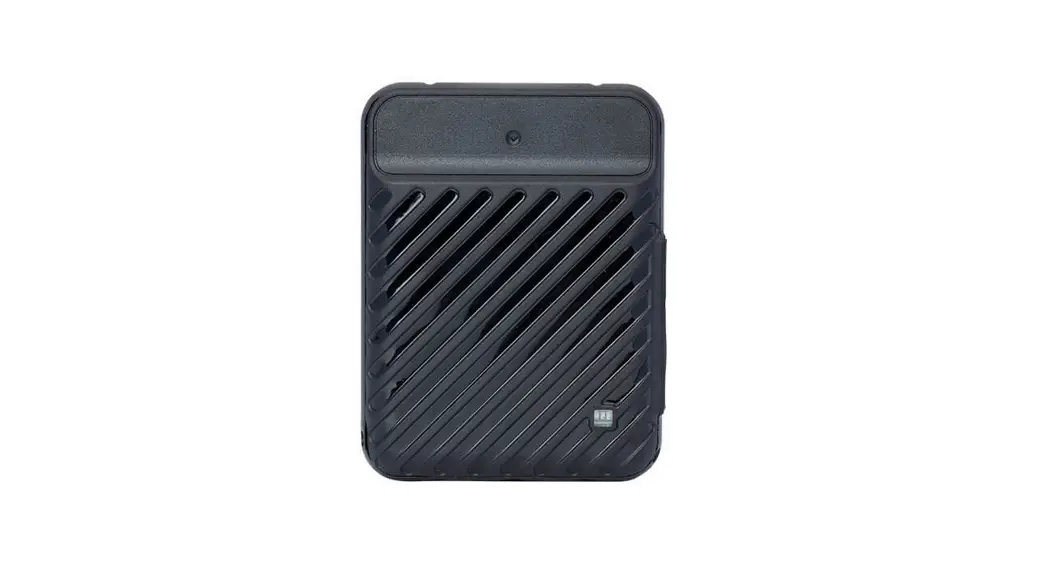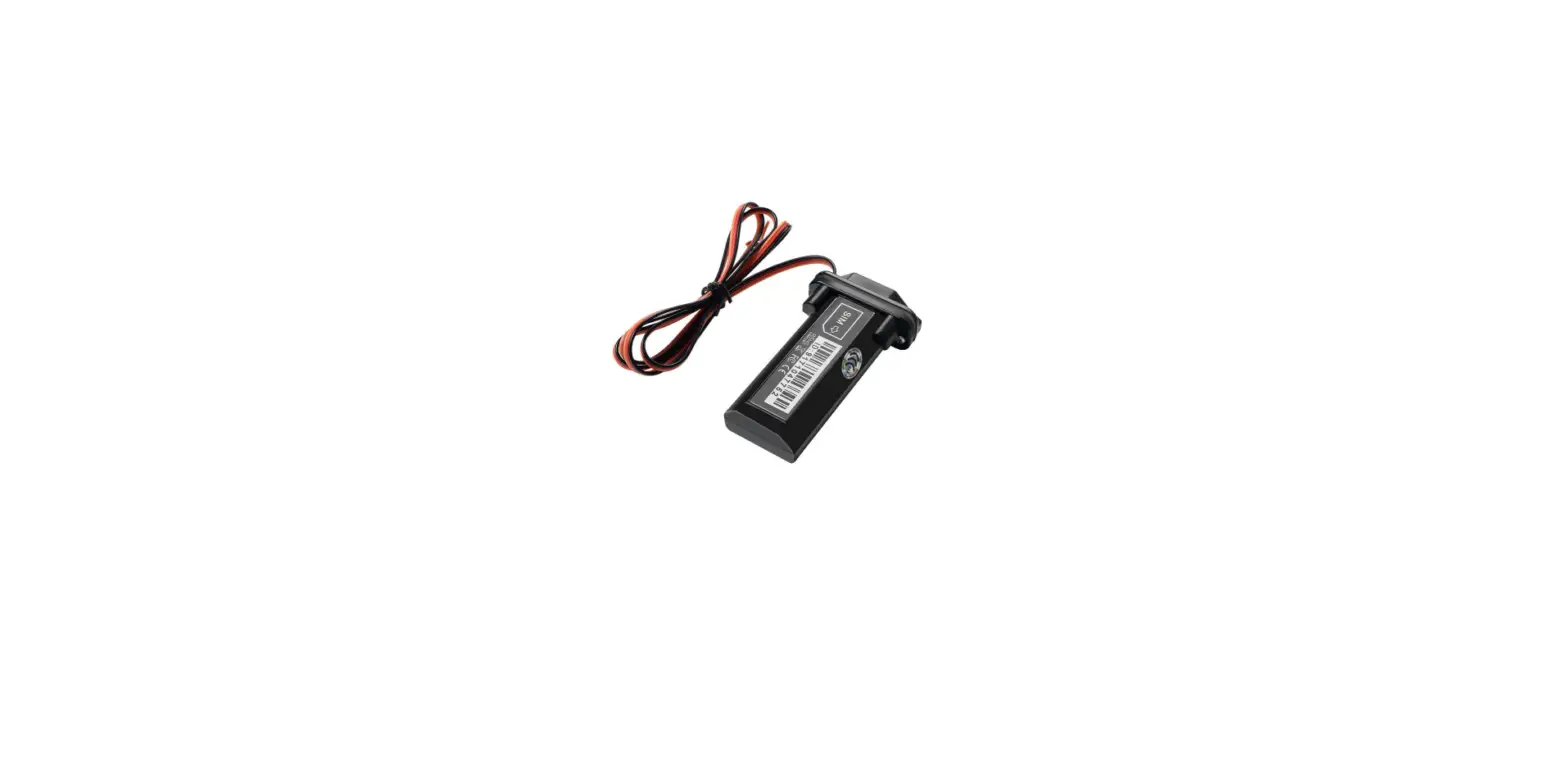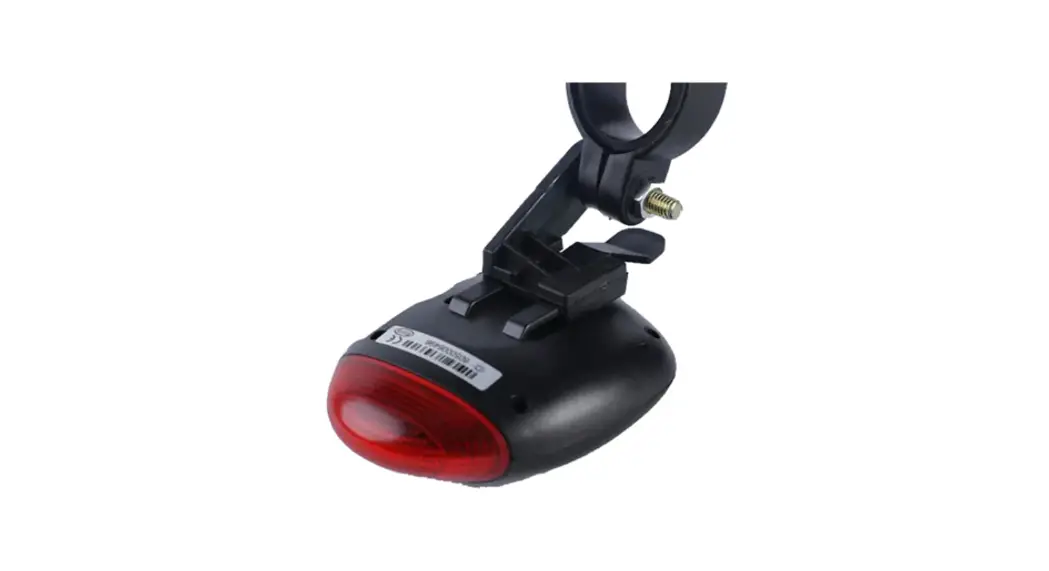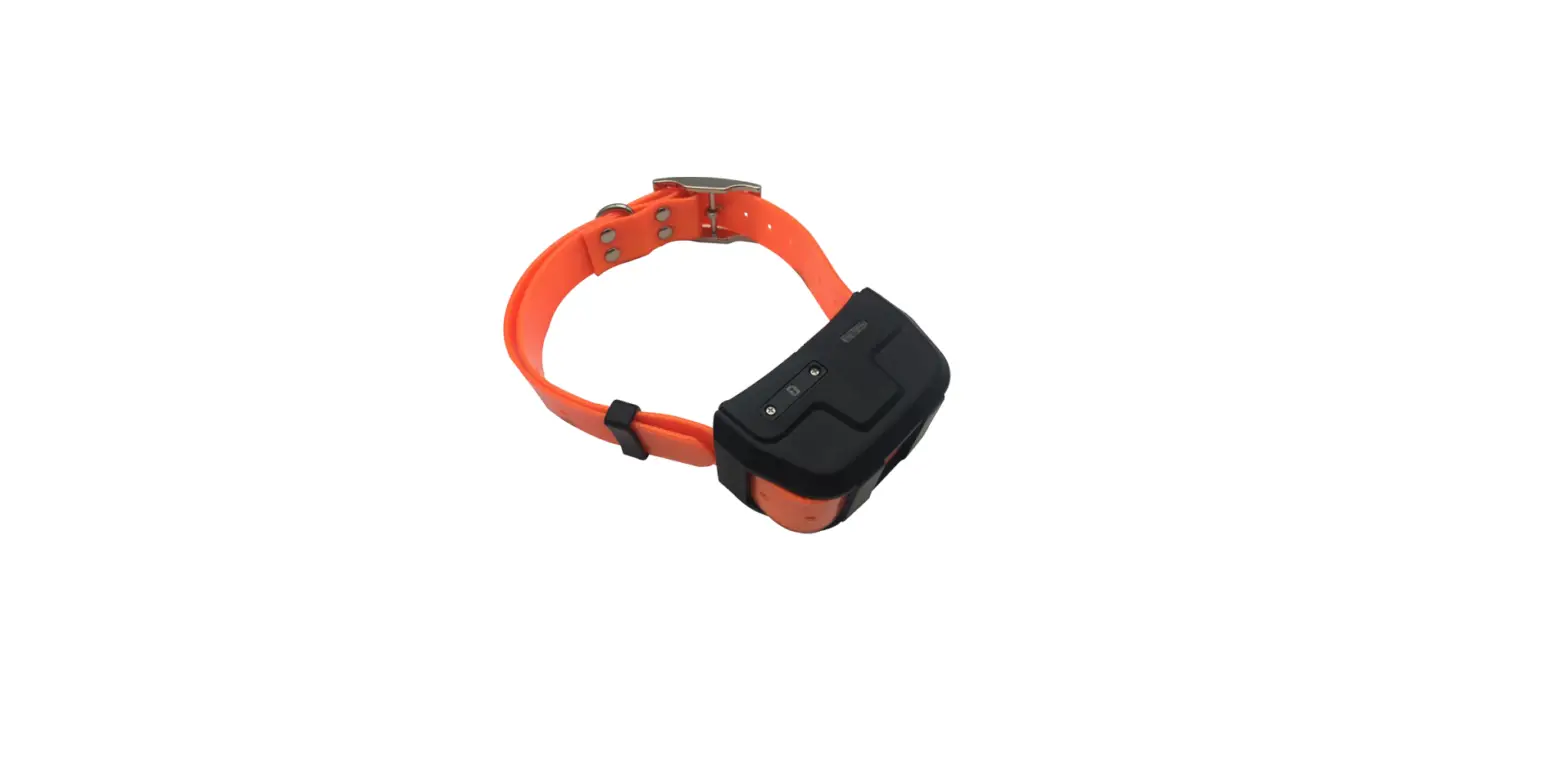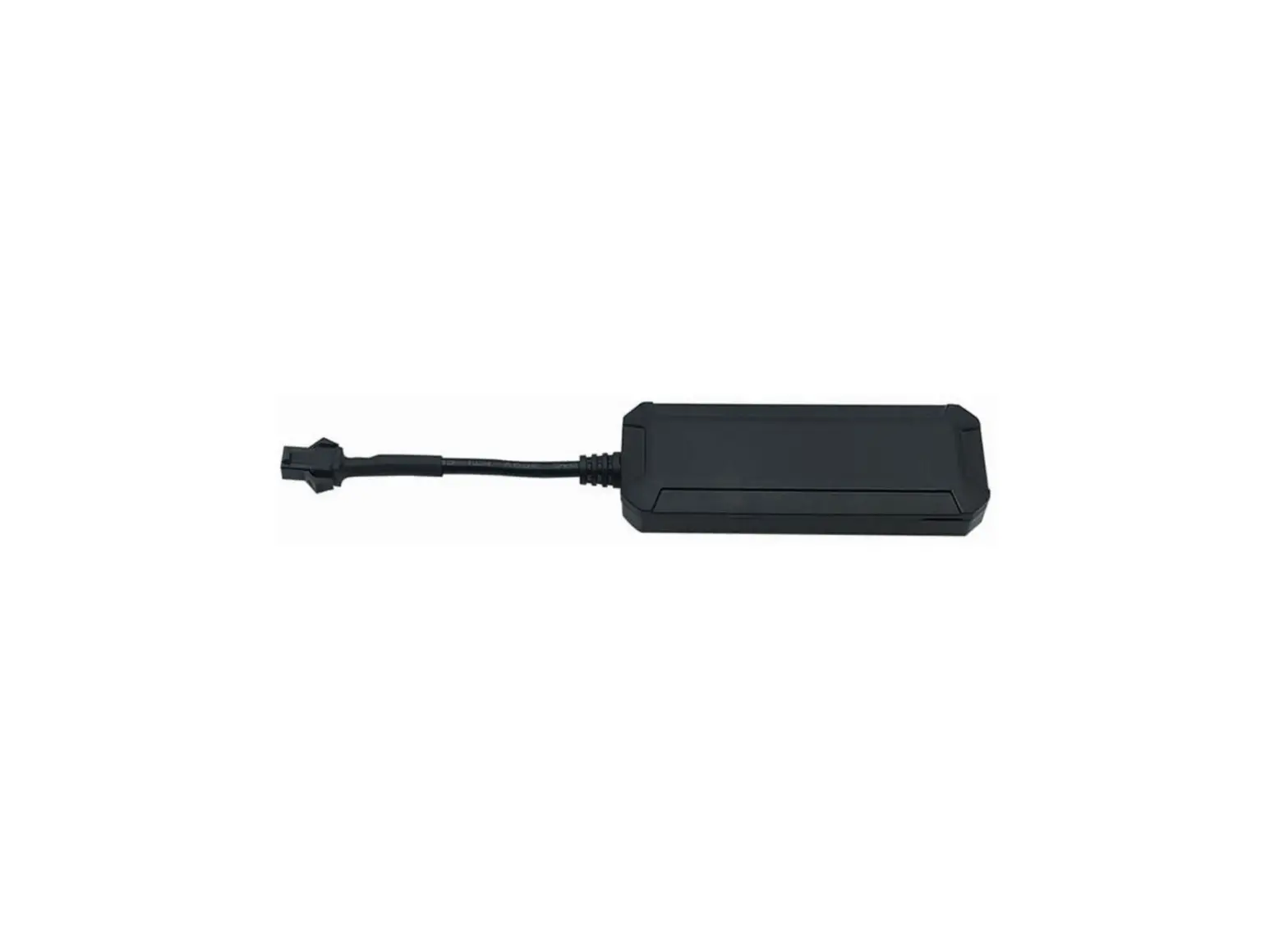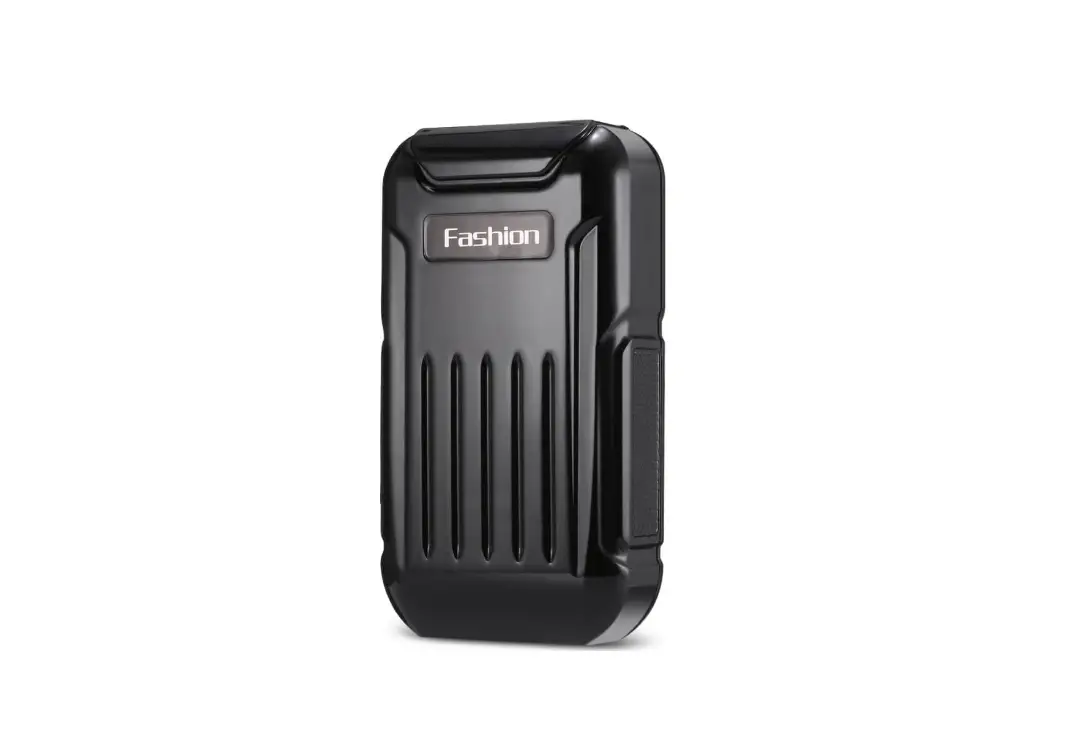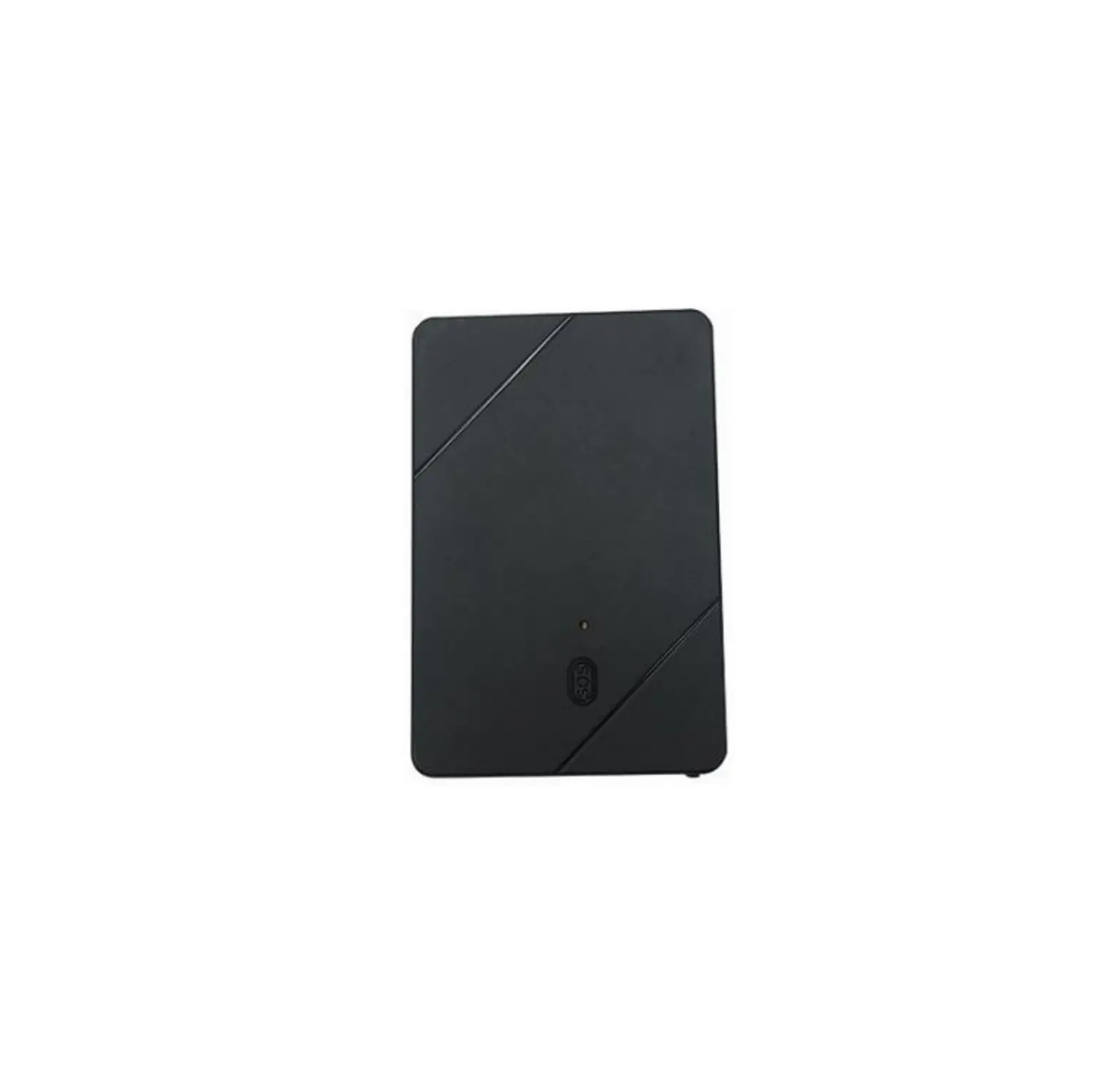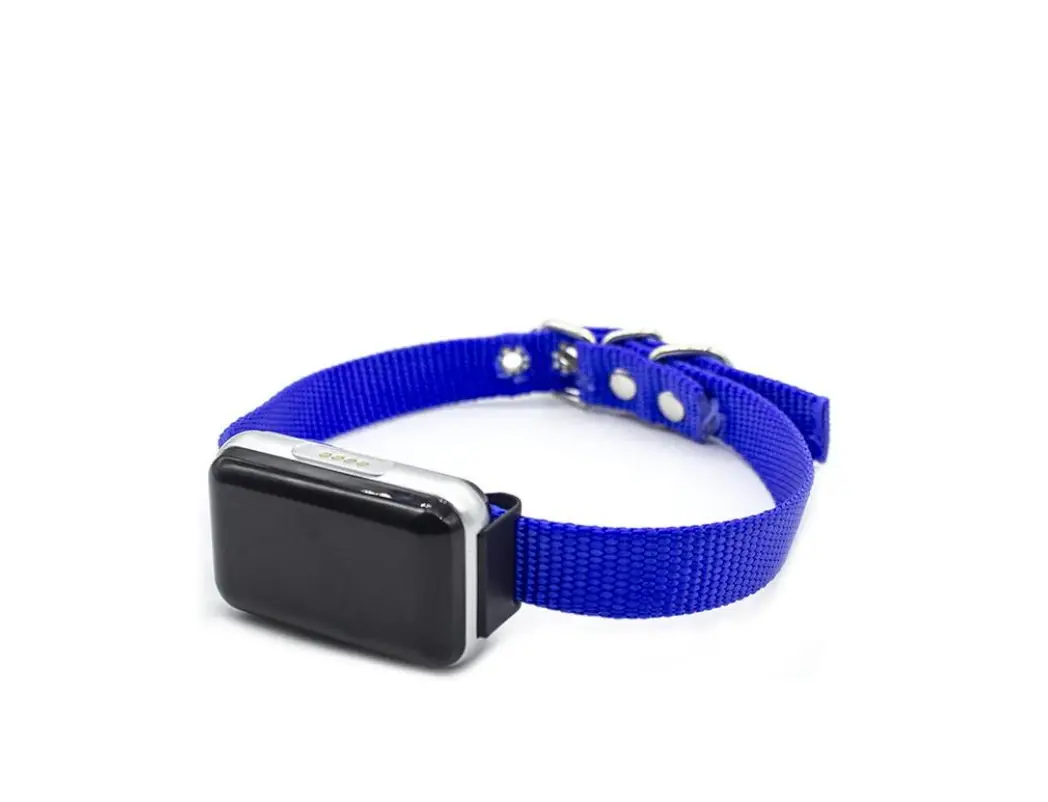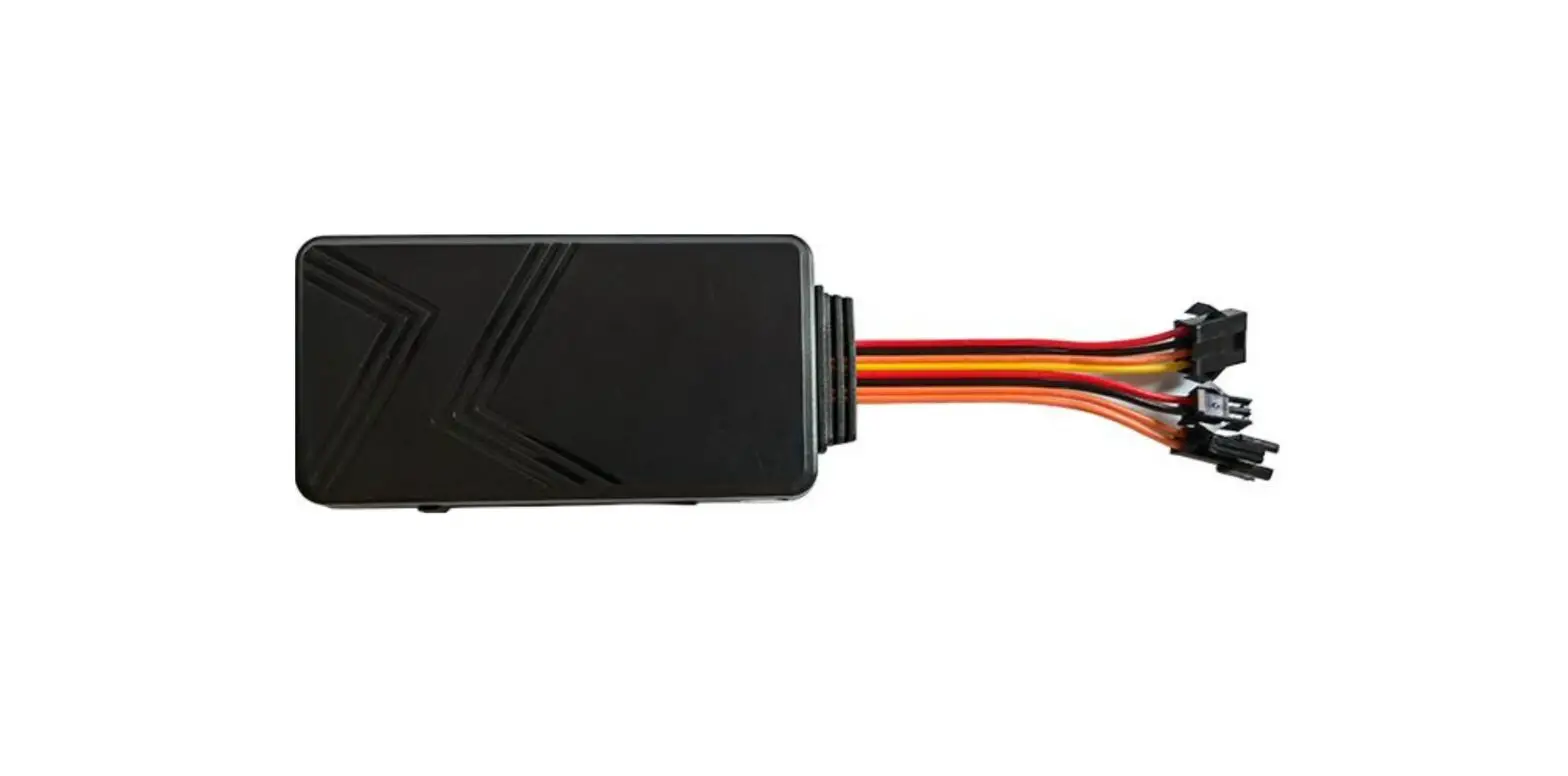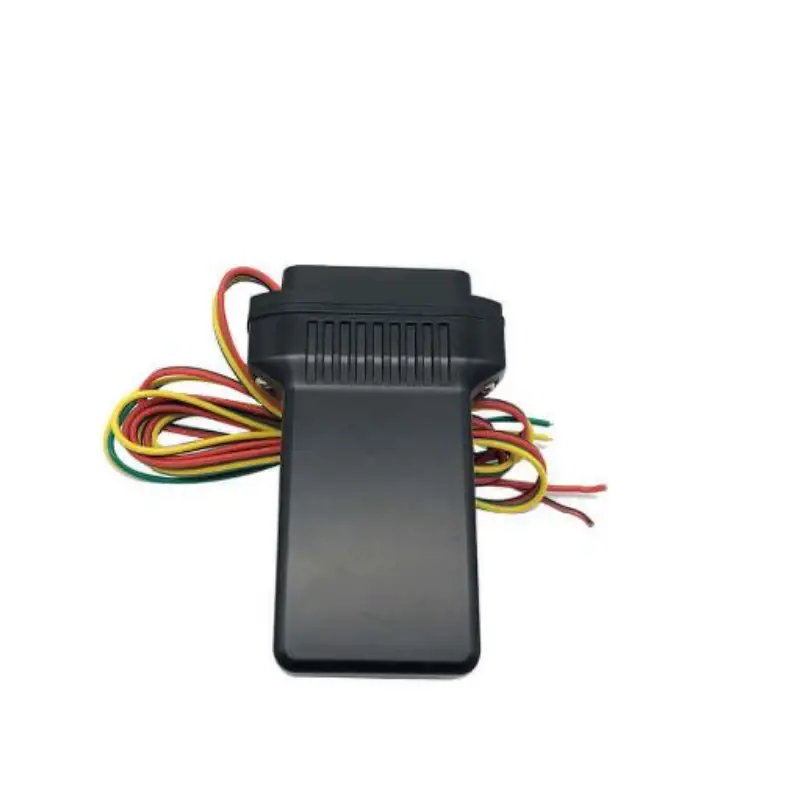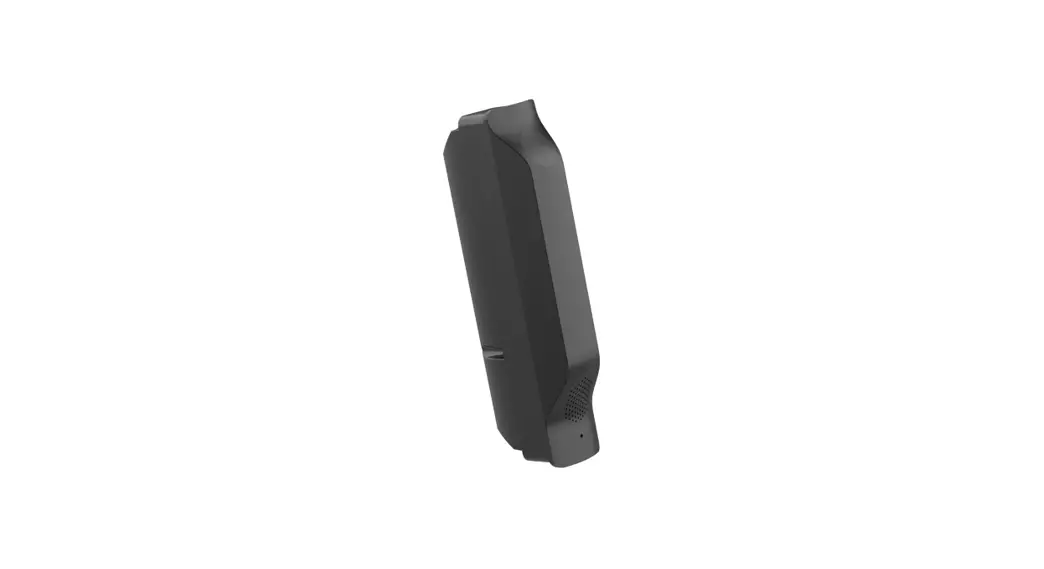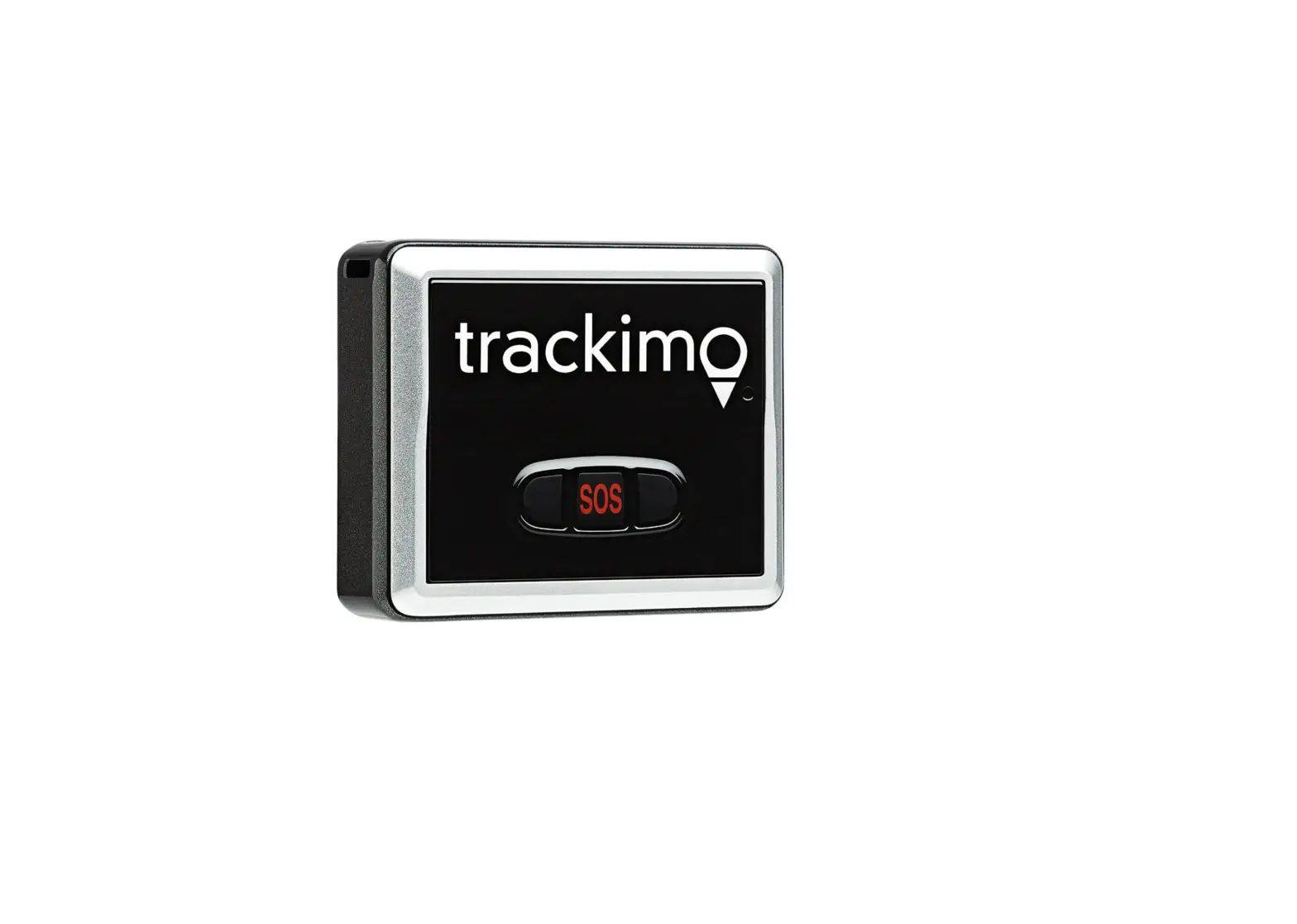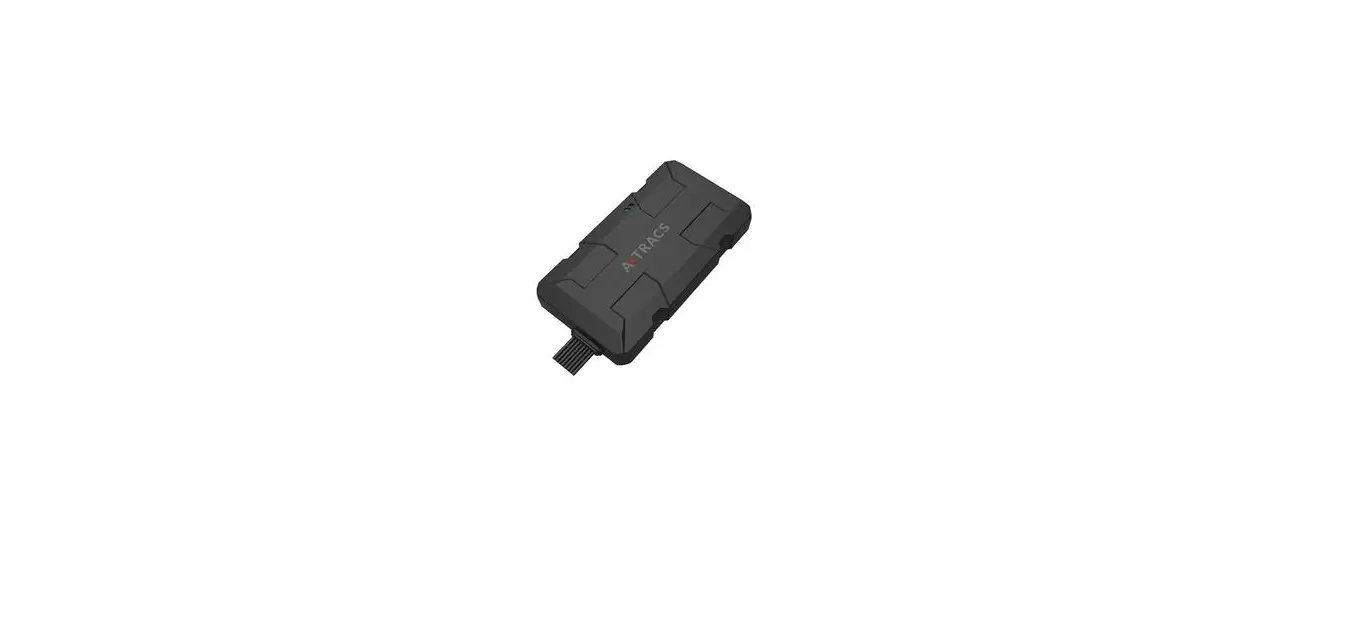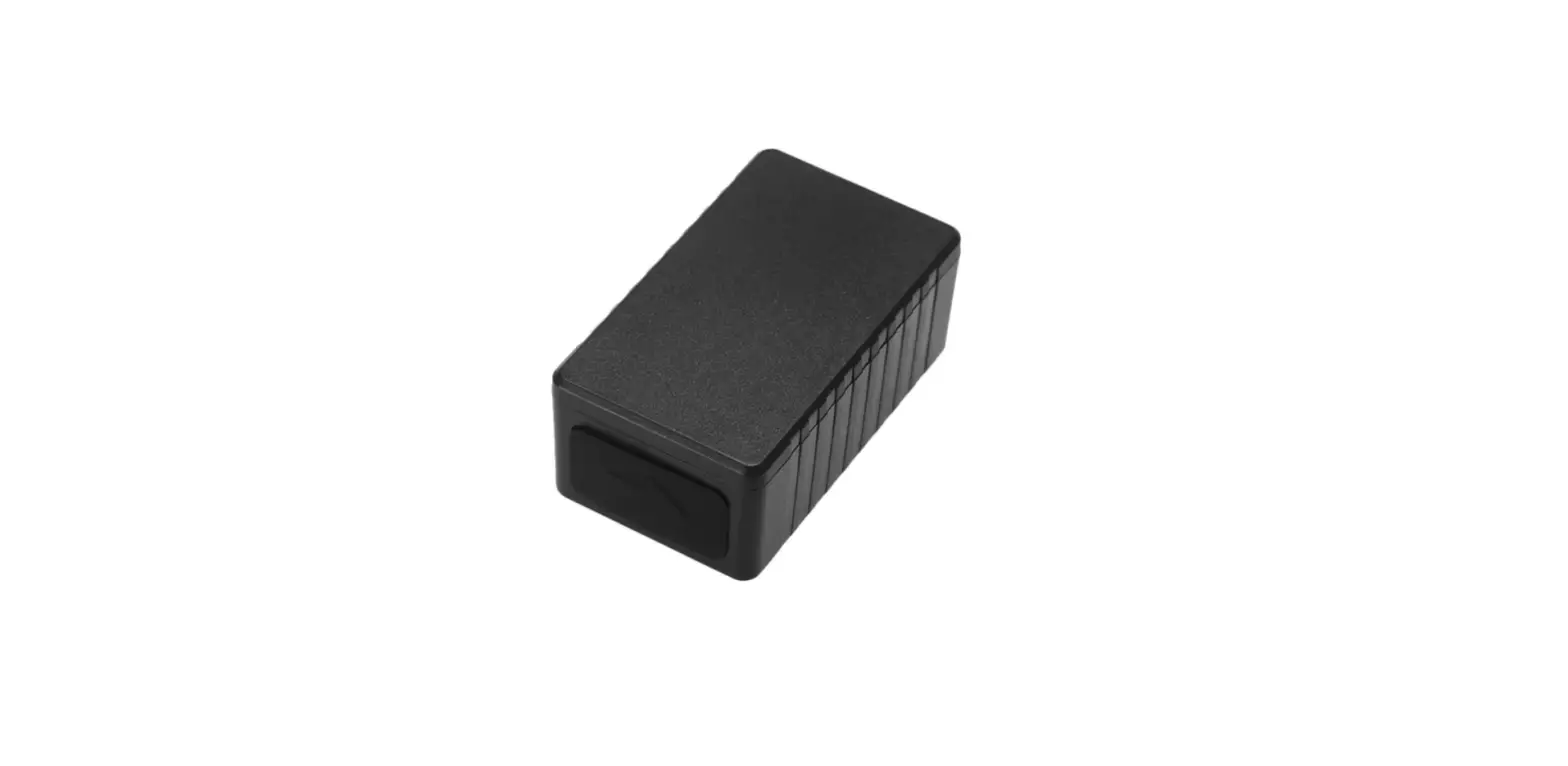

icar IK206 GPS Tracker
Preface
Congratulations on choosing the car GPS IK206 asset GPS tracker. This manual shows how to easily program and set up the tracker for the best results. Make sure to read this manual carefully before using this product, so as to avoid delays or confusion with its operation. Please note that specifications and instructions are subject to change without notice to facilitate product improvement. Updates and changes will be integrated into the latest release. The manufacturer assumes no responsibility for any errors or omissions in outdated documents.
Overview
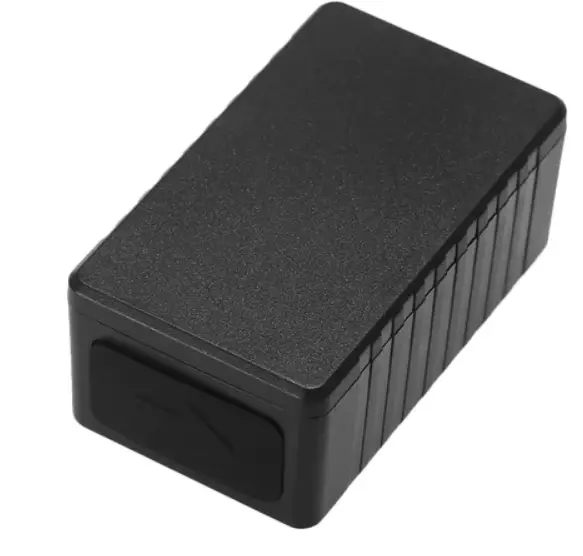
IK206 is an Asset GPS tracker.
Features
- Real-timing tracking
- GPS+AGPS+LBS+GLONASS Positioning
- History record check
- Geo-Fence alarm
- Low battery alarm
- Shock Alarm
- Power saving mode
- PC & Mobile App tracking
- Long standby time
- IP67 Water resistant
Applications
- Bag tracking
- Luggage tracking
- Cow tracking
- Goat tracking
Specifications
| Item | Specifications |
| Dimension | 48*27*21 mm |
| Weight | 41g |
| Charging mode | USB charging DC 5V |
| Backup battery | 3.7 V 1000mAh |
| Power consumption | 40mA standby current |
| Working temperature | -20°C to 65°C |
| Item | Specifications |
| Cellular Bands | GSM: 850/900/1800/1900Mhz |
| Positioning | GPS, AGPS, LBS |
| Tracking Sensitivity | -162 dBm |
| Sensor | Accelerometer |
| LED | RED/GREEN/BLUE |
| SIM Card interface | Micro SIM |
| Waterproof | IP67 |
IK206 interface
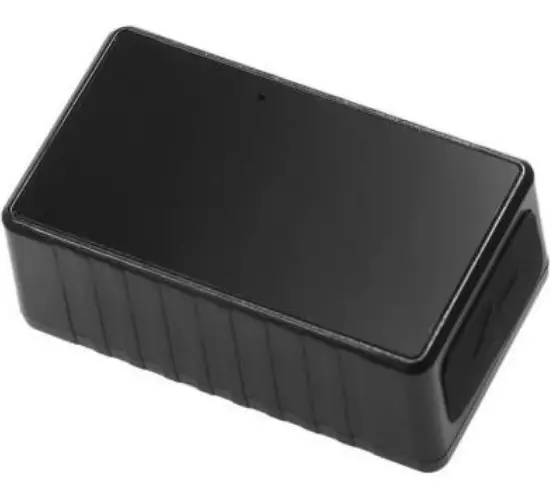
In the box
- 1* IK206 GPS Tracker
- 1* charging cable
- 1* Quick Start Guide
Installation
SIM Card installation
- Get ready for a Micro Sim Card that supports GSM&GPRS with 30MB data per month
- Open the housing with a screw driver
- Insert Sim card to sim card slot correctly
- Press the power button for 3 seconds to power ON (green led will blink).
- After that, the device will be ready.
LED Indications
| Fix | Flash | Off | |
| Green Light | GSM/GPRS conversation start | No GPRS signal | Power off or in sleep mode |
| Blue Light | GPS location successful | No GPRS signal | Power off or in sleep mode |
| Red Light | charging | Full battery or charged full |
SMS Commands List
| Function | Command Format | Reply | for example |
|
APN | apn+123456+space+content | apn ok | apn123456 cmnet |
| apnuser+123456+space+content | apnuser ok | ||
| apnpasswd+123456+space+content | apnpasswd ok | ||
| admin number | admin123456+space+admin phone nu mber |
admin ok |
admin123456 186******** |
| Domain | IP+space+domain+space+port | Set IP ok | IP www.icargps.net 7700 |
| upload frequency | FREQ,123456,30 | OK | FREQ,123456,30 |
| Voice monitor | 88 | Monitor OK | 88 |
| Position | G123456 | Google map | |
| Restart GPS | CQGPS | GPS reset OK! | CQGPS |
| Restart Devic e | CQ | system reset OK! | CQ |
| Check | CXZT | details of device | CXZT |
| Back to facto ry | Format | OK |
App & PC Tracking platform
App install & Login
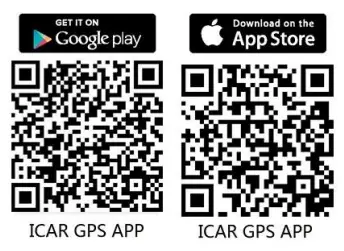
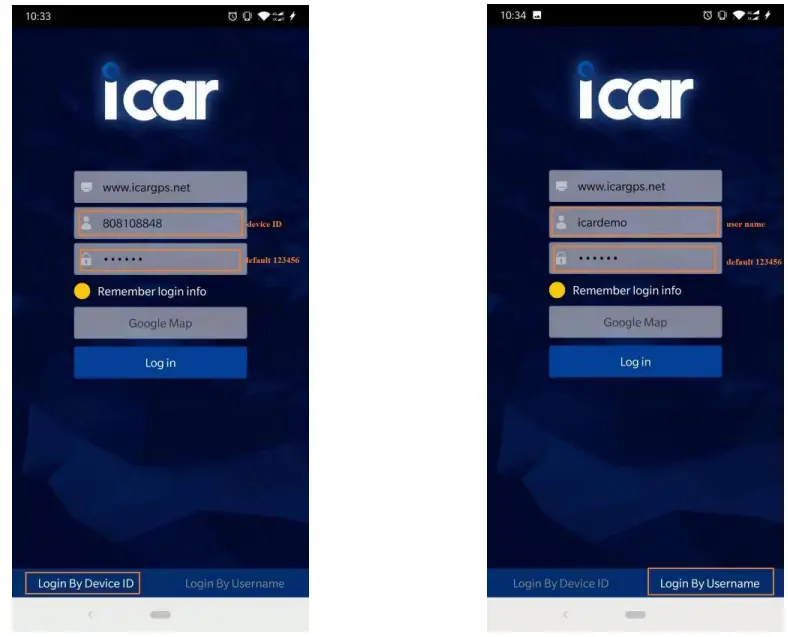
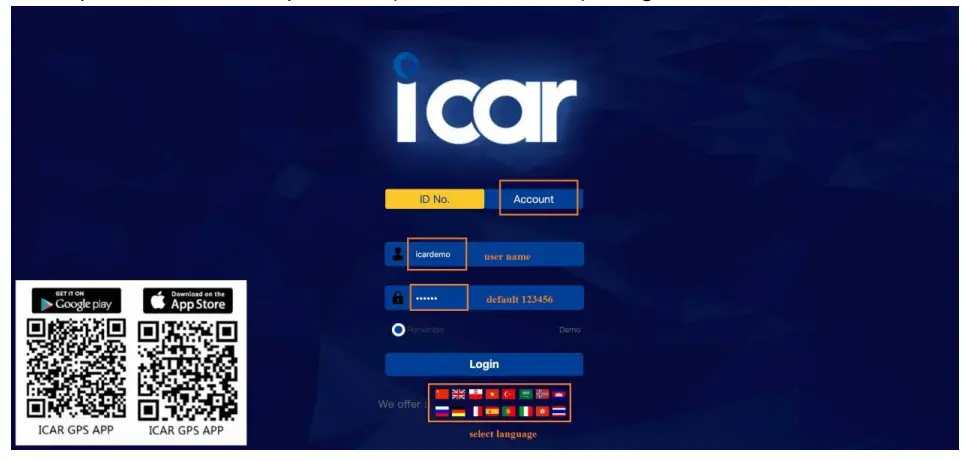
- Search “ICAR GPS” in Google Play or iOS store(or scan the following QR code) to download the Mobile APP;

- Choose the” Login by Device No.,
- Input your device’s ID number and password(default is 123456) to login.

- Choose the” Login by Device No.,
- Input your device’s ID number and password(default is 123456) to log in.
9.2 PC login
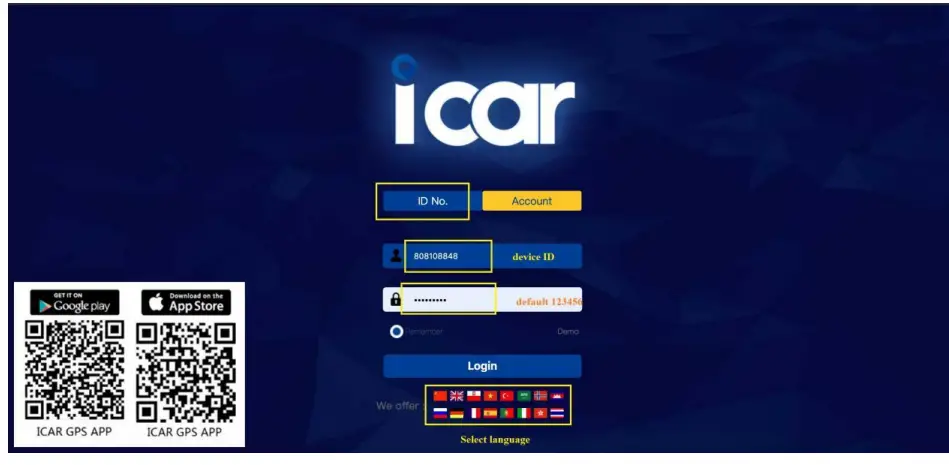
- Web: www.icargps.net, Choose “ID No.”
- Input your device’s ID number and password(default is 123456) to log in

- Web: www.icargps.net, Choose “Account”
- Input user name and password(default is 123456) to log in

FAQ
- Q: Start-up Fail?
- A: Check whether the device is powered on or not.
- Q: The device can not obtain location information.
- A: Place the unit in the open area to test.
- Q: How to choose a SIM card?
- A: The SIM card must support GSM&GPRS, and ensure that the card has enough currency and credit.
- Q: How to use it in foreign countries?
- A: Please set the APN before use, please edit the text “A PN123456 CMNET “ and send it to the SIM card of the device CMNET is the Chinese operator’s APN, Replace the corresponding APN when used in other countries, APN details, please consult your local SIM card carrier.
 ä½ç½®æœåŠ¡