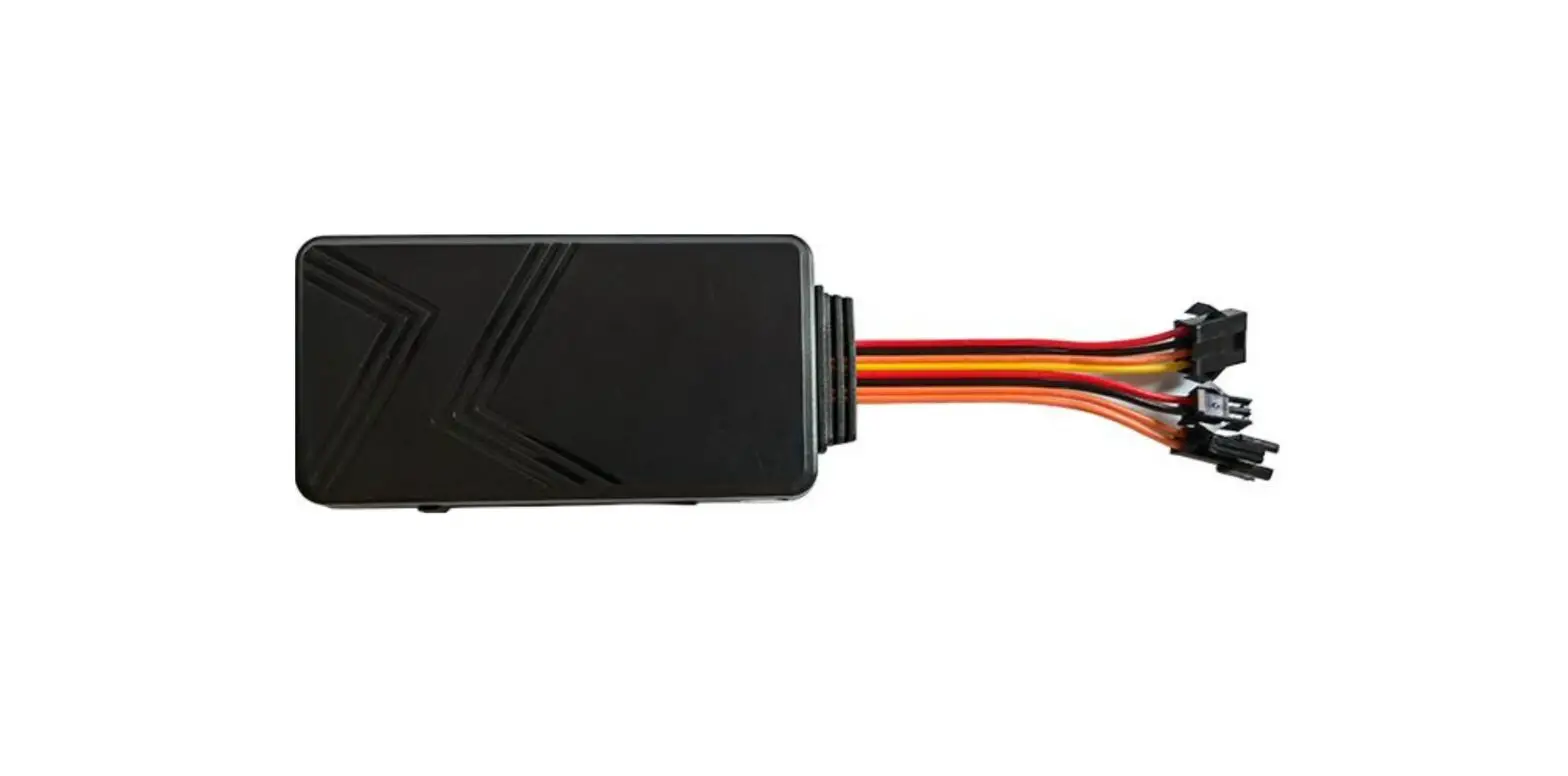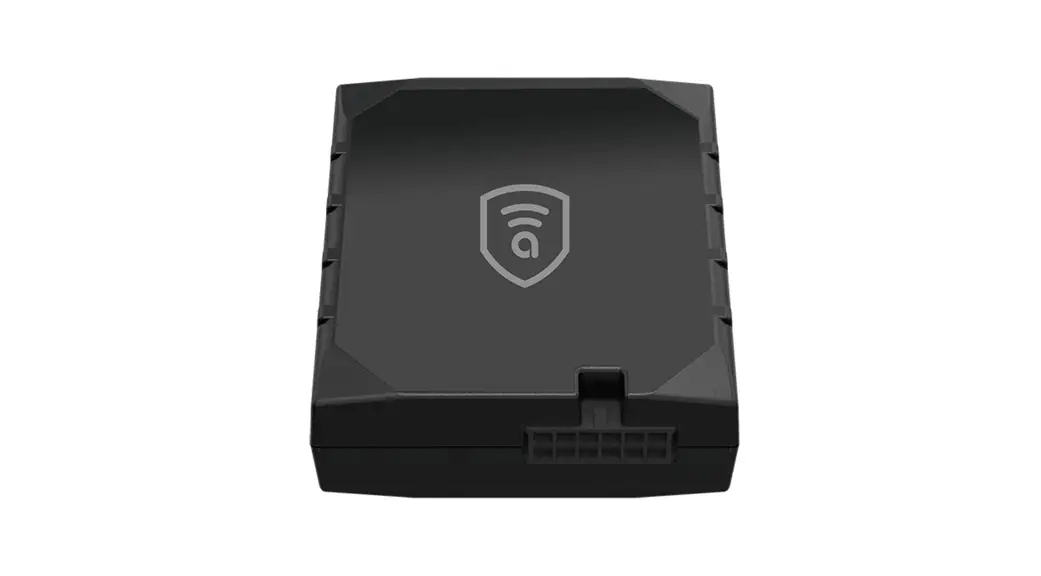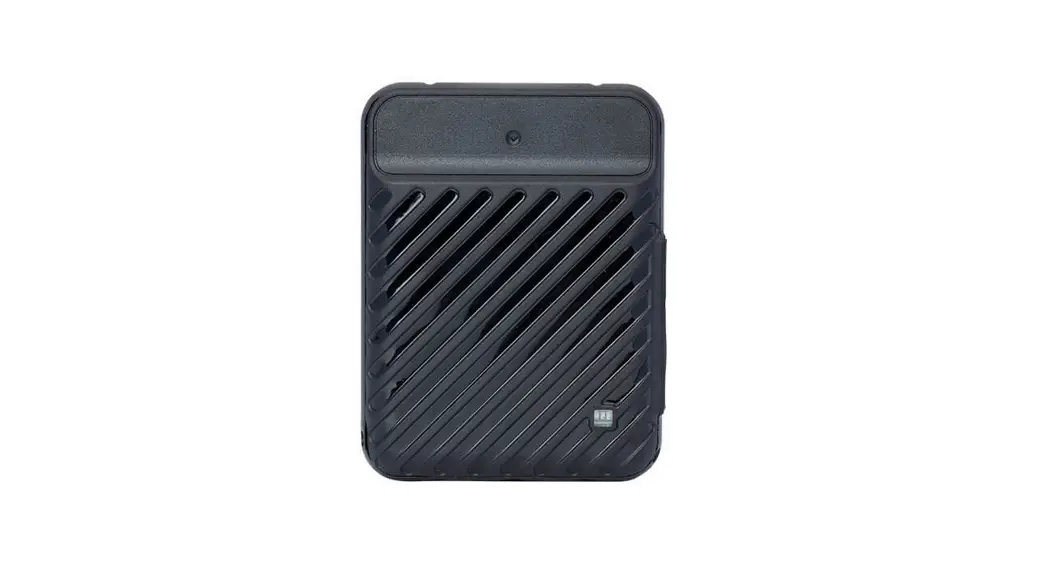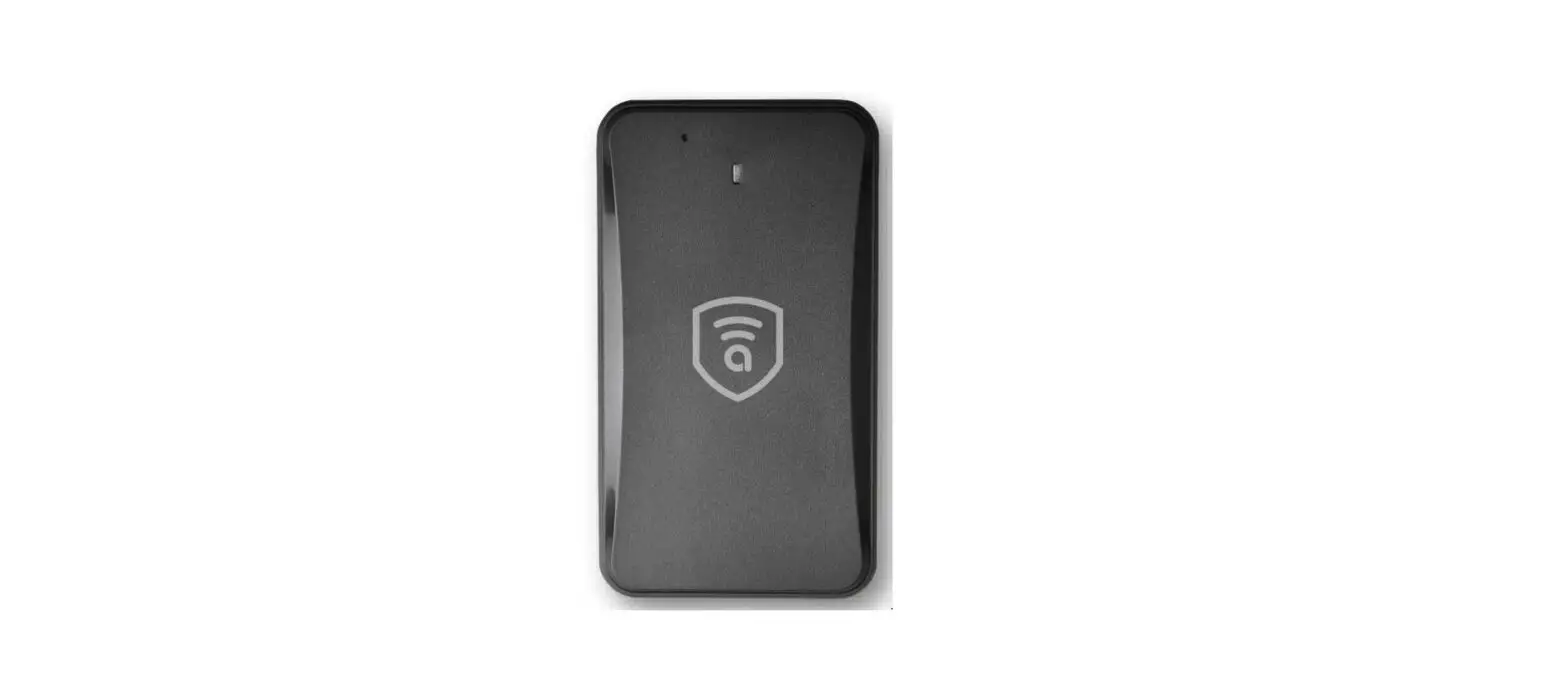

amberconnect ASC210 Wireless GPS Tracker
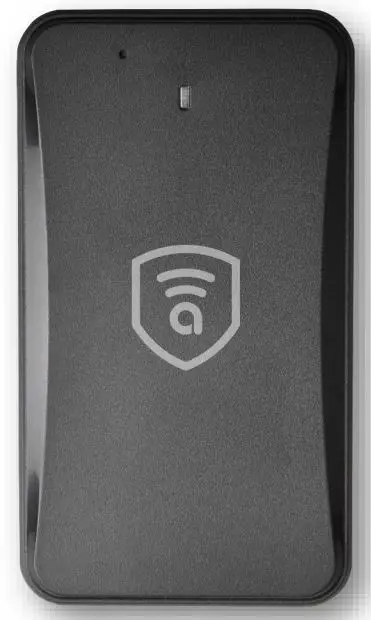
Overview
Accessories
- Device
- Bracket
- User guide
- Charger
- Charge cable
Main Functions
- Intelligent power saving
- IPX5 water-resistant grande
- Tamper alert
- Strong magnet installation
- Fast charging
- 10000mAh battery
- Listen-in capability
Specification
| Frequency: 900MHz | GSM 850/900/1800/1900MHz |
| Location accuracy | <10 meters |
| Monitoring range | S5 meters |
| Working voltage/current | 3.7V/60mA |
| Battery | 10000mAh/3.7V industrial grade lithium polymer battery |
| LED | Red: work status |
| Operating Temperature | -20°C to 70°C |
| Dimension | 108*61*30 mm |
| Weight | 285g |
My Device
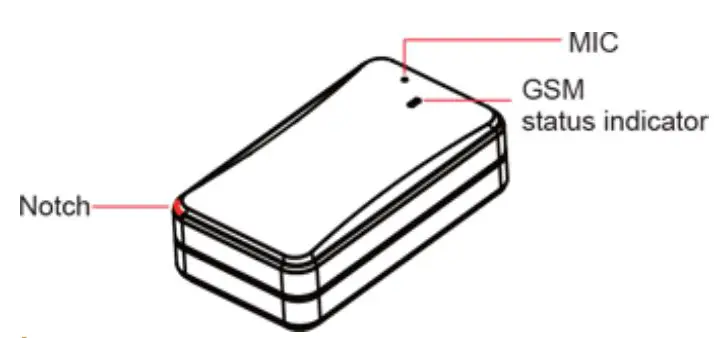
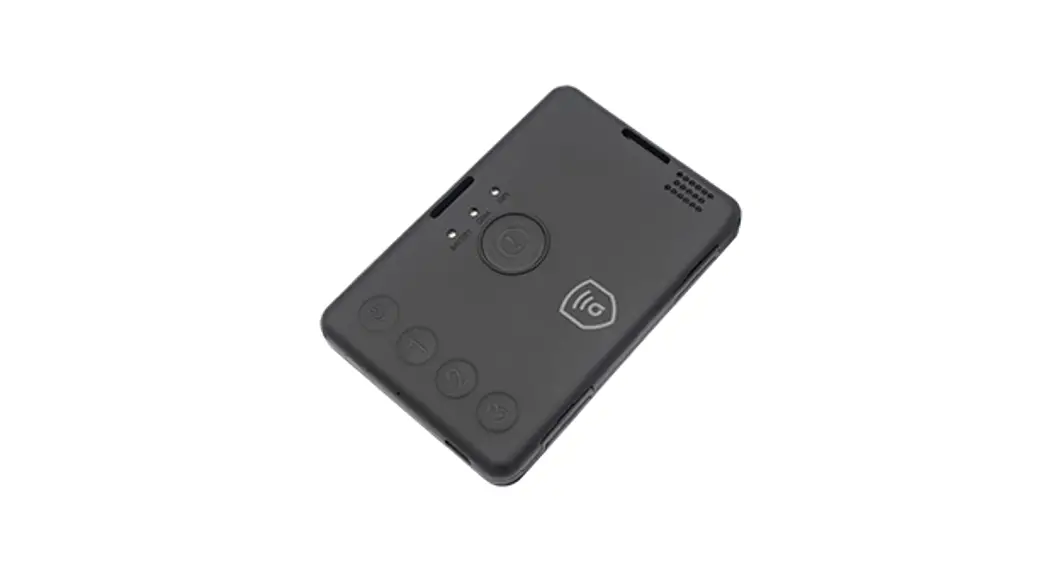
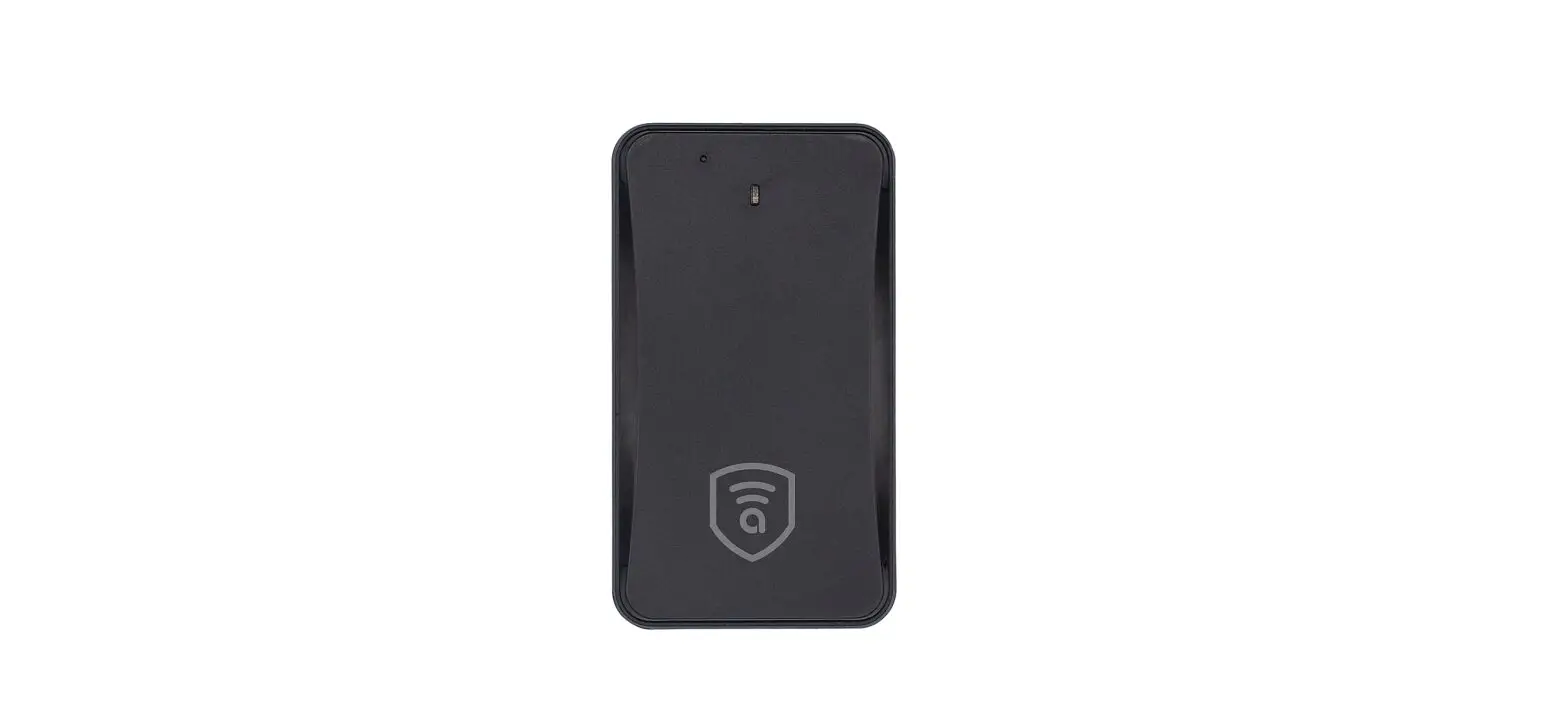
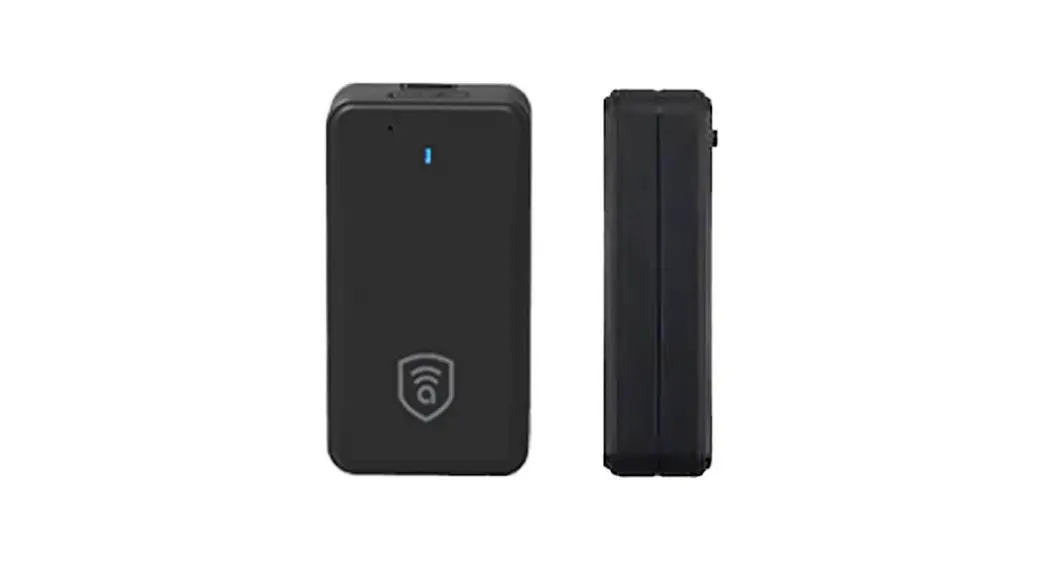
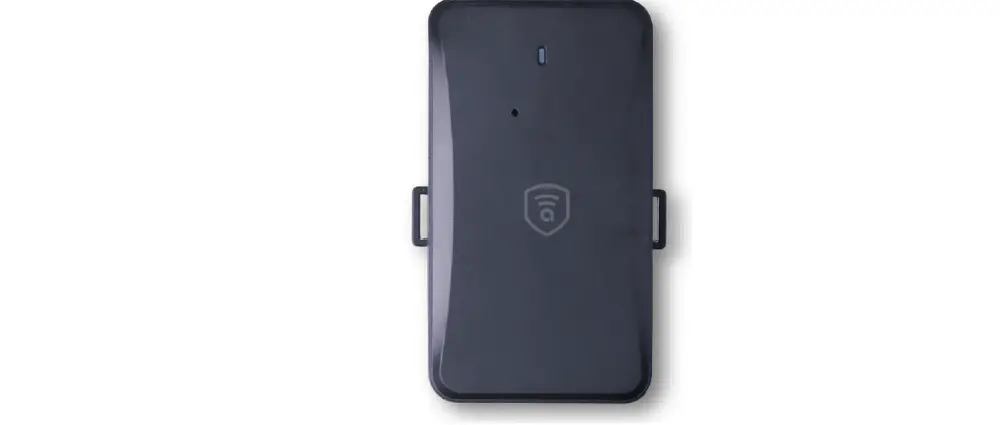
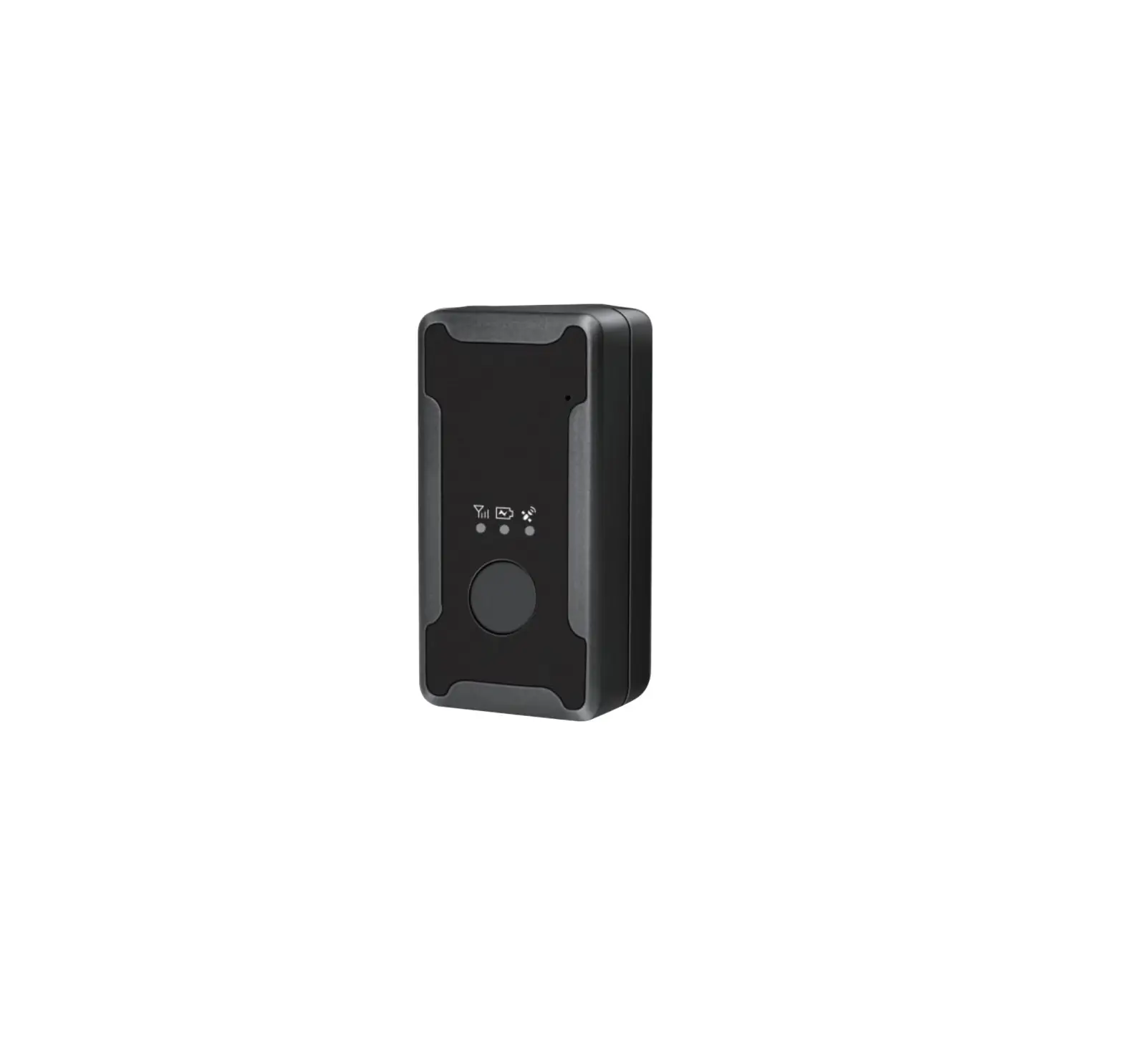
Appearance
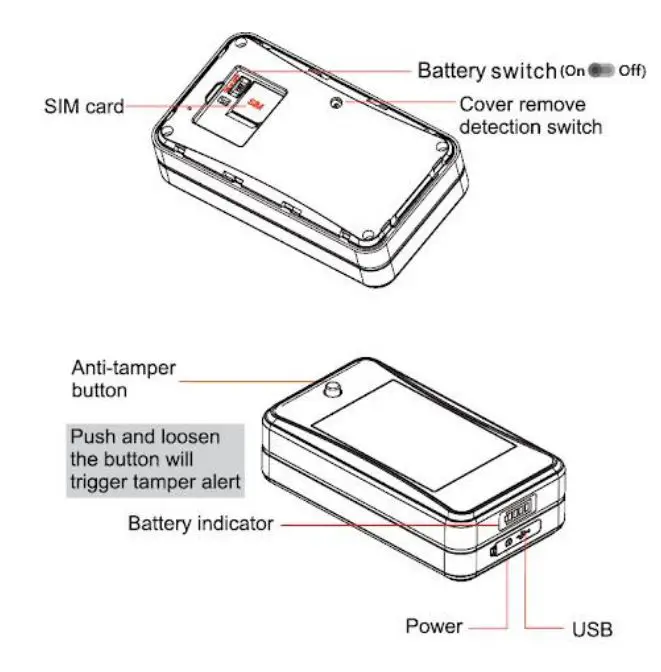
GSM Indicator
| Status | Meaning |
| Blinking quickly | GSM initialization/No GSM |
| Blinking slowly | Connect to the Amber Connect platform |
| Always-ON | Voice calling feature enabled |
The GSM Indicator will turn off after the device has been powered on for 3 minutes. Once the device is on, tap the power button to activate the LED, which will turn off automatically after 60 seconds.
SIM Card
The SIM card should have access to GPRS and SMS. Remove the device cover, switch to OFF and insert the SIM card.
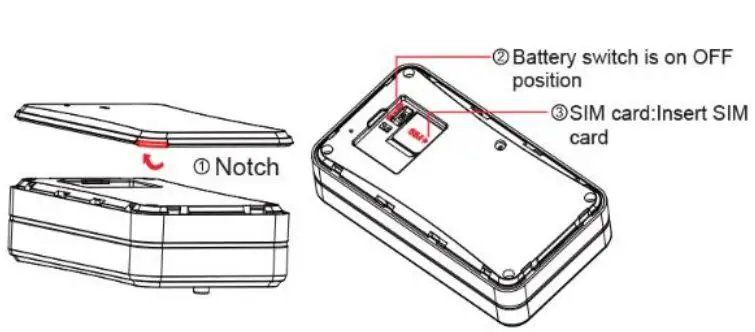
Installation
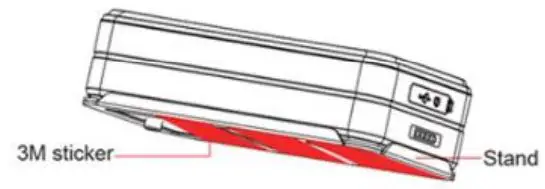
The device is built with a strong magnet that can be easily attached to any surface with a magnetic pull. To attach the device to a non-magnetic surface, use the 3M foam tape and bracket included in your package.
| Problems | Causes | Solutions |
| Poor signal | The signal waves are unable to transmit when using the GPS tracker in places with poor signal reception, such as tall buildings or basements. | Relocate to an area with adequate signal reception. |
| Unable to boot | The power switch is OFF | Switch to ON |
| No battery | Charge battery | |
| No SIM card | Insert SIM card | |
| Unable to connect to the network | SIM card inserted incorrectly | Check SIM card |
| SIM card has dust, debris | Clean SIM card | |
| Invalid SIM card | Contact network supplier | |
| Not in the GSM service area | Move to the GSM service area | |
| Fail to locate | Poor signal | Move to an area with adequate signal reception |
| SIM has no access to GPRS | Contact network supplier to get GPRS service | |
| Always reply “Address inquiry failed” | Contact supplier |
Operation
Power ON/OFF
Power on: Press the power button for 3 seconds (the battery switch is in the ON position). Power off: Press the power button for 3 seconds.
Emergency Number
Set emergency number via App.
Working Mode
- Tracking mode (default): GSM is always ON and location data is uploaded in set time intervals.
- Ultra-long standby mode: device wakes up and uploads location data based on the preset frequency set up to a maximum of 72 hours of a location update.
Notice: In this mode, commands will NOT be executed until the device wakes up at preset time intervals. You can force the device to wake up and receive communication by:
- triggering the tamper alert button at the back
- unplugging the battery and plugging it in again.
Tamper Alert
- After 20 minutes, the device enters into ultra-long standby mode.
Cover Remove Alert
The cover detection button pops out and an alert will be sent if the device cover is dismantled. In standby mode, an alert message will be uploaded and tracking mode will be activated for 20 minutes if cover dismantling is detected. After 20 minutes, the device enters into ultra-long standby mode.
Low Battery Alert
When the battery is low, the device will activate a low battery alarm.
Vibration Alarm
The vibration alarm only works in tracking mode. To activate this function, please go to Amber Connect.
App: safety > safety settings > vibration alert.
Geo-fence Alarm
The geo-fence alarm only works in tracking mode. When the vehicle enters/exits the pre-set geo-fence area, the Amber Connect App will send a real-time notification.
Voice Monitoring
Use pre-set SOS number to make and receive calls from the device. The device will automatically call back. Answer the call and monitor sounds inside the vehicle.
App And Web Platforms
Download App
Please download and install the Amber Connect App from your digital App store and follow the onscreen instructions to register your device.
Web App
Visit www.amberconnect.com/portal/customer/login and go to login > customer > sign up and follow the onscreen instructions to register your device.
Warning
Please download and install the Amber Connect App from your digital App store and follow the onscreen instructions to register your device.
Web App
Visit www.amberconnect.com/portal/customer/login and go to login > customer > sign up and follow the onscreen instructions to register your device.
Warning
A battery specified by the manufacturer is recommended. Maintenance or service arising from any third-party accessories is not guaranteed. The manufacturer assumes no responsibility for any damage caused by non-original accessories. Do not bend or open the battery. Do not immerse or burn the battery. Device disassembly is strongly forbidden. Non-professionals’ operations may lead to devise damage.
Troubleshooting
If you are having trouble with your device, try the troubleshooting procedures before contacting a service professional.
 Amber
Amber