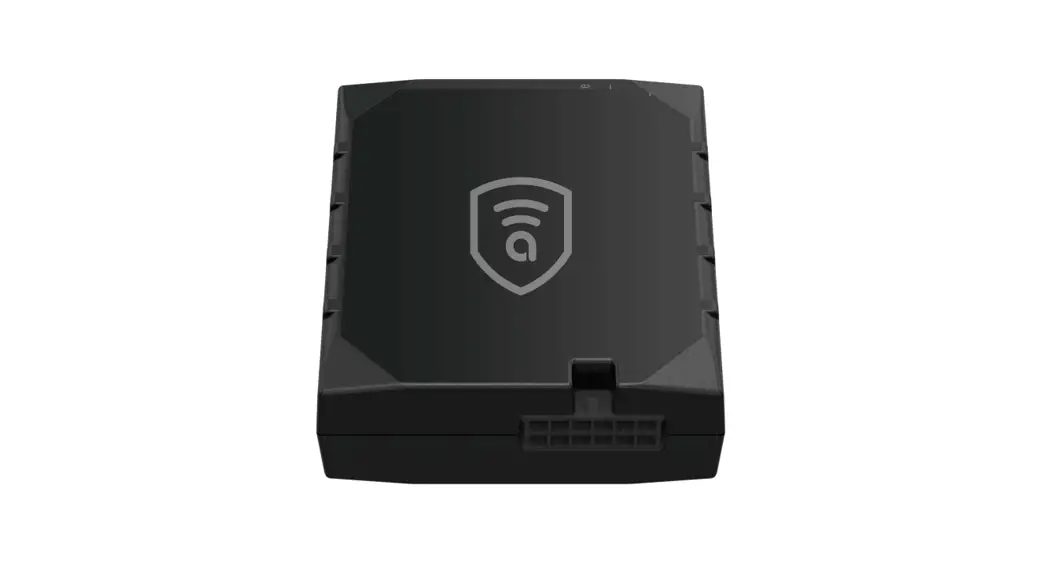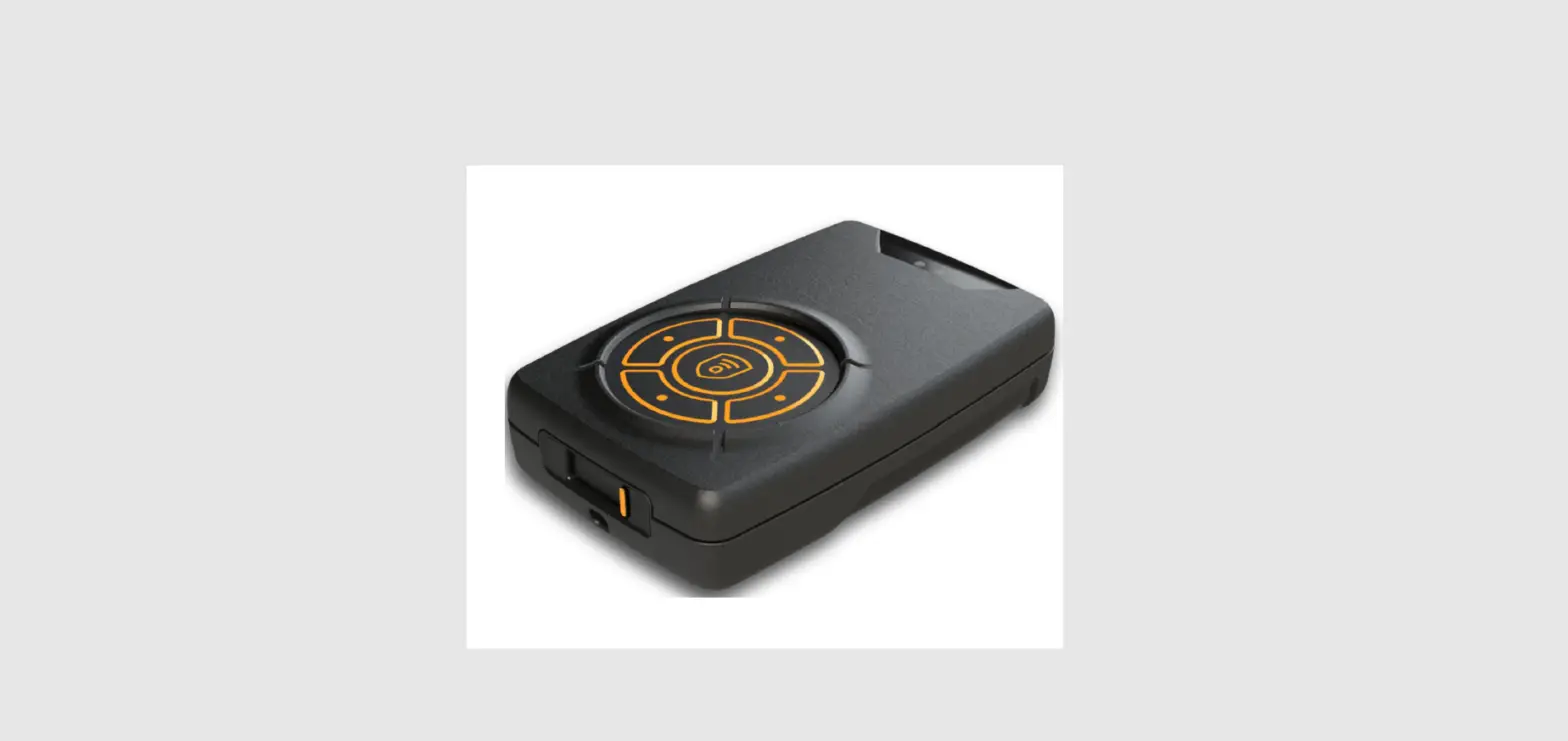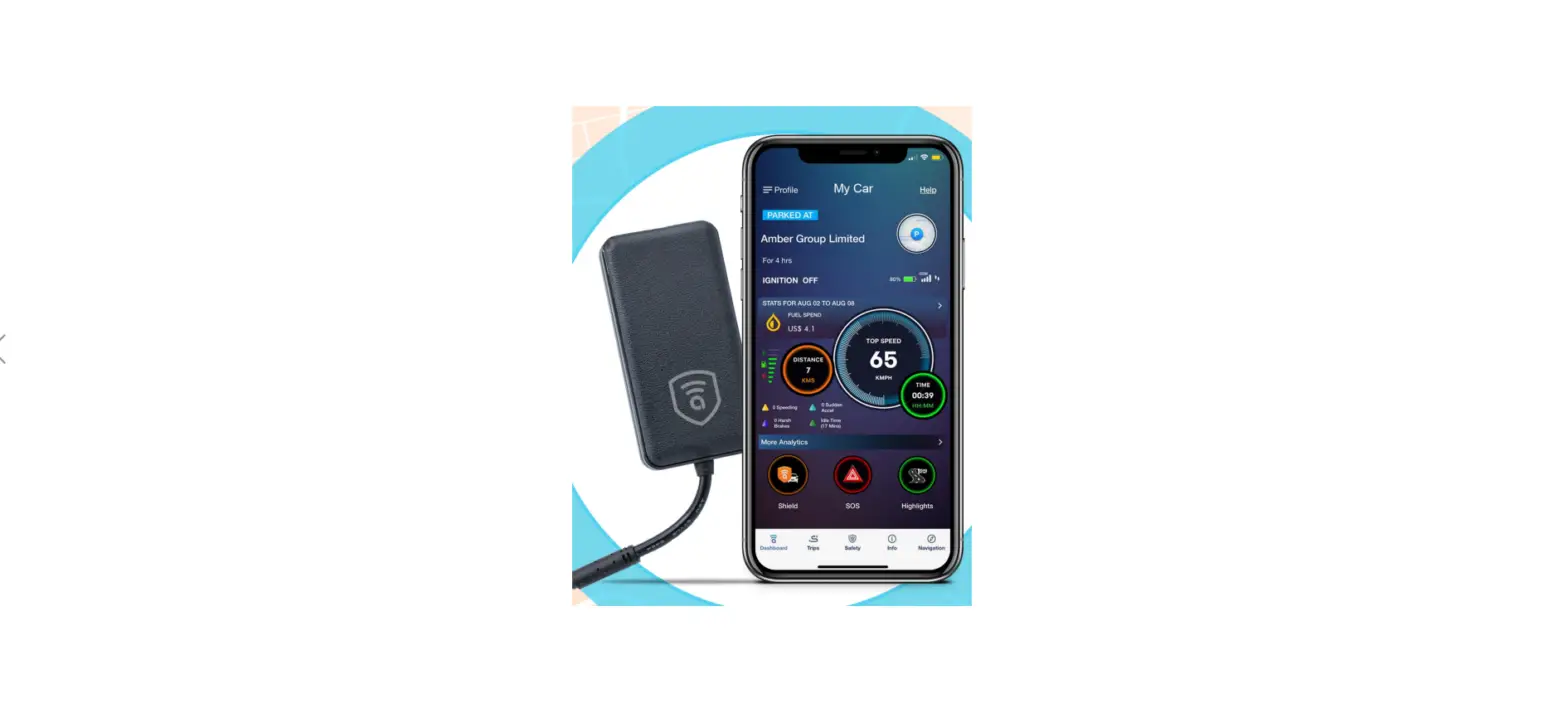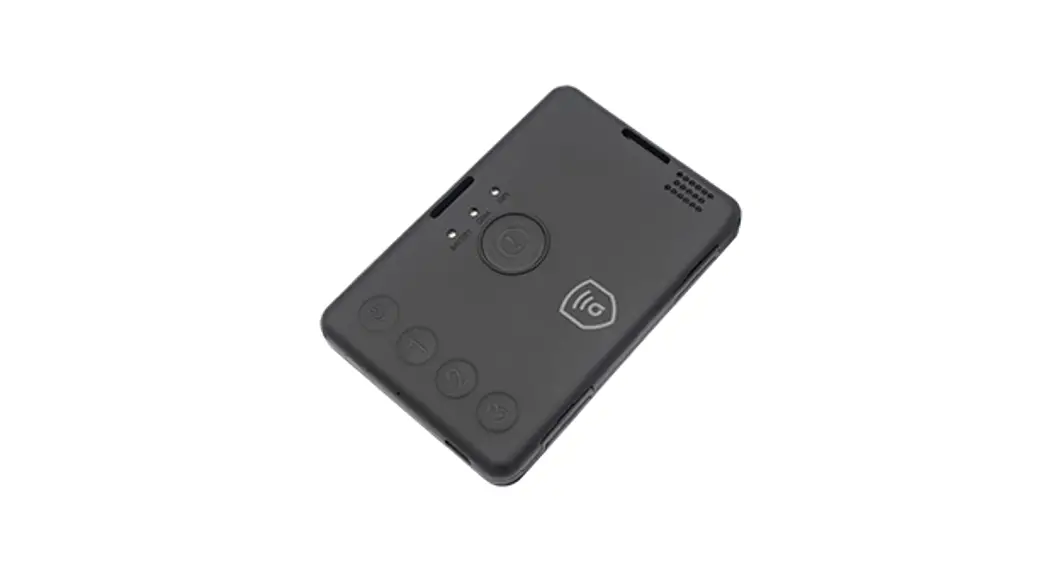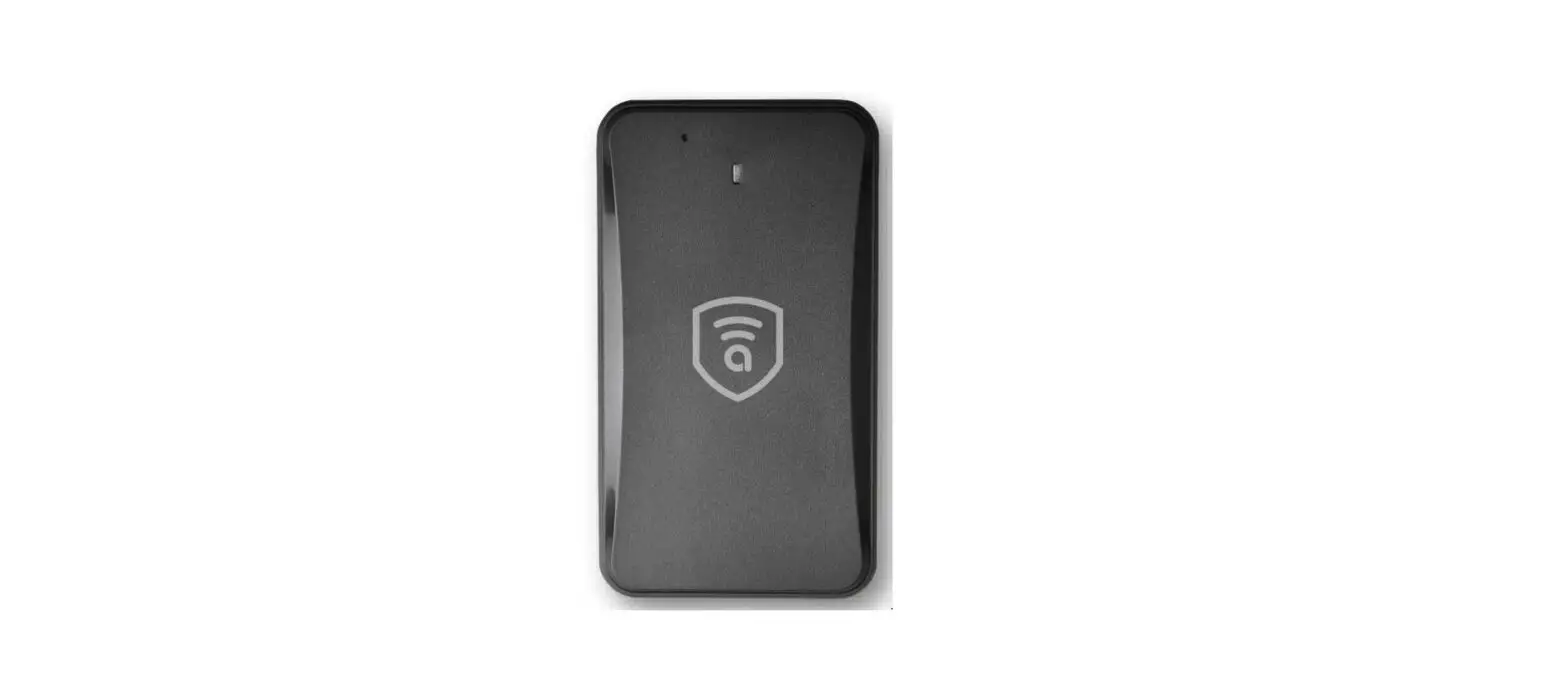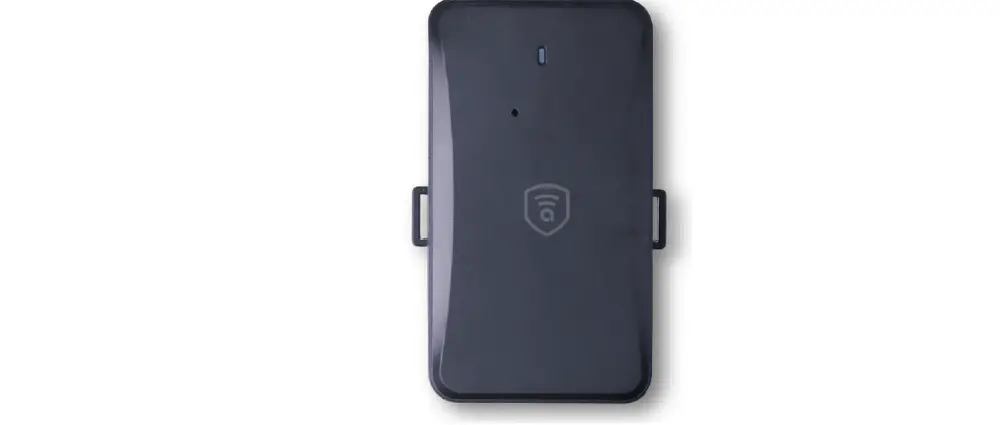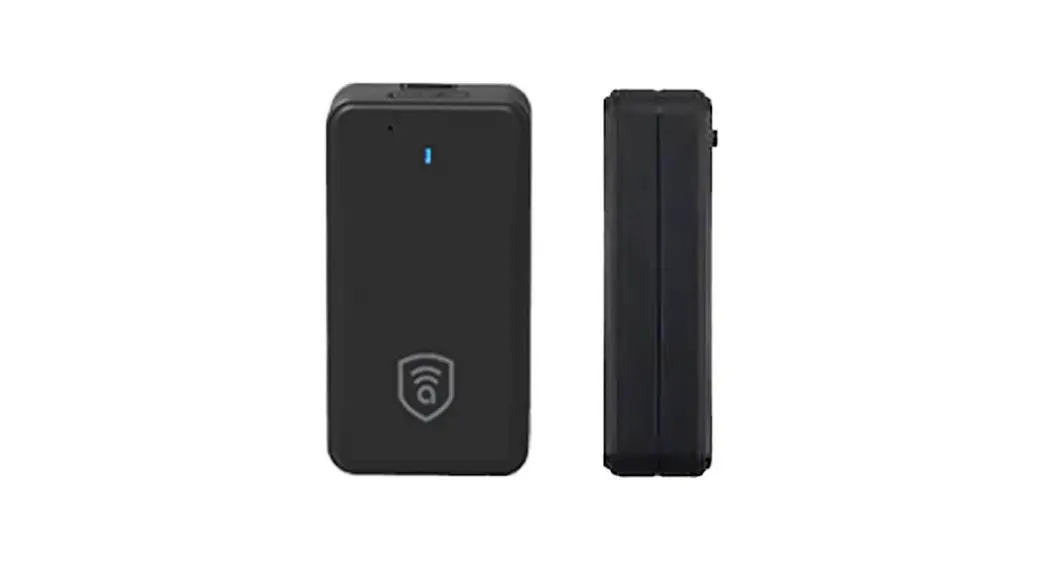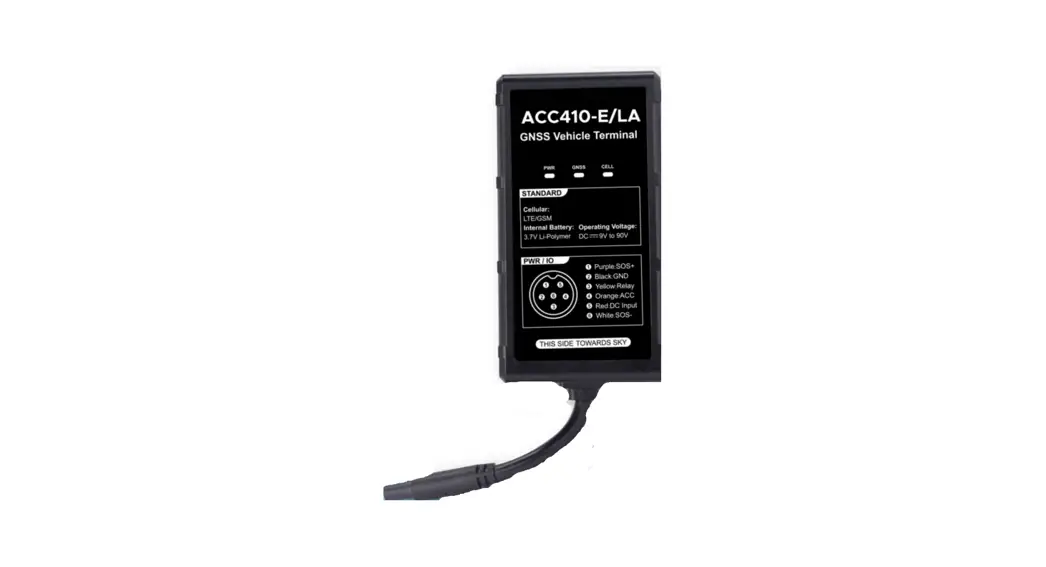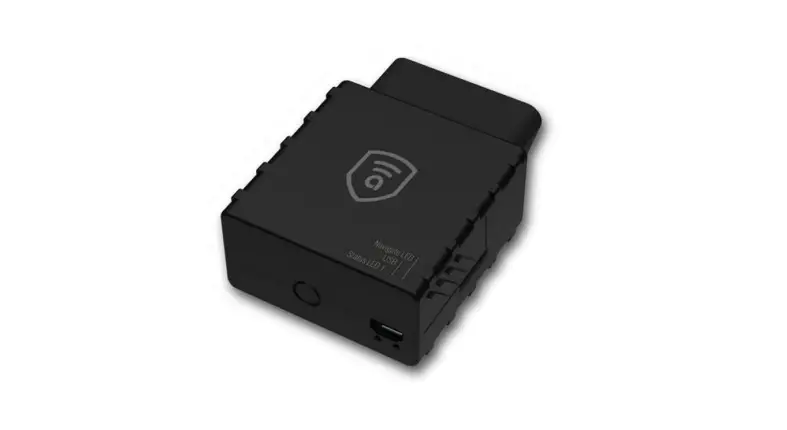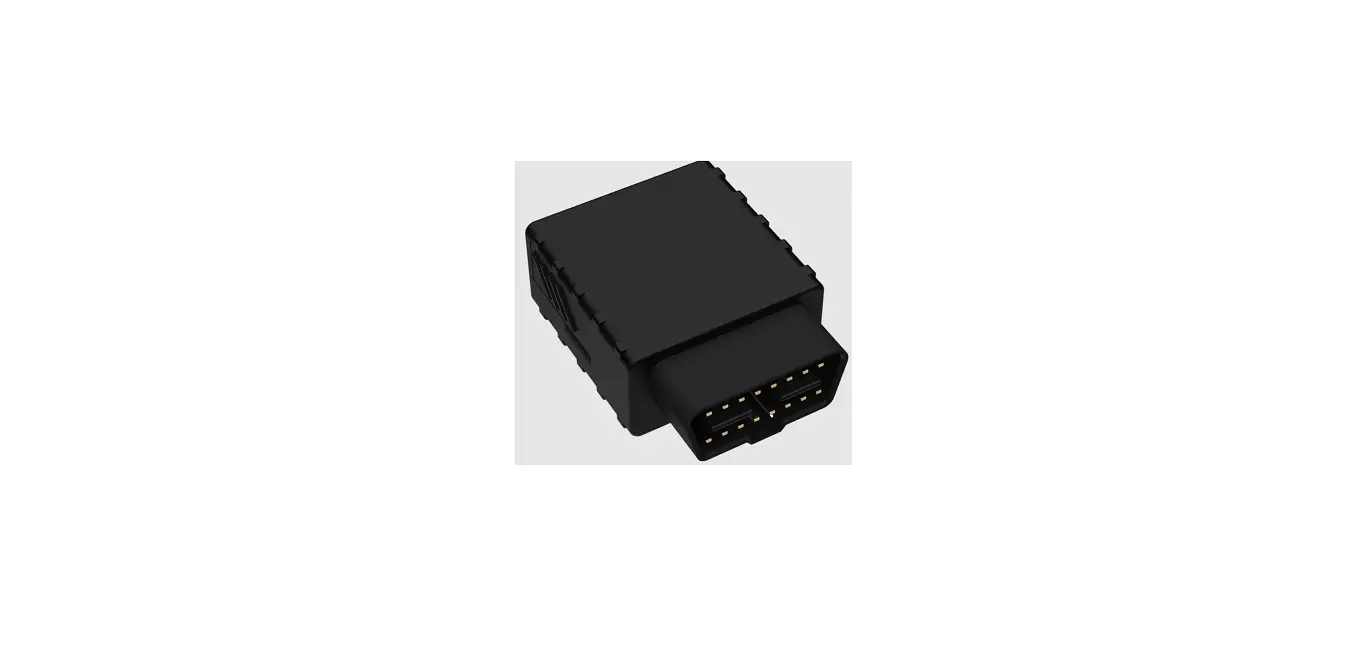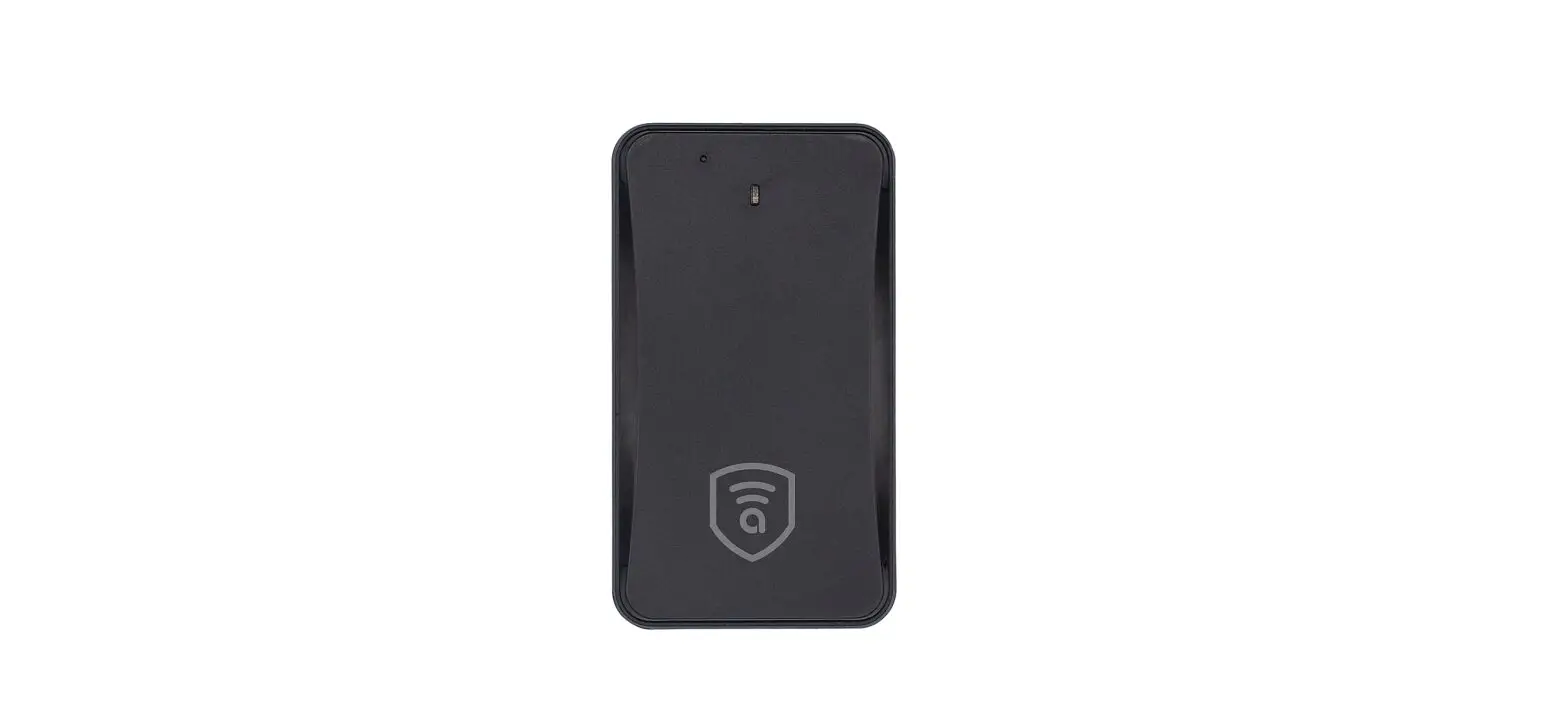

amber Connect ACC300 GPS Vehicle Tracker
Accessories
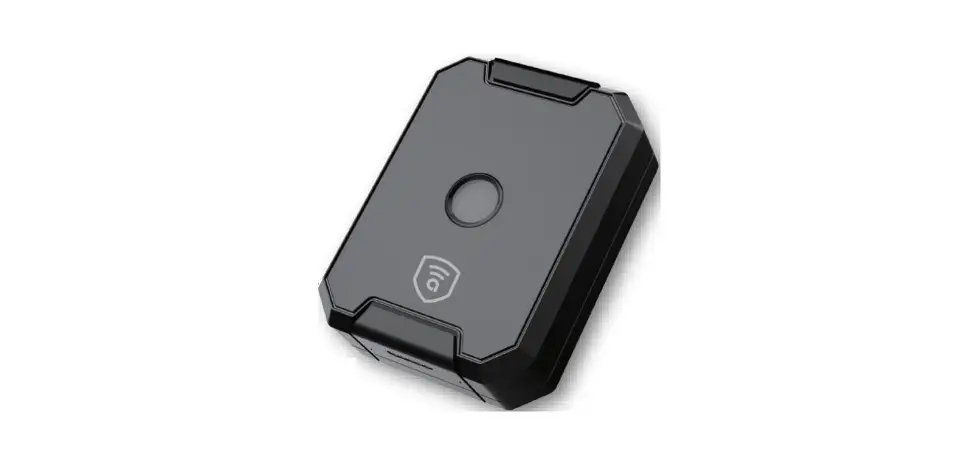
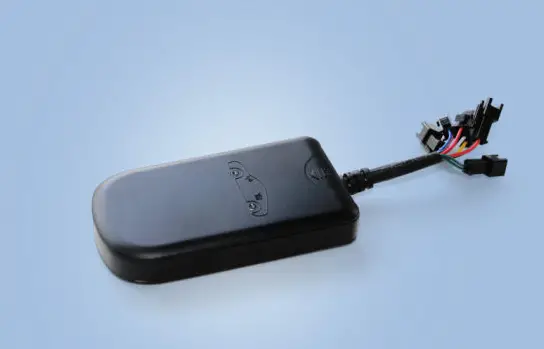
- Device
- Charging cable
- Relay
- User manual
Specification
| Dimension | 78.0*41.0*13.0mm |
| Weight | 38g |
| Voltage Range | 7.5-90V |
| Backup Battery | 270mAh/3.7V |
| Operation Temperature | -20°C to +70 °C |
| Humidity | 20% to 80% |
| Standby Time | 50 hours |
| GSM Frequencies | 850/900/1800/1900 MHz |
| GPRS | Class 12, TCP/IP |
| GPS Channel | 66 |
| GPS Sensitivity | -165dBm |
| Acquisition Sensitivity | -148dBm |
| Position Accuracy | <10m |
| TTFF (Open sky) | Cold start <45s, Hot start <2s |
| GSM/GPS Antenna | Built-in design |
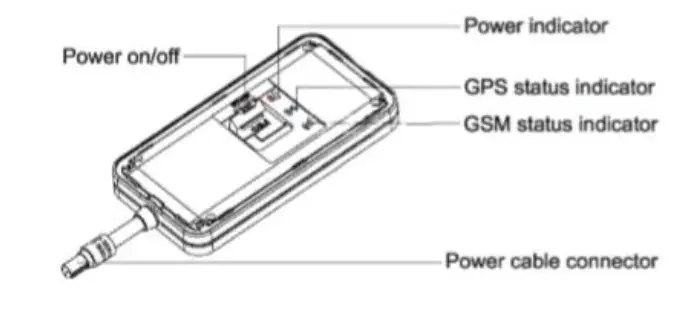
| LED Indicator | GSM-green, GPS-blue, Power-red |
| Data Transmit | TCP, SMS |
| Geo-fence | Alarm activated when the vehicle enters or leaves the specified area |
| Speeding Alarm | Alarm activated when speed goes higher than the pre-set value |
| Low Power Alarm | Alarm activated when backup battery is running out. |
| Non-movement Detection | Movement alarm activated by built-in 3D motion sensor |
| Mileage Report | Track by time/distance interval |
| Remote engine mobilization/immobitization | Mobilize/immobilize engine |
LED Indications
| GPS LED Indicator – RED | |
| Flashing | Low battery |
| Slow flashing | Fully charged/ functioning normally |
| Solid red | Charging |
| Off | Power off or low battery |
| GPS LED Indicator – BLUE | |
| Flashing (interval 0.1s) | Searching for BD/GPS signal |
| Solid blue | BD/GPS positioned |
| Off | GPS asleep or off |
| GPS LED Indicator – GREEN | |
| Quick Flashing | GSM initializing |
| Slow flashing | Receiving GSM signal normally |
| Solid green | Connected to GPRS network |
| Off | No GSM signal or no SIM card |
Getting Started
Please follow the instructions below to ensure safe and correct use of your device.
Note: Please ensure that there is enough credit on your SIM card. If you will be using the GPRS function, pay attention to the current SIM card GPRS charge.
- Switch on
Begin by assembling and setting up your device before its first use.- Open the SIM card cover.
- Insert the SIM card.
- Turn the battery switch to ON.
- Close the SIM card cover and connect the device to the external power line, which will be used to charge the terminal and built-in battery.
- Switch off
- Toggle the battery switch to OFF.
- Charge the device
Plug in the device to connect or plug in the charging cable. The charging cable with 2A FUSE for short-circuit over current protection.
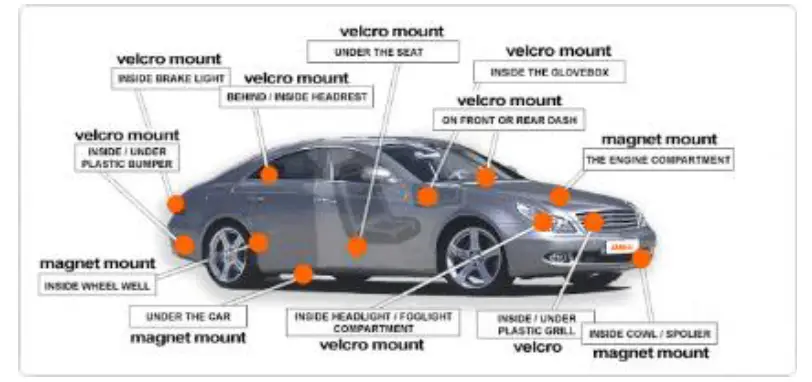
- Installing the device Find a location inside the vehicle where the device will not be found. Your device has a built-in GSM antenna and a GPS antenna. During installation, please ensure that the device is facing up:

- Under the dashboard below the front windshield.
- In the parcel shelf the rear.
- In the front bumper (non-material face), ensure the device does not get wet.
- Under the wiper version (non-metal), ensure the device does not get wet.
- Non covert installation: affix the device to the dashboard below the windshield.

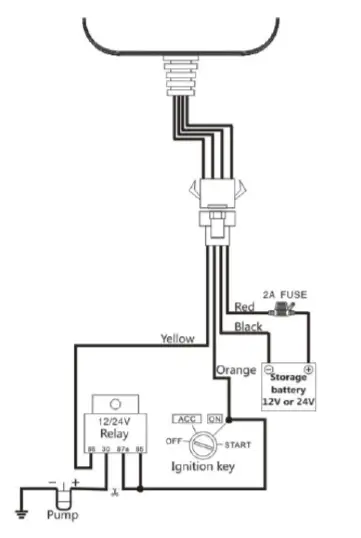
- Device wiring
- The standard voltage is 9V-90V; the red wire is the positive and the black wire is the negative
- Connect the black wire ground.
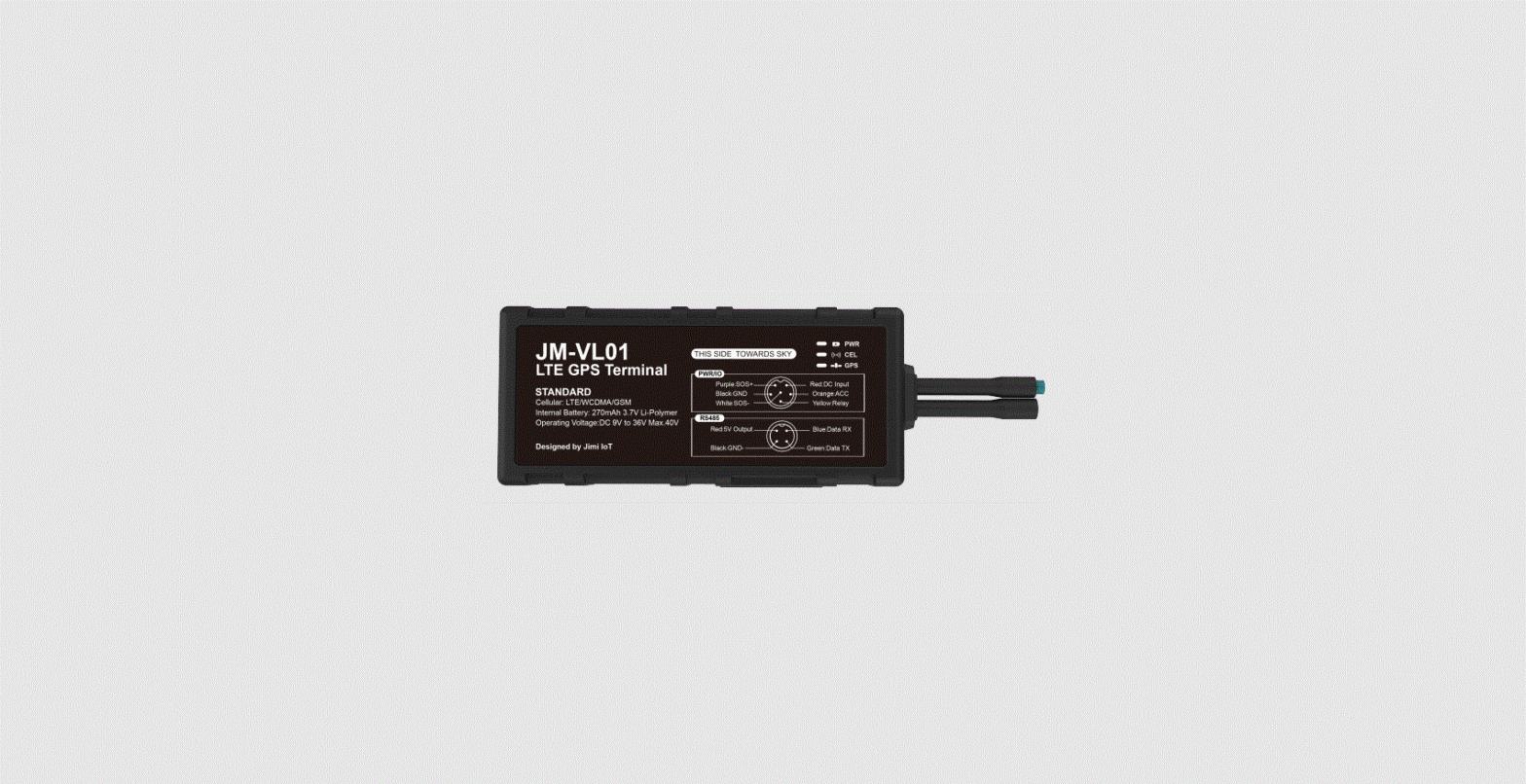
- Device wiring diagram Subject to permissible laws in your country. Play close attention to the diagram description; the battery is 9-90V and the relay remains12V/ 24/.
- Power/ACC/Tele-cut-off (petrol/electricity) control line (4 pin)
- Your device comes with a power cord and is designed to use only manufacturer- specified wiring accessories. The re line is positive while the black is negative (this side should not be connected to the ground wire).
- The ACC line (orange) connects to the ACC switch of the vehicle. Please be sure to connect to the ACC line, otherwise the device will not detect ignition status.
- Engine immobilization (petrol/electricity) control line (yellow) is connected to pin 86 Tele-cutoff (petrol/electricity) relay (equal to the yellow line of the relay socket)
Troubleshooting
| Problem | Causes | Solutions |
| Red LED does not work when power is connected | Replace the fuse | |
| Blown fuse | ||
| Wrong installation of SIM card | Check SIM card installation (install SIM card) | |
| Fail to connect to network | Debris on the Sim card’s iron surface | Clean SIM card surface |
| Nonfunctioning SIM | Contact internet service provides | |
| Beyond GSM service area | Re-locate to GSM service area | |
| Bad signal | Re-try in an area with better signal | |
| Fail to charge | The voltage is unsuitable | Connect to power with suitable voltage |
| Improper connection | Check connection with charger |
Need help?
Contact 24/7 live support!
In App Chat
[email protected]
Chat via website www.amberconnect.com
Works with Android phones and tablets, IPhone, IPad. Compatible with Chrome, Mac and PC web browsers.
Scan this OR code to download your App
2022 Amber Connect Limited. All rights reserved