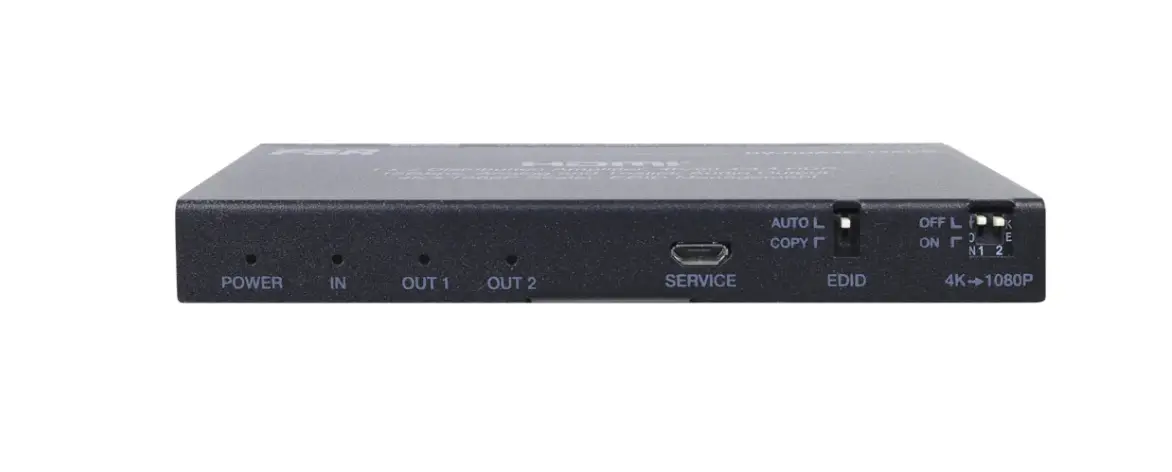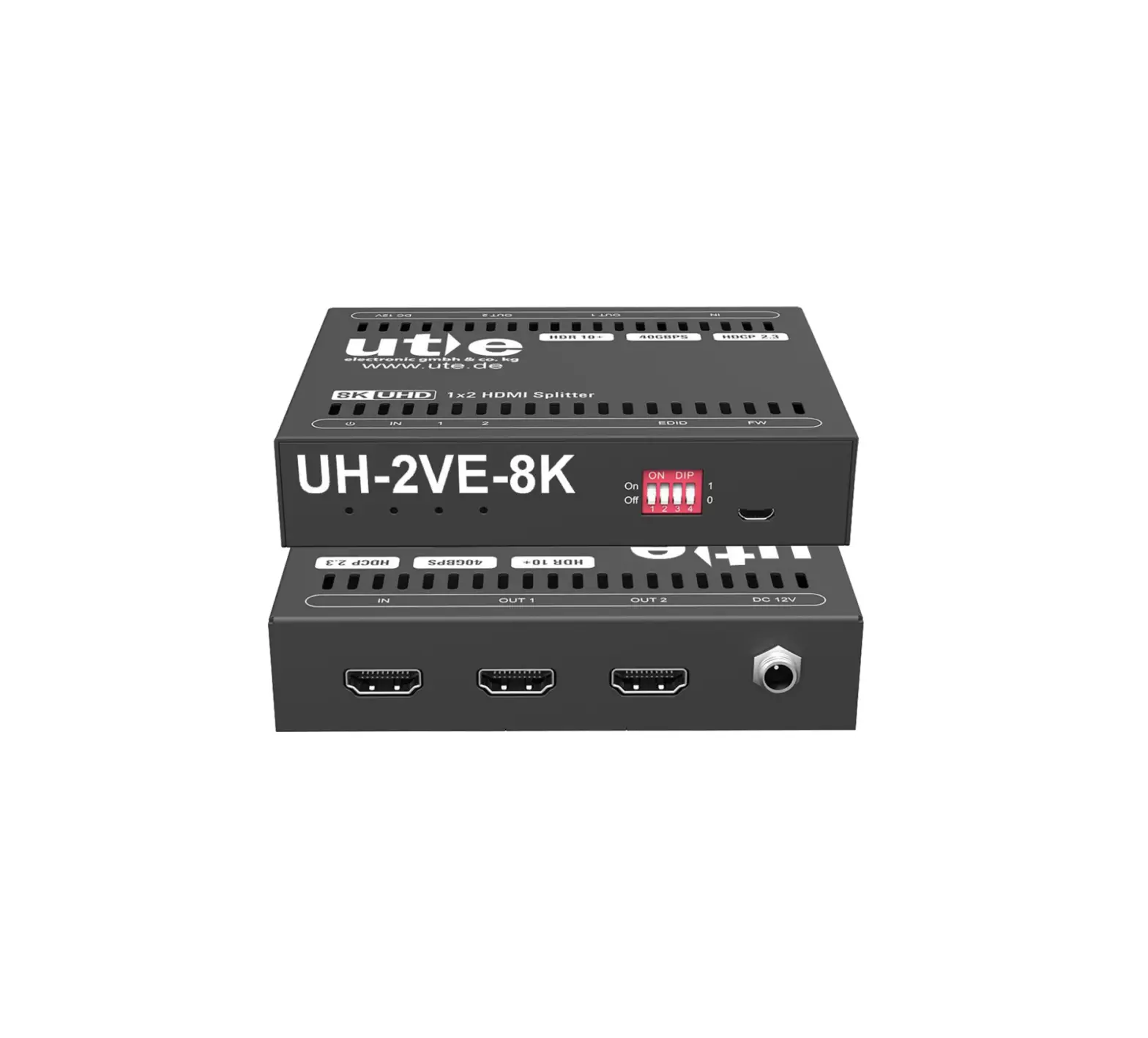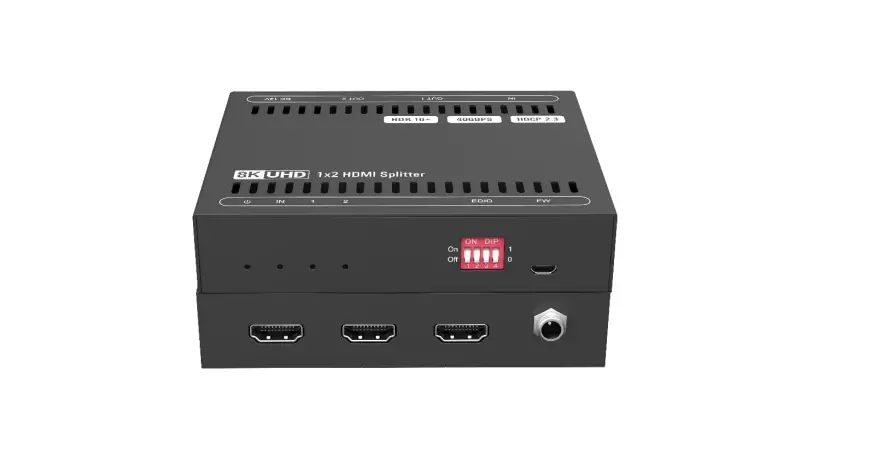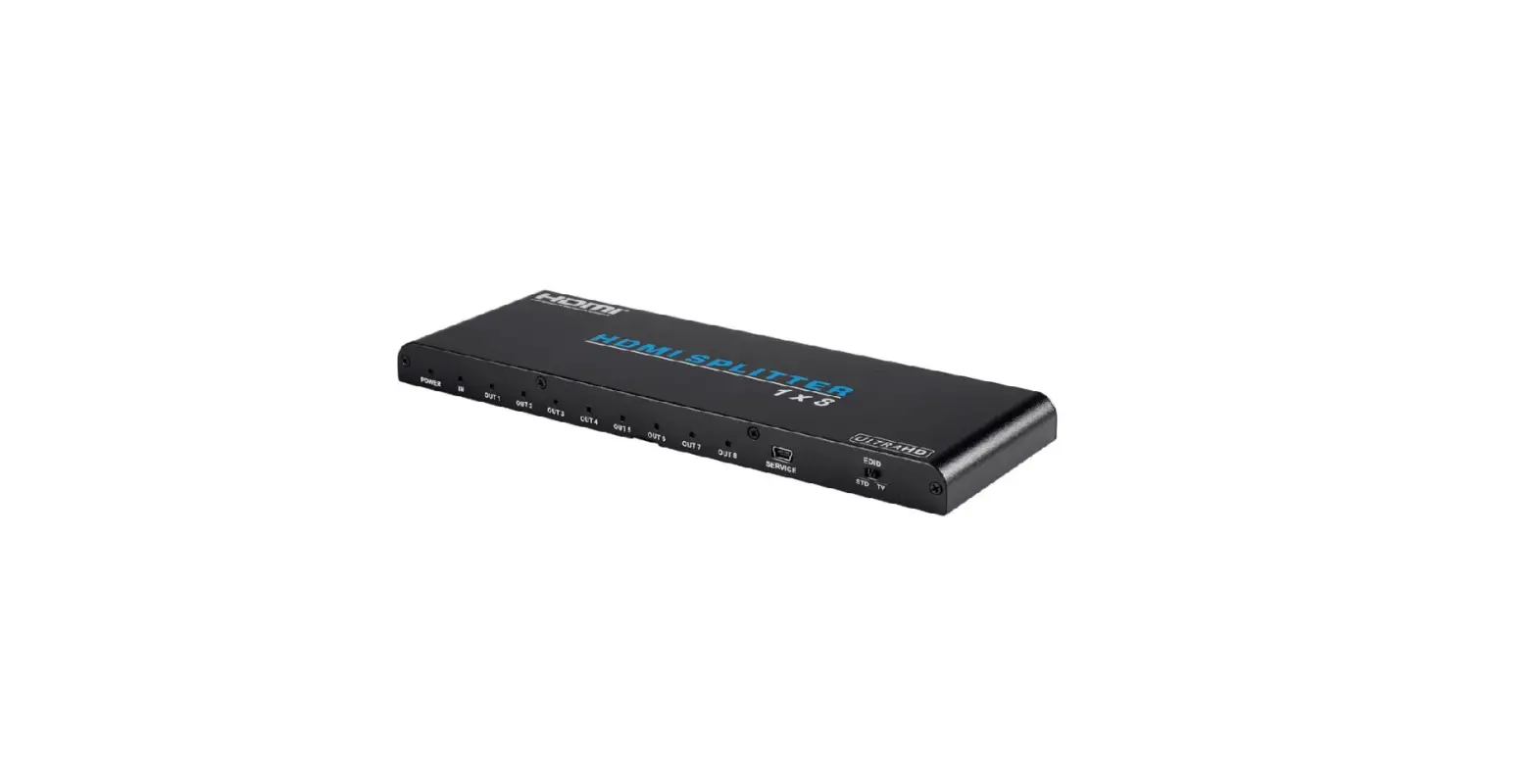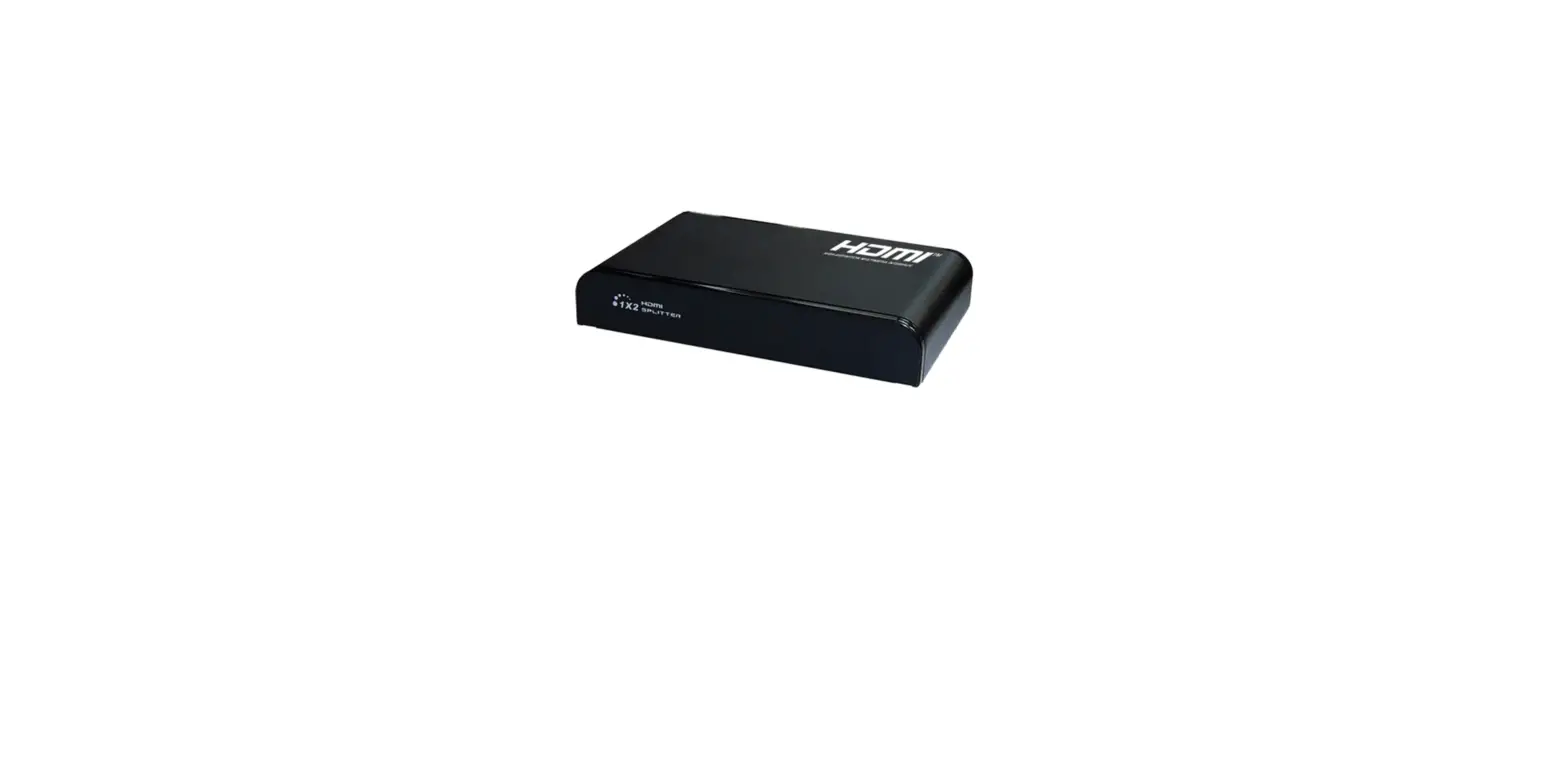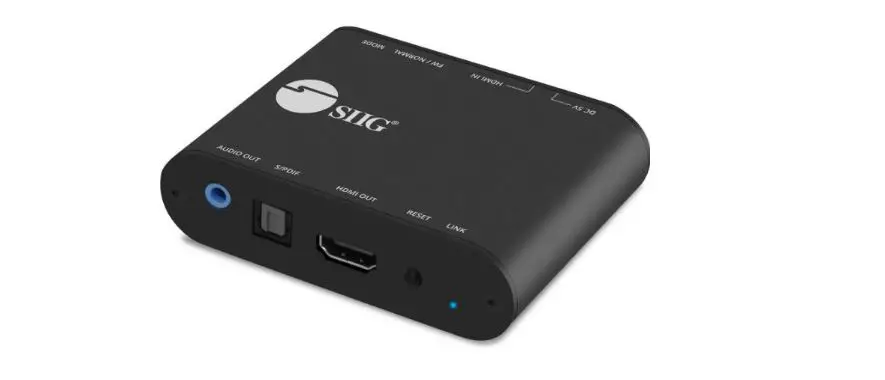

SIIG CE-H27C11-S1 1×2 4K120Hz HDMI Splitter with EDID and Audio Extractor
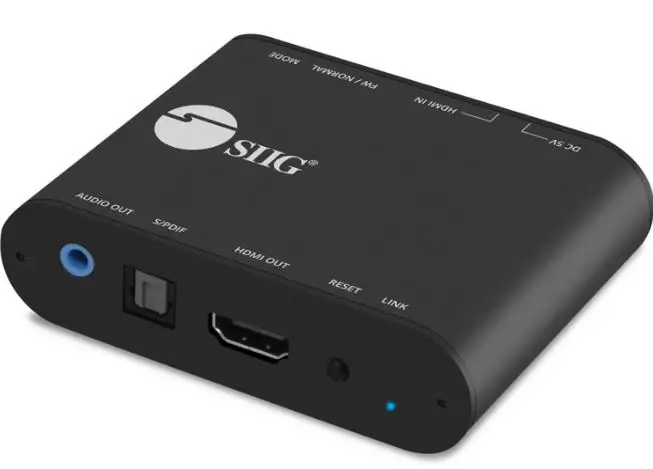
CE-H27C11-S1 USB Tool OPERATION APPROACH
When clicking on the USB_Tool.exe, the following windows will pop-up. Click “Splitter” button to enter splitter control interface. 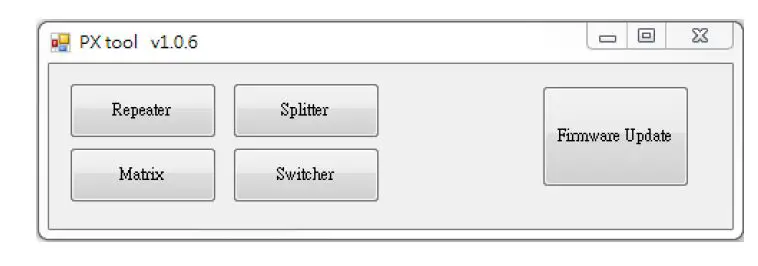
Splitter Control Interface
Main Tab
In this section, the software will show the input/output information.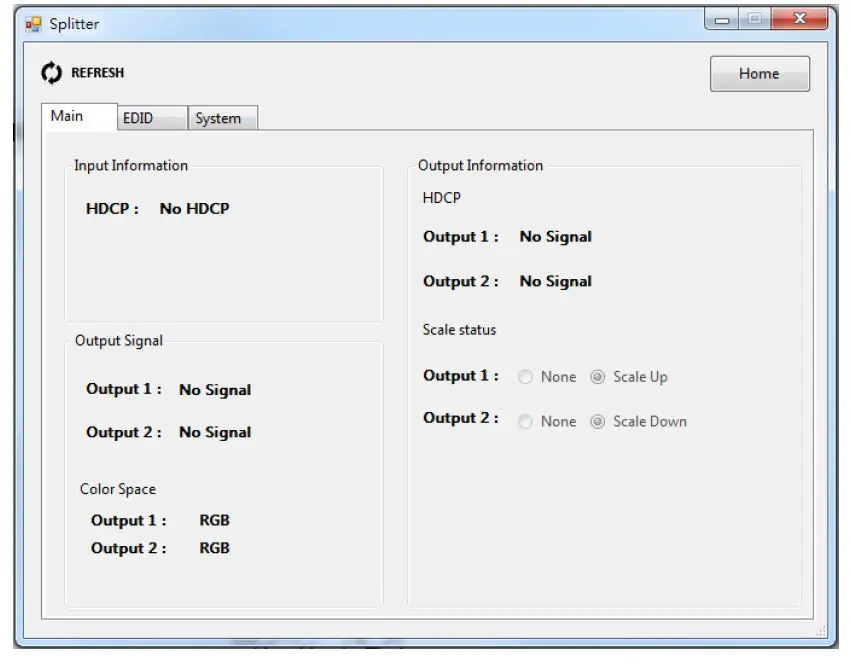
EDID Tab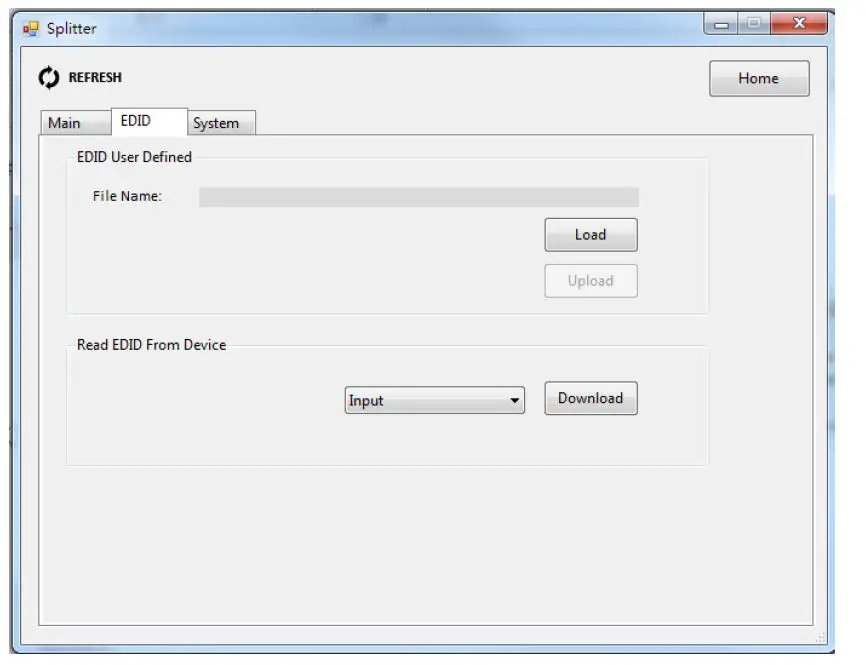
EDID User Defined
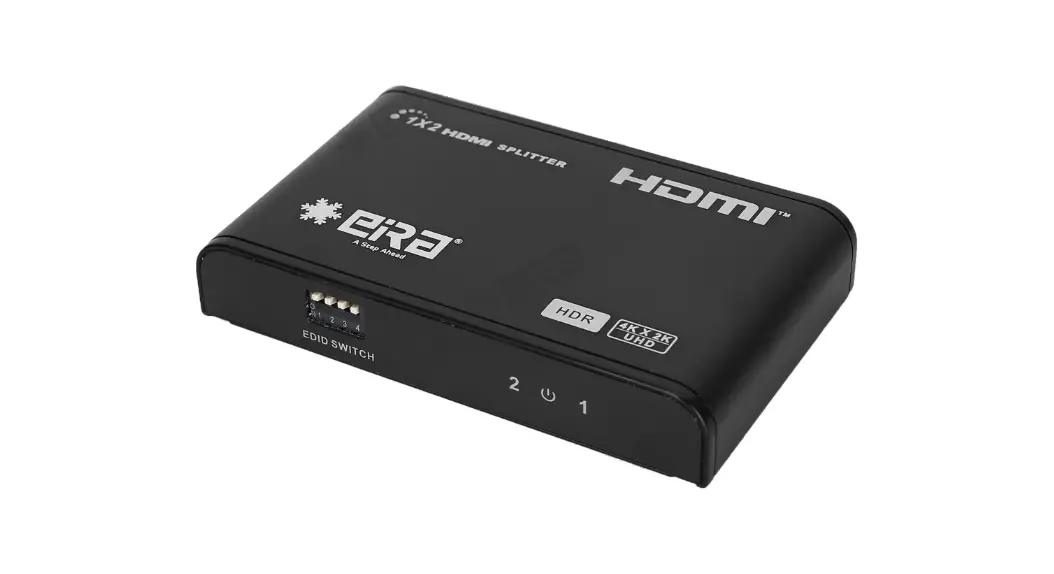
- Set the dip switch to ”[pin1,pin2,pin3,pin4]=[↑-↑-↑-↑]”(normal mode)
- Click “Load File” button to select the EDID file from the computer
- Click “Learn” button to load EDID File and learn to input
- Set the dip switch to “[pin1,pin2]=[↓-↓]” to apply user-defined EDID
Read EDID From Device
- Select Input , Sink 1 or Sink 2
- Click the “Download” button to load EDID File
System Tab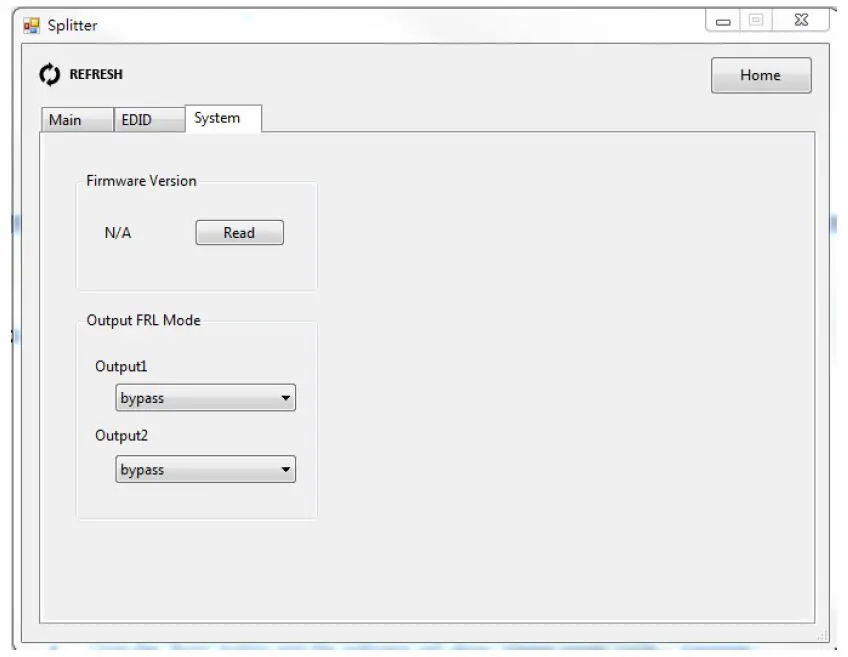
Firmware Version
Click “Read” button to get firmware version information
Output FRL Mode
Select bypass, 3Lanes/3G, 3Lanes/6G, 4Lanes/6G, 4Lanes/8G, 4Lanes/10G or 4Lanes/12G on output 1 & output 2
Firmware Update
Click “Firmware Update” button to enter F/W update interface.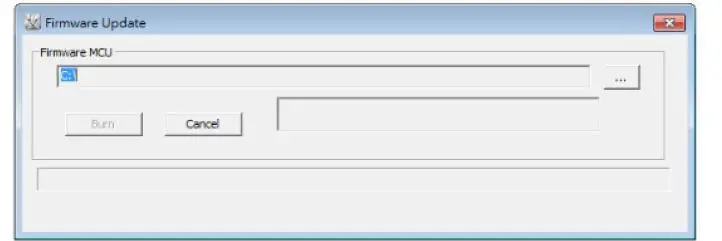
- Click the “…” button to select the file which you want to write into device.
- Click the “Burn” button and the software will show “please power cycle…” message.
- Unplug the micro-USB cable and power cable from device.
- Plug the micro-USB cable into the micro-USB port, then plug in power supply to power cycle the device, the firmware will start to update
- After updating, the software will show “Firmware Update Success!” message.