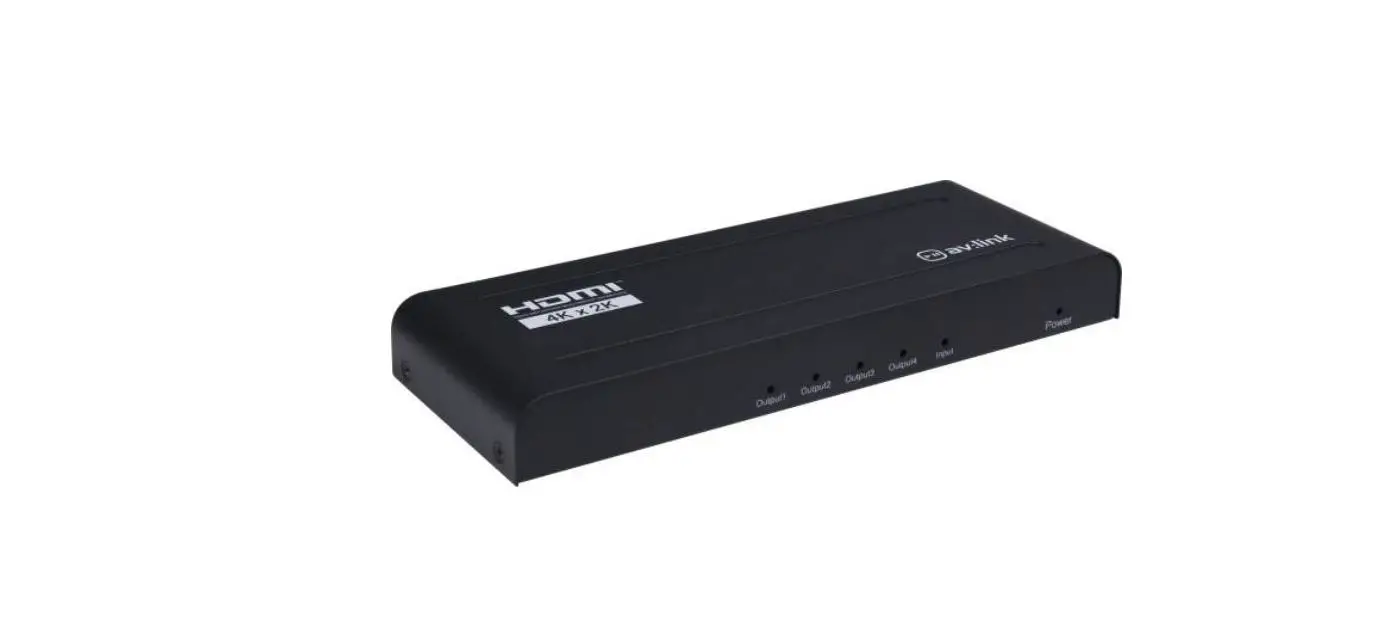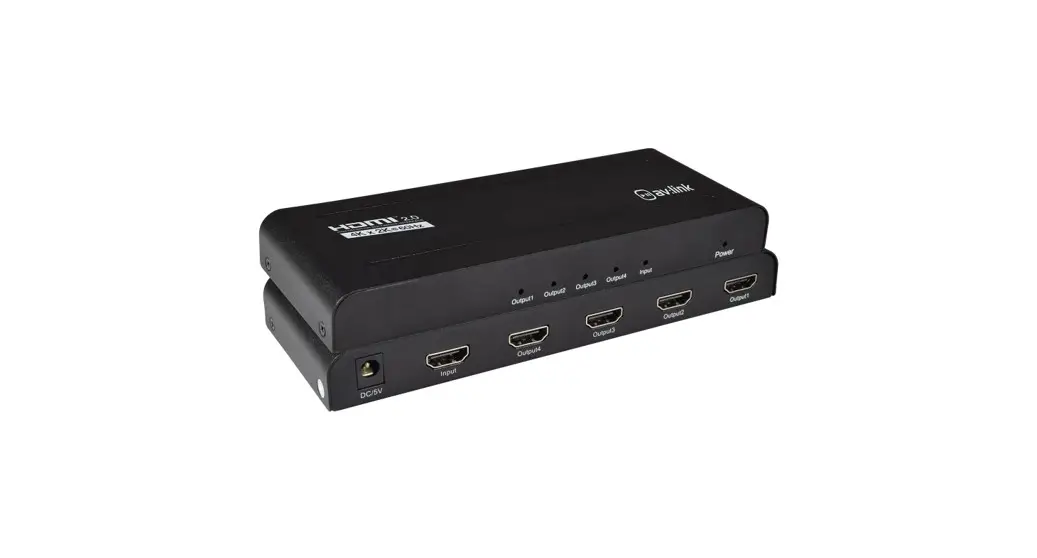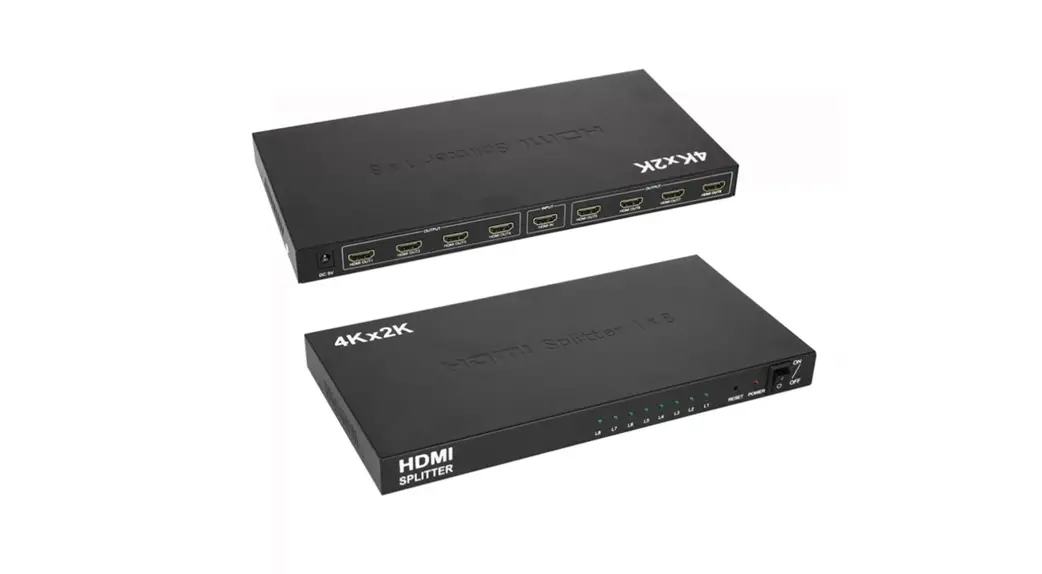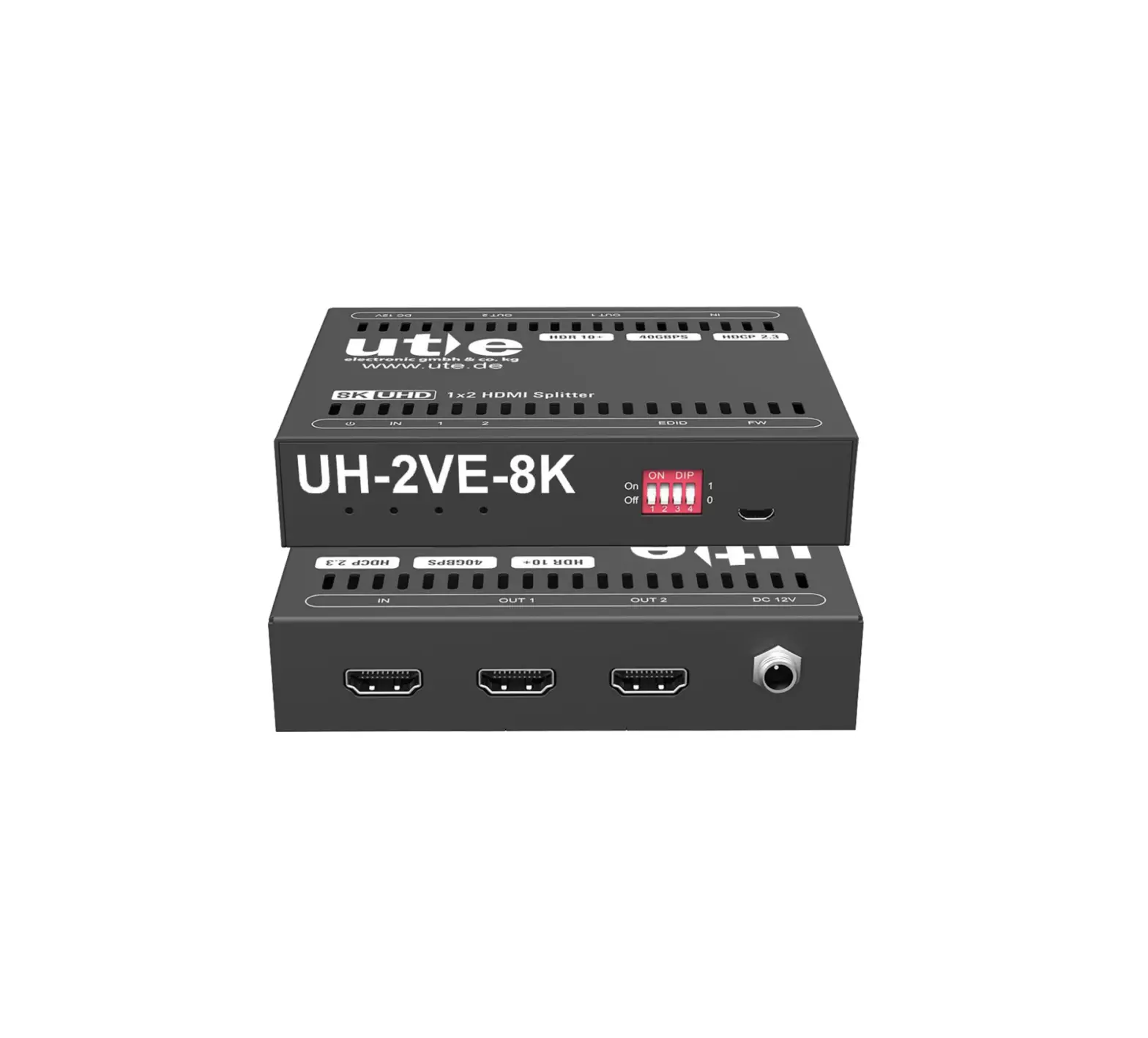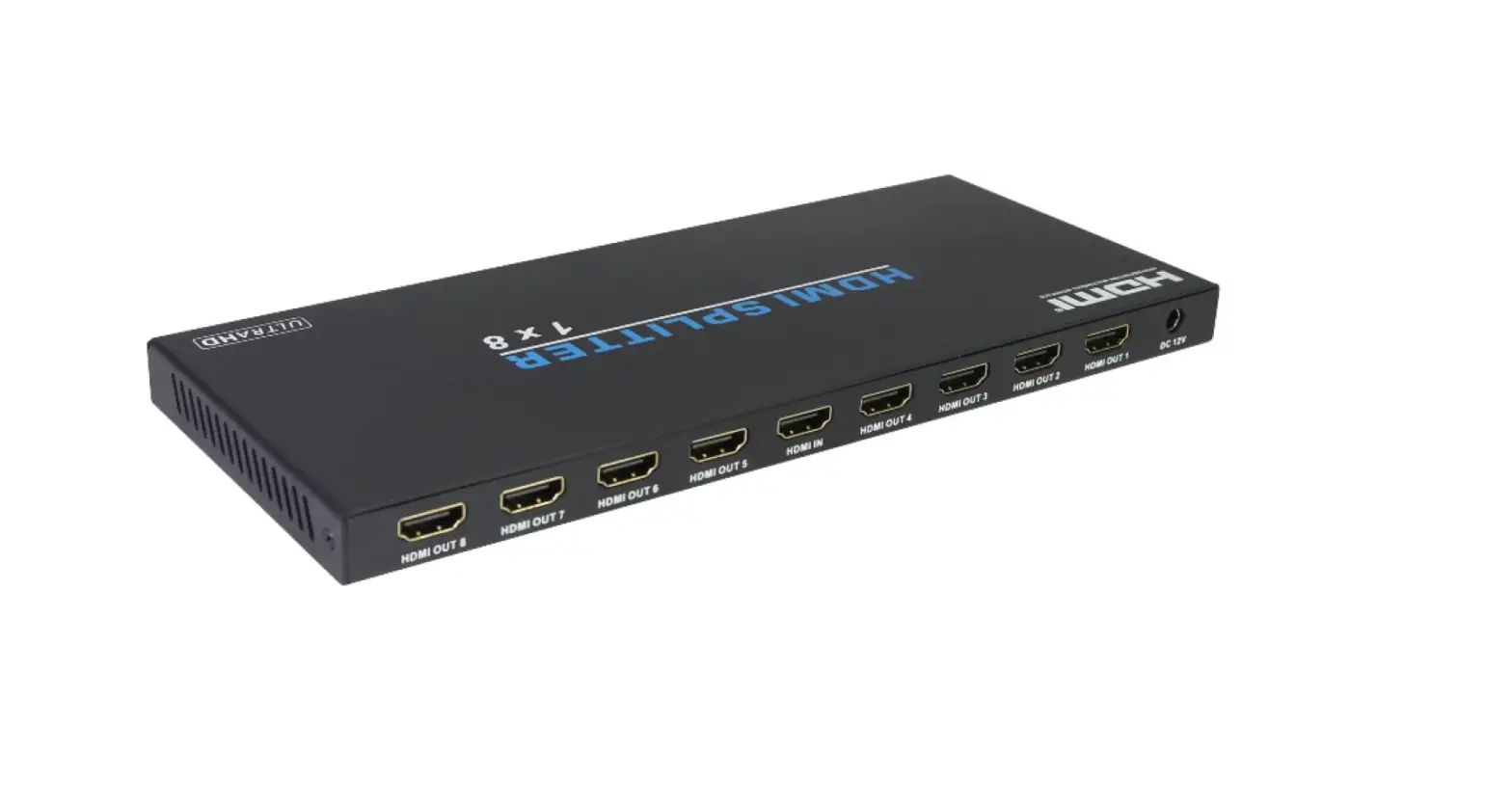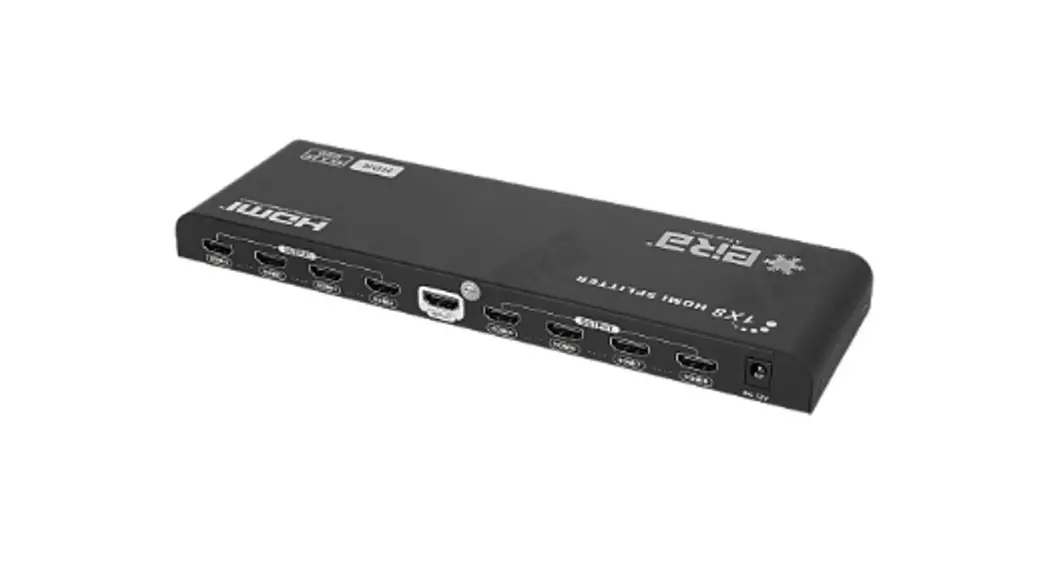

HDMI SPLITTER
User Manual
HDMI SPLITTER 1×8 (4K60Hz)
ER2644SP

IMPORTANT SAFETY INSTRUCTIONS
Please read below safety instructions carefully before installation and operation:
- Please pay attention to all the warnings and hints on this device.
- Do not expose this unit to rain, moisture, and liquid.
- Do not put any stuff into the device.
- Do not repair the device or open the enclosure without professional person guidance to avoid electronic shock.
- Make sure good ventilation openings to avoid product overheating damage.
- Shut off power and make sure environment is safe before installation.
- Use DC12V only. Make sure the specification matched if using 3rd party DC adapters.
Introduction
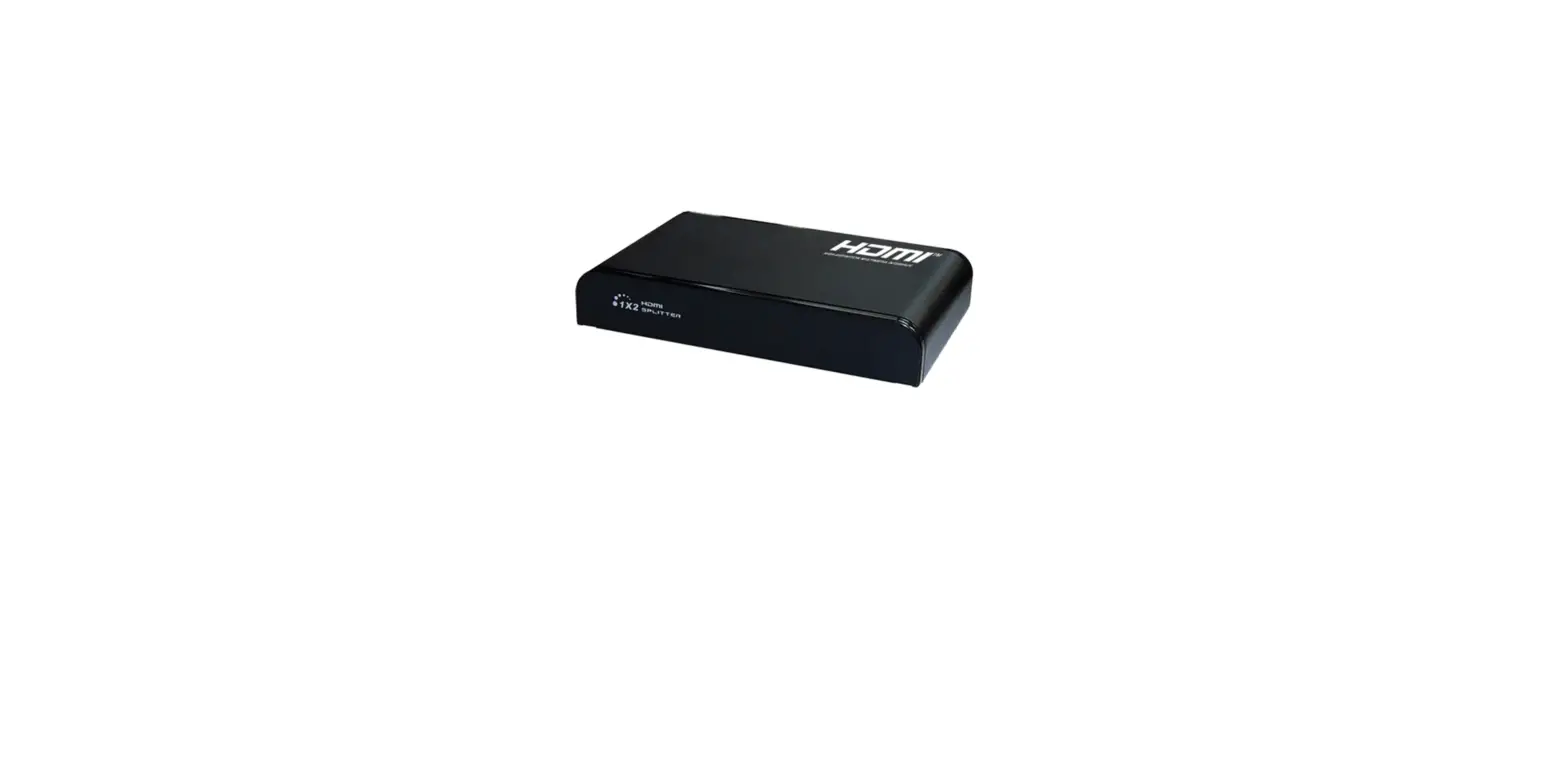
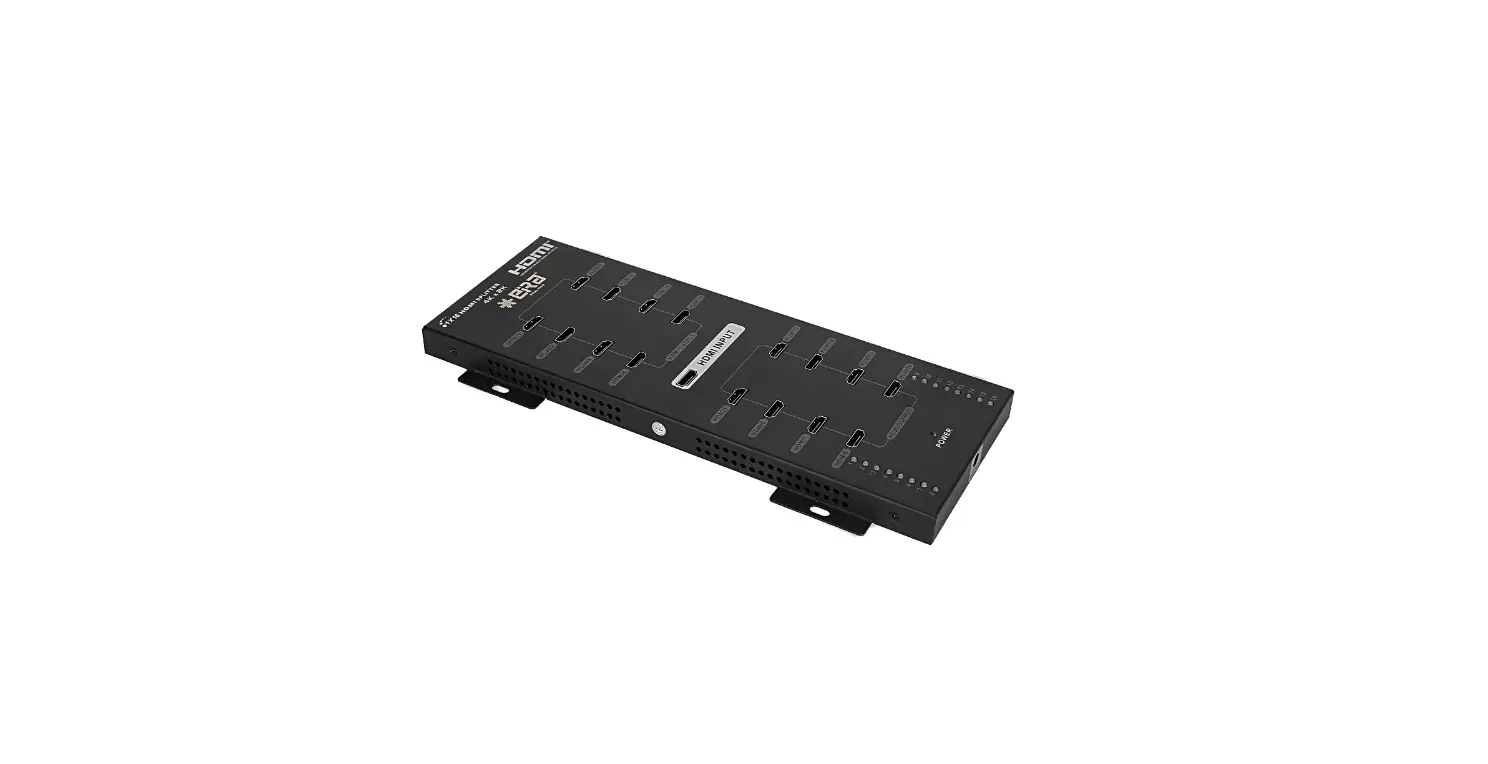
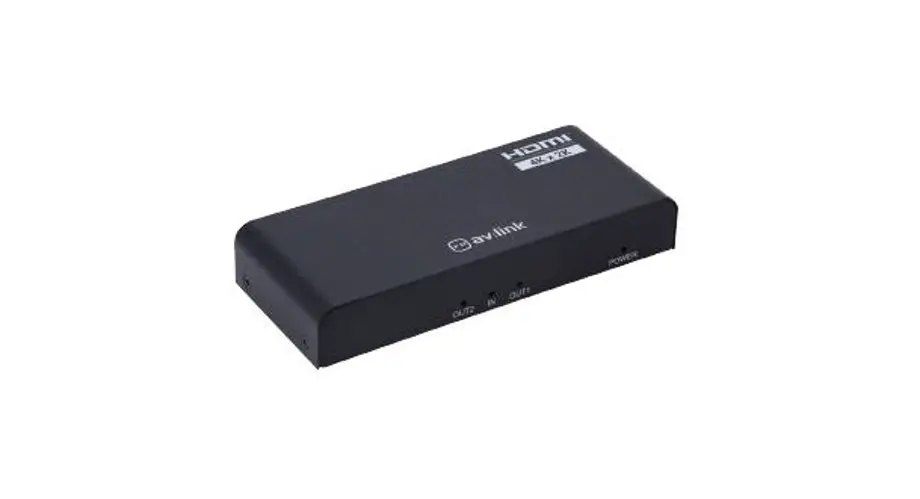
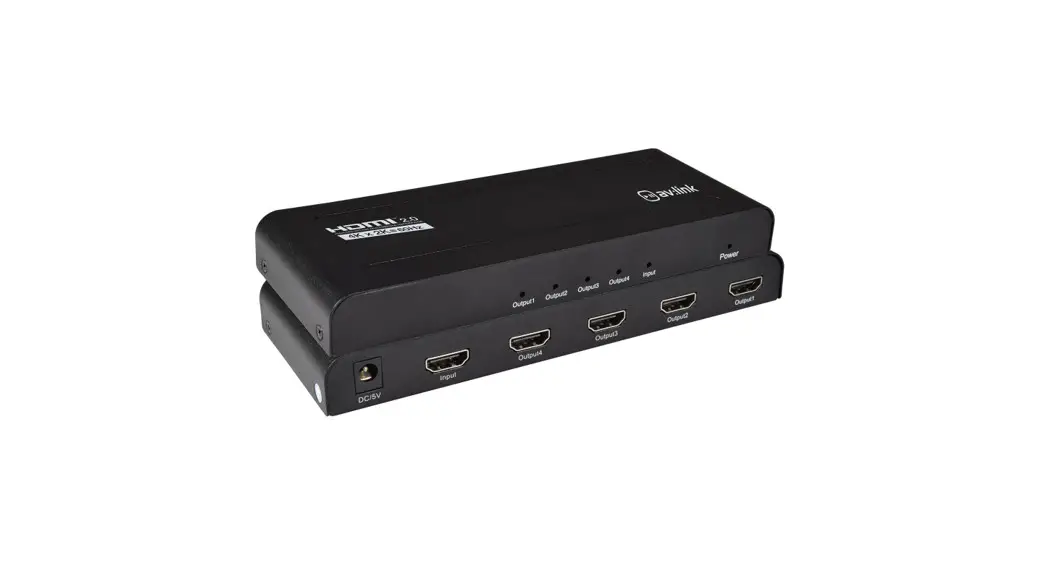
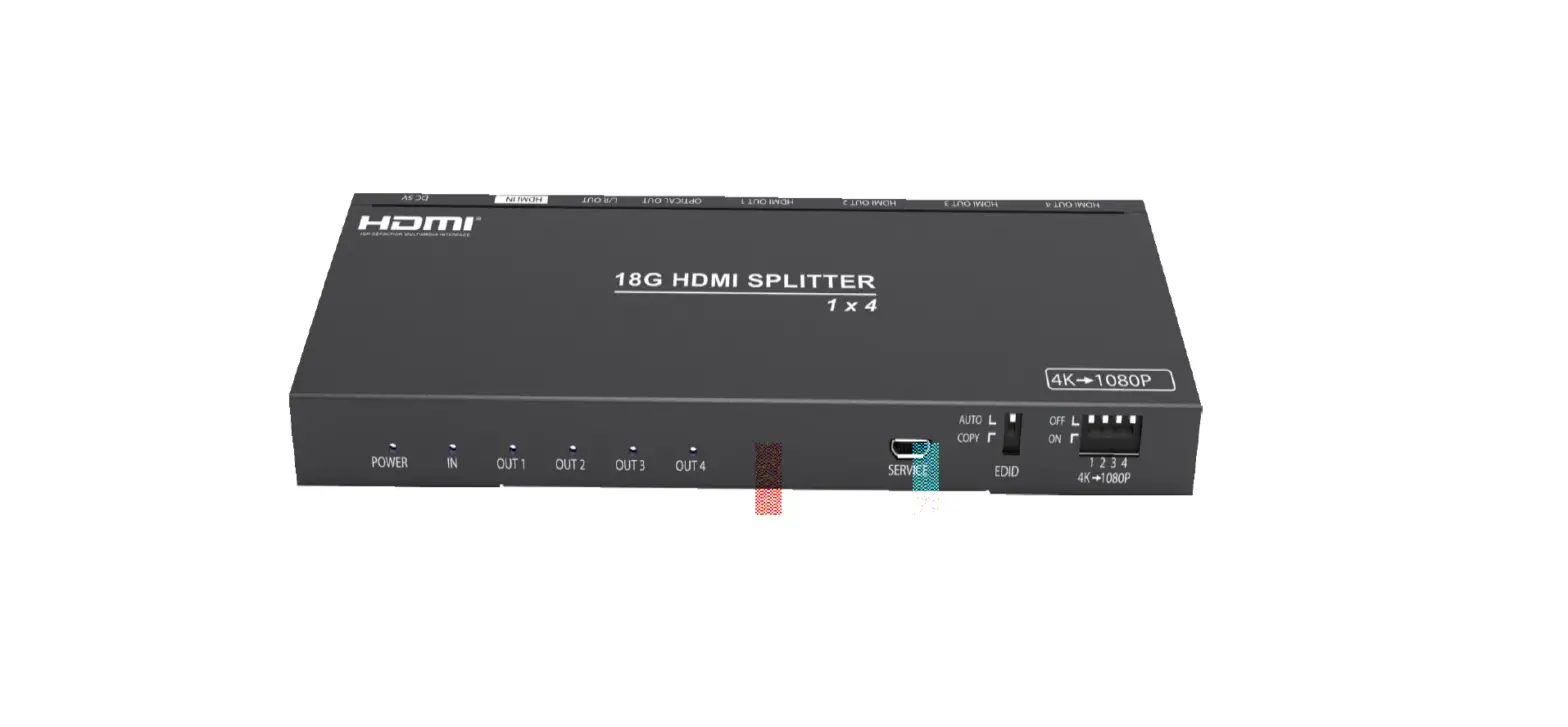
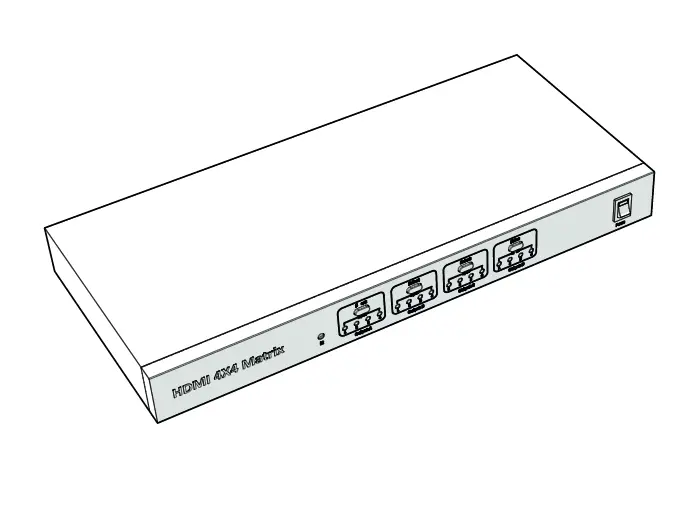
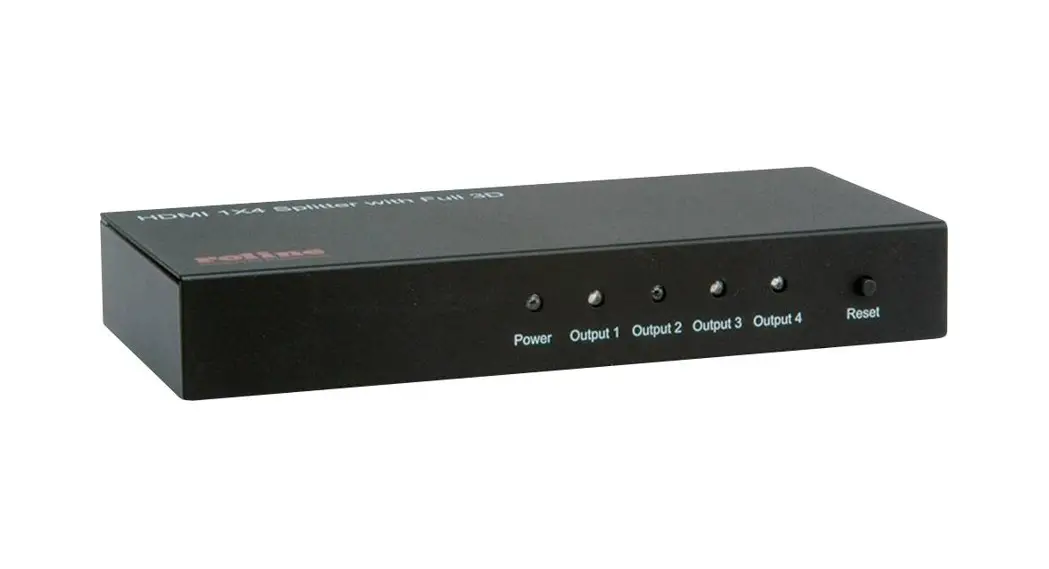
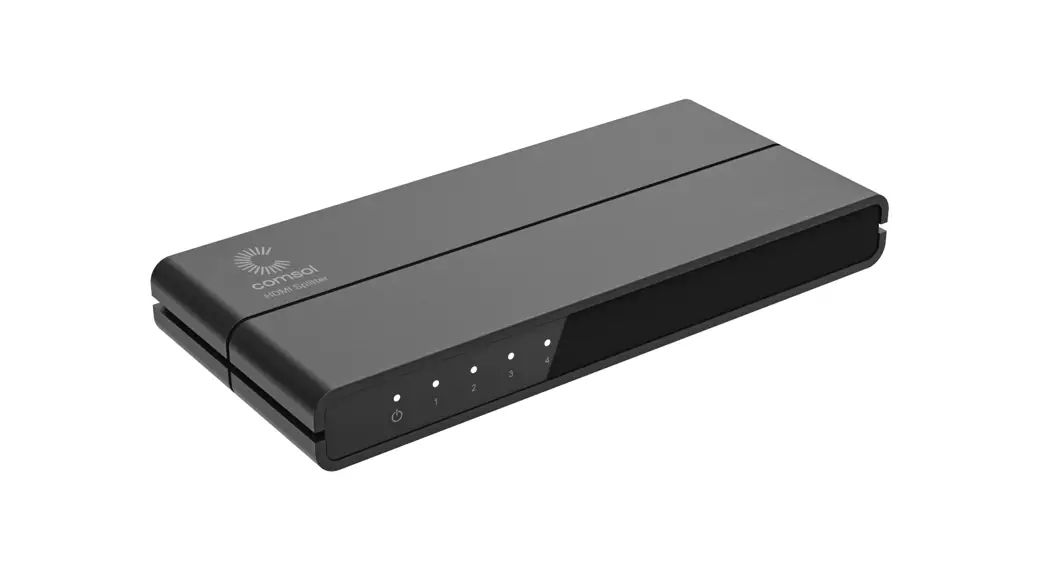
1×8 HDMI splitter distributes 1 HDMI source to8 HDMI displays simultaneously. Apply forSTB, DVD, Media Player, Laptop, D-VHS and other HD-Player devices. It’s Compatible with HDMI 3D and 4Kx2K.
Features:
- Distribute 1] HDMI source to 8 HDMI displays
- Support ultra HD resolution 4Kx2K@60Hz
- Support HDMI 3D
- Support YUV 4:4:4
- Support HDR
- HDMI 2.0 and HDCP2.2 compliant
- Low power consumption
- Support configures the video resolution automatically according to the capabilities of each connected monitor, allows simultaneous mixed 4K and 1080p display outputs
- Plug and play
Package Contents

Installation Requirement
- Source: HDMI video source, suchas DVD, PS3, STB, PC, Etc.
- Display: HDTV, projector or other display with HDMI port
- HDMI cable: HDMI12.0 standard cable (can support 4Kx2K@60Hz)
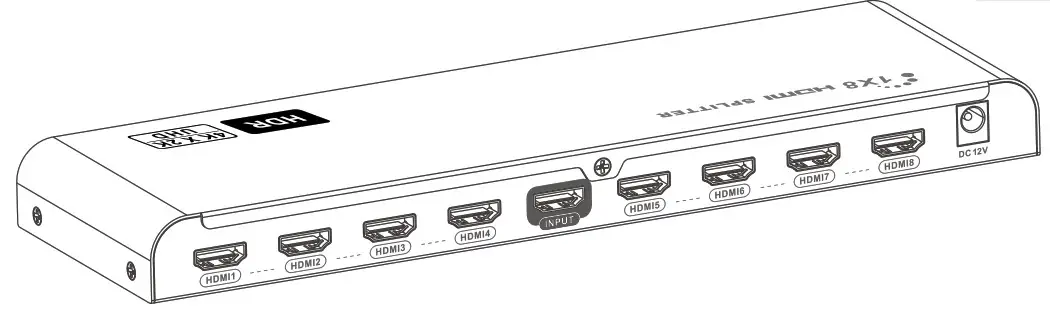
Panel Description

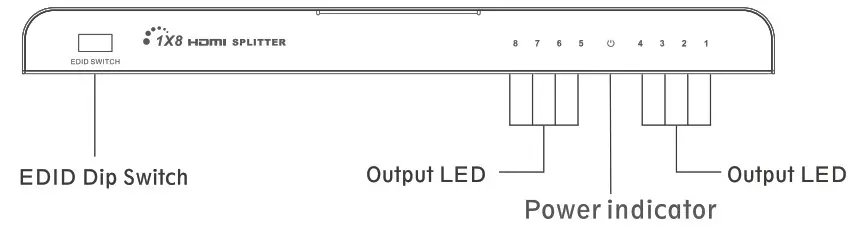
Installation and Connection
- Connection

- Connection instruction
- Connect the HDMI video source output port to the splitter input port by HDMI cable
- Connect the splitter output port to HDMI display by HDMI cable
- Power on the splitter(Power indicator led will light on)
- Operation
- Before output HDMI signal, the splitter will read EDID information of connected TVs and send it back to HDMI source part to let it determine the output mode
- Indicator led shows the working status
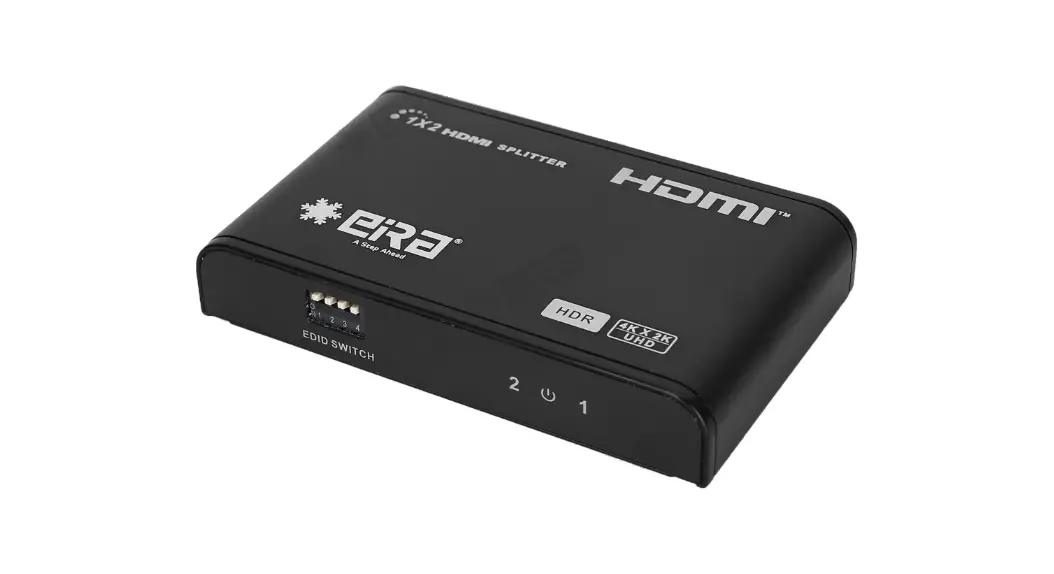
- The splitter build-in 16 kinds of EDID, select by 4 switch codes, corresponding as following

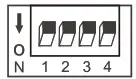 Switch up for“1”
 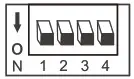 Switch down for “0”
| Switch Status | 1 | 2 | 3 | 4 | EDID information |
| 0 | 0 | 0 | 0 | 4k@60Hz 2CH | |
| 1 | 0 | 0 | 0 | 4k@60Hz 7.1CH | |
| 0 | 1 | 0 | 0 | 4k@30Hz 2CH | |
| 1 | 1 | 0 | 0 | 4k©30Hz 7.1CH | |
| 0 | 0 | 1 | 0 | 1080pg60Hz 2CH | |
| 1 | 0 | 1 | 0 | 1080p@60Hz 7.1CH | |
| 0 | 1 | 1 | 0 | 10801@60Hz 2CH | |
| 1 | 1 | 1 | 0 | 10801@60Hz 7.1 CH | |
| 0 | 0 | 0 | 1 | 1080pg50Hz 2CH | |
| 1 | 0 | 0 | 1 | 1080P@5OHz 7.1CH | |
| 0 | 1 | 0 | 1 | 4K®30Hz HDR | |
| 1 | 1 | 0 | 1 | 4K@60Hz HDR | |
| 0 | 0 | 1 | 1 | Copy once | |
| 1 | 0 | 1 | 1 | MIX1 | |
| 0 | 1 | 1 | 1 | MIX2 | |
| 1 | 1 | 1 | 1 | MIX3 |
[NOTE] Copy Once: Read the EDID of the first connected output only
MIX1 : Lowest format of audio, and lowest format of video
MIX2 : Highest format of audio, and compose down scaling of video
MIX3 : Lowest format of audio, and compose down scaling of video
FAQ
1) Check the power supply of splitter, make sure the power light is on.
2) Check if the HDMI cables connected firmly.
3) Check and make sure the TV has been Set up to the right channel
4) While connect with PC or notebook via HDMI, please make sure the output mode is mirror or extend.
1) Check and make sure all connections are good and correct.
2) Try to directly connect HDMI source to display, if it is the same, please change the source device.
3) Use high-quality HDMI 1.4 cable for transmitting 4Kx2K UHD signal.
1) Check and make sure the input sources are 4Kx2K@60Hz UHD signal.
2 ) Check and make sure the TV is Support 4Kx2K@60Hz resolution.
3) Check ifthe HDMI cables are compliant HDMI12.0 standard.
1) Check and make sure the input sources are support HDR effect.
2 ) Check and make sure the TV is Support HDR effect image.
Specification
| Items | Specifications |
| Input ports | 1 x HDMI |
| Output ports | 8 x HDMI |
| Power indicator led | 1 xLED |
| Signal indicator led | 8 xLED |
| HDMI Version | Compatible with HDM11.4,HDM12.0 |
| HDCP Version | Compatible with HDCP1.4,HDCP2.2 |
| HDMI Resolution | 480i/480p/576i/576p/720p/10801/1080p/ 4Kx2K@24/25/30/60Hz |
| Frequency Range | 25MHz-600MHz |
| Video form | Support 3D video and 4Kx2K@30/60Hz ultra HD video |
| Input and output TMDS signal | 0.7-1.5Vp-p(TMDS) |
| Input and output DDC signal | 5Vp-p(TTL) |
| Audio | Support standard audio and DSD ( Direct Stream Digital ) and HD(HBR) audio |
| HDR | Support |
| EDID management | Support smart EDID management, available to display different resolution monitors at the same time |
| Working temperature | 0°C — 60°C |
| Power supply | 12V/1A |
| Power consumption | <8W |
| Dimension | 262mm (L)x81.6mm(W)x23.5mm(H) |
| Weight | 453g |
| Color | Black |
Disclaimer
The product name and brand name may be registered trademark of related manufactures. ™ and ® may be omitted on the user manual.
The pictures in this user manual are just for reference. The terms HDMI, HDMI High-Definition Multimedia Interface, and the HDMI Logo are trademarks or registered trademarks of HDMI Licensing Administrator, Inc.
We reserve the rights to make changes without further notice to a product or system described herein to improve reliability, function or design.