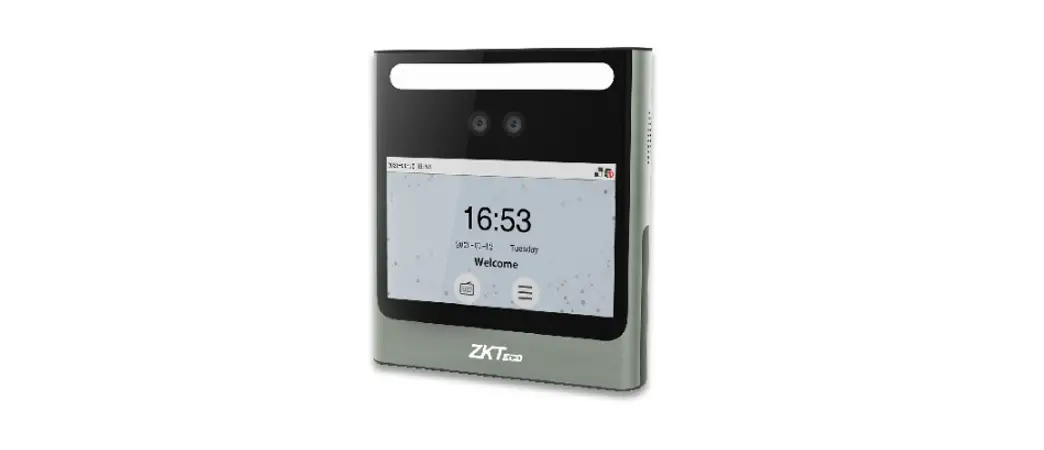
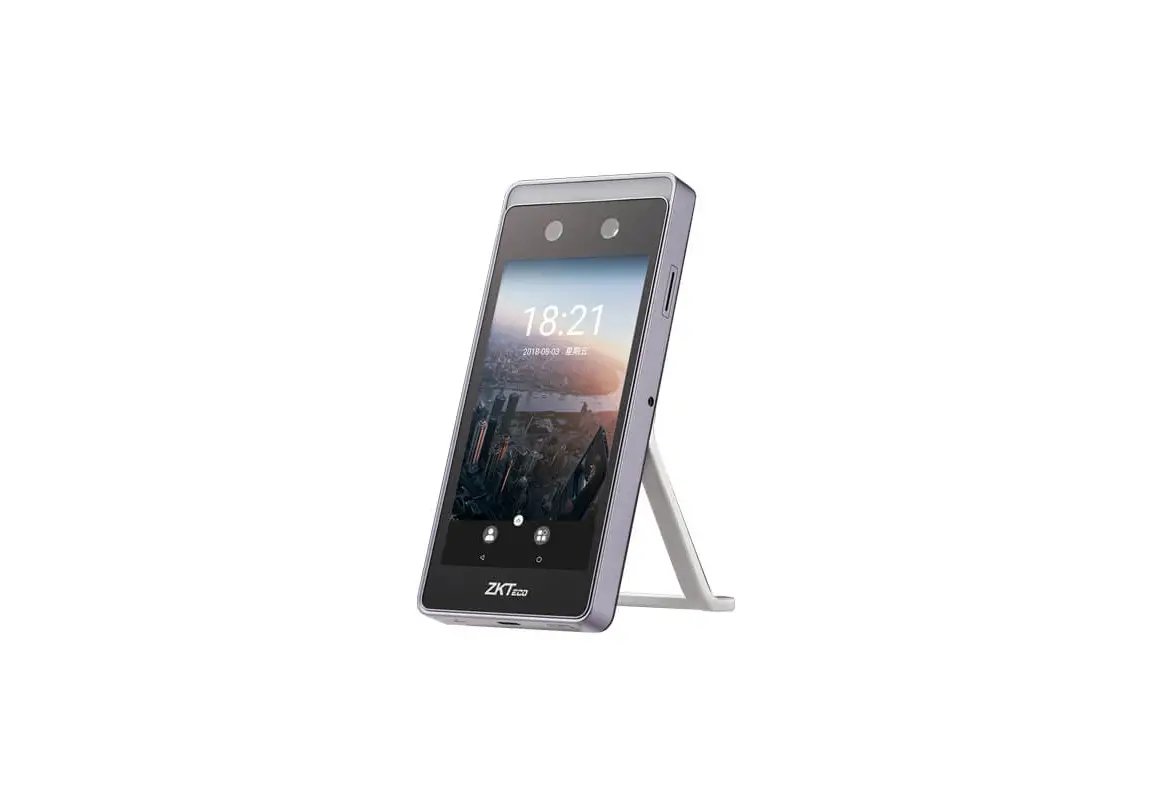
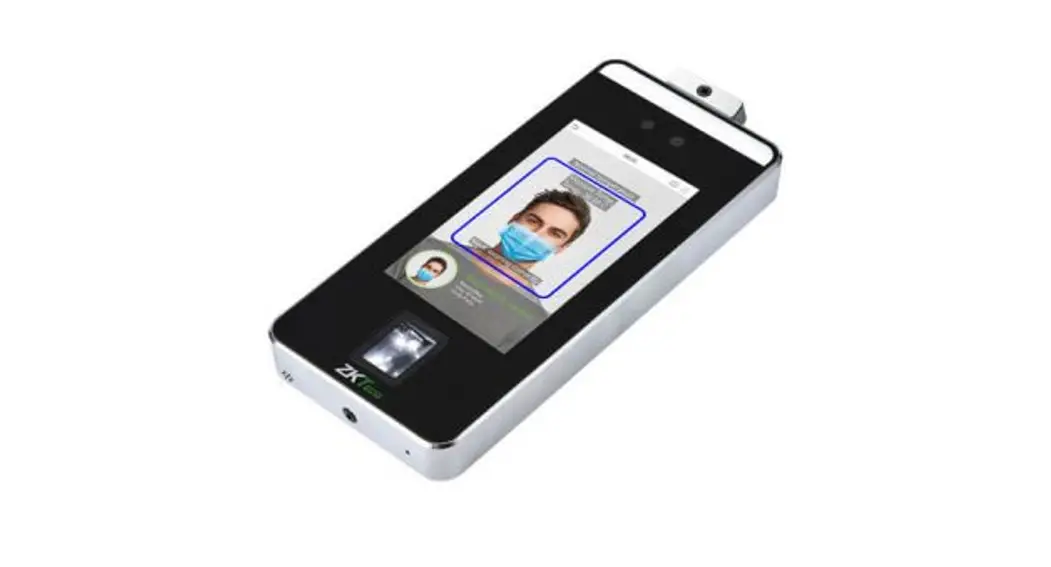
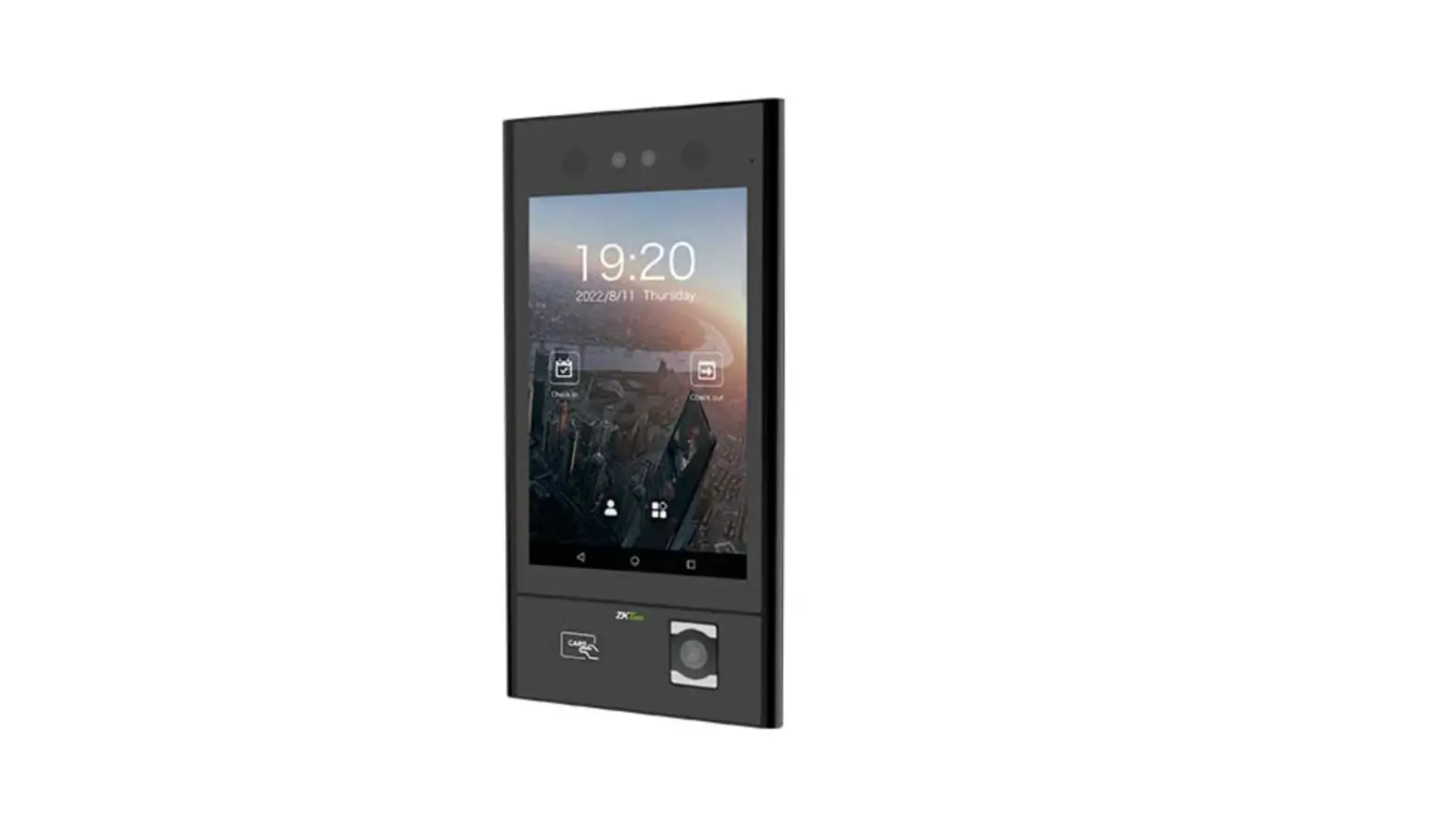
![Zkteco G4[qr] Android Multi-biometric Facial Recognition Terminal User Guide](https://static-data1.manualsee.com/1/img/172/2574452/2022/04/ZKTECO-G4QR-Android-Multi-Biometric-Facial-Recognition-Terminal-Featured-Image.png)
 Quick Start Guide
Applicable Model: G4[QR]
Version: 1.0
Due to regular upgrades of systems and products, ZKTeco could not guarantee exact consistency between the actual product and the written information in this manual.
Safety Precautions
Before installation, please read the following precautions carefully to prevent the risks and danger to this product, users or any other person.
![ZKTECO G4[QR] Android Multi Biometric Facial Recognition Terminal](https://static-data1.manualsee.com/1/img/172/2574452/2022/04/ZKTECO-G4QR-Android-Multi-Biometric-Facial-Recognition-Terminal.png) | Do not expose to direct sunlight, water, dust, and soot. |
![ZKTECO G4[QR] Android Multi Biometric Facial Recognition Terminal - ICON](https://static-data1.manualsee.com/1/img/172/2574452/2022/04/ZKTECO-G4QR-Android-Multi-Biometric-Facial-Recognition-Terminal-ICON.png) | Do not place any magnetic objects near the product. Magnetic objects such as magnets, CRT, TV, monitors, or speakers may damage the device. |
![ZKTECO G4[QR] Android Multi Biometric Facial Recognition Terminal - ICON 1](https://static-data1.manualsee.com/1/img/172/2574452/2022/04/ZKTECO-G4QR-Android-Multi-Biometric-Facial-Recognition-Terminal-ICON-1.png) | Do not place the device next to heating equipment. |
![ZKTECO G4[QR] Android Multi Biometric Facial Recognition Terminal - ICON 2](https://static-data1.manualsee.com/1/img/172/2574452/2022/04/ZKTECO-G4QR-Android-Multi-Biometric-Facial-Recognition-Terminal-ICON-2.png) | Prevent water, drinks, or chemicals from leaking into the device. |
![ZKTECO G4[QR] Android Multi Biometric Facial Recognition Terminal - ICON 3](https://static-data1.manualsee.com/1/img/172/2574452/2022/04/ZKTECO-G4QR-Android-Multi-Biometric-Facial-Recognition-Terminal-ICON-3.png) | This product is not intended for use by children unless they are supervised. |
![ZKTECO G4[QR] Android Multi Biometric Facial Recognition Terminal - ICON 4](https://static-data1.manualsee.com/1/img/172/2574452/2022/04/ZKTECO-G4QR-Android-Multi-Biometric-Facial-Recognition-Terminal-ICON-4.png) | Do not drop or damage the device. |
![ZKTECO G4[QR] Android Multi Biometric Facial Recognition Terminal - ICON 5](https://static-data1.manualsee.com/1/img/172/2574452/2022/04/ZKTECO-G4QR-Android-Multi-Biometric-Facial-Recognition-Terminal-ICON-5.png) | Do not disassemble, repair or modify the device. |
![ZKTECO G4[QR] Android Multi Biometric Facial Recognition Terminal - ICON 6](https://static-data1.manualsee.com/1/img/172/2574452/2022/04/ZKTECO-G4QR-Android-Multi-Biometric-Facial-Recognition-Terminal-ICON-6.png) | Do not use the device for any purpose other than those specified. |
![ZKTECO G4[QR] Android Multi Biometric Facial Recognition Terminal - ICON 7](https://static-data1.manualsee.com/1/img/172/2574452/2022/04/ZKTECO-G4QR-Android-Multi-Biometric-Facial-Recognition-Terminal-ICON-7.png) | Remove dust or dirt regularly. While cleaning, wipe the dust off with a smooth cloth or towel instead of water. |
Contact your supplier in case of any problem!
User Registration
- The recommended distance
![ZKTECO G4[QR] Android Multi Biometric Facial Recognition Terminal - User Registration](data:image/svg+xml,%3Csvg%20xmlns=%22http://www.w3.org/2000/svg%22%20width=%22419%22%20height=%22656%22%3E%3C/svg%3E)
![ZKTECO G4[QR] Android Multi Biometric Facial Recognition Terminal - User Registration](https://static-data1.manualsee.com/1/img/172/2574452/2022/04/ZKTECO-G4QR-Android-Multi-Biometric-Facial-Recognition-Terminal-User-Registration.png)
For the user’s height ranging from 1.5m to 1.8m, the recommended device height is 1.55m from the ground. It can be adjusted and installed according to the user’s average height.
a. The recommended position![ZKTECO G4[QR] Android Multi Biometric Facial Recognition Terminal - position](https://static-data1.manualsee.com/1/img/172/2574452/2022/04/ZKTECO-G4QR-Android-Multi-Biometric-Facial-Recognition-Terminal-position.png)
The registration and verification position of the device shouldn’t be changed to avoid affecting the verification accuracy. If it is necessary to move the device, then move it horizontally keeping the vertical height same.
2) The recommended and not-recommended facial expressions:![ZKTECO G4[QR] Android Multi Biometric Facial Recognition Terminal - expressions](https://static-data1.manualsee.com/1/img/172/2574452/2022/04/ZKTECO-G4QR-Android-Multi-Biometric-Facial-Recognition-Terminal-expressions.png)
3) Registration
During registration, please adjust your position and keep your face inside the green frame.![ZKTECO G4[QR] Android Multi Biometric Facial Recognition Terminal - Registration](https://static-data1.manualsee.com/1/img/172/2574452/2022/04/ZKTECO-G4QR-Android-Multi-Biometric-Facial-Recognition-Terminal-Registration.png)
Device Overview![ZKTECO G4[QR] Android Multi Biometric Facial Recognition Terminal - Overview](data:image/svg+xml,%3Csvg%20xmlns=%22http://www.w3.org/2000/svg%22%20width=%22791%22%20height=%221022%22%3E%3C/svg%3E)
![ZKTECO G4[QR] Android Multi Biometric Facial Recognition Terminal - Overview](https://static-data1.manualsee.com/1/img/172/2574452/2022/04/ZKTECO-G4QR-Android-Multi-Biometric-Facial-Recognition-Terminal-Overview.png)
Product PIN Diagram![ZKTECO G4[QR] Android Multi Biometric Facial Recognition Terminal - Diagram](data:image/svg+xml,%3Csvg%20xmlns=%22http://www.w3.org/2000/svg%22%20width=%22690%22%20height=%22630%22%3E%3C/svg%3E)
![ZKTECO G4[QR] Android Multi Biometric Facial Recognition Terminal - Diagram](https://static-data1.manualsee.com/1/img/172/2574452/2022/04/ZKTECO-G4QR-Android-Multi-Biometric-Facial-Recognition-Terminal-Diagram.png)
Product Dimensions![ZKTECO G4[QR] Android Multi Biometric Facial Recognition Terminal - Product Dimensions](data:image/svg+xml,%3Csvg%20xmlns=%22http://www.w3.org/2000/svg%22%20width=%221132%22%20height=%22545%22%3E%3C/svg%3E)
![ZKTECO G4[QR] Android Multi Biometric Facial Recognition Terminal - Product Dimensions](https://static-data1.manualsee.com/1/img/172/2574452/2022/04/ZKTECO-G4QR-Android-Multi-Biometric-Facial-Recognition-Terminal-Product-Dimensions.png)
Product Installation
Mounting the device on wall![ZKTECO G4[QR] Android Multi Biometric Facial Recognition Terminal - device on wall](data:image/svg+xml,%3Csvg%20xmlns=%22http://www.w3.org/2000/svg%22%20width=%22487%22%20height=%22423%22%3E%3C/svg%3E)
![ZKTECO G4[QR] Android Multi Biometric Facial Recognition Terminal - device on wall](https://static-data1.manualsee.com/1/img/172/2574452/2022/04/ZKTECO-G4QR-Android-Multi-Biometric-Facial-Recognition-Terminal-device-on-wall.png)
- Paste the mounting template sticker onto the wall, and drill holes according to it.
![ZKTECO G4[QR] Android Multi Biometric Facial Recognition Terminal - mounting](data:image/svg+xml,%3Csvg%20xmlns=%22http://www.w3.org/2000/svg%22%20width=%22273%22%20height=%22427%22%3E%3C/svg%3E)
- Fix the back plate to the wall using wall mounting screws.
![ZKTECO G4[QR] Android Multi Biometric Facial Recognition Terminal - device](data:image/svg+xml,%3Csvg%20xmlns=%22http://www.w3.org/2000/svg%22%20width=%22474%22%20height=%22519%22%3E%3C/svg%3E)
- Attach the device to the back plate.
![ZKTECO G4[QR] Android Multi Biometric Facial Recognition Terminal - Fasten](data:image/svg+xml,%3Csvg%20xmlns=%22http://www.w3.org/2000/svg%22%20width=%22329%22%20height=%22420%22%3E%3C/svg%3E)
- Fasten the device to the back plate with a security screw.
![ZKTECO G4[QR] Android Multi Biometric Facial Recognition Terminal - mounting](https://static-data1.manualsee.com/1/img/172/2574452/2022/04/ZKTECO-G4QR-Android-Multi-Biometric-Facial-Recognition-Terminal-mounting.png)
![ZKTECO G4[QR] Android Multi Biometric Facial Recognition Terminal - device](https://static-data1.manualsee.com/1/img/172/2574452/2022/04/ZKTECO-G4QR-Android-Multi-Biometric-Facial-Recognition-Terminal-device.png)
![ZKTECO G4[QR] Android Multi Biometric Facial Recognition Terminal - Fasten](https://static-data1.manualsee.com/1/img/172/2574452/2022/04/ZKTECO-G4QR-Android-Multi-Biometric-Facial-Recognition-Terminal-Fasten.png)
Ethernet & Power Connection
Power Connection
![ZKTECO G4[QR] Android Multi Biometric Facial Recognition Terminal - Power Connection](https://static-data1.manualsee.com/1/img/172/2574452/2022/04/ZKTECO-G4QR-Android-Multi-Biometric-Facial-Recognition-Terminal-Power-Connection.png)
Recommended power supply
- Rating of 12V and 3A
- To share the device’s power with other devices, use a power supply with higher current ratings.
LAN Connection![ZKTECO G4[QR] Android Multi Biometric Facial Recognition Terminal - LAN Connection](data:image/svg+xml,%3Csvg%20xmlns=%22http://www.w3.org/2000/svg%22%20width=%221251%22%20height=%22492%22%3E%3C/svg%3E)
![ZKTECO G4[QR] Android Multi Biometric Facial Recognition Terminal - LAN Connection](https://static-data1.manualsee.com/1/img/172/2574452/2022/04/ZKTECO-G4QR-Android-Multi-Biometric-Facial-Recognition-Terminal-LAN-Connection.png)
Click [COMM.] > [Ethernet] > [IP Address] , input the IP address and click [OK].
Lock Relay Connection
The system supports both Normally Opened Lock and Normally Closed Lock. The NO Lock (normally opened when powered) is connected with ‘NO’ and ‘COM’ terminals, and the NC Lock (normally closed when powered) is connected with ‘NC’ and ‘COM’ terminals. The power can be shared with the lock or can be used separately for the lock, as shown in the example with NC Lock below:
Device not sharing power with the NC lock:![ZKTECO G4[QR] Android Multi Biometric Facial Recognition Terminal - NC lock](data:image/svg+xml,%3Csvg%20xmlns=%22http://www.w3.org/2000/svg%22%20width=%221250%22%20height=%22646%22%3E%3C/svg%3E)
![ZKTECO G4[QR] Android Multi Biometric Facial Recognition Terminal - NC lock](https://static-data1.manualsee.com/1/img/172/2574452/2022/04/ZKTECO-G4QR-Android-Multi-Biometric-Facial-Recognition-Terminal-NC-lock.png)
Device sharing power with the NC lock:
![ZKTECO G4[QR] Android Multi Biometric Facial Recognition Terminal - power](https://static-data1.manualsee.com/1/img/172/2574452/2022/04/ZKTECO-G4QR-Android-Multi-Biometric-Facial-Recognition-Terminal-power.png)
Connecting Other Devices
![ZKTECO G4[QR] Android Multi Biometric Facial Recognition Terminal - Connection](https://static-data1.manualsee.com/1/img/172/2574452/2022/04/ZKTECO-G4QR-Android-Multi-Biometric-Facial-Recognition-Terminal-Connection.png)
Alarm Connection![ZKTECO G4[QR] Android Multi Biometric Facial Recognition Terminal - Connection 1](https://static-data1.manualsee.com/1/img/172/2574452/2022/04/ZKTECO-G4QR-Android-Multi-Biometric-Facial-Recognition-Terminal-Connection-1.png)
Wiegand Connection![ZKTECO G4[QR] Android Multi Biometric Facial Recognition Terminal - Wiegand Connection](https://static-data1.manualsee.com/1/img/172/2574452/2022/04/ZKTECO-G4QR-Android-Multi-Biometric-Facial-Recognition-Terminal-Wiegand-Connection.png)
Standalone Installation![ZKTECO G4[QR] Android Multi Biometric Facial Recognition Terminal - Standalone](data:image/svg+xml,%3Csvg%20xmlns=%22http://www.w3.org/2000/svg%22%20width=%22759%22%20height=%221022%22%3E%3C/svg%3E)
![ZKTECO G4[QR] Android Multi Biometric Facial Recognition Terminal - Standalone](https://static-data1.manualsee.com/1/img/172/2574452/2022/04/ZKTECO-G4QR-Android-Multi-Biometric-Facial-Recognition-Terminal-Standalone-e1648902413266.png)
Enroll New User![ZKTECO G4[QR] Android Multi Biometric Facial Recognition Terminal - Enroll New](https://static-data1.manualsee.com/1/img/172/2574452/2022/04/ZKTECO-G4QR-Android-Multi-Biometric-Facial-Recognition-Terminal-Enroll-New.png)
Tap Main Menu > User Mgt. > . The settings include entering ID, Name, choosing User Role, Enroll Card Number (ID card is optional), Password, Face, and setting erification Mode. Note: Normal User is not authorized to operate the menu options of the device. Only Super Admin can operate all the menu options of the device. Thus it is ecommended to register super administrator initially.
Access Control
![ZKTECO G4[QR] Android Multi Biometric Facial Recognition Terminal - Access Control](https://static-data1.manualsee.com/1/img/172/2574452/2022/04/ZKTECO-G4QR-Android-Multi-Biometric-Facial-Recognition-Terminal-Access-Control.png)
Tap Main Menu > Access Control > Access Control Options to enter Access Control Options setting interface and set relevant parameters of the access control.
Network Settings![ZKTECO G4[QR] Android Multi Biometric Facial Recognition Terminal - Network](https://static-data1.manualsee.com/1/img/172/2574452/2022/04/ZKTECO-G4QR-Android-Multi-Biometric-Facial-Recognition-Terminal-Network.png)
Tap Main Menu > System Settings > Network Settings, set the IP Address. The device will communicate with the PC via the Ethernet parameters. To use Cloud Server Setting set Server Address and Server port according to the server.
QR Code Scanner
1) Attendance QR Code
Tap Main Menu > System Settings > Attendance parameters > QRCode.![ZKTECO G4[QR] Android Multi Biometric Facial Recognition Terminal - QR Code](https://static-data1.manualsee.com/1/img/172/2574452/2022/04/ZKTECO-G4QR-Android-Multi-Biometric-Facial-Recognition-Terminal-QR-Code.png)
If it is enabled, the camera can recognize the QR code image on the ZKBioSecurity Mobile APP captured by the lens or the QR code scanner.Find the attendance QR code on the ZKBioSecurity Mobile App. Align it with the QR code scanner at the bottom right corner of G4[QR]. You can check in/out when verification is successful.About how to set the attendance QR code, please refer to Chapter 7.5 of the [ZKBioSecurity Mobile APP User Manual].
2) Access Control QR Code
Tap Main Menu > System Settings > Access control record settings > QRCode.![ZKTECO G4[QR] Android Multi Biometric Facial Recognition Terminal - Control QR Code](https://static-data1.manualsee.com/1/img/172/2574452/2022/04/ZKTECO-G4QR-Android-Multi-Biometric-Facial-Recognition-Terminal-Control-QR-Code.png)
If it is enabled, the camera can recognize the QR code image on the ZKBioSecurity Mobile APP captured by the lens or the QR code scanner. ![ZKTECO G4[QR] Android Multi Biometric Facial Recognition Terminal - camera](https://static-data1.manualsee.com/1/img/172/2574452/2022/04/ZKTECO-G4QR-Android-Multi-Biometric-Facial-Recognition-Terminal-camera.png)
Find the access control QR code on the ZKBioSecurity Mobile App. Align it with the QR code scanner at the bottom right corner of G4[QR]. The gate will open when verification is successful. About how to set the access control QR code, please refer to Chapter 7.5 of the [ZKBioSecurity Mobile APP User Manual].
Attendance Record Search![ZKTECO G4[QR] Android Multi Biometric Facial Recognition Terminal - Record Search](https://static-data1.manualsee.com/1/img/172/2574452/2022/04/ZKTECO-G4QR-Android-Multi-Biometric-Facial-Recognition-Terminal-Record-Search.png)
View attendance records in the device:
Tap Main Menu > Record Search > Att Log enter Name or Employee ID > select Time Range > press OK, the corresponding attendance logs will be displayed. NOTE: If the User ID field is left blank, records of all users will be displayed. View attendance records on computer: Tap Main Menu > USB disk Management > USB disk Download. Insert the USB disk and download the data to the USB drive, then copy this data from the USB drive to your PC. The filename of the downloaded data will be ”Device Serial mber.dat”, which can be opened and viewed in the PC.
Date and Time Settings![ZKTECO G4[QR] Android Multi Biometric Facial Recognition Terminal - Time Settings](https://static-data1.manualsee.com/1/img/172/2574452/2022/04/ZKTECO-G4QR-Android-Multi-Biometric-Facial-Recognition-Terminal-Time-Settings.png)
Tap Main Menu > System Settings > Date and Time, to enter Date and Time setting interface to set the relevant parameters.
Troubleshooting
- Failed to gain access after successful verification
Ø Check with the administrator, whether the enrolled face has been removed from the device or not. - Door doesn’t open after successful verification.
Ø Check if the lock open duration parameter is set appropriately.
![ZKTECO G4[QR] Android Multi Biometric Facial Recognition Terminal - qr code 1](https://static-data1.manualsee.com/1/img/172/2574452/2022/04/ZKTECO-G4QR-Android-Multi-Biometric-Facial-Recognition-Terminal-qr-code-1.png)
https://www.zkteco.com/en/
ZKTeco Industrial Park, No. 32, Industrial Road,
Tangxia Town, Dongguan, China.
Phone : +86 769 – 82109991
Fax : +86 755 – 89602394
www.zkteco.com
Copyright © 2021 ZKTECO CO., LTD.
All Rights Reserved.
 ZKTeco | Home Page
![Zkteco Speedface-v5l[qr] Series Visible Light Facial Recognition Terminal User Guide](https://static-data1.manualsee.com/1/img/411/2395082/2022/03/ZKTeco-SpeedFace-V5LQR-Series-Visible-Light-Facial-Recognition-Terminal-fea.png "Zkteco Speedface-v5l[qr] Series Visible Light Facial Recognition Terminal User Guide")