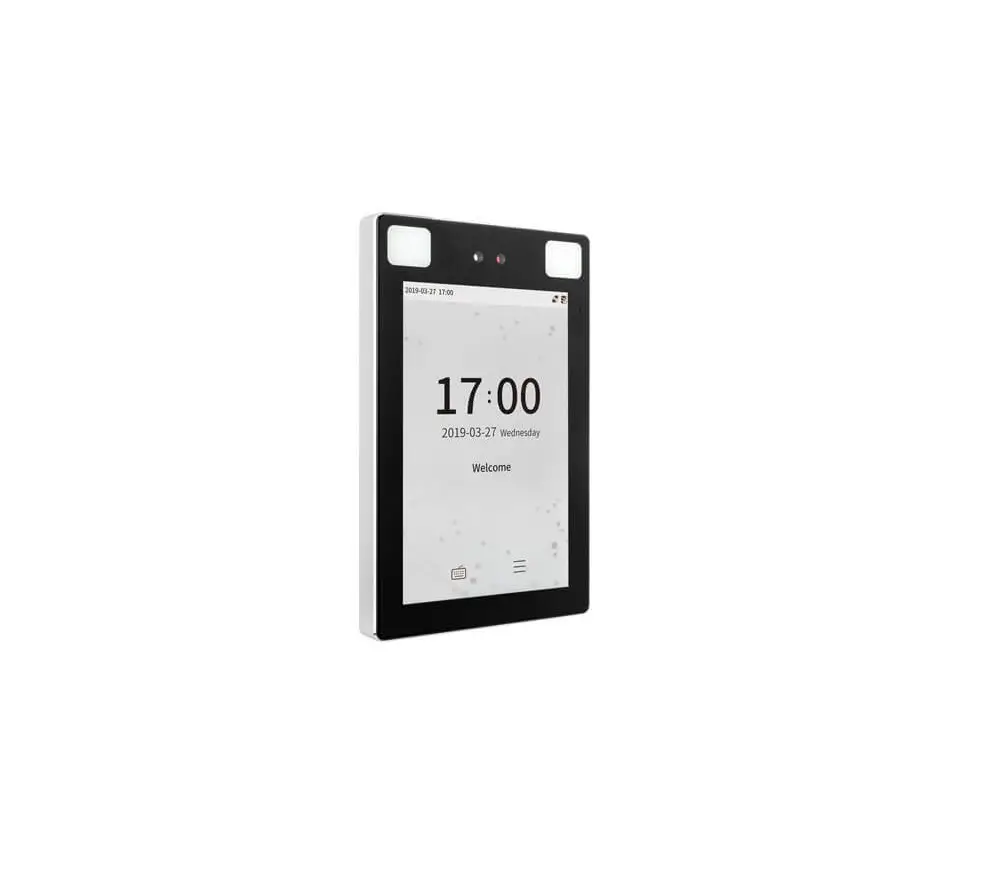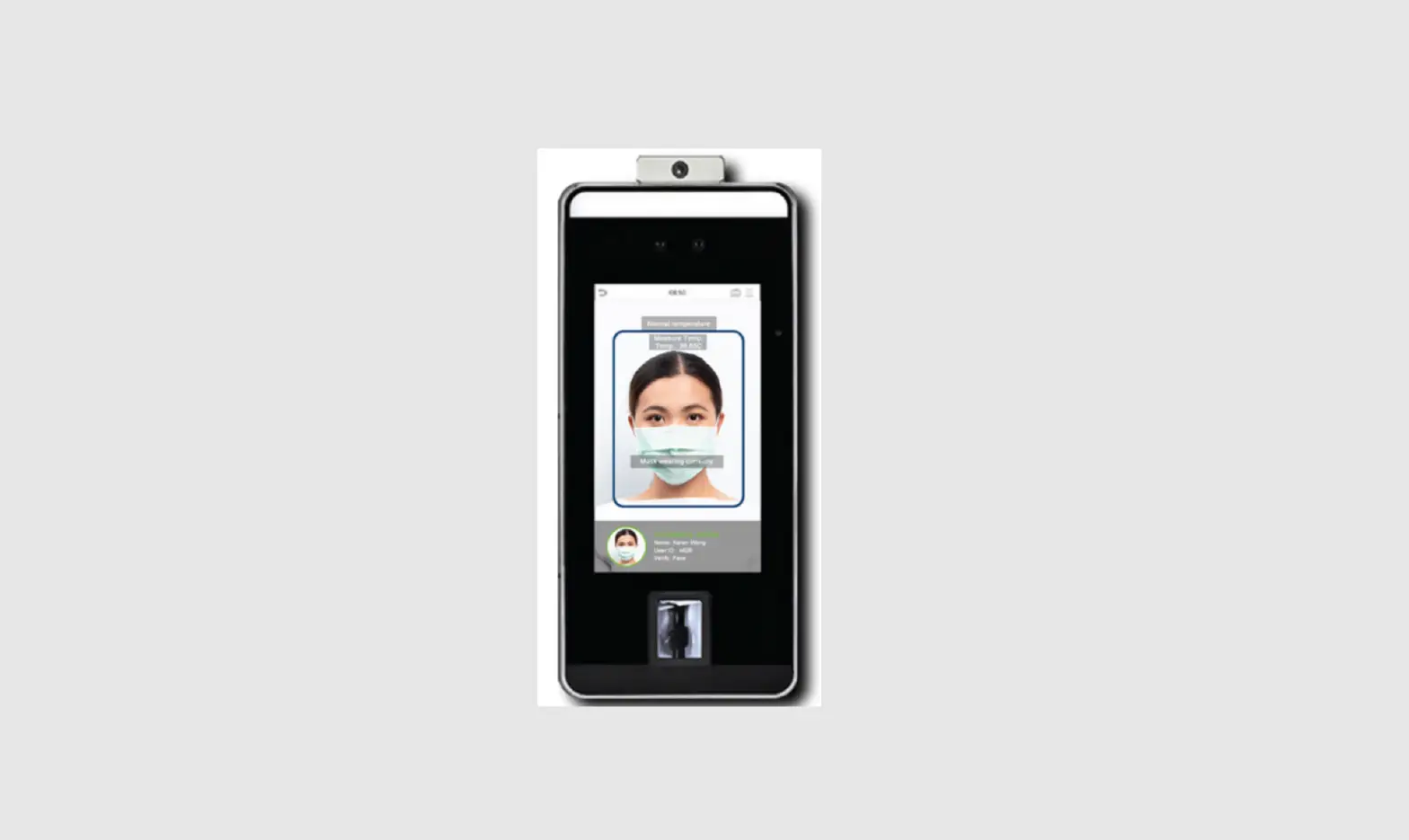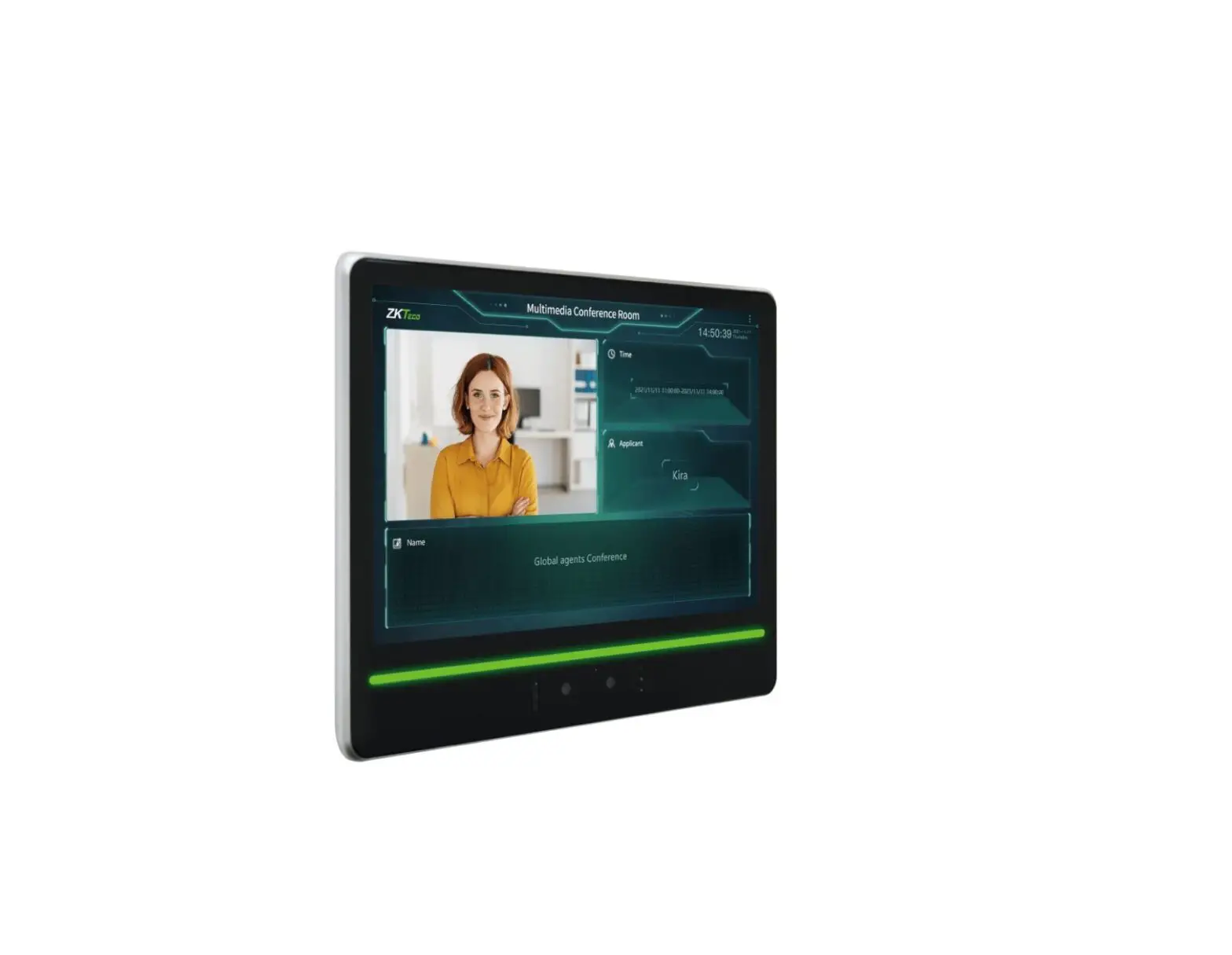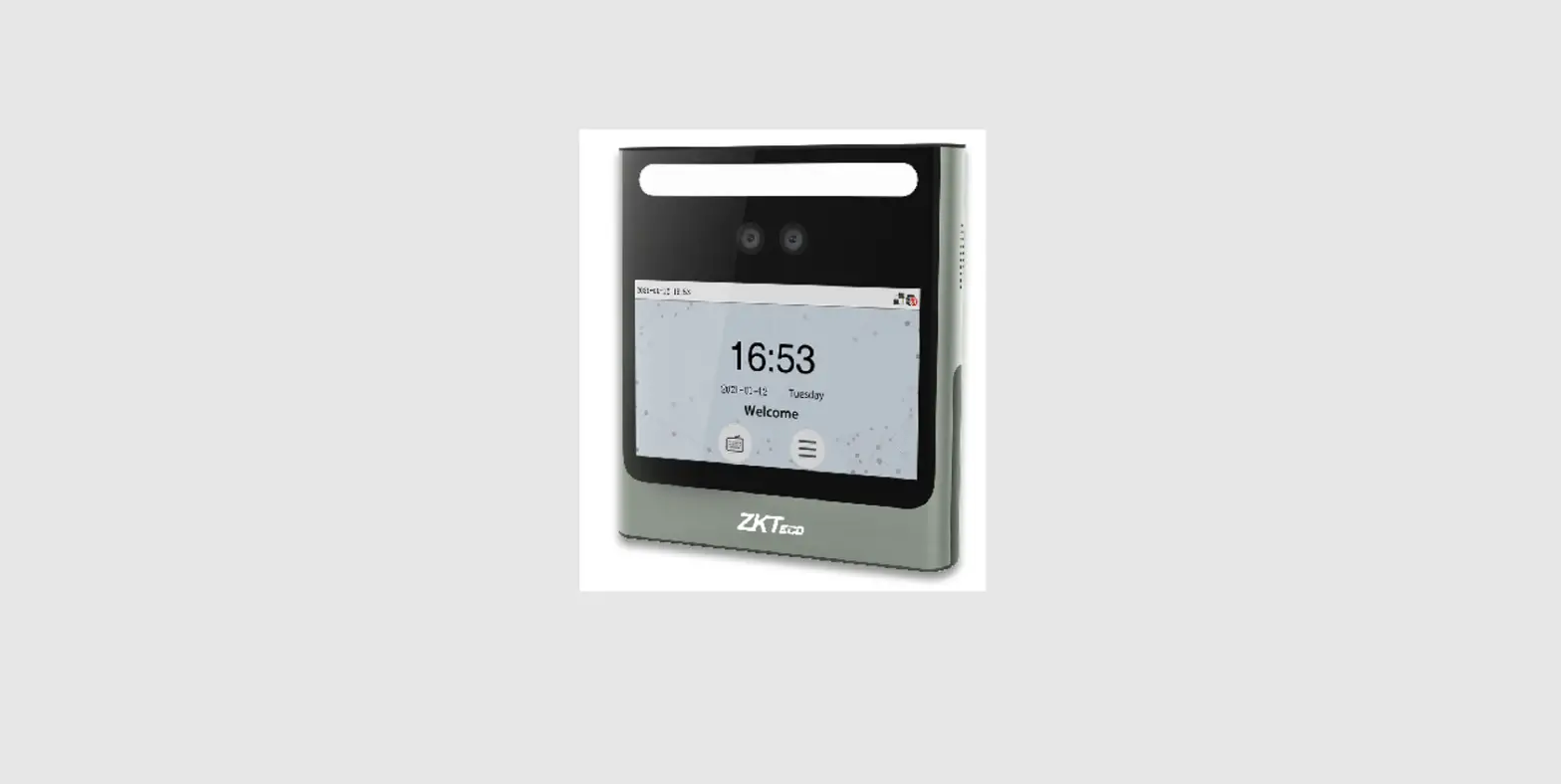

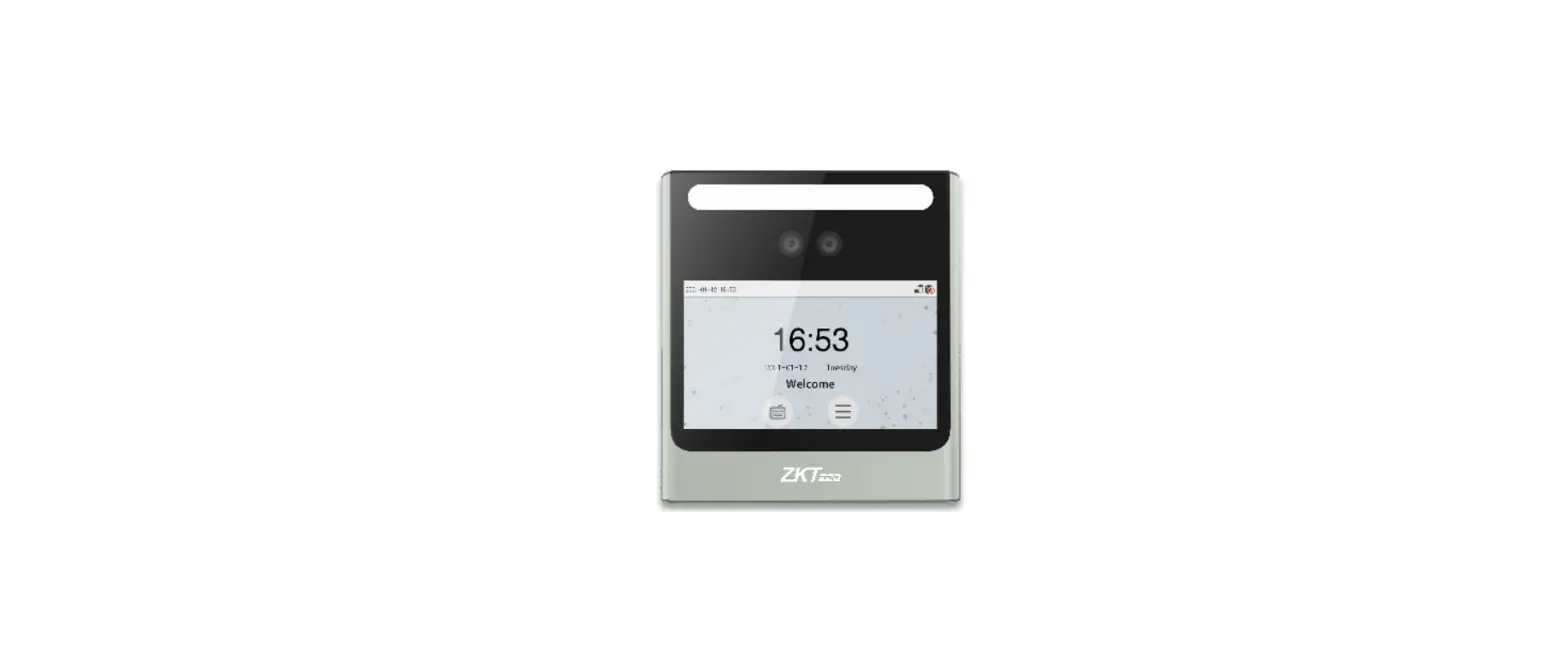
ZKTECO EFace10 Visible Light Face Recognition Device

How to Install the Device
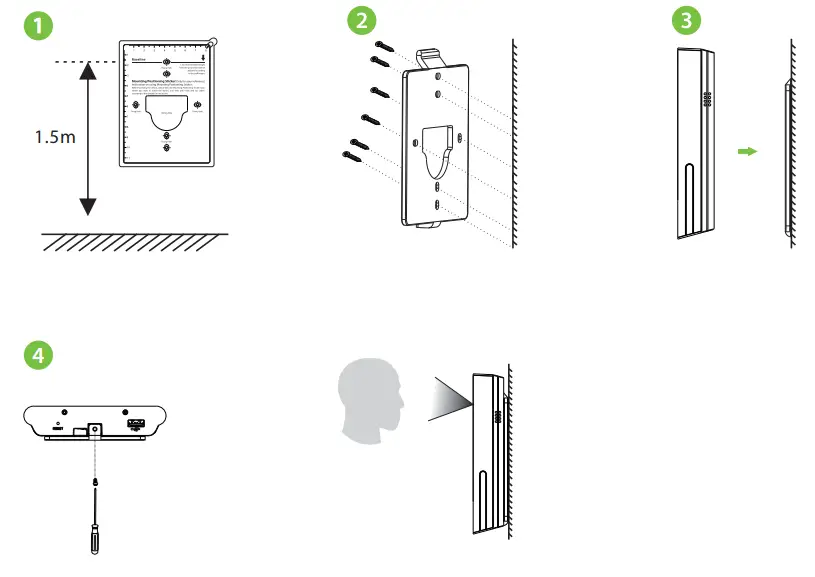
- Attach the mounting template sticker to the wall, and drill holes according to the mounting paper.
- Fix the Backplate on the wall using the wall mounting screws.
- Attach the device to the Backplate.
- Fasten it with a security screw.

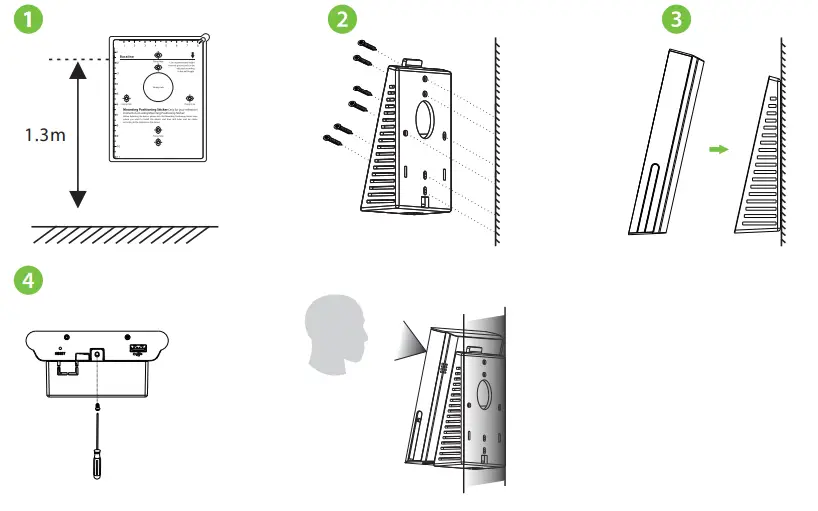
With Back Cover
- Attach the mounting template sticker to the wall, and drill holes according to the mounting paper.
- Fix the Back Cover on the wall using the wall mounting screws.
- Attach the device to the Back Cover.
- Fasten it with a security screw.

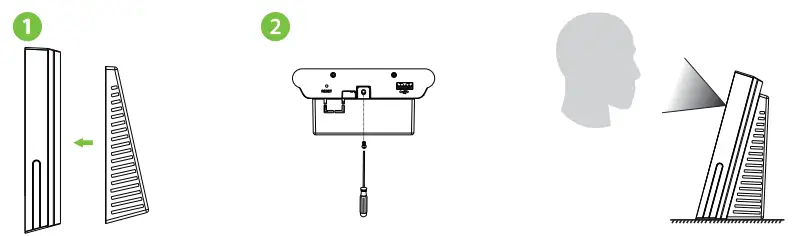
Desktop Placement
- Attach the Back Cover to the Device.
- Fasten it with a security screw.

Wiring Diagram
Power Connection: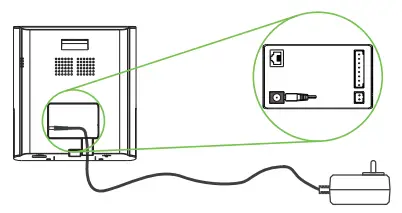
Recommended AC Adapter
- 12V ± 10%, at least 1500mA.
- To share the power with other devices, use an AC Adapter with higher current ratings
Ethernet Connection:
Connect the device and computer software over an Ethernet cable. As shown in the example below: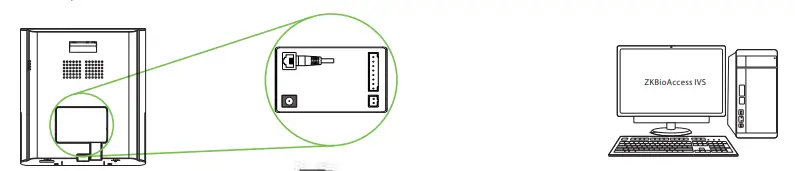
Click on [COMM.] > [Ethernet] > [IP Address] , input the IP address and click on [OK]. Note: In LAN, the IP addresses of the server (PC) and the device must be in the same network segment when connecting to the ZKBioAccess IVS software.
Lock Relay Connection:
The device not share power with the lock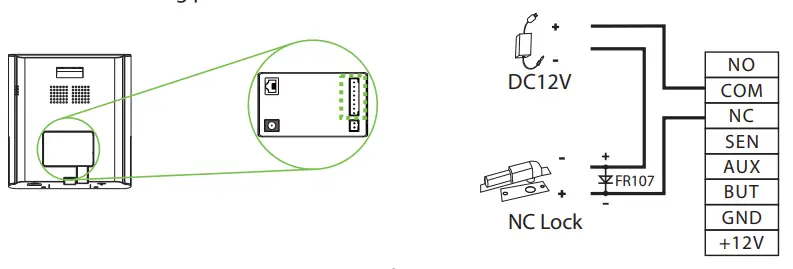
Door Sensor, Exit Button & Auxiliary Input Connection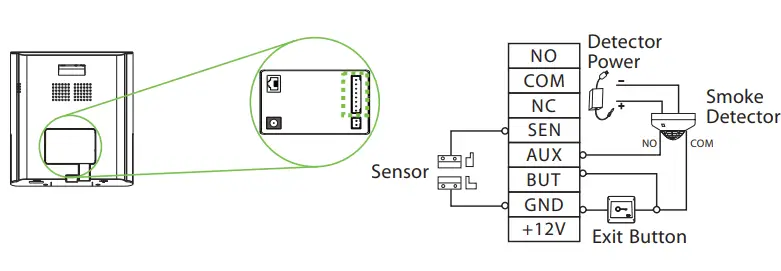
Download Center
Scan the QR Code to download the User Manual, Installation Guide and Quick Start Guide.
 ZKTeco | Home Page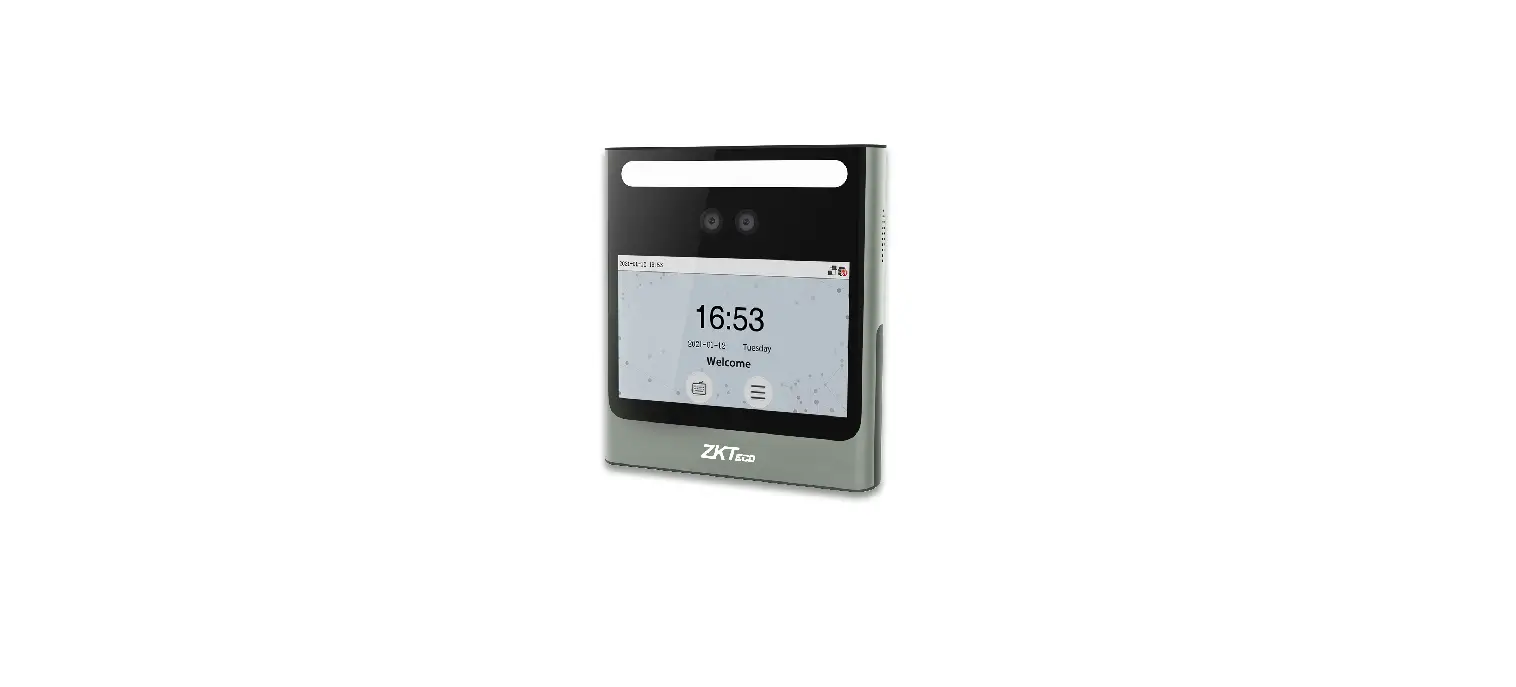



![Zkteco Speedface-v5l[qr] Series Visible Light Facial Recognition Terminal User Guide](https://static-data1.manualsee.com/1/img/411/2395082/2022/03/ZKTeco-SpeedFace-V5LQR-Series-Visible-Light-Facial-Recognition-Terminal-fea.png "Zkteco Speedface-v5l[qr] Series Visible Light Facial Recognition Terminal User Guide")


![Zkteco G4[qr] Android Multi-biometric Facial Recognition Terminal User Guide](https://static-data1.manualsee.com/1/img/172/2574452/2022/04/ZKTECO-G4QR-Android-Multi-Biometric-Facial-Recognition-Terminal-Featured-Image.png "Zkteco G4[qr] Android Multi-biometric Facial Recognition Terminal User Guide")