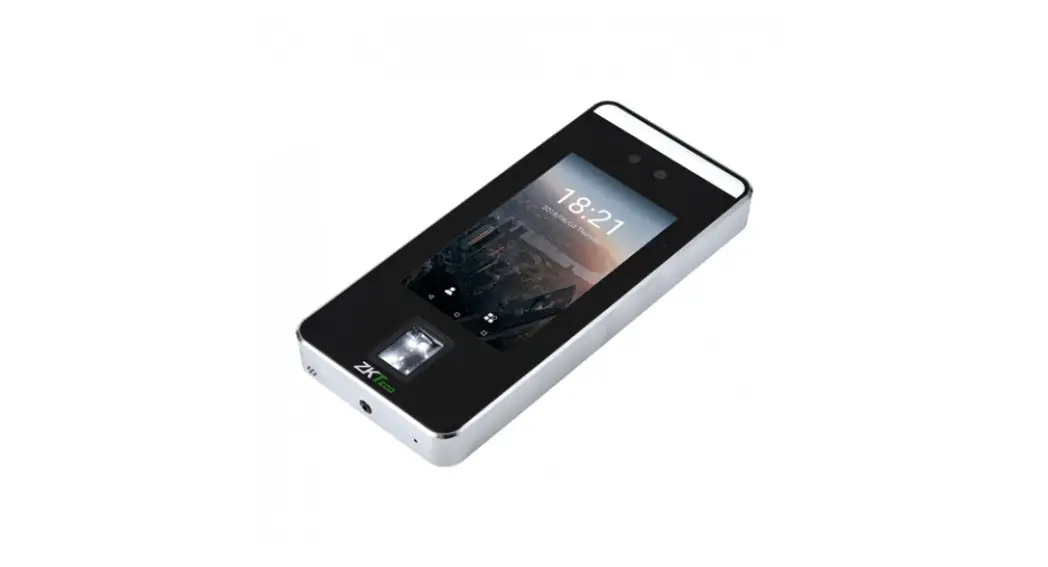
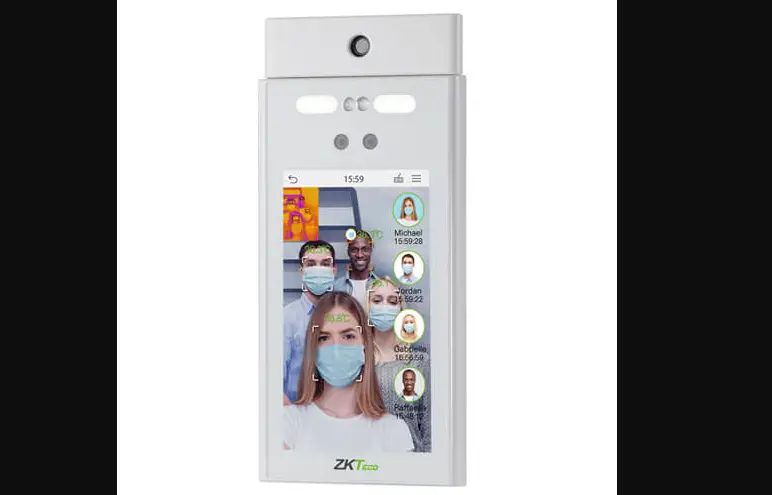
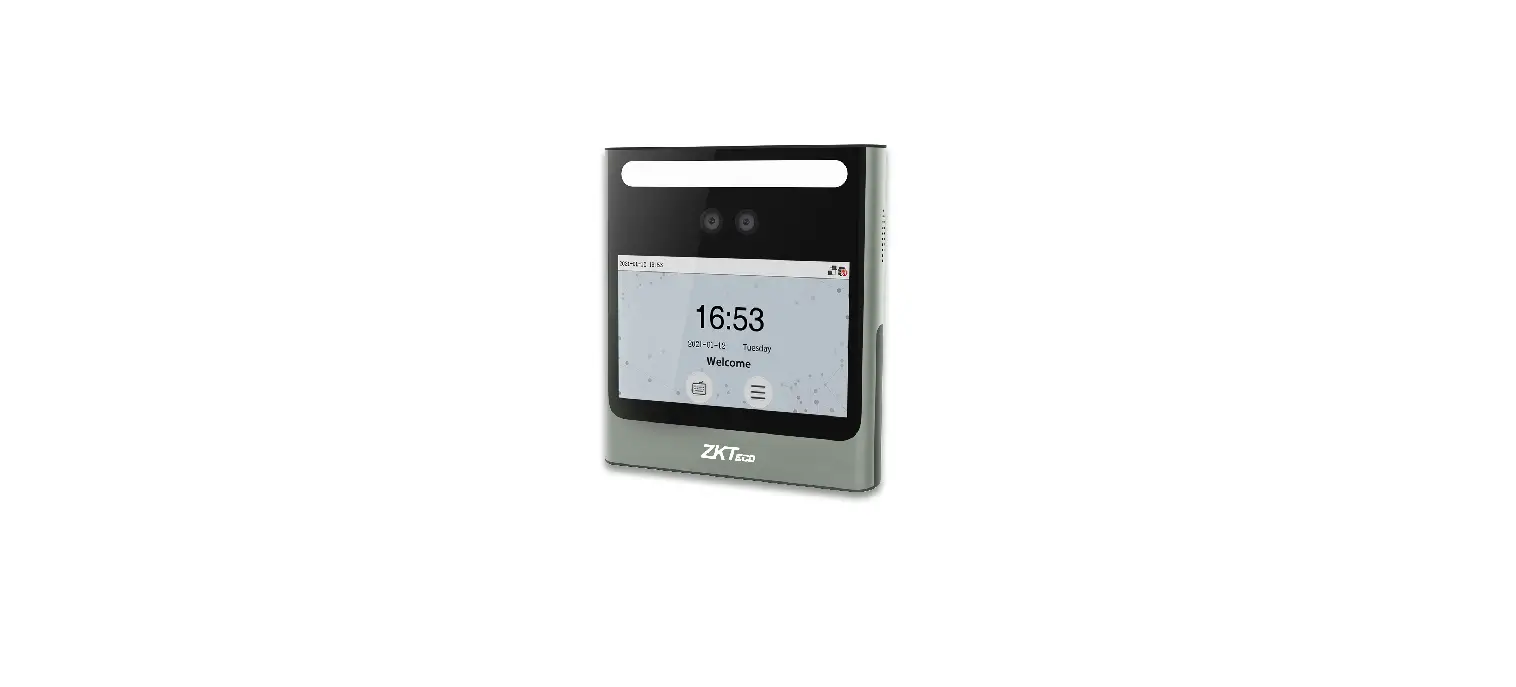
V3L Lite SpeedFace
Product Information
Product Name: SpeedFace-V3L (Lite)
Version: 1.0
Manufacturer: ZKTeco
Address: ZKTeco Industrial Park, No. 32, Industrial Road,
Tangxia Town, Dongguan, China.
Phone: +86 769 – 82109991
Fax: +86 755 – 89602394
Website: www.zkteco.com
Installation Guide
Installation Environment: Please refer to the
following recommendations for installation.
- INSTALL INDOORS ONLY
- AVOID INSTALLATION NEAR GLASS WINDOWS
- AVOID DIRECT SUNLIGHT AND EXPOSURE
- AVOID USE OF ANY HEAT SOURCE NEAR THE DEVICE
Installation on the Wall:
- Attach the mounting template sticker to the wall, and drill
holes according to the mounting paper. - Fix the backplate on the wall using wall mounting screws.
- Attach the device to the backplate.
- Fasten the device to the backplate with a security screw.
Connection Guide
Refer to the following wiring to connect the device:
| Terminal Block | Connection |
|---|---|
| Power | In |
| Lock | RXRX+ GND +12V NO COM NC |
| Exit Button | BUT GND SEN BELLBELL+ |
| Door Sensor | BUT GND SEN BELLBELL+ |
Power Connection:
AC Adapter DC12V
Ethernet Connection:
Connect the device and the computer software over an Ethernet
cable. Use the following IP address settings:
- ZKBioAccess Default IP address: 192.168.1.201 Subnet mask:
255.255.255.0 - IP address: 192.168.1.130 Subnet mask: 255.255.255.0
Click [COMM.] > [Ethernet] > [IP Address] to change the IP
address and then click [OK]. Note: In LAN, the IP addresses of the
server (PC) and the device must be in the same network segment
while connecting to the software.
Lock Relay Connection:
The system supports Normally Opened Lock and Normally Closed
Lock. Take NC Lock as an example below:
Device not sharing power with the lock
| Terminal Block | Connection |
|---|---|
| Power | DC12V DC12V |
| Lock | GND +12V NO COM NC |
Download Center
Scan the QR Code to download the User Manual, Installation
Guide, and Quick Start Guide.
Installation Guide
SpeedFace-V3L (Lite)
Version: 1.0
Due to regular upgrades of systems and products, ZKTeco could not guarantee exact consistency between the actual product and the written information in this manual.
How to install the device?
Installation Environment Please refer to the following recommendations for installation.
INSTALL INDOORS ONLY
AVOID INSTALLATION NEAR
GLASS WINDOWS
AVOID DIRECT SUNLIGHT
AND EXPOSURE
AVOID USE OF ANY HEAT SOURCE
NEAR THE DEVICE
Installation on the wall Attach the mounting template sticker to the wall, and drill holes
according to the mounting paper. Fix the backplate on the wall using wall mounting screws. Attach the device to the backplate. Fasten the device to the backplate with a security screw.
1
Baseline
2
1.5m
3
4
1
2
1
How to connect the device?
Refer to the following wiring to connect the device. Terminal Block
Power In Lock
RXRX+ GND +12V NO COM NC
TX+ TXBUT GND SEN BELLBELL+
Network Interface
Exit Button Sensor Bell
Exit Button, Door Sensor & Bell Connection
BUT GND SEN BELLBELL+
Exit Button Door Sensor
Bell 2
Power Connection
AC Adapter DC12V
Recommended AC adapter: 12V ± 10%, at least 1500mA. Use an AC adapter with a higher current rating to share power with the other devices.
Ethernet Connection Connect the device and the computer software over an Ethernet cable. As shown in the example below:
ZKBioAccess
Default IP address: 192.168.1.201 Subnet mask: 255.255.255.0
IP address: 192.168.1.130 Subnet mask: 255.255.255.0
Click [COMM.] > [Ethernet] > [IP Address] to change the IP address and then click [OK].
Note: In LAN, the IP addresses of the server (PC) and the device must be in the same network segment while connecting to the software.
3
Lock Relay Connection
The system supports Normally Opened Lock and Normally Closed Lock. The NO LOCK (normally opened at power on) is connected with ‘NO’ and ‘COM’ terminals, and the NC LOCK (normally closed at power on) is connected with ‘NC’ and ‘COM’ terminals. Take NC Lock as an example below:
Device not sharing power with the lock
DC12V DC12V
FR107
Normally Closed Lock
GND +12V NO COM NC
Download Center
Scan the QR Code to download the User Manual, Installation Guide and Quick Start Guide.
4
ZKTeco Industrial Park, No. 32, Industrial Road,
Tangxia Town, Dongguan, China.
Phone : +86 769 – 82109991
Fax
: +86 755 – 89602394
www.zkteco.com
Copyright © 2022 ZKTECO CO., LTD. All Rights Reserved.
 ZKTeco | Home Page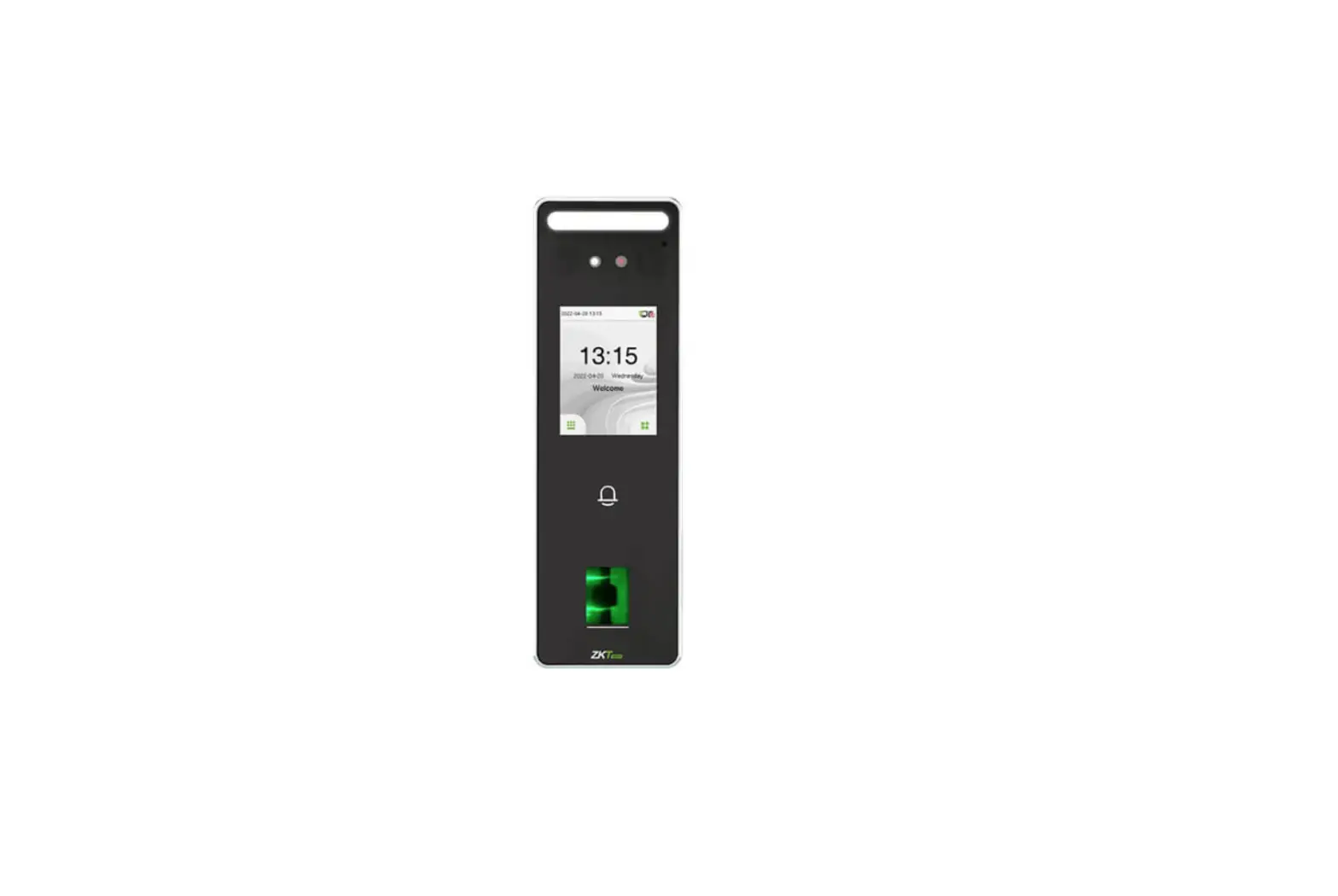


![Zkteco Speedface-v5l[qr] Series Visible Light Facial Recognition Terminal User Guide](https://static-data1.manualsee.com/1/img/411/2395082/2022/03/ZKTeco-SpeedFace-V5LQR-Series-Visible-Light-Facial-Recognition-Terminal-fea.png "Zkteco Speedface-v5l[qr] Series Visible Light Facial Recognition Terminal User Guide")

![Zkteco Revface15[t1] Version: 2.0 User Guide](https://static-data1.manualsee.com/1/img/305/2978662/2022/05/ZKTeco-RevFace15-T1-Version-Featured-Image.png "Zkteco Revface15[t1] Version: 2.0 User Guide")