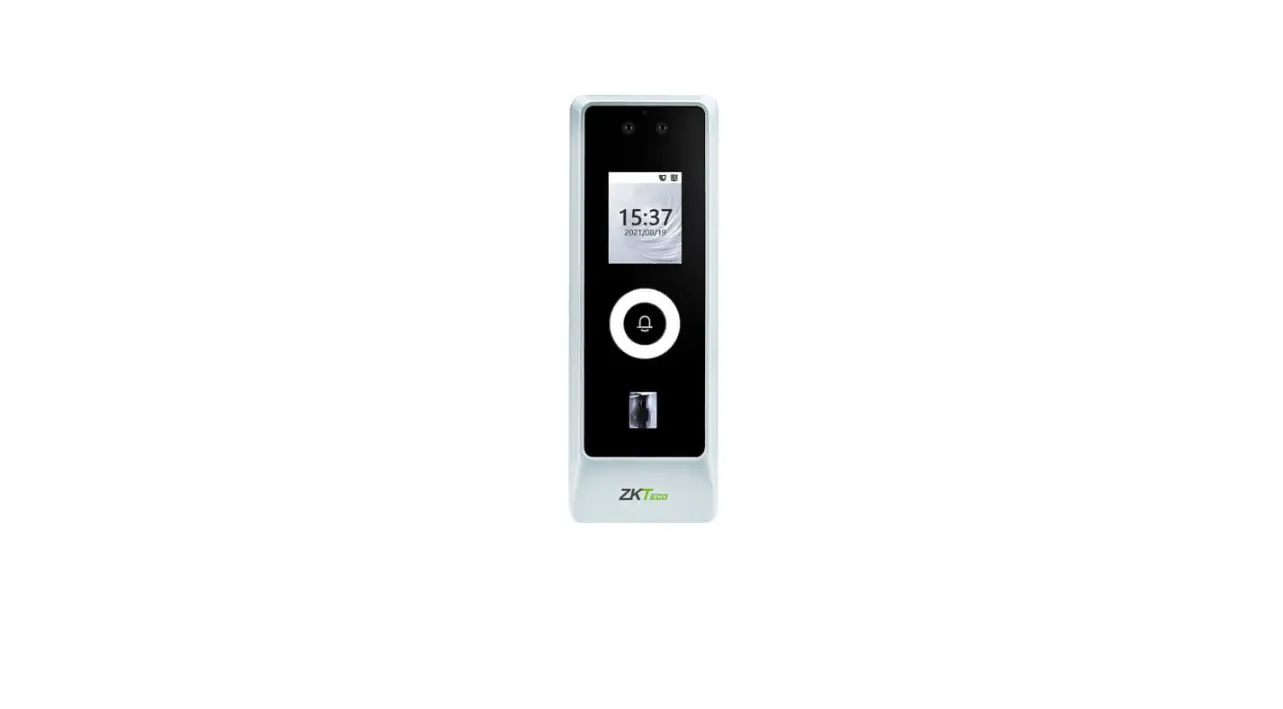
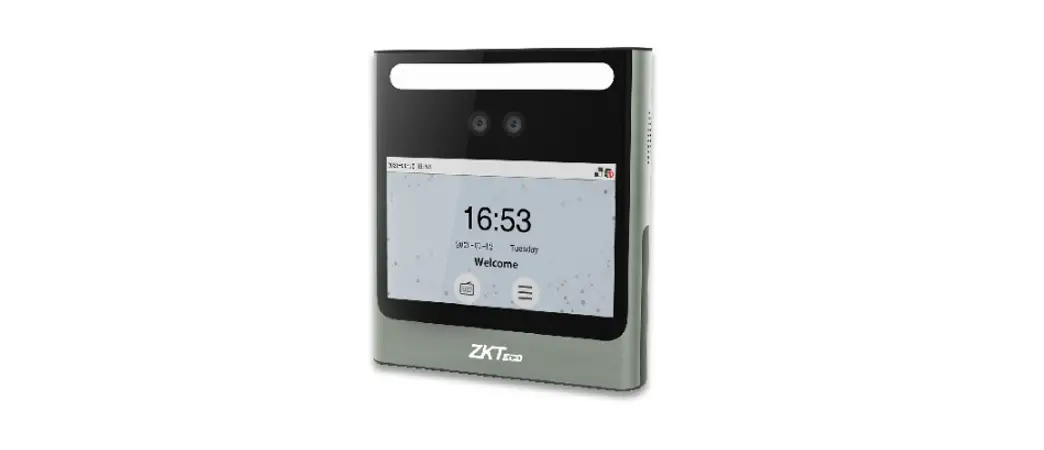
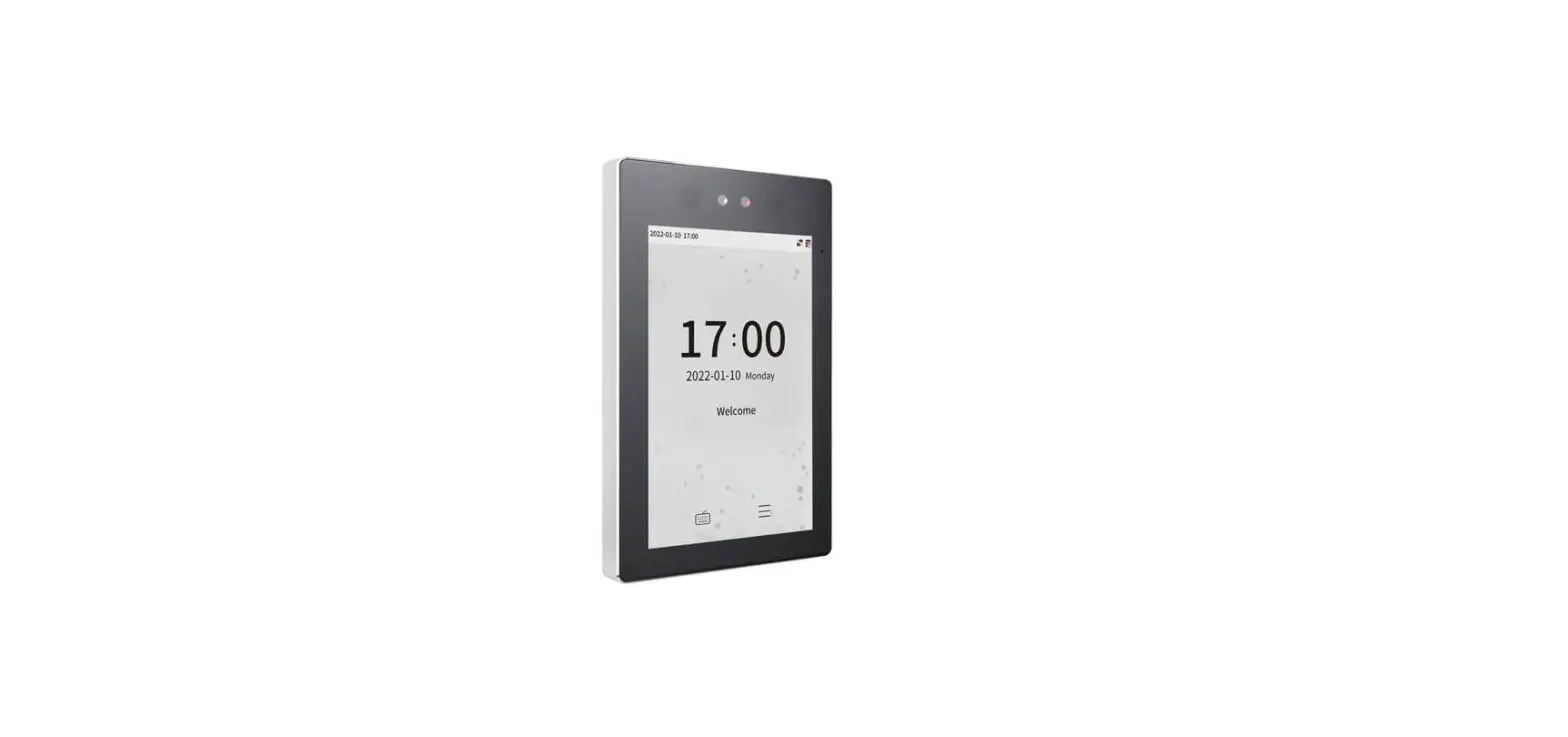
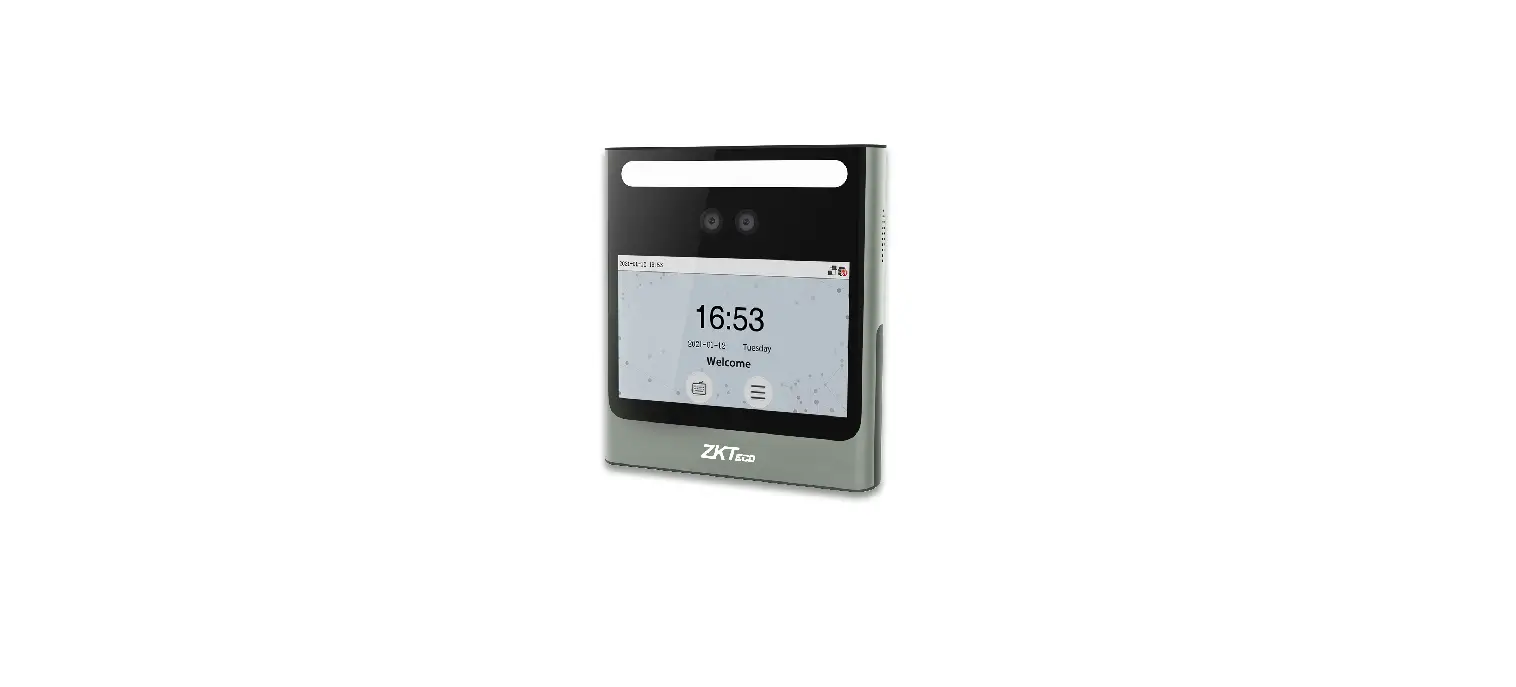
![Zkteco Revface15[t1] Version: 2.0 User Guide](https://static-data1.manualsee.com/1/img/305/2978662/2022/05/ZKTeco-RevFace15-T1-Version-Featured-Image.png)

RevFace15[T1] Version: 2.0
User Guide
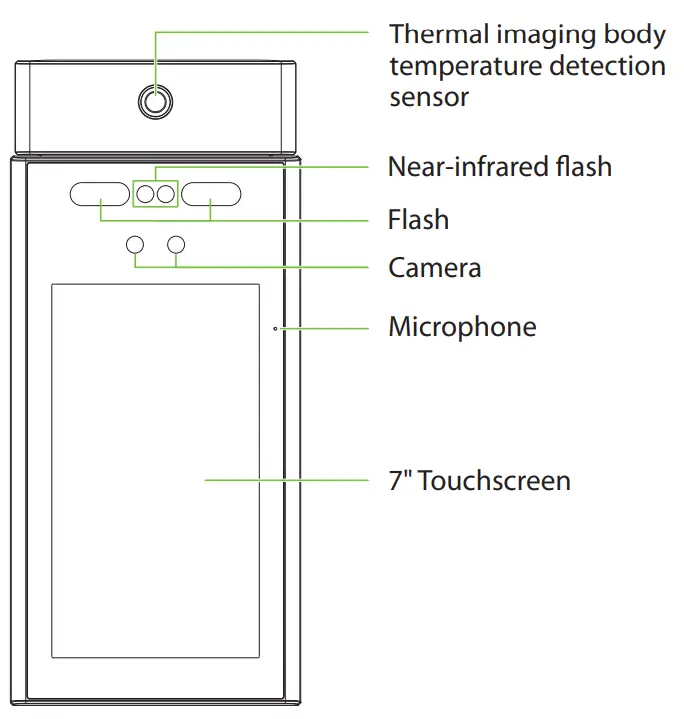
Overview

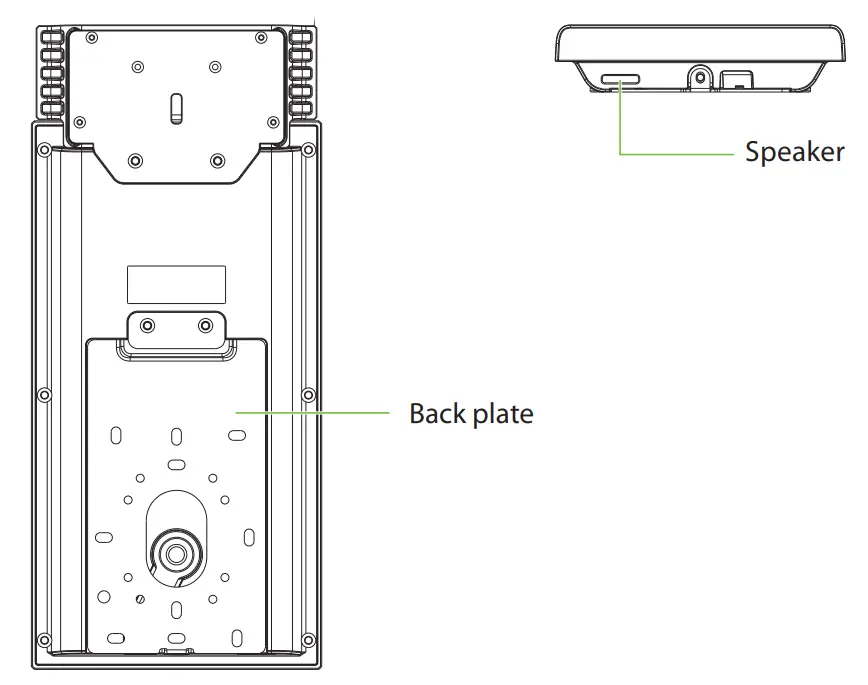
Intallation Requirements
The installation requirements and indicators associated with the temperature measurement is given below:
| Specifications | Standard Value | Remark |
| Operating Environment | Use indoor, avoid wind and direct sunlight; 16°C to 35°C (60.8°F to 95°F) | The recommended operating temperature is 25°C (77°F). |
| Distance (between face and device) | 30cm to 120cm (0.98ft to 3.94ft) | The recommended distance is 80cm (2.62ft). |
| Measurement Deviation | ±0.3°C (±0.54°F) | This value is tested in a distance of 80cm or 2.63ft under a 25°C (77°F) environment. |
| Note: The temperature measurement data is only for reference, and not for any medical purposes. | ||
Forehead Temperature Detection
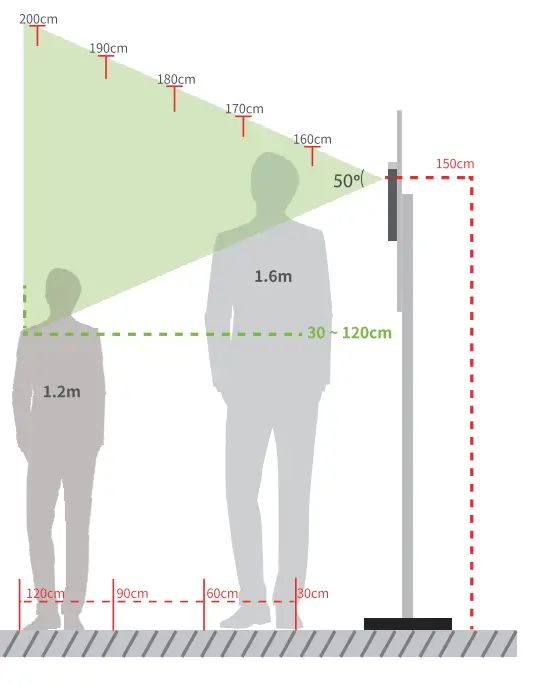 Indoor constant temperature environment •
- Installation Height 1.5m
- FOV (Field of View) of the Thermal imaging Device: 50°
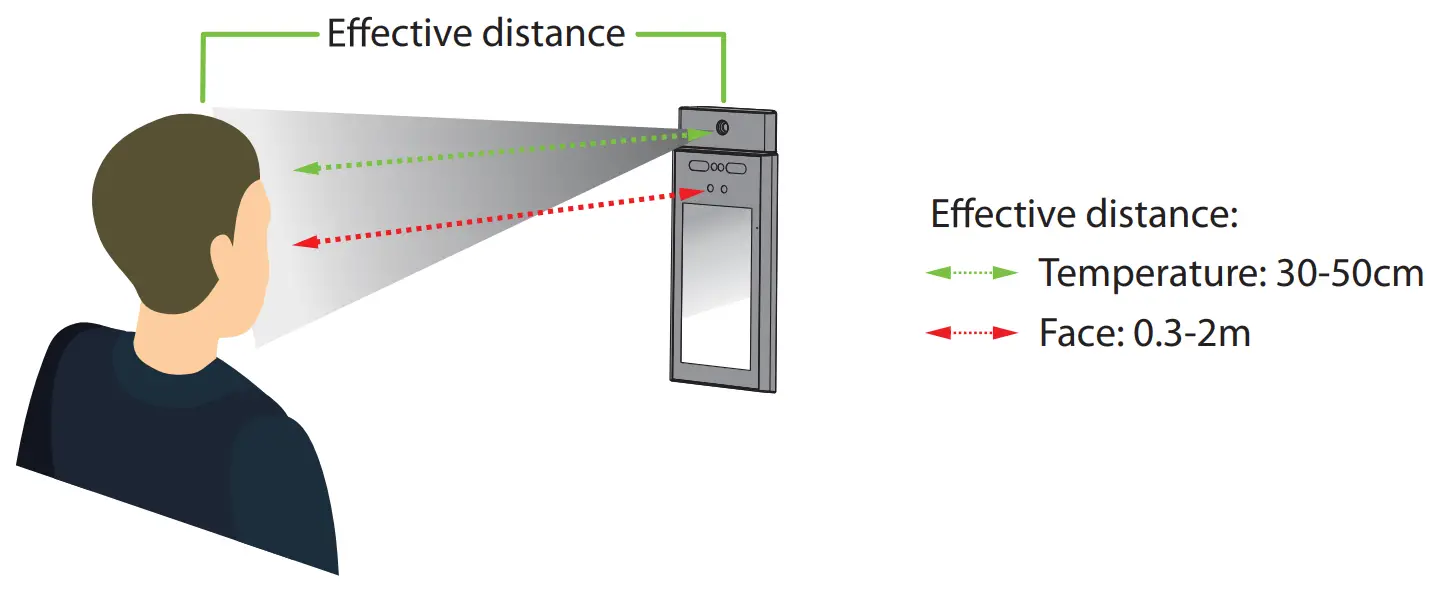
- Temperature Measurement Distance: 0.3m to1.2m
- Height of the Face Adapted for Detection: 1.2m to 2m
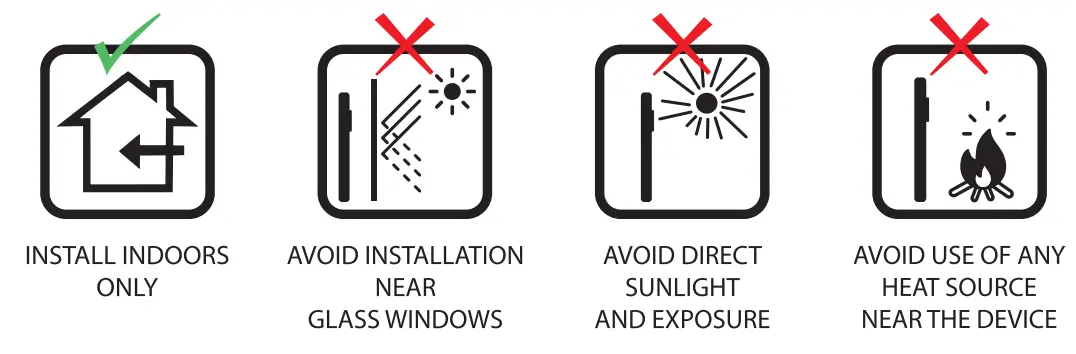
Installation environment:
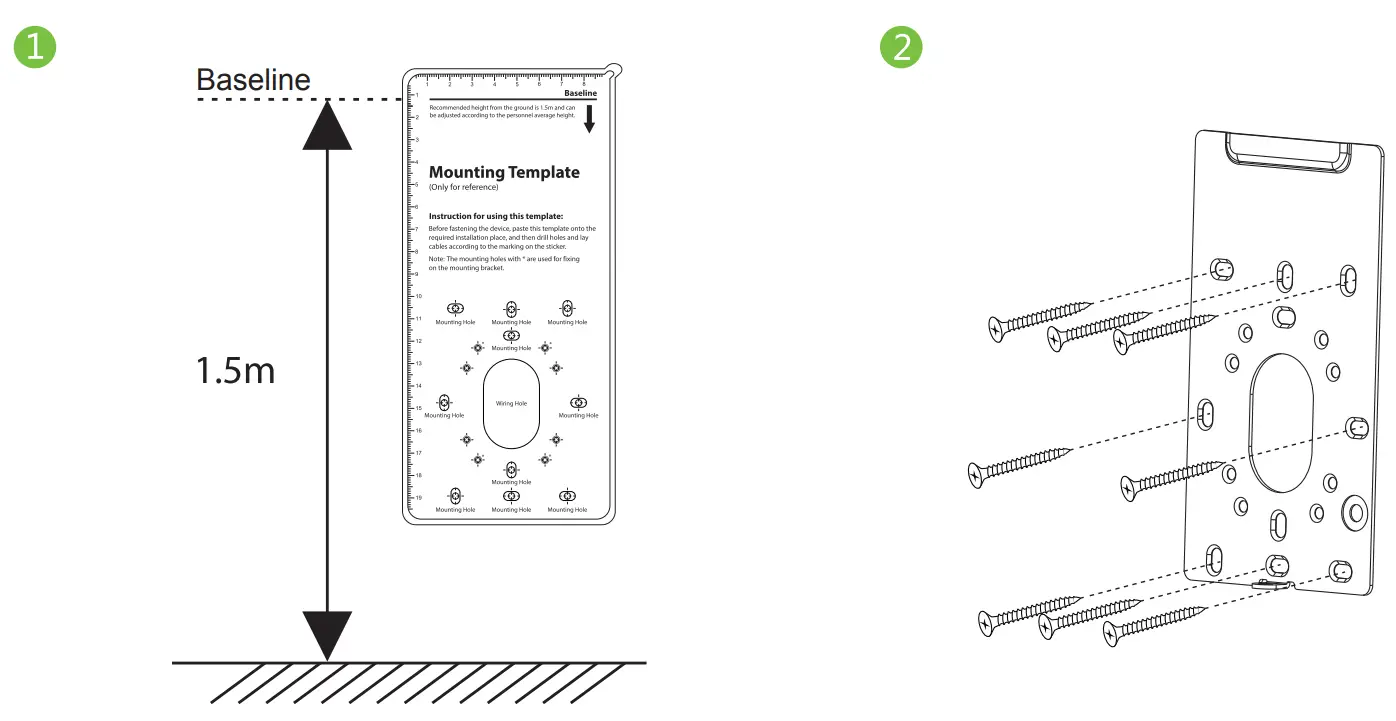
Device Installation
Installing on the wall
- Place the mounting template sticker onto the wall, and drill holes according to the mounting paper.
- Fix the backplate onto the wall using wall mounting screws.
- Fix the device to the backplate.
- Use the safety screw to fasten the device to the backplate.
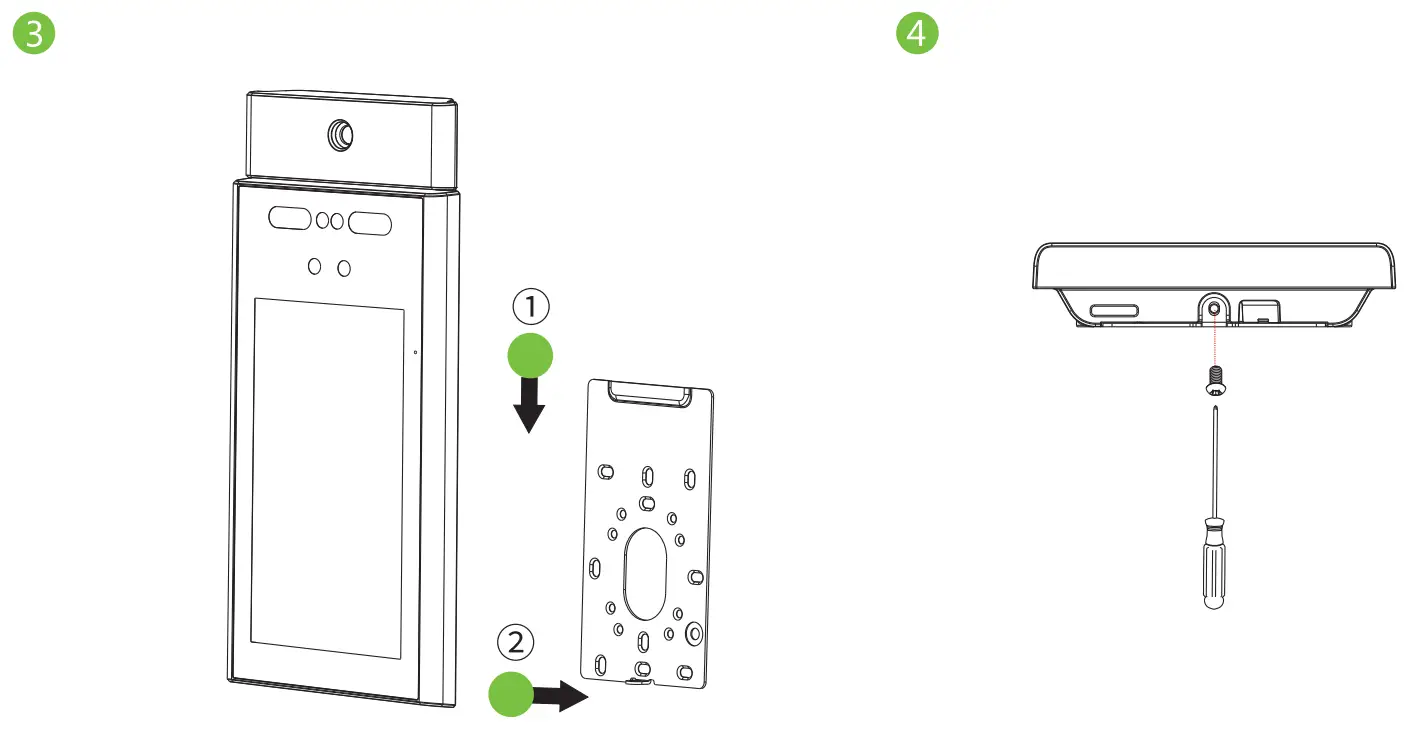
Standalone Installation
 Port Introduction
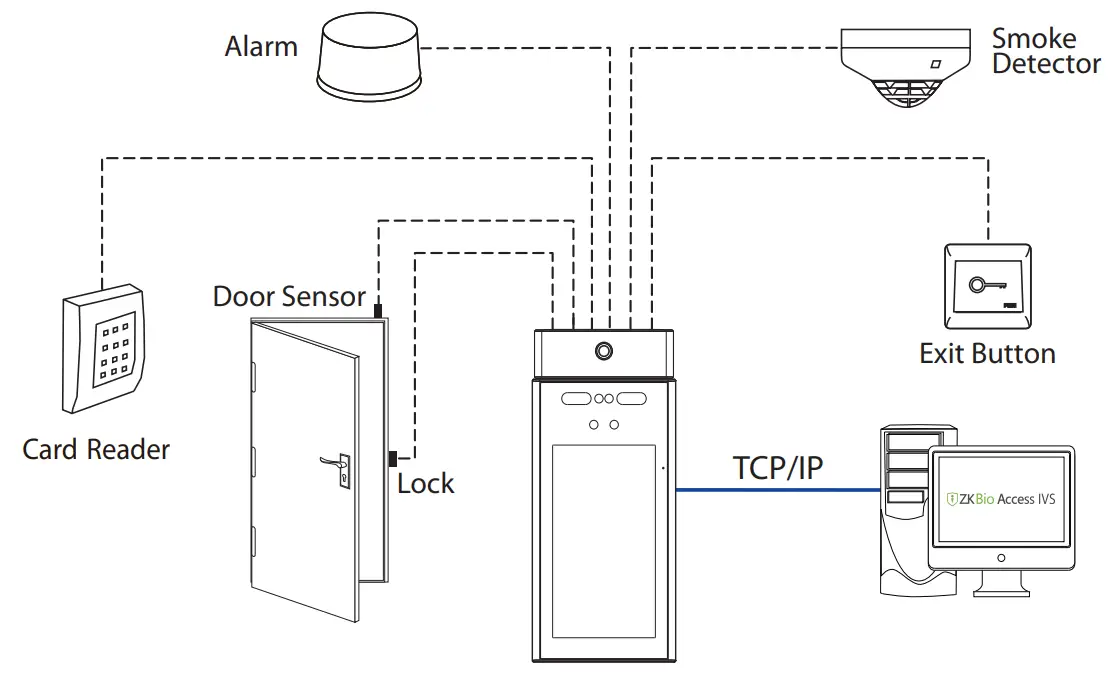 Port Introduction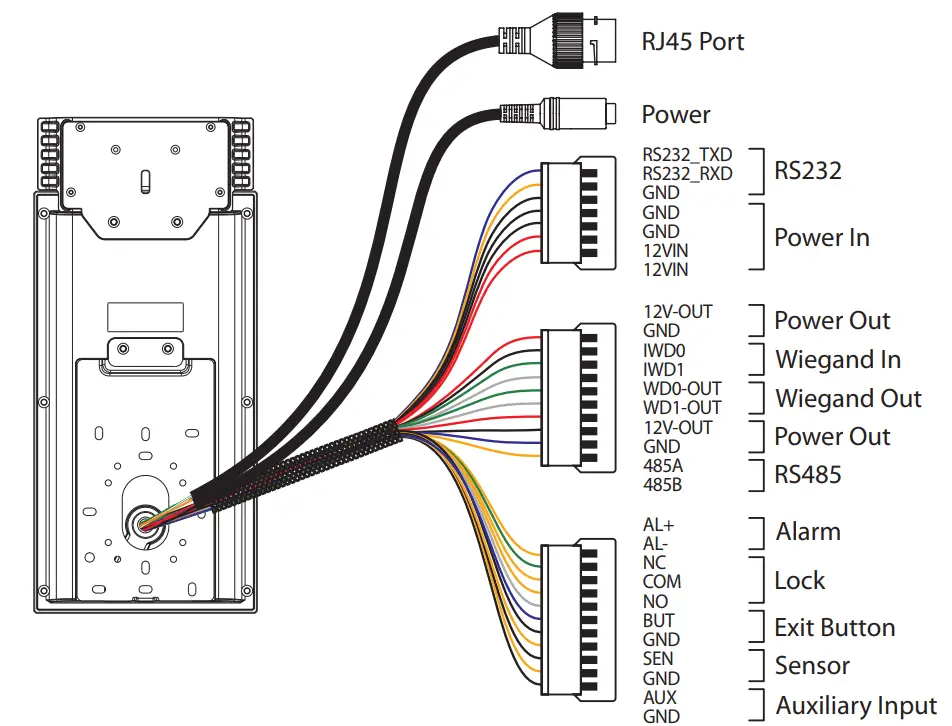
Printer Connection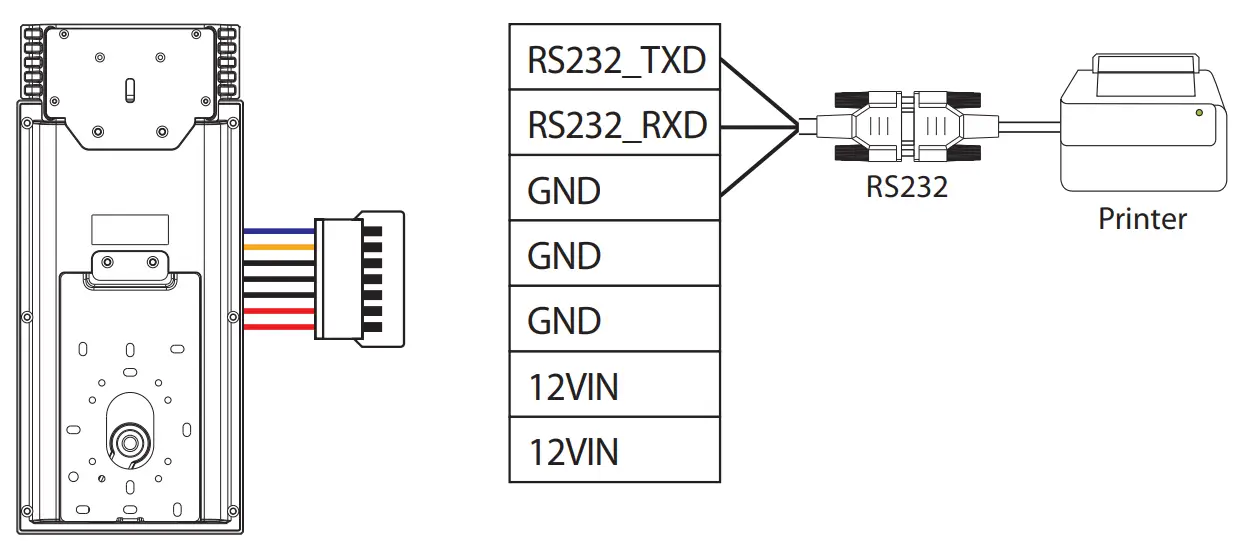
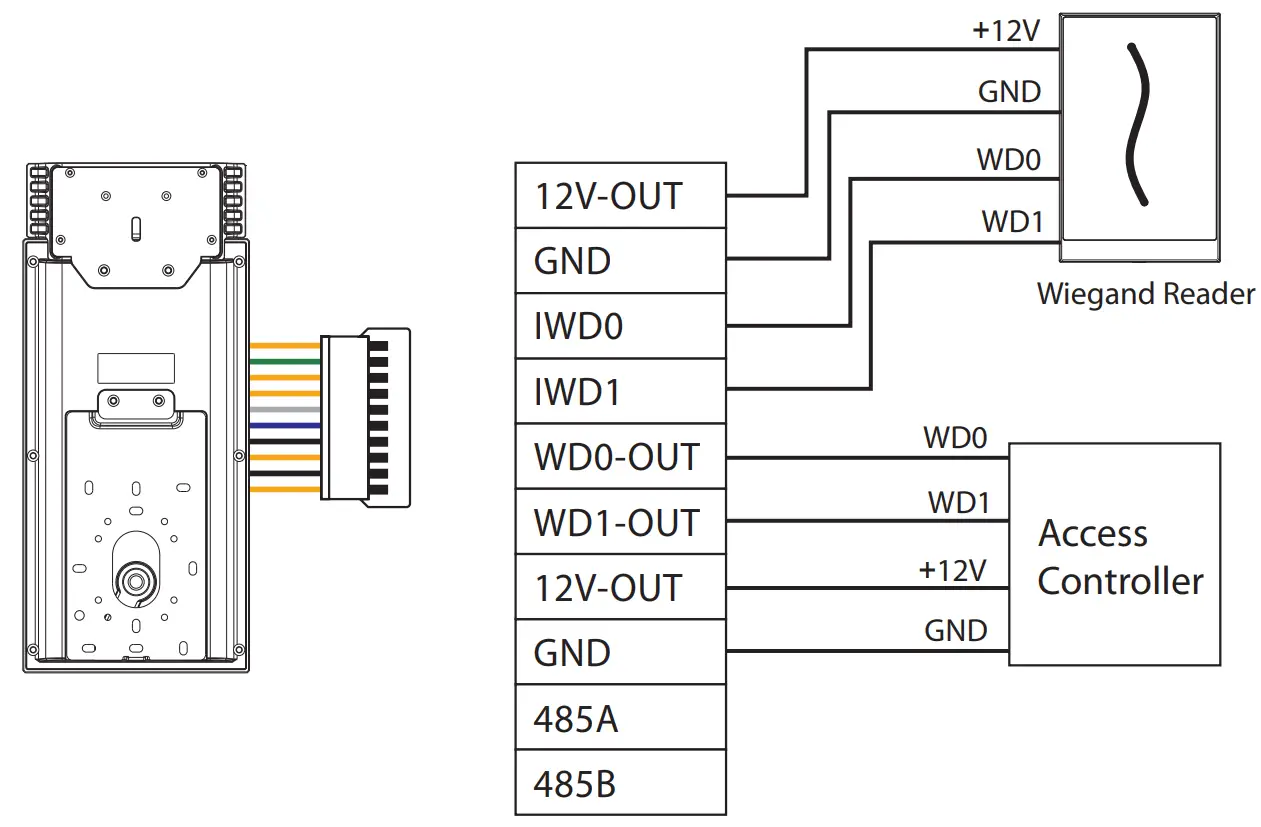
Wiegand Reader Connection
RS485 Connection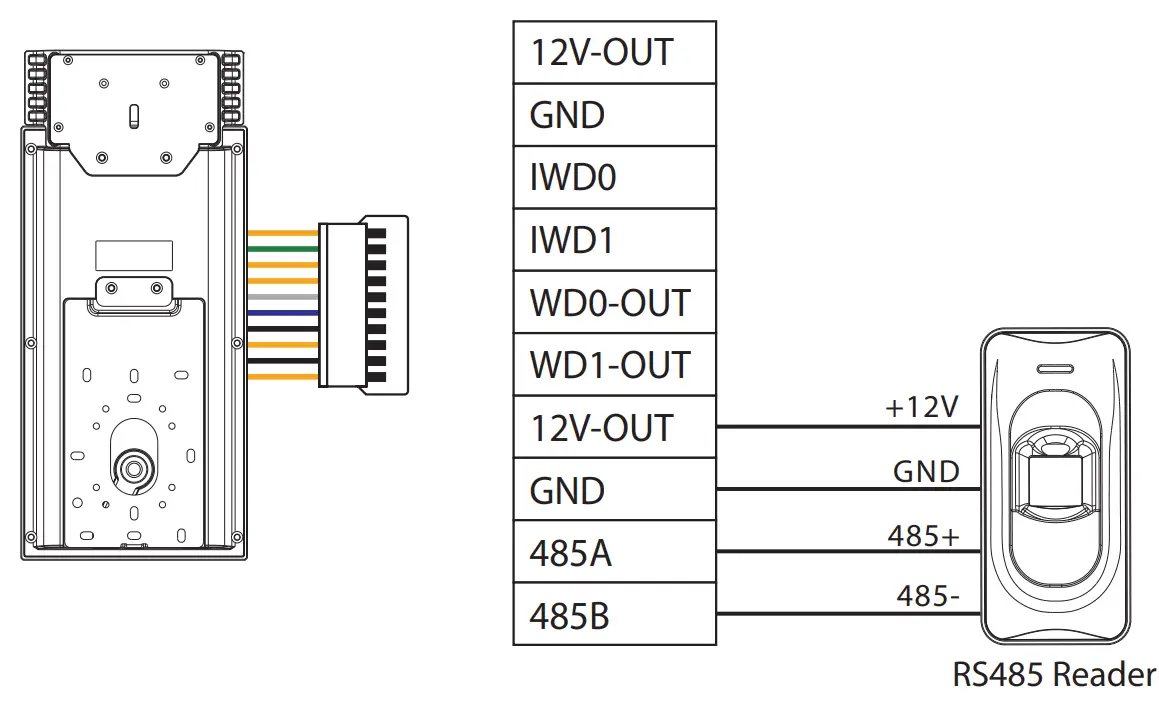
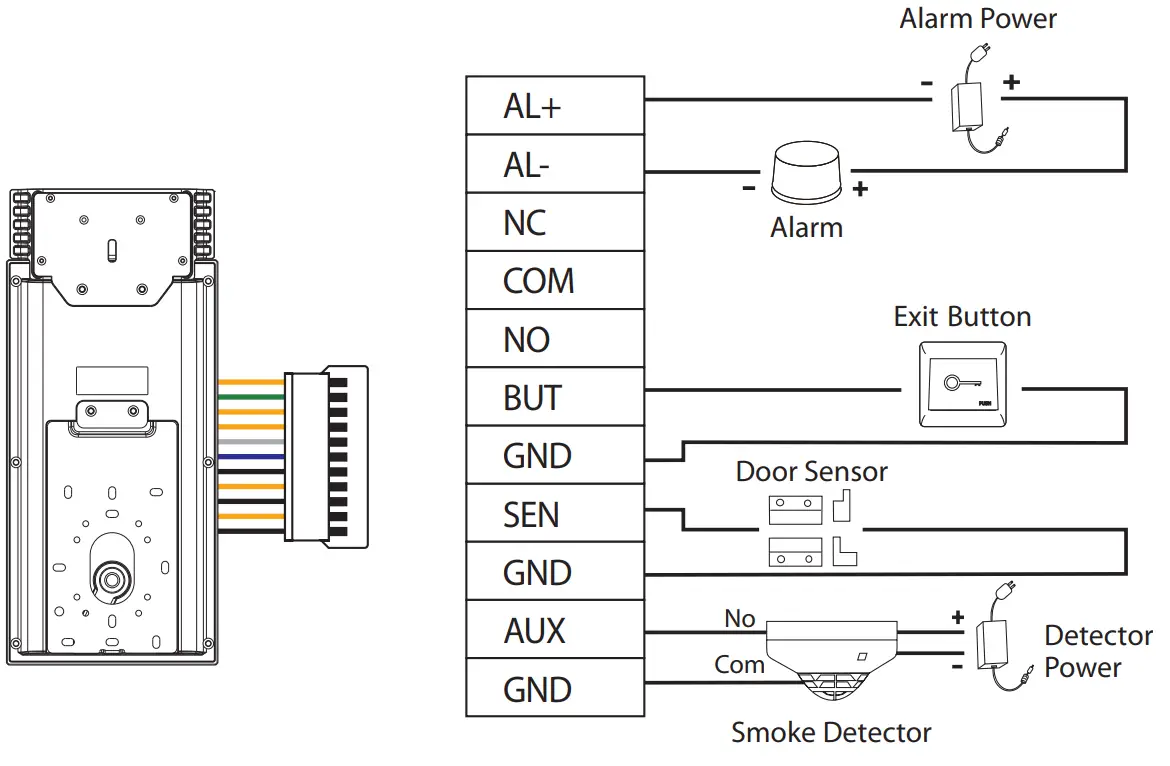
Door Sensor, Exit Button & Alarm Connection
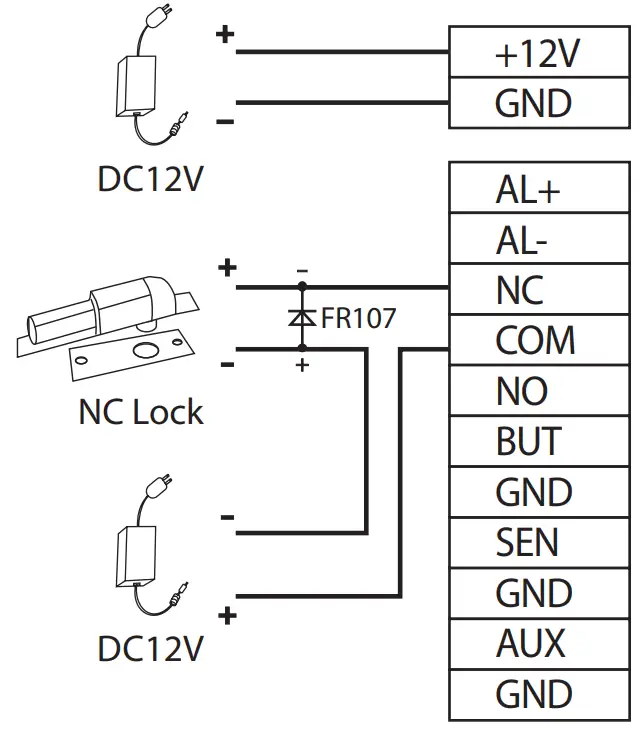
Lock Relay Connection
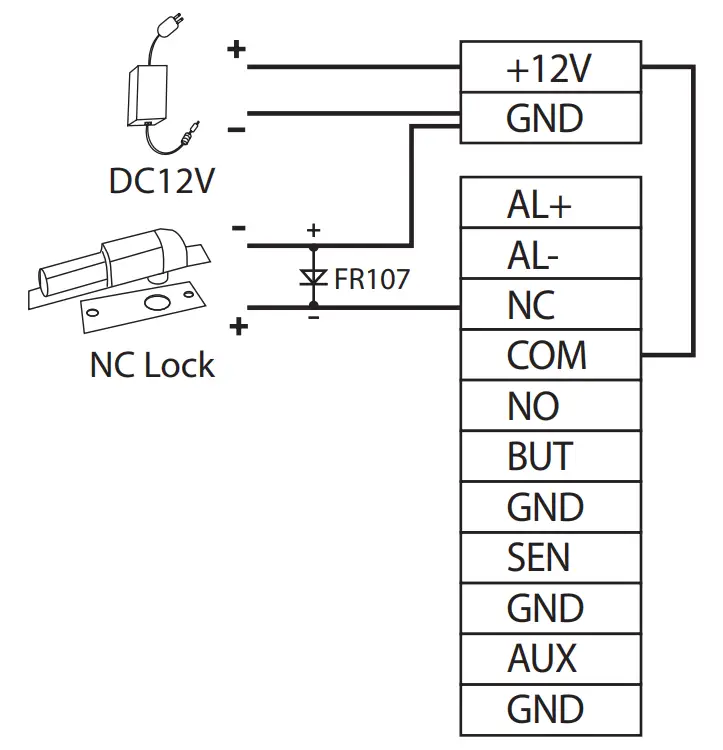
The system supports both Normally Opened Lock and Normally Closed Lock. The NO Lock (normally open when powered) is connected with ‘NO’ and ‘COM’ terminals, and the NC Lock (normally closed when powered) is connected with ‘NC’ and ‘COM’ terminals. The power can be shared with the lock or can be used separately for the lock, as shown in the example with NC Lock below:
- The device not share power with the lock

- Device sharing power with the lock
Ethernet Connection
Connect the device and the software over an Ethernet cable. An example is shown below: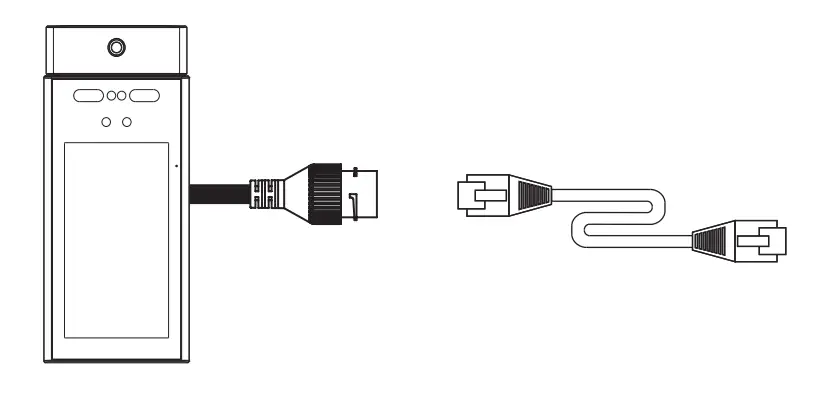
Default IP address: 255.255.255.0
Subnet mask: 192.168.1.201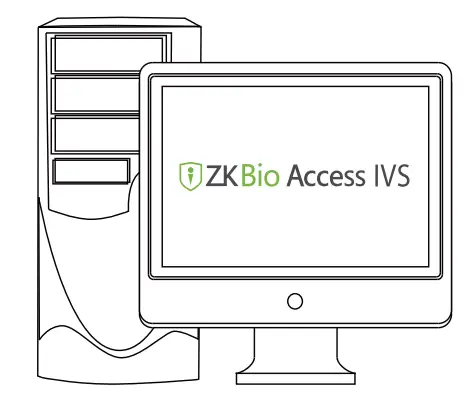
IP address : 255.255.255.0
Subnet mask: 192.168.1.130
Click [Comm.] > [Ethernet] > [IP Address], input the IP address and click [OK].
Note: In LAN, the IP addresses of the server (PC) and the device must be in the same network segment when connecting to ZKBioAccess IVS software.
Power Connection
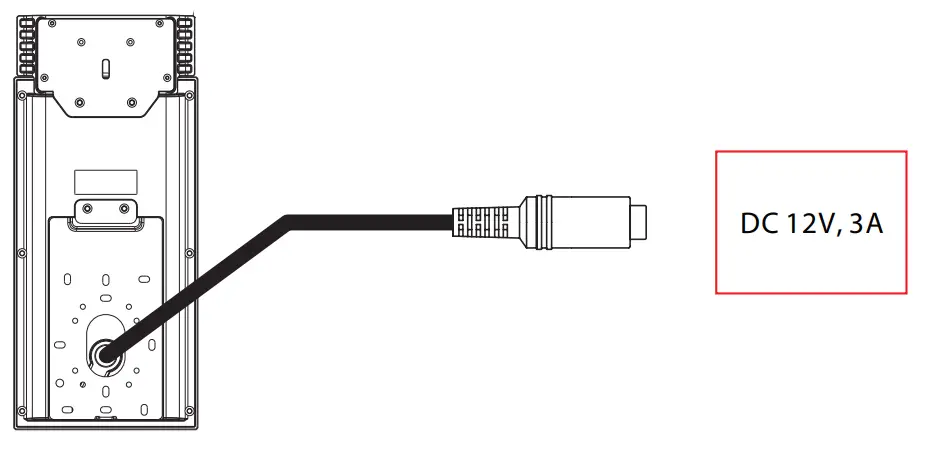
- Recommended AC adapter: 12V 3A,
- To share the power with other devices, use an AC adapter with higher current ratings.
User Registration
When there s no super administrator set in the device, click on i to enter the menu. Add a new user and set User Role to Super Admin, then the system will request the administrator’s verification before entering the menu. It is recommended to register a super administrator initially for security purposes.
Method 1: Register on the device
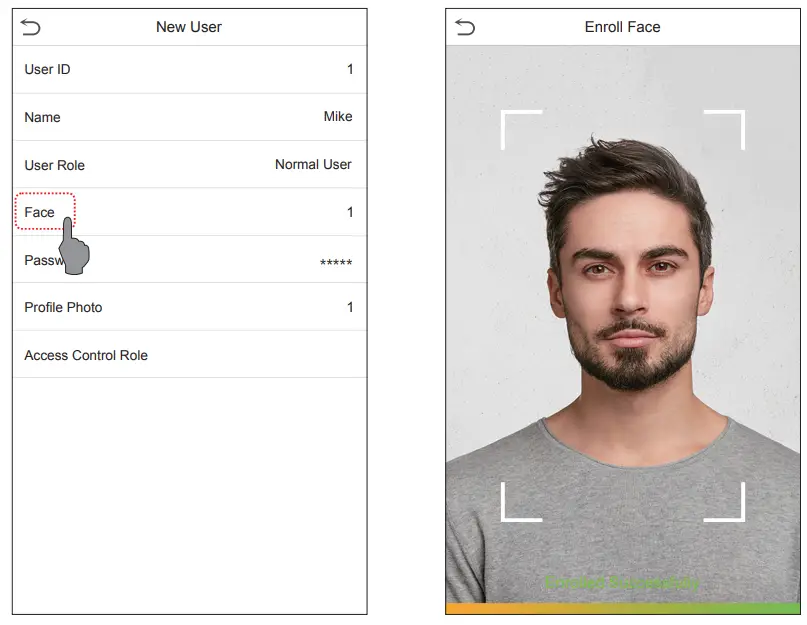
Tap on > [ ] > [ ] to register a new user. The options include entering the User ID User Mgt. New User and Name, setting User Role, registering Face, Password, adding Profile Photo, and setting access control role.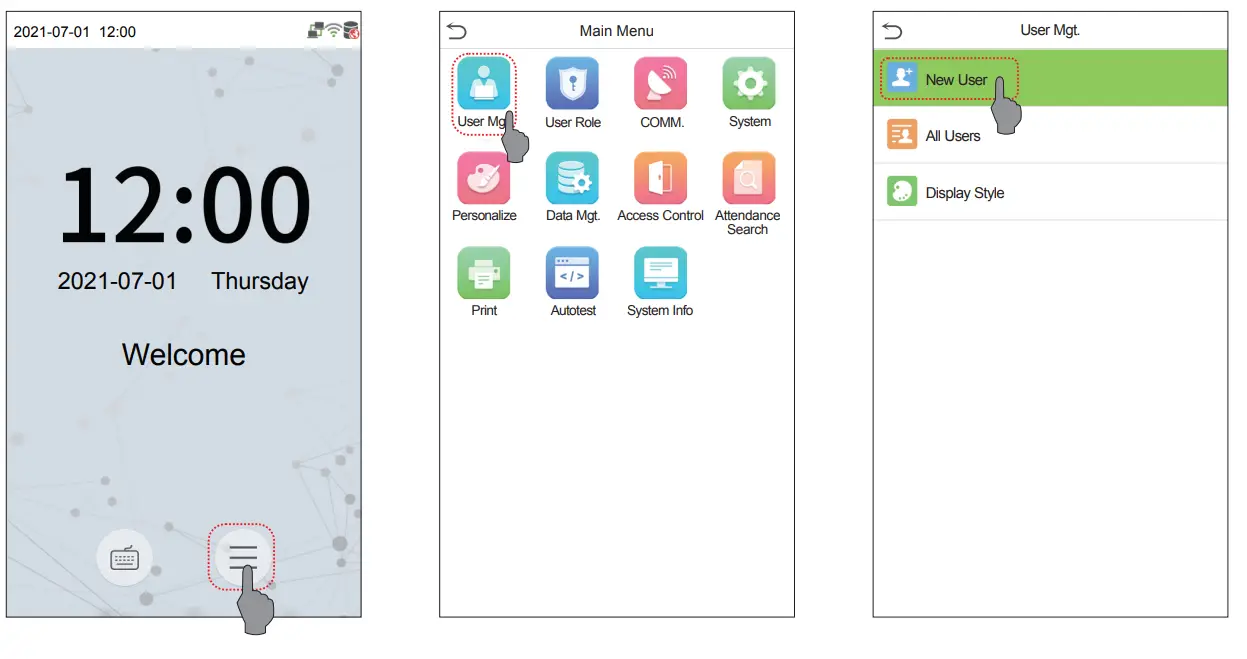
 Method 2: Register on ZKBioAccess IVS software
Please set the IP address and cloud service server address in the Comm. menu option on the device.
- Click [Access] > [Device] > [Device] > [Search] to search the device on the software. When an appropriate server address and port is set on the device, the searched devices are displayed automatically.

- Click [Add] in the operation column, a new window will pop up. Select Icon type, Area, and Add to Level from each dropdown and click [OK] to add the device.
- Click [Personnel] > [Person] > [New equir egister a new user in the software.
- Click [Access] > [Device] > [Control] > [Synchronize All Data to Devices] to synchronize all the data to the device including the new users.
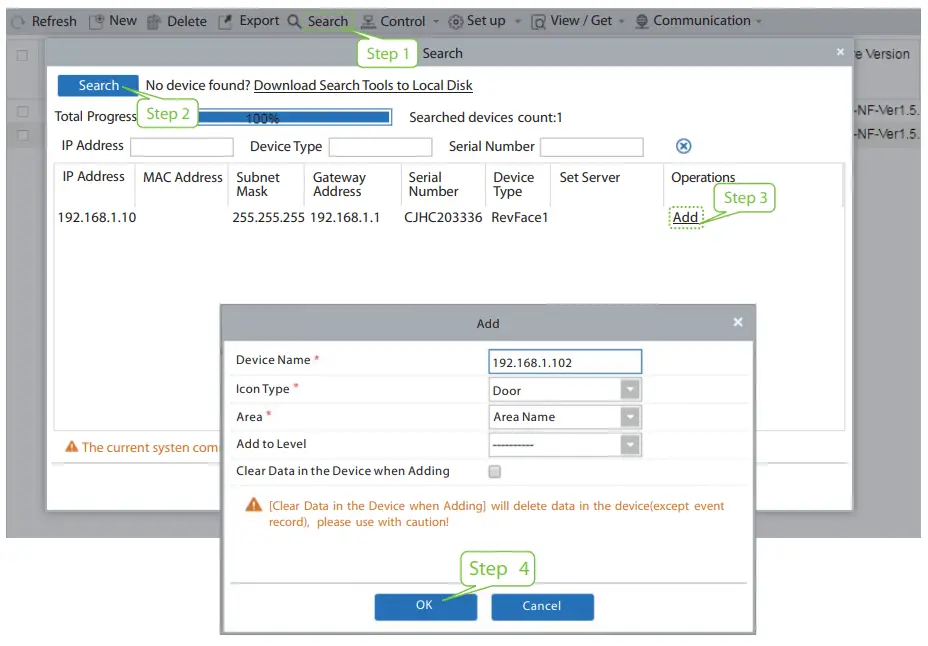
For more details, please refer to the ZKBioAccess IVS User Manual.
Method 3: Register on the phone
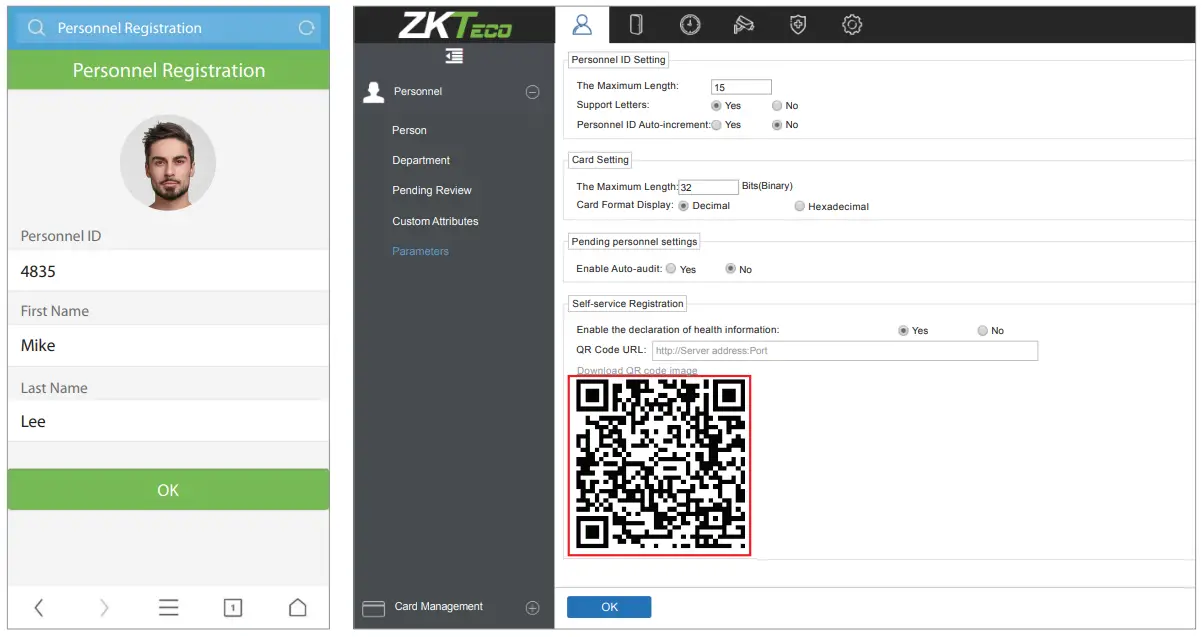
Once the ZKBioAccess IVS software is installed, users can enroll face via a browser application on their
mobile phone.
- Click [Personnel] > [Parameters], input http://Server address: Port in the QR Code UGL bar. The ” ” software will automatically generate a QR code. Scan the QR code or login onto http://Server address: Port/app/v1/address by the mobile phone to register the user.

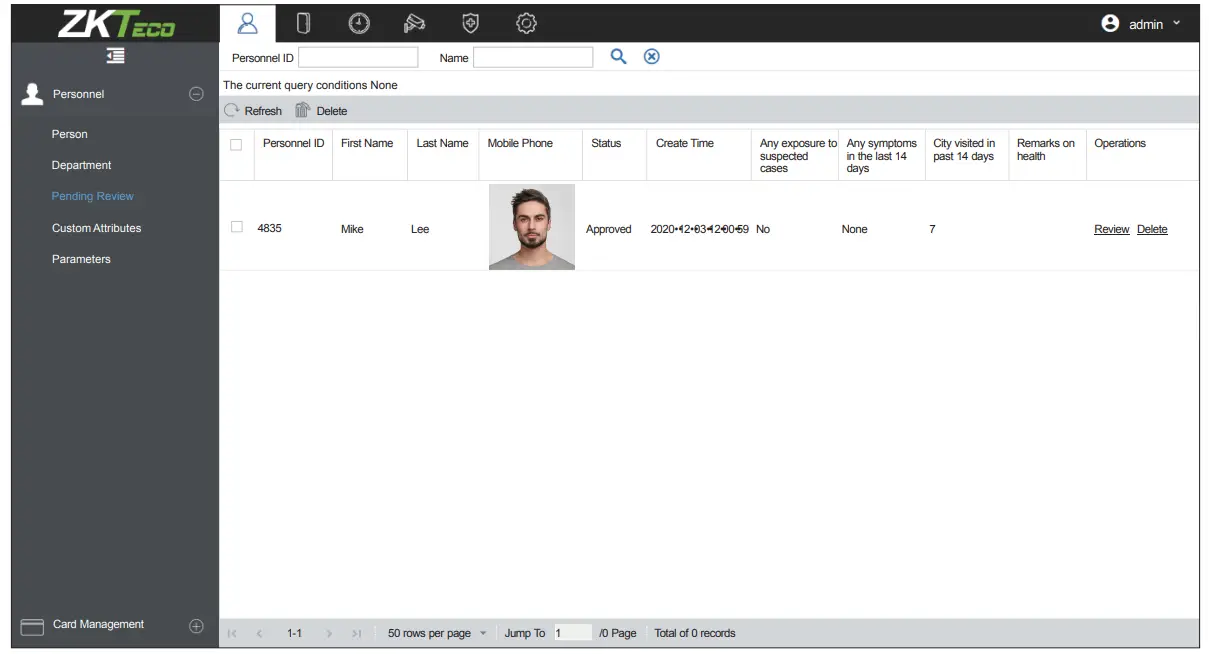
- The users will be displayed in [Personnel] > [Pending Review], click on the [Review] option and assign a department and click [OK] to successfully add the user.
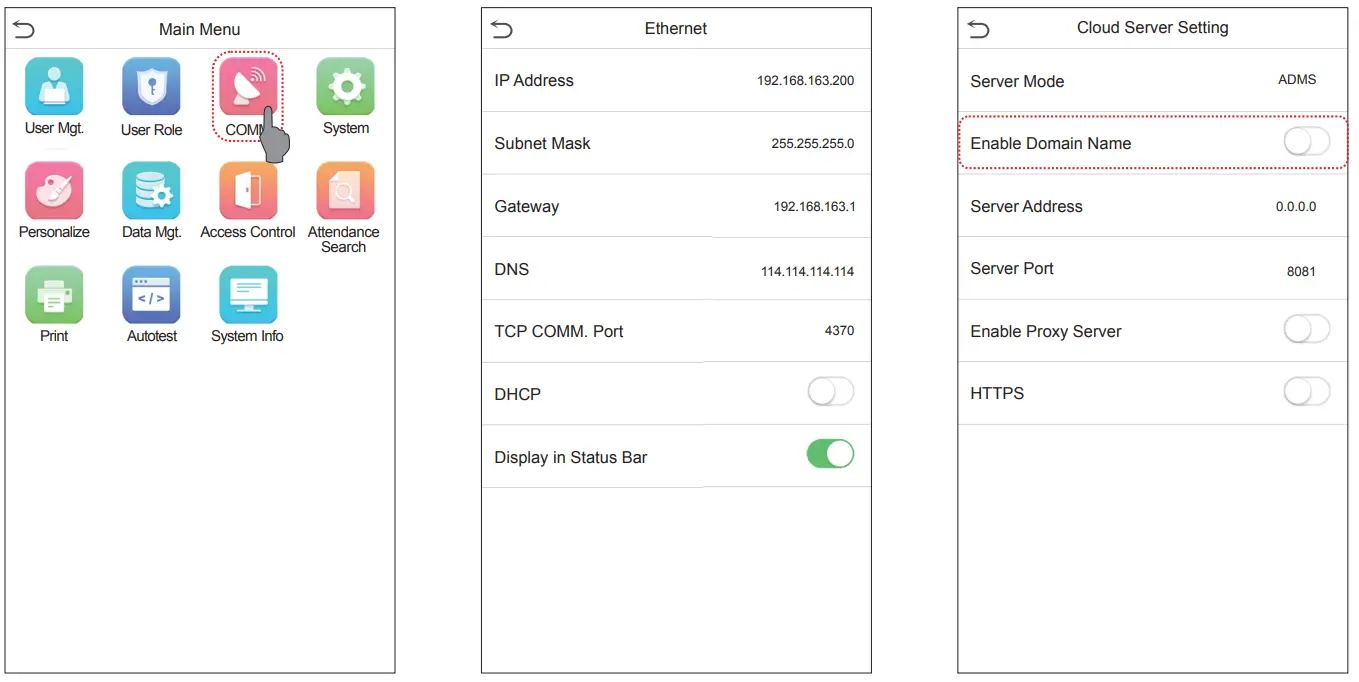
Ethernet and Cloud Server Settings
Click on  [COMM.] > [Ethernet] to set the network parameters. If the TCP/IP communication of the device is successful, the icon
 will be displayed in the upper right corner of the standby interface.
Click on [COMM.] > [Cloud Server Setting] to set the server address and server port, i.e., the IP address and port number of the server after the software is installed. If the device communicates with the server successfully, the icon will be displayed in the upper right corner of the standby interface.
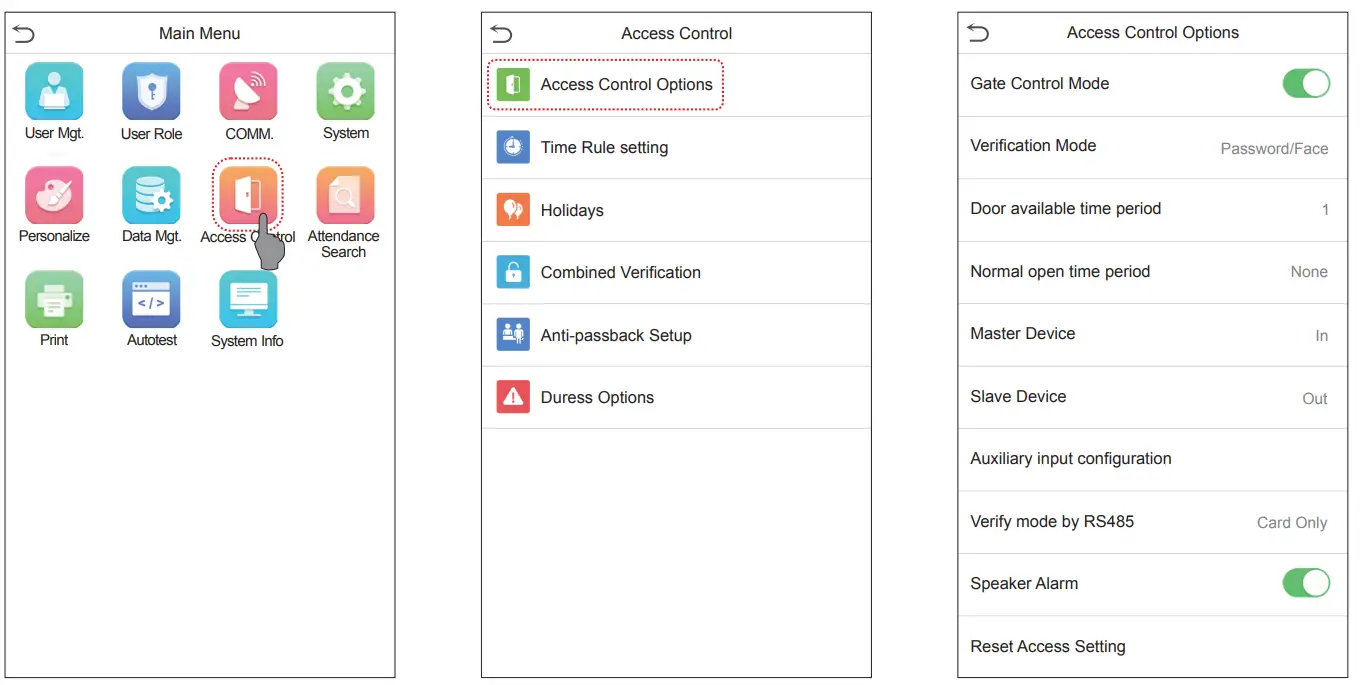
Access Control Setting
Click on to enter the access control management interface and set relevant > [Access Control] parameters of the access control.
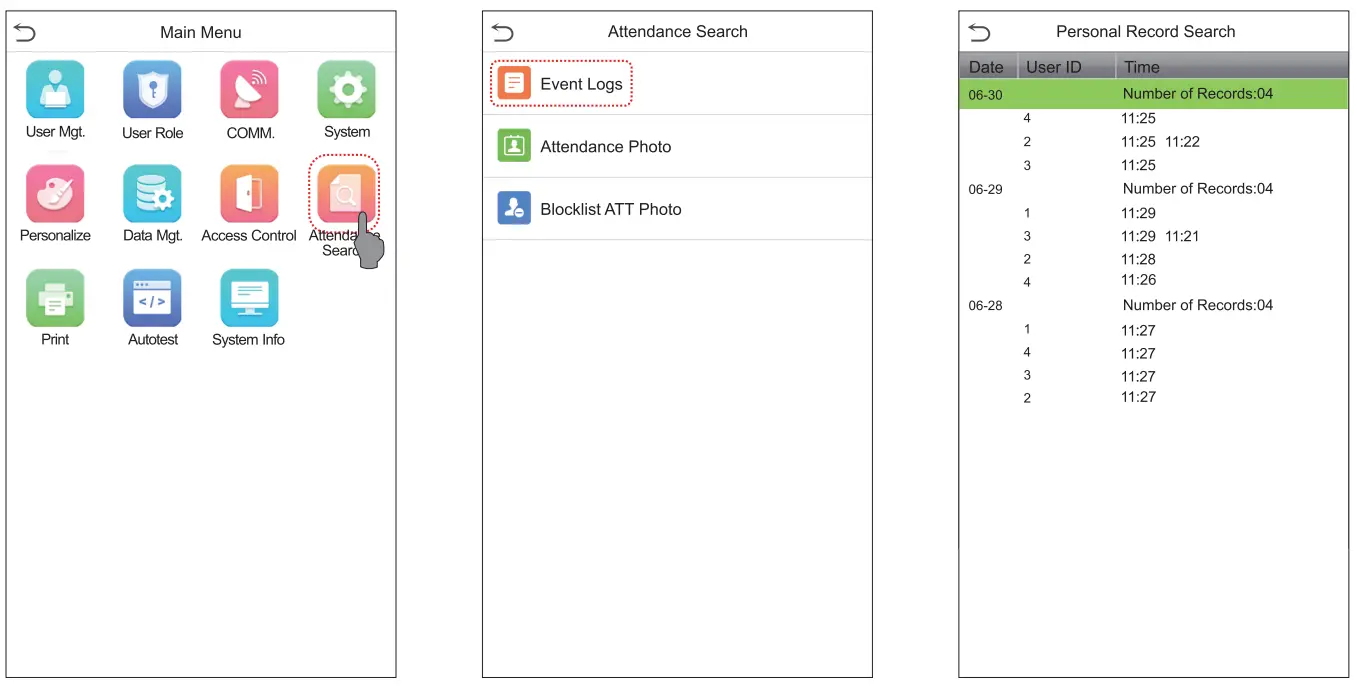
Attendance Record
Click on > [Attendance Search] > [Event Logs] to enter the records query interface, input the user ID and select the time range. The corresponding event logs will be displayed.
 Detection Management Settings
Click on > [System] > [Detection Management] to enter the setting interface. 0 You can set the value of the High-temperature alarm threshold, and enable Temp. over the range; access denied and Trigger external alarm. Then the device sends an alarm prompt when the temperature of the user detected exceeds the set threshold value, and the user’s access is forbidden. You can also enable Maskdetection the same.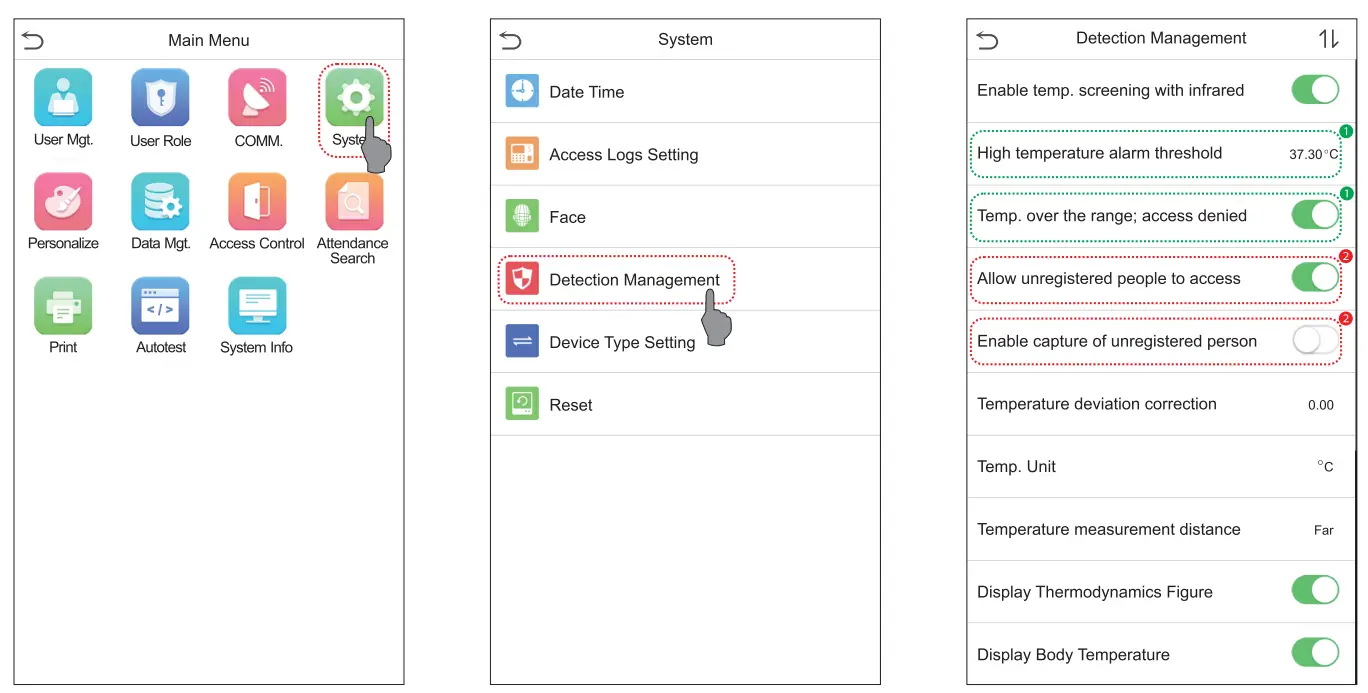 When the Allow unregistered people to access is enabled, you can also set Enable capture of unregistered person to save the temperature data.
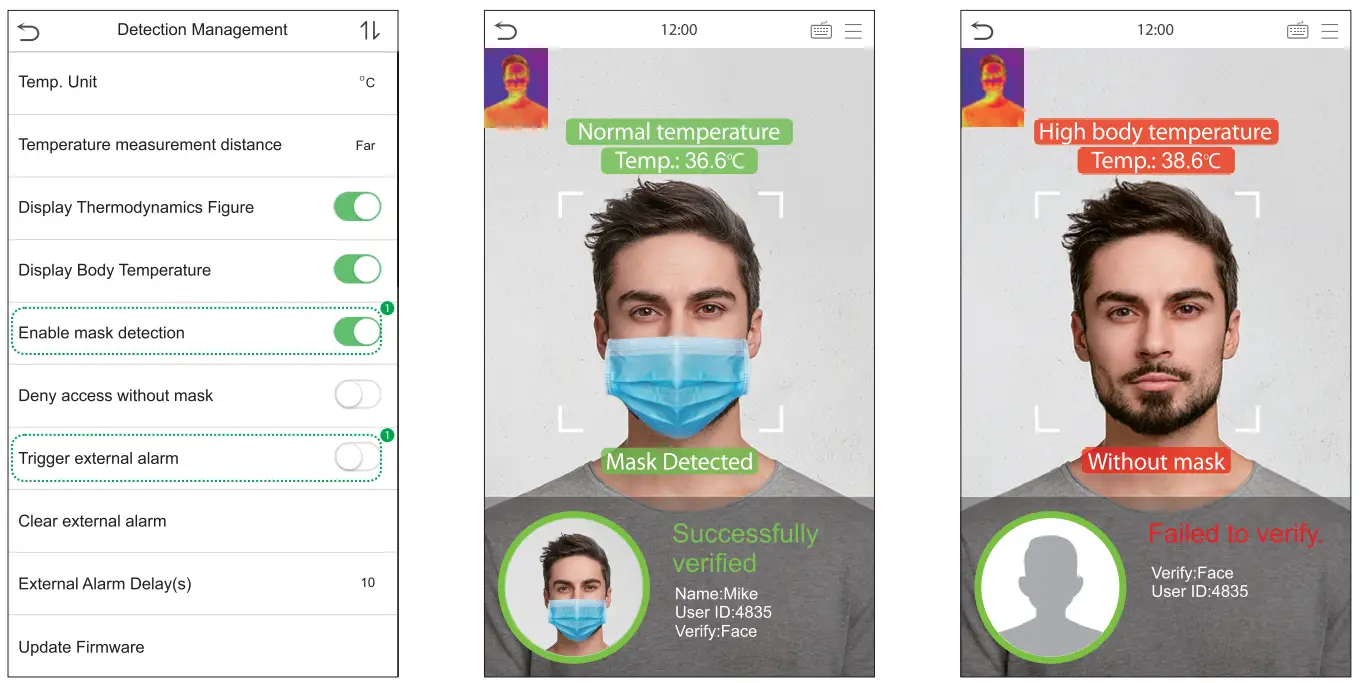 Multi-face Identifying Settings
Click on > [System] > [Face] > [Face Identifying Settings] > [Identifying Mode] to enter the setting interface.
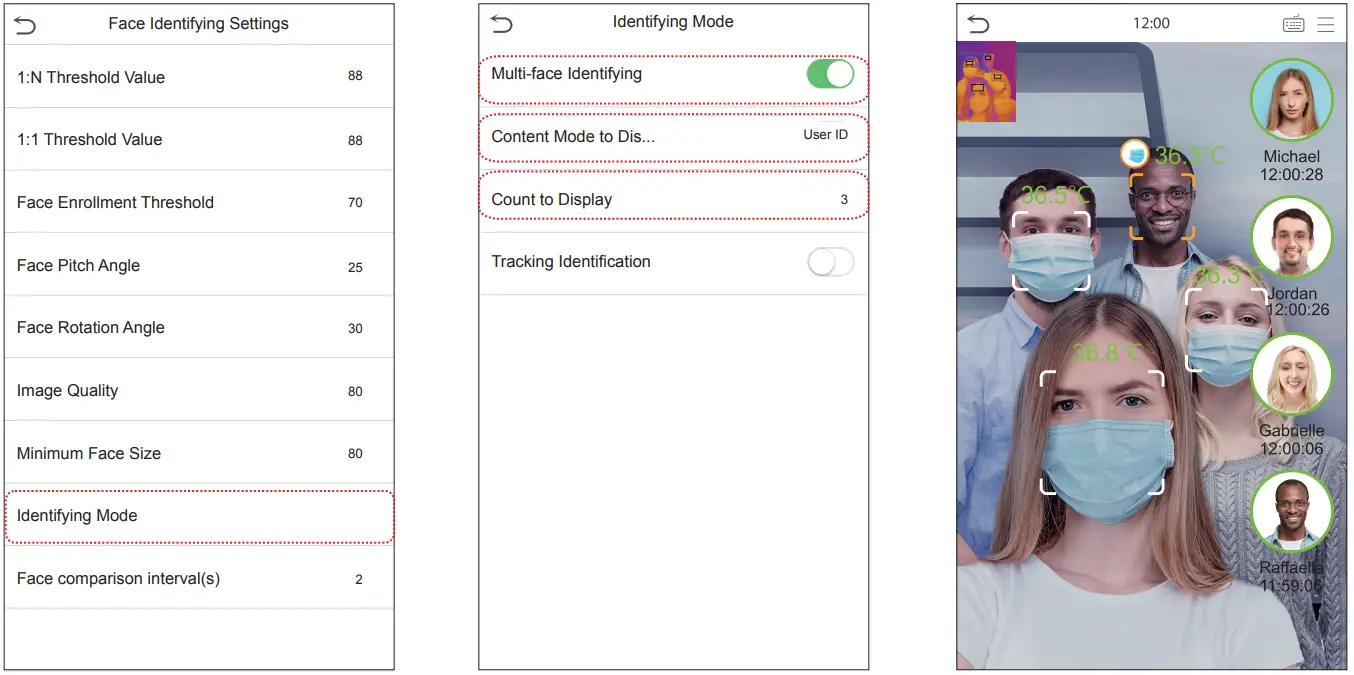
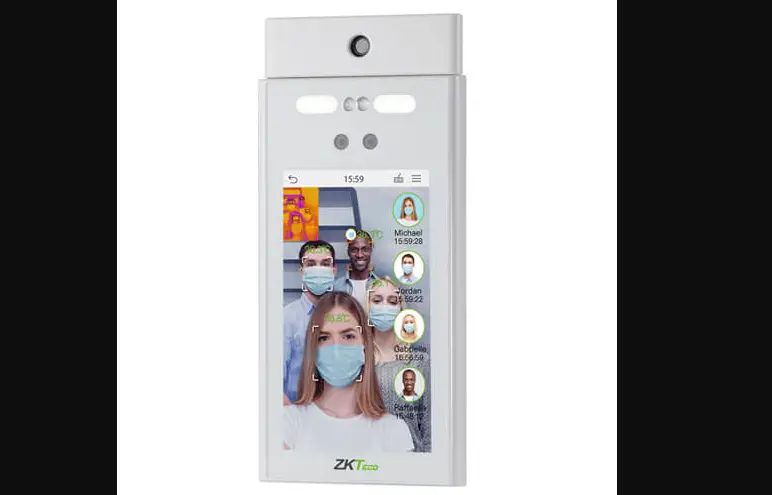
When the Multi-face Identifying is enabled, the device can perform facial recognition and temperature detection of multiple people at once (up to 4 people). For more details, please refer to the User Manual.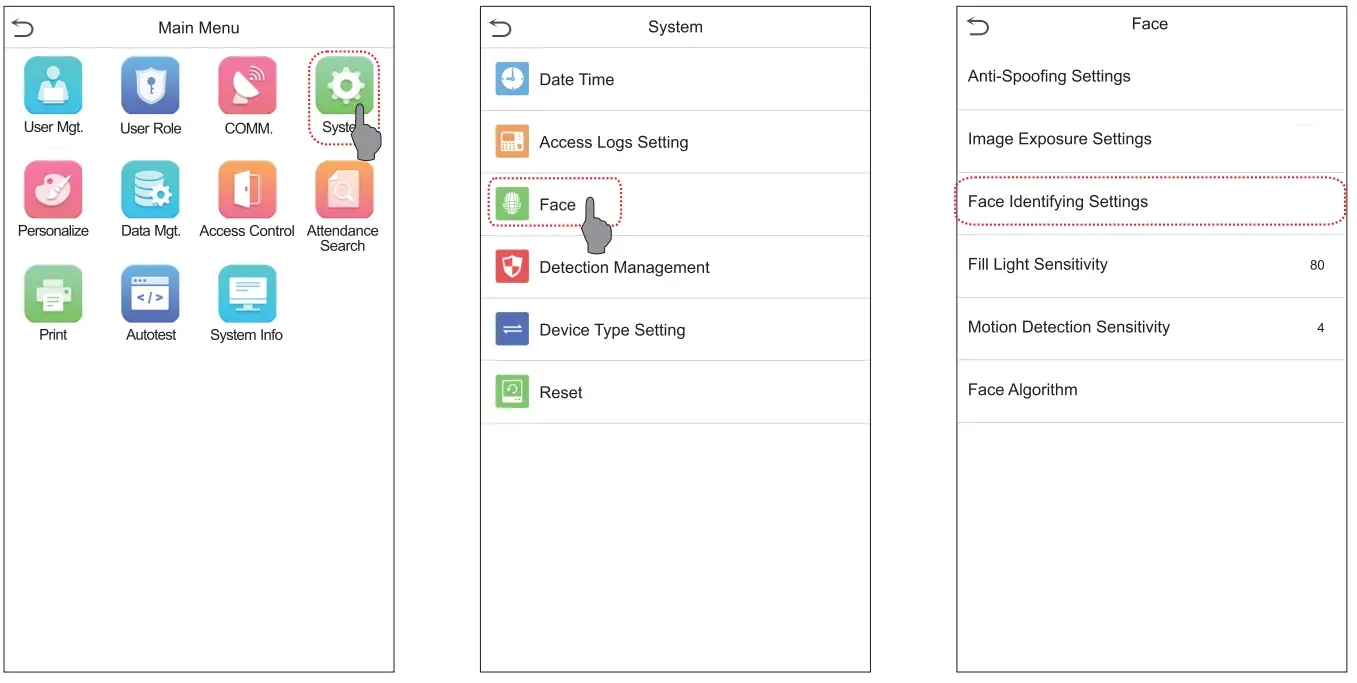
Precautions
- The effective distance for temperature detection is within 0.3-2m for the face.
- It is recommended for indoor use only.
- The temperature measurement data is for reference only, and not for medical use.
- Remove the mask while registering the face, and wear the mask while recognizing the face. The type of mask and the size of the face covered by the mask will affect the facial recognition process.
 Real-time Monitoring on the ZKBioAccess IVS Software
Once the ZKBioAccess IVS software is installed, users can perform several monitoring operations:
- Set the IP address and cloud service server address on the device and add the device to the software.
- Click [Temperatur Detection] > [Temperature Management] > [Real-Time Monitoring] to view all the personnel’s events present under the Abnormal Temperature, No Masks, and Normal Records. The user data of abnormal body temperature is displayed on the Abnormal Temperature information bar automatically according to the Temperature Threshold Setting is set.
- Click [Temperature Management] > [Statistics Panel] to view the analysis of statistical data in the form of a pie chart and view the personnel with normal temperature, abnormal temperature, and unmeasured body temperature. Also, detailed information of the personnel can be seen on the right by clicking on the particular category on the pie chart.
Real-Time Monitoring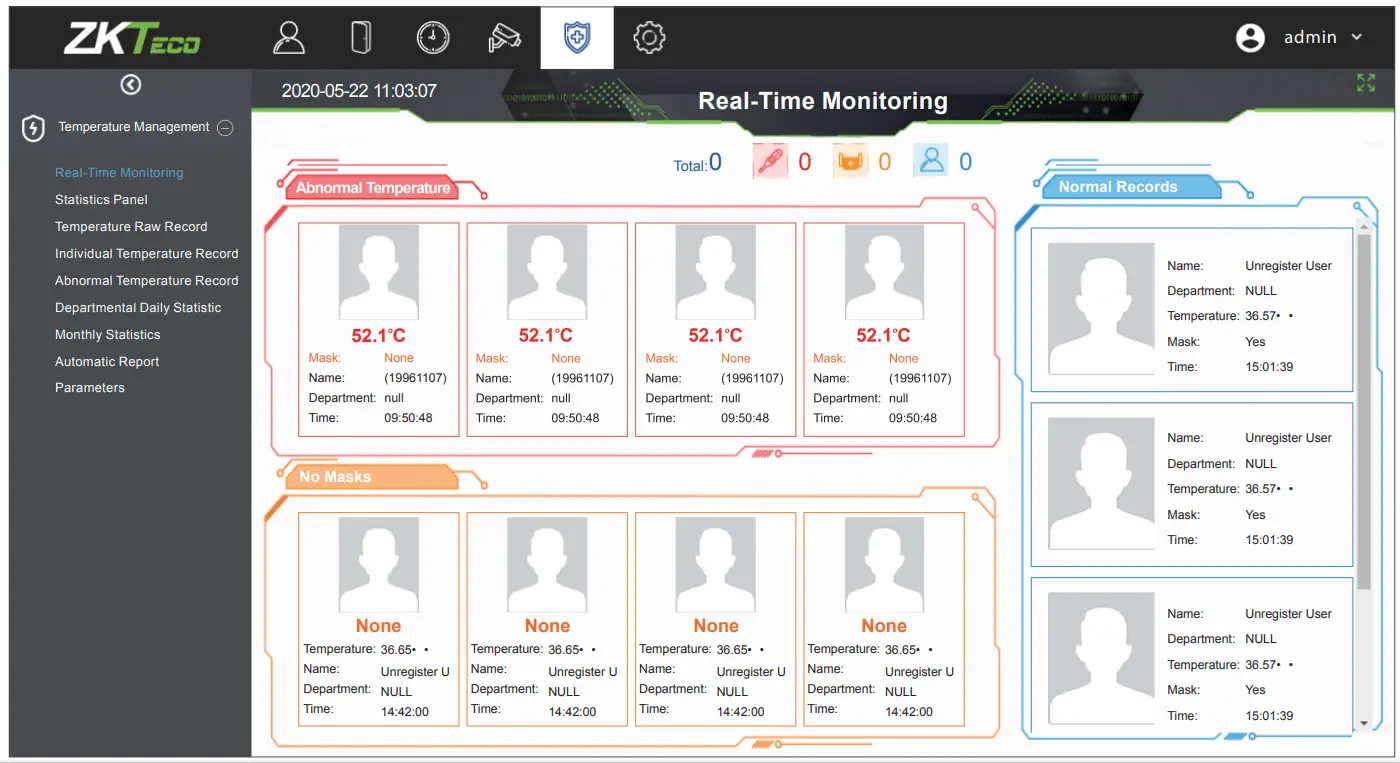 Statistics Panel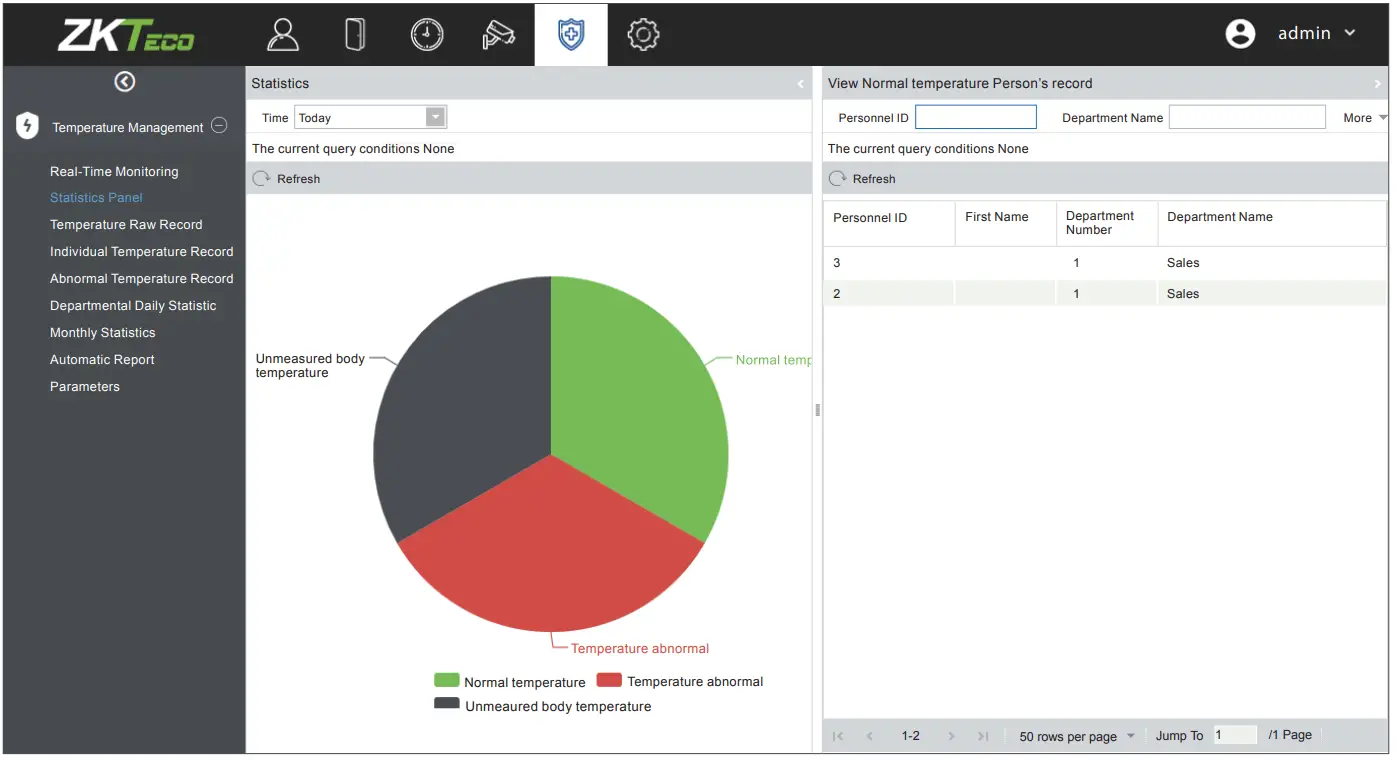
For more details, please refer to the ZKBioAccess IVS User Manual. https://www.zkteco.com/en/
ZKTeco Industrial Park, No. 32, Industrial Road,
Tangxia Town, Dongguan, China.
Phone : +86 769 – 82109991
Fax : +86 755 – 89602394
www.zkteco.com
Copyright@2021 ZKTECO CO., LTD. All Rights Reserved.
 ZKTeco | Home Page


![Zkteco Proface X [td] User Guide](https://static-data1.manualsee.com/1/img/494/665424/2021/09/ZKTeco-ProFace-X-TD-0-Featured-Image.jpg "Zkteco Proface X [td] User Guide")