
ZKBioSecurity Download and Installing enrolment readers drivers
Following are steps to take when you download and install enrolment drivers
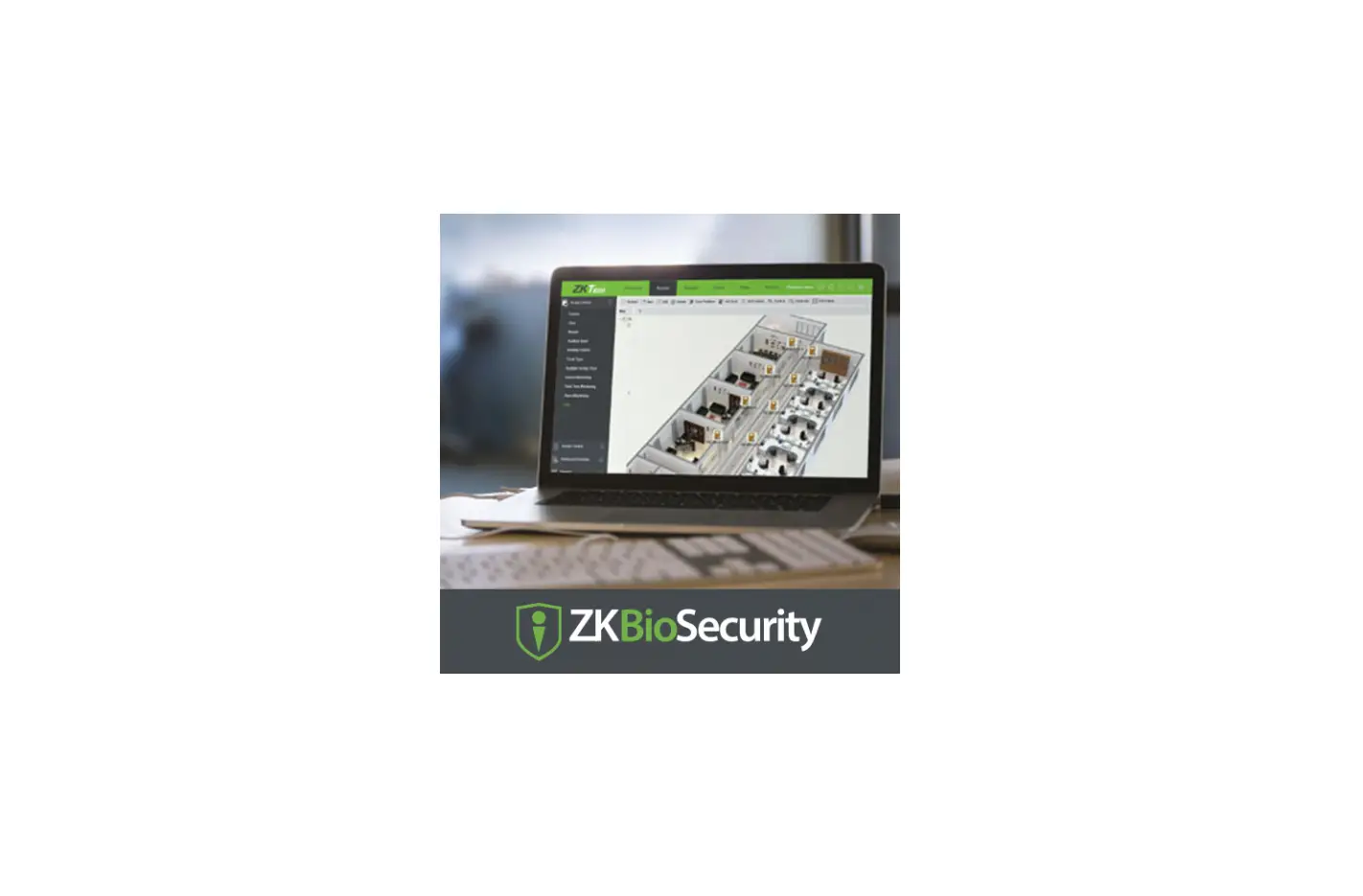
ZKBioSecurity Software
Following are steps to take when you download and install enrolment drivers
Personnel > Personnel > Person
Click on new
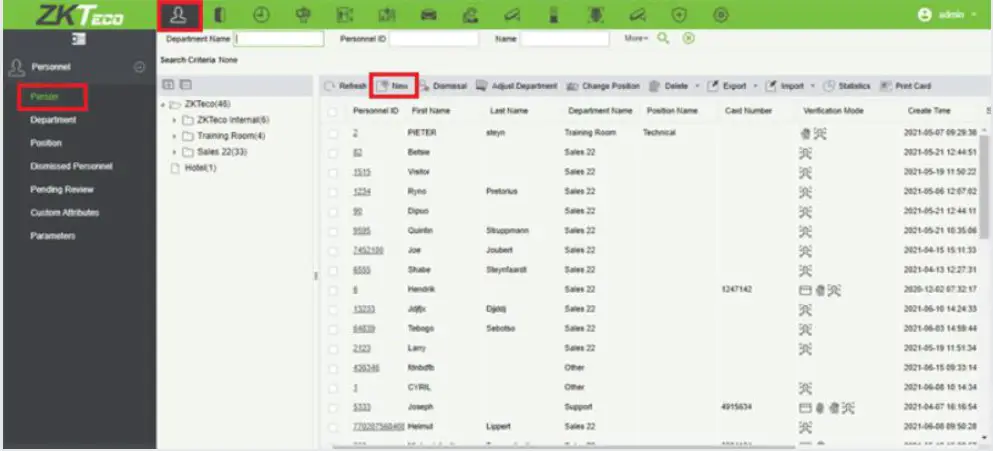
Click on the icon of Biometrics Type 

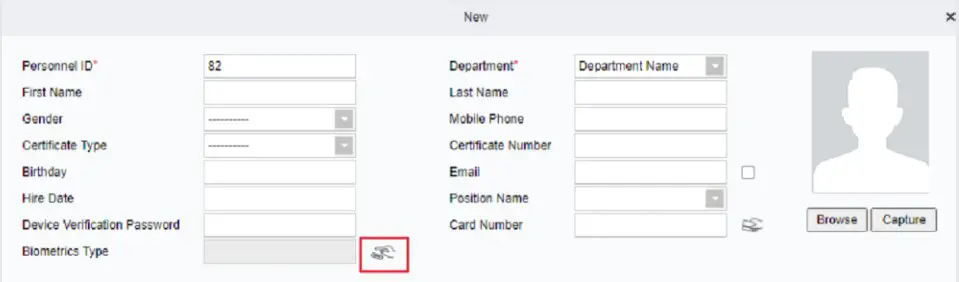
Click on driver download
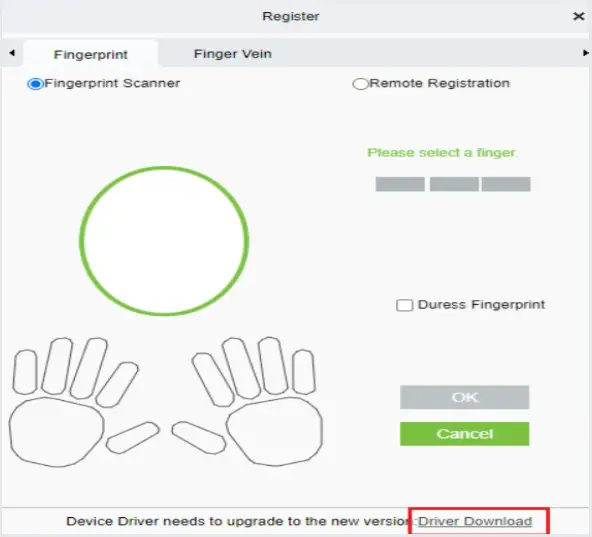
The driver’s Software will be downloaded to your Downloads folder.
Double click on the driver’s Software in your Download folder.
The driver’s Software needs to be installed.
Select Install
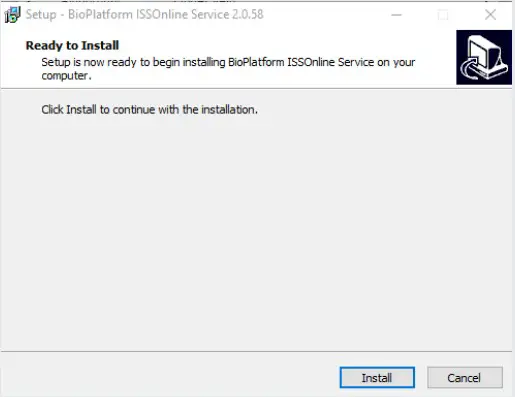
The process bar will show how far it is installed.
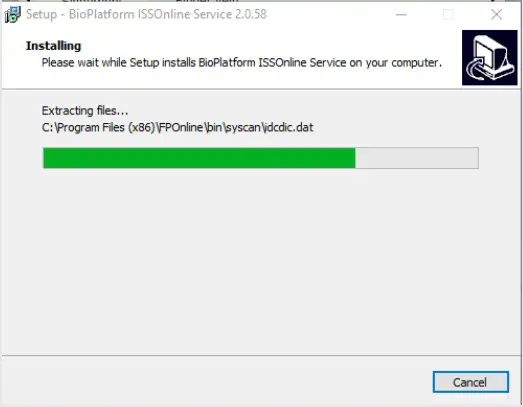
It is been installed.
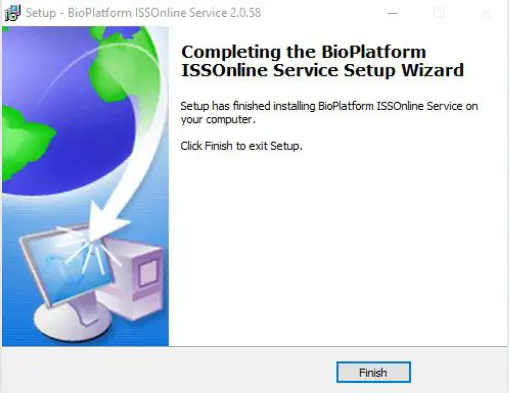
Select Finished and you can enroll your personnel fingerprint.
If the software was installed before.
The screen will pop up.
Select Yes.
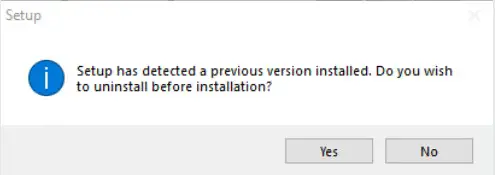
Select Yes
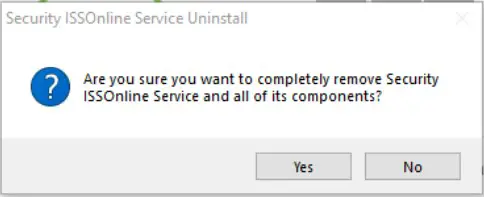
Select install
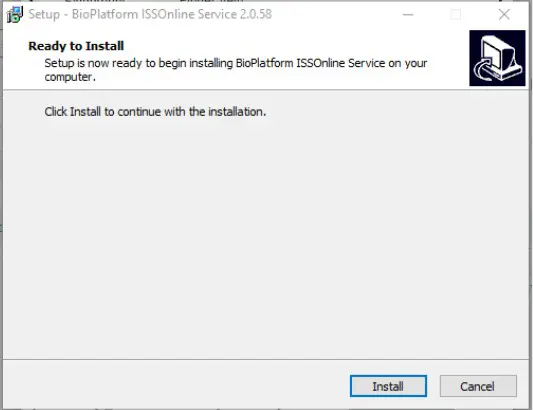
The process bar will show how far it is installed.
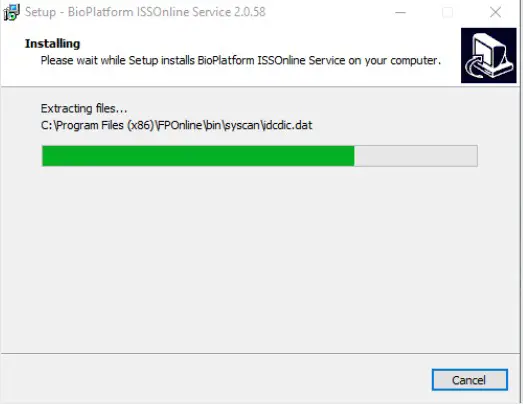 It is been installed.
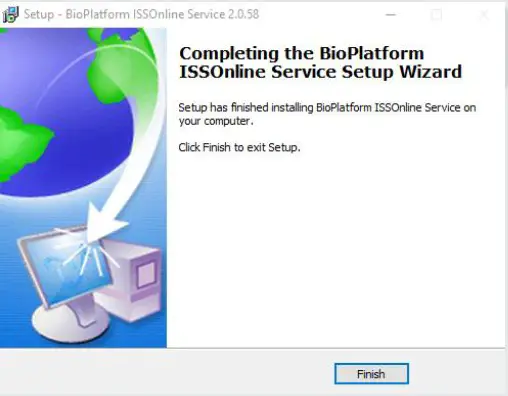
Select Finished and you can enroll your personnel fingerprint.
www.zkteco.co.za|[email protected]
 Software — ZKTeco South Africa


![Zkteco Proface X [td] User Guide](https://static-data1.manualsee.com/1/img/494/665424/2021/09/ZKTeco-ProFace-X-TD-0-Featured-Image.jpg "Zkteco Proface X [td] User Guide")