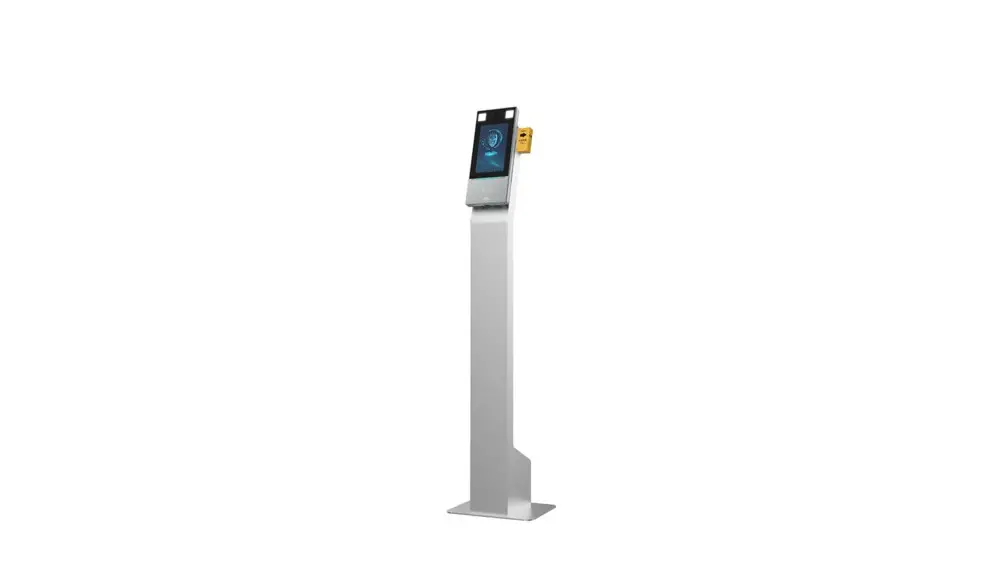
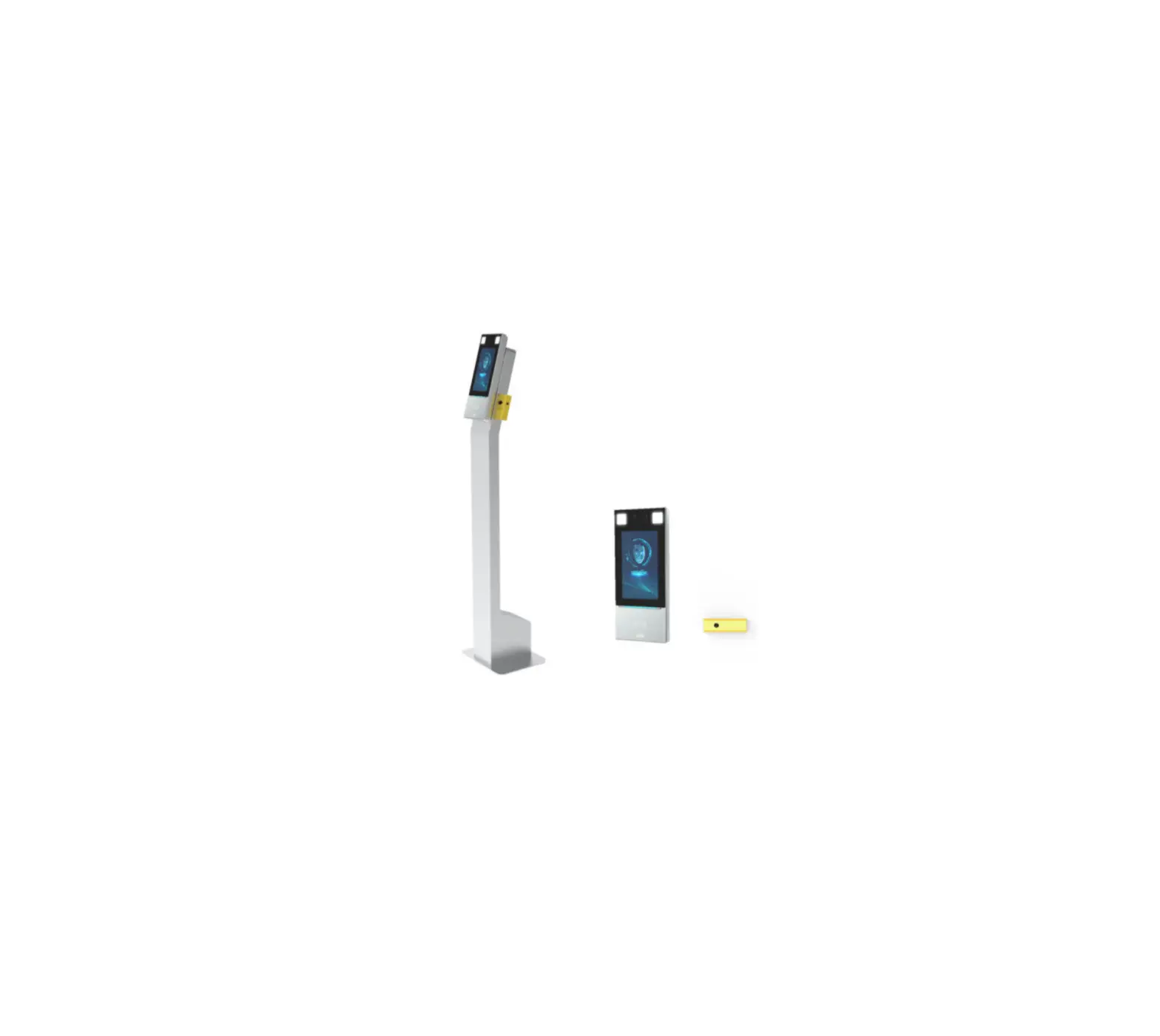
RevFace15 Biometric Face Recognition Terminal
Product Information
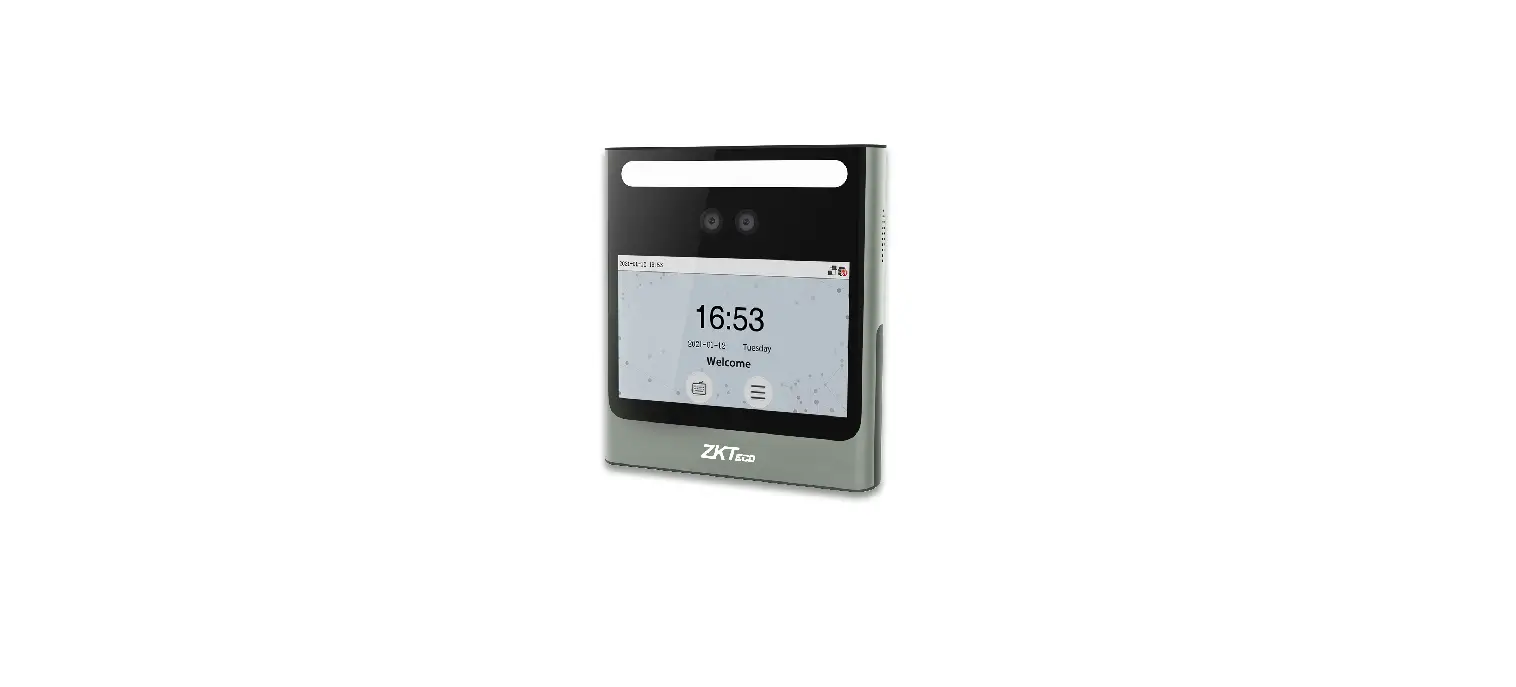
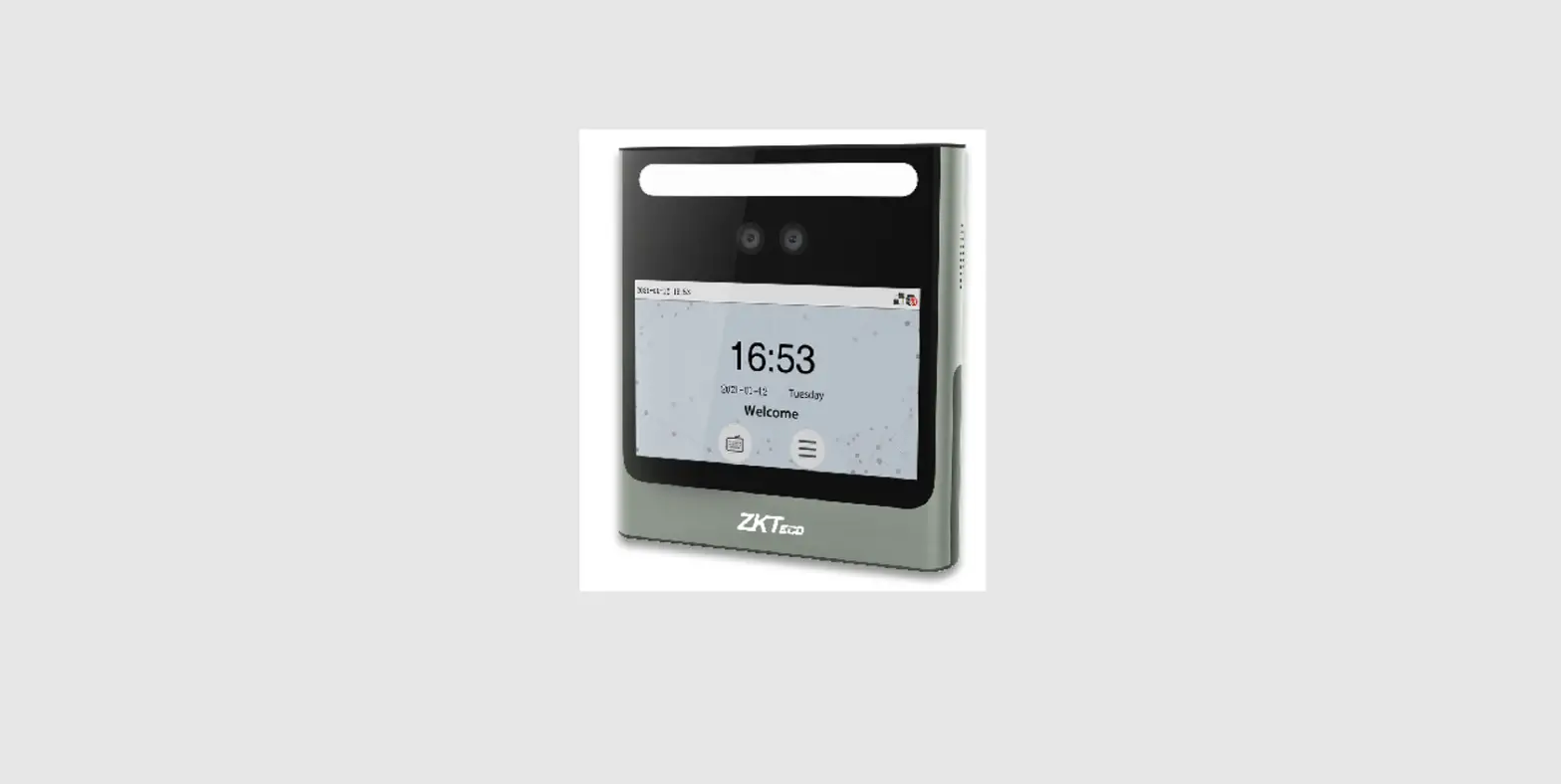
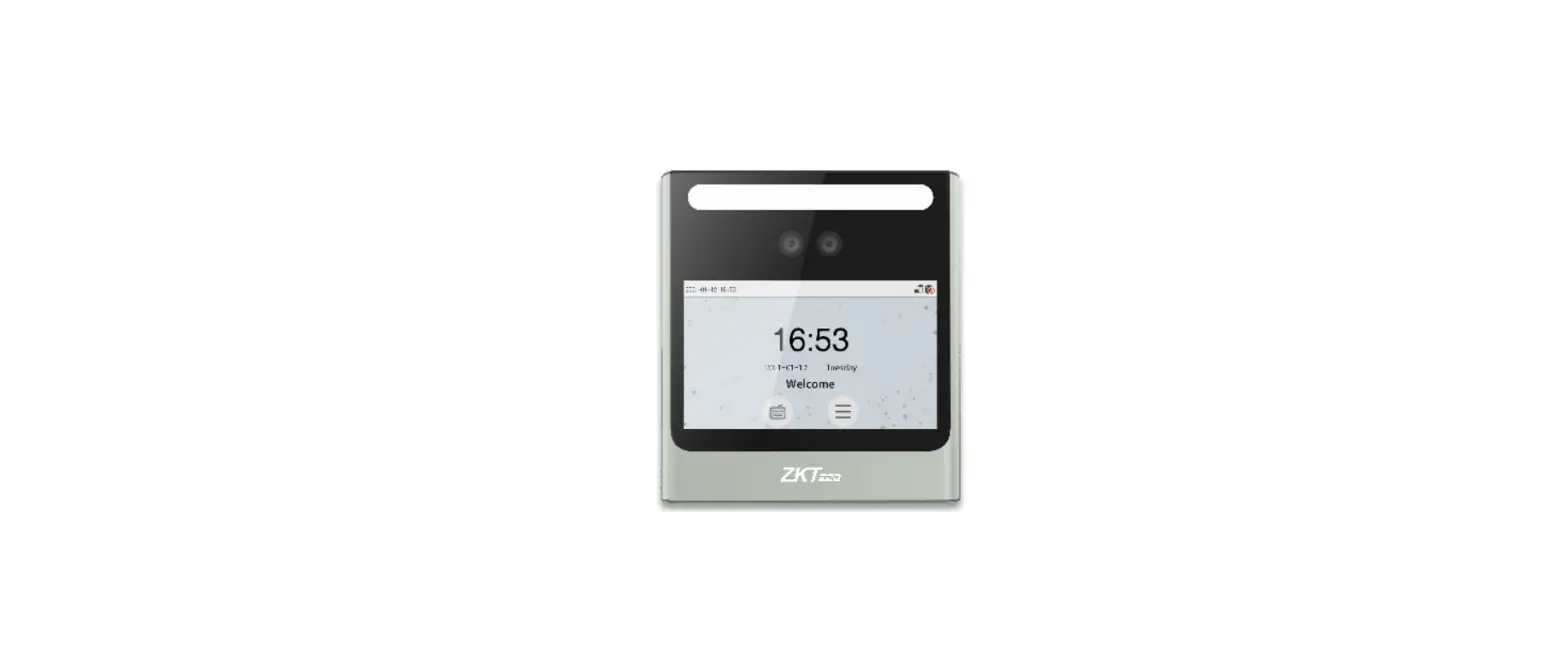
The RevFace15 is a device that features a near-infrared flash
camera, microphone, under-screen card reading area, back plate,
7-inch touchscreen, and speaker. It can be installed on the wall or
used as a standalone device and comes with various ports for
different connections such as Ethernet, RS232, RS485, and Wiegand
reader. The device supports both normally opened and normally
closed locks and can be powered by a DC 12V, 3A adapter.
Product Usage Instructions
Device Installation
To install the device on the wall, place the mounting template
sticker onto the wall and drill holes according to the mounting
paper. Fix the back plate onto the wall using wall mounting screws.
Fix the device into the back plate and use the safety screw to
fasten the device to the back plate.
Baseline Standalone Installation
To set up the device as a standalone device, connect it to an
alarm, door sensor, card reader, lock, exit button, sensor, or
auxiliary input using the appropriate ports.
Printer Connection
To connect a printer, use the RS232 port and connect it to the
printer using the appropriate cables.
Wiegand Reader Connection
To connect a Wiegand reader, use the Wiegand In and Wiegand Out
ports and connect them to the reader using the appropriate
cables.
RS485 Connection
To connect an RS485 reader, use the RS485 port and connect it to
the reader using the appropriate cables.
To connect a door sensor, exit button, or alarm, use the
appropriate ports and connect them to the device using the
appropriate cables.
Lock Relay Connection
To connect a lock, use either the NO or NC terminals depending
on the type of lock. The power can be shared with the lock or used
separately for the lock.
Ethernet Connection
To connect the device and software over Ethernet, use an
Ethernet cable and input the IP address in the device’s
settings.
Power Connection
Connect the device to a DC 12V, 3A adapter. To share power with
other devices, use an AC adapter with higher current ratings.
User Registration
To register a new user, access the User Mgt. menu and enter the
User ID and Name, set User Role, register Face, Card Number,
Password, add Profile Photo, and set Access Control Role. It is
recommended to register a super administrator initially for
security purposes.
Quick Start Guide
RevFace15
Version: 1.1
Due to regular upgrades of systems and products, ZKTeco could not guarantee exact consistency between the actual product and the written information in this manual.
Overview
Near-infrared flash Flash Camera Microphone
Under-screen Card Reading Area
Back plate 7″ Touchscreen
Speaker
-1-
Device Installation
Installing on the wall
Place the mounting template sticker onto the wall, and drill holes according to the mounting paper. Fix the back plate onto the wall using wall mounting screws. Fix the device into back plate. Use the safety screw to fasten the device to the back plate.
Baseline
-2-
Standalone Installation
Alarm
Door Sensor Card Reader
Lock
SDmetoekceto r
TCP/IP
Exit Button
Port Introduction
RJ45 Port
Power
RS232_TXD RS232_RXD GND GND GND 12VIN 12VIN 12V-OUT GND IWD0 IWD1 WD0-OUT WD1-OUT 12V-OUT GND 485A 485B AL+ ALNC COM NO BUT GND SEN GND AUX GND
RS232
Power In
Power Out Wiegand In Wiegand Out Power Out RS485
Alarm Lock Exit Button Sensor Auxiliary Input
-3-
Printer Connection
RS232_TXD RS232_RXD GND GND GND 12VIN 12VIN
RS232
Printer
Wiegand Reader Connection
12V-OUT GND IWD0 IWD1 WD0-OUT WD1-OUT 12V-OUT GND 485A 485B
-4-
+12V GND WD0 WD1
Wiegand Reader
WD0 WD1 +12V GND
Access Controller
RS485 Connection
12V-OUT GND IWD0 IWD1 WD0-OUT WD1-OUT 12V-OUT GND 485A 485B
+12V GND 485+ 485-
RS485 Reader
Door Sensor, Exit Button & Alarm Connection
AL+ ALNC COM NO BUT GND SEN GND AUX GND
Alarm Power
–
+
–
+
Alarm
ExitButton
Door Sensor
NO
+
COM
–
SmokeDetector
Detector Power
-5-
Lock Relay Connection
The system supports both Normally Opened Lock and Normally Closed Lock. The NO Lock (normally open when powered) is connected with ‘NO’ and ‘COM’ terminals, and the NC Lock (normally close when powered) is connected with ‘NC’ and ‘COM’ terminals. The power can be shared with the lock or can be used separately for the lock, as shown in the example with NC Lock below:
1) Device not sharing power with the lock
2) Device sharing power with the lock
DC12V NC Lock
DC12V
+12V GND
AL+
AL-
FR107
NC COM
NO
BUT
GND
SEN
GND
AUX
GND
DC12V NC Lock
+12V GND
AL+
FR107
ALNC
COM
NO
BUT
GND
SEN
GND
AUX
GND
Ethernet Connection
Connect the device and the software over an Ethernet cable. An example is shown below:
Default IP address: 192.168.1.201 Subnet mask: 255.255.255.0
IP address: 192.168.1.130 Subnet mask: 255.255.255.0
Click [Comm.] > [Ethernet] > [IP Address], input the IP address and click [OK].
Note: In LAN, the IP addresses of the server (PC) and the device must be in the same network segment when connecting to ZKBioAccess IVS software.
-6-
Power Connection
DC 12V, 3A
Recommended AC adapter: 12V, 3A To share the power with other devices, use an AC adapter with higher current ratings.
User Registration
When there is no super administrator set in the device, click on to enter the menu. Add a new user and set User Role to Super Admin, then the system will request for the administrator’s verification before entering the menu. It is recommended to register a super administrator initially for security purposes.
Method 1: Register on the device
Tap on > [User Mgt.] > [New User] to register a new user. The options include entering the User ID and Name, setting User Role, registering Face, Card Number, Password, adding Profile Photo, and setting Access Control Role.
Main Menu
L User Mgt. User Role
COMM.
System
Personalize
Data Mgt. Access Control Attendance Search
User Mgt. New User All Users Display Style
Autotest System Info
-7-
Enroll Face
Enrolled Successfully
Method 2: Register on ZKBioAccess IVS software
Please set the IP address and cloud service server address in the Comm. menu option on the device. 1. Click [Access] > [Device] > [Device] > [Search] to search the device on the software. When an
appropriate server address and port is set on the device, the searched devices are displayed automatically.
Refresh New Delete Export Search Control
Set up
View / Get
Step1 Search
Search No device found? Download Search Tools to Local Disk
Total Progress Step2
Searched devices count:1
IP Address
Device Type
Serial Number
IP Address MAC Address Subnet Mask
Gateway Address
192.168.1.10
255.255.255 192.168.1.1
Serial Number
Device Set Server Type
CJHC203336 RevFace1
Communication
Operations Step3
Add
Add
Device Name
192.168.1.102
Icon Type
Door
Area
Area Name
The current systen commuAndicdattiooLnepveolrt is 6609, please make sure the device is set correctly. Clear Data in the Device when Adding
[Clear Data in the DeviceClowsheen Adding] will delete data in the device(except event record), please use with caution!
Step 4
OK
Cancel
-8-
2. Click [Add] in operation column, a new window will pop-up. Select Icon type, Area, and Add to Level from each dropdown and click [OK] to add the device.
3. Click [Personnel] > [Person] > [New] and fill in all the required fields to register a new user in the software.
4. Click [Access] > [Device] > [Control] > [Synchronize All Data to Devices] to synchronize all the data to the device including the new users.
For more details, please refer to the ZKBioAccess IVS User Manual.
Method 3: Register on the phone
Once the ZKBioAccess IVS software is installed, users can enroll face via a browser application on their mobile phone.
1. Click [Personnel] > [Parameters], input “http://Server address: Port” in the QR Code UGL bar. The software will automatically generate a QR code. Scan the QR code or login onto “http://Server address: Port/app/v1/adreg” by the mobile phone to register the user.
Personnel Registration
Personnel Registration
Personnel ID 4835 First Name Mike Last Name Lee
Personnel
Person Department Pending Review Custom Attributes Parameters
Personnel ID Setting
The Maximum Length:
15
Support Letters:
Yes
No
Personnel ID Auto-increment: Yes
No
Card Setting
The Maximum Length: 32
Bits(Binary)
Card Format Display: Decimal
Hexadecimal
Pending personnel settings
Enable Auto-audit: Yes
No
Self-service Registration
Enable the declaration of health information: QR Code URL: http://Server address:Port Download QR code image
Yes
No
OK
Card Management
OK
2. The users will be displayed in [Personnel] > [Pending Review], click on [Review] option and assign a department and click [OK] to successfully add the user.
Personnel
Person Department Pending Review Custom Attributes Parameters
Personnel ID
The current query conditions None
Refresh
Delete
Name
Personnel ID First Name Last Name Mobile Phone
Status
Create Time
admin
Any exposure to Any symptoms
suspected
in the last 14
cases
days
City visited in past 14 days
Remarks on Operations health
4835
Mike
Lee
Approved 2020-12-03 12:00:59 No
None
7
Review Delete
Card Management
1-1
50 rows per page
Jump To 1
/0 Page Total of 0 records
-9-
Ethernet and Cloud Server Settings
Click on > [COMM.] > [Ethernet] to set the network parameters. If the TCP/IP communication of the device is successful, the icon will be displayed in the upper right corner of the standby interface.
Click on > [COMM.] > [Cloud Server Settings] to set the server address and server port, i.e., the IP address and port number of the server after the software is installed. If the device communicates with the server successfully, the icon will be displayed in the upper right corner of the standby interface.
Main Menu
User Mgt. User Role
L COMM.
System
Personalize
Data Mgt. Access Control Attendance Search
Autotest System Info
IP Address
Ethernet
192.168.163.200
Subnet Mask
255.255.255.0
Gateway
192.168.163.1
DNS
114.114.114.114
TCP COMM. Port
4370
DHCP
Display in Status Bar
Cloud Server Settings
Server Mode
ADMS
Enable Domain Name
Server Address
0.0.0.0
Server Port
8081
Enable Proxy Server
HTTPS
Access Control Setting
Click on > [Access Control] to enter the access control management interface and set relevant parameters of the access control.
Main Menu
User Mgt. User Role
COMM.
System
Access Control Access Control Options Time Rule setting
Personalize
Data Mgt.
L Access Control Attendance Search
Holidays Combined Verification
Autotest System Info
Anti-passback Setup Duress Options
-10-
Attendance Record
Click on > [Attendance Search] > [Event Logs] to enter the records query interface, input the user ID and select the time range. The corresponding event logs will be displayed.
Main Menu
User Mgt. User Role
COMM.
System
Personalize
Data Mgt.
L Access Control Attendance Search
Autotest System Info
Attendance Search
L Event Logs
Attendance Photo Blocklist ATT Photo
Personal Record Search
Date 01-05 01-06
01-07
User ID
4 2 3
1 3 2 4
1 4 3 2
Time Number of Records:04 11:25 11:25 11:22 11:25 Number of Records:04 11:29 11:29 11:21 11:28 11:26 Number of Records:04
11:27 11:27 11:27 11:27
Detection Management Settings
Click on > [System] > [Detection Management] to enter the setting interface. 1 You can enable mask detection function, and enable the Deny Access Without Mask and the
Trigger External Alarm, the device will send an alarm prompt when the user doesn’t wear a mask, meanwhile the user will be forbidden to access, as shown in the following figure. 2 When the Allow Unregistered People to Access is enabled, you can also set Enable Capture of Unregistered Person to save the user photo.
Main Menu
User Mgt. User Role
COMM.
L System
Personalize
Data Mgt. Access Control Attendance Search
Autotest System Info
L
-11-
Multi-face Identifying Settings
Click on > [System] > [Face] > [Face Identifying Settings] > [Identifying Mode] to enter the setting interface.
When the Multi-face Identifying is enabled, the device can perform facial recognition of multiple people at once. For more details, please refer to the User Manual.
Main Menu
User Mgt. User Role
COMM.
L System
Personalize
Data Mgt. Access Control Attendance Search
Autotest System Info
L
Face Anti-Spoofing Settings
Image Exposure Settings
Face Identifying Settings
Fill Light Sensitivity
80
Motion Detection Sensitivity
4
Face Algorithm
Identifying Mode Multi-face Identifying Content Mode to Dis… Count to Display Tracking Identification
User ID 3
12:00
Michael 12:00:00
Jordan 12:00:00
Gabrielle 12:00:00
Raffaella 12:00:00
-12-
ZKTeco Industrial Park, No. 32, Industrial Road,
Tangxia Town, Dongguan, China.
Phone : +86 769 – 82109991
Fax
: +86 755 – 89602394
www.zkteco.com
Copyright@2023 ZKTECO CO., LTD. All Rights Reserved.
 ZKTeco | Home Page

![Zkteco G4[qr] Android Multi-biometric Facial Recognition Terminal User Guide](https://static-data1.manualsee.com/1/img/172/2574452/2022/04/ZKTECO-G4QR-Android-Multi-Biometric-Facial-Recognition-Terminal-Featured-Image.png "Zkteco G4[qr] Android Multi-biometric Facial Recognition Terminal User Guide")


![Zkteco Speedface-v5l[qr] Series Visible Light Facial Recognition Terminal User Guide](https://static-data1.manualsee.com/1/img/411/2395082/2022/03/ZKTeco-SpeedFace-V5LQR-Series-Visible-Light-Facial-Recognition-Terminal-fea.png "Zkteco Speedface-v5l[qr] Series Visible Light Facial Recognition Terminal User Guide")
![Zkteco Revface15[t1] Version: 2.0 User Guide](https://static-data1.manualsee.com/1/img/305/2978662/2022/05/ZKTeco-RevFace15-T1-Version-Featured-Image.png "Zkteco Revface15[t1] Version: 2.0 User Guide")