
BM5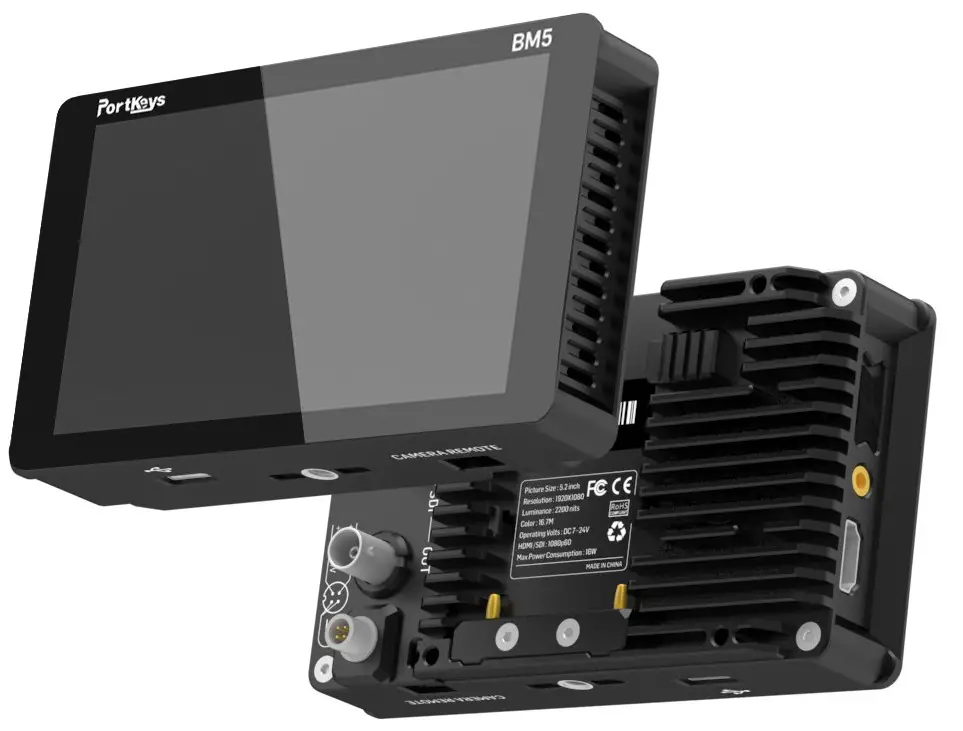 User Manual
SHENZHEN PORTKEYS ELECTRONIC TECHNOLOGY CO., LTD
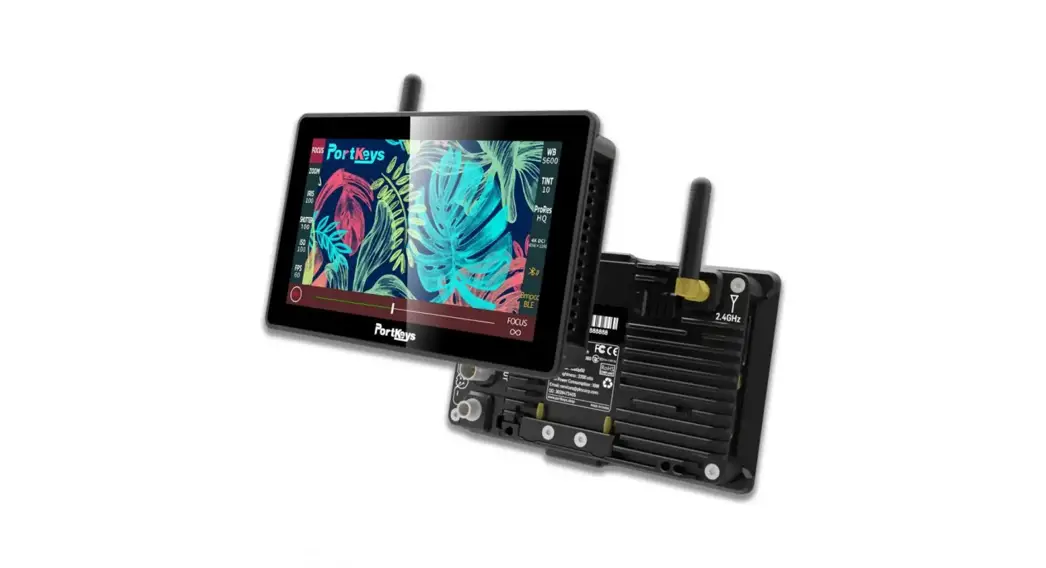
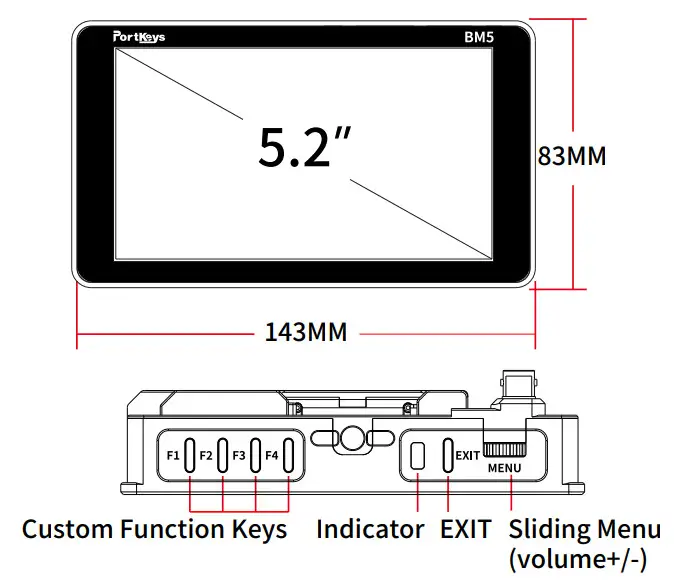
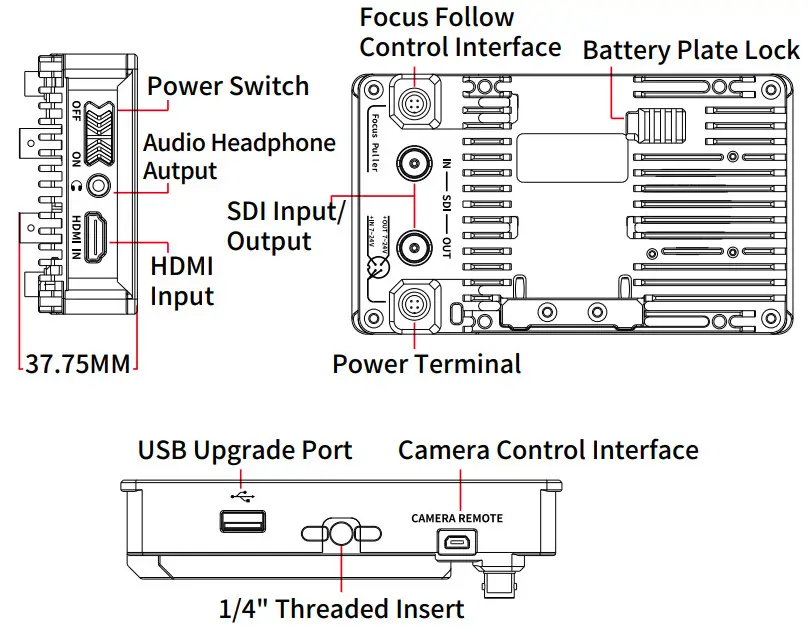
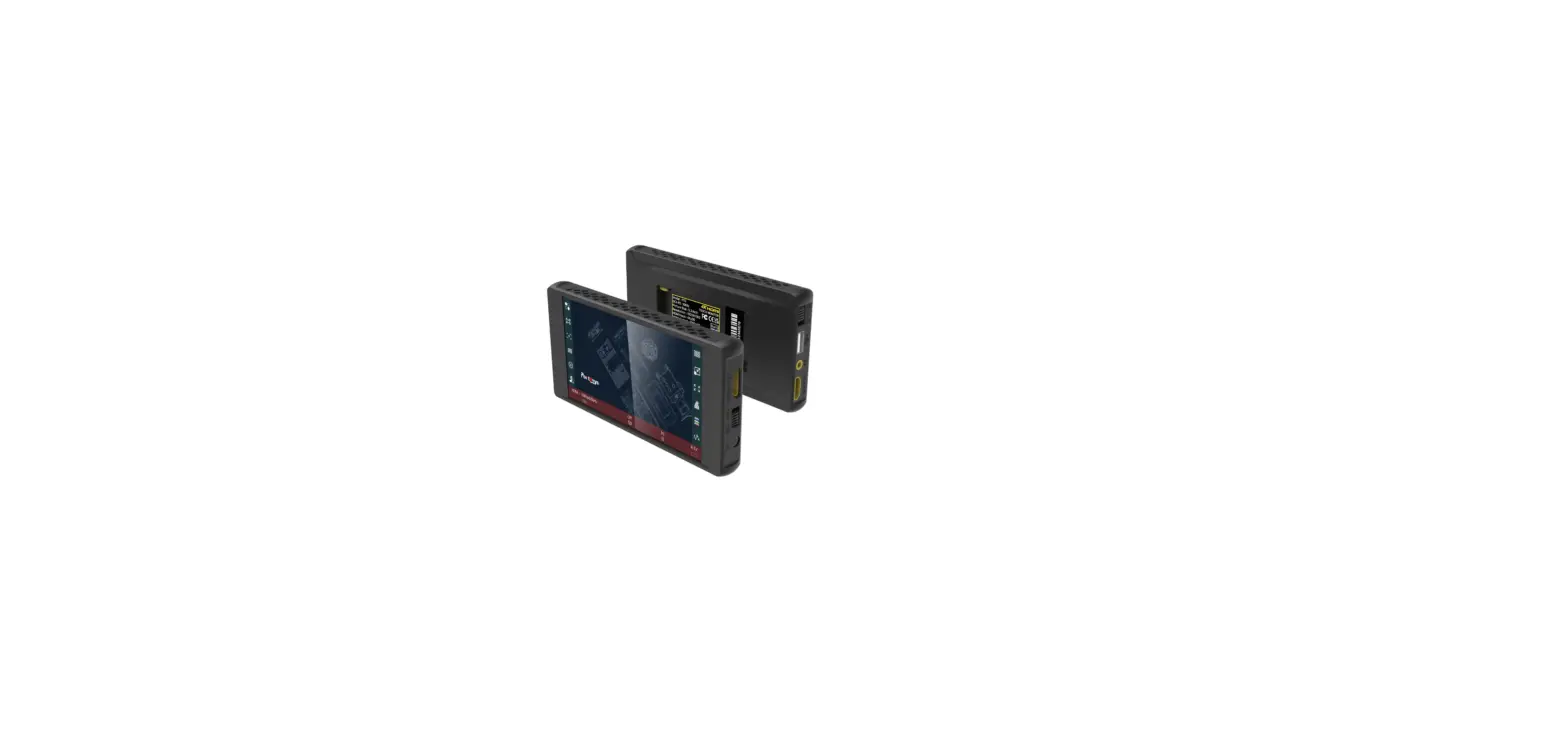
Product Appearance Size
 |  |
 Operating temperature range: 0 ℃ ~ 40 ℃
Standard Accessories
BM5 Monitor X1
Camera Control Cable X1
Warm Prompt Card X1
Safety Box×1
Power Cord (Aviation
Head – D-TAP) X1
Power Cord (Aviation
Head – DC) X1
U Disk(Manual,3D LUTs,
Firmware Inside) X1
Parameter
| Size | 5.2″ |
| Dimension | 142x83x37.75mm |
| Viewing Angle | 178°H/178°V |
| Brightness(nit) | 2200 |
| Resolution | 1920×1080 |
| Contrast Ratio | 1000:1 |
| Weight | 350g |
| Color | 8bit |
| Backlight | WED |
| Material | Aluminum Alloy + Toughened Glass |
| Input Voltage | DC 7~24V |
| Power Consumption | 9.5~16W |
| Signal Input | 3G SDI、HDMI |
| Signal Output | 3G SDI |
| Headphone | Output |
| Menu Language | English |
| Power Input / Output | 4pin Aviation Connector |
| Signal Conversion | HDMI into SDI OUT |
| Camera Control Interface | Focus Puller / CAMERA REMOTE |
| Support Battery Model | SONY NP-F970/F960/F750/F550 |
| Upgrade Firmware / Load LUT | USB-A |
| Fan | Yes |
Supported input resolution and frame rate
HDMI Signal
1920×[email protected],24Hz,25Hz,29.97Hz,30Hz,50Hz,59.94Hz,60Hz
1920×[email protected],24Hz,25Hz,29.97Hz,30Hz
1920×1080i@50Hz,59.94Hz,60Hz
1280×720p@50Hz,59.94Hz,60Hz
720×576p&720×576i@50Hz
720×480p&720×480i@50Hz,59.94Hz,60Hz
Supported input/output resolution and frame rate
SDI Signal
1920×1080p@50fps,59.94fps,60fps
1920×1080p@50Hz,59.94Hz,60Hz YUV422
1920×[email protected],24Hz,25Hz,29.94Hz,30Hz YUV444/YUV422/RGB444
1920×[email protected],24Hz,25Hz,29.97Hz,30Hz YUV444/YUV422/RGB444
1920×1080i@50Hz,59.94Hz,60Hz YUV444/YUV422/RGB444
1280×720p@50Hz,59.94Hz,60Hz YUV444/YUV422/RGB444
720×[email protected] YUV422
720×576i@50Hz YUV422
Page switching settings
[System settings page switch]
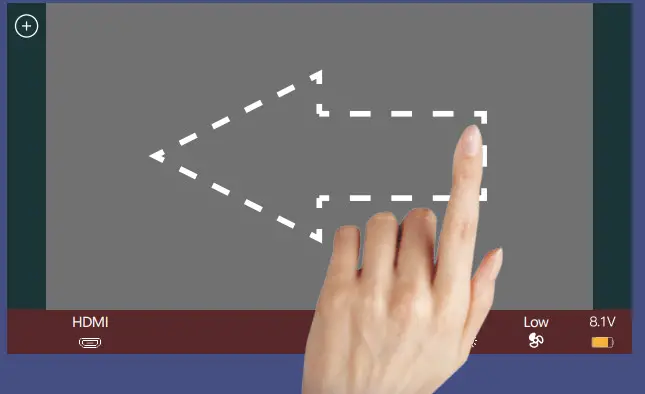
Swipe left on any page to adjust to the system settings page;
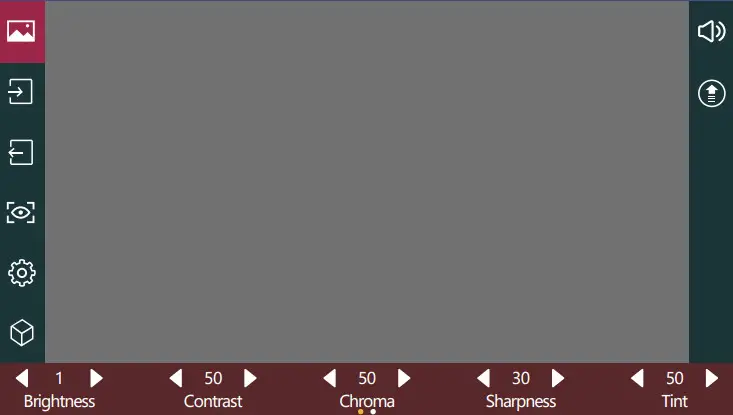
( the system settings page)
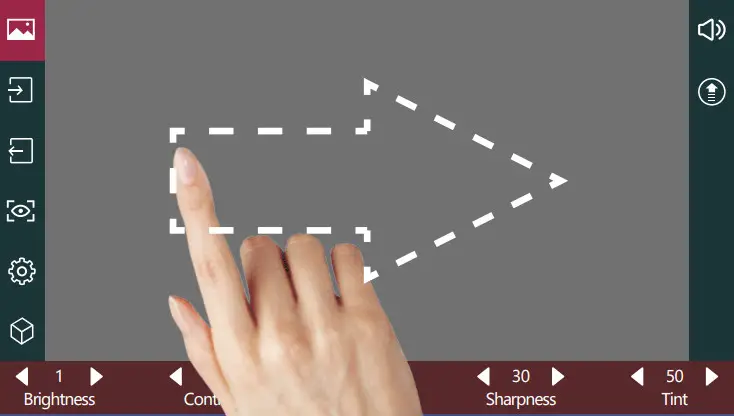
[Function settings page switch]
Swipe right on any page to adjust to the function setting page;
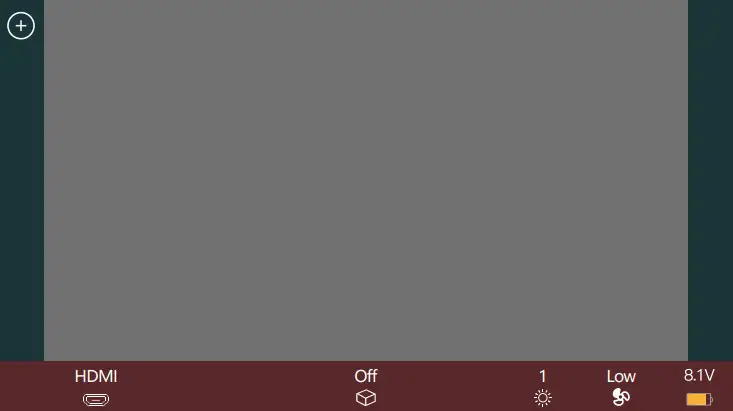
(the function setting page)
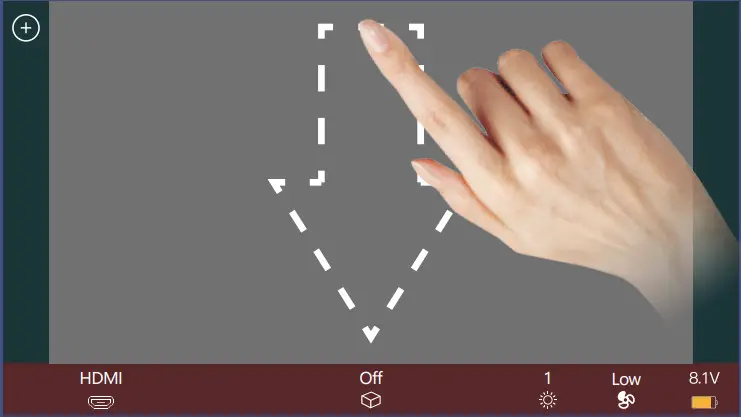
[Camera control settings page switch]
Swipe down on any page can be adjusted to the camera control settings page;
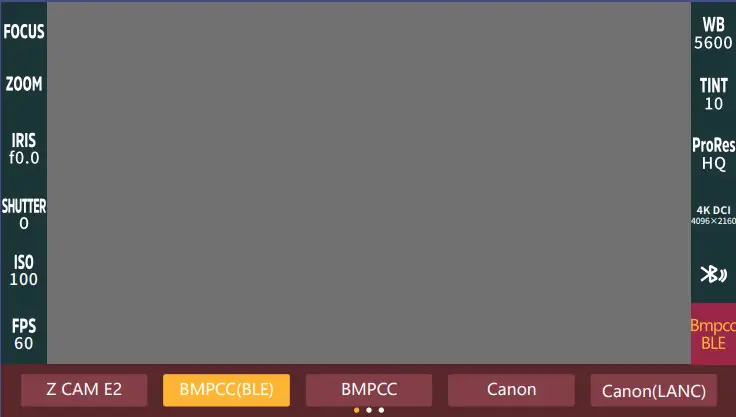
(the camera control settings page)
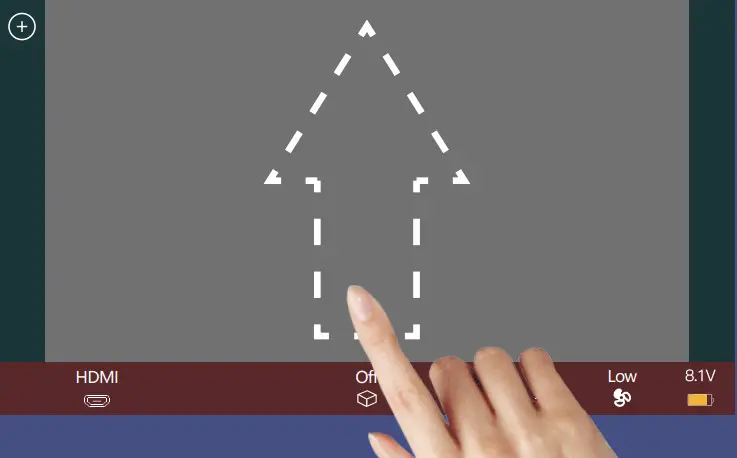
[Motor control settings page switch]
Swipe up on any page can be adjusted to the motor control settings page;
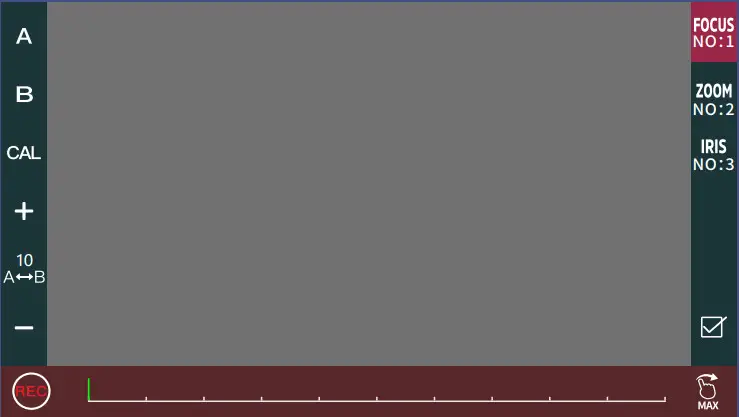
(the motor control settings page)
Shortcut Function Page
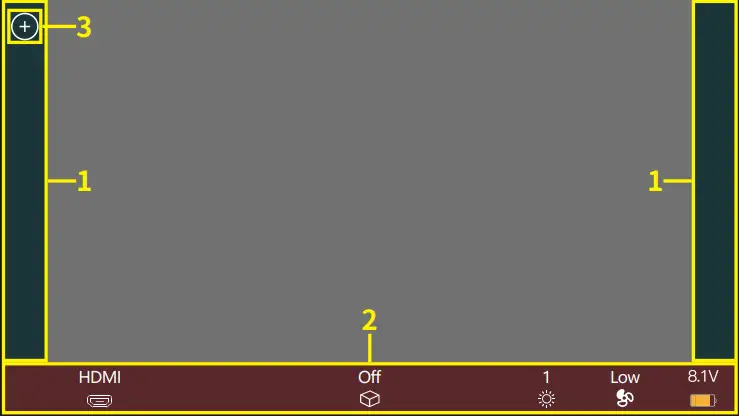
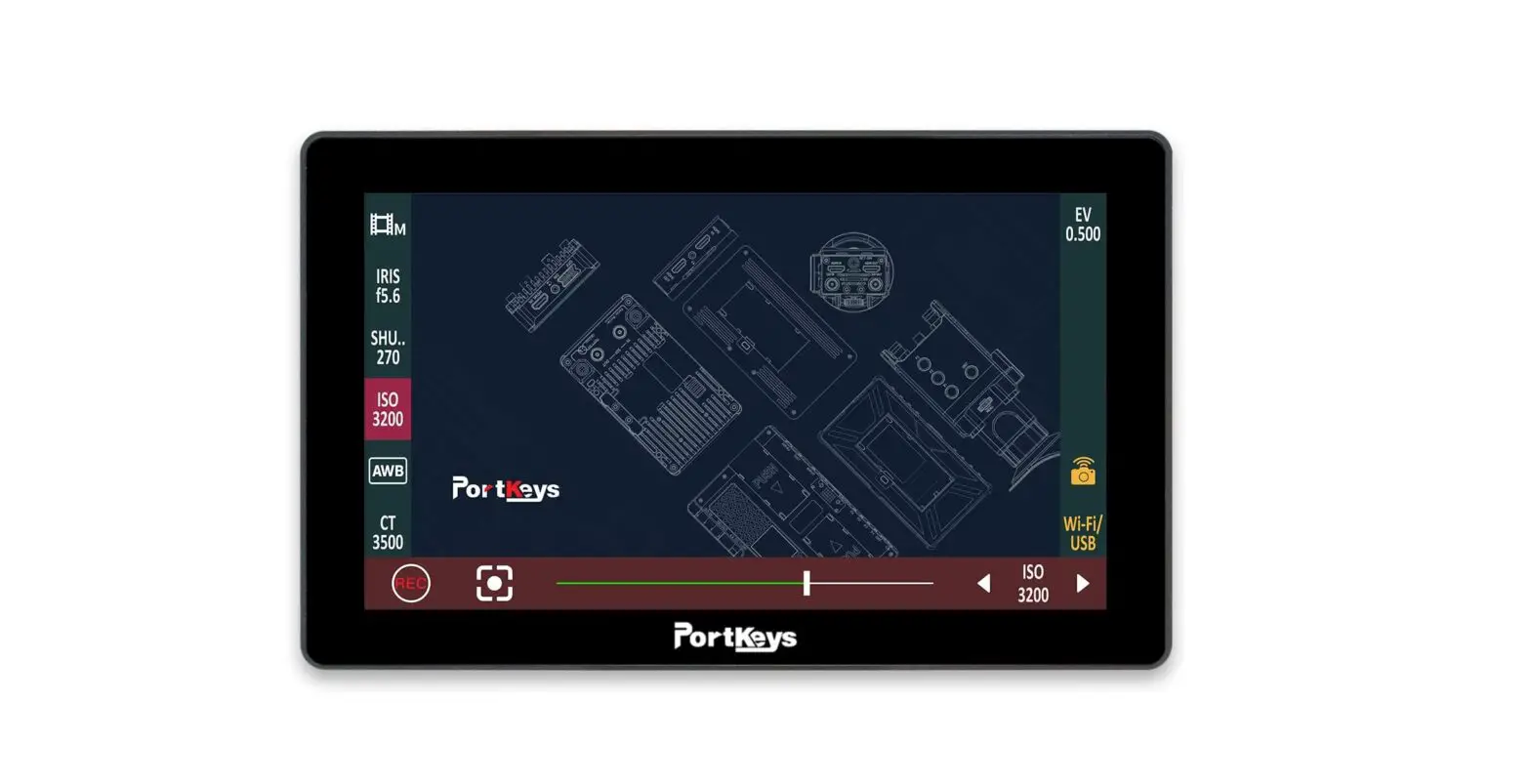
[Shortcut Function Setting]
- Shortcut function title area;
- Parameter information setting area;
- “
 ”Add function icon;
 ”Add function icon;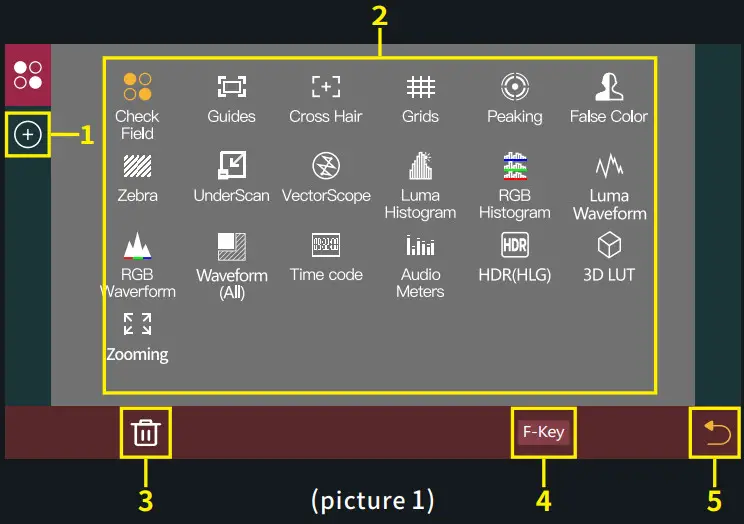
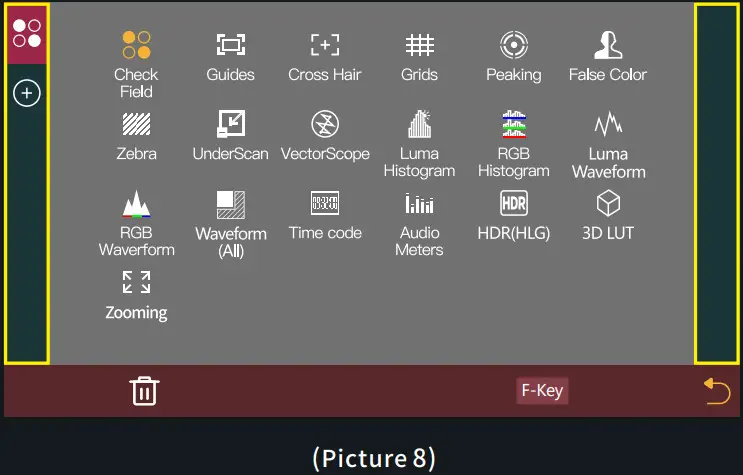
- Click “ ”add shortcut functions to the left and right sides; If the function icons on the left and right have been added (picture 2); can swipe down in the shortcut function title area to continue adding;
- Select the function icon to replace;
- Select the function icon and click“
 ”to delete;
 - Click“
F-KEY”to enter F key Setting(picture3); - “
 ”Return key;

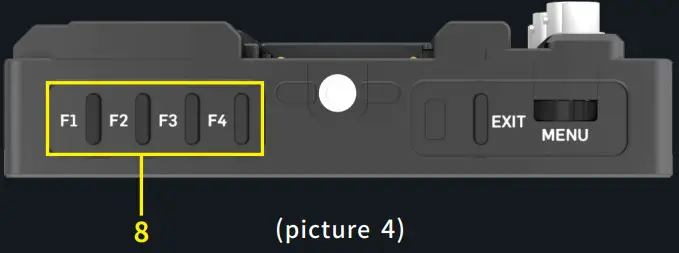
- The F key has 4 physical keys, which can be customized; Select any button in this area in the function icon “
2” for custom function settings; - “ ”Return key;


 ”to delete;
 ”Return key;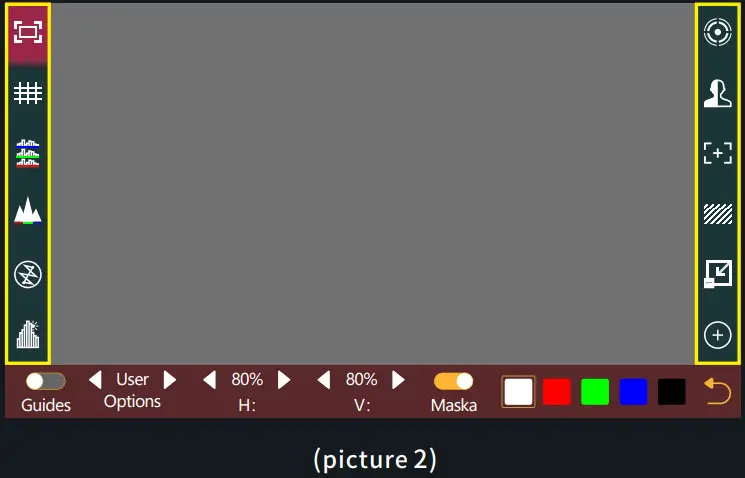
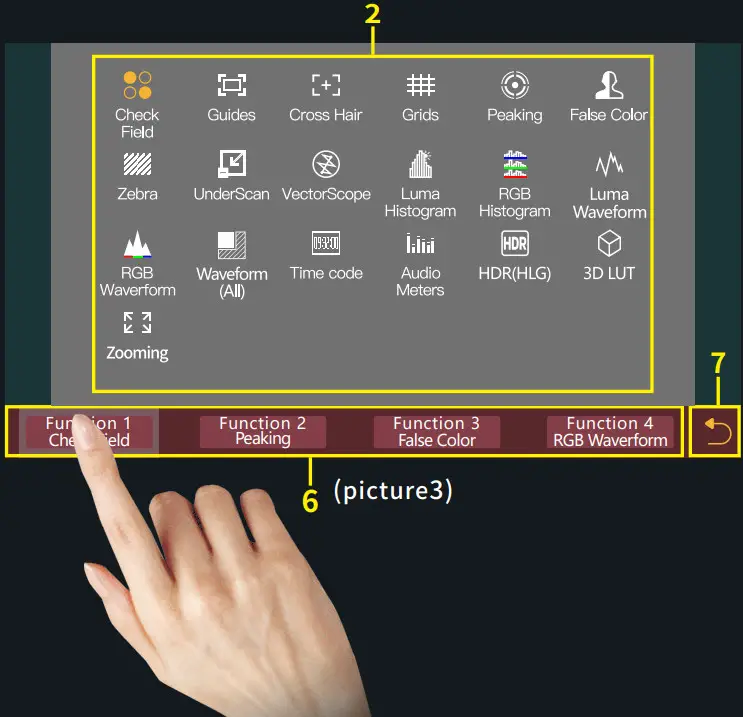
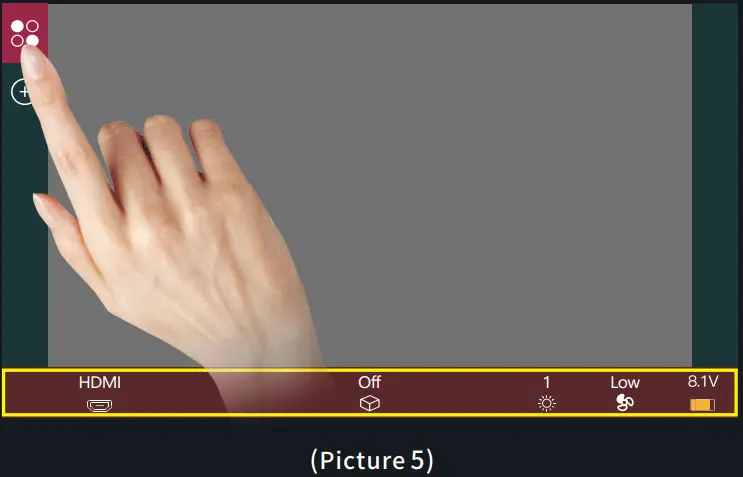
Click“ ”,The parameter information setting is displayed at the bottom(Picture 5);
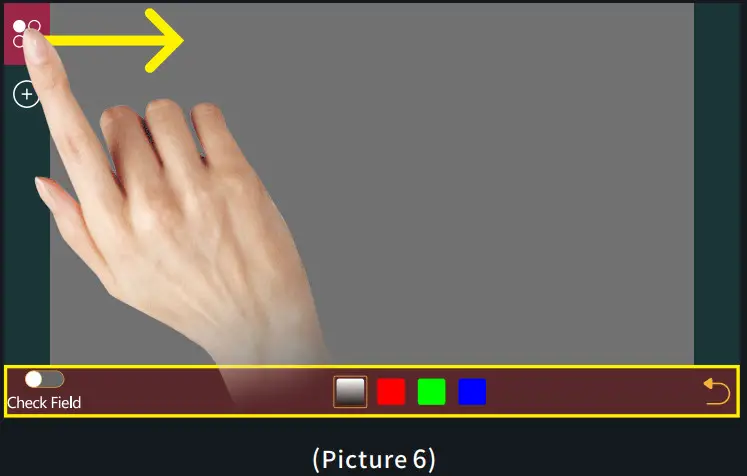
Hold“ ”and slide to the right, The bottom will jump to the function parameter settings; For other functions, users can repeat the above operations or directly click to set parameters (Picture 6);
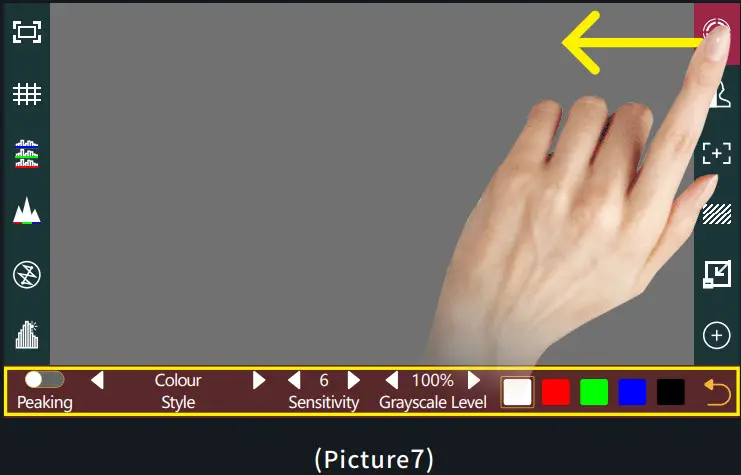
Hold and slide to the left, The bottom will jump to the function parameter settings; For other functions, you can repeat the above operations or directly click to set parameters (Picture 7);
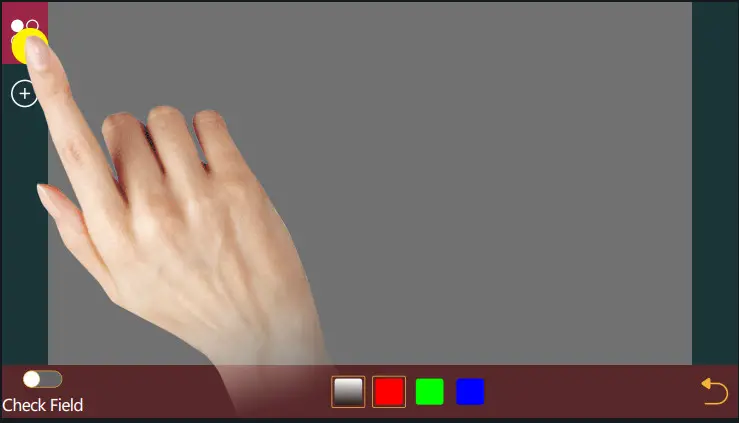
If this feature is not required, Long press“ ”to jump to (picture 8) for function replacement/deletion;
Setting Page
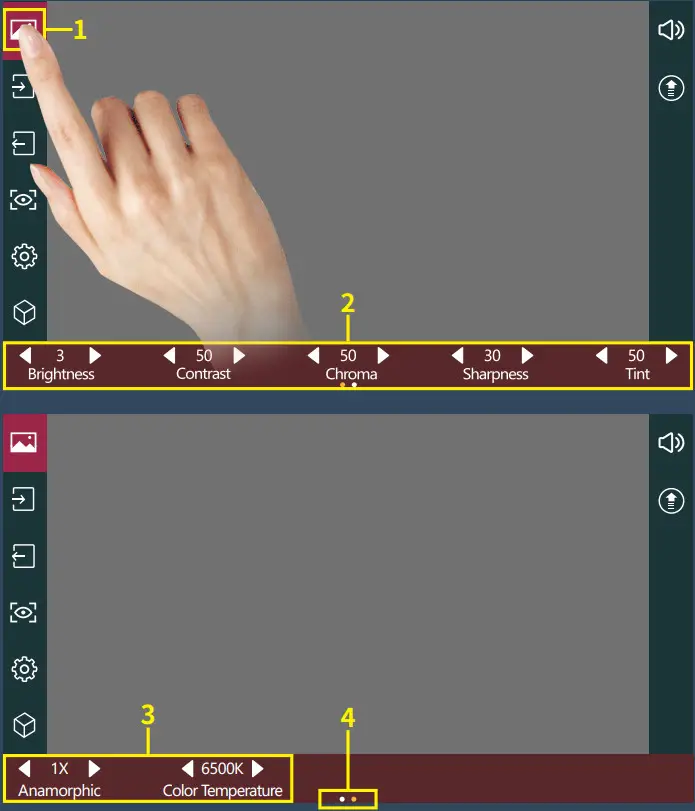
[Image Settings]
- Click “
 ” ;
” ; - Parameter setting information;
- Parameter setting information(Next page );
- Display the number of the page of Image parameter setting; Swipe left and right in the bottom information area to switch pages;
 ” ;
” ;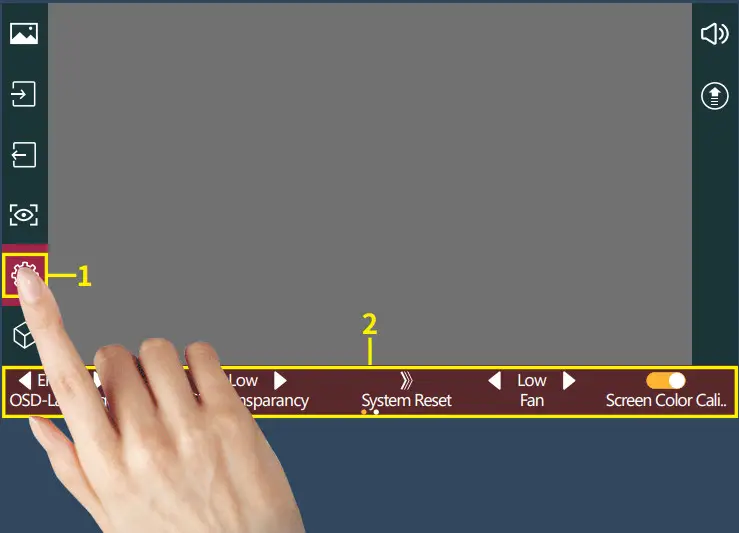
[System Setting]
- Click “
 ” ;
” ; - System parameter setting information;
 ” ;
” ;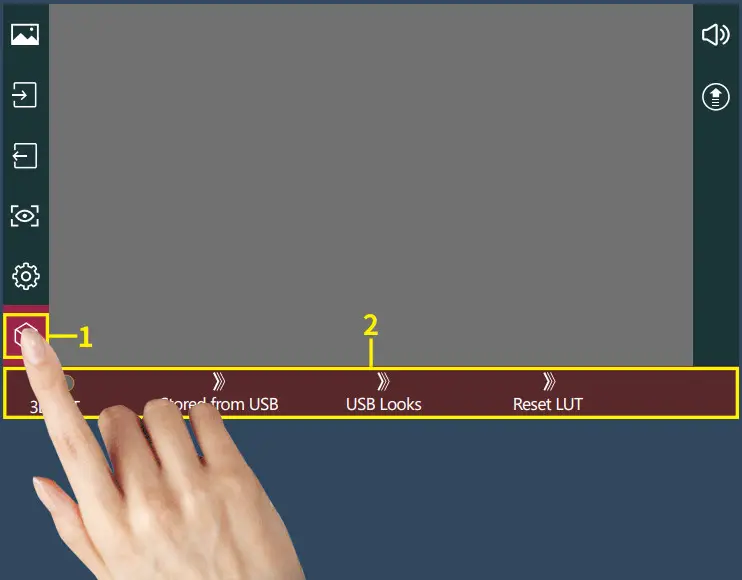
[LUT Setting]
- Click“
 ”;
”; - LUT setting information;
 ”;
”;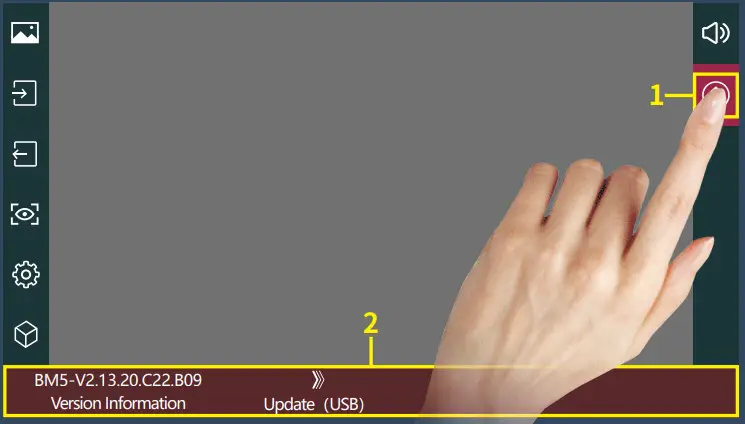
[Version Setting]
- Click“
 ”;
”; - View version information and upgrades;
 ”;
”;Camera control Page
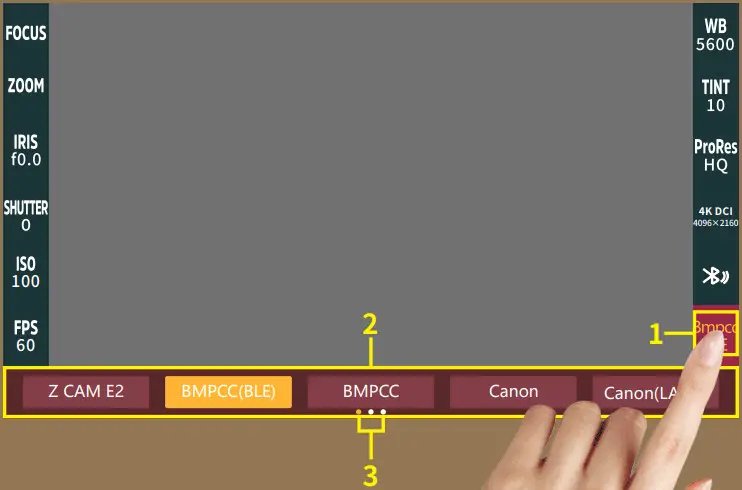
[Camera Model Setting]
- Click“
 ” ;
” ; - Camera model options:Z CAM E2、
BMPCC4K(BLE)、BMPCC、Canon、
Canon(LANC)、Sony(MUTI)、
Sony(LANC)、Sony(FW50)、
Sony(FZ100)、Panasonic; Currently selected“BMPCC4K(BLE)”; - Display the number of the page of camera brands, Swipe left and right in the bottom information area to switch pages;
 ” ;
” ;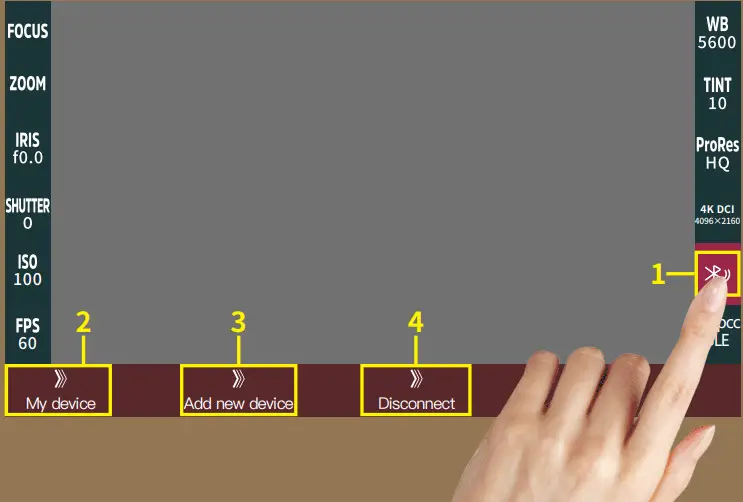
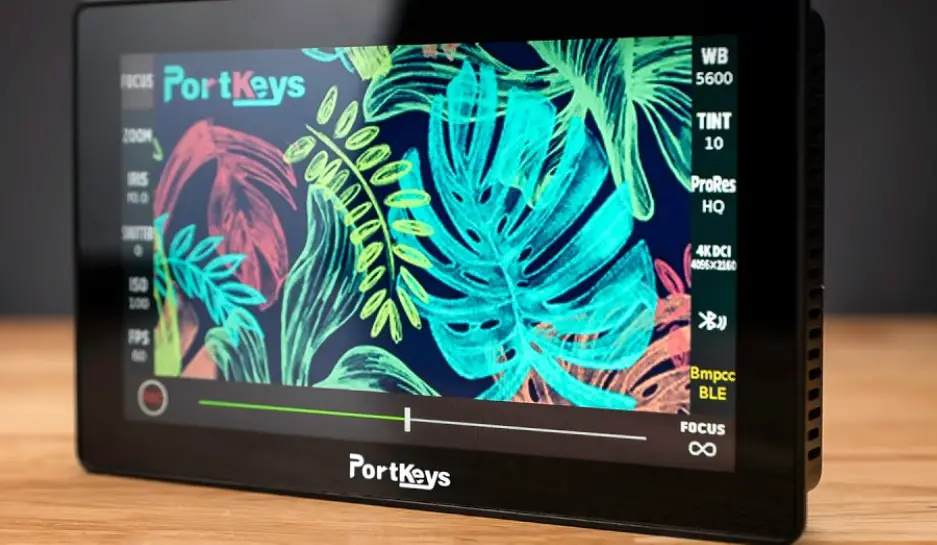
[Bluetooth Connection]
My device
Add new device
Disconnect
- Click“
 ”;
”; - Select“
 ”,Make Bluetooth connection( Successfully connected Bluetooth record);
 - Select “
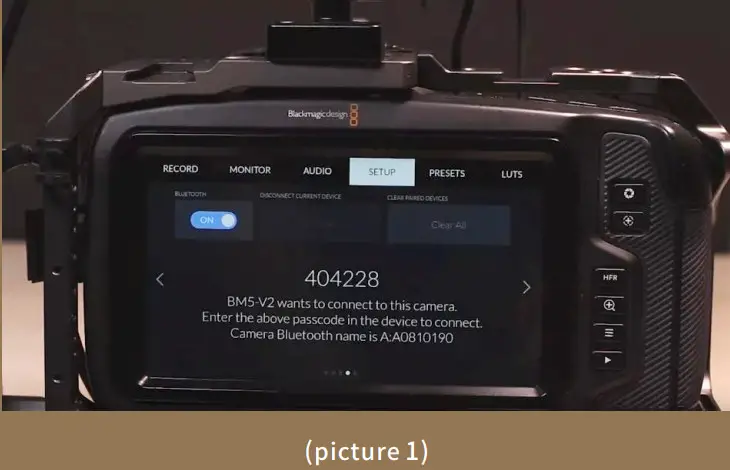
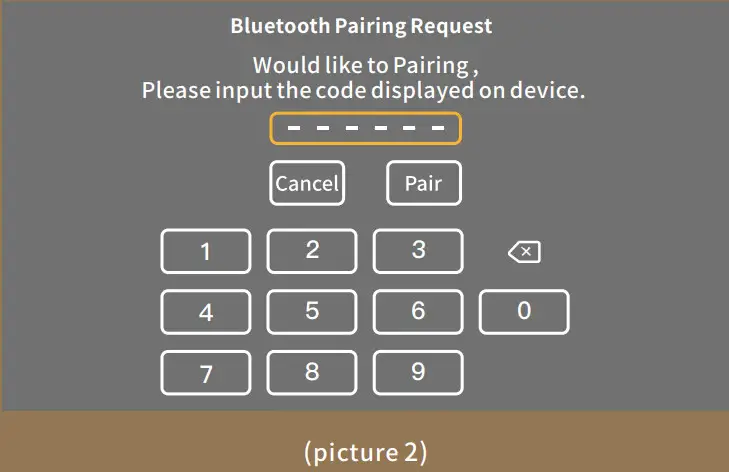
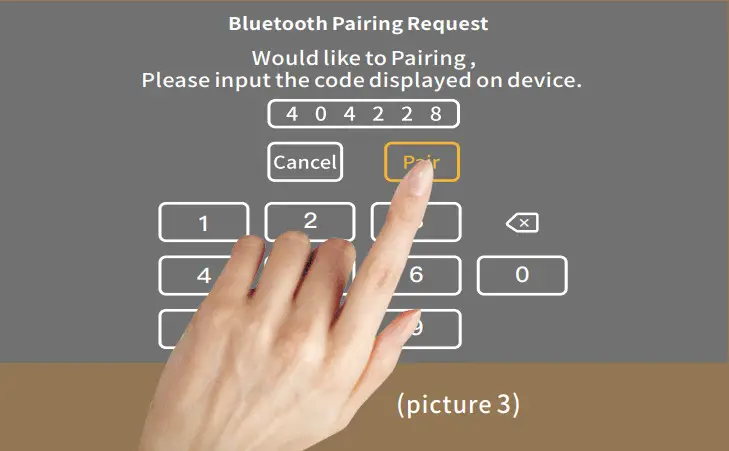
 ”, turn on the BMPCC4K/6K Bluetooth function and record the passcode (picture 1), enter the passcode on the monitor(Picture 2 and 3),click“
 ”,After successful connection, The Bluetooth icon will be displayed in yellow “
 ” ;
” ; - Select“ ”to disconnect the Bluetooth connection;
 ”;
”; ”,Make Bluetooth connection( Successfully connected Bluetooth record);
 ”, turn on the BMPCC4K/6K Bluetooth function and record the passcode (picture 1), enter the passcode on the monitor(Picture 2 and 3),click“
 ”,After successful connection, The Bluetooth icon will be displayed in yellow “
 ” ;
” ;
[FOCUS Setting]
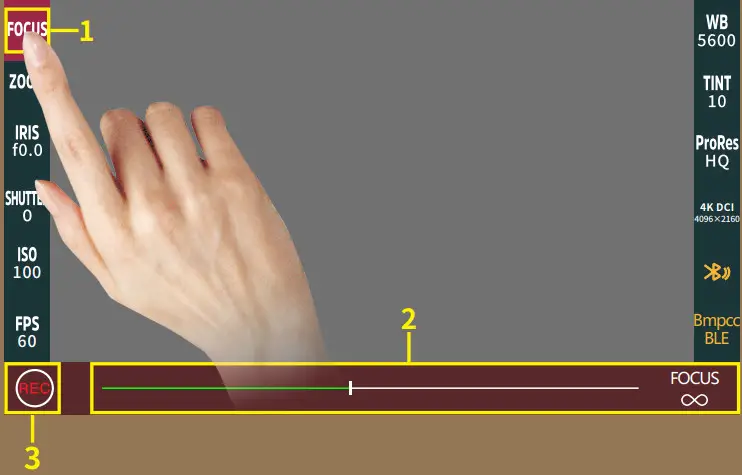
- Click“
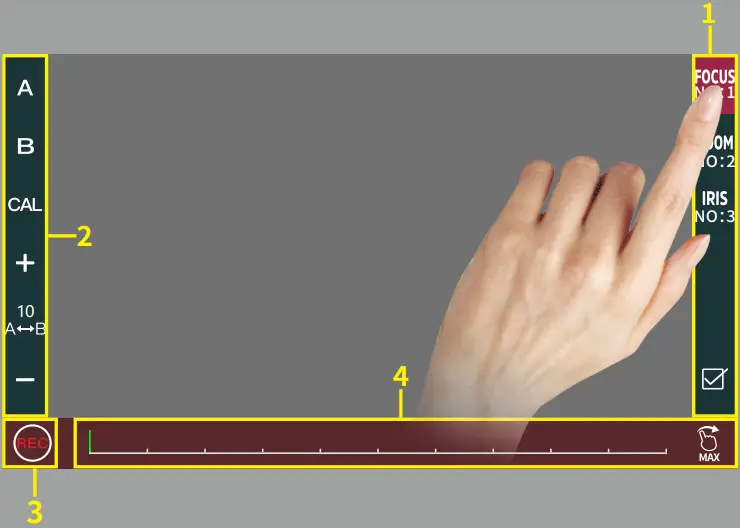
FOCUS”; - Adjust the parameter on the progress bar;
- Record;
Motor Page
[Motor Setting]
- Click to select channel options“
 ”;
”; - Select the channel option to set the channel parameters;
- Record;
- Adjust the motor stroke;
 ”;
”;
Address1406 14th Floor Block D Building 3 Phase I Tianan young Longgang district
Shenzhen China
AddressNo.2nd Floor Building A Jingjiang
Industrial Park NO.101 Shangwei Road
Longhua District Shenzhen Guangdong China
Service
Hotline:0755-89349931 Email:[email protected]
website:www.portkeys.shop



![Schlage Keyless Touchscreen Lever [fe695] Instructions Manual](https://static-data1.manualsee.com/1/img/162/20272/2020/12/Schlage-Keyless-Touchscreen-Lever.png "Schlage Keyless Touchscreen Lever [fe695] Instructions Manual")