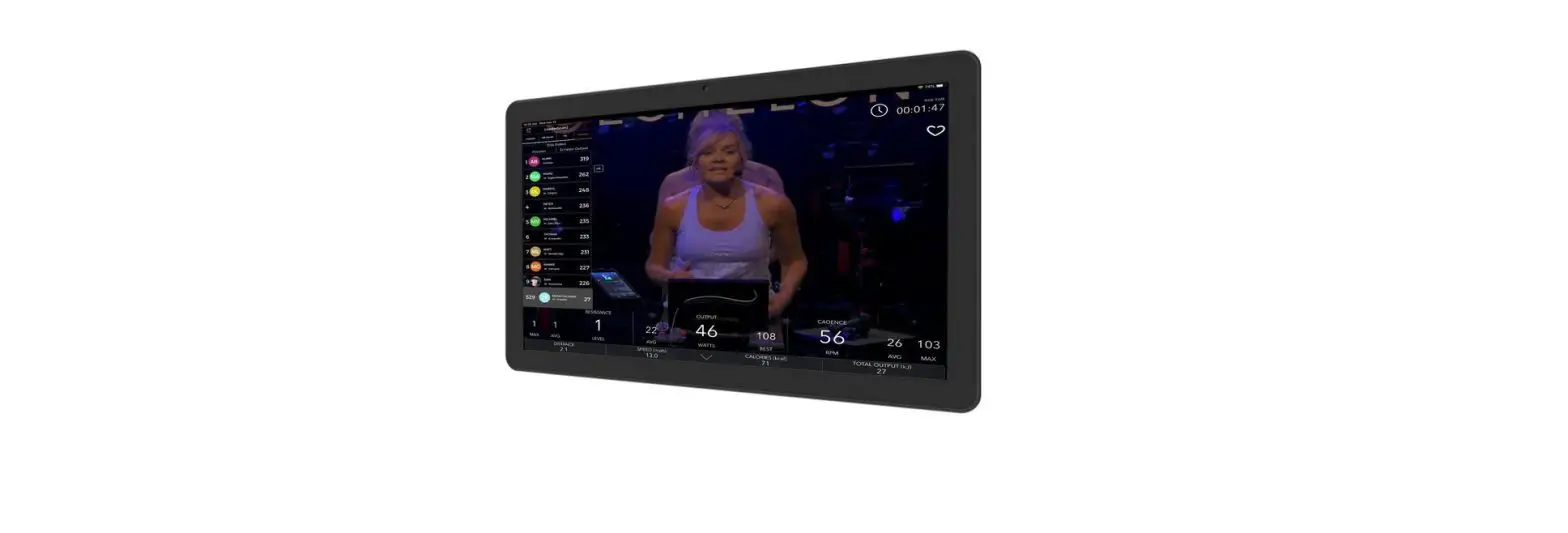
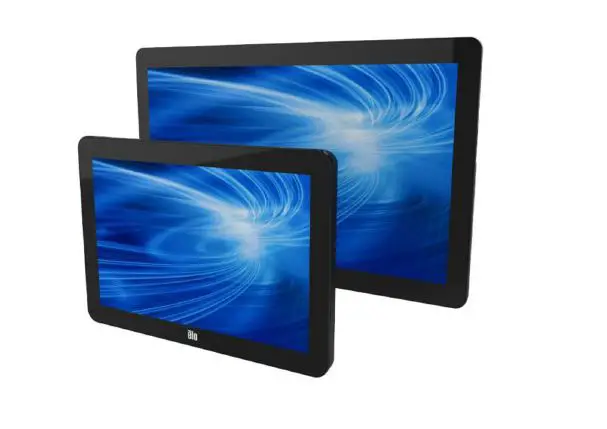
Glance Pro Touch Screen Monitor
Product Information
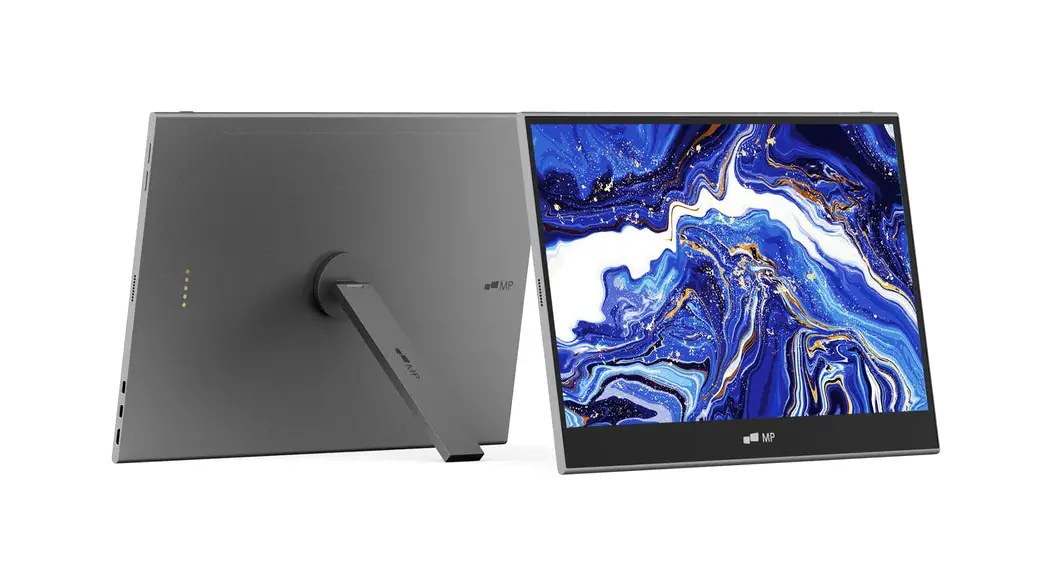
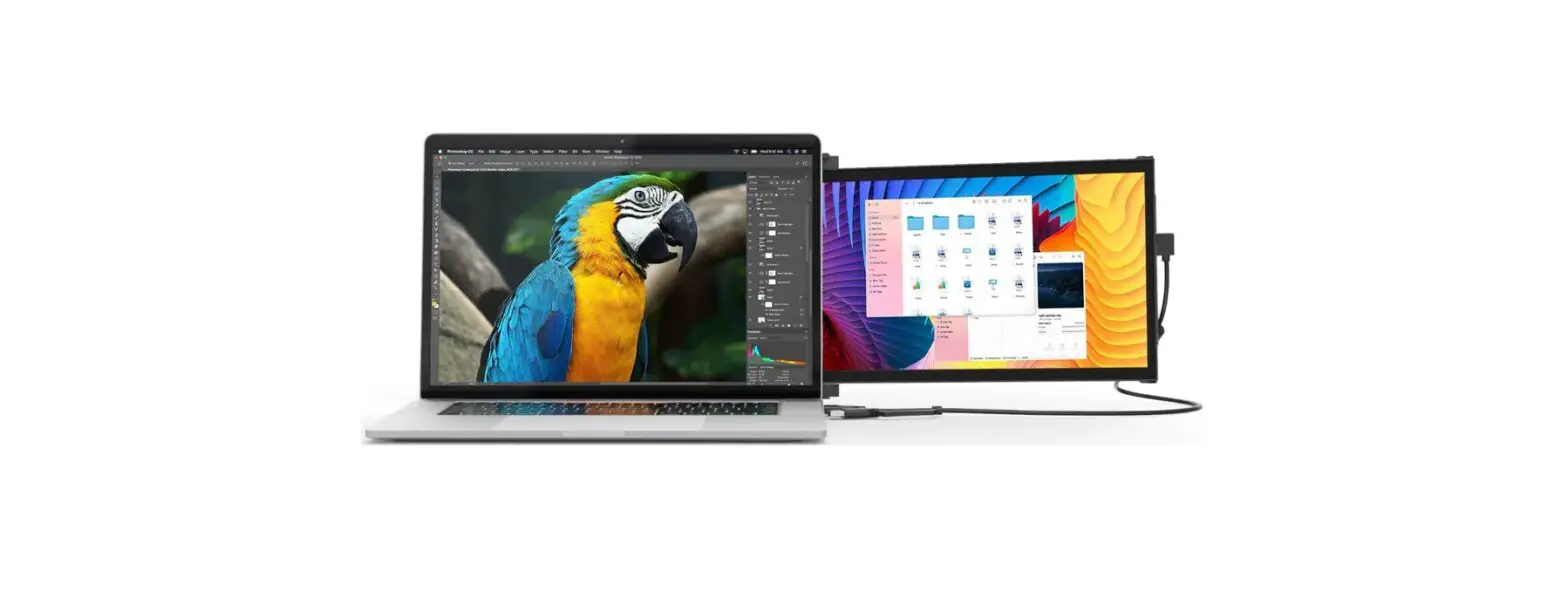
The MP GLANCE is a portable monitor that allows users to work
anywhere they go. It comes with an adjustable angle stand that
allows for a viewing angle of 0 ~ 180 degrees. The monitor can be
connected to a computer using either a Type-C cable or Mini HDMI
cable, depending on the model. The package includes the monitor,
Mini HDMI cable, USB-C data cable, charger, quick start guide, and
USB-C power cable. It is important to follow the safety precautions
listed in the user manual to ensure the safety and proper
functioning of the device.
Product Usage Instructions
- Take out the monitor from the packaging and place it on a
stable and level workspace. - Open or close the base to adjust the viewing angle of the
monitor using the stand. The viewing angle can be adjusted to any
angle between 0 ~ 180 degrees. - Connect the adaptor of the monitor to a nearby electrical
outlet. - If using a Type-C-input model, connect the Type-C cable to the
computer. If using a Mini HDMI-input model, connect the Mini HDMI
cable to the computer. - Ensure that the monitor is properly connected to the computer
by checking the OSD (On-Screen Display) menu. - Use the external controls on the monitor to adjust brightness,
contrast, and other settings as desired.
It is important to follow all safety precautions listed in the
user manual while using the device. If any issues arise, please
consult the troubleshooting section of the user manual or contact
customer support for assistance.
MP
User’s Manual
GLANCE
For Anywhere Work Takes You
User’s Manual
User’s Manual
Safety Precautions
1. Read all warnings and follow all instructions . Keep this user guide for later reference. 2. Do not use this device near water. To reduce the risk of fire or electric shock. do not expose
the device to moisture.
3. Do not place the device on an uneven or unstable surface. The device may fall over resulting
in an injury or malfunction.
4. Avoid exposing the device to direct sunlight or other sources of sustained heat. 5. Always use genuine Mobile Pixels components to ensure safety and product performance. 6. To avoid the risk of electric shock or component damage. switch oft the power before
connecting other components to the display.
7. Disconnect the power plug from the AC outlet if the device wil l not be used for a long period
of time.
8. When connecting to a power outlet. DO NOT remove the grounding prong. Please ensure
grounding prongs are NEVER REMOVED.
9. Place the device in a well-ventilated area. Do not place anything on the device that prevents
heat dissipation.
10. The power adaptor must be replaced when using different voltage from that specified in the
User Guide. For more information. please contact us.
11. Do not overload power strips and extension cords. Overloading can result in fire or electric
shock.
12. Do not apply pressure to the screen. Excessive pressure may cause permanent damage to the
display.
13. Plastic bags can be dangerous. Keep plastic bags away from babies and children to avoid
danger of suffocation.
14. Do not attempt to repair the product by yourself. Opening the back cover may expose you to
high voltages. the risk of electric shock. and other hazards. If repair is required. please contact us anytime.
15. If there are visual smoke or sparks. unplug the power cord and contact us. Do not try to repair
the product yourself.
16. To avoid risk of electric shock . do not touch the power plug and ports with wet hands.
User’s Manual
Table of content
What is in the box Adjustable angle Connect the monitor to your computer External controls OSD(On-Screen Display) Menu OSD Specifications Troubleshooting
01 01 02 02 03 04 06 07
Mobilepixels.us
What is in the box
User’s Manual
Monitor
Mini HDMI Cable
USB-C data cable
Charger
Quick start guide
USB-C power cable
Adjustable angle 0 ~ 180
1. Take out the monitor from the packaging and place it on a stable and level workspace.
2. Open or close the base. The viewing angle of the monitor can be adjusted using the stand. (As shown below, adjustable angle 0 ~ 180 )
Mobilepixels.us
01
User’s Manual
Connect the monitor to your computer
1. Plug the adaptor of you
monitor into a nearby electrical outlet.
2. Use the adaptor to
connect to the monitor’S Port 2.
3. Connect Type-C Cable
(Only Type-C-input model)
a. Connect the Type-C Cable to the computer.
4. Conner Mini HDMI Cable
(One HDMl-input model)
a. Connect the Mini HDMI cable to the computer.
1 234
Port
1 2 3 4
Icon
Description
Connect to headphone DC IN.Plug in the adapter (Accessory) Type C IN.Connect to Notebook Type CDP Alt
Connect to PC or other device HDMI
Adapter
External controls
MINI HDMI Cable Type-C cable
*Please make sure to use the original MobilePixels accessories in order to preserve the quality-aspects.
1 Up key 2 Down key 3 Power Button
4 LED Indicator
No. Icon Item
1
Up/Hot Key
2
Down
3
Power Button
4
LED Indicator
Description
a.Press this button to select the desired item when in OSD menu. b.Long press this button to adjust the volume. Press this button to select the desired item when in OSD menu.
Long press for 3 sec to turn on/off Monitor.
Blue indicates power on. Blinking Blue indicates standby mode.
02
Mobilepixels.us
User’s Manual
OSD(On-Screen Display) Menu
Powering On & Off Press and hold the power button for 3 seconds to turn the monitor ON and off. The monitor will enter power saving mode when turned on unless is a suitable device connected.
Volume Up & Down
Press and hold the & up button to enter Volume Adjustment.
Then adjust the volume with the & Up button (volume increase) and Down button (volume decrease).
Volume up
Volume Down
Quick Menu Backlight
1 Press any key to enter the quick menu.
2 Using the Up button, select Backlight from the menu.”
3 Use the Up and Down buttons to adjust the backlight between 0-100.
4 Press Power button to confirm and exit the menu, or wait 3seconds without pressing any button.”
Backlight up
Backlight Down
Volume Backlight
Backlight Volume Contrast Saturation
Temperature Signal
EyeCareMode Reset Exit
9300 Cool+
7500 Cool
6500 5800 Warm Warm+
sRGB
HDMI OFF
TypeC 1 ON
OFF
ON
TypeC 2
MP-Glance-20220818
Backlight Volume Contrast Saturation
Temperature Signal
EyeCareMode Reset Exit
9300 Cool+
7500 Cool
6500 5800 Warm Warm+
sRGB
HDMI OFF
TypeC 1 ON
OFF
ON
TypeC 2
MP-Glance-20220818
Input source
1 Press any key to enter the quick menu. 2 Using the power button open Input Source
Signal
from quick menu, to select a USB-C or Mini-HDMI input source.” 3 When you are done, use the Power button to confirm and exit.”
Mobilepixels.us
Backlight Volume Contrast Saturation
Temperature Signal
EyeCareMode Reset Exit
9300 Cool+
7500 Cool
6500 5800 Warm Warm+
sRGB
HDMI OFF
TypeC 1 ON
OFF
ON
TypeC 2
MP-Glance-20220818
03
User’s Manual
OSD
Powering On I Off
The following content is for general reference only.The actual product specific
-ions may vary. The on-screen display (OSD) can be used for adjusting the settings
of your monitor. Press any button to open the Navigation OSD.You can use the OSD
to adjust the picture quality,OSD setting and general settings. Please
Up and
Down buttons to navigate the OSD menus, and power button to confirm selection.”
Contrast
1 Press any key to enter the quick menu.
2 Using the Up button, select Contrast from the menu.”
3 Use the Up and Down buttons to adjust the Contrast between 0-100.
4 Press Power button to confirm and exit the menu, or wait 3 seconds without pressing any button.”
Contrast up
Contrast Down
Color Temperature Setting
The colour temperature adjustment Warm-Normal-Cool corresponds to the colour temperature of 6500K, 7500K, 9300K and the User mode has a three.
Contrast
Backlight Volume Contrast Saturation
Temperature Signal
EyeCareMode Reset Exit
9300 Cool+
7500 Cool
6500 5800 Warm Warm+
sRGB
HDMI OFF
TypeC 1 ON
OFF
ON
TypeC 2
MP-Glance-20220818
Color Temperature
Backlight Volume Contrast Saturation
Temperature Signal
EyeCareMode Reset Exit
9300 Cool+
7500 Cool
6500 5800 Warm Warm+
sRGB
HDMI OFF
TypeC 1 ON
OFF
ON
TypeC 2
MP-Glance-20220818
04
Mobilepixels.us
User’s Manual
Saturation
1 Press any key to enter the quick menu. 2 Using the Up button, select Backlight from
the menu.” 3 Use the Up and Down buttons to adjust
the Backlight between 0-100. 4 Press Power button to confirm and exit the
menu, or wait 3 seconds without pressing any button.”
Saturation up
Saturation Down
Eye Care Mode
1 Press any key to enter the quick menu. 2 Using the power button open Eye Care Mode
from quick menu. 3 When you are done, use the Power button to
confirm and exit.
Reset
1 Press any key to enter the quick menu. 2 Using the power button open Reset from
quick menu. 3 When you are done, use the Power button to
confirm and exit.
Saturation
Backlight Volume Contrast Saturation
Temperature Signal
EyeCareMode Reset Exit
9300 Cool+
7500 Cool
6500 5800 Warm Warm+
sRGB
HDMI OFF
TypeC 1 ON
OFF
ON
TypeC 2
MP-Glance-20220818
Eye Care Mode Reset
Backlight Volume Contrast Saturation
Temperature Signal
EyeCareMode Reset Exit
9300 Cool+
7500 Cool
6500 5800 Warm Warm+
sRGB
HDMI OFF
TypeC 1 ON
OFF
ON
TypeC 2
MP-Glance-20220818
Exit the menu
Mobilepixels.us
05
User’s Manual
Specifications
Model Dimensions Size Net Weight Display Brightness Colours Contrast Ratio Native Aspect Ratio Panel Type Refresh Rate Resolution Size Viewing Angle Inputs HDM1(1.4) USB Type-C Outputs Headphone Jack Audio Speaker Power Consumption Standby Consumption
E1SN2F-C
362(W)x240(H)x15.6(D)mm 1.1kg 300(typ) 16.2M 800:1 16:9 IPS 60Hz FHD (1920×1080) 15.6″ 170°(H)x170°(V) 1 2 Yes 1W*2 Typ. 8W 0.5W
06
Mobilepixels.us
User’s Manual
Troubleshooting
Problem
Blue LED
No
No
video
LED
picture
Troubleshooting advice
Using the OSD, adjust brightness and contrast to maximum or reset to their default. Make sure the correct input source is selected through the input source menu.
Make sure the video cable between the monitor and computer is connected properly and securely . Use other electrical equipment to confirm that the power outlet is working properly. Make sure the correct input source is selected through the input source menu. Check the power switch. Long press 5 seconds to start the monitor. Check if the power cord is properly connected to the monitor.
Red LED
Check if the video signal cable is properly connected at the back of the monitor.
Check if the video cable connector pins are bent or broken.
Check if the computer system is switched on.
Missing pixels spots and light leaks on the screen
Turn off and on again. Restore the monitor to factory settings. Use OSD to adjust brightness and contrast. Pixels that are permanently off are an inherent defect in LED technology.
Display fails when switching
Make sure that the video cables of the monitor and HDMI output device are properly connected.
Reset the monitor to factory settings.
Mobilepixels.us
07
User’s Manual
Troubleshooting
Problem
Troubleshooting advice
Picture is missing colours
Make sure the video cable connecting the monitor and the computer is properly connected.
Adjust custom R/ G/ B values. Colour in the colour menu of OSD.
Screen image is too small
Restore the monitor to factory settings.
OSD does not appear on the screen
Turn off the monitor, disconnect and reconnect the power cord,and turn on the monitor.
No picture, indicator light is red
Check the signal source. Make sure the computer or phone is not sleep mode.
Check that the signal cable is properly inserted. Reconnect the signal cable if necessary.
Restart your computer or phone.
The picture does not fill the entire screen.
Since the resolution of the same screen of the mobile phone can be re-scaled (aspect ratio), the display can be displayed in full screen.
Computer equipment can be set to 16:9 resolution, the display can be full screen display
Play a video source with a 16:9 video sources, and the monitor can display full screen.
08
Mobilepixels.us
MP
 Portable Laptop Monitor Extender | Mobile Pixels