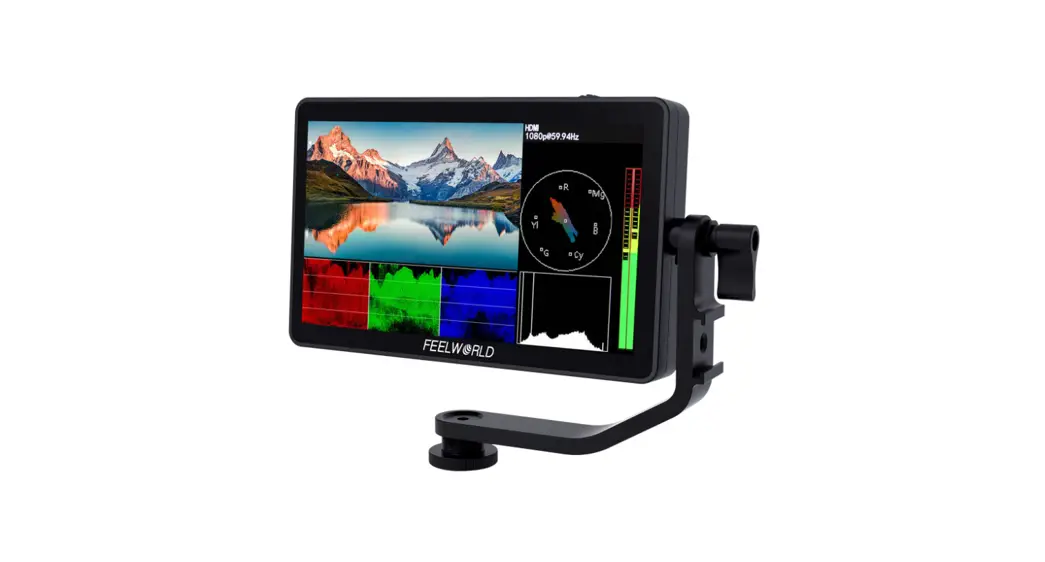
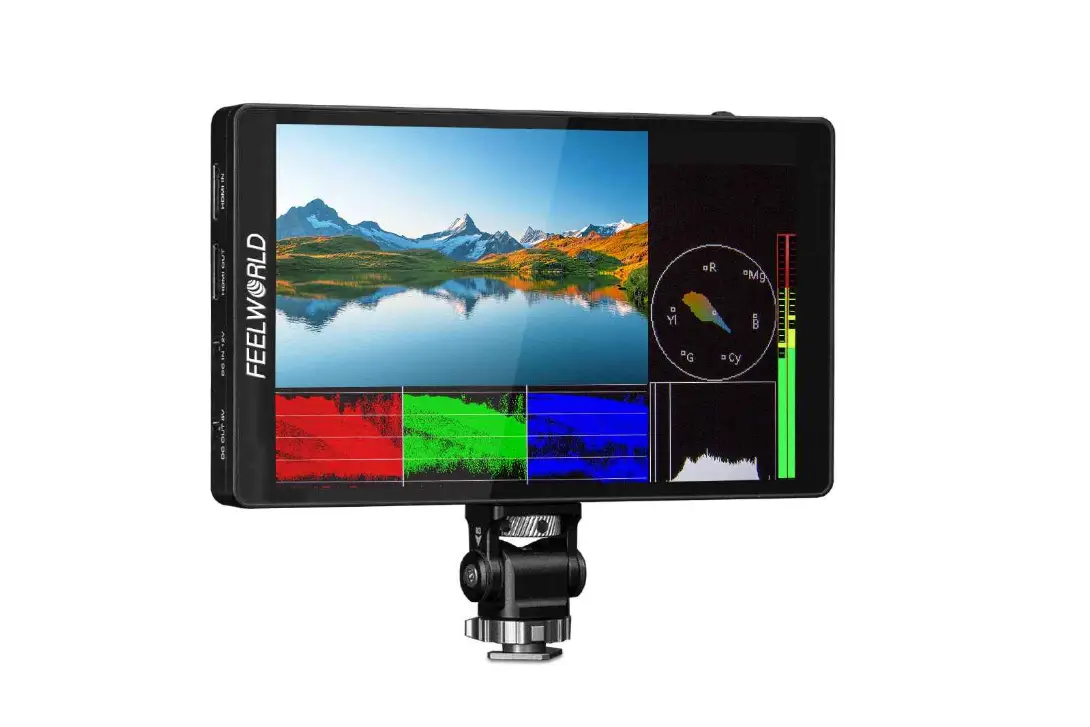
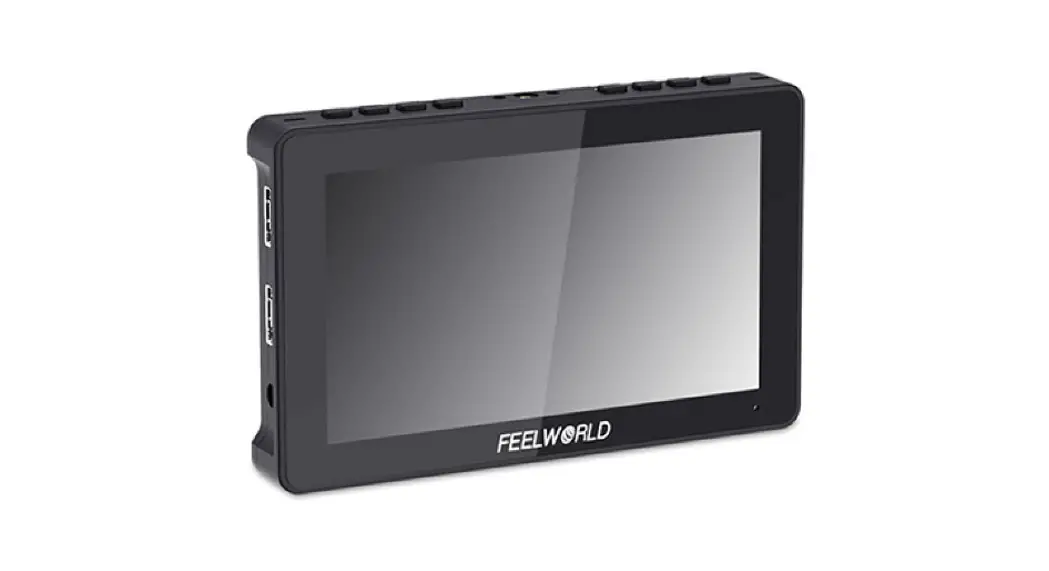
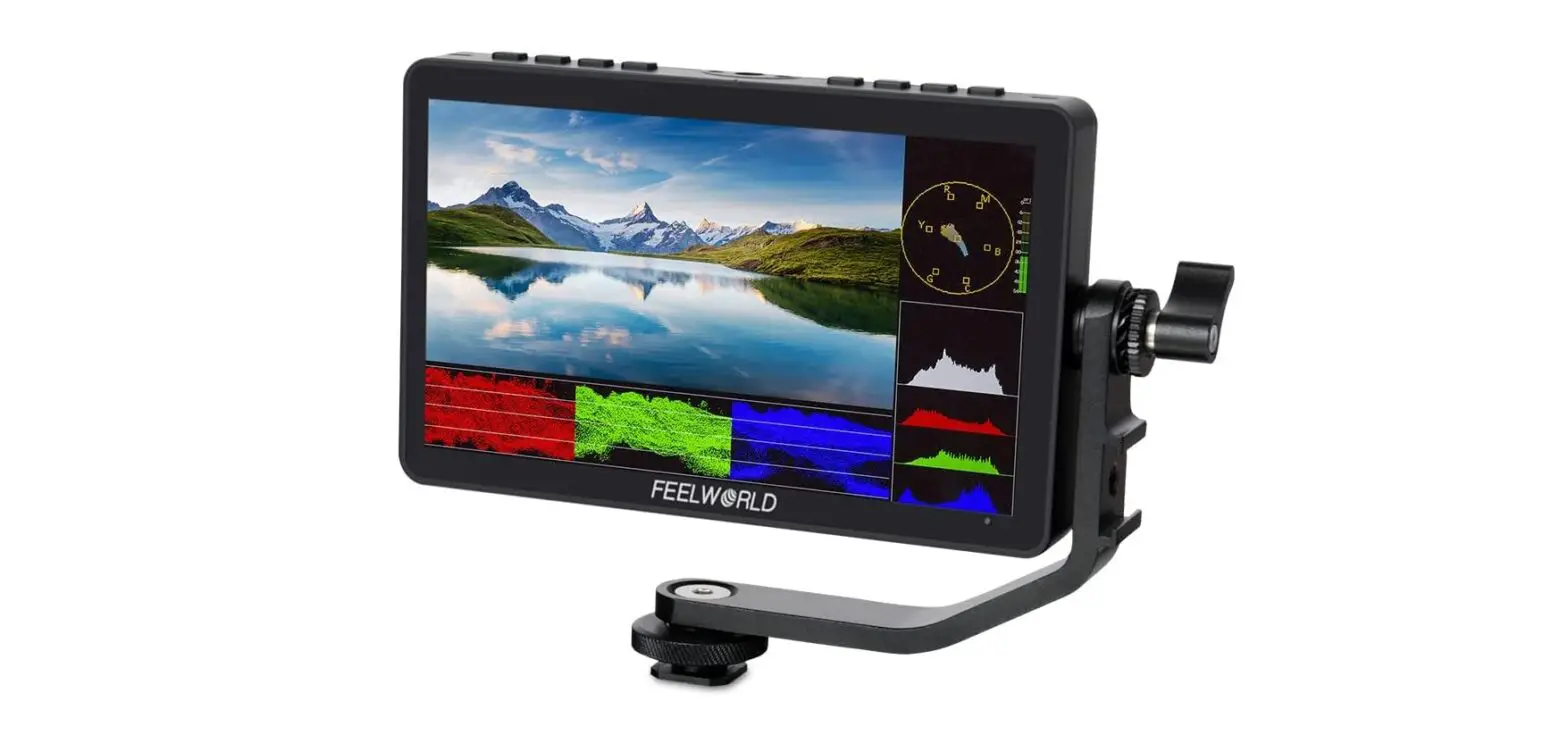
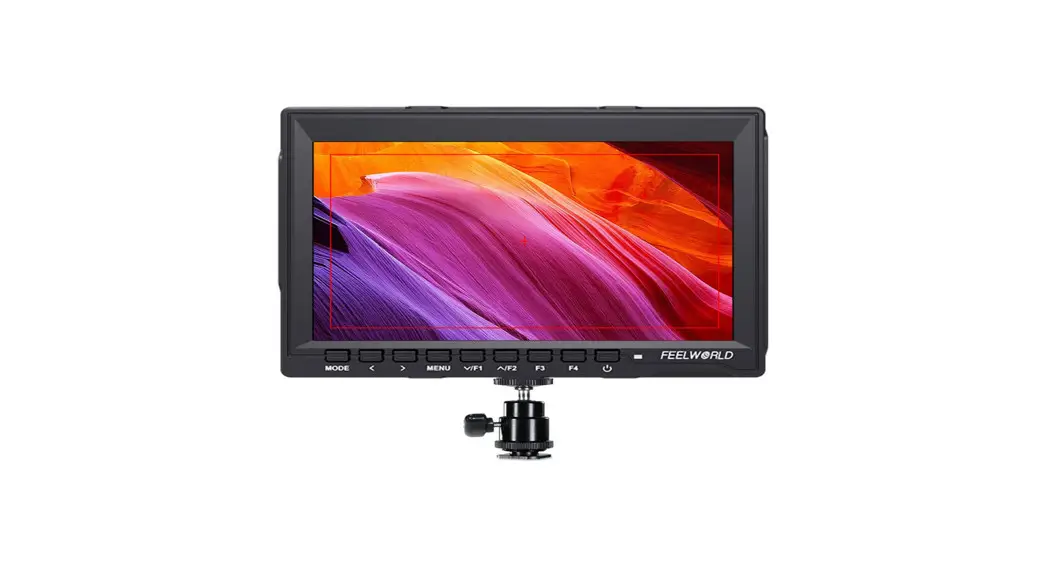
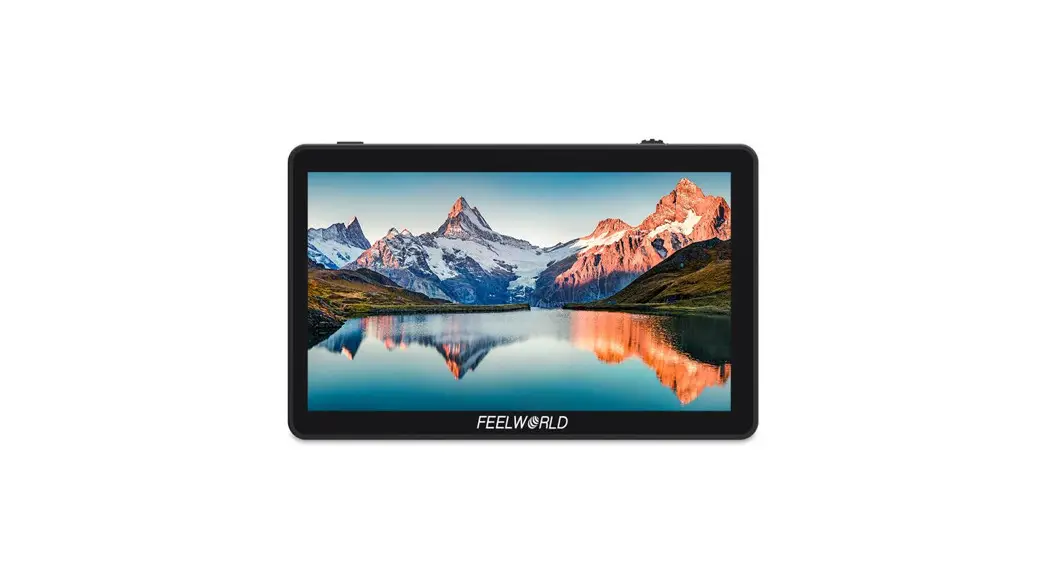
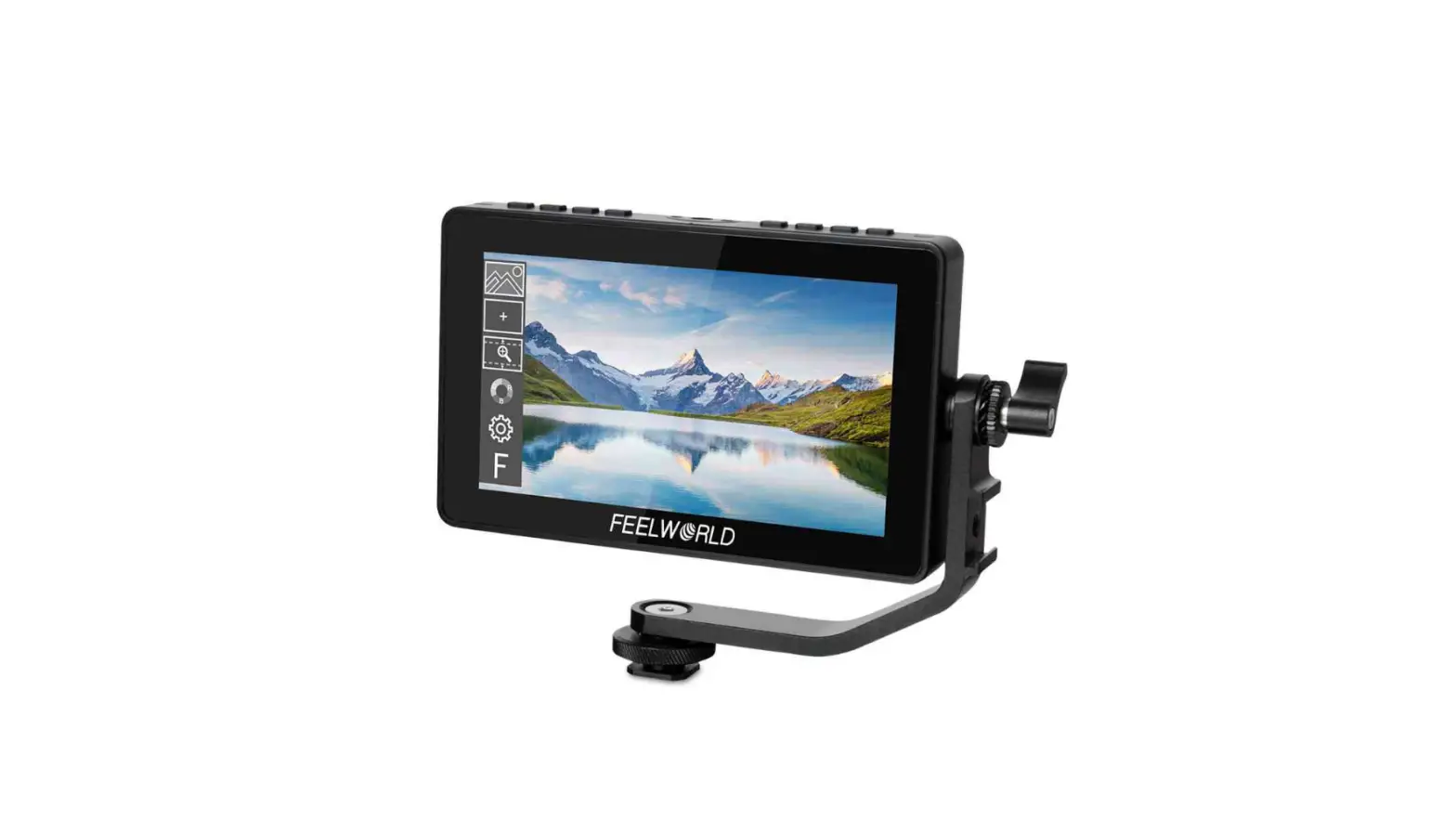
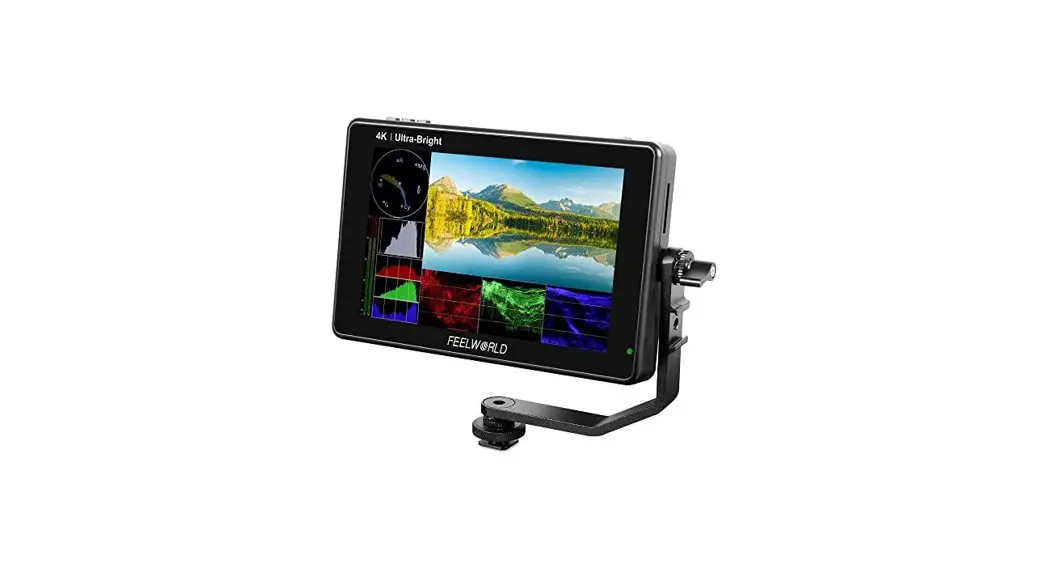
6 Inch Touchscreen Camera Monitor
Product Information: 6 Touchscreen Camera Monitor
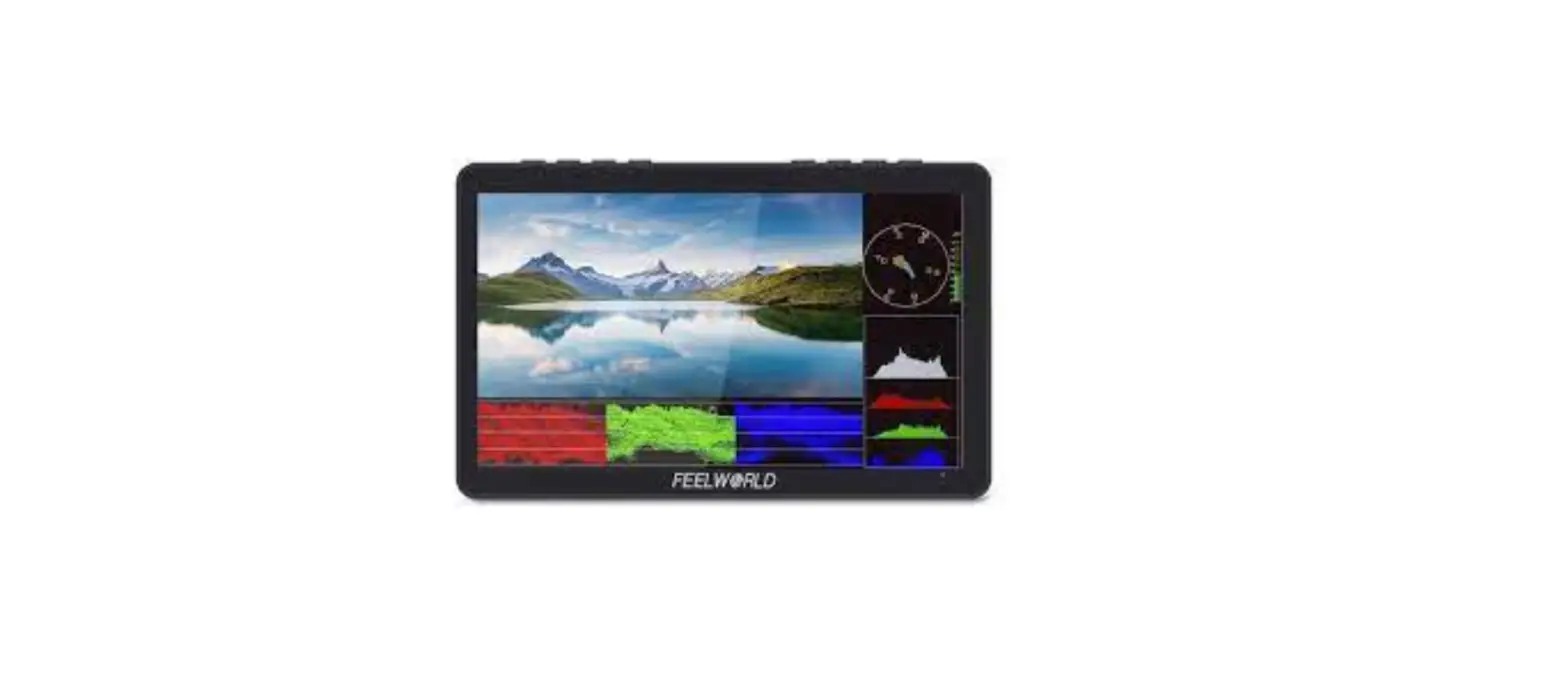
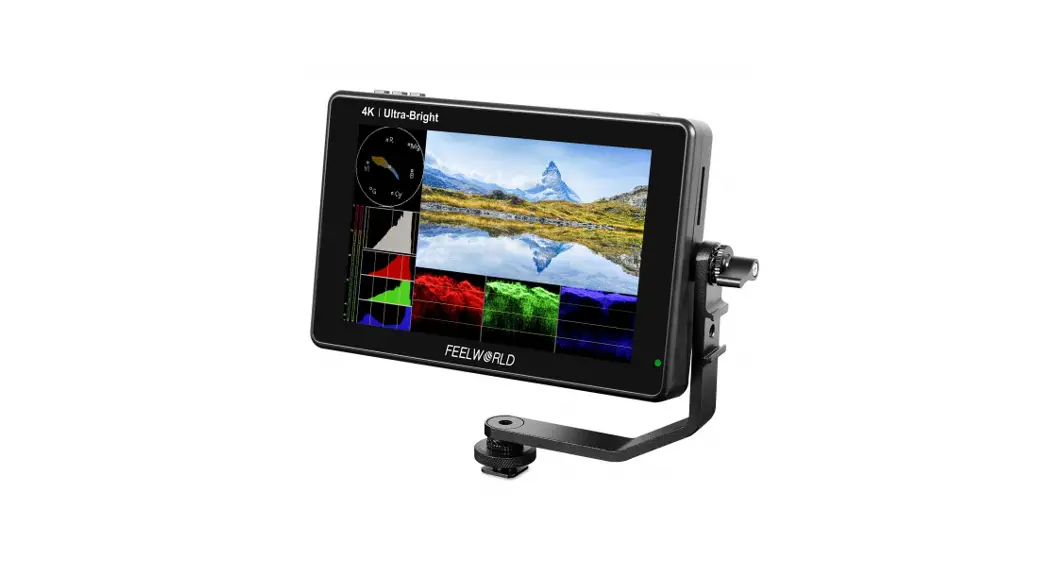
The 6 Touchscreen Camera Monitor is a Full HD touch screen
monitor with a 6-inch 1920×1080 full HD IPS screen. It has touch
screen menu operation that improves shooting efficiency with a new
menu interface that is more intuitive and intelligent. The monitor
has an HDMI 2.0 input that supports up to 4K@60Hz and 3G-SDI
(optional). It also supports HDR monitoring and 3D LUT Log to
REC.709 and user 3D LUT upload. With Waveform, Histogram, False
Color, Monochrome etc. functions, it can help you accurately
exposure and focus every shot. The monitor has a stereo earphone
output and DC 8.4V power out to power your DSLR camera or
mirrorless camera. It also has a built-in cooler (low, medium,
high) to adjust and flexible power supply (DC IN 12V, F970 battery
plate for F970 batteries).
Key Features:
- 6-inch 1920×1080 full HD IPS screen
- Touch screen menu operation, improve shooting efficiency
- New menu interface, more intuitive and intelligent
- HDMI 2.0 input supports up to 4K@60Hz, 3G-SDI (optional)
- HDMI supports LUT loop-out
- Support HDR monitoring
- Support 3D LUT Log to REC.709 and user 3D LUT upload
- With Waveform, Histogram, False Color, Monochrome etc.
functions - Stereo Earphone output
- DC 8.4V power out to power your DSLR camera or mirrorless
camera - Built-in cooler (low, medium, high) to adjust
- Flexible power supply (DC IN 12V, F970 battery plate for F970
batteries)
Usage Instructions:
Before using the 6 Touchscreen Camera Monitor, please read the
user manual carefully. Follow the below instructions to use the
product:
CAUTION:
- Please avoid the heavy impact and drop onto the ground when
moving the product. - The screen of this product is made of glass. Keep away from
injury if the screen is broken. - Keep the product away from the heat source and avoid prolonged
exposures to the sun as the LCD screen will be damaged. - Please do NOT use chemical solutions to clean this product.
Please wipe the monitor with a clean soft cloth to maintain the
brightness of the surface. - No adjustable components are in the monitor. Please do not take
apart or repair the unit by yourself, to avoid damage to the
product.
Power Supply Way:
- The rear cover of the monitor is equipped with F970 battery
plate, which is applicable to F970 series of batteries. Sony F970
battery plate for battery of Sony DV: Sony F970 F960 F950 F930 F770
F750 F730 F570 F550 F530 series Remark: It is recommended to use
standard original F970 batteries. Different specifications of the
battery have different capability. The working time for the monitor
will be different. Higher capability (working time) will be longer.
Please take off the battery from the monitor if you don’t use the
monitor in a long time. - DC IN 12V: DC power input, polarity as the input power, Barrel
(5.5mm outer, 2.1mm inner) at the bottom of the monitor, DC 7~14V
Input. - DC OUT 8.4V: DC power output interface, polarity as the output
power Barrel output for powering your camera with a separately
available DC coupler via adaptor (NP-FW50 Sony & LP-E6
Canon&DMW-BLF19 Panasonic). More adapters coming soon.
- Top Button:
- Power/Touch Function: Long press to turn on/off power; short
press to turn on/off the screen touch function - 1/4 Screw Thread: Use for mount on the bracket, etc.
- Micro SD Card Slot: Use for upgrade/ LUT files import
- MENU Wheel Button: See details 2.2 MENU Wheel Menu Operation in
2. Menu Operation Instruction.
- Power/Touch Function: Long press to turn on/off power; short
- Bottom Interface:
- Audio Output Interface: 3.5mm Analog Audio
- Power Input Interface: DC 12V/1.5A
- Power Output Interface: DC 8.4V/2A
- 1/4 Screw Thread: Use for mount on the bracket, etc.
- SDI Signal Input Interface: Optional
- SDI Signal Output Interface: Optional
- HDMI Signal Output Interface: HDMI 1.4
- HDMI Signal Input Interface: HDMI 2.0
6 Touchscreen Camera Monitor
USB2.0 Recording | HDMI with LUT Loop-out
User Manual
Foreword
Thank you for purchasing our 6-inch Full HD touch screen monitor. Please read this manual carefully before using the unit. Have a great experience!
CAUTION
1. Please avoid the heavy impact and drop onto the ground when move the product.
2. The screen of this product is made of glass.Keep away from injury if the screen is broken.
3. Keep the product away from the heat source, and avoid the prolonged exposures to the sun as the LCD screen will be damaged.
4. Please do NOT use chemical solutions to clean this product. Please wipe the monitor with a clean soft cloth to maintain the brightness of the surface.
5. No adjustable components are in the monitor. Please do not take apart or repair the unit by yourself, to avoid the damage of the product.
Key Features
6-inch 1920×1080 full HD IPS screen Touch screen menu operation, improve shooting efficiency New menu interface, more intuitive and intelligent HDMI 2.0 input supports up to 4K@60Hz, 3G-SDI (optional) HDMI supports LUT loop-out Support HDR monitoring, what you see is what you get Support 3D LUT Log to REC.709 and user 3D LUT upload
1
. With Waveform, Histogram, False Color, Monochrome etc.
functions, can help you accurately exposure and focus every shot. Stereo Earphone output DC 8.4V power out to power your DSLR camera or mirrorless camera Built-in cooler (low, medium, high) to adjust Flexible power supply (DC IN 12V, F970 battery plate for F970 batteries)
2
CONTENTS
1. Product Description —————————————– 4 1.1 Front + Rear ————————————————– 4 1.2 Button / Interface Instruction ———————— 4 1.3 Power Supply Way ——————————————- 6 1.4 Mount Points ————————————————— 7 2. Menu Operation Instruction ——————————- 8 2.1 Touch Screen Menu Operation ——————————— 8 2.2 MENU Wheel Menu Operation ———————————- 9 3. Function Instruction —————————————– 9 3.1 Menu Function ————————————————- 9 3.2 Shortcut Menu ———————————————— 14 3.3 Status column ————————————————- 14 4. Support Formats ———————————————- 16 5. Technical Parameters —————————————- 16 6. Trouble Shooting ———————————————- 17
3
1. Product Description 1.1 Front + Rear
1.2 Button / Interface Instruction Top
Power/Touch Function Long press to turn on/off power;
Button
short press to turn on/off the screen touch function
1/4 Screw Thread
Use for mount on the bracket, etc.
Micro SD Card Slot
Use for upgrade/ LUT files import
MENU Wheel Button See details 2.2 MENU Wheel Menu Operation in 2.
Menu Operation Instruction.
Bottom
4
Audio Output Interface
3.5mm Analog udio
Power Input Interface
DC 12V/1.5A
Power Output Interface
DC 8.4V/2A
1/4 Screw Thread
Use for mount on the bracket, etc.
SDI Signal Input Interface
Optional
SDI Signal Output Interface Optional
Left
HDMI Signal Output Interface HDMI 1.4
HDMI Signal Input Interface HDMI 2.0
Right
5
USB2.0 Interface
1/4 Screw Thread
Recording
Use for mount on the bracket, etc.
1.3 Power Supply Way (1) The rear cover of the monitor is equipped with F970 battery
plate, which is applicable to F970 series of batteries. Sony F970 battery plate for battery of Sony DV: Sony F970 F960 F950 F930 F770 F750 F730 F570 F550 F530 series Remark: It is recommended to use standard original F970 batteries. Different specifications of the battery have different capability. The working time for the monitor will be different. Higher capability (working time) will be longer. Please take off the battery from the monitor if you don’t use the monitor in a long time.
(2) DC IN 12V: DC power input, polarity as the input power , Barrel (5.5mm outer, 2.1mm inner) at the bottom of the
monitor, DC 7~14V Input.
6
(3) DC OUT 8.4V: DC power output interface, polarity as the output power Barrel output for powering your camera with a separately available DC coupler via adaptor (NP-FW50 Sony & LP-E6 Canon&DMW-BLF19 Panasonic). More adapters coming soon.
1.4 Mount Points There are (3) ¼-20 thread points (top, bottom, right) can be easily connected to the hot shoe mount, tripod fixed installation.
7
2. Menu Operation Instruction
After the monitor is properly connected to the power supply, the
button display(red indicating). Long press button to turn on
the monitor and turns green indicating.
After startup, short press
button to select to turn the screen
touch function on or off.
2.1 Touch Screen Menu Operation (turn on the screen touch function)
Double-click on the screen to open the main menu (show on the left side of the screen) and click on the corresponding menu to display the secondary menu. You can enter the corresponding function option and click directly to select or set. Click the touch screen to exit the menu. When the menu is not displayed, swipe up from the bottom of the screen to open the shortcut menu, and click on the corresponding menu box to open or set the corresponding function.
When the menu is not displayed, on the left side of the screen (1/2 split screen), you can directly adjust the brightness of the screen backlight; on the right side of the screen (1/2 split screen), you can directly adjust the volume.
8
Figure:
2.2 MENU Wheel Menu Operation When the menu is not displayed, directly rotate the wheel to
backlight or volume adjustment. The wheel option can be set to
backlight or volume in the menu
System.
Short press the MENU wheel to open the main menu (on the left
side of the screen). Rotate the wheel to select the secondary
function menu. After selecting it, press the wheel, then rotate
the wheel to select or set the option function.
Long press the MENU wheel to open the shortcut menu (below
the screen), rotate the wheel to select the shortcut menu option,
press the wheel to directly turn on/off the function, if you press
the parameter selection, repeat the above operation. Long
press the wheel to exit.
3. Function Instruction
3.1 Menu Function The main menu including Assist, Marker, Image, User, System 5 parts.
9
Assist
Analysis Waveform Vectorscope Histogram
No, Yes
After turning on, waveform, , histogram and audio meters will be shown.
No, Yes Type: RGB, YUV
This essential feature assists with the calibration of professional video cameras. It shows the overall brightness of the image assisting the video professional in correcting exposure. The waveform feature also checks the evenness of the lighting when lighting a chromakey or background.
No, Yes
Shows how saturated the image is and where the pixels in the image land on the color spectrum.
No, Yes
Type: Y, RGB, Y+RGB
10
No, Yes Focus Assist Focus Color: Red, Green, Blue, White
Focus Level: 1~100
No, Yes Audio Meters
Check Field
No, Yes Type: red, green, blue, white
Zebra False Color
No, Yes
Level: 1~100
No, Yes
Type: Spectrum, ARRI
Marker
Nine Grid
No, Yes
Safe Areas
Crosshair Cinema Guides
No, Yes
Type: 70%, 80%, 90%, 16:9, 16:10, 4:3, 5:4, 1:1, 1.91:1, 4:5, 9:16: 1.85:1, 2.35:1 Line Color: Red, Green, Blue, White, Black, Yellow
No, Yes
No, Yes
Type: 16:9, 16:10, 4:3, 1.85:1, 2.35:1, 2.41:1, 1.91:1, 5:4, 1:1.91 Line Color: Red, Green, Blue, White, Black, Yellow After the Marker Mat is turned on, the Marker Mat Alpha 0%~75% can be adjusted.
11
Image
Scan Mode Aspect Ratio
Anamorphic Mirror
Zoom Freeze Pixel to Pixel
No, Yes
Mode: Under Scan, Over Scan
No, Yes
Type: 16:9, 16:10, 4:3, 5:4, 1.85:1, 2.35:1, user Under the “user”, you can customize the Video Width (100% ~ 200%), Video Height (100% ~ 200%)
No, Yes
Type: 1.25x, 1.33x, 1.5x, 1.8x, 2.0x, 2.0x mag
No, Yes
Auto (the image will automatically adjust), 180 Degrees, Flip H, FlipV .
No, Yes Zoom Times: 1.0×5.0x No, Yes
No, Yes
User
HDR LUT
No, Yes HLG2020HLG709HLG P3 No, Yes
After copying the 3D LUT file to the micro SD card and inserting it into the micro SD card slot, click Import or rotate the wheel to import the 3D LUT file. (up to 50)
Note: the chip should be faced up when inserting the SD card,
12
Display
and press it after inserting to ensure that the SD card is fully inserted. LUT List: display built in SLOG2, SLOG3, LOGC, VLOG and the custom LUTs Reset: No, Yes
ColoDr Temp.: 5600K, 6500K, 9300K, User
Backlight: 0~100 Brightness: 0~100 Contrast: 0~100 Saturation: 0~100 Under the “user”, the red, green, and blue values of the image can be adjusted (0~255)
System
Wheel
Input Output Fan Language OSD
Backlight, Voice After selecting the wheel option, you can click Backlight or Voice , or rotate the wheel to select one of the shortcut key to set it to the rotary wheel adjustment (when the menu is not displayed). HDMI, SDI (with SDI interface version) 1080P, Follow In Mode: DVI, HDMI Low, Medium, High
English,
OSD Time: always, 15s, 30s, 45s, 60s OSD Alpha: 0%~75%
13
Voice Reset
Upgrade
Mute: No, Yes Voice: 0~100 No, Yes After confirmed, all the parameters will restore factory Current Version: show the current version of device Update After copying the update file to the SD card and inserting it into the micro SD card slot, you can click Update or rotate the wheel to update. Note: the chip should be faced up when inserting the SD card, and press it after inserting to ensure that the SD card is fully inserted.
3.2 Shortcut Menu
The user can call up the shortcut menu by swipe up from the bottom of the screen, and click on the corresponding menu box to open or set the corresponding function.
Click the hide icon to close detailed parameters, and click icon to display detailed parameters.
14
3.3 Status column The top of the interface is the status column, the user can check the input and output resolution, battery level, etc.
INPUT: display the resolution of INPUT resolution,e.g.INPUT HDMI 1920x1080x60 OUTPUT: display the resolution of OUTPUT resolution, e.g.:OUTPUT HDMI 1920x1080x60 LUT: LUT status, when use LUT it will display the LUT namesuch as SLOG2; without LUTdisplay LUT monitoringe.g.LUT Monitor Voicedisplay the voice0~100 Lock: display the status of touch functionLock indicates the touch function locked, Unlock indicates support touch. Battery Level: battery level status,when use battery power supply, according to four full bars to display the battery level. full-bar: 80%~100% three-bar: 50%~80%two-bar30%~50%one-bar: 10%~30%empty: less than 10%the color of battery icon change to red. Note:The status bar is put away by default and is only displayed when the main menu or shortcut menu is turning on
15
4. Support Formats
SDI Support Format
(SDI version)
480i | 576i | [email protected]/60 [email protected]/24/25/29.97/30/50/59.94/60 [email protected]/24/25/29.97/30/50/59.94/602048x1080i (60/59.94/50)
HDMI 2.0 Support Format
HDMI 1.4 Support Format
SMPTE 720p@50/60 | 1080i@50/60 |1080p@24/30/50/60 720p (60/59.94/50/30/29.97/25/24/23.98) VESA 1024×768@60 | 1280×720@60 | 1280×768@60 | 1280×800@60 | 1280×1024@60 |1360×768@60 | 1366×768@60 | 1440×900@60 | 1600×1200@60 | 1680×1050@60 | 1920×1080@60 | 1920×1200@60 | 3840×2160@60 | 4096×2160@60
SMPTE 720p@50/60 | 1080p@24/25/30/50/60 VESA 1024×768@60 | 1280×720@50/60 | 1280×768@60 | 1280×1024@60 |1360×768@60 | 1920×1080@24/25/30/50/60
5. Technical Parameters
Panel Size Resolution Dot Pitch Aspect Ratio Brightness
Contrast Viewing Angle
Backlight Input Output
6″ touch screen 1920 × 1080 pixels
0.069 (H) × 0.069 (V) (mm)
16:9 450cd/m2 1000:1 80°/80°(L/R) 80°/80°(U/D) LED SDI (optional), HDMI SDI (optional), HDMI, DC OUT 8.4V
16
Other Interface Record Format
Audio Power Input Voltage Power Consumption
Unit Size Unit Weight Mount Points Working Temperature Storage Temperature
USB2.0 (recording), Micro SD Card Slot MP4 (1920×1080 resolution) 3.5mm Stereo Headphone 714V 11W 152Lx86Hx23D (mm) 230g (3) ¼-20 thread points (top, bottom, right) -2050 -3060
6. Trouble Shooting 6.1 Only black and white or monochrome picture:
please check saturation, brightness & contrast adjustment. Please check “Monochrome” is in black, white or monochrome
image or other condition. 6.2 NO Image after put on the power Check if signal cable connecting is in good condition. Check signal cable connecting, and make sure to use the
standard adapter to connect the monitor. If power is supplied by battery, please check if the battery is fully charged. 6.3 Earphone No sound Check if Volume control do not open, press the volume button, and try to increase the volume.
If there are still other problems, please contact with our related technologists.
As we are improving product features and product performance, so if there is any change on the specification without prior notice.
17