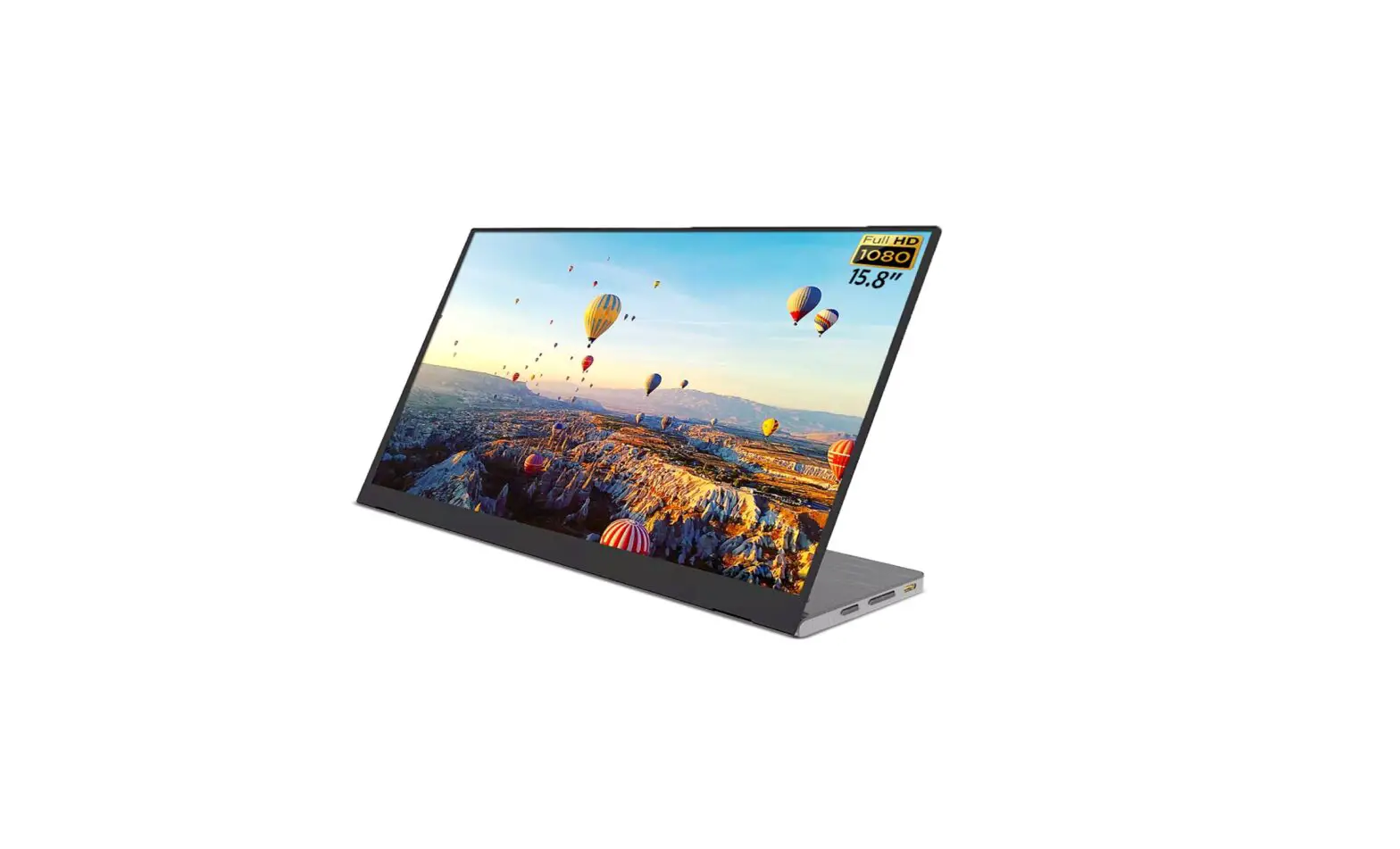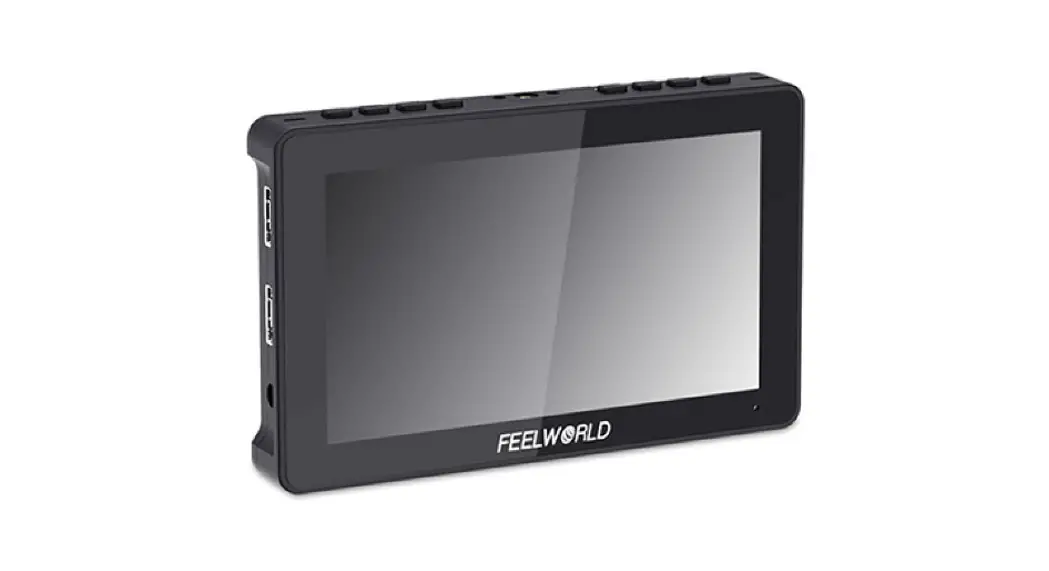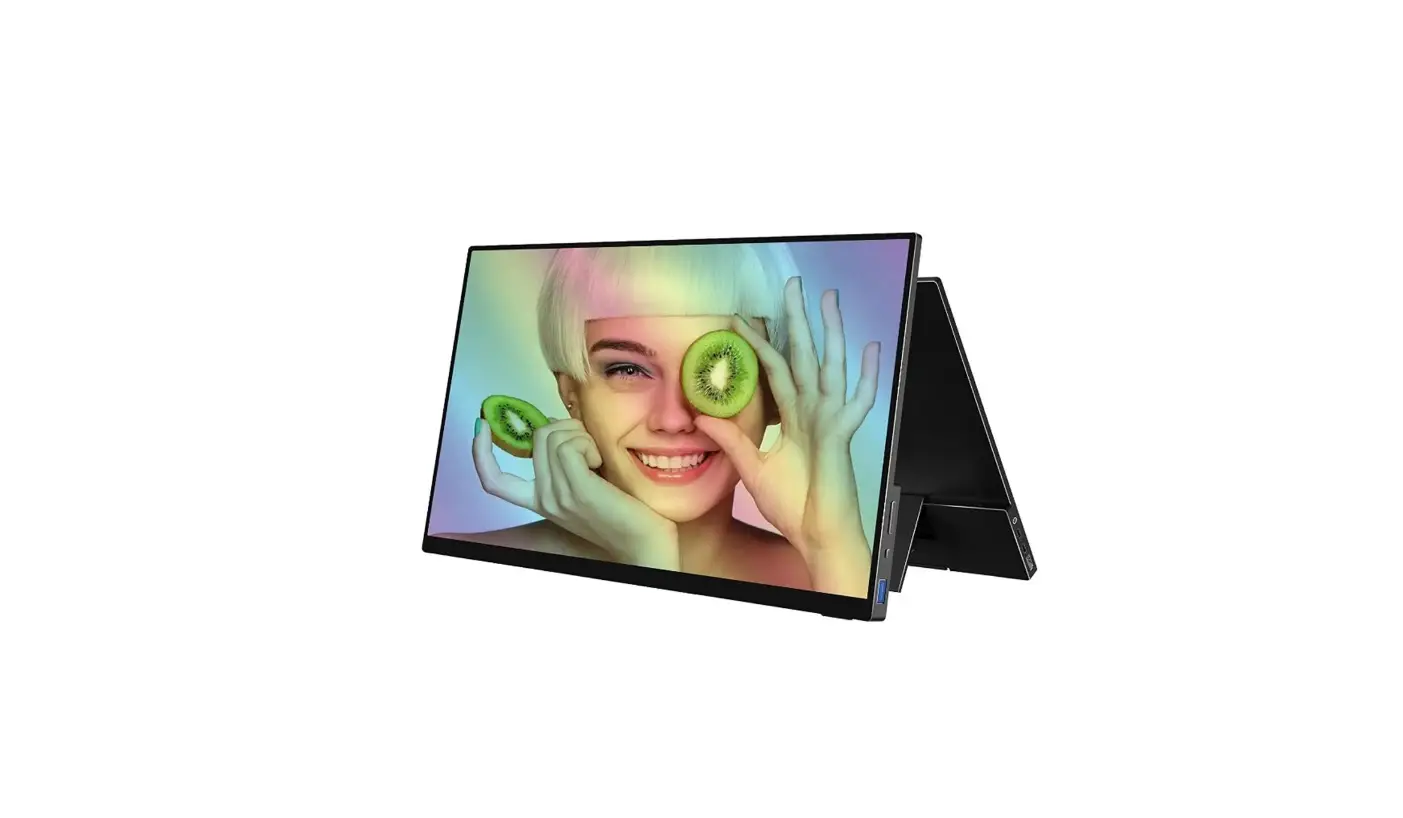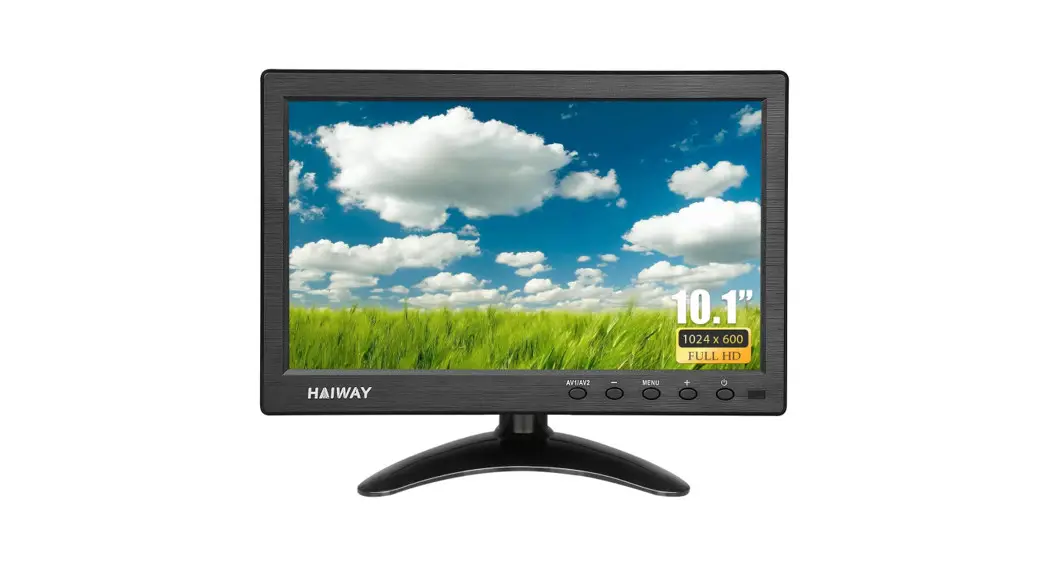

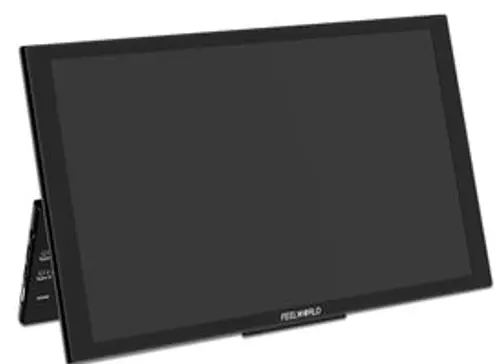
10.1” PORTABLE MONITOR
Full Function TYPE-C
USER MANUAL
Foreword
Thank you for purchasing our 10.1-inch portable monitor. Please read this manual carefully before using the unit. Have a great experience!
Caution
- Do not use a damaged or loose plug.This may cause an electric shock or fire.
- Do not pull the plug out by the wire or touch the plug with wet hands.
This may cause an electric shock or fire. - Do not excessively bend the plug and wire nor place heavy objects upon them, which could cause damage.
- Disconnect the plug from the outlet during storms or lightening or if it is not used for a long period of time. Failure to do so may cause an electric shock or fire.
- Put your monitor in a location with low humidity and a minimum of dust. An electric shock or fire could result inside the monitor.
- Do not drop the monitor when moving it.This may cause damage to the product or human body.
- When cleaning the monitor case or the surface of the IPS screen, wipe with a slightly moistened, soft fabric.
- If your monitor does not operate normally – in particular,if there are any unusual sounds or smells coming from it – unplug it immediately and contact after sales or the professional technical staff.
- For each hour of looking at the monitor, you should let your eyes rest for 5 minutes.This will reduce eye fatigue.
Key Feature
- 1280×800 HD IPS , 280cd/㎡
- Slim design and lightweight, easy to carry on-the-go
- OSD button operation, simple and intuitive
- Full function of Type-C1 and Type-C2 ports for power supply, display and touch
- Widely compatible with Smart Phone, PC, Mac Book, Switch, etc.
- Type-C3 port can connect to keyboard or mouse to the monitor.
- Plug and play. No additional installation or software necessary.
- Built-in dual stereo speakers
Product Structure and Instruction
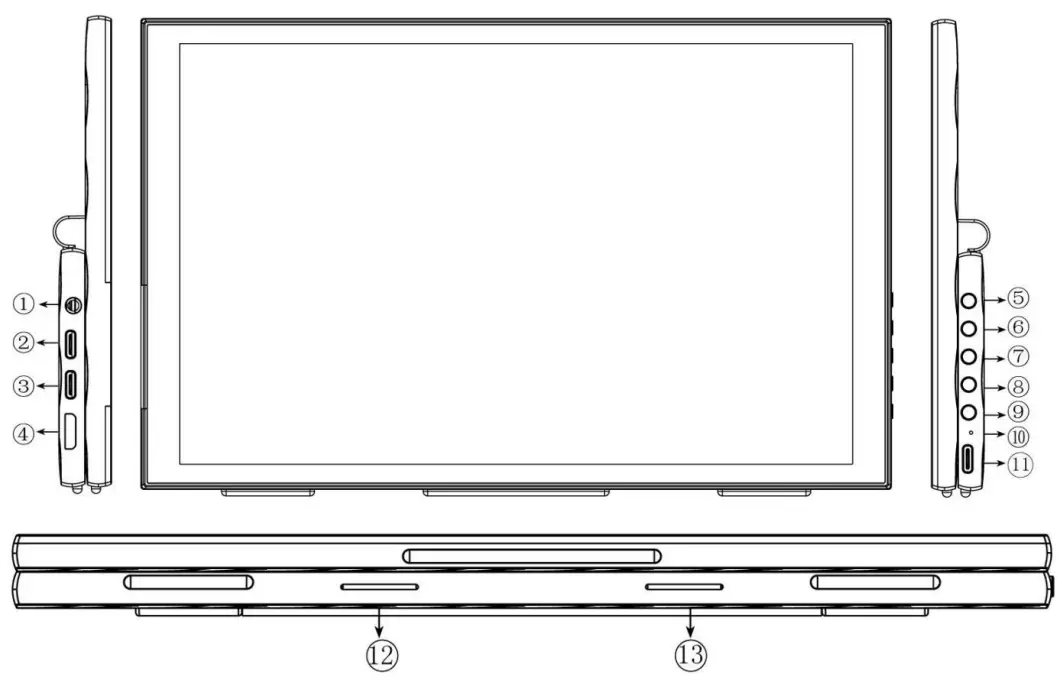
| Number | Function Instruction |
| 1 | 3.5mm audio input |
| 2 | Type-C1 Video/Audio input, power supply |
| 3 | Type-C 2 Video/Audio input, power supply |
| 4 | Mini HDMI Video/Audio input |
| 5 | MENU Setting, Confirm |
| 6 | > Backlight shortcut press(OSD w/o display); Increase, Next |
| 7 | < Volume shortcut press (OSD w/o display; Decrease, PREV |
| 8 | EXIT Return/exit the menu |
| 9 |  Long press to Turn ON/ OFF power Long press to Turn ON/ OFF power |
| 10 | Indicator Light Green color : detected input signal Red color: w/o input signal |
| 11 | Type-C 3 Connect with keyboard/ Mouse |
| 12 | Speaker |
| 13 | Speaker |
Ports Connection
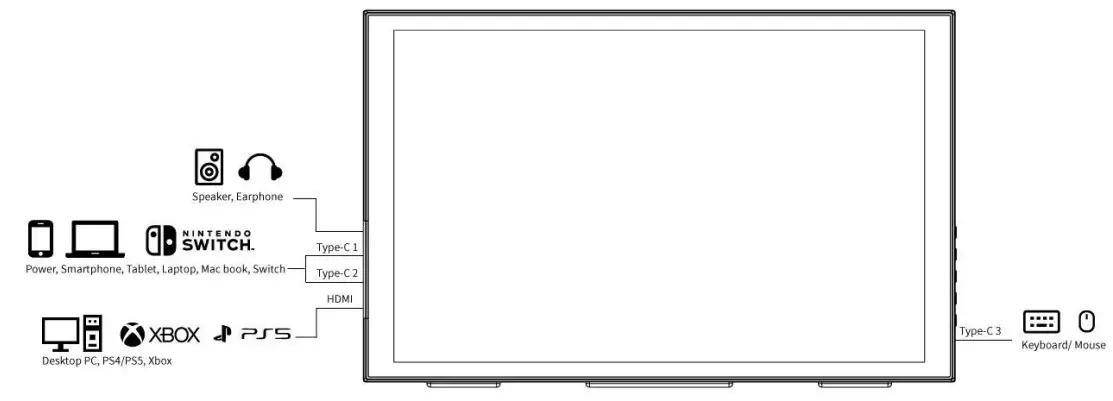
Note: Phone for IOS system, MAC notebooks (without HDMI interface) need to use adapter devices, such as Lightning to HDMI cable
Supported Phone Model
| HUAWEI | Mate10, Mate10 Pro, Mate20, Mate20 Pro, Mate20 X, Mate30, Mate30 Pro, P20, P20 Pro, P30, P30 Pro, P40, P40 Pro |
| HONOR | Honor Note10, V20 |
| SUMSUNG | S8, S8+, S9, S9+, S10e, S10, S10+, S20, S20+, Note8, Note9, Note10, Note10+, A90 5G, Galaxy Fold, Galaxy Fold2 5G, Tab S4, Tab S5e, Tab S6 |
| RAZER | Razer Phone, Razer Phone2 |
| LG | G5 |
| OPPO | R17 PRO |
| ASUS | ROG Phone |
| HTC | U Ultra |
| SMARTISAN | R1, Pro2S |
Tips: the smartphone can be compatible which equipped with USB-C port and supports DP output function , not limited to the listed models.
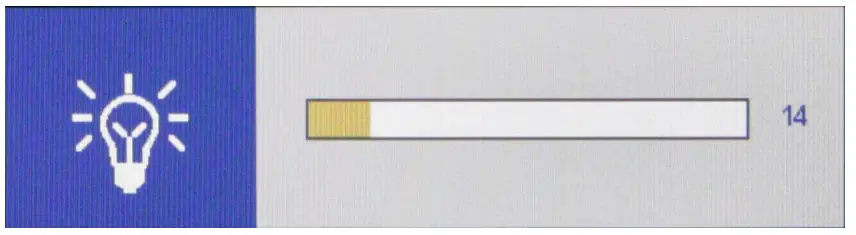
Press > key to bring up the backlight adjustment item, press the </ > key to adjust the analog value, after the adjustment, press EXIT key to exit.
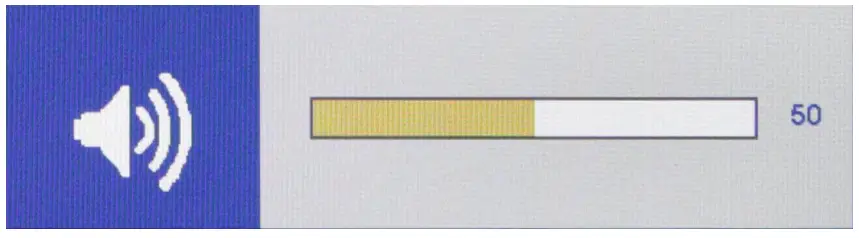
Press < key to bring up the volume adjustment item, press the </> key to adjust the analog value, after the adjustment, press EXIT key to exit.

Press EXIT key to bring up the Input , press the</> key to select the signal input, press Exit key to exit
- Use the USB-A to USB-C cable to connect the monitor to the power supply. After the power is turned on, the indicator light turns red, the indicator lights up green after connected the signal.
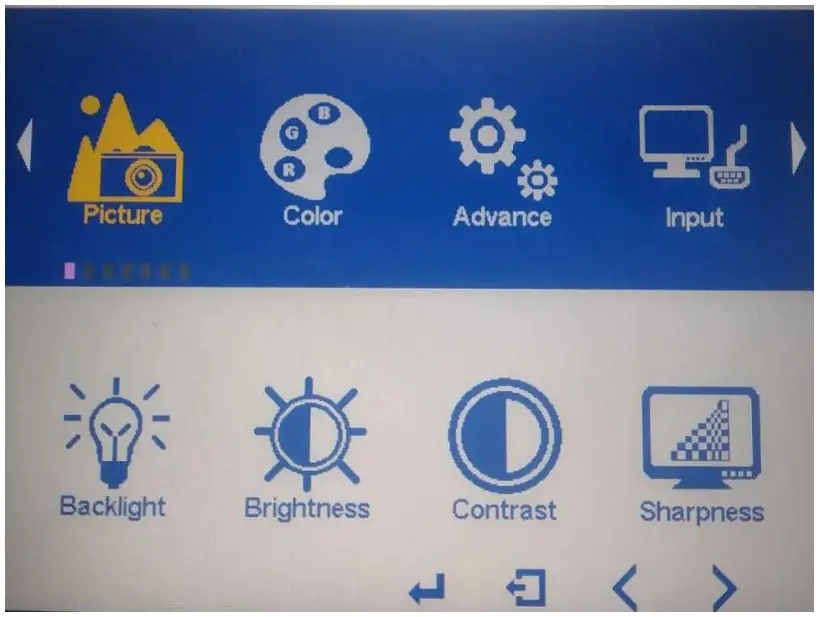
- Press the MENU key to enter the menu bar, use the < or >key to select the menu item, and press the MENU key confirm to enter the secondary menu.
- After entering the secondary menu, use the < or > key to select the adjustment item. Press the MENU key to confirm and enter the adjustment item, use the < or > key to adjust the parameter value. After adjustment, press the EXIT key to return to the previous menu, and then enter the next step of selection and adjustment.
Note: The menu can only be operated when a signal is connected.

| Backlight | 0~100 |
| Brightness | 0~100 |
| Contrast | 0~100 |
| Sharpness | 0~4 |

| Temperature | 9300, 7500, 6500, 5800, sRGB, User Under the User, the Red, Green and Blue of the image can be adjusted. Red (0~255), Green (0 ~255), Blue (0~255) (Use the </ > key to select the User, and then press the MENU key to enter the User .) |
| Color Effect | Standard, Game, Movie, Photo |
| HUE | 0~100 |
| Saturation | 100 |

| Aspect Ratio | Full, 16:9, 4:3, 5:4, 1:1 |
| Over Drive | ON , OFF , OD Gain 0 ~100 |
| DCR | ON , OFF |
| Input | Auto Select, D1: TYPE C , D2: TYPE C, D3: HDMI |
| Volume | 0~100 |
| Mute | ON , OFF |

| Language | English, |
| Menu Time | 10~60s |
| OSD Transparency | 0~255 |
| Reset | Press the MENU button to reset, it will restore the factory default parameter settings. |

| Information | View the corresponding screen input source information. (Press the MENU key to enter the Information menu to view.) |
Product Parameters
| Panel Size | 10.1” |
| Whether Touch | Type-C full-featured ports support touch operation |
| Resolution | 1280×800 pixels |
| Aspect Ratio | 16:10 |
| Pixel Pitch | 0.1692(W) x 0.1692(H) (mm) |
| Brightness | 280cd/m² |
| Contrast | 900:01:00 |
| Viewing Angle | 80°/80°(L/R) 80°/80°(U/D) |
| Backlight | LED |
| Input | Type-C, Mini HDMI Note: please use 5V/3A TYPE-C power supply at least |
| Audio | 3.5mm Stereo Headphone, Speaker |
| Refresh Rate | 60Hz |
| Power Consumption Unit Size | ≦6W |
| (W/O Bracket/ Suitcase) | 242Lx152Wx18.8H (mm) |
| (W/O Bracket/ Suitcase) | 650g |
| Working Temperature | -10 ℃ ~ 50℃ |
| Storage Temperature | -15 ℃ ~55℃ |
Q&A
– Answer: Please make sure input signal and the smartphone model is in supporting range . (the smartphone must with USB-C port and support DP output function )
– PS: If the smartphone’s USB-C power supply cannot support DH101 running.
– Try connecting the DH101 to an independent power supply.
– Answer: The screen ratio of DH101 is 16:10, when you input other ratio signal, the screen will stretch. You can set the aspect ratio to 16:9 via menu setting (MENU–Advance–Aspect Ratio).
– Answer: The menu set only can be operated after the signal input.
– Answer:The screen of DH101 can’t rotate automatically.But you can set the portrait mode via PC or laptop.Take Windows 7 as an example:
– Start–Control Panel–Appearance and Individuation–Display–Adjust Screen Resolution–Direction
Remark:
★ As we are improving product features and product performance, so if there is any change on the specification without prior notice.