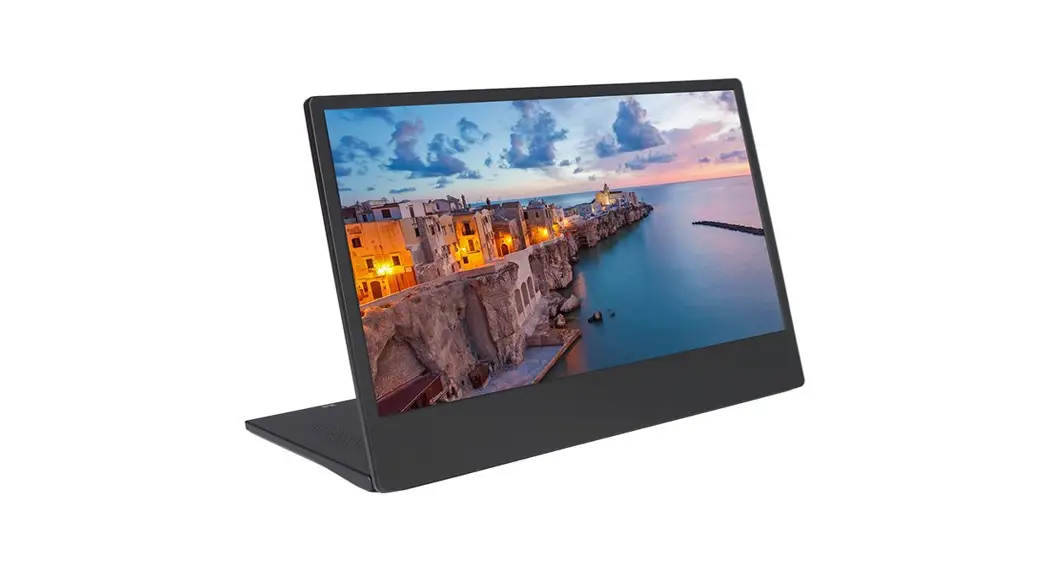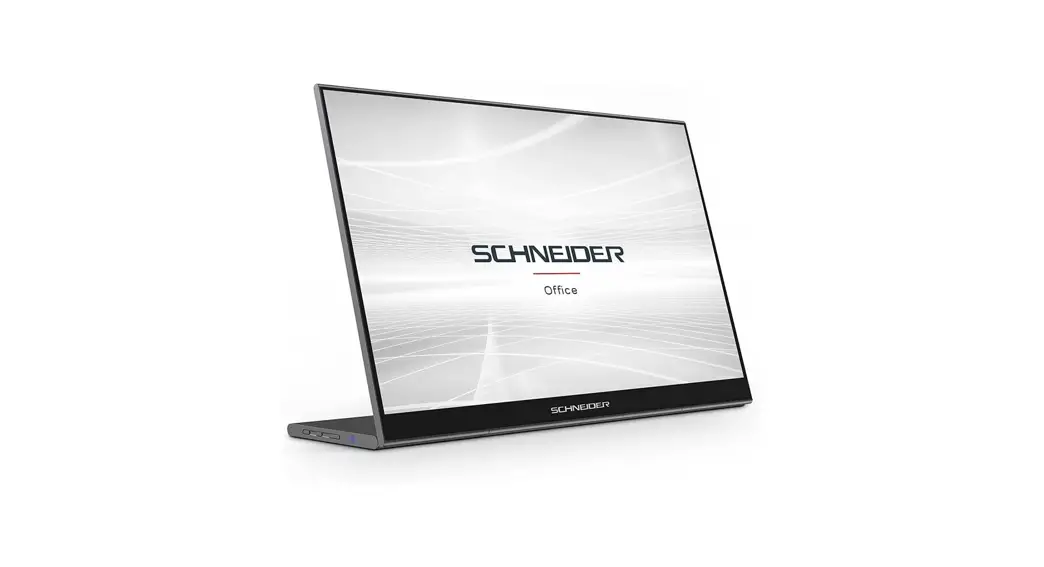

Portable Display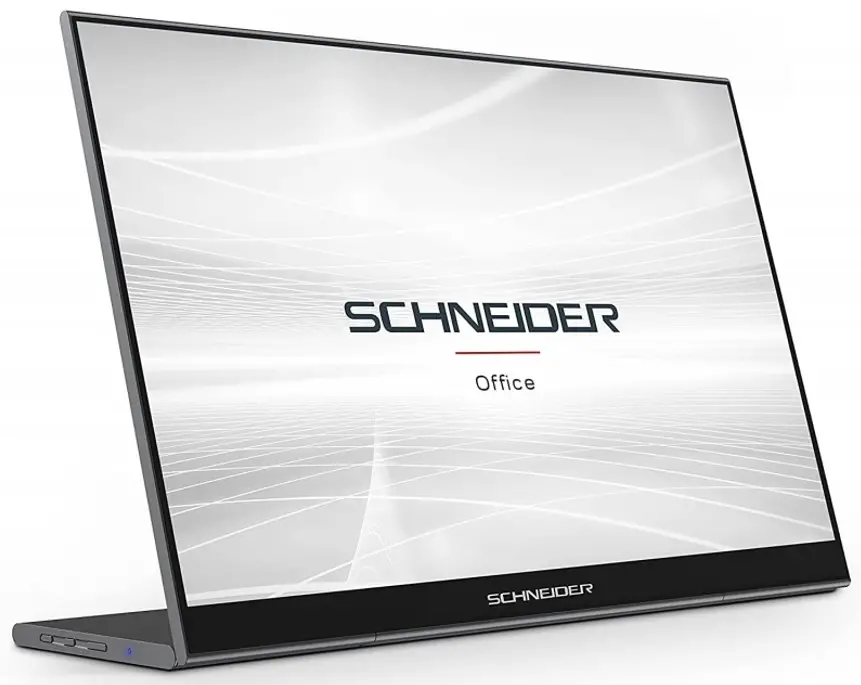
User manual
SC-16PM1F-TOUCH
schneiderconsumer.com
Important safety instructions
Please read the following instructions carefully
- To clean the LCD monitor screen:
• Turn off the LCD monitor and unplug the power cord.
• Use a rag to clean the screen gently.
• Never spray or pour any liquid directly onto the screen or case.
• Please do not use any ammonia or alcohol-based cleaners on the LCD display screen or case. - Do not place the LCD monitor near a window. Exposing the monitor to rain, moisture or sunlight can severely damage it.
- Do not apply pressure to the LCD screen. Excessive pressure may cause permanent damage to the display.
- Do not remove the cover or attempt to service this unit yourself. An authorized technician should perform servicing of any nature.
- Store the LCD monitor in a room with a temperature of -20° to 60 °C (-4° to 140 °F). Storing the LCD monitor outside this range may result in permanent damage.
- Immediately unplug your monitor and call an authorized technician if any of the following circumstances.
- This monitor only can be powered by a USB-C Power Bank with a minimum of 30W USB-C output power.
- The socket outlet shall be installed near the equipment and shall be easily accessible.
- This monitor cannot be powered by a power bank. Please do not use a power bank as a power source.
- Please use the bundled adaptor and USB cable to operate this monitor only.
- The product operation temperature is 0-45°C
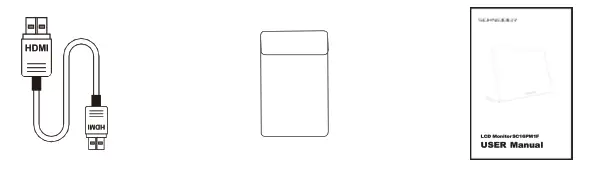
Package contents
| LCD monitor | Adapter | Type-C cable (Data Line) | Type-C cable (Power Cord |
 | |||
| MINI HDMI Cable | Bag | User manual |
 | ||
Please make sure to use the original SCHNEIDER accessory. In order to preserve the quality- aspects.
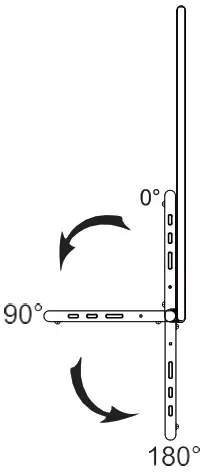
Adjustable base (0° ~ 180 °)
- Take out the monitor from the packaging and place it on a stable and level workspace.
- Open or close the base. The viewing angle of the monitor can be adjusted using the stand. (As shown below, Adjustable Angle 0° ~ 180 °
Connect the monitor to your computer
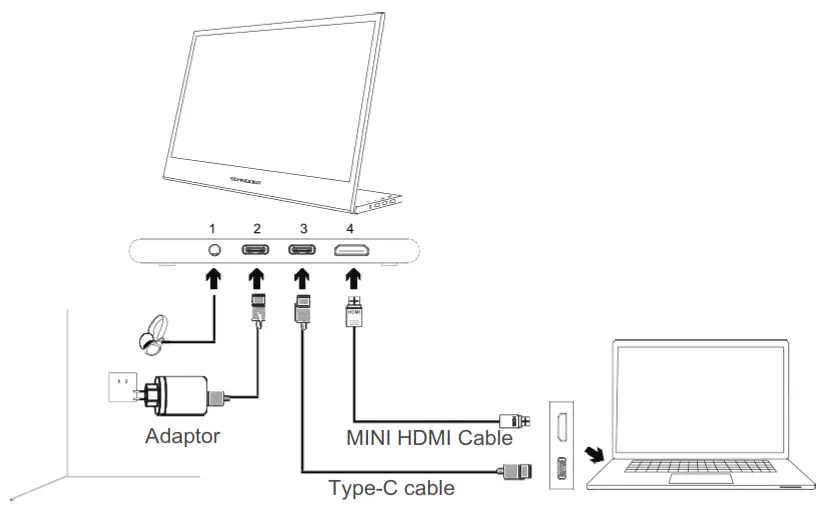
- Plug the adaptor of your monitor into a nearby electrical outlet.
- Use the adaptor to connect to the monitor ‘S Port 2.
- Connect Type-C Cable(Only Type-C-input model)
a. Connect the Type-C Cable to the computer. - Conner Mini HDMI Cable (One HDMI-input model)
a. Connect the Mini HDMI cable to the computer
| Port | ICON | Description |
| 1 |  | Connect to Headphone |
| 2 |  | DC IN, Plug in the adapter (Accessory) |
| 3 |  | Type C IN, Connect to Notebook Type C |
| 4 |  | Connect to PC or other device HDMI |
*Please make sure to use the original SCHNEIDER accessory. In order to preserve the quality-aspects
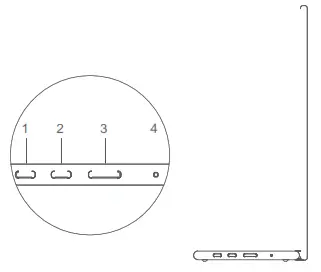
External control
| No | ICON | Item | Description |
| 1 |  | Up/Hot Key | a. Press this button to select the desired item when in the OSD menu. b. Long press this button to adjust the volume |
| 2 |  | Down | Press this button to select the desired item when in the OSD menu |
| 3 |  | Power button | Long press for 3 sec to turn on/off Monitor |
| 4 | • | LED Indicator | Blue indicates power on. Blinking Blue indicates standby mode |

The terms HDMI and HDMI High-Definition Multimedia Interface, and the HDMI Logo are trademarks or registered trademarks of HDMI Licensing Administrator, Inc. in the United States and other countries.
OPERATION
Powering On / Off
Press and hold the power button for 3 seconds to turn the monitor ON and off.
The monitor will enter power-saving mode when turned on unless is a suitable device connected.
Volume Up / Down
Press and hold the▲ up button to enter Volume Adjustment. Then adjust the volume with the▲ Up button (volume increase) and▼ Down button (volume decrease).
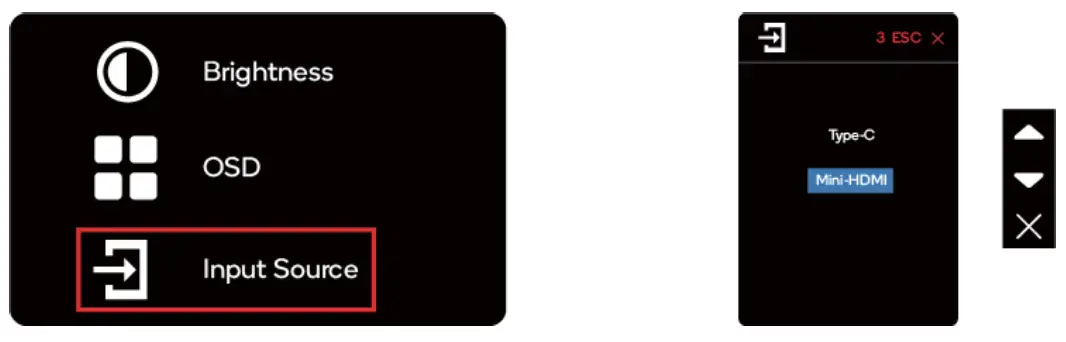
Quick Menu Brightness
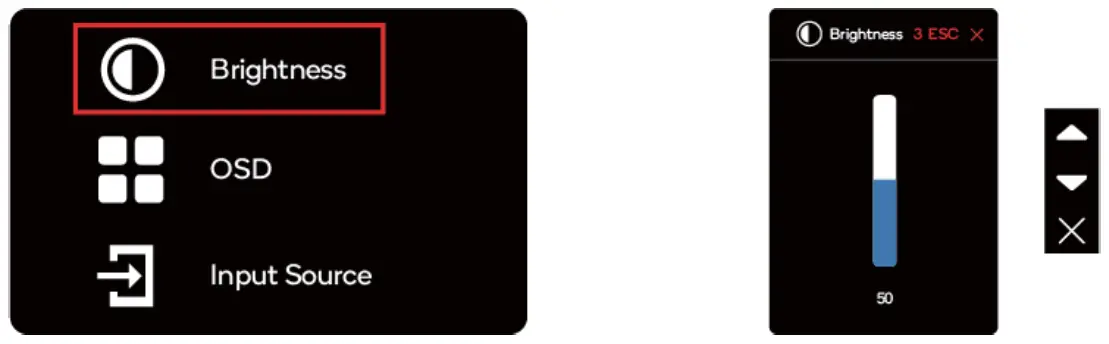
- Press any key to enter the quick menu.
- Using the ▲Up button, select Brightness from the menu.
- Use the▲ Up and ▼Down buttons to adjust the brightness between 0-100.
- Press the Power button to confirm and exit the menu, or wait 3 seconds without pressing any button.
Input source
- Press any key to enter the quick menu.
- Using the power button open Input Source from the quick menu, to select
a USB-C or Mini-HDMI input source. - When you are done, use the Power button to confirm and exit.
OLD
The following content is for general reference only. The actual product specific–ions may vary. The on-screen display (OSD) can be used for adjusting the settings of your monitor.
Press any button to open the Navigation OSD. You can use the OSD to adjust the picture quality, OSD setting, and general settings.
Please▲ Up and▼ Down buttons to navigate the OSD menus, and the power button to confirm the selection.
Scene Setting
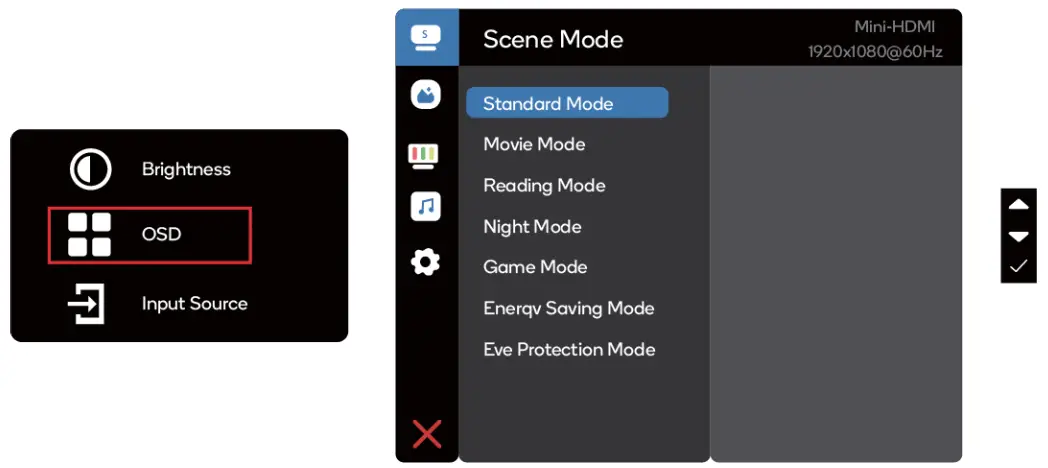
Select the appropriate preset for your usage, and use the power button to confirm.
Picture Setting 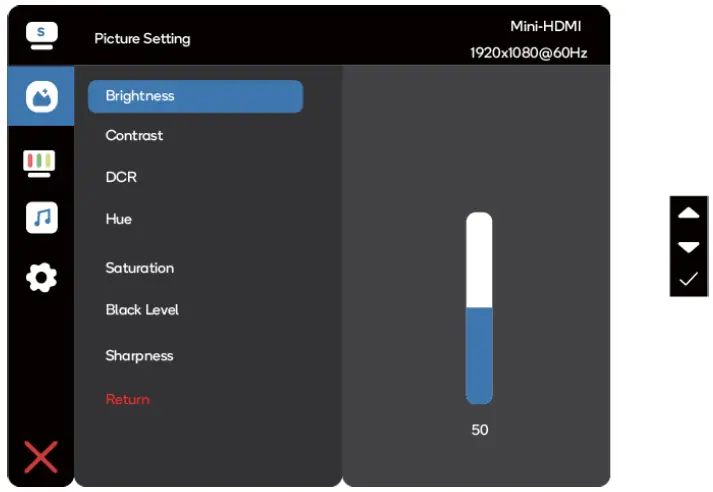
The Picture setting menu includes many options to adjust the color and picture quality.
Color Temperature Setting
The color temperature adjustment Warm-Normal-Cool corresponds to the color temperature of 6500K,7500K, and 9300K, and the User mode has a three-level menu.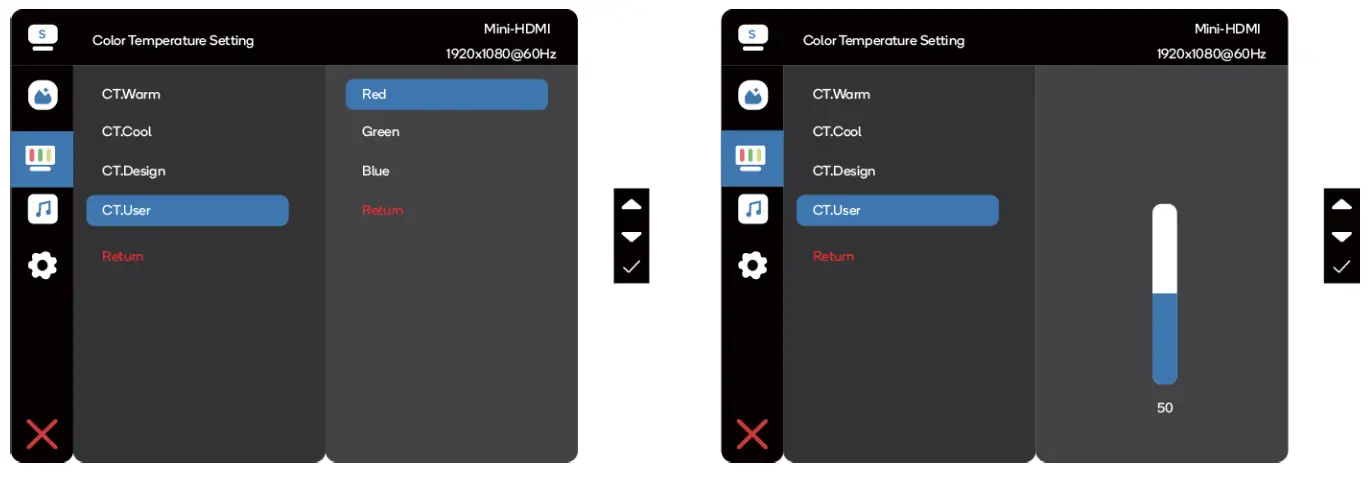
Audio Setting
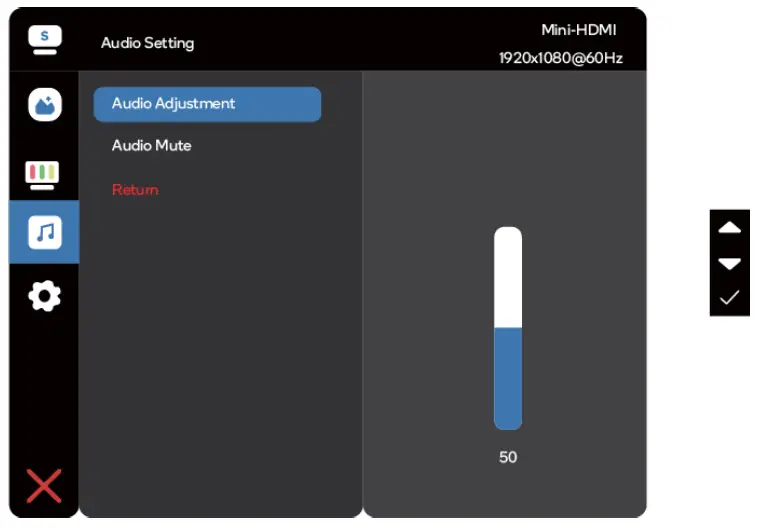
Adjust the volume manually, or select Audio Mute to disable the audio.
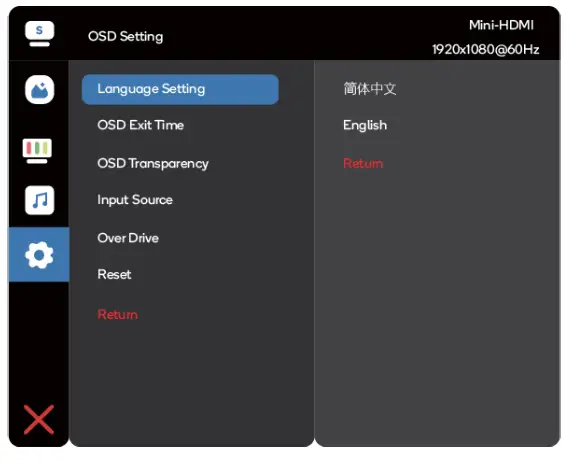
OSD Setting
- Language Setting: Set the OSD menu language.
- OSD Exit Time: Adjust the delay before turning off the OSD menu.
- OSD Transparency: Select the transparency when using gaming mode, The transparency can be 20%,40%,60%,80%, or Off
- Input source: select USB C or Mini-HDMI input source.
- Reset: Reset all settings to the factory defaults.
SPECIFICATIONS
| Audio Speaker | 1W*2 |
| Dimensions Size | 362(W)x240(H)x15.6(D)mm |
| Net Weight | 1.1kg |
| Display Brightness | 470(typ) |
| Colors | 16.7M |
| Contrast Ratio | 1500:1 |
| Native Aspect Ratio | 16:9 |
| Panel Manufacturer | SHARP |
| Panel Type | IPS |
| Refresh Rate | 60Hz |
| Resolution | FHD (1920×1080) |
| Size | 15.6″ |
| Viewing Angle | 170°(H)x170°(V) |
| Features Low Blue Light | Yes |
| Inputs HDMI(1.4) | 1 |
| USB Type-C | 2 |
| Outputs Headphone Jack | Yes |
| Power Power Consumption | Typ. 8W |
| Standby Consumption | 0.5W |
Information for external power supplies for Commission
Regulation 2019/1782/EU
| Value | Unit | |
| Model identification | JHD-AP030E-PD-CF501 | |
| Manufacturer’s name or trademark | Shenzhen Jihongda Power Co., Ltd. | |
| Input voltage | 100-240 | V |
| Input AC frequency | 50/60 | Hz |
| Output voltage | 5V/9V/12V/15V/20 | V |
| Output current | 3A/3A/2.5A/2A/1.5A | A |
| Output power | 15W/27W/30W/30W/30W | W |
| Average active efficiency | 81.38 | % |
| Efficiency at low load (10 %) | 77.89% | % |
| No-load power consumption | <0.1 | W |
TROUBLESHOOTING
| Problem | Troubleshooting advice | |
| No video/ picture | Blue LED | Using the OSD, adjust brightness and contrast to maximum or reset to their default. Make sure the correct input source is selected through the input source menu. When connected via USB-C to USB-C cable, the blue light flashing indicates the output power of the external device is too low to power the monitor. Please connect the external power to the monitor. |
| No LED | Make sure the video cable between the monitor and computer is connected properly and securely. Use other electrical equipment to confirm that the power outlet is working properly. Make sure the correct input source is selected through the input source menu. Check the power switch. Long press 5 seconds to start the monitor. Check if the power cord is properly connected to the monitor. | |
| Red LED | Check if the video signal cable is properly connected at the back of the monitor. Check if the video cable connector pins are bent or broken. Check if the computer system is switched on. | |
| Missing pixels/spots and light leaks on the screen | Turn off and on again. Restore the monitor to factory settings. Use OSD to adjust brightness and contrast. Pixels that are permanently off are an inherent defect in LED technology. Contact help.kogan.com about monitoring quality and pixel issues. | |
| The display fails when switching | Make sure that the video cables of the monitor and HDM I output device are properly connected. Reset the monitor to factory settings. | |
| Problem | Troubleshooting advice |
| The picture is missing colors | Make sure the video cable connecting the monitor and the computer is properly connected. Adjust custom R/ G/ B values. Colour in the color menu of OSD. |
| The screen image is too small | Restore the monitor to factory settings. |
| OSD does not appear on the screen | Turn off the monitor, disconnect and reconnect the power cord, and turn on the monitor. |
| No picture, the indicator light is blue | Check the signal source. Make sure the computer or phone is not in sleep mode. Check that the signal cable is properly inserted. Reconnect the signal cable if necessary. Restart your computer or phone. |
| The picture does not fill the entire screen. | Since the resolution of the same screen of the mobile phone can be re-scaled (aspect ratio), the display can be displayed on full screen. Computer equipment can be set to 16:9 resolution, the display can be a full-screen display Play a video source with a 16:9 video source, and the monitor can display full screen. |
Supported Timing List Standard timing
| Resolution | Refresh Rate | Resolution | Refresh Rate |
| 720 x 400 | 70hz | 1024 x 768 | 75hz |
| 640 x 480 | 60hz | 1280 x 1024 | 75hz |
| 640 x 480 | 67hz | 1152 x 870 | 75hz |
| 640 x 480 | 72hz | 1280 x 720 | 60hz |
| 640 x 480 | 75hz | 1280 x 960 | 60hz |
| 800 x 600 | 56hz | 1280 x 1024 | 60hz |
| 800 x 600 | 60hz | 1152 x 864 | 75hz |
| 800 x 600 | 72hz | 1440 x 900 | 60hz |
| 800 x 600 | 75hz | 1600 x 1200 | 60hz |
| 832 x 624 | 75hz | 1680 x 1050 | 60hz |
| 1024 x 768 | 60hz | 1920 x 1080 | 60hz |
| 1024 x 768 | 70hz |
Video timing
| Resolution | Refresh Rate | Resolution | Refresh Rate |
| 640 x 480p | 60hz | 1280 x 720p | 50hz |
| 720 x 480p | 60hz | 1920 x 1080i | 50hz |
| 1280 x 720p | 60hz | 1920 x 1080p | 50hz |
| 1920 x 1080i | 60hz | 1920 x 1080p | 23hz/24hz |
| 1920 x 1080p | 60hz | 1920 x 1080p | 25hz |
| 720 x 576p | 50hz | 1920 x 1080p | 29hz/30hz |
Detailed timing
| Resolution | Refresh Rate |
| 1920 x 1080 | 60hz |
| 960 x 1080 | 61hz |
DISPOSAL OF THE DEVICE
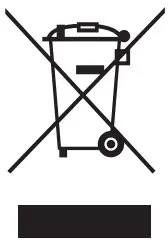
- The logo on the product means that the recycling of this product falls under Directive 2012/19 / EU of 4 July 2012 concerning electronic waste (WEEE).
- The presence of hazardous substances in electrical and electronic equipment can have potential consequences on the environment and human health in the reprocessing cycle of this product.
- Therefore, at the end of its life, this product should not be disposed of with other non-recycled waste.
- As an end user, your role is of paramount importance in the reuse cycles, recycling, and other forms of recovery of electrical and electronic equipment. Local authorities and resellers have set special procedures to collect and recycle this product.
- You have an obligation to use the collection systems of waste set up by your local authorities.
Imported by SCHNEIDER CONSUMER GROUP 12, rue Jules Ferry, 93110 Rosny-sous-Bois, FRANCE
Product Information sheet according to EU Regulation No. 2019/2013 Energy labeling for Electronic Display & Television can be found on below URL or QR code indicated on Energy label URL: https://eprel.ec.europa.eu/qr/400877
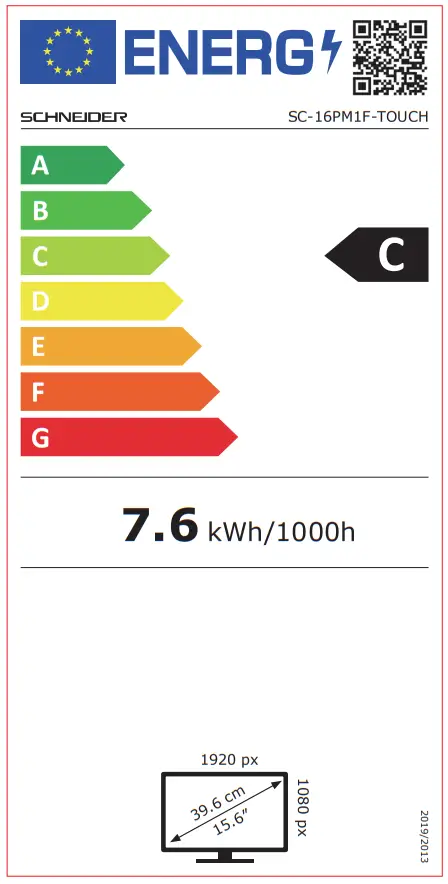
https://eprel.ec.europa.eu/qr/400877
 Indian National Congress