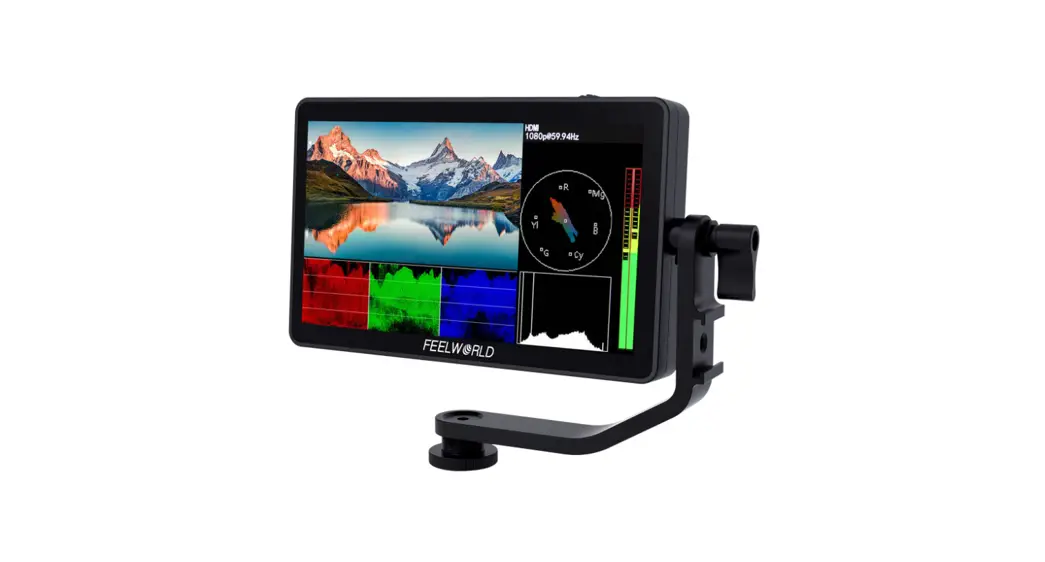
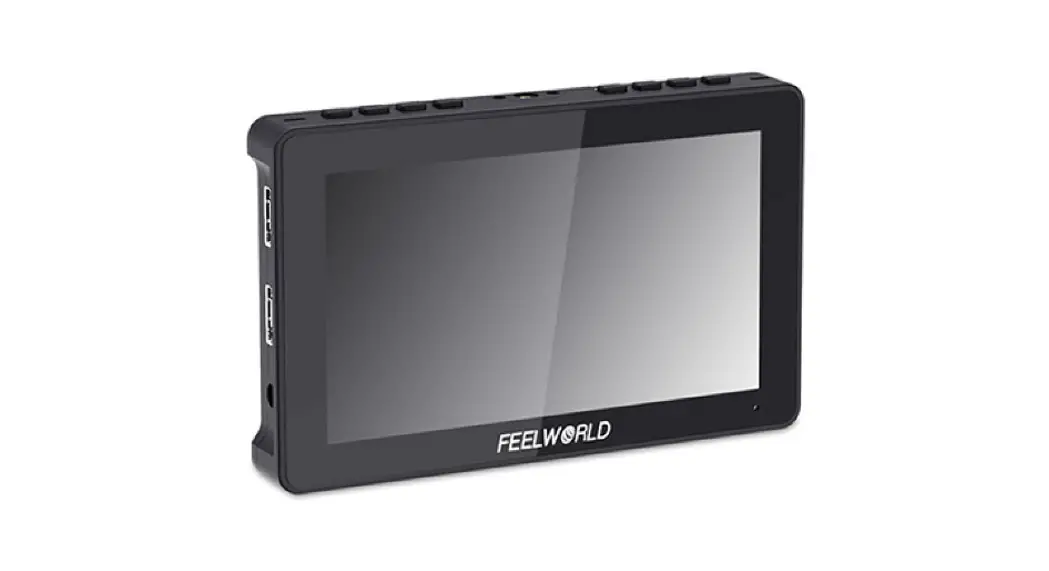
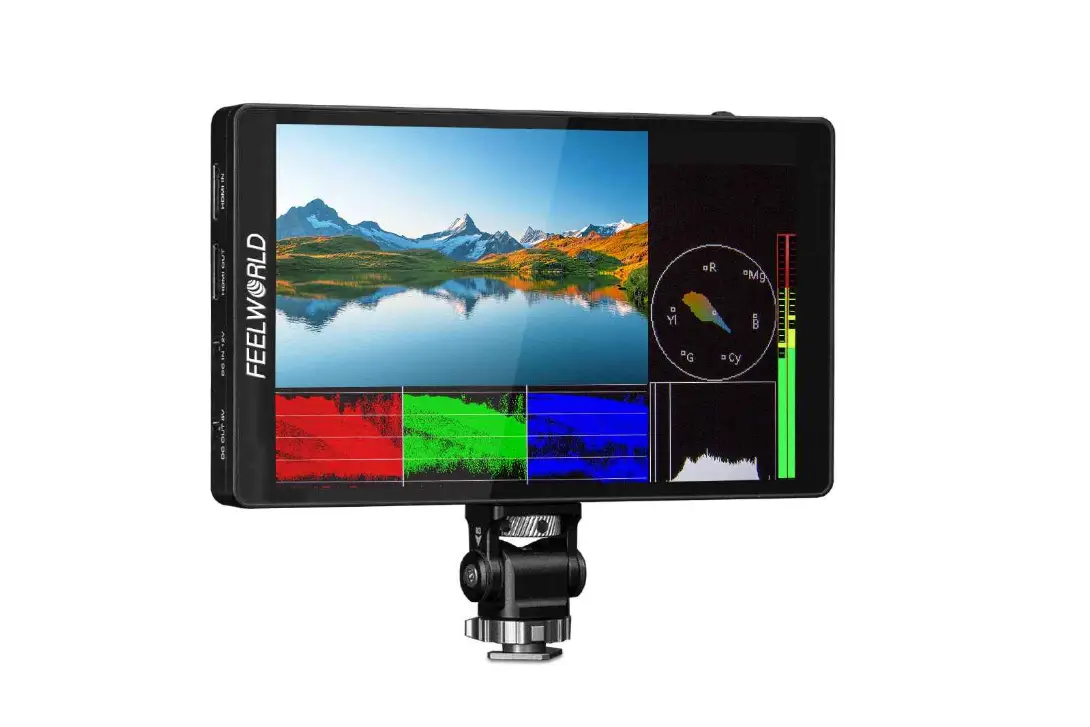
A6 Max 6 Inch Touchscreen Camera Monitor
Product Information:
The A6 Max is a touchscreen camera monitor that comes with the
F970 Power Kit. It features a 6-inch display and offers various
menu functions and options for customization. The monitor can be
powered by NP-F series batteries or through the included DC 12V
power adapter. It also has HDMI input and output ports for
connecting to cameras and other devices.
Included Accessories:
- 1 x A6 Max
- 1 x HDMI to Micro HDMI Cable
- 1 x Tilt Arm
- 1 x User Manual
- 1 x USB to USB-C Cable
Optional accessories such as power and accessory kits are
available separately. For more information on accessory options,
visit www.andycine.com.
Product Usage Instructions:
1. Front Panel Instruction:
Indicator Light: After connecting the power,
the indicator light is red. Long press the power button to turn on
the monitor, and it will turn yellow. After the signal is
connected, it will turn green.
2. Rear Panel Instruction:
Battery Lock: The PUSH lock will lock after the
battery is installed. Press PUSH before removing the battery.
NP-F Battery Slot: Install NP-F series
batteries in this slot.
F970 Install and Power Kit: This kit allows you
to install external equipment, such as wireless transmitters, LED
lights, and video converters, which can be powered by a Sony F970
battery. Refer to section 1.7 in the user manual for more
details.
F1 Button: When OSD (On-Screen Display) is not
displayed, this button acts as a custom button F1.
F2 Button: When OSD is not displayed, this
button acts as a custom button F2.
MENU Button: Decrease the volume or backlight
when OSD is not displayed. When OSD is displayed, this button is
used for navigating the main menu and power on/off.
4. Bottom Port Instruction:
USB-C IN 5V: USB-C power input.
DC OUT 8.4V: DC power output.
Barrel Output: Use this output with a
separately available DC coupler via an adaptor to power your camera
(compatible with NP-FW50 Sony/LP-E6 Canon/DMW-BLF19
Panasonic/NP-FZ100/NP-W126S). More adapters will be available
soon.
3.5mm Earphone Port: Audio output for
connecting headphones.
5. Left Port Instruction:
HDMI IN: HDMI signal input, supports up to
4K@30Hz, V1.4.
HDMI OUT: HDMI signal output, supports up to
4K@30Hz, V1.4.
DC IN 12V: DC power input.
6 Touchscreen Camera Monitor With F970 Power Kit
A6 Max User Manual
Send Email to [email protected] to receive the latest software updates and user information.
Overview Thank you for choosing the Andycine A6 Max HDR Monitor. Featuring a super high-resolution screen in a lightweight polycarbonate ABS chassis, and an array of essential production tools including waveform monitoring, vectorscope, luma, focus assist and F970 power kit to set up external wireless transmission. This user manual will get you up to speed with all the amazing features packed into the A6 Max. Stay up-to-date with the latest information and software on www.andycine.com Please read this manual carefully before you use.
Safety Instructions The A6 Max is designed to a high standard but there are some things you should be aware of to prolong the life of the unit and for your own safety. Using the A6 Max safely Although the A6 Max is very lightweight compared to all the devices it replaces, it is still a solid object that could cause injury if misused. · Always make sure that the A6 Max is mounted securely and is unable to fall onto anyone nearby. This is especially important when there are children present who might be tempted to pull on cables. · Always ensure that cables that run to the A6 Max are clearly visible and do not present a trip hazard. · Do not place on uneven or unstable surfaces.
1
· Do not touch the A6 Max screen with sharp, metallic or abrasive objects. · Do not expose to strong electrical or magnetic fields. · Do not expose to liquids, rain or moisture. · Do not dispose of the A6 Max in municipal waste and do not incinerate it, always follow local regulations for safe disposal. HDMI cables Please remember that almost all HDMI cables do not use locking connectors and will simply pull out if they are jerked or tripped over. Please ensure your cables make a secure connection and avoid flexing them excessively to maintain reliability.
What is included? 1 x A6 Max 1 x HDMI to Micro HDMI Cable 1 x Tilt Arm 1 x User Manual 1 x USB to USB-C Cable
Optional accessories including power and accessory kits and are also
available. Visit www.andycine.com for the latest accessory options.
NP-F Battery
Carry Case
HDMI to HDMI Cable
HDMI to Mini HDMI Cable
2
DC 12V Power Adapter D-tap to 2pin DC Power Cable
Key Features High-resolution 1920 x 1080 IPS Panel High contrast of 1000:1 Bright 450 cd/m² 160° wide-view-angle IPS panel Histogram/ 3D Lut Focus assist (red, green, blue three colors optional highlight over parts of the image in focus) Zebra/False color/Zebra exposure/Check field (red, green, blue, mono) Embedded audio meter Scan mode (underscan, overscan) Zoom (4x, 9x, 16x) Anamorphic mode (1.3x, 2x, 2x mag) Pixel-to-pixel Center marker Safe area (80%, 85%, 90%, 93%, 96%, 2.35:1) Ratio Marker (4:3, 13:9, 14:9, 15:9, 16:9, 1.85:1, 2.35:1) Marker color (red, green, blue, white, black) Image flip (H, V, H/V) Image freeze Color temperature adjustment
3
CONTENTS
1. Product Description ———————————————————————————- 5 1.1 Front Panel Instruction ———————————————————————- 5 1.2 Rear Panel Instruction ———————————————————————– 5 1.3 Top Button Instruction ———————————————————————- 6 1.4 Bottom Port Instruction ——————————————————————— 6 1.5 Left Port Instruction ————————————————————————– 7 1.6 Powering the A6 Max ———————————————————————— 8 1.7 Sony NP-F970 Power Kit ———————————————————————8 1.8 Mounting Points —————————————————————————– 10
2. Menu Operation Instruction ——————————————————————— 12 2.1 Touch screen menu operation (default touch screen is on) ——————— 12 2.2 Button Menu Operation ——————————————————————- 13
3. Menu Function Instruction ———————————————————————– 14 4. How to Load 3D LUT? —————————————————————————— 19 5. Technical Parameters —————————————————————————— 21 6. Trouble Shooting ———————————————————————————— 22
6.1 Only black and white or monochrome picture: ————————————- 22 6.2 NO Image after put on the power —————————————————— 22 6.3 Earphone No sound ————————————————————————-22
4
1. Product Description 1.1 Front Panel Instruction
Indicator Light: After connecting the power, the indicator light is on
(red). Long Press
button to turn on the monitor, it turns
yellow. After the signal is connected, it turns green.
1.2 Rear Panel Instruction
5
Battery Lock: The PUSH lock will lock after the battery installed, please press PUSH firstly before remove the battery. NP-F Battery Slot: It is applicable to install NP-F series of batteries. F970 Install and Power Kit: Installing the external equipment, like wireless transmitter, LED light, video converter and others which can be powered by Sony F970 battery. (The details see: 1.7 Sony F970 Install and Power Kit)
1.3 Top Button Instruction
Button F1 F2
MENU
Function when OSD is not displayed Custom button F1 Custom button F2 Decrease the volume or backlight Increase the volume or backlight Display OSD Main menu / / Power On/Off button
Function when OSD is displayed / / Decrease or adjust value of selected parameter Increase or adjust value of selected parameter Return to previous OSD menu Select next menu item Select previous menu item
1.4 Bottom Port Instruction
6
USB-C IN 5V: USB-C power input, polarity as the input power
.
DC OUT 8.4V: DC power output, polarity as the output power
Barrel output for powering your camera with a separately available DC
coupler via adaptor (NP-FW50 Sony/LP-E6 Canon/DMW-BLF19
Panasonic/NP-FZ100/NP-W126S). More adapters coming soon.
: 3.5mm earphone port output
1.5 Left Port Instruction
HDMI IN: HDMI signal input, up to 4K@30Hz, V1.4 HDMI OUT: HDMI signal output, up to 4K@30Hz, V1.4 DC IN 12V: DC power input, polarity as the input power
7
1.6 Powering the A6 Max
(1) The rear cover of the monitor is equipped with a F970 battery plate, which is applicable to NP-F series of batteries. Sony F970 battery plate for battery of Sony DV: Sony F970 F960 F950 F930 F770 F750 F730 F570 F550 F530 series
Remark: It is recommended to use standard original F970 batteries.
Different specifications of the battery have different capability. The
working time for the monitor will be different. Higher capability
(working time) will be longer. Please take off the battery from the
monitor if you don’t use the monitor in a long time.
(2) DC IN 12V: DC power input, polarity as the input power
,
Barrel (5.5mm outer, 2.1mm inner) at the bottom of the
monitor, DC 7~24V Input.
(3) USB-C IN 5V: USB-C power input, polarity as the input power . This port can be connected to the power bank for power
supply and is not used for data transmission; it is recommended to be used only for local power supply, and it is not recommended to connect other devices to provide loop-out power.
1.7 Sony NP-F970 Power Kit
8
This HDMI monitor has an integrated dummy battery plate that allows you to mount and power optional accessories, such as wireless transmitters or receivers with an L-series battery slot.
The kit has two cross grooves, you can adjust the position of the external device by loosening 2 screws up and down / left or right, or install the kit upside down. When you don’t need the kit, you can loosen the screws and remove the kit. Note: Before disassembling the kit, make sure that the monitor is turned off, and then remove the battery or power adapter.
(1) Just move the kit: Loosen 2 screws, and then adjust up / down / left / right. (2) Steps to remove the kit: . Loosen the 2 screws. . Use both hands to move the kit left. . Move the round holes to the corresponding 2 screws.
(You can also install the kit upside down.)
9
. Then gently lift the kit upwards and carefully disassemble the 2P power cord. . Then remove the 2 screws.
(4) Install back to the kit: first screw the 2 screws back to the screw hole used to install the kit on the back of the monitor, install the 2P power cable to the cutout, then align the round hole of the kit with the screw, and then push the kit to the screw at the center of the kit cross, then tighten the screws.
1.8 Mounting Points
(1) ¼-20 Thread Points
There are (4) ¼-20 thread points (top, bottom, right side & Back center) can be mounted easily to the hot shoe mount or magic arm etc.
10
(2) Tilt Arm Mounting The monitor secures to your camera using the included Tilt Arm via shoe mount or 1/4″20 thread. The Tilt Arm enables 180° of tilt for convenient monitoring at nearly any angle. A cold shoe on the Tilt Arm lets you secure equipment (like a microphone, LED light, or wireless receiver) that would otherwise be displaced from the camera’s accessory shoe.
11
2. Menu Operation Instruction
After the monitor is properly connected to the power supply, the
indicator light is on (red). Long press
button to turn on the
monitor, the indicator light turns yellow. After the signal is connected,
the indicator light turns green.
After startup, short press
to select to turn the screen
touch function on or off.
2.1 Touch screen menu operation (default touch screen is on) Double-click on the screen to open the main menu (on the left side
of the screen) and click on the corresponding menu to display the secondary menu.
12
Swipe up from the bottom of the screen to open the shortcut menu and click on the corresponding menu to open or set the corresponding function.
On the left side of the screen (1/2 split screen), you can directly adjust the brightness of the screen backlight; on the right side of the screen (1/2 split screen), you can directly adjust the volume.
Figure:
2.2 Button Menu Operation
(1) When the menu is not displayed, directly press the “<” or “>” button
to adjust the volume or backlight. You can set the left and right
buttons in the menu
Left Right Key Set to set the volume or
backlight. (2) Short press the MENU button to open the main menu (on the left
side of the screen). Press “” or “” to select the secondary menu, press “>” to enter the secondary menu, and then press “” or “” to select the secondary menu Menu options. After selecting the secondary menu option, press “<” or “>” to adjust the parameter value. After adjusting to the preset parameters, press the “” or
13
“” button to enter the next adjustment. After adjustment, press “MENU” to exit.
(3) After booting, you can choose to turn on or off the screen touch
function in the Touch Switch in the
(the touch screen is
turned on by default). In the closed state, you need to select the
Touch Switch option according to the step of the Button Menu
Operation, and then press the “<” or “>” button to turn on the
touch function.
3. Menu Function Instruction
All Waves
Waveform
Vector Histogram
Off, On After turning on, waveform, vector, histogram and embedded audio will be shown. Off, RGB, Y, YUV This essential feature assists with the calibration of professional video cameras. It shows the overall brightness of the image assisting the video professional in correcting exposure. The waveform feature also checks the evenness of the lighting when lighting a chromakey or background. Off, On shows how saturated the image is and where the pixels in the image land on the color spectrum. Off, RGB1, Y, RGB2
14
Waves Trans. Focus Assist
Peaking Color
Embedded Audio
Off, 25, 50, 75 Off, On By sharpening the edge of images to help photography for focusing operation. Red, Green, Blue Due to the image color is colorful when shooting in natural light, so the user may react to the edge of the single line not too sensitive, at this time to change the auxiliary focal edge line color will improve the sensitivity of the image contour. It is convenient during filming tracking in focus. The edge line color can be chosen according to the site situation to select red, green and blue. Off, On The Audio Level Meters provide numerical indicators and headroom levels. The audio meter is green, and will turn yellow when exceeds -20dB, and turn red when exceeds -9dB.
Nine Grid Safe Frames Center Marker Ratio Marker
Off, On Off, 80%, 85%, 90%, 93%, 96%, 2.35:1 To select the screen marker. Off, On Off, 4:3, 13:9, 14:9, 15:9, 16:9, 1.85:1, 2.35:1
Image display ratio marker.
Red, Green, Blue, Black, White
Mark Color To select the above high contrast mark color according to
Mark Width
different image. 17
15
Modified Mark
To select the above mark color display width.
05 Adjust the brightness of the image outside tag line to highlight the inside tag line of image.
Scan Mode Aspect Ratio Anamorphic Anamorphic nX Image Flip
OSD Flip Zoom Mode
Zoom All
Nine Grid Zoom
Zoom Image Freeze
Under Scan, Over Scan
Auto., 4:3, 16:9, Just Scan, Panorama, P2P
Off, 1.3X, 2.0X, 2.0X MAG, User
Under the User, the Anamorphic nX can be customized.
1.20X~2.00X
Off, H Flip, V Flip, H_V Flip
Off, On
Off, Mode1, Mode2
The Zoom All can be customized.
0500
Off, On
Open the Nine Grid function in the
to divide the image into
nine grid, then turn on the Nine Grid Zoom function, select one of the screens by pressing the “<” or “>” key, and then press the “”
or “” key zoom in to full screen. Press the “” or “” key to
exit the local zoom function. (To achieve this function, you need
to turn on the Nine Grid function first, and it can only be operated
by keys.)
Off, 4X, 9X, 16X
Off, On
16
OFF, ON
Lut Switch After the LUT Switch is turned on, you can use the Lut (SLOG2,
SLOG3, LOGC, VLOG).
Lut Table
Show the 4 built-in Lut and the custom load Lut
Lut Import (USBC)
After copying the 3D LUT file to the U disk and inserting it into the TYPE-C to USB Connector, you can click the “<” or “>” key in the Lut Import(USB-C) to import the 3D LUT file.
5600, 6500, 9300, User
Color Temp. Under the User, the red, green and blue of the image can be
adjusted.
Red
0255
Green
0255
Blue
0255
Backlight 0100
Standard, Mild, User, Dynamic
Pic. Mode Under the User, you can adjust the image Brightness, Contrast,
Saturation, and Sharpness.
Brightness 0100
Contrast 10100
Saturation 0100
Sharpness 0100
Tint
0100
Left Right Key Set
Volume, Backlight You can set the Left Right Key Set as shortcut keys for volume or backlight adjustment. After setting, when the menu is not
17
Language OSD Trans. OSD Time No Signal
Volume
Touch Switch
USB Upgrade Reset
displayed, you can directly press the “<” or “>” key for quick adjustment. English, , Español, Português, Français, Nederlands, Deutsch,, Off, Low, Middle, High Off, 10Sec, 20Sec, 30Sec Blue Screen, Red Screen, Green Screen, Gray Screen, Black Screen, White Screen 0100 On, Off When the touch screen is closed, you need to select the Touch Switch option according to step of the Button Menu Operation, and then press the “<” or “>” key to turn on the touch function. Copy the file to the U disk, insert the Type-C to USB female adapter, and then connect to the Type-C interface of the monitor, press the “>” button to confirm the upgrade. After the upgrade is complete, the monitor will automatically restart. Press “” button to confirm, back to original setting.
F1/F2
Safe Frames, Check Field, Focus Assist, Aspect Ratio, Image Flip, Image Freeze, Histogram, False Colors, Over Exposure, Embedded Audio, Nine Grid, Zoom, Anamorphic, Waveform, Vector, Center Marker To set the 2 shortcut custom button F1, F2 on the panel. e.g. Tap the menu ” “, select F1, then tap “” or “” to
18
pop-up function items to select one of them, such as “Focus Assist”. So when you exit menu, you could press F1 directly on the front of panel to turn on “Focus Assist” function. Same setting for F2
4. How to Load 3D LUT? 1. SD Card Format FAT32 and NTFS 2. Max Files Limit Maxium 50 Lut files 3. File Requirements The lut should in.cube Single file not exceeded to 7.9Mb Support LUT-3D-Size 16,17,32,33,64,65 The files should be valid The files’ name should in English or Arabic Words 4. Steps and Instruction Make sure that the SD card correctly insert Enter the Monitor Menu—“Color”—“Load Lut” After this, the monitor will auto detect the sd card A. There is no SD Card The screen will show failded,can try one more time,if not work, restart the monitor B. There is SD Card The monitor will erase the exits user’s lut fill and show “Initializing” If there is no valid lut file in sd card, the lut will not load.The monitor will show “clean up” C. If there is valid lut file in sd card, the monitor will load lut files and show “[n] name. The [n] shows the quantity number. The “name” should in lut files’ name. If load successful, the screen will show “complete[n]”. [n] Stands for the quantity number for lut files should under 50.
Firmware Updates (AndyOS)
19
From time to time we will issue software updates for your Andycine Monitor. To update the firmware (that’s the software that runs inside your Andycine Monitor), there is a simple procedure you have to follow. 1. Extract the files .bin from the firmware zip file. 2. Copy these files onto a SD Card. a. AndyOS recommends you use a freshly formatted compatible SD Card (FAT32 or NTFS). b. Ensure that the firmware update file is on the root of the SD card, and not in a folder or sub folder. 3. Insert the SD Card with A6 Max.bin file. 4. Use a freshly charged battery on your A6 Max or connect to mains power. It is very important that your monitor does not lose power during a firmware upgrade. 5. Power up your monitor with a long press of the Power Button. 6. Double tap monitor screen to access menu, Select Setting, Select firmware to update. 7. Watch the screen, the firmware upgrade will start. 8. While the firmware upgrade is happening, an `updating firmware’ screen will appear. 9. The firmware upgrade will take up to a few minutes.
Let it finish updating when finish it should reboot, if not, turn it off and on again Done
20
5. Technical Parameters
Panel Size Resolution Dot Pitch Aspect Ratio Brightness Contrast Viewing Angle Backlight
Input Output
HDMI Input/Output Support Format
6″ touch screen 1920 x 1080 pixels 0.069(H) x 0.069(V) (mm) 16:9 450cd/m2 1000:1 80°/80°(L/R) 80°/80°(U/D) LED HDMI V1.4 HDMI V1.4
480i/576i/480p/576p 720p (60/59.94/50/30/29.97/25/24/23.98) 1080i (60/59.94/50) 1080p (60/59.94/50/30/29.97/25/24/23.98) 3840×2160p (30/29.97/25/24/23.98) 4096×2160p (24Hz)
Audio
3.5mm stereo headphone jack
DC IN 12V, Barrel (5.5mm outer, 2.1mm inner)
Power In
USB-C IN 5V Note: please use 5V/2A or more than 2A USB-C power
Power Out
sDuCpOplUyT 8.4V, Barrel (5.5mm outer, 2.1mm inner; Power DSLR or mirror-less camera)
Input Voltage
724V, Barrel (5.5mm outer, 2.1mm inner)
Power Consumption 8W
Unit Size
148Lx93Hx21.75D (mm)
Unit Weight
245g (with F970 power kit )
Mount Points
(4) ¼-20 thread points (top, right, bottom&back center)
Working Temperature -2050
Storage Temperature -3060
21
6. Trouble Shooting 6.1 Only black and white or monochrome picture:
please check saturation, brightness & contrast adjustment. Please check “Monochrome” is in black, white or monochrome
image or other condition.
6.2 NO Image after put on the power Check if signal cable connecting is in good condition. Check signal cable connecting, and make sure to use the standard
adapter to connect the monitor. If power is supplied by battery, please check if the battery is fully charged.
6.3 Earphone No sound Check if Volume control do not open, press the volume button, and try to increase the volume.
If you have more questions, please contact us Customer Support: [email protected] Sales Inquiry: [email protected] Website: www.andycine.com Facebook/Youtube: @andycinegear Instagram: @andycinegear Twitter: @andycinegear
Please note: Specifications are subject to change without notice. All information correct at time of publishing.
22
 ANDYCINE On-Camera Monitor and Pro Video Accessory| Andycine® official