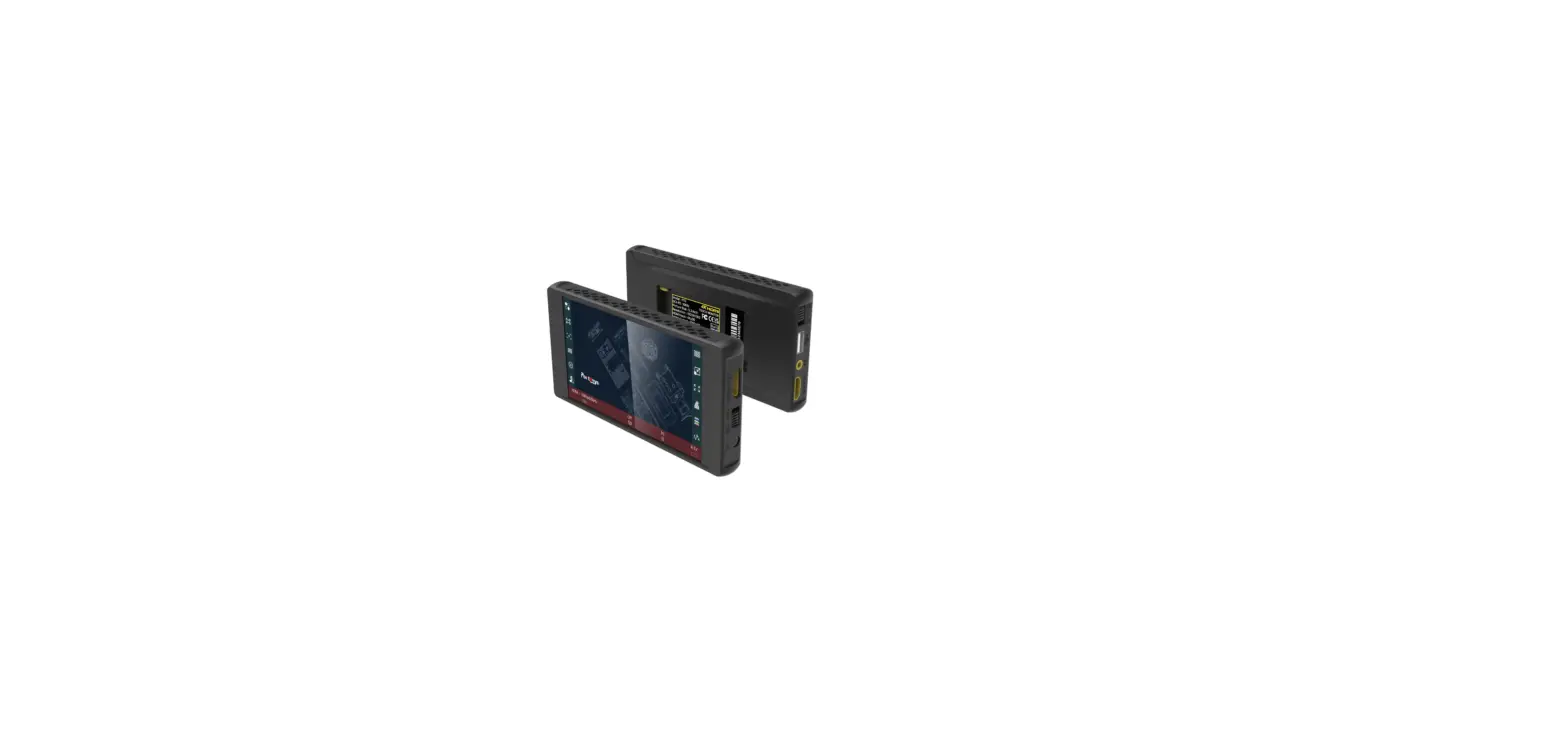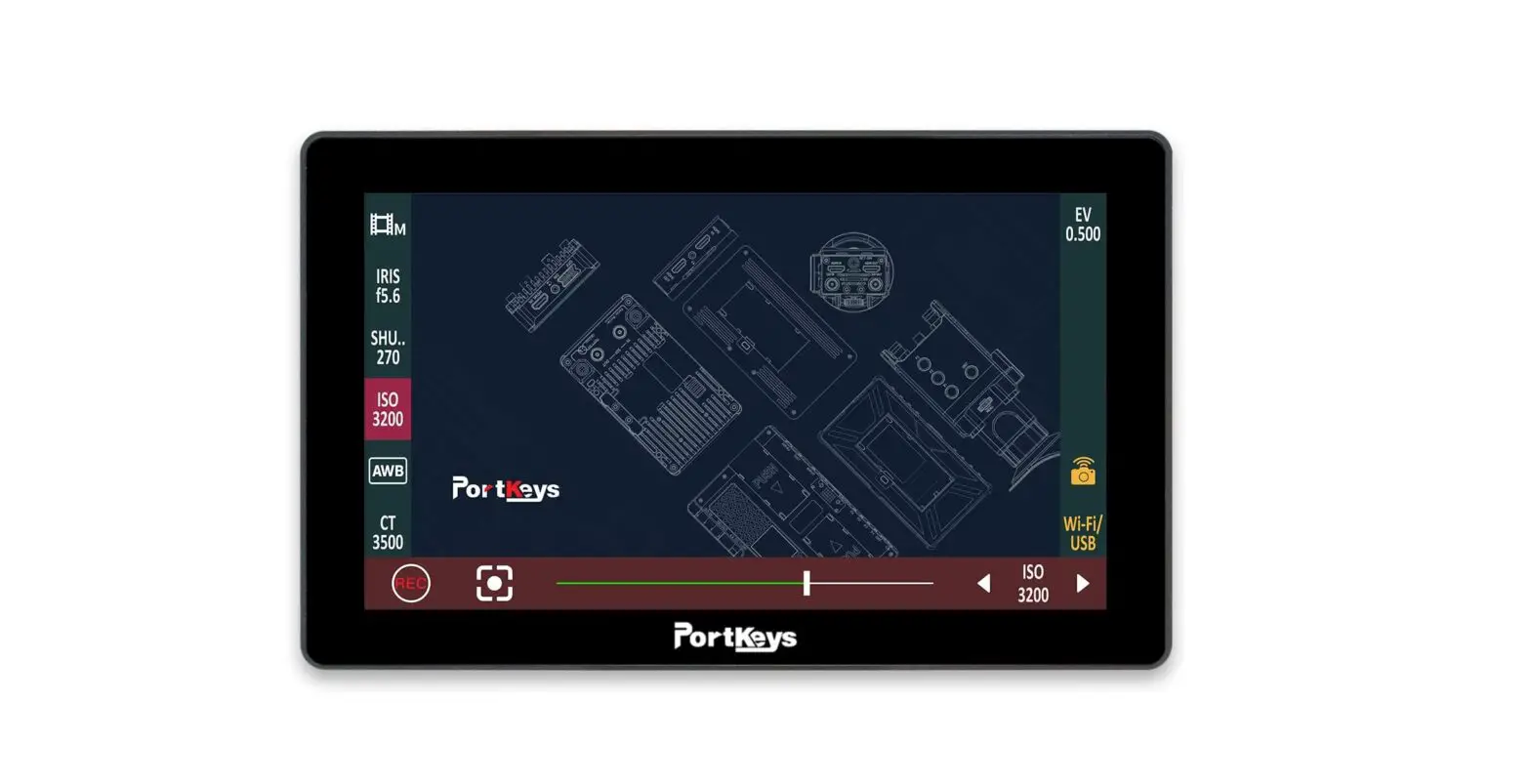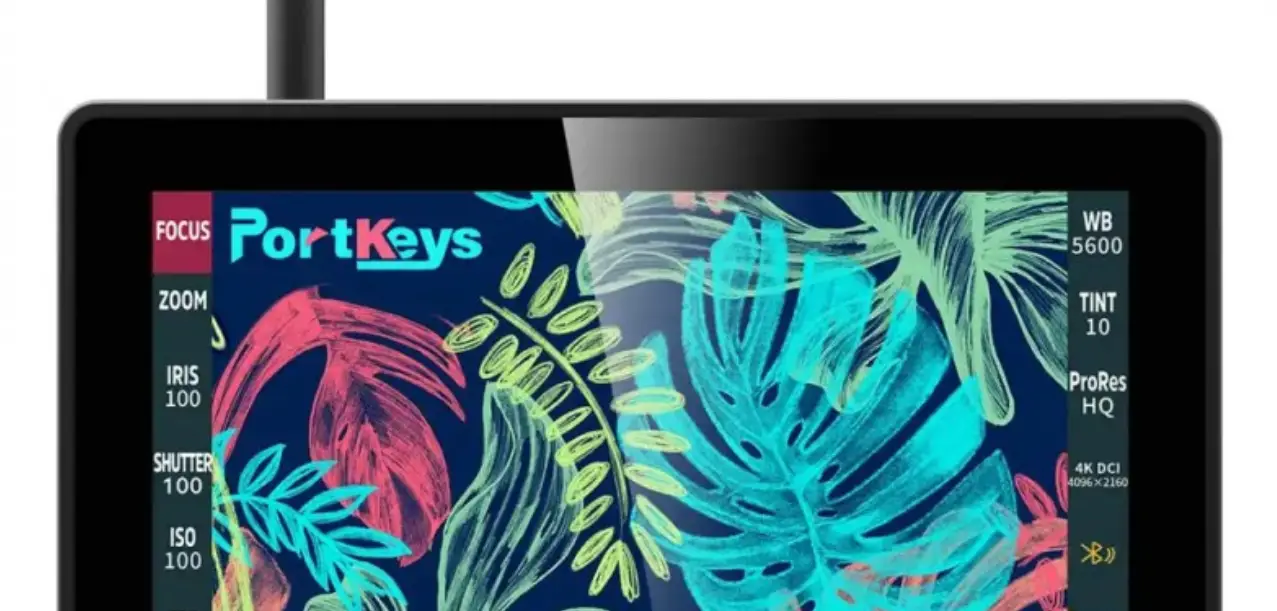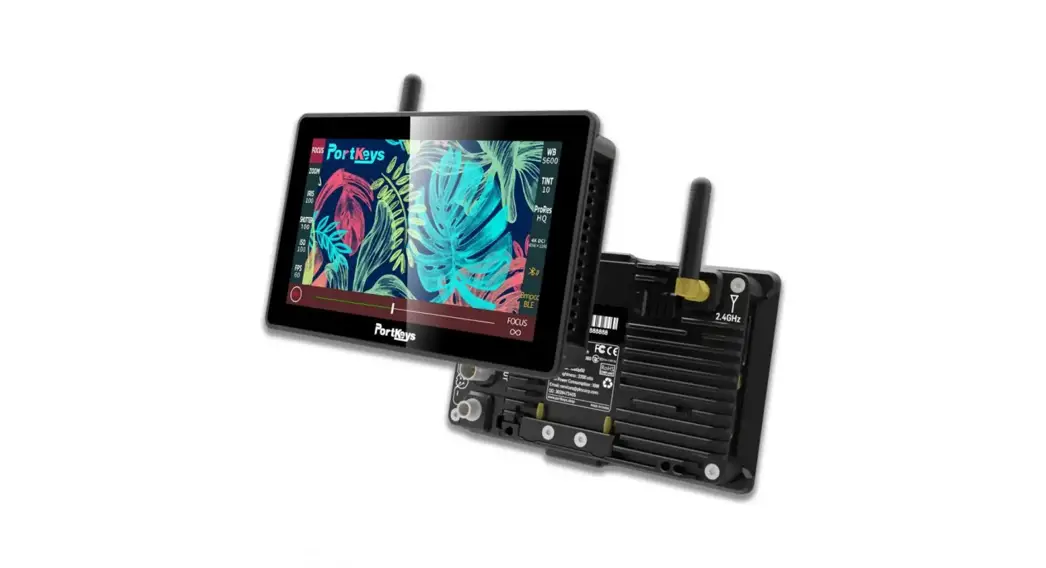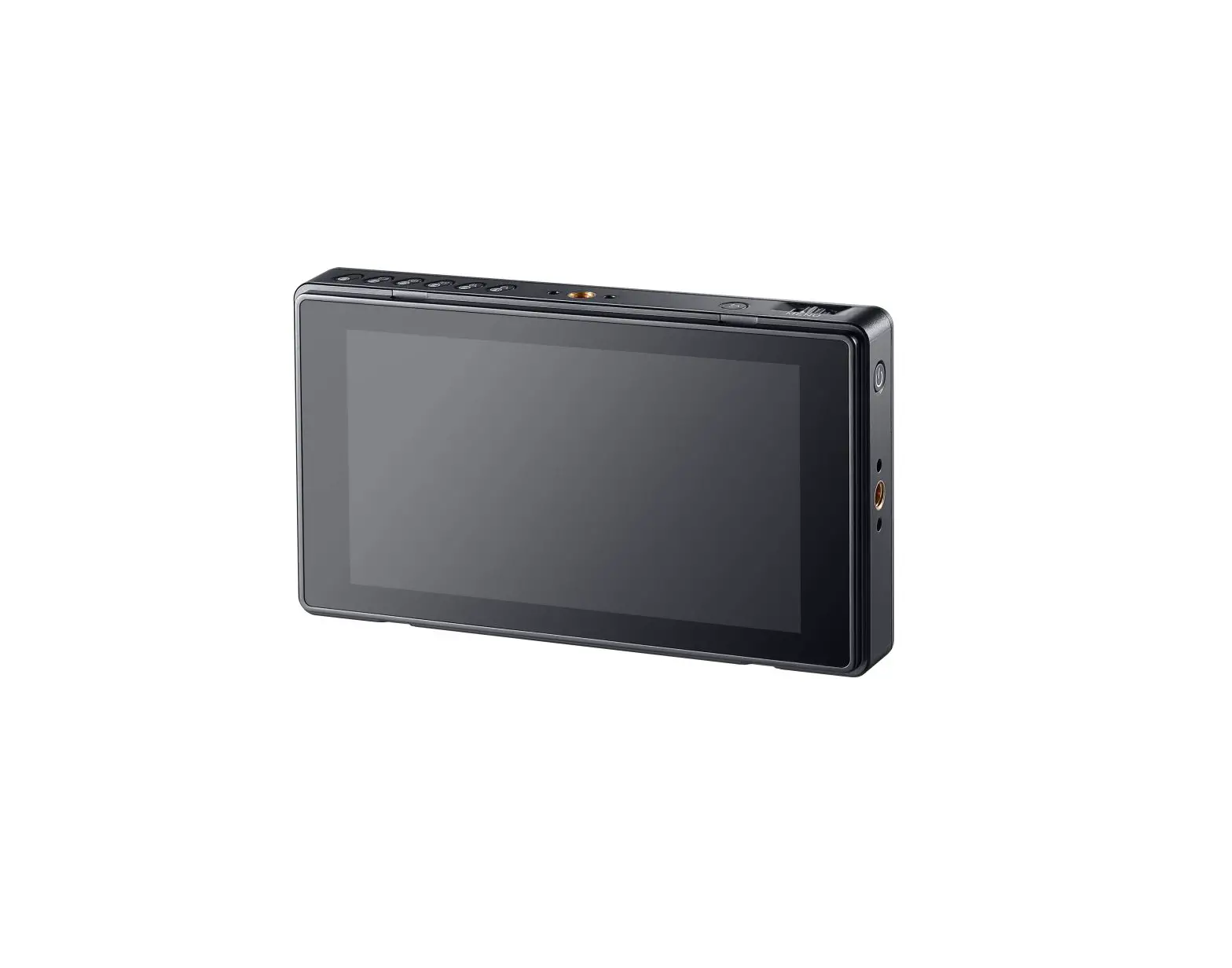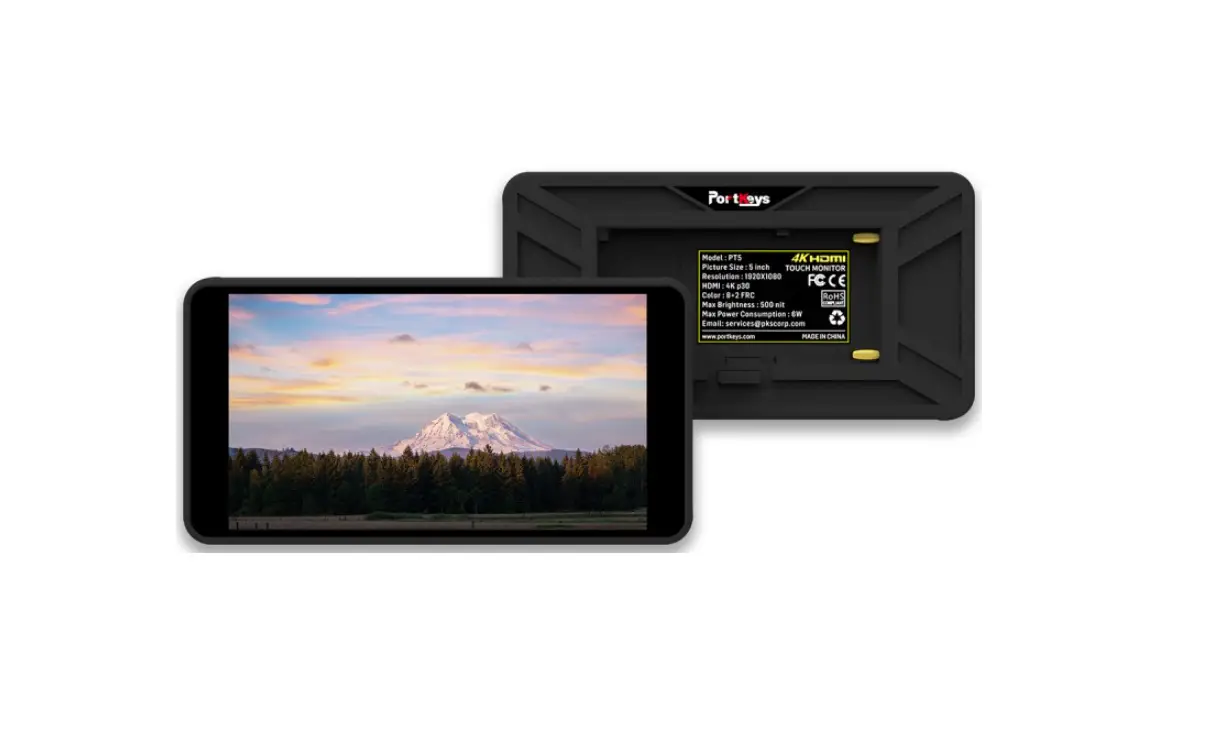
PortKeys PT5 5 Inch 4K HDMI Touchscreen Monitor Anamorphic User Manual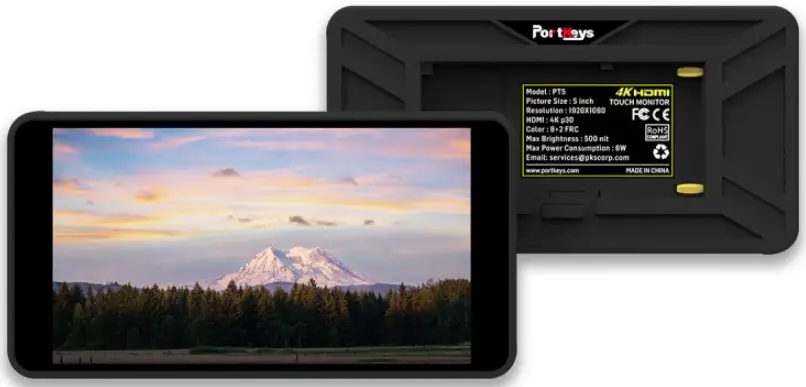
Product Information
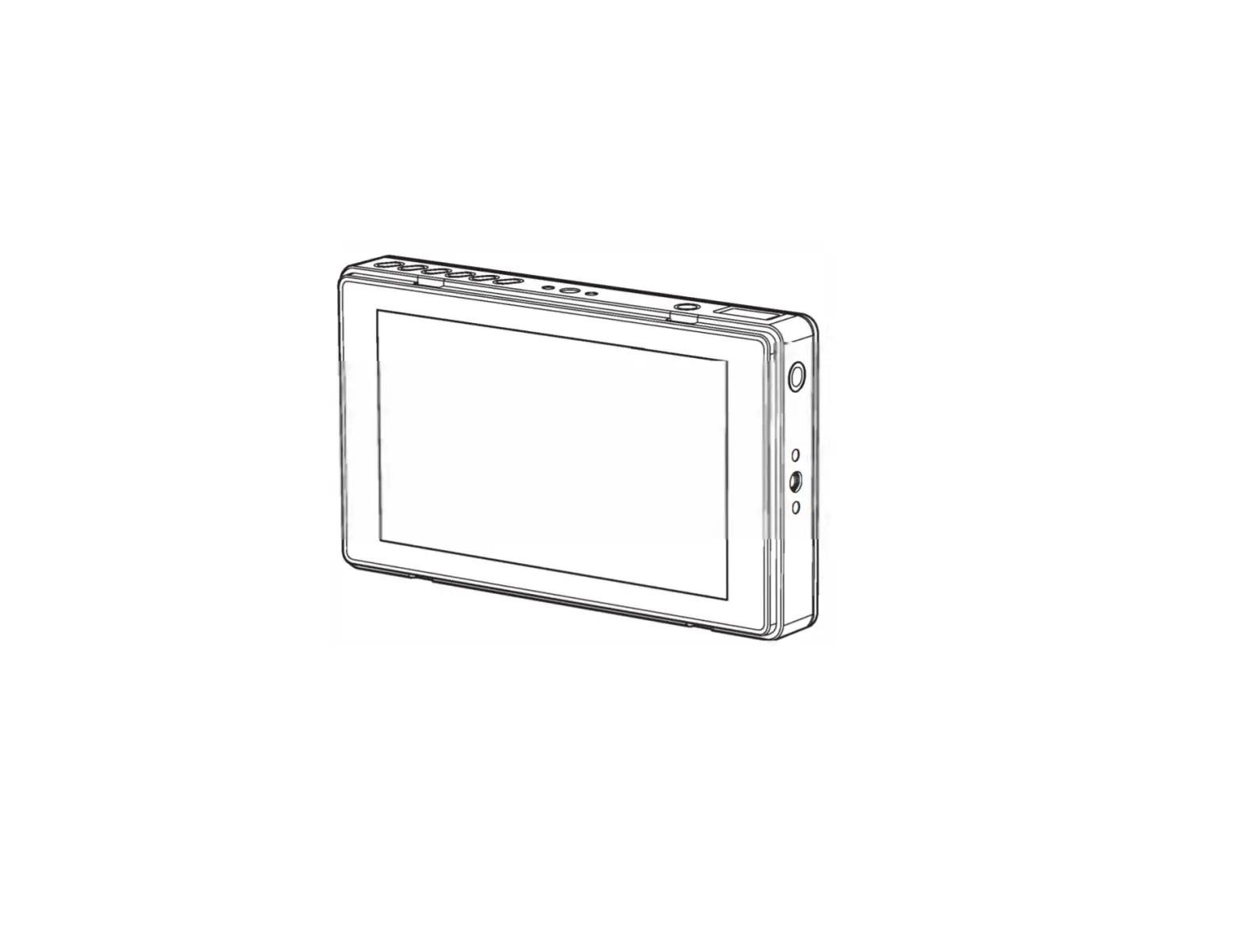
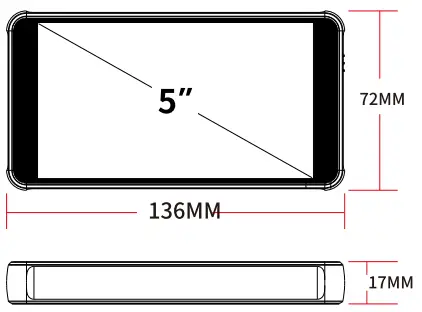
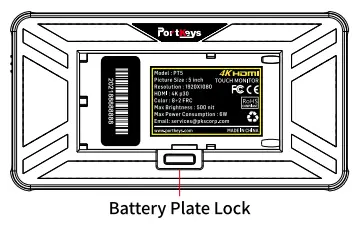
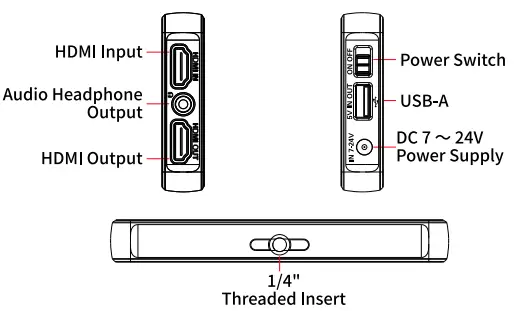
Appearance Size
Standard Accessories
- PT5 Monitor X1
- Safety BoxX 1
- HDMI A to A Cabled1
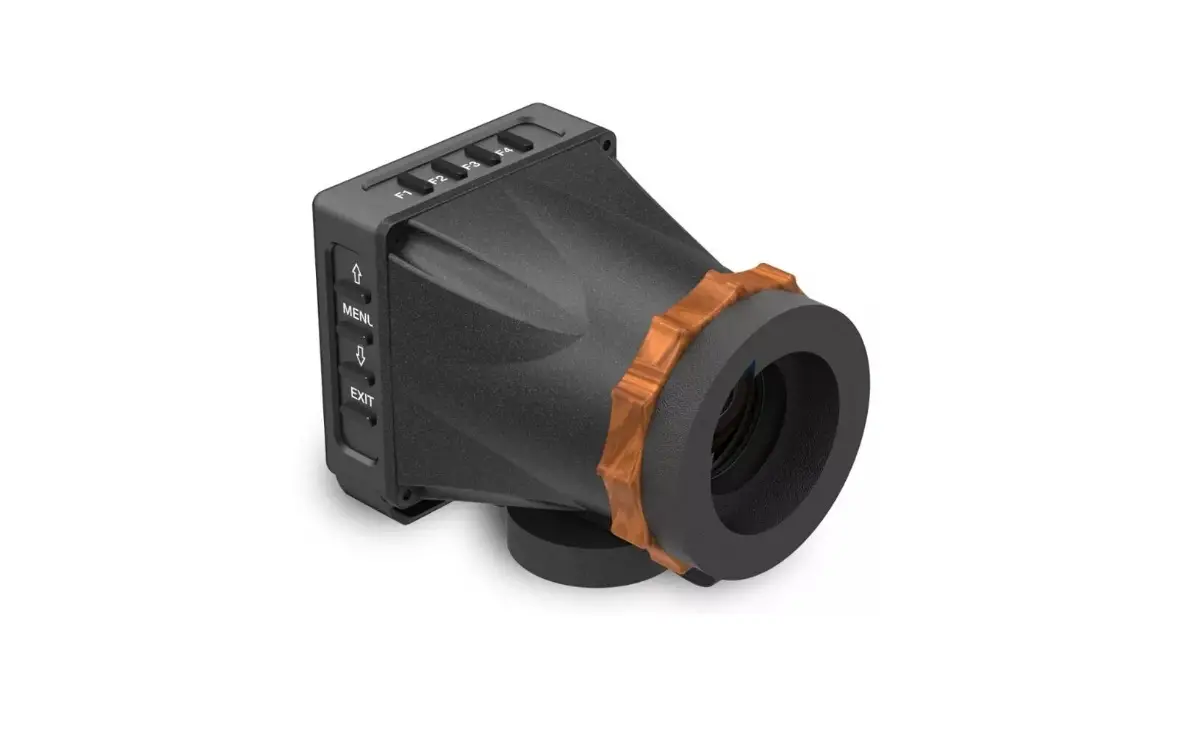
- Sun Shaded1
- HDMI A to D CableX 1
- Snail Mounts 1
- Sun Shade Rubber Cover L X1
- User ManuaXl 1
- Sun Shade Rubber Cover R X1
Parameters
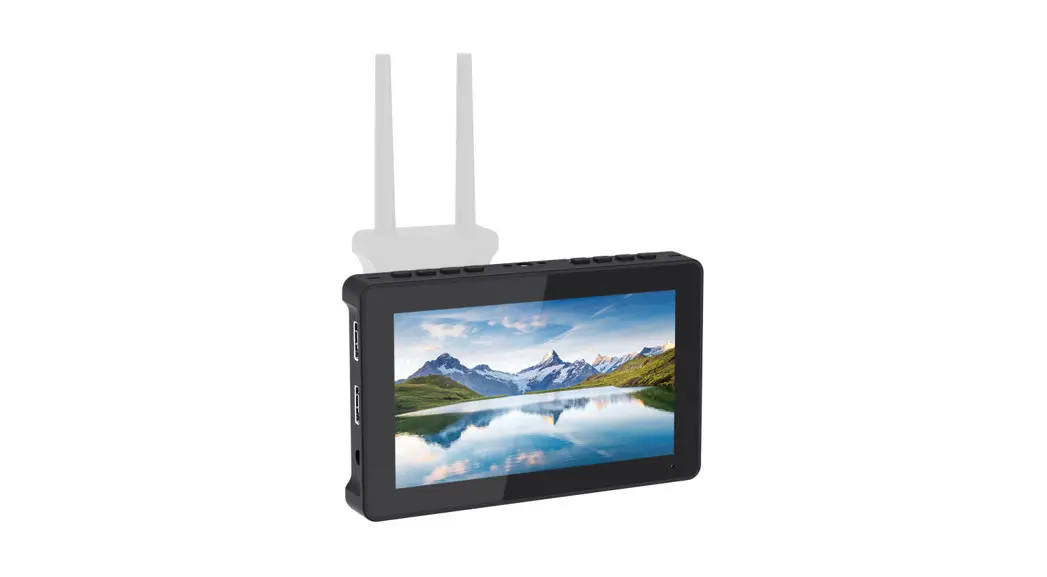
- Size: 5″
- Dimension: 136x72x17mm
- Viewing Angle: 178°H/178°V
- Brightness: 500nit
- Resolution: 1920×1080
- Contrast Ratio: 1000:1
- Weight: 130g
- Color: 10bit(8+2FRC)
- Material: ABS Engineering Plastics
- Input Voltage: 5V-24V
- Max Power: 6W
Signal Specifications
Supported input and output resolution and frame rate
HDMI Signal
- 4096X 2160p@24Hz
- 3840X [email protected],24Hz,25Hz,29.97Hz,30Hz
- 1920X [email protected],24Hz,25Hz,29.97Hz,30Hz,
- 50Hz,59.94Hz,60H
- 1920X [email protected],24Hz,25Hz,29.97Hz,30Hz
- 1920X 1080i@50Hz,59.94Hz,60H
- 1280X 720p@50Hz,59.94Hz,60H
- 720X 576p@50Hz
- 720 x576i@50Hz
- 720 X480p@50Hz,59.94Hz,60Hz
- 720 x480i@50Hz,59.94Hz,60Hz
Function Setting Page Switch
Swipe on any page to adjust to the function setting page;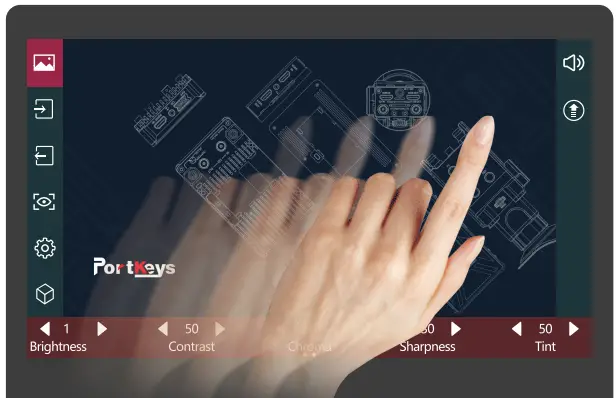
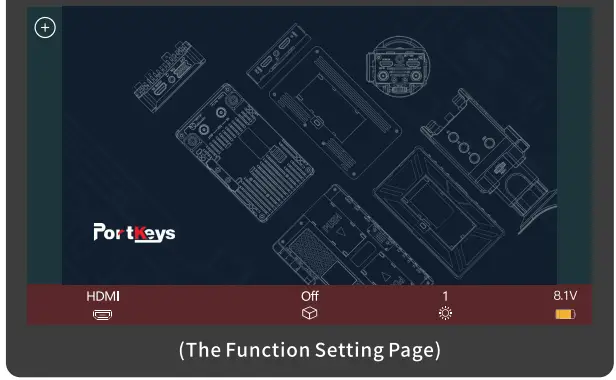
[Use of Shortcut Function]
- Add function icon;
- Switch HDMI/SDI signal;
- 3D LUT ON/OFF;
- Screen brightness (1-10);
- Battery level;

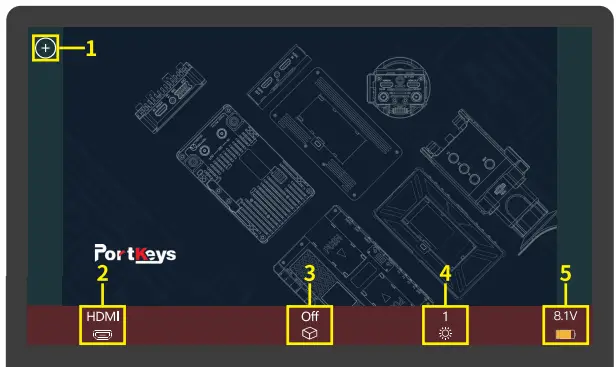
[Shortcut Function Settings]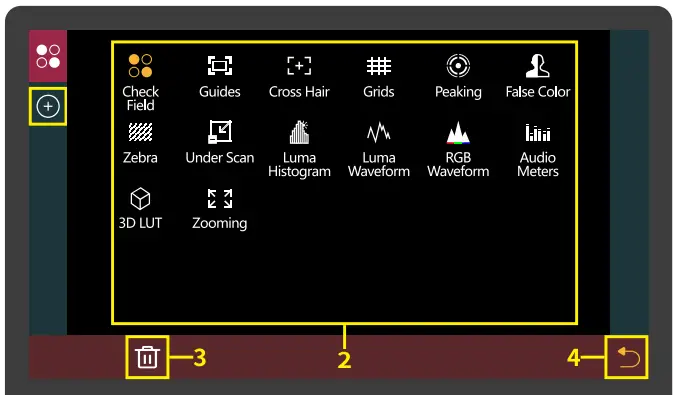
- Click ”
 “add shortcut functions to the left and right sides If the function icons on the left and right have been added (picture 1);can swipe down in the shortcut function title area to continue adding;
 - Select the function icon to replace;
- Select the function icon and click”
 “to delete;
 - ”
 “Return key;
 “add shortcut functions to the left and right sides If the function icons on the left and right have been added (picture 1);can swipe down in the shortcut function title area to continue adding;
 “to delete;
 “Return key;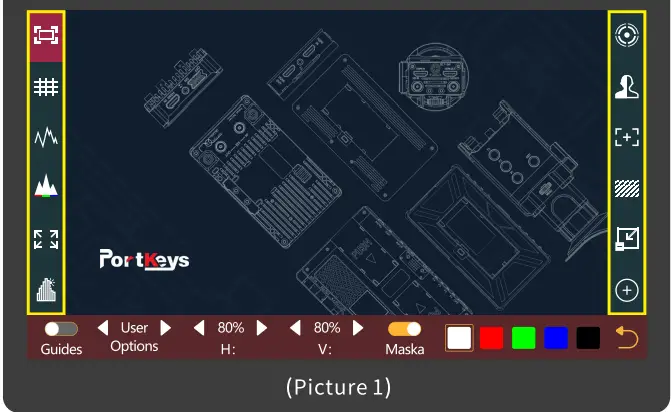
[Function Parameter Settings]
- Click”
 “, The parameter information setting is displayed at the bottom (Picture 2);
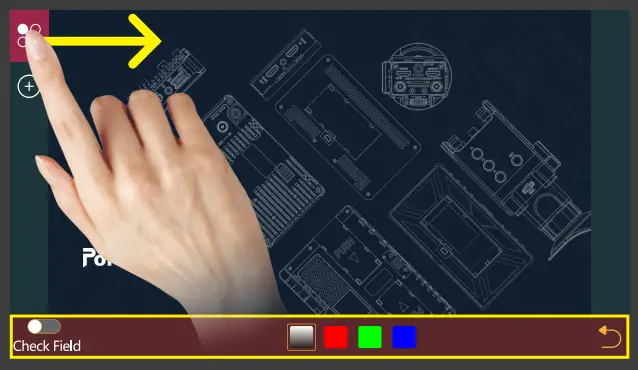
- Hold and slide to the right ,The bottom will jump to the function parameter settings;
For other functions, user can repeat the above operations or directly click to set parameter (Picture 3);
- Hold”
 “and slide to the left, The bottom will jump to the function parameter settings;
For other functions, you can repeat the above operations or directly click to set parameters (Picture 4);
 “, The parameter information setting is displayed at the bottom (Picture 2);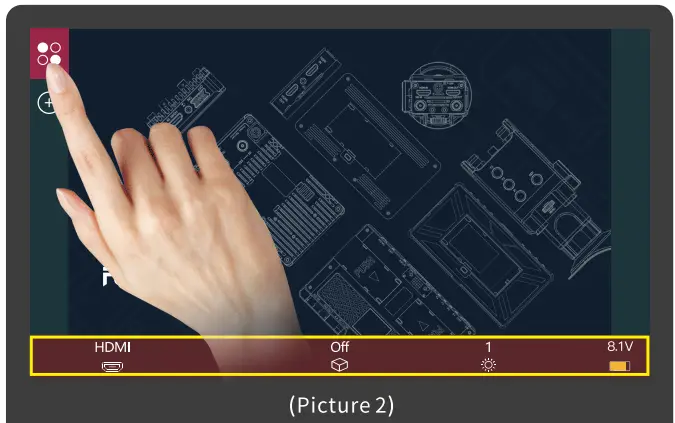
 “and slide to the left, The bottom will jump to the function parameter settings;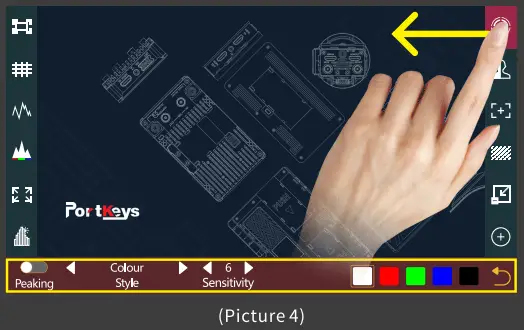
[Long press the icon to change the function or delete the function]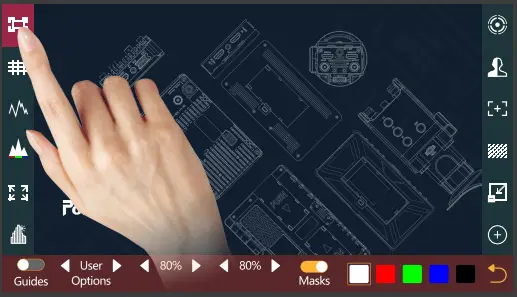
If this feature is not required ,Long press”  “to jump to (Picture 5) for function replacement/deletion;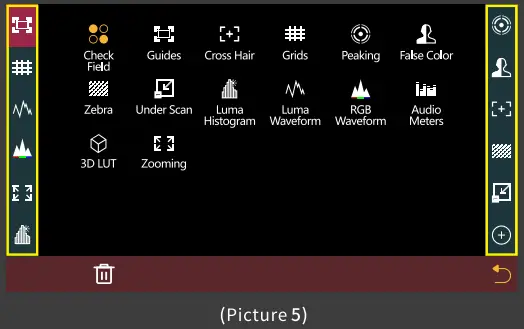
[System settings page switch]
Swipe left on any page to adjust to the system settings page;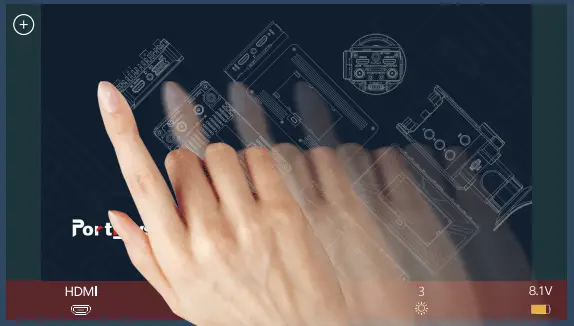
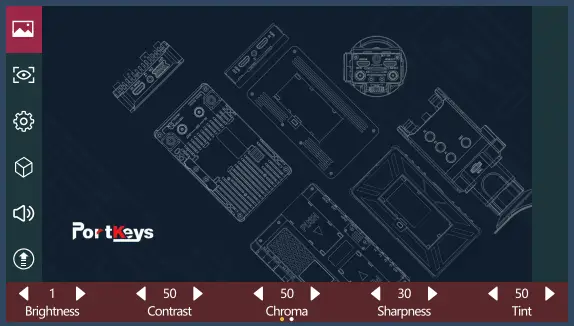
[Image Settings]
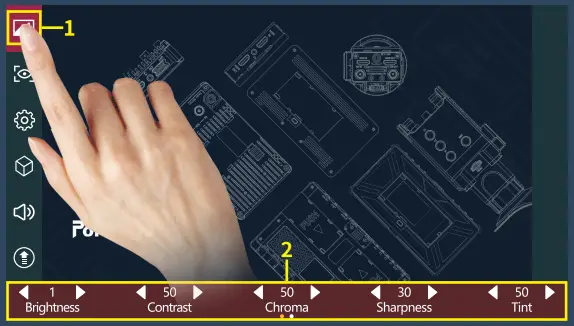
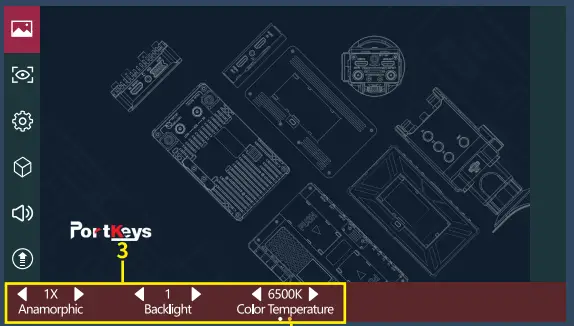
- Click ”
 “
“ - Parameter setting information;
- Parameter setting information(Next page );
- Display the number of the page of Image parameter setting; Swipe left and right in the bottom information area to switch pages;
 “
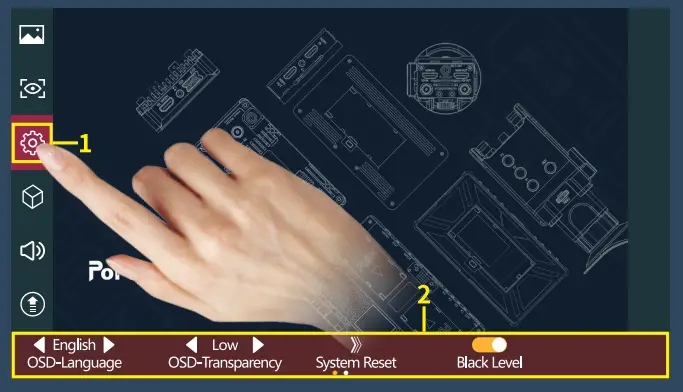
“[System Setting]
- Click “
 “
“ - System parameter setting information;

 “
“
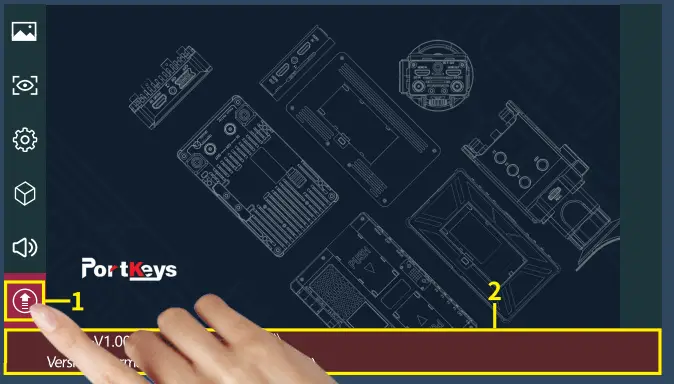
[Version Setting]
- Click”
 “
“ - View version information and upgrades;

 “
“
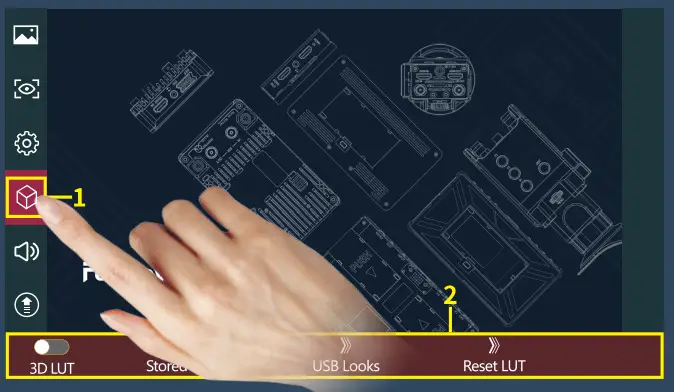
[LUT Setting]
- Click”
 “
“ - LUT setting information;

 “
“
Customer Support
Company Address: 1406 14th Floor Block D Building 3
Phase I Tianan yungu Longgang District
ShenZhen China
Factory Address: No.2nd Floor Building A Jingjiang
Industrial Park NO.101 Shangwei Road
Longhua District Shenzhen China
Services Hotline: 400-8090-896
Email: sales@:pkscorp.com
Website: www.portkeys.com