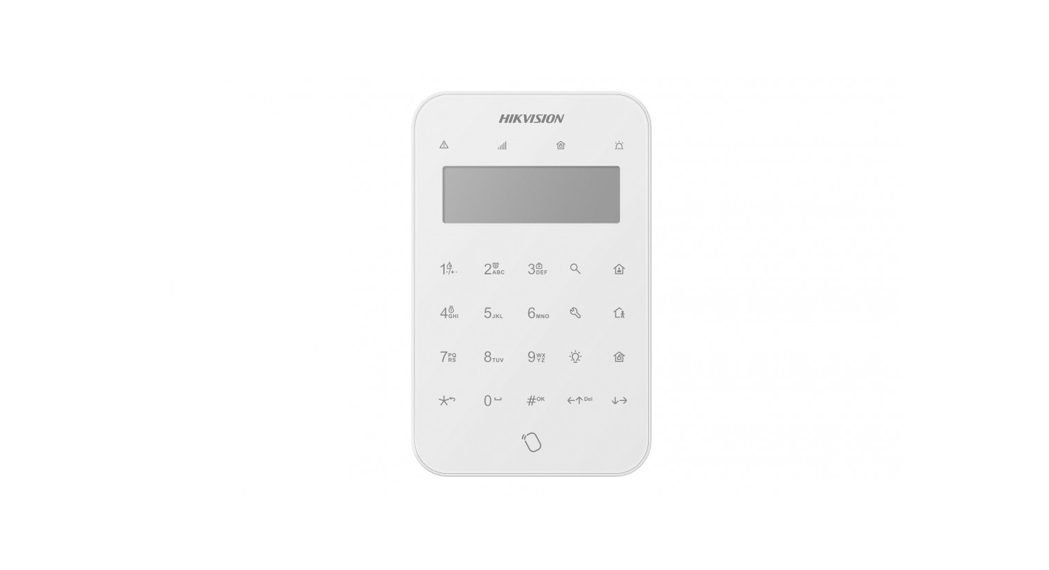
PRT-KLCS Protege Touch Sense LCD Keypad
PRT-KLCS
Protege Touch Sense LCD Keypad User Manual
The specifications and descriptions of products and services contained in this document were correct at the time of printing. Integrated Control Technology Limited reserves the right to change specifications or withdraw products without notice. No part of this document may be reproduced, photocopied, or transmitted in any form or by any means (electronic or mechanical), for any purpose, without the express written permission of Integrated Control Technology Limited. Designed and manufactured by Integrated Control Technology Limited, Protege® and the Protege® Logo are registered trademarks of Integrated Control Technology Limited. All other brand or product names are trademarks or registered trademarks of their respective holders.
Copyright © Integrated Control Technology Limited 2003-2022. All rights reserved.
Last Published: 05-Apr-22 4:55 PM
PRT-KLCS | Protege Touch Sense LCD Keypad | User Manual
2
Contents
Introduction
5
Operation
6
Status Indicators
6
Audible Feedback
7
Keypad Functions
8
Logging in to the Keypad
8
Single Credential Login
8
Dual Credential Login
9
Logging Out
9
Menu Structure
9
Expired PIN
10
Changing Your PIN
11
Arming / Disarming
12
Delay Times
12
Arming an Area
12
Disarming an Area
13
Silencing and Canceling Alarms
14
Bypassing Inputs in an Area
14
Stay Arming an Area
15
Instant Stay Arming an Area
15
Force Arming an Area
16
Instant Force Arming an Area
16
Defer Arming an Area
17
Arming / Disarming Area Groups
18
Trouble Display
19
Alarm Memory
20
Events
21
Additional Features
22
Offline Menu Access
22
Unlocking a Door
23
Panic Alarms
23
Fire Alarms
23
Disabling / Enabling the Audible Output
23
User Management
24
PRT-KLCS | Protege Touch Sense LCD Keypad | User Manual
3
Navigation
24
Adding a User
24
Modifying a User
27
General Options
29
Advanced Options
29
Deleting a User
30
Disclaimer and Warranty
31
PRT-KLCS | Protege Touch Sense LCD Keypad | User Manual
4
Introduction
Protege keypads provide a sleek, user friendly interface to the Protege System, allowing you complete control of your security and access control system. Before using your keypad we highly recommend you read this manual carefully and have your security professional or property manager explain basic system operation to you. For more information visit the ICT website or ask your system administrator.
PRT-KLCS | Protege Touch Sense LCD Keypad | User Manual
5
Operation
The following section provides you with the information needed to familiarize yourself with the keypad before carrying out basic operations.
Status Indicators
The keypad features three status indicator lights showing the condition of the Protege system.
Power Indicator
Armed / Alarm Indicator
Disarmed Indicator
Power Indicator
When the power indicator on, the system is powered and operating normally. If there is a complete power failure this indicator will be off.
Armed / Alarm Indicator
When the armed/alarm indicator is flashing the system is in alarm and you need to enter your user code to silence the alarm. When on, the system is armed.
This indicator is programmable and may not function as described here. Verify the operation with your installation company or security professional.
Disarmed Indicator
When the disarmed indicator is on the system is disarmed. Alternatively, when the disarmed indicator is on the system may be ready to arm (all inputs are secure). Enter your user code to arm.
This indicator is programmable and may not function as described here. Verify the operation with your installation company or security professional.
PRT-KLCS | Protege Touch Sense LCD Keypad | User Manual
6
Confidentiality Mode
Keypads include a confidentiality mode where all lights (Power, Disarm, Arm and LCD backlight) will turn off when the keypad is not in use. Confidentiality mode may be enabled by your installer.
Audible Feedback
When a key is pressed, a short audible tone is generated. Other tones are generated when certain functions are performed.
Confirmation Tone
When an operation has been successfully completed, the keypad generates a sequence of four audible tones.
Rejection Tone
When the system times out or when an operation is incorrectly entered, they keypad generates an audible tone for three seconds.
If required, audible tones can be silenced by pressing and holding the [CLEAR] key for 3 seconds. This option must be enabled by your security professional or system administrator.
PRT-KLCS | Protege Touch Sense LCD Keypad | User Manual
7
Keypad Functions
Key Function
0-9
The primary function of the numeric keys is to enter user codes. When controlling devices the [1] key turns the device on, the [2] turns the device off, and in the on state the [3] key latches the device.
The [ARM] key is used to start the arming process for an area.
The [DISARM] key is used to silence alarms, disarm the area, and cancel an arming sequence.
The [MENU] key is used to access the menu and can be followed by menu shortcut selection key(s) that represent a menu item. When the [MENU] key is held for 2 seconds, the keypad will recognize it as the [FUNCTION] key, which can be programmed to unlock a door.
The [STAY] key is used to initiate the stay arming process for an area.
The [FORCE] key is used to force arm an area.
The [MEMORY] key will take a user directly to the memory view menu.
The [BYPASS] key can be pressed when an area is breached during an arming process to bypass the displayed input.
The [CLEAR] key will log off the user currently logged in to the keypad. When pressed while not logged in the display will be refreshed.
The [ENTER] key is used to confirm an action on the keypad, acknowledge memory and alarm information, and move to the next programming screen.
ARROW The arrow keys are used to scroll the menu, move the focus of a program window to the next screen, KEYS and move the cursor when programming or editing values.
Logging in to the Keypad
When logging in to a keypad, the exact process, messages displayed and menus accessible will depend upon your site and user configuration. Discuss with your installer which options have been configured for your site.
Single Credential Login
1. To log in, enter your PIN code and press [ENTER]. Once a valid PIN is entered you will be presented with a welcome screen, area status or available menu.
PRT-KLCS | Protege Touch Sense LCD Keypad | User Manual
8
Dual Credential Login
1. To log in using dual credential authentication, enter your User ID credential code and press [ENTER]. 2. When prompted, enter your PIN code and press [ENTER]. Once a valid PIN is entered you will be presented with a welcome screen, area status or available menu.
If the Lock Keypad On Excess Attempts option has been enabled on your system, entering an invalid login three times will lock the keypad for a short period, preventing further login attempts by any user. The lockout time is defined under the keypad programming.
Logging Out
You are automatically logged out after a short period of inactivity, or if the [CLEAR] key is pressed while you are logged in.
The period of inactivity is defined by the Time User is Logged In setting under the keypad programming. If no key presses are detected during this time, you will be logged out automatically and will need to log in again before you can proceed.
Menu Structure
A user’s access level will determine what they can see and do at the keypad. Menu options can be accessed only if they have been assigned to the menu group in the user’s programmed access level.
The menu options available from a keypad are explained in the table below.
1. Arm/Disarm 2. User
Area control Change user PIN/User management
3. Events 4. Install
Review event log information Installer functions
5. View 7. Bypass
System view and control Bypass inputs and view bypassed status
Associated menu functions and submenus are outlined in the topics that follow.
PRT-KLCS | Protege Touch Sense LCD Keypad | User Manual
9
Expired PIN
For sites that have PIN expiry enabled, the keypad will prompt users to change their PIN: on the next login after a PIN is added or edited in the user interface. whenever the expiry period is reached. The user will not be able to log in until their PIN is updated. The new PIN must adhere to the PIN requirements configured in the Site Security Enhancement settings. There may be limitations on the PIN length, number of repeated digits and/or number of sequential digits.
1. Log in to the keypad. The keypad will advise that your PIN has expired.
PIN has expired! Please change.
Enter new PIN code:********
2. Enter your new PIN code, remembering that it must adhere to the PIN requirements configured for your site. – If your new PIN does not meet the minimum requirements, you will be prompted to try again.
Policy check fail. Try again.
– If your new PIN meets the requirements, you will be prompted to re-enter your new PIN to confirm.
Re-enter new PIN code: ********
– If your re-entered new PIN does not match your original entry, you will be prompted to enter it again.
Invalid ! Please re-enter
3. When your valid PIN has been successfully re-entered it will be verified and saved.
Verified Saving changes.
PRT-KLCS | Protege Touch Sense LCD Keypad | User Manual
10
Changing Your PIN
A user can voluntarily change their PIN via a keypad at any time. The new PIN must adhere to the PIN requirements configured in the Site Security Enhancement settings. There may be limitations on the PIN length, number of repeated digits and/or number of sequential digits.
1. Log in and press [MENU] to open the main menu. 2. Use the arrow keys or press [2] to navigate to the User menu.
*User Menu* 1. Edit PIN
The Edit PIN option is not available when the User Can Edit User Settings From Keypad option is enabled. 3. Press [1] or [ENTER] to begin the process for changing your PIN.
Enter new PIN Code: ********
4. Enter your new PIN code, remembering that it must adhere to the PIN requirements configured for your site. – If your new PIN does not meet the minimum requirements, you will be prompted to try again.
Policy check fail. Try again.
– If your new PIN meets the requirements, you will be prompted to re-enter your new PIN to confirm.
Re-enter new PIN code: ********
– If your re-entered new PIN does not match your original entry, you will be prompted to enter it again.
Invalid ! Please re-enter
5. When your valid PIN has been successfully re-entered it will be verified and saved.
Verified Saving changes.
PRT-KLCS | Protege Touch Sense LCD Keypad | User Manual
11
Arming / Disarming
To take full advantage of your Protege keypad, we recommend that you familiarize yourself with the different arming methods.
Delay Times
Entry Delay
The entry delay time for the area allows you time to disarm the area before the area generates an alarm.
Exit Delay
The exit delay time for the area allows you to exit the area once the arming of the area has begun, without triggering an alarm. When an area is in exit delay, you should leave the area. The configuration of the exit and entry delay beepers is determined by your installation. Please verify the operation with your security professional or property manager.
Arming an Area
1. To arm an area, navigate to [MENU, 1] on your keypad. If you have access to more than one area, you can scroll through the list using the [UP] and [DOWN] keys.
Warehouse is DISARMED
2. When the appropriate area has been found, press [ARM] to enable the inputs in the area.
Warehouse Enabling input(s)
3. The system then checks that the inputs closed and are ready to be armed.
Warehouse Checking input(s)
4. If all the inputs are ready, the area goes into exit delay.
Warehouse in EXIT delay
5. Once the exit delay time has elapsed, the area is armed.
Warehouse Arm complete
PRT-KLCS | Protege Touch Sense LCD Keypad | User Manual
12
Disarming an Area
1. Select [MENU, 1], and find the area you want to disarm.
Warehouse is ARMED
2. If an entry input is triggered, the area will go into entry delay.
Warehouse in ENTRY delay
3. Press [DISARM].
Warehouse is DISARMING
4. When the area is disarmed, you can enter.
Warehouse is DISARMED
PRT-KLCS | Protege Touch Sense LCD Keypad | User Manual
13
Silencing and Canceling Alarms
When an area is in alarm, it can be silenced. 1. View the area that is in alarm.
Warehouse in ALARM
2. Press [DISARM].
Warehouse is DISARMING
3. When the area is disarmed, the alarm stops.
Warehouse is DISARMED
Bypassing Inputs in an Area
Bypassing allows you to program the alarm system to ignore certain inputs the next time the area is arming or until the bypass is disabled. For example, you may wish to bypass certain inputs when workers are renovating part of a building The bypass settings of an input are removed when all the areas the input is assigned to are disarmed. If the bypass is a latched bypass, the bypass settings remain until removed manually.
1. Select the Bypass Inputs menu by pressing [MENU,7,1]. 2. Press the [RIGHT] key to search for an input using the input reference (for example, 000008). 3. Use the [UP] key to scroll to the next input.
Warehouse PIR is not BYPASSED
4. Press [1] to bypass the input, press [3] to latch bypass the input, and press [2] to remove the bypass setting.
Warehouse PIR is BYPASSED
PRT-KLCS | Protege Touch Sense LCD Keypad | User Manual
14
Stay Arming an Area
Stay arming is an option that must be enabled by your installer. This method of arming allows you to remain in the area while it’s partially armed. Stay areas are inputs that are bypassed when the system is stay armed. For example, if you are working late and the stay option is enabled, you can arm a portion of the building to protect the windows and doors without arming other inputs. 1. From the Arm/Disarm menu you will be shown the area(s) associated with the keypad and its current status.
Select the area you want to stay arm.
Office is DISARMED
2. Press [STAY] to enable the normal inputs in the area and bypass the stay areas.
Office Enabling input(s)
3. The system then checks the inputs in the area are closed.
Office Checking input(s)
4. If all the inputs are closed, the arming process completes.
Office Arm complete
5. The area then goes into exit delay.
Office in EXIT delay
6. Once the exit delay time has elapsed, the area is stay armed.
Office is STAY
Instant Stay Arming an Area
Instant stay arming is an option that must be enabled by your installer. Instant stay arming reduces the exit delay to 1 second, and inputs which normally initiate the entry delay will instead set off the alarm immediately (i.e. all inputs are treated as ‘instant’). This is commonly used at night while residents are in bed, so that any intruder entering the building will set off the alarm immediately. To instant stay arm the area, hold down the [STAY] key for 2 seconds, or press the [STAY] key a second time while the area is in exit delay.
PRT-KLCS | Protege Touch Sense LCD Keypad | User Manual
15
Force Arming an Area
Force arming is an option that must be enabled by your installer. Force arming allows you to arm the system without waiting for all the inputs in the system to close. Force arming is commonly used when a motion detector is protecting an area that is occupied by a keypad. For example, if the motion detector has been programmed as a force input, the system will allow you to arm even if the input is open. 1. From the Arm/Disarm menu you will be shown the area(s) associated with the keypad and its current status.
Select the area you want to force arm.
Office is DISARMED
2. Press [FORCE] to enable the inputs in the area.
Office Enabling input(s)
3. The system then checks the inputs in the area are closed, automatically skipping any open inputs that can be force armed.
Office Checking input(s)
4. If all the inputs are closed, the arming process completes.
Office Arm complete
5. Once the inputs have been armed, the area goes into exit delay.
Office in EXIT delay
6. Once the exit delay time has elapsed, the area is force armed.
Office is FORCE ARMED
Instant Force Arming an Area
Instant force arming is an option that must be enabled by your installer. Instant force arming reduces the exit delay to 1 second, and inputs which normally initiate the entry delay will instead set off the alarm immediately (i.e. all inputs are treated as ‘instant’) To instant force arm the area, hold down the [FORCE] key for 2 seconds, or press the [FORCE] key a second time while the area is in exit delay.
PRT-KLCS | Protege Touch Sense LCD Keypad | User Manual
16
Defer Arming an Area
Defer arming is an option that must be enabled by your installer. Defer arming allows you to delay the normal automatic arming of an area for a specified time period. Depending on your system configuration, a fixed defer time may be configured that will always be applied when arming is deferred, or the keypad may prompt you to enter your desired defer time on each occasion. If this feature is enabled you will have the option to interrupt the arming process at the keypad and enter the number of hours you would like to defer the area arming for. The minimum time that arming can be deferred from the keypad is 1 hour and the maximum is 9 hours. Arming can only be deferred in whole hours.
1. When the area is about to arm automatically the keypad will beep once and display:
*WARNING* System is about to ARM!
If left uninterrupted, the arming process will complete as normal after the configured defer warning time. 2. To defer arming, log in to the keypad. The keypad will display:
Office is ABOUT TO ARM
3. Press the [DISARM] key. – If you have an access level that allows disarming of the area, and a fixed defer time has been configured, arming will be deferred and the keypad will display:
Office is DISARMED
– If you have an access level that allows disarming of the area, and your system has been configured to allow user entry of defer time at the keypad, the keypad will display:
Enter defer arm time (hours): 1
Press any numeric key from [1] to [9] to select the number of hours to defer arming for. Then press [ENTER]. Arming will be deferred and the keypad will display:
Office is DISARMED
The area will automatically re-enter the arming process after the defer arm time has elapsed. Each time the arming process begins again you will have the opportunity to defer arming.
PRT-KLCS | Protege Touch Sense LCD Keypad | User Manual
17
Arming / Disarming Area Groups
Area group control is an option that must be enabled by your installer. If you have sufficient access, it is possible to arm or disarm all of the areas on the keypad at the same time. 1. Select [MENU, 1] to view the Arm/Disarm menu. 2. Press the [RIGHT] key to view the area group controls.
Press [Arm] or [Disarm] to control group All Areas
3. Press [ARM], [DISARM], [STAY] or [FORCE] to control every area in the group. 4. If the command succeeds, you will see a success message and return to the Arm/Disarm menu.
Area group is Disarming
Area group commands will only succeed if it is possible to control every area in the group. For example, if one area has an open input that prevents arming, none of the areas will be armed.
PRT-KLCS | Protege Touch Sense LCD Keypad | User Manual
18
Trouble Display
The Protege system continually monitors system devices and trouble conditions. Trouble conditions are cleared automatically by the system. If required, these can be programmed by your installer to require acknowledgment. It is recommended that you inform your property manager or security company immediately if a trouble condition occurs.
Viewing System Troubles
1. Select the trouble view menu by pressing [MENU, 5, 2]. 2. Press the [ENTER] key to view any trouble conditions that have occurred.
*Battery* The system or a
3. Use the [RIGHT] and [LEFT] keys to view the full details of the trouble condition and the action that should be taken. In this example, the full trouble message shown is “The system or a component of it has a battery problem. Call service tech.”
4. If the trouble requires acknowledgment, press [ENTER].
Press [ENTER] to acknowledge
5. To view the next trouble condition (if any are present) press [DOWN].
Press [â] to show next item
6. Once finished, press [MENU] to exit the view mode.
Press [MENU] to exit view mode
PRT-KLCS | Protege Touch Sense LCD Keypad | User Manual
19
Alarm Memory
Alarms can be stored in the event log and in the alarm memory of the area the alarm was activated in. This option must be enabled by your installer.
Viewing Alarm Memory
1. Select the Alarm Memory menu by pressing [MENU, 5, 1]. Use the [UP] and [DOWN] keys to view the areas. If the area has alarms in its memory, the keypad generates a rejection tone and displays the memory message.
Warehouse *Alarms In Mem*
2. To view the first item stored in the alarm memory press the [ENTER] key.
Had alarm on Roller Door
3. The area that the alarm occurred in is then shown. If a tamper alarm has occurred, the first line states that it was a 24HR alarm.
in AREA Warehouse
4. If the Acknowledge Alarm Memory option has been enabled by your installer, press the [ENTER] key to acknowledge the alarm and remove it from the list. We recommend you always take note of the alarm before acknowledging or clearing the alarm memory.
Press [ENTER] to acknowledge
5. Press the [DOWN] key to view the next item stored in the alarm memory.
Press [â] to show next item
6. Once finished, press the [MENU] key to exit the view mode.
Press [MENU] to exit view mode
PRT-KLCS | Protege Touch Sense LCD Keypad | User Manual
20
Events
Events are logged for all actions that are performed on the Protege system and can be viewed from the keypad. Events are presented in plain text.
To manage your system effectively and receive detailed, exception and custom reports direct to your desktop, ask your security professional about Protege software.
Viewing Events
1. Select the Review menu by pressing [MENU, 3, 1]. 2. Press the [UP] key to view the previous event, and press the [DOWN] key to view the next event.
Wed 13:27:41 Use r OFFLINE USER L
3. The keypad shows the first 32 characters of the event. Press the [RIGHT] key to show the following lines for the event. In this example, the full event shown is “Wed 13:27:41 User OFFLINE USER Logged In At KP039” which tells us that offline menu access was made on Keypad 39 at 1:27pm on Wednesday.
PRT-KLCS | Protege Touch Sense LCD Keypad | User Manual
21
Additional Features
The keypad supports additional features that can enhance the management of your installation.
The following features need to be enabled by your installer before they can be used.
Offline Menu Access
Offline menu options provide access to certain functions without needing to log in to the keypad. Pressing the [MENU] key while logged out displays the offline menu.
Automation Menu
1. To control automation points press [MENU, 1].
Warehouse Lights is OFF4
2. Use the [UP] and [DOWN] keys to select the automation point you want to control. 3. Press the [1] key to turn the point on for the period defined by your installer, the [2] key to turn the point off,
or the [3] key to latch the point on.
Trouble View
To view troubles from the offline menu press [MENU, 2].
Event View
To view events from the offline menu, press [MENU, 3].
Information Menu
To view system information, press [MENU, 4]. Use the [UP] and [DOWN] keys to scroll through the following information:
BIOS Application version number BOOT Application version number Database version Controller serial number Memory capacity
The letter indicates the location of the memory that is in use. This will be blank or I for internal, and E for extended. The current time The current date The current day of the week
PRT-KLCS | Protege Touch Sense LCD Keypad | User Manual
22
Unlocking a Door
The [FUNCTION] can be used to unlock a specific door from the keypad. Depending on your installation, you may be able to do this without logging in to the keypad, or you may be required to enter your PIN, and then press the [FUNCTION] key.
Panic Alarms
The Protege system provides a panic alarm that is immediately generated after two specific buttons are pressed and held for three seconds. Based on your needs, the panic alarm may generate audible alarms (sirens or bells) or silent alarms, and communicate specific messages to your monitoring station or property manager.
Press and hold [1] and [3] for the panic alarm.
Fire Alarms
When a fire alarm occurs, the keypad emits three audible tones at 2 second intervals until it is reset by entering a valid user code. If the input is a delay fire input, there is a 30 second delay before the system contacts the security company or property manager, preventing the reporting of false alarms. If there is no fire condition, we recommend you contact your property manager or security company immediately to avoid an unnecessary response. A delayed fire input is automatically canceled if the smoke detector is reset within 30 seconds. Pressing any key on the keypad during the first 30 seconds will silence the alarm for 90 seconds.
Disabling / Enabling the Audible Output
Disabling the audible tone on your keypad will prevent the beeper from generating any notifications for alarms, exit delay, or entry delay. This also disables rejection, confirmation and key press tones.
Disabling the Audible Output
1. To disable the audible output, press and hold [CLEAR]. 2. The keypad will generate one long audible tone (rejection tone) to signify that the audible output has been
disabled.
Enabling the Audible Output
1. To enable the audible output, press and hold [CLEAR]. 2. The keypad will generate four audible tones to indicate that the audible output has been enabled.
PRT-KLCS | Protege Touch Sense LCD Keypad | User Manual
23
User Management
The user management functionality is supported by all Protege keypads that are connected to a Protege WX system. It is currently not supported by Protege GX. The keypad user management functionality provides a quick and convenient way to manage users on the fly, including adding new users to provide instant access, modifying incorrect user settings, and deleting user records to immediately withdraw access. User management is a feature that must be enabled by your installer.
Navigation
Some important navigation points to be aware of: When adding or modifying users, pressing the [ENTER] key will save changes and navigate to the next user
configuration submenu. When adding or modifying users, pressing the up and down keys will save changes and scroll to the next or
previous user record. With some keypad configurations the User Menu will not be displayed when scrolling through the Main Menu,
but as long as the user configuration is valid it can still be accessed by pressing [MENU, 2]. When user management is enabled a user is not able to edit their own PIN code on the keypad, except when prompted due to an expired PIN. This feature will generally be enabled for system administration users only.
Adding a User
New users can be added directly from a keypad. You can configure the full user details during this process, or you can add a user with default settings to quickly provide access, and update the details at the later stage. It is important to be aware of your site configuration requirements when adding new users, particularly with regard to dual credentials, available user IDs, PIN code requirements and expiry settings. When adding a user, be careful of pressing the up and down arrows, as this will save the current user details and move to the next / previous user record.
1. Log in and go to the Main Menu. 2. Use the arrow keys or press [2] to navigate to the User menu.
*User Menu* 1.Add User
3. Press [1] or [ENTER] to initiate the process for adding a new user.
Add new user: Proceed?
4. Press [ENTER] to proceed with adding a new user. A default user record is created and the keypad displays the Name submenu, with the new user’s database ID and default name.
UN00001 Name User 1
PRT-KLCS | Protege Touch Sense LCD Keypad | User Manual
24
– UN00001: The keypad displays the user’s database ID, always with five digits. In this example, ID 1. – Name: Indicates that this is the user name submenu. – User 1: The keypad displays the default name (User) along with the database ID. You can edit this now, or
press [ENTER] to accept the default name and continue. This can be updated later. – To edit the name, use the alphanumeric keys to type the first letter of the user’s name. – Use the right arrow to move along to the next letter, and repeat the process to enter the user’s name. – When the user’s First Name is complete, enter a space (0). The first space in the Name field identifies the
beginning of the Last Name. 5. Press [ENTER] to save the user name and continue. The keypad displays the User ID submenu.
Note: User ID is only available for sites that require dual credentials for keypad access.
UN00001 User ID No: 0000000000
– User ID: Indicates that this is the User ID submenu. – No: 0000000000: The User ID is zero until edited. It must be unique in the system. Duplicate User IDs are
not allowed. The ten digit length and leading zeros in the number must be maintained (for example, a user ID of 1 must be entered as 0000000001). Use the [0] or arrow keys to accept leading zeros, and enter the ID using the keypad keys. 6. Press [ENTER] to save the User ID and continue. The keypad displays the Facility Code submenu.
UN00001 Facility No: 0000000000
– Facility: Indicates that this is the card facility code for the new user’s first card record. – No: 0000000000: The card facility code is zero until edited. The ten digit length and leading zeros in the
number must be maintained (for example, a facility code of 1234 must be entered as 0000001234). Use the [0] or arrow keys to accept leading zeros, and enter the code using the keypad keys. 7. Press [ENTER] to save the facility code and continue. The keypad displays the Card number submenu.
UN00001 Card No: 0000000000
– Card: Indicates that this is the card number for the new user’s first card record. – No: 0000000000: The card number is zero until edited. The ten digit length and leading zeros in the
number must be maintained (for example, a card number of 10000 must be entered as 0000010000). Use the [0] or arrow keys to accept leading zeros, and enter the card number using the keypad keys. 8. Press [ENTER] to save the card number and continue. The keypad displays the Access Level submenu.
UN00001 Access1~ None
– Access1~: Indicates that this is the new user’s first access level record. – None: The access level is set to none until selected. Use the [1] key to scroll through the available access
levels. 9. Press [ENTER] to save the access level selection and continue. The keypad displays the Language submenu.
PRT-KLCS | Protege Touch Sense LCD Keypad | User Manual
25
UN00001 Language English
– Language: Indicates that this is the new user’s language selection. This refers to the language that is displayed when the user logs in to a keypad.
– English: The language defaults to English until altered. Use the [1] and [3] keys to scroll through the available language options.
10. Press [ENTER] to save the language selection and continue. The keypad displays the General Options submenu.
UN00001 Misc [1*******]
– Misc: Indicates that this is the General Options submenu. – [1*******]: The user’s general options are configured by toggling the eight available options via the
respective keypad numbers. Option 1 is enabled by default. Press [1] to disable. All other options are disabled by default. Press the corresponding key number to enable.
For number mapping, refer to the General Options section (see page 29).
11. Press [ENTER] to save the general options configuration and continue. The keypad displays the Advanced Options submenu.
UN00001 Special [********]
– Special: Indicates that this is the Advanced Options submenu. – [********]: The user’s advanced options are configured by toggling the eight available options via the
respective keypad numbers. All advanced options are disabled by default. Press the corresponding key number to enable.
For number mapping, refer to the Advanced Options section (see page 29).
12. Press [ENTER] to save the advanced options configuration. Configuration of the user is complete and the keypad returns to the User to modify screen.
User to modify: User 1
13. Press [ENTER] to modify the user or [CLEAR] to exit.
New users added from a keypad are assigned a default PIN of 1234. This should be changed as soon as the new user logs in. If dual credentials are not being used this PIN should be changed immediately to prevent users with duplicate PIN code logins.
PRT-KLCS | Protege Touch Sense LCD Keypad | User Manual
26
Modifying a User
The following user fields can be configured directly via a keypad:
Name. The text up to the first space detected will be assigned as the First Name. The remaining text will be assigned as the Last Name.
User ID. Only if Require Dual Credential for Keypad Access has been enabled for Security Enhancement. Facility Code for the first card record the user has assigned. Card Number for the first card record the user has assigned. The first Access Level assigned to the user. The user’s Default language displayed on a keypad. General Options (see page 29). Advanced Options (see page 29). To modify a user:
1. Log in and go to the Main Menu. 2. Use the arrow keys or press [2] to navigate to the User Menu.
*User Menu* 1.Add User
3. Use the up arrow key to navigate to the Modify User submenu and press [ENTER], or simply press [2], to initiate the process for modifying a user.
*User Menu* 2.Modify User
The keypad displays the User to modify selection screen, and lists the first user (lowest database ID).
User to modify: Jane Smith
4. Use the up arrow to scroll to the next user (database ID) or the down arrow to scroll to the most recent user (highest database ID). Continue until you find the user to modify, then press [ENTER] to select the user.
UN00001 Name User 1
– UN00001: The keypad displays the user’s database ID, always with five digits. In this example, ID 1. – Name: Indicates that this is the user name submenu. – User 1: The keypad displays the current user name. – To edit the name, use the alphanumeric keys to type the first letter of the user’s name. – Use the right arrow to move along to the next letter, and repeat the process to enter the user’s name. – When the user’s First Name is complete, enter a space (0). The first space in the Name field identifies the
beginning of the Last Name. 5. Press [ENTER] to save the user name and continue. The keypad displays the User ID submenu.
Note: User ID is only available for sites that require dual credentials for keypad access.
PRT-KLCS | Protege Touch Sense LCD Keypad | User Manual
27
UN00001 User ID No: 0000000000
– User ID: Indicates that this is the User ID submenu. – No: 0000000000: The User ID can be edited as required. It must be unique in the system. Duplicate User
IDs are not allowed. The ten digit length and leading zeros in the number must be maintained (for example, a user ID of 1 must be entered as 0000000001). Use the [0] or arrow keys to accept leading zeros, and enter the ID using the keypad keys. 6. Press [ENTER] to save the User ID and continue. The keypad displays the Facility Code submenu.
UN00001 Facility No: 0000000000
– Facility: Indicates that this is the card facility code for the user’s first card record is displayed. – No: 0000000000: The card facility code can be edited as required. The ten digit length and leading zeros
in the number must be maintained (for example, a facility code of 1234 must be entered as 0000001234). Use the [0] or arrow keys to accept leading zeros, and enter the code using the keypad keys. 7. Press [ENTER] to save the facility code and continue. The keypad displays the Card number submenu.
UN00001 Card No: 0000000000
– Card: Indicates that this is the card number for the user’s first card record. – No: 0000000000: The card number can be edited as required. The ten digit length and leading zeros in
the number must be maintained (for example, a card number of 10000 must be entered as 0000010000). Use the [0] or arrow keys to accept leading zeros, and enter the card number using the keypad keys. 8. Press [ENTER] to save the card number and continue. The keypad displays the Access Level submenu.
UN00001 Access1~ None
– Access1~: Indicates that this is the user’s first access level record. – None: The access level can be changed as required. Use the [1] key to scroll through the available access
levels. 9. Press [ENTER] to save the access level selection and continue. The keypad displays the Language
configuration.
UN00001 Language English
– Language: Indicates that this is the new user’s language selection. This refers to the language that is displayed when the user logs in to a keypad.
– English: The language can be changed as required. Use the [1] and [3] keys to scroll through the available language selections.
10. Press [ENTER] to save the language selection and continue. The keypad displays the General Options submenu.
UN00001 Misc [1*******]
PRT-KLCS | Protege Touch Sense LCD Keypad | User Manual
28
– Misc: Indicates that this is the user’s General Options configuration. – [1*******]: The user’s general options are configured by toggling the eight available options via the
respective keypad numbers. Press the corresponding key number to enable or disable each option. For number mapping, refer to the General Options section (see below).
11. Press [ENTER] to save the general options configuration and continue. The keypad displays the Advanced Options submenu.
UN00001 Special [********]
– Special: Indicates that this is the user’s Advanced Options configuration. – [********]: The user’s advanced options are configured by toggling the eight available options via the
respective keypad numbers. Press the corresponding key number to enable or disable each option. For number mapping, refer to the Advanced Options section (see below).
12. Press [ENTER] to save the advanced options configuration. Configuration of the user is complete and the keypad returns to the User to modify screen.
User to modify: User 1
13. Press [CLEAR] to exit. You can also use the up and down arrows to scroll to a different user to modify.
General Options
The keypad’s Misc submenu allows configuration of the General Options found in the user Options tab in Protege GX or Protege WX. The options listed below are mapped directly to the numbers on the keypad. Press the corresponding keypad number to enable or disable the respective user option. When an option is enabled its corresponding number is displayed on the menu. When the option is disabled an asterisk is displayed in its position.
1. Show A Greeting Message To User 2. Go Directly To The Menu On Login 3. User Can Acknowledge Alarm Memory 4. Show Alarm Memory On Login 5. Turn Off The Primary Area If User Has Access On Login 6. Turn Off The User Area On Login If User Has Access 7. Acknowledge System Troubles 8. Not configurable
Advanced Options
The keypad’s Special submenu allows configuration of the Advanced Options found in the user Options tab in Protege GX or Protege WX.
1. Not Configurable 2. Not Configurable 3. User Has Super Rights And Can Override Antipassback
PRT-KLCS | Protege Touch Sense LCD Keypad | User Manual
29
4. User Can Edit User Settings from keypad 5. User Operates Extended Door Access Function 6. User Loiter Expiry Count Enabled 7. Not Configurable 8. User Is A Duress User
Deleting a User
A user can be deleted from the system via a keypad. Be aware that there is no ‘undo’ option for this function.
1. Log in and go to the Main Menu. 2. Use the arrow keys or press [2] to navigate to the User menu.
*User Menu* 1. Add User
3. Use the up arrow key to navigate to the Delete User submenu and press [ENTER], or simply press [3], to initiate the process for deleting a user.
*User Menu* 3. Delete User
The keypad displays the User to delete selection screen, and lists the first user (lowest database ID).
User to delete: Jane Smith
4. Use the up arrow to scroll to the next user (next database ID) or the down arrow to scroll to the most recent user (highest database ID). Continue until you find the user to delete, then press [ENTER] to select the user.
Delete user? <User Name>
5. Press [ENTER] again to confirm deletion of the selected user. 6. The user will be immediately deleted from your Protege system. The keypad will return to the Main Menu.
PRT-KLCS | Protege Touch Sense LCD Keypad | User Manual
30
Disclaimer and Warranty
Disclaimer: Whilst every effort has been made to ensure accuracy in the representation of this product, neither Integrated Control Technology Ltd nor its employees shall be liable under any circumstances to any party in respect of decisions or actions they may make as a result of using this information. In accordance with the ICT policy of enhanced development, design and specifications are subject to change without notice. For warranty information, see our Standard Product Warranty.
PRT-KLCS | Protege Touch Sense LCD Keypad | User Manual
31
Designers & manufacturers of integrated electronic access control, security and automation products. Designed & manufactured by Integrated Control Technology Ltd. Copyright © Integrated Control Technology Limited 2003-2022. All rights reserved.
Disclaimer: Whilst every effort has been made to ensure accuracy in the representation of this product, neither Integrated Control Technology Ltd nor its employees shall be liable under any circumstances to any party in respect of decisions or actions they may make as a result of using this information. In accordance with the ICT policy of enhanced development, design and specifications are subject to change without notice.
www.ict.co
05-Apr-22
 ICT Unified Access Control & Intruder Detection Technology