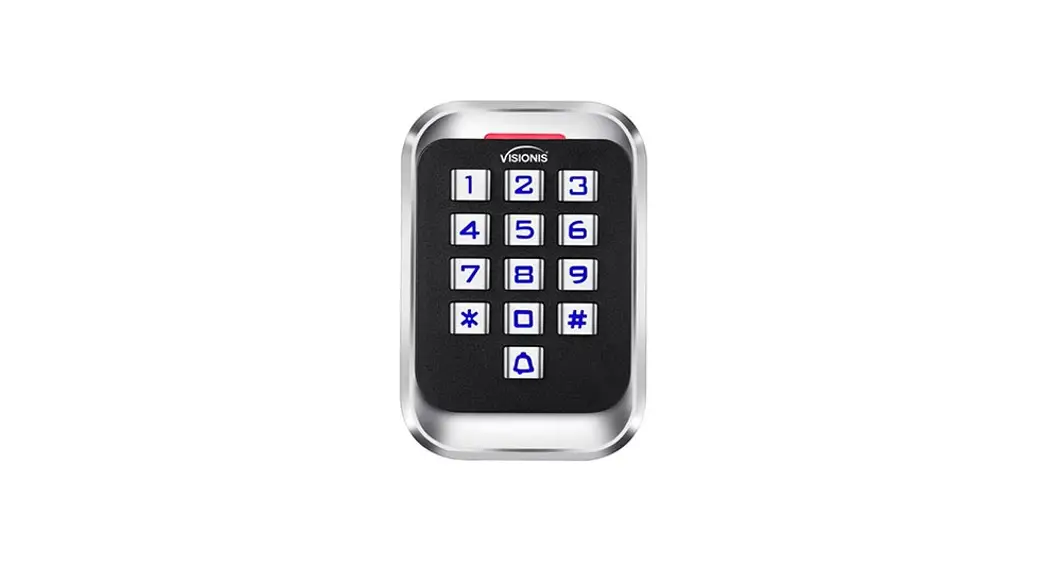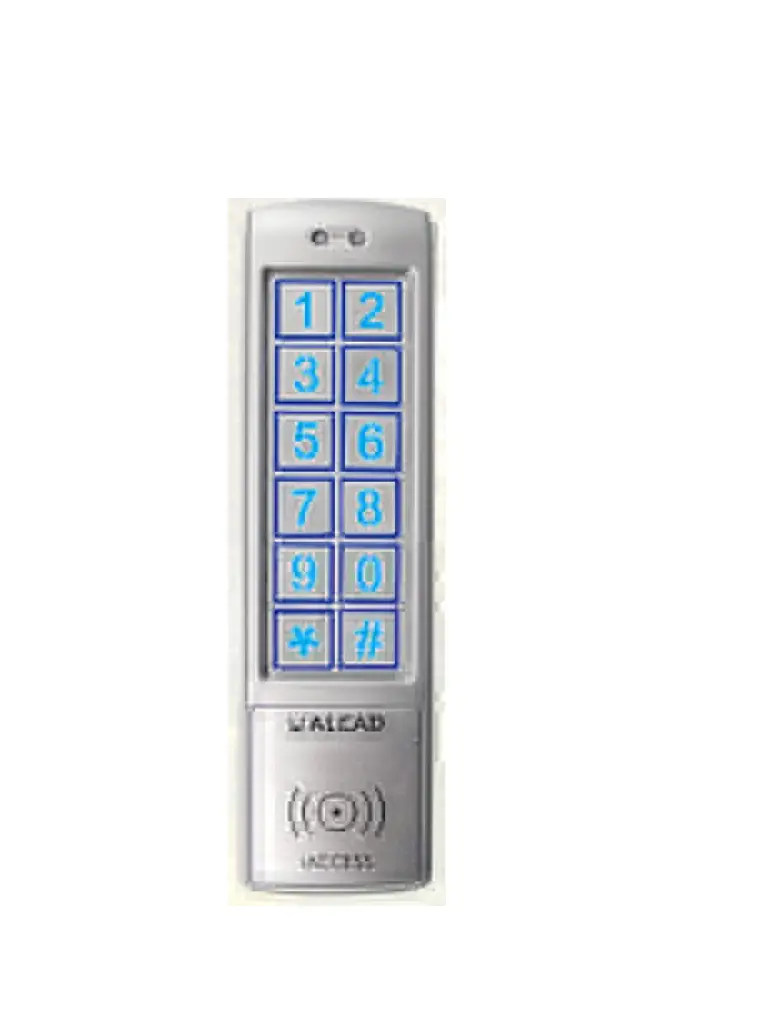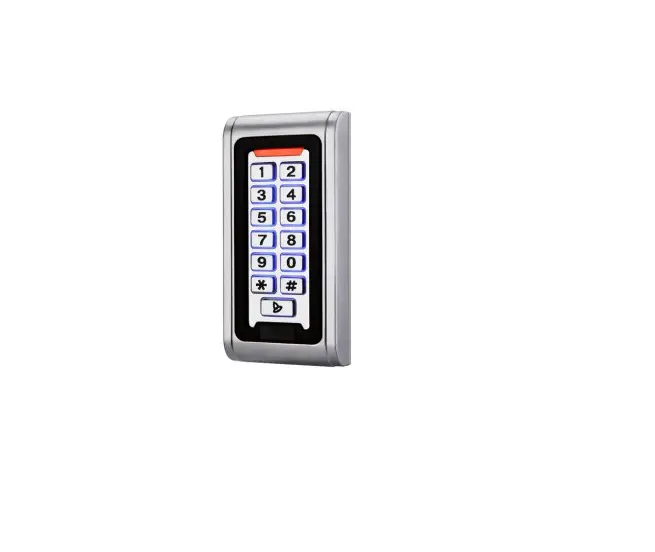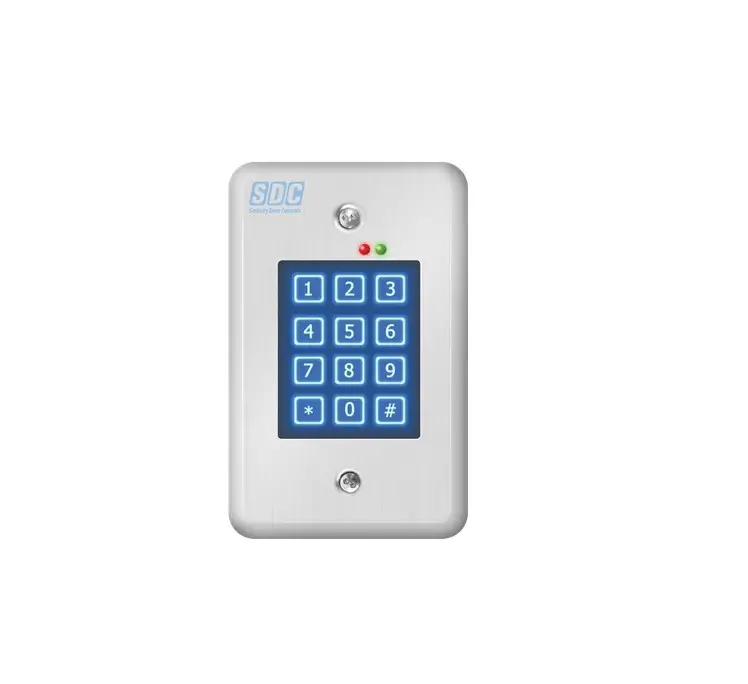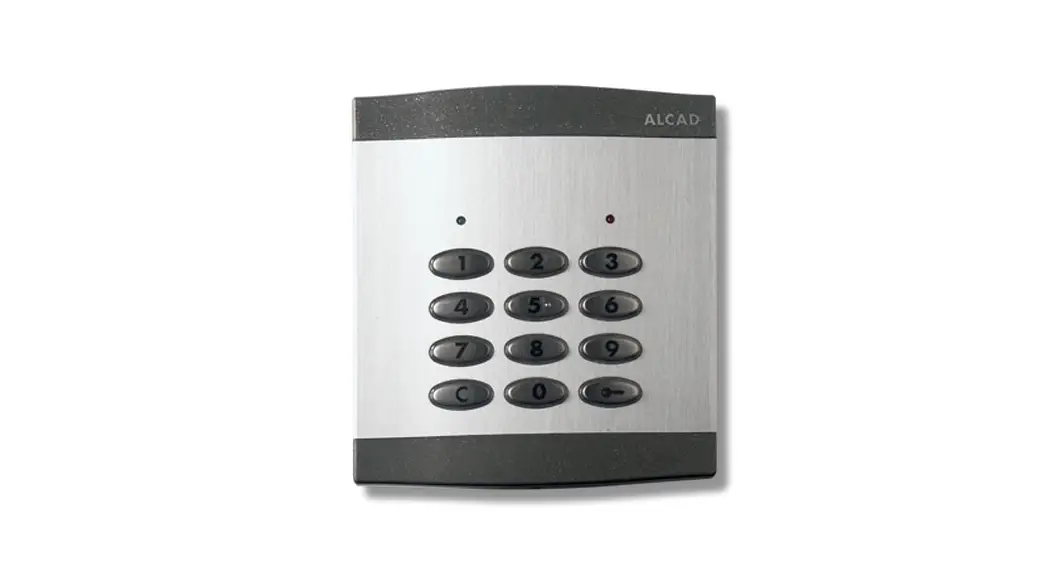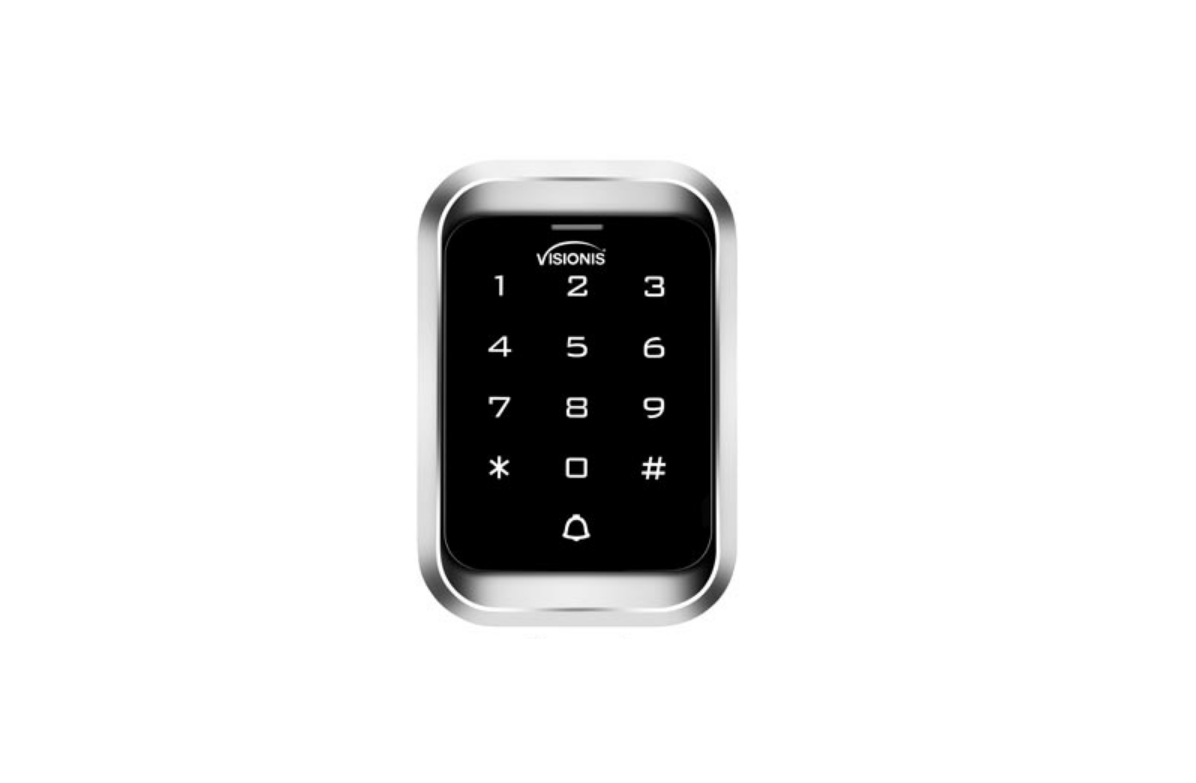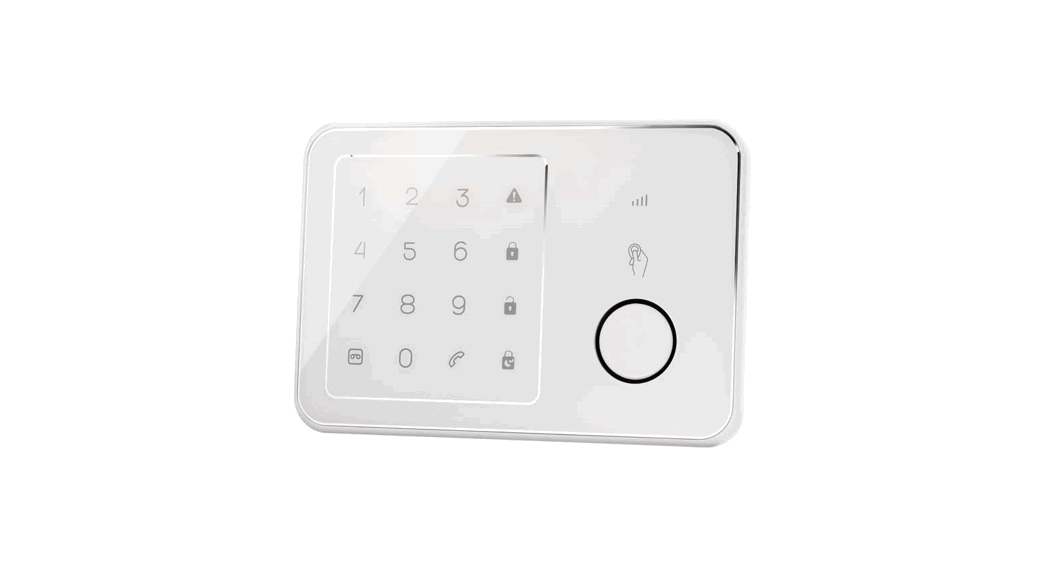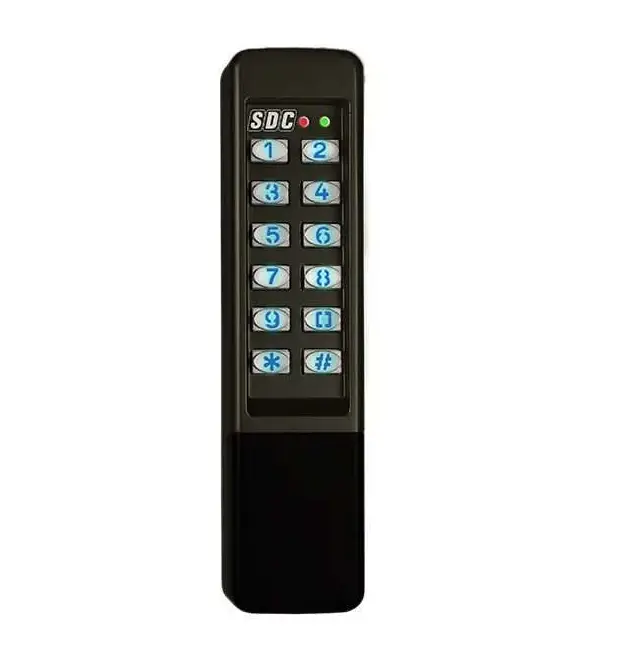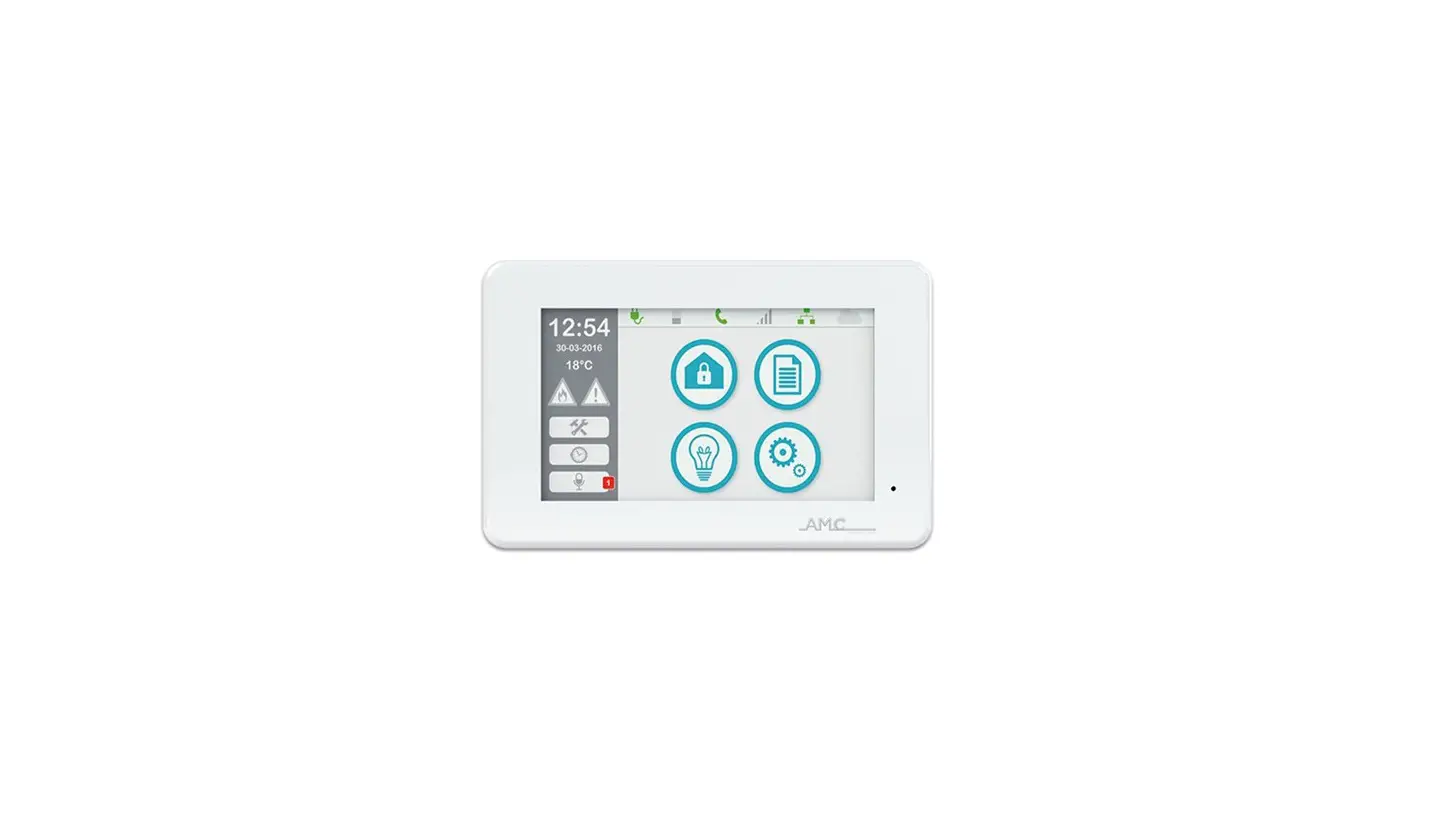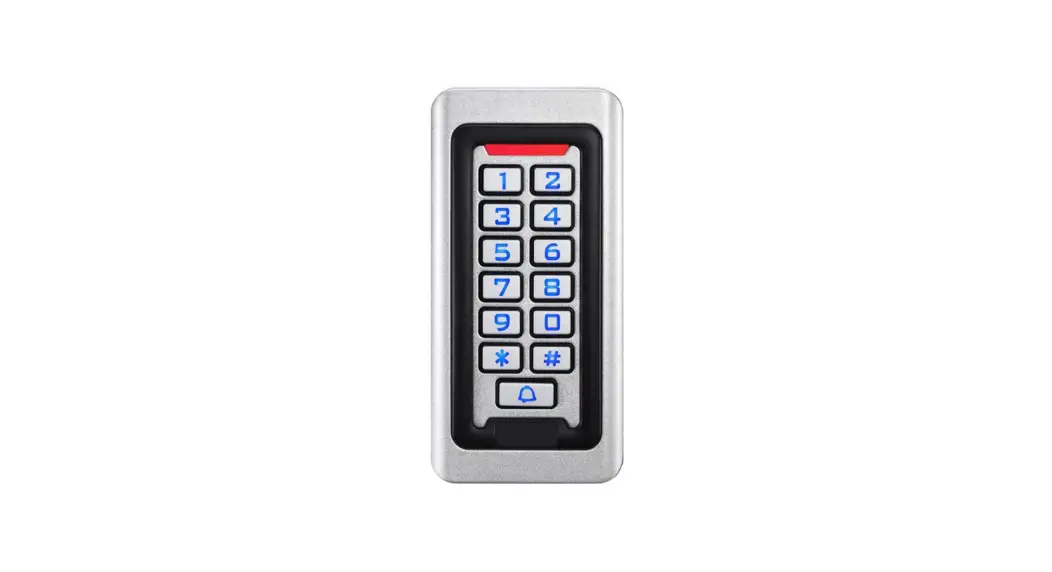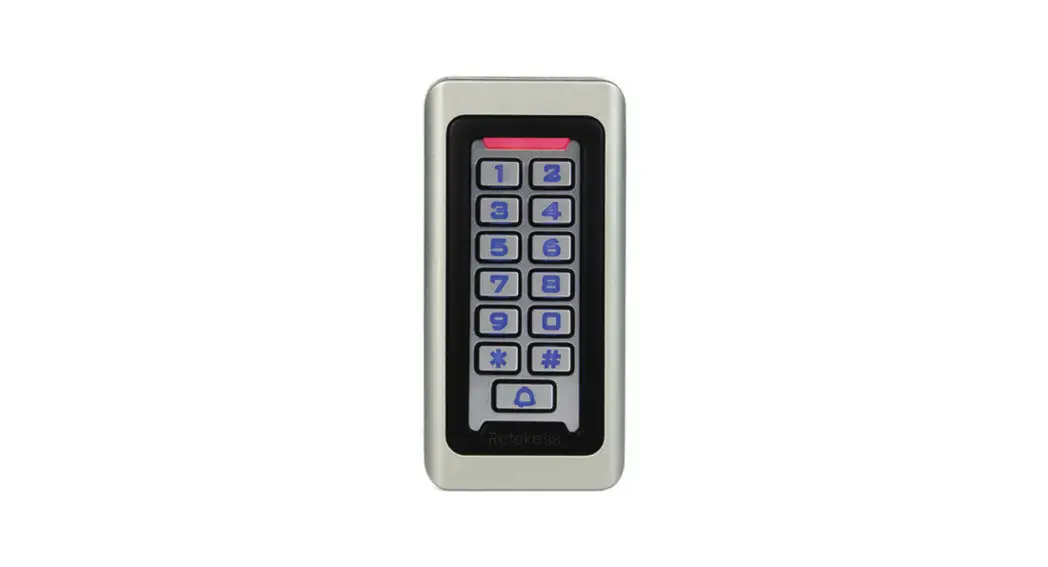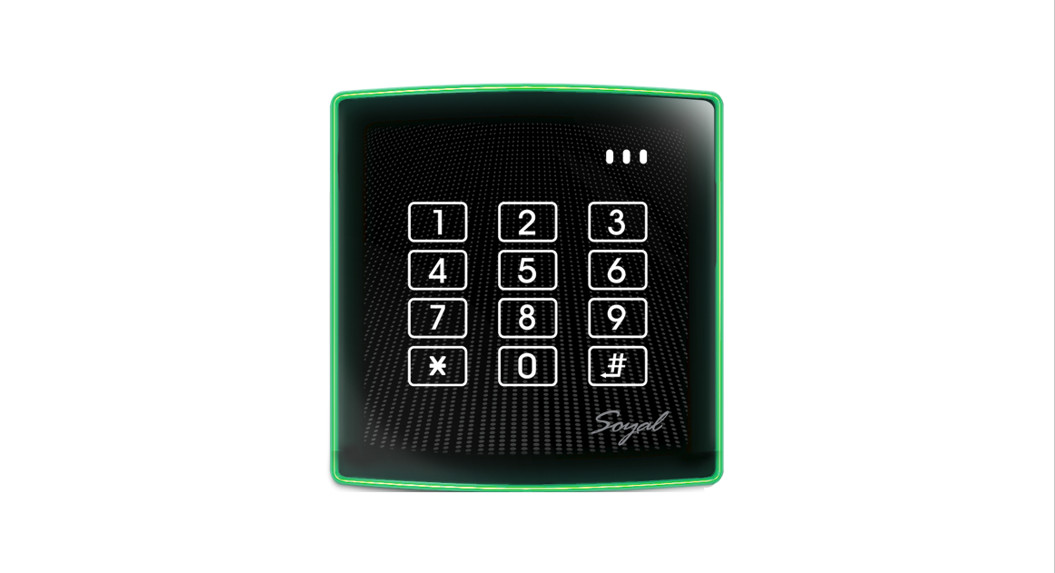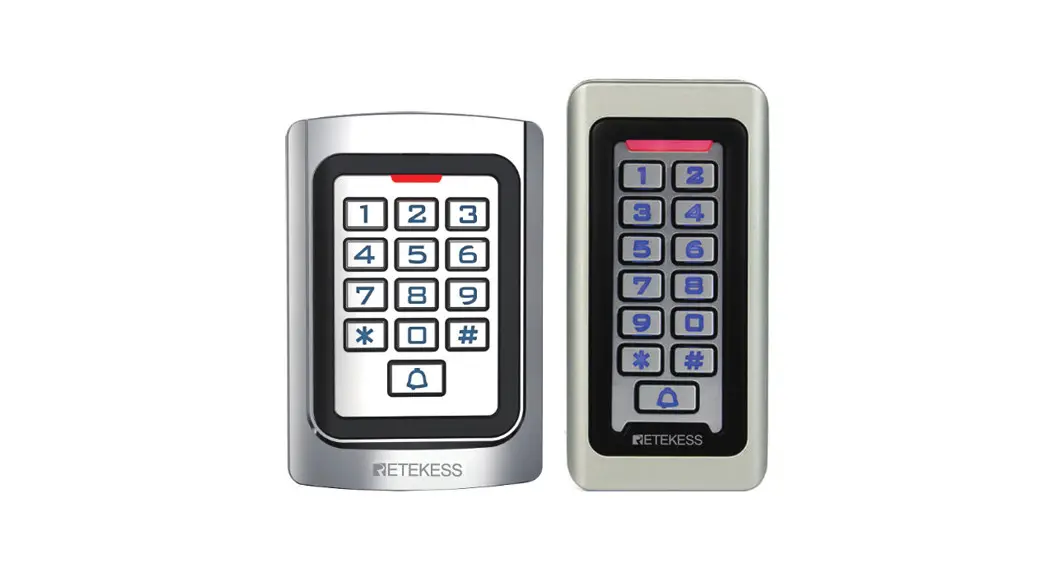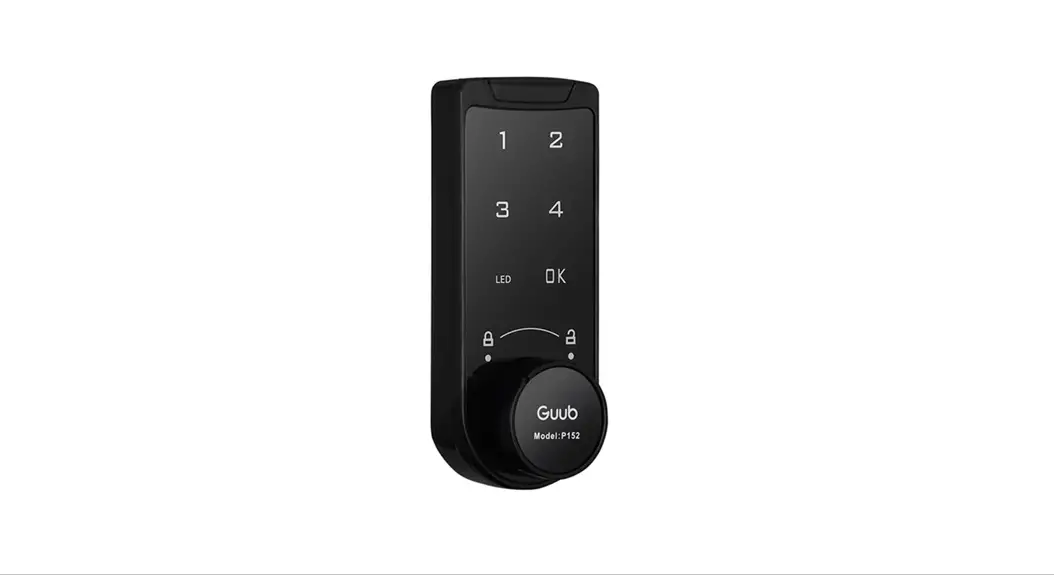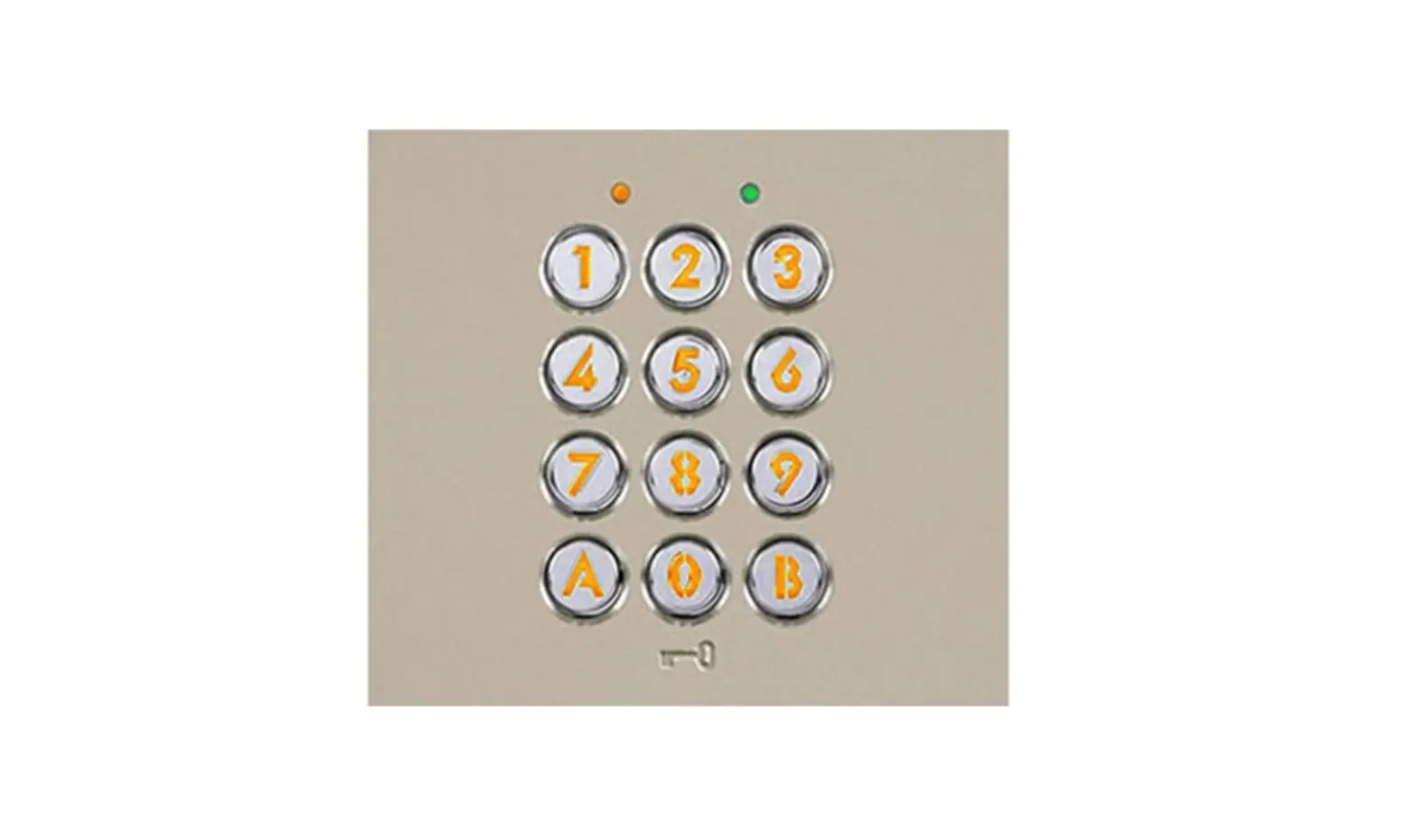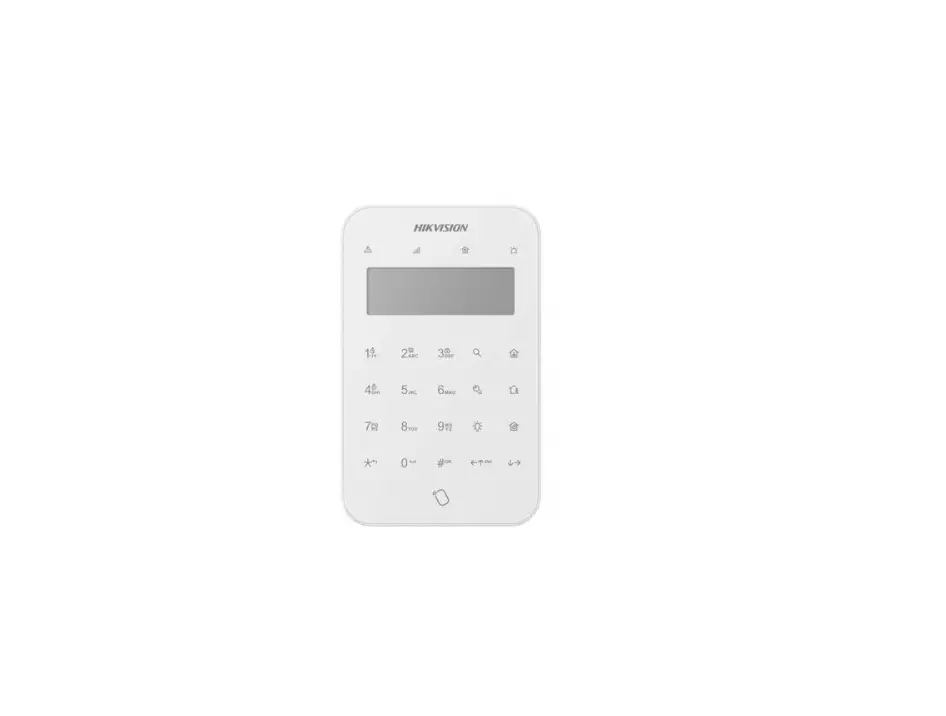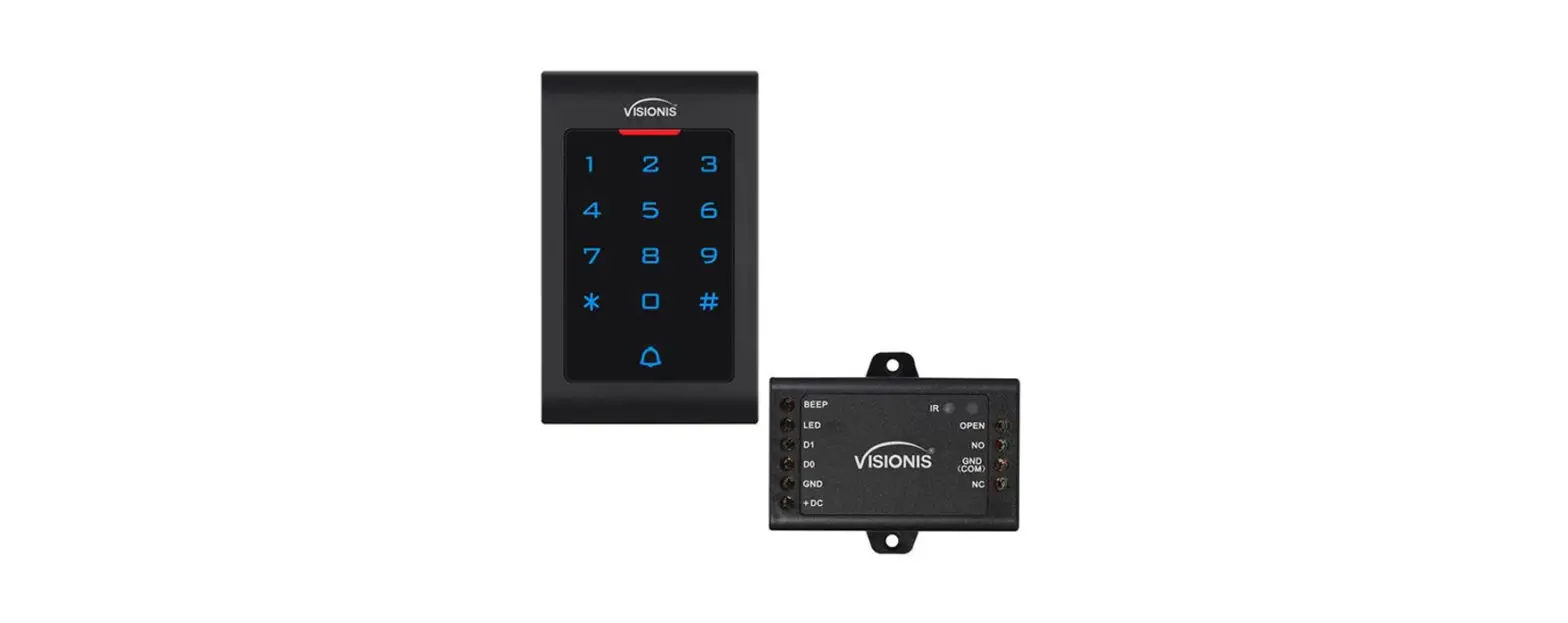
 VIS-3002 Access Control Indoor Only Digital Touch Keypad
User Manual
Description
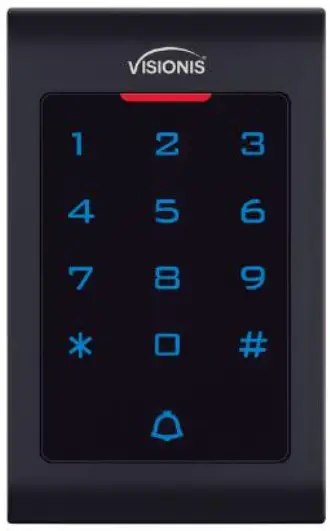
The device is a standalone as well as a Wiegand access control keypad and proximity card reader which supports EM and HID card types, it’s one of the most advanced standalone access control. Its build-in USA Atmel microprocessor, with strong anti·interference ability, high security and reliability, powerful function, and convenient operation. It is widely used in high-end buildings, residential communities, and other public places. This device can be used as a standalone and also connected to a central Access Control Panel.
Features
- Ultra-low power consumption: Standby current is less than 30mA.
- Input& Output: Wiegand26.
- Reading Time: Less than 0.1s after reading card.
- Backlight Keypad: Easy to operate at night.
- Doorbell interface: Support external wired doorbells.
- Entry Methods: Card, code, card+code.
- Pin only: A card is not necessary if you choose to pin the only method.
- Change Codes: Users can change codes by themselves.
- Anti-tamper alarm: The alarm is activated if the device is torn off or illegally removed.
- Delete Users by card NO,: Delete card NO via the keypad to reduce security issues.
Specification
- Input Voltage: DC 12V
- Idle Current:s25mA
- Card reading distance: 2·3 cm
- Card Frequency: 125KHz for EM and HID
- Card transmission format: wiegand26
- Keypad transmission format:4bit, 8bit and Virtual card number
- Operating Temperature: -45C-55° C (-49F — 131F)
- Operating Humidity: 0%-95%
Installation
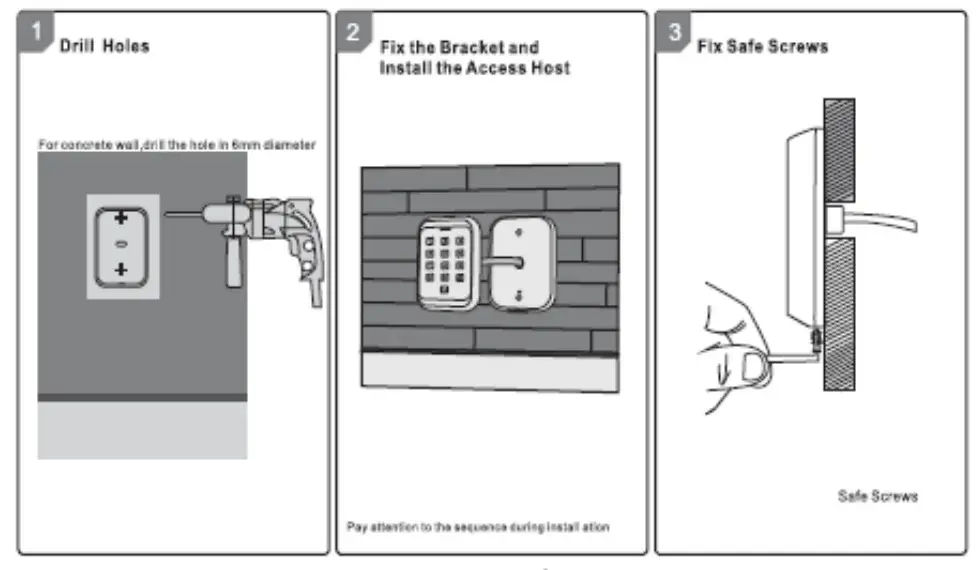
Install base plate onto the wall and attach device using bottom screw
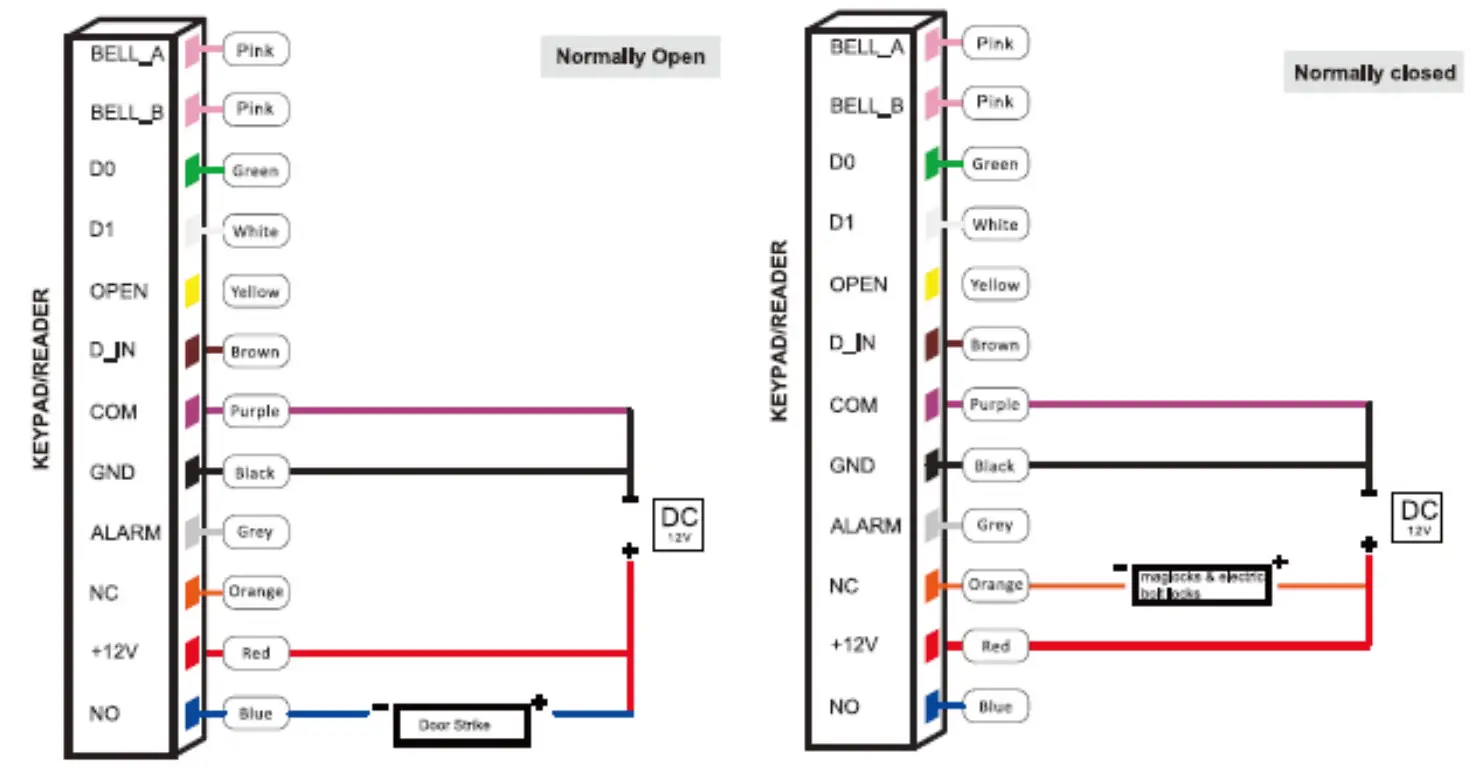
Wiring
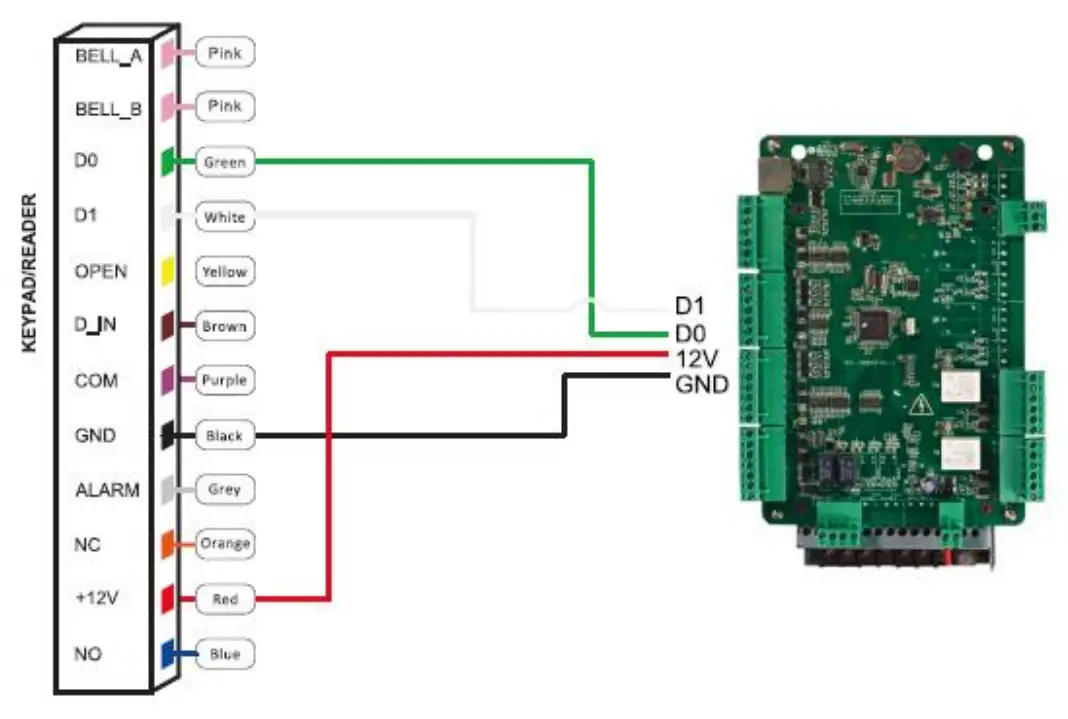
| No. | Marks | Color | Description |
| 1 | BELL_A | Pink | Doorbell button |
| 2 | BELL_B | Pink | Doorbell button |
| 3 | DO | Green | Wiegand output DO |
| 4 | D1 | White | Wiegand output D1 |
| 5 | +12V | Red | The positive pole of the power supply |
| 6 | GND | Black | The negative pole of the power supply |
| 7 | OPEN | Yellow | Exit button |
| 8 | DIN | Brown | Door contact |
| 9 | ALARM | Gray | Alarm Output |
| 10 | NO | Blue | Relay NO end |
| 11 | COM | Purple | Relay Corn end |
| 12 | NC | Orange | Relay NC end |
Sound and Ught Indication
| Operation | LED Color | Buzzer |
| Standby | Red flash | |
| Press key | Di | |
| Read card | Green | Di- |
| Door Open | Green | Di- |
| Operation Successful | Green | Di- |
| Operation Failed | Di Di Di | |
| PIN Inputting | Red | |
| Card&PIN Inputting | Red | |
| Multi Card Reading | Red | |
| Under Menu | Red | |
| Under Setting | Orange | |
| Manager Card Enter | Orange | Di Di |
| Manager Card Exit | Red Flash | Di- |
| Alarm | Red Quick Flash | Alarm |
Quick Programming Gulde
Administrator Setting
| Stand by | Master Code | Meru | Setting | Remarks | Functions |
| Red Flash | Red | Red | Orange | ||
| * | Master code# (Code length: 6-8 digits) | 00 | New master code# Repeat new master code # | Factory default: 999999 | Change the master code |
| 01 | Read Manager Add Card | Set Manager Ada Card | |||
| 02 | Read Manager Delete Card | Set Manager Delete Card | |||
| 03 | Read Anti-duress card | Set Anti-duress card | |||
| 05 | Anti-duress PIN# | Set Anti-duress PIN | |||
| 07 | 0000# | Delete All Users | |||
| 51 | Master open Lock |
System Setting
| Stand by | Master Code | Menu | Setting | Remarks | Functions |
| Red Rash | Red | Red | Orange | ||
| * | Master code# (Code length: 6-8 digits) | 30 | 0-15 # | Default 0 | To set facility code |
| 31 | 0 # | Unable to initialize | Wiegand reader mode | ||
| 1 # | Standalone mode (factory default setting) | ||||
| 5 # | Anti-passback mode | ||||
| 32 | 26 # | Default 26 | To set the Wiegand format | ||
| 33 | 0-2 # | Unable to initialize | To set keypad transmission format | ||
| 34 | 1-3 # | Default 1 | To set alarm time | ||
| 35 | 0 # | Default 0 | Safe mode 0 | ||
| 1 # | Safe mode 1 | ||||
| 2 # | Safe mode 2 |
User Setting
| Stand by | Master Code | Menu | Setting | Remarks | Functions |
| Red Flash | Red | Red | Orange | ||
| * | Master code# (Code length: 6-8 digits) | 11 | Read card # | Users can be added continuously without exiting the programming mode | To add card users |
| ID number # read card# | |||||
| Card number # | |||||
| ID number # card number # | |||||
| ID number # PIN # | To add PIN users | ||||
| 12 | Read card # | Users can be deleted continuously without exiting the programming mode | To delete users | ||
| ID number # | |||||
| Card number # | |||||
| 13 | 0 # | Entry by Card | |||
| 1 # | Default 2 | Entry by card+PIN | |||
| 2 # | Entry by Card or PIN | ||||
| 14 | 0-99 # | Default 5 | Set door relay time | ||
| 15 | 0 # | Default 0 | Relay Setting-Pulse mode | ||
| 1 # | Relay Setting-Toggle mode | ||||
| 16 | 1-10 # | Default 1 | To set open door by multi cards | ||
| 17 | ID number#, card number#, card quantity# | To add a series of cards users |
User Optional Setting
| Stand by | Master Code | Menu | Setting | Remarks | Functions |
| Red Flash | Red | Red | Orange | ||
| * | Master code# (Code length: 6-8 digits) | 41 | 0 # | The buzzer will be in silence except enter the programming mode | |
| 1 # | Default 1 | The buzzer will sound when pressing the key | |||
| 42 | 0 # | Disable keypad backlight | |||
| 1 # | Enable keypad backlight | ||||
| 2 # | Default 2 | Automatic mode | |||
| 43 | 0 # | LED Light Disable when the stand-by status | |||
| 1 # | Default 1 | LED is constantly flashing when the stand-by status |
Instruction:
- Master code must be 6-8 digits, Anti-duress PIN must be 8 digits, user PIN is 4-6 digits,
- The user ID number is 1-4 digits, which can be any number from 1-2000,Invalid 0 can be omitted; the card number must be 8 or 10 digits, if the card number is less than 8 or 10 digits, input O before the card number,
- Door open time is 0-99 seconds,0=50mS
- When registering one card user into the device, the device will automatically generate a PIN 1234, but this PIN 1234 can’t open the door, you need to change PIN 1234 to other numbers to open the door.
- When an invalid master pin is pressed, the device will go back to the standby status after 5 seconds, when a valid master pin is entered, it will go back to standby status after 30 seconds.
- In operating the keypad, pressing # means to confirm the input digits, In the operation of a cycle adding or deleting cards, pressing # means to end the cycle operation and back the up operation; pressing means to exit the operation.
- When adding a series of cards, this unit will make the ID number and card number as the initial value; after adding one user, then it will increase the ID number and card number automatically until the specified number of cards is added. The card number must be consecutive card quantity is between 1-2000,
- Working mode and keypad transmission format have been set before shipping, customer can change according to requirement, but cannot be restored to factory settings by initialization.
- When a user is registered successfully, LED will turn green.
Administrator setting
Administrator setting on the keypad
Press * Master code # factory default.99999.
Change the master code
Press 00 new code # repeat new master code #
Note: Master Code length: 6-8 digits.
Set Manager Card
Set manager adds a card
Press 01 Set manager delete card
Press 02 read manager add a card
read manager delete card
Note: When adding the new manager card, the new one will automatically cover the old card, only one manager card for one device.
Set Anti-duress card Set Anti-duress card
Press 03 read the anti-duress card
Note: when adding the new anti-duress card, the new one will automatically cover the old card, with only one anti-duress card for one device.
Set Anti-duress PIN
Set Anti-duress PIN
Press 05 8-digit duress PIN #
Note:
- The anti-duress pin is 8 digits.
- When setting the new anti-duress PIN, the new one will automatically cover the old anti-duress PIN, with only one anti-duress PIN for one device.
Delete all users Press 07 0000 # Note AI users wil be deleted. This is a dangerous option, so use it with care.
Set administer open lock Press 51 #
Users setting
Read card to add a user
Press 11 read card # read the card …
Use ID Number and read card to add a user
Press 11 ID number #
Use card number
Press 11 red card number # ID number # card number # # read card #
Note:
- The card number must be 8 or 10 digits, if the card number is less than 8 or 10 digits, input O before the card number.
- Automatically increases, the user ID will be generated by the machine automatically, the range is 1 – 2000 and automatically search from 1 to 2000.
Use ID number and card number to add a user
Press 11 # ID number # 8-digits card number # …. #
ID number # 8-digits card number #
Note:
- ID number is 1-4 digits, the range is 1-2000, fox example 1,01,001,0001, al these mean ID number 1.
- Add card user,it will generate one “1234 “PIN, this PIN can not open a door, only for user modify PIN.
Use ID number and PIN to add user
Press 11 ID number # PIN # ID number # PIN # …#
Note: It applies to PIN user, pin is irrelevant with card, the PIN is any 4-6 digits, but cannot be “1234”.
Delete user
Read card to delete user
Press 12 read card read card #
Use ID number to delete user
Press 12 ID number # ID number #
Use card number to delete user
Press 12 card number # … # card number #
Delete all users Press 07 0000 #
Note: All users will be deleted.
Set opening door mode
Entry is by card only
Press 13 0 #
Entry is by card and PIN together
Press 13 1 # …. #
Entry is by card or PIN (factory default)
Press 13 2 #
set door relay time
Press 14 0-99#
Note: 0-99 is to set the door delay time 0-99 seconds, the factory default is 5 seconds,
Set Relay mode
Relay setting -pulse mode
Press 160.
Every time a valid card/tag is read or PIN input, the relay will operate, for the pre-set relay pulse time. (Factory default setting)
Relay setting-Toggle mode
Press 15.1.
Every time a valid card/tag is read or PIN input, the relay changes state, which will not tum back until reading the card/tag or input PIN again.
Set opening door by multi cards
Press 16 card quantity #
Note: It is only for card entry mode (Factory default setting: 1, card quantity “1-10).
Add a series of consecutive cards, users
Press 17 ID number # card number # card quantity #
Note: The card number must be consecutive card quantity is between 1–2000; card number is 10 digits or 8 digits.
System setting
To set facility code
Press 30 0-16.#
Note: Code should be 0-15, factory default setting: 0.
Standalone Mode (Factory default setting)
Press 31 1 #
Anti-passback Mode
Press 31 5 #
To set wiegand format
Press 32 26 #
Note: factory default setting: WG26,
Setting keypad transmission format
Press 3 .0-2 .# (unable to initialize)
Note: Keypad transmission format is 0 1 2, factory default is 0,
Setting alarm time
Press $4 1+8l.# (unable to initialize)
Note: 1. factory default is 1 minute.
Setting safe mode
Normal mode (factory default)
Press 35 0.#
Dead mode
Press 35 1 #
If read the invalid card or input the wrong PIN 10 times in 10 minutes, the system will be dead for 10 mins.
Alarm mode
Press 35 2 #
if read the invalid card or input the wrong PIN 10 times in 10 minutes, an external alarm and built-in buzzer will work.
User optional setting
Setting buzzer silence in non ·setting state
Press 41 0 ##
setting buzzer to normal work (Factory default setting)
Press 41 1 #
Setting keypad backlight
Disable keypad backlight
Press 42 0 #
Enable keypad backlight
Press 42 1 #
Automatic mode (factory default setting)
Press 42 2 #
The keyboard light is off during standby, the light is on when pressing the key,
Setting LED light (stand-by status)
Disable LED light
Press 43 0 #
Flash LED light (factory default setting).
Press 43 l #
Manager card operation
Add user
Read Manager Add Card, read user cards continuously, and read Manager Add card again.
Delete user
Read Manager Delete Card, read user cards continuously, and read Manager Delete card again.
User Operation
Entry by card mode, Set multi cards to open the door when card quantity is 1.
Read the user card, the lock will be unlocked.
Entry by card mode, Set multi cards to open the door when card quantity is 2-10.
Read these cards one by one, present each card in 5 seconds, the lock will be unlocked.
Entry by card and PIN
Present card, then press PIN (4 to 6 digits), #, and the lock will be unlocked.
Entry by card or PIN mode
Present card, the lock will be unlocked. Or Press PIN (4 to 6 digits), #, and the lock will be unlocked.
Relay mode
Relay setting -pulse mode
Every time a valid card/tag is read or PIN input, the relay will operate, for the pre-set relay pulse time.
Relay setting-Toggle mode
Every time a valid card/tag is read or PIN input, the relay changes state, which will not turn back until reading card/tag or input PIN again,
Modify user PIN (no need to enter programming mode)
, read user card, press old 4 to 6 digits PIN, #, new 4 to 6 digits PIN #, repeat new 4 to 6 digits PIN #.
Or , press ID number # old 4 to 6 digits PIN,# ,new 4 to 6 digits PIN # ,repeat new 4 to 6 digits PIN #,
Notice: Users who does not have a user card must get an ID number and origin PIN from Admin.
Alarm Function
Anti-tamper alarm
If the device is disassembled illegally, the buzzer and the external alarm will operate.
Door contact alarm
When connecting with door contact, if the door is opened illegally, the buzzer and the external alarm will operate.
The Anti+duress alarm
When reading an anti-duress card or input &-digit anti duress PIN, then press #, the corresponding lock will open, at the same time, the external alarm will operate, but the device buzzer will not operate.
Remove alarm
Read valid user card, manager card, or input master code, then the alarm will be removed, If no operation, the alarm will be removed automatically.
Connection Diagram
NO/NC Locks
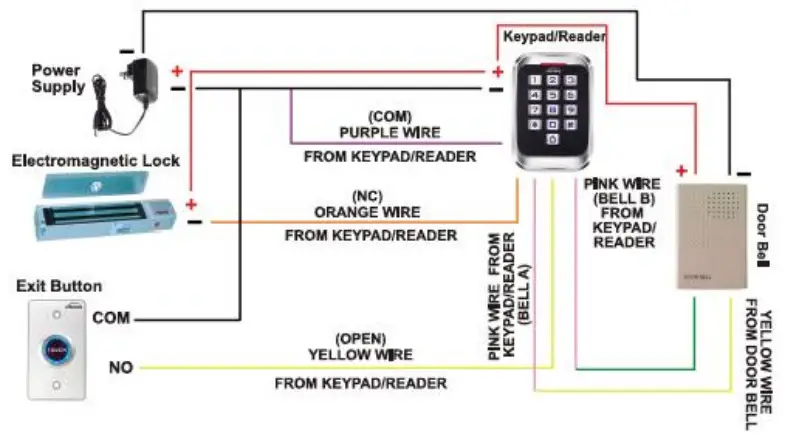
Connection with Accessories: Doorbell and Exit button
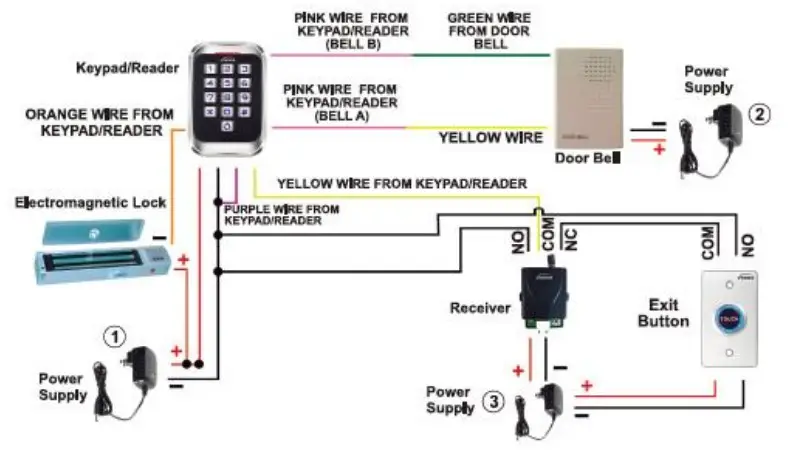
Connection with Accessories: Doorbell, Exit button, and Wireless Receiver
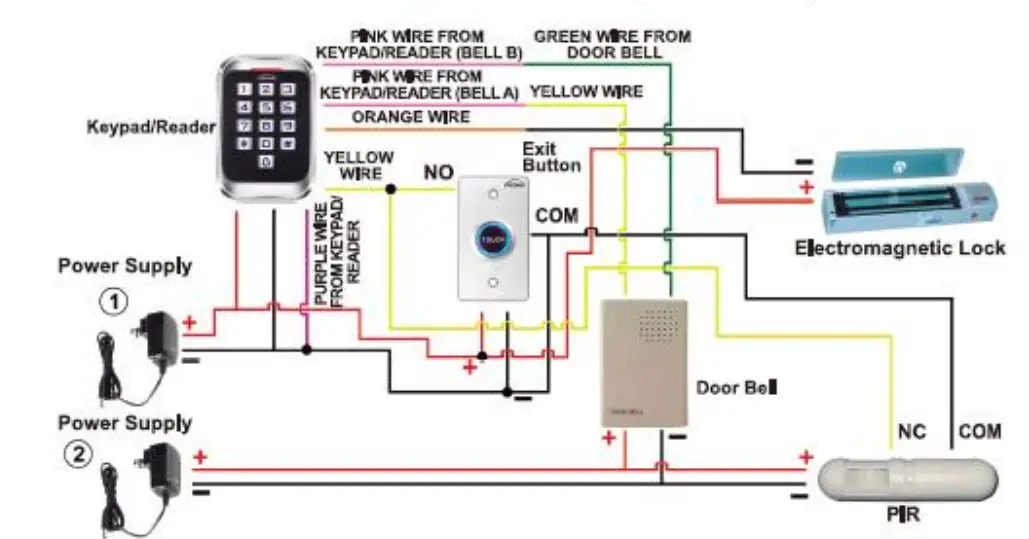
Connection with Accessories: Doorbell, Exit button, and PIR
Connection with Access Control Panel
Reset to Factory Default
a. Power off.
b, Press and hold the # key, then power on.
c. Release # key until hearing short beeps twice. When hearing a long beep once, the device is in a normal working state and reset to the factory default setting, but the user data will not be deleted.
Packing List
| Name | Model/size | Quantity | Remarks |
| Keypad | 1 | ||
| User manual | 1 | ||
| Self-tapping screws | ∅4mm28 mm | 2 | Used in fixing |
| Rubber plug | ∅6mmx30 mm | 2 | Used in fixing |
| Star screwdriver | ∅20mm60mm | 1 | Special for Keypad |
Warning Tip:
a. Please do not to repair the device privately, if you have problems, please return it to the supplier.
b. Before installing on the wall, please check carefully concealed wiring or wire tube, in case of broken concealed wiring, etc, when driving, please use safety glasses.
c. If the product is updated, the manual may be different, Without Prior Notice.
FCC Statement
Changes or modifications not expressly approved by the party responsible for compliance could void the user’s authority to operate the equipment.
This equipment has been tested and found to comply with the limits for a Class B digital device, pursuant to Part 15 of the FCC Rules. These limits are designed to provide reasonable protection against harmful interference in a residential installation. This equipment generates uses and can radiate radio frequency energy and, if not installed and used in accordance with the instructions, may cause harmful interference to radio communications. However, there is no guarantee that interference will not occur in a particular installation. If this equipment does cause harmful interference to radio or television reception, which can be determined by turning the equipment off and on, the user is encouraged to try to correct the interference by one or more of the following measures:
- Reorient or relocate the receiving antenna.
- Increase the separation between the equipment and receiver.
- Connect the equipment into an outlet on a circuit different from that to which the receiver is connected.
- Consult the dealer or an experienced radio/TV technician for help
This device complies with part 15 of the FCC rules. Operation is subject to the following two conditions (1)this device may not cause harmful interference, and (2) this device must accept any interference received, including interference that may cause undesired operation.
This equipment complies with FCC radiation exposure limits set forth for an uncontrolled environment.