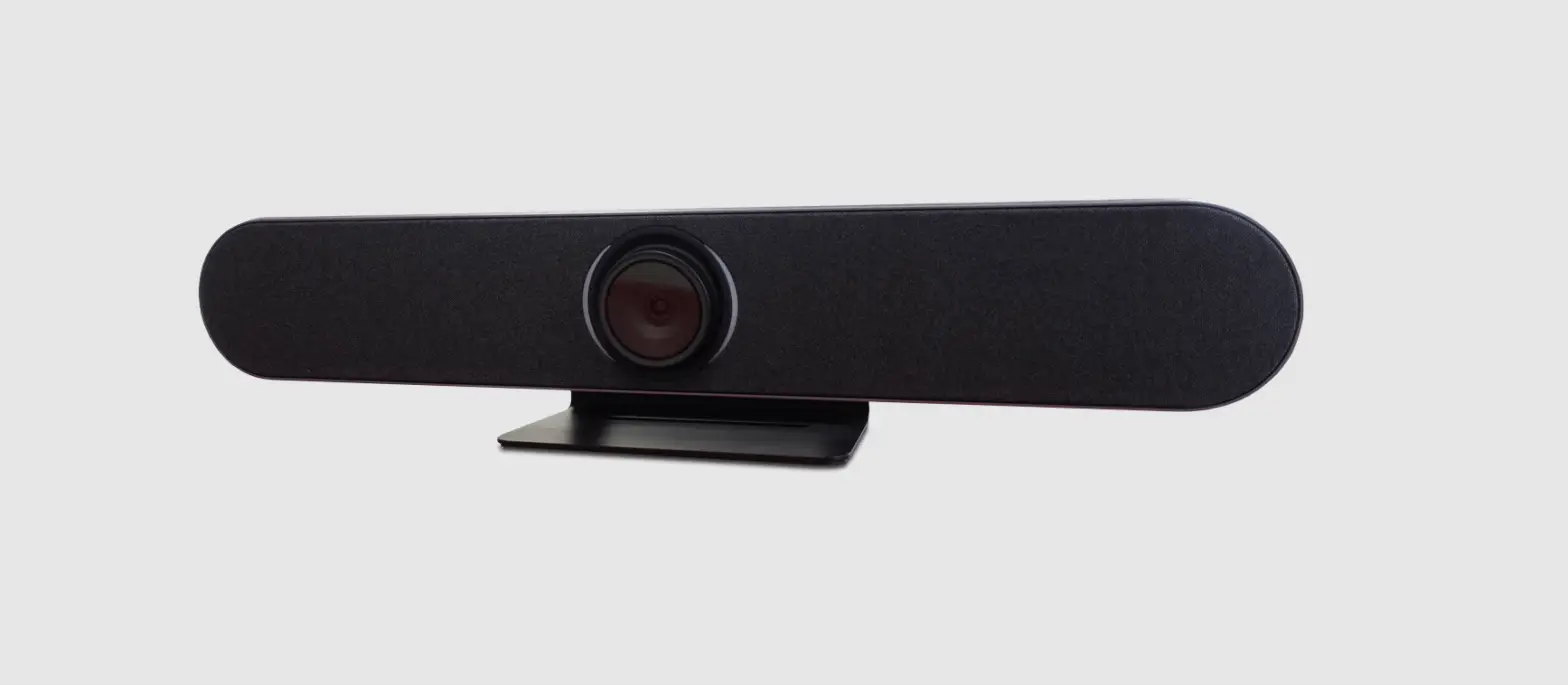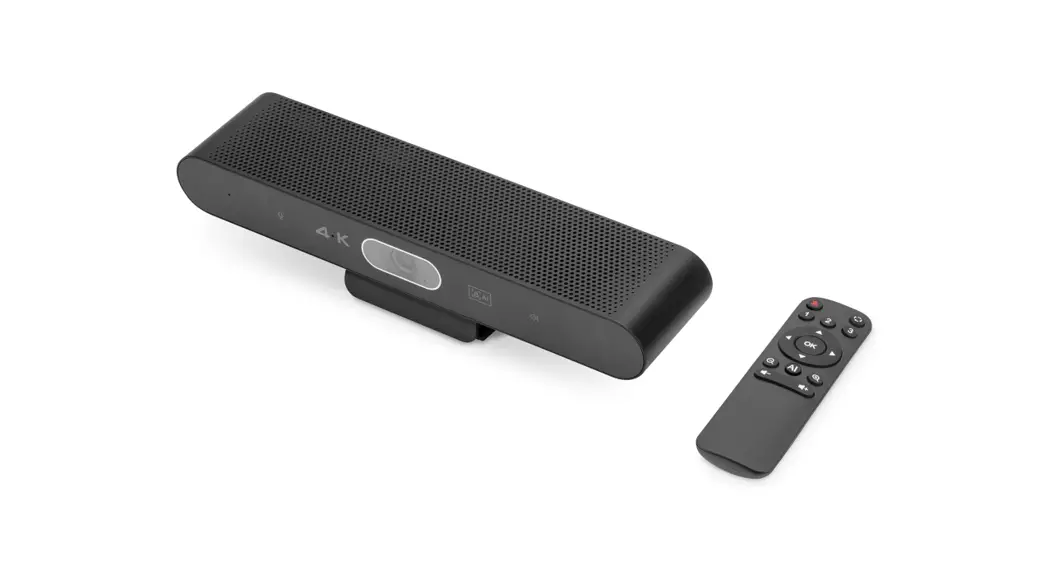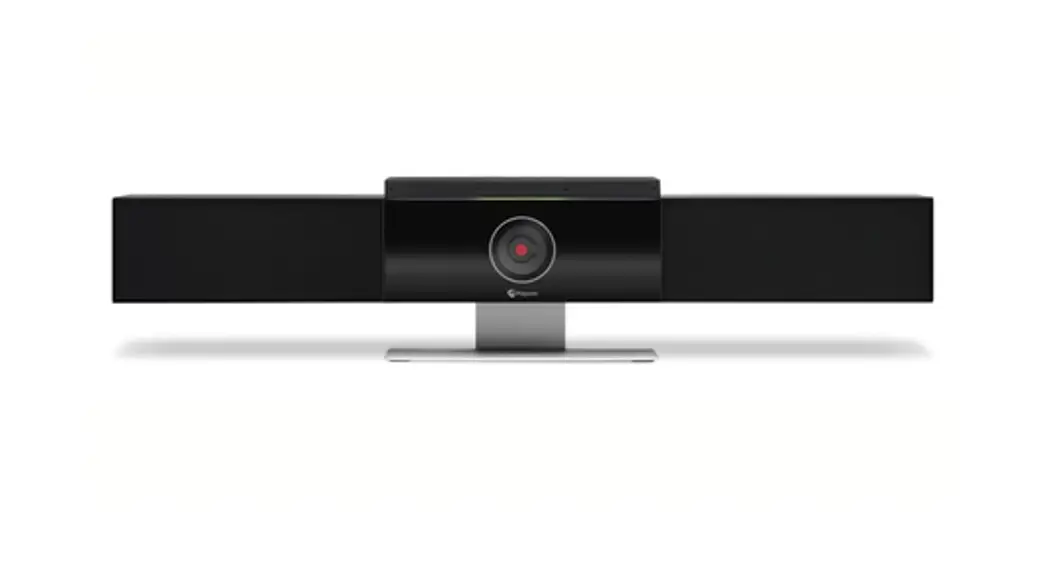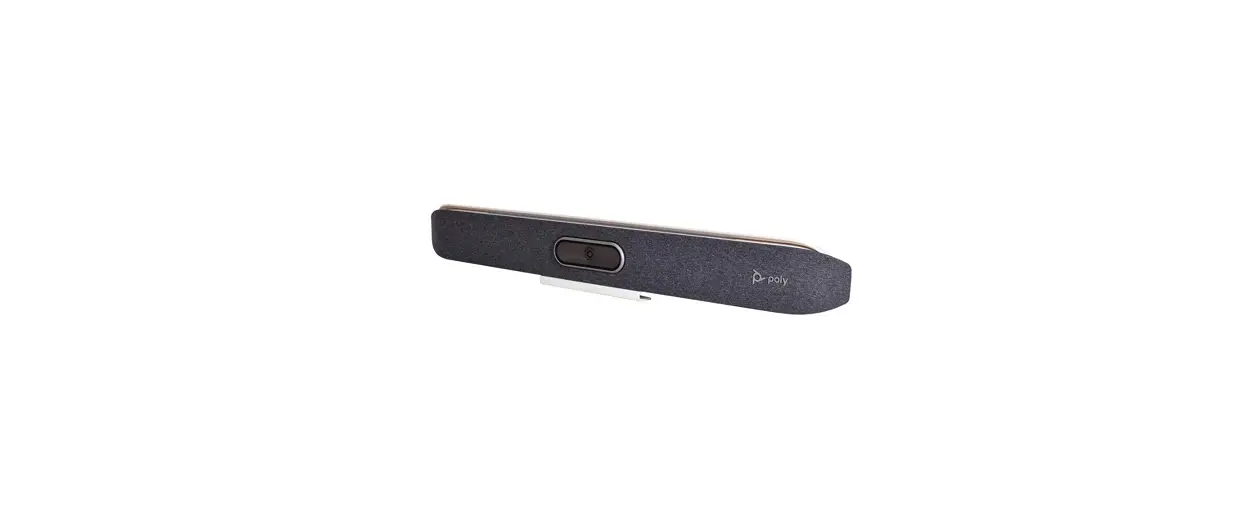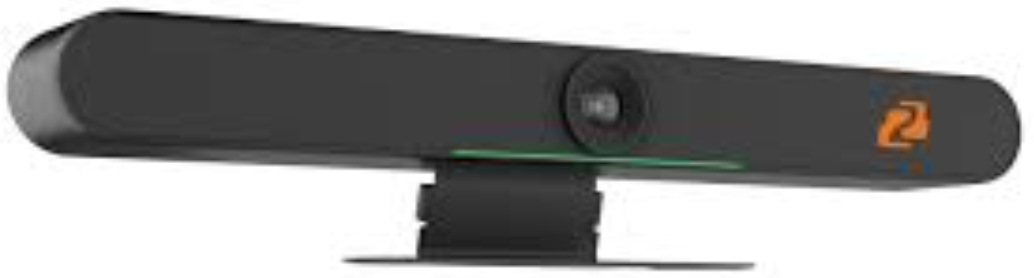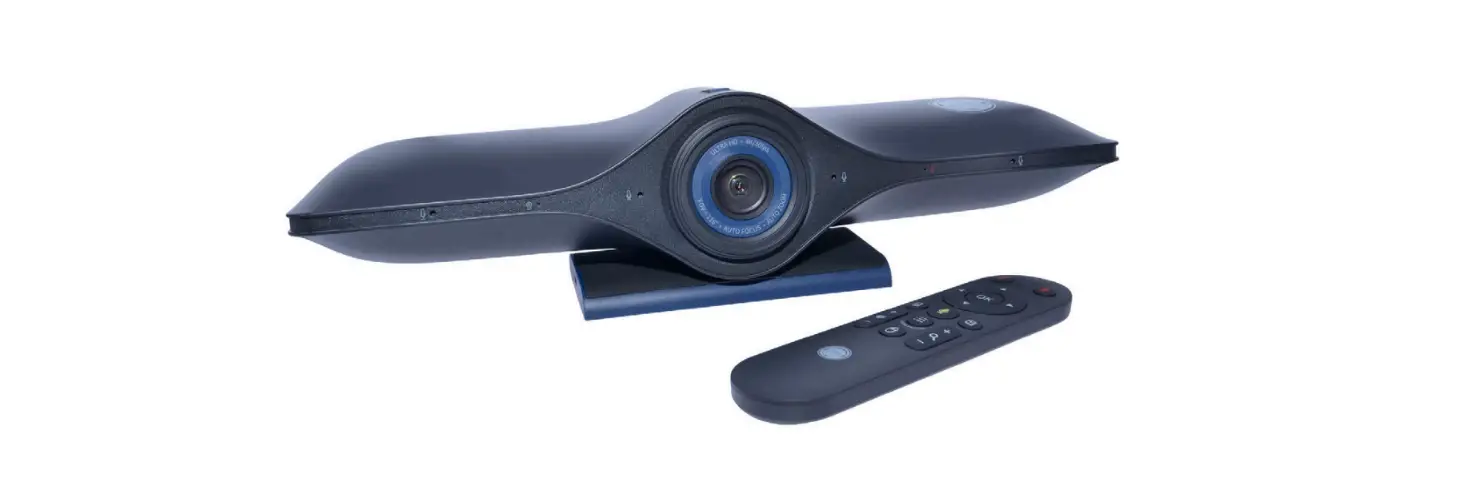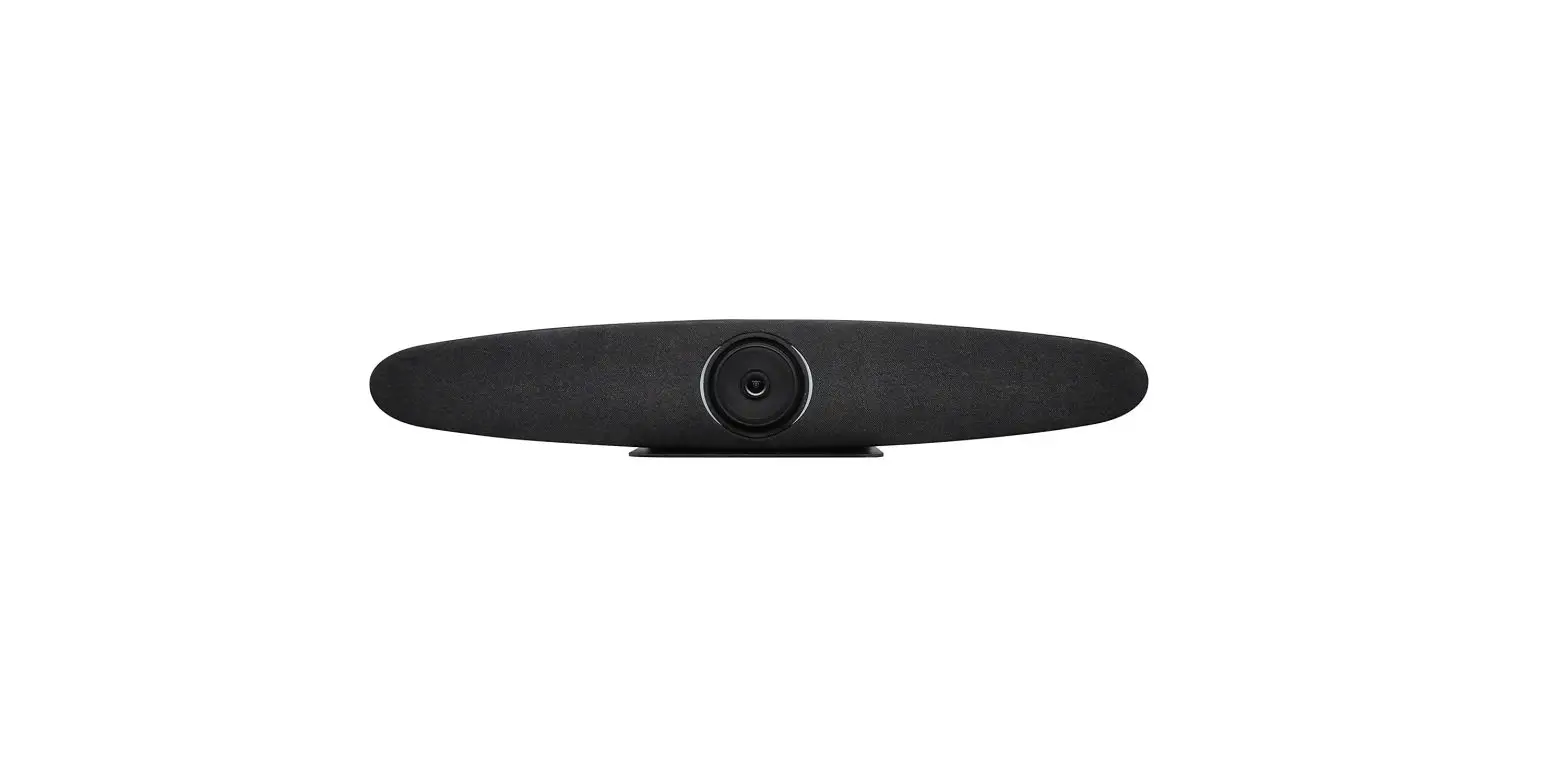
Edis EM1000 All in One 4k Tracking Video and Sound Bar User Guide
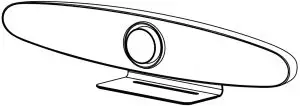
Appearance and Interface
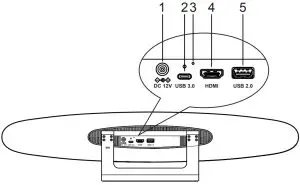
| Item | Name | Item | Name |
| 1 | DC 12V Interface | 4 | HDMI Interface |
| 2 | USB 3.0 Interface | 5 | USB 2.0 Interface |
| 3 | Reset Button | – | – |
Packing List
| Name | Quantity |
| Camera | 1 |
| Power Adapter | 1 |
| Power Cable | 1 |
| Remote Control | 1 |
| USB Cable | 1 |
| Wall Bracket (with screw) | 1 |
| User Manual | 1 |
Product Features
- Applicable Scene
It is specially designed for small and medium-sized meeting rooms, especially for the Huddle Room with 4 to 6 people, to help enterprises re-tap the potential of using the small and micro meeting space inside. On one hand, it can hold meetings more efficiently, on the other hand, it can also save the rental cost. - Product Value
It is convenient for small and medium-sized enterprises to conduct daily business negotiation and team cooperation in different places flexibly, so as to create a relaxed, free and smooth conversation environment, make decisions quickly and improve efficiency. - All-in-one Design
The three-in-one design of 4K ultra HD camera, beamforming microphone and full-frequency loudspeaker reduces wiring and make video communication easy. - Bluetooth 5.0 115.4
It can be connected to mobile phone via Bluetooth as microphone and speaker, and can connect mobile phone calls to audio and video conferences. - 4K UHD
Using 1/2.5 inch, 8.51M pixel high quality UHD CMOS sensor, 4K (3840×2160)@60fps ultra high resolution clear image, and downward compatible with 1080P, 720P and other resolutions. It can meet the needs of users for different video experiences, and can provide clearer, real, smooth and accurate communication. - Wide FoV
121°wide field of view (110° horizontal field of view), 5 times zoom, optical lens customized for the conference scene, built-in electric head (horizontal and pitch ±15° motion range), no need to worry about the camera position, participants can easily enter the scene clearly. - Beamforming Microphone
Beam Forming (BF) microphone is built in, with a pickup distance of 6 meters. Low-distortion transverse beamforming algorithm can direct the microphone directly to the speaker, with better sound, clearer communication, fuller and more authentic. - Audio 3A Algorithm
Built-in audio 3A algorithm (AEC/AGC/ANS), full duplex dialogue, can meet the communication needs of different room structures, whether sitting at a conference table, sitting against the wall or standing, can have comfortable experience for calling. - Full Frequency Speaker
Full frequency Hi-Fi loudspeaker, professional acoustics design, reduce noise interference, provide outstanding sound effect. - Plug and Play Type
Through plug and play USB interface connect with the computer or business display screen, very easy to use. Less wiring, convenient video communication, reduce the user’s learning cost. - Intelligent Analysis
Built-in intelligent analysis algorithm, listening to the speaker position, automatic framing of participants, automatic tracking of speakers, switching the speaker screen, to ensure that the speaker is always clearly in the picture. - Rich Interfaces
Support HDMI 2.0 and USB 3.0 audio video output simultaneously. - Easy Installation
Flexible installation options such as countertops, walls, and TV/display screens are available for quick installation and deployment in a crowded meeting room.
Product Specifications
Video System | 4K@60fps, 4K@30fps, 1080P@60fps, 1080P@30fps, 720P@60fps, 720P@30fps, etc |
| Sensor | 1/2.5 inch, CMOS, 8.51M pixel |
Lens | 120q(DFOV), 110q(HFOV), 5x Digital Zoom, Pan/Tilt r15q |
| PTZ | MPT + EPTZ |
Digital Noise Reduction | 2D & 3D Digital Noise Reduction |
| Video S/N | 55dB |
Backlight Compensation | Support |
| Audio | |
Full Frequency Speaker | 96 dB SPL in the case of 0.5 meter |
| Microphone Array | Beamforming microphone, pick up distance up to 6 meters |
| USB Features | |
Connection Type | USB 3.0, downward compatible with USB 2.0 |
| Video Compression | YUY2 / MJPG / NV12 |
USB Audio | 32K sampling rate, support UAC 2.0 |
| USB Communication Protocol | UVC 1.1~1.5 |
UVC PTZ Control | Support |
| Input/Output Interface | |
HD Output | 1 x HDMI, Version 2.0 |
| USB Interface | 1 x USB 3.0, Type C |
1 x USB 2.0, Type A | |
Power Jack | DC 12V, 1.5A (Max) |
| Generic Specification | |
Control Method | 2.4G Remote Controller |
| Installation Method | Desktop, Wall, TV and other display device |
Operating Temperature | 0°C ~ 40°C |
| Storage Temperature | -40°C ~ 60°C |
Dimension | 601mm x 141mm x 115mm (holder included) |
| Net Weight | 2.5Kg |
 Product specifications and parameter information are subject to change without notice.
Safety Precautions
Careful Transportation
Transportation, custody and installation process to prevent heavy pressure, violent vibration, immersion damage to the product.
Careful Installation
This product should be placed on the smooth desktop. The shell of the product is an organic material and is strictly prohibited from contact with any liquid, gas or solid material that may cause corrosion to the shell.
Do not Unauthorized Disassemble
This product has no parts which can be repaired by the user. The damage
caused by the user’s own disassembly is not covered by warranty.
 Note
Note
Electromagnetic fields at specific frequencies may affect image of machine.
Remote Control
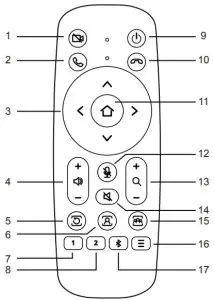
| No. | Name | Function Description |
| 1 | Camera Close Key | The camera is closed after pressing and the camera can be restored by pressing again |
| 2 | Call Key | Answer/initiate call/enter the call interface |
| 3 | Camera Control Key | After pressing, the camera moves in the direction indicated by the arrow to adjust the image display; press the [OK] key to return to the middle position |
| 4 | Volume Key | + Key volume up, – Key volume down |
| 5 | Exit Tracking Key | After pressing, the camera will automatically exit the tracking mode |
| 6 | Speaker Tracking Key | After pressing, the camera will perform voice tracking of the speaker |
| 7 | Preset 1 Key | Long press to set preset 1, short press to call preset 1 |
| 8 | Preset 2 Key | Long press to set preset 2, short press to call preset 2 |
| 9 | Standby Key | Long press to standby, short press to return to normal |
| 10 | Hang Up Key | Hang up the call/Leave the meeting |
| 11 | OK Key | Confirm current selection |
| 12 | Microphone Mute Key | Turn on/off the microphone |
| 13 | Zoom Key | Zoom in the lens [+]; Zoom out the lens [-] |
| 14 | Speaker Mute Key | Turn on/off the speaker |
| 15 | Participants Tracking Key | After pressing, the camera will automatically track the participants |
| 16 | Menu Key | Press to enter or exit the OSD menu |
| 17 | Bluetooth Key | Turn on/off the Bluetooth function |
Product Dimension
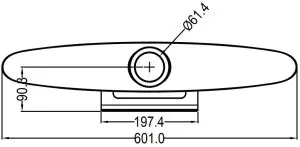
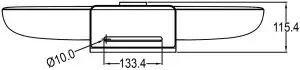
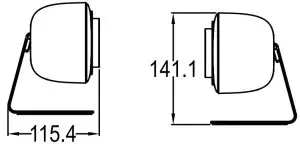
Installation and Connection
- Drill on the wall

- Install expansion bolts

- Fix bracket on the wall

- Screw Lock

- Fix camera on the bracket

- Wall-mounted effect picture

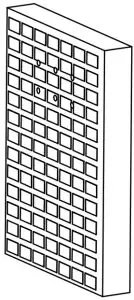
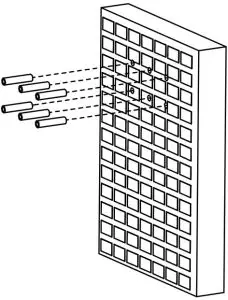
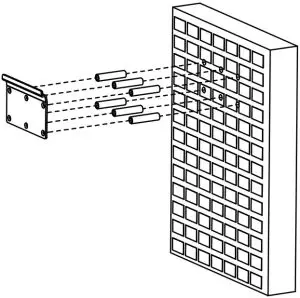
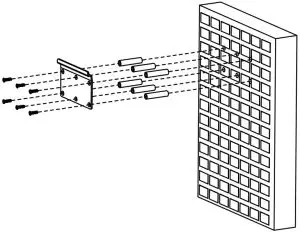
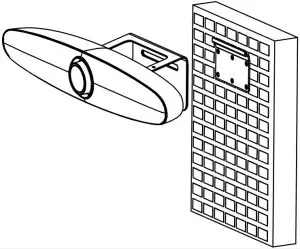
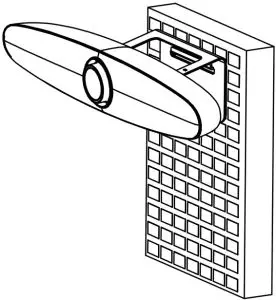
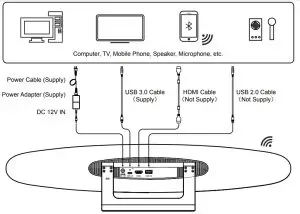
Remote Control Pairing
Note: The remote control has been paired with the whole machine when it leaves the factory, and it can be used normally without special operations. Unless there is an abnormal remote control, the whole remote control is confused, the remote control is missing, etc., and the remote control needs to be re-matched, the following steps are used to re-pair.
- Step 1 Connect the camera to the power supply and wait for the camera
initialization to complete, and the camera can output pictures normally. - Step 2 Clear the paired status of the remote control: Press the remote control pairing button + OK button at the same time, keep pressing until the remote control indicator shows a steady red light, release the button to successfully clear the remote control paired status.
- Step 3 Trigger the camera to enter the remote control pairing mode: Use the card pin to poke the reset button of the camera, and the camera’s LED light will switch to a blue marquee effect when it enters the pairing mode normally. (Note: Each time you enter the pairing mode, there is only 15s operation time. After the timeout, the pairing mode will be automatically exited. At this time, the LED is not a blue marquee effect. If you need to pair again, you need to press the reset button again to enter the remote control pairing mode again.)
- Step 4 Start pairing: Take out the remote control whose pairing status has been cleared to be matched, press and hold the pairing button on the remote control, and wait for the matching to complete. When the normal pairing is successful, the camera’s LED light is blue, with a flashing effect. After the pairing is successful, the camera can be operated normally through the remote control. If the pairing fails, please repeat steps 2, 3, and 4 until the matching is successful.
GUI Settings
MENU
Press MENU key under normal image, the screen will display menu content.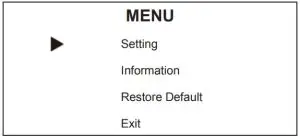
Setting
Move the cursor to “Setting” in the main menu, and press [OK] to enter the
setting page, as shown in the below figure.
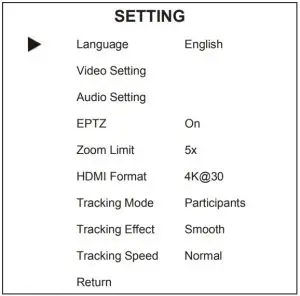
Language: Optional items: English, Chinese.
Video Setting: Setting 2D NR, 3D NR, WDR Enable, Flip-H, OSD Mirroring.
Audio Setting: Setting 3A Enable, Mic Equalizer.
EPTZ: Optional items: On, Off.
Zoom Limit: Optional items: 1.5x, 2x, 3x, 4x, 5x.
HDMI Format: Optional items: 1080P30, 1080I60, 4K@30, 4K@30 PIP.
Tracking Mode: Optional items: Off, Participants, Speaker.
Tracking Effect: Optional items: Smooth, Instaneous (Effective only in
Participants or Speaker of Tracking Mode).
Tracking Speed: Optional items: Slow, Normal, Fast (Effective only in Participants or Speaker of Tracking Mode).
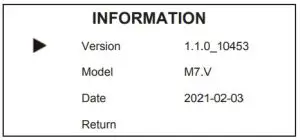
- Information
Move the cursor to “Information” in the main menu, and press [OK] to
enter the information page, as shown in the below figure.
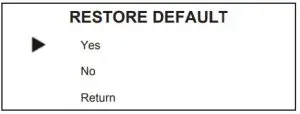
- Restore Default
Move the cursor to “Restore Default” in the main menu, and press [OK] to enter the restore default page, as shown in the below figure.
Yes / No: Confirm or cancel restore factory settings.
Note
GUI menu and parameter information are subject to change without notice.
Maintenance & Troubleshooting
Camera Maintenance
- If camera is not use in long-term, please disconnect power switch after use.
- Use soft cloth or cotton paper to remove dust from the camera housing.
- When cleaning the camera lens, please use dry soft cloth to wipe, if dirt is serious, use neutral cleaner gently. Do not use strong or corrosive detergent, lest the lens scratch, affect the image effect.
Avoid Using
- The camera should avoid shooting particularly bright objects, such as sunlight, lights, etc.
- The camera should not work under unstable lighting conditions, otherwise the image will flash.
- Do not use around facilities that can transmit high-power radio waves, such as television station or radio-transmitting station.
Troubleshooting
The video image displayed by the camera lens has jitter.
- Check whether the camera installed position be stabled.
- Check whether have vibrating machinery or object near the camera.