Contents hide

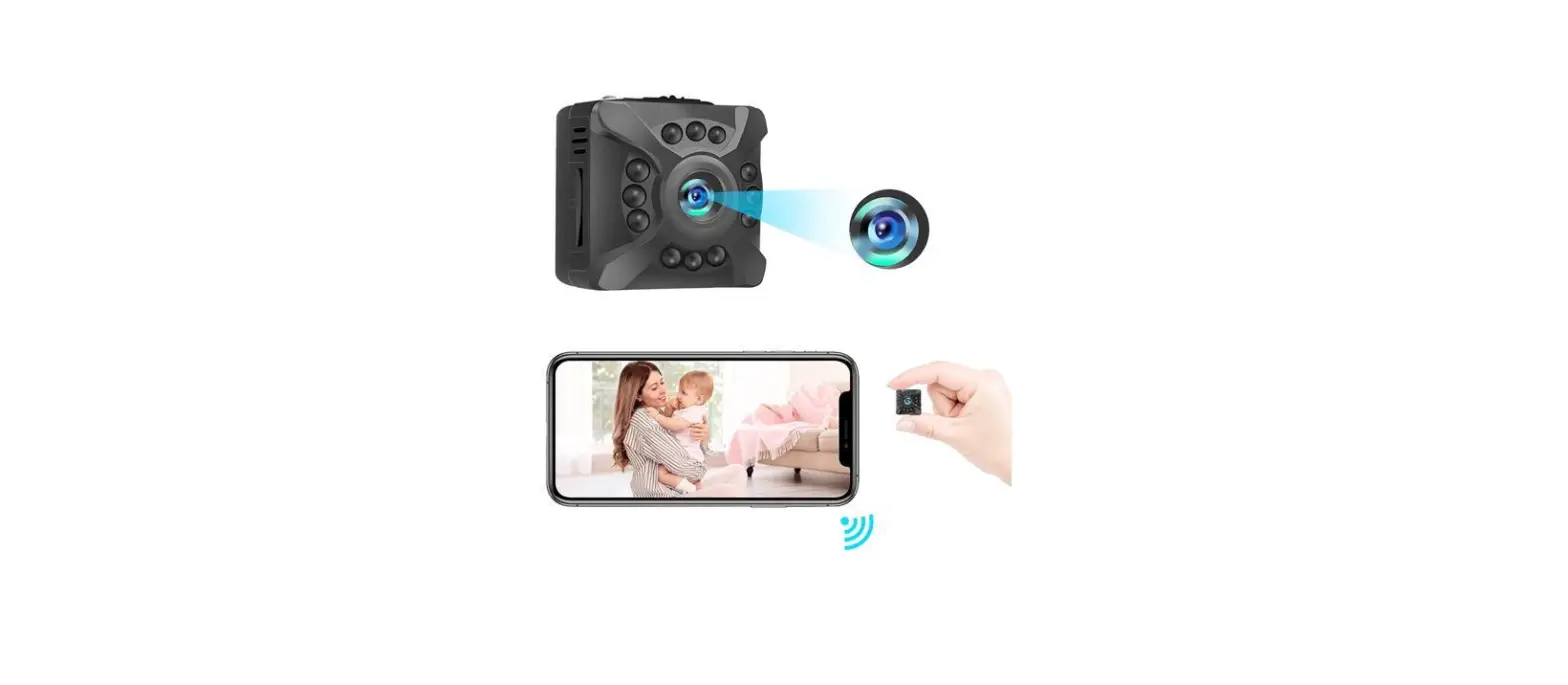
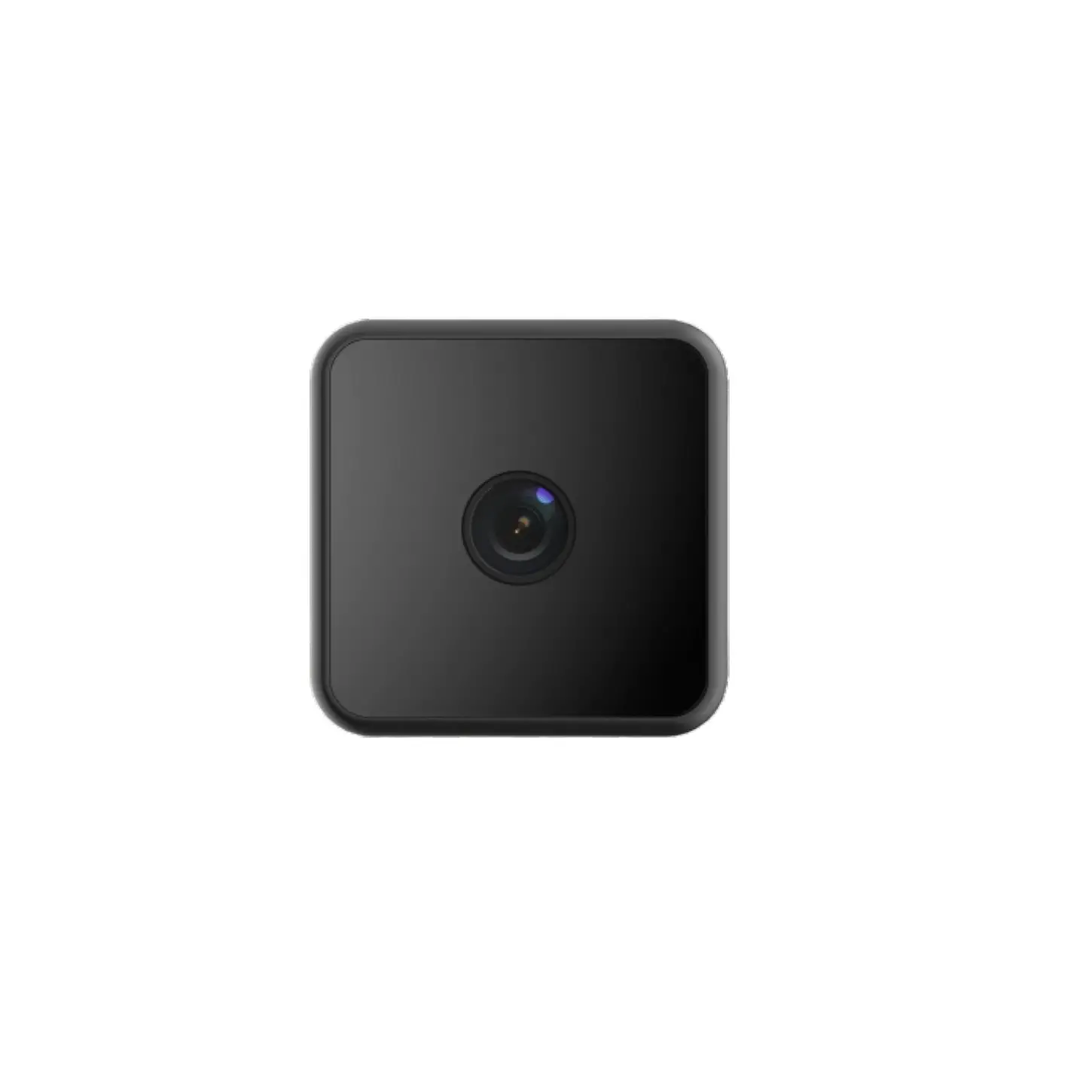
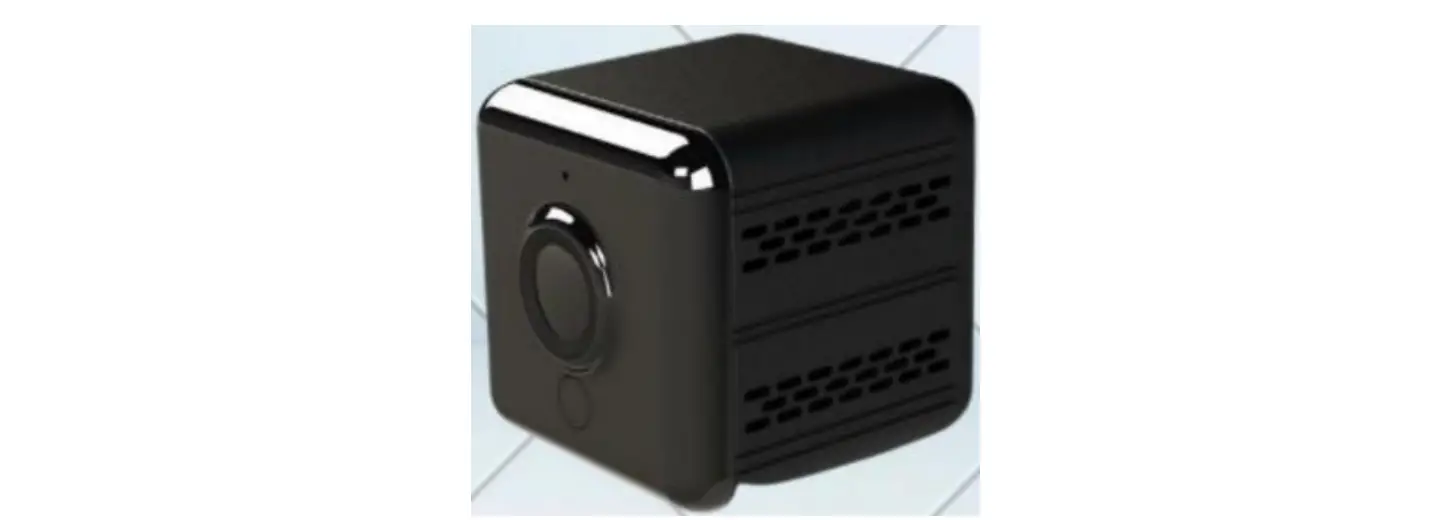
Ebarsenc X5 4K Mini Camera
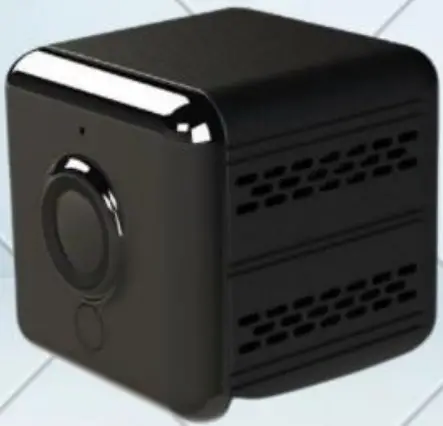
 Specification
 Specification
| Size | 31*31*38mm |
| Sensor | 1/4″color CMOS |
| Wide angle | 160°wide angle |
| Resolution | 1920*1080/1280*720P |
| Video form | MKV |
| Video encoding | H.264 |
| Photo resolution | 4K/1920*1080P/1280*720P |
| Night vision distance | 16feets-26feets |
| Battery capacity | 1400mAh |
| Storage | SD card(up to 256GB) |
| WiFi connection | Hotspot config to WiFi |
| Motion detection distance | 16feets-26feets |
| Weight | 48g |
| Charging port | Micro USB |
| Charging voltage | 5V1A-2A |
| Battery life | 6-8hours |
Quick set up instructions
App download
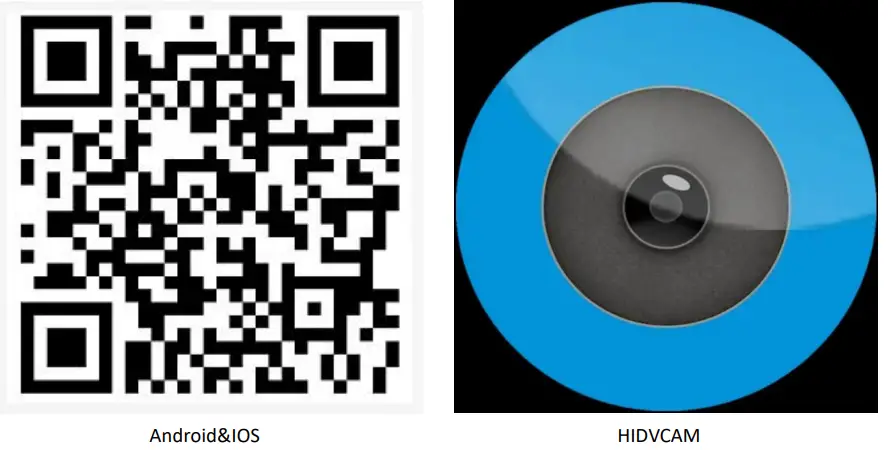
- Scan the QR code to download.
- android Device by Searching “HIDVCAM” in Google Play to download App;
IOS Device by Searching “HIDVCAM” in App Store to download App;
App permissions
Open the permissions your device needs on your phone.
Account register
Register via email or We Chat/ Facebook/Twitter/Line
WiFi CONNECTION
- STEP 1
Charge camera and turn on it,waiting for blue light on and green light flashing slowly.(Tip: Charge it about 3 hours for the first using.)
- STEP 2
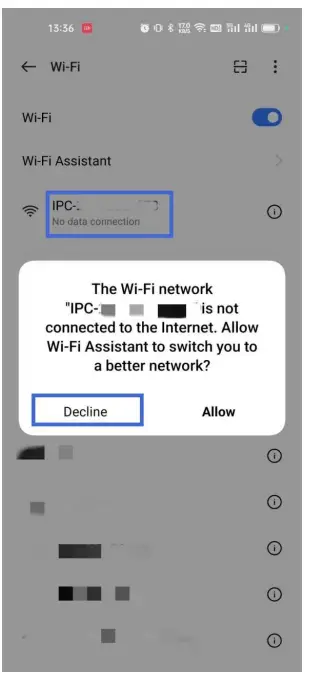
Move to WiFi list of your cellphone,find a WiFi name started with IPC-xxxx and connect it. (Tip*:Keep connecting even there is a notice that the internet is weak.) - STEP 3:
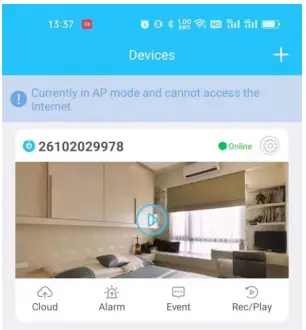
Open “HIDVCAM”, Pull to refresh device list to find the camera you connected.
- STEP 4
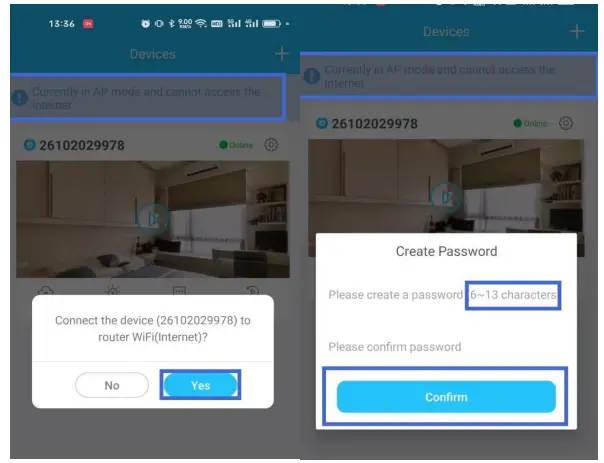
Set a password for your camera.
- STEP 5
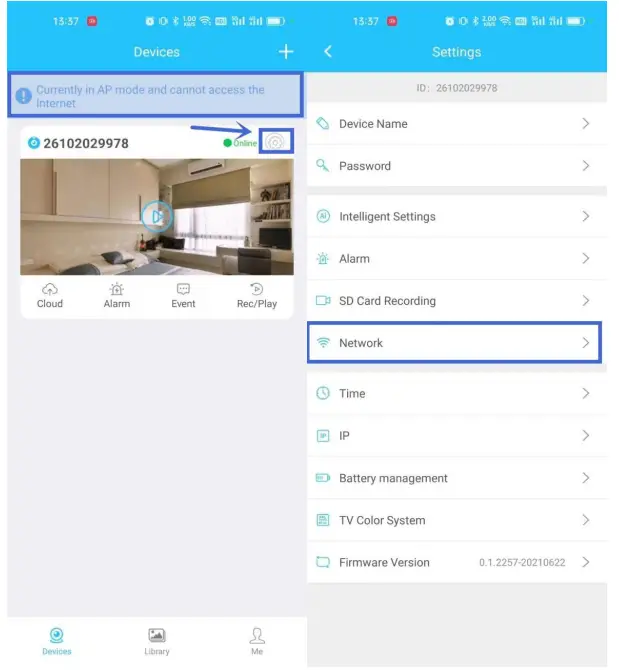
Tap the setting icon on camera page and network on settings page to connect this camera with your home WiFi.
(Tip Only supports 2.4Ghz WiFi, put your camera and cellphone close to WiFi router within 3 feet.)
- STEP 6
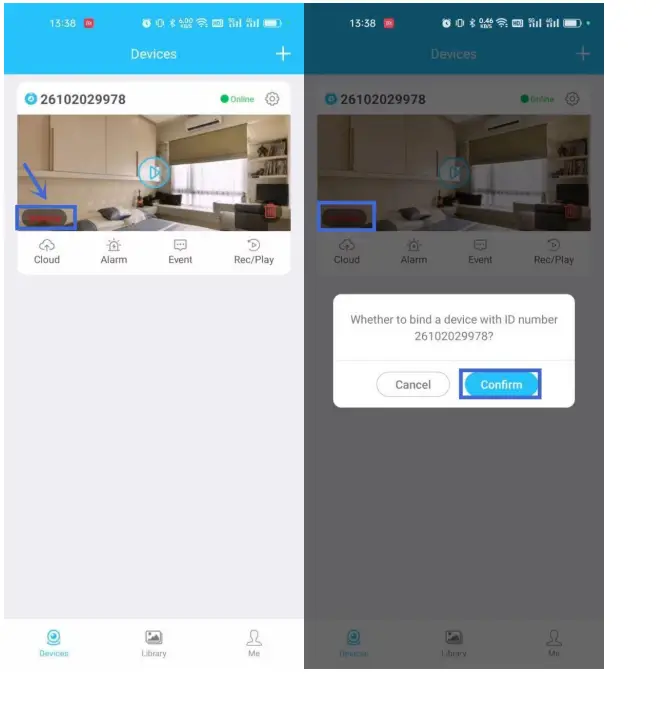
Waiting for 30 seconds to let the camera buffer, then the camera will be online.(If the camera is not online, please pull down to refresh the device list.) - STEP 7
Tap bind icon on camera page to bind this camera on this App.
- STEP 8
Now you can start using your camera!
LED indicator
| Indicator status | Camera status |
| Blue indicator is on ,green indicator flashes
slowly. | AP mode
(Hotspot) |
| Both are on | WiFi mode |
| Blue light is on,green light is off.(Camera can not
find WiFi,please reset camera.) | WiFi missing |
| Red indicator is on,will be off once fully charged. | Charging |
| Camera status | Instructions |
| Turn on | Hold down ON/OFF button 2 seconds. |
| Turn off | Hold down ON/OFF button 3 seconds. |
| Reset | Hold down RESET key 3 seconds. |
Camera functions
Device page
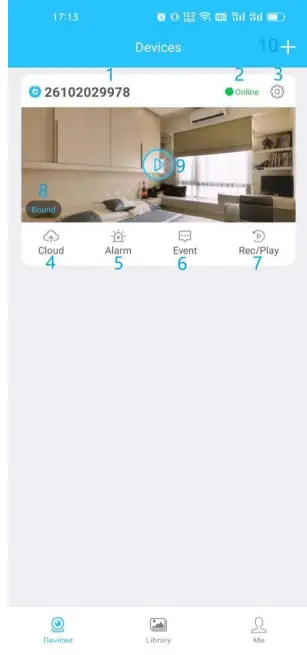
| Number | Function |
| 1 | Camera name |
| 2 | Check camera status |
| 3 | Camera setting |
| 4 | Cloud storage |
| 5 | Switch camera alarm to on/off |
| 6 | View motions detected by cam |
| 7 | Video recordings in SD card and
cloud |
| 8 | Bind device with user ID |
| 9 | Access to camera live video and
other settings |
| 10 | Add camera |
Setting page
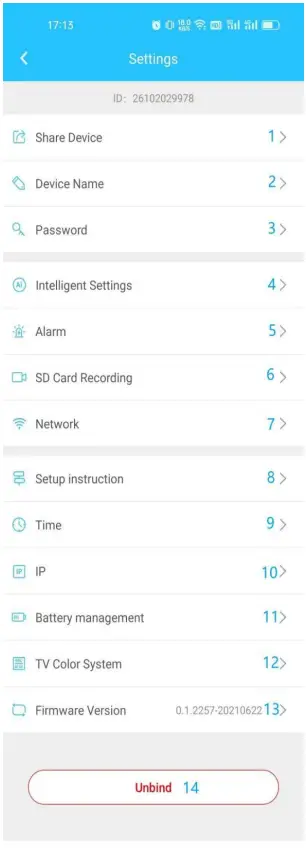
| Number | Function |
| 1 | Share your device with others |
| 2 | Name your camera |
| 3 | Set or change your device password |
| 4 | Set detection sensitivity |
| 5 | Turn on alarm and set alarm time |
| 6 | Format SD card and set recording
mode |
| 7 | Set or change home WiFi for the
device |
| 8 | Test your network status |
| 9 | Set device time to a certain time zone |
| 10 | Check device IP |
| 11 | Set device to shutdown in low battery |
| 12 | Select PAL or NTSC mode |
| 13 | Check your App version or update |
| 14 | Unbind this device with this user ID |
Live page
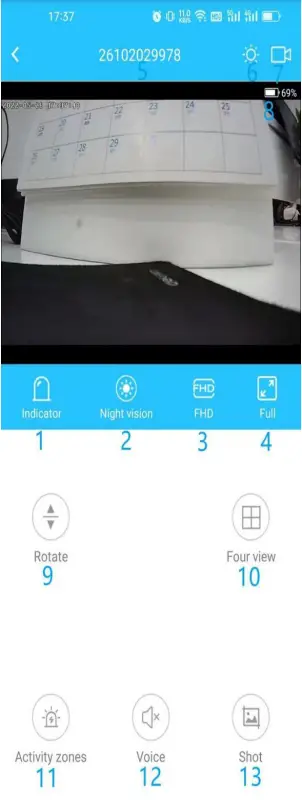
| Number | Function |
| 1 | Tap to switch on/off camera
status indicator |
| 2 | Tap to select automatic night
vision or turn off night vision |
| 3 | Select resolution of UHD(4K) or
FHD(1080P) |
| 4 | Enlarge screen to display |
| 5 | Camera name |
| 6 | Adjust screen brightness |
| 7 | Recording manually |
| 8 | Display battery consumption |
| 9 | Rotate screen manually |
| 10 | View 4 devices simultaneously |
| 11 | Select motion detection zones |
| 12 | Tap to turn on/off video sound |
| 13 | Take photos manually |
FAQ
- Camera adding and deleting
Adding:Tap “+”on device page Deleting:Camera setting-unbind-delete on camera page - Switch alarm
Camera page-alarm-alarm on/off - View motions detected by cam
make sure your camera alarm is on-event - View recordings from SD card and cloud
Camera page-Rec/Play-select the time you need.(Tip:Videos at this place could be downloaded to your cellphone.) - View videos,pictures taken and downloaded
Library - Camera sharing
- Invitee: Profile-user ID/user QR-code
- Owner: Camera page-setting-share device Via invitee’s user ID: Enter invitee’s user ID-search-select permissions
- Via invitee’s QR code: Scan invitee’s QR code-select permissions
- Set device sensitivity
Camera page-settings-intelligent settings-sensitivity-High/Medium/Low - Switch SD card recording mode
settings-SD card recording-Motion detection recording/Loop recording/Schedule - Alarm pop-up sound setting
Me page-App settings-Alarm pop-up setting - View live feed via hotspot directly.
Me page-watch video in AP connection mode-follow the instructions - Without WiFi using
Insert a micro SD card into this camera, switch it on, this camera will start loop recording. Each recording is about 10 minutes. (Supports up to 256GB micro SD card,not included.)- Tip 1*: If there is not enough space in your SD card, it will automatically overwrite the oldest files.
- Tip 2*:To watch complete videos on SD card, please switch OFF the camera, then take out SD card,in case of file damage.(Use a card reader to read.)
- Tip 3*:To save space on your memory card,resolution of video saved in SD card is 720P.
Notes
About SD card recording
- If you use an SD card of 64 GB or above, default formatting form of this kind of SD card is exFAT, but this camera only supports FAT32. So please format it firstly.
- Download Disk Genius on your computer,select FAT32 to format.
- Connect your camera with HIDVCAM App,click SD card recording in camera setting to format.
- if recordings on TF card are not watchable on your computer,please change a video player and try again.
Warning
Using it legally,or please take responsibility for the consequences.
Package
- Ebarsenc 4K mini camera * 1
- USB cable(39 inch) * 1
- USB cable(4 inch) * 1
- Plastic holder * 1
- User manual * 1
- Glue flake * 2
Warranty
We offer a 1-year free replacement and return warranty. If there is anything wrong with your camera,please contact us without hesitation.
Contact us
Email: [email protected]
Facebook: Ebarsenc Hdwz
View more details via Tiktok:ebarsenc View tutorial video via Youtube: Ebarsenc