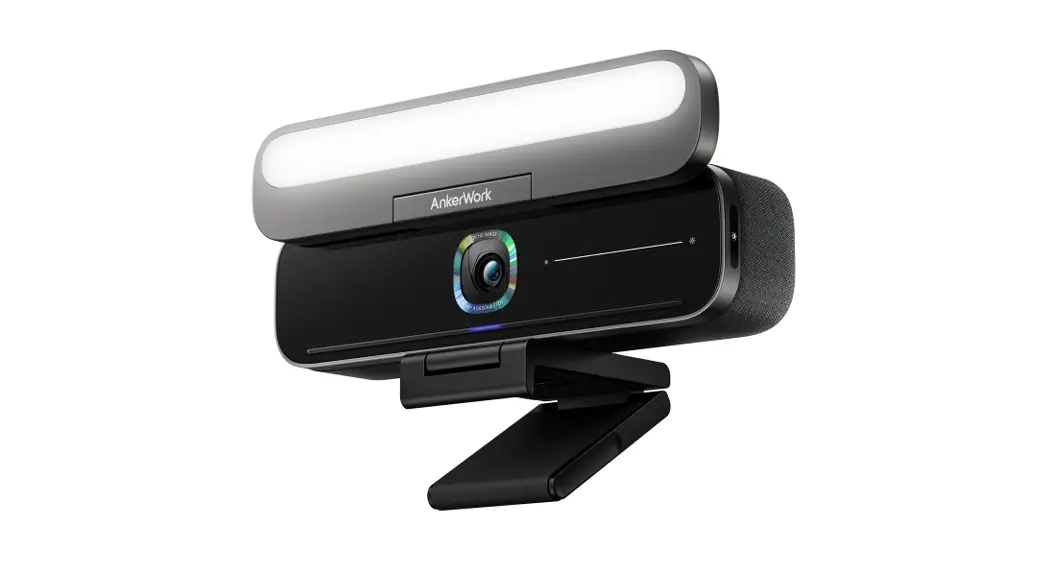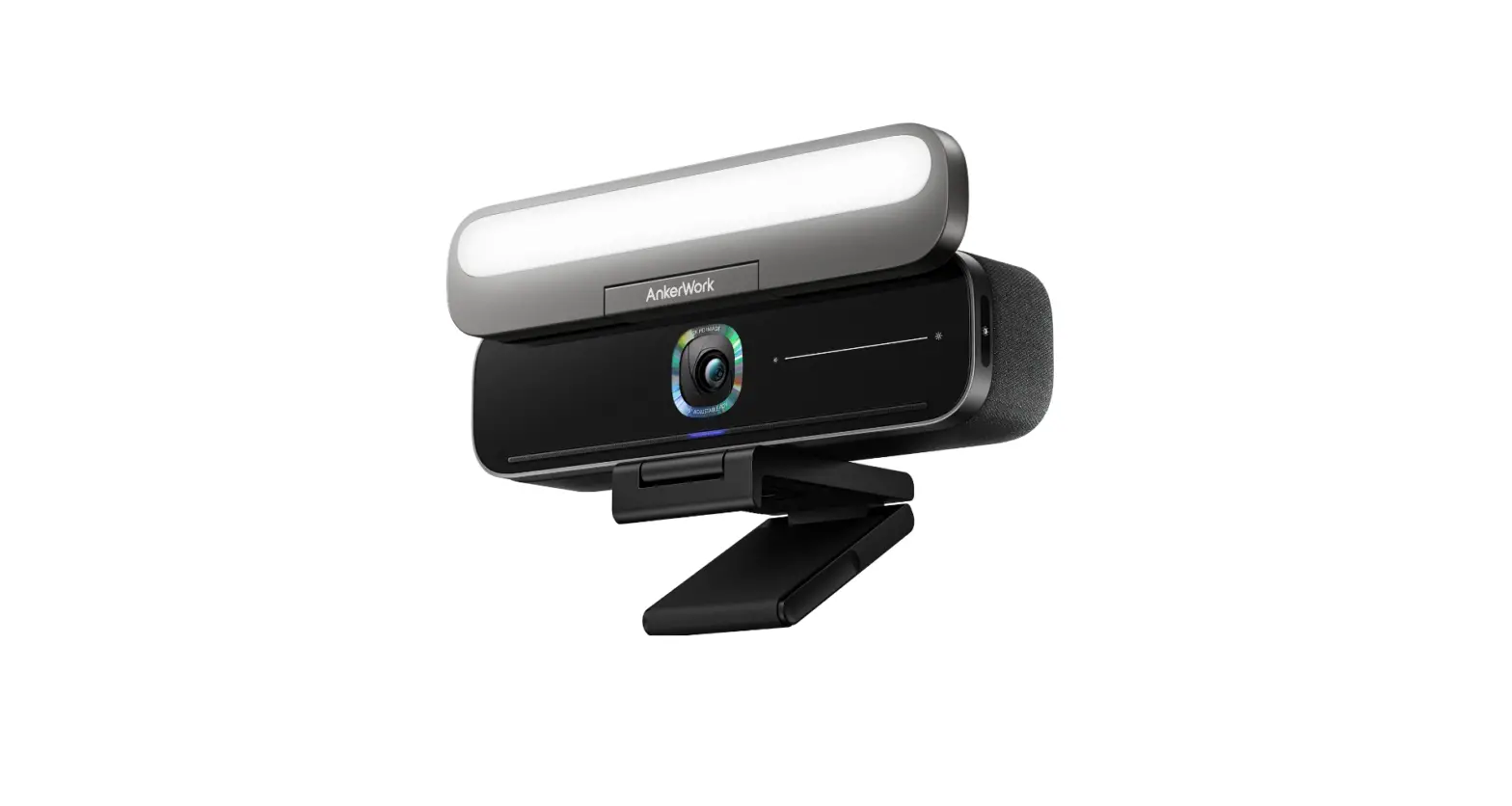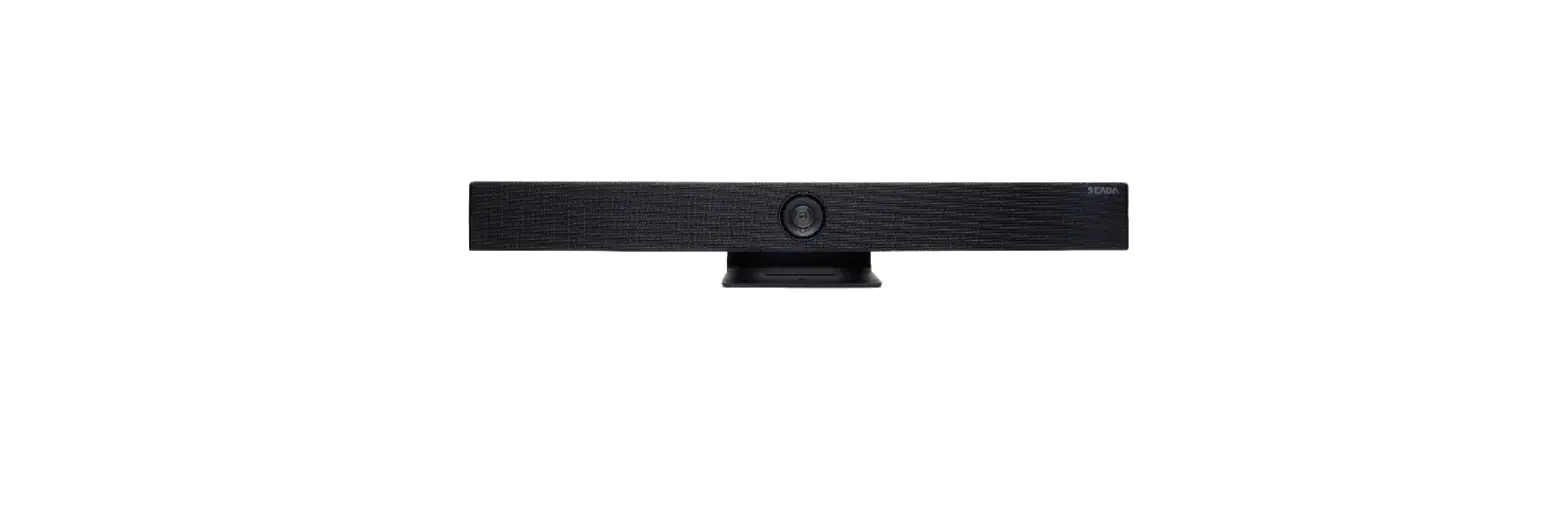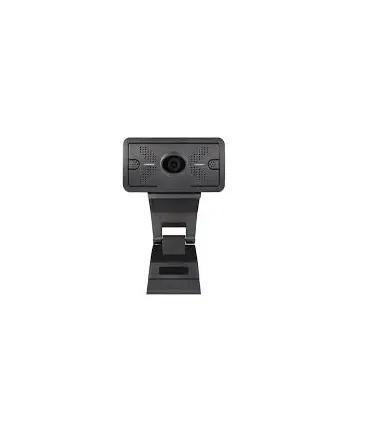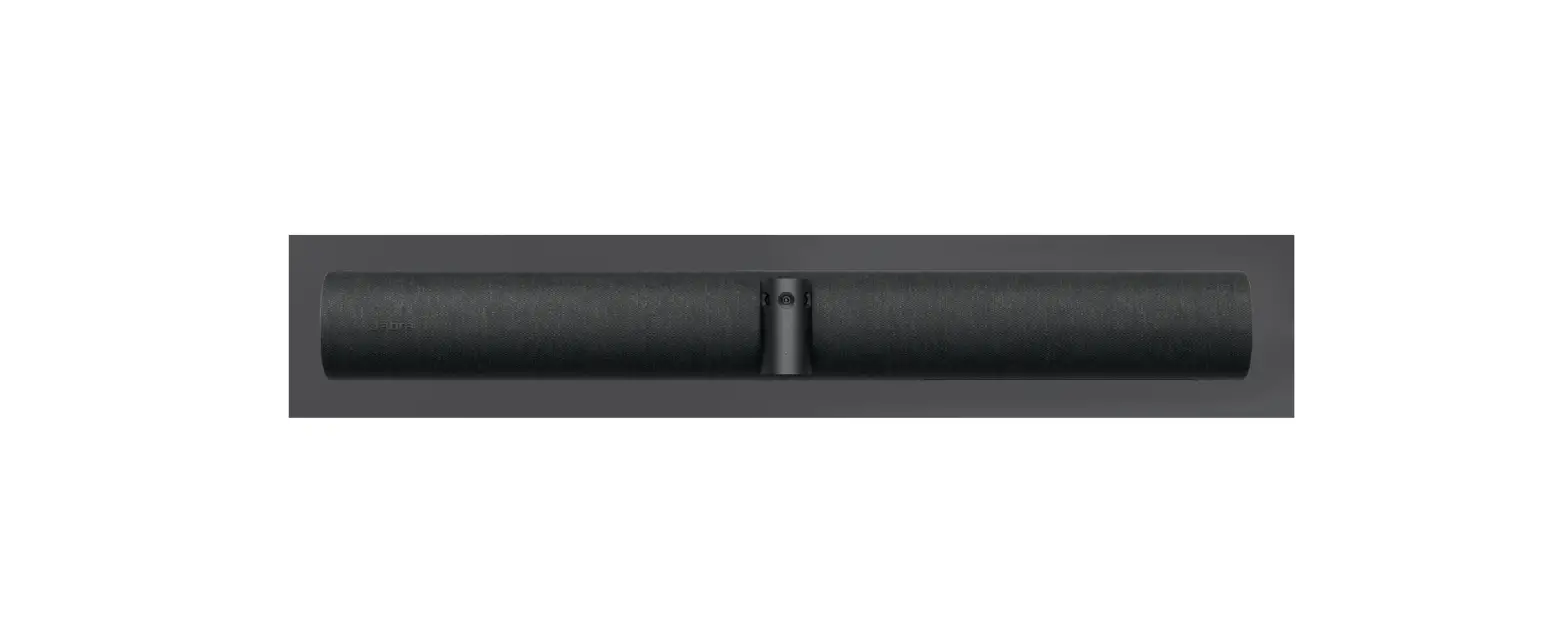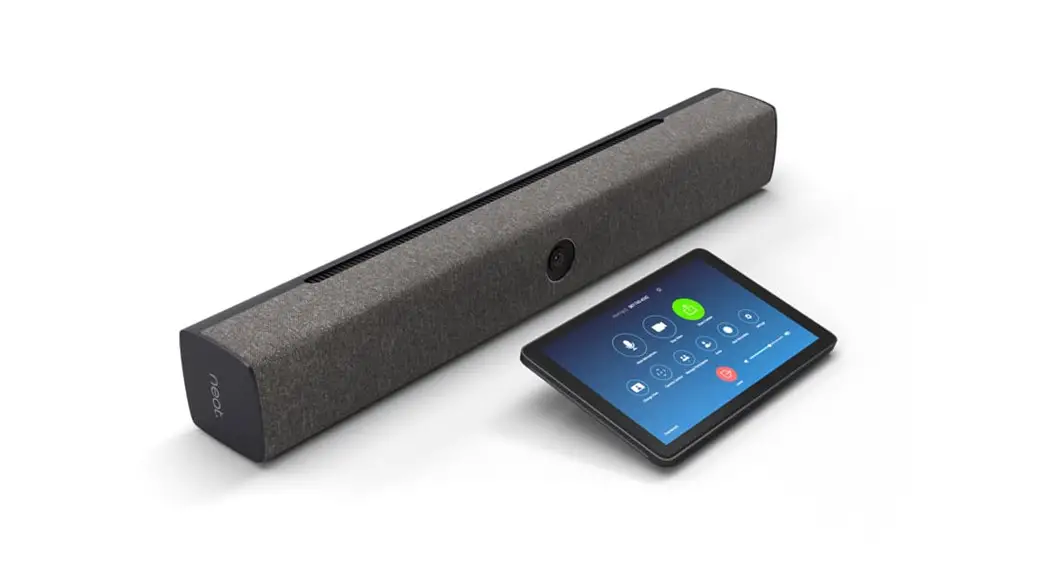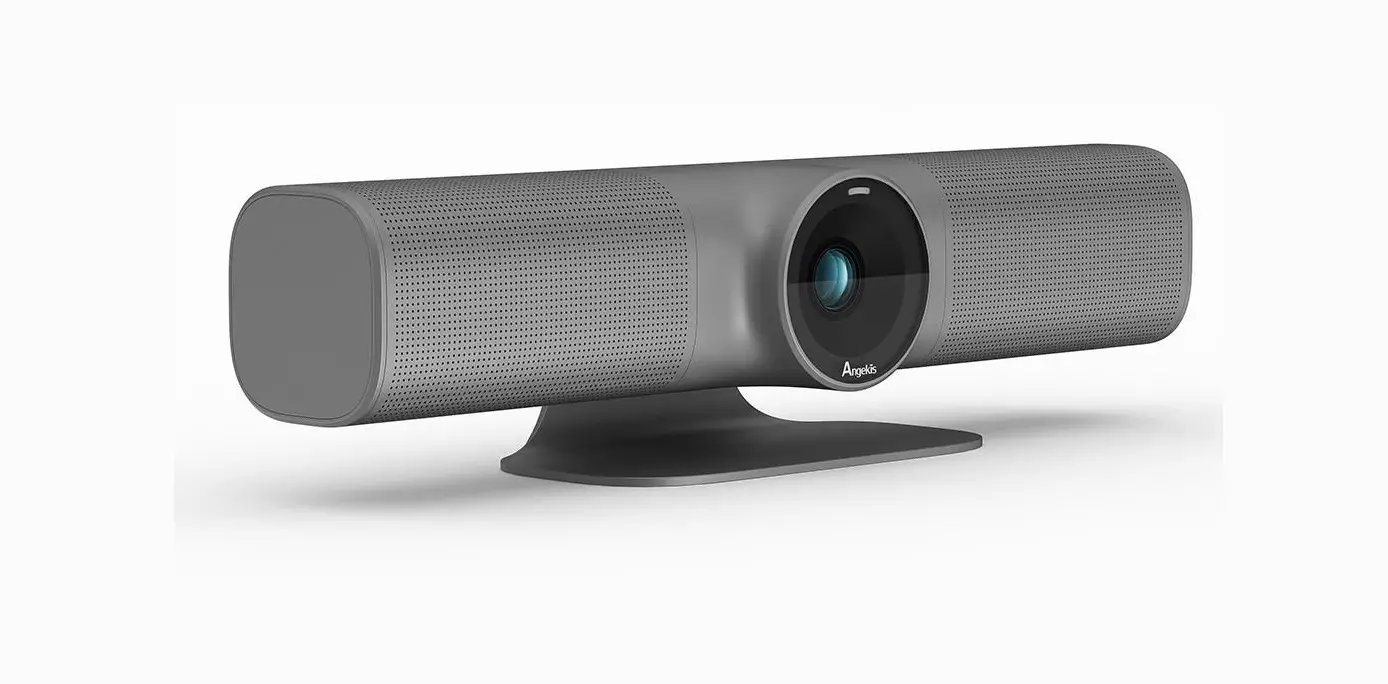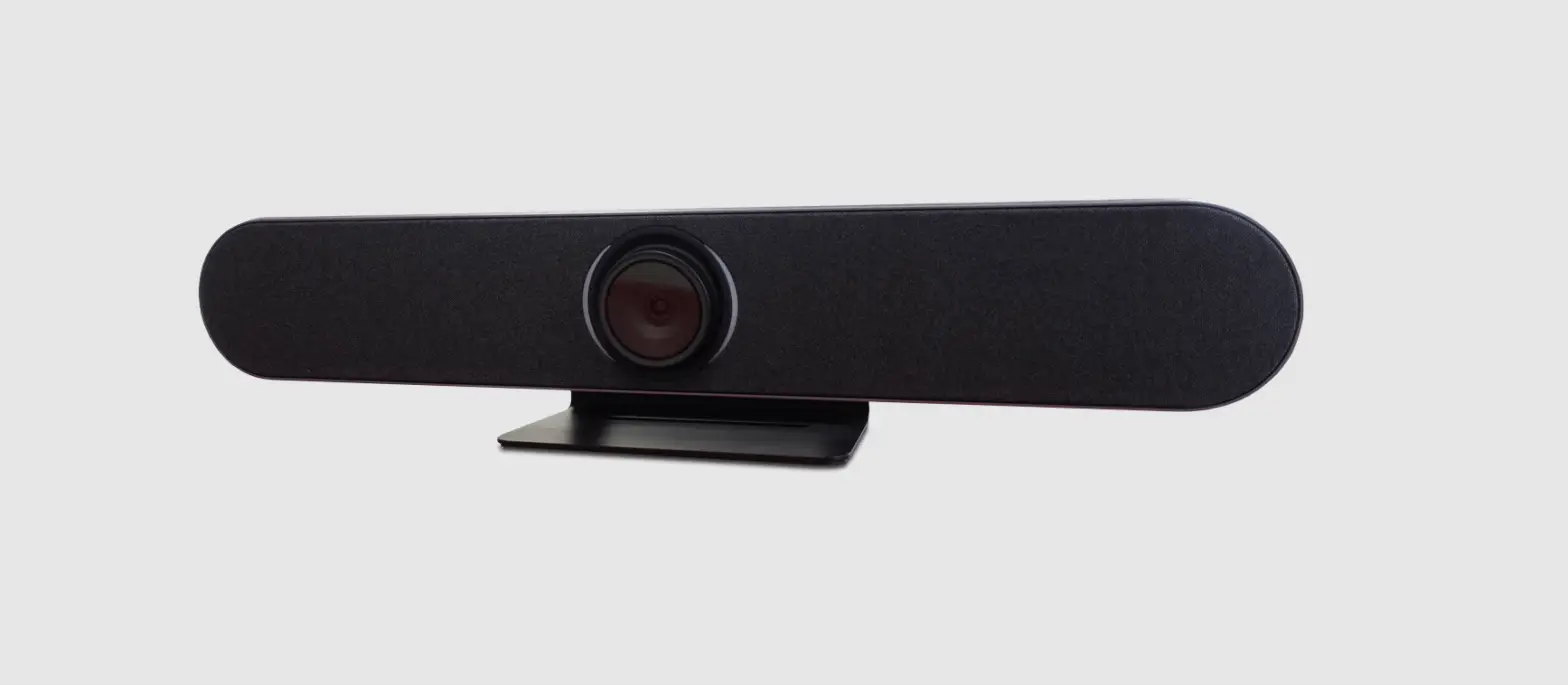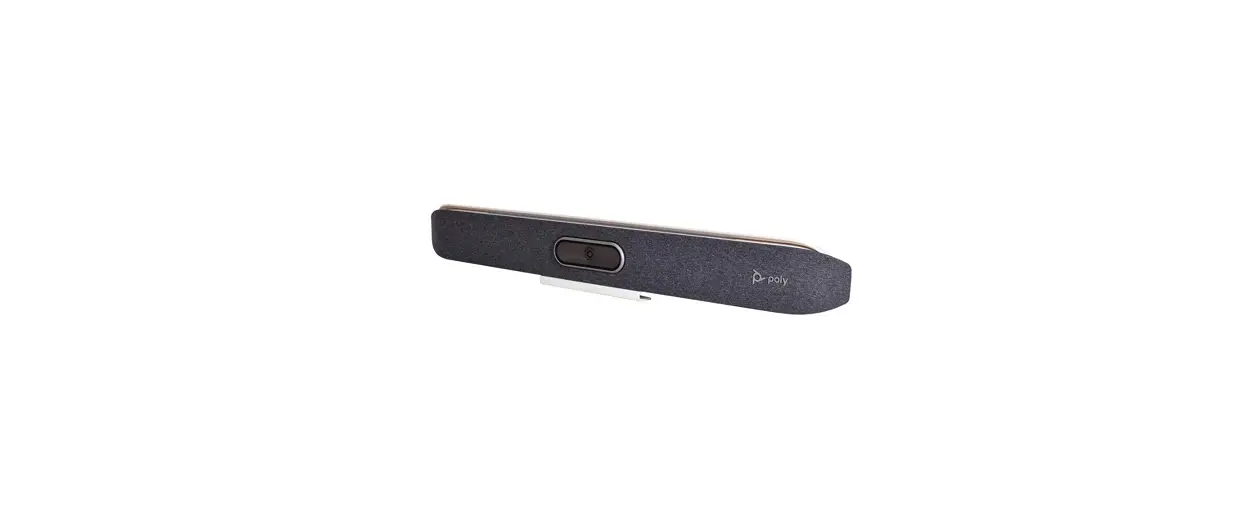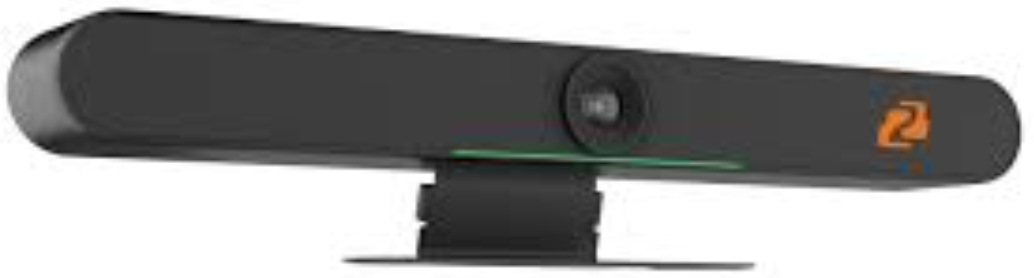

BZBGEAR Intelligent 4K All In One Video Bar
Preface
This manual is to ensure that the user can use the product properly and avoid danger while operating. Before using this product, please read the user manual carefully and keep it properly for future reference
Overview:
This manual describes the operation of Intelligent 4K All-in-one Video Bar.
Graphic Symbols
Description of graphic symbols used in this manual
| Symbols | Description |
 | This symbol indicates that the words are clarification or supplement to this article. |
 | This symbol indicates that negligence of the instructions may lead to mishandling that may cause injury or property damage. |
| This symbol indicates a risk that may result in damage to this machine or documents. Follow the instructions to avoid property damage. |
Attention
This manual introduces functions, installations and operations for this product in details. Please read this manual carefully before installation and use.
Precautions:
This product can only be used in the specified conditions in order to avoid any damage to the camera:
- Do not expose the product to rain or moisture.
- To prevent the risk of electric shock, do not open the case. Installation and maintenance should only be carried out by qualified technicians.
- Do not use the product beyond the specified temperature, humidity or power supply specifications.
- Please use a soft dry cloth to clean the camera. If the camera is very dirty, clean it with diluted neutral detergent; do not use any type of solvents, which may damage the surface.
Electrical Safety:
Installation and use of this product must strictly comply with local electrical safety standards.
Transportation:
Avoid any stress, vibration, or moisture during transportation, storage, installation and operation
Installation:
- Do not rotate the camera head violently, otherwise it may cause mechanical failure;
- This product should be placed on a stable desktop or other horizontal surface. Do not install the product obliquely, otherwise it may display inclined image;
- Ensure there are no obstacles within rotation range of the holder.
- Do not power on before completely installation.
Do Not Dismantle Camera:
We are not responsible for any unauthorized modification or dismantling.
Magnetic Interference
Electromagnetic fields at specific frequencies may affect the video image. This product is Class A. It may cause radio interference in household application. Appropriate measure is required.
FCC Statement
This device complies with part 15 of the FCC Rules. Operation is subject to the following two conditions:
- This device may not cause harmful interference, and
- this device must accept any interference received, including interference that may cause undesired operation.
Warning:
Changes or modifications not expressly approved by the party responsible for compliance could void the user’s authority to operate the equipment.
FCC NOTE:
This equipment has been tested and found to comply with the limits for a Class B digital device, pursuant to part 15 of the FCC Rules. These limits are designed to provide reasonable protection against harmful interference in a residential installation. This equipment generates, uses and can radiate radio frequency energy and, if not installed and used in accordance with the instructions, may cause harmful interference to radio communications. However, there is no guarantee that interference will not occur in a particular installation. If this equipment does cause harmful interference to radio or television reception, which can be determined by turning the equipment off and on, the user is encouraged to try to correct the interference by one or more of the following measures:
- Reorient or relocate the receiving antenna.
- Increase the separation between the equipment and receiver.
- Connect the equipment into an outlet on a circuit different from that to which the receiver is connected.
- Consult the dealer or an experienced radio/TV technician for help
Radiation Exposure Statement
This equipment complies with FCC radiation exposure limits set forth for an uncontrolled environment. This equipment should be installed and operated with a minimum distance of 20 cm between the radiator and your body.
This device complies with Industry Canada licence-exempt RSS standard(s). Operation is subject to the following two conditions:
- this device may not cause interference, and
- this device must accept any interference, including interference that may cause undesired operation of the device.”
The device is compliance with RF exposure guidelines, users can obtain Canadian information on RF exposure and compliance. The minimum distance from body to use the device is 20cm.
Quick Start
Interfaces
| Interfaces | |
| USB | USB audio video in out, type C |
| HDMI | HDMI video output |
| LINE IN | Audio linear input |
| LINE OUT | 3.5mm linear output |
| Extension Mic | RJ45 extension mic |
| Power jacket | HEC3800 power socket(DC12V), input AC110V-AC220V, output DC12V/2A |
Device Startup
Power on
Connect device to power socket with DC12V power adapter.
Statue Indicator Light
| Green lights continuously run left to right | Boot initialization in progress |
| Blinking Blue Lights | In Bluetooth pairing mode |
| Lights Turn Blue and Stay 3S | Bluetooth pairing finished |
| Solid Green Light | Working statue: When turn off Auto-framing & Voice tracking, all light turn green When turn on Auto-framing & Voice tracking, partial light turn green |
| Blinking Green Light | Standby statue(Device on without video) |
| Solid Red Light | Microphone Muted |
| Green Indicator Light On/Off | Volume up/down |
| Partial Light Turn Green | Partial light turns green according to the voice source |
Video Output
- USB:Connect device to Pcs through USB cable, and open the video software to select device to output.
- HDMI:Connect device to monitor through HDMI cable, and then select the correct input source on the monitor to output.
Audio Input
- a. Built-in audio :It is default that the device pick up voice through built-in mics
- b. Audio input through 3.5mm linear audio cable:Connect to external pickup through 3.5mm audio cable (When connecting to external pickup, audio in automatically switch into external pickup.)
Audio Output
- Built-in speaker: It is default that device output voice through built-in speaker.
- Audio output through 3.5mm linear audio cable: Connect to external speaker through 3.5mm audio cable (When connecting to external speaker, audio out automatically switch into external speaker.)
Product Overview
Product Introduction
Dimension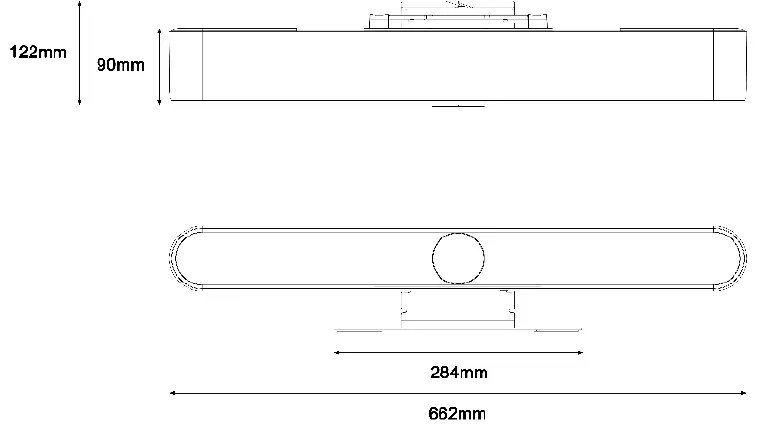
- 2-1 Dimension
Supplied Accessory
When you unpack your box, please check that all the supplied accessories are included.
| Items | Quantity | ● Supplied ○Optional |
| All-in-one video bar | 1 | ● |
| USB cable | 1 | ● |
| Remote control | 1 | ● |
| Quick start guide | 1 | ● |
| Power adapter | 1 | ● |
Product Features
With all-in-one design, this device has 4K UHD camera, microphone array, high fidelity speaker and electric privacy cover. Boasting powerful functions like face recognition, voice localization, voice tracking, and intelligent noise reduction, this product could automatically adjust the image size according to the number of participants to present the optimal frame. It can also detect the speaker position in real time and lock the target while having a close-up, which allows users to have hands-free operation. This device has 6 array microphone composed of MEMS microphones, and it can also be matched with external cascading microphone and advanced 3A audio algorithm, you will have an exceptional full-duplex communication experience.
- Integrated Design: Built in 4K UHD camera, microphone array, high fidelity speaker and electric privacy cover
- Ultra HD: This device adopts 8 M high quality CMOS image sensor, able to capture 4K ultra HD image to present true-to-life image, bringing excellent image resolution and clarity.
- Distortion-less Wide Angle Lens: 120° wide angle with no distortion lens allows every participant is on the frame with no need to adjust the camera.
- Automatic Privacy Cover: Privacy cover will automatically close to ensure the privacy security.
- Microphone Array: Built in 6 array microphone enable speaker can be tracked in real time. THIS DEVICE break the distance limitation to provide virtual meeting as if you are there.
- Built in Speaker: Built in dual 10W high quality studio speaker, ensuring every participant can hear and be heard clearly.
- Audio Processing: The audio processing algorithm adopts high-fidelity 48K audio sampling rate, lossless audio transmission technology, supports AEC, AGC, ANS processing, bringing high-quality calls of 6 meters full duplex;
- Auto Framing: Built in face detection algorithm, automatically detect participant and provide optimal framing.
- Bluetooth 5.0: Connect mobile phone and other devices through Bluetooth to be used as Bluetooth speaker and microphone.
- Low Noise and High SNR: Low noise CMOS ensure the ultra SNR of image. The advanced 2D, 3D noise reduction technology further reduce the noise while ensuring the image clarity.
- Powerful Compatibility: Compatible with Windows7, windows10, Mac OS 10.10 or higher system, applicable to major cloud-based video conference platforms.2.3
Technical Specification
| Camera | Lens | FOV | 120°(D) /106°(H)/ 72°(V) |
| Iris | F2.0 | ||
| Focal Length | 1.89mm | ||
| Digital Zoom | 10X | ||
| Sensor | High quality CMOS sensor, effective pixel 8 million, 16:9 | ||
| Image | Minimum Illumination | 0.5Lux | |
| DNR | 2D﹠3D | ||
| Focus | Auto/Manual | ||
| BLC | On/Off | ||
| Exposure | Parameter can be adjusted, and AE(Auto Exposure) is available | ||
| Video Adjustment | Brightness, sharpness, saturation, contrast, white balance, gain, anti-flicker, low brightness compensation and other parameters can be adjusted | ||
| SNR | ≥50dB | ||
| Video Format | HDMI:4KP30,1080P60 compatible downward USB:4KP30,1080P60 compatible downward | ||
| Video Compression Format | MJPEG, YUY2, H.264, H.265, NV12 | ||
| Privacy Cover | Automatic privacy cover will close when no image output and open when there are image output. | ||
| Audio | Microphone | Microphone | 6 X MEMS Microphones |
| Pickup Distance | 6 meters | ||
| Frequency Response | 120 Hz–16 kHz | ||
| Speaker | Speaker | Built in dual speaker | |
| Voltage | 2*10W | ||
| Output Voice Pressure | 80±3 dB 1.0M/1.0W | ||
| Frequency Response | 100 Hz-20 KHz | ||
| Audio Processing | AEC, AGC, ANS | ||
| AI Function | Group Framing | Automatically adjust the screen size according to the number of participants to present the best framing | |
| Speaker Tracking | Track each speaker in real time, and ensure that the speaker is in the center of the screen. | ||
| Remote Control | Remote Control | Infrared remote control | |
|
Physical Interfaces | USB | USB3.0 audio video output interface ,Type C Support UVC1.1, UAC1.0 and higher | |
| HDMI | HDMI video output interface HDMI also compatible with HDMI2.0 standard | ||
| LINE IN | 3.5mm audio line input interface (when an external pickup is connected, the audio input is automatically switched to the external pickup) | ||
| LINE OUT | 3.5mm line output, can be connected to external speakers (when connecting to external speakers, the audio output will automatically switch to external speakers) | ||
| Expansion Mic Interface | RJ45 interface, able to connect to expansion microphone. | ||
| Power Interface | HEC3800 power socket (DC12V), input AC110V-AC220V output DC12V/2.5A | ||
| Indicator | Bar-shaped Indicator | While displaying the working status, it can also be lit where the speaker’s voice comes from. |
| Bluetooth | Bluetooth 5.0 | Can be connected to a mobile phone or other device via Bluetooth as a Bluetooth microphone and speaker |
| Compatibility | Available System | Windows 7, Windows 8, Windows 10, Mac OS X, Linux, Android |
| Power Supply Method | Supply power through power adapter | |
| Working Condition | Storage Temperature | -10℃~+70℃ |
| Storage Humidity | 20%~95% | |
| Working Temperature | -10℃~+50℃ | |
| Working Humidity | 20%~80% | |
| Environment | Indoor | |
| Installation Method | Walling Mount | Comes with walling mount bracket. While mounting, the camera need to be as close to the wall as possible. |
| Desktop | Comes with desktop mounting bracket | |
| Installed on Monitor | Bracket for monitor installation(optional) |
How to Use
Remote Control
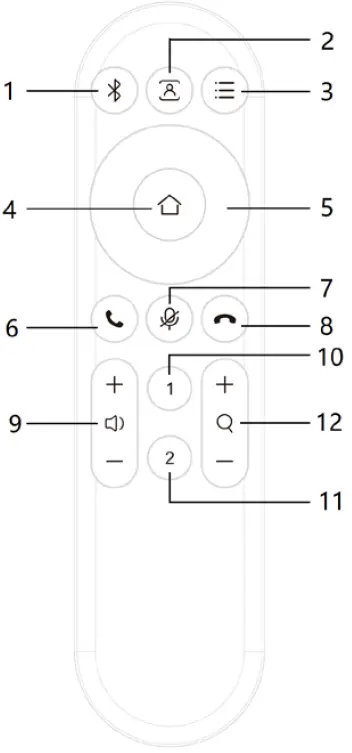
| Number | Function Description |
| 1 | Bluetooth |
| 2 | Auto Framing & Voice Tracking |
| 3 | Menu |
| 4 | HOME |
| 5 | Up, down, left, right |
| 6 | Answer call |
| 7 | Microphone muted |
| 8 | Reject the incoming call |
| 9 | Volume up/down |
| 10 | Set/call out preset #1 (Long press 3 sec to set preset, short press to call out preset) |
| 11 | Set/call out preset #2 (Long press 3 sec to set preset, short press to call out preset) |
| 12 | Zoom in/out |
Main Menu
Press menu key on remote control, and use arrow to point item to be selected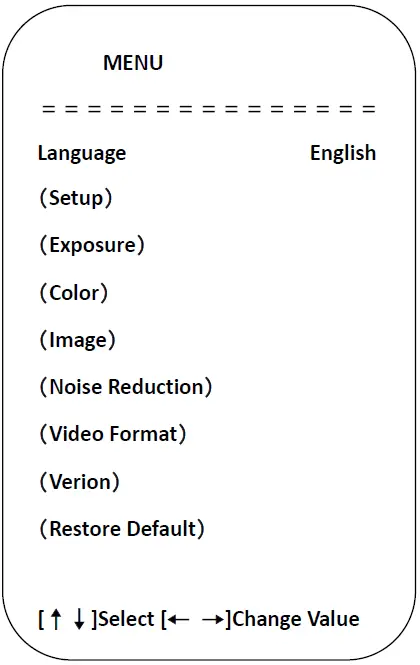
- Language
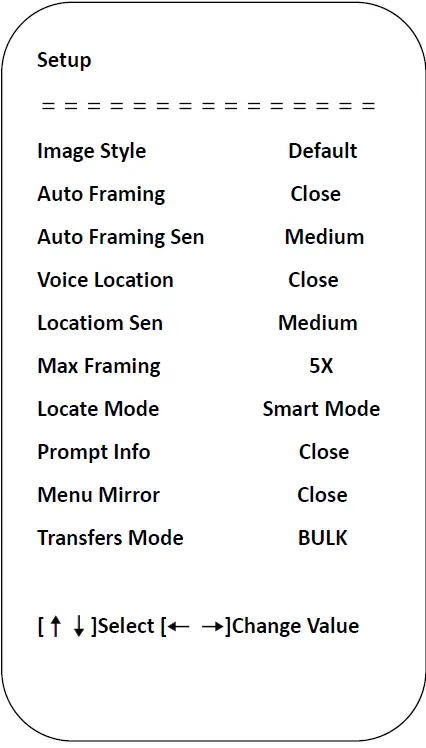
Move arrow to (Language), and press【← →】to change the option - Setting
Move arrow to (Setting), and press 【HOME】 to enter the exposure interface.
- Image Style :Default/standard/clear/bright/soft
- Auto Framing: On/off
- Auto Framing Sen: high/medium/low
- Max Framing: 3X/5X/10X
- Voice Tracking: on/off
- Voice Tracking Sen: high/medium/low
- Locate Mode: Smart mode/pan mode/movie mode/discussion mode
- Prompt Info: On/off
- Menu Mirror: On/off
- Transfers Mode: Bulk/synchronization
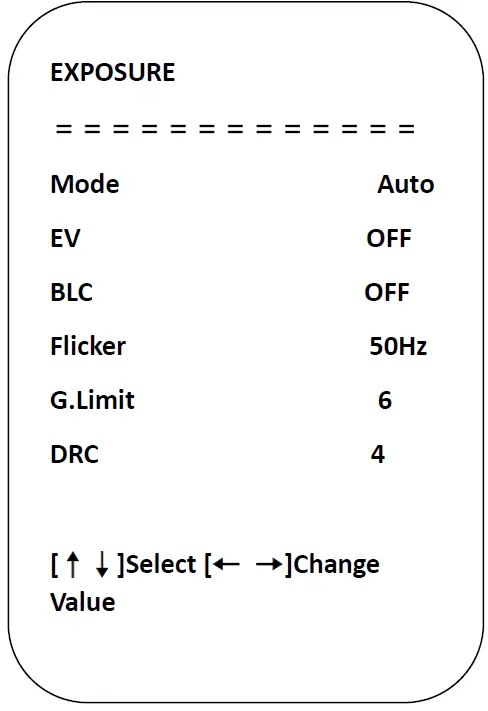
- Exposure
Move arrow to (exposure), press 【HOME】 to enter exposure interface.
- Exposure mode: Auto/manual/shutter priority/bright priority
- Exposure Compensation(EV): On/off
- Compensation Level: -7 – 7( only available in EV mode on)
- BLC: On/off ( only available in auto mode)
- Anti-Flicker: 50Hz, 60Hz, off (only available in auto, iris priority, bright priority mode)
- Gain Limit: 0 – 15(only available in auto, iris priority, bright priority mode)
- Dynamic Range: 1 – 8, off
- Shutter Priority: 1/30, 1/50, 1/60, 1/90, 1/100, 1/120, 1/180, 1/250, 1/350, 1/500, 1/1000, 1/2000, 1/3000, 1/4000, 1/6000, 1/10000(only available in manual, and shutter priority mode)
- Bright: 0 – 23 (only available in bright priority)
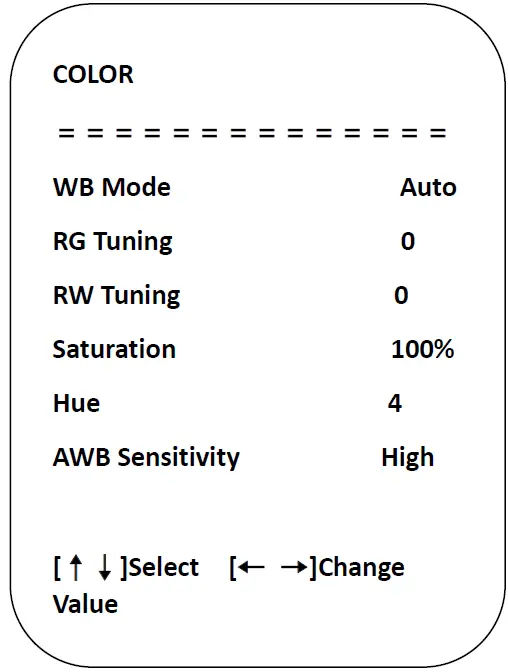
- Color
Move arrow to (color), and press 【HOME】 to enter color page.
- WB Mode: Auto/manual/one-push/specified temperature
- RG Tuning: -10~10
- Saturation: 0~127
- Blue Tuning: -10~10
- AWB Sensitivity: High/medium/low(only available in auto mode)
- Hue:0~8
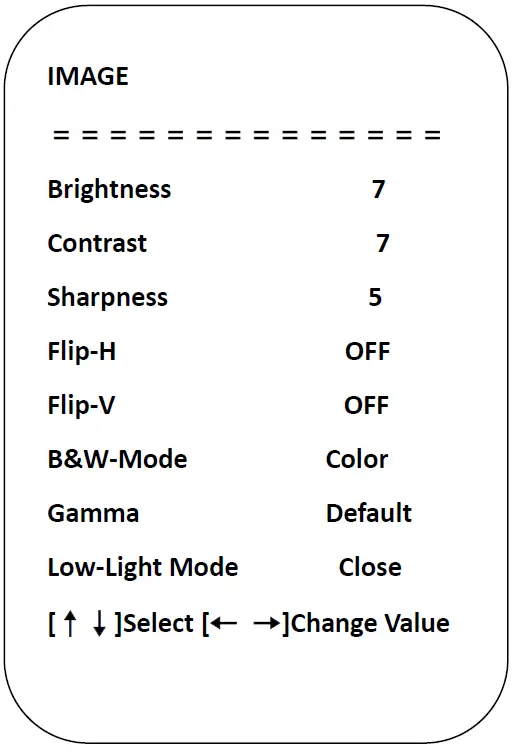
- Image
Move arrow to (image), and press 【HOME】 to enter image page.
- Brightness:0~14
- Flip-H: On/off
- Gamma: Default, 0.34, 0.39, 0.47, 0.50
- Contrast:0~14
- Flip-V: On/off
- Low-Light Mode: On/off
- Sharpness:0~15
- B&W-Mode: Color/B&W
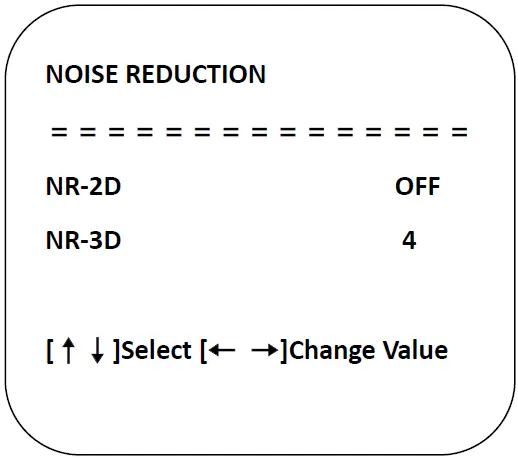
- Noise Reduction
Move arrow to (Noise Reduction), and press 【HOME】 to enter Noise Reduction page.
- 2D NR: Auto, manual 1~7
- 3DNR:Off, 1~8
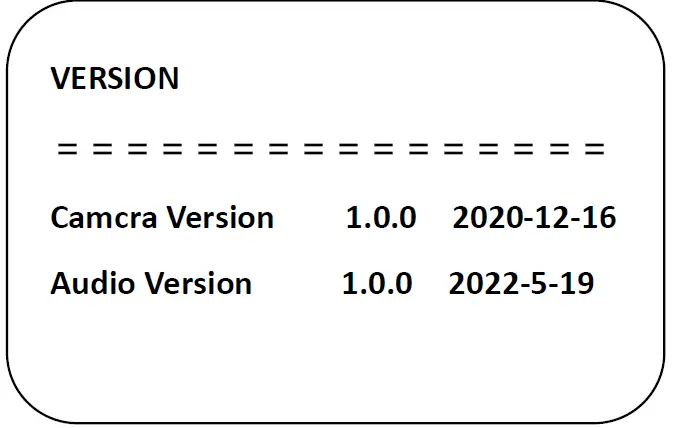
- Version
Move arrow to (version)
- Restore Default
Move arrow to (restore default), and press 【HOME】 to enter RESTORE DEFAULT page.
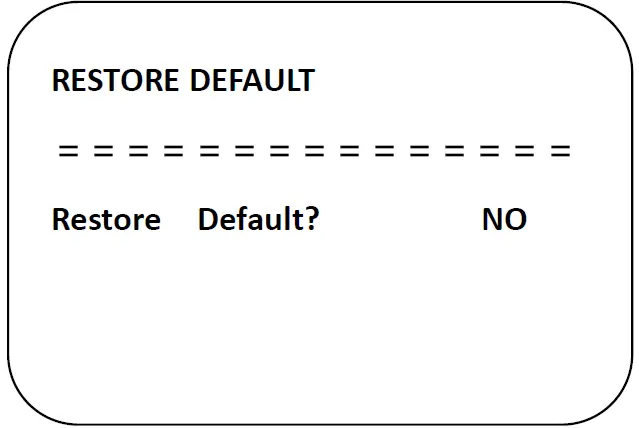
Restore default: Yes/no (color style and video format cannot be restored)
Maintenance and Troubleshooting
Maintenance
- If the camera will not be used for a long time, please turn off the power switch.
- Use a soft cloth or lotion-free tissue to clean the camera body.
- Use a soft dry lint-free cloth to clean the lens. If the camera is very dirty, clean it with a diluted neutral detergent. Do not use any type of solvent or harsh detergent, which may damage the surface.
Troubleshooting
- No image
- a. Check whether the power cord is connected, voltage is OK, POWER lamp is lit.
- b. Check whether the camera can “self-test” after startup
- c. Check that the rotary dial on rear work normally
- d. Check that the HDMI cable is connected correctly
- Image is shaky or vibrating.
Check that the video output, video monitor cable work normally. - Remote controller does not control the camera
- a. Check that the batter of remote control is placed properly and full of power
- b. Check that the working statue of the device is normal
- c. Check whether the menu has been exited. Only after exiting the menu, the remote control can work normally; if the webpage outputs an image, the menu will not be displayed, then the menu will automatically exit and remote control can work on camera after 30 seconds without any operation