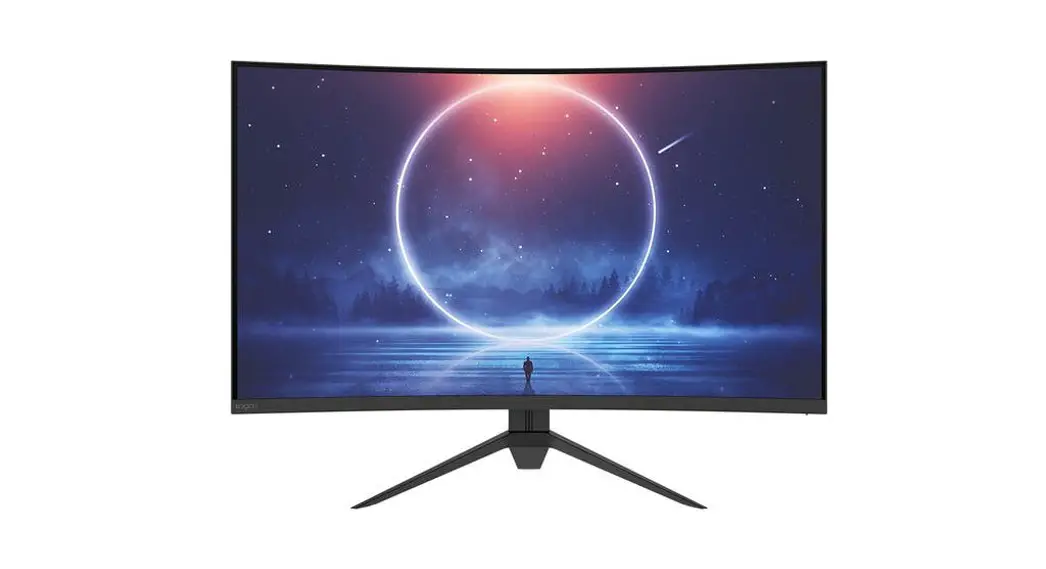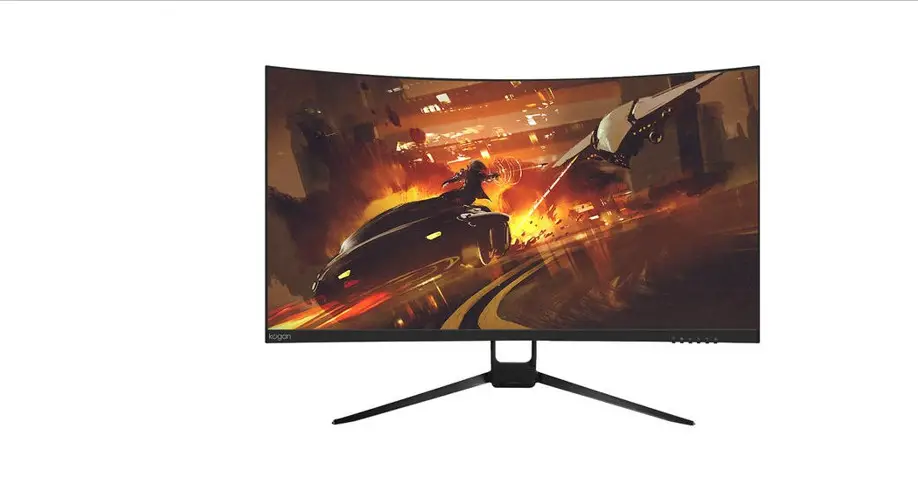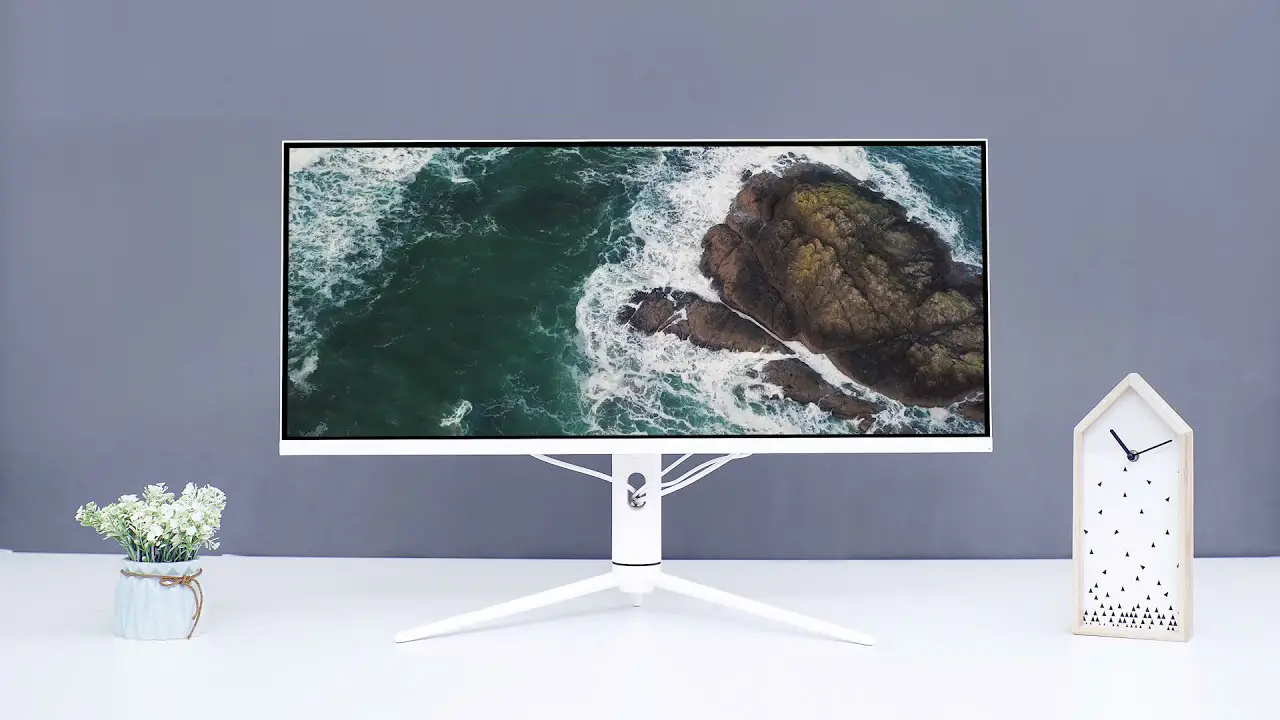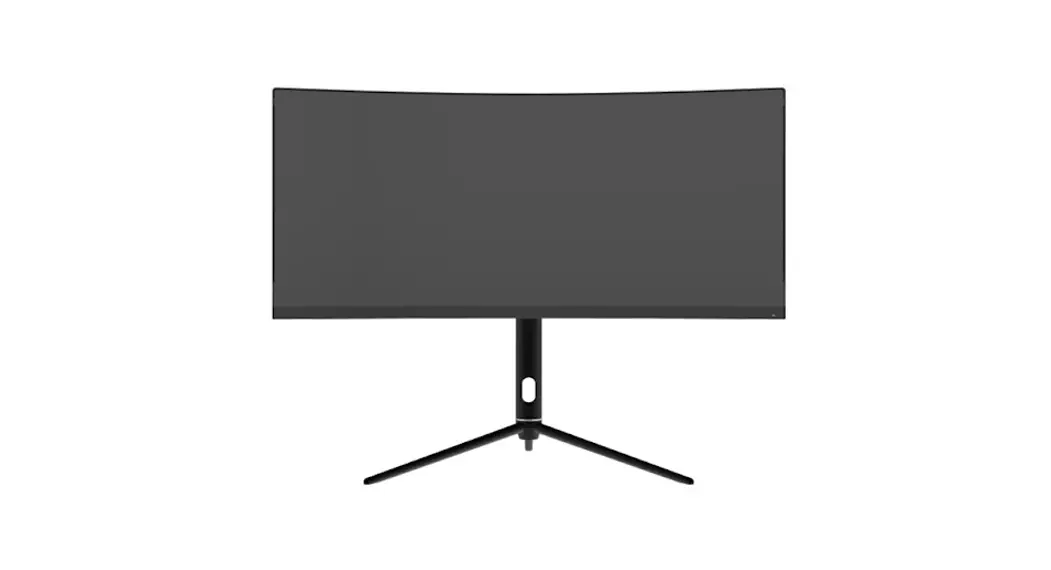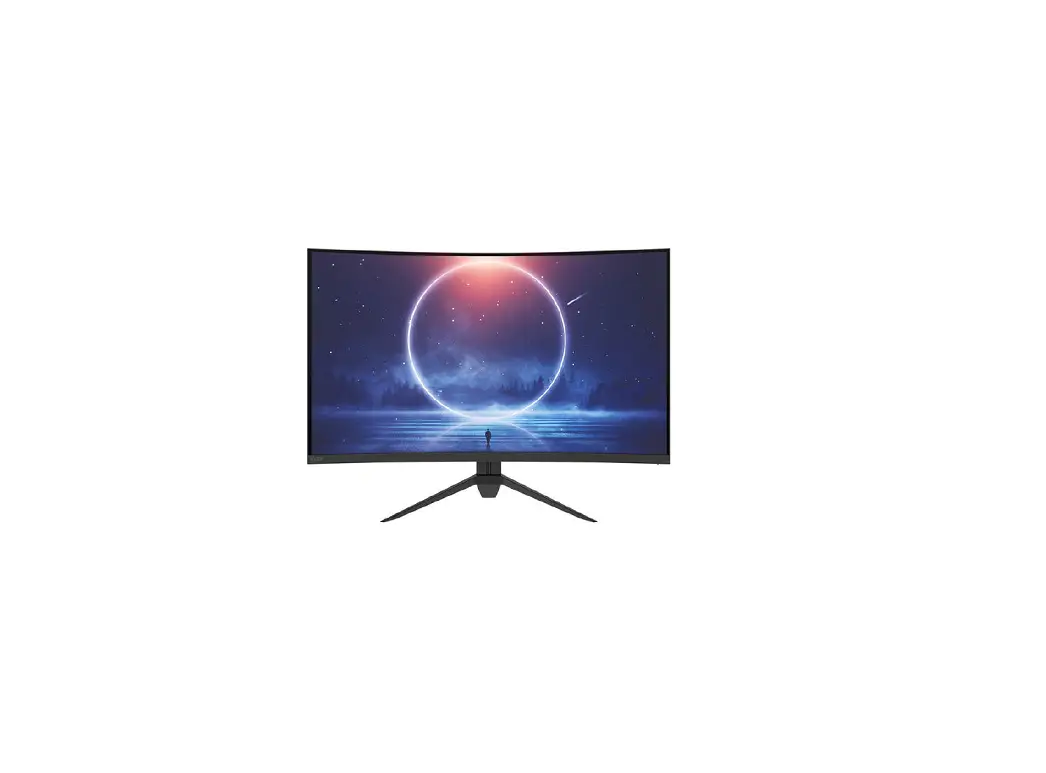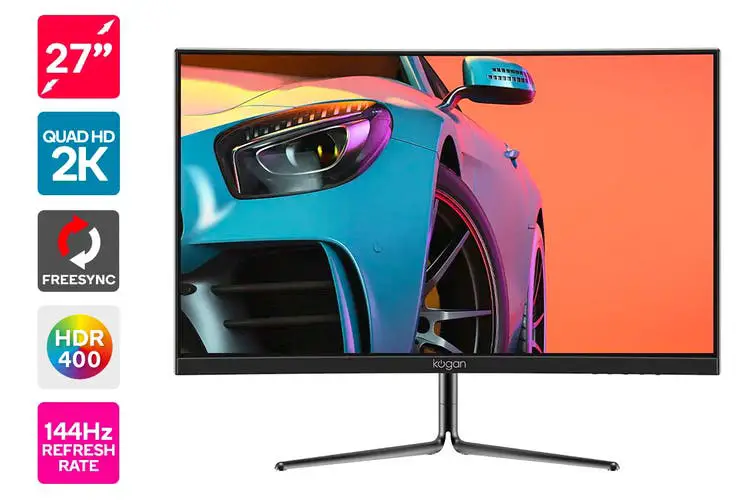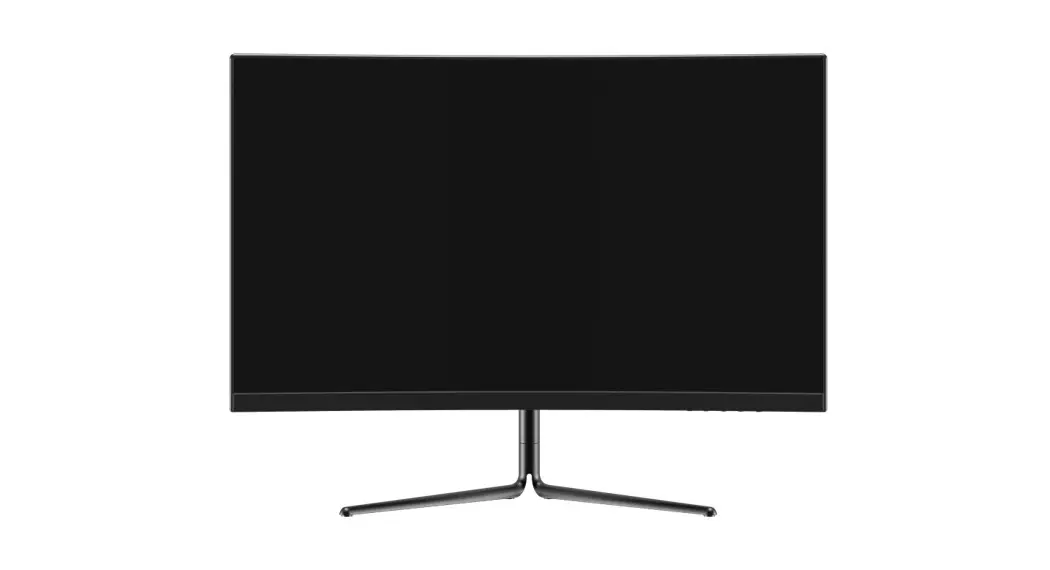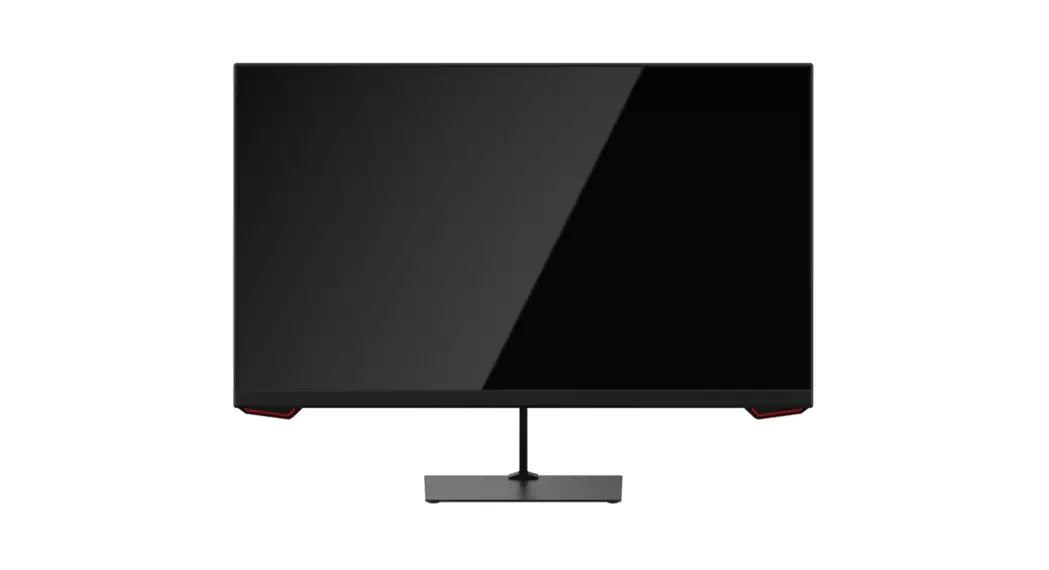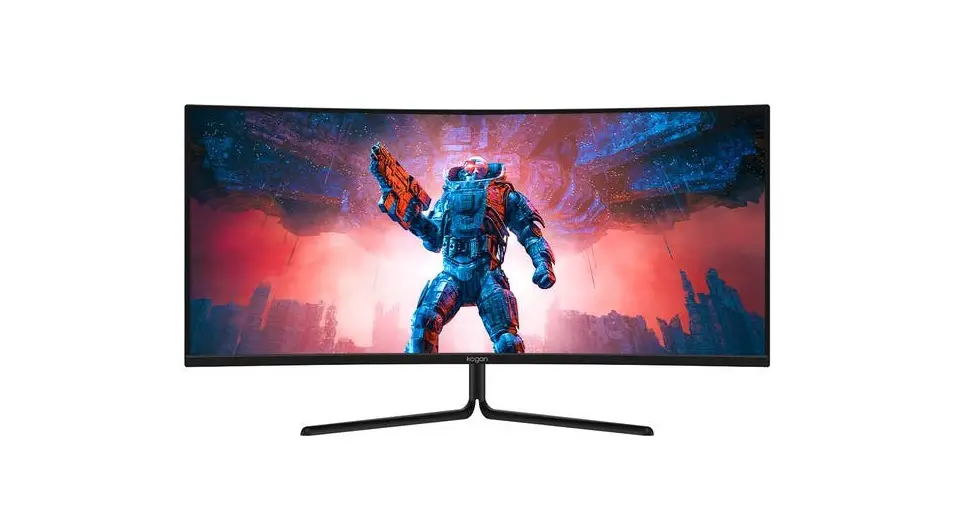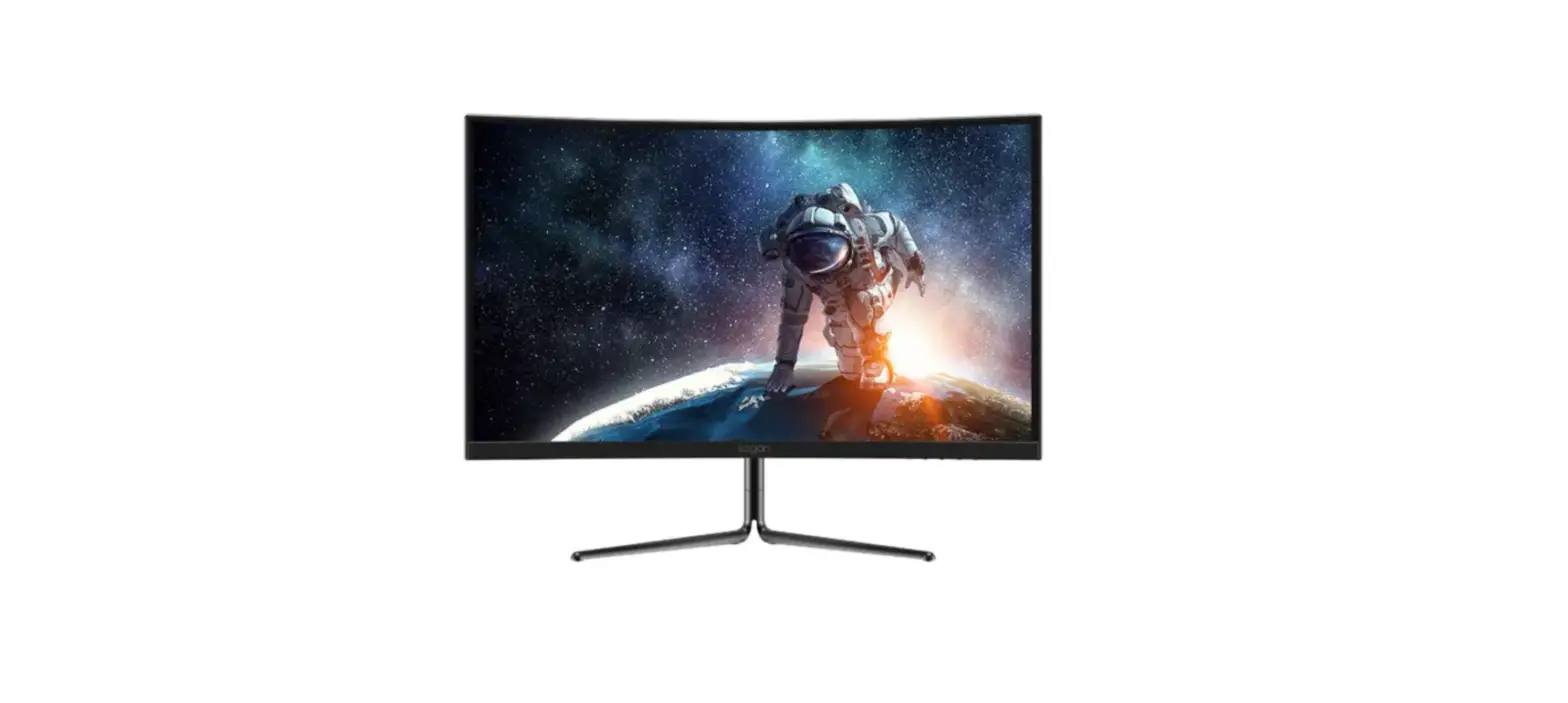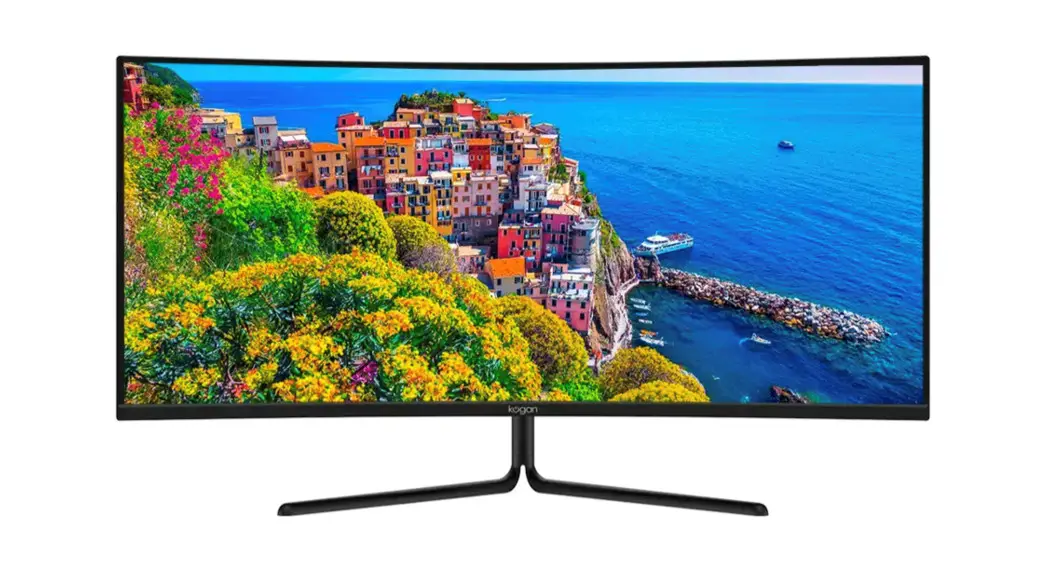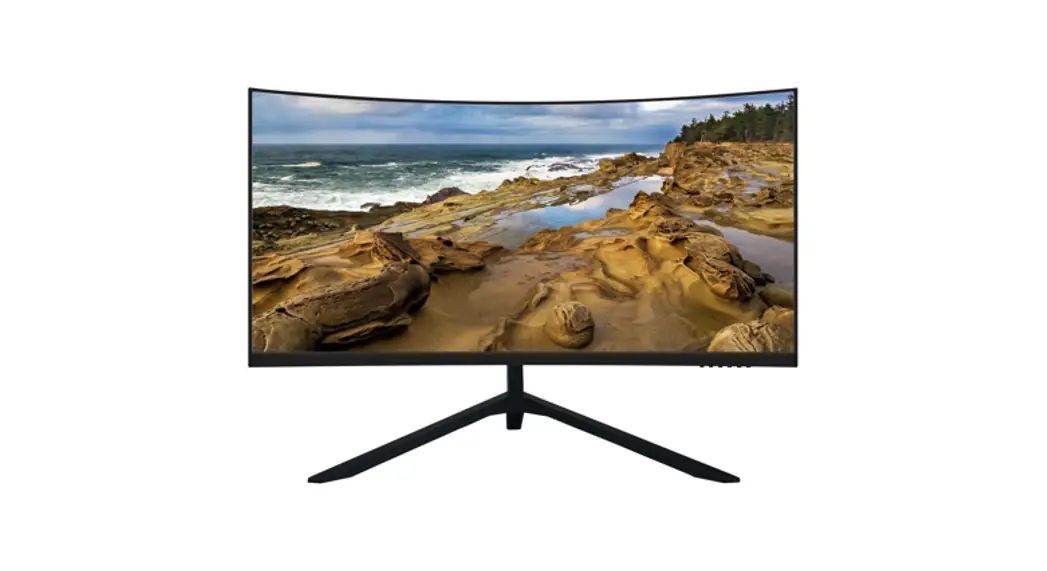
 32″ CURVED GAMING MONITOR
1920 x 1080, 165Hz
KAMN32F16LC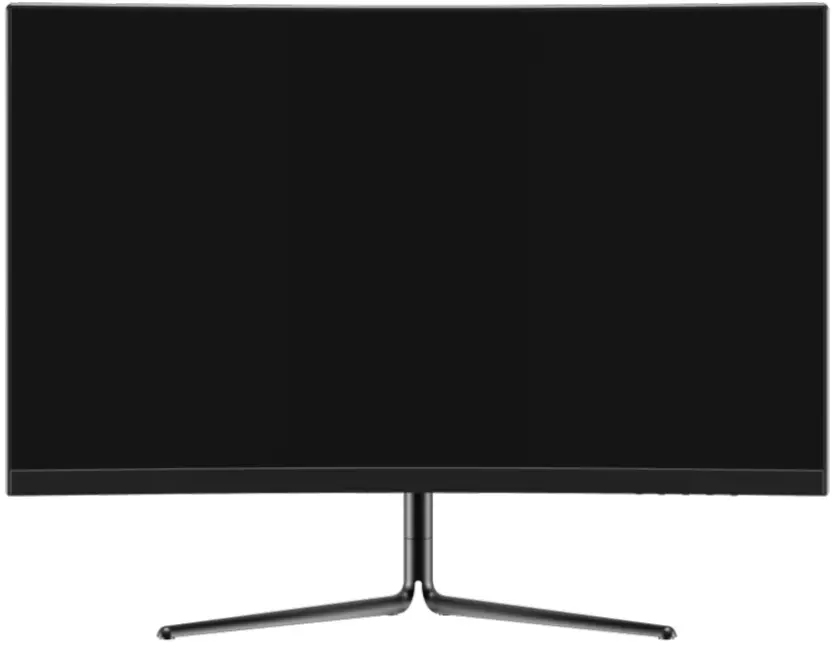
SAFETY & WARNINGS
Ensure to read all instructions and warnings in this user guide prior to first use. Retain this user guide for future reference.
- Do not position the monitor on unstable surfaces. If the monitor falls, it may lead to damage and injuries to people around its vicinity.
- Do not place the monitor near heat sources (for example, heaters, stoves, fireplaces).
- Do not use the monitor in areas lacking adequate ventilation.
- Do not open the back panel of the monitor as it contains a high-voltage current even when unplugged.
- Do not place heavy objects on the monitor, its power cord, or any other connected cable.
- The back of this monitor is designed with ventilation holes. Do not cover or block them as this may cause overheating and damage.
- Do not insert or spray anything into the vents of this monitor.
- Unplug the monitor if it will not be used for an extended period.
- Ensure the monitor is unplugged before cleaning.
- Do not use cleaning alcohol, ammonia-based liquids, or other harsh cleaners when cleaning the monitor.
 The terms HDMI and HDMI High-Definition Multimedia Interface, and the HDMI Logo are trademarks or registered trademarks of HDMI Licensing Administrator, Inc. in the United States, and other countries.
COMPONENTS
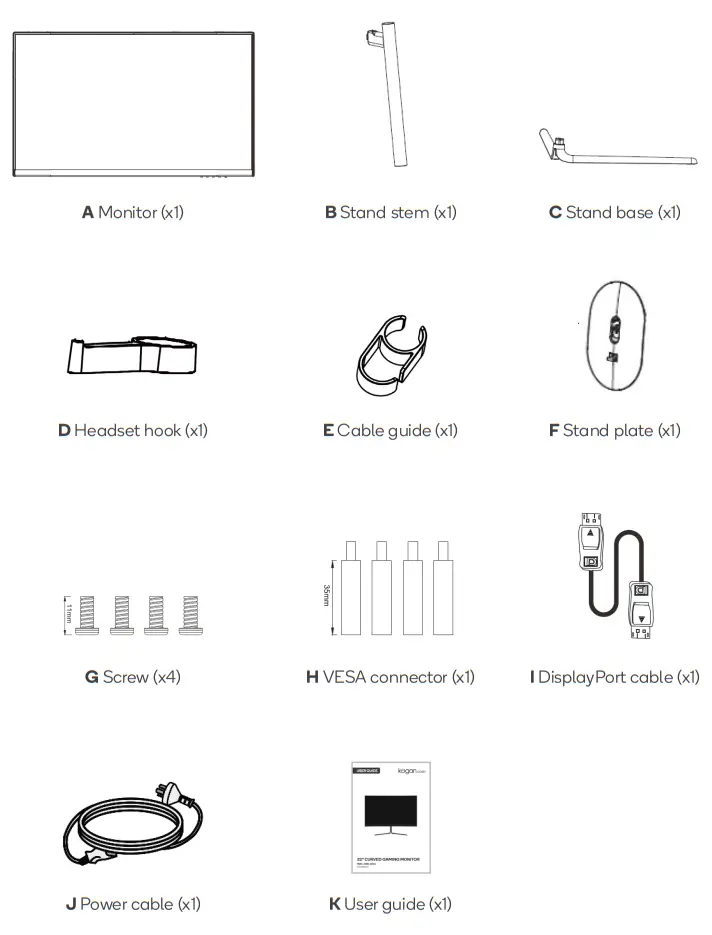
OVERVIEW
 Menu/enter button
- Down button
- Up button
- Exit button
- Power button
- LED indicator
Ports
- Power port
- 3.5mm headphone jack
- HDMI 1 port
- HDMI 2 port
- DisplayPort port
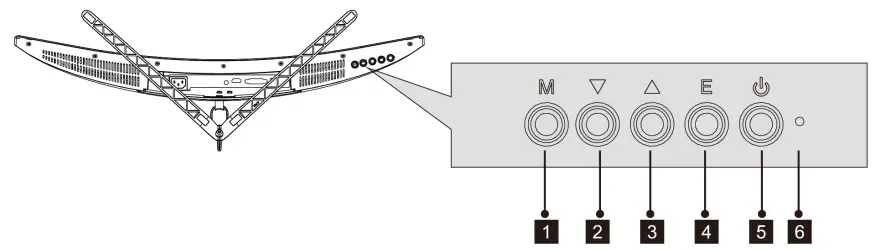 Menu/enter button
STAND ASSEMBLY
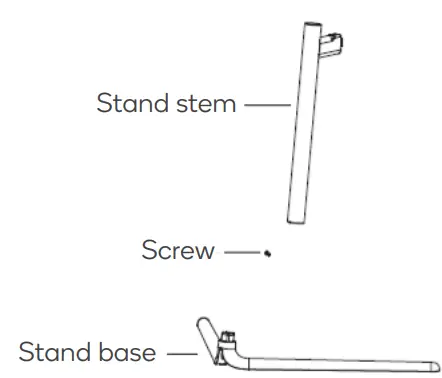
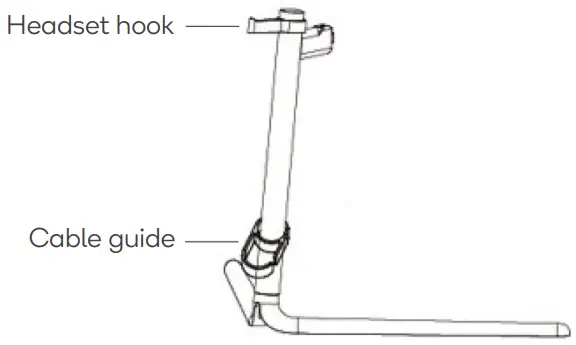
- Open the packaging and remove the stand stem (B) and stand base (C). Using a screwdriver (not supplied), secure the stand stem (B) to the stand base (C) with one screw. Ensure all components are present before disposing of any packaging.

- Slide and attach the cable guide (E) onto the bottom of the stand stem (B). Clip the headset hook (D) onto the top of the stand stem (B).

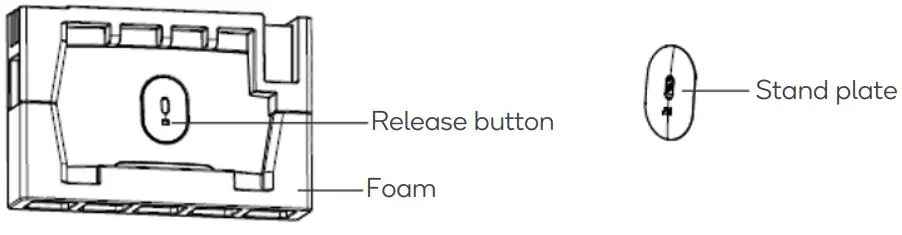
- Press the release button to remove the stand plate (F) from the packaging.

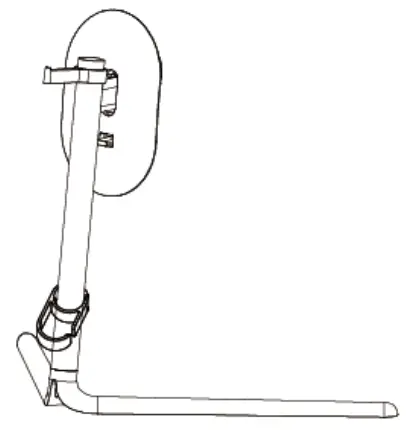
- Using a screwdriver, secure the stand plate (F) onto the stand stem (B) with two screws.
 Note:
Note:
If this assembly needs to be removed, use a screwdriver to loosen the screws and separate the components. - Take out the monitor (A) and lay it on a flat surface.
- Pull the release button on the stand plate (F) upwards and clamp the monitor (A) onto the stand stem (B) and stand plate (F).

 Note:
Note: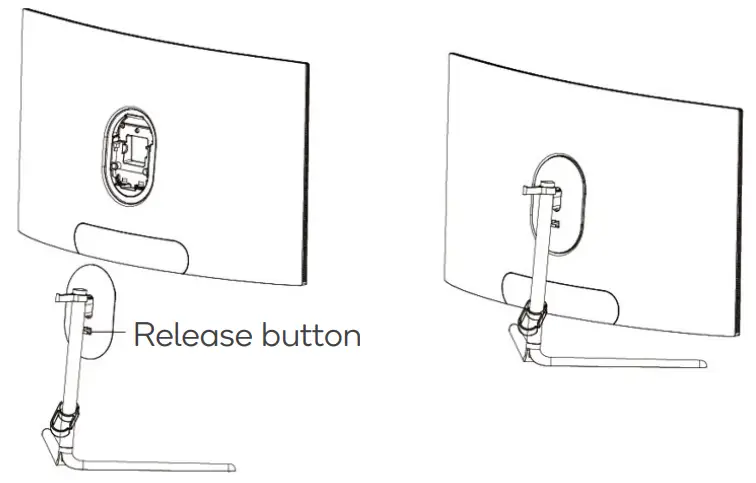
VESA MOUNT
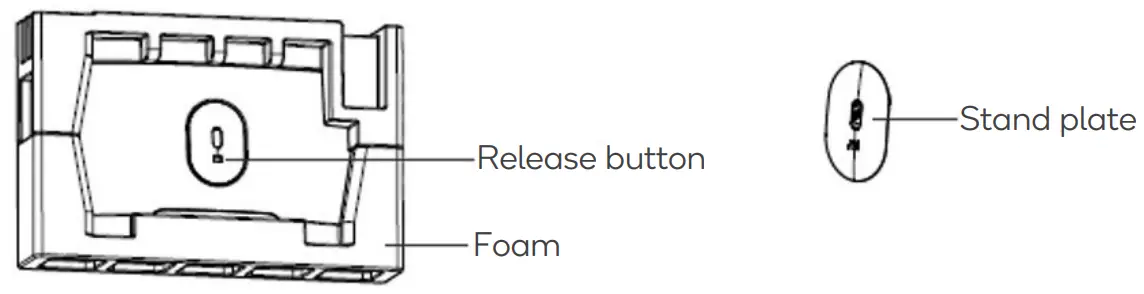
- Open the packaging, and with the foam attached, take out the monitor (A) and place it gently on a flat surface. Remove the foam covering the back of the monitor. If the
monitor is attached to the stand stem (B) or stand base (C), detach it. - Take out the stand stem (B) and stand base (C) from the packaging. Press the release button to remove the stand plate (D).

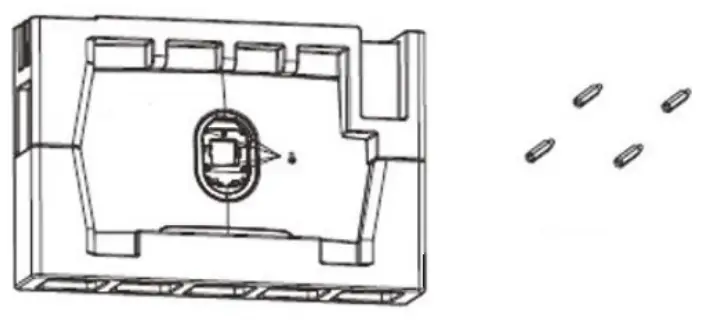
- Using a screwdriver, loosen the four screws on the back of the monitor.

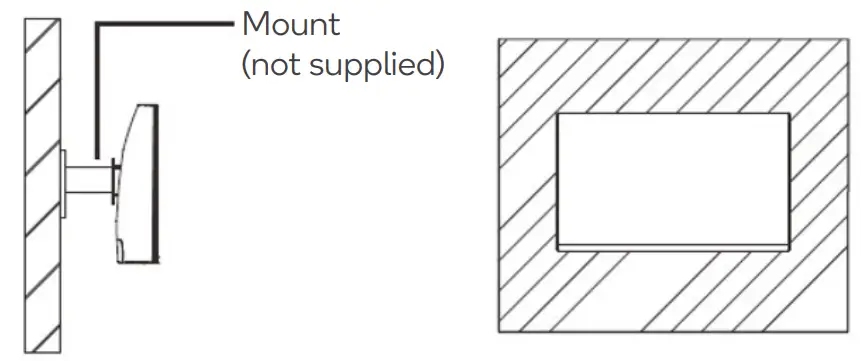
- Mount the monitor with the steps provided with the VESA mount. Ensure to use the loosened screws from the previous steps to secure the monitor to the mount.

Notes:
- The mounting hole distance for this monitor is 75 x 75mm.
- VESA mount and mounting accessories are not included.
CONNECTIVITY
Power cable
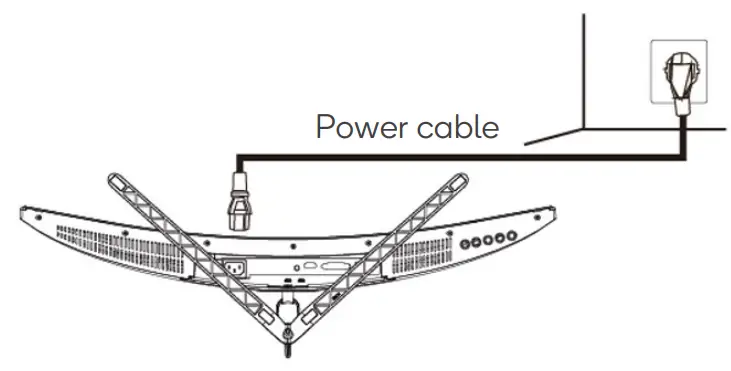
Connect one end of the power cable into the power port on the monitor. Connect the other end into a power socket.
Earphones
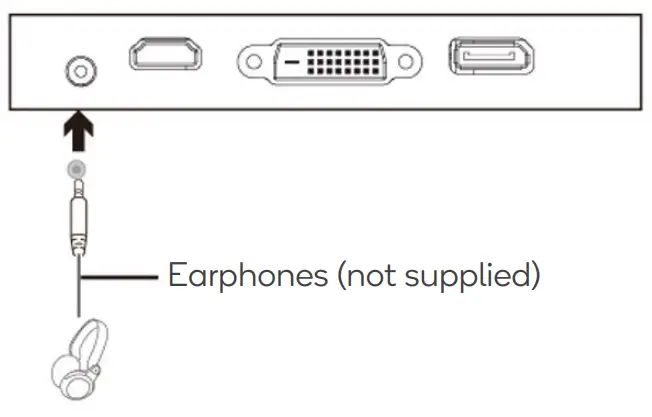
Plug in earphones (not supplied) into the 3.5mm headphone jack on the monitor.
Note: If audio devices are plugged into the monitor and computer, there will be no sound.
HDMI
To allow the monitor to receive HDMI signals from the computer, plug one end of an HDMI cable (not supplied) into the monitor. Plug the other end of the cable into the HDMI output port on your computer.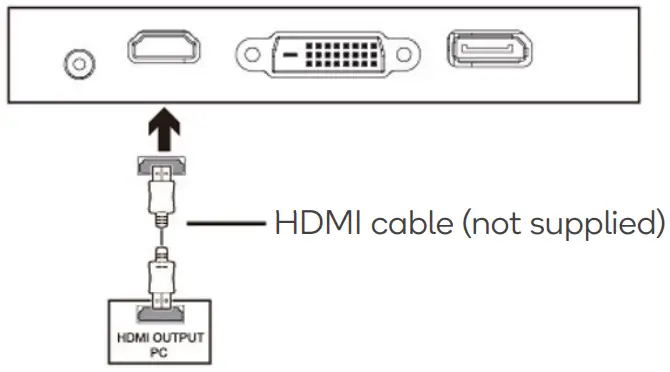
DisplayPort
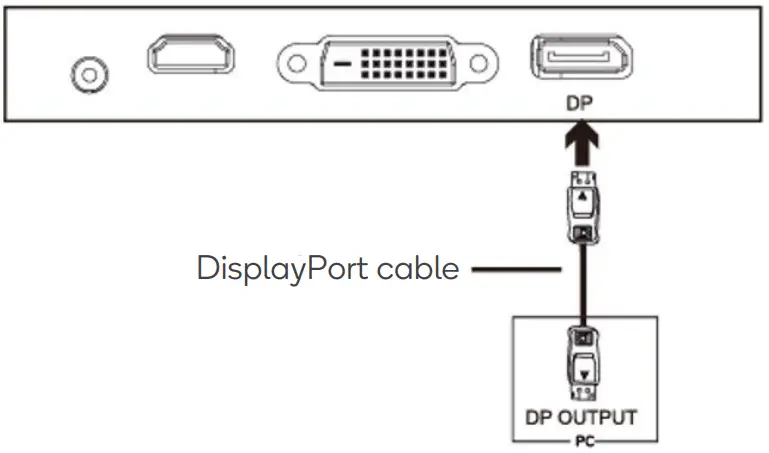
To allow the monitor to receive DisplayPort signals from your computer, plug in one end of the provided DisplayPort cable into the DisplayPort port on the monitor. Plug the other end of the cable into the DisplayPort output on the computer.
OPERATION
- Connect the monitor to your computer via HDMI/DisplayPort.
- Connect one end of the power cable into the power port of the monitor. Plug the other end into a power socket. Switch the socket on.
Note:
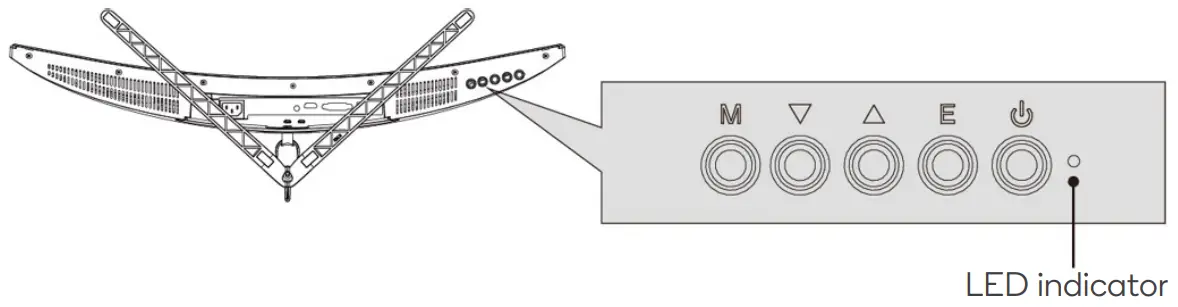
It is recommended to use a surge protector with adequate voltage if the power cable is not directly connected to a wall socket. - Press the power button on the monitor to turn it on. The LED indicator will turn a solid blue.

Note:
If the LED indicator is flashing blue, there is no video, horizontal, or vertical signal detected. Ensure the HDMI/DisplayPort cable has been properly connected.
Navigation window
Whilst turned on, press any button (M,  ,
,  , E,
, E, ) located underneath the monitor to bring up the navigation window. These include options to go to the on-screen display menu, as well as shortcuts to sub-menus and functions.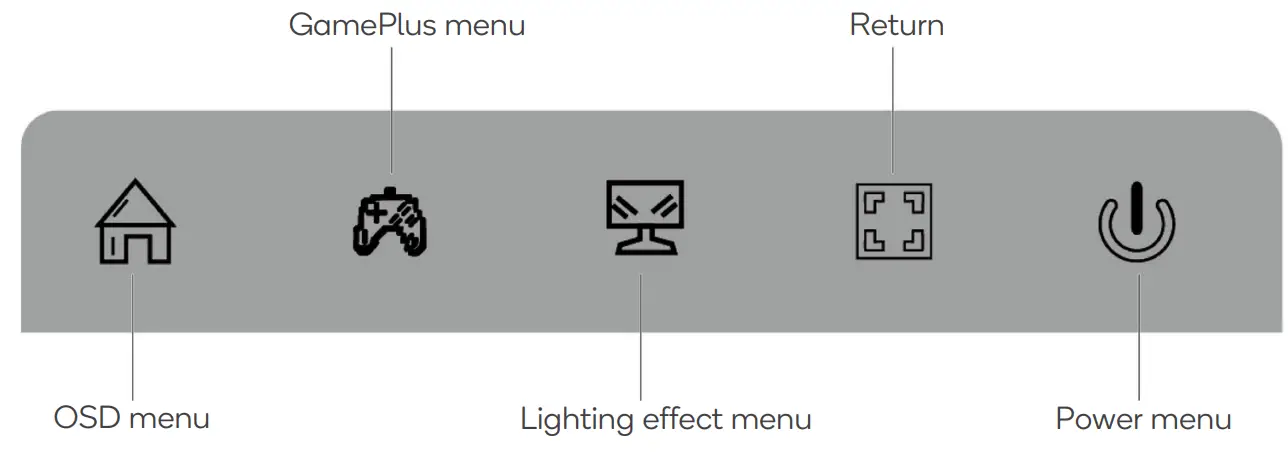
- Press the menu/enter button (M) to access the OSD menu.
- Press the down button ( ) to access the GamePlus menu.
- Press the up button ( ) to access the lighting effect menu.
- Press the exit button (E) to return to the window.
- Press the power button (
 ) to access the power menu.
On-screen display menu
The on-screen display (OSD) menu can be used to adjust the monitor’s settings. When the monitor is used for the first time, optimal settings will be set as default.
- Press any one of the buttons (M/ / /E/ ) located underneath the monitor to activate the navigation window.
- Press the menu/enter button (M) to access the OSD menu.

- Press the up button ( ) and down button ( ) to browse through the categories of settings.
- Press the menu/enter button (M) to enter the sub-menu of the desired category.
- Press the up button ( ) and down button ( ) to browse through the sub-menu, then press the menu/enter button (M) on the desired setting you would like to change.
- Press the up button ( ) and down button ( ) to adjust the settings to your liking.
Press the menu/enter button (M) to confirm the change and exit back into the sub-menu. Press the input exit button (E) to exit the OSD menu.
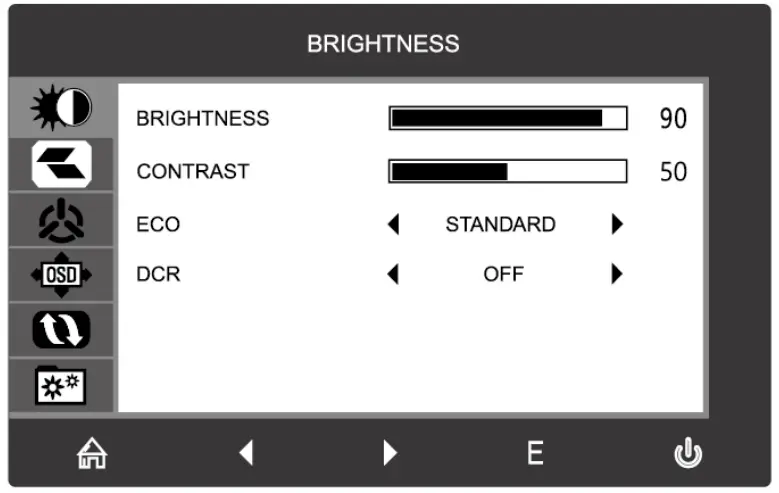
OSD menu options
Below is a list of the various settings that can be adjusted through the OSD menu.
| Category | Sub-Menu | Options | Description |
| BRIGHTNESS | Brightness | 0–100 | Adjusts the display brightness |
| Contrast | 0–100 | Adjusts the display contrast | |
| ECO | Standard, Game, RTS, FPS, Movie, Text | Sets the display’s colour balance to pre-set levels to suit different uses | |
| DCR | On | Turns the DCR function on | |
| Off | Turns the DCR function off | ||
| IMAGE | H. POSITION | 0–100 | Adjusts the horizontal positioning of the display |
| V. POSITION | 0–100 | Adjusts the vertical positioning of the display | |
| Clock | 0–100 | Adjusts the clock setting of the display | |
| Phase | 0–100 | Adjusts the phase setting of the display | |
| Aspect | Wide, Auto, 4:3 | Sets the display’s aspect ratio | |
| COLOUR TEMP. | Color temp. | Warm, Cool, User | Includes pre-set (Warm, Cool) and custom (User) colour temperatures |
| Red | 0–100 | Adjusts the level of red, green, and blue on the display | |
| Green | 0–100 | ||
| Blue | 0–100 |
| OSD SETTING | Language | English, | Sets the OSD language |
| OSD H. POS. | 0–100 | Adjusts the horizontal position of the OSD menu | |
| OSD V.POS. | 0–100 | Adjusts the vertical position of the OSD menu | |
| OSD timer | 0–60 | Sets how long the OSD menu stays open without input (in seconds) | |
| Transparency | 0–100 | Sets the level of transparency of the OSD menu | |
| RESET | Image auto adjust | N/A | Automatically adjusts the image of the display |
| Colour auto adjust | N/A | Automatically adjusts the colour balance of the display | |
| Reset | N/A | Resets the monitor to factory default settings | |
| MPRT | On, Off | Turns the MPRT function on/off | |
| MISC | Signal source | HDMI 1, HDMI 2 | Selects the input signal source |
| Volume | 0–100 | Adjusts the audio volume | |
| Low blue ray | 0–100 | Sets the level of blue light filtering | |
| Adaptive-Sync | On, Off | Turns the Adaptive-Sync function on/off | |
| Over driver | Off, Low, Middle, High | Setting these will decrease the monitor’s response time speed | |
| LED effect | Normal, Off, Flicker | Changes the mode of the LED |
ECO modes
There are various pre-set colour modes suited for various use cases available on this monitor.
These can be accessed using the ECO modes menu. The modes include the following:
- Standard (suitable for most activities)
- Game (best suited general gaming)
- RTS (best suited when playing real-time strategy games)
- FPS (best suited when playing first-person shooter games)
- Movie (best suited when watching movies)
- Text (best suited when reading text)
GamePlus
The GamePlus menu allows you to change the appearance of crosshairs that appear when gaming.
CLEANING & CARE
- Ensure the monitor is turned off, unplugged, and cooled before cleaning.
- Clean the screen by wiping it with a dry microfibre cloth.
- Clean the monitor body with a slightly damp cloth with water.
SPECIFICATIONS
| Model | KAMN32F16LC |
| Screen size | 32″ |
| Aspect ratio | 16:9 |
| Backlight | E–LED |
| Brightness | 300cd/m² |
| Panel | VA |
| Resolution | 1920 x 1080 |
| Refresh rate | 165Hz |
| Response time | MPRT 1ms |
| Viewing angle | 178° (H) 178° (V) (Typical) |
| Contrast ratio | 3000:1 |
| VESA mounting | 75 x 75mm |
| Colours | 16.7M |
| Adaptive Sync | Yes |
| Signal Input | x1 DisplayPort, x2 HDMI 1.4 |
| Voltage | 220–240V |
| Frequency/amplitude | 50Hz, 2.0A |
| Audio | |
| Audio out | Yes |
| Speakers | No |
| Accessories | |
| Power cable | Yes |
| DisplayPort cable | Yes |
| Additional functions | |
| Low blue light | Yes |
| Flicker free | Yes |
| Physical dimensions | |
| Dimensions (with stand) | 712.5 x 505.6 x 226.5mm |
| Dimensions (without stand) | 712.5 x 422.8 x 113.3mm |
| Net weight | 7.07kg |
| Gross weight | 9.09kg |
NOTES ________________
Need more information?
We hope that this user guide has given you the assistance needed for a simple set-up.
For the most up-to-date guide for your product, as well as any additional assistance you may require, head online to help.kogan.com
kogan.com