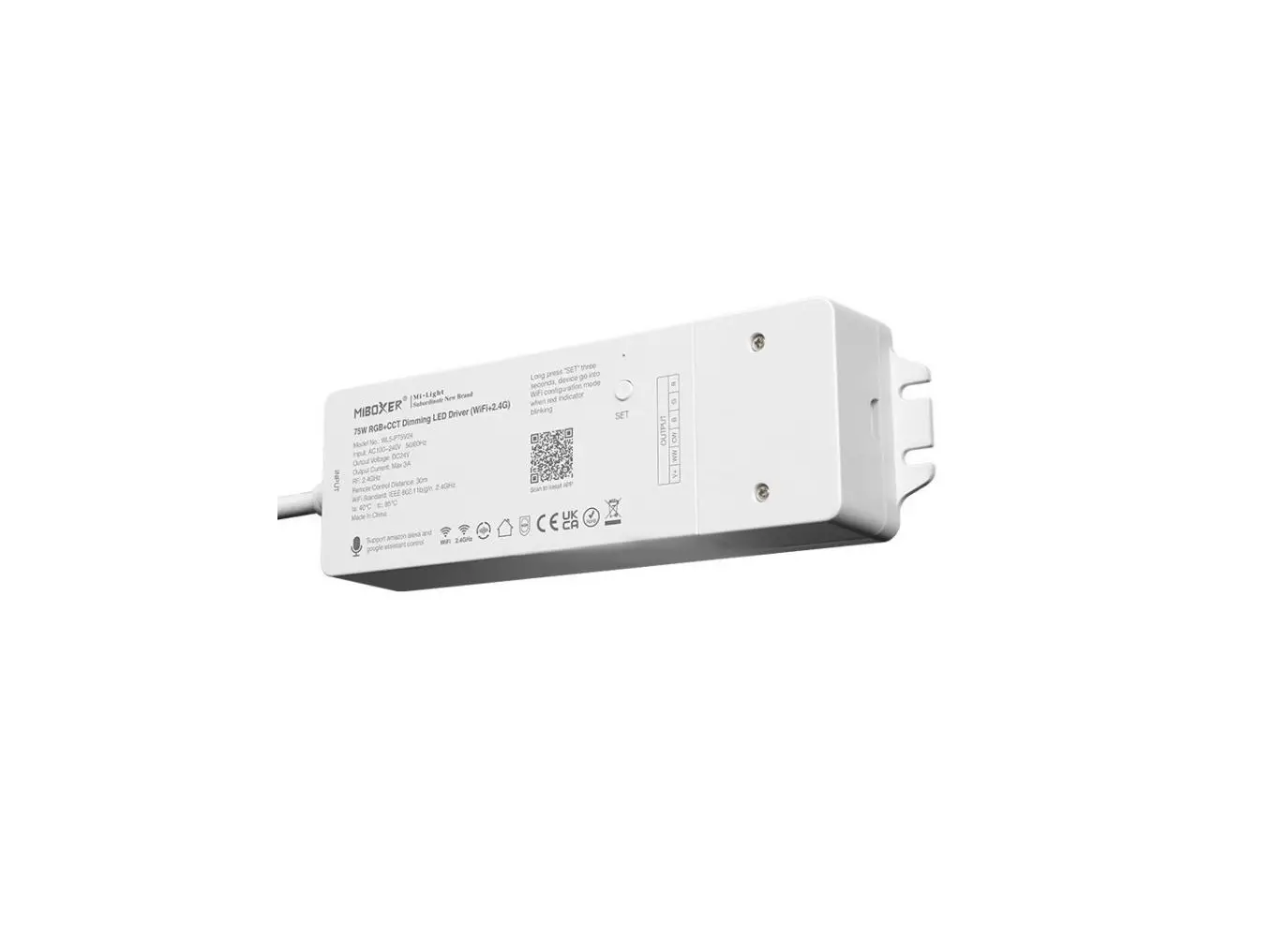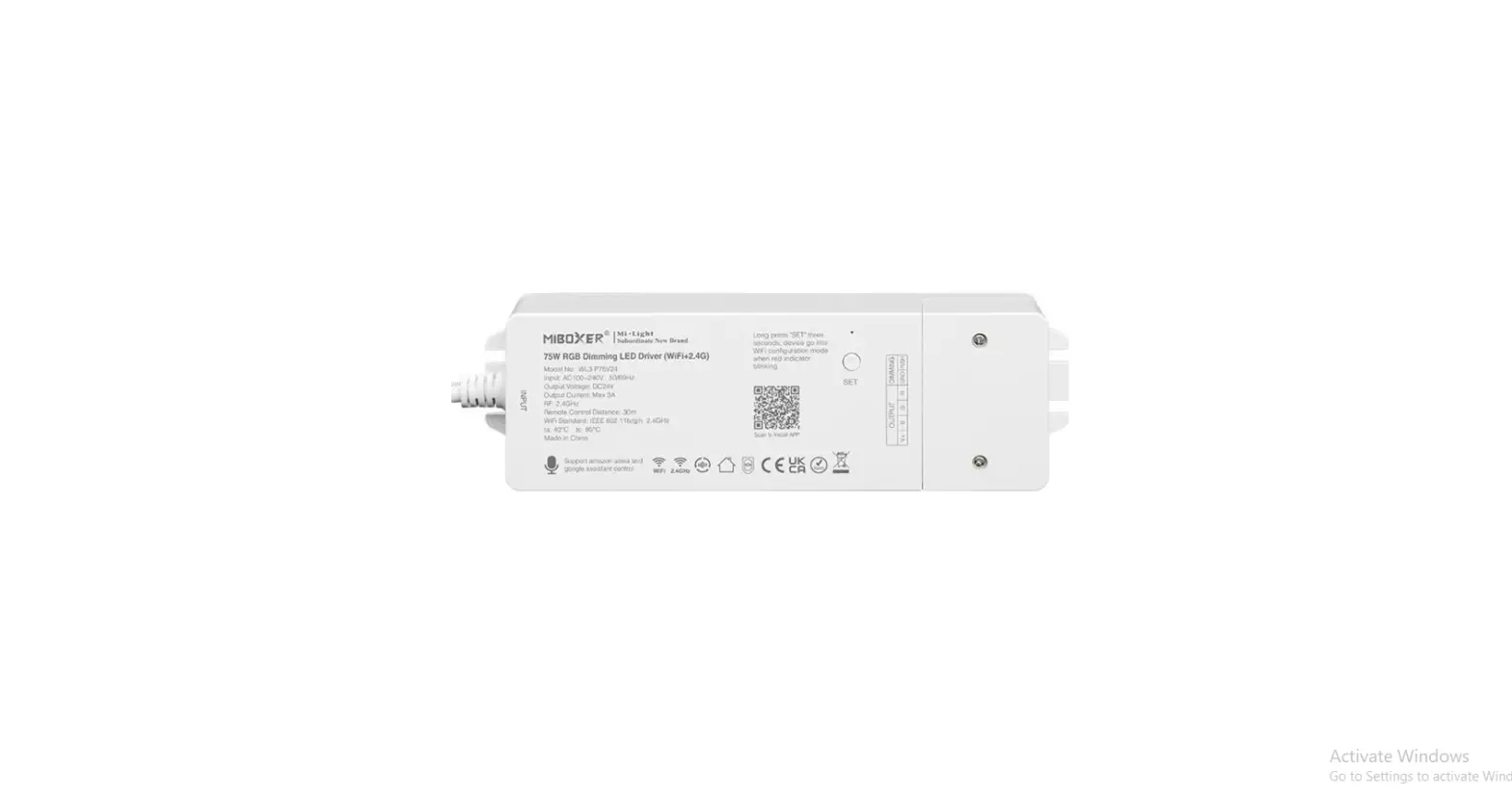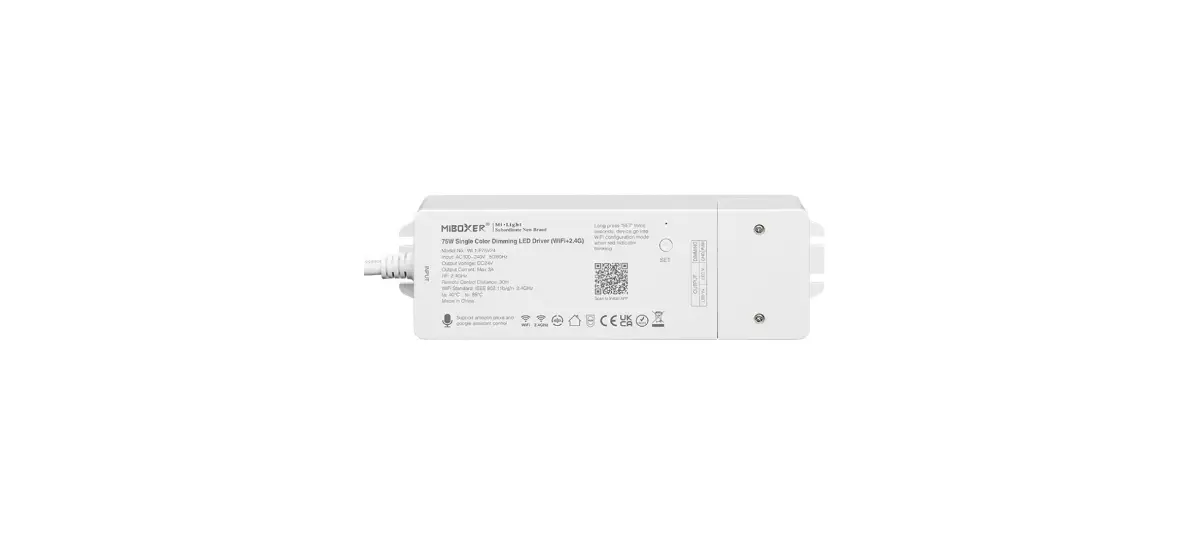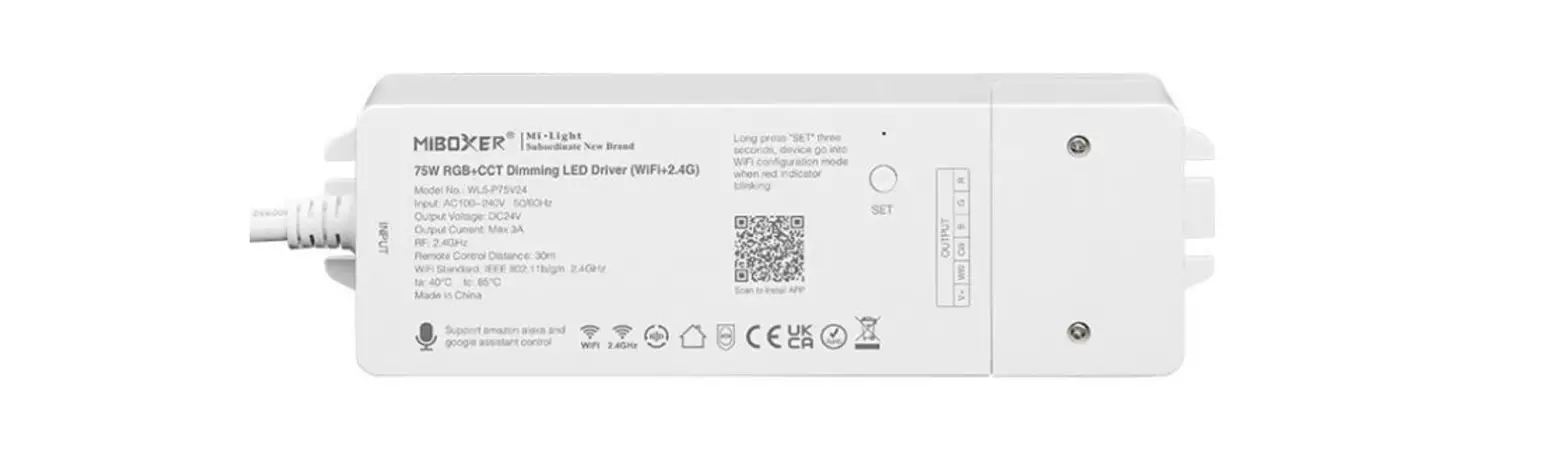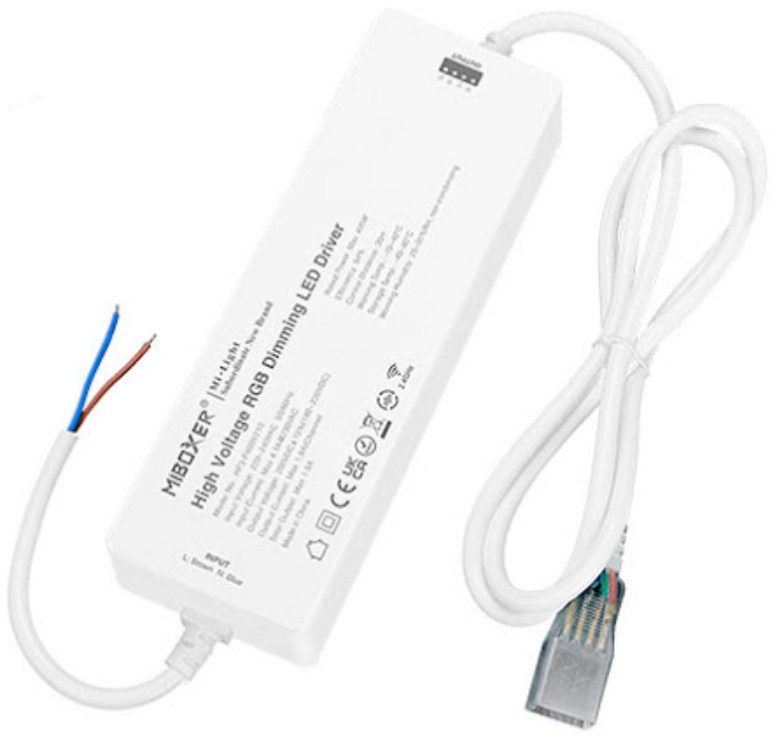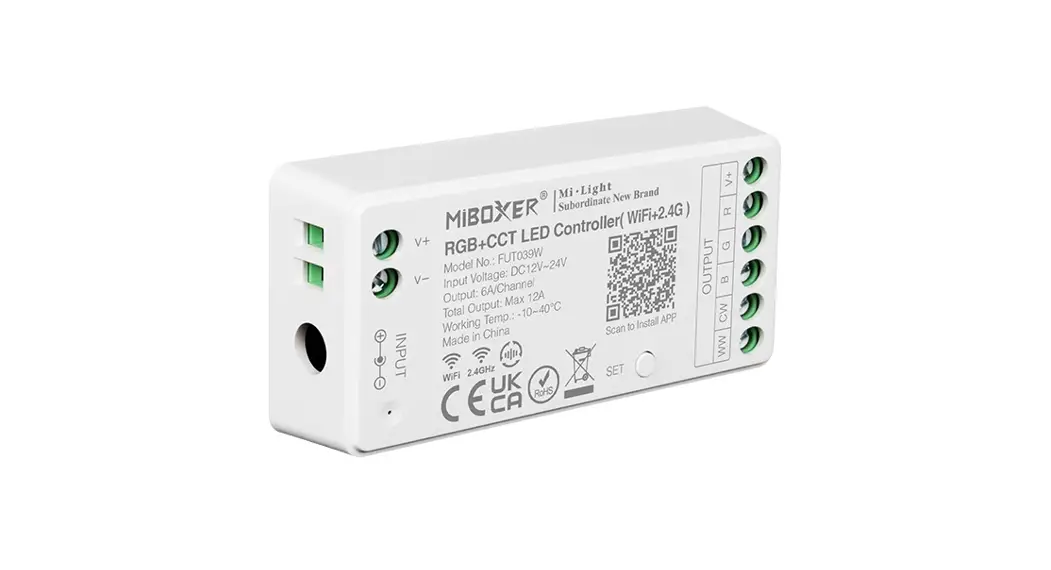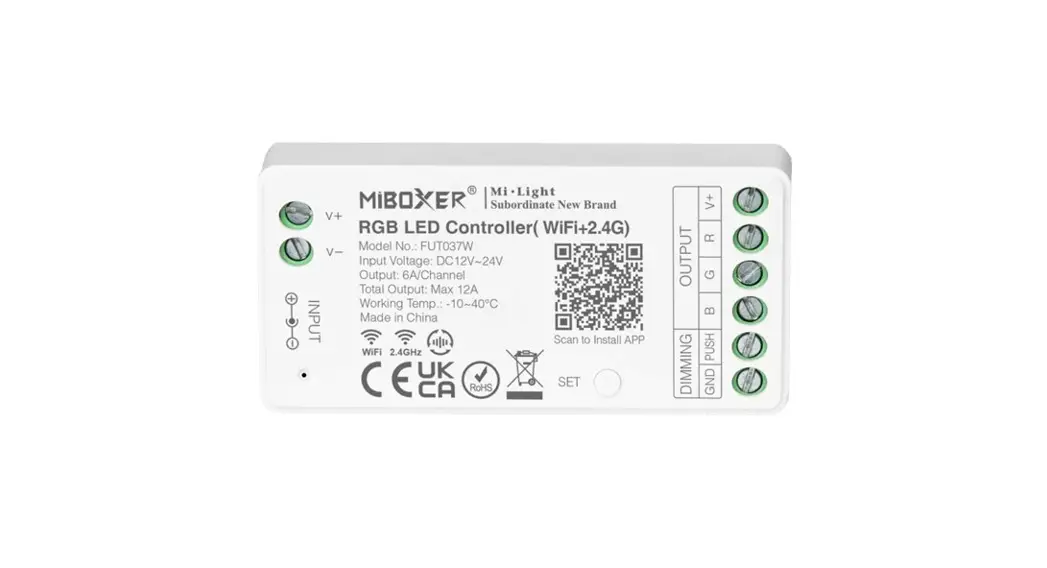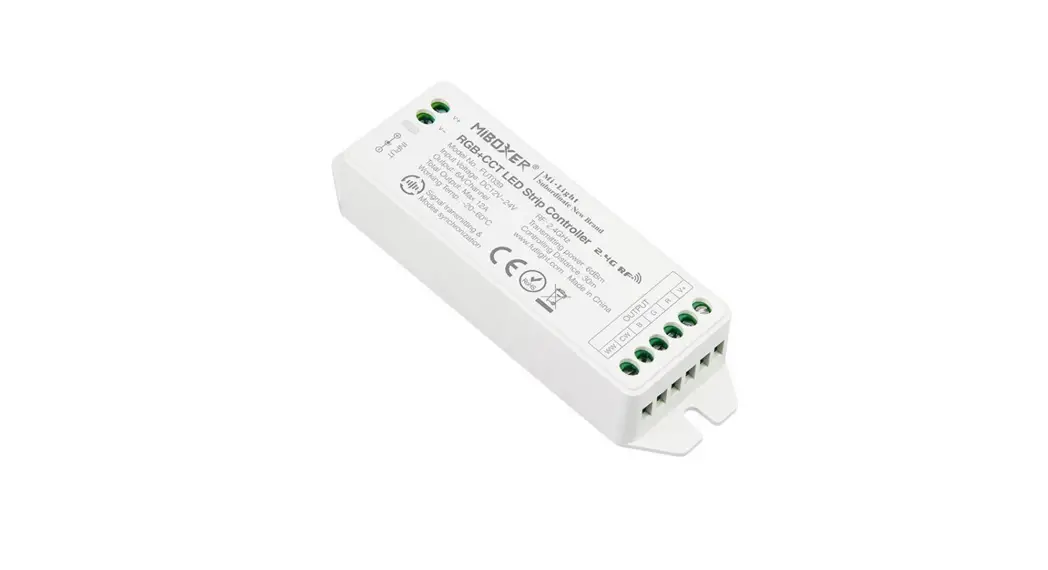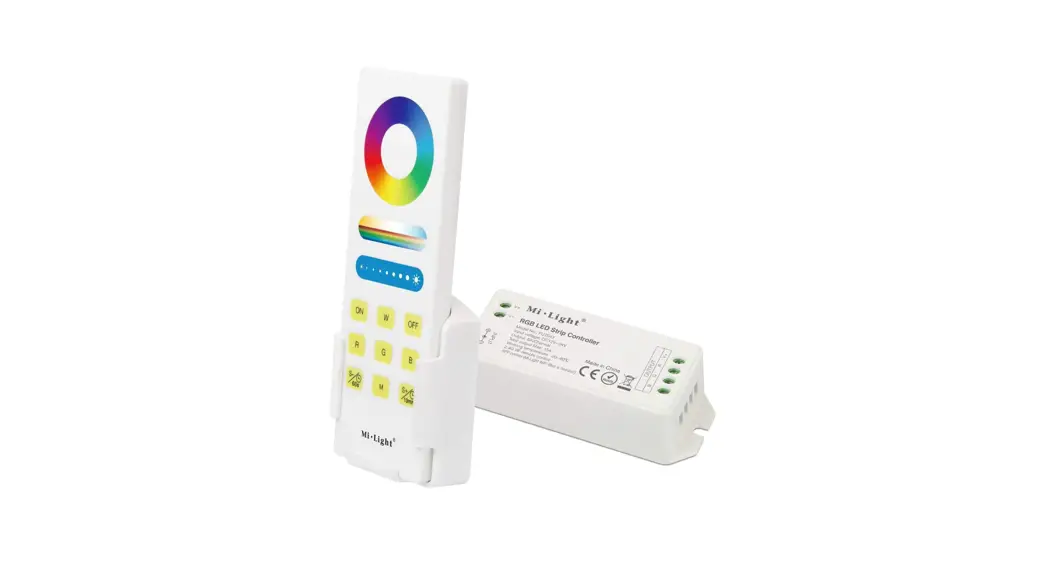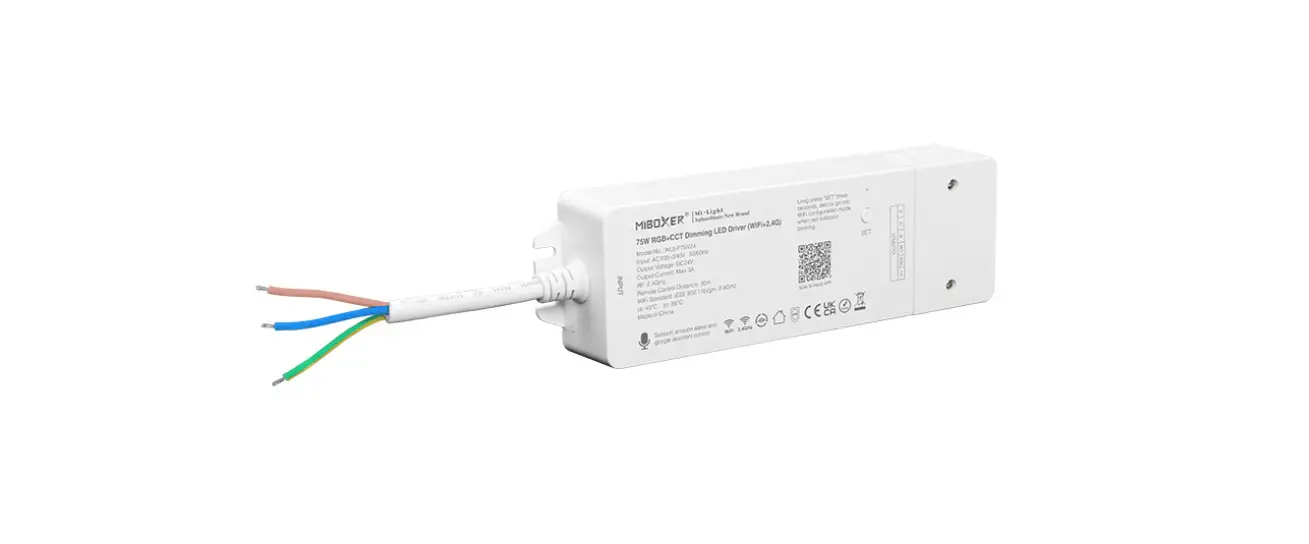
MiBOXER WL5-P75V24 75W RGB + CCT Dimming LED Driver User Manual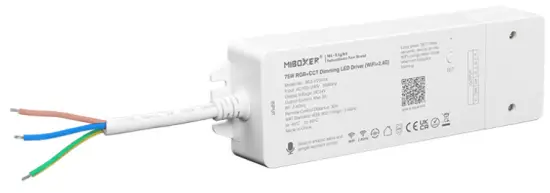
Product feature
This product uses WiFi + Bluetooth + 2.4G wireless transmission technology, low power consumption, strong anti-interference ability. WiFi + Bluetooth connect network can greatly enhance the connect network experience. When the router is disconnected, Bluetooth can also directly connect and control equipment at close range.
After successful network configuration using [MiBoxer Smart] APP to achieve wireless dimming, remote control, group control, scene control, timing control, music movement, biorhythm, sleep plan, wake plan, one key execution, automation, etc. functions. And it supports 2.4G remote control.
- 16 Millions of colors to choose

- Color temperature 2700K~6500K
- Support remote control (control distance 30m)
- Support third party voice control
- Support music rhythm
- Support scene customization
- Sleep / wakeup plan
- Do not disturb mode
- WiFi wireless control support long-range control
- 2.4G wireless transmission technology
- DMX512 controllable (DMX512 LED transmitter is needed)
- Dim brightness / saturation

- Smartphone APP control
- Group control
- Device sharing
- Biorhythm
- Tap-to-Run & automation
- Timing setting / countdown turn on / off LED light
- Auto-transmitting & Synchronization (only for remote control dimming)













Product Parameter
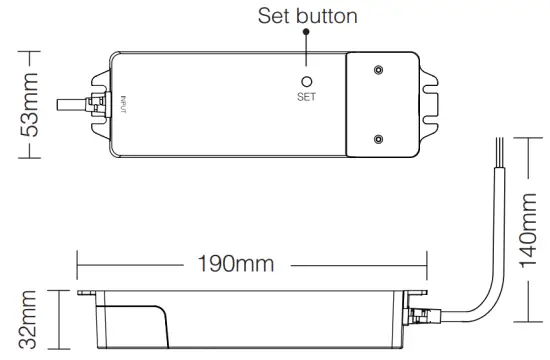
Model No.: WL5-P75V24
Input Voltage: AC100V~240V 50/60Hz
Output Voltage: DC24V
Output current: Max 3A
WiFi Standard: IEEE 802.11b/g/n 2.4GHz
RF: 2.4GHz TA: 40°C TC: 85°C
Remote Control Distance: 30m
Model No.: Bluetooth Protocol: Bluetooth4.2
Connection Diagram
Input: AC100V~240V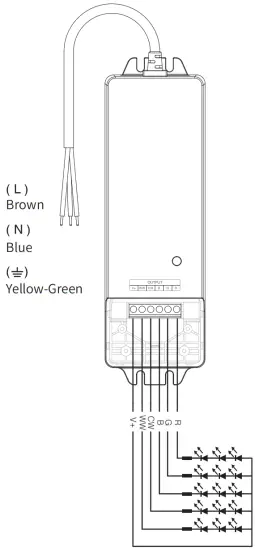
Link Code / Unlink Code with remote
Link code
- Making dimming LED driver to enter Link code / Unlink code mode:
- Method 1: short press ” SET ” button one time.
- Method 2: switch off dimming LED driver, switch on again after 10 seconds.
- Short press zone ”
 ” or ”
  ” 3 times on remote within 3 seconds, light blinking 3 times slowly means the linking is done successfully.
 ” or ”
  ” 3 times on remote within 3 seconds, light blinking 3 times slowly means the linking is done successfully.
Unlink code
- Making dimming LED driver to enter Link code / Unlink code mode:
- Method 1: short press ” SET ” button one time.
- Method 2: switch off dimming LED driver, switch on again after 10 seconds.
- Short press zone ” ” or ” ” 5 times on remote within 3 seconds, light blinking 10 times quickly means the unlinking is done successfully.
Compatible with following remote controls
(Purchase separately)
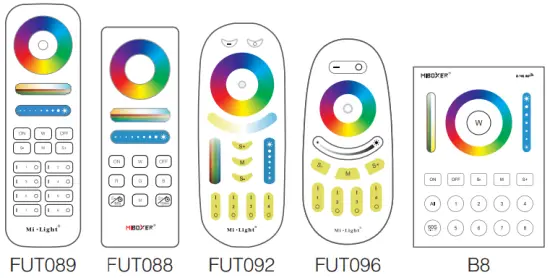
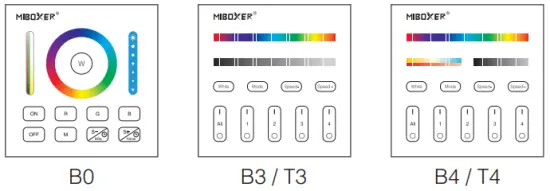
Auto-transmitting & Synchronization
(only for remote control)
Signal transmitting
Dimming LED driver can transmit the signals from the remote control to another one within 30m, as long as there is dimming LED driver within 30m, the remote control distance is unlimited.
Modes synchronization
Different dimming LED drivers can work synchronously when they are started at different times, controlled by the same remote, under same dynamic mode and within 30m distance.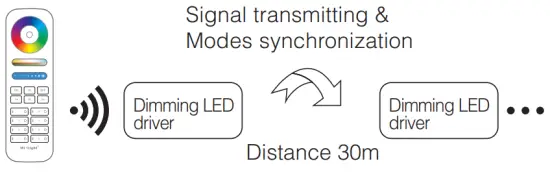
Dynamic mode selection (only for remote control)
Select dynamic mode sheet 1 :
Dimming LED driver is powered off for 10 seconds and then powered on, or short ” SET ” button one time.
Press the ” S+ ” button 5 times within 3 seconds, the blue light blink 3 times slowly, selection is done successfully.
Select dynamic mode sheet 2 :
Dimming LED driver is powered off for 10 seconds and then powered on, or short ” SET ” button one time.
Press the ” S- ” button 5 times within 3 seconds, the yellow light blink 3 times slowly, selection is done successfully.
Dynamic mode sheet 1(default in factory)
| Number | Dynamic Mode | Brightness / Saturation / Speed |
| 1 | Mardi Gras |
Adjustable |
| 2 | Automatic color change | |
| 3 | Sam | |
| 4 | Gemstone | |
| 5 | Twilight | |
| 6 | American | |
| 7 | Fat Tuesday | |
| 8 | Party | |
| 9 | Slow Color Splash |
Dynamic mode sheet 2 (need to switch manually)
| Number | Dynamic Mode | Brightness / Saturation / Speed |
| 1 | Colors gradual change | Adjustable |
| 2 | White light Gradual change | |
| 3 | RGB gradual change | |
| 4 | Seven colors jump to change | |
| 5 | Jump to change randomly | |
| 6 | Red light gradual change +Flash 3 times | |
| 7 | Green light gradual change +Flash 3 times | |
| 8 | Blue light gradual change +Flash 3 times | |
| 9 | White light gradual change +Flash 3 times |
Compatible with DMX512 LED Transmitter
(Purchase separately)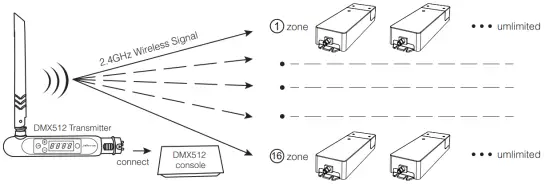
DMX512 LED Transmitter Link Code / Unlink Code
- Choose zone for controller by pressing ” + ” or ” – ” (e.g. ” CH12 ” means zone 12)


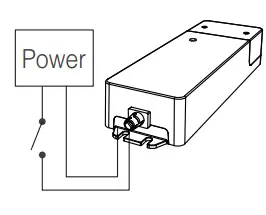
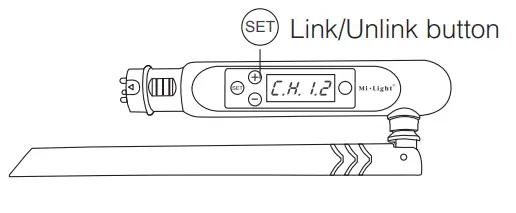
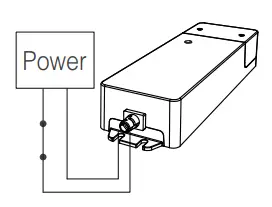
Link Code
- Short press ”
 ” button on dimming LED driver, or switch off controller, switch on again after 10 seconds.
 - Short press “” 3 times within 3 seconds when dimming LED driver indicator light is on.
- The dimming LED driver indicator light blink slowly 3 times linking is done successfully
 ” button on dimming LED driver, or switch off controller, switch on again after 10 seconds.
Unlink Code
- Short press ” set ” button on dimming LED driver, or switch off controller, switch on again after 10 seconds.
- Short press “” 5 times within 3 seconds when dimming LED driver indicator light is on.
- The dimming LED driver indicator light blink quickly 10 times unlinking is done successfully
 If the link or unlink failed, please follow the above steps again.
Attention
- Please check whether the voltage of the power supply is in accordance with the dimming LED driver, and please check the connection of both the cathode and anode, otherwise the controller will be broken.
- Please do not use the controller in the place with widely range metal area or strong electromagnetic wave nearby, otherwise, the remote distance will be affected seriously.
- Non-professional users are not allowed to disassemble the equipment directly, otherwise the equipment may be damaged.
Scan to watch video
Controller can not use in humid area


APP Installation
Download and install [MiBoxer Smart] APP
Search for [MiBoxer Smart] in Apple or Google store.
Please click ” Register ” button to create account while using it in the first time, Log in directly if you already had account.
Network Configuration
- Connect dimming LED driver with power supply.
- Confirm indicator light is flashing quickly (2 flashes per second)
If indicator light isn’t in fast flashing state, there are two ways to enter:- Long press ” SET ” key until indicator light flashing quickly.
- Power off and on controller 3 times.
- Connect phone with home WiFi network in the 2.4GHz frequency.
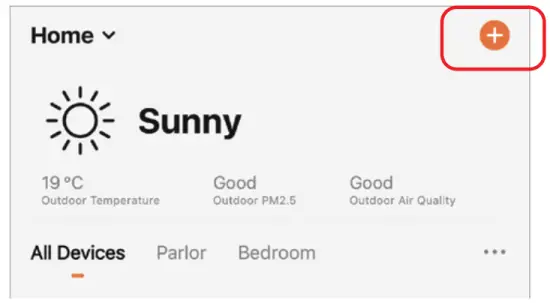
- Open homepage of APP and click ” + ” button at the upper right corner of page.

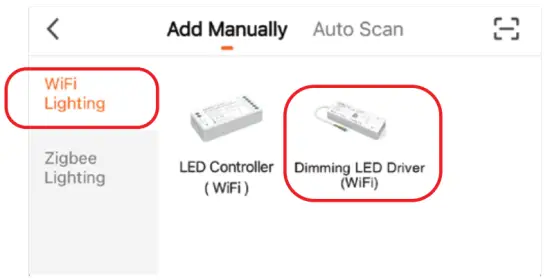
- Click ” WiFi Lighting ” on the left side of page and then click ” Dimming LED Driver “
- Follow APP prompts to complete configuration.

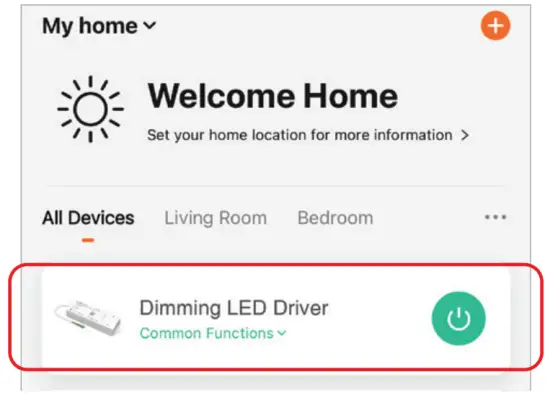
- Added devices will be displayed on home page after network configuration is successful.
- Click device you want to control to enter the control interface.

APP control
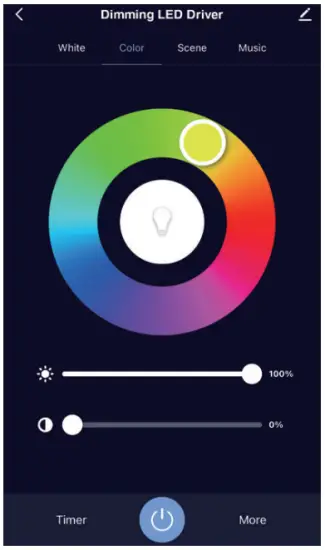
- Click ” device ” or ” group ” you want to control on homepage to enter control page, where you can control color, saturation, brightness, color temperature, and scene.
- Click music to enter music rhythm mode, light will change with rhythm of music.
Note: Music rhythm mode requires phone keep on this page.
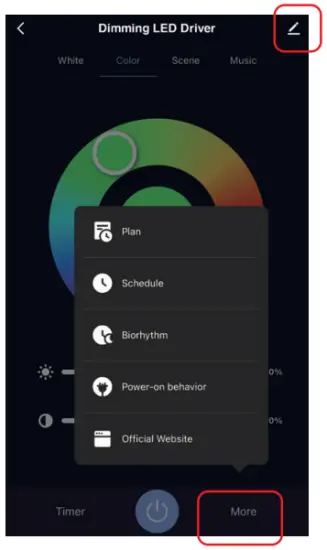
- Click ” More ” to enter biorhythm, timing, sleep plan, wake plan, power-on response setting.
- After opening the ” Do Not Disturb Mode ” in the power-on response, turn on light needs power on twice when light is powered off in the off state. (Applicable for frequent power outages area to save energy)

Device name editing, third-party control, device sharing, group control.
- Click “
 ” on the upper right corner of control page to enter edit page, where you can modify device name, icon, etc.
 - Click icon under third-party control to view detailed description of third-party control.
- Click ” Share Device ” to share device with family and friends.
- Click ” Create Group ” and follow APP prompt after setting is completed, the device can be controlled by group.

 ” on the upper right corner of control page to enter edit page, where you can modify device name, icon, etc.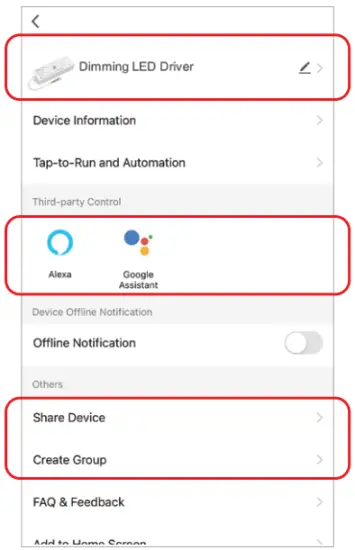
Intelligent control
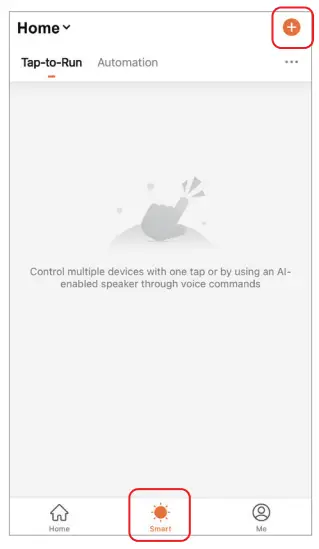
- Click ” Smart ” at the bottom.
- Click ” + ” in the upper right corner to create intelligent control.

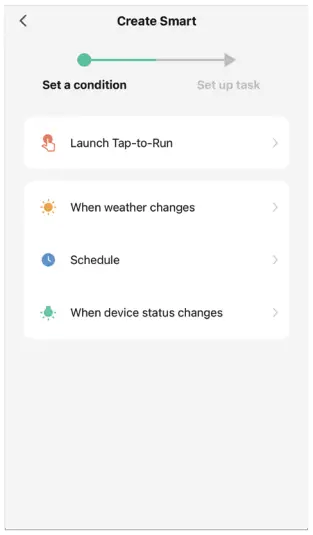
- In the page of creating smart, you can set command to be executed under the specified conditions (such as: turn on or turn off light, color, brightness, mode, etc.)

Support Amazon Alexa Control
Please search ” Smart Life ” skill in Alexa APP and activate the skill.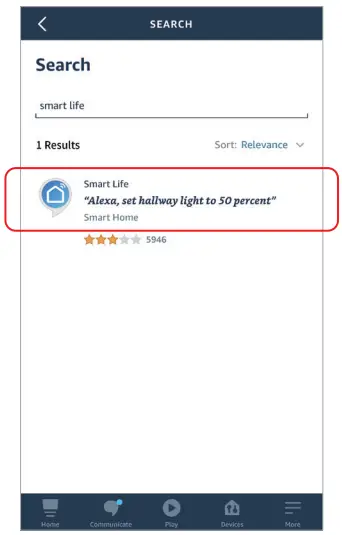
Support Google Home Control
Please search ” Smart Life ” skill in Google Home APP and activate the skill.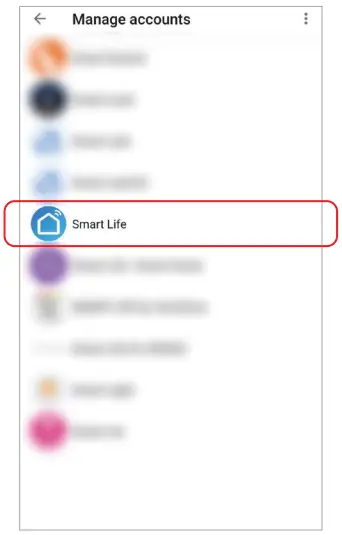
Bluetooth control instructions
When the router is disconnected, you can turn on the Bluetooth of your smartphone and connect directly controlled device at a short distance.
Switching Bluetooth control steps:
- Complete the network distribution of the equipment.
- Power off the router used for network configuration, turn off WiFi on the mobile phone, turn on Bluetooth, and wait for about 3-5 minutes to control.