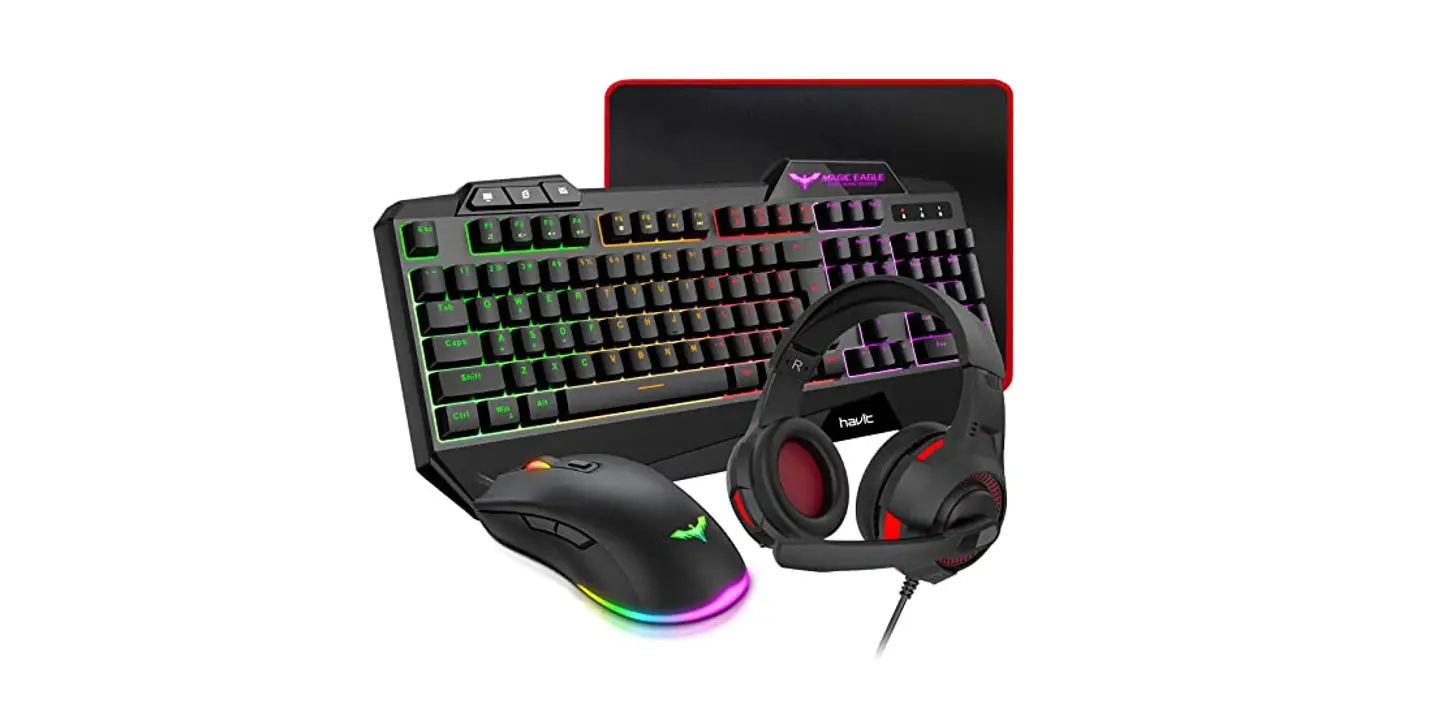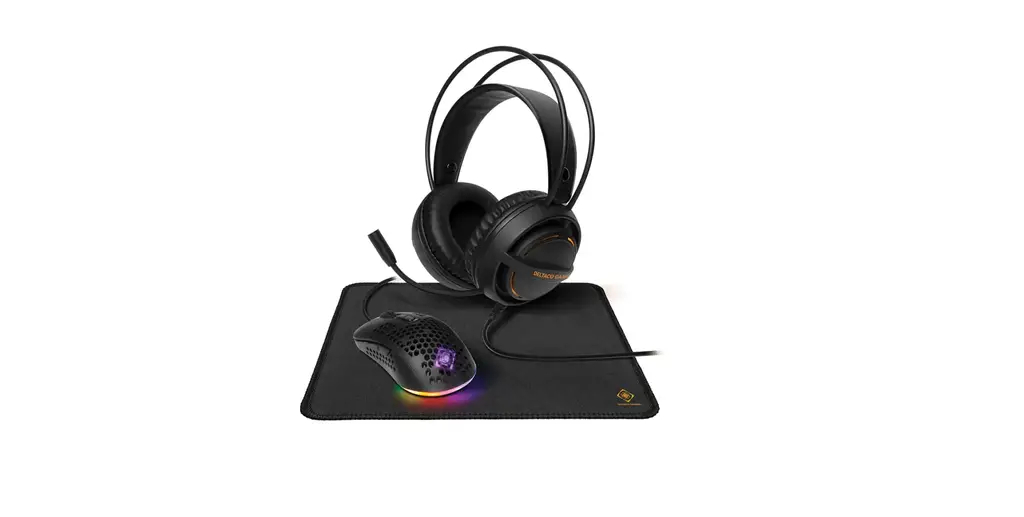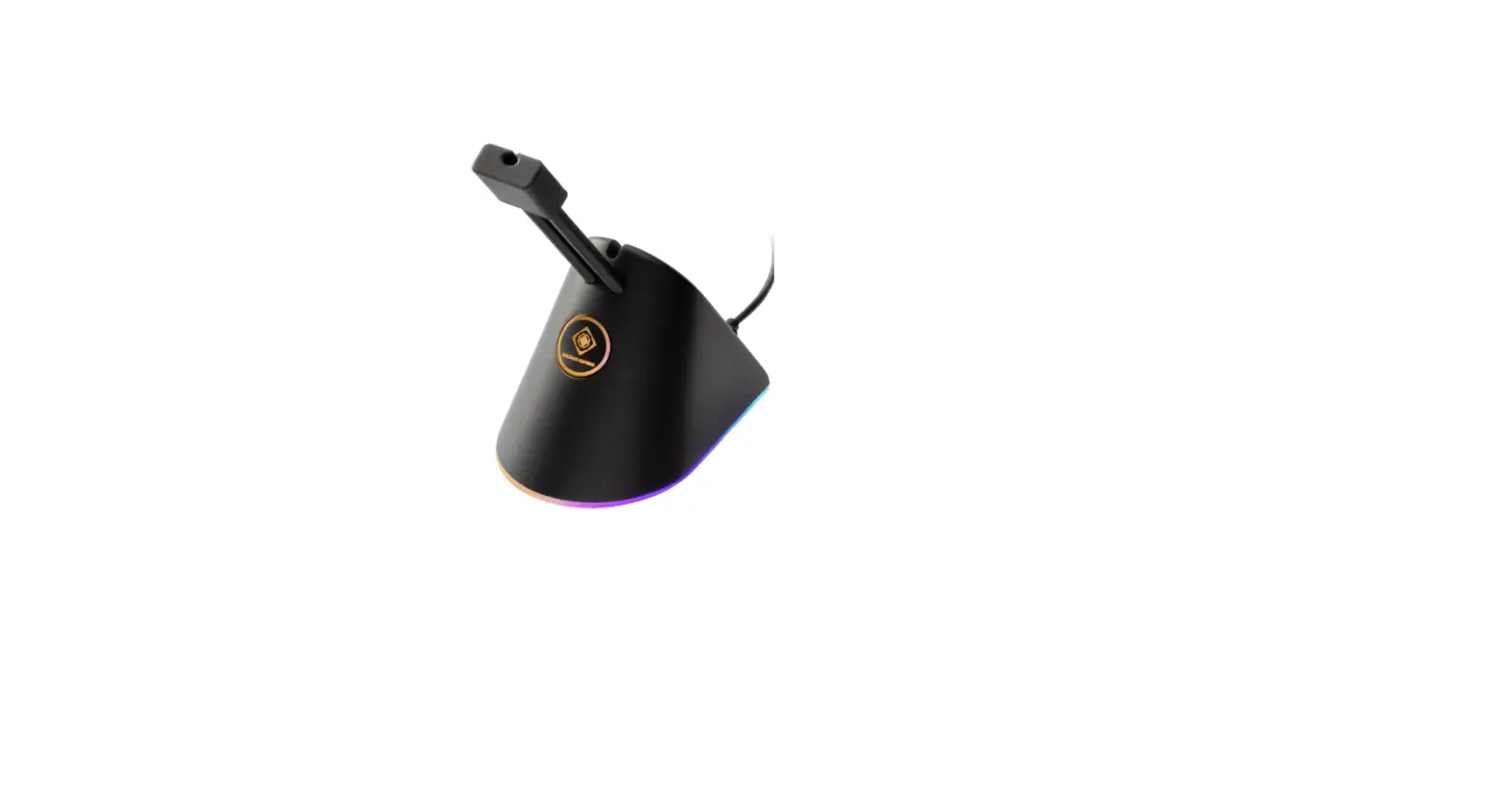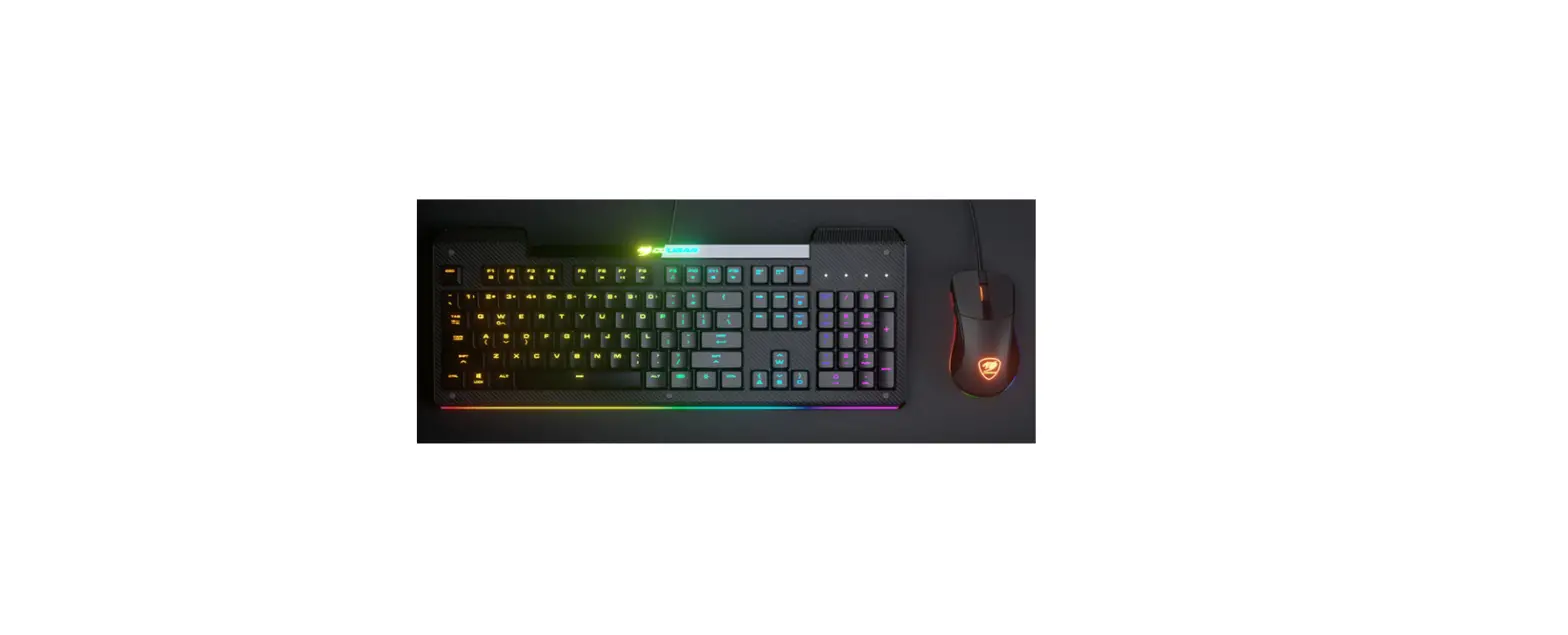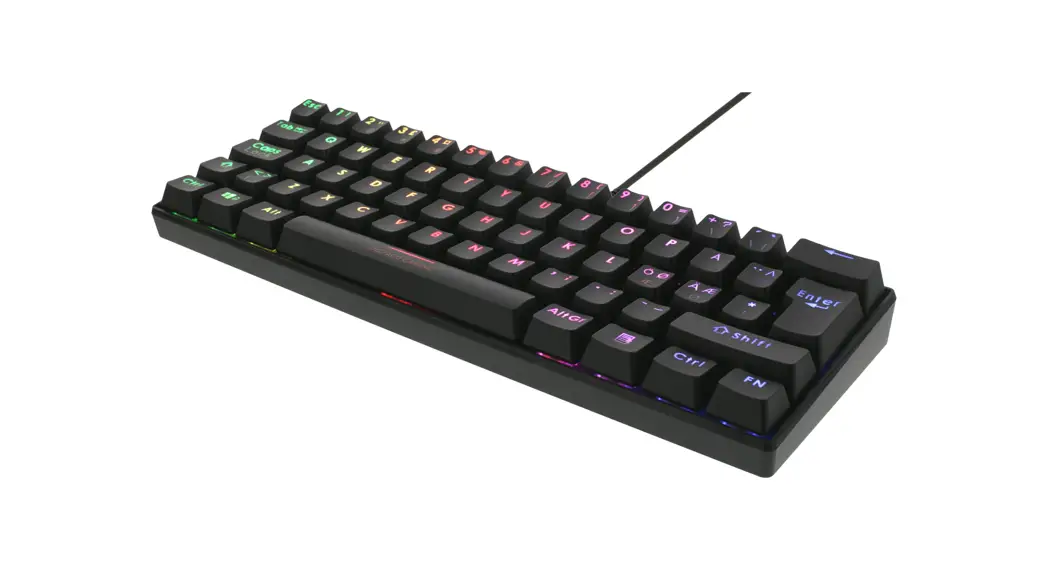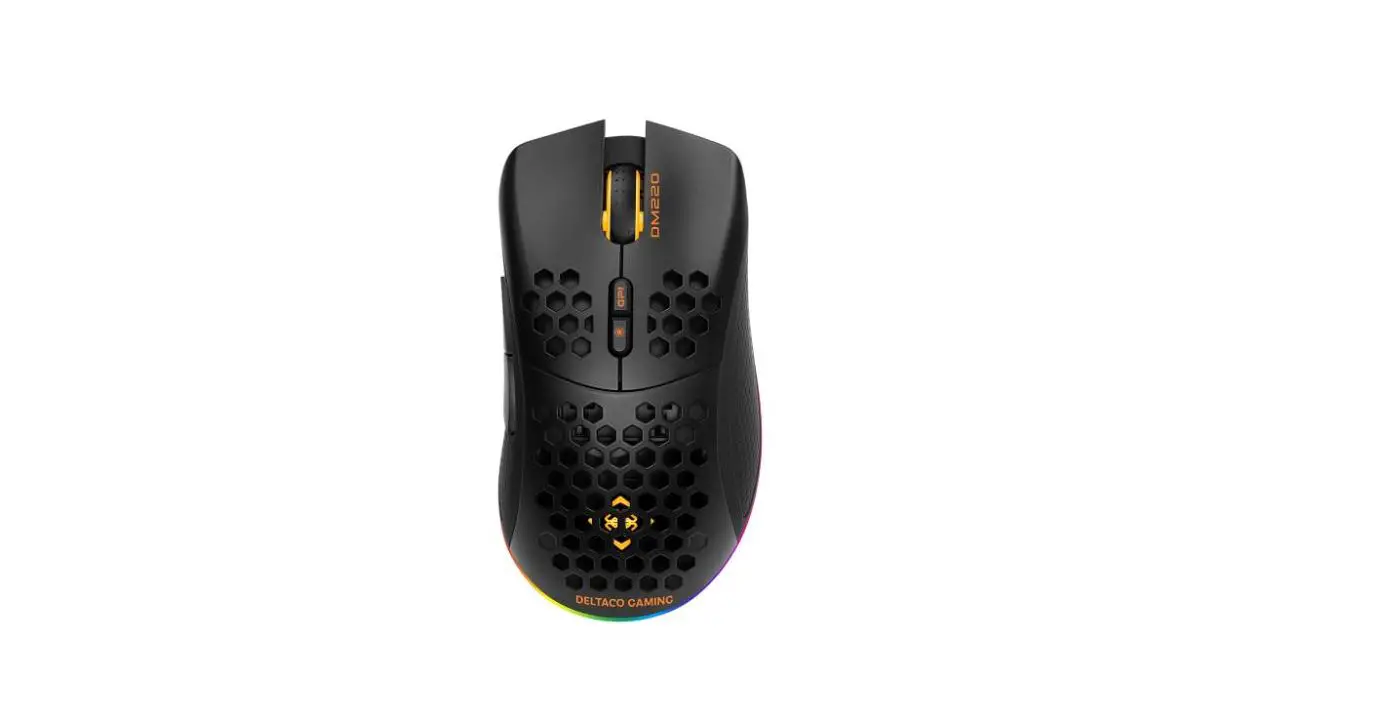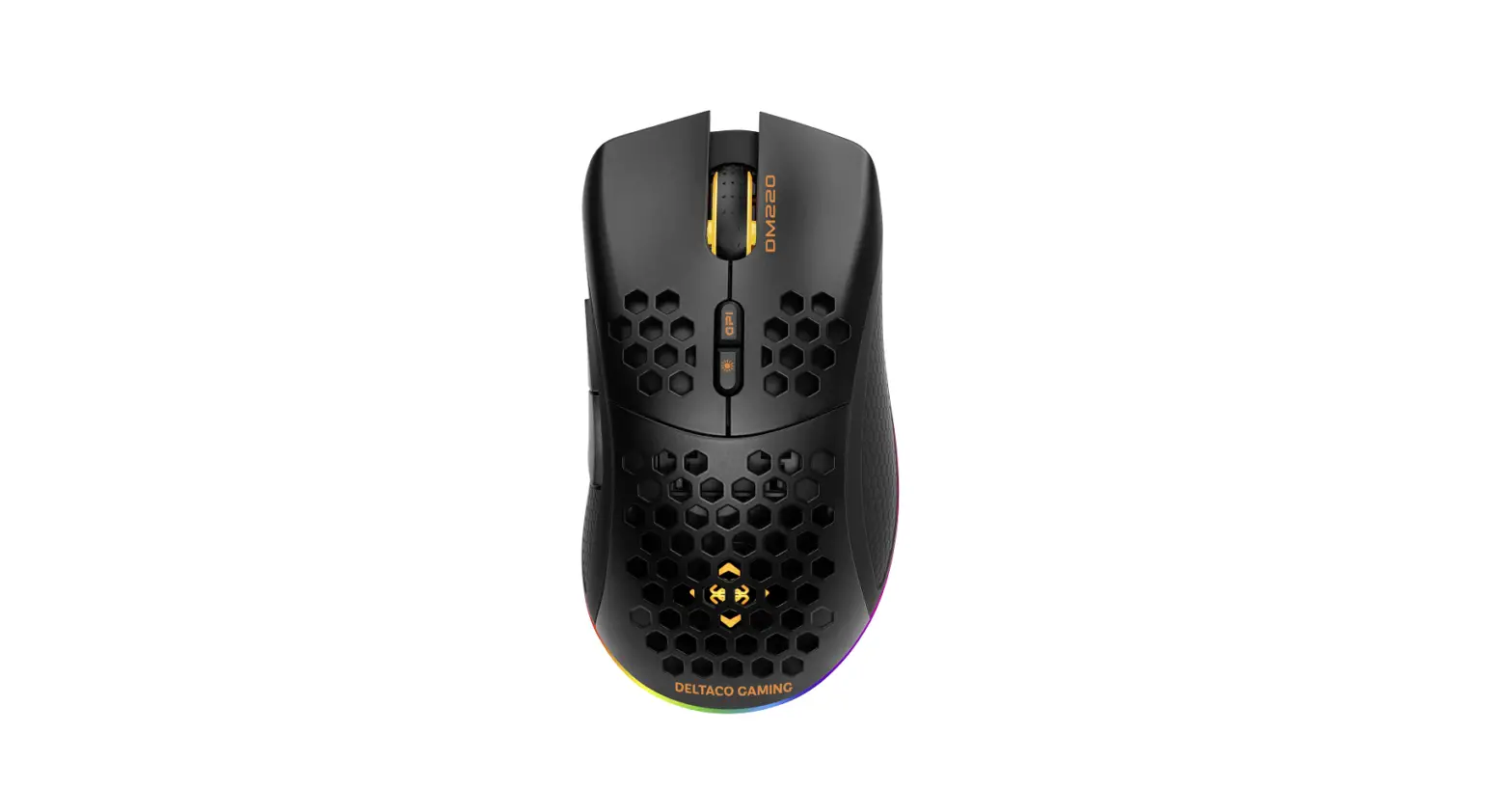

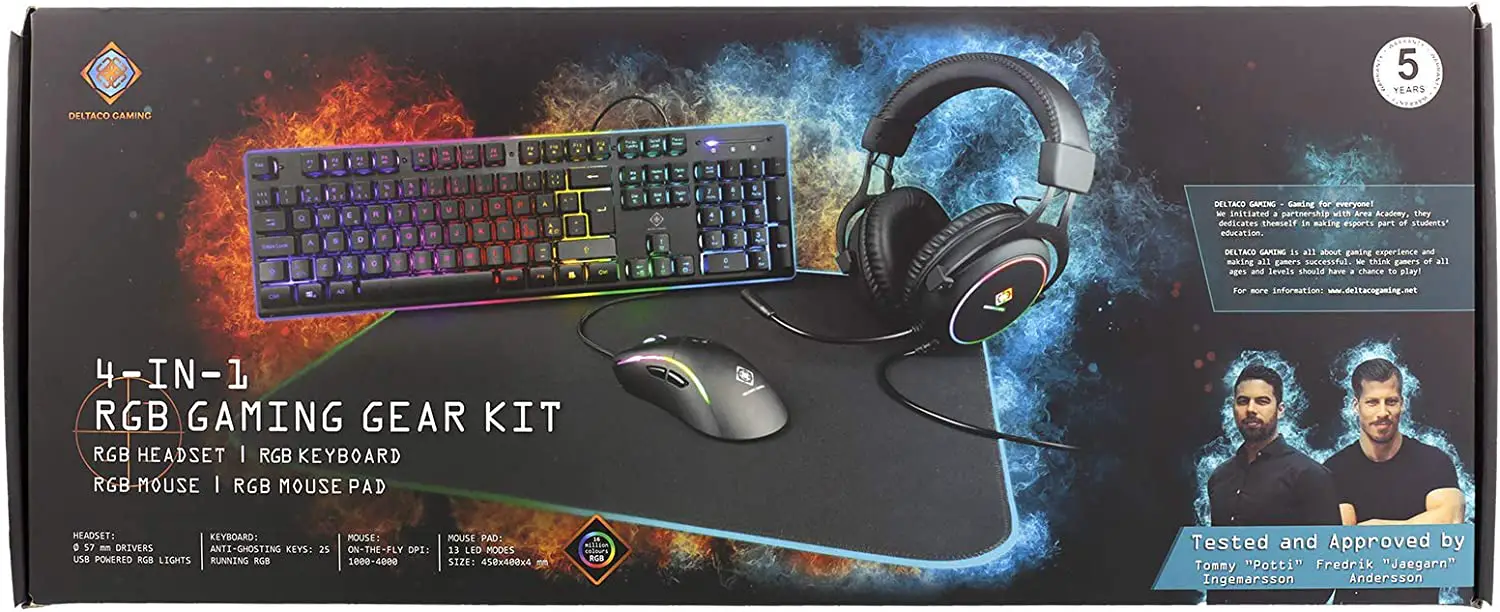
DELTACO GAMING GAM-084 4-in-1 RGB Gaming Gear Kit
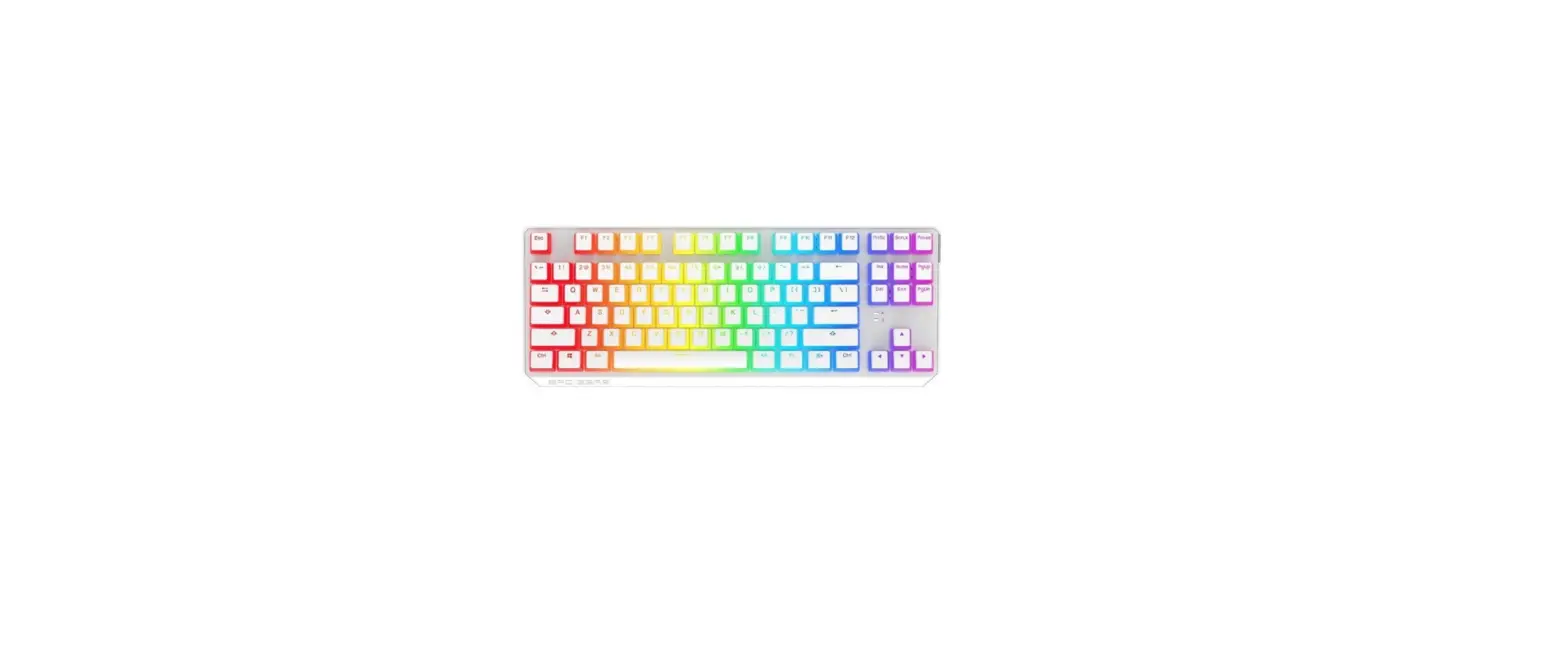
KEYBOARD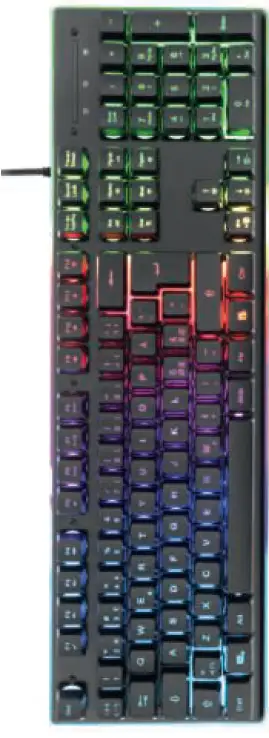
Key combinations
- FN + F1 = Open media player
- FN + F2 = Decrease volume
- FN + F3 = Increase volume
- FN + F4 = Mute/unmute sound
- FN + F5 = Stop
- FN + F6 = Previous
- FN + F7 = Play/pause
- FN + F8 = Next
- FN + F9 = Open email program
- FN + F10 = Home
- FN + F11 = Lock/unlock keyboard
- FN + F12 = Open calculator
Backlight modes
- FN + Arrow Up = Increase brightness
- FN + Arrow Down = Decrease brightness
- FN + Right Arrow = LED speed down
- FN + Left Arrow = LED speed up
- FN + Ins = Cycles though LED colors
- FN + Home = Change LED color
- FN+ Page Up = Customize LED
- FN+ Page Down = LED off
- FN + Del = Running RGB
- FN + End = Enable or change breathing mode.
There are 2 breathing modes, 1 that changes color and 1 that keeps the same color. If you change LED speed, you will have to press FN + END again to save and enable the speed change, if you don’t save, then keyboard will not change the LED color.
Customization LED groups
Press FN + Page Up to enter customization mode. The keyboard’s LED flashes as response. Choose which group to modify (from 1 to 6) by pressing FN + a number from 1 to 6. Then set the colors you want. Press FN + Page Up again to confirm the customization. You can set up to 6 groups. Short summery:
- FN + Page Up
- FN + a number (1 to 6)
- Set color
- FN+ Page Up
HEADSET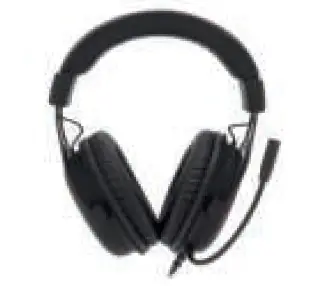
- The headset LED lights are powered by USB, 5V DC.
- Speaker and microphone is powered through 3.5 mm connectors.
- The volume control is on the headset.
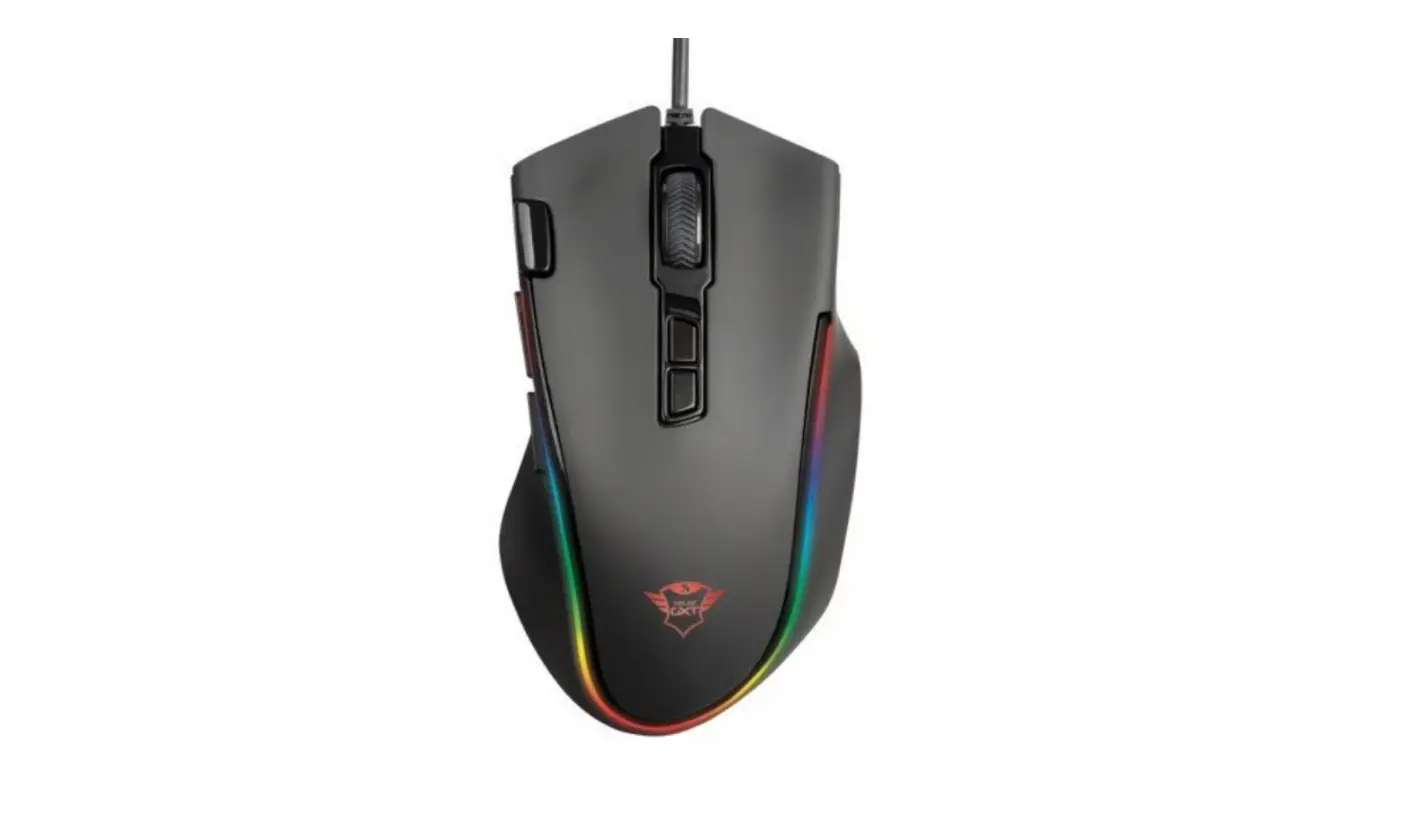
MOUSE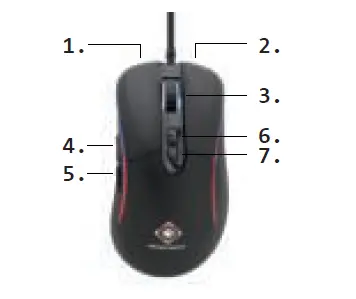
- Left mouse button
- Right mouse button
- Mouse wheel button
- Forward
- Backward
- Increase DPI
- Decrease DPI
Mouse wheel + forward button = Change LED mode.
Connect to a USB port (5V DC) to use the mouse.
MOUSEPAD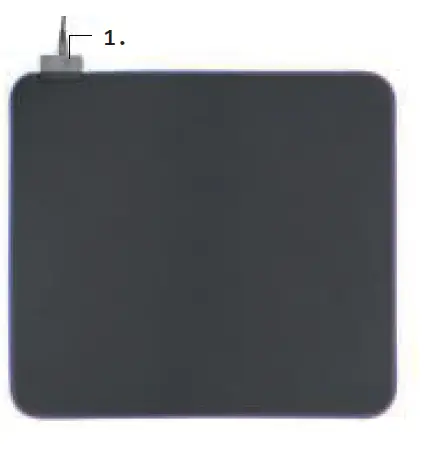
- Switch between modes
- Hold the button to power off
- The mousepad’s LED lights are powered by USB, 5V DC.
Distributed by SweDeltaco / www.deltaco.eu
SweDeltaco AB, Glasfibergatan 8, 125 45 Älvsjö, Sweden
 Pages - Home