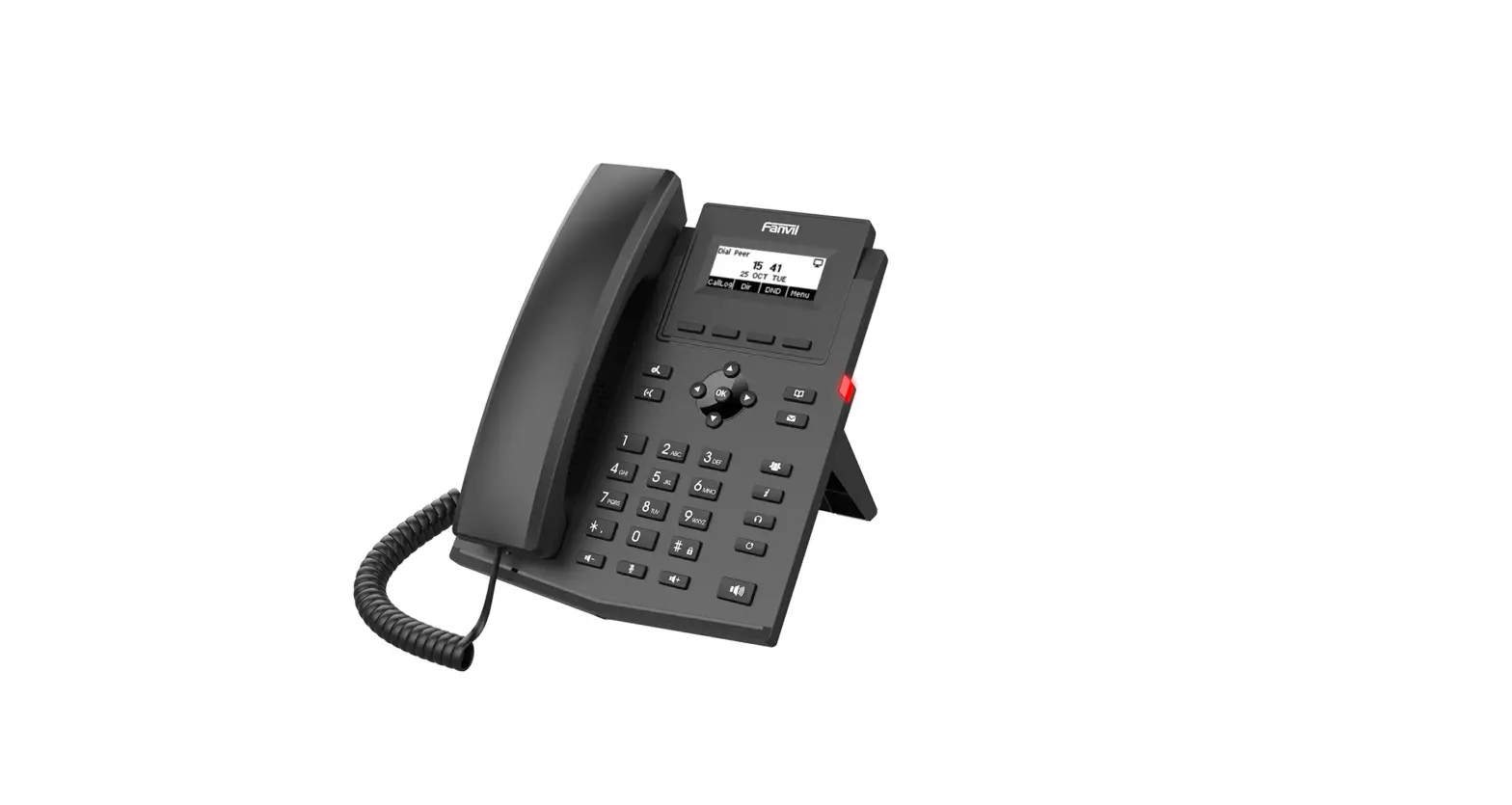
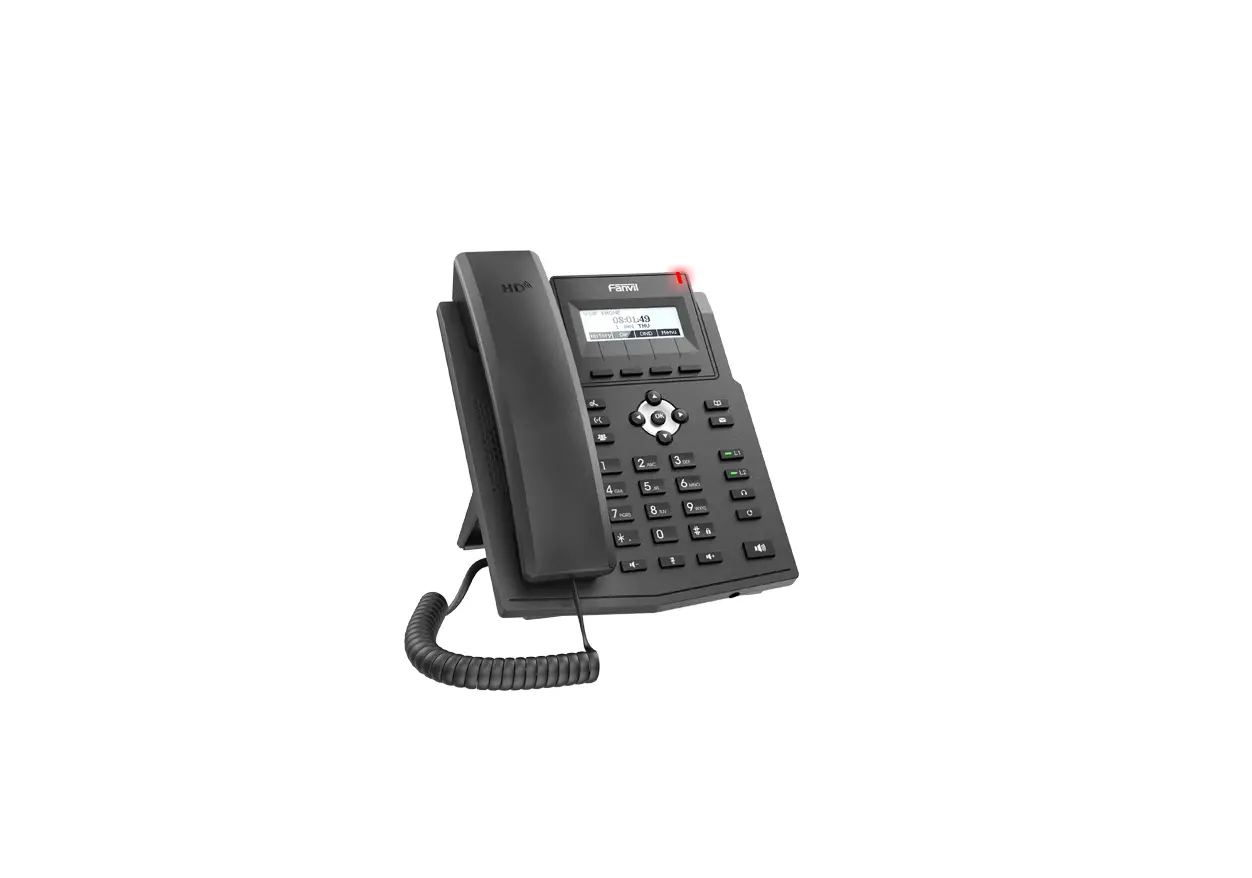
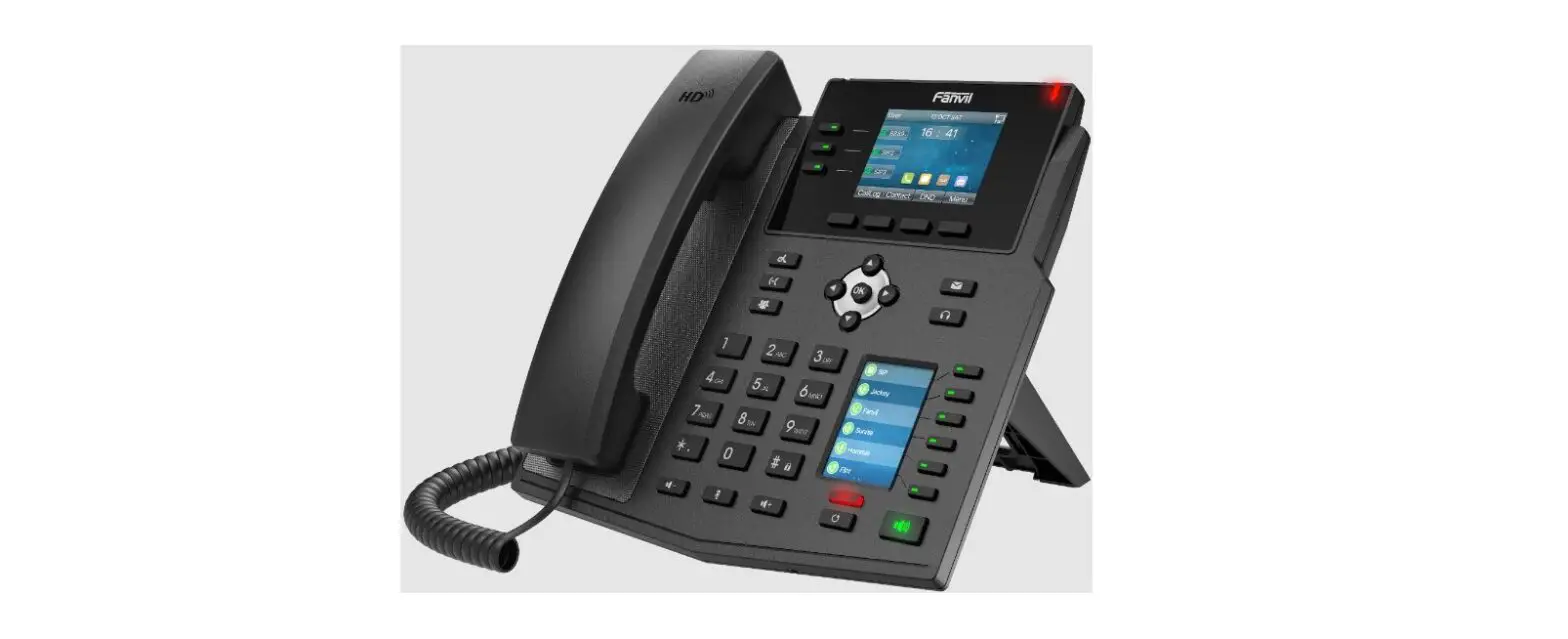
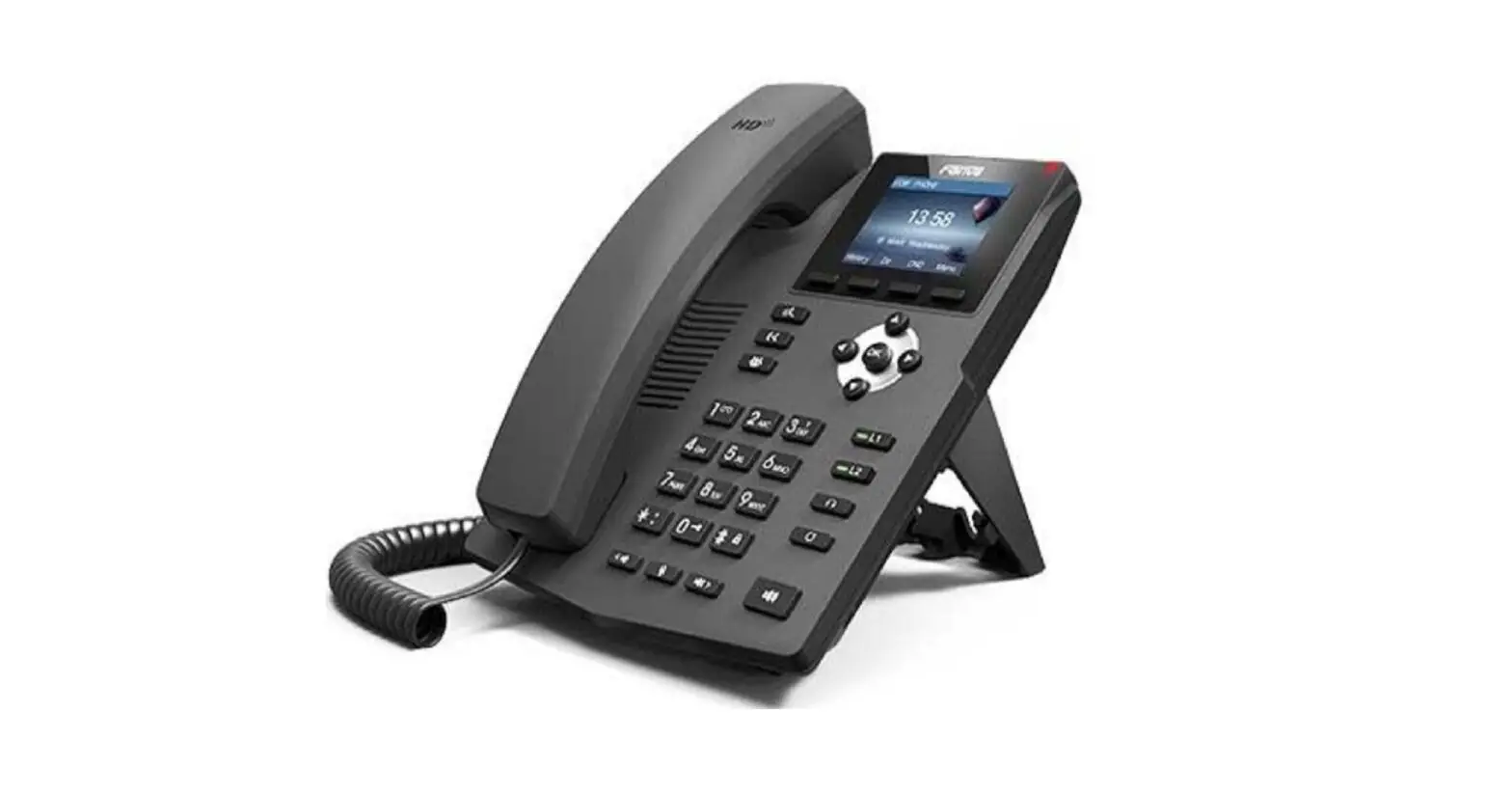
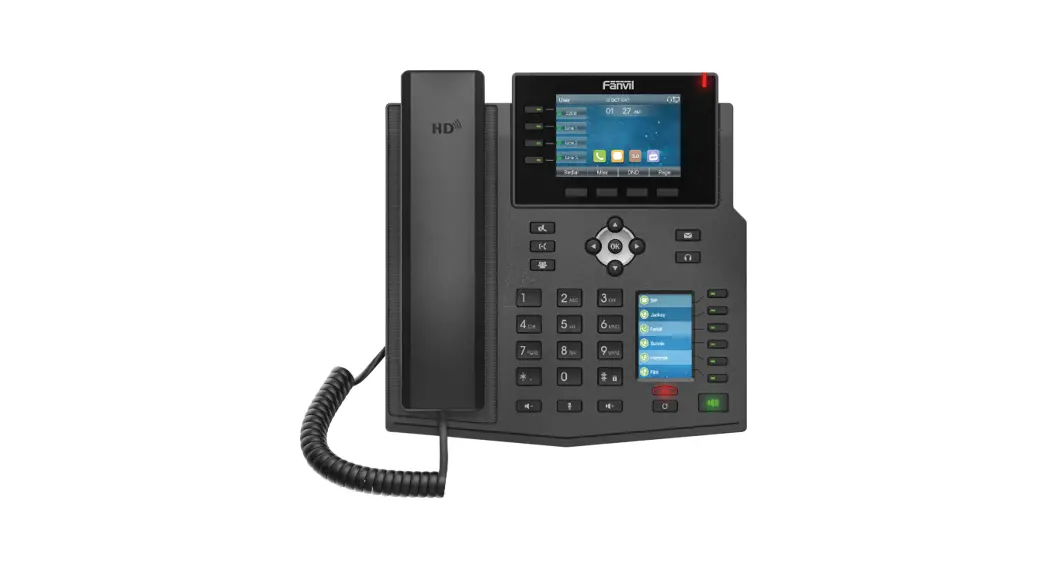
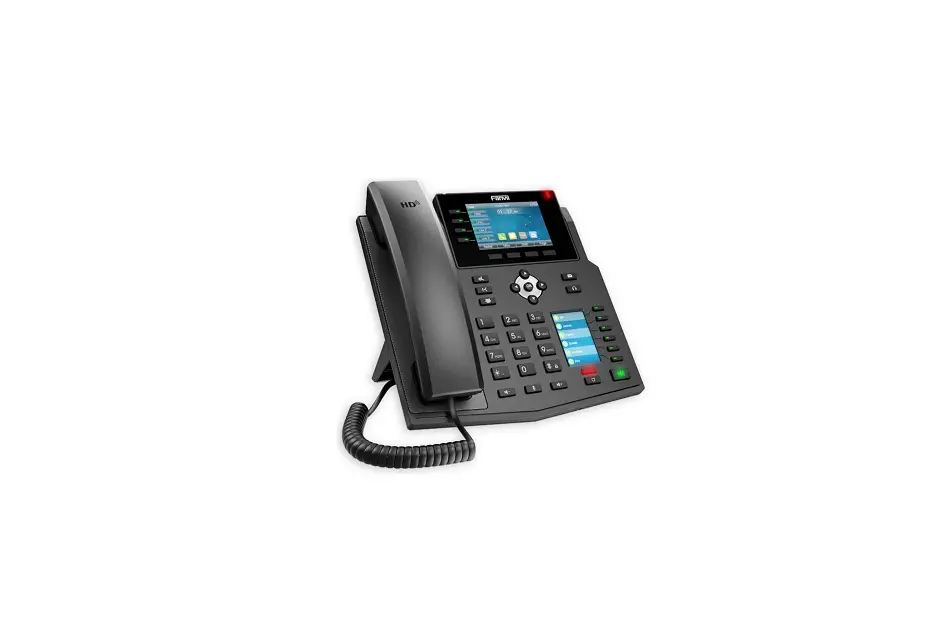
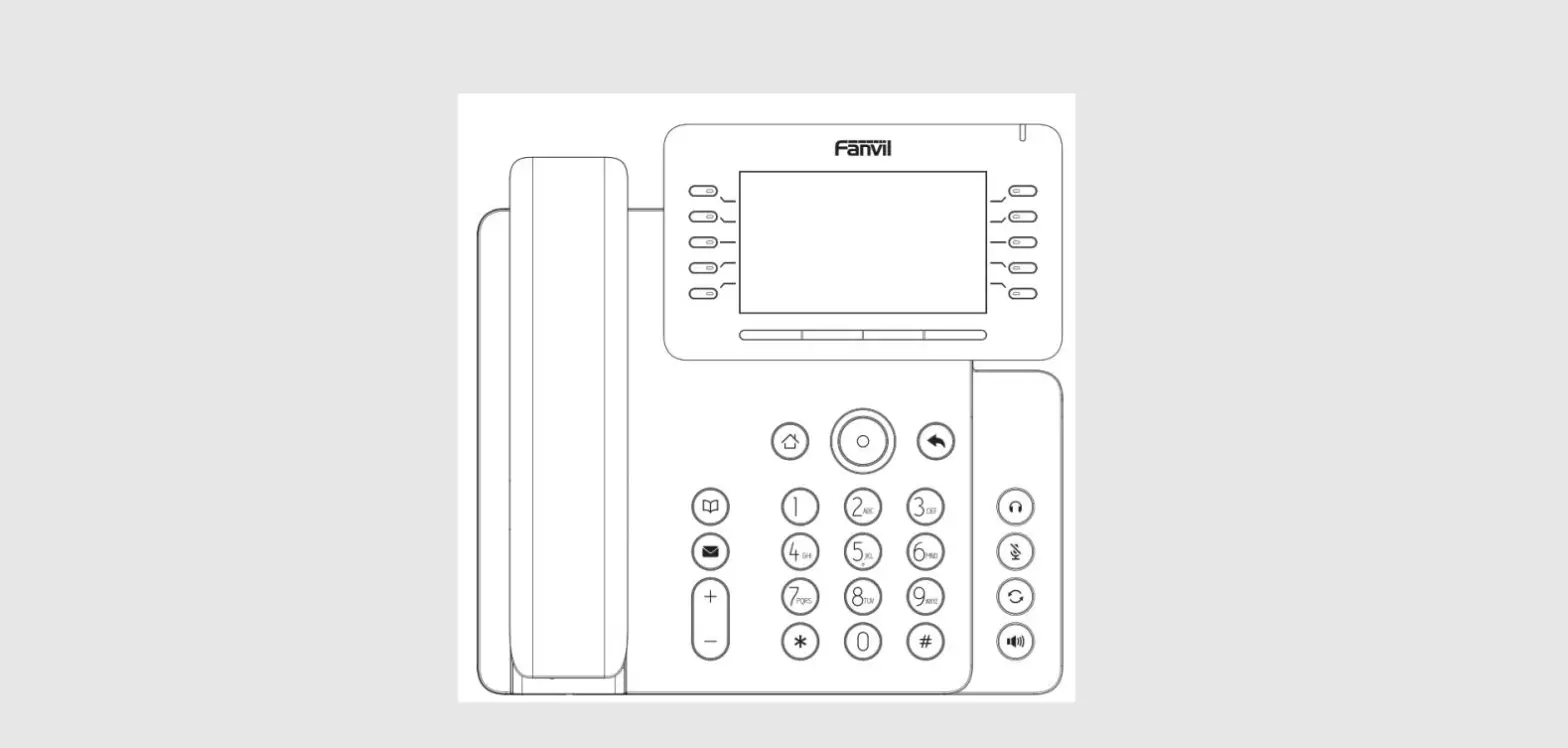
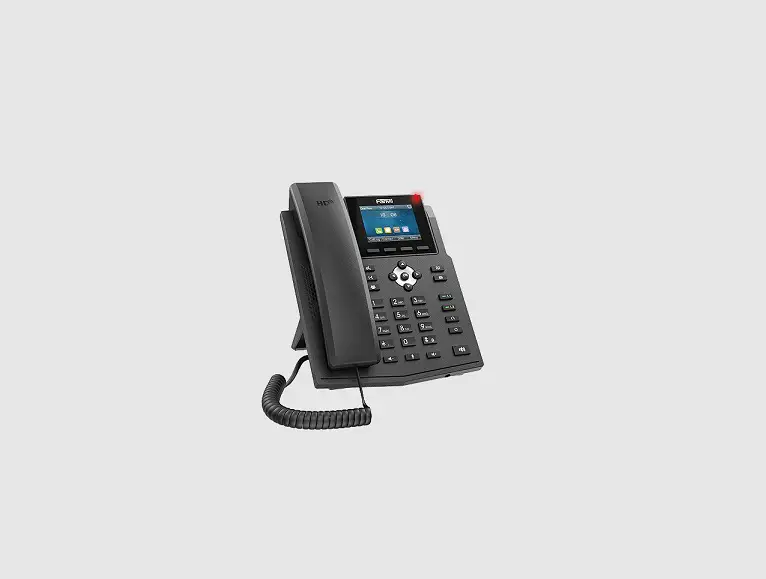
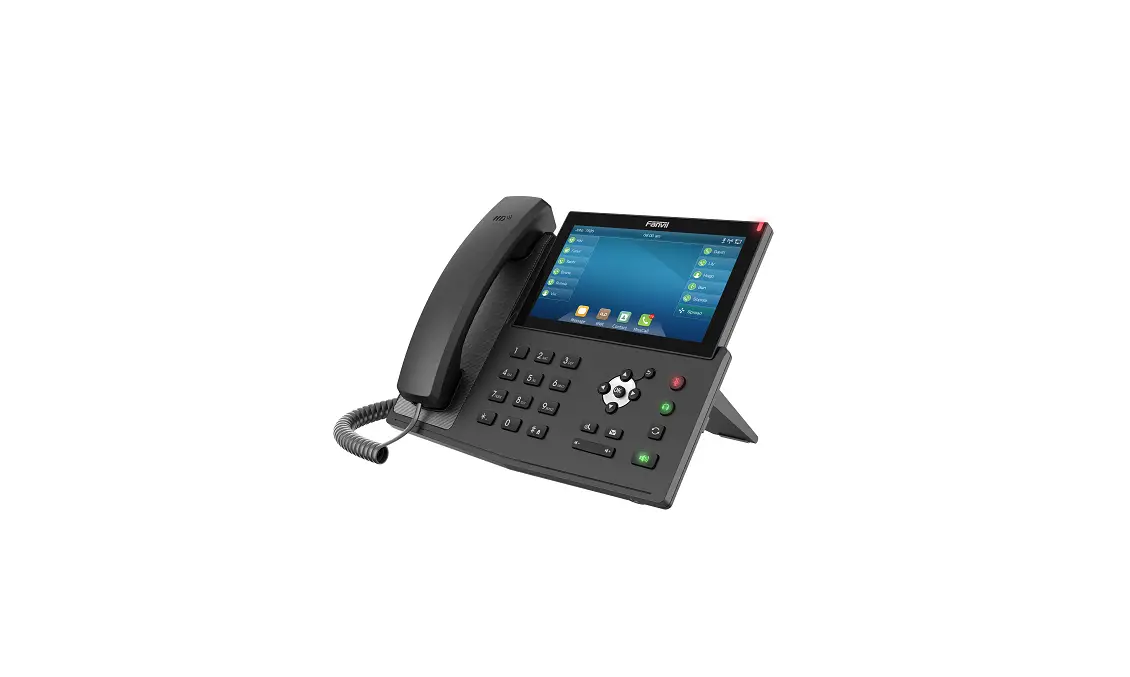
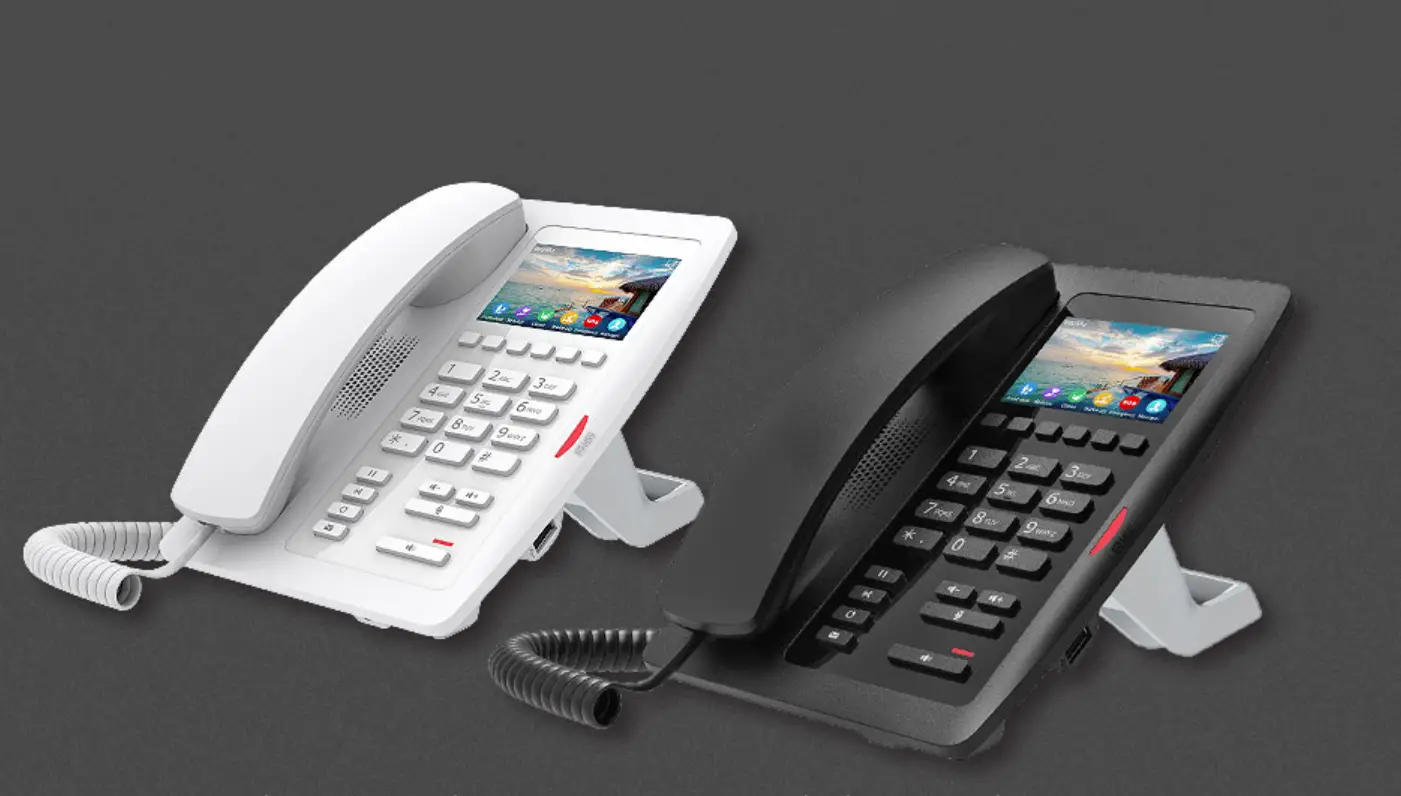
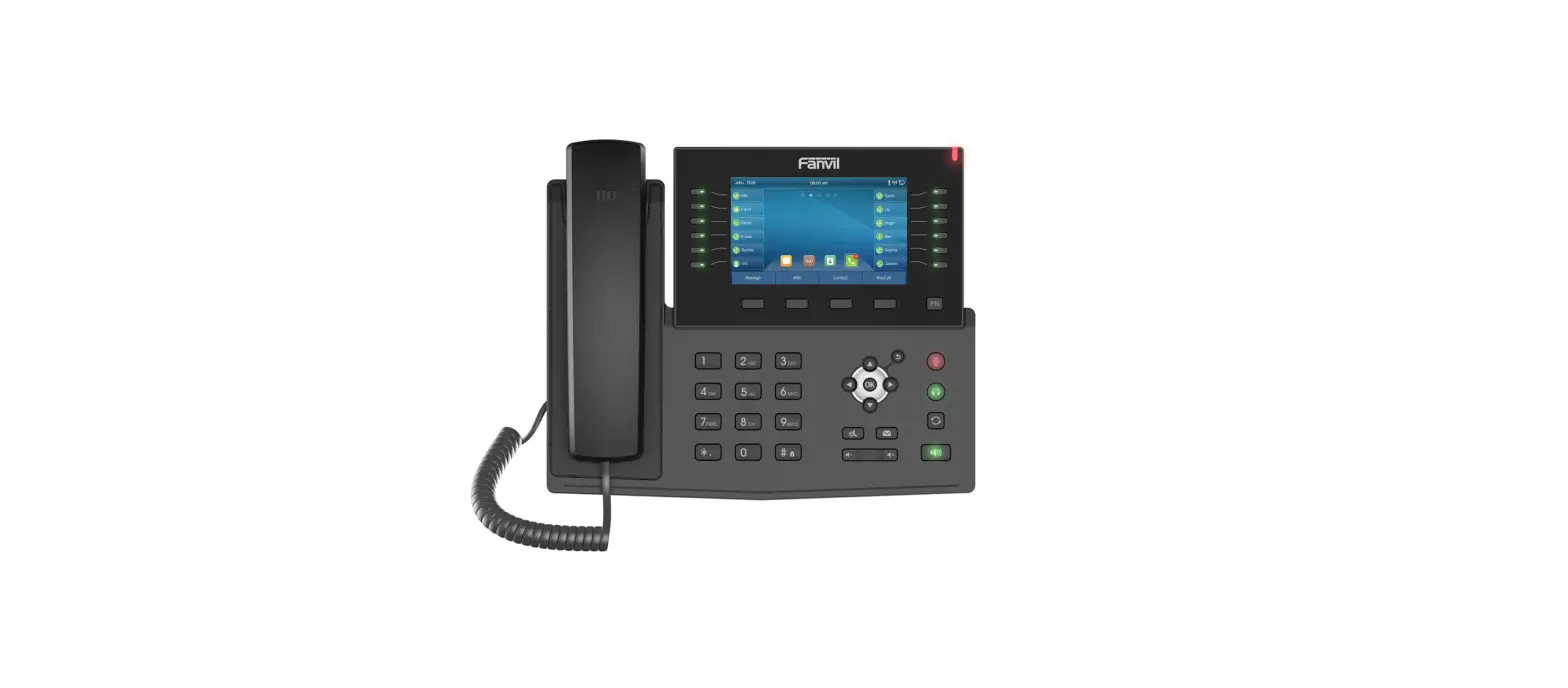
X303W Enterprise IP Phone
Product Information: Fanvil X303W
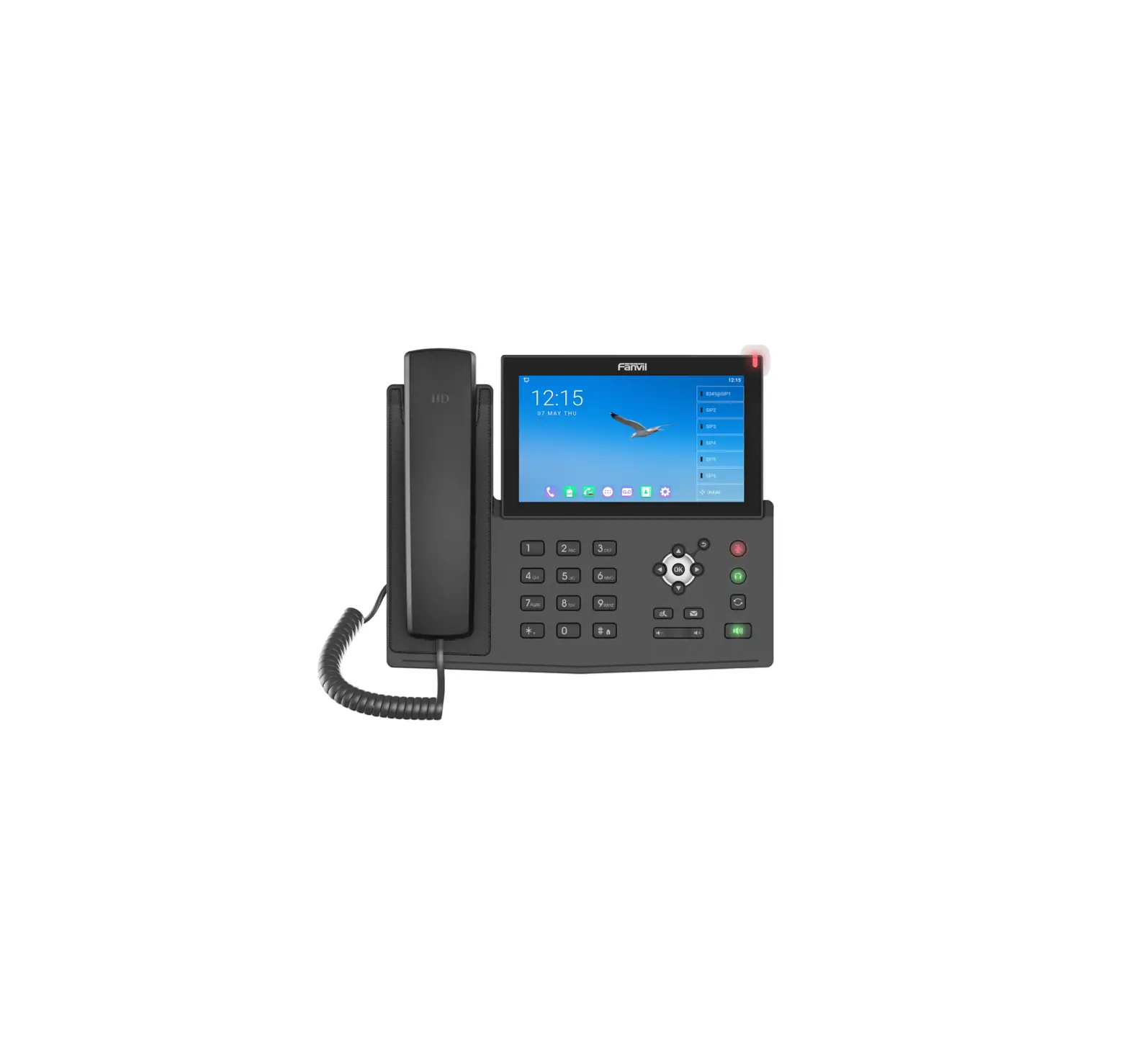
The Fanvil X303W is a VoIP phone designed for remote workers. It
comes with a Fanvil V64, which includes a phone, an Ethernet cable,
a handset cable, a handset, a stand, and a power adapter. The phone
has multiple viewing angles and supports headsets using an RJ-9
cable. It also has a DC-5V port, network port, PC port, and two
headset ports. The phone is capable of establishing a network
connection and downloading its configuration files automatically.
The voicemail box is functional with a default greeting. The phone
also has Wi-Fi connectivity and voicemail box setup options.
Product Usage: Fanvil X303W
Assembling Your Phone
Slot the plinth into the back of the phone to adjust the viewing
angle.
Connecting Handset and Optional Headset
To connect your headset to the phone, use an RJ-9 cable. Refer
to your headset documentation for connection directions.
Connecting Cables
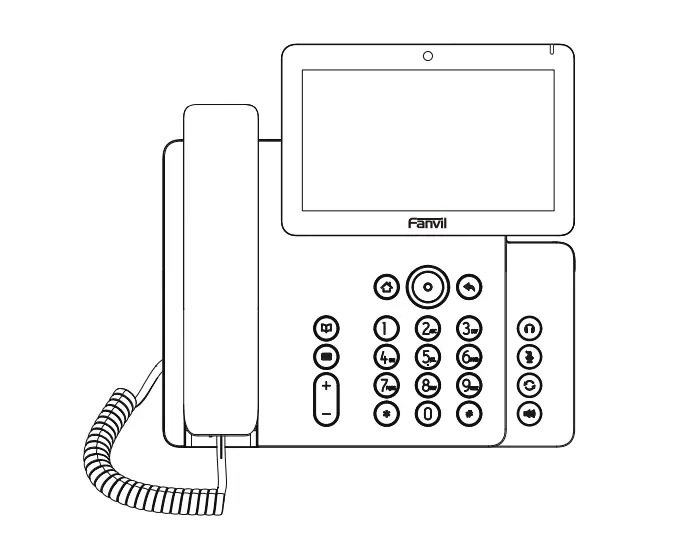
Follow the diagram to connect your device’s cables:
| No. | Item | Function |
|---|---|---|
| 1 | DC-5V Port | Connect the power adapter |
| 2 | Network Port | Connecting to LAN/Internet via Ethernet. Power over Ethernet capable. Pass through the network connection to a PC/MAC |
| 3 | PC Port | |
| 4 | Headset Port | Connect any RJ-9 Capable Headset |
| 5 | Headset Port | Connect the X303W Handset |
Establishing a Wi-Fi Connection
- Press the Menu soft key.
- Use the navigation arrow keys and OK keys to reach the Basic
menu option. - Scroll down to WLAN option using the navigation keys and press
OK. - Toggle WLAN to Enabled using the right navigation key.
- Scroll down to the Available Networks option using the
navigation keys and press OK. - Press the Scan soft key to scan for available 2.4Ghz/5Ghz
networks. - Select the desired Wi-Fi network using the navigation and OK
keys and follow the prompts to enter any required password.
Voicemail Box Setup
Recording Your Personal Voicemail Greeting
- Press the Messages button.
- Enter the PIN provided by your Administrator, followed by the #
key. - Select option 3 for personal options.
- Select option 1 to record your voicemail greeting.
- Follow the voice prompts to record and check your
greeting.
Changing Your PIN From the Phone
- Press the Messages button.
- Enter the PIN provided by your Administrator, followed by the #
key. - Select option 3 for personal options.
- Select option 2 to change your PIN.
- Enter the new PIN when prompted. Press # when done.
Commonly Used Features
Placing Outgoing Calls
When the phone is not in use:
- Pick up the handset or press the Speakerphone button. Dial tone
will be heard.
When using a headset:
- Press the Headset button to activate headset mode.
- Dial an extension or telephone number.
When you are already on a call:
- Press the Hold soft key.
- Press the More soft key.
- Press the New Call soft key.
- Dial an extension or telephone number.
- Resume the original call by pressing the Resume soft key.
Rejecting an Incoming Call
Press the Reject soft key to immediately send the caller to
voicemail.
Mute
To mute the microphone on a call, press the Mute button.
QUICK START GUIDE
Fanvil X303W
5 Must-Have Productivity Tools for Remote Workers
1
Welcome to Intermedia Unite
WHAT’S IN THE BOX?
Fanvil V64
A. Phone B. Ethernet Cable C. Handset Cable D. Handset
E. Stand F. Power Adapter
A.
D.
C.
E.
B.
F.
Quick Start Guide – Fanvil V64
2
GUIDED SETUP
Assembling Your Phone Slot the plinth into the back of the phone, as shown below. Multiple insert positions provide the opportunity for multiple viewing angles.
Connect Handset and Optional Headset Note: Your phone supports headsets using an RJ-9 cable. For connection directions, refer to your headset documentation.
Connect Cables Please follow the diagram on the right for information on your device’s connection options.
NO.
1 2 3 4 5
Item
DC-5V Port Network Port PC Port Headset Port Headset Port
Quick Start Guide – Fanvil V64
Function
Connect the power adapter Connecting to LAN/Internet via Ethernet. Power over Ethernet capable. Pass through the network connection to a PC/MAC Connect any RJ-9 Capable Headset Connect the X303W Handset
Once plugged into power & establishing a network connection, the phone will automatically download its configuration files & become usable. The voicemail box will be functional with a default greeting.
3
Establishing a Wi-Fi Connection 1. Press the “Menu” soft key 2. Use the navigation arrow keys and “OK” keys to reach the “Basic”
menu option 3. Scroll down to “WLAN” option using the navigation keys and press OK 4. Toggle “WLAN” to Enabled using the right navigation key 5. Scroll down to the “Available Networks” option using the navigation
keys and press “OK” 6. Press the “Scan” soft key to scan for available 2.4Ghz/5Ghz networks. 7. Select the desired Wi-Fi network using the navigation and “OK” keys
and follow the prompts to enter any required password.
VOICEMAIL BOX SETUP
Recording Your Personal Voicemail Greeting
1. Press the “Messages”
button.
2. Enter the PIN provided to you by your Administrator, followed by the # key.
3. Select option 3 for personal options.
4. Select option 1 to record your voicemail greeting.
5. Follow the voice prompts to record and check your greeting.
Changing Your PIN From the Phone 1. Press the “Messages” button. 2. Enter the PIN provided to you by your Administrator, followed by the # key. 3. Select option 3 for personal options. 4. Select option 2 to change your PIN. 5. Enter the new PIN when prompted. Press # when done.
Quick Start Guide – Fanvil V64
4
COMMONLY USED FEATURES
Placing Outgoing Calls When the phone is not in use: 1. Pick up the handset or press the “Speakerphone” 2. Dial tone will be heard.
button.
When using a headset:
1. Press the “Headset”
button to activate headset mode.
2. Dial an extension or telephone number.
When you are already on a call: 1. Press the “Hold” soft key. 2. Press the “More” soft key. 3. Press the “New Call” soft key. 4. Dial an extension or telephone number. 5. Resume the original call by pressing the “Resume” soft key.
Answering an Incoming Call On the handset: · Pick up the handset to answer the call.
On a headset: · When the headset is connected, press the “Headset”
button to answer the call.
On Speakerphone: · Press the “Speaker”
button to answer the call.
Rejecting an Incoming Call Press the “Reject” soft key to immediately send the caller to voicemail.
Ending a Call On a handset · Hang up the handset or press the “EndCall” soft key.
On a headset: · Press the “Headset” button OR press the “End Call” soft key.
On speakerphone: · Press the “Speakerphone” button OR press the “End Call” soft key.
Hold Placing a call on hold: · While on a call, press the “Hold” soft key.
Retrieving calls on hold: · Press the “Resume” soft key.
Mute
1. To mute the microphone on a call, press the “Mute”
button.
2. To un-mute the microphone, press the “Mute” button again.
Transferring Calls Cold Transfer 1. Press the Xfer soft key during an active call. 2. Enter the number you want to transfer to. 3. Press the Xfer soft key
Warm Transfer 1. Press the Xfer soft key during an active call. 2. Enter the number you want to transfer to, and press the Dial soft key. 3. Press the Xfer soft key when the second party answers.
Call Waiting While already on a call, and a new call rings in, you will hear a beep tone emitted by your phone.
To Answer the Second Call: 1. Press the “Answer” soft key to access that call. The first call will be placed
on hold. 2. Once the second call has ended, resume the original call by pressing the
“Resume” soft key.
To Reject the Second Call: · Press the “Reject” soft key to immediately send the caller to voicemail.
Volume Adjustment In-Call Volume: · While on a call, press the “+” and “-” buttons to raise or lower the volume.
Ringer Volume: · While the phone is not in use, press the “+” or “-” buttons to adjust the
ringer volume on the phone.
Speakerphone While the phone is not in use: · Press the “Speakerphone” button to activate the speakerphone and get
dial tone for an outbound call.
While on a call on the handset or headset: · Press the “Speakerphone” button to continue the current call on the
speakerphone.
While a call on speakerphone is active: · Press the “Speakerphone” button to hang up the current call.
Forwarding Calls 1. Press the “Menu” soft key. 2. Press the right arrow key to highlight “Features” and press the “Ok” button. 3. Press the “Ok” button while highlighting “Call Forward”. 4. Press the “Ok” button or the “Enter” soft key. 5. Select the forwarding option you’d like to manipulate, and press the
“Ok” button. a. For example, to default calls to always forward select “Unconditional”
6. Utilize the arrow keys to select options (up & down) and toggle options off and on (left & right).
7. After your changes have been made, select the “OK” button to save changes.
Redial · Press when the phone is idle to dial out the last dialed number. · Press the “CallLog” soft key to visit the list of recent calls to select a
different previous call.
We are here to help Online: www.intermedia.net/knowledgebase/voice Email: [email protected] Call: 1.877.880.0055
Intermedia has been recognized by J.D. Power for providing “An Outstanding Customer Service Experience” for its Assisted Technical Support. J.D. Power 2021 Certified Assisted Technical Program, developed in conjunction with TSIA. Based on successful completion of an audit and exceeding a customer satisfaction benchmark for assisted support operations. For more information, visit www.jdpower.com or www.tsia.com.
©2023 Intermedia.net, Inc.
Questions? Contact Us Today.
800.379.7729
intermedia.com
 Intermedia | Unified Communications, business email, cloud voice, web/video/content sharing, file backup, identity and access management, security & 30 cloud services
 Technology & Services Industry Association | TSIA