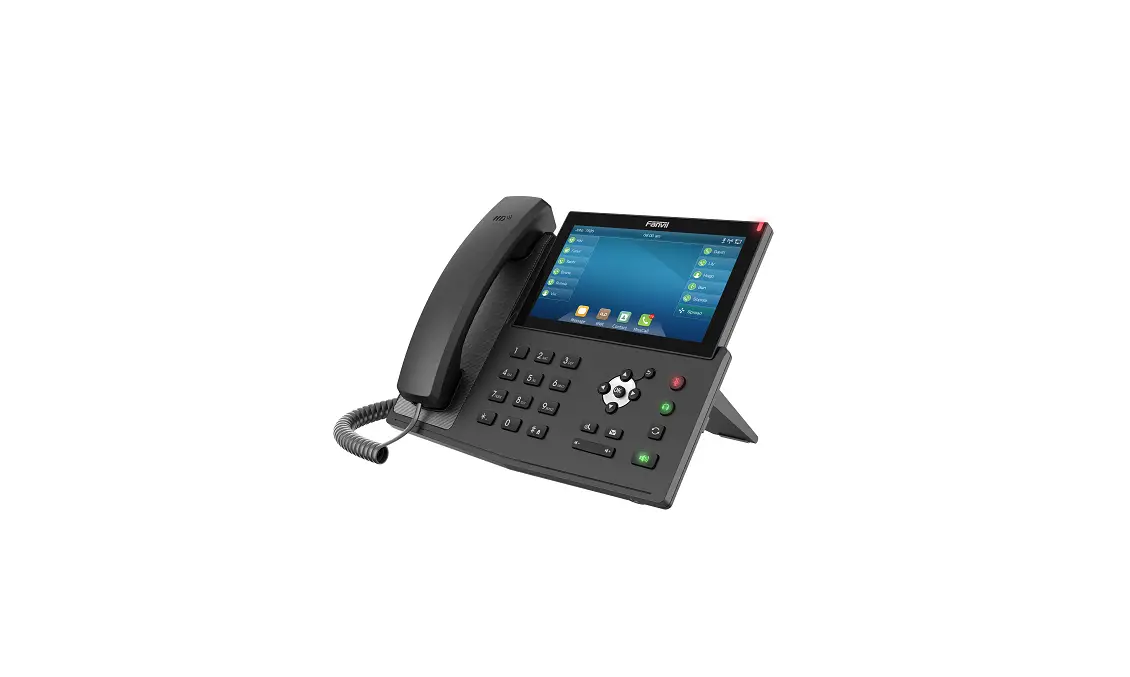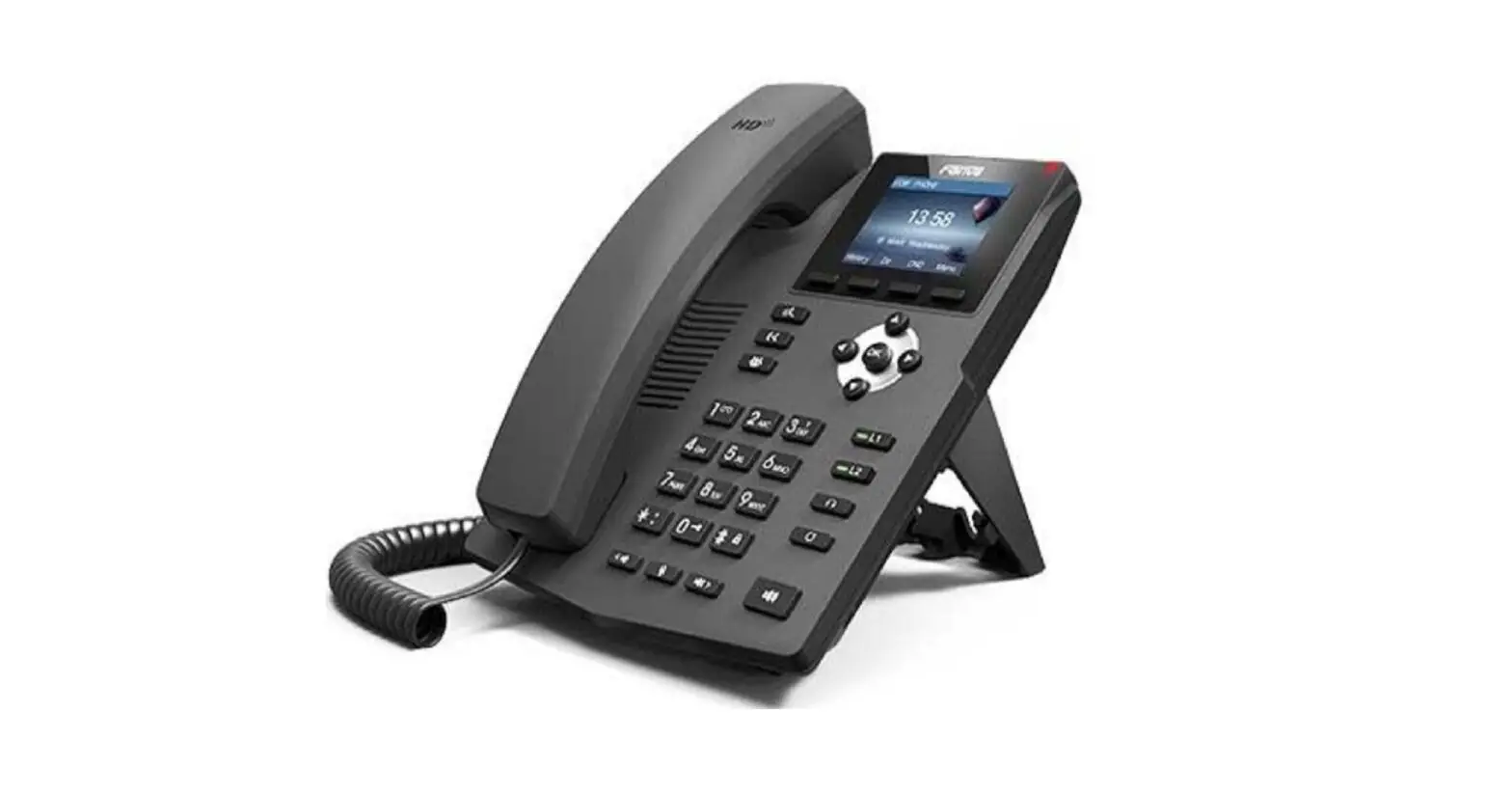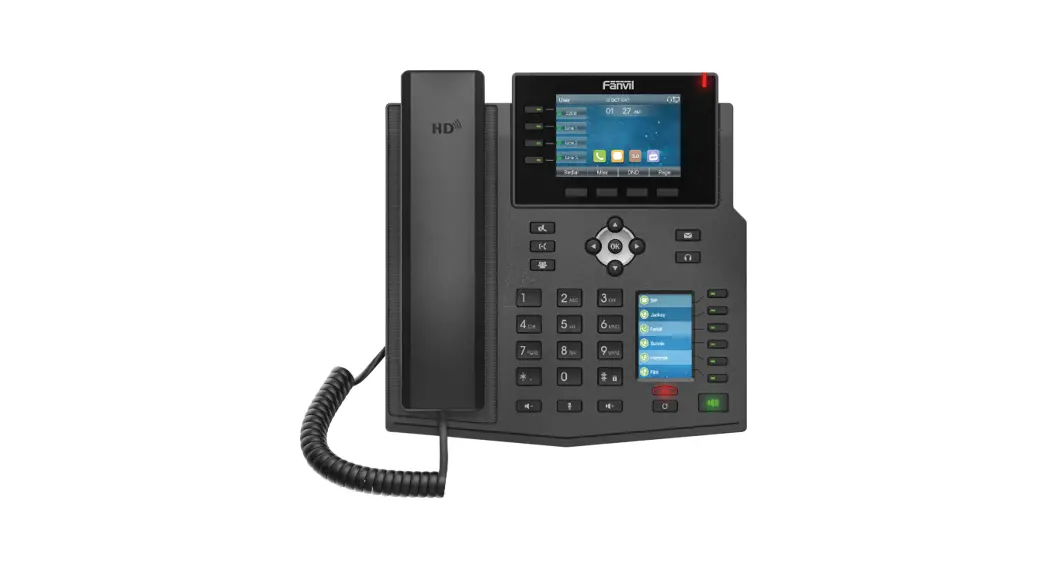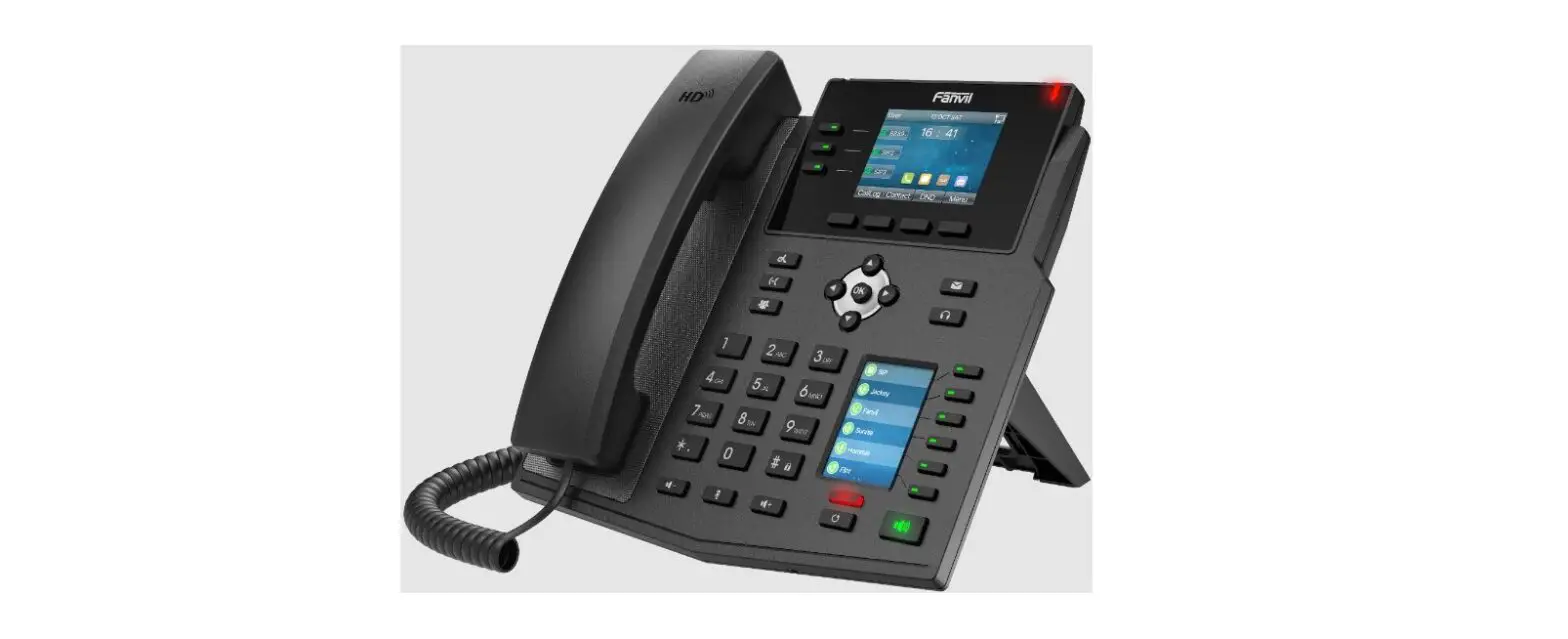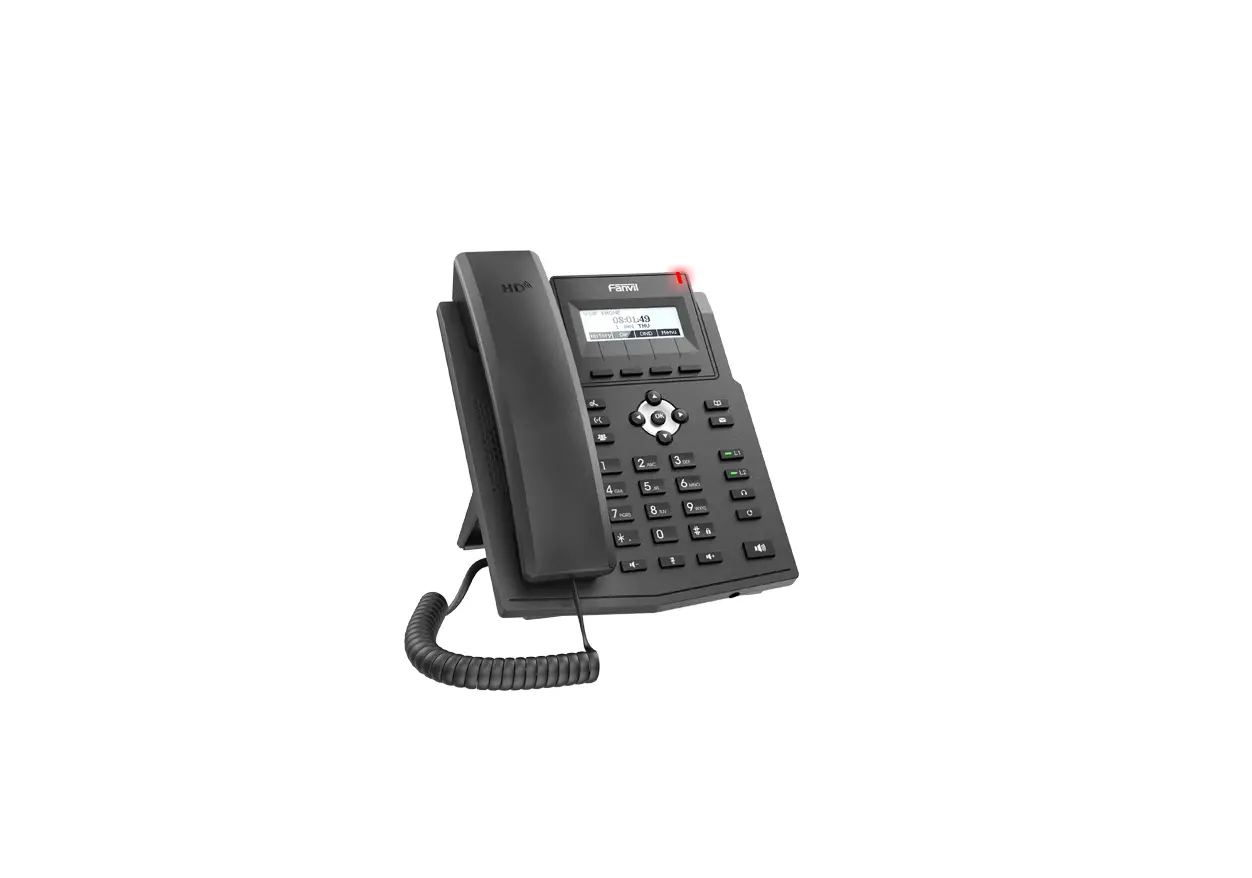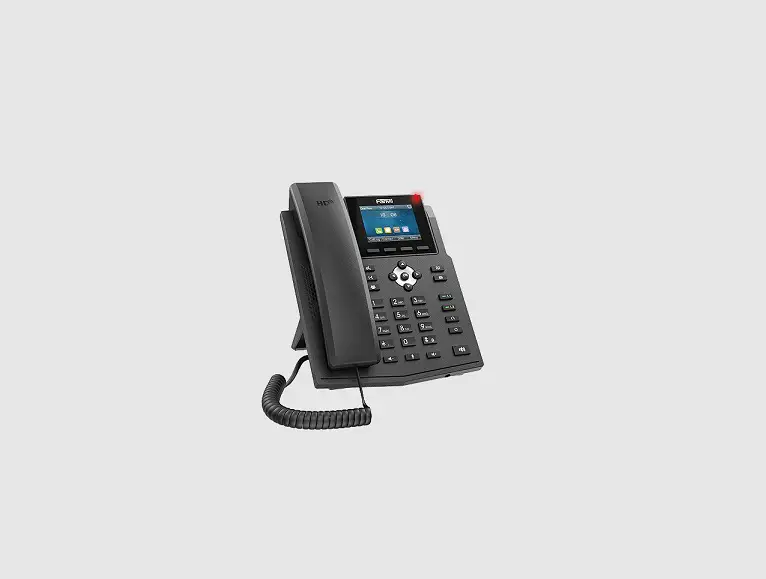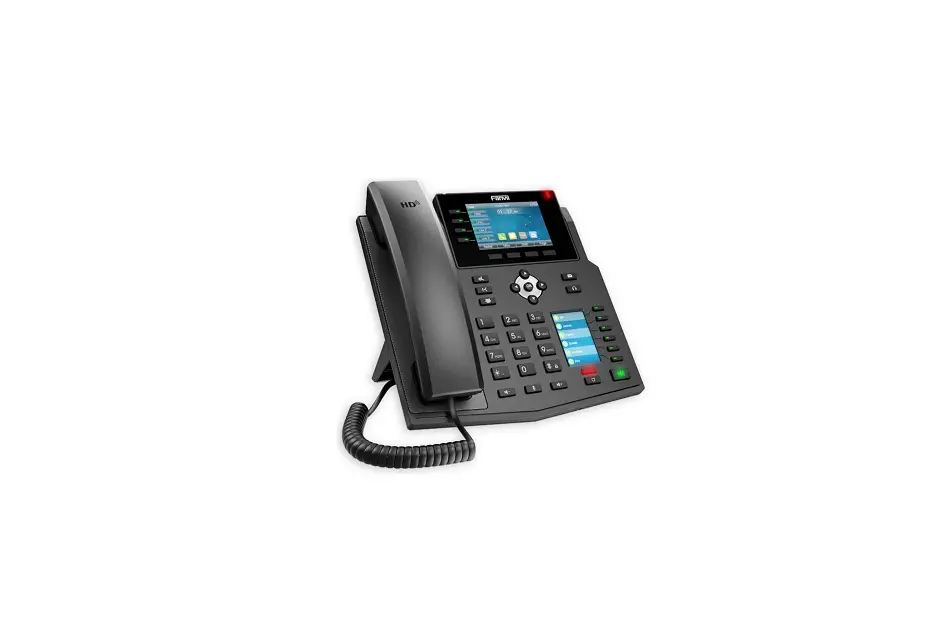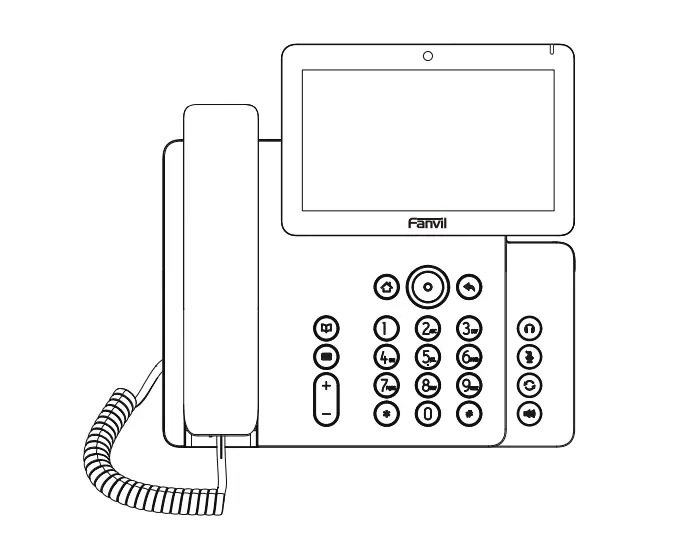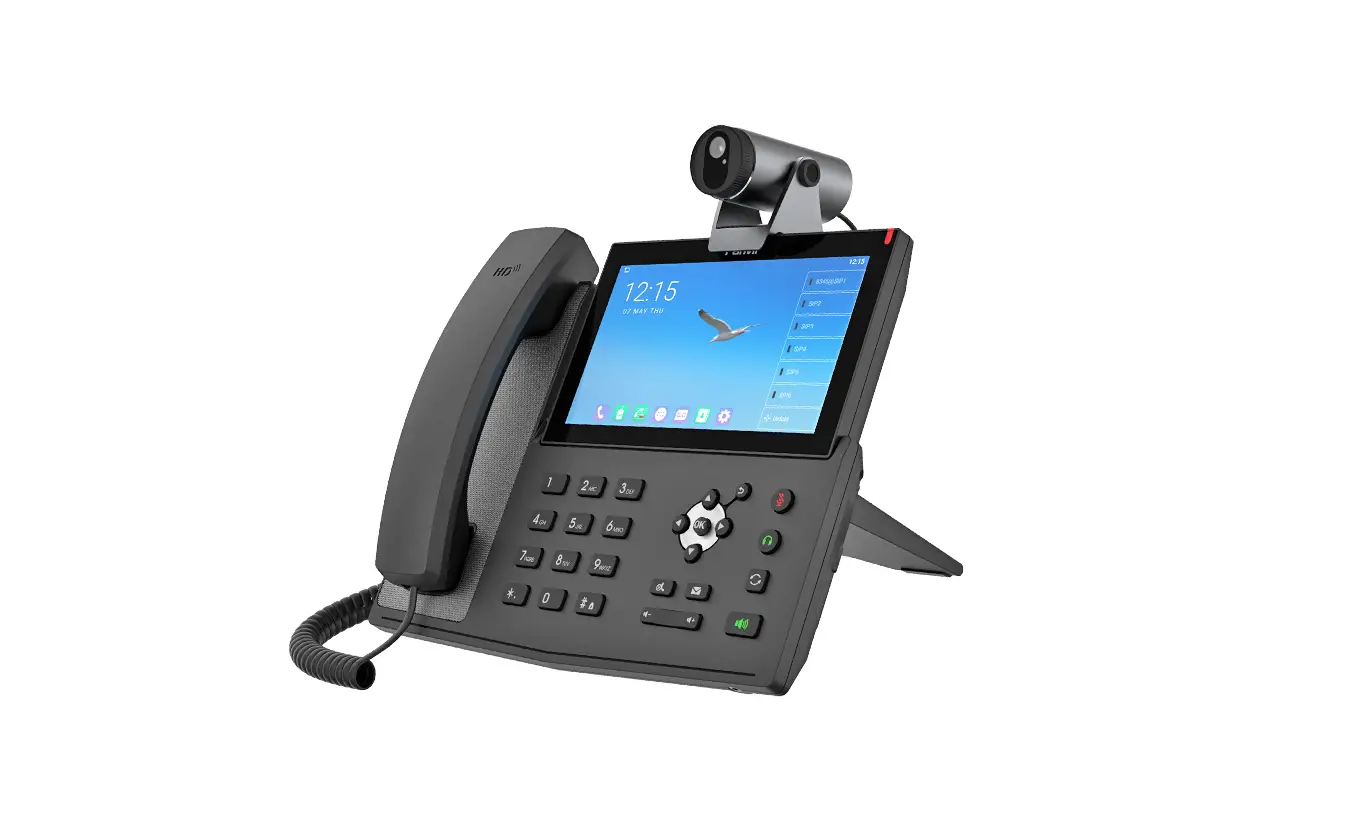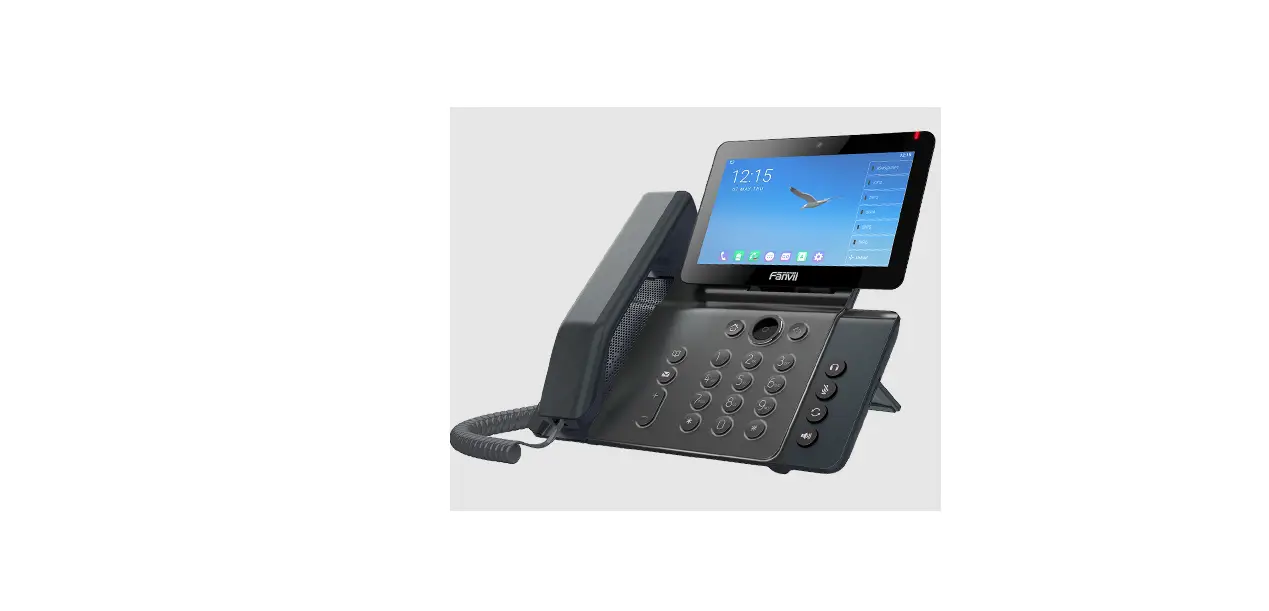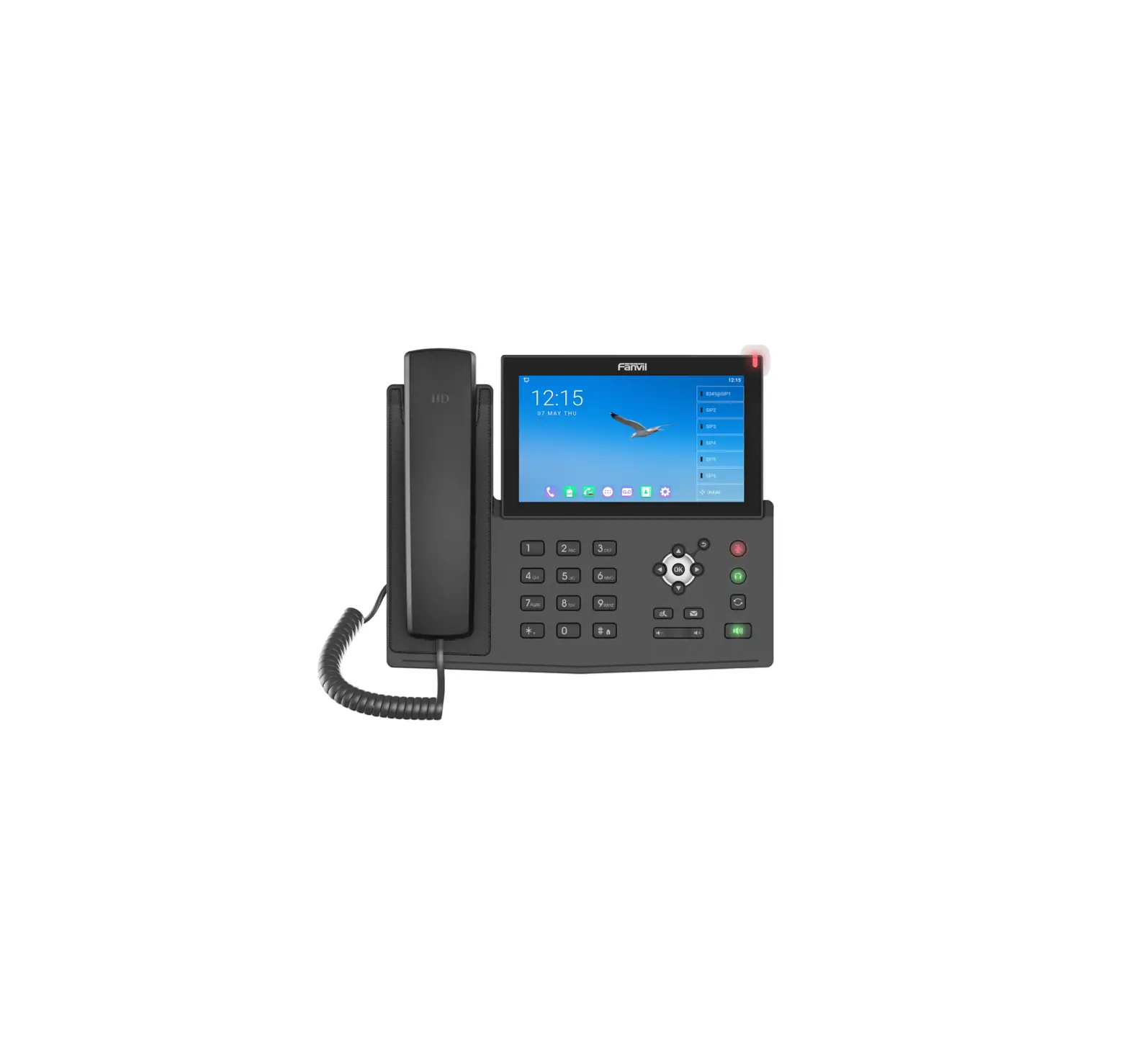
Fanvil X7A Android Touch Screen IP Phone
Contents hide
Packing List
IP Phone | Handset | Handset Cord |
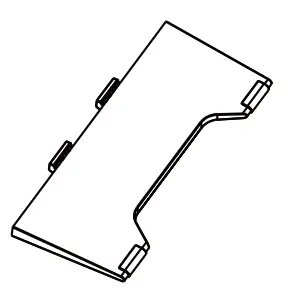
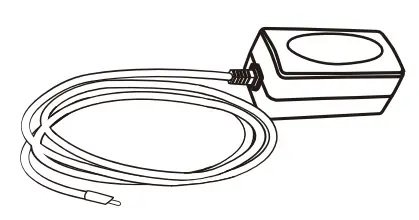
Stand | Ethernet Cord | Power Adapter |
Quick Installation Guide | ||



Screen Icon
| In hands-free mode | New SMS | ||
| In headset mode | New VM Messages | ||
| In handset mode | Do not disturb activated | ||
| Mute activated | Missed call(Status bar) | ||
| Ringer off | Received call | ||
| Call is on hold | Dialed call | ||
| Auto-answering activated | Missed call (s) | ||
| Call Forward activated | Forward call | ||
| Internet is disconnected | Enable Blacklist | ||
| Internet is connected | Enable White List |




















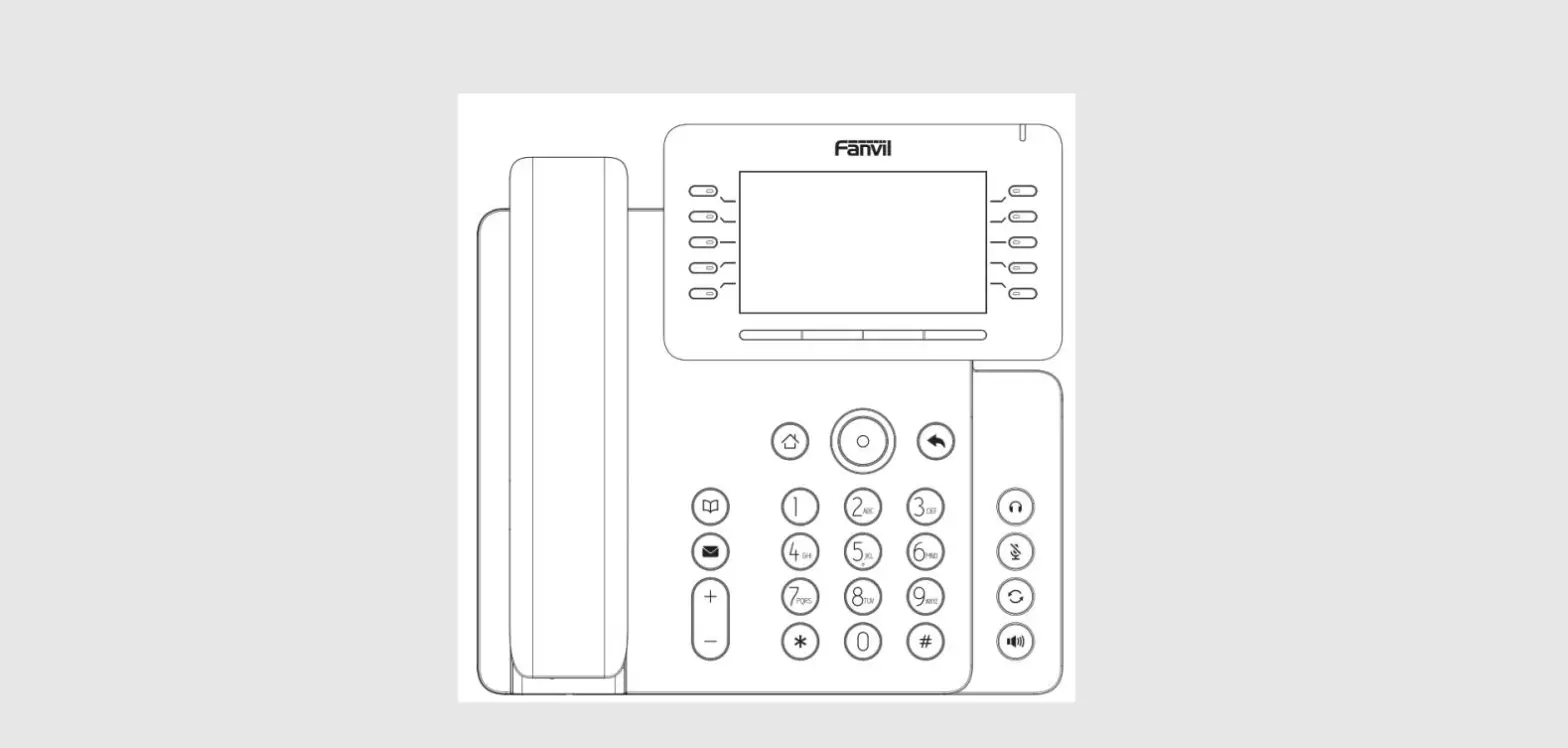
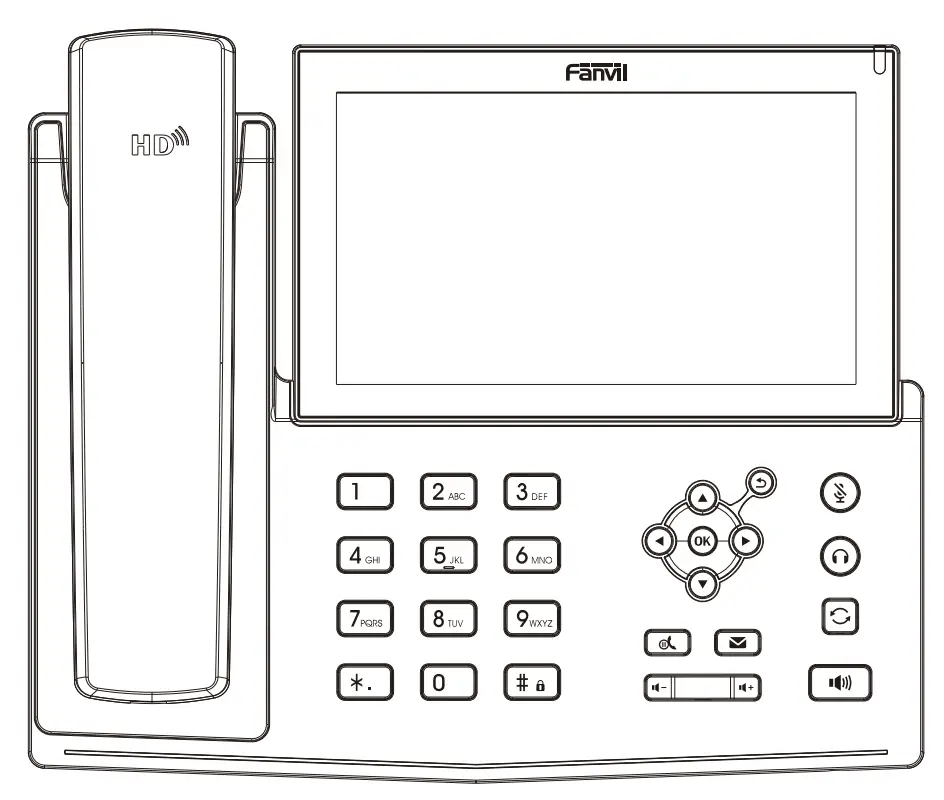
Keys Feature
| Message waiting indicator | |
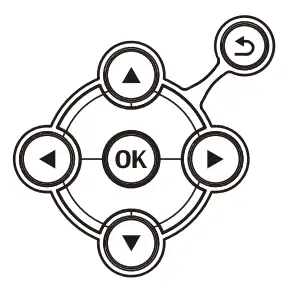
| Up/down/left/right navigation keys, Return key OK key, Shortcut to Menu Return key, Go back to the previous directory | |
| Hold key, Hold/Resume the call | |
| In idle mode: ringer off In communication mode: mute/un-mute a call | |
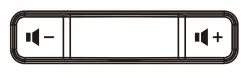
| In idle mode or during ringing: increase or decrease ringer volume In communication: increase or decrease earpiece, headset or hands-free volume | |
| Voice message key | |
| Headset key, Activate/deactivate Headset | |
| Redial key, Access to redial the last record | |
| Long press to lock keypad. Enter PIN to unlock keypad (default 123) | |
| Hands-free key, Activate/deactivate hands free |








Installation the device
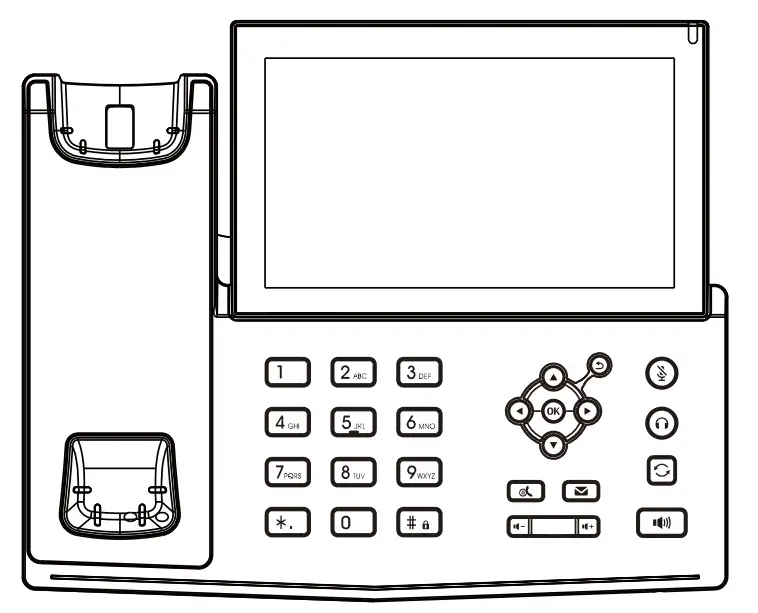
Bracket desktop installation
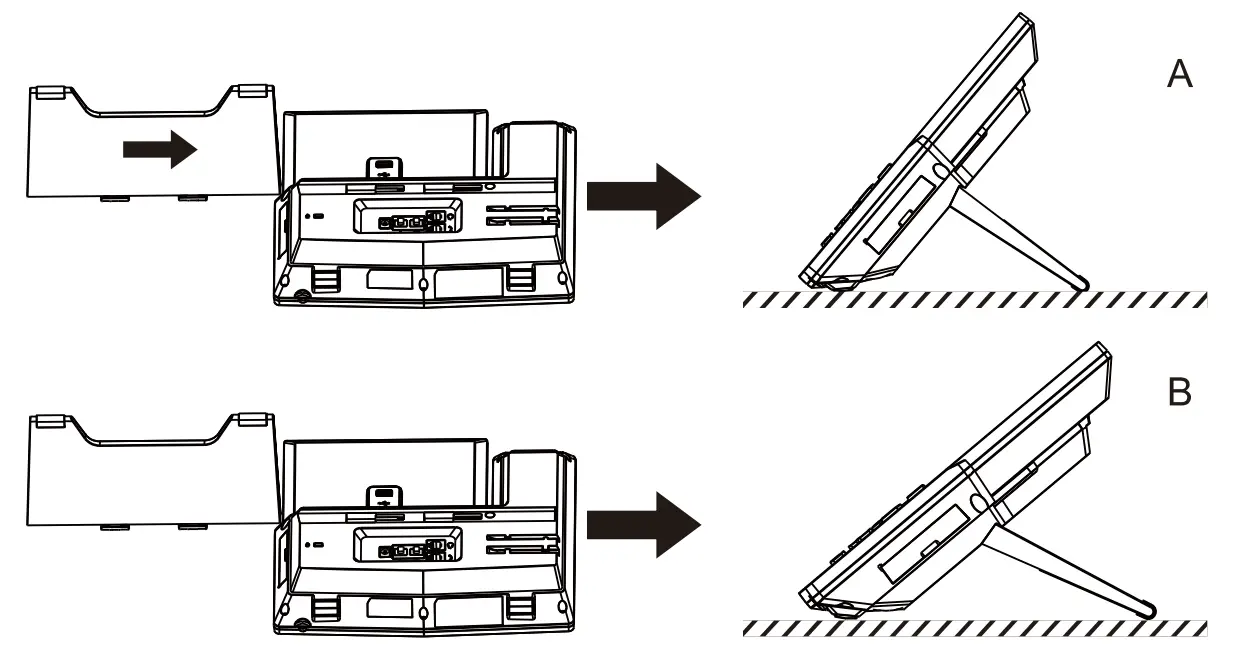
Connecting to the Device
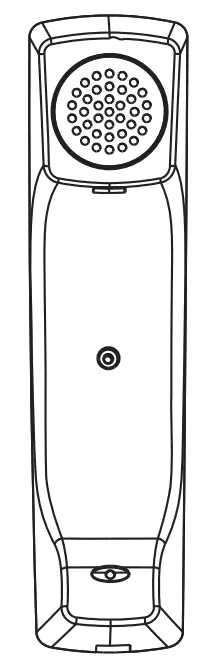
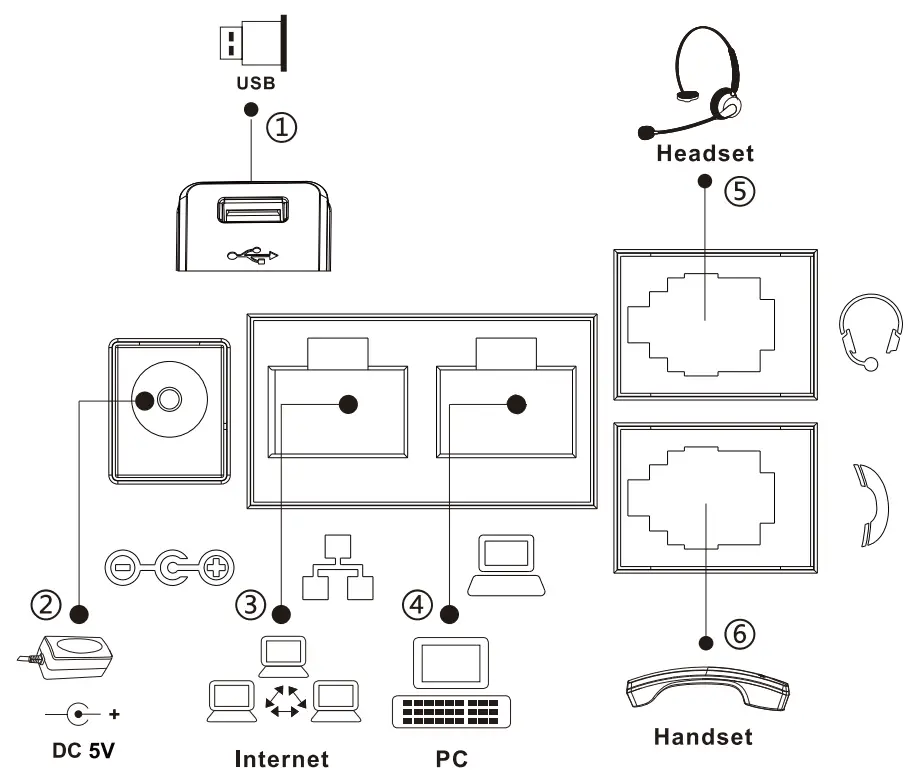
Please connect power adapter, network, PC, handset, and headset to the corresponding ports as described in below picture.
- USB port: connect USB device (U disk)
- Power port: connect the power adapter.
- Network port: connecting local area network or internet.
- PC port: the network port connect to the computer.
- Headset port: connect headset.
- Handset port: connect IP Phone handset.

Configuration
Configuration via Phone
- Press Phone Settings icon
 .
. - Select Ethernet Settings: To configure the Network Settings (DHCP/Static)
- Select Line: To configure enable the account, fill the SIP server address, port, user name, password etc.
 .
.Configuration via Web
- Get the IP address from the phone: Press Phone Settings icon > Common.
- Login: Input the IP address in the web browser. The PC and phone should be in the same IP address segment (The default username and password are both ‘admin’ .)
- Configure: Select network/Account, etc. And fill the relevant content.
Language setting
- Press Settings icon
 > System > Language & Input > Languages.
 - Select the desired language.
 > System > Language & Input > Languages.
Making a call
- Pre-dialing: enter the phone number and pick up the handset.
- Direct dialing: lift the handset and enter the phone number.
- Handsfree: enter phone number and press
 or vice versa.
 - Headset: enter phone number and press
 or vice versa.
 - Dial icon: Click dial icon
 and then enter the phone number.
 - Designated line: press line key, enter phone number and press dial key.
 or vice versa.
 or vice versa.
 and then enter the phone number.
Accepting a call
- With the handset: pick up the handset.
- With a headset: press .
- With the handsfree: press ).
Putting a call on hold
- Press
 key or Hold icon, caller is put on hold.
 - To retrieve the call press key or Resume icon.
Note: with more than one active call, select desired call by sliding screen and use the corresponding icon to hold or resume.
 key or Hold icon, caller is put on hold.
3-party conference
- Once in line with 1st caller, press
 Conference icon, 1st caller is put on hold.
 - Then call the 2nd number.
- After, 2nd call is established, press Conference icon to set up the conference.
 Conference icon, 1st caller is put on hold.
Call transfer
Attended transfer:
- Press
 Xfer icon during the active conversation, the call is put on hold.
 - Dial the second telephone number.
- When the call is answered, then press Xfer icon to complete the operation.
 Xfer icon during the active conversation, the call is put on hold.
Blind transfer:
- Press Xfer icon during the active conversation, the call will be on hold.
- Then enter the 2nd telephone number and press Xfer icon.
Call forward
- Press Phone Settings icon >Line> Select the line > Forward Settings
- Enter the destination number and the type of forward and press OK icon
 .
.
 .
.Call Mute
- Press
 to Mute the microphone during the call.
 - Pressagain to un-mute the conversation.
 to Mute the microphone during the call.
Call list
- Press Call Logs icon
 .
. - Scroll the list using navigation key
 or slide the screen
 - To dial an entry, press Dial icon or click the phone icon at left then click dial icon or pickup handset or press or .
 .
. or slide the screen
Phonebook
Access phonebook:
- Press Contact icon
 .
. - Select All Contacts or other group.
- To dial an entry, press Dial icon .
 .
.Add new entry:
- Press Contact icon a , Press All Contacts or other group > Press Add icon.
- Enter name and number and press OK icon .
Programmable keys
DSS virtual keys:
- You can use the phone web interface to configure the keys of the screen.
- Press unfold > you can press any keys which is still blank or long press the key that have configured, select a type and value, press icon.
Other keys:
- You can also configure shortcuts for the navigation keys and softkeys on web ui.
- You can press Phone setting icon Key, select the Softkey Screen you need, t hen select among the configurable items, and select your desired type and value, press Save.
Redial
- Press
 , redial a call number.
 , redial a call number.
Do not disturb
- Press ONO icon
 when standby or click Phone Settings icon > DND.
 - Select the Mode.
 when standby or click Phone Settings icon
 Voice message
- To access your voice mailbox, press Voice message key
 or Voice message icon
  , number of message be indicated if provided by your server or PBX.
 - Select the line and press phone icon to call.
 or Voice message icon
  , number of message be indicated if provided by your server or PBX.
Bluetooth
- Press Bluetooth icon in the status bar to open Bluetooth.
- Press Settings icon > Connected devices> Pair new device. After opening, it displays the scanned Bluetooth list, select any device, and click on t he device pairing.
Wi-Fi
- Enter the Settings icon > Network & internet> Wi-Fi, enable Wi-Fi, and you can browse the list of available Wi-Fi;
- Select the available network, click on the network to enter the password to connect and click connect button.
Customer Support
Fanvil Technology Co., Ltd
www.fanvil.com
Email: [email protected] Tel:0755-2640-2199
Add: 4F, Block A, Building 1#, GaoXinQi Hi-Tech Park (Phase-ll),67th District, Bao’An, Shenzhen, China