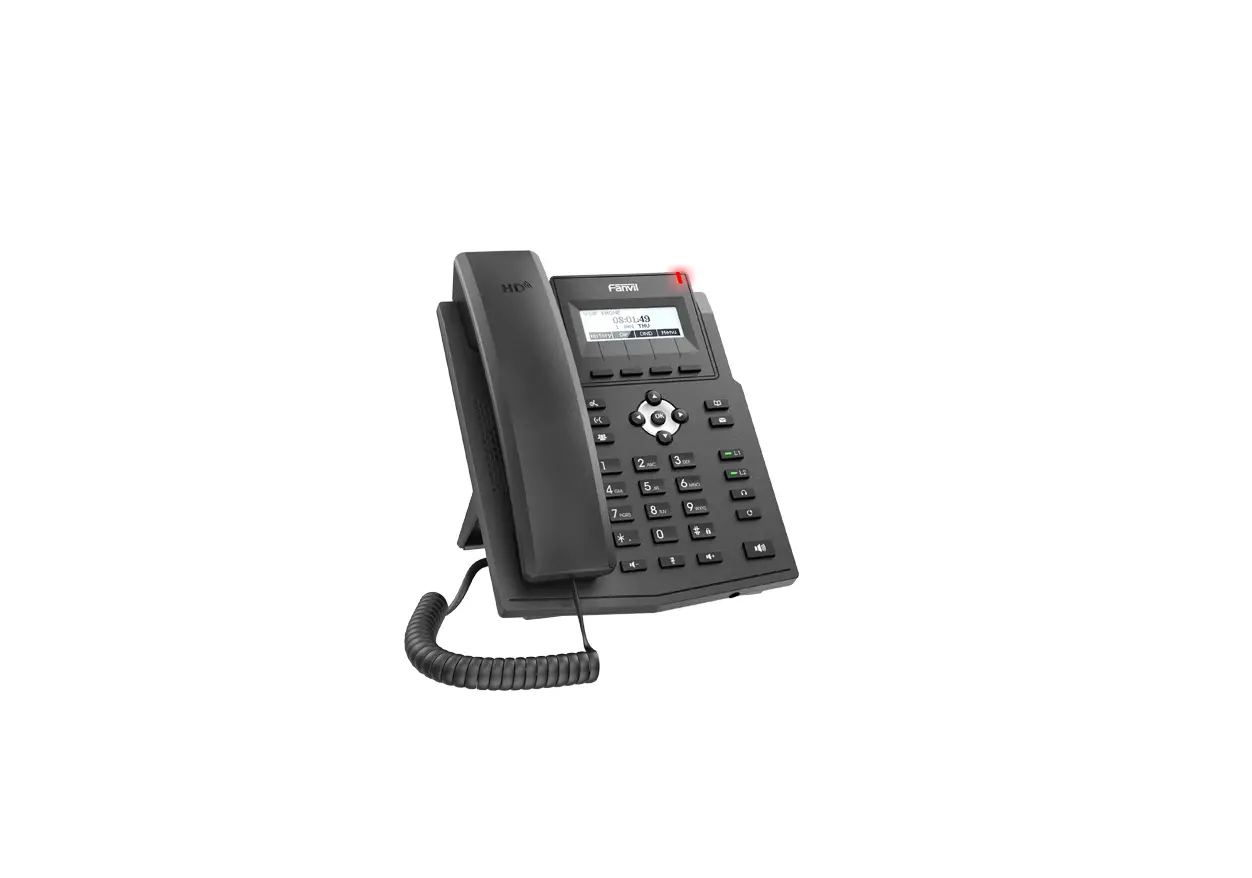
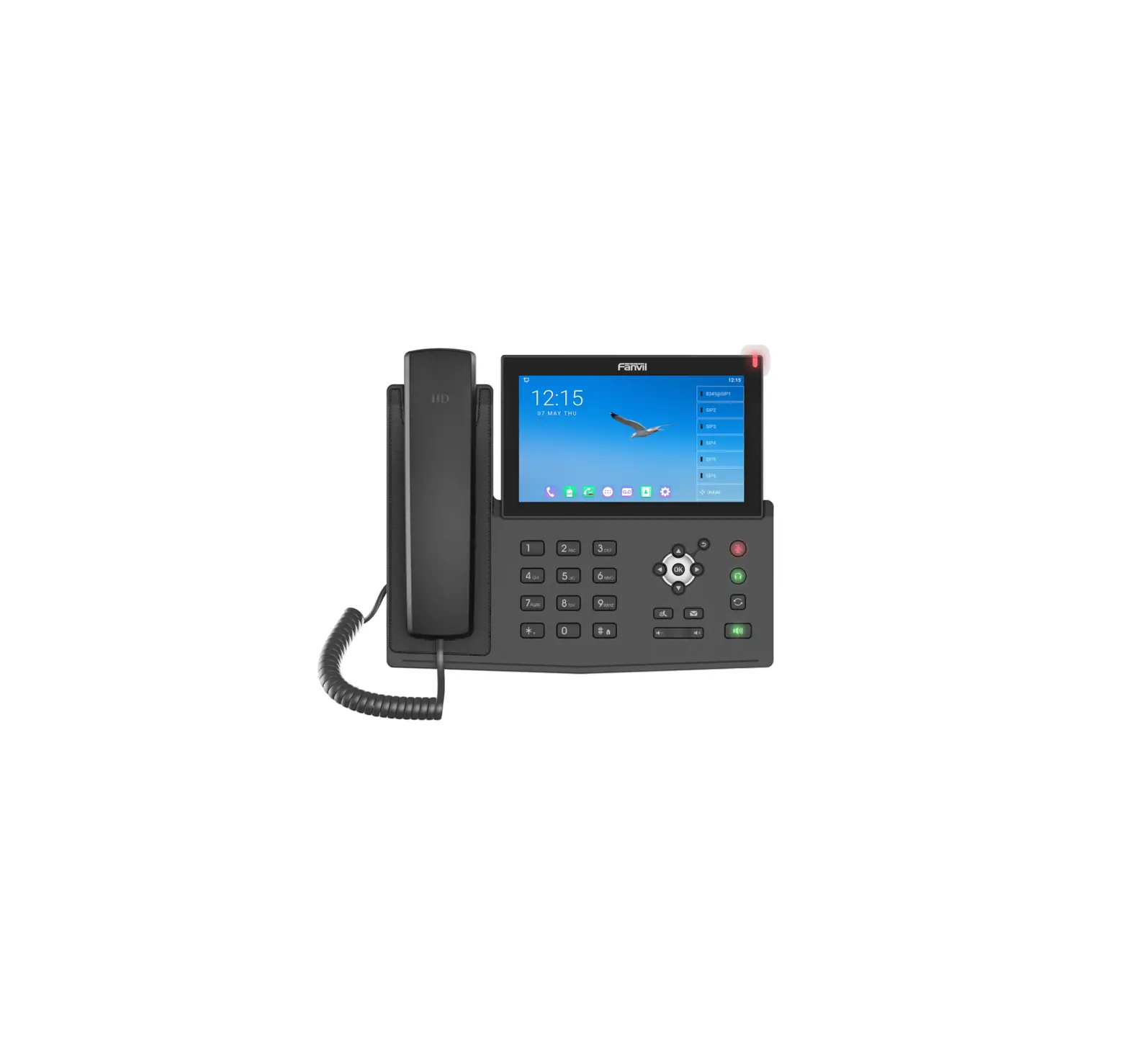
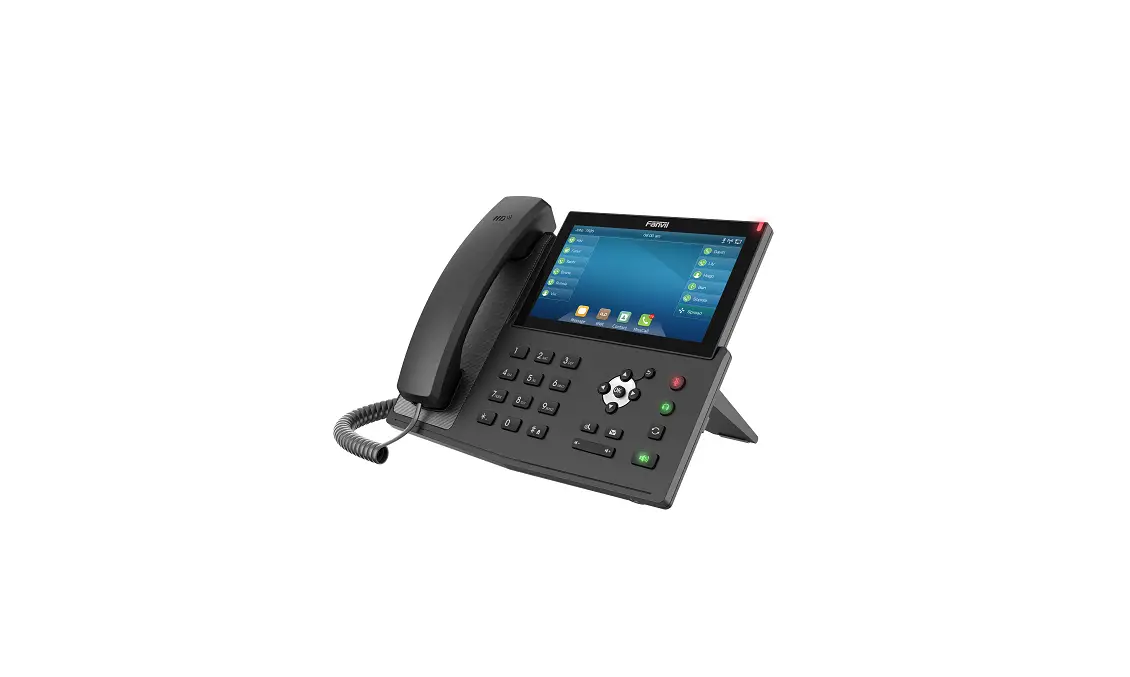
X305 IP Phone
Product Information
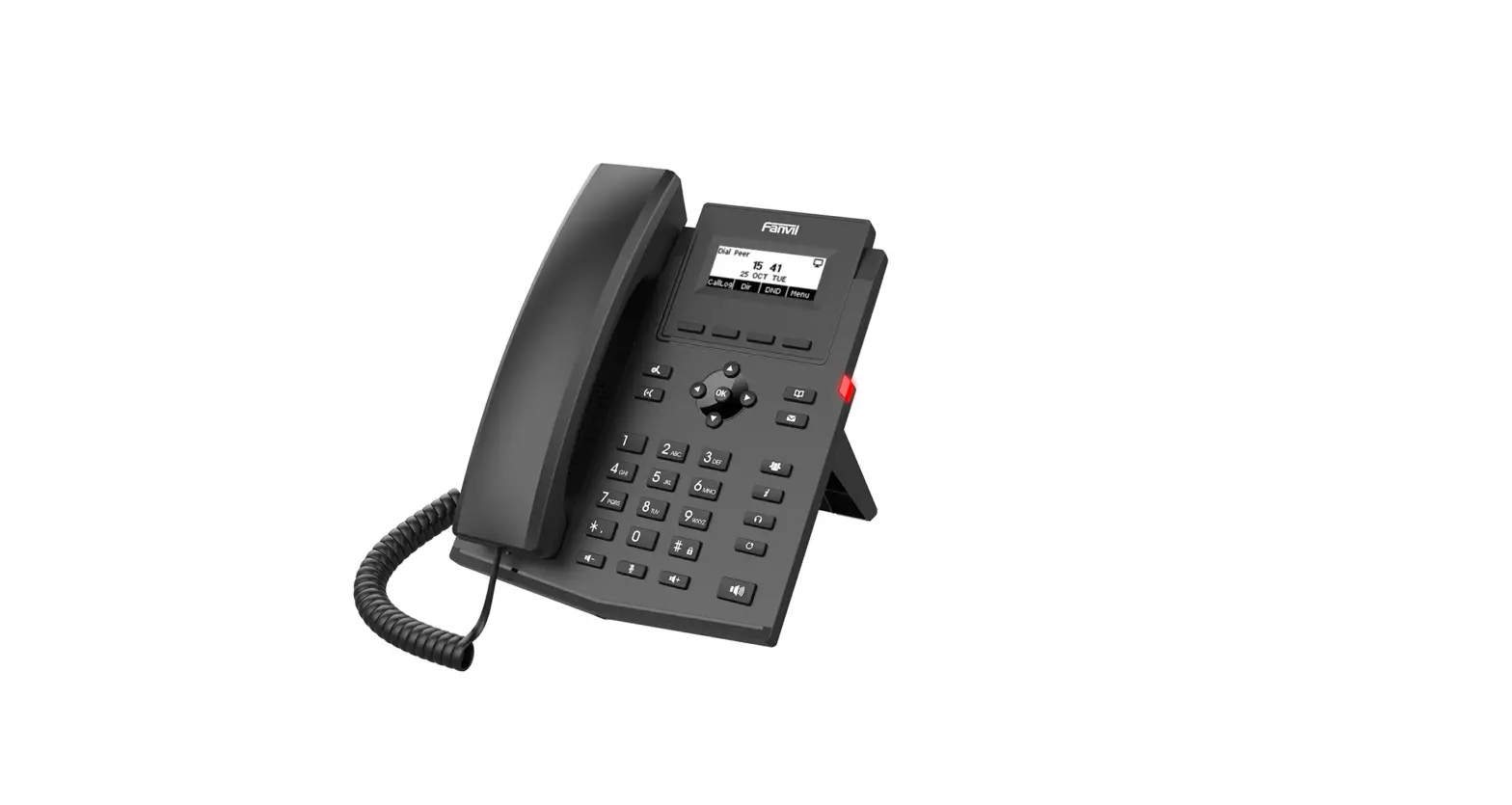
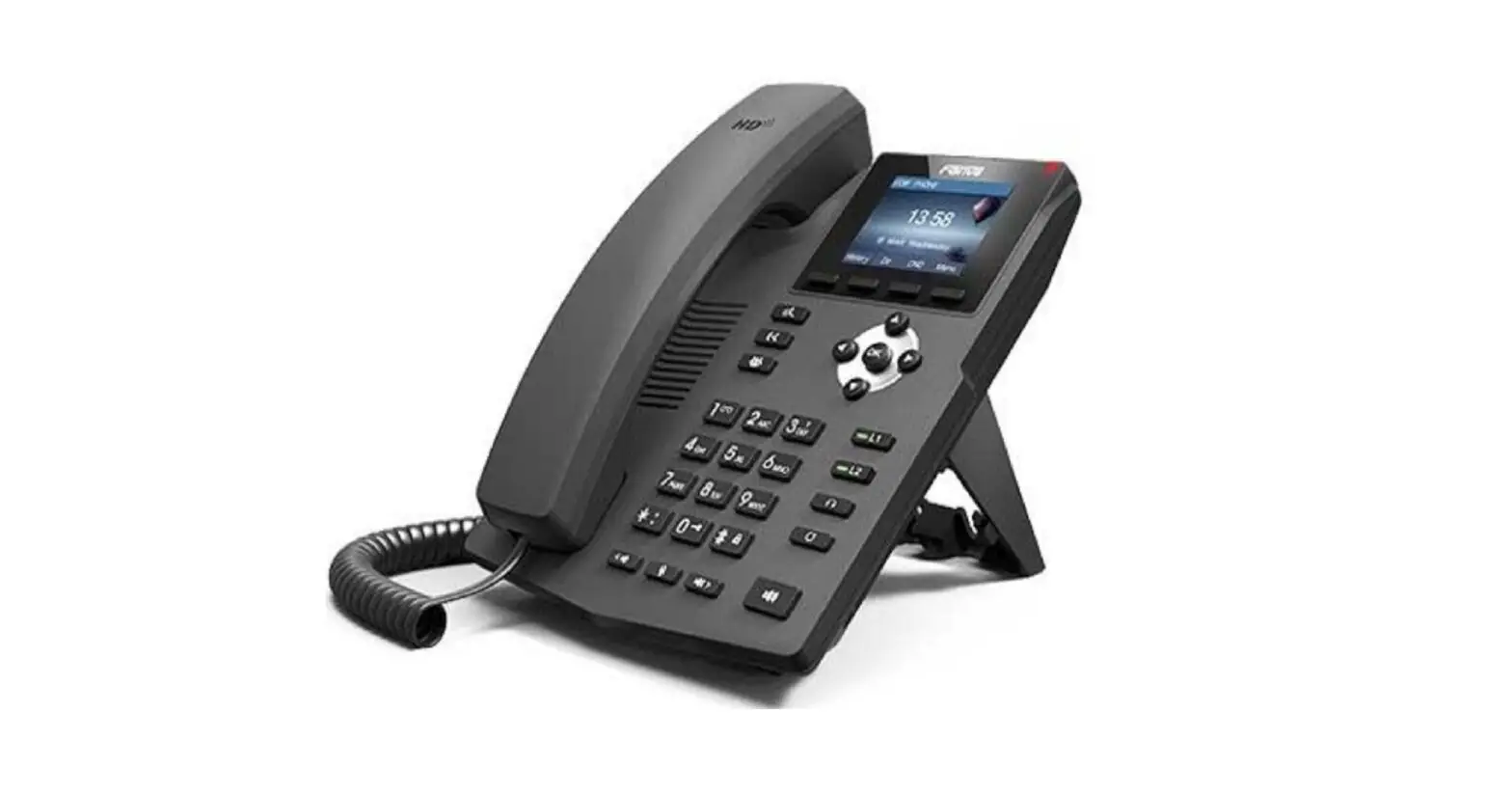
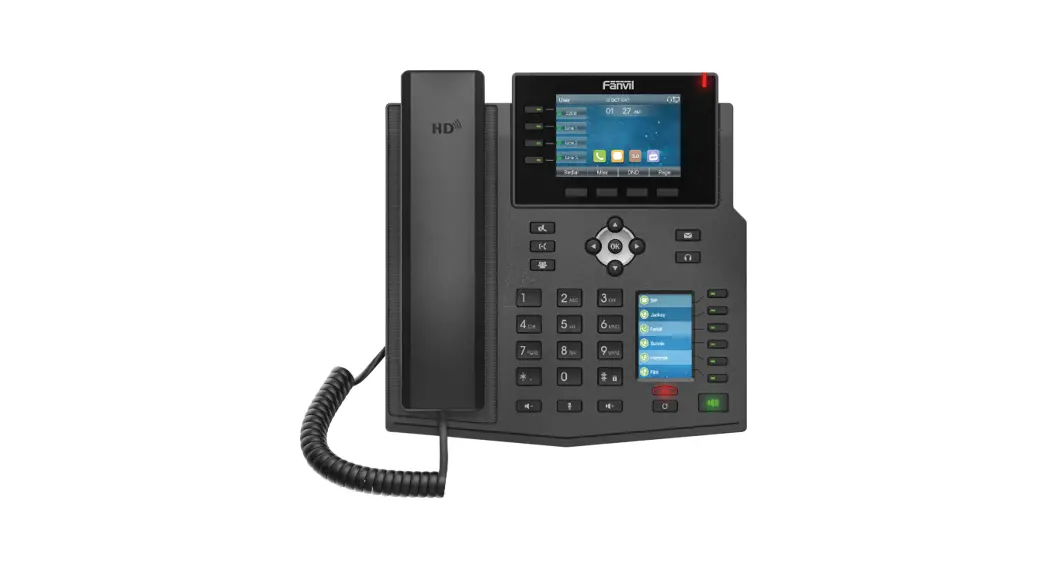
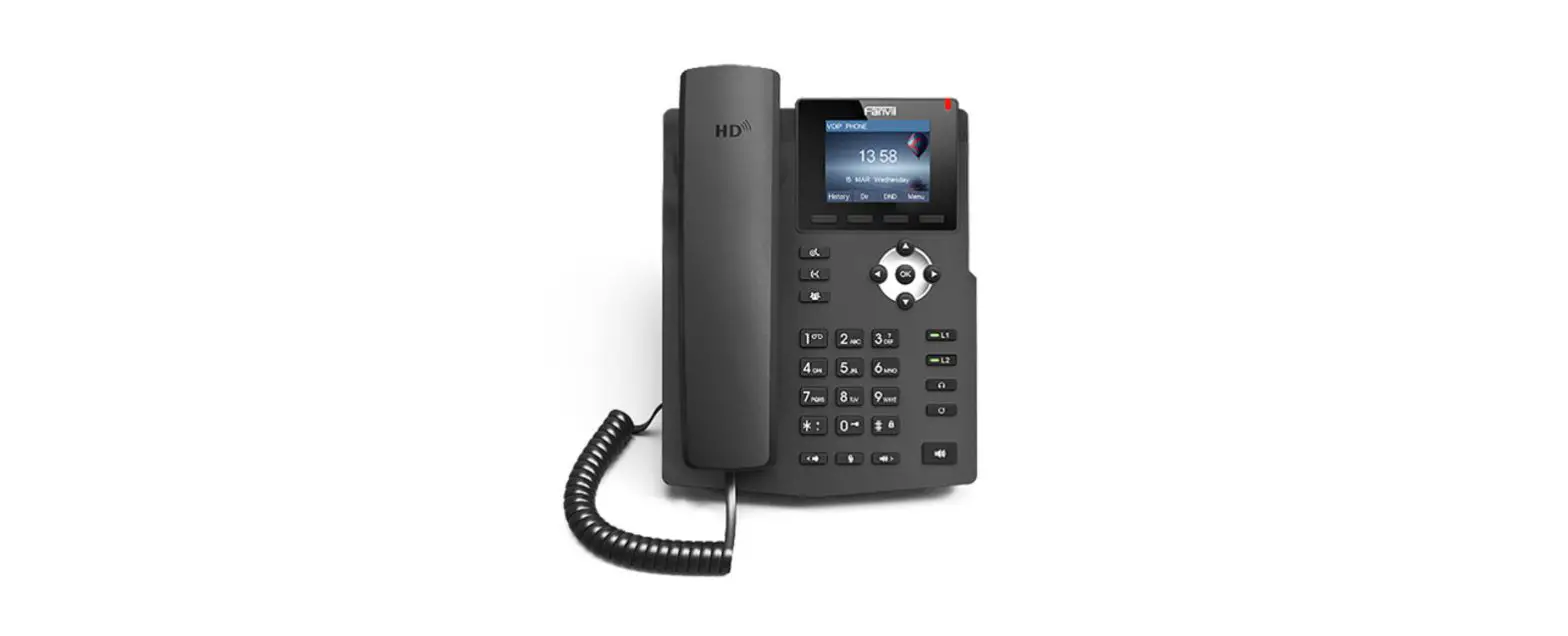
The product is an IP phone manufactured by Fanvil Technology
Co., Ltd. It supports various features such as language setting,
call handling, voice mail, Bluetooth, WiFi, call forwarding, do not
disturb, programmable keys, call list, and phonebook.
For more information about the product, you can visit the
Fanvil website or contact
their sales and support teams:
- Email: [email protected], [email protected]
- Tel: +86-755-2640-2199
- Fax: +86-755-2640-2618
- Address: 10/F Block A, Dualshine Global Science Innovation
Center, Honglang North 2nd Road, Bao’an District, Shenzhen,
China
Product Usage Instructions
Language Setting
- Enter #*107 to go to the menu page > Basic
> Language. - Select the desired language and press OK soft
key.
Accepting a Call
- Using the handset: pick up the handset.
- Using the handsfree: press the corresponding key.
Redial
- Press the Redial key to redial a call
number.
Putting a Call on Hold
- Press the Hold soft key, and the caller will
be put on hold. - To retrieve the call, press the Resume soft
key. - Note: With more than one active call, select the desired call
with the navigator key and use the corresponding soft key to hold
or resume.
Voice Mail
- To access your voice mailbox, press the corresponding key or
enter #*107 to go to the menu page > Message
> Voice Message. - The number of messages will be indicated if provided by your
server or PBX. - Select the line and press Play to call.
Bluetooth
- Enter #*107 to go to Menu > Basic >
Bluetooth. - Press OK to enter the Bluetooth enabling
screen. - After enabling the screen, press Scan to
display the list of scanned Bluetooth devices. (Press
More to select softkey functions: Return, Down,
Scan, and Link)
WiFi
- Enter #*107 to go to Menu > Basic >
WLAN. - Press OK to enter the wireless network opening
screen, and then press Scan. - The list of scanned radios will be displayed. (Select
Return, Scan,
Down, and OK through
More). - Access an available network, select a wireless network. (Select
Down, Connect,
Unlink, Return,
Detail, and input method through
More).
Call Forward
- Enter #*107 to go to the menu page >
Features > Call Forward. - Select the line, the type of forward, enter the destination
number and status, and press OK soft key.
Do Not Disturb
- Or enter #*107 to go to the menu page >
Features > DND. - Select the Mode and Type, and press OK
key.
Programmable Keys
- You can configure shortcuts for the programmable keys.
- Enter #*107 to go to the menu page > Basic
> Keyboard. - Select among the configurable items, and select your desired
type and value, press OK key.
Call List
- Press the CallLog soft key or enter
#*107 to go to the menu > CallLog > Local
Call Logs. - Scroll through the list through the / soft
key. - To dial an entry, pick up the handset or press the
corresponding key.
Phonebook
Access Phonebook:
- Press the Contact soft key or enter
#*107 to go to the menu page > Contact >
Local Contacts. - Select All Contacts or other group.
- To dial an entry, press Dial soft key or pick
up the handset or press the corresponding key.
Add New Entry:
- Input the IP address in the web browser.
- Select Phonebook > Contacts > Add new
contact. - Enter the Name, Phone, and Ring of the new contact.
Screen Icons
- In hands-free mode
- In headset mode
- In handset mode
- Mute activated
- Silent mode
- Call is on hold
- Auto-answering activated
Keys Features
- Handset
- Stand
- Call Forward activated
- Do not disturb activated (Red)
- SIP Hotspot activated
Please refer to the product user manual for more detailed
instructions and information.
Language setting
1. Enter #*107 to go to the menu page > Basic > Language. 2. Select the desired language and press OK soft key.
Accepting a call
1. Using the handset: pick up the handset. 2. Using the handsfree: press .
Redial
1. Press key, redial a call number.
Putting a call on hold
1. Press Hold soft key, caller is put on hold. 2. To retrieve the call press Resume soft key. Note: with more than one active call, select desired call with the navigator key and use the corresponding soft key to hold or resume.
Voice mail
1. To access your voice mailbox, press or Enter #*107 to go to the menu page > Message > Voice Message, number of messages will be indicated if provided by your server or pbx. Select the line and press Play to call .
Bluetooth
1. Enter #*107 to go to Menu > Basic > Bluetooth. 2. Press OK to enter the Bluetooth enabling screen. After enabling the screen, press Scan to display the list of scanned Bluetooth devices. (Press “More” to select softkey functions, Return, Down, Scan and Link)
WiFi
1. Enter #*107 to go to Menu > Basic >WLAN. 2. Press “OK” to enter the wireless network opening screen, and then press “Scan”.The list of scanned radios is displayed. (Select “Return”, “Scan”, “Down” and “OK” through “More”). 3. Access an available network, select a wireless network, (Select “Down”, “Connect”, “Unlink”,”Return”,”Detail” and input method through “More”).
Call forward
1. Enter #*107 to go to the menu page > Features > Call Forward. 2. Select the line, the type of forward, enter the destination number and status, and press OK soft key.
Do not disturb
1. Or Enter #*107 to go to the menu page > Features > DND, and select the Mode and Type, and press OK key.
Programmable keys
1. You can configure shortcuts for the programmable keys. 2. Enter #*107 to go to the menu page > Basic > Keyboard, select among the configurable items, and select your desired type and value, press OK key.
Call list
1. Press the CallLog softkey or enter #*107 to go to the menu > CallLog >Local Call Logs. 2. Scroll through the list through the / soft key. 3. To dial an entry, pickup handset or press .
Phonebook
Access Phonebook:
1. Press Contact soft key or Enter #*107 to go to the menu page > Contact > Local Contacts. 2. Select All Contacts or other group. 3. To dial an entry, press Dial soft key or pickup handset or press .
Add new entry: 1. Input the IP address in the web browser. Select Phonebook > Contacts > Add new contact . 2. Enter the Name, Phone, and Ring of the new contact.
NOTE: This equipment has been tested and found to comply with the limits for a Class B digital device, pursuant to part 15 of the FCC Rules. These limits are designed to provide reasonable protection against harmful interference in a residential installation. This equipment generates, uses and can radiate radio frequency energy and, if not installed and used in accordance with the instructions, may cause harmful interference to radio communications. However, there is no guarantee that interference will not occur in a particular installation. If this equipment does cause harmful interference to radio or television reception, which can be determined by turning the equipment off and on, the user is encouraged to try to correct the interference by one or more of the following measures: – Reorient or relocate the receiving antenna. – Increase the separation between the equipment and receiver. -Connect the equipment into an outlet on a circuit different from that to which the receiver is connected. -Consult the dealer or an experienced radio/TV technician for help. Changes or modifications not expressly approved by the party responsible for compliance could void the user’s authority to operate the equipment. This device complies with Part 15 of the FCC Rules. Operation is subject to the following two conditions: (1) this device may not cause harmful interference, and (2) this device must accept any interference received, including interference that may cause undesired operation. FCC RF Exposure Warning Statements: This equipment complies with FCC radiation exposure limits set forth for an uncontrolled environment. This equipment shall be installed and operated with minimum distance 20cm between the radiator & body. The frequency stability of all transmission frequencies of U-NII-1, U-NII-2A, U-NII-2C and U-NII -3 meets the 47 CFR FCC Part15.407(g) requirements, and the manufacturer states that their transmissions remain within the U-NII-1, U-NII-2A, U-NII-2C and U-NII -3 bands. This equipment complies with Part 68 of the FCC rules and the requirements adopted by the ACTA.On the bottom of this equipment is a label that contains,among other information, a product identifier in the format US: 3I1IPNANAP6221 .If requested, this number must be provided to the telephone company.
Fanvil Technology Co., Ltd
Website: www.fanvil.com EMail: [email protected] [email protected] Tel: +86-755-2640-2199 Fax: +86-755-2640-2618 Add: 10/F Block A, Dualshine Global Science Innovation Center, Honglang North 2nd Road, Bao’an District, Shenzhen, China
– 4 –
V1.0
X305
Quick Installation Guide
Fanvil Technology Co., Ltd www.fanvil.com
Packaging list
Handset Cord
Ethernet Cable
Quick Installation Guide
IP Phone
Contact Card*8pcs
Screen icon
In hands-free mode In headset mode In handset mode Mute activated Silent mode Call is on hold Auto-answering activated
Keys features
Handset
Stand
Call Forward activated Do not disturb activated (Red) SIP Hotspot activated
VLAN activated
VPN activated Bluetooth device paired connection SMS New SMS
Power Adapter (Optional)
Wall Stand (Buy separately)
New VM Messages Voice quality level of call Keypad locked Forward call(s)
Missed call(s) Received call(s)
Dialed call(s)
Internet connected
X Internet is disconnected
! No IP address Wireless network connected Wireless network disconnected
Wireless network failure
Image DSS keys Soft keys
Voice message key
Redial key, access to redial the last record
Message waiting indicator
Hand-free key, activate/ deactivate hands free
Installation the device
Please follow the instructions in below picture to install the device. Bracket desktop installation
In idle mode or during ringing: increase or decrease ringer volume In communication: increase or decrease handset, headset or hands-free volume Turn the left (-) right (+) page under the menu page
HELP key
Press and hold # to enter the status bar to view the IP address
– 2 –
Wall mount (Wall Stand need buy separately)
Image DSS key for card mounting Buckle the Contact card cover from the groove at the top and bottom.
Connecting to the Device Please connect power adapter, network, PC, handset, and headset to the corresponding ports as described in below picture. USB port: connect USB device (USB flash disk). Power port: connect the power adapter. Network port: connecting local area network or internet. PC port: the network port connect to the computer. Headset port: connect headset. Handset port: connect IP Phone handset.
Configuration
Configuration via LCD menu of phone 1. Enter #*107 to go to the menu page > System (default password 123) ,Select “Delete”, “OK”, “Return” and input method through “More”. 2. Select Network: To configure the Network Settings (IPv4/IPv6/IPv4&IPv6, DHCP/Static/PPPoE). 3. Select Accounts: To configure enable the account, fill the SIP server address, port, user name, password etc. 4. Save the configuration.
Configuration via web 1. Get the IP address from the phone: Press and hold # to enter the status bar to view the IP address 2. Login: Input the IP address in the web browser. The PC and phone should be in the same IP address segment (The default username and password are both `admin’). 3. Configure: Select network/account etc, and fill the relevant content. 4. Save the configuration.
Image DSS key configuration
Configuration via LCD menu of phone
1. Select any image DSS key 2. Set the type to Memory Key 3. Enter a contact Name and Tel 4. Press Confirm to retain the configuration
Configuration via web
1. Get the IP address from the phone: Press and hold # to enter the status bar to view the IP address. 2. Login: Input the IP address in the web browser. The PC and phone should be in the same IP address segment (The default username and password are both `admin’). 3. Configuration: Select Function Key > Side key, set the type to Memory Key, and fill in the relevant information (The default Subtype is Speed Dial ). 4. Save the configuration.
HELP key configuration
1. Get the IP address from the phone: Press and hold # to enter the status bar to view the IP address 2. Login: Input the IP address in the web browser. The PC and phone should be in the same IP address segment (The default username and password are both `admin’). 3. Configuration: Select Function Key > 433, set the type to Dial number or Ring, then click Binding. You need to press the KT20(transmitter module need buy separately) during the configuration process. Then the phone and the transmitter will be automatically connected, and the Addr ID of the transmitter will be automatically matched on the web page. 4. Enter the number you want to call as the value and click Apply. 5.Press the KT20 and the X305 will ring or dial automatically.
Making a call
1. Pre-dialing: enter the phone number and pick up the handset. 2. Direct dialing: lift the handset and enter the phone number. 3. Handsfree: enter phone number and press or vice versa. 4. Specify contact dialing:Press the specified Image DSS Key
to select the contact. – 3 –
 Fanvil Technology Co., Ltd