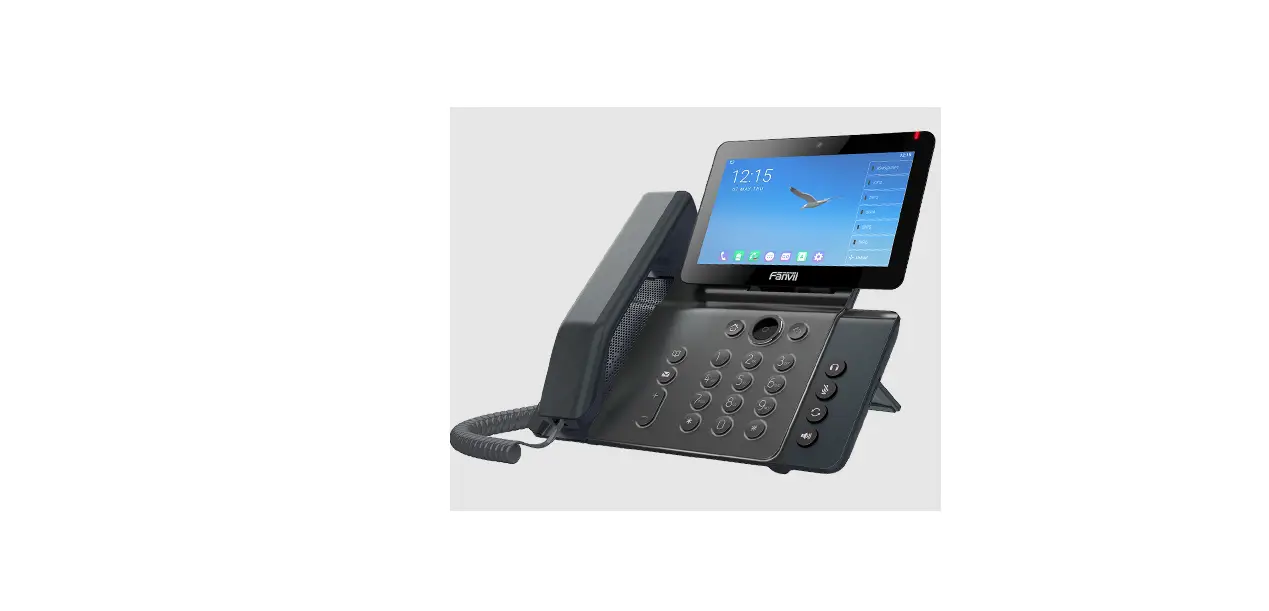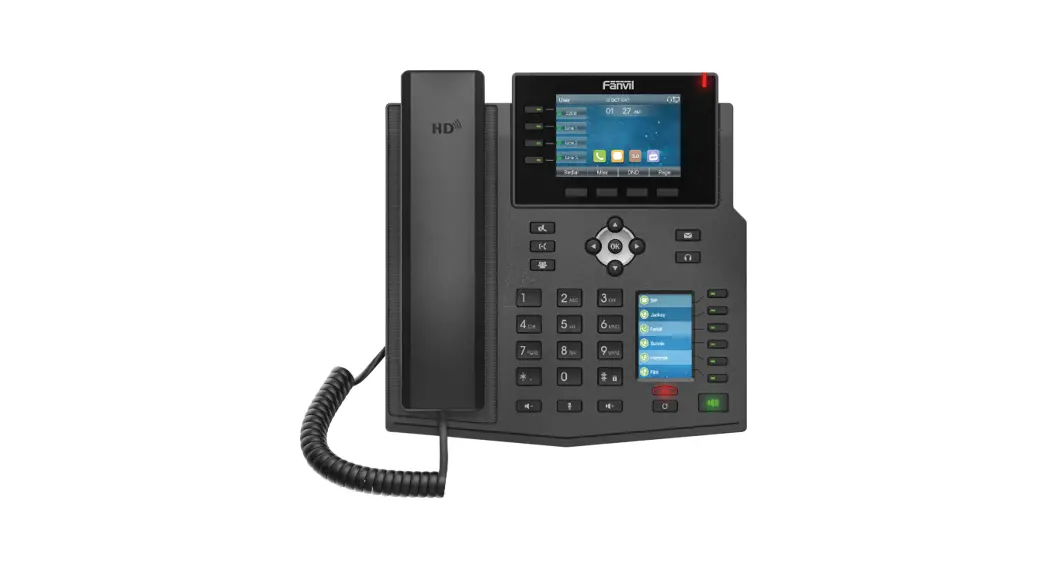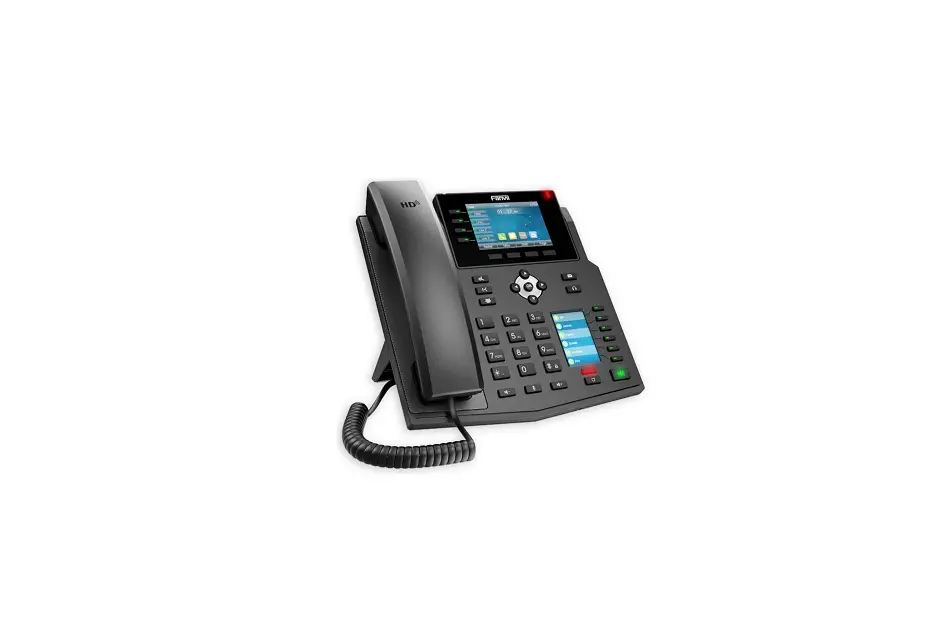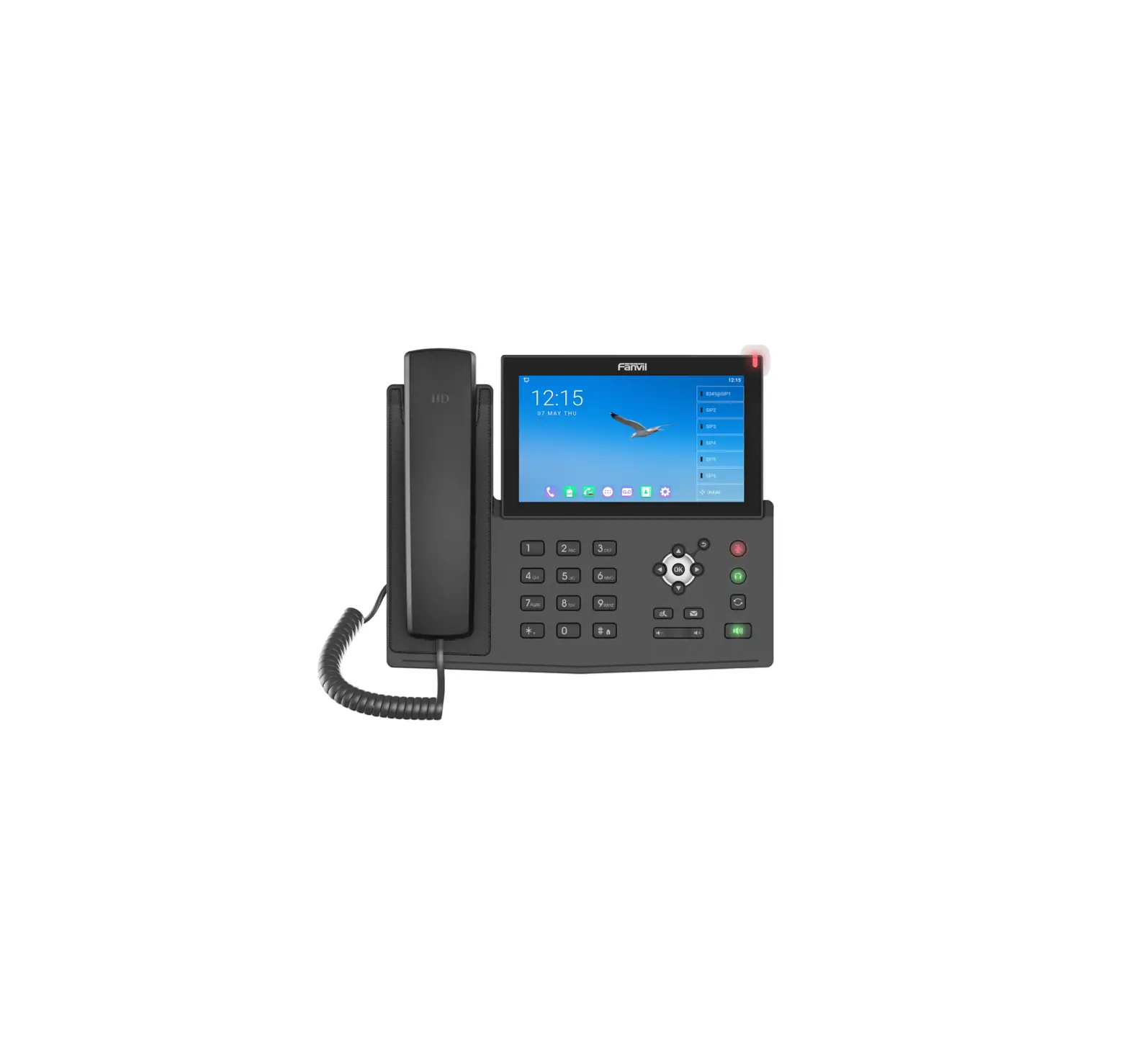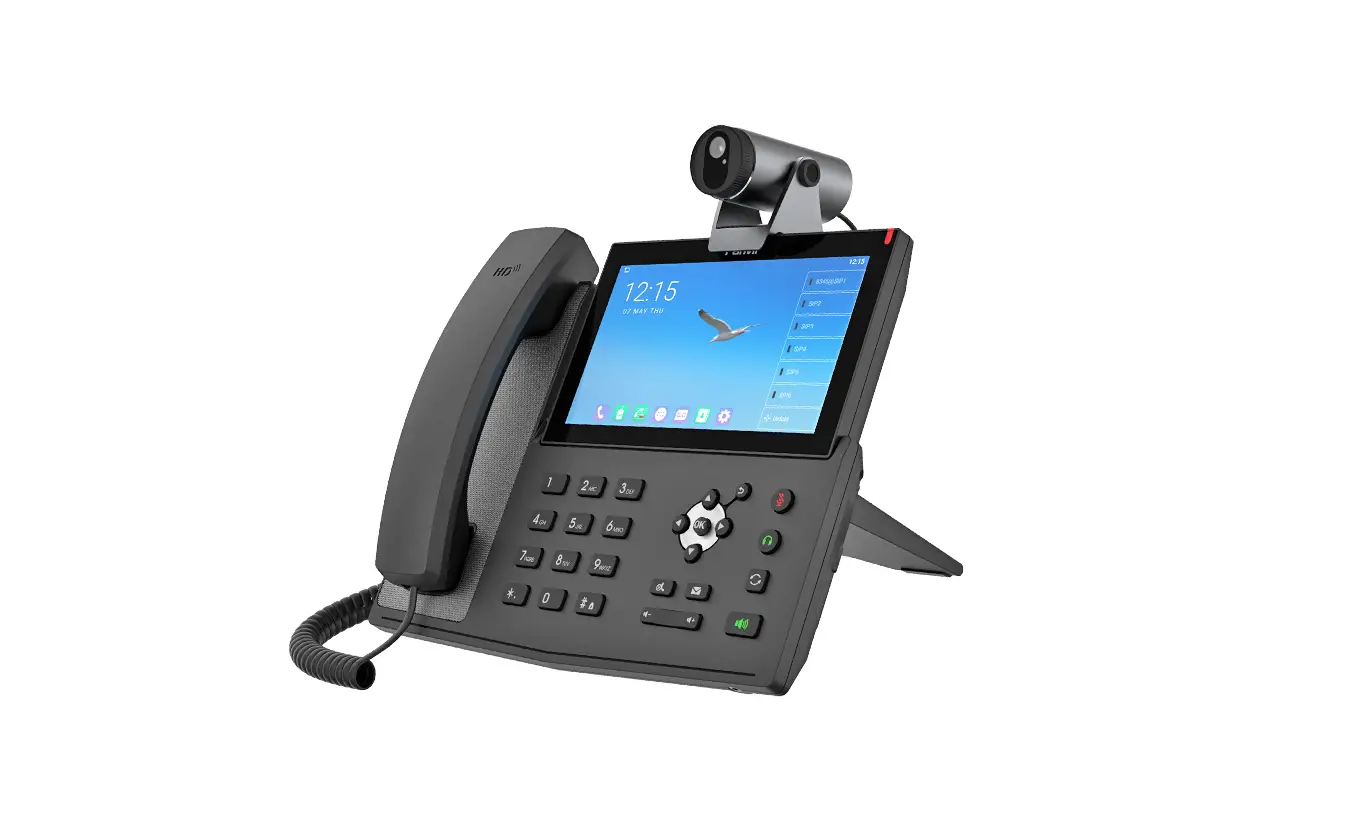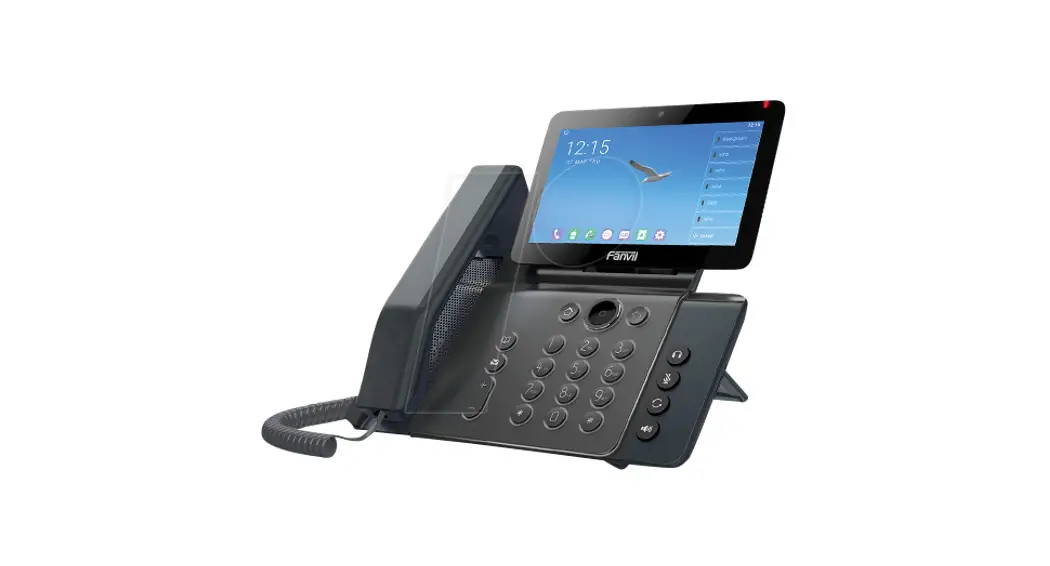

Fanvil V67 Video IP Phone
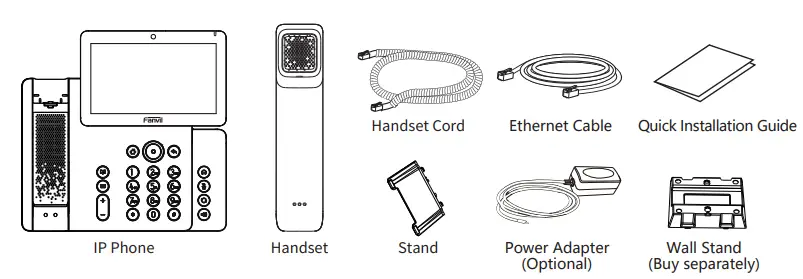
Packaging list
Screen icon
 In hands-free mode
 In headset mode
 In handset mode
 Mute activated
 Silent mode
 Call is on hold
 Auto-answering activated
 Call Forward activated
 Internet is disconnected
 Internet is connected
 New SMS
 New VM Messages
 Do not disturb activated
 Missed call(Status bar)
 Received call
 Dialed call
- Missed call(s)
- Forward call
- Wireless network connected
 Wireless network disconnected
 In hands-free mode
 In headset mode
 In handset mode
 Mute activated
 Silent mode
 Call is on hold
 Auto-answering activated
 Call Forward activated
 Internet is disconnected
 Internet is connected
 New SMS
 New VM Messages
 Do not disturb activated
 Missed call(Status bar)
 Received call
 Dialed call
 Missed call(s)
 Forward call
 Wireless network connected
 Wireless network disconnected
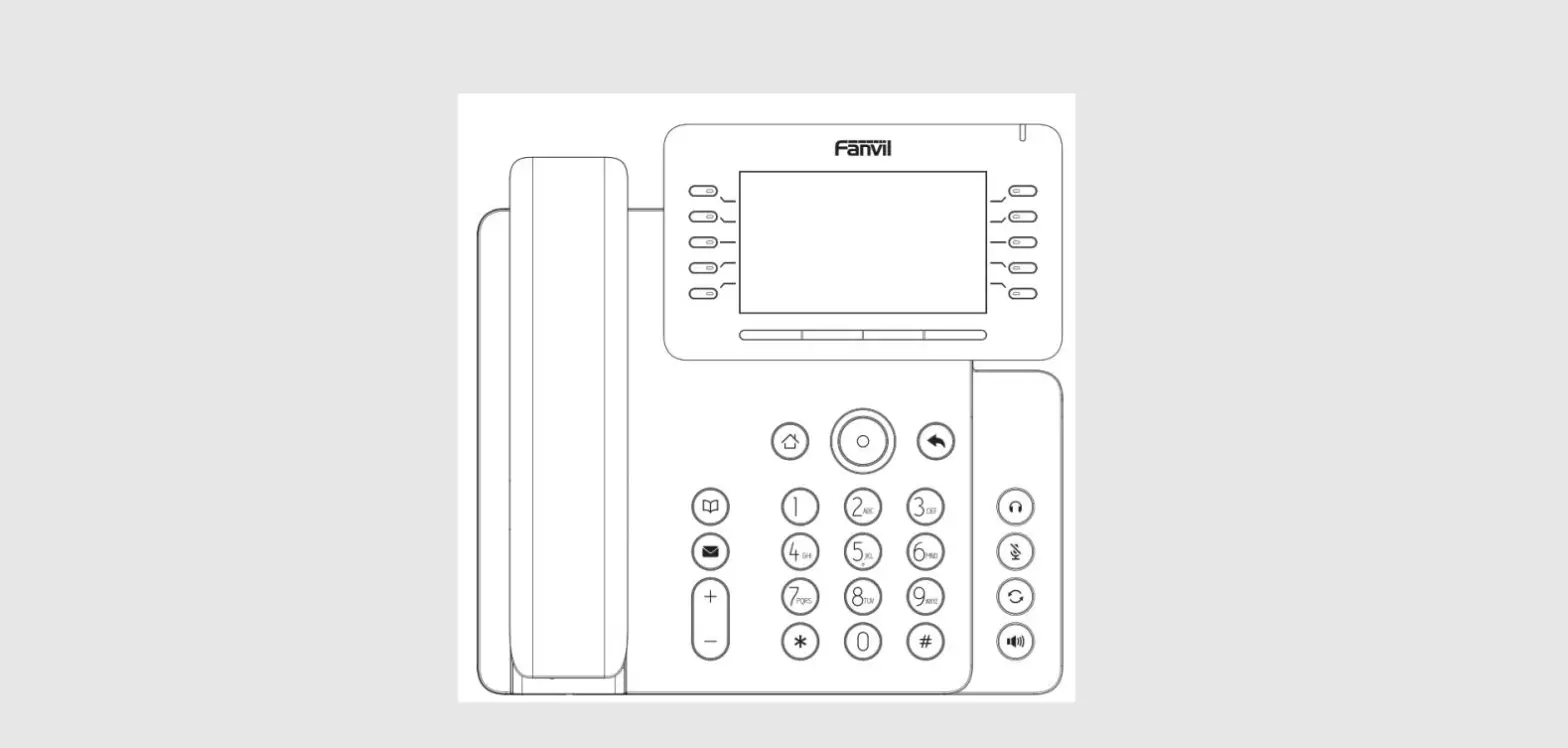
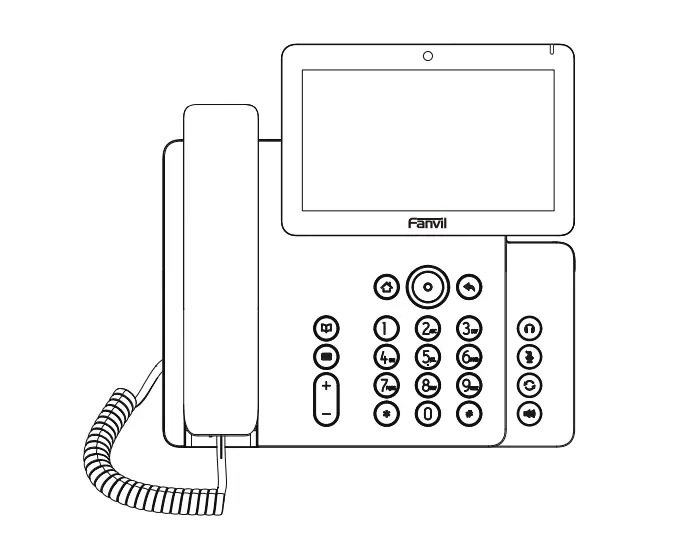
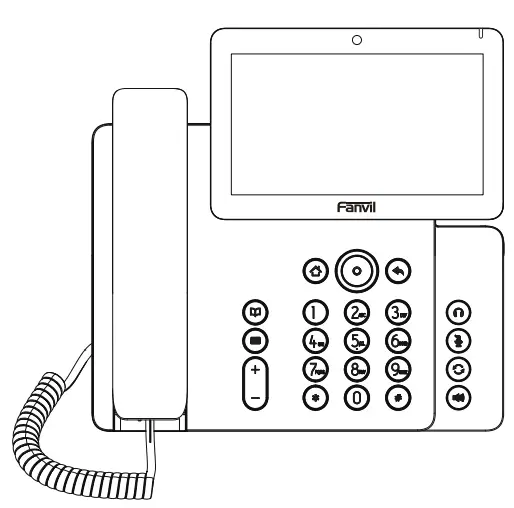
Keys features

Message waiting indicator

Navigation keys and OK key.
Long-press Up key to check the phone common information (IP address/MAC address/etc.)
Home key, go back to Homepage
Return key,go back to the previous directory
Phonebook key
Voice message key
In idle mode or during ringing:- increase or decrease ringer volume
- In communication: increase or
- decrease earpiece, headset or hands-free volume

Headset key, activate/deactivate headset- In idle mode: activate/deactivate silent mode
- In communication mode: mute/un-mute a call

Redial key, access to redial the last record
Hand-free key, activate/deactivate hands free


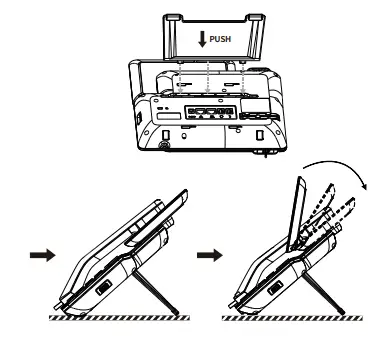
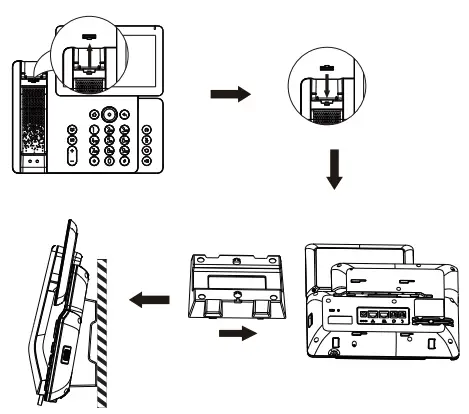
Installation the device
- Attach the stand and adjust the angle of the touch screen

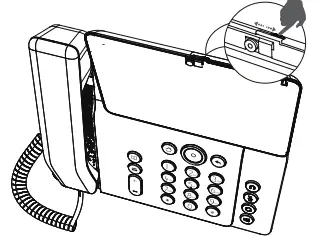
- Adjust shutter switch

- Wall mounting (Wall stand need buy separately)

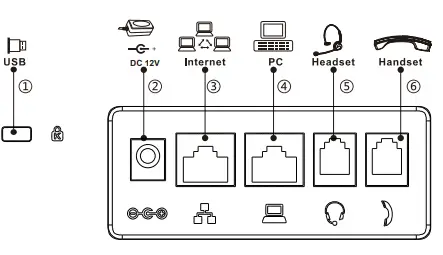
- Connecting to the Device
Please connect power adapter, network, PC, handset, and headset to the corresponding ports as described in below picture.
- ①USB port: connect USB device (USB flash drive,USB Headset)
- ② Power port: connect the power adapter.
- ③ Network port: connecting local area network or internet.
- ④ PC port: the network port connect to the computer.
- ⑤ Headset port: connect headset.
- ⑥ Handset port: connect IP Phone handset.
Configuration
- Configuration via Phone
- Press Phone Settings icon.
- Select Ethernet Settings: To configure the Network Settings (DHCP/Static/PPPoE).
- Select Line: To configure enable the account, input the SIP server address, port, user name, password etc.
- Save the configuration.
- Configuration via Web
- Get the IP address from the phone: Press Phone Settings icon> Common Information.
- Login: Input the IP address in the web browser. The PC and phone should be in the same IP address segment (The default username and password are both ‘admin’.)
- Configure: Select network/account, etc. And fill the relevant content.
- Save the configuration.
- Language setting
- Press Phone Settings icon > Language & Input > Language.
- Select the desired language.
- Making a call
- Pre-dialing: enter the phone number and pick up the handset.
- Direct dialing: lift the handset and enter the phone number.
- Handsfree: enter phone number and press
 or vice versa.
 - Headset: enter phone number and press or vice versa.
- Dial icon: Click dial icon and then enter the phone number.
- Designated line: press line key, enter phone number and press dial key.
 or vice versa.
- Accepting a call
- Using the handset: pick up the handset.
- Using the headset: press
- Using the handsfree: press
- Redial
. Press redial a call number.
 - Call Mute
- Press
 to Mute the microphone during the call.
 - Press again to un-mute the conversation.
- Press
- Putting a call on hold
- Press Hold soft key, caller is put on hold.
- To retrieve the call press Resume soft key.
Note: with more than one active call, select desired call by sliding screen and use the corresponding soft key to hold or resume.
- Call transfer
- Attended transfer:
- Press Transfer soft key during the active conversation, the call is put on hold.
- Dial the second telephone number.
- When the call is answered, then press Transfer soft key to complete the operation.
- Blind transfer:
- Press Transfer soft key during the active conversation, the call will be held.
- Then enter the 2nd telephone number and press Transfer soft key.
- Attended transfer:
- Call forward
- Press Phone Settings icon > Line > Select the line> Forward Settings.
- Enter the destination number and the type of forward.
- Call conference
- Once in line with 1st caller, press Conference key, 1st caller is put on hold.
- Then call the 2nd number.
- After, 2nd call is established, press Conference key to set up the conference.
- Programmable keys
- DSS keys :
- You can use the phone web interface to configure the keys of the screen.
- You can press any keys which is blank or long-press the key that configured, select a type and value, press√icon.
- Other keys :
- You can configure shortcuts for the navigation keys and softkeys on web UI.
- You can press Phone setting icon > Key, select the SoftkeyScreen you need, then select among the configurable items, and select your desired type and value, press √icon.
- DSS keys :
- Do not disturb
- Press DND icon
 when standby or click Phone Settings icon > DND.
 - Select the Mode.
- Press DND icon
- Voice message
- To access your voice mailbox, press Voice message key
 or Voice message icon
 , number of message be indicated
if provided by your server or PBX - Select the line and press phone icon to call.
- To access your voice mailbox, press Voice message key
- Call list
- Press Call Log icon

- Scroll the list using navigation key or slide the screen.
- Press Call Log icon
- Bluetooth
- Press Bluetooth icon in the status bar to open Bluetooth.
- Press Settings icon > Bluetooth to enter the Bluetooth Interface.
After opening, it displays the scanned Bluetooth list, select any device, and click on the device pairing.
- WiFi
- Press WiFi icon in the status bar to open WiFi.
- Press Settings icon > Wi-Fi to enter the WiFi configuration Interface.
- After opening, it displays the available WiFi list.
- Select the WiFi you want to connect
- Enter the appropriate password to connect to the WiFi. The default is DHCP mode.
- Phonebook
- Access phonebook:
- Press Contact icon.
- Select All Contacts or other group.
- To dial an entry, press Dial icon

- Add new entry:
- Press Contact icon, Press All Contacts or other group > Press Add icon.
- Enter name and number and press OK icon√.
- Access phonebook:
 redial a call number.
 to Mute the microphone during the call.
 when standby or click Phone Settings icon > DND.
 or Voice message icon
 , number of message be indicated

Regulatory Compliance
Federal Communication Commission (FCC) — USA
This device complies with Part 15 of FCC Rules. Operation is subject to the following two conditions: (1) this device may not cause harmful interference, and (2) this device must accept any interference received; including interference that may cause undesired operation.
This equipment has been tested and found to comply with the limits for a Class B digital device, pursuant to Part 15 of the FCC Rules. These limits are designed to provide reasonable protection against harmful interference in residential installation. This equipment generates, uses, and can radiate radio frequency energy, and if it is not installed and used in accordance with the instruction manual, it may cause harmful interference to radio communications. However, there is no guarantee that interference will not occur in a particular installation. If this equipment does cause harmful interference to radio or television reception, which can be determined by turning the equipment off and on, the user is encouraged to try to correct the interference by one or more of the following measures:
- Reorient or relocate the receiving antenna.
- Increase the separation between the equipment and receiver.
- Connect the equipment into an outlet on a circuit different from that to which the receiver is connected.
- Consult the dealer or an experienced radio/TV technician for help.
Warning: Any changes or modifications to this unit not expressly approved by the party responsible for compliance could void the user’s authority to operate the equipment.This equipment complies with FCC radiation exposure limits set forth for an uncontrolled environment. This equipment should be installed and operated with minimum distance of 20cm between the radiator and your body. This transmitter must not be co-located or operating in conjunction with any other antenna or transmitter. This equipment complies with Part 68 of the FCC rules and the requirements adopted by the ACTA. On the bottom of this equipment is a label that contains, among other information, a product identifier in the format US: 3I1IPNANV67. If requested, this number must be provided to the telephone company.
Industry Canada Equipment Standard for Digital Equip-ment (ICES) — Canada
This Class B digital apparatus complies with Canadian ICES-003.
Cet appareil numérique de la classe B est conforme à la norme NMB-003 du Canada.
Innovation, Science and Economic Development (ISED) — Canada
This device contains licence-exempt transmitter(s)/receiver(s) that comply with Innovation, Science and Economic Development Canada’s licence-exempt RSS(s). Operation is subject to the following two conditions:
- This device may not cause interference.
- This device must accept any interference, including interference that may cause undesired operation of the device.
This equipment complies with ISED radiation exposure limits set forth for an uncontrolled environment. This equipment should be installed and operated with minimum distance of 20cm between the radiator and your body This device and it’s antennas(s) must not be co-located or operating in conjunction with any other antenna or transmitter except in accordance with IC multi-transmitter product procedures.This product meets the applicable Innovation, Science and Economic Development Canada technical specifications.