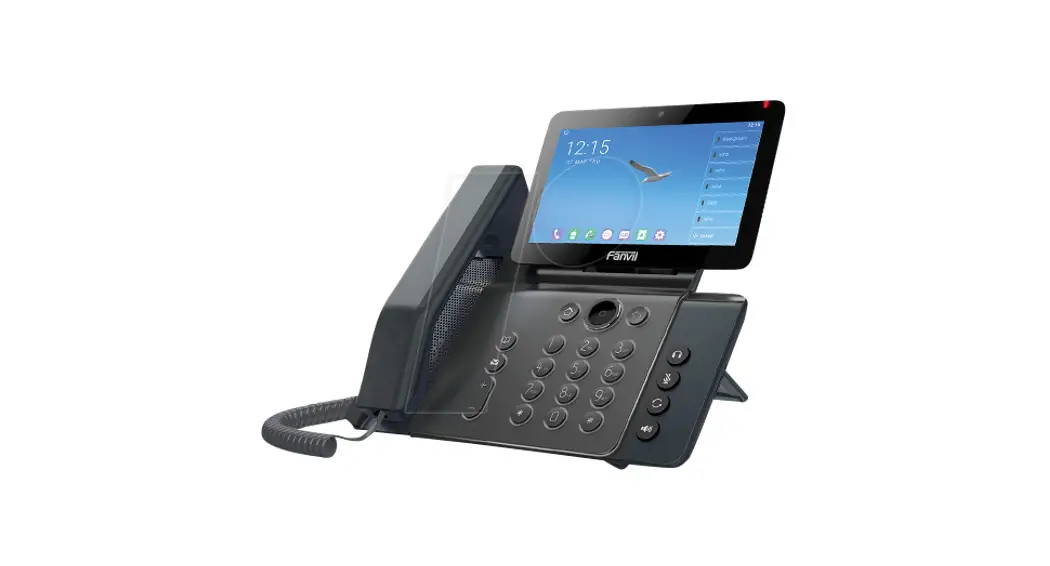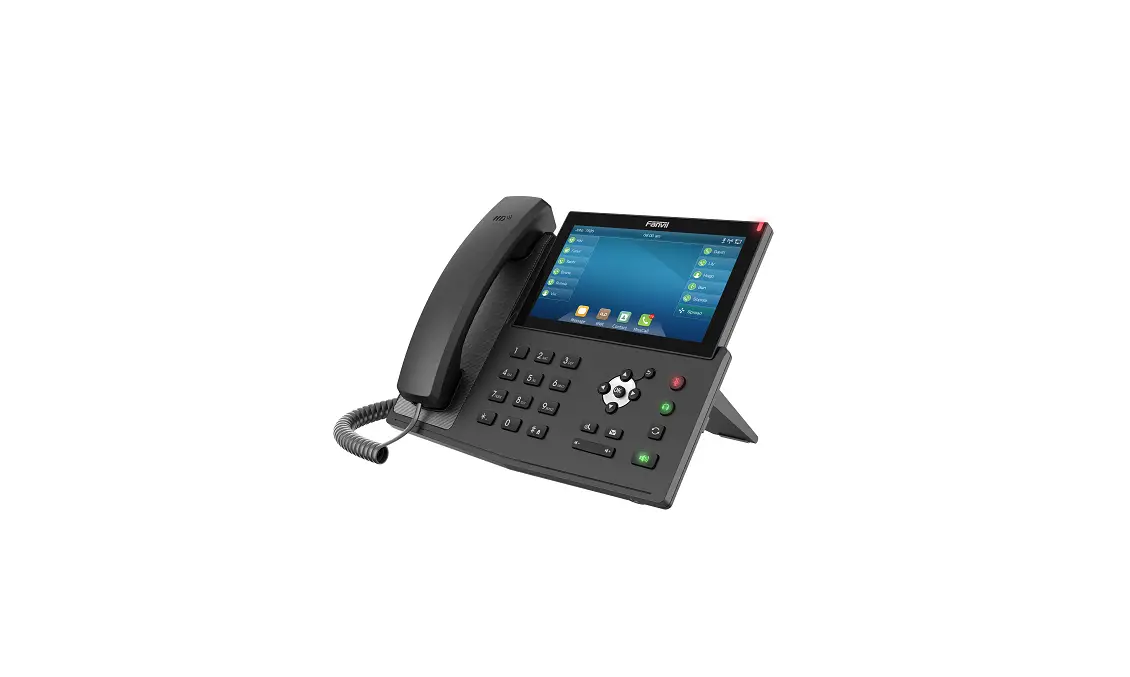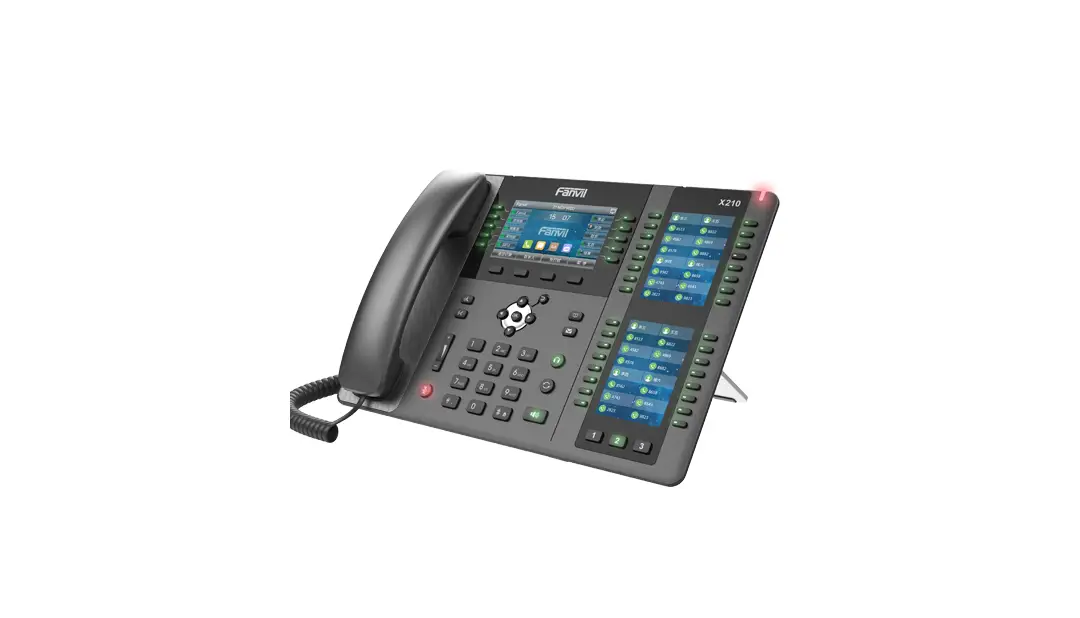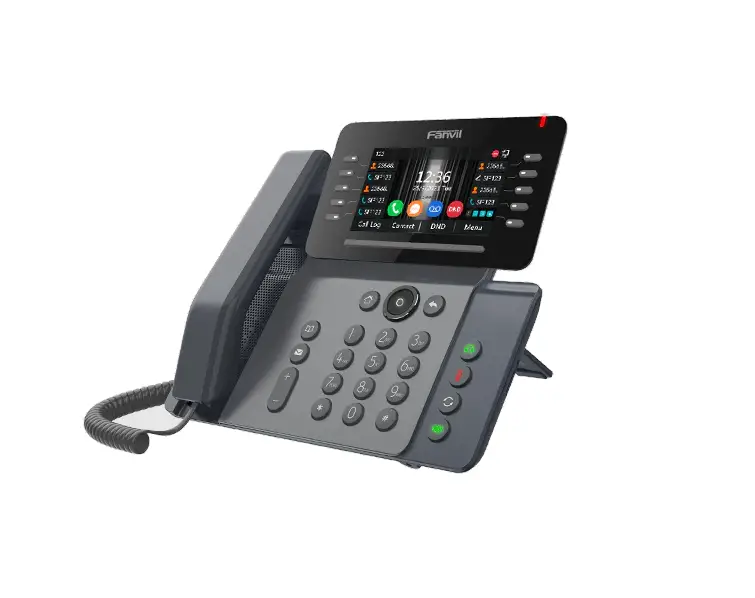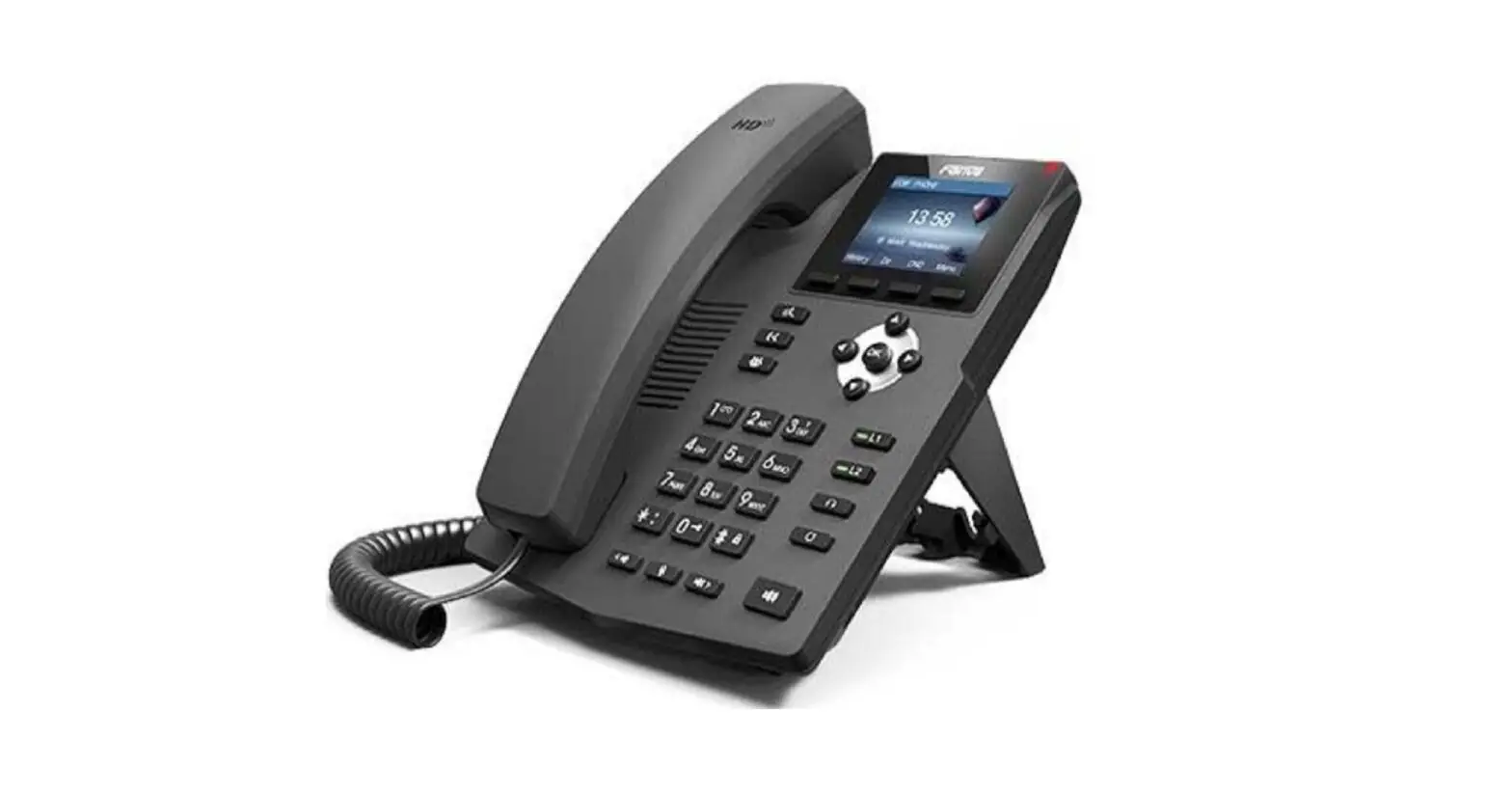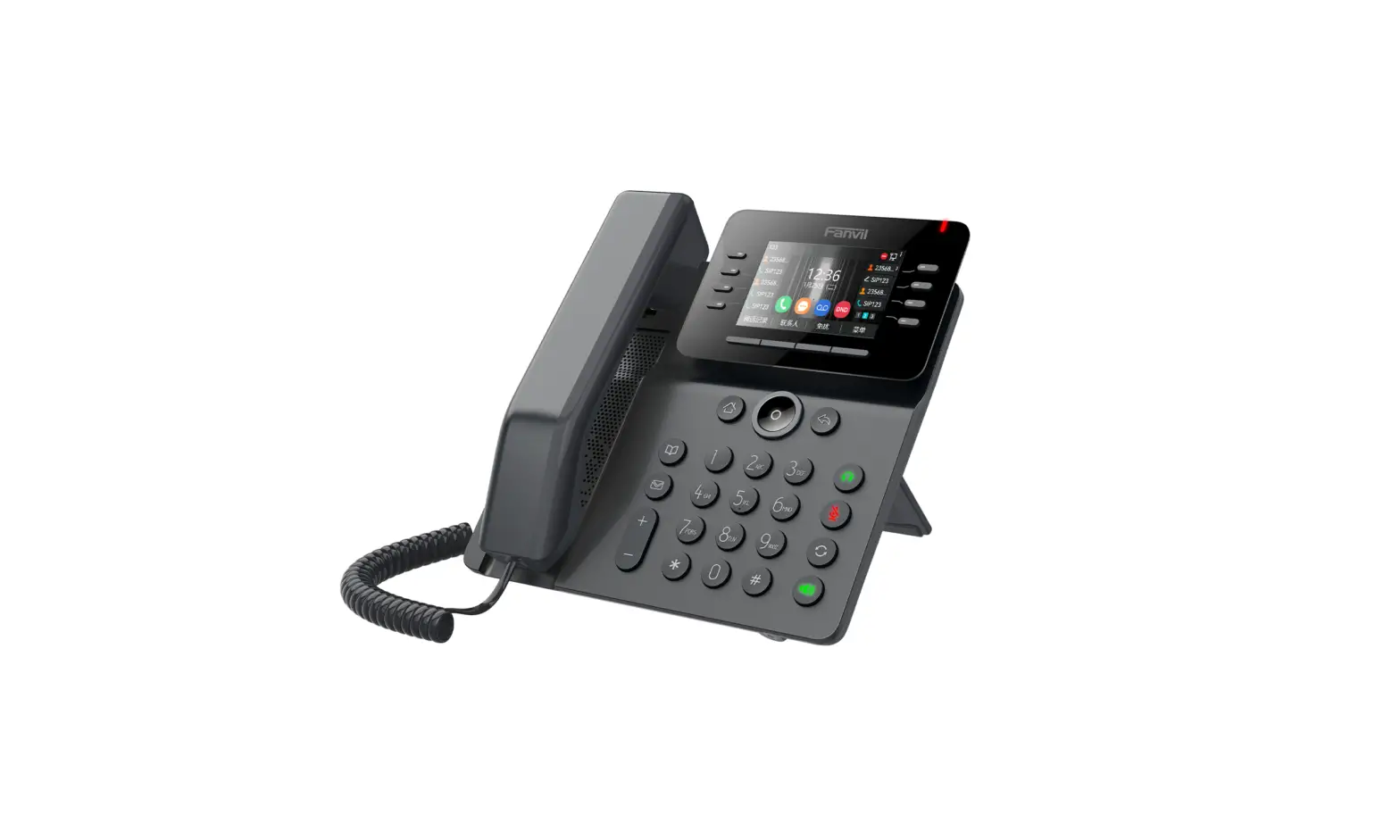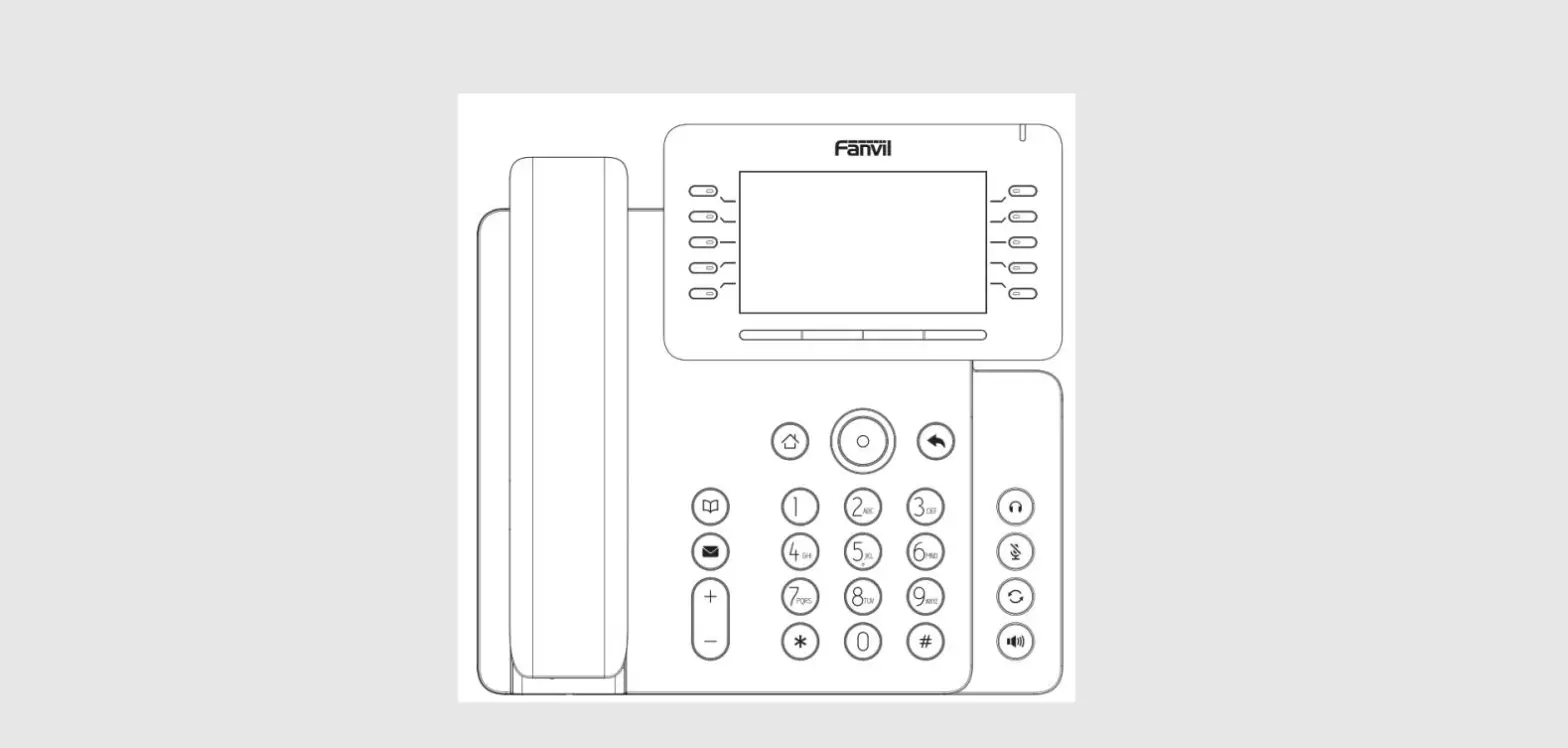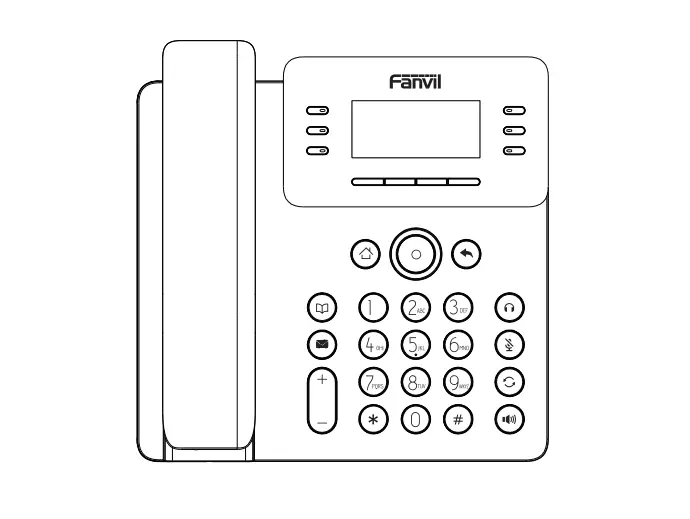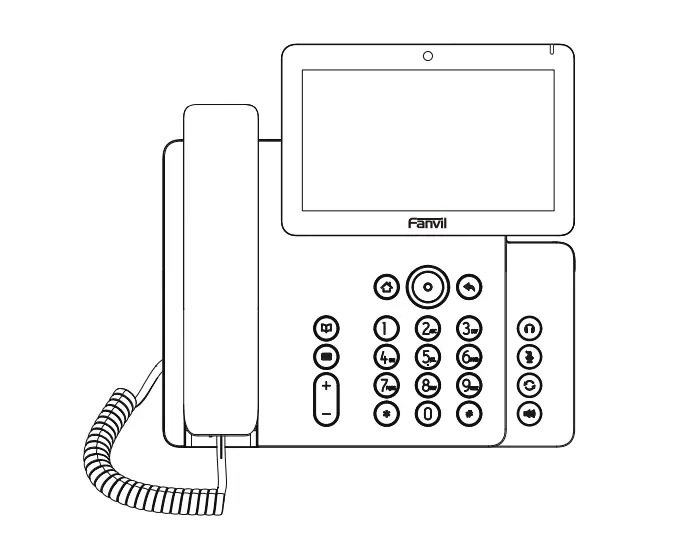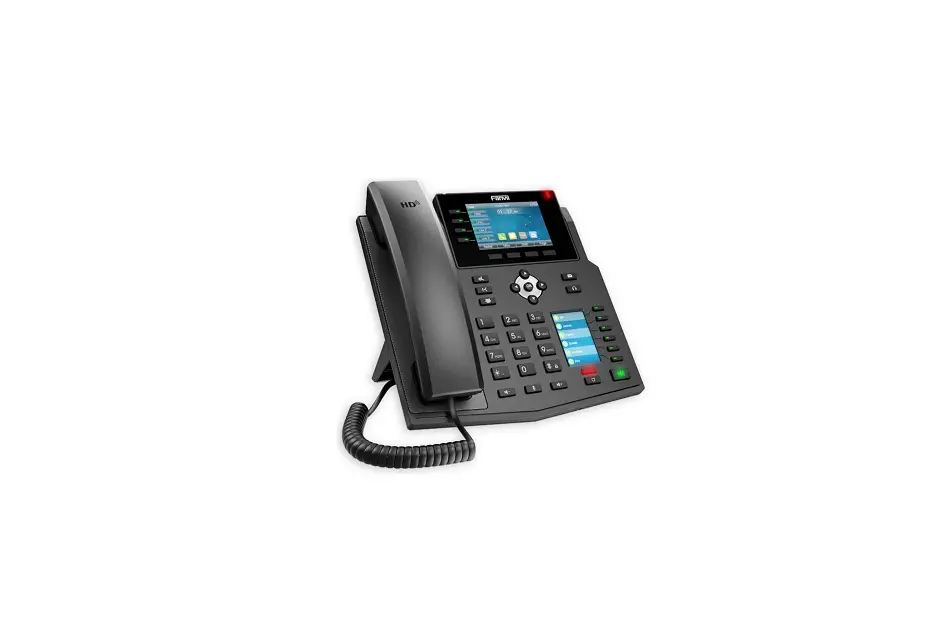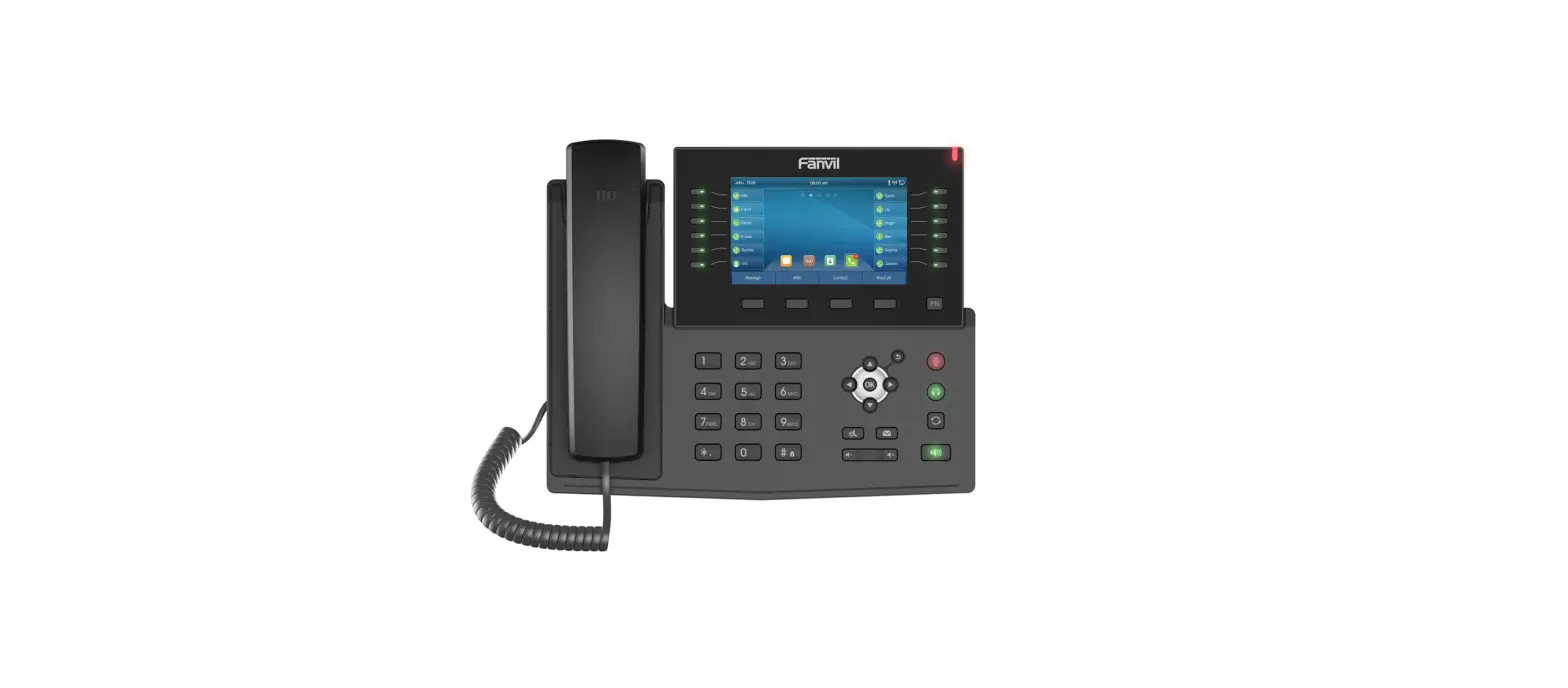
Fanvil X7C Enterprise VoIP Phone Installation Guide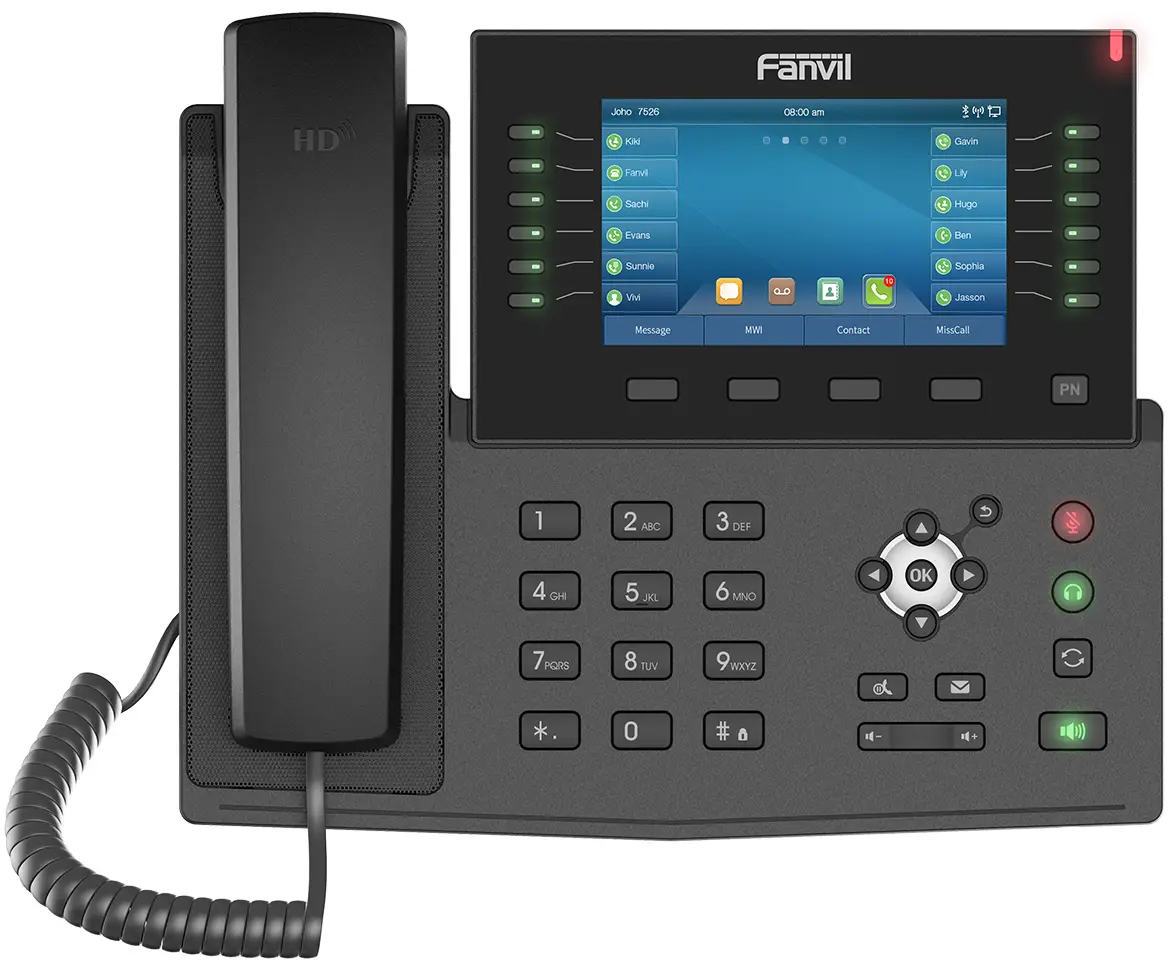
Packing List
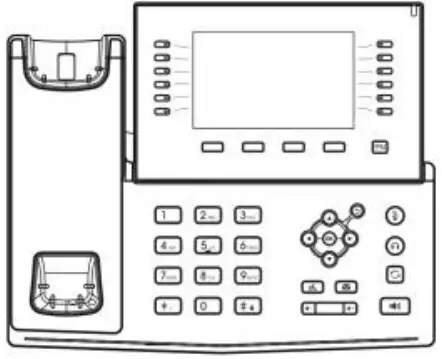
IP Phone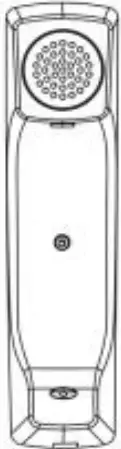
Handset
Handset Cord
Handset Cord
Quick InstallationGuide
Stand
Power Adapter (Optional)
Screen icon
 | In hands free mode |  | Call is on hold |  | Internet is connected |  | Missed call (Statusbar) |
 | In headset mode |  | Auto-answering activated |  | New SMS |  | Receivedcall |
 | In handset mode |  | Call Forward activated |  | New VM Messages |  | Dialed call |
 | Mute activated |  | Keypad locked |  | Do not disturb activated (Red) |  | Missed call(s) |
 | Ringer off |  | Internet is disconnected |  | Do not disturb disabled (Blue) |  | Forwardcall |
Key Function

Soft keys
Message waiting indicator
Left and right navigation keys, Return key Up navigation key,
Shortcut to call log Down navigation key,
Shortcut to Status OK key,
Shortcut to Menu Return key,
Go back to the previous directory
Hold key, Hold/Resume the call
In idle mode: ringer off
In communication mode: mute/un-mute a call
In idle mode or during ringing: increase or decrease ringer volume
In communication: increase or decrease earpiece, headset or hands-free volume
Voice message key
Headset key, Activate/deactivate Headset

Redial key, Access to redial the last record
Page-Jump key, It can switch DSS pages
Hand-free key, Activate/deactivate hands free
Long press to lock keypad. Enter PIN to unlock keypad(default123)

DSS keys, It can be set aslinekey/functionkey/speed dial key, et
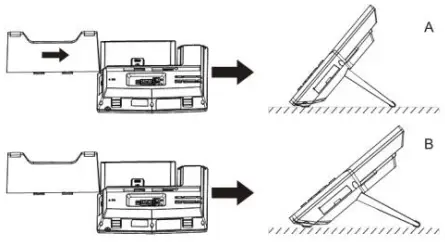
Installation the device
- Bracket desktop installation

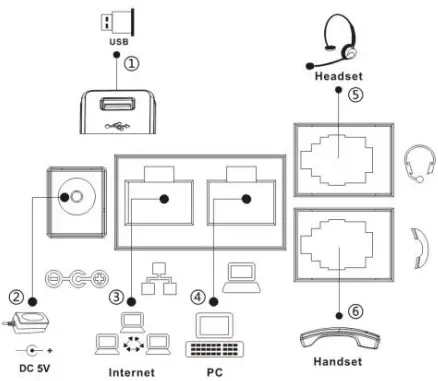
- Connecting to the device
Please connect power adapter, network, PC, handset, and headset to the corresponding ports as described in below picture.- USB port: connect USB device (USB flash drive, WIFI adapter)
- Power port: connect the power adapter.
- Network port: connecting local area network or internet.
- PC port: the network port connect to the computer.
- Headset port: connect headset.
- Handset port: connect IP Phone handset.

Configuration
Configuration via Phone
- Press Menu > Advanced (Default password 123)
- Select Network: To configure the Network Settings
(IPv4/IPv6/IPv4&IPv6, DHCP/Static/PPPoE) - Select Accounts: To configure enable the account, fill the SIP server address, port, user name, password etc.
Configuration via Web
- Get the IP address from the phone: Press
 key, or Menu > Status > IP.
 - Login: Input the IP address in the web browser. The PC and phone should be in the same IP address segment(The default username and password are both ‘admin’.)
- Configure: Select network/Account, etc. And fill the relevant content.
- Get the IP address from the phone: Press
 key, or Menu > Status > IP.
Language setting
- Press Menu key > Basic > Language.
- Select the desired language and press OKsoft key.
Making a call
- Pre-dialing: enter the phone number and pick up the handset
- Direct dialing: lift the handset and enter the phone number.
- Handsfree: enter phone number and press
 or vice versa
 - Headset: enter phone number and press
 or vice versa.
 - Designated line: press line key, enter phone number and press dial key
 or vice versa
 or vice versa.
Accepting a call
- With the handset: pick up the handset.
- With a headset: press
- With the handsfree: press
Putting a call on hold
- Press
 key or Hold soft key, caller is put on hold.
 - To retrieve the call press key or Resume soft key.
Note: with more than one active call, select desired call with the navigator keys and use the corresponding soft key to hold or resume.
6-party conference
- Once in line with 1st caller, press conferencesoft key, 1stcallerisput on hold.
- Then call the 2nd number.
- After, 2nd call is established, press conferencesoft keytosetupthe conference.
Call transfer
Attended transfer:
- Press Xfer soft key during the active conversation, thecallisputon hold.
- Dial the second telephone number.
- When the call is answered, then press Xfer soft key to completethe operation.
Blind transfer:
- Press Xfer soft key during the active conversation, the call will be on hold.
- Then enter the 2nd telephone number and press Xfer soft key
Call forward
- Press Menu > Features > Call Forward.
- Select the line, the type of forward, enter the destination number and status and press OK.
Call Mute
- Press
 to Mute the microphone during the call.
 - Press again to un-mute the conversation.
Call list
- Press key or Menu > Call Log > Local Call Logs.
- Scroll through the list using

- To dial an entry, press Dial soft key pickup handset or press or

Phonebook
Access phonebook:
- Press Contact soft key or Menu > PhoneBook > Local Contacts.
- Select All Contacts or other group.
- To dial an entry, press Dial soft key or pickup handset or press or
Add new entry:
- Press Contact soft key, Press All Contacts or other group > Press Add.
- Enter name and number and press OK soft key.
Programmable keys
DSS keys :
- You can use the phone web interface to configure the keys of the main screen.
- You can press any keys which is still blank or long press the key that have configured, select a type and value, press OK key.
- Press Menu > Basic > Keyboard > DSS Key settings. Select the key, type and value, press OK key.
Other keys :
- You can also configure shortcuts for the navigation keys,and which will be available in idle mode
- Press Menu > Basic > Keyboard, select among the configurable items, and select your desired type and value, press OK key.
Redial
- Press
 , redial a call number.
 , redial a call number.
Do not disturb
- Press
 key > Move to the
  icon > OK key, or Menu>Features > DND.
 - Select the Mode, and press OK soft key
 key > Move to the
 Voice message
- To access your voice mailbox, press Voice message or
 Menu > Message > Voice Message, number of messages will be indicated if provided by your server or PBX.
 - Select the line and press Play to call
Bluetooth
- Press Menu > Basic > Bluetooth.
- Press ok to enter the bluetooth open interface. After opening,press scan to display the list of bluetooth scanned. Select any device and press connect.
CUSTOMER SERVICE
Fanvil Technology Co., Ltd
Website: www.fanvil.com
Email: [email protected]
[email protected]
Tel: +86-755-2640-2199
Fax: +86-755-2640-2618
Add: 10/F Block A, Dualshine Global Science Innovation Center,
Honglang North 2nd Road, Bao’an District, Shenzhen, China