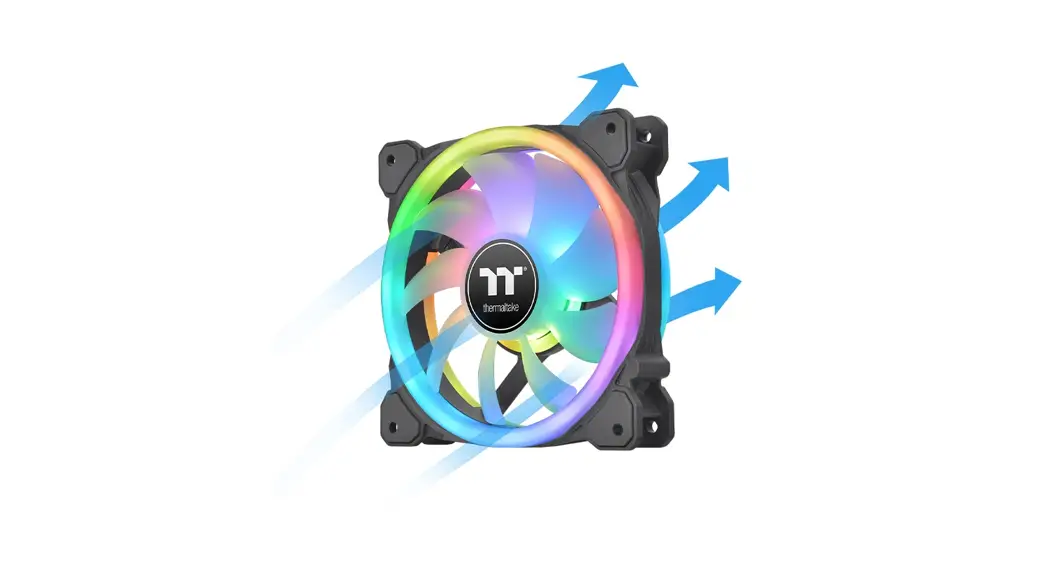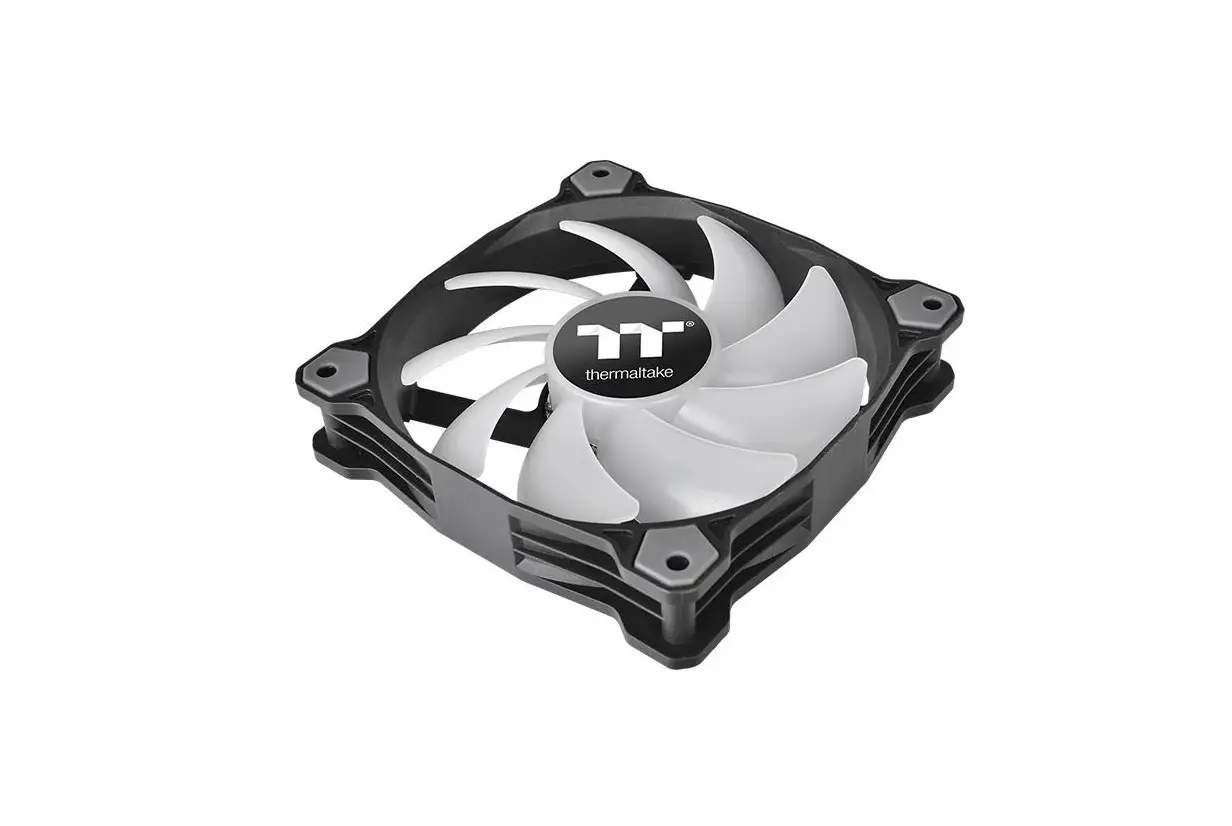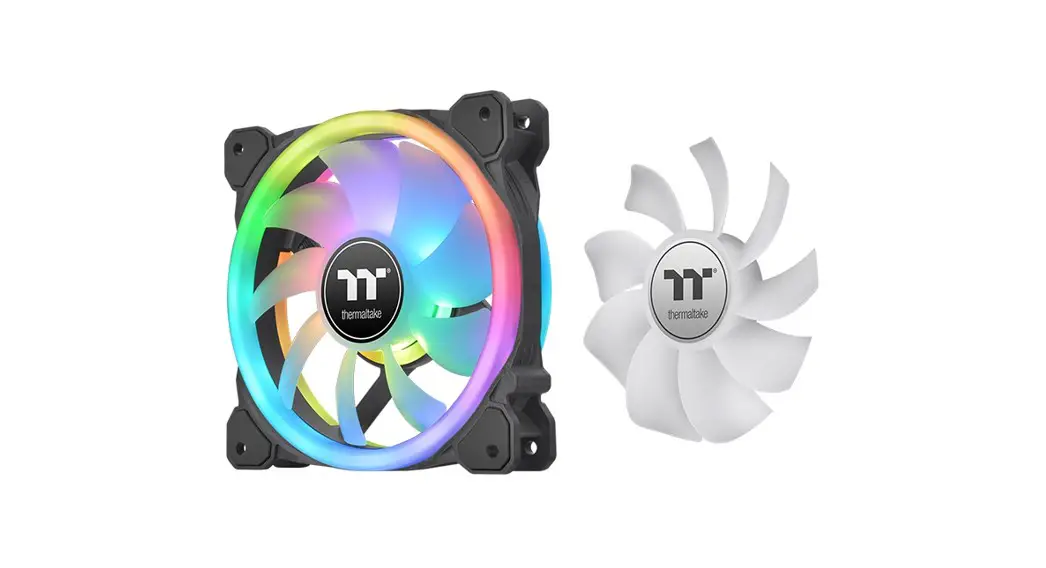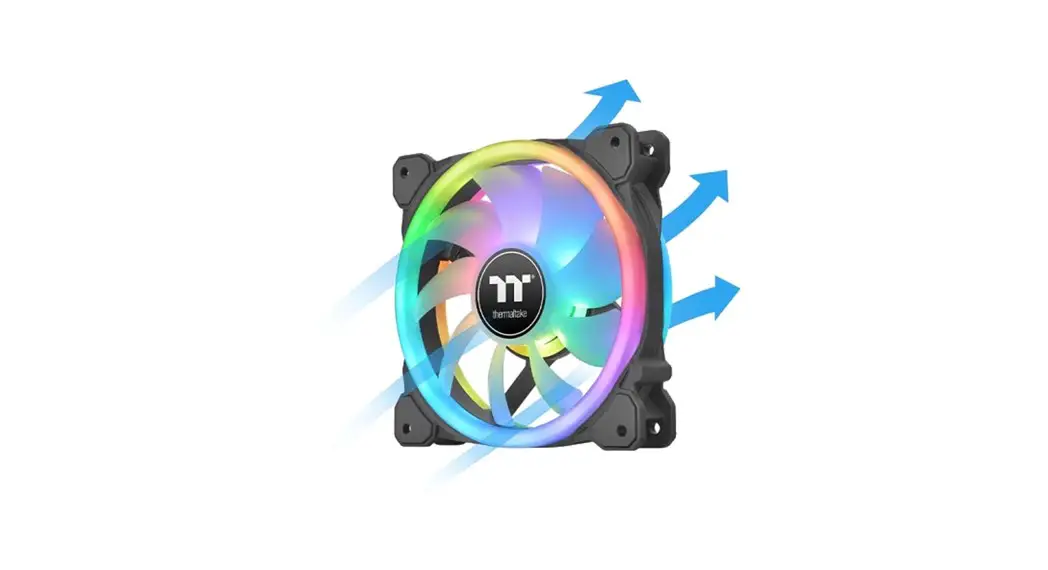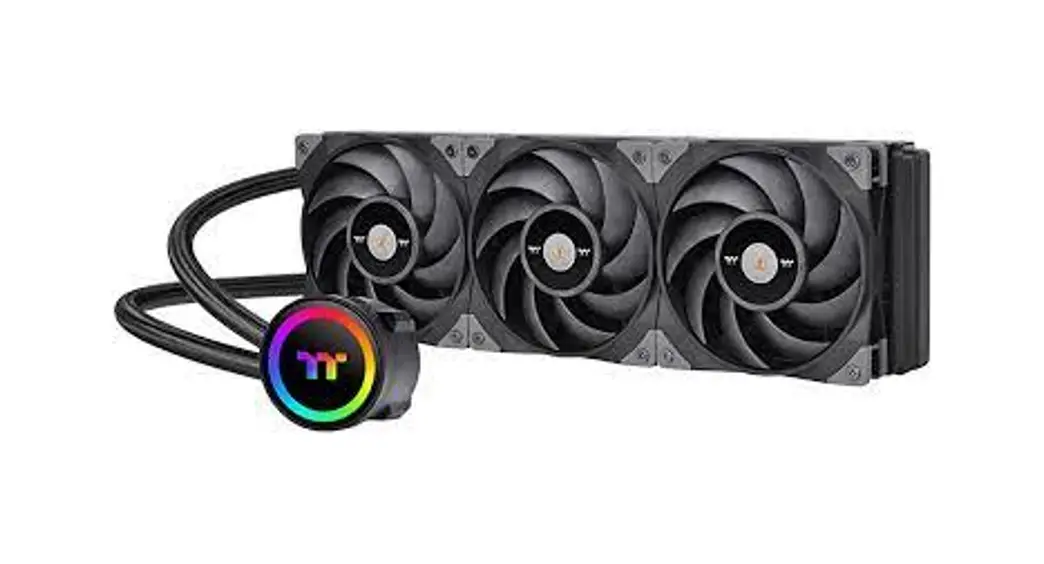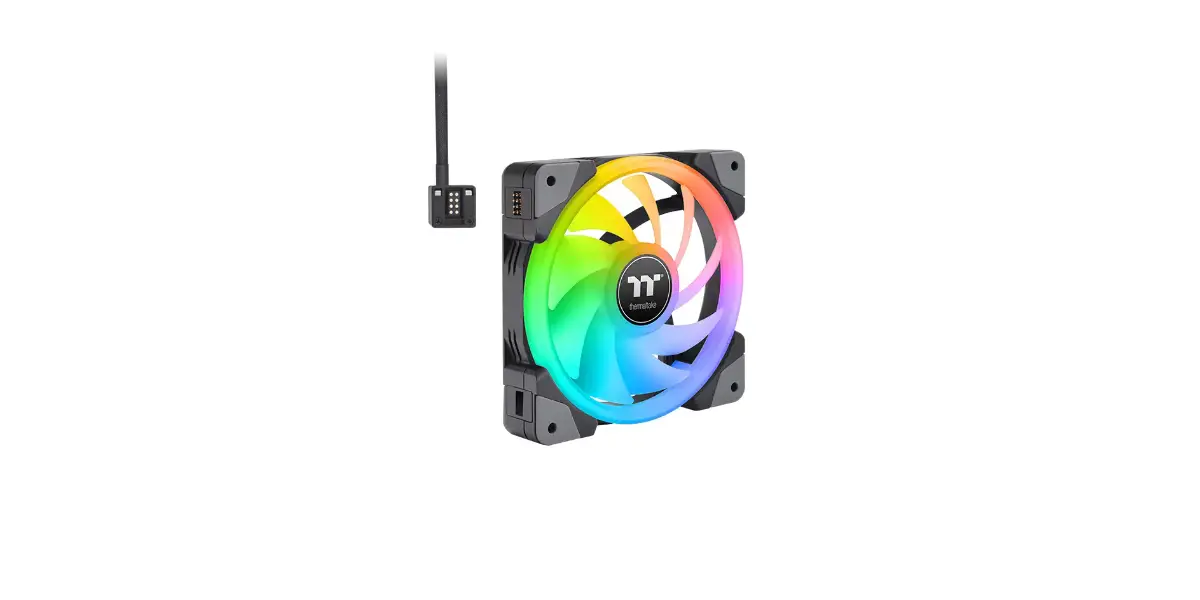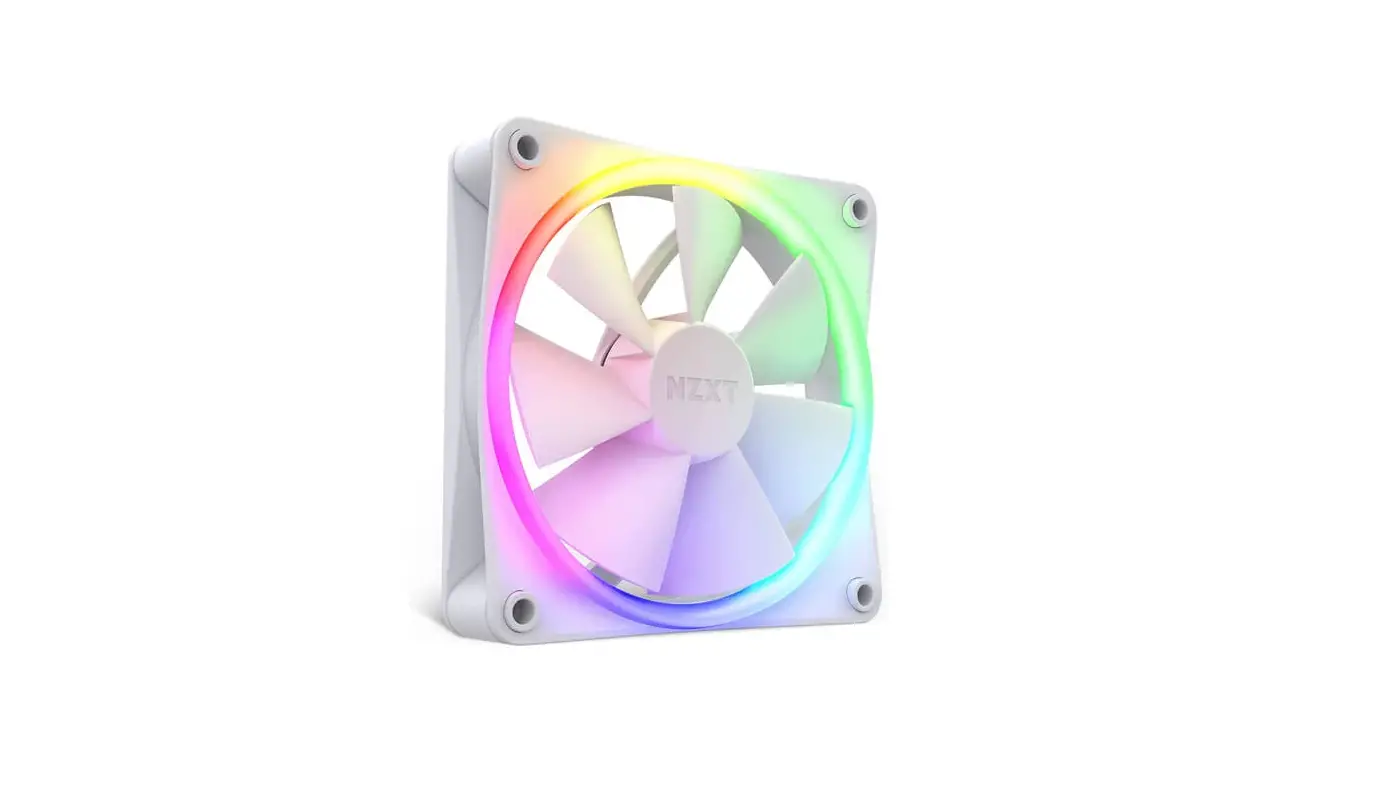

thermaltake CL-F117-PL12TQ-A TOUGHFAN RGB Radiator Fan
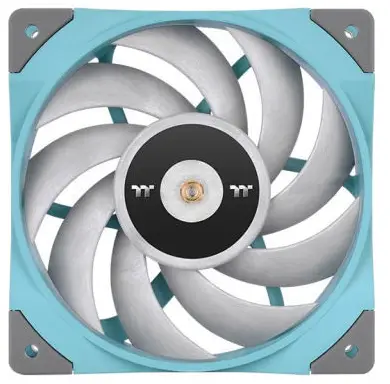
Parts List

Installation Guide
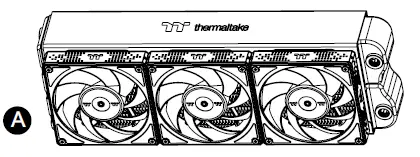
Install the fans properly onto the radiator.
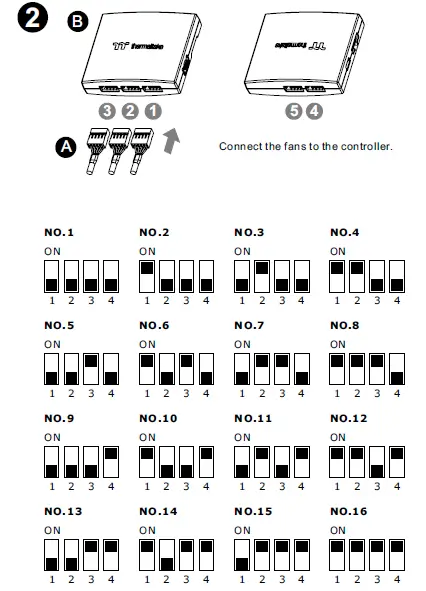
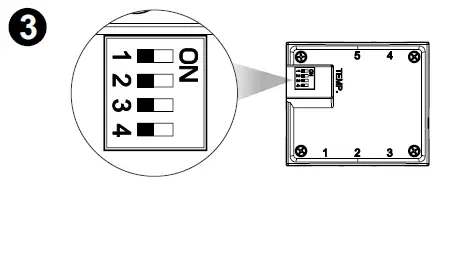
Set the DIP switch on the back side of the controller to assign the number of the controller
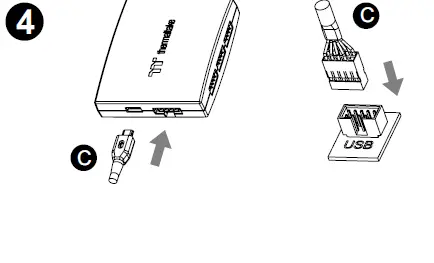
Connect the controller cable onto the motherboard (USB 2.0 9 pin) and controller.
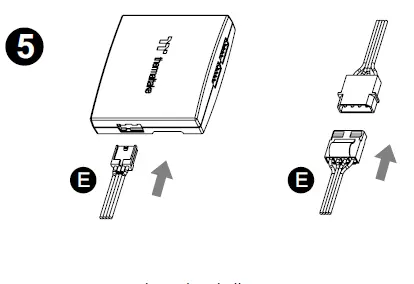
Connect the power cable to the 4pin Molex connecter and controller.
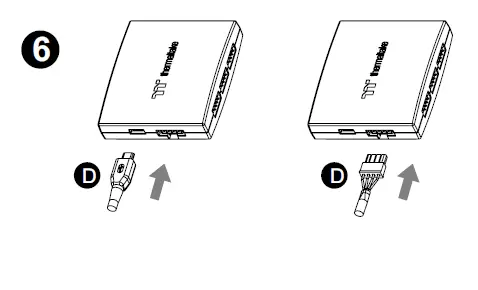
If you want to connect two or more controllers, you can sync the controllers with the bridge connector.
TT RGB Plus Software control interface
Please download TT RGB PLUS from Thermaltake’s Official website. https://www.thermaltake.com/downloads OS compatibility: Windows 10, Windows 11
TOUGHFAN RGB Radiator Fan Software User Interface
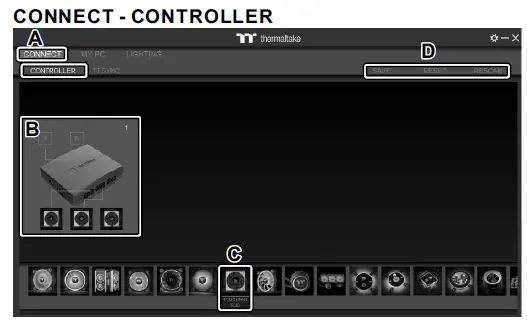
- After installation of TT RGB PLUS, you can find controllers on the “CONNECT” & “CONTROLLER” page.
- Click the controller port to make the “TOUGHFAN RGB” fan glow red lighting to pair.
- Drag and drop to pair the “TOUGHFAN RGB” fan with controller port.
- SAVE: Save the controller pairing settings.
RESET: Reset the controller pairing.
RESCAN: Rescan the controllers.
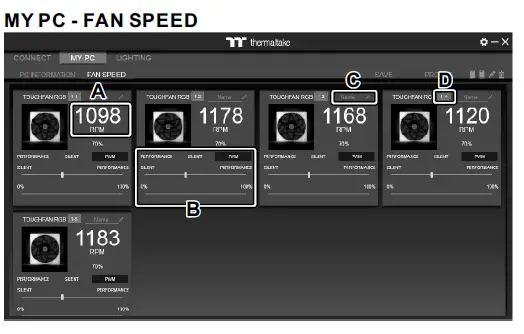
TOUGHFAN RGB Radiator Fan Speed Information and PWM Performance Settings.
- TOUGHFAN RGB real-time fan speed.
- Fan speed settings
- PERFORMANCE: 0% →100% (1500rpm)
- SILENT: 0% (300~500rpm)
- PWM: Set PWM silent (50%) to PWM performance (100%).
- NAME: Edit the case fan name.
- Controller – Port number.
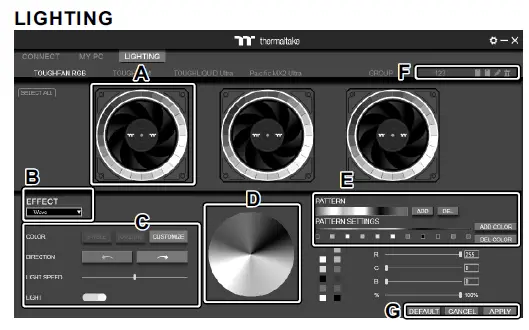
- Preview and edit the lighting effect.
- Select 23 Lighting Effects.
- Lighting effect settings.
- Color palette: select lighting color
- PATTERN: Set up the color pattern ring.
- Profile Settings: New, Copy, Edit, Delete DEFAULT: Reset the lighting effects.
CANCEL: Deselect the LEDs for the preview screen.
APPLY: Execute and store lighting effects.
The software interface may vary with feature updates, please download the latest software version from www.thermaltake.com
 Thermaltake